HP Compaq 6515b - Laptop

Compaq 6515b - Laptop HP - Free user manual and instructions

Find the device manual for free Compaq 6515b HP in PDF.
📄 112 pages English EN Download 💬 AI Question 10 questions ⚙️ Specs
Notice HP Compaq 6515b - page 2
Pick your language and provide your email: we'll send you a specifically translated version.
Product type Laptop
Brand HP
Model Compaq 6515b
Processor AMD Turion 64 X2 or Mobile Sempron
RAM 512 MB to 2 GB DDR2
Hard drive 60 to 160 GB SATA
Screen 14.1-inch TFT, resolution 1280x800
Dimensions (W x D x H) 334 x 237 x 28 mm
Weight 2.5 kg
Power supply 65W power adapter, 6-cell battery
Operating system Windows XP Professional or Vista Business
Connectivity Wi-Fi 802.11b/g, Bluetooth 2.0, Gigabit Ethernet, 56K modem
Ports 4 x USB 2.0, VGA, audio input/output, PC Card, SD card reader
Main functions Office computing, internet browsing, multimedia
Maintenance and cleaning Use a soft, dry cloth, do not use solvents
Security Kensington lock, BIOS password, optional fingerprint reader
Spare parts and repairability Replaceable battery, hard drive, memory, keyboard
General information 1-year warranty, HP online technical support

Frequently Asked Questions - Compaq 6515b HP

How to connect a USB device to the Compaq 6515b?
Plug the device into one of the four USB 2.0 ports on the sides of the computer. The operating system will detect it automatically.
How to access the BIOS of my Compaq 6515b?
Turn on the computer and immediately press the F10 key to enter the BIOS. You can configure startup and security settings there.
What is the maximum supported RAM capacity?
The Compaq 6515b supports up to 2 GB of DDR2 memory, distributed over two slots.
How to replace the hard drive?
Turn off the computer, remove the battery, then unscrew the hard drive cover on the bottom of the device. Disconnect and replace the 2.5-inch SATA drive.
My Compaq 6515b gets very hot, what should I do?
Make sure the ventilation vents are not blocked and that the fan is working. Use the computer on a hard surface. If necessary, clean dust with compressed air.
How to use the SD card reader?
Insert the SD card into the reader on the side of the computer, notch downward. The contents will appear in 'My Computer'. Safely remove it via the taskbar icon.
How to reset my forgotten password?
If you forgot the BIOS password, you will need to contact HP support for a reset procedure. For Windows, use a reset disk or safe mode.
Can I install Windows 10 on the Compaq 6515b?
Windows 10 is not officially supported. Drivers are limited, and performance will be poor. It is recommended to stay with Windows XP or Vista.
How to change the battery?
Turn off the computer and unplug the adapter. Slide the battery lock underneath, then remove it. Insert the new battery until it clicks.
Where to download drivers for the Compaq 6515b?
Go to the website support.hp.com, select your model, then download drivers for Windows XP or Vista.

User questions about Compaq 6515b HP

0 question about this device. Answer the ones you know or ask your own.

Ask a new question about this device

The email remains private: it is only used to notify you if someone responds to your question.

No questions yet. Be the first to ask one.

Download the instructions for your Laptop in PDF format for free! Find your manual Compaq 6515b - HP and take your electronic device back in hand. On this page are published all the documents necessary for the use of your device. Compaq 6515b by HP.

USER MANUAL Compaq 6515b HP

The HP USB Digital Drive ① is a pocket-sized SD (Secure Digital) memory drive for storing and transferring files such as digital pictures, music, video, and data. The Digital Drive can be used with any computer that is running Microsoft Windows XP Home, Windows XP Pro, or Windows 2000.
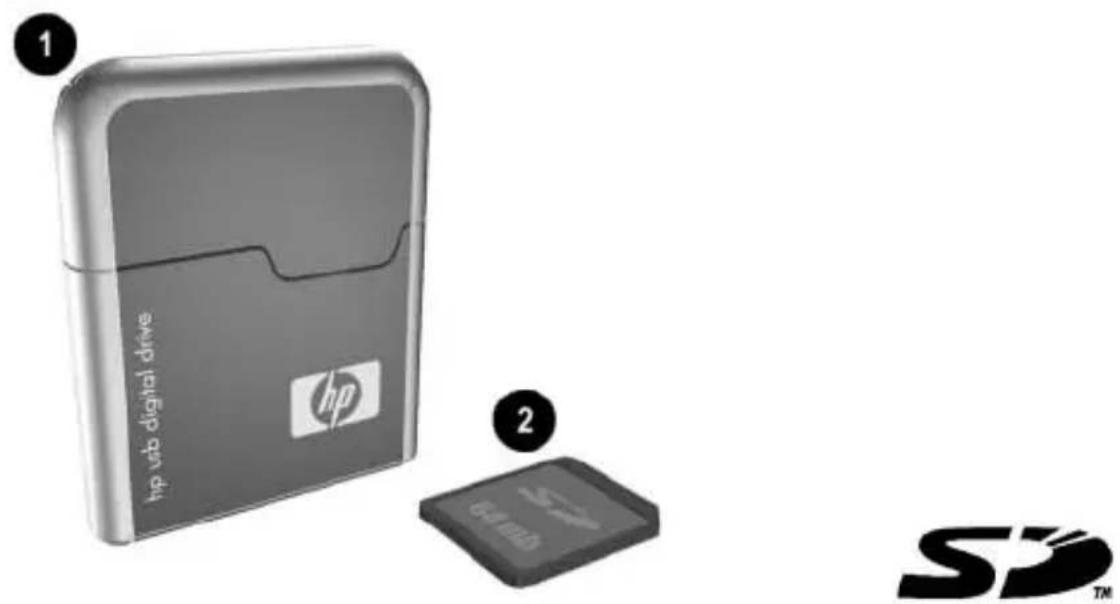
hp ub digital drive hp 2 SD™

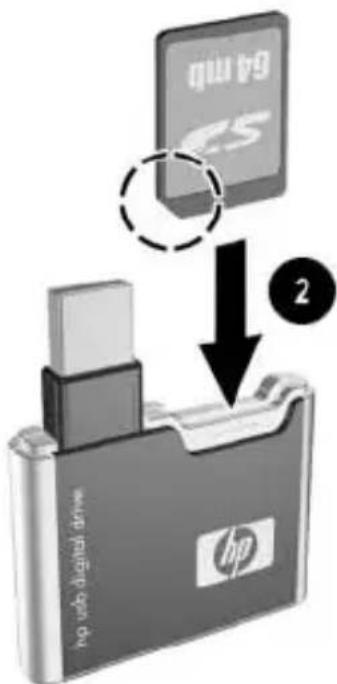
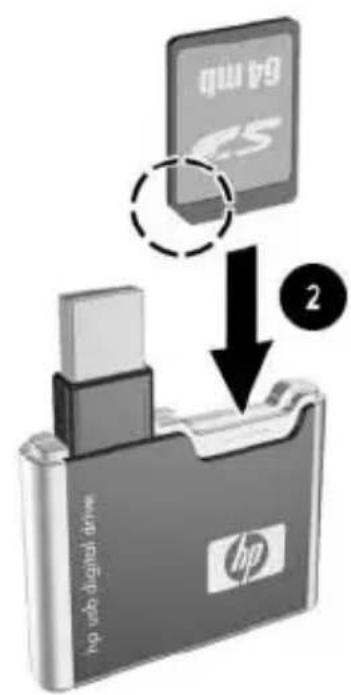
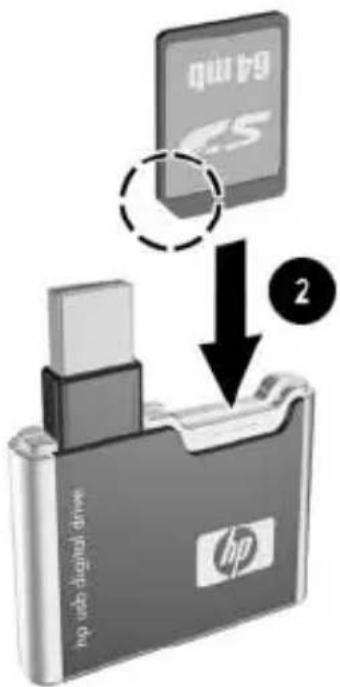
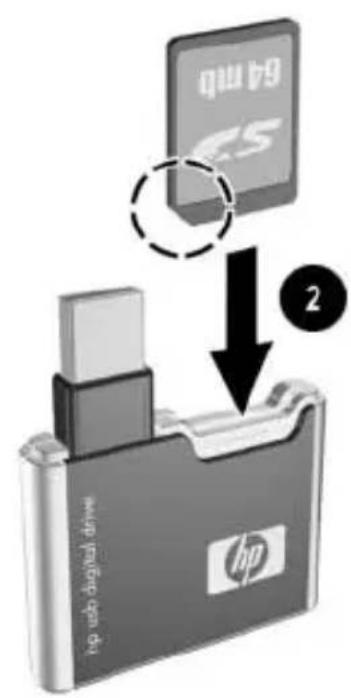
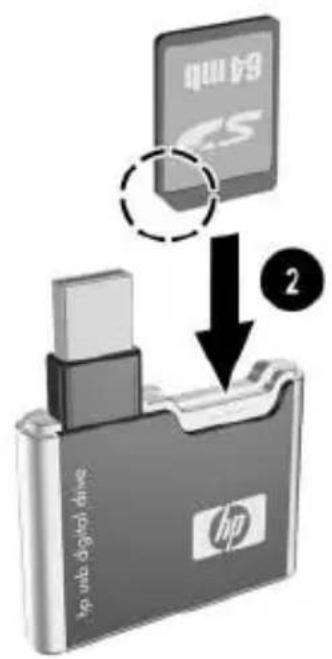
An SD memory card ② may not be included. However, you will need an SD memory card to operate the Digital Drive. You can purchase one (in various storage capacities) from any HP authorized reseller.

Installing the SD Memory Card

  1. Remove the cap ① of the Digital Drive.
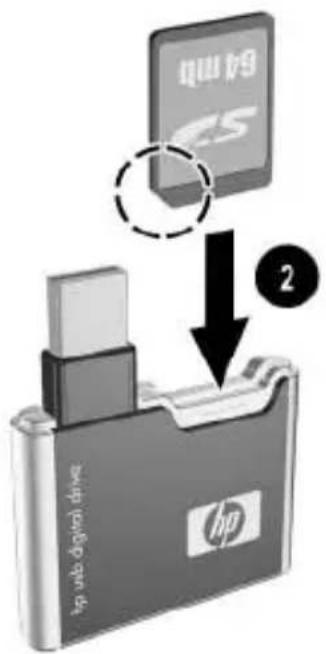
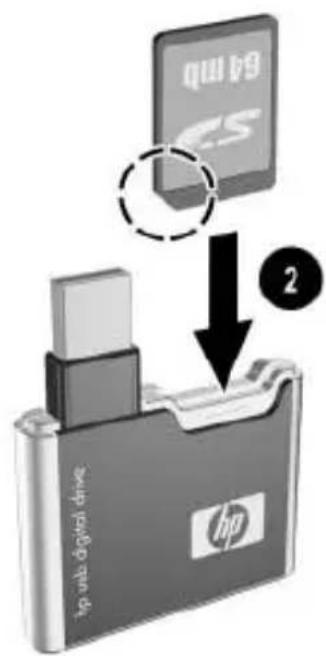
  2. Insert the SD memory card into the SD slot ② with the notched corner positioned on the lower left as shown. If the SD memory card does not slide in properly, gently pull it out and reinsert it.
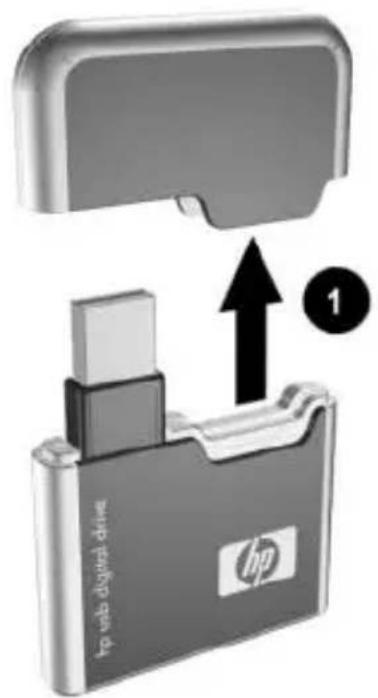
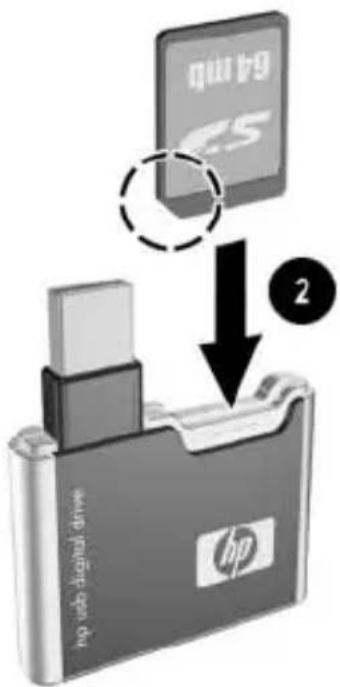
hp vdb digital drive hp vdb digital drive hp

64-bit 65 2 hp usb_digital drive hp

Connecting the Digital Drive to a USB Port

The Digital Drive can be connected to a USB port on any computer either directly (with the USB connector cable in its unextended position) or by extension (with the USB connector cable extended). Refer to the documentation included with your computer for the USB port location.

To connect the Digital Drive to a USB port directly (with the connector cable in the unextended position):

» Insert the USB connector on the Digital Drive into a USB port on your computer.
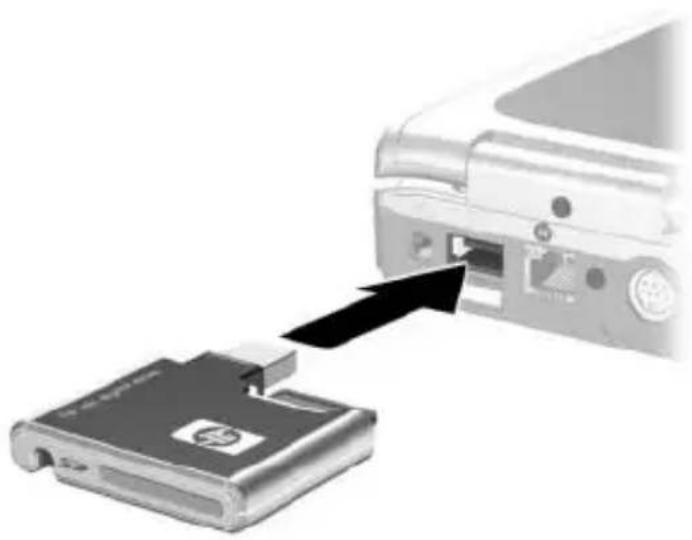
HP Compaq 6515b - Connecting the Digital Drive to a USB Port - 1

natural_image Diagram showing a device being inserted into a computer interface, with an arrow indicating the process (no text or symbols present)

The status light on the Digital Drive turns on when the connection is successful. If the status light does not turn on, remove the Digital Drive from the USB port, then reinsert the USB connector.

To connect the Digital Drive to a USB port by extension (with the USB cable in its extended position):

  1. Rotate the USB connector cable out of its track gently until it is fully extended.
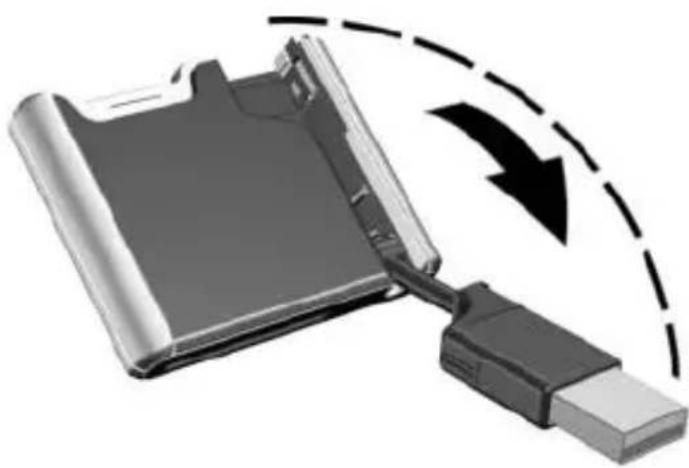
HP Compaq 6515b - Connecting the Digital Drive to a USB Port - 2

natural_image Illustration of a USB flash drive with an external USB port, showing a black arrow indicating direction (no text or symbols present)
  1. Insert the USB connector on the Digital Drive into a USB port on your computer.
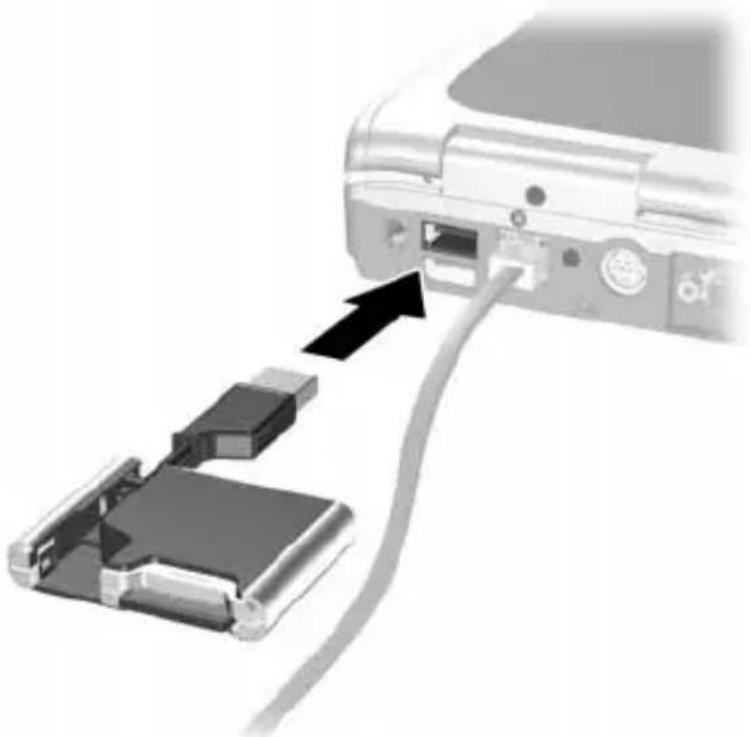
HP Compaq 6515b - Connecting the Digital Drive to a USB Port - 3

natural_image Diagram showing a computer interface with an attached cable and a connector, no text or symbols present

The status light on the Digital Drive turns on when the connection is successful. If the status light does not turn on, remove the Digital Drive from the USB port, then reinsert the USB connector.

Accessing the Digital Drive

You are now ready to use the Digital Drive as a storage device.

» Select the Digital Drive icon in “My Computer” to display the contents of the Digital Drive.
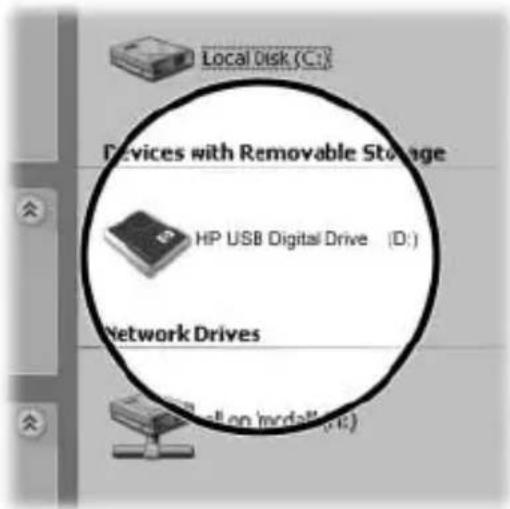
Local Disk (C:) Devices with Removable Storage HP USB Digital Drive (D:) Network Drives

HP Compaq 6515b - Accessing the Digital Drive - 2

The status light on the Digital Drive flashes when you copy and move files to and from the Digital Drive.

Disconnecting the Digital Drive

HP Compaq 6515b - Disconnecting the Digital Drive - 1

Do not attempt to remove the Digital Drive when the status light on the Digital Drive is flashing.

  1. Select the “Safely Remove Hardware” icon on your taskbar.

8:34

A dialog box displays a list of connected devices.

  1. Select the Digital Drive and wait until the “Safe to Remove Hardware” message appears on your screen.

  2. Gently unplug the Digital Drive from the USB port.

HP Compaq 6515b - Disconnecting the Digital Drive - 3

If the USB connector cable is in the extended position, return it on its track for safe storage.

Removing the SD Memory Card

HP Compaq 6515b - Removing the SD Memory Card - 1

Do not attempt to pull the SD memory card out when the status light on the Digital Drive is flashing.

» After you disconnect the Digital Drive from your computer, gently pull the SD memory card from the Digital Drive.
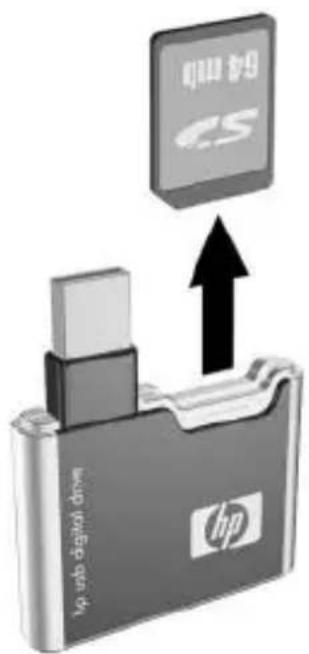
USB flash drive HP hp

Accessing Technical Support

Support services are available on the Internet through HP technical support. You can either browse the postings as a guest, or register as a user and submit your own questions. HP responds to questions in a timely manner.

To access HP technical support, visit the HP Web site at http://www.hp.com, and select your country or region.

When you call technical support, have the following items available:

■The HP USB Digital Drive
■Conditions under which the problem occurred
■Error messages that have occurred
■Hardware and software you are using

12 User Guide

natural_image Diagram showing a device being inserted into a computer interface, with an arrow indicating the process (no text or symbols present)
natural_image Illustration of a USB flash drive with a USB cable, showing internal components and an arrow indicating data transfer (no text or symbols present)
natural_image Close-up of a computer interface showing a cable inserted into a device with an arrow pointing to it (no text or symbols visible)

HP obb digital drive hp obb digital drive hp obb digital drive 1 2 64 m30 65 hp ubo digital drive hp

natural_image Diagram showing a device being inserted into a computer interface, with no visible text or symbols.
natural_image Illustration of a USB flash drive with an external USB port, showing a black arrow indicating direction (no text or symbols present)
natural_image Close-up of a computer interface showing a cable inserted into a device with an arrow pointing to it (no text or symbols visible)

Audio digital driven hp 49 CS

User Guide 29

HP USB 2 HP USB digital drive HP

natural_image Diagram showing a device being inserted into a computer interface, with no visible text or symbols.
natural_image Illustration of a device being inserted into a hard drive, showing a USB cable and a black arrow indicating direction (no text or symbols)
natural_image Close-up of a computer interface showing a cable inserted into a device with an arrow pointing to it (no text or symbols visible)

HP ubo digital drive CS

64.8G CS 2 hp mini drive engine du hp

natural_image Diagram showing a device being inserted into a folder, with no visible text or symbols
natural_image Illustration of a device being inserted into a hard drive, showing a USB cable and a black arrow indicating direction (no text or symbols)
natural_image Close-up of a computer interface showing a cable inserted into a device with an arrow pointing to it (no text or symbols visible)

USB CS HP USB digital drive hp

natural_image Diagram showing a device being inserted into a computer interface, with no visible text or symbols.
natural_image Illustration of a USB flash drive with an external USB port, showing a black arrow indicating direction (no text or symbols present)
natural_image Close-up of a computer interface showing a cable inserted into a device with an arrow pointing to it (no text or symbols visible)

Audio digital driven hp 49 CS

64-bit 65 2 hp usb_digital drive hp

natural_image Diagram showing a device with an open port and a separate internal component, no text or symbols present.
natural_image Illustration of a USB flash drive connecting a battery to a USB port, with an arrow indicating the process (no text or symbols present)
natural_image Close-up of a computer interface showing cable routing from a port to a device (no text or symbols visible)

Audio digital driven hp 49 CS

User Guide 69

Få teknisk support

64 Mb 65 2 hp web digital drive hp

natural_image Diagram showing a device with an attached folder and a computer monitor, no text or symbols present
natural_image Diagram showing a device being inserted into a USB, with a dashed arrow indicating the process (no text or symbols present)
natural_image Diagram showing a cable inserted into a device via a port, with a black arrow pointing to the cable (no text or symbols present)

HP CS HP HP

テクニカル サポート情報

HP card 2 HP card digital file hp

USB 포트에 디지털 드라이브 연결

natural_image Diagram showing a device being inserted into a computer interface, with no visible text or symbols.
natural_image Illustration of a USB flash drive with a USB cable, showing a black arrow indicating compression or disassembly (no text or symbols present)
natural_image Diagram showing a computer interface with an attached cable and two internal components (no text or symbols visible)

USB t9 CS HP, USB digital drive hp

기술 지원 액세스

HP USB digital drive hp

HP USB drive drive hp USB drive drive CS 2

连接数码驱动器和 USB 端口

natural_image Diagram showing a device being inserted into a digital camera module, with an arrow indicating the process (no text or symbols present)
natural_image Illustration of a USB flash drive with a USB cable, showing internal components and an arrow indicating data transfer (no text or symbols present)
natural_image Close-up of a computer cable connector with an attached plastic component (no text or symbols visible)

hp-ubd digital drive hp

USB 2 hp web digital drive hp

natural_image Diagram showing a device being inserted into a computer via an external port, with no visible text or symbols.
natural_image Illustration of a USB flash drive with a USB cable, showing internal components and a dashed arrow indicating rotation (no text or symbols)
natural_image Close-up of a computer monitor showing cable and connector (no text or symbols visible)

HP USB digital drive hp

取得技術支援

© 2003 Hewlett-Packard Development Company, L.P.

Microsoft and Windows are trademarks of Microsoft Corporation in the U.S. and/or other countries. SD Logo is a trademark.

The information contained herein is subject to change without notice. The warranties for HP products and services are set forth in the express warranty statements accompanying such products and services. HP shall not be liable for technical or editorial errors or omissions contained herein.

User Guide

HP USB Digital Drive

First Edition July 2003

Manual assistant
Powered by Anthropic
Waiting for your message
Product information

Brand : HP

Model : Compaq 6515b

Category : Laptop