
VCS601-2 - Desk Phone VTECH - Free user manual and instructions
Find the device manual for free VCS601-2 VTECH in PDF.


| Product Type | Bluetooth Conference Speaker |
| Brand | VTech |
| Model | VCS601-2 |
| Wireless Connectivity | Bluetooth 5.0, NFC |
| Bluetooth Range | Up to 10 meters |
| Microphones | 6 microphones with beamforming |
| Speaker Power | 3 W RMS |
| Frequency Response | 100 Hz - 20 kHz |
| Power Supply | Built-in lithium-ion battery 2 x 3.6 V 2600 mAh (ICR18650) |
| Talk Time | 24 hours |
| Standby Time | 5 days (with Bluetooth connection) |
| Charging Time | Approximately 8 hours |
| Charging Input (USB-C) | 5 V 1.3 A |
| Charging Output (USB-A) | 5 V 2 A (to charge an external device) |
| Main Functions | Conference call, mute, volume control, call waiting, voice assistant activation (Google Assistant, Siri, Bixby), USB and Bluetooth compatibility |
| LED Indicators | Multicolor LEDs for status, volume, audio direction, battery level |
| Care and Cleaning | Clean with a soft, slightly damp cloth (water or mild soap). Do not use solvents. Avoid water and extreme heat. |
| Safety | Follow safety instructions: do not expose to water, do not open, disconnect before cleaning, use only the specified power supply. |
| Batteries and Repairability | Built-in battery not user-replaceable. Do not disassemble. Contact an authorized service center. |
| Package Contents | Conference speaker, carrying pouch, USB-A to USB-C cable, quick start guide |
Frequently Asked Questions - VCS601-2 VTECH
User questions about VCS601-2 VTECH
0 question about this device. Answer the ones you know or ask your own.
Ask a new question about this device
Download the instructions for your Desk Phone in PDF format for free! Find your manual VCS601-2 - VTECH and take your electronic device back in hand. On this page are published all the documents necessary for the use of your device. VCS601-2 by VTECH.
USER MANUAL VCS601-2 VTECH
Bluetooth Conference
Speakerphone
VCS601, VCS601-1, VCS601-2
User Guide
Important Safety Instructions
When using your telephone equipment, basic safety precautions should always be followed to reduce the risk of fire, electric shock and injury, including the following:
- Read and understand all instructions.
- Follow all warnings and instructions marked on the product.
- Unplug this product from the wall outlet before cleaning. Do not use liquid or aerosol cleaners. Use a damp cloth for cleaning.
- Do not use this product near water such as near a bath tub, wash bowl, kitchen sink, laundry tub or swimming pool, or in a wet basement or shower.
- Do not place this product on an unstable table, shelf, stand or other unstable surfaces.
- Slots and openings in the speakerphone are provided for ventilation. To protect them from overheating, these openings must not be blocked by placing the product on a soft surface such as a bed, sofa or rug. This product should never be placed near or over a radiator or heat register. This product should not be placed in any area where proper ventilation is not provided.
- This product should be operated only from the type of power source indicated on the marking label. If you are not sure of the type of power supplied at the premises, consult your dealer or local power company.
- Do not allow anything to rest on the power cord. Do not install this product where the cord may be walked on.
- Never push objects of any kind into this product through the slots in the speakerphone because they may touch dangerous voltage points or create a short circuit. Never spill liquid of any kind on the product.
- To reduce the risk of electric shock, do not disassemble this product, but take it to an authorized service facility. Opening or removing parts of the speakerphone other than specified access doors may expose you to dangerous voltages or other risks. Incorrect reassembling can cause electric shock when the product is subsequently used.
- Do not overload wall outlets and extension cords.
-
Unplug this product from the wall outlet and refer servicing to an authorized service facility under the following conditions:
A. When the power supply cord or plug is damaged or frayed.
B. If liquid has been spilled onto the product.
C. If the product has been exposed to rain or water.
D. If the product does not operate normally by following the operating instructions. Adjust only those controls that are covered by the operation instructions. Improper adjustment of other controls may result in damage and often requires extensive work by an authorized technician to restore the product to normal operation.
E. If the product has been dropped and the speakerphone has been damaged.
F. If the product exhibits a distinct change in performance. -
Avoid using a telephone (other than cordless) during an electrical storm. There is a remote risk of electric shock from lightning.
-
Do not use the speakerphone or its connected telephone to report a gas leak in the vicinity of the leak. Under certain circumstances, a spark may be created when the adapter is plugged into the power outlet, or when the handset is replaced in its cradle. This is a common event associated with the closing of any electrical circuit. The user should not plug the speakerphone into a power outlet if the speakerphone is located in an environment containing concentrations of flammable or flame-supporting gases, unless there is adequate ventilation. A spark in such an environment could create a fire or explosion. Such environments might include: medical use of oxygen without adequate ventilation; industrial gases (cleaning solvents; gasoline vapors; etc.); a leak of natural gas; etc.
-
For pluggable equipment, the socket-outlet shall be installed near the equipment and shall be easily accessible.
SAVE THESE INSTRUCTIONS
The applied nameplate is located at the bottom and rear side of the product base.
Battery Cautions Statement
Avoid using battery in the following conditions:
- High or low extreme temperatures that a battery can be subjected to during use, storage or transportation;
- Low air pressure at high altitude;
- Replacement of a battery with an incorrect type that can defeat a safeguard;
- Disposal of a battery into fire or a hot oven, or mechanically crushing or cutting of a battery, that can result in an explosion;
• Leaving a battery in an extremely high temperature surrounding environment that can result in an explosion or the leakage of flammable liquid or gas;
• Extremely low air pressure that may result in an explosion or the leakage of flammable liquid or gas.
For cUL compliance only
Congratulations
on purchasing your new VTech product. Before using this product, please read the “Important safety instructions” on page 2-3 of this manual.
This user guide provides a reference for the external features of the VCS601 Bluetooth Conference Speakerphone and basic installation instructions.
For customer service or product information, visit our website at businessphones.vtech.com or call 1 (800) 595-9511. In Canada, call 1 (800) 267-7377.
For VCS601, VCS601-1, VCS-601-2:
FCC ID:EW780-S113-00
IC: 1135B-80S11300
HVIN:35-400336BCS
What's in the box
Your product package contains the following items.
Save your sales receipt and original packaging in the event warranty service is necessary.
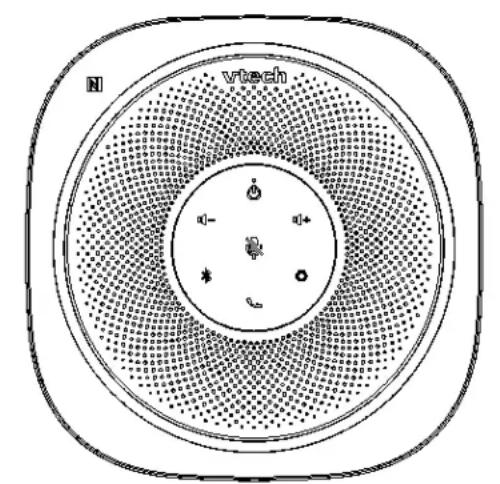
Bluetooth Conference Speakerphone with built-in battery
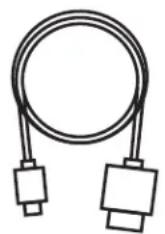
natural_image
Simple line drawing of a coiled cable with two connectors (no text or symbols)USB type A to USB type C cable
Storage bag
Quick Installation Guide VCS601 VCS601-1 VCS601-2
Charging the battery
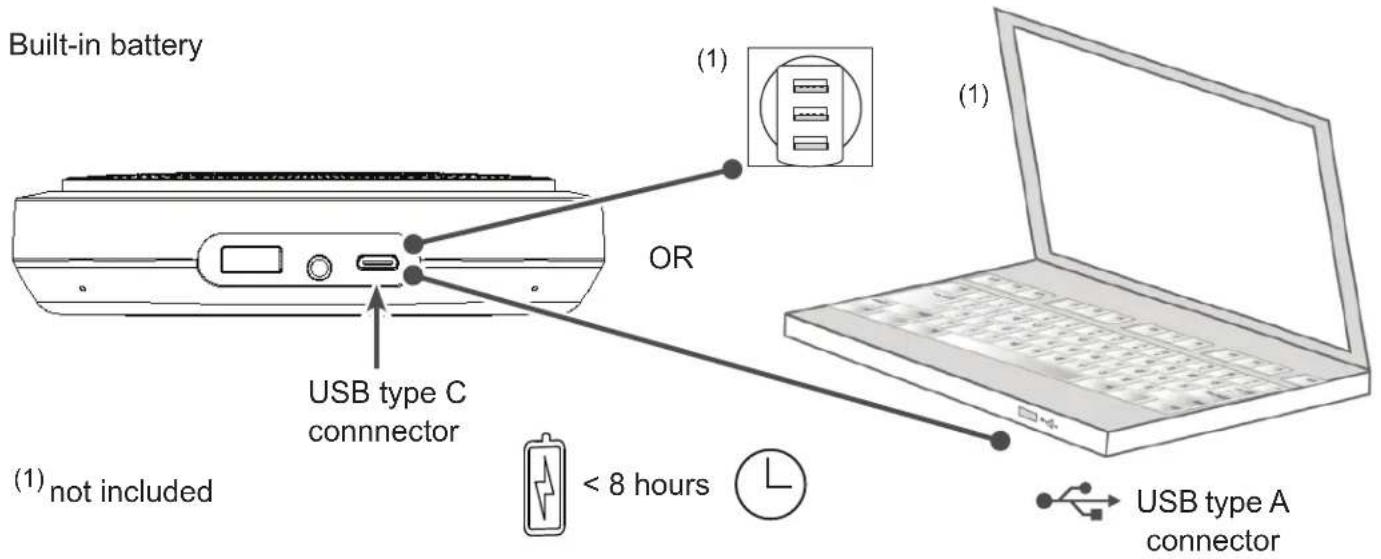
Bluetooth Conference Speakerphone
Connectors
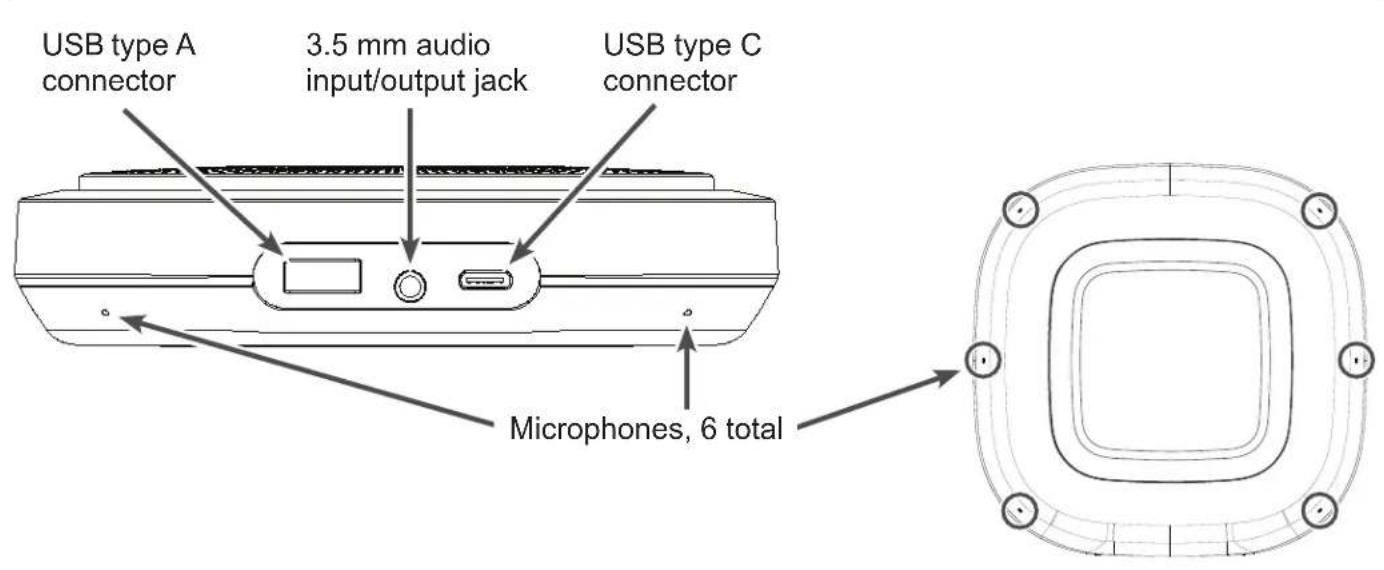
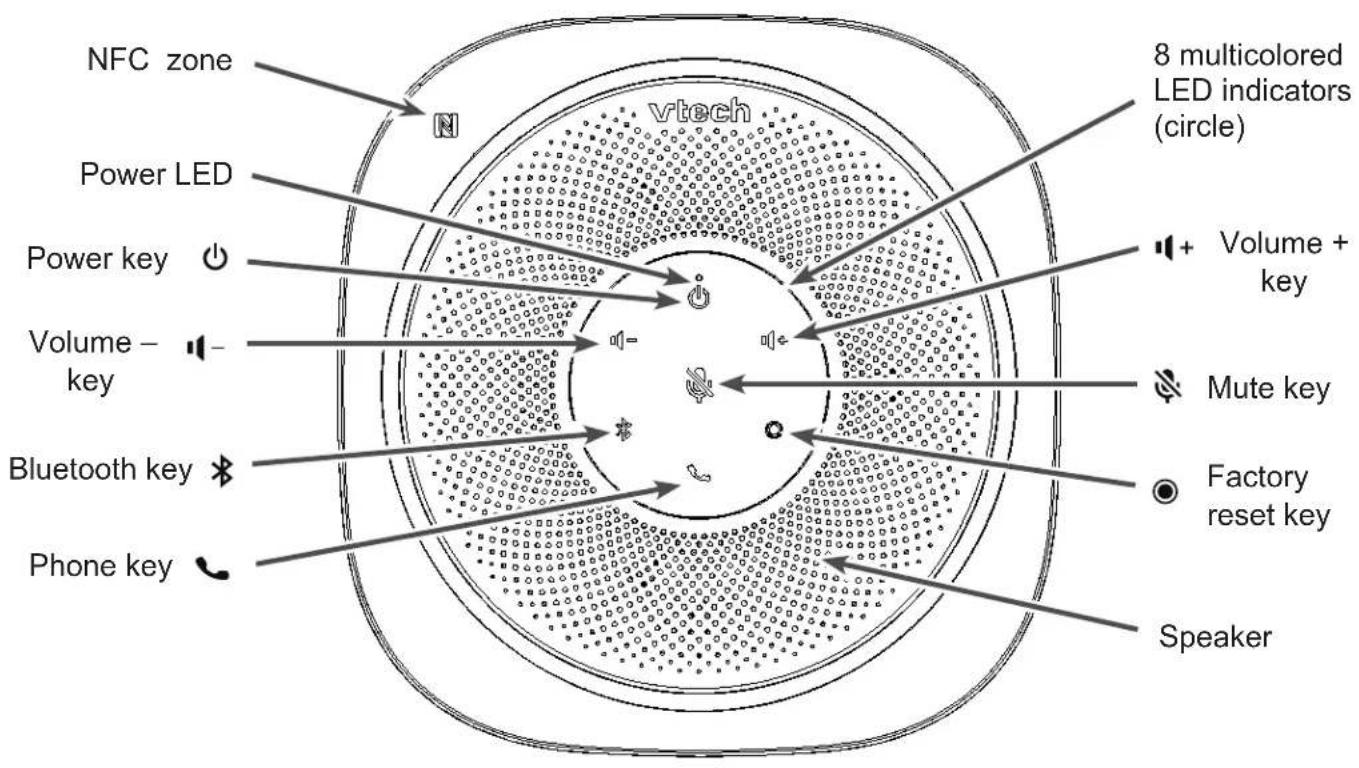
LED Indicators Overview
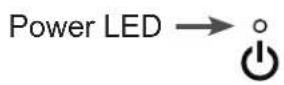
Power LED
| Color Pattern Description | ||
| White Steady ON Power on and no USB | SB power connected-OR-Power on and charging completed. | |
| Red Steady ON Charging, but the battery level is too low to power on the speakerphone | ||
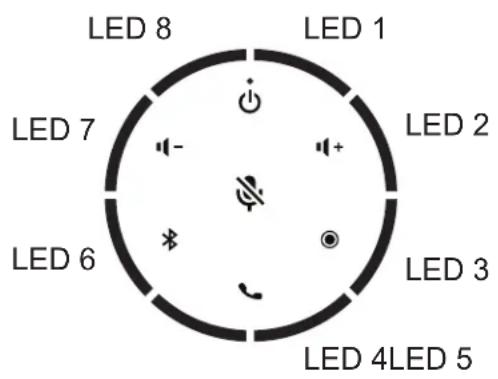
Definitions
ON: LED steady on
ON x s, Off x s: blinking, x seconds on, x seconds off
Red
LED 1-8 ON: Mute microphones
LED 1-8 ON 0.12s, OFF 0.12s twice every 3 minutes:
Low battery warning
LED 1, 3, 5, 7 ON 0.2s, OFF 0.2s for a total of 3s:
Factory reset
Red and Green
LED 1, 2, 5, 6 ON red & LED 3, 4, 7, 8 ON green: Firmware upgrading
Green (USB mode)
LED 1-8 ON 2s: USB data connection is ready
LED 1-8 ON 1s OFF 1s: Call ringing
LED 1 ON 2s: Volume level 1-2
LED 1 & 2 ON 2s: Volume level 3-4
LED 1-3 ON 2s: Volume level 5-6
...
LED 1-8 ON 2s: Volume level 15-16
Blue (Bluetooth mode)
ON 0.2s OFF 3s: Bluetooth is not paired or paired device is not available
ON 0.2s OFF 0.2s: Bluetooth pairing
ON 2s: Bluetooth is ready
ON 1s OFF 1s: Call ringing
ON 0.25s, OFF 0.25s, ON 0.25s, OFF 2s : Call Waiting
LED 1 ON 2s: Volume level 1-2
LED 1 & 2 ON 2s: Volume level 3-4
LED 1-3 ON 2s: Volume level 5-6
...
LED 1-8 ON 2s: Volume level 15
White
LED 1-8 ON 1s: NFC detected
LED 1-8 ON 2s: Power up
LED 1 ON: Voice is active near LED 1 area
LED 2 ON: Voice is active near LED 2 area
LED 3 ON: Voice is active near LED 3 area
...
LED 8 ON: Voice is active near LED 8 area
LED 1-8 ON 0.4s, and then OFF one by one every 0.4s in the following order: LED 8, 7, 6, 5, 4, 3, 2, 1 : Press and hold Power key in power on state
Purple
LEDs ON 2s to indicate battery charge level
LED 1-8: 100% LED 1-4: 50%
LED 1-7: 87.5% LED 1-3: 37.5%
LED 1-6: 75% LED 1-2: 25%
LED 1-5: 62.5% LED 1: 12.5%
and then OFF one by one every 2s in the following order: LED 8, 7, 6, 5, 4, 3, 2, 1.
Power on/off
To turn the speakerphone on:
- Press and hold the key for between two and five seconds.
The speakerphone plays a power up melody.
The power LED indicator is illuminated when the speakerphone is on.
The power LED indicator flashes when the speakerphone is on and its battery is charging.
To turn the speakerphone off:
- Press and hold the key for more than five seconds.
The multicolored LEDs fully turn on in white, and then turn off one by one. The speakerphone plays a power down melody.
The power LED indicator flashes slowly when the speakerphone is off and its battery is charging.
Connecting to a Windows PC via USB
- Plug the USB cable in the USB-C port on the speakerphone
- Plug the other end of the USB cable in the USB-A port on your Windows PC.
When the speakerphone is recognized by your Windows PC, all the multicolored LEDs turn green for two seconds. The speakerphone becomes the external audio device of your Windows PC.
Connecting to a Windows PC or mobile device via Bluetooth pairing
- When the speakerphone is idle, press and hold the *key for more than two seconds.
All the multicolored LEDs flash blue rapidly.
- On your Windows PC or mobile device, open the Bluetooth menu.
If necessary, start Bluetooth or WLAN scanning/detection.
- Select VCS601 from the list of available devices.
-
If you are asked for a PIN code, enter 0000.
-
If pairing is successful: The speakerphone plays three ascending tones. All the multicolored LEDs turn blue for two seconds.
- If pairing failed: The speakerphone plays three rapid tones. All the multicolored LEDs briefly turn blue every three seconds. Try again or try pairing with a different Bluetooth device.
Pairing your mobile device using NFC
NOTE: iPhone does not support Bluetooth pairing through NFC.
- On your mobile device, turn NFC on.
- Place the NFC zone of your mobile device against the NFC zone of the speakerphone (indicated by 📄)
When NFC is detected, the speakerphone plays a tone. All the multicolored LEDs turn white for one second.
- If you are asked for a PIN code, enter 0000.
- If NFC pairing does not work, try again or try connecting via Bluetooth pairing.
Speakerphone functions
Play audio
When your speakerphone is paired to a Windows PC or mobile device, it acts as an external speaker and plays audio from the paired device.s
When your speakerphone is playing audio from a paired Bluetooth device, the Bluetooth audio will be interrupted and changed to PC audio immediately if you connect the speakerphone to the Windows PC with the USB cable.
When your speakerphone is playing PC audio, this audio will be interrupted and changed to mobile audio if there is an incoming mobile phone call.
Receive a call
When your paired mobile phone receives an incoming call, the speakerphone rings and all the multicolored LEDs flash blue.
When there is an incoming call from a PC application, the speakerphone rings and all the multicolored LEDs flash green.
Answer an incoming call
- Press the key.
During the call, the multicolored LEDs turn white to indicate from which direction the microphones are receiving sound.
Call Waiting
If your paired mobile phone receives an incoming call while a call is in progress, the speakerphone beeps twice.
- Press the Key to hold the current call and switch to the incoming call.
Reject an incoming call
- Press and hold the key for at least two seconds.
End a call
- Press the Key.
Volume
- Press the key to increase listening volume by one step.
- Press and hold the key to increase listening volume continuously.
- Press the key-to decrease listening volume by one step.
- Press and hold the key-to-decrease listening volume continuously.
In Bluetooth mode, the multicolored LEDs turn blue for two seconds to indicate the volume level. The more blue LEDs displayed, the higher the volume level.
In USB mode, the multicolored LEDs turn green for two seconds to indicate the volume level. The more green LEDs displayed, the higher the volume level.
The speakerphone will synchronize playback volume with a USB-connected Windows PC, or a Bluetooth-connected iPhone or Android phone (model dependent).
The speakerphone will synchronize phone call audio volume with a Bluetooth-connected iPhone or Android phone.
Mute
- Press the key to mute all the microphones.
- Press the key again to unmute all the microphones.
- Press the key while the speakerphone is ringing to temporarily mute the ringing tone.
Activate Google Assistant, Siri or Bixby on the mobile device
- When the speakerphone is idle, press and hold the key for at least two seconds.
Connecting a headset
To ensure privacy during a phone call, you can connect a headset to the 3.5mm jack of the speakerphone. The audio will be played through the headset.
Charging
To charge the battery of your speakerphone:
- Plug the USB cable in the USB type-C port on the speakerphone
- Plug the other end of the USB cable in the USB type-A port of a power source (for example, a Windows PC).
While charging, the power LED indicator flashes white.
If the power LED indicator is red, the battery is charging but the battery level is too low for the speakerphone to power up.
To charge an external device using the speakerphone battery:
- Plug the USB cable in the USB type-A port of the speakerphone.
- Plug the other end of the USB cable in the USB type-C port of the external device.
NOTE: The speakerphone must be on and the battery must not be low.
You can charge the battery of your speakerphone (USB type-C port) and charge an external device using the speakerphone battery (USB type-A port) at the same time.
To check the speakerphone battery level:
- Press the Key.
The multicolored LEDs turn purple to indicate battery charge level.
The more purple LEDs displayed, the higher the battery charge level.
When the battery is low, the speakerphone beeps rapidly and all multicolored LEDs flash red rapidly every three minutes.
App
The VTech Companion Devices app is available on the iTunes store and the Google Play store. This app enables you to perform the following functions on the VCS601 speakerphone:
- Set power save time
- Enable/disable key tone
- Upgrade firmware
For more information, refer to the app's online help -- tap 📋 and then tap Help.
Factory reset
- Press and hold the Ⓞey for five seconds.
The multicolored LEDs 1, 3, 5, 7 flash red quickly for three seconds and the speakerphone plays a tone.
- Press the key twice within three seconds.
The multicolored LEDs turn off and the speakerphone plays three ascending tones.
Maintenance
Taking care of your speakerphone
- Your speakerphone contains sophisticated electronic parts, so you must treat it with care.
- Avoid rough treatment.
- Save the original packing materials to protect your speakerphone if you ever need to ship it.
Avoid water and heat
- You can damage your speakerphone if it gets wet.
- Do not use the speakerphone outdoors in the rain, or handle it with wet hands.
- Do not install the speakerphone near a sink, bathtub or shower.
- Do not expose the product to extreme heat.
Electrical storms
- Electrical storms can sometimes cause power surges harmful to electronic equipment.
- For your own safety, take caution when using electric appliances during storms.
Cleaning your speakerphone
- Your speakerphone has a durable plastic casing that should retain its luster for many years.
- Clean it only with a soft cloth slightly dampened with water or a mild soap.
- Do not use excess water or cleaning solvents of any kind.
Compliance
FCC Part 15
This equipment has been tested and found to comply with the requirements for a Class B digital device under Part 15 of the Federal Communications Commission (FCC) rules.
These requirements are intended to provide reasonable protection against harmful interference in a residential installation. This equipment generates, uses and can radiate radio frequency energy and, if not installed and used in accordance with the instructions, may cause harmful interference to radio communications. However, there is no guarantee that interference will not occur in a particular installation.
If this equipment does cause harmful interference to radio or television reception, which can be determined by turning the equipment off and on, the user is encouraged to try to correct the interference by one or more of the following measures:
- Reorient or relocate the receiving antenna.
- Increase the separation between the equipment and receiver.
- Connect the equipment into an outlet on a circuit different from that to which the receiver is connected.
- Consult the dealer or an experienced radio/TV technician for help.
Changes or modifications to this equipment not expressly approved by the party responsible for compliance could void the user's authority to operate the equipment.
This device complies with Part 15 of the FCC Rules. Operation is subject to the following two conditions: (1) this device may not cause interference, and
(2) this device must accept any interference, including interference that may cause undesired operation.
Privacy of communications may not be ensured when using this equipment.
To ensure safety of users, the FCC has established criteria for the amount of radio frequency energy that can be safely absorbed by a user or bystander according to the intended usage of the product.
This product has been tested and found to comply with the FCC criteria. The speakerphone shall be installed and used such that parts of the user's body other than the hands are maintained at a distance of approximately 20 cm (8 inches) or more.
This Class B digital apparatus complies with Canadian ICES-003. CAN ICES-3 (B)/NMB-3(B)
Industry Canada
This Class B digital apparatus complies with Canadian requirements:
This device contains licence-exempt transmitter(s)/receiver(s) that comply with Innovation, Science and Economic Development Canada's licence-exempt RSS(s).
Operation is subject to the following two conditions: (1) this device may not cause interference, and (2) this device must accept any interference, including interference that may cause undesired operation of the device.
The device is compliance with RF exposure guidelines, users can obtain Canadian information on RF exposure and compliance. The minimum distance from body to use the device is 20 cm (8 inches).
Privacy of communications may not be ensured when using this telephone.
The term "IC:" before the certification/registration number only signifies that the Industry Canada technical specifications were met.
This product meets the applicable Innovation, Science and Economic Development Canada technical specifications.
Disclaimer and Limitation of Liability
VTech Communications, Inc. and its suppliers assume no responsibility for any damage or loss resulting from the use of this user's manual. VTech Communications, Inc. and its suppliers assume no responsibility for any loss or claims by third parties that may arise through the use of this product. VTech Communications, Inc. and its suppliers assume no responsibility for any damage or loss caused by deletion of data as a result of malfunction, dead battery, or repairs. Be sure to make backup copies of important data on other media to protect against data loss.
Company: VTech Communications, Inc.
Address: 9020 SW Washington Square Road - Ste 555 Tigard, OR 97223, United States
Phone: 1 (800) 595-9511 in the U.S.
1 (800) 267-7377 in Canada.
Technical Specifications
| Connections | |
| Bluetooth version Bluetooth 5.0 | |
| Bluetooth range Up to 10m | |
| NFC Passive type | |
| USB type-C USB 2.0 | |
| USB type-A USB 2.0 | |
| Power | |
| Battery capacity 2 x 3.6V | 2600mAh Li-ion (built-in)Battery model ICR18650-2.6Ah-3.6V-1S1P |
| Charging input (USB-C) | 5V 1.3A |
| Charging output (USB-A) | 5V 2A max. |
| Talk time 24 hours | |
| Standby time 5 days (wh | en connected with Bluetooth device) |
| Charging time Around 8 | hours |
| Audio | |
| Speaker rated output power | 3W rms |
| Speaker frequency response | 100 Hz - 20 kHz |
| Microphone 6 microphones with beamforming | |
Bleu (mode Bluetooth)
A member of THE VTECH GROUP OF COMPANIES.
Distributed in the U.S.A. by VTech Communications Inc., Tigard, Oregon 97223.
VTech is a registered trademark of VTech Holdings Limited.
Copyright © 2022 for VTECH COMMUNICATIONS LTD. All rights reserved.
Printed in China. Version 1, 10/2022
VTECH COMMUNICATIONS LTD.
Un membre de THE VTECH GROUP OF COMPANIES.
- Important Safety Instructions
- SAVE THESE INSTRUCTIONS
- Battery Cautions Statement
- Congratulations
- What's in the box
- Bluetooth Conference Speakerphone
- LED Indicators Overview
- Power LED
- Definitions
- Red
- Red and Green
- Green (USB mode)
- Blue (Bluetooth mode)
- White
- Purple
- Power on/off
- To turn the speakerphone on:
- To turn the speakerphone off:
- Connecting to a Windows PC via USB
- Connecting to a Windows PC or mobile device via Bluetooth pairing
- Pairing your mobile device using NFC
- Speakerphone functions
- Play audio
- Receive a call
- Answer an incoming call
- Call Waiting
- Reject an incoming call
- End a call
- Volume
- Mute
- Activate Google Assistant, Siri or Bixby on the mobile device
- Connecting a headset
- Charging
- To charge the battery of your speakerphone:
- To charge an external device using the speakerphone battery:
- To check the speakerphone battery level:
- App
- Factory reset
- Maintenance
- Taking care of your speakerphone
- Avoid water and heat
- Electrical storms
- Cleaning your speakerphone
- Compliance
- FCC Part 15
- Industry Canada
- Disclaimer and Limitation of Liability
- Bleu (mode Bluetooth)
Brand : VTECH
Model : VCS601-2
Category : Desk Phone