imageRUNNER ADVANCE C356P III - Printer CANON - Free user manual and instructions
Find the device manual for free imageRUNNER ADVANCE C356P III CANON in PDF.


| Product type | Color multifunction printer |
| Brand | Canon |
| Model | imageRUNNER ADVANCE C356P III |
| Main functions | Print, copy, fax, scan |
| Print speed | Up to 35 ppm (color and B&W) |
| Print resolution | 1200 x 1200 dpi |
| Paper sizes | A4, A5, A3, etc. |
| Standard paper capacity | 550 sheets |
| Duplex printing | Automatic |
| Touch screen | Yes, color |
| Network connections | Ethernet 10/100/1000 Base-T, USB 2.0 |
| Document security | Secure encrypted password printing |
| Consumables | Cyan, magenta, yellow, black toner |
| Dimensions (W x D x H) | Approx. 565 x 686 x 1088 mm |
| Weight | Approx. 84 kg |
| Power supply | 220-240 V, 50/60 Hz |
| Power consumption (operating) | Approx. 1.5 kW |
| Power consumption (standby) | Less than 1 W |
| Routine maintenance | Regular cleaning of exposure glass and rollers |
| Repairability | Spare parts available from Canon |
Frequently Asked Questions - imageRUNNER ADVANCE C356P III CANON
User questions about imageRUNNER ADVANCE C356P III CANON
0 question about this device. Answer the ones you know or ask your own.
Ask a new question about this device
Download the instructions for your Printer in PDF format for free! Find your manual imageRUNNER ADVANCE C356P III - CANON and take your electronic device back in hand. On this page are published all the documents necessary for the use of your device. imageRUNNER ADVANCE C356P III by CANON.
USER MANUAL imageRUNNER ADVANCE C356P III CANON
text_image
Quick Operation Guide| English 3 |
| Français 15 |
| Deutsch 27 |
| Italiano 39 |
| Español 51 |
Quick
Operation Guide
Learning How to Use Your Machine 4
Tips for Copying 6
Tips for Printing 7
Tips for Faxing 8
Tips for Scanning 9
Tips for Registering Destinations 10


You can access canon.com/oip-manual to read the User's Guide that describes all functions of this machine.
Store this guide in a safe place for future reference.
Some functions may not be available, depending on the model of the machine you are using.
The information in this document is subject to change without notice.
If your machine is of the model dedicated to printing only
The machine dedicated to printing only cannot be used for any other functions than printing. Although this Guide contains the descriptions of the functions and operations for copying, faxing, and scanning as well as printing, please read only the necessary descriptions to use your machine.

natural_image
Silhouette of a person in profile against a dotted background (no text or symbols)Learning How to Use Your Machin
This section contains a brief overview of the basic operations of your machine.
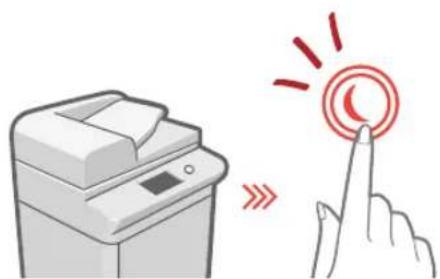
Turning On the Display
natural_image
Illustration of a printer and a hand interacting with a circular button (no text or symbols)When the display is turned off, press the Ⓞ button on the control panel to exit the Sleep mode and turn it back on.
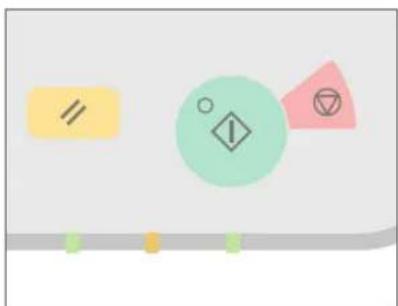
The Main Buttons for Operations
natural_image
Abstract geometric shapes including a yellow rectangle, a green circle with an exclamation mark, and a pink triangle with a symbol (no text or labels)Press ☐to execute functions, to □ cancel operations, and ☐ to clear the current settings.
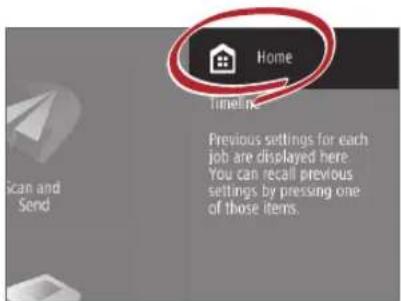
- Accessing the Home Screen
text_image
Home Timeline Previous settings for each job are displayed here. You can recall previous settings by pressing one of those items.Perform a wide variety of operations from the Home screen, displayed from any screen by pressing 📄.
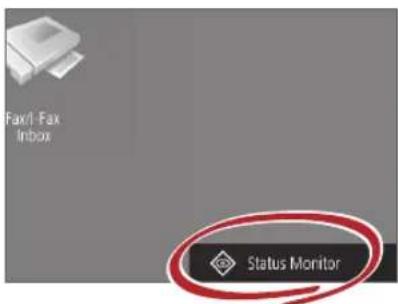
▶ Quickly Checking the Status of Machine
text_image
Fax/1-Fax Inbox Status MonitorAll you need to do to check the machine's status is press Status Monitor

See "Control Panel" in the User's Guide.

natural_image
Red line drawing of a computer with a screen and keypad (no text or symbols)Two Methods for Setting Original Documents
Placing Original Documents Correctly
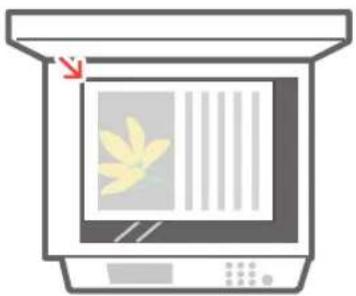
Placing Original Documents on the Platen Glass
- Place the side to scan face down.
- Place the original documents so that it fits in the back left corner.
natural_image
Illustration of a kitchen appliance with a window and fan (no text or symbols)Compatible Types of Original Documents

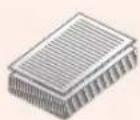
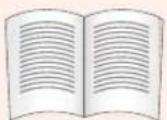
Books, magazines

Business cards
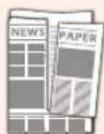
Newspaper clippings
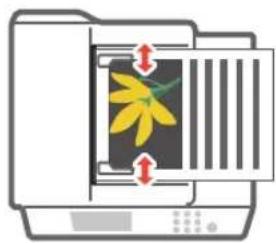
Placing Original Documents in the Feeder
- Place the side to scan face up.
- Adjust the slide guide.
natural_image
Illustration of a printer with a yellow flower inside, showing paper feed and print output (no text or symbols)Compatible Types of Original Documents
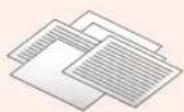
Documents with many pages, quotations, etc.

natural_image
Silhouette of a person in profile against a dotted background (no text or symbols)Tips for Copying
Use helpful functions, such as two-sided printing and N on 1 feature, to make your copies look better while using paper efficiently.
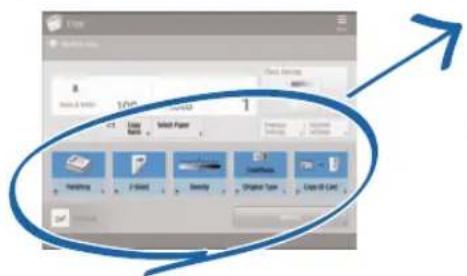
Basic Copy Flow
1 | Set the document.
2 | Press [Copy].
3 | Enter the number of copies.
4 | Set your preferred setting.
text_image
File 8 100% 1 Class Copy Select Paper Handling F-Blind Density Original Type Copy-Off Card5 | Press (Start).
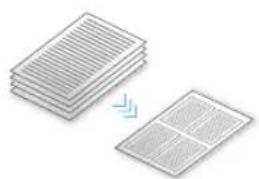
Non 1
The N on 1 feature helps you save paper by combining multiple pages onto one single sheet of paper.
natural_image
Two stacked document sheets with a blue arrow indicating transformation or alignment (no text or symbols)Density
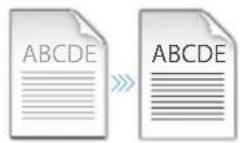
Adjust the text density to make hard to read documents (such as something written in pencil) easier to read.
Recommended Settings
2-Sided
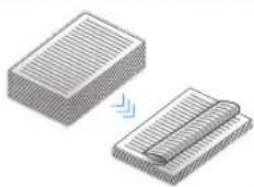
Halve the amount of paper you use by printing on both sides of copied paper.
natural_image
Two 3D rectangular blocks with ribbed texture, one being folded and the other stacked (no text or symbols)Copy Ratio
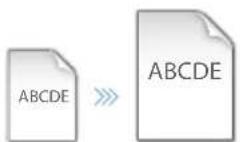
Use "Copy Ratio" when copying to magnify small text for easy reading.
Finishing (Collate)
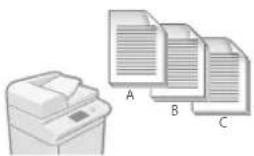
Output original documents in sets with the Collate mode, convenient for organizing big copy jobs.
natural_image
Illustration of a printer and three document sheets labeled A, B, C (no text or symbols on the devices themselves)Original Type
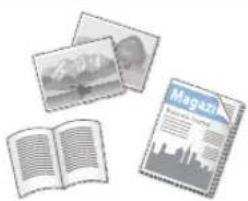
Pick one of a variety of different original types when copying to optimize the settings for that original document.
natural_image
Illustration of a magazine with photos and an open book (no text or symbols visible)For further information about the functions, see "A Variety of Features," on p.12.
Tips for Printing
Don't bother getting up! Specify print settings directly from your computer.

To print from a computer, first install the printer driver. For instructions on installing printer drivers, see the Printer Driver Installation Guide.

natural_image
Silhouette of a person sitting in a chair against a pink background (no text or symbols)Basic Print Flow
1 | Select the print function from the application menu.
2 | Select the machine from [Select Printer].
3 | Select the paper source.
4 | Set your preferred setting.
text_image
File Edit View Insert Options Help Name: Size: 100 Size: 100 Size: 100 Size: 100 Size: 100 Size: 100 Size: 100 Size: 100 Size: 100 Size: 100 Size: 100 Size: 100 Size: 100 Size: 100 Size: 100 Size: Size: Size: Size: Size: Size: Size: Size: Size: Size: Size: Size: Size: Size: Size: Size: Size: Size: Size: Size: Size: Size: Size: Size: Size: Size: Size: Size: Size: Size: Size: Size: Size: Size: Size: Size: Size: Size: Size: Size: Size: Size: Size: Size: Size: Size: Size: Size: Size: Size: Size:5 | Enter the number of copies, and press [Print].
Recommended Settings
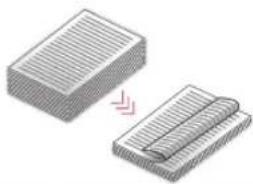
2-Sided
Two-sided printing can save paper, especially for those big copy jobs!
natural_image
Illustration of two stacked documents with a pink arrow indicating a transformation or change (no text or symbols present)Page Layout
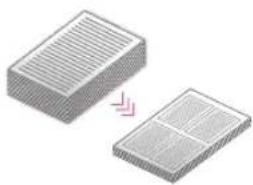
Significantly decrease the amount of paper you use by printing a total of four pages on a single sheet of paper.
natural_image
Two 3D rectangular blocks with internal grid patterns, one with a pink arrow indicating direction (no text or symbols)Finishing (Collate)
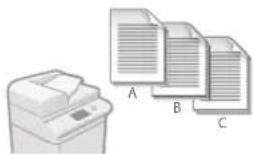
Use [Collate] when printing a large number of copies to sort them for easy distribution.
natural_image
Illustration of a printer and three stacked documents labeled A, B, C (no text or symbols on the devices themselves)For further information about the functions, see "A Variety of Features," on p.12.
Change Print Settings with Just One Easy Click!
text_image
Page Size: A4 Output Size: Match Page Size Page Layout: 1 on 1 1-sided/2-sided/Booklet Printing: 1-sided Printing Binding Location:
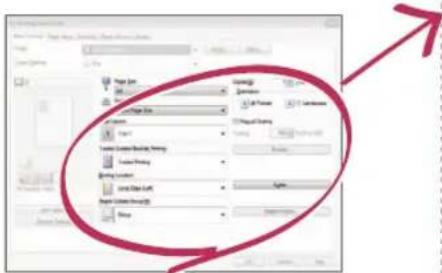
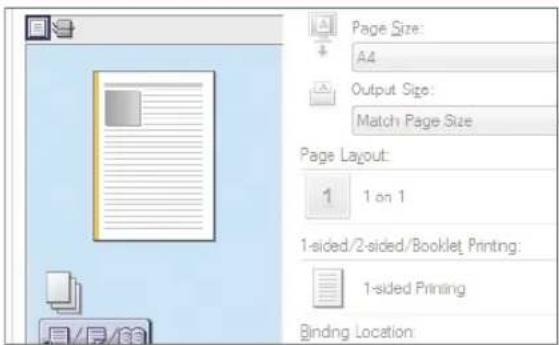
Change print settings, such as the page layout, by simply clicking the icon on the printer driver screen. The icon changes as you adjust the settings, so you can easily see your changes taking effect.

natural_image
Silhouette of a person standing against a green dotted background (no text or symbols)Tips for Faxing
Faxing is easy with these simple steps! Improve the clarity of your faxes by adjusting settings, such as density or resolution.
Basic Fax Flow
1 | Set the document.
2 | Press [Fax].
3 | Enter the fax number and press [OK].
To send a fax to a registered address, press Address Book
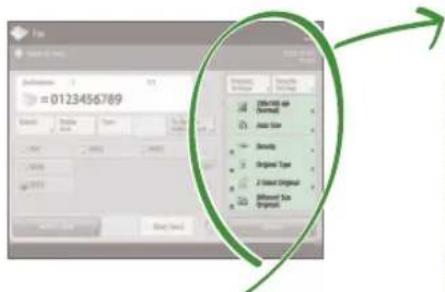
4 | Set your preferred setting.
text_image
0123456789 Value Value Label Value Type Density Original Type A Value Original Different Sub Original5 | Press (%Start) and once scanning is complete, press [Start Sending].
Recommended Settings
Resolution
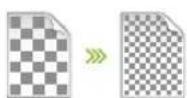
Improve text clarity by increasing the resolution of a document, when sending documents with small text.
Density

Increase the density of thin text when sending (such as text written in pencil) to make it easier to read.
Original Type
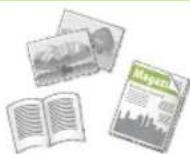
Pick one of a variety of different original types when faxing to optimize the settings for that original document.
For further information about the functions, see "A Variety of Features," on p.12.
Press the Button to Adjust the Fax Volume
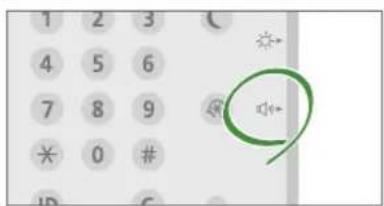
text_image
1 2 3 4 5 6 7 8 9 * 0 # ID CAdjust the volume when sending and receiving faxes by pressing on the control panel.
Previewing Received Faxes Before Printing
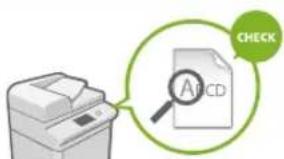
text_image
CHECK A1CDCheck received faxes before printing, letting you select which to print while saving paper.

See "Saving Received Documents in the Machine (Memory Reception)" in the User's Guide.
Tips for Scanning
Not enough space for storing mountains of paperwork? You can scan and store them as data on your computer.

natural_image
Silhouette of a person standing against a dotted background (no text or symbols)Basic Scan Flow
1 | Set the document.
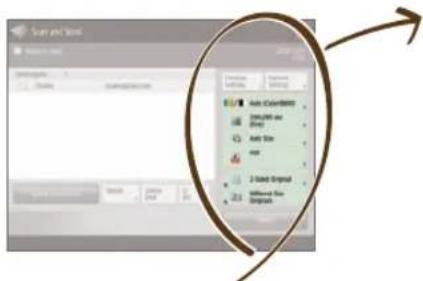
2 | Press [Scan and Send].
3 | Press [New Destination] and enter the destination address.
To scan and send to a registered destination, press .
4 | Set your preferred setting.
text_image
Sun and Snow Options for Actions: Auto Color Color Bar (in Auto) Auto Size mp 2-Sound Original Millioned Size Outlook5 | Press (Start).
Recommended Settings
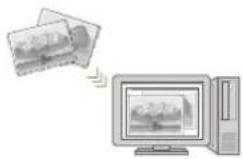
Resolution
You can adjust the resolution when scanning a magazine or picture to make the image more vivid and clear.
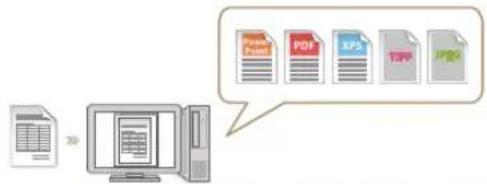
File Format
Save a scanned original document in the format that best suits your needs, such as contracts as PDFs or presentation materials as PowerPoint documents.
flowchart
graph LR
    A["Print"] --> B["Computer"]
    C["PDF"] --> D["EPS"]
    E["JPY"] --> F["PDF"]
For further information about the functions, see "A Variety of Features," on p.12.
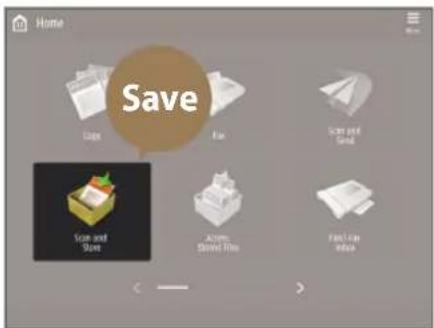
Digitize Stacks of Paper Documents to Save Office Space
text_image
Home Save Sags Fix Sonic and Small Sonic and Store Options Stored For Finish on Inside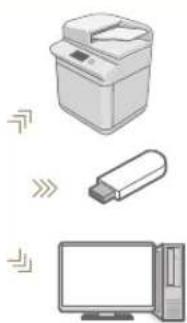
natural_image
Illustration of three electronic devices: a printer, a USB flash unit, and a desktop computer (no text or symbols)Digitize your paper documents by selecting [Scan and Store] when scanning an original document. You can even choose a variety of different destinations to save the data, such as the machine or a file server.

See "Basic Operations for Scanning Originals" in the User's Guide.

natural_image
Silhouette of a walking human figure against a teal background (no text or symbols)Tips for Registering Destinations
Register destinations in the address book to make sending operation simple. Increase efficiency by using One-Touch Buttons for frequently used destinations!
Basic Flow for Registering Destinations
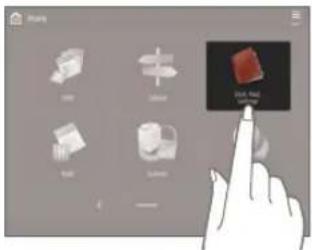
1 | Press [Dest./Fwd. Settings].
text_image
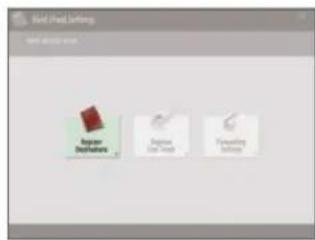
Zoom Close Pull Pull Close Pull Close Close Close Close Close Close Close Close Close Close Close Close Close Close Close Close Close Close Close Close Close Close Close Close Close Close Close Close Close Close Close Close Close Close Close Close Close Close Close Close Close Close Close Close Close Close Close Close Close Close Close Pull2 | Press [Register Destinations].
text_image
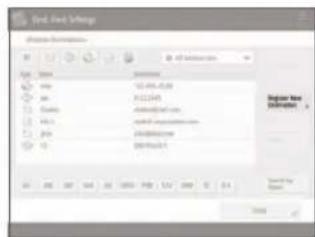
Text Feed Settings Text Feed Settings Regular Settings Ignore Line Path Forwarding Settings3 | Press [Register New Dest.].
text_image
Test Set Settings Change Settings File Edit View Insert View Name: 123.45.0.28 Size: 123.45 Current: 123.45 Date: March 2023 Date: March 2023 Date: March 2023 Date: March 2023 Date: March 2023 Date: March 2023 Date: March 2023 Date: March 2023 Date: March 2023 Date: March 2023 Date: March 2023 Date: March 20234 | Select the type of destination.
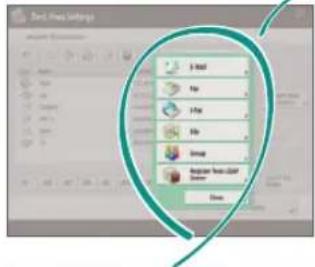
text_image
Add: Free Settings Add Options Add Up Up Up Delete Register Free User Enter Down5 | Enter the address and press [OK].
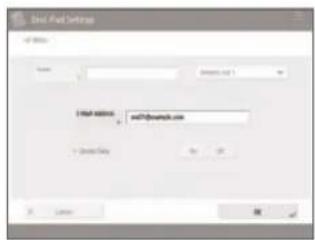
text_image
Email Format Settings Name: Email Address: and?@yamclics.com + Description: No OK
natural_image
Illustration of a hand pointing at a computer monitor (no text or symbols)Select the Destination Type
Register e-mail addresses, fax numbers, even servers as destinations! Pick the destination type that is right for you.
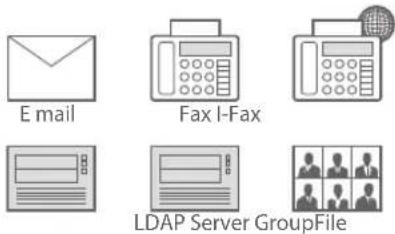

See "Registering Destinations" in the User's Guide.
Using [Group]
You can register multiple destinations to a single group.
![CANON imageRUNNER ADVANCE C356P III - Using [Group] - 1](/content/2026/04/666690/images/d917d4a1dc953bc6dba92fe26cacb480dbd59f7e1e4c4a8d3b2454db8cb7ddc5.jpg)
text_image
Send documents to everyone in a meeting at once!Send Documents Easily With One-touch Buttons
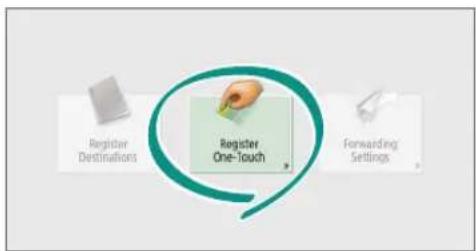
flowchart
graph TD
    A["Register Destinations"] --> B["Register One-Touch"]
    C["Forwarding Settings"] --> B
    B --> D["Next Step"]
Register an often used destination to a one-touch button with [Register One-Touch], and save time!
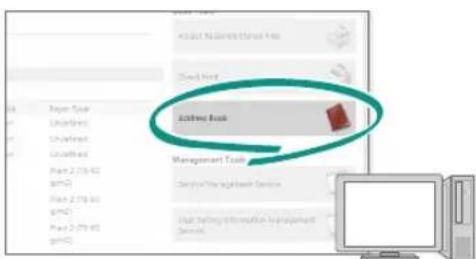
Easy Address Editing from Your Computer
text_image
Address Book Management ToolsYou can access the machine from your computer with the Remote UI, enabling you to edit addresses easily with the keyboard.

See "Registering Destinations" in the User's Guide.

See "Managing the Machine from a Computer (Remote UI)" in the User's Guide.

natural_image
Silhouette of a person in motion against a solid orange background (no text or symbols)And More! A Variety of Features
There are many more helpful features that are not mentioned in this guide. For details, see the User's Guide.
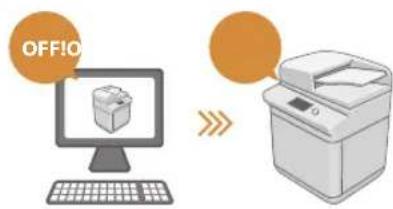
☐ Change Machine Settings Remotely from Your Computer
text_image
OFF!OUse the "Remote UI" function to edit the address book, check consumable status, and more from your computer.

See "Managing the Machine from a Computer (Remote UI)" in the User's Guide.
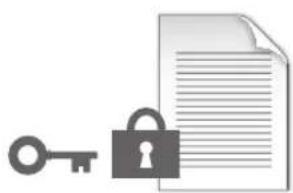
☐ Prevent Security Leaks with Document Security
natural_image
Illustration of a key and padlock next to a document (no text or symbols)Password your documents with the Encrypted Secure Print mode. This feature is perfect for protecting important documents.

See "Advanced Functions for Printing" in the User's Guide.
Print Two-Sided ID Cards on One Side of Paper
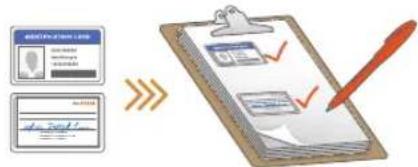
text_image
Diagram illustrating document review process with clipboard, checklist, and signature iconsCheck IDs easily by copying both sides of an ID and printing them to a single piece of paper with [Copy ID Card].

See "Making ID Card Copies" in the User's Guide.
Advanced Paper Saving Options
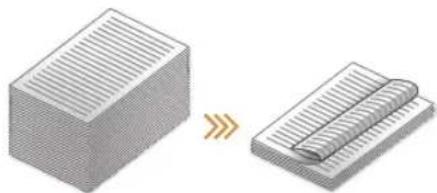
natural_image
Two 3D diagrams showing a rectangular block and a folded paper sheet, with no text or symbols present.Print up to an incredible 8 pages of original documents on a single sheet of paper with [2-Sided] and [N on 1].

See "Copying" in the User's Guide.
natural_image
Illustration of a hand pressing down on a device with circular components (no text or symbols)One-touch Settings
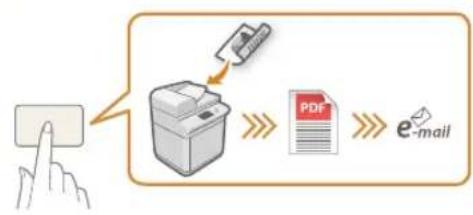
flowchart
graph LR
    A["Receipt"] --> B["Printer"]
    B --> C["PDF"]
    C --> D["e-mail"]
Register often used combinations of settings to "Quick Menu" to efficiently use them with a single button.

See "Customizing the Touch Panel Display" in the User's Guide.
Guide
natural_image
Silhouette of a person in white with red background (no text or symbols)natural_image
Illustration of a printer and a hand interacting with a circular button (no text or symbols)natural_image
Abstract diagram with geometric shapes and colored circles (no text or symbols)natural_image
Red line drawing of a computer with monitor, keyboard, and mouse (no text or symbols)natural_image
Illustration of a kitchen appliance with a window showing a leaf and ventilation slots (no text or symbols)Types de documents originaux compatibles
Livres, magazines

Cartes
de visite
Coupures
de presse
natural_image
Illustration of a printer with a yellow flower inside, showing paper cutting through it (no text or symbols)Types de documents originaux compatibles
natural_image
Silhouette of a person in profile against a dotted background (no text or symbols)Astuces pour copier
text_image
Screenshot of a software interface showing a toolbar with icons and a blue arrow pointing to the top-right corner.natural_image
Stacked sheets of paper with a magnified inset showing a grid pattern (no text or symbols)Densité
natural_image
Two 3D illustration of stacked documents or folders, one with a blue arrow indicating rotation (no text or symbols)natural_image
Illustration of a printer and three stacked documents labeled A, B, C (no text or symbols on the devices themselves)Type d'original
natural_image
Illustration of a newspaper with photos and an open book (no visible text or symbols)natural_image
Silhouette of a seated person reading a book, against a solid pink background (no text or symbols)text_image
Form1 Form2 Form3 Form4 Form5 Form6 Form7 Form8 Form9 Form10 Form11 Form12 Form13 Form14 Form15 Form16 Form17 Form18 Form19 Form20 Form21 Form22 Form23 Form24 Form25 Form26 Form27 Form28 Form29 Form30 Form31 Form32 Form33 Form34 Form35 Form36 Form37 Form38 Form39 Form40 Form41 Form42 Form43 Form44 Form45 Form46 Form47 Form48 Form49 Form50 Form51 Form52 Form53 Form54 Form55 Form56 Form57 Form58 Form59 Form60 Form61 Form62 Form63 Form64 Form65 Form66 Form67 Form68 Form69 Form70 Form71 Form72 Form73 Form74 Form75 Form76 Form77 Form78 Form79 Form80 Form81 Form82 Form83 Form84 Form85 Form86 Form87 Form88 Form89 Form90 Form91 Form92 Form93 Form94 Form95 Form96 Form97 Form98 Form99 Form100natural_image
Two 3D rectangular blocks with horizontal grooves, one being cut with a pink arrow (no text or symbols)Mise en page
natural_image
Two 3D rectangular blocks with horizontal grooves, one showing a pink arrow indicating transformation or alignment (no text or symbols)natural_image
Illustration of a printer next to three stacked documents labeled A, B, and C (no text or symbols on the devices themselves)
natural_image
Silhouette of a person standing against a green dotted background (no text or symbols)Astuces pour le fax
natural_image
Silhouette of a person standing against a dotted background (no text or symbols)text_image
Line series Auto Linear Move Linear Move Formal Action Similar Similar Similartext_image
Enregister Open Free Close at premium Open at premium Close at premium Close at premium Write Free 3-Day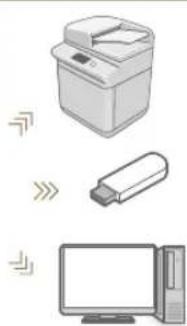
natural_image
Illustration of a printer, USB flash unit, and desktop computer (no text or symbols)natural_image
Silhouette of a walking human figure against a dotted background (no text or symbols)text_image
Screenshot of a 3D modeling software interface showing a hand interacting with a highlighted red cube, surrounded by other icons.text_image
Properties Wizard Welcome for Applications Remove to Settings Remove to Settingstext_image
Engagement/Tool 3. add Up Finish Write Delete Microsoft Excel Microsoft Excelnatural_image
Illustration of a hand pointing at a computer screen (no text or symbols)
text_image
Cancel d'actions Options to question Service management services User Defining Information Services Servicesnatural_image
Silhouette of a person standing against a solid orange background (no text or symbols)text_image
HDRS TENSION HORS TENSIONnatural_image
Illustration of a key, lock, and document (no text or symbols)text_image
Diagram illustrating document processing workflow with ID card, clipboard, and checkmark indicatorsnatural_image
Two 3D block diagrams showing a striped material on the left and a rolled-up rectangular object on the right, with no text or symbols present.natural_image
Illustration of a hand pressing down on a device with circular holes (no text or symbols)Réglages 1 touche
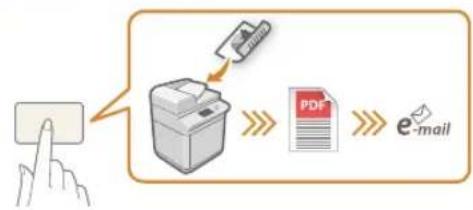
flowchart
graph LR
    A["Input Image"] --> B["Add Paper"]
    B --> C["PDF"]
    C --> D["e-mail"]
natural_image
Silhouette of a person in profile against a dotted background (no text or symbols)natural_image
Illustration of a printer next to a hand with a circular button and pointer, no text or symbols present.natural_image
Abstract geometric shapes including a yellow rectangle, a green circle with an exclamation mark, and a pink triangle with a symbol (no text or labels)natural_image
Red line drawing of a computer with control panel and buttons (no text or symbols)natural_image
Illustration of a kitchen appliance with a window showing a leaf design and a red arrow pointing to it (no text or symbols)natural_image
Illustration of a printer with a yellow flower inside, showing paper cutting through it (no text or symbols)Kompatible
Originaldokumenttypen
natural_image
Silhouette of a person in profile against a dotted background (no text or symbols)natural_image
Two stacked document sheets with a magnified inset showing a grid pattern (no text or symbols)Dichte
natural_image
Illustration of two stacked documents with a folded paper and a rolled document, no text or symbols present.Kopierfaktor
Verwenden Sie beim
Kopieren den
"Kopierfaktor", um
kleinen Text zwecks
natural_image
Illustration of a printer and three document sheets labeled A, B, C (no text or symbols on the devices themselves)Originaltyp
natural_image
Illustration of three photos and an open book, with no visible text or symbols on the images themselves.natural_image
Silhouette of a person sitting in a chair against a pink background (no text or symbols)natural_image
Illustration of two stacked rectangular blocks with a red arrow indicating transformation or change (no text or symbols)Seitenlayout
natural_image
Two 3D rectangular blocks with horizontal grooves, one with a pink arrow indicating transformation or alignment (no text or symbols)natural_image
Silhouette of a person standing against a green background (no text or symbols)Tipps für das Faxen
text_image
0123456789 Auto Format Auto Format Original Original Original Original Originalnatural_image
Silhouette of a person standing against a patterned background (no text or symbols)text_image
Sunnan and Sindi Auto (Select/Min) Auto - Auto for Auto-Final Auto Documenting Dialight Dialight Dialightnatural_image
Illustration of three electronic devices: a printer, a USB flash unit, and a desktop computer (no text or symbols)natural_image
Silhouette of a walking person with a briefcase, against a dotted background (no text or symbols)text_image
Debug Open project Developing websitetext_image
Email: Name: Email Address: email@email.com Connect to Email OK
natural_image
Illustration of a hand pointing at a device with control panel (no text or symbols)natural_image
Silhouette of a person standing against a solid orange background (no text or symbols)natural_image
Illustration of a key and padlock next to a document (no text or symbols)text_image
Diagram illustrating document processing workflow with clipboard, checklist, and signature checkmarknatural_image
Two 3D block diagrams showing a striped surface and a rolled-up sheet, with no text or symbols present.natural_image
Illustration of a hand pressing down on a device with circular holes (no text or symbols)natural_image
Silhouette of a person in profile against a dotted background (no text or symbols)natural_image
Illustration of a printer and a hand interacting with a circular button (no text or symbols)natural_image
Abstract diagram with geometric shapes and colored circles (no text or symbols)natural_image
Red line drawing of a computer with monitor, keyboard, and mouse (no text or symbols)natural_image
Illustration of a kitchen appliance with a window and fan (no text or symbols)natural_image
Illustration of a printer with a yellow flower inside, showing paper cutting through it (no text or symbols)natural_image
Silhouette of a person in profile against a blue dotted background (no text or symbols)text_image
Capi Autom. 1 2.1 Reps Page Editor Auto Software Fusion Fusion Software Tobacco Type of products Customs instrumentsN in 1
natural_image
Two stacked document sheets with a blue arrow indicating transformation or alignment (no text or symbols)Densità
natural_image
Two 3D isometric diagrams showing a rectangular block and a folded paper or sheet, with no text or symbols present.natural_image
Illustration of a printer and three stacked documents labeled A, B, C (no text or symbols on the devices themselves)Tipo di originale
natural_image
Illustration of an open book, a photo collage, and a magazine with city skyline (no text or symbols visible)natural_image
Silhouette of a person sitting in a chair against a pink background (no text or symbols)text_image
User Delete Properties Properties Delete Properties Properties Properties Properties Properties Properties Properties Properties Properties Properties Properties Properties Properties Properties Properties Properties Properties Properties Properties Properties Properties Properties Properties Properties Properties Properties Properties Properties Properties Properties Properties Properties Properties Properties Properties Properties Properties Properties Properties Properties Properties Properties Properties Properties Properties Properties Properties Properties Properties Properties Preferences: Preferences: Preferences: Preferences: Preferences: Preferences: Preferences: Preferences: Preferences: Preferences: Preferences: Preferences: Preferences: Preferences: Preferences: Preferences: Preferences: Preferences: Preferences: Preferences: Preferences: Preferences: Preferences: Preferences: Preferences: Preferences: Preferences: Preferences: Preferences: Preferences: Preferences: Preferences: Preferences: Preferences: Preferences: Preferences: Preferences: Preferences: Preferences: Preferences: Preferences: Preferences: Preferences: Preferences: Preferences: Preferences: Preferences: Preferences: Preferences: Preferences: Preferences: 100% 100% 100% 100% 100% 100% 100% 100% 100% 100% 100% 100% 100% 100% 100% 100% 100% 100% 100% 100% 100% 100% 100% 100% 100% 100%natural_image
Silhouette of a person standing against a green dotted background (no text or symbols)Consigli per il fax
natural_image
Silhouette of a person standing against a dotted background (no text or symbols)text_image
Save As I'm Properties Name: C:\Users\My Documents\My Documents\My Documents\My Documents\My Documents\My Documents\My Documents\My Documents\My Documents\My Documents\My Documents\My Documents\My Documents\My Documents\My Documents\My Documents\My Documents\My Documents\My Documents\My Documents\My Documents\My Documents\My Documents\My Documents\My Documents\My Documents\My Documents\My Documents\My Documents\My Documents\My Documents\My Documents\My Documents\My Documents\nAdd\nDelete\nDelete\nDelete\nDelete\nDelete\nDelete\nDelete\nDelete\nDelete\nDelete\nDelete\nDelete\nDelete\nDelete\nDelete\nDelete\nDelete\nDelete\nDelete\nDelete\nDelete\nDelete\nDelete\nDelete\nDelete\nDelete\nDelete\nDelete\nDelete\nDelete\nDelete\nDelete\nDelete\nDelete\nDelete\nDelete\nDelete\nDelete\nDelete\nDelete\nDelete\nDelete\nDelete\nDelete\nDelete\nDelete\nDelete\nDelete\nDelete\nDelete\n Delete\nDelete\nDelete\nDelete\nDelete\nDelete\nDelete\nDelete\nDelete\nDelete\nDelete\nDelete\nDelete\nDelete\nDelete\nDelete\nDelete\nDelete\nDelete\nDelete\nDelete\nDelete\nDelete\nDelete\nDelete\nDelete\nDelete\nDelete\nDelete\nDelete\nDelete\nDelete\nDelete\nDelete\nDelete\nDelete\nDelete\nDelete\nDelete\nDelete\nDelete\nDelete\nDelete\nDelete\nDelete\nDelete\nDelete\nDelete\nDelete\nDelete\n”natural_image
Illustration of three electronic devices: a printer, a USB flash unit, and a desktop computer (no text or symbols)natural_image
Silhouette of a walking human figure against a teal background (no text or symbols)text_image
Screenshot of a mobile app interface with icons and a hand pointing to a 3D object labeled 'Red, Original' in Chinese.text_image
Best Tropical Stocks Reproductive Stocks Personal Stocks Unemployed Stockstext_image
Screenshot of a software interface showing file selection and directory navigation with Chinese text labelstext_image
Cloud Properties analysis File Paste Delete Replicatise de user - LRF Cloudnatural_image
Illustration of a hand pointing at a device with a keypad (no text or symbols)
text_image
Subsea Resources of partner Database Management Service User selling information management Servicenatural_image
Silhouette of a person standing against a solid orange background (no text or symbols)E altro ancora!
natural_image
Illustration of a key, padlock, and document (no text or symbols)text_image
Diagram illustrating document review process with clipboard, checklist, and signature checkmarknatural_image
Two 3D block diagrams showing a striped surface and a rolled-up sheet, with no text or symbols present.natural_image
Illustration of a hand pressing down on a device with circular holes (no text or symbols)flowchart
graph TD
    A["Hand with receipt"] --> B["Printer"]
    B --> C["PDF"]
    C --> D["e-mail"]
natural_image
Silhouette of a person in white with red background (no text or symbols)Cómo usar el equipo
natural_image
Illustration of a printer and a hand interacting with a circular button (no text or symbols)natural_image
Abstract diagram with geometric shapes and colored circles (no text or symbols)natural_image
Red line drawing of a computer with monitor, keyboard, and mouse (no text or symbols)Dos métodos para colocar documentos originales
natural_image
Illustration of a kitchen appliance with a window and fan (no text or symbols)natural_image
Illustration of a printer with a yellow flower inside, showing paper barcode and alignment arrows (no text or symbols)natural_image
Silhouette of a person in profile against a blue dotted background (no text or symbols)natural_image
Stacked sheets of paper with a magnified inset showing a grid pattern (no text or symbols)Densidad
natural_image
Two 3D isometric diagrams showing a rectangular block and a folded notebook or notebook, with no text or symbols present.Escala de copia
natural_image
Illustration of a printer and three stacked documents labeled A, B, C (no text or symbols on the devices themselves)Tipo original
natural_image
Illustration of an open book, a photo collage, and a magazine with city skyline (no text or symbols visible)natural_image
Silhouette of a person sitting in a chair against a pink background (no text or symbols)text_image
Name Description Properties Description Description Description Description Description Description Description Description Description Description Description Description Description Description Description Description Description Description Description Description Description Description Description Description Description Description Description Description Description Description Description Description Description Description Description Description Description Description Description Description Description Description Description Description Description Description Description Description Description Description Explanation Explanation Explanation Explanation Explanation Explanation Explanation Explanation Explanation Explanation Explanation Explanation Explanation Explanation Explanation Explanation Explanation Explanation Explanation Explanation Explanation Explanation Explanation Explanation Explanation Explanation Explanation Explanation Explanation Explanation Explanation Explanation Explanationnatural_image
Two 3D rectangular blocks with striped patterns, one being cut with a pink arrow (no text or symbols)Diseño de página
natural_image
Two 3D rectangular blocks with internal patterns, one with a pink arrow indicating transformation or alignment (no text or symbols)Acabado (Clasificar)
natural_image
Illustration of a printer and three stacked documents labeled A, B, C (no text or symbols on the devices themselves)natural_image
Silhouette of a person standing against a green dotted background (no text or symbols)natural_image
Silhouette of a person standing against a patterned background (no text or symbols)natural_image
Silhouette of a walking human figure against a teal background (no text or symbols)text_image
Screenshot of a 3D modeling software interface with tool icons and a highlighted 'Customize the Shape' button.2 | Pulse [Guardar destinos].
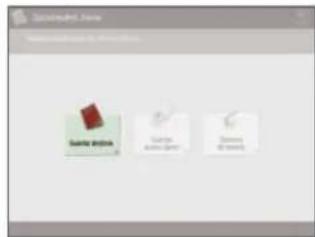
text_image
Connected View User connection to Windows Save Asym Save Asym Group Save Asym Group3 | Pulse [Guardar nuevo dest.].
text_image
Database Files Database Files Name: 100 Location: 1234578 Name: 100 File Path: 1234578 Name: 100 File Path: 1234578 Name: 100 File Path: 1234578 Name: 100 File Path: 1234578 Name: 100 File Path: 1234578 Name: 100 File Path: 1246799 Name: 100 File Path: 1246799 Name: 100 File Path: 1246799 Name: 100 File Path: 1246799 Name: 100 File Path: 1246799 Name: 100 File Path: 1246799 Name: 200 File Path: 1246799 Name: 200 File Path: 1246799 Name: 200 File Path: 1246799 Name: 200 File Path: 1246799 Name: 200 File Path: 1246799 Name: 200 FilePath Path: 1246799 Name: 200 FilePath Path: 1246799 Name: 200 FilePath Path: 1246799 Name: 200 FilePath Path: 1246799 Name: 200 FilePath Path: 1246799 Name: 200 File Path: 1246799 Name: 200 File Path: 1246799 Name: 200 File Path: 1246799 Name: 200 File Path: 1246799 Name: 200 File Path: 1.246799 Name: 2.246799 Name: 2.246799 Name: 2.246799 Name: 2.246799 Name: 2.246799 Name: 2.246799 Name: 2.246799 Name: 2.246799 Name: 2.24.5.5.5.5.5.5.5.5.5.5.5.5.5.5.5.5.5.5.5.5.5.5.5.5.5.5.5.5.5.5.5.5.5.5.5.5.5.5.5.5.5.5.5.5.5.5.5.5.5.5. Name: 100 File Path: 1234578 Name: 100 File Path: 1234578 Name: 100 File Path: 1234578 Name: 100 File Path: 1234578 Name: 100 File Path: 1234578 Name: 1.246799 File Path: 1234578 Name: 1234578 File Path: 1234578 Name: 1234578 File Path: 1234578 Name: 1234578 File Path: 1234578 Name: 1234578text_image
Open@chat.com Text Far Far Edit Delete Enter for on an user group Cancelnatural_image
Illustration of a hand pointing at a device with a keypad (no text or symbols)
text_image
Items in disciplines Items in disciplines Items in disciplines Items in disciplines Items in disciplines Items in disciplines Items in disciplines Items in disciplines Items in disciplines Items in disciplines Items in disciplines Items in disciplines Items in disciplines Items in disciplines Items in disciplines Items in disciplines Items in disciplines Items in disciplines Items in disciplines Items in disciplines Items in disciplines Items in disciplines Items in disciplines Items in disciplines Items in disciplines Items in disciplinesnatural_image
Silhouette of a person in motion against a solid orange background (no text or symbols)¡Y mucho más!
natural_image
Illustration of a key, lock, and document (no text or symbols)text_image
Diagram illustrating a workflow involving document verification and approval steps, with icons and arrows indicating progression.natural_image
Two 3D block diagrams showing a striped block and a rolled-up grid (no text or symbols)natural_image
Illustration of a hand pressing down on a device with circular holes (no text or symbols)30-2, Shimomaruko 3-chome, Ohta-ku, Tokyo 146-8501, Japan
CANON U.S.A., INC.
One Canon Park, Melville, NY 11747, U.S.A.
CANON CANADA INC.
8000 Mississauga Road Brampton ON L6Y 5Z7, Canada
CANON EUROPA N.V.
Bovenkerkerweg 59, 1185 XB Amstelveen, The Netherlands
(See http://www.canon-europe.com/ for details on your regional dealer)
CANON AUSTRALIA PTY. LTD
Building A, The Park Estate, 5 Talavera Road, Macquarie Park, NSW 2113, Australia
CANON CHINA CO., LTD
2F Jinbao Building No.89 Jinbao Street, Dongcheng District, Beijing 100005, China
CANON SINGAPORE PTE. LTD.
1 Fusionopolis Place, #15-10, Galaxis, Singapore 138522