
RBT7719DW - Refrigerator ROSIERES - Free user manual and instructions
Find the device manual for free RBT7719DW ROSIERES in PDF.



| Product type | Combined refrigerator with freezer |
| Brand | Rosieres |
| Model | RBT7719DW |
| Dimensions (W x D x H) | 920 x 1137 x (height not specified) mm |
| Weight | Not specified |
| Power supply | 220-240 V ~ 50 Hz |
| Climate class | Not specified |
| Refrigerator capacity | Not specified |
| Freezer capacity | Not specified |
| Adjustable refrigerator temperature | 2 °C to 8 °C (in steps of 1 °C) |
| Adjustable freezer temperature | -16 °C to -24 °C (in steps of 1 °C) |
| Special functions | Super cooling, Super freezing, Eco mode, Holiday mode, Automatic defrost, Built-in Wi-Fi |
| Display | Touch control panel with icons |
| Interior lighting | LED |
| Number of shelves | Not specified |
| Number of vegetable bins | 1 with humidity slider |
| Door balconies | Yes, for bottles and others |
| Defrost type | Automatic (No Frost) |
| Energy class | Not specified |
| Noise level | Not specified |
| Connectivity | Wi-Fi, hOn app |
| Spare parts compatibility | Parts available via Rosieres after-sales service |
| Warranty | 2 years (according to general conditions) |
Frequently Asked Questions - RBT7719DW ROSIERES
User questions about RBT7719DW ROSIERES
0 question about this device. Answer the ones you know or ask your own.
Ask a new question about this device
Download the instructions for your Refrigerator in PDF format for free! Find your manual RBT7719DW - ROSIERES and take your electronic device back in hand. On this page are published all the documents necessary for the use of your device. RBT7719DW by ROSIERES.
USER MANUAL RBT7719DW ROSIERES
PRODUCT DESCRIPTION ......2
USE....3
Use 3
Customized temperature 4
Super Cool function....4
Super Freeze function 5
Eco mode....5
Holiday function....6
Defrosting....6
Demo mode....6
WI-FI USE....7
In app pairing procedure....7
Step 1 ....7
Step 2 7
Step 3 7
Wi-Fi Use 8
TROUBLESHOOTING
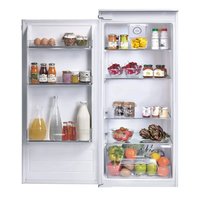
PRODUCT DESCRIPTION
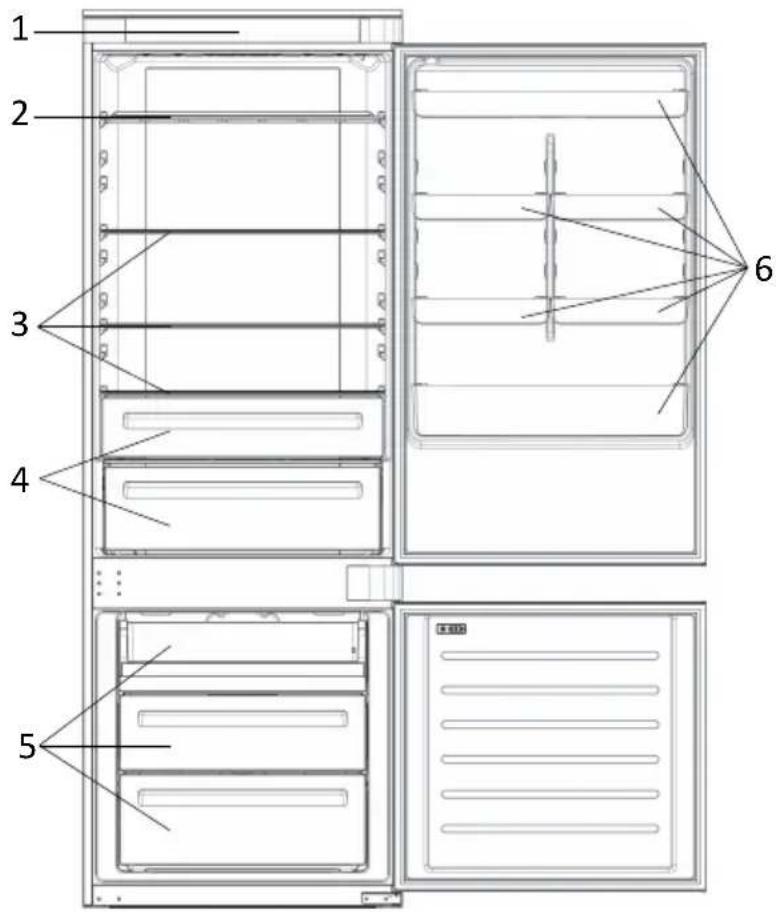
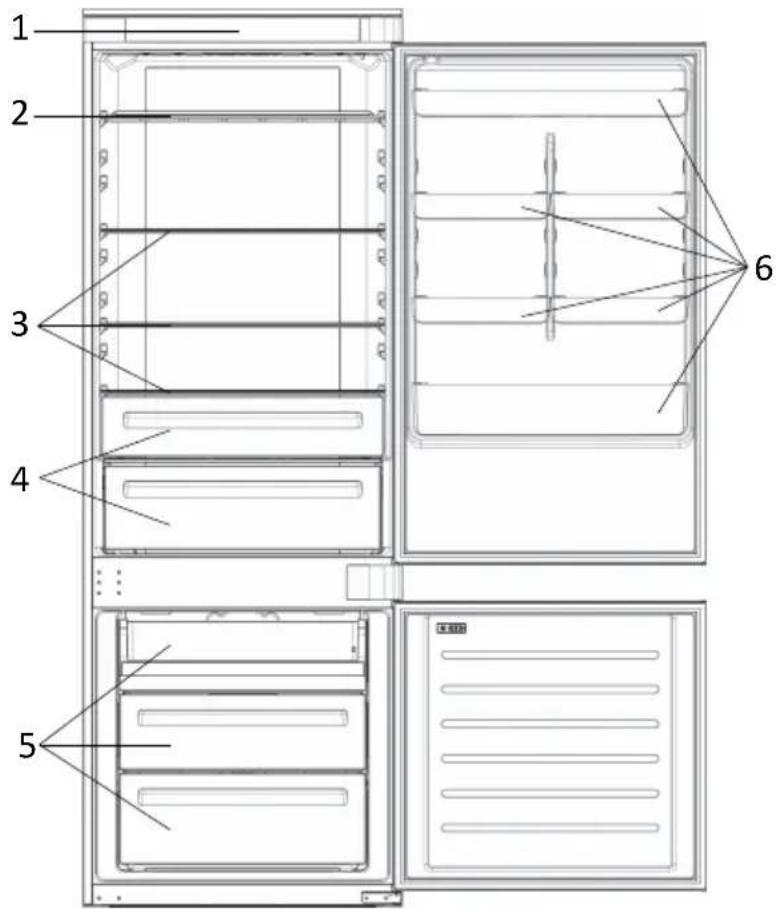
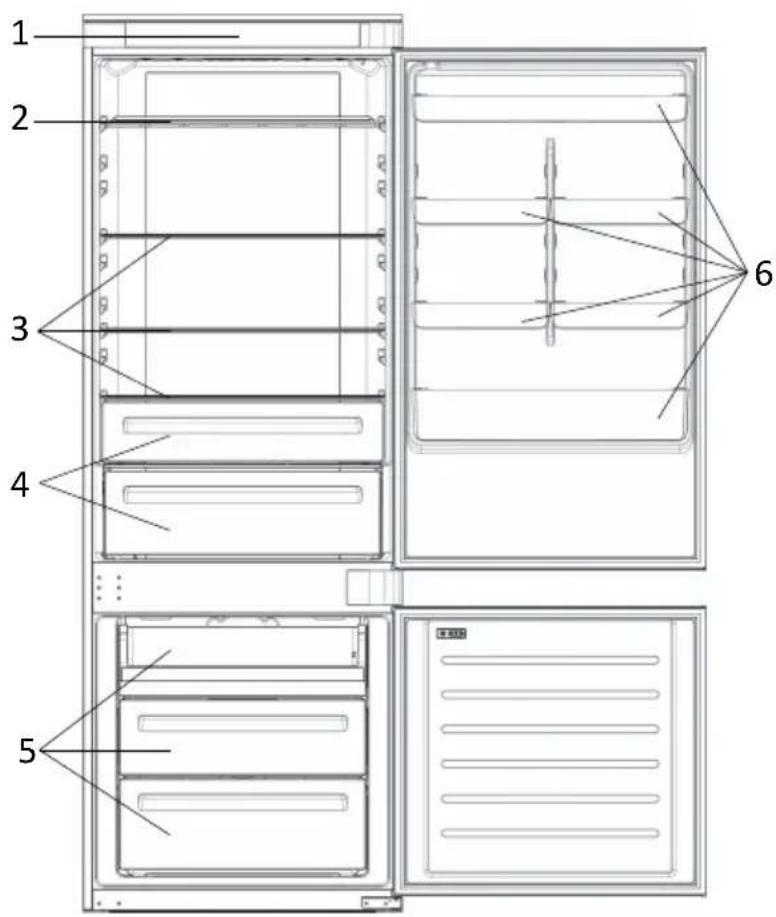
- Control Panel
- Wine Rack
- Shelves
- Crisper
- Freezer Boxes
- Door Rack
* The most energy-saving configuration requires drawers, food box, and shelves to be positioned in the product and the fan to be off. Please refer to the above pictures. ** The pictures above are only for reference. The actual configuration will depend on the physical product or statement by the distributor.
Space requirements
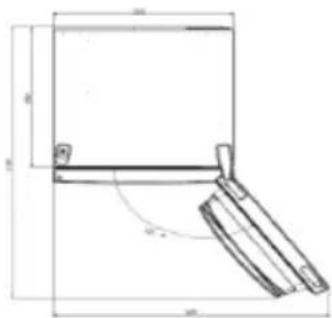
The unit's door must be able to fully open as shown.
Spare enough space for convenient opening of the doors and drawers.
Keep a distance of at least 50 mm between the side walls of the product and adjacent parts.
Width: min. 920 mm
Depth: min. 1137 mm
USE
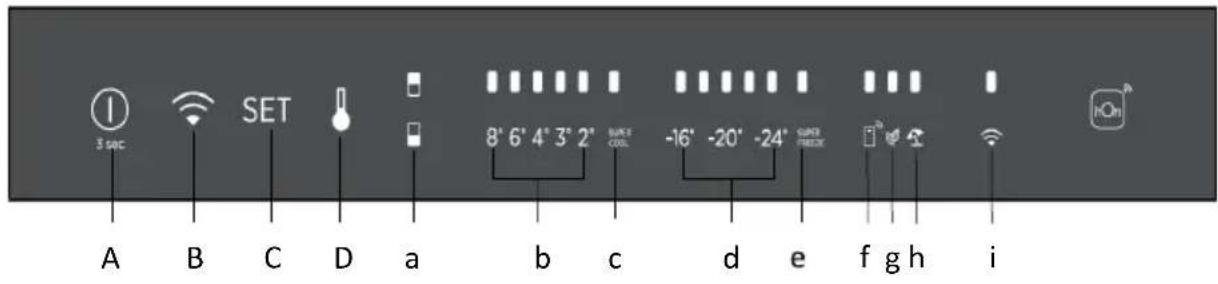
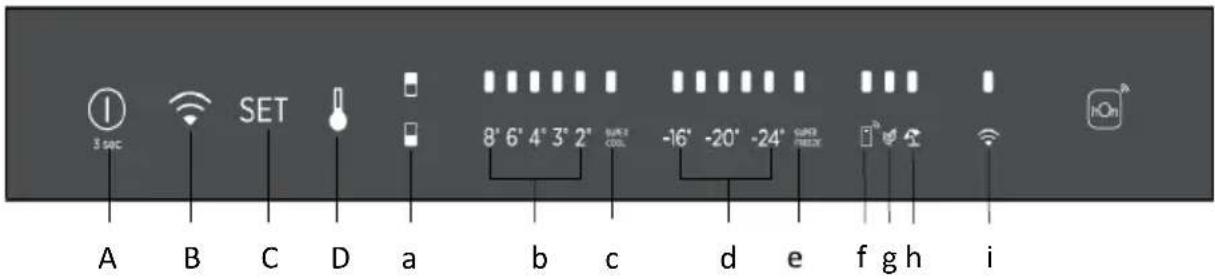
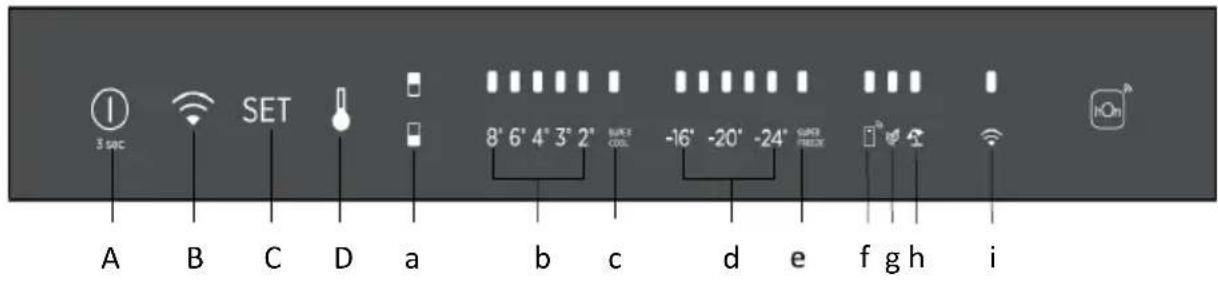
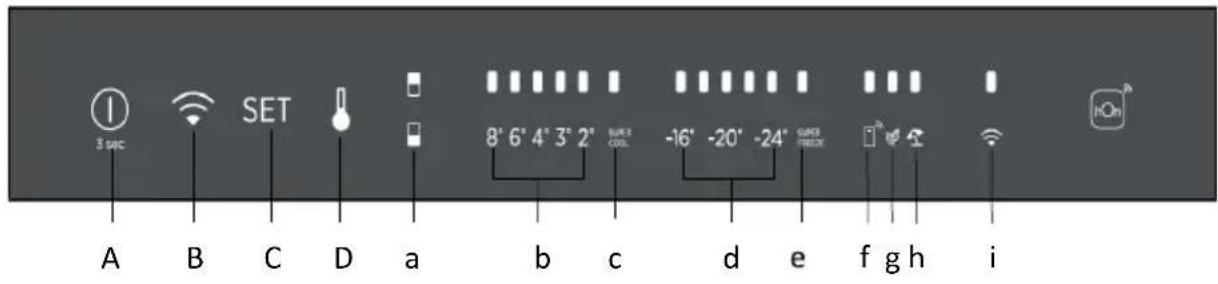
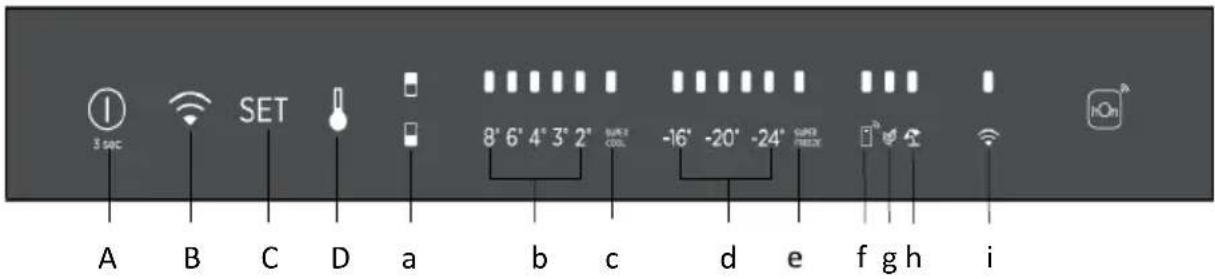
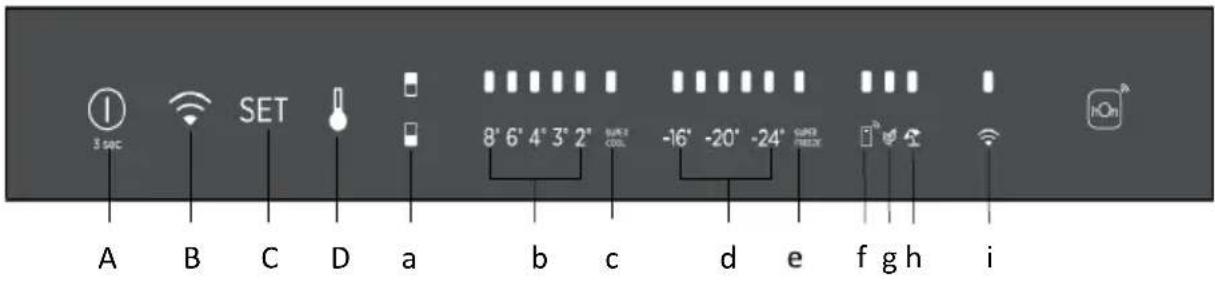
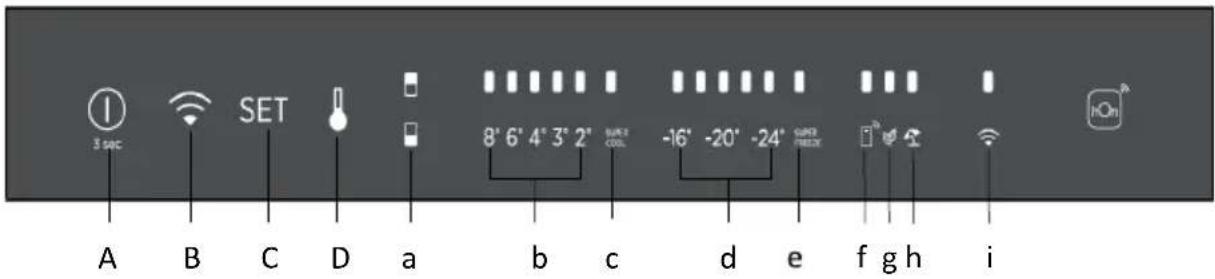
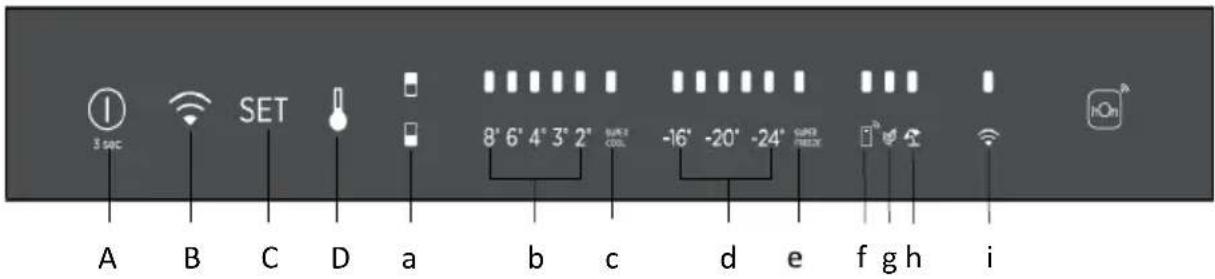
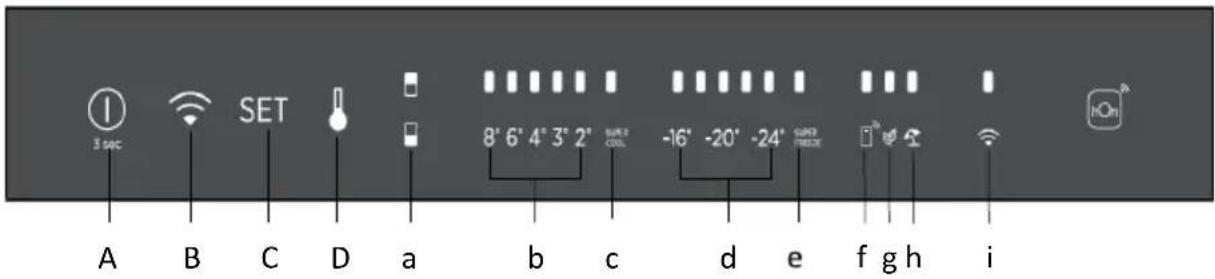
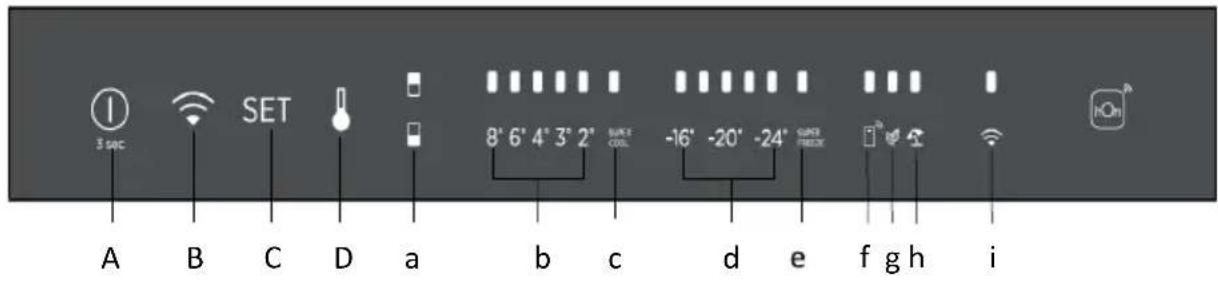
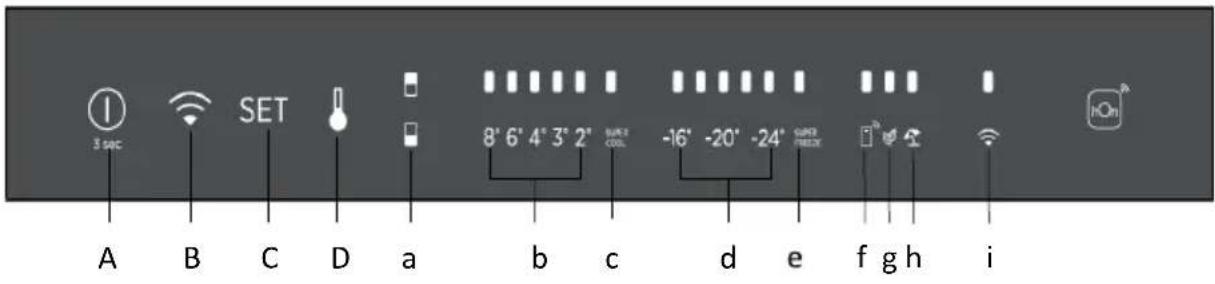
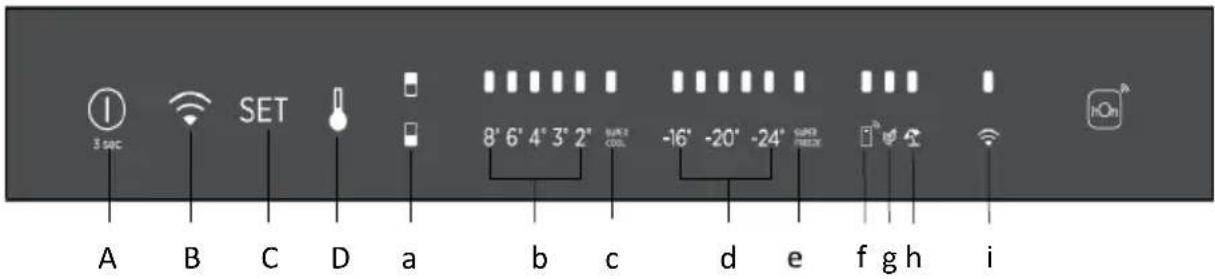
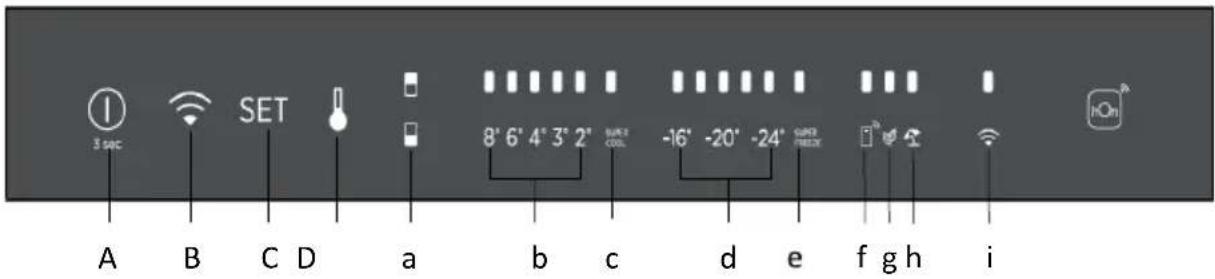
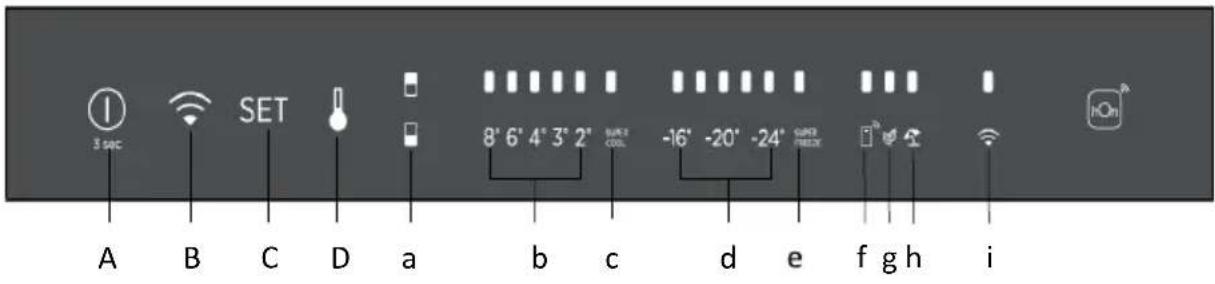
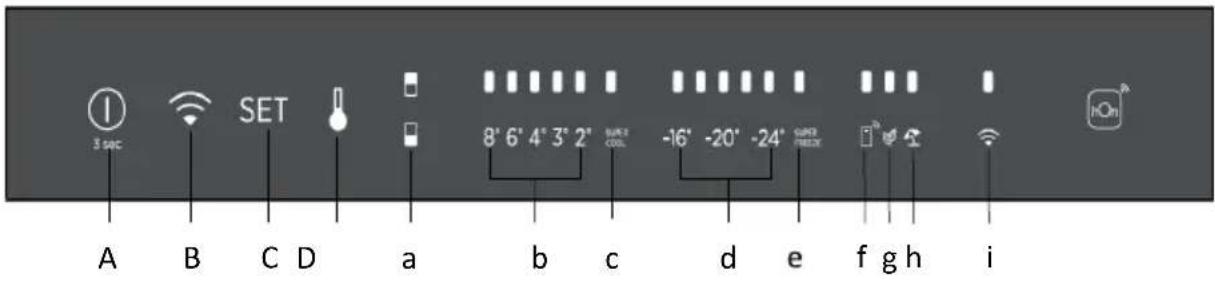
A. ON/OFF key, used to switch on/off the appliance
B. Wi-Fi key, used to switch on/off the Wi-Fi
C. Mode key, used to select the special functions (Eco and holiday)
D. TEMP key, used to select the fridge and freezer temperature
a. Fridge/freezer area icon, shows which compartment of the appliance is selected
b. Fridge temperature levels, show which is the selected temperature
c. Super Cool icon, shows if the Super Cool function is activated
d. Freezer temperature levels, show which is the selected temperature in the freezer
e. Super Freeze icon, shows if the Super Freeze function is activated
f. Customized temperature icon, shows if the temperature has been selected by app
g. Eco mode icon, shows whether the eco mode is activated
h. Holiday function icon, shows whether the holiday function is activated
i. Wi-Fi icon, shows whether the Wi-Fi is working and the appliance is connected
Use
- Plug in the appliance and it will turn on automatically.
- The temperature will automatically be set to 4 °C in the fridge and -18 °C in the freezer.
NOTE: Wait at least 2/3 hours before putting food in the appliance to ensure the temperature inside the fridge is correct.
- To change the temperature, press the TEMP key for 5 seconds. An acoustic signal is emitted, and the icon of the selected compartment (fridge or freezer) along with all the temperature LEDs of that compartment turn on for 2 seconds. After 2 seconds, the compartment selection is confirmed. With the selected compartment icon on, quickly press the TEMP key to change the temperature.
When the setting increases, the corresponding LED light turns on. An acoustic signal is emitted each time the TEMP key is pressed and the temperature is changed. After 5 seconds, the selection is confirmed. After 30 seconds without operation, the fridge/freezer icons and the LEDs of the selected temperatures turn off. When the TEMP key is touched again, the icon of the last selected compartment (fridge or freezer) turns on.
• In case of power loss, the last cooling level set will be restored. • To restore the default setting, keep pressed the door switch inside the
refrigerator and simultaneously press the ON/OFF key for 5 seconds.
- Under normal operating conditions (in spring and autumn), it is recommended to set the temperature at 4 °C. In summer when the ambient temperature is high, it is recommended to set the temperature at 6~8 °C to guarantee the fridge and freezer temperatures and reduce the refrigerator's continuous running time. In winter when the ambient temperature is low, it is recommended to set the temperature at 3~4 °C to avoid frequent start/stop of the refrigerator.
Customized temperature
From the app, it is possible to customize the temperature for both the fridge and freezer. The temperature can be set with 1 °C sensitivity. It is possible to select a temperature from 2 °C to 8 °C in the fridge, and from -16 °C to -24 °C in the freezer.
When the temperature is selected via the app, the customized temperature icon turns on, while all the temperature LED lights of the affected compartment are turned off (i.e., if the refrigerator temperature is selected from the app, LEDs from 2 °C to 8 °C are turned off. If the freezer temperature is selected from the app, LEDs from -16 °C to -24 °C are turned off).
If only a single area (freezer or fridge) has a customized temperature, the temperature selection of the other area is not changed, and the LED light of the selected temperature of that area remains on. An acoustic signal is emitted each time the temperature is changed.
Super Cool function
It is suggested to switch on the Super Cool function if a large quantity of food should be stored (for example after the purchase). The Super Cool function accelerates the cooling of fresh food and protects the goods already stored from undesirable warming. When the function is activated, the temperature of the fridge is automatically set at 2 °C.
How to use the Super Cool function:
- The function can be activated by long pressing the TEMP key to select the fridge compartment, and then quickly pressing the TEMP key until the Super Cool icon LED is turned on, or it can be turned on from the app. When the function is activated, the Super Cool LED is always ON. To exit the Super Cool function, press the TEMP key or turn it off from the app.
- The Super Cool function automatically ends when the function has lasted for more than 12 hours.
- When the Super Cool ends, the icon on the control panel is switched off and the previously set cooling level is restored.
Note: Super Cool and Super Freeze functions cannot be activated simultaneously.
Super Freeze function
The Super Freeze function accelerates the freezing of fresh food and protects the goods already stored from undesirable warming. If a large amount of food has to be frozen, it is recommended to set the Super Freeze function on 24 hours before the usage. When the function is activated, the temperature is automatically set at -28 °C.
How to use the Super Freeze function:
- The function can be launched by long pressing the TEMP key to select the freezer compartment, and then quickly pressing the TEMP key until the Super Freeze icon LED is turned on, or it can be turned on from the app. When the function is activated, the Super Freeze LED is always ON. To exit the Super Freeze function, press the TEMP key or turn it off from the app.
- The Super Freeze function automatically ends when the function has lasted for more than 50 hours.
- When the Super Freeze ends, the icon on the control panel is switched off and the previously set freezing level is restored.
Note: Super Cool and Super Freeze functions cannot be activated simultaneously.
Eco mode
The Eco mode can be activated to optimize the performance of the appliance, while obtaining the best food storage. The Eco mode will automatically set the temperature at 4 °C in the fridge and at -18 °C in the freezer.
How to use the Eco mode:
- The function can be activated from the control panel by pressing the “mode” key until the Eco mode icon turns on (an acoustic signal confirms the selection), or by selecting the function from the app. When the function is activated, the Eco mode icon is always ON.
- To exit the Eco mode, turn it off from the app or choose another function from the control panel.
- When the Eco mode ends, the icon on the control panel is switched off and the previously set cooling levels are restored.
Holiday function
The Holiday function can be used to reduce the energy consumption of the appliance when it is not used regularly. When the function is on, the LED lights will be off (even if the door is open) and the fridge will work on low power consumption mode, whereas the freezer will keep working normally.
How to use the Holiday function:
- The function can be activated from the control panel by pressing the “mode” key until the Holiday icon turns on (an acoustic signal confirms the selection), or by selecting the function from the app. When the function is activated, the Holiday icon is always ON.
- To exit the Holiday function, turn it off from the app or choose another function from the control panel.
- When the Holiday function ends, the icon on the control panel is switched off and the previously set cooling levels are restored.
Defrosting
The defrosting of the refrigerator and freezer compartments is done automatically: no manual operation is needed.
Slider
Near the vegetable basket there is a slider that allows you to adjust the humidity inside it: moving it to the right decreases the humidity, moving it to the left increases the humidity.
Demo mode
To enter the demo mode, with the display unlocked, keep pressed the Wi-Fi key (B) and press the MODE key (C) 5 times within 5 seconds. To exit the demo mode, perform the same operation or power off the refrigerator.
Error Codes
Communication error
[-16°C;-18°C;-20°C;-22°C;-24°C] Lights in the fridge turn on sequentially, it means there has been a communication error between the main control board and the display board. Please, contact the technical assistance to help solve the problem
Fan
[-16°C;-20°C;-22°C;-24°C] lights in the fridge flashing simultaneously if the fan is not working properly. Please, contact the technical assistance to help solve the problem
WI-FI USE
In app pairing procedure
Step 1
- Download the hOn app on the stores


Step 2
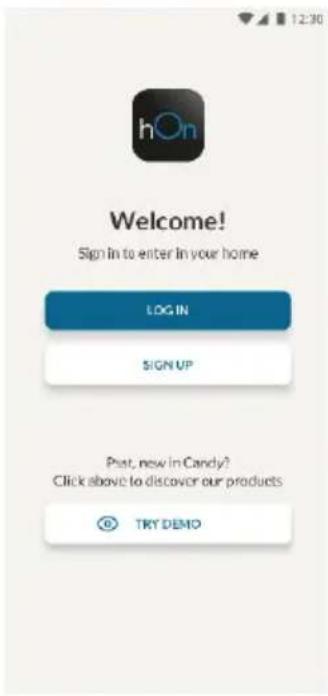
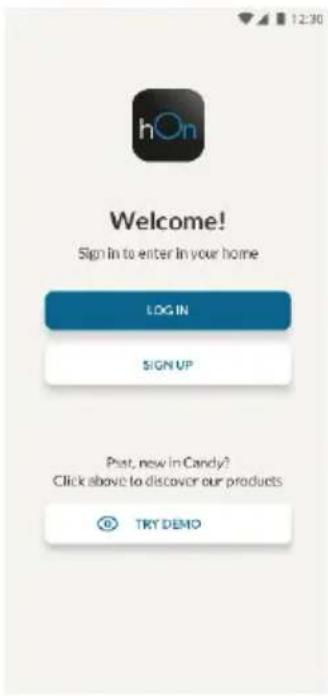
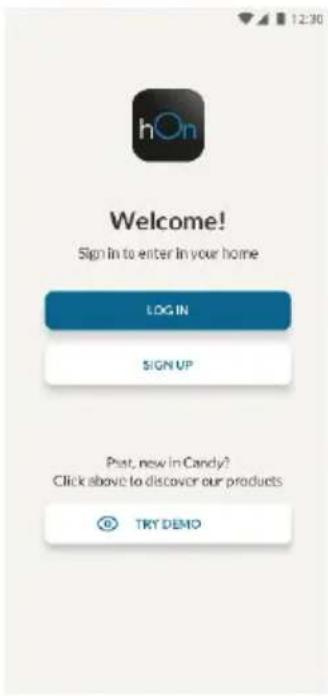
- Create your account on the hOn App or log in if you already have an account
Step 3
- Follow pairing instructions in the hOn App
Wi-Fi Use
To activate the Wi-Fi, long press the Wi-Fi key for 2 seconds. The Wi-Fi icon will turn on and an acoustic signal is made.
If the Wi-Fi has not been configured yet, when the refrigerator turns on, it will automatically enter the configuration mode and keep this status for 30 minutes. To use the configuration mode:
- Press the Wi-Fi key for 2 seconds. The refrigerator enters the Wi-Fi configuration mode and an acoustic signal is made. The Wi-Fi icon starts blinking.
- Follow the instructions in the app to configure the Wi-Fi (see above).
- Once the Wi-Fi is configured and the connection is established, the Wi-Fi icon is on and fixed.
- After 30 minutes without performing any operation, the Wi-Fi will automatically exit the configuration mode.
- If the Wi-Fi has already been configured, it will automatically reconnect according to the configuration information.
To reset the Wi-Fi, long press the Wi-Fi key and the Mode key for 2 seconds. The Wi-Fi is reset and an acoustic signal is made. After this, the Wi-Fi will automatically enter the configuration state (the Wi-Fi icon will start blinking again).
To turn off the Wi-Fi, press the Wi-Fi key for 3 seconds.
Radio-module - Technical data
| Frequency rate (OFR) | 2400 MHz-2843.5 MHz |
| Channel frequencies | 2412...2472 MHz(step size 5 MHz) |
| Maximum power(EIRP) | 100 mW |
Radio equipment type is in compliance with Directive 2014/53/EU.
TROUBLESHOOTING
| The inside light bulb does not turn on. | No electricity. | The power cable is not properly plugged in.Check if the appliance is switched off (see Temperature Adjustment).Check the power socket is working correctly (e.g. with another electric device). |
| Holiday Mode is activated. | Deactivate Holiday mode. | |
| The internal temperature of the refrigerator and/or freezer is not cold enough. | The doors are not closed. | Check that the door and gaskets close properly. |
| The doors are frequently opened. | Avoid opening the doors unnecessarily for some time. | |
| Incorrect temperature setting. | Check the temperature setting and, if possible, set a lower temperature (see Temperature Adjustment). | |
| The refrigerator and/or freezer are too full. | Wait for the temperature of the refrigerator/ freezer to stabilise.Avoid filling the refrigerator and freezer excessively. | |
| The surrounding temperature is too low. | Move the unit to a warmer place or heat the current room. | |
| Warm items have been stored. | Always allow items to cool before storing them. | |
| The food in the refrigerator freezes. | Incorrect temperature setting. | Check the temperature setting and, if possible, increase the temperature. |
| Food in contact with the back wall. | Keep the food away from the refrigerator's back wall. | |
| The bottom of the refrigerator compartment is wet or water droplets are present. | The drain hose could be clogged. | Clean the drain hose with a stick or similar item to allow the water to drain. |
| Presence of drops of water or frost on the rear wall of the refrigerator. | Depending on the function, drops of water or frost form on the rear wall of the refrigerator during operation. | It is not a defect. |
| Warm items have been stored. | Always allow items to cool before storing them. | |
| There are open food containers or liquids. | Always cover food and liquids. | |
| The doors are not closed. | Check that the door and gaskets close properly. | |
| The doors are frequently opened. | Avoid opening the doors unnecessarily for some time. | |
| Presence of water in the vegetable drawer. | Lack of air circulation. | Verify that your appliance is not too full. |
| Vegetables and fruit with too much moisture. | Wrap the fruit and vegetables in plastic materials, e.g. cling film, bags or containers. | |
| The motor runs continuously. | The doors are not closed. | Make sure the doors are closed and check the seals close properly. |
| The doors are opened frequently. | Avoid opening the doors unnecessarily for some time. | |
| Ambient temperature is very high. | Verify that the ambient temperature is in the range set out in the specifications on the appliance tag.Set the display screen/thermostat to a warmer temperature. | |
| The appliance has been off (no power) for some time. | It normally takes the appliance 8-12h to cool completely. | |
| The frozen food is thawing. | Surrounding temperature is too low. | Move the unit to a warmer place or heat the current room. |
| The freezer door is not closed. | Make sure the door is closed and that the gasket is sealing proper | |
| Fridge door alarm. | Fridge door alarm (acoustic beep) activates whenever the door is left open for more than 3 minutes. | Avoid leaving the door open when not needed. The beep ceases when the door is closed. |
| The appliance makes noises such as gurgling, buzzing, clicking, creaking. | No breakdowns. An engine is running, e.g. refrigeration unit, fan. The refrigerant flows into the pipes. Motor, switches and solenoid valves are switched on or off. | No action needed. |
| The appliance is not located on level ground. | Adjust the foot to level the appliance. | |
| The appliance touches an object around it. | Remove objects around the appliance. | |
| The appliance does not cool, the temperature and lighting indicators are on. | Demo mode is activated. | Deactivate DEMO mode. |
| Strong ice and frost in the freezer compartment. | The items were not adequately packaged. | Always pack the items well. |
| A door/drawer of the appliance is not tightly closed. | Close the door/drawer. | |
| The door/drawer has been opened too frequently or for too long. | Do not open the door/drawer too frequently. | |
| The door/drawer gasket is dirty, worn, cracked or mismatched. | Clean the door/drawer gasket or replace it with a new one. | |
| Something on the inside prevents the door/drawer from closing properly. | Reposition the shelves, door racks or internal containers to allow the door/drawer to close. | |
| The sides of the appliance are warm. | This is normal. |
Use....11
Personalized temperature ....12
USE

Step 2
Step 3
USE

Step 2
Step 3

Step 2
Step 3
USE

Step 2
Step 3
USE

Step 2
Step 3
USE

Step 2
Step 3
USE

Step 2
Step 3
PRODUCT DESCRIPTION....66
USE 67
Use....67

Step 2
Step 3
USING THE WI-FI NETWORK....79
In the app pairing process 79
- step....79
Using the Wi-Fi network 80
TROUBLESHOOTING
PRODUCT DESCRIPTION
USE

Step 2
Step 3
- Follow the pairing instructions in the hOn app
Using the Wi-Fi network
To activate the Wi-Fi network, press and hold the Wi-Fi button for 2 seconds, and the Wi-Fi icon turns on and emits an audible signal.
If the Wi-Fi network has not been configured when the refrigerator is turned on, it automatically enters configuration mode and remains in this status for 30 minutes. To use configuration mode:
- Press the Wi-Fi button for 2 seconds; the refrigerator enters Wi-Fi configuration mode and emits a sound signal. The Wi-Fi network icon starts blinking.
- Follow the instructions in the app to configure the Wi-Fi network (see above).
- After the Wi-Fi network is configured and the connection is established, the Wi-Fi network icon turns on and remains steadily lit.
- After 30 minutes without any action, the Wi-Fi network automatically exits configuration mode.
- If the Wi-Fi network has already been configured, it automatically reconnects according to the configuration information.
To reset the Wi-Fi network, press and hold the Wi-Fi – Mode button for 2 seconds; the Wi-Fi network resets and emits a sound signal. After that, the Wi-Fi network automatically enters configuration mode (the Wi-Fi network icon blinks again).
To turn off the Wi-Fi network, press the Wi-Fi button for 3 seconds.
Radio module - Technical specifications
| Učestalost (OFR) | 2400 MHz-2843.5 MHz |
| Frekvencije kanala | 2412...2472 MHz(veličina koraka 5 MHz) |
| Maksimalna snaga(EIRP) | 100 mW |
USE

Step 2
Step 3
USE

Step 2
Step 3
PRODUCT DESCRIPTION....98
USE 99
Use....99
USE

Step 2
Step 3
USE
In the app pairing procedure
Step 1

Step 2
- Create your account on the hOn app, or log in if you already have an account
Step 3
USE

Step 2
Step 3
Holiday function....127
Defrosting 127
Demo mode....127

Step 2
Step 3
USE


Step 2
Step 3
USE

Step 2
Step 3
USE

Step 2
Step 3
USE
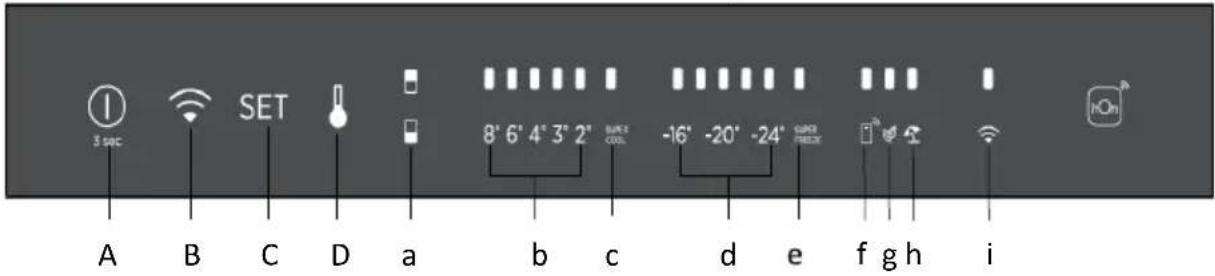
A. ON/OFF button to turn the appliance on/off

Step 2
- Create your account in the hOn app or log in if you already have an account.
Step 3
USING WI-FI NETWORK 168
In the pairing process, app ....168
- step....168
- step....168
- step....168
Using Wi-Fi network....169
TROUBLESHOOTING
PRODUCT DESCRIPTION
- Control panel
- Wine display cabinet
- Shelves
- Fresh food
- Freezer drawers
- Door shelf
* For the configuration with the greatest energy savings, place drawers, food boxes, and shelves inside the product, and the fan should be turned off. See the images above. ** The images above are for reference only. The actual configuration will depend on the physical product or the distributor's statement.
Space requirements
USE
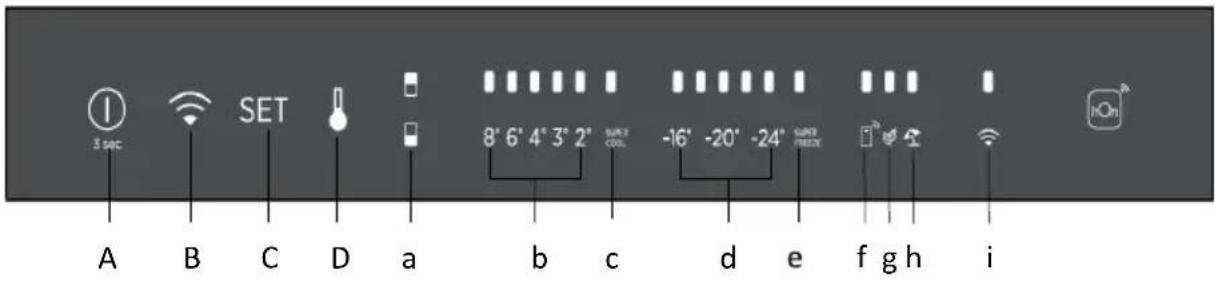
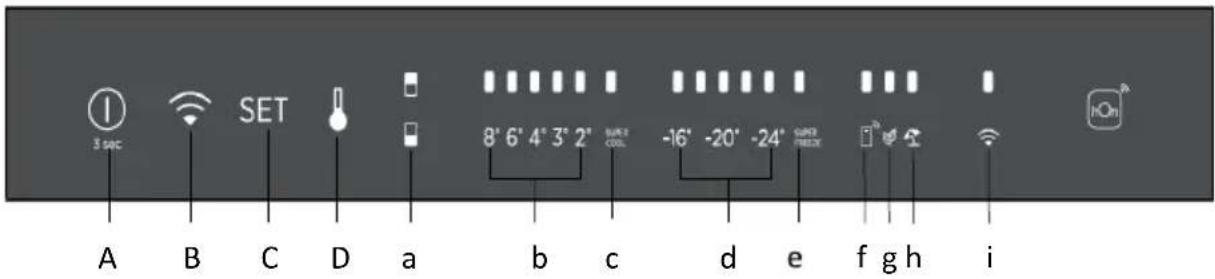
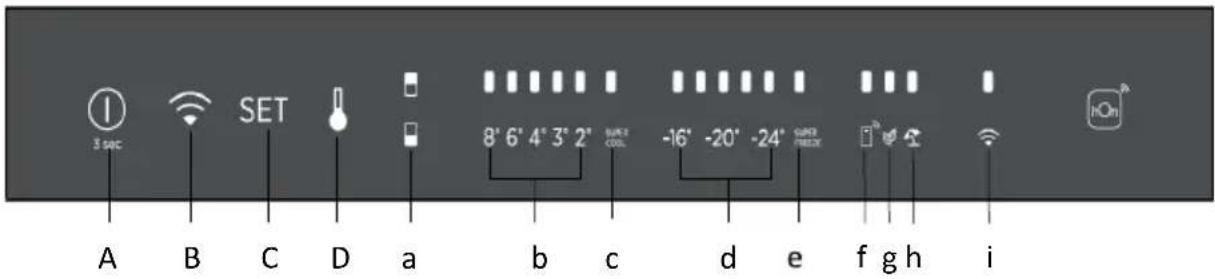
A. The ON/OFF button is used to turn the appliance on/off. B. The Wi-Fi button is used to turn the Wi-Fi network on/off. C. The Mode button is used to select special functions (Eco and Holiday). D. The TEMP button is used to select the temperature of the refrigerator and freezer.
a. The refrigerator/freezer compartment icon shows which section of the appliance is selected. b. The refrigerator temperature levels show which temperature is selected. c. The Super Cool icon shows whether the Super Cool function is activated. d. The freezer temperature levels show which temperature is selected in the freezer. e. The Super Freeze icon shows whether the Super Freeze function is activated. f. The custom temperature icon shows whether the temperature has been selected by the app. g. The Eco mode icon shows whether Eco mode is activated. h. The Holiday function icon shows whether the Holiday function is activated. i. The Wi-Fi icon shows whether Wi-Fi is working and if the device is connected.
Use
- Plug in the appliance and it turns on automatically.
- The temperature will be automatically set to 4 °C in the refrigerator and -18 °C in the freezer. NOTE: wait at least 2/3 hours before placing food in the appliance to ensure the temperature in the refrigerator.
USING THE WI-FI NETWORK
In the app pairing process
Step 1

Step 2
Step 3
• Follow the pairing instructions in the hOn app
Using the Wi-Fi network
To activate the Wi-Fi function, press and hold the Wi-Fi button for 2 seconds. The Wi-Fi icon will turn on and a sound signal will be emitted.
USE

Step 2
Step 3
OPERATION

Step 2
Step 3

Step 3

- PRODUCT DESCRIPTION
- USE
- SPACE REQUIREMENTS
- CUSTOMIZED TEMPERATURE
- SUPER COOL FUNCTION
- SUPER FREEZE FUNCTION
- ECO MODE
- HOLIDAY FUNCTION
- DEFROSTING
- SLIDER
- DEMO MODE
- ERROR CODES
- WI-FI USE
- IN APP PAIRING PROCEDURE
- STEP
- RADIO-MODULE - TECHNICAL DATA
- USING THE WI-FI NETWORK
- IN THE APP PAIRING PROCEDURE
- IN THE APP PAIRING PROCESS
- OPERATION
Brand : ROSIERES
Model : RBT7719DW
Category : Refrigerator