USER MANUAL HS6-1PS Hobart
FORM 45270 Rev. D (May 2021)
TABLE OF CONTENTS
GENERAL....3
Warranty Disclaimer 4
General Information......4
INSTALLATION 4
Unpacking....4
Display Icons 5
OPERATION 7
Set Unit of Measure....7
30 Second Timeout....7
Zero Out Scale 7
Set Stacking Preference 8
Set Target Weight 8
SUPERVISOR ACCESS 9
Message Configuration....9
Create/Delete Message....9
Speedkey Configuration 10
Create/Delete Speedkey 10
SETUP UTILITY....11
Calibrate Touchscreen....11
Time Edit....12
Change Language 13
CLEANING 14
Scale Platter 14
Display and DISPLAY TUBE 14
TROUBLESHOOTING 14
Service....14
Operation of MODEL HS6-1PS & HS7-1PS Portion Scale Slicers
SAVE THESE INSTRUCTIONS
GENERAL
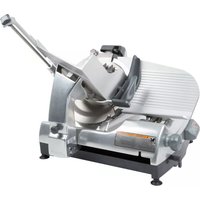
The Hobart Model HS6-1PS and HS7-1PS Portion Scale Slicers (Fig. 1) display the weight as the sliced product falls to the platter.
This manual explains the platter scale and display features only. Refer to the current HS Series Slicer Instruction Manual for detailed information about operating and cleaning the slicer.
NOTICE The scale components of these slicers are extremely precise and sensitive. The unit MUST be placed on a rigid surface that does not move or deflect while the slicer is running. Failure to do so may result in the scale not operating as intended.
NOTICE Do not move or lift the slicer by the platter arm or display tube. Lift at the base of the slicer. Failure to comply could result in weigher damage and void the warranty.
The scale display can tare to indicate net weight but is NOT LEGAL FOR TRADE.
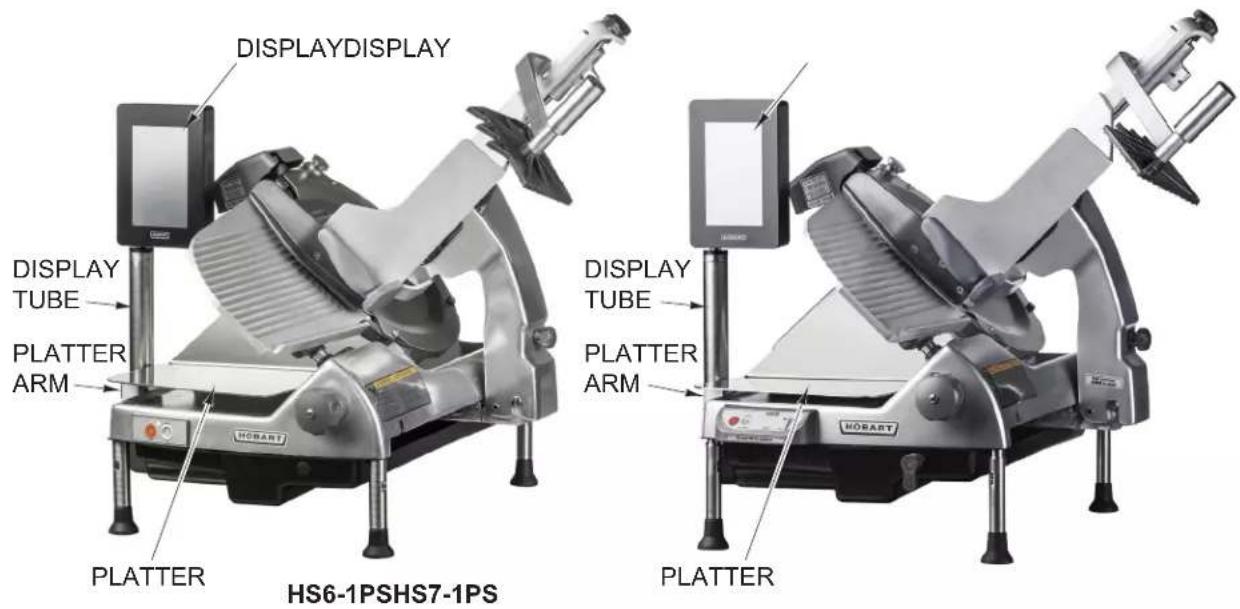
Fig. 1
WARRANTY DISCLAIMER
Installations and repairs carried out by non-authorized service technicians may affect the slicer warranty. Using other than original replacement parts may affect the slicer warranty. Technical alterations to the slicer may affect the slicer warranty.
For warranty information, please contact Hobart Customer Care.
Hobart reserves the right to alter the design of its products without prior notice. If you have questions regarding slicer details not included in this manual, contact your local Hobart Service Office.
INSTALLATION
UNPACKING
The slicer was inspected before leaving the factory. The carrier assumes full responsibility for the safe delivery of the slicer upon acceptance of the slicer for shipping. The customer must check for possible shipping damage immediately upon receipt before moving, installing, or modifying the slicer.
If damage is found, keep all original packaging materials for inspection purposes. The customer must complete the following steps to report the damage.
- Carrier's local terminal must be notified within 5 business days of shipment receipt (note time, date, and who was spoken to), and follow up and confirm with written or electronic communication.
- Notify the Hobart customer care at (800) 333-7447 within 5 business days of shipment receipt.
DISPLAY ICONS
| ICON NAME | DESCRIPTION | |
 | Weight Symbol TO | OUCH the Weight Symbol icon on the display screen to toggle the weigh mode between pounds (lb) or ounces (oz). If the scale is set to metric units then the Weight Symbol icon will toggle between kilograms (kg) and grams (g). |
| Press to Zero | Press to Zero TOUCH | UCH the Press to Zero area on the display screen to set the scale weight to "0". Use this function to zero out the scale for any tare value. |
 | Slice Count (+1) This icon indicates the slicer will slice 1 extra slice after the desired weight is achieved. The screen will flash when the set weight is reached. TOUCH the icon to toggle to the Slice Count (Multiple) mode. |
 | Slice Count (Manual Slicer) | This icon indicates the slicer will slice multiple batches of product of desired weight. The screen will flash when the set weight is reached. TOUCH the icon to toggle to the Slice Count (+1) mode. (Only available on HS6-1PS model) |
 | Slice Count (Automatic Slicer) | This icon indicates the slicer will slice multiple batches of product of desired weight. The screen will flash and slicer will stop when the set weight is reached. Any consecutive portions will automatically be tared. TOUCH the icon to toggle to the Slice Count (+1) mode. (Only available on HS7-1PS model) |
 | Up Arrow TOUCH | the Up Arrow to increase the target weight. Increasing the weight above 10 lbs will set the scale to Infinite Mode. |
 | Down Arrow TOUCH | the Down Arrow to decrease the target weight. Decreasing the weight below 0 lbs will set the scale to Infinite Mode. |
 | Infinite Mode The scale will weigh up to 10 lbs with no interaction from the display or slicer. TOUCH the Up or Down Arrow to set the scale above 10 lbs or below 0 lbs to enter Infinite Mode. |
 | Menu Key TOUCH | the Menu Key to select Supervisor Access or Service Access. |
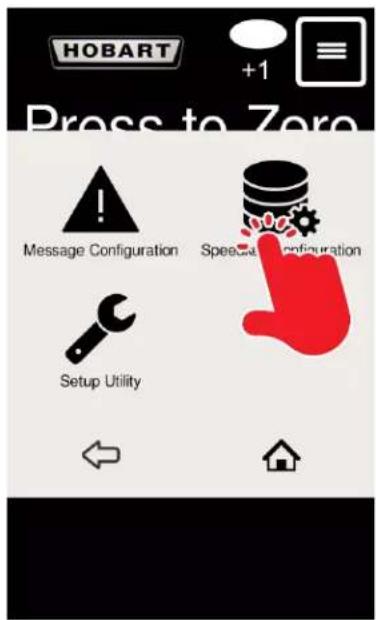
 | Supervisor Access | TOUCH the Supervisor Access icon to select Message Configuration, Speedkey Configuration, or Setup Utility. To find this icon: TOUCH Menu. |
 | Service Access TOUCH the Service Access icon to select service features available on the portion scale slicer. Only a trained service technician can access this mode. To find this icon: TOUCH Menu. |
 | Message Configuration | TOUCH the Message Configuration icon to access this mode.To find this icon:TOUCH Menu > Supervisor Access. |
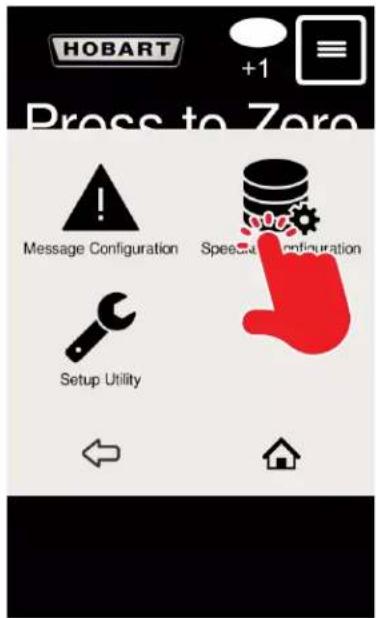
 | Speedkey Configuration | TOUCH the Speedkey Configuration icon to access this mode.To find this icon:TOUCH Menu > Supervisor Access. |
 | Home TOUCH the | Home icon to return to the main display screen. |
 | Back Arrow TOUCH | The Back Arrow icon to go back to the previous screen. |
 | Setup Utility TOUCH | The Setup Utility icon to access the scale setup features such as Calibrate Touchscreen and Time Edit.To find this icon:TOUCH Menu > Supervisor Access. |
 | Calibrate Touchscreen | TOUCH the Calibrate Touchscreen icon to calibrate the touchscreen.To find this icon:TOUCH Menu > Supervisor Access > Setup Utility. |
 | Time Edit TOUCH | the Time Edit icon to adjust the internal date and time.To find this icon:TOUCH Menu > Supervisor Access > Setup Utility. |
 | 30 Second Timeout (On) | The 30 second timeout function will put the slicer in standby mode if the weighersenses no weight change for 30 seconds. TOUCH the 30 Second Timeout On icon to enable this function. |
 | 30 Second Timeout (Off) | The 30 second timeout function will put the slicer in standby mode if the weighersenses no weight change for 30 seconds. TOUCH the 30 Second Timeout Off icon to disable this function. |
 | Keyboard Key TOUCH | to close the pop-up keyboard after inputting text. |
 | Keyboard Type TOUCH | to toggle the pop-up keyboard between letters and numbers with symbols. |
 | Alt Key TOUCH to | toggle special characters on the pop-up keyboard. |
OPERATION
SET UNIT OF MEASURE
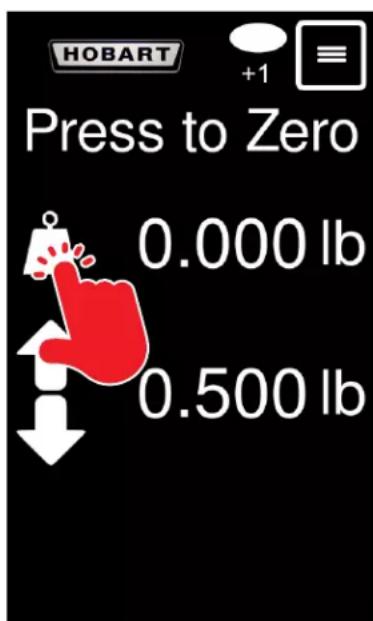
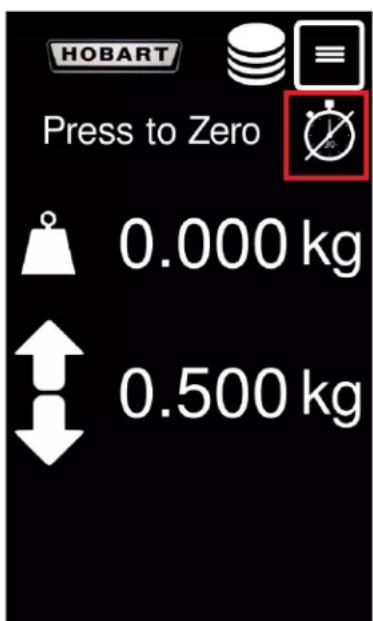
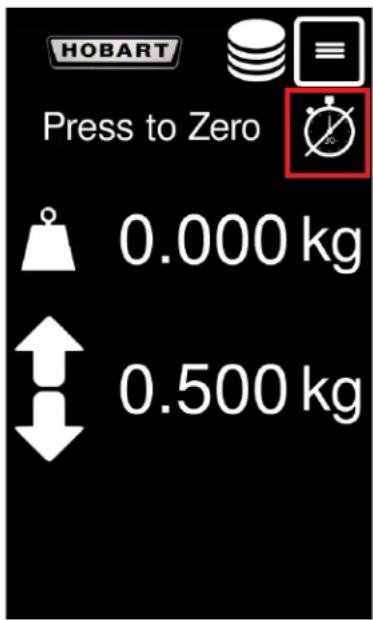
The scale display can be configured to display weight in pounds (Fig. 2) or ounces (Fig. 3). TOUCH the Weight Symbol icon (Fig. 2) on the display screen to toggle the weigh mode between pounds (lb) or ounces (oz). If the scale is set to metric units (Fig. 4) then the Weight Symbol icon will toggle between kilograms (kg) and grams (g).
30 SECOND TIMEOUT
When enabled, the 30 second timeout function will put the slicer in standby mode if the weigher senses no weight change for 30 seconds. TOUCH the 30 Second Timeout icon (Fig. 4) to enable/disable this function.
ZERO OUT SCALE
If the scale is registering negative weight, the display will show "under" (Fig. 5). TOUCH the Press to Zero area on the display screen (Fig. 5) to set the scale weight to "0". Weight will clear out and appear as 0 (Fig. 6).
NOTE: Use this function to zero out the scale for any tare value up to 0.06 lbs (or 0.3 kg).
NOTE: Clean off the scale platter and TOUCH the Press to Zero area again if the weight did not zero out.
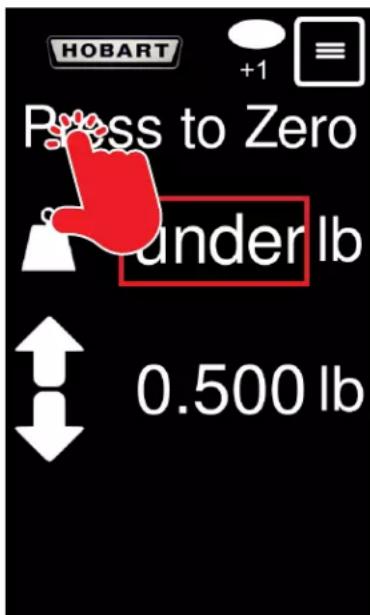
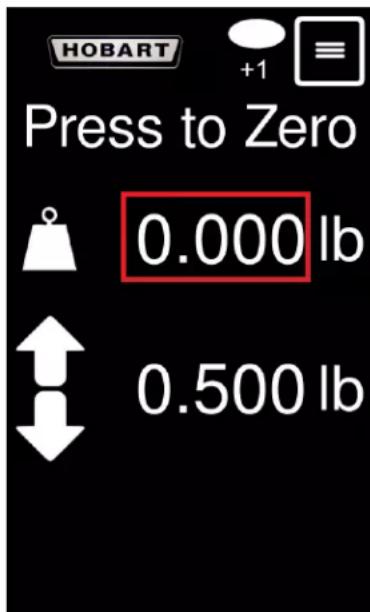
Fig. 6Fig. 5
SET STACKING PREFERENCE
The stack preference can be configured to slice one extra slice (Fig. 7) after the target weight is reached or multiple batches (Fig. 8) of product at a desired weight. TOUCH the icon to toggle between the Slice Count (+1) mode and the Slice Count (Multiple) mode.
Manual Slicing Icon (HS6-1PS) (Fig. 8) will only flash when the target weight (or any multiple of the set weight) is reached.
Auto Slicing Icon (HS7-1PS) (Fig. 9) will flash and pause the slicer when initial target weight is reached.
Consecutive portions sliced without removing the product from the platter will pause the slicer when the target weight plus the last recorded weight on the platter is reached. This allows the operator to place dividers on the platter in between portions without affecting the weight of the portions. This process will continue until weight is removed from the platter.
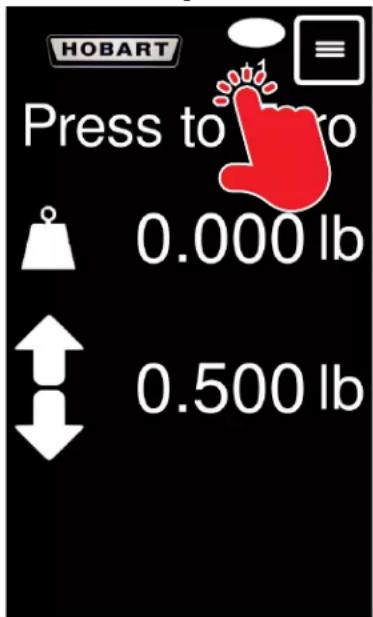
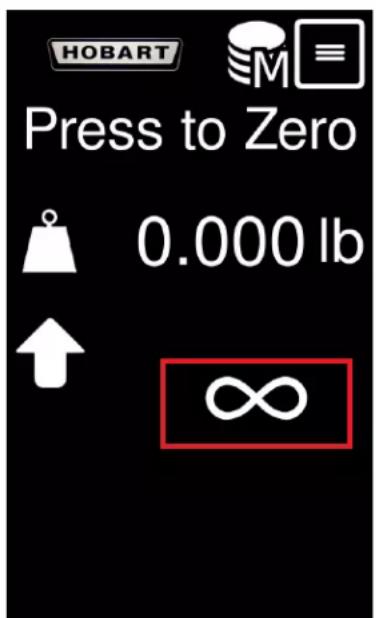
TOUCH the Up or Down Arrow (Fig. 10) to select desired target weight. Once desired weight is displayed on screen, the target weight is set. If the target weight is set below 0 lbs, or above 10 lbs, the scale will enter Infinite Mode (Fig. 11). Infinite Mode will weigh product, up to 10 lbs, with no interaction from the display or slicer.
NOTE: Weight can be adjusted in 0.125 lb (2 oz) increments or in 0.01 kg (10 g) increments.
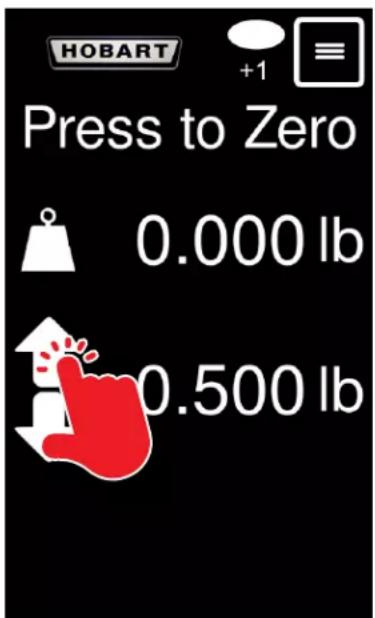
Fig. 10 Fig. 11
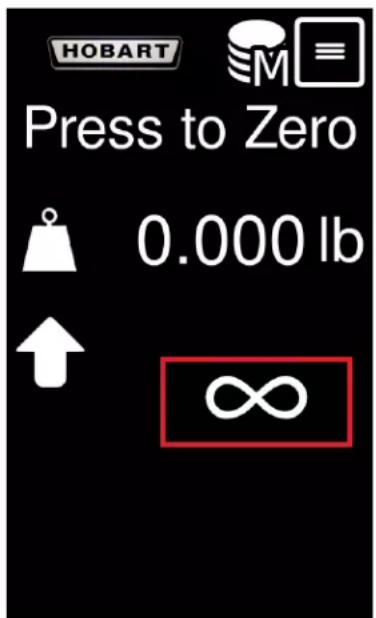
SUPERVISOR ACCESS
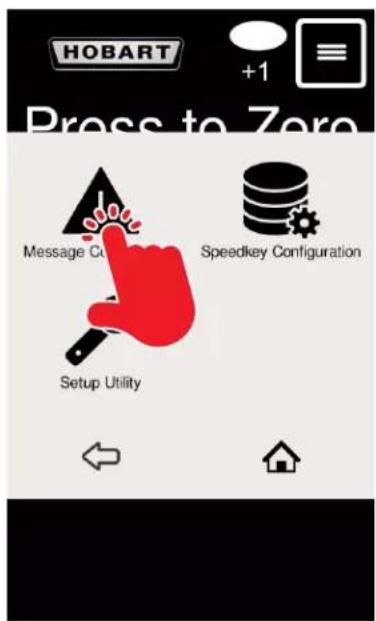
The Supervisor Access mode is where you can configure messages, set up speedkeys, and use the setup utility. You can access the supervisor mode by touching the Menu icon.
Fig. 12 Fig. 13 Fig. 14
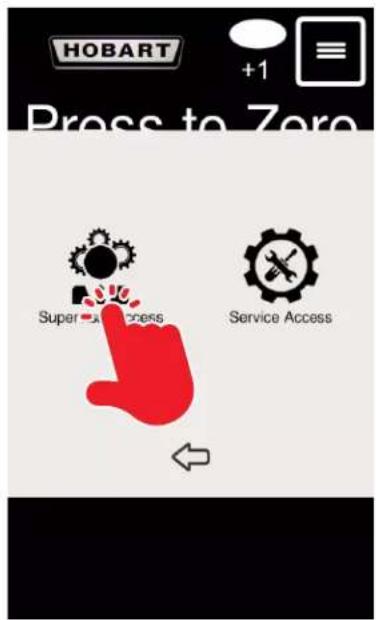
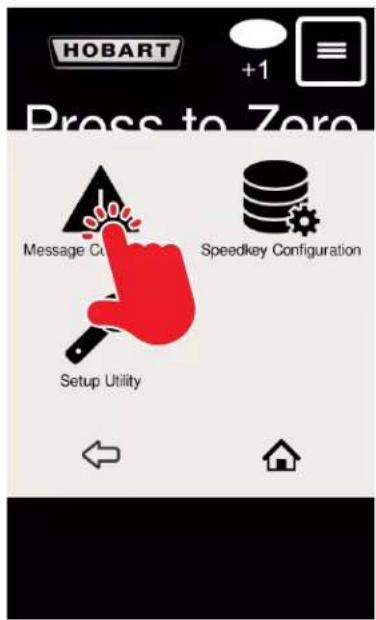
CREATE/DELETE MESSAGE
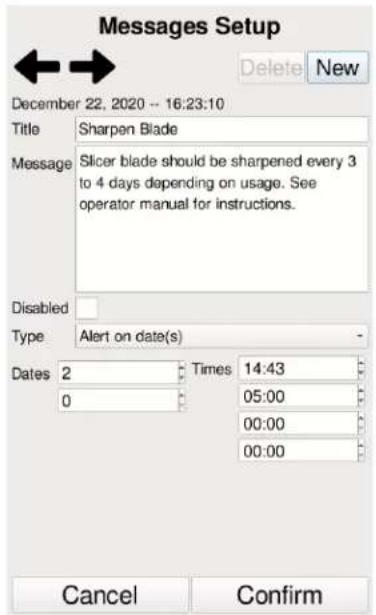
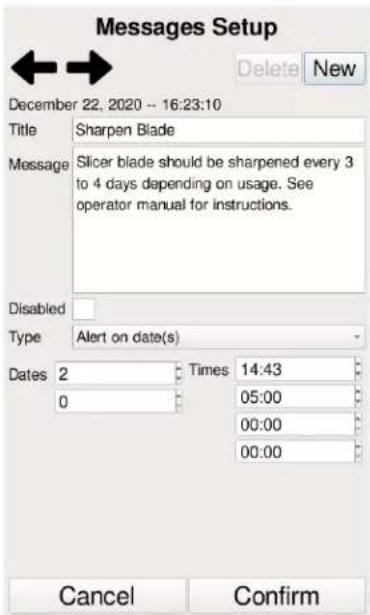
To create a new message, TOUCH New on the Messages Setup screen (Fig. 15). Enter the message title and the message in the appropriate text boxes. Select Alert on week day (Fig. 15) or Alert on date(s) (Fig. 16) from the Type dropdown box. Enter the date/day and times you want the message to appear. TOUCH Confirm.
To delete a message, TOUCH the arrow keys until the desired message appears. TOUCH Delete to delete selected message.
NOTE: Preloaded messages cannot be deleted.
TOUCH Confirm to save changes or Cancel to escape Message Setup.
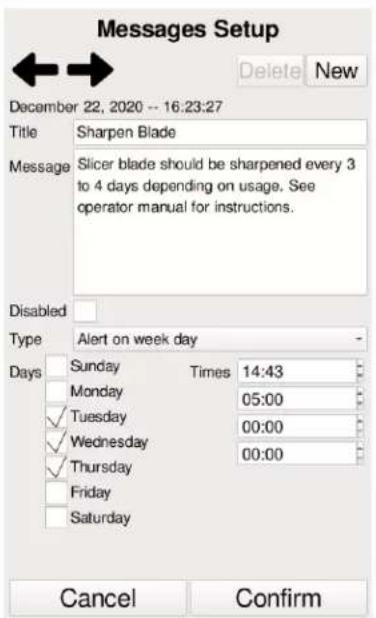
Fig. 15 Fig. 16
CREATE/DELETE SPEEDKEY
To create a speedkey, TOUCH New on the Speed Key Setup screen (Fig. 20). Type the text for the speedkey in Text box (e.g. 5oz). Select Preset Weight from the Key Type dropdown box. Select Lbs or Oz from the Unit of Measure dropdown box (or Kg or G if in Metric mode). Type a Target Weight (e.g. 5) and type a Weight Tolerance (e.g. 0.5). TOUCH Confirm (Fig. 20) to save changes or Cancel to escape Speed Key Setup.
OPTIONAL: To edit advanced options, TOUCH Advanced Options (Fig. 21). Select desired Text Color from the dropdown box. Type the Text Font Point Size (e.g. 12). Select the desired Background Color from the dropdown box. Choose the desired position for the speedkey by selecting a box in the grid. The box will highlight green.
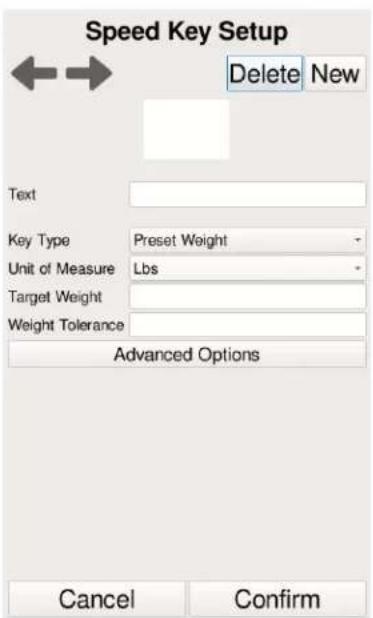
Fig. 20 Fig. 21
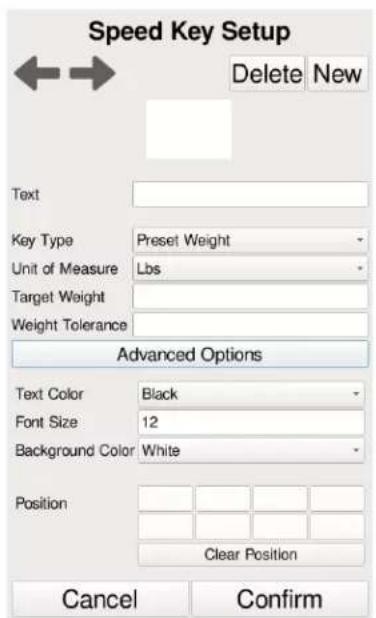
NOTE: After inputting text, TOUCH the Keyboard Key in the lower right corner to hide the keyboard.
To delete a speedkey, TOUCH the arrow keys until the desired speedkey is highlighted green. TOUCH Delete to delete the selected speedkey. TOUCH Confirm to save changes or Cancel to escape Speed Key Setup.
SETUP UTILITY
The Setup Utility mode is where you can calibrate the touchscreen, adjust the internal clock, and change the language on the portion scale slicer. You can access the Setup Utility mode from the Supervisor Access mode.
CALIBRATE TOUCHSCREEN
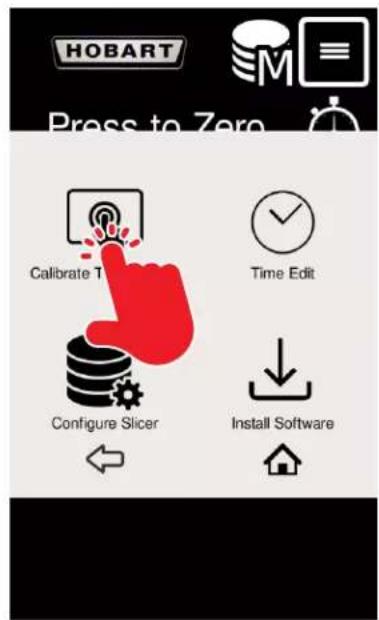
To calibrate the touchscreen, TOUCH the Menu icon (Fig. 22), then TOUCH the Supervisor Access icon (Fig. 23), then TOUCH the Setup Utility icon (Fig. 24), then TOUCH the Calibrate Touchscreen icon (Fig. 25). You should now be on a screen with lines and a circle in the lower left hand corner (Fig. 26).
TOUCH and hold the circle until it becomes solid blue and moves to the next location. The circles will appear in all four corners. Calibration is complete after touching and holding on all four corners.
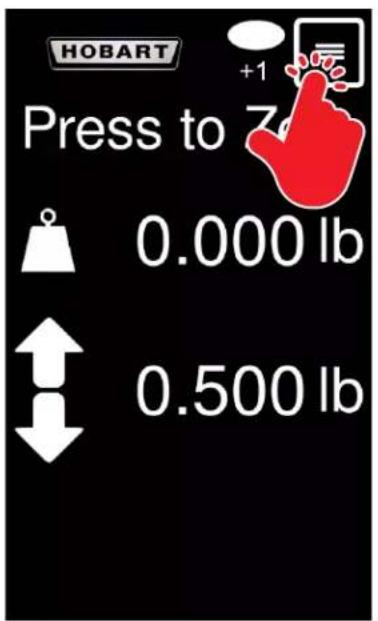
Fig. 22 Fig. 23
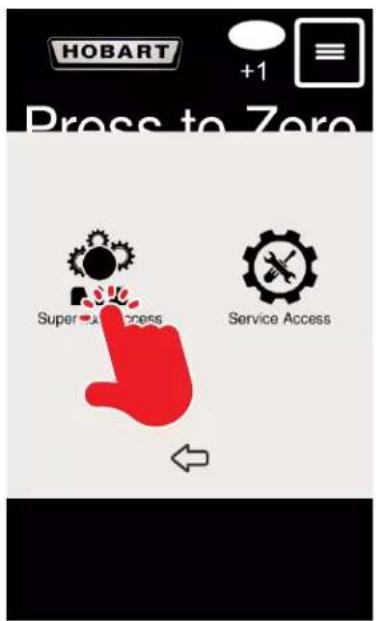
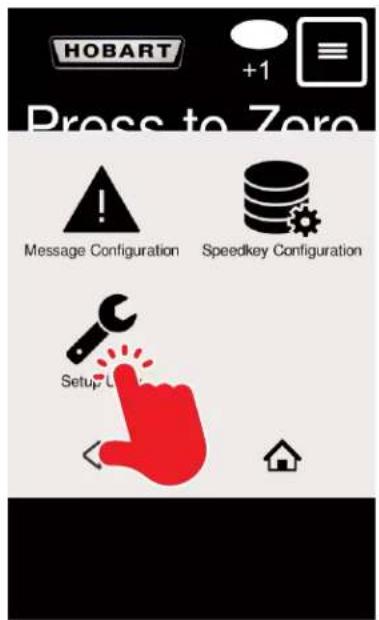
Fig. 24 Fig. 25 Fig. 26

natural_image
Simple graphic of a red thumbs-down icon on a teal background with grid lines (no text or symbols)
TIME EDIT
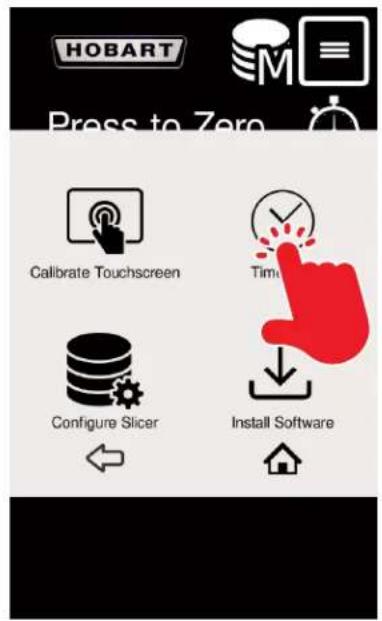
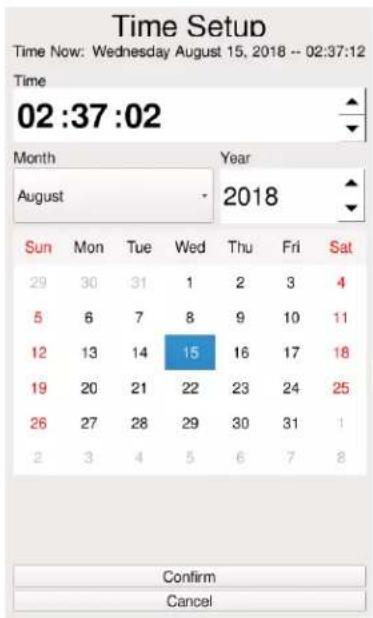
To adjust the internal clock on the portion scale slice, TOUCH the Menu icon (Fig. 27), then TOUCH the Supervisor Access icon (Fig. 28), then TOUCH the Setup Utility icon (Fig. 29), then TOUCH the Time Edit icon (Fig. 30). You should now be on the Time Setup screen (Fig. 31).
TOUCH the hours and use the up and down arrows to adjust the hours.
TOUCH the minutes and use the up and down arrows to adjust the minutes.
TOUCH the seconds and use the up and down arrows to adjust the seconds.
Select the month from the dropdown box. Use the up and down arrows to select the year. TOUCH the date on the calendar. TOUCH Confirm to save changes or Cancel to escape Time Setup.
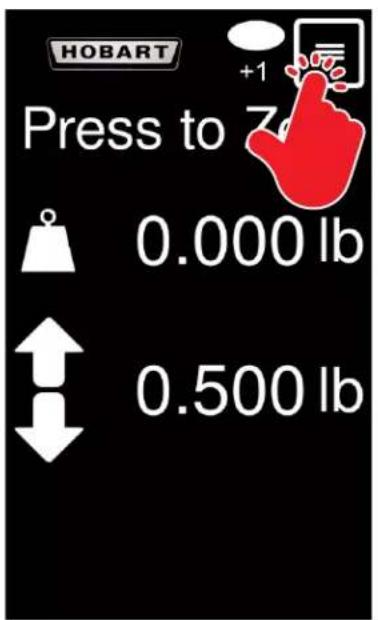
Fig. 27 Fig. 28
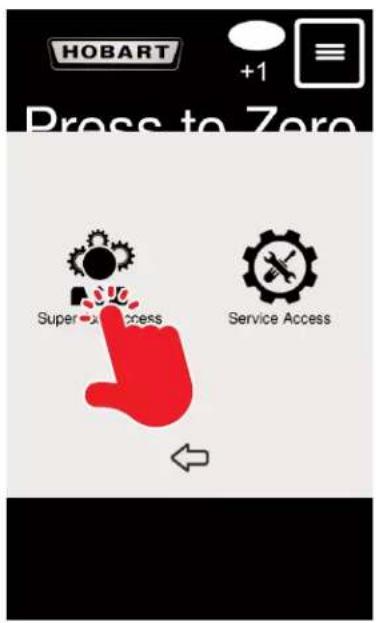
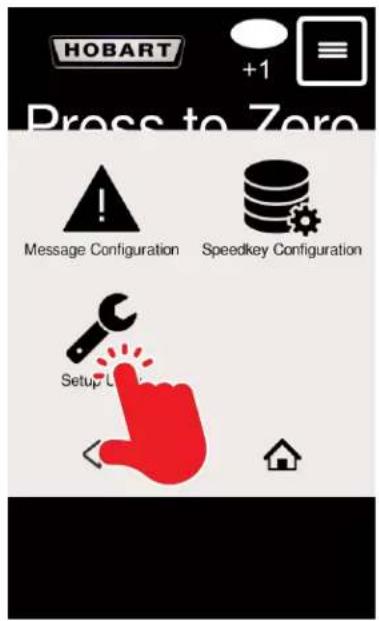
Fig. 29 Fig. 30 Fig. 31
CHANGE LANGUAGE
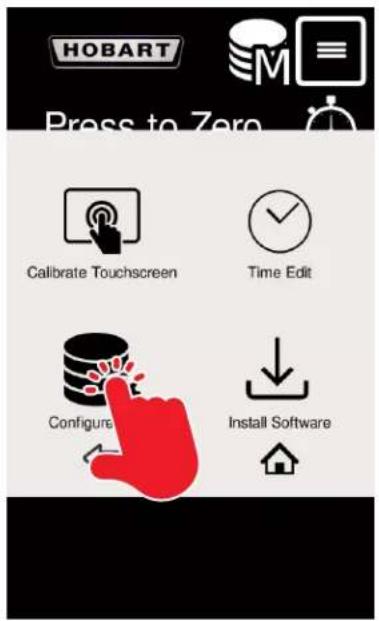
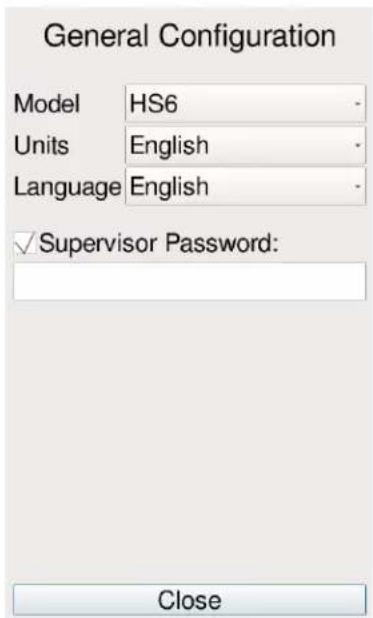
To change the language on the portion scale slicer, TOUCH the Menu icon (Fig. 32), then TOUCH the Supervisor Access icon (Fig. 33), then TOUCH the Setup Utility icon (Fig. 34), then TOUCH the Configure Slicer icon (Fig. 35). You should now be on the General Configuration screen (Fig. 36).
Select the language from the dropdown box. TOUCH Close to save changes or to escape General Configuration.
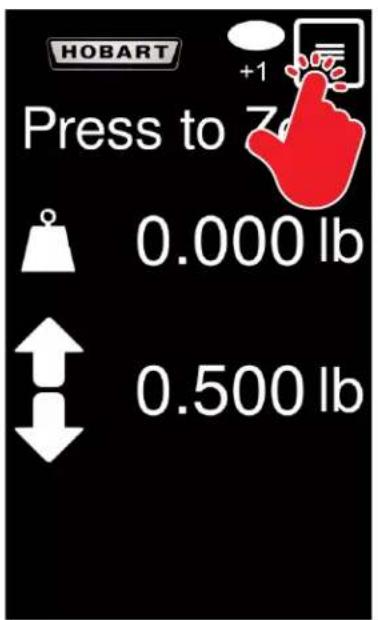
Fig. 32 Fig. 33
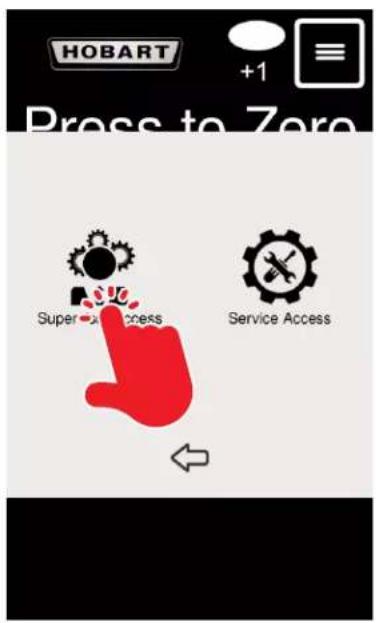
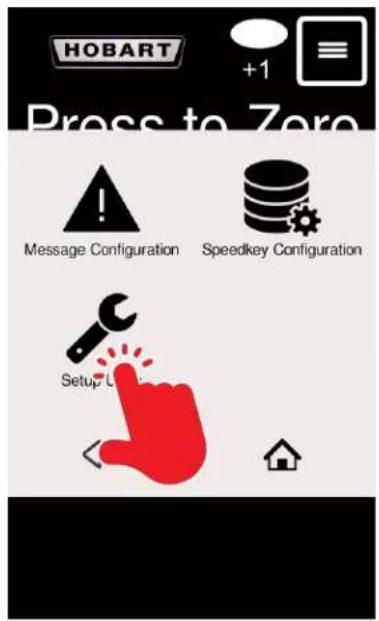
Fig. 34 Fig. 35 Fig. 36
CLEANING
NOTICE In addition to the cleaning instructions found in the current HS Series Slicer Instruction Manual, the following need to be performed for the HS6-1PS and HS7-1PS Portion Scale Slicers.
SCALE PLATTER
- Remove the Scale Platter by placing both hands in the position shown (Fig. 37) and lifting up.
- Wash, rinse, and sanitize the Scale Platter in a sink or dishwasher.
DISPLAY AND DISPLAY TUBE
Use a clean cloth soaked in mild detergent and warm water, and wipe all surfaces of the display and display tube. Rinse using a fresh cloth and clean water. Apply sanitizing solution to clean surfaces. Make sure the slicer is clean of all food soil before sanitizing. Use only products formulated to be safe on stainless steel or aluminum. DO NOT exceed chemical manufacturer's recommended concentrations for detergent or sanitizer.
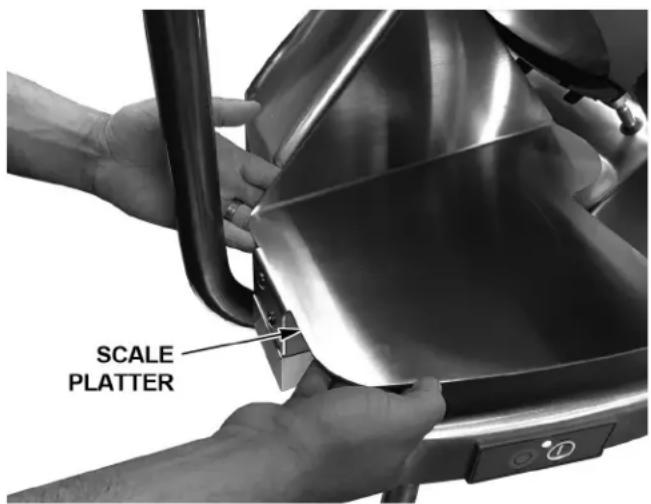
Fig. 37
TROUBLESHOOTING
| Problem Corrective Action |
| Weight on display does not change every time sliced product falls on platter | Move unit to a more sturdy surface. Unit cannot be placed on a cart or table that can move or bounce during operation. |
| Does not weigh correctly Remove | any debris from platter - check under the platter. |
| Verify loadcell arm is not rubbing the bottom cover. |
| Verify subplatter is not rubbing the covers. |
| Check for loose hardware. |
| Display frozen at startup screen Disconnect from main power and reboot. |
| Display locked up Disconnect from main power and reboot. |
| "Under" or "Err" in weight field | Remove any debris from platter - check under the platter. |
| Rezero scale. |
| Verify subplatter is not rubbing the covers or internal wires. |
| "Err" in weight field on startup | Unplug slicer. Ensure scale platter is installed correctly before plugging in the slicer. |
| If symptom still exists, contact your local Hobart Service office. |
| Weight field is blank Rezero scale. | |
SERVICE
Contact your local Hobart-authorized service office for any repairs or adjustments needed on the slicer.
TRANCHEUSE AVEC BALANCE DE PORTIONS
MODÈLE
HS6-1PS ML-141162
HS7-1PS ML-141166
HOBART
701 S. RIDGE AVENUE
TROY, OHIO 45373
937 332-3000
www.hobartcorp.com
FORMULAIRE 45270 Rév. D (mai 2021)
TABLE DES MATIÈRES
RENSEIGNEMENTS GÉNÉRAUX....3
TEMPORISATION DE 30 SECONDES
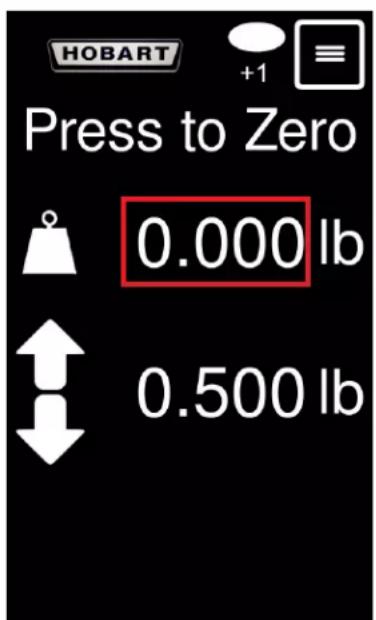
Fig. 6Fig. 5
DÉFINIR LE POIDS CIBLE
Fig. 10 Fig. 11
ACCÈS SUPERVISEUR
CRÉER/SUPPRIMER MESSAGE
Fig. 15 Fig. 16
CONFIGURATION DES TOUCHES RAPIDES
CRÉER/SUPPRIMER TOUCHES RAPIDES
Fig. 20 Fig. 21
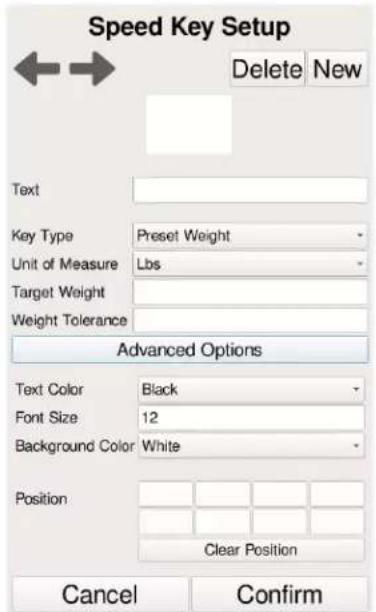
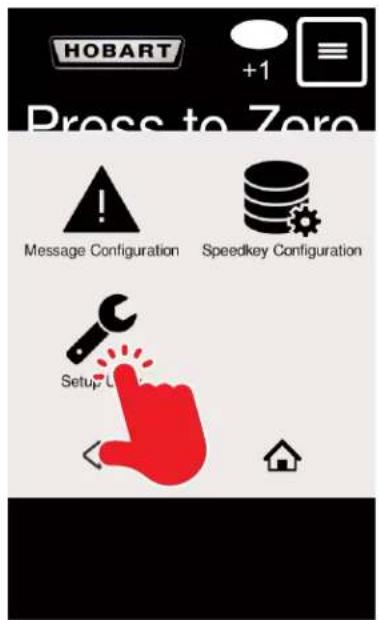
Fig. 24
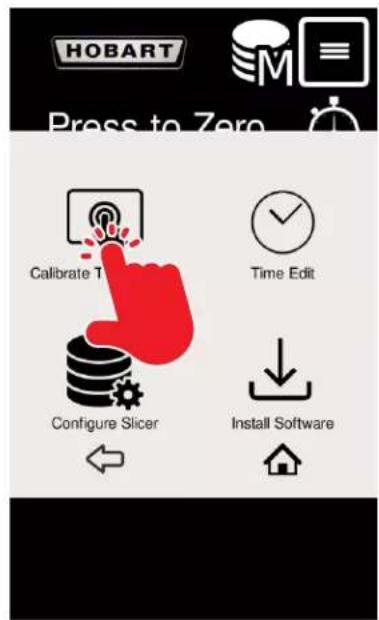
Fig. 25 Fig. 26

natural_image
Simple graphic of a red speech bubble with a green checkmark on a teal background (no text or symbols)
MODIFIER L'HEURE
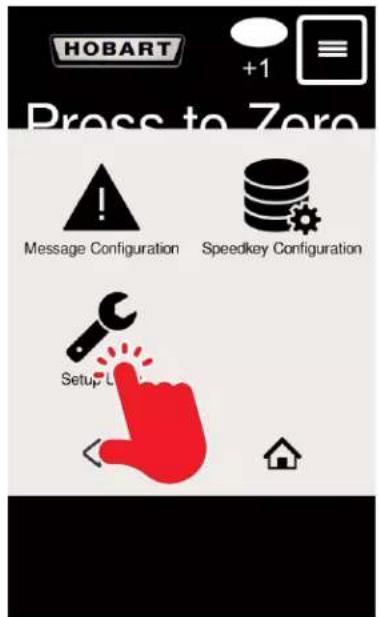
Fig. 29
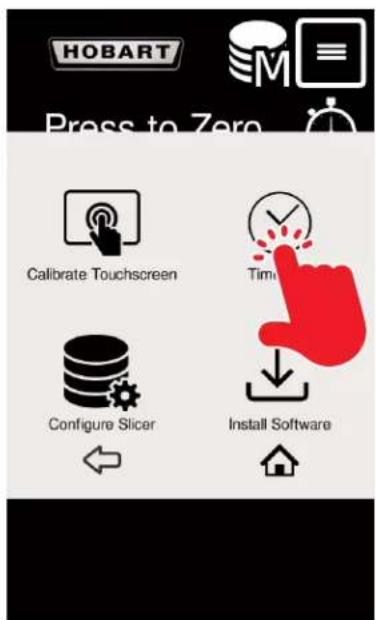
Fig. 30
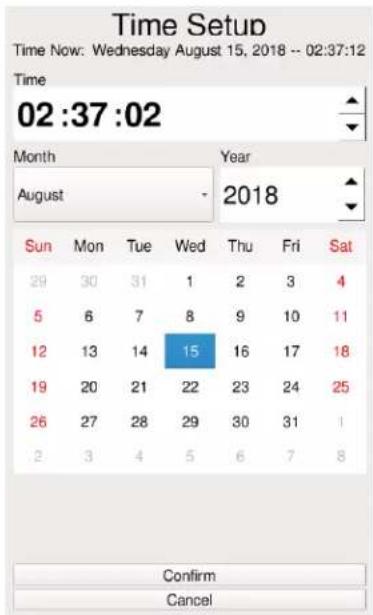
Fig. 31
CHANGER DE LANGUE
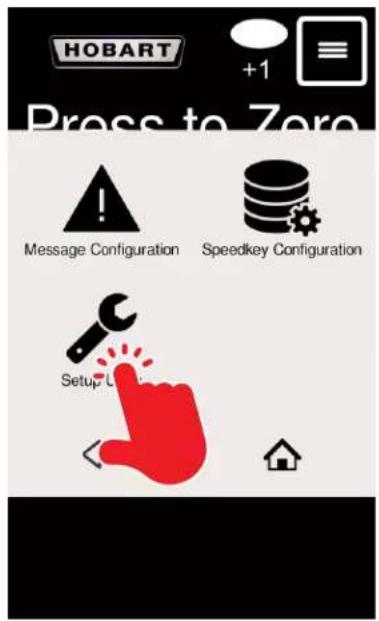
Fig. 34
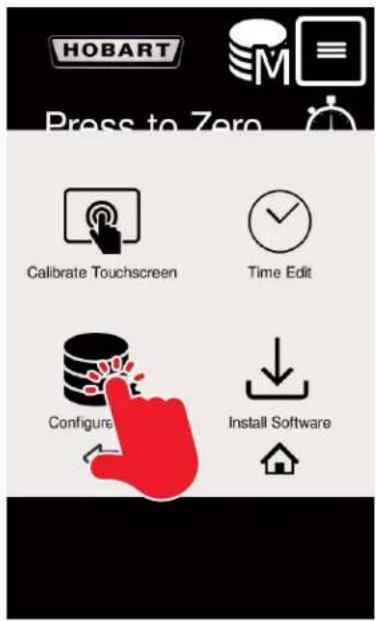
Fig. 35
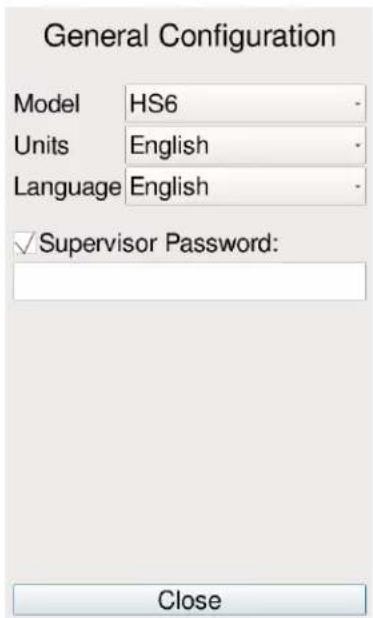
Fig. 36
NETTOYAGE