WP-DC26 - Camera CANON - Free user manual and instructions
Find the device manual for free WP-DC26 CANON in PDF.



| Product type | Waterproof housing for digital camera |
| Brand | Canon |
| Model | WP-DC26 |
| Maximum immersion depth | 40 meters (130 feet) |
| External dimensions (excluding protruding parts) | 132.4 × 87.1 × 69.9 mm |
| Volume | Approx. 465 cm³ |
| Weight (housing only) | Approx. 295 g (with diffuser plate) |
| Materials | Polycarbonate, ABS, tempered glass, EPDM (seal) |
| Operating temperature | 0 to 40 °C (32 to 104 °F) |
| Power supply | NB-5L battery (via built-in camera) |
| Main features | Waterproof up to 40 m, access to all buttons and dials, flash with diffuser plate, underwater mode (optimized white balance) |
| Maintenance and cleaning | Rinse with fresh water after marine use, grease the seal with included silicone grease, replacement of seal recommended once a year |
| Safety | Do not use beyond 40 m, avoid high temperatures, do not open near water, do not use the neck strap underwater |
| Spare parts and repairability | Seal, diffuser plate, wrist strap, neck strap, silicone grease - contact Canon customer service for replacement |
| General information | Compliant with JIS protection class 8, tripod thread, glass lens window |
Frequently Asked Questions - WP-DC26 CANON
User questions about WP-DC26 CANON
0 question about this device. Answer the ones you know or ask your own.
Ask a new question about this device
Download the instructions for your Camera in PDF format for free! Find your manual WP-DC26 - CANON and take your electronic device back in hand. On this page are published all the documents necessary for the use of your device. WP-DC26 by CANON.
USER MANUAL WP-DC26 CANON
natural_image
Mechanical component diagram showing a lever and housing assembly (no text or symbols)ウォータープルーフケースを準備します
natural_image
Line drawing of two identical camera modules with no text or symbolsnatural_image
Technical line drawing of an electronic device housing with internal components and a directional arrow indicating assembly (no text or symbols present)natural_image
Technical line drawing of a mechanical device with no visible text or symbolsnatural_image
Technical line drawing of a mechanical component with no visible text or symbols摄影
natural_image
Technical line drawing of a camera module with no visible text or symbols再生
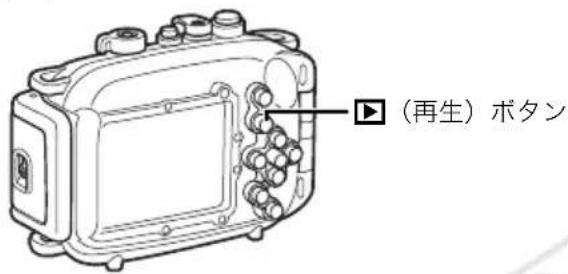
1 ▶(再生)ボタンを押します。
保管するときは
- While every effort has been made to ensure that the information contained in this guide is accurate and complete, no liability can be accepted for any errors or omissions. Canon reserves the right to change the specifications of the hardware and software described herein at any time without prior notice.
- No part of this guide may be reproduced, transmitted, transcribed, stored in a retrieval system, or translated into any language in any form, by any means, without the prior written permission of Canon.
- Canon makes no warranties for damages resulting from corrupted or lost data due to a mistaken operation or malfunction of the camera, the software, the memory cards, personal computers, peripheral devices, or use of non-Canon memory cards.
Copyright © Canon Inc. 2008 All rights reserved.
Please read this manual carefully to operate the Waterproof Case correctly.
Store this manual in a safe place for further reference once you have read it.
Introduction
- Thank you for purchasing this Waterproof Case. Once installed in the Waterproof Case, you can use your Canon Digital Camera in the rain, at the beach or on the ski slopes. You can also use it underwater at depths down to 40 meters (130 ft.) and in wet or dusty environments.
- Before you use the Waterproof Case, please make sure the case is functioning correctly and does not leak. Close the Waterproof Case before putting the camera inside it, and hold it underwater at an approximate depth of 15 cm (5.9 in.) for around three minutes to check for leaks. Perform a similar check after you have put the camera into the case. If it leaks, contact your Canon Customer Support Help Desk.
- Canon Inc., its subsidiaries and affiliates, and distributors of the Waterproof Case are not liable for any consequential damages arising from corrupted or lost data due to mistaken operation or malfunction of the Waterproof Case, the camera, the battery or the memory card that results in the failure of an image to be recorded. - Please carefully read the Camera User Guide supplied with your camera also.
Unpacking
The Waterproof Case is shipped with the items listed below. Please check your package now to confirm that it is complete. Contact your Canon dealer if anything is missing.
• Waterproof Case WP-DC26
- Neck Strap
- Wrist Strap
- Diffusion Plate
• Silicone Grease for the Waterproof Seal
- User Guide (this guide)

Safety Precautions
Before you use the Waterproof Case, thoroughly read these precautions to ensure correct use. The precautions described below are for ensuring safe use of the Waterproof Case and for preventing danger and damage to yourself and others. Thoroughly understand the details of these precautions before reading the rest of this manual.
• After you use the Waterproof Case, be sure to remove the camera from it. If you leave the Waterproof Case containing the camera in direct sunlight or in a high-temperature place, this may cause a fire or the case to burst.
- Do not use the Waterproof Case in place of a personal flotation device (life jacket).
- Do not use the neck strap underwater. Remove the neck strap and attach the wrist strap before use underwater. There is danger that the neck strap will become entangled and cause strangulation or another mishap.
- Do not use the Waterproof Case at water depths exceeding 40 meters (130 ft.). The case may malfunction, suffer damage or leak.
- Do not press the buttons or the lever of the Waterproof Case with unnecessary force when in the water. This may warp the casing and cause leaks.
- When cleaning the case, do not spray water at the waterproof seal under pressure. This may cause leaks.
- Do not disassemble or modify the Waterproof Case. This may cause leaks.
- Do not damage the waterproof seal, scratch its contact surfaces, or allow dirt, sand, hair or other debris to accumulate between the waterproof seal and the case. This may cause leaks.
- Do not use the Waterproof Case in water at temperatures above 40^ (104°F). Heat may warp the casing and cause leaks.
- Do not leave the Waterproof Case in direct sunlight, inside a car in hot weather, or near a heater. Heat may warp the casing and cause leaks. Cover it with a towel, for example, if you have to leave it in the sun.
Handling Precautions
- Do not drop or throw the Waterproof Case.
- Use only the supplied silicone grease. Use of other waterproofing products may impair the strength of the Waterproof Case. If any other waterproofing product is mistakenly applied, wipe it off immediately.
- Avoid opening or closing the Waterproof Case near water. When you are installing the camera or changing the memory card or the battery, choose a place with low humidity well away from salty sea air.
- Avoid using the Waterproof Case for long periods of time in hot temperatures.
-
Battery life is reduced in cold temperatures. When you use the Waterproof Case in very cold places, keep it warm by putting it in a bag whenever you are not shooting. It is not advisable to use the Waterproof Case in temperatures below the freezing point.
-
Moving the Waterproof Case rapidly between hot and cold temperatures may cause condensation (water droplets) to form on its internal surfaces. If this occurs, stop using the camera immediately as the condensation may cause a malfunction. Remove the camera from the Waterproof Case and wipe off the condensation from the Waterproof Case and the camera with a soft and dry cloth, and wait until the moisture evaporates completely before resuming use.
About Water Leakage
Stop shooting immediately if the Waterproof Case leaks. If you use the camera in this state, this may cause a fire or electric shocks. Never use it in this state. Thoroughly wipe the Waterproof Case interior and the camera dry. Please contact your Canon Customer Support Help Desk.
Waterproof Seal
- Debris (e.g. sand, dirt or hair) stuck to the waterproof seal may cause water leakage. Catching a single strand of hair or a tiny grain of sand in the seal can cause leaks.
- When removing the seal from your Waterproof Case, use your fingers so you do not damage the waterproof seal (as shown in Fig 1.). Do not dig your fingernails into it or use pointed or metallic objects to remove it.
- Do not pull the waterproof seal. Pulling the seal may overstretch it, which may cause the case to not close properly and cause leaks.
- While mounting the waterproof seal, do not twist or pull the seal with force. Extreme care should be taken to ensure the waterproof seal is level around the mounting groove. Please check to ensure that the waterproof seal is working.
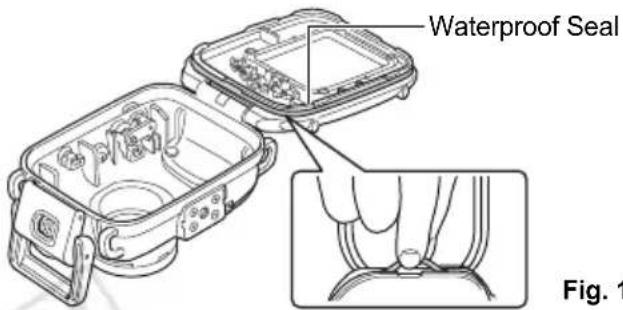
- Be careful not to apply too much grease. Applying too much grease to the seal may cause water leakage (about a droplet is sufficient).
- Do not use paper or cloth to apply the grease to the seal.
- A damaged or cracked waterproof seal may cause leaks. Please contact your Canon Customer Support Help Desk.
To ensure that the Waterproof Case remains waterproof, it is recommended to replace the seal once a year. Please contact your Canon Customer Support Help Desk.
Care and Maintenance
- Wash the exterior of the Waterproof Case with enough clean fresh water (tap water under 30 °C/86 °F, etc.) as soon as possible after using it. It is particularly advisable to soak it in fresh water for several hours after use in salt water to remove salt deposits. Please check that you have locked the catch securely to prevent water from entering the case. Wipe it dry with a soft cloth after washing. To avoid scratching the Waterproof Case, do not wipe it while any sand or grit remains on it. The metal parts may rust or the buttons may become hard to press if salt deposits remain. Wipe the interior of the case with a soft, dry cloth. Do not wash it with water.

Components
Front
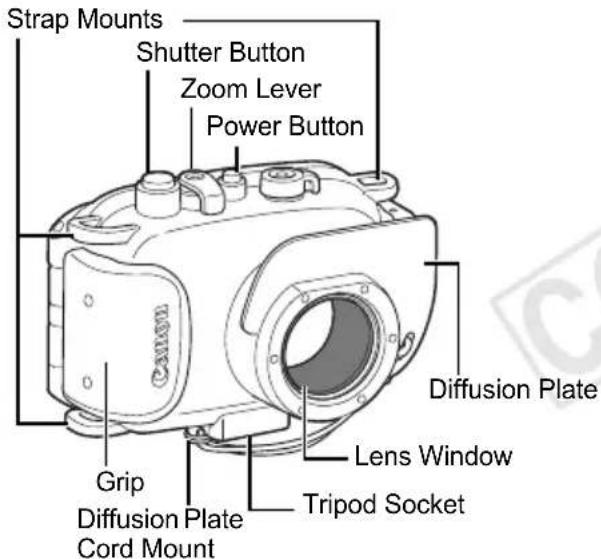
Lens Window
Since dirt or smudges on the lens window may show in photographs, keep the lens window clean by wiping it gently with a soft, dry cloth.
Back
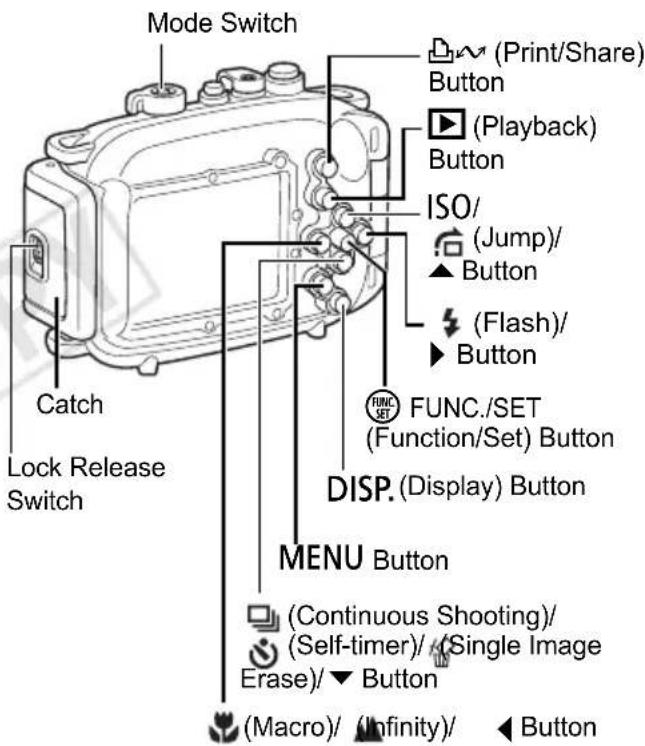
Preparations
Preparing the Camera
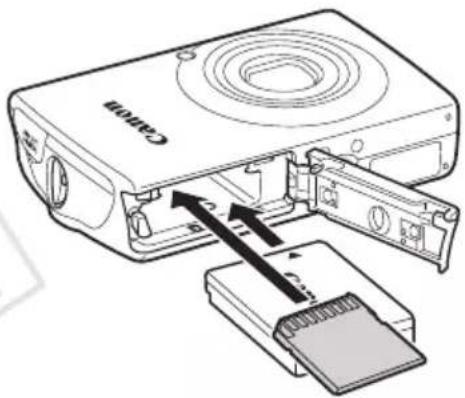
1 Insert the battery (Battery Pack NB-5L), and the memory card.
- Please confirm the installation methods for the battery and memory card in the Camera User Guide for your camera.
- Use a battery that is adequately charged.
- Check the estimated capacity (recordable images) of your memory card and ensure there is enough storage space on the memory card to record your images.
natural_image
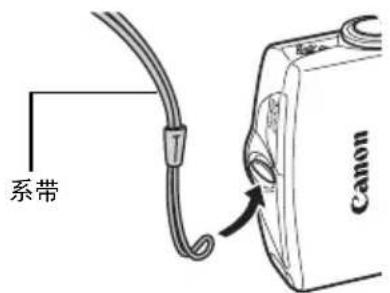
Diagram of a Canon desktop computer showing internal components and cable insertion (no text or labels)2 Remove the strap from the camera.
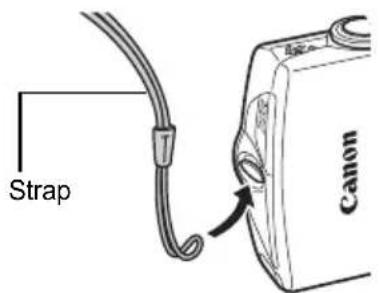
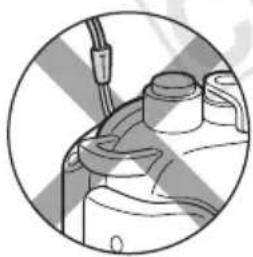
If you put the camera in the Waterproof Case without first removing the strap, the strap may catch in the waterproof seal when opening or closing the Waterproof Case. This can cause leaks.
natural_image
Close-up of a mechanical component with a cable and housing (no visible text or symbols)Preparing the Waterproof Case
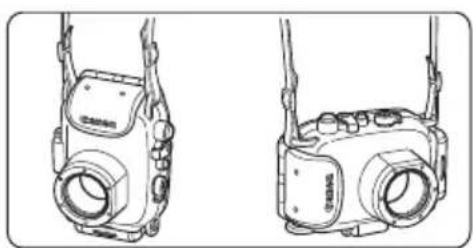
3 Fasten both ends of the neck strap to the strap mounts as shown, and adjust it to a comfortable length.
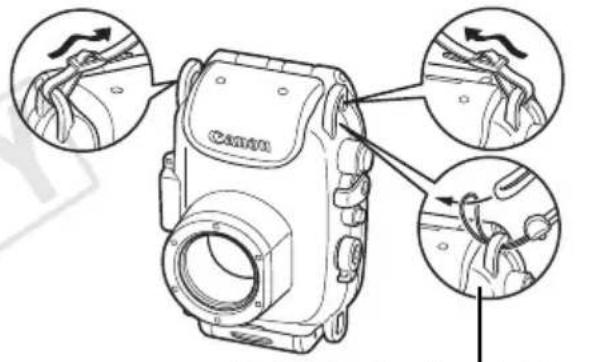
When attaching the wrist strap of the Waterproof Case
natural_image
Line drawings of two identical camera modules with no text or symbolsUse the neck strap when carrying the camera on the beach. Remove the neck strap and attach the wrist strap before use underwater. There is danger that the neck strap will become entangled and cause strangulation or another mishap.
Do not use the strap included with the camera with the Waterproof Case.
4 Slide the lock release switch as shown, and release the catch to open the back cover.
- When using commercially available anticondensation products, the anticondensation solution should only be applied to the inside surface of the lens window using a soft cloth. If anticondensation solution comes in contact with any surface other than the inside of the lens window, wipe it off immediately with a soft, dry cloth, as it could lead to deterioration of the Waterproof Case.
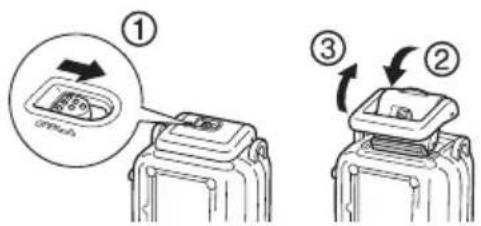
Apply a thin coat of grease to the entire seal before using the Waterproof Case in order to prevent abrasion and deterioration. For waterproof seal handling precautions, see Waterproof Seal (p. 6).
- Remove the waterproof seal.
- Using a cotton swab, wipe off any debris (e.g. sand, dirt or hair) which is present on the waterproof seal and on the seal mounting groove of the Waterproof Case.
- Apply a small amount (droplet) of grease to your fingertip.
- Evenly coat the entire surface of the waterproof seal, taking care not to scratch the surface.
- Place the waterproof seal back in the seal mounting groove of the Waterproof Case.
Putting the Camera In the Waterproof Case
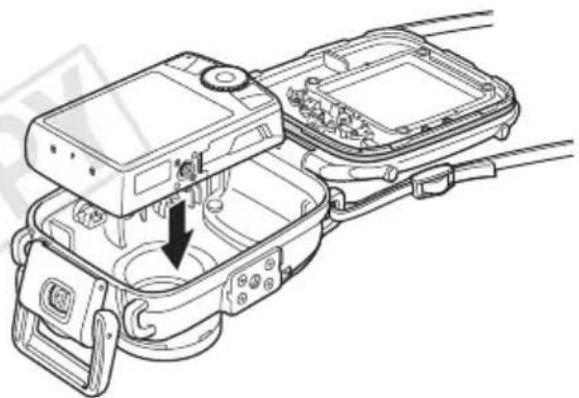
5 Insert the camera into the Waterproof Case as shown.
natural_image
Technical line drawing of an electronic device showing internal components and a directional arrow (no text or symbols)6Close the Waterproof Case.
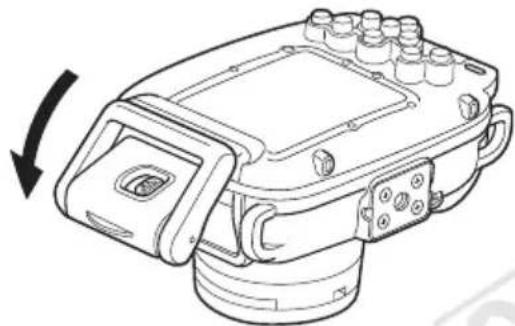
• Make sure that the waterproof seal and its contact surfaces are free of debris (e.g. sand, dirt or hair). Catching a single strand of hair or a tiny grain of sand in the seal can cause leaks.
• Make sure that the catch is fastened properly.
natural_image
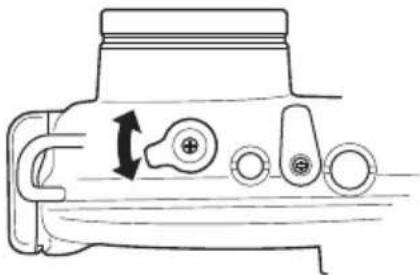
Technical line drawing of a mechanical device with a rotating arrow indicating rotation (no text or symbols present)7 Turn the mode switch in the direction of the arrow to engage the camera's mode switch.
natural_image
Technical diagram of a mechanical component with directional arrows indicating motion (no text or symbols)Shooting
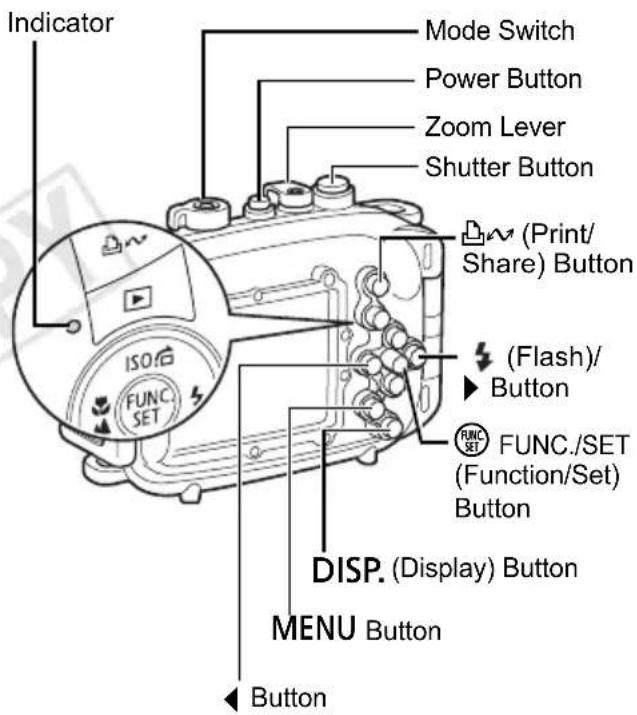
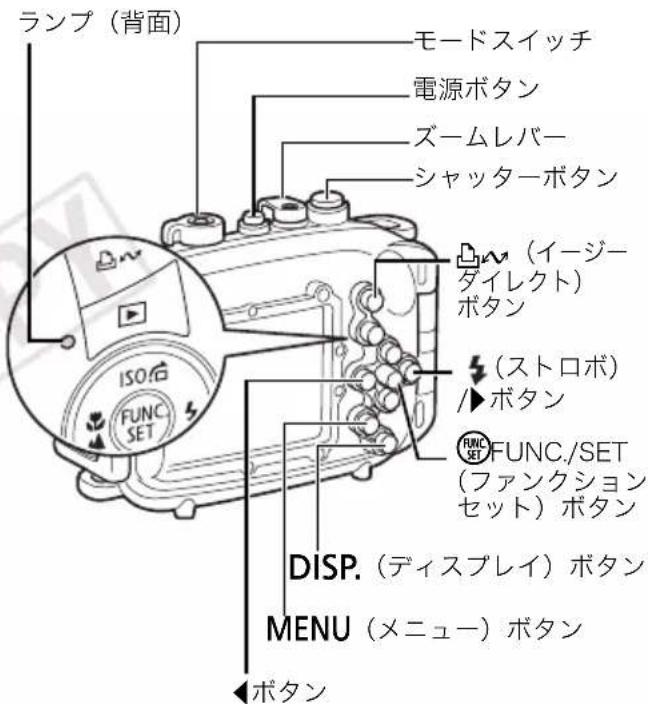
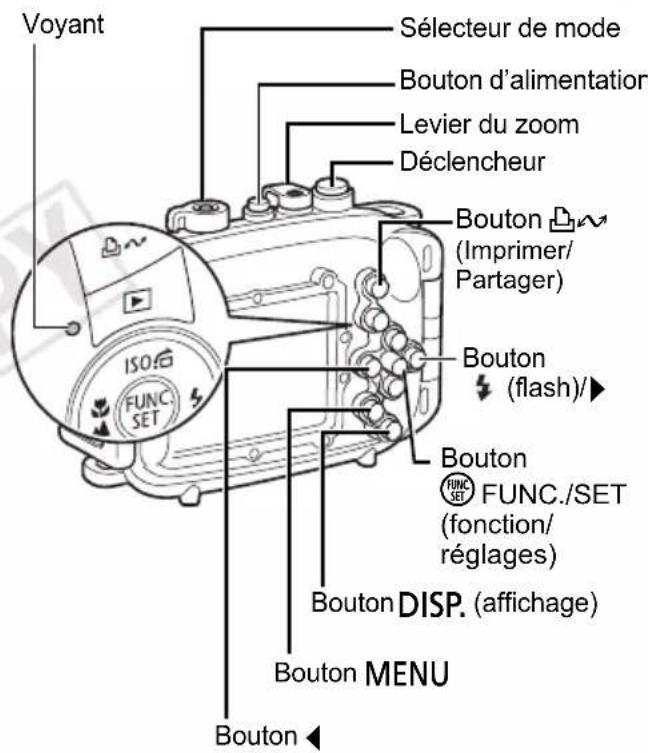
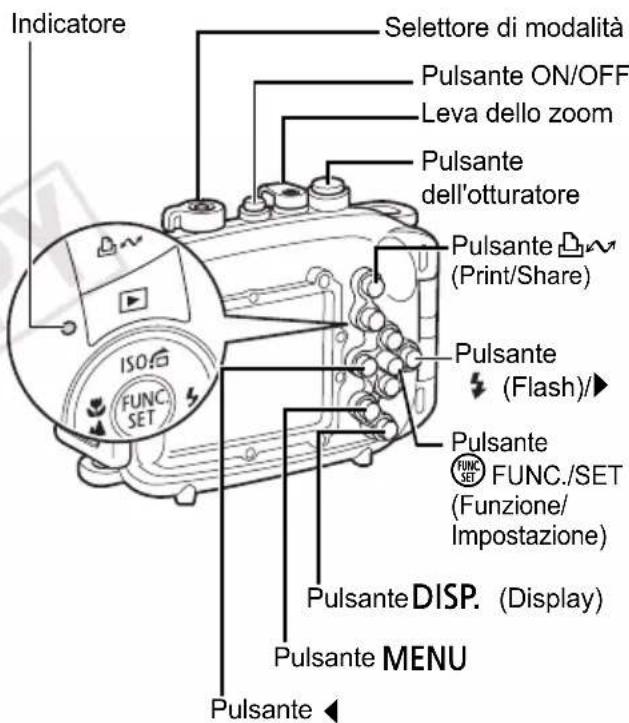
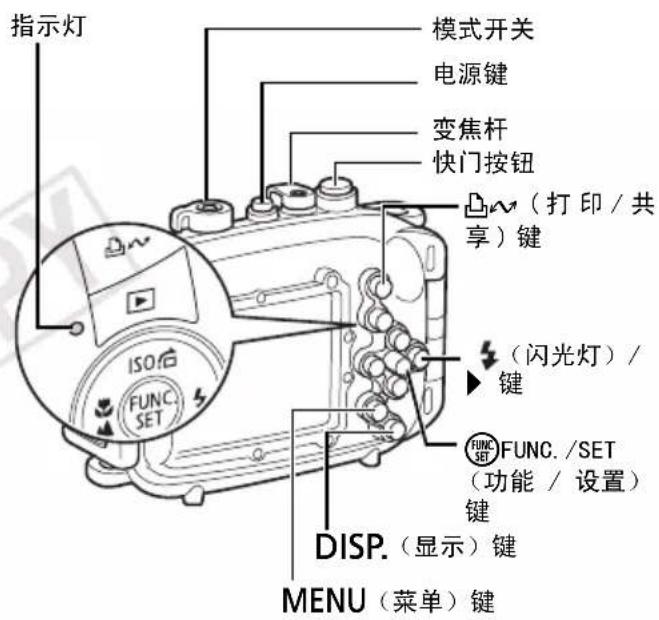
1 Press the power button to turn on the power.
2Turn the mode switch to the desired mode.
3Adjust settings as required.
- You can adjust the zoom with the zoom lever.
Using the Control Dial
Operation of the camera's Control Dial is slightly different.
- When you want to rotate the control dial clockwise, press the ▶ button while keeping the 📄 ∽ button pressed down.
- When you want to rotate the control dial counterclockwise, press the ◀ button while keeping the 🔊 button pressed down.
Setting the Special Scene mode to (Underwater)
You can obtain more natural appearing coloration underwater if you set the Special Scene mode to . This mode selects the optimal white balance for marine lighting and tones down the blue colors.
- Turn the mode switch to SCN (Special Scene mode).
- While keeping the □→ button pressed, use the ◀ or ▶ button to select 🔊.
When shooting in the following modes, note that you can set the white balance manually with the press of a single button if you assign the (Custom White Balance) function to the button. This is recommended for adjusting the white balance to the shooting conditions.
• P ( P r o g r a m
• (Digital Macro)
- (Standard)
4 Use the screen to compose the shot. Press the shutter button halfway and wait until the indicator lights green or orange. After it lights, press the shutter button all the way.
• Make sure that the lens window is always clean.
- Ensure that your fingers do not obstruct the lens window, flash or diffusion plate when shooting.
- If the power saving function activates and shuts off the power, press the power button again.
5 When you are finished, press the power button to turn off the camera.
Using the Flash
In order to evenly distribute light from the flash, please attach the diffusion plate.
- Do not scratch the surface of the diffusion plate, as this may prevent flash light from being diffused properly.
- Attach the diffusion plate for flash photography because image edges may darken otherwise. Please note, however, that the effectiveness of the diffusion plate may be impaired if the subject is too close to the camera.
Attaching the Diffusion Plate
1 Pass the cord through the cord mount, and then thread the diffusion plate onto the cord.
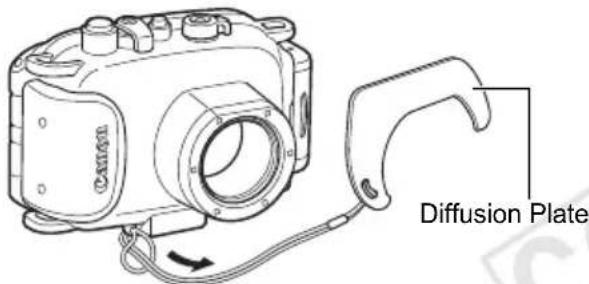
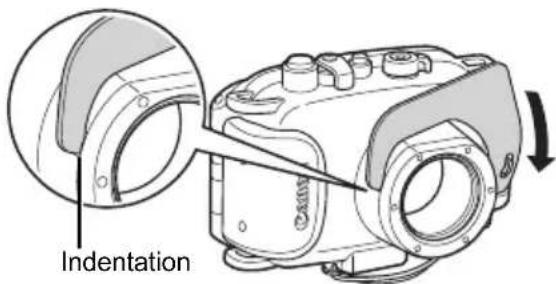
2 Insert the tip of the diffusion plate into the indentation to attach it.
Removing the Diffusion Plate
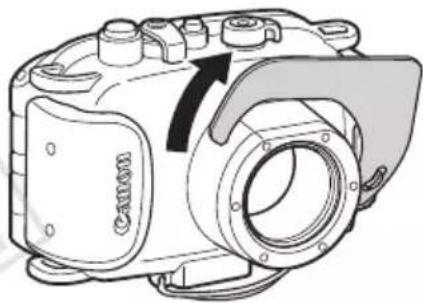
Grip the diffusion plate and detach it by lifting it off in the direction shown by the arrow.
natural_image
Technical line drawing of a camera module with no visible text or symbolsPlayback
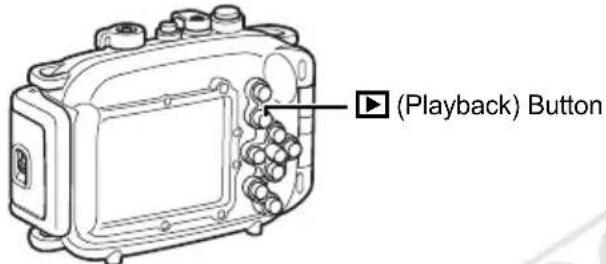
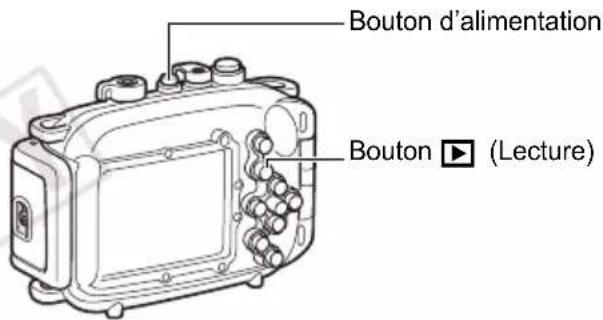
1 Press the ▶ (Playback) button.
2When you have finished using the camera, turn the camera off.
After you use the Waterproof Case, be sure to remove the camera from it. If you leave the Waterproof Case containing the camera in direct sunlight or in a high-temperature place, this may cause a fire or the case to burst.
Removing the Camera
1 After use, be sure to completely dry all the water from the Waterproof Case.
- Remove any dirt, sand, hair or other debris from the Waterproof Case, and wash it with clean, running tap water to remove salt deposits.
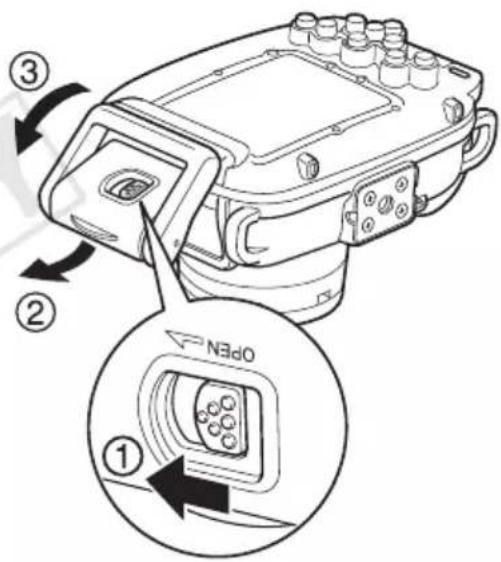
2 Slide the lock release switch as shown, and release the catch to open the back cover. Remove the camera from the case.
- Be careful not to allow drops of water from your hair or body to fall on the camera or Waterproof Case interior when the case is open.
- Do not wash the interior of the Waterproof Case with water. Wipe it with a soft, dry cloth.
Storage
- Store your Waterproof Case carefully, in an opened state to prevent the waterproof seal from deforming and to maintain its waterproof effect.
- Protect the waterproof seal from dust or scratches during storage.
- Do not store the Waterproof Case in hot, cold or humid places, or near substances such as naphthalene or insecticides.
Specifications
| Maximum Depth: 40 m (130 ft.) (Meets JIS protection class 8 for waterproofing.) |
| Waterproofing: Seal, O-ring, etc. |
| Main Materials: Polycarbonate, ABS, clear plate glass, EPDM, etc. |
| Camera's Operating Temperature:0 to 40 °C(32 to 104 °F) |
| Dimensions: 132.4 x 87.1 x 69.9 mm(5.21 x 3.43 x 2.75 in.)(excluding protrusions) |
| Volume: Approx. 465 cm ^3 (15.7 fl. oz.(US)) |
| Weight: Approx. 295 g (10.4 oz.)(Waterproof Case only*) |
* Including diffusion plate
- All data noted here are based on Canon's testing standards.
- Product specifications and appearance are subject to change without prior notice.
Deutsch
Haftungsausschluss
natural_image
Close-up of a mechanical component with no visible text or symbolsnatural_image
Technical line drawing of two identical camera modules (no text or symbols)natural_image
Technical line drawing of a mechanical assembly with internal components and a directional arrow (no text or symbols)natural_image
Technical line drawing of a mechanical device with a rotating arrow indicating rotation (no text or symbols present)natural_image
Diagram of a mechanical component with directional arrows indicating movement or force (no text or symbols)Aufnahme
natural_image
Technical line drawing of a camera module with no visible text or symbolsWiedergabe
Lagerung
natural_image
Close-up of a mechanical component with a cable and housing (no visible text or symbols)natural_image
Line drawing of two identical camera cases viewed from front and side (no text or symbols)natural_image
Technical line drawing of an electronic device housing with a component highlighted by an arrow (no text or symbols present)6Cierre la funda impermeable.
natural_image
Technical line drawing of a mechanical device with no visible text or symbolsnatural_image
Diagram of a mechanical device with rotating components and directional arrows (no text or symbols)Toma de fotografías
natural_image
Technical line drawing of a Canon camera module with no visible text or symbolsReproducción
Almacenamiento
natural_image
Diagram of a Canon digital camera module with cable and drive components (no text or symbols)natural_image
Close-up of a mechanical component with no visible text or symbolsnatural_image
Technical line drawing of two camera modules with no visible text or symbolsnatural_image
Technical line drawing of a mechanical assembly with no visible text or symbolsnatural_image
Technical line drawing of a mechanical device with no visible text or symbolsnatural_image
Technical line drawing of a mechanical component with no visible text or symbolsPrise de vue
natural_image
Technical line drawing of a camera module with no visible text or symbolsLecture
1 Appuyez sur le bouton ▶ (Lecture).
Stockage
natural_image
Diagram of a Canon desktop computer showing internal components and cable insertion (no text or labels)natural_image
Close-up of a mechanical component with no visible text or symbolsnatural_image
Technical line drawing of two identical camera modules (no text or symbols)natural_image
Technical line drawing of a device's internal components, showing a device with an arrow pointing to its interior (no text or symbols present)natural_image
Technical line drawing of a mechanical device with a rotating arrow indicating rotation (no text or symbols present)natural_image
Technical line drawing of a mechanical component with no visible text or symbolsRipresa
natural_image
Technical line drawing of a camera module with no visible text or symbolsRiproduzione
natural_image
Diagram of a Canon CD-ROM device showing internal components and external memory compartment (no text or symbols)2 取下相机的系带。
natural_image
Close-up of a mechanical component with no visible text or symbols准备防水套
natural_image
Line drawing of two identical camera modules with no text or symbolsnatural_image
Technical line drawing of an electronic device housing with internal components and a black arrow indicating a component (no text or symbols present)6 关上防水套。
natural_image
Technical line drawing of a mechanical component with no visible text or symbolsnatural_image
Technical line drawing of a mechanical component with no visible text or symbols拍摄
natural_image
Technical line drawing of a Canon camera module with no visible text or symbols播放
1 按下 ▶(播放)键。
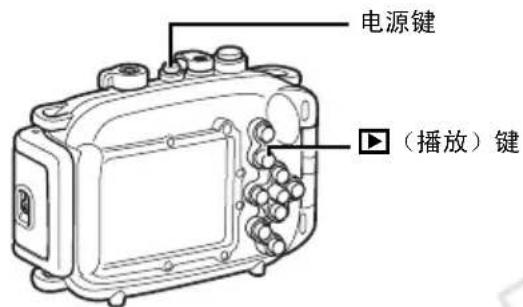
2 相机用完后,请关闭相机电源。