ManualGo.com
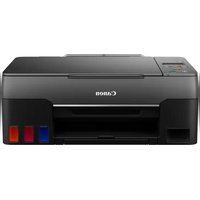
PIXMA G2415 - Printer CANON - Free user manual and instructions
Find the device manual for free PIXMA G2415 CANON in PDF.



Download the instructions for your Printer in PDF format for free! Find your manual PIXMA G2415 - CANON and take your electronic device back in hand. On this page are published all the documents necessary for the use of your device. PIXMA G2415 by CANON.
USER MANUAL PIXMA G2415 CANON
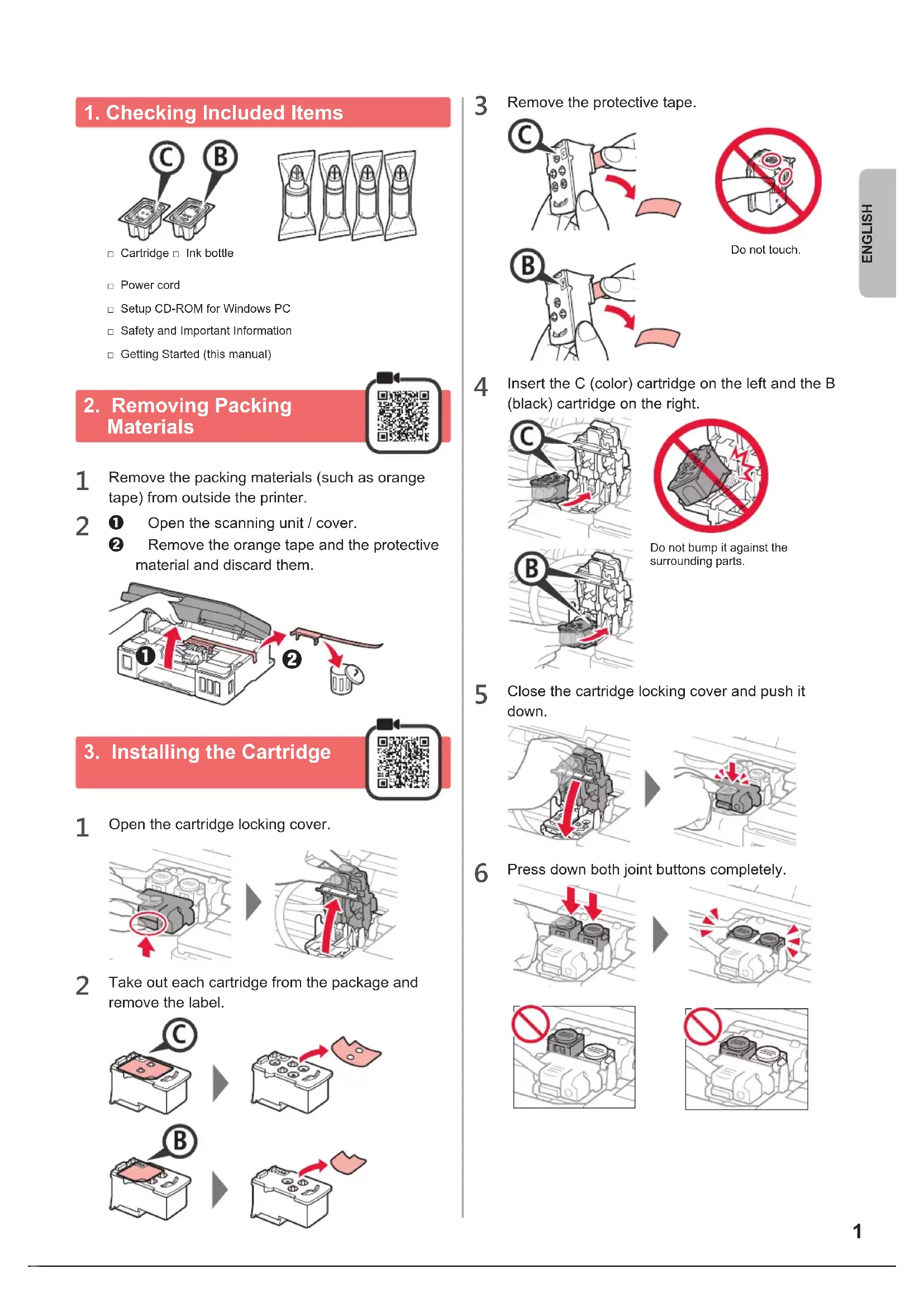
1. Checking Included Items
Remove the packing materials )such as orange tape( from outside the printer.
aOpen the scanning unit / cover. bRemove the orange tape and the protective material and discard them.
Open the cartridge locking cover.
Take out each cartridge from the package and remove the label.
Remove the protective tape. Do not touch.
Insert the C )color( cartridge on the left and the B )black( cartridge on the right. Do not bump it against the surrounding parts.
Close the cartridge locking cover and push it down.
Press down both joint buttons completely.2
LIFT UP the scanning unit / cover, and then close it.
Connect the power cord. Back Do not connect any cables except the power cord yet.
Conrm that )Ink icon( and are displayed on the screen. If a different screen appears, refer to "If any of the following screens appear" on page 3 to resolve the error.
This product requires careful handling of ink. Ink may splatter when the ink tanks are lled with ink. If ink gets on your clothes or belongings, it may not come off.
Open the scanning unit / cover.
Open the ink tank cover.
Grab and remove the tank cap of the ink tank.
Hold the ink bottle upright and remove the bottle cap.
Insert the nozzle of the ink bottle into the inlet and stand the ink bottle upside down.
Pour all ink into the ink tank. Conrm that the ink has been lled to the upper limit line )A(. )A(3 ENGLISH
Replace the tank cap securely.
Close the ink tank cover.
Repeat steps 2 to 8 to pour all ink into the corresponding ink tanks on the right according to the label. Conrm that the ink has been lled to the upper limit line )A(. )A(
LIFT UP the scanning unit / cover, and then close it.
Press the Black button and conrm that )Ink icon( disappears. Turns off Ink preparation takes about 5 to 6 minutes. Proceed to the next page. The cartridges are not installed correctly. "3. Installing the Cartridge" on page 1 No cartridges are installed. "3. Installing the Cartridge" on page 1 The protective materials are not removed. "2. Removing Packing Materials" on page 1 Ink is not prepared normally. Press the ON button to restart the printer, and then see "5. Pouring Ink" on page 2. Waiting to prepare ink. " 6. Preparing the Ink System" If you have not poured ink into the ink tank yet, see "5. Pouring Ink" on page 2. For all other cases, refer to the Online Manual. If any of the following screens appear Ink iconNumber or letters4
7. Connecting to Computer
Windows You need a connection setup for each computer. Proceed with the setup from step 1 for each computer. If you use the printer while it is not connected to a computer, conrm that is displayed on the printer's screen. The setup is now complete.
Start the setup le for either method or method . Downloading from the Internet aOpen a web browser ) etc.( on your computer.bInput the following URL and access the Canon website.cSelect Set Up. dInput the model name of your printer and click OK. You can select a model name from the list.eClick Setup.The procedures for Windows are shown below. If you are using a computer with an OS other than Windows, do the setup according to the on-screen instructions.fClick Download and download the setup le.gExecute the downloaded le. Proceed to step on the next page to continue. Using Setup CD-ROM (Windows Only) ■ When using Windows 10 or Windows 8.1: aLoad the Setup CD-ROM in your computer.bWhen the following message appears on the right side of your computer screen, click it. When This Message Does Not Appear )or Has Disappeared(1. Click File Explorer on the taskbar.
2. Click This PC on the left side of the opened window.3. Double-click the CD-ROM icon on the right side of the window. If the contents of the CD-ROM appear, double-click Msetup4.exe.4. Proceed to step d.5 ENGLISH cIf the following screen appears, click Run Msetup4.exe. dIf the User Account Control dialog box appears, click Yes. Proceed to step to continue. ■ When using Windows 7: aLoad the Setup CD-ROM in your computer. b When the AutoPlay screen appears, click Run Msetup4.exe.c If the User Account Control dialog box appears, click Continue. When AutoPlay Screen Does Not Appear1. Click Computer from the start menu.2. Double-click the CD-ROM icon on the right side of the opened window. If the contents of the CD-ROM appear, double-click Msetup4.exe. Proceed to step to continue.
Click Start Setup. If the following screen appears, click Exit. Follow the on-screen instructions to proceed with the setup. The setup is complete when appears on the printer's screen. You can print from your computer.6
Open the paper support.
Slide the right paper guide to the end.
aLoad paper with the print side facing up. bSlide the right paper guide to align it with the side of the paper stack.
aPull out the paper output tray. bOpen the output tray extension.
Loading Paper Transporting Your Printer Check that both joint buttons are pressed down completely to avoid ink leaks. Pack the printer in a plastic bag in case ink leaks.
- Pack the printer in a sturdy box so that it is placed with its bottom facing down, using sufcient protective material to ensure safe transport.
- Do not tilt the printer. Ink may leak.
- Please handle with care and ensure the box remains at and NOT turned upside down or on its side, as the printer may be damaged and ink in the printer may leak.
- When a shipping agent is handling transport of the printer, have its box marked "THIS SIDE UP" to keep the printer with its bottom facing down. Mark also with "FRAGILE" or "HANDLE WITH CARE". When relocating the printer, make sure of the following. Refer to the Online Manual for details.1 ESPAÑOL
RMC )Regulatory Model Code(: K10470XXXXXXXX