
DV7832NXC - Media player LG - Free user manual and instructions
Find the device manual for free DV7832NXC LG in PDF.


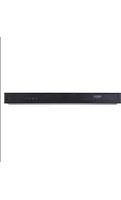
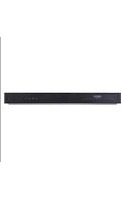
| Product Type | Multimedia Player (DVD) |
| Brand | LG |
| Model | DV7832NXC |
| Dimensions (W x H x D) | 430 x 48 x 242 mm |
| Weight | 2.34 kg |
| Power | 120 V AC, 60 Hz, 14 W |
| Playable Formats | DVD-Video, Video CD, Audio CD, DVD±R/RW, CD-R/RW, MP3, WMA, JPEG, Kodak Picture CD |
| Region Code | 1 |
| Video Outputs | Composite Video (RCA), S-Video, Component YPbPr, DVI-D |
| Audio Outputs | Analog Stereo (RCA), Digital Coaxial, Digital Optical |
| Special Features | Random playback, repeat (chapter/title/track/all), A-B repeat, search, zoom, 3D surround, parental control, last scene memory |
| Maintenance and Cleaning | Clean with a soft, dry cloth. Do not use solvents (alcohol, benzine). |
| Safety | Do not open the casing (risk of electric shock). Class 1 laser. Do not expose to humidity. |
| Spare Parts and Repairability | Spare parts: remote control, batteries, audio/video/S-video/component/DVI cables. Repair only by a qualified technician. |
Frequently Asked Questions - DV7832NXC LG
User questions about DV7832NXC LG
0 question about this device. Answer the ones you know or ask your own.
Ask a new question about this device
Download the instructions for your Media player in PDF format for free! Find your manual DV7832NXC - LG and take your electronic device back in hand. On this page are published all the documents necessary for the use of your device. DV7832NXC by LG.
USER MANUAL DV7832NXC LG
Limitations/Position de Lecture .....12
JPEG discs
Dolby Digital / DTS / MPEG

MP3 / WMA

Tips:
CD-Audio menu
MP3/WMA menu
Before connecting, operating or adjusting this product, please read this instruction booklet carefully and completely.
CAUTION
RISK OF ELECTRIC SHOCK DO NOT OPEN

Warning: To reduce the risk of electric shock, do not remove the cover or back of this product. There are no user-serviceable parts inside. Refer servicing to qualified service personnel.

Warning: To reduce the risk of fire or electric shock, do not expose this product to dripping or splashing water, rain, or moisture. Do not place objects filled with water such as vases, on the product.

WARNING
This digital video disc player employs a laser system. Use of controls, adjustments, or the performance of procedures other than those specified herein, may result in hazardous radiation exposure.

WARNING
To prevent direct exposure to laser beam, do not open the enclosure. Visible laser radiation may be present if open.

Warning: Never stare directly into the laser beam.

WARNING: Do not install this product in a confined space such as a bookcase or similar unit.

Caution: To prevent electric shock, match wide blade of plug to wide slot, fully insert.
FCC WARNING: This equipment may generate or use radio frequency energy. Changes or modifications to this equipment may cause harmful interference unless the modifications are expressly approved in the instruction manual. The user could lose the authority to operate this equipment if an unauthorized change or modification is made.
REGULATORY INFORMATION: FCC Part 15
This product has been tested and found to comply with the limits for a Class B digital device, pursuant to Part 15 of the FCC Rules. These limits are designed to provide reasonable protection against harmful interference when the product is operated in a residential installation. This product generates, uses, and can radiate radio frequency energy and, if not installed and used in accordance with the instruction manual, may cause harmful interference to radio communications. However, there is no guarantee that interference will not occur in a particular installation. If this product does cause harmful interference to radio or TV reception, which can be determined by turning the product off and on, the user is encouraged to try to correct the interference by one or more of the following measures:
• Reorient or relocate the receiving antenna. - Increase the separation between the product and receiver. - Connect the product into an outlet on a circuit different from that to which the receiver is connected. - Consult the dealer or an experienced radio/TV technician for help.
SERIAL NUMBER:
Locate the serial number on the back of the unit. This number is only used on this unit. You should write in requested information below and retain this guide as a permanent record of your purchase.
Model No. ____
Serial No. ____
Date of Purchase
Contents
Introduction 4
Symbols used in this Manual .....4
About the ⊗ Symbol Display .....4
Notes on Discs 4
Handling Discs 4
Storing Discs 4
Cleaning Discs 4
Types of Playable Discs ....5
Regional Code 5
Glossary of Disc-related Terms ....6
Front Panel 7
Display Window 7
Remote Control 8
Connections Panel 9
Remote Control Operation 9
Remote Control Battery Installation .....9
Installation and Setup .....10
Player Setup 10
DVD Player Connections 10
Video and Audio Connections to Your TV ..10
Audio Connection to Optional Equipment ..11
On-Screen Displays 12
Playback Status/Restrictions .....12
Pre-operation Setup 13
General Operation 13
Language Menu 13
- Menu Language 13
• Disc Audio / Subtitle / Menu .....13
Display Menu 13
• Picture Aspect Ratio 13
• Picture Display Mode 13
Audio Menu 14
• Dolby Digital / DTS / MPEG .....14
• Sample Freq. (Frequency) .....14
• Dynamic Range Control (DRC) .....14
• Vocal 14
Others Menu 14
• PBC 14
• Auto Play 14
Lock (Parental Control) Menu .....15
• Rating 15
- Password (Security Code) .....15
• Country Code 15
Operation 16
DVD or Video CD Playback .....16
Playback Setup 16
General Features 16
Changing TITLES 16
Changing CHAPTERs/TRACKs .....16
Search 16
Still Picture and Frame-by-Frame Playback 17
Slow Motion 17
Random 17
Repeat 17
Repeat A-B 17
3D Surround 17
Time Search 17
Changing the Audio Channel .....18
Zoom 18
Marker Search 18
Special DVD Features 18
Checking the contents of DVD discs: Menus .18
Title Menu 18
Disc Menu 18
Camera Angle(s) 18
Changing the Audio Language .....18
Subtitles 18
Playing Audio CDs or MP3/WMA Discs ....19
Audio CD and MP3 / WMA Disc Features ...20
Pause 20
Changing Tracks 20
Repeat Track/All/Off 20
Search 20
Random 20
3D Surround 20
Repeat A-B 20
Viewing JPEG Files on a Disc .....21
Slide Show 21
Changing Files 21
Still Picture 21
Programmed Playback 22
Repeat Programmed Track/All/Off .....22
Erasing a Track from Program List .....22
Erasing the Complete Program List .....22
Additional Features 23
Last Scene Memory 23
Screen Saver 23
Video Mode Setting 23
Maintenance and Service .....24
Handling the Unit 24
- When shipping the unit .....24
- Keeping the exterior surfaces clean .....24
Cleaning the unit 24
Maintaining the Unit 24
Troubleshooting 25
Reference .....26
Controlling VCRs, Cable Boxes (DBS) and TVs . . . .26
Language Codes 27
Country Codes 28
Specifications 29
Introduction
To ensure proper use of this product, please read this owner's manual carefully and retain for future reference.
This manual provides information on the operation and maintenance of your DVD player. Should the unit require service, contact an authorized service center, see warranty.
Symbols used in this Manual

The lightning flash symbol alerts you to the presence of dangerous voltage within the product enclosure that may constitute a risk of electric shock.

The exclamation point alerts you to the presence of important operating and maintenance / servicing instructions.

Indicates hazards likely to cause harm to the user, the unit itself, or other material damage.

Note: Indicates special notes and operating features.

Tip: Indicates tips and hints for making the task easier.
A manual section whose title has one of the following symbols is only applicable to the disc represented by the symbol.
-
DVD-Video Discs
[Non-Text]
Video CDs
[Non-Text]
Audio CDs
[Non-Text]
MP3 Discs
[Non-Text]
WMA Discs
JPEG Files
About the ⊙ Symbol Display
The “⊙” symbol may appear on your TV display during operation and indicates that the function explained in this owner's manual is not available on that specific DVD video disc.
Notes on Discs
Handling Discs
Do not touch the playback side of the disc. Hold the disc by the edges so that fingerprints do not get on the surface. Never stick paper or tape on the disc.


Storing Discs
After playing, store the disc in its case. Do not expose the disc to direct sunlight or sources of heat and never leave it in a parked car exposed to direct sunlight.
Cleaning Discs
Fingerprints and dust on the disc can cause poor picture quality and sound distortion. Before playing, clean the disc with a clean cloth. Wipe the disc from the center out.
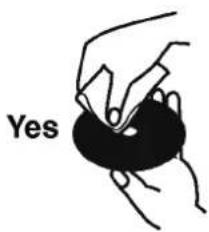
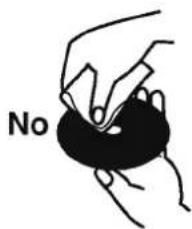
Do not use strong solvents such as alcohol, benzine, thinner, commercially available cleaners, or anti-static spray intended for older vinyl records.
Types of Playable Discs

DVD (8 cm / 12 cm disc)

Video CD (VCD) (8 cm / 12 cm disc)

Audio CD (8 cm / 12 cm disc)
In addition, this unit plays DVD-R / DVD±RW, Kodak Picture CDs, SVCD, and CD-R / CD-RWs that contain audio titles, MP3, WMA, and/or JPEG files.

Notes
- Depending on the conditions of the recording equipment or the CD-R/RW (or DVD-R/±RW) disc itself, some CD-R/RW (or DVD-R/±RW) discs cannot be played on the unit.
- Do not attach any seal or label to either side (the labeled side or the recorded side) of a disc.
- Do not use irregularly shaped CDs (e.g., heart-shaped or octagonal). The unit may malfunction.

Notes on DVDs and Video CDs
- Some playback operations of DVDs and Video CDs may be intentionally programmed by software manufacturers. This unit plays DVDs and Video CDs according to disc content designed by the software manufacturer, therefore some playback features may not be available or other functions may be added. Refer to the instructions supplied with each DVD and Video CD.
- Some DVDs made for business purposes may not be played on the unit.
Regional code
This DVD player is designed and manufactured for playback of region "1" encoded DVD software. This unit can play only DVD discs labeled "1" or "ALL".


Notes on Regional Codes
Each region of the world is assigned a DVD region code. Most DVD discs have a globe with one or more numbers in it clearly visible on the cover. This number must match your DVD player's regional code or the disc cannot be played. If you try to play a DVD with a different region code from your player, the message "Check Regional Code" appears on the TV screen. Some DVD discs may not have a region code label even though their playback is prohibited by area limits.
Notes on Copyrights:
It is forbidden by law to copy, broadcast, show, broadcast via cable, play in public, or rent copyrighted material without permission. This product features the copy protection function developed by Macrovision. Copy protection signals are recorded on some discs. When recording and playing the pictures of these discs picture noise will appear. This product incorporates copyright protection technology that is protected by certain U.S. patents and other intellectual property rights owned by Macrovision Corporation and other rights owners. Use of this copyright protection technology must be authorized by Macrovision Corporation, and is intended for home and other limited viewing uses only unless otherwise authorized by Macrovision Corporation. Reverse engineering or disassembly is prohibited.
Glossary of Disc-related Terms
DVD -R / DVD ±RW
DVD -R are two different standards for recordable DVD drives and discs. This format allows information to be recorded onto the DVD disc only once. DVD +RW and DVD -RW are two standards for re-writable media, meaning the DVD content can be erased and re-recorded. Single-sided discs can hold 4.38 Gigabytes and double-sided discs hold twice as much. There are no dual-layer, single-sided recordable discs.
VCD (Video CD)
A VCD holds up to 74 minutes (650 MB disc) or 80 minutes (700 MB disc) of MPEG-1 full-motion video along with quality stereo sound.
MPEG
MPEG is an international standard for video and audio compression. MPEG-1 is used in encoding video for VCD and provides for multichannel surround sound coding such as PCM, Dolby Digital, DTS, and MPEG audio.
MP3
MP3 is a popular compression format used for digital audio files that yields very high near-CD quality.
WMA
Windows media audio file. A type of coding / decoding developed by Microsoft Corp.
JPEG (Files)
Joint Pictures Expert Group. JPEG is a compressed file format that allows you to save images with no limit on the number of colors.
PBC: Playback Control (Video CD only)
Playback control is available for Video CD (VCD) version 2.0 disc formats. PBC allows you to interact with the system via menus, search functions, or other typical computer-like operations. Moreover, still pictures of high resolution can be played if they are included in the disc. Video CDs not equipped with PBC (Version 1.1) operate in the same way as audio CDs.
Title (DVDs only)
A title is generally a distinct section of a DVD disc. For example, the main feature could be title 1, a documentary describing how the film was made could be title 2, and cast interviews could be title 3. Each title is assigned a reference number enabling you to locate it easily.
Chapter (DVDs only)
A chapter is a segment of a title such as a scene in a film or one interview in a series. Each chapter is assigned a chapter number, enabling you to locate the chapter you want. Depending on the disc, chapters may not be recorded.
Scene (VCD)
On a video CD with PBC (playback control) functions, moving pictures and still pictures are divided into sections called "scenes". Each scene is displayed in the menu screen and assigned a scene number, enabling you to locate the scene you want. A scene is composed of one or several tracks.
Track
A distinct element of audiovisual information, such as the picture or sound track for a specific language (DVD), or a musical piece on a video or audio CD. Each track is assigned a track number, enabling you to locate the track you want. DVD discs allow one track of video (some with multiple angles) and perhaps several tracks of audio.
Front Panel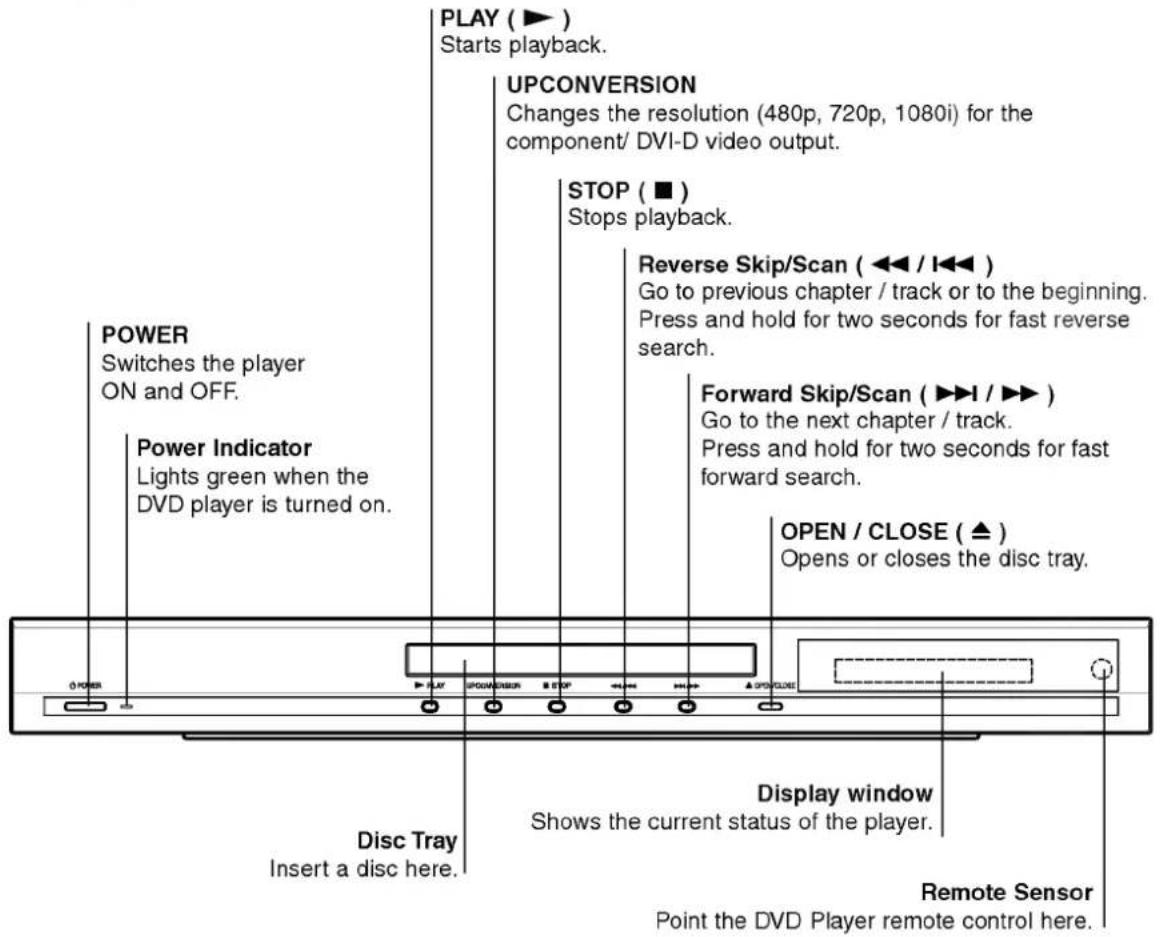
Display Window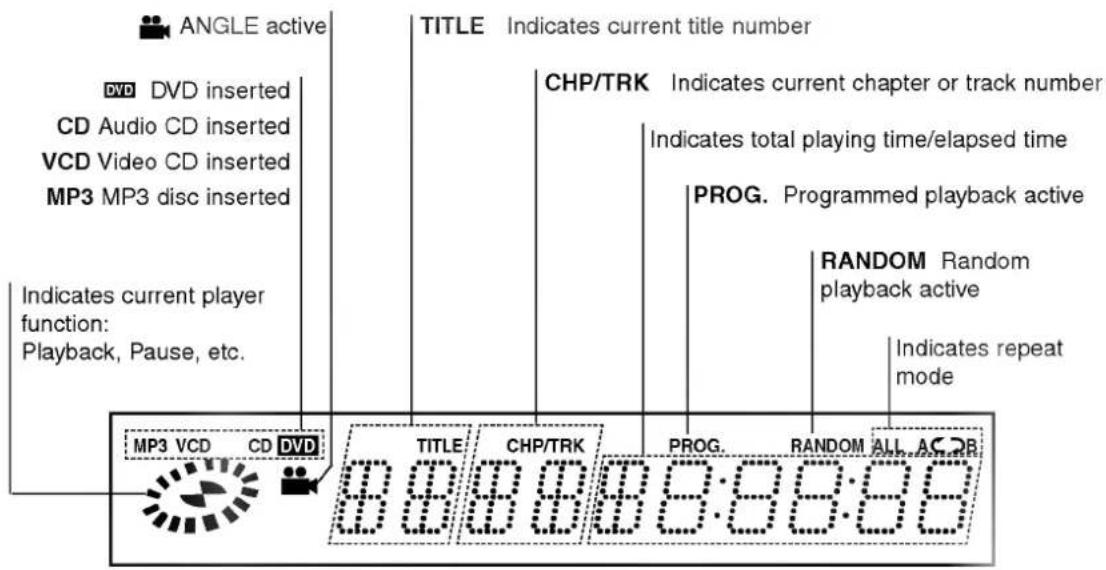
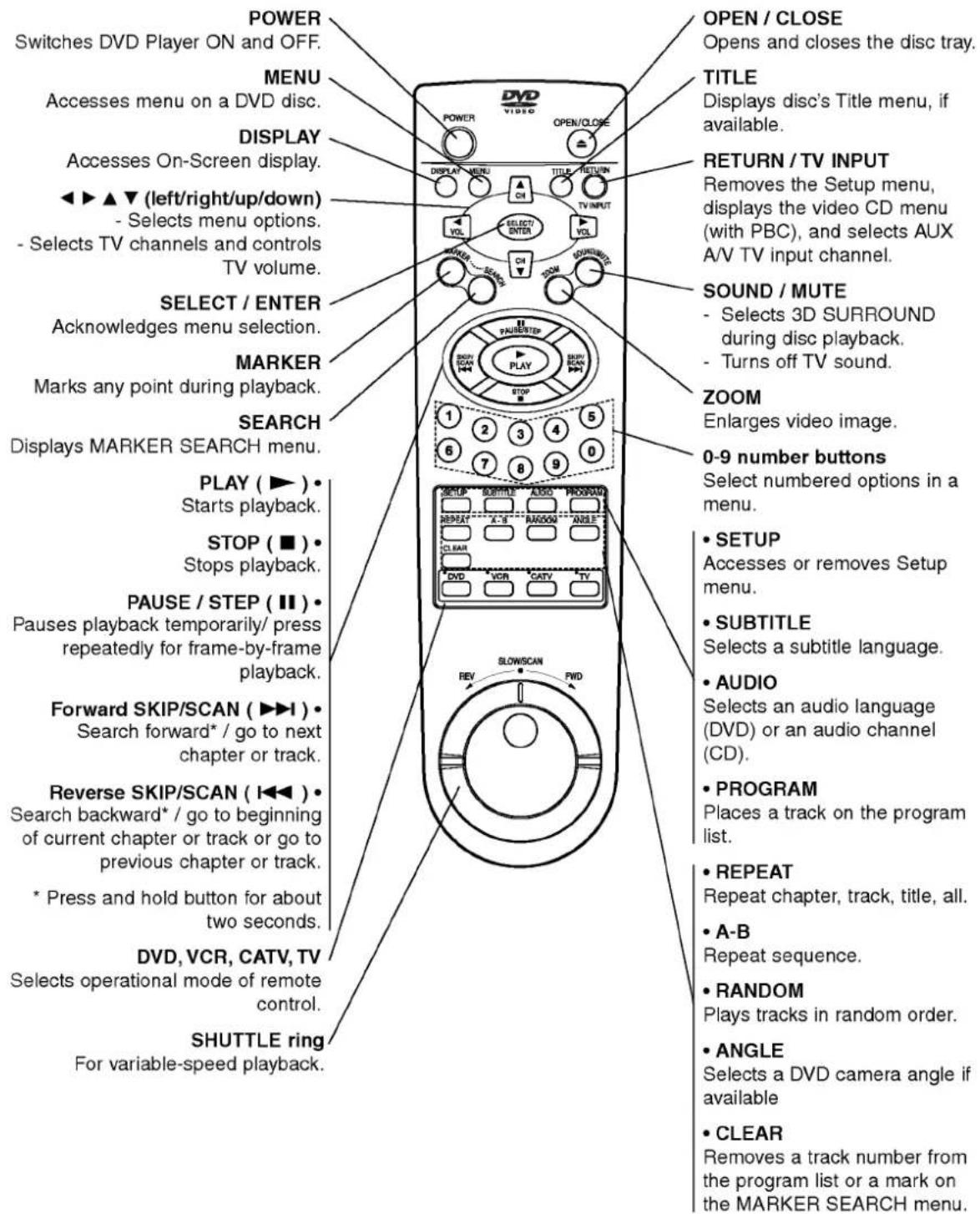
Remote Control
Connections Panel
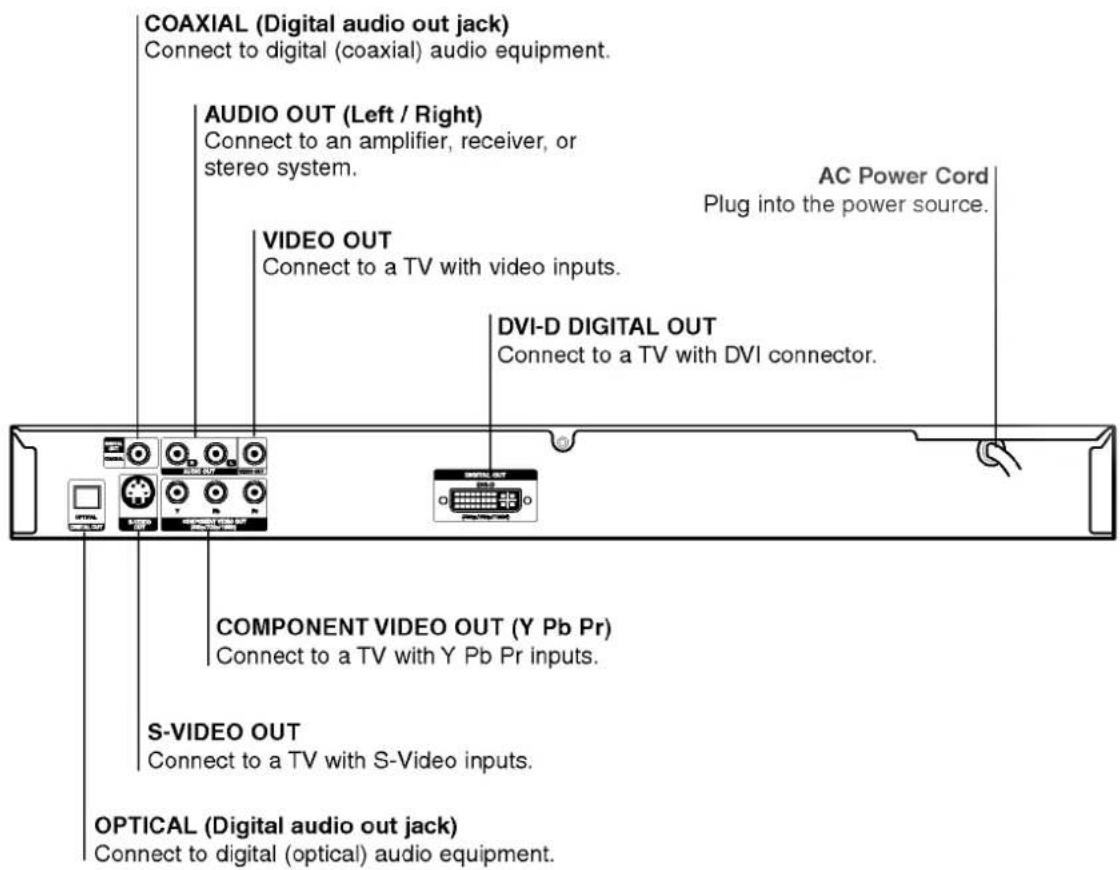

Do not touch the inner pins of the jacks on the rear panel. Electrostatic discharge may cause permanent damage to the unit.
Remote Control Operation
Point the remote control at the remote sensor and press the buttons.
Remote Control Battery Installation
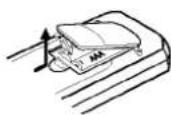
Detach the battery cover on the rear of the remote control, and insert two size AAA batteries with + and - aligned correctly.

Caution:
- Do not mix old and new batteries. Never install different types of batteries such as standard, alkaline, etc.
- Before using the remote control, press the DVD, VCR, CATV or TV button to select the device to be operated.
Installation and Setup
Player Setup
The picture and sound of a nearby TV, VCR, or radio may be distorted during playback. If this occurs, position the player away from the TV, VCR, or radio, or turn off the unit after removing the disc.
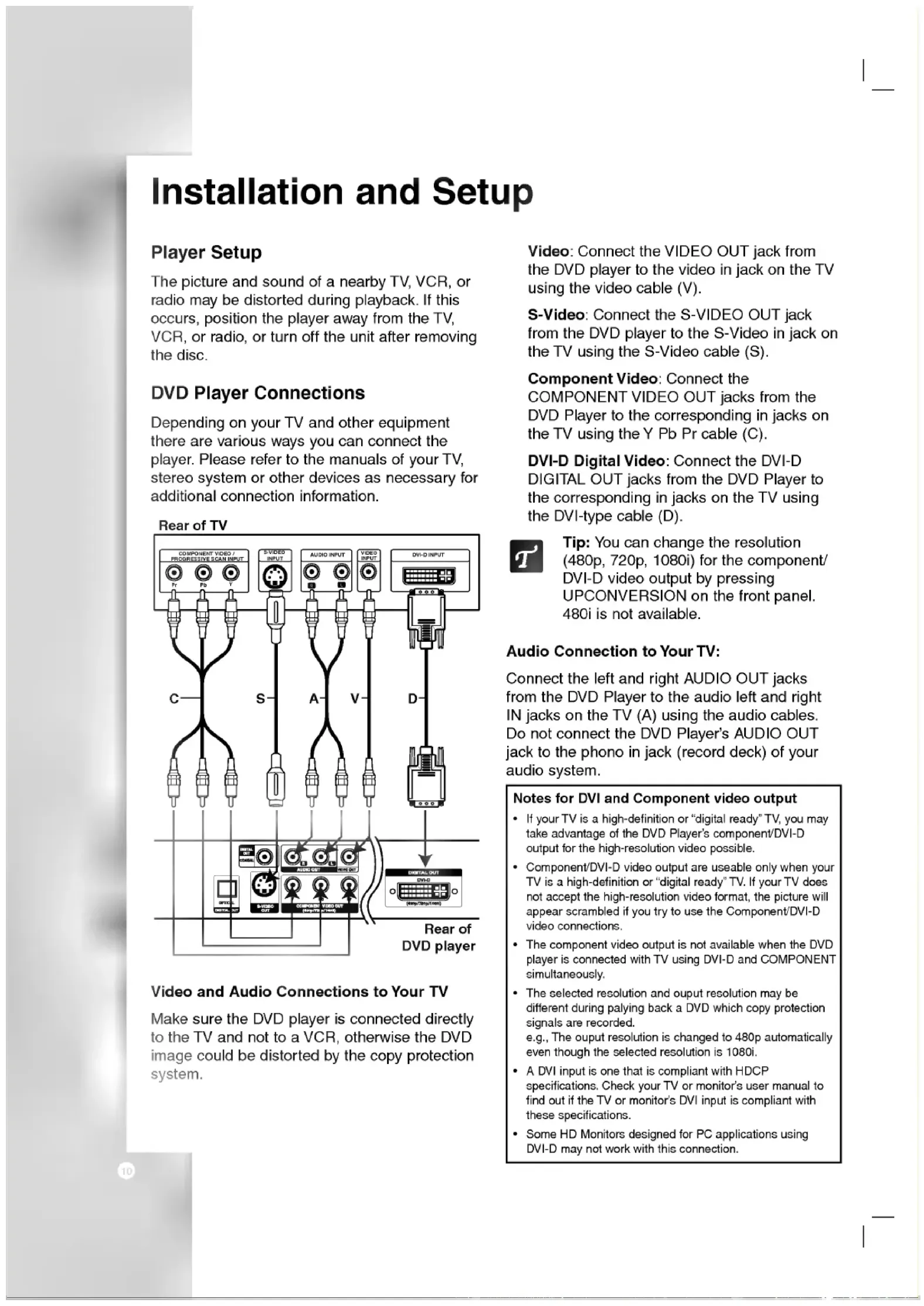
DVD Player Connections
Depending on your TV and other equipment there are various ways you can connect the player. Please refer to the manuals of your TV, stereo system or other devices as necessary for additional connection information.
Rear of TV![graph TD A["COMPONENT VIDEO / PROGRESSIVE SCAN INPUT"] --> B["Fr"] A --> C["Fb"] A --> D["Y"] E["S-VIDEO INPUT"] --> F["Audio"] G["AUDIO INPUT"] --> H["Audio"] I["V-VIDEO INPUT"] --> J["DVD"] K["DVI-D INPUT"] --> L["0.5Ω"] M["DIV-D OUT"] --> N["DVHD"] O["DIV-D OUT"] --> P["DVHD (http://data/html)"]…](/content/2026/04/648594/images/db7e8a4a27353a4b64585566f92eb24959cba41f3511e8fe10bf5523bd970cea.jpg)
Video and Audio Connections to Your TV
Make sure the DVD player is connected directly to the TV and not to a VCR, otherwise the DVD image could be distorted by the copy protection system.
Video: Connect the VIDEO OUT jack from the DVD player to the video in jack on the TV using the video cable (V).
S-Video: Connect the S-VIDEO OUT jack from the DVD player to the S-Video in jack on the TV using the S-Video cable (S).
Component Video: Connect the COMPONENT VIDEO OUT jacks from the DVD Player to the corresponding in jacks on the TV using the Y Pb Pr cable (C).
DVI-D Digital Video: Connect the DVI-D DIGITAL OUT jacks from the DVD Player to the corresponding in jacks on the TV using the DVI-type cable (D).

Tip: You can change the resolution (480p, 720p, 1080i) for the component/DVI-D video output by pressing UPCONVERSION on the front panel. 480i is not available.
Audio Connection to Your TV:
Connect the left and right AUDIO OUT jacks from the DVD Player to the audio left and right IN jacks on the TV (A) using the audio cables. Do not connect the DVD Player's AUDIO OUT jack to the phono in jack (record deck) of your audio system.
Notes for DVI and Component video output
- If your TV is a high-definition or "digital ready" TV, you may take advantage of the DVD Player's component/DVI-D output for the high-resolution video possible.
- Component/DVI-D video output are useable only when your TV is a high-definition or "digital ready" TV. If your TV does not accept the high-resolution video format, the picture will appear scrambled if you try to use the Component/DVI-D video connections.
- The component video output is not available when the DVD player is connected with TV using DVI-D and COMPONENT simultaneously.
- The selected resolution and output resolution may be different during playing back a DVD which copy protection signals are recorded. e.g., The output resolution is changed to 480p automatically even though the selected resolution is 1080i.
- A DVI input is one that is compliant with HDCP specifications. Check your TV or monitor's user manual to find out if the TV or monitor's DVI input is compliant with these specifications.
- Some HD Monitors designed for PC applications using DVI-D may not work with this connection.
Audio Connection to Optional Equipment
Connect the DVD player to your optional equipment for audio output.
Rear of DVD player![graph TD A["OPTICAL"] --> B["Digital INPUT"] C["COAXIAL"] --> B D["AUDIO INPUT"] --> E["Audio INPUT"] F["O"] --> B G["X"] --> B H["COMPONENT OUTPUT"] --> I["OUTPUT"] J["INJ 100"] --> K["INJ 100"] L["INJ 100"] --> M["INJ 100"] N["INJ 100"] --> O["INJ 100"] P["INJ 100"] --> Q["INJ 100"] R["INJ 100"] -…](/content/2026/04/648594/images/b0cefefe5529eac4a914693d43ad0f12a5822902a129c5e4013e28d690fb94ae.jpg)
Amplifier (Receiver)
Amplifier equipped with 2-channel analog stereo or Dolby Pro Logic II / Pro Logic:
Connect the left and right AUDIO OUT jacks from the DVD player to the audio left and right IN jacks on your amplifier, receiver, or stereo system, using the audio cables (A).
Amplifier equipped with 2-channel digital stereo (PCM) or audio / video receiver equipped with a multi-channel decoder
(Dolby Digital™, MPEG 2, or DTS): Connect one of the DVD Player's DIGITAL AUDIO OUT jacks (OPTICAL O or COAXIAL X) to the corresponding in jack on your amplifier. Use an optional digital (optical O or coaxial X) audio cable.
Digital Multi-channel sound
A digital multi-channel connection provides the best sound quality. For this you need a multi-channel audio / video receiver that supports one or more of the audio formats supported by your DVD player such as MPEG 2, Dolby Digital and DTS. Check the receiver manual and the logos on the front of the receiver.

Notes
- If the audio format of the digital output does not match the capabilities of your receiver, the receiver produces a strong, distorted sound or no sound at all.
- Six Channel Digital Surround Sound via a digital connection can only be obtained if your receiver is equipped with a Digital Multi-channel decoder. • To see the audio format of the current DVD in the on-screen display, press AUDIO.
On-Screen Display
You can display the general playback status on the TV screen. Some options can be changed using the menu. To use the on-screen display:
- Press DISPLAY during playback.
- Use ▲ / ▼ to select a menu option. The selected option is highlighted.
- Use ◀/▶ to change the setting of a menu option. The number buttons can be also be used for setting numbers (e.g., title number). For some functions, press SELECT/ENTER to execute the setting.

Notes
• Some discs may not provide all of the features shown below. - If no button is pressed for 10 seconds, the on-screen display disappears.
Example: On-Screen Display during DVD playback
| Menu Options | Function / Action (Use ▲ / ▼ to select options) | Selection Method | |
| Title Number |  | Shows the current title number and total number of titles / skips to the desired title number. | ◀ / ▶, Numbers, or SELECT/ENTER |
| Chapter Number |  | Shows the current chapter number and total number of chapters / skips to the desired chapter number. | ◀ / ▶, Numbers, or SELECT/ENTER |
| Time search |  | Shows the elapsed playing time / searches by elapsed time. | Numbers, SELECT/ENTER |
| Audio language and Digital Audio Output mode |  | Shows the current audio soundtrack language, encoding method, and channel number / changes the setting. | ◀ / ▶ or AUDIO |
| Subtitle language |  | Shows the current subtitle language / changes the setting. | ◀ / ▶ or SUBTITLE |
| Angle |  | Shows the current angle number and total number of angles / changes the angle. | ◀ / ▶ or ANGLE |
| Sound |  | Shows the current sound mode / changes the setting. | ◀ / ▶ or SOUND |
Example: On-Screen Display during VCD playback
| Menu Options | Function / Action (Use ▲ / ▼ to select options) | Selection Method | |
| Track Number |  | Shows the current track number, total number of tracks and PBC On mode / skips to the desired track number. | ◀/▶, Numbers, or SELECT/ENTER |
| Time |  | Shows the elapsed playing time (display only). | - |
| Audio Channel |  | Shows the audio channel / changes the audio channel. | ◀/▶ or AUDIO |
| Sound |  | Shows the current sound mode / changes the setting. | ◀/▶ or SOUND |
Playback Status/Restrictions
Repeat title
Repeat sequence

Enter a Marker

Marker Search menu

Resume play from this point

Action prohibited or not available
Pre-operation Setup
By using the Setup menu, you can make various adjustments to menu options for picture and sound. You can also select a language for the subtitles and the Setup menu, among other things. For details on Setup menu options, see pages 13 to 15.
To display and exit the Menu:
Press SETUP to display the menu. A second press of SETUP will take you back to the initial screen.
To go to the next level:
Press ▶ on the remote control.
To go back to the previous level:
Press ◀ on the remote control.
General Operation
- Press SETUP. The Setup menu appears.
- Use ▲ / ▼ to select the desired menu option then press ▶ to move to the second level. The screen shows the current setting for the selected menu option, as well as alternate setting(s).
- Use ▲ / ▼ to select the second desired option then press ▶ to move to the third level.
- Use ▲ / ▼ to select the desired setting then press SELECT/ENTER to confirm your selection. Some menu options require additional steps.
- Press SETUP, RETURN, or PLAY to remove the Setup menu.
Language Menu
Menu Language
Select a language for the Setup menu and on-screen display.
Disc Audio / Subtitle / Menu

Select the language you prefer for the audio track (disc audio), subtitles, and the disc menu.
Original: Refers to the original language in which the disc was recorded.
Other: To select another language, use the number buttons then press SELECT/ENTER to enter the corresponding 4-digit number according to the language code list in the reference chapter. If you enter the wrong language code, press CLEAR.
Display Menu
Picture Aspect Ratio

4:3: Select when a standard 4:3 TV is connected.
16:9: Select when a 16:9 wide TV is connected.
Picture Display Mode

Display Mode setting works only when the TV Aspect ratio is set to "4:3".
Letterbox: Displays a wide picture with bands on the upper and lower portions of the screen.
Panscan: Automatically displays the wide picture on the entire screen and cuts off the portions that do not fit.
Audio Menu
Each DVD disc has a variety of audio output options. Set the player's AUDIO options according to the type of audio system you use.
Dolby Digital / DTS / MPEG

Bitstream: Select "Bitstream" if you connect the DVD Player's DIGITAL OUT jack to an amplifier or other equipment with a Dolby Digital, DTS, or MPEG decoder.
PCM (for Dolby Digital / MPEG): Select when connected to a two-channel digital stereo amplifier. DVDs encoded in Dolby Digital or MPEG will be automatically downmixed to two-channel PCM audio.
Off (for DTS): If you select "Off", the DTS signal is not output through the DIGITAL OUT jack.
Sample Freq. (Frequency)

If your receiver or amplifier is NOT capable of handling 96 kHz signals, select 48 kHz. When this choice is made, this unit automatically converts any 96 kHz signals to 48 kHz so your system can decode them.
If your receiver or amplifier is capable of handling 96 kHz signals, select 96 kHz. When this choice is made, this unit passes each type of signal through without any further processing.
Check the documentation for your amplifier to verify its capabilities.
Dynamic Range Control (DRC)

With the DVD format, you can hear a program's soundtrack in the most accurate and realistic presentation possible, thanks to digital audio technology. However, you may wish to compress the dynamic range of the audio output (the difference between the loudest sounds and the quietest ones). This allows you to listen to a movie at a lower volume without losing clarity of sound. Set DRC to On for this effect.
Vocal

Set to On only when a multi-channel karaoke DVD is playing. The karaoke channels on the disc mix into normal stereo sound.
Others Menu
The PBC and Auto Play settings can be changed.
PBC

Set Playback Control (PBC) to On or Off.
On: Video CDs with PBC are played according to the PBC.
Off: Video CDs with PBC are played the same way as Audio CDs.
Auto Play

You can set up the DVD Player so a DVD disc automatically starts playing whenever the DVD is inserted.
If Auto Play mode is set to On, this DVD player will search for the title that has the longest playback time and then play back the title automatically.
On: Auto Play function is active.
Off: Auto Play function is not active.

Note: The Auto Play function may not work for some DVDs.
Lock (Parental Control) Menu
Rating

Some movies contain scenes that may not be suitable for children to view. Many of these discs contain parental control information that applies to the complete disc or to certain scenes on the disc. Movies and scenes are rated from 1 to 8, depending on the country. Some discs offer more suitable scenes as an alternative.
The parental control feature allows you to block access to scenes below the rating you specify, thereby preventing your children from being able to view material you believe is unsuitable.
- Select "Rating" on the LOCK menu then press ▶.
- To access the Rating, Password, and Country Code features, you must key-in the 4-digit security code you created. If you have not yet entered a security code you are prompted to do so.
Key-in a 4-digit code and press SELECT/ENTER. Key it in again and press SELECT/ENTER to verify. If you make a mistake before pressing SELECT/ENTER, press CLEAR.
- Select a rating from 1 to 8 using the ▲ / ▼ buttons.
Rating 1-8: Rating one (1) has the most restrictions and rating eight (8) is the least restrictive.
Unlock
If you select unlock, parental control is not active and the disc plays in full.

Note: If you set a rating for the player, all disc scenes with the same rating or lower are played. Higher rated scenes are not played unless an alternate scene
is available on the disc. The alternate must have the same rating or a lower one. If no suitable alternate is found, playback stops. You must enter the 4-digit password or change the rating level in order to play the disc.
- Press SELECT/ENTER to confirm your rating selection, then press SETUP to remove the menu.
Password (Security Code)
You can either enter the current password or change it.
- Select Password on the LOCK menu then press ▶.
- Follow step 2 as shown left (Rating). Highlight "Change" or "New".
- Enter the new 4-digit code, then press SELECT/ENTER. Key it in again for verification.
- Press SETUP to remove the menu.
If you forget your Security Code
If you forgot your security code you can clear it using the following steps:
- Press SETUP to display the Setup menu.
- Input the 6-digit number "210499" and the security code is cleared.
- Enter a new code as described above.
Country Code

Enter the code of the country/area whose standards were used to rate the DVD video disc based on the list in the reference chapter.
- Select "Country Code" on the LOCK menu then press ▶.
- Follow step 2 as shown left (Rating).
- Select the first character using the ▲ / ▼ buttons.
- Shift the cursor using the ▶ button and select the second character using the ▲ / ▼ buttons.
- Press SELECT/ENTER to confirm your country code selection.
Operation
DVD or Video CD Playback
Playback Setup
- Turn on the TV and select the video input source connected to the DVD player.
- Turn on the audio system (if applicable) and select the input source connected to the DVD player.
- Press OPEN/CLOSE to open the disc tray and load your chosen disc in the tray, with the playback side down.
- Press OPEN/CLOSE to close the tray. Playback starts automatically. If playback does not start, press PLAY.
In some cases, the disc menu might appear instead:
DVD
Use the ◀▶ ▲▼ buttons to select the title/chapter you want to view, then press SELECT/ENTER to start. Press TITLE or MENU to return to the menu display.
VCD
Use the number buttons to select the track you want to view and press RETURN to return to the menu display. Menu settings and operating procedures may differ. Follow the instructions shown for each menu screen. You also may set PBC to Off (See "PBC" on page 14).

Notes
- If parental control is active and the disc is not within the rating settings, you must input the password. (See "Lock Menu" on page 15.)
- DVDs may have a region code. Your player does not play discs that have a region code different from your player. The region code for this player is 1 (one).
General Features

Note: Unless stated otherwise, all operations described use the remote control. Some features may also be available on the Setup menu.
Changing TITLEs DVD
When a disc has more than one title, you can move to another title. In Stop mode, press DISPLAY then the appropriate number (0-9) or use ◀ / ▶ to select to another title. You can play any title by inputting its number while in Stop mode.
Changing CHAPTERs/TRACKs DVD VCD
If a title on a disc has more than one chapter or a disc has more than one track, you can select to another chapter/track as follows:
- Press SKIP/SCAN ◀◀◀ or ▶▶◀ during playback to select the next chapter/track or to return to the beginning of the current chapter/track.
- Press SKIP/SCAN ◀◀ twice briefly to go back to the previous chapter/track.
- To go directly to any chapter during DVD playback, press DISPLAY and use ▲ / ▼ to select the chapter/track icon. Then, key in the chapter/track number or use ◀ / ▶.
Search DVD VCD
- Press and hold SKIP/SCAN ◀◀◀ or ▶▶◀ for about two seconds during playback.
- Press and hold SKIP/SCAN ◀◀◀ or ▶▶◀ repeatedly to select the required speed. DVD: X2, X4, X16 or X100 Video CD: X2, X4 or X8
- To exit SEARCH mode, press PLAY.

Tip: You can also select the search speed by rotating and holding the SHUTTLE ring during playback. The search speed is changed when you rotate and hold SHUTTLE ring at a new position.
Still Picture and Frame-by-Frame Playback
DVD VCD
- Press PAUSE/STEP on the remote control during playback.
- Advance the picture frame-by-frame by pressing PAUSE/STEP repeatedly.
- To exit still motion mode, press PLAY.
Slow Motion DVD VCD
- Rotate and hold SHUTTLE ring during still picture mode.
- Rotate and hold SHUTTLE ring forward or reverse to select the required speed: 1/16, 1/8, 1/4 or 1/2 backward or forward.
- Release SHUTTLE ring to resume the still picture mode.

Note: VCDs do not support reverse slow motion playback.
Random VCD
- Press RANDOM during playback. The unit automatically begins random playback and RANDOM appears on the display window.
- Press RANDOM again to exit.

Tip: By pressing SKIP/SCAN ▶▶ during random playback, the unit selects another title (track) and resumes random playback.

Note: You must set PBC to Off on the Setup menu to use the repeat function (See "PBC" on page 14).
Repeat DVD VCD
You can play a title/chapter/all/track on a disc. Press REPEAT during playback to select a desired repeat mode.
DVD Video Discs - Repeat Chapter/Title/Off
• Chapter: repeats the current chapter. • Title: repeats the current title. - Off: does not play repeatedly.
Video CDs - Repeat Track/All/Off
- Track : repeats the current track
- All : repeats all the tracks on a disc.
- Off: does not play repeatedly.

Notes:
- On a Video CD with PBC, you must set PBC to Off on the Setup menu to use the repeat function (See "PBC" on page 14).
- If you press SKIP/SCAN (▶▶▶) once during Repeat Chapter (Track) playback, the repeat playback stops.
Repeat A-B DVD VCD
To repeat a sequence.
- Press A-B at your chosen starting point. "A -" appears briefly on the TV screen.
- Press A-B again at your chosen end point. "A - B" appears briefly on the TV screen and the repeat sequence begins.
- Press A-B again to cancel.
3D Surround DVD VCD
Produces a 3D surround effect that simulates multi-channel audio from two stereo speakers (instead of the five+ speakers normally required for multi-channel audio from a home theater system).
- Press SOUND and select "3D SUR" during playback.
- To turn off the 3D surround effect, press SOUND and select "Normal".
Time Search DVD VCD
To start playing at any chosen time on the disc:
- Press DISPLAY during playback. The on-screen display appears. The time search box shows the elapsed playing time.
- Within 10 seconds, use ▲ / ▼ to select the time clock icon and "-:-:-" appears.
- Input the required start time in hours, minutes, and seconds from left to right. If you enter the wrong numbers, press CLEAR to remove the numbers you entered. Then input the correct numbers.
- Press SELECT/ENTER to confirm. Playback starts from the selected time. If you enter an invalid time, playback continues from the current point.
Changing the Audio Channel VCD
Press AUDIO repeatedly during playback to hear a different audio channel (Stereo, Left, or Right).
Zoom DVD VCD
Use zoom to enlarge the video image.
- Press ZOOM during playback or still playback to activate the Zoom function. The square frame appears briefly in the right bottom of the picture.
- Each press of the ZOOM button changes the TV screen in the sequence: 400% size → 1600% size → multi zoom mode → normal size
- Use the ◀▶▲▼ buttons to move through the zoomed picture (400% or 1600%), or to enlarge or reduce the picture size through the multi zoom mode.
- To resume normal playback, press CLEAR to return to the normal picture.

Note: Zoom may not work on some DVDs.
Marker Search DVD VCD
To enter a Marker
You can start playback from up to nine memorized points. To enter a marker, press MARKER at the desired point on the disc. The Marker icon appears on the TV screen briefly. Repeat to enter up to nine markers.
To Recall or Clear a Marked Scene
- During disc playback, press SEARCH. The marker search menu appears on the screen.
- Within 10 seconds, use ◀ / ▶ to select a marker number that you want to recall or clear.
- Press SELECT/ENTER and playback starts from the marked scene. Or, press CLEAR and the marker number is erased from the list.
- You can play any marker by keying in its number on the marker search menu.
Special DVD Features
Checking the contents of DVD discs: Menus. DVDs may offer menus that allow you to access special features. To use the disc menu, press MENU. Input the corresponding number or use the ◀▶▲▼ buttons to highlight your selection. Then press SELECT/ENTER.
Title Menu DVD
- Press TITLE. If the current title has a menu, the menu appears on the screen. Otherwise, the disc menu may appear.
- The menu may offer features such as camera angles, spoken language and subtitle options, and chapters for the title.
- Press TITLE to exit.
Disc Menu DVD
Press MENU and the disc menu is displayed. Press MENU again to exit.
Camera Angle(s) DVD
If the disc contains scenes recorded at different camera angles, you can change to a different camera angle during playback. Press ANGLE repeatedly during playback to select a desired angle. Note that the number of the current angle appears on the display.

Tip: The angle indicator will blink on the display window during scenes recorded at different angles as an indication that angle switching is possible.
Changing the Audio Language (DVD)
Press AUDIO repeatedly during playback to hear a different audio language or audio track.
Subtitles (DVD)
Press SUBTITLE repeatedly during playback to see the different subtitle languages.

Note: If ⊙ appears, the feature is not available on the disc.
Playing Audio CDs or MP3/WMA Discs
The DVD player can play MP3/WMA formatted recordings on CD-ROM, CD-R, or CD-RW discs.
Audio CD
Once you load an audio CD, a menu appears on the TV screen. Use ▲ / ▼ to select a track, then press PLAY or SELECT/ENTER and playback starts.
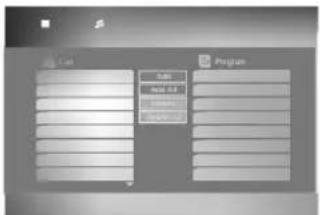
MP3 / WMA
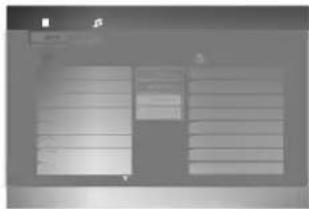
- Use ▲ / ▼ to select a folder, and press SELECT/ENTER to see the folder contents.
- Use ▲ / ▼ to select a track, then press PLAY or SELECT/ENTER. Playback starts.

Tips:
- If you are in a file list on the MP3/WMA menu and want to return to the Folder list, use the ▲ / ▼ to highlight 🔒 and press SELECT/ENTER.
- Press and hold ▼ / ▲ to go to the next / previous page.
- On CDs with MP3/WMA and JPEG files, you can switch between the MP3/WMA and JPEG menus. Press TITLE, either MP3/WMA or the word JPEG on top of the menu is highlighted. Then, use ◀ / ▶ to select MP3/WMA or JPEG and press SELECT/ENTER.
MP3 / WMA disc compatibility with this player is limited as follows:
- Sampling frequency: within 8 - 48kHz (MP3), within 22 - 48kHz (WMA)
- Bit rate: within 32 - 320kbps (MP3), 40 - 192kbps (WMA)
- The player cannot read an MP3/WMA file that has a file extension other than ".mp3" / ".wma". • CD-R physical format should be ISO 9660
- If you record MP3 / WMA files using software that cannot create a file system (eg. Direct-CD) it is impossible to playback MP3 / WMA files. We recommend that you use Easy-CD Creator, which creates an ISO 9660 file system.
- File names should have a maximum of 8 letters and must incorporate an .mp3 or .wma extension.
- They should not contain special letters such as /? * : "< > I etc.
- The total number of files on the disc should be less than 999.
This DVD player requires discs and recordings to meet certain technical standards in order to achieve optimal playback quality. Pre-recorded DVDs are automatically set to these standards. There are many different types of recordable disc formats (including CD-R containing MP3 or WMA files) and these require certain pre-existing conditions (see above) to ensure compatible playback.
Customers should note that permission is required in order to download MP3 / WMA files and music from the Internet. Our company has no right to grant such permission. Permission should always be sought from the copyright owner.
Audio CDs or MP3 / WMA Disc Features
Pause CD MP3 WMA
- Press PAUSE/STEP during playback.
- To return to playback, press PLAY or press PAUSE/STEP again.
Changing Tracks CD MP3 WMA
- Press SKIP/SCAN (I◄◄ or ►►I) briefly during playback to go to the next track or to return to the beginning of the current track.
- Press SKIP/SCAN ◀◀ twice briefly to go back to the previous track.
- You can play any track by inputting its number.
Repeat Track/All/Off CD MP3 WMA
You can play a title/chapter/all/track on a disc.
- Press REPEAT when playing a disc. The repeat icon appears.
- Press REPEAT to select a desired repeat mode.
- Track: repeats the current track • All: repeats all the tracks on a disc.
- Off (no display): does not play repeatedly.

Note: If you press SKIP/SCAN (▶▶▶) once during Repeat Track playback, repeat playback is canceled.
Search CD MP3 WMA
- Press and hold SKIP/SCAN (I◄◄ or ►►I) for about two seconds during playback.
- Press SKIP/SCAN (I◄◄ or ►►) repeatedly to select the required speed: X2, X4, X8 backward or forward.
- To exit SEARCH mode, press PLAY.

Tip: You can also select the search speed by rotating and holding the SHUTTLE ring during playback. The search speed changes based on the position you rotate and hold the SHUTTLE ring.
Random CD MP3 WMA
- Press RANDOM during playback. Random playback begins immediately and RANDOM appears on the display window and menu screen.
- To return to normal playback, press RANDOM repeatedly until RANDOM disappears from the display window.

Tip: By pressing SKIP/SCAN ▶▶▶ I during random playback, the unit selects another track and resumes random playback.
3D Surround CD MP3 WMA
This unit can produce a 3D Surround effect that simulates multi-channel audio playback from two conventional stereo speakers, instead of the five or more speakers normally required to listen to multi-channel audio from a home theater system.
- Press SOUND and select "3D SUR" during playback.
- To turn off the 3D Surround effect, press SOUND again.
Repeat A-B CD
- To repeat a sequence during disc playback, press A-B at your chosen starting point. The Repeat icon and "A" appear on the menu screen.
- Press A-B again at your chosen end point. The Repeat icon and "A-B" appear on the menu screen, and the sequence begins to play repeatedly.
- To exit the sequence and return to normal play, press A-B again. The Repeat icon disappears from the menu screen.
Viewing JPEG Files on a Disc
Using this DVD Player you can view Kodak PICTURE CDs and discs with JPEG files.
- Insert a disc and close the tray. The JPEG menu appears on the TV screen.
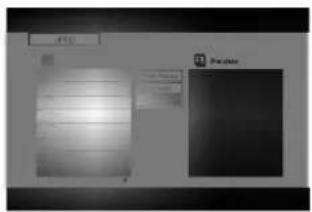
- Use ▲ / ▼ to select a folder, and press SELECT/ENTER. A list of files in the folder appears. If you are in a file list and want to return to the Folder list, use the ▲ / ▼ buttons on the remote to highlight 🔒 and press SELECT/ENTER.
- If you want to view a particular file, use ▲ / ▼ to highlight the file and press SELECT/ENTER or PLAY. Slide Show starts from the selected file if Speed option is turned on.
While viewing a file, you can press RETURN to return to the previous menu (JPEG menu).

Tips:
- Press and hold ▼ / ▲ to go to the next / previous page.
- There are four Slide Speed options: >>> (Fast), >> (Normal), > (Slow) and III (Off).
Use ▲▼◀▶ to highlight the Speed. Then, use ◀/▶ to select the option you want to use and press SELECT/ENTER.
- If you set Speed option to Ⅱ (off), Slide Show is not available.
Slide Show

Use ▲▼◀▶ to highlight the Slide Show then press SELECT/ENTER.
Changing Files

Press SKIP/SCAN (I◄◄ or ►►) once while viewing a picture to advance to the next or previous file.
Still Picture

- Press PAUSE/STEP during slide show. The player will now go into PAUSE mode.
- To return to the slide show, press PLAY or press PAUSE/STEP again.
JPEG disc compatibility with this player is limited as follows:
- Depending upon the size and number of JPEG files, it may take a long time for the DVD player to read the disc's contents. If you don't see an on-screen display after several minutes, some of the files may be too large — reduce the resolution of the JPEG files to less than 3760 x 3840 pixels and burn another disc.
- The total number of files and folders on the disc should be less than 999.
- Some discs may be incompatible due to a different recording format or the condition of disc.
- Ensure that all the selected files have the ".jpg" extensions when copying into the CD layout.
- If the files have ".jpe" or ".jpeg" extensions, please rename them as ".jpg" file.
- File names without ".jpg" extension will not be able to be read by this DVD player; even though the files are shown as JPEG image files in Windows Explorer.
Programmed Playback
The program function enables you to store your favorite tracks from any disc in the player's memory. A program can contain 99 tracks (Audio CD) or 300 tracks (MP3/WMA).
- Insert a disc.
Audio CD and MP3/WMA Discs:
Audio CD or MP3/WMA menu appears as shown below.
Audio CD Menu
MP3/WMA Menu
Video CD: Stop playback, then press PROGRAM while in Stop mode. The program menu appears. Press RETURN to exit the menu.

Note: On a Video CD with PBC, you must set PBC to Off on the Setup menu to use the programmed playback (See "PBC" on page 14).
Video CD Menu
- Select a track from the List.
- Press PROGRAM. Or, select "Add" icon then SELECT/ENTER to place the selected track on the Program list. Repeat to place additional tracks on the list.
You can add all tracks in the disc. Select "Add All" icon then press SELECT/ENTER.
- Select the track you want to start playing on the Program list. Press and hold ▲ / ▼ to move to the next / previous page.
- Press PLAY or SELECT/ENTER to start. Playback begins in the order in which you programmed the tracks and "PROG." appears on the display window. Playback stops after all of the tracks on the Program list have played once.
Repeat Programmed Track/All/Off
You can play a programmed track/all on a disc.
- Press REPEAT when programmed playing back. The repeat icon appears.
- Press REPEAT to select a desired repeat mode.
- Track: repeats the current track.
- All: repeats all the tracks on the program list.
- Off (no display): does not repeat play.

Note: If you press SKIP/SCAN (▶▶▶) once during Repeat Track playback, repeat playback is cancelled.
Erasing a Track from Program List
- Use ▲▼◀▶ to select the track that you wish to erase from the Program list.
- Press CLEAR. Or, select "Delete" icon then press SELECT/ENTER to place the selected track on the Program list. Repeat to erase additional tracks on the list.
Erasing the Complete Program List
Select "Delete All", then press SELECT/ENTER. The complete Program for the disc is erased.

Note: The programs are also cleared when the disc is removed.
To resume normal playback from programmed playback
Select a track on the List then press SELECT/ENTER.
"PROG." disappears from the display window.
Additional Features
Last Scene Memory DVD CD VCD
This player memorizes the last scene from the last disc that was viewed. The last scene remains in memory even if you remove the disc from the player or switch off the player. If you load a disc that has the scene memorized, the scene is automatically recalled.

Note: This player does not memorize the scene of a disc if you switch off the player before commencing to play the disc.
Screen Saver
The screen saver appears when you leave the DVD player in Stop mode for about five minutes. After the Screen Saver is displayed for five minutes, the DVD Player automatically turns itself off.
Video Mode Setting DVD VCD
With certain discs, the playback picture may be flickering or Dot Crawl is shown on straight lines. That means Vertical interpolation or De-interlace is not perfectly matched with the disc. In this case, the picture quality may be improved by changing the video mode.
To change the video mode, press and hold DISPLAY about 3 seconds during disc playback. The new video mode indicator appears on the TV screen. Check whether the video quality has improved. If not, repeat the above procedure until picture quality is improved.
Video mode sequence: Auto → Film → Video If you turn off the power, the video mode will return to initial default state (Auto).
Auto: The source material of the DVD video (film material or video material) is determined from disc information.
Film: Suitable for playing film based content or video based material recorded by the progressive scan method.
Video: Suitable for playing video based content with comparatively little motion.
Maintenance and Service
Refer to the information on this and the following pages before contacting a service technician.
Handling the Unit
When shipping the unit
Please save the original shipping carton and packing materials. For maximum protection if you need to ship the unit, re-pack the unit as it was originally packed at the factory.
Keeping the exterior surfaces clean
- Do not use volatile liquids such as insecticide spray near the unit.
- Since they would leave marks on the cabinet surface, do not leave rubber or plastic products in contact with the unit for long periods of time.
Cleaning the unit
To clean the player, use a soft, dry cloth. If the surfaces are extremely dirty, use a soft cloth lightly moistened with a mild detergent solution.
Do not use strong solvents such as alcohol, benzene, or thinner, as these might damage the surface of the unit.
Maintaining the Unit
The DVD player is a high-tech, precision device. If the optical pick-up lens and disc drive parts are dirty or worn, the picture quality could be adversely affected.
Depending on the operating environment, regular inspection and maintenance are recommended after every 1,000 hours of use.
For details, please contact the nearest authorized service center.
Troubleshooting
| Symptom | Possible Cause | Correction |
| No power. | The power cord is disconnected. | Plug the power cord into the wall power outlet securely. |
| The power is on, but the DVD player does not work. | No disc is inserted. | Insert a disc. (Check that the DVD or audio CD indicator in the display window is lit.) |
| No picture. | The TV is not set to receive DVD signal output. | Select the appropriate video input mode on the TV. |
| The video cable is not connected securely. | Connect the video cable securely. | |
| The connected TV power is turned off. | Turn on the TV. | |
| No sound. | The equipment connected with the audio cable is not set to receive DVD signal output. | Select the correct input mode on the audio receiver so you can listen to the sound from the DVD player. |
| The audio cables are not connected securely. | Connect the audio cable securely. | |
| The power of the equipment connected with the audio cable is turned off. | Turn on the equipment connected with the audio cable. | |
| The AUDIO options are set to the wrong position. | Set the Digital Audio Output to the correct position, then turn on the DVD player again by pressing POWER. | |
| The playback picture is poor. | The disc is dirty. | Clean the disc. |
| The DVD player does not start playback. | No disc is inserted. | Insert a disc. (Check that the DVD or audio CD indicator in the DVD display is lit.) |
| An unplayable disc is inserted. | Insert a playable disc. (Check the disc type, color system, and regional code.) | |
| The disc is placed upside down. | Place the disc with the playback side down. | |
| The disc is not placed within the guide. | Place the disc on the disc tray correctly inside the guide. | |
| The disc is dirty. | Clean the disc. | |
| The rating level is set. | Cancel the rating function or change the rating level. | |
| The remote control does not work properly. | The remote control is not pointed at the remote sensor on the DVD player. | Point the remote control at the remote sensor on the DVD player. |
| The remote control is too far from the DVD player. | Operate the remote control closer to the DVD player. | |
| There is an obstacle in the IR path between the remote control and the DVD player. | Remove the obstacle. | |
| The batteries in the remote control are exhausted. | Replace the batteries with new ones. |
Reference
This chapter includes important reference information to help you set up your DVD player.
Controlling VCRs, Cable Boxes (DBS), and TVs
Your remote control operates the basic features of most, but not all, models and brands of IR (infrared) controlled VCRs, cable converters (DBS), and TVs.
- In the chart, find the code corresponding to your brand of IR controllable device.
- While holding down the TV, VCR, or CATV button, enter the 3 number code with the (0 - 9) buttons.
Some manufacturers have more than one code number. If the remote control does not operate the VCR, Cable box (DBS), or TV after setting a code number, try a different code.
VCR Functional Buttons
POWER, Number (0 - 9), CH (Channel) ▲/▼, SELECT/ENTER, PLAY, SKIP/SCAN ▶▶I (Fast Forward), SKIP/SCAN ◀◀◀ (Rewind), STOP, OPEN/CLOSE (EJECT) and PAUSE/STEP buttons on the remote control are active.
CATV (DBS) Functional Buttons
POWER, Number (0 - 9), RETURN (TV INPUT), and CH (Channel) ▲ / ▼, and VOL (Volume) ◀ / ▶ buttons on the remote control are active.
TV Functional Buttons
POWER, Number (0 - 9), RETURN (TV INPUT), CH (Channel) ▲ / ▼, VOL (Volume) ◀ / ▶ and SOUND (MUTE) buttons on the remote control are active.

Note: Due to the variety of codes used by manufacturers, our company cannot guarantee this remote control will operate with every model of the brands listed.
| TV Codes by Brand | TV Codes by Brand | TV Codes by Brand | CATV, Cable Converter Codes by Brand | ||||
| Brand Name | Codes | Brand Name | Codes | Brand Name | Codes | Brand Name | Codes |
| ADMIRAL | 110, 113, 144, 151, 152 | LXI | 104, 116, 123, 124, 125, 131, 139 | SONY | 105 | OAK | 301, 321, 322 |
| SOUNDESIGN | 158 | Panasonic | 313, 318, 320 | ||||
| AKAI | 115 | MAGNAVOX | 100, 106, 107, 109, 114, 115, 121, 122, 130, 131, 133, 158 | SYLVANIA | 106, 107, 115, 121, 122, 130, 133, 158 | Paragon | 300 |
| AMARK | 131 | Philips | 306, 307, 308, 309, 310 | ||||
| AOC | 115 | SYMPHONIC | 153, 154 | ||||
| BELL & HOWELL | 113 | MAJESTIC | 113 | TATUNG | 128 | Pioneer | 318, 319 |
| BROKSONIC | 140, 143 | MARANTZ | 103, 115 | TEKNIKA | 110, 113, 122, 131, 158 | Pluser | 336 |
| CANDLE | 158 | MEMOREX | 113 | RCA | 318 | ||
| CENTURION | 130 | MGAMITSUBISHI | 103, 114, 115, 130 | TELERENT | 113, 131 | Regal | 310 |
| CITIZEN | 156, 157, 158, 159, 160, 161, 162 | MONTGOMERY | 103, 113, 114, 115, 121, 129, 130, 131, 139 | YORX | 130 | Regency | 304 |
| WARD | TOSHIBA | 104, 123, 124 | Samsung | 318, 327, 334 | |||
| CORONADO | 131 | 139 | WARDS | 102, 113, 114, 115, 121, 130, 131 | Scientific Atlanta | 317, 335, 347, 354 | |
| CROWN | 131 | NEC | 115, 130 | Stmarx | 318, 327 | ||
| CURTIS MATHES | 113, 115, 118, 130, 144, 151 | PANASONIC | 104, 122, 127, 128, 133, 163 | XR1000 | 155 | Sprucer | 318, 320, 327 |
| ZENITH | 100, 101 | Standard Components | 334 | ||||
| DAEWOO | 145, 146, 147, 148, 149, 150 | PHILCO | 115, 121, 122, 130, 131, 150 | CATV, Cable Converter Codes by Brand | Stargate | 318, 327, 328 | |
| Brand Name | Codes | Teleview | 318, 327, 336 | ||||
| DAYTRON | 115, 130 | PHILIPS | 121, 122 | ALLEGRO | 351 | Texscan | 303 |
| EMERSON | 110, 111, 115, 131, 140, 143 | PIONEER | 134 | Archer | 336 | Tocom | 315, 316 |
| PORTLAND | 131 | Cableview | 336 | Uniden | 348 | ||
| FISHER | 116, 125 | PROSCAN | 118, 144, 151 | Citizen | 336 | Unika | 336 |
| FUNAI | 153, 154 | QUASAR | 127, 128 | Curtis Mathes | 317 | Universal | 351, 352 |
| GENERAL ELECTRIC | 102, 118, 127, 128, 133, 144, 151 | RADIO SHACK | 110, 111, 129 | Eagle | 306, 307, 310 | Vid Tech | 339 |
| RCA | 115, 118, 144, 151 | Gemini | 302, 327, 328, 333 | Video Way | 300, 349 | ||
| HITACHI | 119, 131, 132 | REALISTIC | 110, 111, 129 | GENERAL ELECTRIC | 353 | Viewstar | 306, 307, 310 |
| JC PENNEY | 102, 115, 124, 130, 133 | SAMPO | 130 | General Instrument | 324, 326, 327, 328 | Zenith | 300, 305, 311 |
| SAMSUNG | 104, 115, 130, 131 | Gobrand | 336 | Zenith HT-2000 | 300 | ||
| JVC | 109, 141 | SANYO | 116, 125 | Hamlin | 314, 330, 331 | DBS Codes by Brand | |
| KMC | 131 | SCOTT | 115, 130 | Jerrold | 323, 324, 325, 326, 327, 329 | Brand Name | Codes |
| KTV | 115, 130, 131, 138 | SEARS | 104, 116, 123, 124, 125, 131 | RCA | 355 | ||
| LG (GOLDSTAR) | 115, 122, 130, 131, 133, 146 | Kale Vision | 334 | Sony | 356 | ||
| SHARP | 112, 129, 131, 139 | Macom | 311, 312, 342 | VCR Codes by Brand | |||
| LODGENET | 113 | SIGNATURE 2000 | 102, 113, 114, 115, 121, 129, 130, 131, 139 | Magnavox | 306, 307, 310, 334, 337, 338 | Brand Name | Codes |
| LOGIK | 113 | NSC | 332 | ZENITH | 200 | ||
| LG | 201 | ||||||
Language Codes
Use this list to specify a language for the following pre-operation settings: Disc Audio, Disc Subtitle, Disc Menu
| Language | Code | Language | Code | Language | Code | Language | Code |
| Abkhazian | 6566 | Fiji | 7074 | Lingala | 7678 | Singhalese | 8373 |
| Afar | 6565 | Finnish | 7073 | Lithuanian | 7684 | Slovak | 8375 |
| Afrikaans | 6570 | French | 7082 | Macedonian | 7775 | Slovenian | 8376 |
| Albanian | 8381 | Frisian | 7089 | Malagasy | 7771 | Somali | 8379 |
| Ameharic | 6577 | Galician | 7176 | Malay | 7783 | Spanish | 6983 |
| Arabic | 6582 | Georgian | 7565 | Malayalam | 7776 | Sudanese | 8385 |
| Armenian | 7289 | German | 6869 | Maltese | 7784 | Swahili | 8387 |
| Assamese | 6583 | Greek | 6976 | Maori | 7773 | Swedish | 8386 |
| Aymara | 6588 | Greenlandic | 7576 | Marathi | 7782 | Tagalog | 8476 |
| Azerbaijani | 6590 | Guarani | 7178 | Moldavian | 7779 | Tajik | 8471 |
| Bashkir | 6665 | Gujarati | 7185 | Mongolian | 7778 | Tamil | 8465 |
| Basque | 6985 | Hausa | 7265 | Nauru | 7865 | Tatar | 8484 |
| Bengali; Bangla | 6678 | Hebrew | 7387 | Nepali | 7869 | Telugu | 8469 |
| Bhutani | 6890 | Hindi | 7273 | Norwegian | 7879 | Thai | 8472 |
| Bihari | 6672 | Hungarian | 7285 | Oriya | 7982 | Tibetan | 6679 |
| Breton | 6682 | Icelandic | 7383 | Panjabi | 8065 | Tigrinya | 8473 |
| Bulgarian | 6671 | Indonesian | 7378 | Pashto, Pushto | 8083 | Tonga | 8479 |
| Burmese | 7789 | Interlingua | 7365 | Persian | 7065 | Turkish | 8482 |
| Byelorussian | 6669 | Irish | 7165 | Polish | 8076 | Turkmen | 8475 |
| Cambodian | 7577 | Italian | 7384 | Portuguese | 8084 | Twi | 8487 |
| Catalan | 6765 | Japanese | 7465 | Quechua | 8185 | Ukrainian | 8575 |
| Chinese | 9072 | Javanese | 7487 | Rhaeto-Romance | 8277 | Urdu | 8582 |
| Corsican | 6779 | Kannada | 7578 | Rumanian | 8279 | Uzbek | 8590 |
| Croatian | 7282 | Kashmiri | 7583 | Russian | 8285 | Vietnamese | 8673 |
| Czech | 6783 | Kazakh | 7575 | Samoan | 8377 | Volapük | 8679 |
| Danish | 6865 | Kirghiz | 7589 | Sanskrit | 8365 | Welsh | 6789 |
| Dutch | 7876 | Korean | 7579 | Scots Gaelic | 7168 | Wolof | 8779 |
| English | 6978 | Kurdish | 7585 | Serbian | 8382 | Xhosa | 8872 |
| Esperanto | 6979 | Laothian | 7679 | Serbo-Croatian | 8372 | Yiddish | 7473 |
| Estonian | 6984 | Latin | 7665 | Shona | 8378 | Yoruba | 8979 |
| Faroese | 7079 | Latvian, Lettish | 7686 | Sindhi | 8368 | Zulu | 9085 |
Country Codes
Choose a country code from this list.
| Country | Code | Country | Code | Country | Code | Country | Code |
| Afghanistan | AF | Equatorial Guinea | GQ | Macedonia | MK | Saint Vincent & Grenadines | VC |
| Albania | AL | Eritrea | ER | Madagascar | MG | ||
| Algeria | DZ | Estonia | EE | Malawi | MW | Samoa | WS |
| American Samoa | AS | Ethiopia | ET | Malaysia | MY | San Marino | SM |
| Andorra | AD | Falkland Islands | FK | Maldives | MV | Saudi Arabia | SA |
| Angola | AO | Faroe Islands | FO | Mali | ML | Senegal | SN |
| Anguilla | AI | Fiji | FJ | Malta | MT | Seychelles | SC |
| Antarctica | AQ | Finland | FI | Marshall Islands | MH | Sierra Leone | SL |
| Antigua and Barbuda | AG | Former Czechoslovakia | CS | Martinique (French) | MQ | Singapore | SG |
| Argentina | AR | Former USSR | SU | Mauritania | MR | Slovak Republic | SK |
| Armenia | AM | France | FR | Mauritius | MU | Slovenia | SI |
| Aruba | AW | France | Mayotte | YT | Solomon Islands | SB | |
| Australia | AU | (European Territory) | FX | Mexico | MX | Somalia | SO |
| Austria | AT | French Guyana | GF | Micronesia | FM | South Africa | ZA |
| Azerbaijan | AZ | French Southern Territories | TF | Moldavia | MD | South Korea | KR |
| Bahamas | BS | Monaco | MC | Spain | ES | ||
| Bahrain | BH | Gabon | GA | Mongolia | MN | Sri Lanka | LK |
| Bangladesh | BD | Gambia | GM | Montserrat | MS | Sudan | SD |
| Barbados | BB | Georgia | GE | Morocco | MA | Suriname | SR |
| Belarus | BY | Germany | DE | Mozambique | MZ | Svalbard and Jan Mayen Islands | SJ |
| Belgium | BE | Ghana | GH | Myanmar | MM | ||
| Belize | BZ | Gibraltar | GI | Namibia | NA | Swaziland | SZ |
| Benin | BJ | Great Britain | GB | Nauru | NR | Sweden | SE |
| Bermuda | BM | Greece | GR | Nepal | NP | Switzerland | CH |
| Bhutan | BT | Greenland | GL | Netherlands | NL | Syria | SY |
| Bolivia | BO | Grenada | GD | Netherlands Antilles | AN | Tadjikistan | TJ |
| Bosnia-Herzegovina | BA | Guadeloupe (French) | GP | New Caledonia (French) | NC | Taiwan | TW |
| Botswana | BW | Guam (USA) | GU | New Zealand | NZ | Tanzania | TZ |
| Bouvet Island | BV | Guatemala | GT | Nicaragua | NI | Thailand | TH |
| Brazil | BR | Guinea | GN | Niger | NE | Togo | TG |
| British Indian Ocean Territory | IO | Guinea Bissau | GW | Nigeria | NG | Tokelau | TK |
| Guyana | GY | Niue | NU | Tonga | TO | ||
| Brunei Darussalam | BN | Haiti | HT | Norfolk Island | NF | Trinidad and Tobago | TT |
| Bulgaria | BG | Heard and McDonald Islands | HM | North Korea | KP | Tunisia | TN |
| Burkina Faso | BF | Northern Mariana Islands | MP | Turkey | TR | ||
| Burundi | BI | Honduras | HN | Turkmenistan | TM | ||
| Cambodia6 | KH | Hong Kong | HK | Norway | NO | Turks and Caicos Islands | TC |
| Cameroon | CM | Hungary | HU | Oman | OM | ||
| Canada | CA | Iceland | IS | Pakistan | PK | Tuvalu | TV |
| Cape Verde | CV | India | IN | Palau | PW | Uganda | UG |
| Cayman Islands | KY | Indonesia | ID | Panama | PA | Ukraine | UA |
| Central African Republic | CF | Iran | IR | Papua New Guinea | PG | United Arab Emirates | AE |
| Iraq | IQ | Paraguay | PY | United Kingdom | UK | ||
| Chad | TD | Ireland | IE | Peru | PE | United States | US |
| Chile | CL | Israel | IL | Philippines | PH | Uruguay | UY |
| China | CN | Italy | IT | Pitcairn Island | PN | USA Minor Outlying Islands | UM |
| Christmas Island | CX | Ivory Coast | CI | Poland | PL | ||
| Cocos (Keeling) Islands | CC | Jamaica | JM | Polynesia (French) | PF | Uzbekistan | UZ |
| Colombia | CO | Japan | JP | Portugal | PT | Vanuatu | VU |
| Comoros | KM | Jordan | JO | Puerto Rico | PR | Vatican City State | VA |
| Congo | CG | Kazakhstan | KZ | Qatar | QA | Venezuela | VE |
| Cook Islands | CK | Kenya | KE | Reunion (French) | RE | Vietnam | VN |
| Costa Rica | CR | Kiribati | KI | Romania | RO | Virgin Islands (British) | VG |
| Croatia | HR | Kuwait | KW | Russian Federation | RU | Virgin Islands (USA) | VI |
| Cuba | CU | Kyrgyzstan | KG | Rwanda | RW | Wallis and Futuna IslandsWF | |
| Cyprus | CY | Laos | LA | S. Georgia & S. Sandwich Isls. | GS | Western Sahara | EH |
| Czech Republic | CZ | Latvia | LV | Yemen | YE | ||
| Denmark | DK | Lebanon | LB | Saint Helena | SH | Yugoslavia | YU |
| Djibouti | DJ | Lesotho | LS | Saint Kitts & Nevis Anguilla | KN | Zaire | ZR |
| Dominica | DM | Liberia | LR | Zambia | ZM | ||
| Dominican Republic | DO | Libya | LY | Saint Lucia | LC | Zimbabwe | ZW |
| East Timor | TP | Liechtenstein | LI | Saint Pierre and Miquelon | PM | ||
| Ecuador | EC | Lithuania | LT | ||||
| Egypt | EG | Luxembourg | LU | Saint Tome and Principe | ST | ||
| El Salvador | SV | Macau | MO | ||||
Specifications
| General | |
| Power requirements | AC 120 V, 60 Hz |
| Power consumption | 14W |
| Dimensions (Approx.) | 430 x 48 x 242 mm (16.9 x 1.9 x 9.5 inches) (W x H x D) |
| Weight (Approx.) | 2.34 kg (5.2 lbs) |
| Operating temperature | 5 °C to 35 °C (41 °F to 95 °F) |
| Operating humidity | 5 % to 90 % |
System
| Laser | Semiconductor laser |
| Signal system | NTSC |
| Frequency response | DVD (PCM 96 kHz): 8 Hz to 44 kHzDVD (PCM 48 kHz): 8 Hz to 22 kHzCD: 8 Hz to 20 kHz |
| Signal-to-noise ratio | More than 100 dB (ANALOG OUT connectors only) |
| Harmonic distortion | Less than 0.008% |
| Dynamic range | More than 90 dB (DVD/CD) |
Outputs
| VIDEO OUT | 1.0 V (p-p), 75 Ω, negative sync, RCA jack x 1 |
| S-VIDEO OUT | (Y) 1.0 V (p-p), 75 Ω, negative sync, Mini DIN 4-pin x 1(C) 0.3 V (p-p) 75 Ω |
| COMPONENT VIDEO OUT | (Y) 1.0 V (p-p), 75 Ω, negative sync, RCA jack x 1(Pb)/(Pr) 0.7 V (p-p), 75 Ω, RCA jack x 2 (480p, 720p, 1080i) |
| DVI-D DIGITAL OUT | DVI-D Single Link connector x 1 (480p, 720p, 1080i) |
| Digital Audio output (Coaxial) | 0.5 V (p-p), 75 Ω, RCA jack x 1 |
| Digital Audio output (Optical) | 3.0 V (p-p), 75 Ω, Optical connector x 1 |
| Analog Audio output | 2.0 Vrms (1 kHz, 0 dB), 600 Ω, RCA jack (L, R) x 1 |
Accessories
| Component video cable | 1 |
| DVI-type cable | 1 |
| S-Video cable | 1 |
| Video cable | 1 |
| Audio cable | 1 |
| Remote control | 1 |
| Batteries | 2 |

Note: Design and specifications for quality improvement are subject to change without prior notice.
Manufactured under license from Dolby Laboratories. "Dolby", "Pro Logic", and the double-D symbol are trademarks of Dolby Laboratories.
"DTS" and "DTS Digital Out" are trademarks of Digital Theater Systems, Inc.
P/No: 3834RS0062L

- DOLBY DIGITAL / DTS / MPEG
- MP3 / WMA
- TIPS
- CAUTION
- WARNING
- REGULATORY INFORMATION: FCC PART
- SERIAL NUMBER
- CONTENTS
- INTRODUCTION
- INSTALLATION AND SETUP
- OPERATION
- MAINTENANCE AND SERVICE
- REFERENCE
- SYMBOLS USED IN THIS MANUAL
- ABOUT THE ⊙ SYMBOL DISPLAY
- NOTES ON DISCS
- HANDLING DISCS
- STORING DISCS
- CLEANING DISCS
- TYPES OF PLAYABLE DISCS
- NOTES
- NOTES ON DVDS AND VIDEO CDS
- REGIONAL CODE
- NOTES ON REGIONAL CODES
- NOTES ON COPYRIGHTS
- GLOSSARY OF DISC-RELATED TERMS
- DVD -R / DVD ±RW
- VCD (VIDEO CD)
- MPEG
- MP
- WMA
- JPEG (FILES)
- PBC: PLAYBACK CONTROL (VIDEO CD ONLY)
- TITLE (DVDS ONLY)
- CHAPTER (DVDS ONLY)
- SCENE (VCD)
- TRACK
- REMOTE CONTROL
- CONNECTIONS PANEL
- REMOTE CONTROL OPERATION
- REMOTE CONTROL BATTERY INSTALLATION
- PLAYER SETUP
- DVD PLAYER CONNECTIONS
- VIDEO AND AUDIO CONNECTIONS TO YOUR TV
- AUDIO CONNECTION TO YOUR TV
- NOTES FOR DVI AND COMPONENT VIDEO OUTPUT
- AUDIO CONNECTION TO OPTIONAL EQUIPMENT
- DIGITAL MULTI-CHANNEL SOUND
- ON-SCREEN DISPLAY
- PLAYBACK STATUS/RESTRICTIONS
- PRE-OPERATION SETUP
- TO DISPLAY AND EXIT THE MENU
- TO GO TO THE NEXT LEVEL
- TO GO BACK TO THE PREVIOUS LEVEL
- GENERAL OPERATION
- MENU LANGUAGE
- DISC AUDIO / SUBTITLE / MENU
- PICTURE ASPECT RATIO
- PICTURE DISPLAY MODE
- AUDIO MENU
- SAMPLE FREQ. (FREQUENCY)
- DYNAMIC RANGE CONTROL (DRC)
- VOCAL
- OTHERS MENU
- PBC
- AUTO PLAY
- LOCK (PARENTAL CONTROL) MENU
- RATING
- UNLOCK
- PASSWORD (SECURITY CODE)
- COUNTRY CODE
- DVD OR VIDEO CD PLAYBACK
- PLAYBACK SETUP
- DVD
- VCD
- GENERAL FEATURES
- CHANGING TITLES DVD
- CHANGING CHAPTERS/TRACKS DVD VCD
- SEARCH DVD VCD
- STILL PICTURE AND FRAME-BY-FRAME PLAYBACK
- DVD VCD
- SLOW MOTION DVD VCD
- RANDOM VCD
- REPEAT DVD VCD
- DVD VIDEO DISCS - REPEAT CHAPTER/TITLE/OFF
- VIDEO CDS - REPEAT TRACK/ALL/OFF
- REPEAT A-B DVD VCD
- D SURROUND DVD VCD
- TIME SEARCH DVD VCD
- CHANGING THE AUDIO CHANNEL VCD
- ZOOM DVD VCD
- MARKER SEARCH DVD VCD
- TO ENTER A MARKER
- TO RECALL OR CLEAR A MARKED SCENE
- SPECIAL DVD FEATURES
- TITLE MENU DVD
- DISC MENU DVD
- CAMERA ANGLE(S) DVD
- CHANGING THE AUDIO LANGUAGE (DVD)
- SUBTITLES (DVD)
- PLAYING AUDIO CDS OR MP3/WMA DISCS
- AUDIO CD
- MP3 / WMA DISC COMPATIBILITY WITH THIS PLAYER IS LIMITED AS FOLLOWS
- AUDIO CDS OR MP3 / WMA DISC FEATURES
- PAUSE CD MP3 WMA
- CHANGING TRACKS CD MP3 WMA
- REPEAT TRACK/ALL/OFF CD MP3 WMA
- SEARCH CD MP3 WMA
- RANDOM CD MP3 WMA
- D SURROUND CD MP3 WMA
- REPEAT A-B CD
- VIEWING JPEG FILES ON A DISC
- SLIDE SHOW
- CHANGING FILES
- STILL PICTURE
- PROGRAMMED PLAYBACK
- AUDIO CD AND MP3/WMA DISCS
- REPEAT PROGRAMMED TRACK/ALL/OFF
- ERASING A TRACK FROM PROGRAM LIST
- ERASING THE COMPLETE PROGRAM LIST
- ADDITIONAL FEATURES
- LAST SCENE MEMORY DVD CD VCD
- SCREEN SAVER
- VIDEO MODE SETTING DVD VCD
- HANDLING THE UNIT
- WHEN SHIPPING THE UNIT
- KEEPING THE EXTERIOR SURFACES CLEAN
- CLEANING THE UNIT
- MAINTAINING THE UNIT
- CONTROLLING VCRS, CABLE BOXES (DBS), AND TVS
- VCR FUNCTIONAL BUTTONS
- CATV (DBS) FUNCTIONAL BUTTONS
- TV FUNCTIONAL BUTTONS
- LANGUAGE CODES
- COUNTRY CODES
Brand : LG
Model : DV7832NXC
Category : Media player