
LDA-830 - Media player LG - Free user manual and instructions
Find the device manual for free LDA-830 LG in PDF.


| Product Type | DVD Media Player |
| Brand | LG |
| Model | LDA-830 |
| Power Supply | 120V AC, 60 Hz |
| Power Consumption | 8W |
| Compatible Disc Formats | DVD, DVD±R/RW, CD, CD-R/RW, VCD, SVCD, CD Audio, MP3, WMA, JPEG, DivX |
| Region Code | Varies by country (e.g., 1 for USA) |
| Video Outputs | 1 x Composite Video (RCA), 1 x S-Video (Mini DIN 4-pin), 1 x Component Y Pb Pr (RCA) |
| Audio Outputs | 2 x Analog Audio (RCA L/R), 1 x Coaxial Digital Audio (RCA) |
| Laser System | Semiconductor, 650 nm |
| Signal System | NTSC |
| Frequency Response | DVD PCM 96 kHz: 8 Hz - 44 kHz; DVD PCM 48 kHz: 8 Hz - 22 kHz; CD: 8 Hz - 20 kHz |
| Signal-to-Noise Ratio | > 90 dB |
| Harmonic Distortion | < 0.02% |
| Dynamic Range | > 95 dB |
| Operating Temperature | 41°F to 95°F (5°C to 35°C) |
| Operating Humidity | 5% to 90% |
| Playback Functions | Programmed playback, repeat (chapter/title/track/all), A-B, zoom, slideshow, image rotation, time search, bookmarks |
| Parental Control | Yes (levels 1 to 8) |
| Progressive Scan | Yes (via component output) |
| Built-in Audio Decoders | Dolby Digital, DTS, MPEG |
| Supplied Accessories | Remote control, video cable, audio cable, batteries |
Frequently Asked Questions - LDA-830 LG
User questions about LDA-830 LG
0 question about this device. Answer the ones you know or ask your own.
Ask a new question about this device
Download the instructions for your Media player in PDF format for free! Find your manual LDA-830 - LG and take your electronic device back in hand. On this page are published all the documents necessary for the use of your device. LDA-830 by LG.
USER MANUAL LDA-830 LG
Before connecting, operating or adjusting this product, please read this instruction booklet carefully and completely.

CAUTION RISK OF ELECTRIC SHOCK DO NOT OPEN

CAUTION: TO REDUCE THE RISK OF ELECTRIC SHOCK DO NOT REMOVE COVER (OR BACK) NO USER-SERVICEABLE PARTS INSIDE REFER SERVICING TO QUALIFIED SERVICE PERSONNEL

This lightning flash with arrowhead symbol within an equilateral triangle is intended to alert the user to the presence of uninsulated dangerous voltage within the product's enclosure that may be of sufficient magnitude to constitute a risk of electric shock to persons.

The exclamation point within an equilateral triangle is intended to alert the user to the presence of important operating and maintenance (servicing) instructions in the literature accompanying the product.
WARNING: TO PREVENT FIRE OR ELECTRIC SHOCK HAZARD, DO NOT EXPOSE THIS PRODUCT TO RAIN OR MOISTURE.
WARNING: Do not install this equipment in a confined space such as a bookcase or similar unit.
CAUTION:
Do not block any ventilation openings. Install in accordance with the manufacturer's instructions.
Slots and openings in the cabinet are provided for ventilation and to ensure reliable operation of the product and to protect it from overheating.
The openings should never be blocked by placing the product on a bed, sofa, rug or other similar surface. This product should not be placed in a built-in installation such as a bookcase or rack unless proper ventilation is provided or the manufacturer's instructions have been adhered to.
CAUTION:
This product employs a Laser System.
To ensure proper use of this product, please read this owner's manual carefully and retain it for future reference. Should the unit require maintenance, contact an authorized service center.
Performing controls, adjustments, or carrying out procedures other than those specified herein may result in hazardous radiation exposure.
To prevent direct exposure to laser beam, do not try to open the enclosure. Visible laser radiation when open. DO NOT STARE INTO BEAM.
CAUTION: The apparatus should not be exposed to water (dripping or splashing) and no objects filled with liquids, such as vases, should be placed on the apparatus.
CAUTION concerning the Power Cord
Most appliances recommend they be placed upon a dedicated circuit;
That is, a single outlet circuit which powers only that appliance and has no additional outlets or branch circuits. Check the specification page of this owner's manual to be certain.
Do not overload wall outlets. Overloaded wall outlets, loose or damaged wall outlets, extension cords, frayed power cords, or damaged or cracked wire insulation are dangerous. Any of these conditions could result in electric shock or fire. Periodically examine the cord of your appliance, and if its appearance indicates damage or deterioration, unplug it, discontinue use of the appliance, and have the cord replaced with an exact replacement part by an authorized servicer.
Protect the power cord from physical or mechanical abuse, such as being twisted, kinked, pinched, closed in a door, or walked upon. Pay particular attention to plugs, wall outlets, and the point where the cord exits the appliance.
To disconnect power from the mains, pull out the mains cord plug. When installing the product, ensure that the plug is easily accessible.
IMPORTANT SAFETY INSTRUCTIONS
CAUTION: PLEASE READ AND OBSERVE ALL WARNINGS AND INSTRUCTIONS IN THIS OWNER'S MANUAL. AND THOSE MARKED ON THE PRODUCT. RETAIN THIS BOOKLET FOR FUTURE REFERENCE.
This product has been designed and manufactured to assure personal safety. Improper use can result in electric shock or fire hazard. The safeguards incorporated in this product will protect you if you observe the following procedures for installation, use, and servicing.
This product does not contain any parts that can be repaired by the user.
DO NOT REMOVE THE CABINET COVER, OR YOU MAY BE EXPOSED TO DANGEROUS VOLTAGE. REFER SERVICING TO QUALIFIED SERVICE PERSONNEL ONLY.
- Read these Instructions. - All these safety and operating instructions should be read before the product is operated.
- Keep these instructions. - The safety, operating and use instructions should be retained for future reference.
- Heed all warnings. - All warnings on the product and in the operating instructions should be adhered to.
- Follow all instructions. - All operating and use instructions should be followed.
- Do not use this apparatus near water. – For example: near a bath tub, wash bowl, kitchen sink, laundry tub, in a wet basement; or near a swimming pool; and other areas located near water.
- Clean only with dry cloth. – Unplug this product from the wall outlet before cleaning. Do not use liquid cleaners.
- Do not block any ventilation openings. Install in accordance with the manufacturer's instructions. - Slots and openings in the cabinet are provided for ventilation and to ensure reliable operation of the product and to protect it from over-heating. The openings should never be blocked by placing the product on a bed, sofa, rug or other similar surface. This product should not be placed in a built-in installation such as a bookcase or rack unless proper ventilation is provided or the manufacturer's instructions have been adhered to.
- Do not install near any heat sources such as radiators, heat registers, stoves, or other apparatus (including amplifiers) that produce heat.
- Do not defeat the safety purpose of the polarized or grounding-type plug. A polarized plug has two blades with one wider than the other. A grounding type plug has two blades and a third grounding prong. The wide blade or the third prong are provided for your safety. If the provided plug does not fit into your outlet, consult an electrician for replacement of the obsolete outlet.
- Protect the power cord from being walked on or pinched particularly at plugs, convenience receptacles, and the point where they exit from the apparatus.
- Only use attachments/accessories specified by the manufacturer.
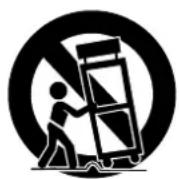
- Use only with the cart, stand, tripod, bracket, or table specified by the manufacturer, or sold with the apparatus. When a cart is used, use caution when moving the cart/apparatus combination to avoid injury from tip-over.
- Unplug this apparatus during lightning storms or when unused for long periods of time.
- Refer all servicing to qualified service personnel. Servicing is required when the apparatus has been damaged in any way, such as power-supply cord or plug is damaged, liquid has been spilled or objects have fallen into the apparatus, the apparatus has been exposed to rain or moisture, does not operate normally, or has been dropped.
Contents
Introduction .....5-8
About the Symbol Display ....5
Symbol used in this Manual ....5
Notes on Discs 5
Handling Discs 5
Storing Discs 5
Cleaning Discs 5
Maintenance and Service 5
Types of Playable Discs 6
Regional Code 6
Front Panel 7
Remote Control 8
Remote Control Operation 8
Remote Control Battery Installation 8
Installation and Setup 9-14
Setting up the Player 9
DVD Player Connections 9
Video and Audio Connections to Your TV 9
Audio Connection to Optional Equipment ..10
Displaying Disc Information on-screen ....11
Initial Settings .....11
General Operation 11
LANGUAGE 12
- Menu Language .....12
• Disc Audio / Subtitle / Menu .....12
DISPLAY 12
• TV Aspect .....12
- Display Mode 12
• Progressive Scan ....12
• TV Output Select 12
AUDIO 13
• Dolby Digital / DTS / MPEG .....13
• Sample Freq. (Frequency) .....13
• DRC (Dynamic Range Control) .....13
• Vocal .....13
LOCK (Parental Control) .....13
• Rating 13
- Password 13
• Area Code 14
OTHERS 14
• PBC 14
• B.L.E. (Black Level Expansion) .....14
• DivX(R) VOD .....14
Operation .....15-20
General Features ....15
Additional Features 16
Playing an Audio CD discs or MP3/WMA file ..17
Programmed Playback ....18
Repeat Programmed Tracks .....18
Erasing a Track from Program List .....18
Erasing the Complete Program List .....18
Playing a DVD VR format Disc .....18
Viewing a JPEG file ....19
Slide Show 19
Still Picture....19
Moving to another File .....19
Zoom 19
Rotating the picture .....19
To listen to MP3/WMA music while
watching picture 19
Playing a DivX Movie file .....20
Reference .....21-23
Controlling other TVs with the remote control ....21
Video Mode Setting .....21
Language Codes .....22
Area Codes 22
Troubleshooting .....23
Specifications 23
Introduction
To ensure proper use of this product, please read this owner's manual carefully and retain it for future reference.
This manual provides information on the operation and maintenance of your DVD player. Should the unit require service, contact an authorized service location.
About the Symbol Display
" Omay appear on your TV display during operation and indicates that the function explained in this owner's manual is not available on that specific DVD video disc.
Symbol Used in this Manual
Note:
Indicates special notes and operating features.
Tip:
Indicates tips and hints for making the task easier.
A section whose title has one of the following symbols is applicable only to the disc represented by the symbol.
ALL All discs listed below
DVD DVD and finalized DVD±R/RW
VCD Video CDs
ACD Audio CDs
MP3 MP3 files
WMA WMA files
DivX DivX files
Notes on Discs
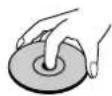
Handling Discs
Do not touch the playback side of the disc. Hold the disc by the edges so that fingerprints do not get on the surface. Never stick paper or tape on the disc.

Storing Discs
After playing, store the disc in its case. Do not expose the disc to direct sunlight or sources of heat and never leave it in a parked car exposed to direct sunlight.
Cleaning Discs
Fingerprints and dust on the disc can cause poor picture quality and sound distortion. Before playing, clean the disc with a clean cloth. Wipe the disc from the center out.
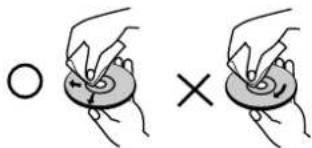
Do not use strong solvents such as alcohol, benzine, thinner, commercially available cleaners, or anti-static spray intended for older vinyl records.
Maintenance and Service
Refer to the information in this chapter before contacting a service technician.
Handling the Unit
When shipping the unit
Please save the original shipping carton and packing materials. If you need to ship the unit, for maximum protection, re-pack the unit as it was originally packed at the factory.
Keeping the exterior surfaces clean
- Do not use volatile liquids such as insecticide spray near the unit.
- Do not leave rubber or plastic products in contact with the unit for a long period of time, as they leave marks on the surface.
Cleaning the unit
To clean the player, use a soft, dry cloth. If the surfaces are extremely dirty, use a soft cloth lightly moistened with a mild detergent solution.
Do not use strong solvents such as alcohol, benzine, or thinner, as these might damage the surface of the unit.
Maintaining the Unit
The DVD player is a high-tech, precision device. If the optical pick-up lens and disc drive parts are dirty or worn, the picture quality could be diminished.
Depending on the operating environment, regular inspection and maintenance are recommended after every 1,000 hours of use.
For details, please contact your nearest authorized service center.
Types of Playable Discs
| DVDVIDEO* | DVD(8 cm / 12 cm disc) |
| Video CD (VCD/SVCD)(8 cm / 12 cm disc) | |
| Audio CD(8 cm / 12 cm disc) |
In addition, this unit plays DVD±R/RW and CD-R/RW, Dual disc that contains audio titles, DivX, MP3, WMA and/or JPEG files.

This indicates a product feature that is capable of playing DVD-RW discs recorded with Video Recording format.
Notes:
- Depending on the conditions of the recording equipment or the CD-R/RW (or DVD±R/RW) disc itself, some CD-R/RW (or DVD±R/RW) discs may not be played on the unit.
- Do not use irregularly shaped CDs (e.g., heart-shaped or octagonal) since they may result in malfunctions.
Regional Code
This unit has a regional code printed on the rear of the unit. This unit can play only DVD discs labelled as the same as the rear of the unit or "ALL".
Notes on Regional Codes
- Most DVD discs have a globe with one or more numbers in it clearly visible on the cover. This number must match your DVD player's regional code or the disc cannot play.
- If you try to play a DVD with a different regional code from your player, the message "Check Regional Code" appears on the TV screen.
Notes on Copyrights:
It is forbidden by law to copy, broadcast, show, broadcast via cable, play in public, or rent copyrighted material without permission. This product features the copy protection function developed by Macrovision. Copy protection signals are recorded on some discs. When recording and playing the pictures of these discs picture noise will appear. This product incorporates copyright protection technology that is protected by method claims of certain U.S. patents and other intellectual property rights owned by Macrovision Corporation and other rights owners. The use of this copyright protection technology must be authorized by Macrovision Corporation, and is intended for home and other limited viewing uses only unless otherwise authorized by Macrovision Corporation. Reverse engineering or disassembly is prohibited.
CONSUMERS SHOULD NOTE THAT NOT ALL HIGH DEFINITION TELEVISION SETS ARE FULLY COMPATIBLE WITH THIS PRODUCT AND MAY CAUSE ARTIFACTS TO BE DISPLAYED IN THE PICTURE. IN CASE OF 525 PROGRESSIVE SCAN PICTURE PROBLEMS, IT IS RECOMMENDED THAT THE USER SWITCH THE CONNECTION TO THE 'STANDARD DEFINITION' OUTPUT. IF THERE ARE QUESTIONS REGARDING OUR TV SET COMPATIBILITY WITH THIS MODEL 525p DVD PLAYER, PLEASE CONTACT OUR CUSTOMER SERVICE CENTER.
Front Panel
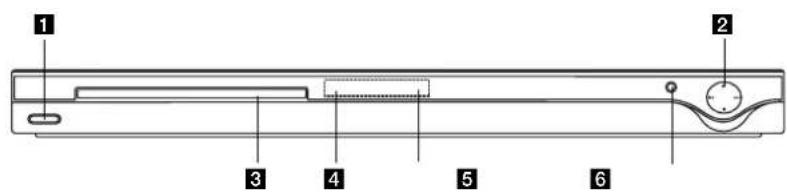
1 POWER
Switches the unit ON or OFF.
2·▶(PLAY)
Starts playback.
• ■ (STOP)
Stops playback.
- (SKIP)
Returns to the beginning of current chapter or track or go to the previous chapter or track.
• ▶▶▶I (SKIP)
Go to the next chapter or track.
3Disc Tray
Insert a disc here.
4 Remote Sensor
Point the remote control here.
5 Display window
Shows the current status of the unit.
6△ (OPEN / CLOSE)
Opens or closes the disc tray.
Remote Control
POWER
Switches DVD Player ON or OFF
OPEN/CLOSE (▲)
Opens and closes the disc tray.
0-9 numerical buttons
Selects numbered options in a
menu.
CLEAR
Removes a track number on the
Program List or a mark on the
Marker Search menu.
TV Control Buttons
POWER: Turns the TV on or off.
AV: Selects the TV's source.
PR/CH +/-: Selects TV's channel.
VOL +/-: Adjusts TV's volume.
DVD MENU
Accesses menu on a DVD disc.
TITLE
Displays title menu, if available.

Selects an option in the menu.
ENTER
Confirms menu selection.
DISPLAY
Accesses On-Screen Display.
RETURN (○)
Removes the menu.
Displays the menu of a video CD
with PBC.
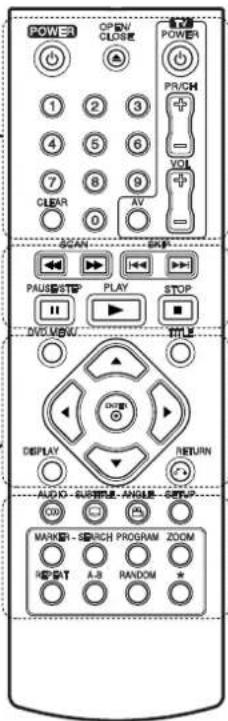
SCAN (◄◄ / ►►)
Search backward or forward.
SKIP (I ◀◀ / ▶▶▶ I)
Go to the next chapter or track.
Returns to the beginning of current
chapter or track or go to the
previous chapter or track.
PAUSE / STEP (Ⅱ)
Pauses playback temporarily/ press
repeatedly for frame-by-frame
playback.
PLAY (▶)
Starts playback.
STOP (■)
Stops playback.
AUDIO
Selects an audio language or an audio channel.
SUBTITLE
Selects a subtitle language.
ANGLE
Selects a DVD camera angle, if available.
SETUP
Accesses or removes the Setup menu.
MARKER
Marks any point during playback.
SEARCH
Displays MARKER SEARCH menu.
PROGRAM
Enter the program edit mode.
ZOOM
Enlarges video image.
REPEAT
Repeat chapter, track, title, all.
A-B
Repeat sequence from point A to
point B
RANDOM
Plays tracks in random order.
Remote Control Operation
Point the remote control at the remote sensor and press the buttons.
Caution:
Do not mix old and new batteries and never mix different types of batteries such as standard, alkaline, etc.
Remote Control Battery installation
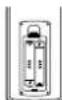
Detach the battery cover on the rear of the remote control, and insert two batteries
(size AAA) with ⊕ and ⊖ aligned correctly.
Installation and Setup
Setting up the Player
The picture and sound of a nearby TV, VCR, or radio may be distorted during playback. If this occurs, position the player away from the TV, VCR, or radio, or turn off the unit after removing the disc.
DVD Player Connections
Depending on your TV and other equipment there are various ways you can connect the player. Please refer to the manuals of your TV, stereo system or other devices as necessary for additional connection information.
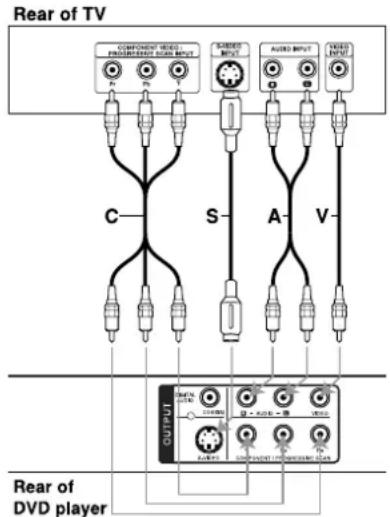
Caution:
You must set the TV Output Select option on the setup menu to use COMPONENT / PROGRESSIVE SCAN jack or S-Video jack. (Refer to page 12.)
Video and Audio Connections to Your TV
Make sure the DVD player is connected directly to the TV and not to a VCR, otherwise the DVD image could be distorted by the copy protection system.
Video – Connect the VIDEO OUT jack on the DVD player to the video in jack on the TV using the video cable (V).
S-Video: Connect the S-VIDEO OUT jack on the DVD Player to the S-Video in jack on the TV using the S-Video cable (S).
Audio – Connect the left and right AUDIO OUT jacks of the DVD player to the audio left and right IN jacks on the TV using the audio cables (A). Do not connect the unit's AUDIO OUT jack to the phone in jack (record deck) of your audio system.
Component Video - Connect the COMPONENT /PROGRESSIVE SCAN jacks on the unit to the corresponding jacks on the TV using a Y PB PR cable (C).
Note:
If you connect both S-Video and component jack to your TV, the video may be displayed unstably on your TV. You should disconnect one of both connections to solve the problem.
Progressive Scan
- If your television is a high-definition or “digital ready” television, you may take advantage of the DVD player's progressive scan output for the highest possible video resolution.
- Set the Progressive Scan to "On" on the setup menu for progressive scan signal. (Refer to page 12)
- Progressive scan does not work with the analog video connections (yellow VIDEO OUT jack).
Audio Connection to Optional Equipment
Connect the DVD player to your optional equipment for audio output.
Rear of DVD player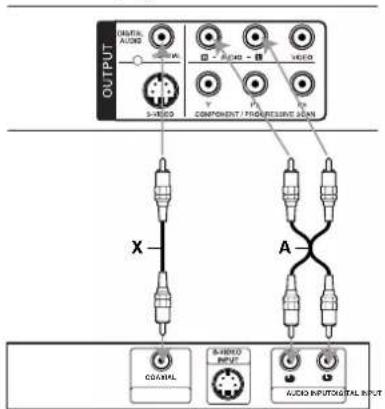
Amplifier (Receiver)
Manufactured under license from Dolby Laboratories. "Dolby", "Pro Logic", and the double-D symbol are trademarks of Dolby Laboratories.
DTS and DTS Digital Out are trademarks of Digital Theater Systems, Inc.
Amplifier equipped with 2-channel analog stereo or Dolby Pro Logic II / Pro Logic: Connect the left and right AUDIO OUT jacks on the DVD player to the audio left and right IN jacks on your amplifier, receiver, or stereo system, using the audio cables (A).
Amplifier equipped with 2-channel digital stereo (PCM) or audio/video receiver equipped with a multi-channel decoder (Dolby Digital™, MPEG 2, or DTS): Connect one of the DVD Player's DIGITAL AUDIO OUT jacks (COAXIAL X) to the corresponding jack on your amplifier. Use an optional digital (COAXIAL X) audio cable.
Digital Multi-channel sound
A digital multi-channel connection provides the best sound quality. For this you need a multi-channel audio/video receiver that supports one or more of the audio formats supported by your DVD player such as MPEG 2, Dolby Digital and DTS. Check the receiver manual and the logos on the front of the receiver.
Notes:
- If the audio format of the digital output does not match the capabilities of your receiver, the receiver produces a strong, distorted sound or no sound at all.
- Six Channel Digital Surround Sound via a digital connection can only be obtained if your receiver is equipped with a Digital Multi-channel decoder.
Displaying Disc Information on-screen
You can display various information about the disc loaded on-screen.
- Press DISPLAY to show various playback information.
The displayed items differ depending on the disc type or playing status.
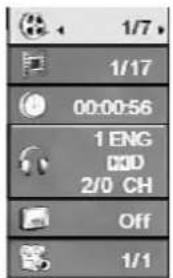
- You can select an item by pressing ▲ / ▼ and change or select the setting by pressing ◀ / ▶.
• Title (Track) – Current title (or track) number/total number of titles (or tracks) - Chapter – Current chapter number/total number of chapters • Time – Elapsed playing time • Audio – Selected audio language or channel - Subtitle – Selected subtitle • Angle – Selected angle/total number of angles
Note:
If any button is not pressed for a few seconds, the on-screen display disappears.
Initial Settings
By using the Setup menu, you can make various adjustments to items such as picture and sound. You can also set a language for the subtitles and the Setup menu, among other things. For details on each Setup menu item, see the pages 12 to 14.
To display and exit the Menu:
Press SETUP to display the menu. A second press of SETUP will take you back to the initial screen.
To go to the next level:
Press ▶ on the remote control.
To go back to the previous level:
Press ◀ on the remote control.
General Operation
- Press SETUP. The Setup menu appears.
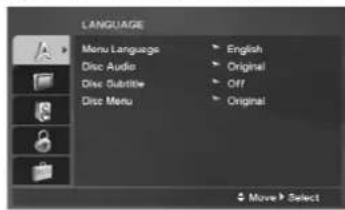
- Use ▲ / ▼ to select the desired option then press ▶ to move to the second level. The screen shows the current setting for the selected item, as well as alternate setting(s).
- Use ▲ / ▼ to select the second desired option and then press ▶ to move to the third level.
- Use ▲ / ▼ to select the desired setting then press ENTER to confirm your selection. Some items require additional steps.
- Press SETUP or PLAY to exit the Setup menu.
LANGUAGE
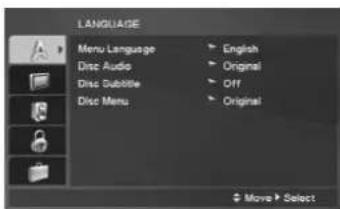
Menu Language
Select a language for the Setup menu and then on-screen display.
Disc Audio / Subtitle / Menu
Select the language you prefer for the audio track (disc audio), subtitles, and the disc menu.
Original – Refers to the original language in which the disc was recorded.
Other – To select another language, press numeric buttons and then ENTER to enter the corresponding 4-digit number according to the language code list on page 22. If you enter the wrong language code, press CLEAR.
DISPLAY
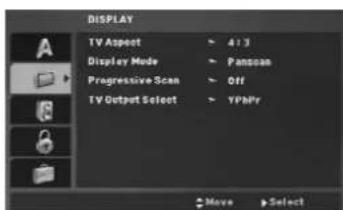
TV Aspect
4:3 – Select when a standard 4:3 TV is connected.
16:9 - Select when a 16:9 wide TV is connected.
Display Mode
The Display Mode setting works only when the TV Aspect mode is set to "4:3".
Letterbox – Displays a wide picture with bands on the upper and lower portions of the screen.
Panscan – Automatically displays the wide picture on the entire screen and cuts off the portions that do not fit.
Progressive Scan
Progressive Scan Video provides the highest quality pictures with less flickering.
If you are using the Component Video jacks for connection to a TV or a monitor that is compatible with a progressive scan signal, set Progressive Scan to On.
To turn ON progressive scan:
Connect component video out of this unit to the input of your TV or monitor, set your TV or monitor to Component Input.
- Select "Progressive Scan" on the DISPLAY menu then press ▶.
- Select "On" using the ▲ / ▼ buttons.
- Press ENTER to confirm your selection. The confirm menu will appear.
- When the confirm menu appears on your screen, Cancel is highlighted as default. Use the ◀/▶ buttons to highlight Enter.
- Pressing ENTER will set the player to Progressive scan mode.
Caution:
Once the setting for progressive scan output is entered, an image will only be visible on a progressive scan compatible TV or monitor. If you set Progressive Scan to On in error, you must reset the unit.
First, remove the disc in the DVD Player.
Next, press STOP (■) and hold it for five seconds before releasing it. The video output will be restored to the standard setting, and a picture will once again be visible on a conventional analog TV or monitor.
TV Output Select
Set the player's TV Output Select options according to the TV connection type.
YPbPr – When your TV is connected with the COMPONENT / PROGRESSIVE SCAN jacks on this DVD player.
S-Video – When your TV is connected with the S-Video jack.
AUDIO
Each DVD disc has a variety of audio output options. Set the player's AUDIO options according to the type of audio system you use.
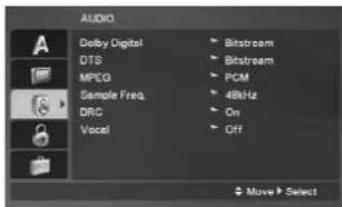
Dolby Digital / DTS / MPEG
Bitstream – Select "Bitstream" if you connect this DVD player's DIGITAL OUT jack to an amplifier or other equipment with a Dolby Digital, DTS or MPEG decoder.
PCM (for Dolby Digital / MPEG) – Select when connected to a two-channel digital stereo amplifier. DVDs encoded in Dolby Digital or MPEG will be automatically downmixed to two-channel PCM audio.
Off (for DTS): If you select "Off", the DTS signal is not output through the DIGITAL OUT jack.
Sample Freq. (Frequency)
If your receiver or amplifier is NOT capable of handling 96 kHz signals, select 48 kHz. When this choice is made, this unit automatically converts any 96 kHz signals to 48 kHz so your system can decode them.
If your receiver or amplifier is capable of handling 96 kHz signals, select 96 kHz.
Check the documentation for your amplifier to verify its capabilities.
DRC (Dynamic Range Control)
With the DVD format, you can hear a program's soundtrack in the most accurate and realistic presentation. However, you may wish to compress the dynamic range of the audio output (the difference between the loudest sounds and the quietest ones). This allows you to listen to a movie at a lower volume without losing clarity of sound. Set DRC to On for this effect.
Vocal
Set to On only when a multi-channel karaoke DVD is playing. The karaoke channels on the disc mix into normal stereo sound.
LOCK (Parental Control)
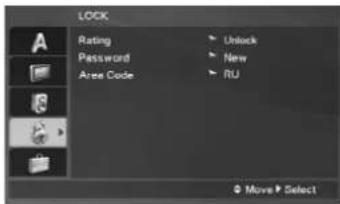
Rating
Blocks playback of rated DVDs based on their contents. Not all discs are rated.
- Select "Rating" on the LOCK menu then press ▶.
- To access the LOCK options, you must input the password you have created. If you have not yet entered password, you are prompted to do so. Input a password and press ENTER. Enter it again and press ENTER to verify. If you make a mistake before pressing ENTER, press CLEAR.
- Select a rating from 1 to 8 using the ▲ / ▼ buttons.
Rating 1-8: Rating one (1) has the most restrictions and rating eight (8) is the least restrictive.
Unlock
If you select unlock, parental control is not active and the disc plays in full.
- Press ENTER to confirm your rating selection, then press SETUP to exit the menu.
Password
You can enter or change password.
- Select Password on the LOCK menu and then press ▶.
- To make a new password:
Press ENTER when the "New" option is highlighted. Enter a new password using the numerical buttons then press ENTER. Enter the password again to verify.
To change the password:
Press ENTER when the "Change" option is highlighted. Enter the current password using the numbered buttons, then press ENTER. Enter a new password using the numbered buttons, then press ENTER. Enter the password again to verify.
- Press SETUP to exit the menu.
If you forget your password
If you forget your password, you can clear it using the following steps:
- Press SETUP to display the Setup menu.
- Input the 6-digit number "210499" and the security code is cleared.
Area Code
Enter the code of the area whose standards were used to rate the DVD video disc, based on the list on page 22.
- Select "Area Code" on the LOCK menu, then press ▶.
- Follow step 2 as shown on the previous page (Rating).
- Select the first character using the ▲ / ▼ buttons.
- Press ENTER and select the second character using the ▲ / ▼ buttons.
- Press ENTER to confirm your Area code selection.
OTHERS
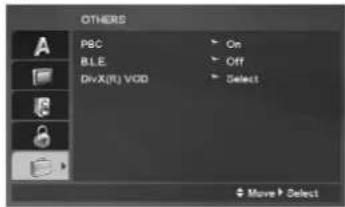
PBC
Set Playback Control (PBC) to On or Off.
On: Video CDs with PBC are played according to the PBC. Off: Video CDs with PBC are played in the same way as Audio CDs.
B.L.E. (Black Level Expansion)
To select the black level of playback pictures. Set your preference and monitor's ability.
On: Expanded grey scale. (0 IRE cut off)
Off: Standard grey scale. (7.5 IRE cut off)
DivX(R) VOD
We provide you the DivX® VOD (Video On Demand) registration code that allows you to rent and purchase videos based on the DivX® VOD service. For more information, visit www.divx.com/vod.
- Select "DivX(R) VOD" option and then press ▶.
- Press ENTER while "Select" is selected and the registration code will appear. Use the registration code to purchase or rent the videos from DivX® VOD service at www.divx.com/vod. Follow the instructions and download the video onto a disc for playback on this unit.
- Press ENTER to exit.
Note:
All the downloaded videos from DivX® VOD can only be played back on this unit.
Operations
General features
| Buttons Operations | Discs | |||
| OPEN / CLOSE (▲) | Opens or closes the disc tray. | ALL | ||
| PAUSE/STEP (III) | During playback, press III to pause playback. | ALL | ||
| Press III repeatedly to play Frame-by-Frame. | DVD | VCD | DivX | |
| SKIP (I◄◄ / ►►I) | During playback, press SKIP (I◄◄ or ►►I) to go to the next chapter/track or to return to the beginning of the current chapter/track. | ALL | ||
| Press SKIP I◄◄ twice briefly to step back to the previous chapter/track. | ||||
| SCAN (◄◄ / ►►) | During playback, press SCAN (◄◄ or ►►) repeatedly to select the required scan speed. DVD, DivX disc: 4 stepsVideo CD, MP3, WMA, Audio CD: 3 steps | ALL | ||
| While the playback is paused, press SCAN (◄◄ or ►►) repeatedly to play in slow motion (4 steps). | DVD | |||
| VCD | DivX | (forward only) | ||
| REPEAT During playback, press REPEAT repeatedly to select a desired repeat mode. DVD Video discs: Chapter/Title/Off Video CD, Audio CD, DivX/MP3/WMA discs: Track/All/Off | ALL | |||
| A-B Press the A-B button one at a time to select a point A and point B and repeats a sequence from point A (Starting point) to point B (End point). | DVD | VCD | DivX | |
| ACD | ||||
| ZOOM During playback or pause mode, press ZOOM to enlarge the video image. (3 steps) You can move through the zoomed picture using ◀►▲▼ buttons. Press CLEAR to exit. | DVD | VCD | DivX | |
| RANDOM During playback or in stop mode, press RANDOM for random playback. | VCD | ACD | MP3 | |
| WMA | ||||
| TITLE If the current DVD title has a menu, the title menu appears on the screen. Otherwise, the disc menu may appears. | DVD | |||
| DVD MENU The disc menu appears on the screen. | DVD | |||
| (ANGLE) During playback of DVD disc that contains scenes recorded at different camera angles, press ANGLE repeatedly to select a desired angle. | DVD | |||
| (SUBTITLE) | During playback, press SUBTITLE repeatedly to select a desired subtitle language. | DVD | DivX | |
| (AUDIO) | During playback, press AUDIO repeatedly to hear a different audio language or audio track. | DVD | DivX | VCD |
Notes on general features:
- On a Video CD with PBC, you must set PBC to Off on the setup menu to use the repeat function (See "PBC" on page 14).
- If you press SKIP (▶▶▶) once during Repeat Chapter (Track) playback, the repeat playback cancels.
- Zoom may not work on some DVDs.
- When you are playing a DVD disc that contains scenes recorded at different camera angles, the angle indicator will blink on the TV screen during the operations as an indication that angle switching is possible.
- If you press ◀◀ once within 3 seconds after the chapter/track has started, the playback goes to the previous chapter/track.
Additional features
Time Search DivXV
To start playing at any chosen time on the disc:
- Press DISPLAY during playback.
- Press ▲ / ▼ to select the time clock icon and “-:-:-” appears.
- Use numerical buttons to input the required start time in hours, minutes, and seconds from left to right. If you enter the wrong numbers, press CLEAR to remove the numbers you entered. Then input the correct numbers.
- Press ENTER to confirm. Playback starts from the selected time.
Marker Search DivXV
To enter a Marker
You can start playback from up to nine memorized points. To enter a marker, press MARKER at the desired point on the disc. The Marker icon appears on the TV screen briefly. Repeat to enter up to nine markers.
To Recall or Clear a Marked Scene
- During disc playback, press SEARCH. The marker search menu appears on the screen.
- Within 9 seconds, press ◀/▶ to select a marker number that you want to recall or clear.
- Press ENTER and playback starts from the marked scene. Or Press CLEAR and the marker number is erased from the list.
- You can play any marker by inputting its number on the marker search menu.
Last Scene Memory ACDD D/CD1.1
This player memorizes last scene from the last disc that is viewed. The last scene remains in memory even if you remove the disc from the player or switch off the player. If you load a disc that has the scene memorized, the scene is automatically recalled.
Note:
This player does not memorize the scene of a disc if you switch off the player before commencing to play the disc.
Screen Saver
The screen saver appears when you leave the DVD player in Stop mode for about five minutes. If the Screen Saver is displayed for five minutes, the DVD Player automatically turns itself off.
Playing an Audio CD or MP3/WMA files
This unit can play Audio CDs or MP3/WMA files.
MP3/WMA/Audio CD
Once you insert a media containing MP3/WMA files or an Audio CD, a menu appears on the TV screen. Press ▲ / ▼ to select a track/file and then press PLAY or ENTER to start playback. You can use variable playback functions. Refer to pages 15-16.
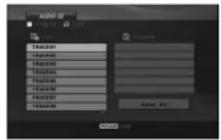
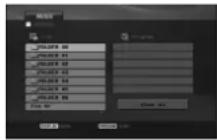
ID3 TAG
- When playing a file containing information such as track titles, you can see the information by pressing DISPLAY. [Title, Artist, Album, Year, Comment]
Tips:
- Press DVD MENU to move to the next page.
- On a disc with MP3/WMA, JPEG, and MOVIE files, you can switch between MUSIC, PHOTO, and MOVIE menus. Press TITLE, and the MUSIC, PHOTO, or MOVIE word at the top of the menu is highlighted.
MP3/WMA disc compatibility with this player is limited as follows:
- Sampling frequency: within 8 - 48 kHz (MP3), within 32 - 48 kHz (WMA)
- Bit rate: within 8 - 320 kbps (MP3), 32 - 192 kbps (WMA)
- The player cannot read an MP3/WMA file that has a file extension other than ".mp3" / ".wma". • CD-R physical format should be ISO 9660.
- If you record MP3/WMA files using software that cannot create a file system (e.g., Direct-CD), it is impossible to play back MP3/WMA files. We recommend that you use Easy-CD Creator, which creates an ISO 9660 file system.
- File names should have a maximum of 8 letters and must incorporate an .mp3 or .wma extension.
- They should not contain special letters such as / ? * : " < > I etc.
- The total number of files on the disc should be less than 650.
- This DVD player requires discs and recordings to meet certain technical standards in order to achieve optimal playback quality. Pre-recorded DVDs are automatically set to these standards. There are many different types of recordable disc formats (including CD-R containing MP3 or WMA files) and these require certain pre-existing conditions (see above) to ensure compatible playback.
Customers should note that permission is required in order to download MP3 / WMA files and music from the Internet. Our company has no right to grant such permission. Permission should always be sought from the copyright owner.
Programmed Playback
The program function enables you to store your favorite tracks from any disc in the player memory.
A program can contain 30 tracks.
- Insert an Audio CD or MP3/WMA files recorded media. AUDIO CD or MUSIC menu appears.
- Press PROGRAM. The mark will appear.
Note:
Press PROGRAM again to exit the program edit mode, then the mark will disappear. Video CD: Press PROGRAM while playback is stopped. The program menu appears. Press PROGRAM again to exit the menu.
Note:
On a Video CD with PBC, you must set PBC to Off on the setup menu to use the programmed playback (See "PBC" on page 14).
- Select a track on the "List" and then press ENTER to place the selected track on the "Program" list. Repeat to place additional tracks on the list.
- Select the track you want to start playing on the "Program" list.
- Press PLAY or ENTER to start. Playback begins in the order in which you programmed the tracks. Playback stops after all of the tracks on the "Program" list have played once.
- To resume normal playback from programmed playback, select a track on the list and then press PLAY.
Repeat Programmed Tracks
Press REPEAT to select a desired repeat mode.
- Track: repeats the current track
- All: repeats all the tracks on the "Program" list.
- Off (No display): does not play repeatedly.
Note:
If you press ▶▶▶ once during Repeat Track playback, the repeat playback cancels.
Erasing a Track from "Program" List
- Use ▲▼◀ ▶ to select the track that you wish to erase from the Program list.
- Press CLEAR. Repeat step 1-2 to erase additional tracks on the list.
Erasing the Complete Program List
Use ▲▼◀▶ to select "Clear All", then press ENTER.
Note:
The programs are also cleared when the power is off or the disc is removed.
Playing a DVD VR format Disc
This unit will play DVD-R/RW disc that are recorded using the DVD-Video format that have been finalized using a DVD-recorder.
*This unit will play DVD-RW disc that are recorded using the Video Recording (VR) format.
- Insert a disc and close the tray. The DVD-VR menu appears on the TV screen.
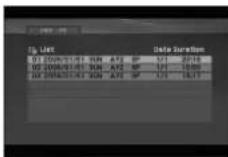
- Press ▲ / ▼ to select a track then press PLAY or ENTER and playback starts.
- Press DVD MENU to move to the list menu.
Note:
- Unfinalized DVD-R/RW discs cannot be played in this player.
- Some DVD-VR discs are made with CPRM data by DVD RECORDER. Player does not support these kinds of discs.
What is 'CPRM'?
CPRM is a copy protection system (with scramble system) only allowing the recording of 'copy once' broadcast programs. CPRM stands for Content Protection for Recordable Media.
Viewing a JPEG file
This unit can play JPEG files.
- Insert a JPEG files recording media. The PHOTO menu appears on the TV screen.
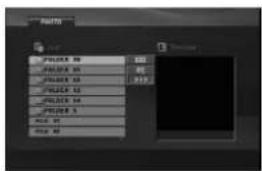
- Press ▲ / ▼ to select a folder and then press ENTER. A list of files in the folder appears.
- If you want to view a particular file, press ▲ / ▼ to highlight a file and press ENTER or PLAY.
- To return to the PHOTO menu while watching pictures, press STOP.
Tips:
- If you are in a file list and want to return to the previous Folder list, use ▲ / ▼ buttons to highlight 📁. and press ENTER.
- Press DVD MENU to move to the next page.
- There are three Slide Speed options: >> (Fast), >> (Normal) and > (Slow). Use ▲▼◀▶ to highlight ■. Then, use ◀/▶ to select the option you want to use then press ENTER.
- On a DISC with MP3/WMA, JPEG and MOVIE file, you can switch MUSIC, PHOTO and MOVIE menu. Press TITLE, and MUSIC, PHOTO or MOVIE word on top of the menu is highlighted.
- While watching a picture, press RETURN to hide the help menu.
Slide Show
Use ▲▼◀▶ to highlight the (Slide Show) then press ENTER.
Still Picture
- Press PAUSE/STEP during the slide show. The player will now go into the PAUSE mode.
- To return to the slide show, press PLAY or press PAUSE/STEP again.
Moving to another File
Press SKIP (I◄◄ or ►►) or cursor (◄ or ►) once during viewing a picture to advance to the next or previous file.
Zoom
During watching pictures, press ZOOM to enlarge the video image (3 steps).
You can move through the zoomed picture using ▶▲▼ buttons.
Rotating the picture
Press ▲ / ▼ while viewing a picture to rotate it clockwise or counterclockwise.
To listen to MP3/WMA music while viewing pictures:
- Insert a disc containing both types of files into the player.
- Press TITLE to display the PHOTO menu.
- Press ▲ / ▼ to select a photo file.
- Use ▶ to select the icon, then press ENTER. Playback starts and continues until STOP is pressed.
Tip:
To listen only to desired music while viewing pictures, program the desired tracks from the "MUSIC" menu, then proceed as above.
JPEG disc compatibility with this player is limited as follows:
- Depending on the size and number of JPEG files, it may take a long time for the unit to read the disc's contents. If no on-screen display appears after several minutes, some files may be too large. Reduce the resolution of JPEG files to less than 2M pixels (e.g., 2760 x 2048 pixels) and burn another disc.
- The total number of files on the disc should be less than 650.
- Some discs may be incompatible due to different recording formats or disc condition.
- Ensure all selected files have the ".jpg" extension when copying them into the CD layout.
- If files have ".jpe" or ".jpeg" extensions, rename them to ".jpg".
- File names without the ".jpg" extension will not be read by this DVD player, even if they appear as JPEG image files in Windows Explorer.
Playing a DivX Movie file
Using this DVD Player you can play DivX files.
- Insert a DivX file recording media. The MOVIE menu appears on the TV screen.
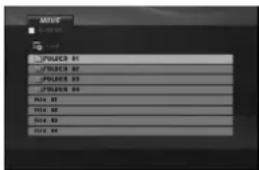
- Press ▲ / ▼ to select a folder and then press ENTER. A list of files in the folder appears.
- If you want to view a particular file, press ▲ / ▼ to highlight a file and press ENTER or PLAY. You can use variable playback functions. Refer to pages 15-16.
- To return to the MOVIE menu during playback, press STOP.
Tips:
- If you are in a file list and want to return to the previous Folder list, use ▲ / ▼ buttons to highlight 📄 and press ENTER.
- Press DVD MENU to move to the next page.
- On a DISC with MP3/WMA, JPEG and MOVIE files, you can switch between MUSIC, PHOTO and MOVIE menus. Press TITLE, and the MUSIC, PHOTO or MOVIE word on top of the menu is highlighted.
- The disc subtitle may not be displayed properly if a DivX subtitle is downloaded through the internet.
- If the disc subtitle setup menu does not have the DivX subtitle language you are going to play, the subtitle language may not be displayed properly.
Notice for displaying the DivX subtitle
If the subtitle does not display properly, please follow the steps below.
- Press and hold SUBTITLE for about 3 seconds. The language code will appear.
- Press ◀ / ▶ to select another language code until the subtitle is displayed properly.
- Press ENTER to continue playback.
Note:
The DivX subtitle file name has to be identified with the DivX file name to display by this unit.
DivX disc compatibility with this player is limited as follows:
• Available resolution size of the DivX file is under 720x576 (W x H) pixel. - The file name of the DivX subtitle is available by 56 characters. - If there is impossible code to express in the DivX file, it may be displayed as "_" mark on the display. - If the number of the screen frame is over 30 per 1 second, this unit may not operate normally. - If the video and audio structure of recorded file is not interleaved, either video or audio is outputted. - If the file is recorded with GMC, the unit supports only 1-point of the record level. * GMC? GMC is the acronym for Global Motion Compensation. It is an encoding tool specified in MPEG4 standard. Some MPEG4 encoders, like DivX, have this option. There are different levels of GMC encoding, usually called 1-point, 2-point, or 3-point GMC.
playable DivX file
.avi, .mpg, .mpeg
playable Subtitle format
SubRip(*.srt/*.txt)
SAMI(*.smi)
SubStation Alpha(*.ssa/*.txt)
MicroDVD(*.sub/*.txt)
SubViewer 2.0(*.sub/*.txt)
TMPlayer(*.txt)
DVD Subtitle System (*.txt)
VobSub (*.sub) → Sub/idx, stream based format.
Playable Codec format
"DIVX3.xx", "DIVX4.xx", "DIVX5.xx",
"MP43", "3IVX".
Playable Audio format
"Dolby Digital", "DTS", "PCM", "MP3", "WMA". - Sampling frequency: within 8 - 48 kHz (MP3), within 32 - 48kHz (WMA) - Bit rate: within 8 - 320kbps (MP3), 32 - 192kbps (WMA)
Reference
Controlling other TVs with the remote control
You can control the sound level, input source, and power switch of your LG TV with the supplied remote control.
You can control the sound level, input source, and power switch of non-LG TVs as well. If your TV is listed in the table below, set the appropriate manufacturer code.
- While holding down TV POWER button, press the number buttons to select the manufacturer code for your TV (see the table below).
- Release TV POWER button.
Code numbers of controllable TVs
If more than one code number is listed, try entering them one at a time until you find the one that works with your TV.
Manufacturer Code Number
| LG | 1 | (Def |
| Zenith 1, 3, 4 | ||
| Samsung 6, 7 | ||
| Sony 8, 9 | ||
| Hitachi 4 |
Notes:
- Depending on your TV, some or all buttons may not function on the TV, even after entering the correct manufacturer code.
- If you enter a new code number, the code number previously entered will be erased.
- When you replace the batteries of the remote, the code number you have set may be reset to the default setting. Set the appropriate code number again.
Video Mode Setting
- With certain discs, the playback picture may be flickering or Dot Crawl is shown on straight lines. That means Vertical interpolation or De-interlace is not perfectly matched with the disc. In this case, the picture quality may be improved by changing the video mode. • To change the video mode, press and hold DISPLAY about 3 seconds during disc playback. The new video mode number selected is displayed on the TV screen. Check whether the video quality has improved. If not, repeat the above procedure until picture quality is improved. • Video mode change sequence: MODE1 → MODE2 → MODE3 → MODE1
- If you turn off the power, the video mode will be back to initial state (MODE1).
Tip:
Detailed Descriptions for Video Modes
MODE1: The source material of the DVD video (film fault) is determined from disc information.
MODE2: Suitable for playing film based content or video based material recorded by the progressive scan method.
MODE3: Suitable for playing video based content with comparatively little motion.
Note:
The video mode setting only works when the Progressive Scan mode is set to "On" in the Setup menu.
Language Codes
Use this list to input your desired language for the following initial settings:
Disc Audio, Disc Subtitle, Disc Menu.
| Language | Code | Language | Code | Language | Code | Language | Code |
| Abkhazian | 6566 | Fiji 7074 | Lingala | 7678 | Singhalese | 8373 | |
| Afar 6565 | Finnish | 7073 | Lithuanian | 7684 | Slovak 8375 | ||
| Afrikaans | 6570 | French | 7082 | Macedonian | 7775 | Slovenian | 8376 |
| Albanian | 8381 | Frisian 7089 | Malagasy | 7771 | Somali 8379 | ||
| Ameharic | 6577 | Galician | 7176 | Malay 7783 | Spanish | 6983 | |
| Arabic | 6582 | Georgian | 7565 | Malayalam | 7776 | Sudanese | 8385 |
| Armenian | 7289 | German | 6869 | Maltese | 7784 | Swahili | 8387 |
| Assamese | 6583 | Greek | 6976 | Maori | 7773 | Swedish | 8386 |
| Aymara | 6588 | Greenlandic | 7576 | Marathi 7782 | Tagalog | 8476 | |
| Azerbaijani | 6590 | Guarani | 7178 | Moldavian | 7779 | Tajik | 8471 |
| Bashkir 6665 | Gujarati | 7185 | Mongolian | 7778 | Tamil | 8465 | |
| Basque | 6985 | Hausa | 7265 | Nauru | 7865 | Tatar 8484 | |
| Bengali; Bangla | 6678 | Hebrew | 7387 | Nepali | 7869 | Telugu | 8469 |
| Bhutani | 6890 | Hindi 7273 | Norwegian | 7879 | Thai | 8472 | |
| Bihari | 6672 | Hungarian | 7285 | Oniya | 7982 | Tibetan 6679 | |
| Breton | 6682 | Icelandic 7383 | Panjabi 8065 | Tigrinya | 8473 | ||
| Bulgarian | 6671 | Indonesian | 7378 | Pashto, Pushto | 8083 | Tonga | 8479 |
| Burmese 7789 | Interlingua | 7365 | Persian | 7065 | Turkish 8482 | ||
| Byelorussian | 6669 | Irish 7165 | Polish | 8076 | Turkmen 8475 | ||
| Cambodian | 7577 | Italian 7384 | Portuguese | 8084 | Twi | 8487 | |
| Catalan | 6765 | Japanese | 7465 | Quechua | 8185 | Ukrainian | 8575 |
| Chinese 9072 | Javanese | 7487 | Rhaeto-Romance | 8277 | Urdu | 8582 | |
| Corsican 6779 | Kannada 7578 | Rumanian | 8279 | Uzbek | 8590 | ||
| Croatian | 7282 | Kashmiri | 7583 | Russian | 8285 | Vietnamese | 8673 |
| Czech | 6783 | Kazakh 7575 | Samoan 8377 | Volapuk | 8679 | ||
| Danish | 6865 | Kirghiz 7589 | Sanskrit | 8365 | Welsh | 6789 | |
| Dutch 7876 | Korean | 7579 | Scots Gaelic | 7168 | Wolof | 8779 | |
| English 6978 | Kurdish | 7585 | Serbian | 8382 | Xhosa | 8872 | |
| Esperanto | 6979 | Laothian | 7679 | Serbo-Croatian | 8372 | Yiddish 7473 | |
| Estonian | 6984 | Latin | 7665 | Shona | 8378 | Yoruba | 8979 |
| Faroeese 7079 | Latvian, Lettish | 7686 | Sindhi | 8368 | Zulu | 9085 |
Area Codes
Choose an area code from this list.
| Area Code | Area Code | Area Code | Area Code | ||||
| Afghanistan AF | Ethiopia ET | Malaysia | MY | Saudi Arabia | SA | ||
| Argentina AH | Fiji | FJ | Maldives | MV | Senegal | SN | |
| Australia AU | Finland FI | Mexico MX | Singapore SG | ||||
| Austria AT | France FR | Monaco | MC | Slovak Republic | SK | ||
| Belgium BE | Germany | DE | Mongolia | MN | Slovenia | SI | |
| Bhutan BT | Great Britain | GB | Morocco MA | South Africa | ZA | ||
| Bolivia BO | Greece | GR | Nepal NP | South Korea | KR | ||
| Brazil BR | Greenland | GL | Netherlands | NL | Spain ES | ||
| Cambodia KH | Heard and McDonald Islands | HM | Netherlands Antilles | AN | Sri Lanka | LK | |
| Canada CA | Hong Kong | HK | New Zealand | NZ | Sweden SE | ||
| Chile CL | Hungary | HU | Nigeria NG | Switzerland CH | |||
| China CN | India | IN | Norway | NO | Taiwan TW | ||
| Colombia CO | Indonesia | ID | Oman | OM | Thailand | TH | |
| Congo CG | Israel | IL | Pakistan | PK | Turkey TR | ||
| Costa Rica CR | Italy | IT | Panama | PA | Uganda UG | ||
| Croatia HR | Jamaica | JM | Paraguay PY | Ukraine | UA | ||
| Czech Republic | CZ | Japan JP | Philippines | PH | United States | US | |
| Denmark | DK | Kenya KE | Poland PL | Uruguay | UY | ||
| Ecuador | EC | Kuwait KW | Portugal | PT | Uzbekistan UZ | ||
| Egypt | EG | Libya | LY | Romania | RO | Vietnam | VN |
| El Salvador | SV | Luxembourg | LU | Russian Federation | RU | Zimbabwe | ZW |
Troubleshooting
| Symptom | Possible Cause | Correction |
| No power. | The power cord is disconnected. | Plug the power cord into the wall outlet securely. |
| The power is on, but the DVD player does not work. | No disc is inserted. | Insert a disc. (Check the disc indicator in the display window is lit.) |
| No picture. | The TV is not set to receive DVD signal output. | Select the appropriate video input mode on the TV. |
| The video cable is not connected securely. | Connect the video cable securely. | |
| No sound. | The equipment connected with the audio cable is not set to receive DVD signal output. | Select the correct input mode of the audio receiver so you can listen to the sound from the DVD player. |
| The power of the equipment connected with the audio cable is turned off. | Turn on the equipment connected with the audio cable. | |
| The AUDIO options are set to the wrong position. | Set the AUDIO option to the correct position, then turn on the DVD player again by pressing POWER. | |
| The DVD player does not start playback. | An unplayable disc is inserted. | Insert a playable disc. (Check the disc type and regional code.) |
| The rating level is set. | Change the rating level. | |
| The remote control does not work properly. | The remote control is not pointed at the remote sensor on the DVD player. | Point the remote control at the remote sensor of the DVD player. |
| The remote control is too far from the DVD player. | Operate the remote control closer to the DVD player. |
Specifications
General
Power requirements: AC 120 V, 60 Hz
Power consumption: 8 W
Dimensions (Approx.):
430 x 35 x 202 mm (17 x 1.4 x 7.9 inches)
(W x H x D) without foot
Net Weight (Approx.): 1.6 kg (3.5 lbs)
Operating temperature:
5 °C to 35 °C (41 °F to 95 °F)
Operating humidity: 5 % to 90 %
Outputs
VIDEO OUT:
1.0 V (p-p), 75 Ω, sync negative, RCA jack x 1
S-VIDEO OUT:
(Y) 1.0 V (p-p), 75 Ω, negative sync, Mini DIN 4-pin x
1 (C) 0.3 V (p-p) 75 Ω
COMPONENT VIDEO OUT:
(Y) 1.0 V (p-p), 75 Ω, negative sync, RCA jack x 1
(Pb)/(Pr) 0.7 V (p-p), 75 Ω, RCA jack x 2
AUDIO OUT:
2.0 Vrms (1 KHz, 0 dB), 600 Ω, RCA jack (L, R) x 1
DIGITAL OUT (COAXIAL):
0.5 V (p-p), 75 Ω, RCA jack x 1
System
Laser:
Semiconductor laser, wavelength 650 nm
Signal system: NTSC
Frequency response:
DVD (PCM 96 kHz): 8 Hz to 44 kHz
DVD (PCM 48 kHz): 8 Hz to 22 kHz
CD: 8 Hz to 20 kHz
Signal-to-noise ratio:
More than 90 dB (ANALOG OUT connectors only)
Harmonic distortion: Less than 0.02%
Dynamic range:
More than 95 dB (DVD/CD)
Accessories:
Video cable (1), Audio cable (1), Remote control (1),
Batteries (2)
Note: Design and specifications are subject to change without prior notice.
P/NO.: MFL36431086

LG
http://www.lg.ca
DVD PLAYER USER'S MANUAL
MODEL: LDA-830

DOLBY DIGITAL

• Progressive Scan .12
- TV Output ....12
AUDIO 13
• Dolby Digital / DTS / MPEG .....13
2 • ▶ (PLAY)
6▲ (OPEN / CLOSE)
Progressive Scan
VobSub (*.sub) → Sub/idx, format stream based
Readable codec format
"DIVX3.xx", "DIVX4.xx", "DIVX5.xx",
"MP43", "3IVX".
Readable audio format
Dimensions (Approx.):
430 x 35 x 202 mm (17 x 1.4 x 7.9 inches)
Net weight (approx.): 1.6 kg (3.5 lbs)

- CAUTION RISK OF ELECTRIC SHOCK DO NOT OPEN
- CAUTION
- CAUTION CONCERNING THE POWER CORD
- IMPORTANT SAFETY INSTRUCTIONS
- CONTENTS
- INTRODUCTION
- INSTALLATION AND SETUP
- OPERATION
- REFERENCE
- ABOUT THE SYMBOL DISPLAY
- SYMBOL USED IN THIS MANUAL
- NOTE
- TIP
- NOTES ON DISCS
- HANDLING DISCS
- STORING DISCS
- CLEANING DISCS
- MAINTENANCE AND SERVICE
- HANDLING THE UNIT
- WHEN SHIPPING THE UNIT
- KEEPING THE EXTERIOR SURFACES CLEAN
- CLEANING THE UNIT
- MAINTAINING THE UNIT
- NOTES
- REGIONAL CODE
- NOTES ON REGIONAL CODES
- NOTES ON COPYRIGHTS
- FRONT PANEL
- POWER
- (PLAY)
- DISC TRAY
- REMOTE SENSOR
- DISPLAY WINDOW
- △ (OPEN / CLOSE)
- REMOTE CONTROL
- OPEN/CLOSE (▲)
- NUMERICAL BUTTONS
- CLEAR
- TV CONTROL BUTTONS
- DVD MENU
- TITLE
- ENTER
- DISPLAY
- RETURN (○)
- SCAN (◄◄ / ►►)
- SKIP (I ◀◀ / ▶▶▶ I)
- PAUSE / STEP (Ⅱ)
- PLAY (▶)
- STOP (■)
- AUDIO
- SUBTITLE
- ANGLE
- SETUP
- MARKER
- SEARCH
- PROGRAM
- ZOOM
- REPEAT
- A-B
- POINT B
- RANDOM
- REMOTE CONTROL OPERATION
- REMOTE CONTROL BATTERY INSTALLATION
- SETTING UP THE PLAYER
- DVD PLAYER CONNECTIONS
- VIDEO AND AUDIO CONNECTIONS TO YOUR TV
- PROGRESSIVE SCAN
- AUDIO CONNECTION TO OPTIONAL EQUIPMENT
- DIGITAL MULTI-CHANNEL SOUND
- DISPLAYING DISC INFORMATION ON-SCREEN
- INITIAL SETTINGS
- TO DISPLAY AND EXIT THE MENU
- GENERAL OPERATION
- LANGUAGE
- MENU LANGUAGE
- DISC AUDIO / SUBTITLE / MENU
- TV ASPECT
- DISPLAY MODE
- TO TURN ON PROGRESSIVE SCAN
- TV OUTPUT SELECT
- DOLBY DIGITAL / DTS / MPEG
- SAMPLE FREQ. (FREQUENCY)
- DRC (DYNAMIC RANGE CONTROL)
- VOCAL
- LOCK (PARENTAL CONTROL)
- RATING
- UNLOCK
- PASSWORD
- TO CHANGE THE PASSWORD
- IF YOU FORGET YOUR PASSWORD
- AREA CODE
- OTHERS
- PBC
- B.L.E. (BLACK LEVEL EXPANSION)
- DIVX(R) VOD
- OPERATIONS
- NOTES ON GENERAL FEATURES
- ADDITIONAL FEATURES
- TIME SEARCH DIVXV
- MARKER SEARCH DIVXV
- TO ENTER A MARKER
- TO RECALL OR CLEAR A MARKED SCENE
- LAST SCENE MEMORY ACDD D/CD
- SCREEN SAVER
- PLAYING AN AUDIO CD OR MP3/WMA FILES
- MP3/WMA/AUDIO CD
- ID3 TAG
- TIPS
- MP3/WMA DISC COMPATIBILITY WITH THIS PLAYER IS LIMITED AS FOLLOWS
- PROGRAMMED PLAYBACK
- REPEAT PROGRAMMED TRACKS
- ERASING A TRACK FROM "PROGRAM" LIST
- ERASING THE COMPLETE PROGRAM LIST
- PLAYING A DVD VR FORMAT DISC
- WHAT IS 'CPRM
- VIEWING A JPEG FILE
- SLIDE SHOW
- STILL PICTURE
- MOVING TO ANOTHER FILE
- ROTATING THE PICTURE
- TO LISTEN TO MP3/WMA MUSIC WHILE VIEWING PICTURES
- JPEG DISC COMPATIBILITY WITH THIS PLAYER IS LIMITED AS FOLLOWS
- PLAYING A DIVX MOVIE FILE
- NOTICE FOR DISPLAYING THE DIVX SUBTITLE
- DIVX DISC COMPATIBILITY WITH THIS PLAYER IS LIMITED AS FOLLOWS
- PLAYABLE DIVX FILE
- PLAYABLE SUBTITLE FORMAT
- PLAYABLE CODEC FORMAT
- PLAYABLE AUDIO FORMAT
- CONTROLLING OTHER TVS WITH THE REMOTE CONTROL
- CODE NUMBERS OF CONTROLLABLE TVS
- VIDEO MODE SETTING
- DETAILED DESCRIPTIONS FOR VIDEO MODES
- LANGUAGE CODES
- AREA CODES
- SPECIFICATIONS
- GENERAL
- OUTPUTS
- AUDIO OUT
- SYSTEM
- DVD PLAYER USER'S MANUAL
- ▲ (OPEN / CLOSE)
- READABLE CODEC FORMAT
- READABLE AUDIO FORMAT
Brand : LG
Model : LDA-830
Category : Media player