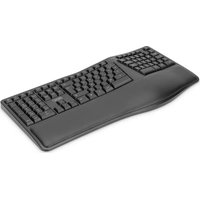
DA-20157 - Keyboard Digitus - Free user manual and instructions
Find the device manual for free DA-20157 Digitus in PDF.

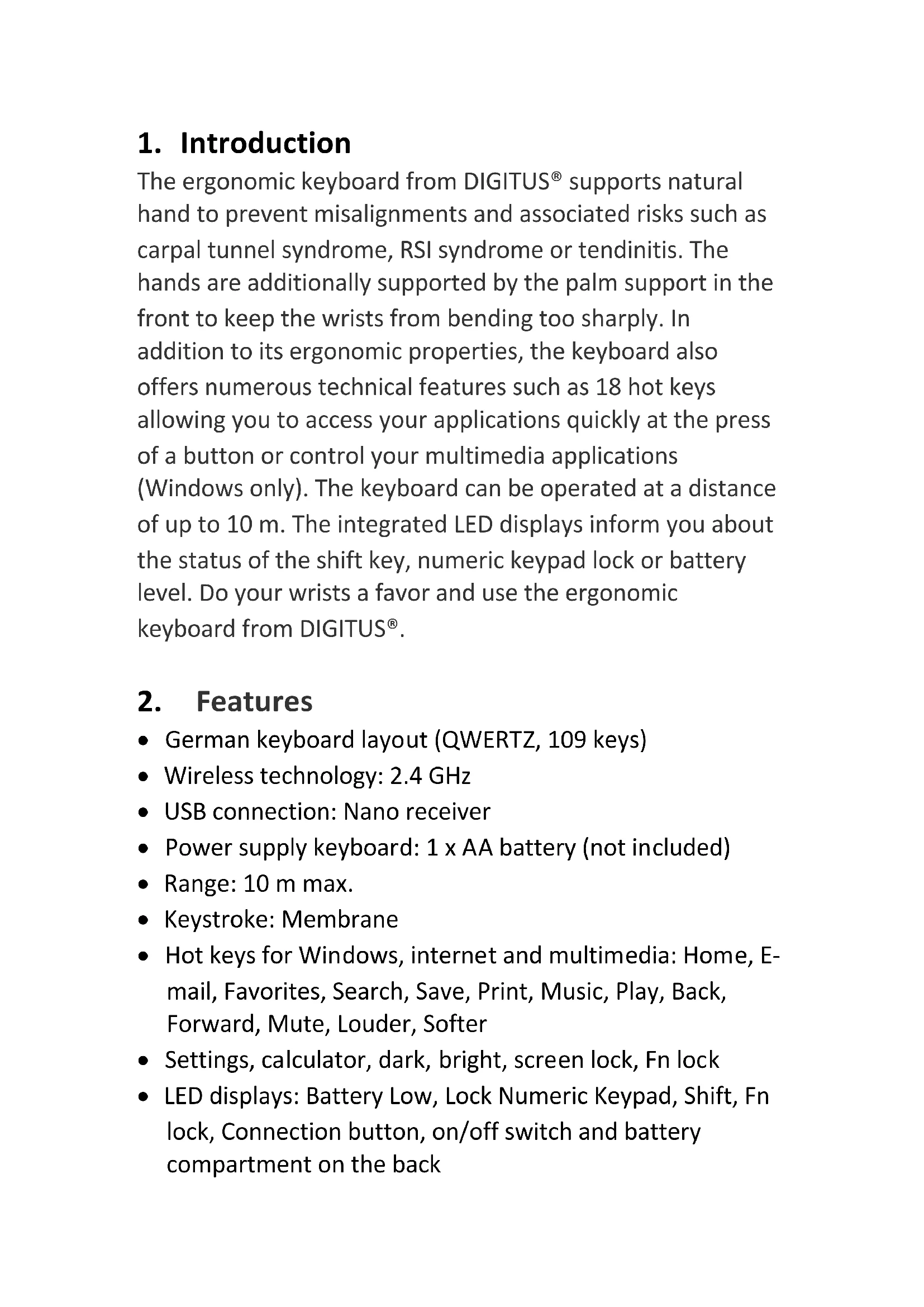


| Brand | Digitus |
| Model | DA-20157 |
| Product type | 2.4 GHz wireless ergonomic keyboard |
| Key layout | QWERTZ, 109 keys |
| Dimensions (L x W x H) | 479.8 x 242.4 x 45.7 mm |
| Weight | 990 g |
| Color | Black |
| Power supply | 1 AA battery (not included) |
| Keyboard type | Membrane |
| Wireless range | 10 m maximum |
| Frequency | 2.4 GHz |
| Connectivity | Nano USB receiver |
| Shortcut keys | 18 keys (Windows, Internet, Multimedia) |
| LED indicators | Battery, Num Lock, Shift, Fn Lock |
| Supported operating systems | Windows 10/8/7/XP, Linux, macOS |
| Package contents | Keyboard, Nano receiver, quick installation guide |
| Wrist rest | Integrated |
| Care | Clean with a soft, dry cloth |
| Safety | Follow battery instructions; do not use if leaking |
Frequently Asked Questions - DA-20157 Digitus
User questions about DA-20157 Digitus
0 question about this device. Answer the ones you know or ask your own.
Ask a new question about this device
Download the instructions for your Keyboard in PDF format for free! Find your manual DA-20157 - Digitus and take your electronic device back in hand. On this page are published all the documents necessary for the use of your device. DA-20157 by Digitus.
USER MANUAL DA-20157 Digitus
Ergonomic Keyboard, Wireless, 2.4 GHz
Quick Installation Guide
DA-20157
1. Introduction
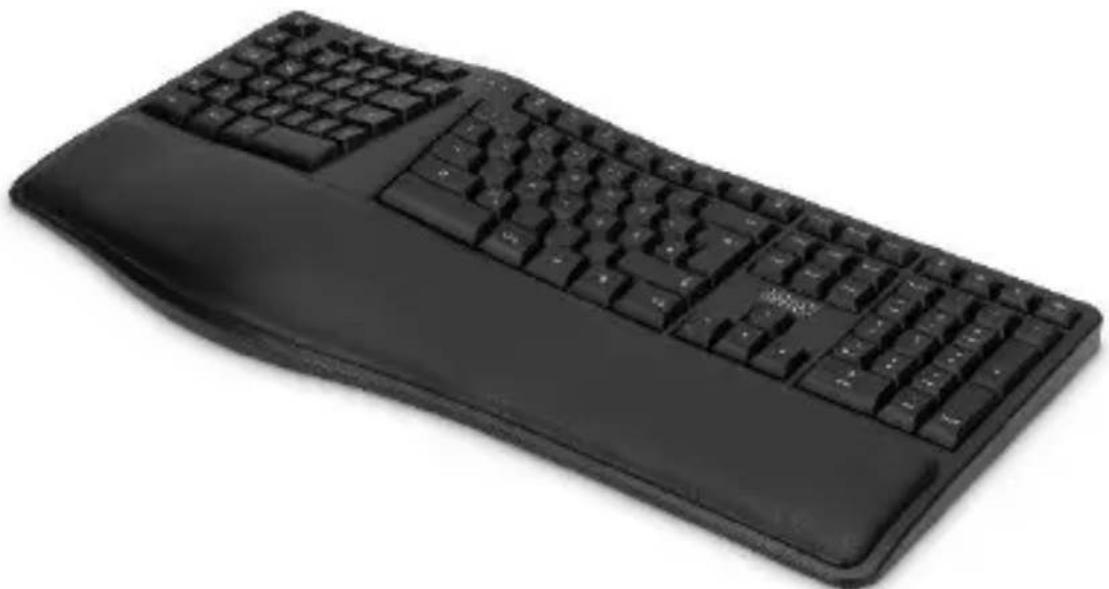
The ergonomic keyboard from DIGITUS® supports natural hand to prevent misalignments and associated risks such as carpal tunnel syndrome, RSI syndrome or tendinitis. The hands are additionally supported by the palm support in the front to keep the wrists from bending too sharply. In addition to its ergonomic properties, the keyboard also offers numerous technical features such as 18 hot keys allowing you to access your applications quickly at the press of a button or control your multimedia applications (Windows only). The keyboard can be operated at a distance of up to 10 m. The integrated LED displays inform you about the status of the shift key, numeric keypad lock or battery level. Do your wrists a favor and use the ergonomic keyboard from DIGITUS®.
2. Features
• German keyboard layout (QWERTZ, 109 keys)
• Wireless technology: 2.4 GHz
- USB connection: Nano receiver
- Power supply keyboard: 1 x AA battery (not included)
- Range: 10 m max.
- Keystroke: Membrane
- Hot keys for Windows, internet and multimedia: Home, E-mail, Favorites, Search, Save, Print, Music, Play, Back, Forward, Mute, Louder, Softer
- Settings, calculator, dark, bright, screen lock, Fn lock
- LED displays: Battery Low, Lock Numeric Keypad, Shift, Fn lock, Connection button, on/off switch and battery compartment on the back
- Supported operating systems: Windows 10/8/7/XP, Linux, macOS
- Only Windows supports Hotkeys.
- On/off switch under the keyboard
- Dimensions: (W x D x H) 479.8 x 242.4 x 45.7 mm
- Weight: 990 g
- Color: Black
3. Package Content
• 1 x Ergonomic Keyboard, Wireless, 2.4 GHz
- 1 x USB nano receiver
- 1 x QIG
4. Battery Instruction
- Please take out the battery if you do not use the wireless keyboard for a long time and keep them in a cool and dry place.
- Please do not use the battery if leaking, discoloration, distortion or other abnormality happens
5. Battery Installation to the Keyboard
Load the battery in the corresponding direction on the positive and negative poles and toggle the power switch to the ON position. When the battery is running out, the lower battery indicator flashes red.
6. Receiver Connection
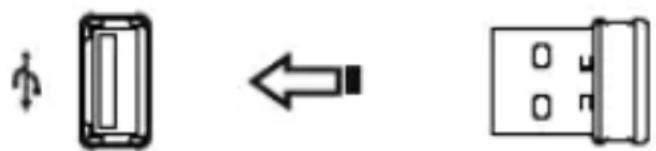
Insert the USB receiver to the computer by USB port, your wireless keyboard will work normally.
You need to build up again the connection between the keyboard and receiver if following situation happens:
There is radio disturbance from other wireless keyboards.
Somebody try to build up the connection but failed.
7. Build up the connection between the keyboard and receiver
If the keyboard cannot work normally, take out the receiver from the computer USB port and insert again. Keep around 20 cm distance between the keyboard and receiver. Press “ESC + Q” keys at the same time, the indicator on the top right corner will light up or flash. Release the keys, then the connection is done.
8. Working Environment
- The receiver should be far away from the monitor, outside disc driver or other electronic products. 20 cm distance is suggested in order to prevent the radio disturbance produced by other electronic products.
- The radio signal can penetrate lignin, glass and other non-metallic objects and realize 360 degree free transmission. However, it cannot penetrate metallic materials. So please do not place the keyboard and receiver on a metallic tabletop. The ideal distance is over 20 cm.
- Please be sure there is no big metal between the keyboard and receiver, other wise the connection will be affected.
- The standardized receiving distance we offered is under certain radio disturbance environment. The normal environment is better, the actual receiving distance is higher than standardized. But if max-machine, motor, electric drill and other strong electronic equipments are operating nearby, it may lead to slow receiving or other abnormalities.
9. Instruction
When F1 is off, press only to use F1-F12 function.
Press FN + F0 to turn on the FN lock function. Press F1-F12 to use shortcut key function.
| Icon | Function | Icon | Function |
| Fn Lock | Next | ||
 | Home |  | Mute |
 |  | Volume - | |
 | Favorite |  | Volume + |
 | Search |  | Set |
 | Save file |  | Calculator |
 |  | Brightness - | |
 | Music |  | Brightness + |
 | Previous |  | Lock Screen |
| Play/Pause |
10. Debugging Tips
- Check the receiver again and make sure it is connected to the USB port
- Check the battery direction should be correct
- Re-establish the keyboard and the receiver communication channel
- Reduce the distance between the receiver and the keyboard
- Change the battery
This is a Class A product. In home environment, this product may cause radio interference. In this case, the user may be required to take appropriate measures.
Hereby Assmann Electronic GmbH declares that the Declaration of Conformity is part of the shipping content. If the Declaration of Conformity is missing, you can request it by post under the below mentioned manufacturer address.
www.assmann.com
Assmann Electronic GmbH
Auf dem Schüffel 3
58513 Lüdenscheid
Germany

DIGITUS®
Kurzanleitung
DA-20157
1. Einleitung
- ERGONOMIC KEYBOARD, WIRELESS, 2.4 GHZ
- QUICK INSTALLATION GUIDE
- INTRODUCTION
- FEATURES
- PACKAGE CONTENT
- BATTERY INSTRUCTION
- BATTERY INSTALLATION TO THE KEYBOARD
- RECEIVER CONNECTION
- BUILD UP THE CONNECTION BETWEEN THE KEYBOARD AND RECEIVER
- WORKING ENVIRONMENT
- INSTRUCTION
- DEBUGGING TIPS
- DIGITUS®
- EINLEITUNG
Brand : Digitus
Model : DA-20157
Category : Keyboard