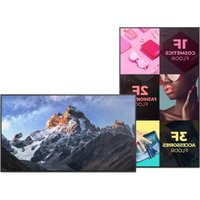
FW-98BZ50L - Monitor SONY - Free user manual and instructions
Find the device manual for free FW-98BZ50L SONY in PDF.



| Product Type | Professional LCD monitor with LED backlight |
| Brand and model | Sony FW-98BZ50L |
| Screen size | 98 inches (247.7 cm diagonal) |
| Display resolution | 3840 x 2160 pixels (4K UHD) |
| Dimensions with stand (W x H x D) | 2199 x 1305 x 465 mm |
| Weight with stand | 68.9 kg |
| Power supply | 220-240 V AC, 50/60 Hz |
| Power consumption (standby) | 0.5 W |
| Audio output (W) | 10 + 10 + 10 + 10 W (built-in speakers) |
| HDMI inputs | 4 HDMI inputs (HDCP 2.3), HDMI IN 3 with eARC/ARC |
| USB inputs | 2 USB ports (USB 2.0 and USB 3.2 Gen 1) |
| Network connectivity | Ethernet 10BASE-T/100BASE-TX |
| Remote control | RS-232C (stereo mini-jack), IP (REST API, IRCC-IP, Simple IP Control) |
| Pro mode | Pro settings mode and Pro mode with restrictions, PIN lock, startup settings |
| Installation functions | Compatible with SU-WL850 and SU-WL450 wall mounts (not supplied) |
| Optional accessories | USB clock FWA-UB100AT, USB anti-theft cover FWA-AT100 |
| Operating temperature | 0°C to 40°C |
| Maintenance and cleaning | Clean with a soft, dry cloth. Avoid chemicals. |
| Safety | Stable installation, do not expose to moisture, unplug before moving. |
| Repairability | Contact a Sony-authorized technician for any repairs. |
Frequently Asked Questions - FW-98BZ50L SONY
User questions about FW-98BZ50L SONY
0 question about this device. Answer the ones you know or ask your own.
Ask a new question about this device
Download the instructions for your Monitor in PDF format for free! Find your manual FW-98BZ50L - SONY and take your electronic device back in hand. On this page are published all the documents necessary for the use of your device. FW-98BZ50L by SONY.
USER MANUAL FW-98BZ50L SONY
Connection Diagram .....4
Using LCD Monitor as Part of
Audio System....7
Remote Control and LCD Monitor....7
Settings....9
Pro mode....9
Control functions ..... 11
RS-232C 11
IP 12
Installing the LCD Monitor to
the Wall....14
Troubleshooting....15
Specifications 15
About Manuals
This LCD Monitor comes with the following manuals. Please retain the manuals for future reference.
Setup Guide
• LCD Monitor installation and setup.
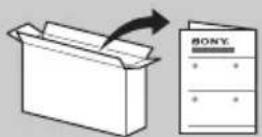
Reference Guide (this manual) / Safety Information
- Safety information, remote control, troubleshooting, wall-mount installation, specification, etc.
Help
Find more troubleshooting and other useful information directly from your LCD Monitor. Press HELP on the remote control to display a list of topics.
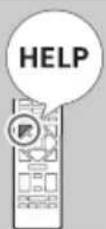
Setting menus are subject to change without notice.
IMPORTANT - Read the End User Software Licence Agreement before using your Sony product. Using your product indicates your acceptance of the End User Software Licence Agreement. The software licence agreement between you and Sony is available online at Sony website (https://www.sony.net/tv-software-licenses/) or on your product screen. Go to [Settings] → [System] → [About] → [Legal information] → [Notices and licences].
Note
- Before operating the LCD Monitor, please read the "Safety Information".
- Read the supplied safety documentation for additional safety information.
- Instructions about "Installing the LCD Monitor to the Wall" are included within this LCD Monitor's instruction manual.
- Images and illustrations used in the Setup Guide and this manual are for reference only and may differ from the actual product.
Location of the identification label
Labels for the LCD Monitor Model No. and Power Supply rating are located on the rear of the LCD Monitor.
Safety Information
Installation/Set-up
Install and use the LCD Monitor in accordance with the instructions below in order to avoid any risk of fire, electric shock or damage and/or injuries.
Installation
- The LCD Monitor should be installed near an easily accessible AC power outlet (mains socket).
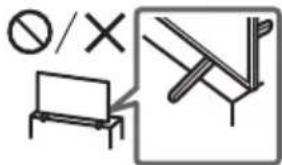
- Place the LCD Monitor on a stable, level surface to prevent it from falling over and causing personal injury or property damage.
• Install the LCD Monitor where it cannot be pulled, pushed, or knocked over. - Install the LCD Monitor so that the LCD Monitor's Table-Top Stand does not protrude out from the LCD Monitor stand (not supplied). If the Table-Top Stand protrudes out from the LCD Monitor stand, it may cause LCD Monitor set to topple over, fall down, and cause personal injury or damage to the LCD Monitor.
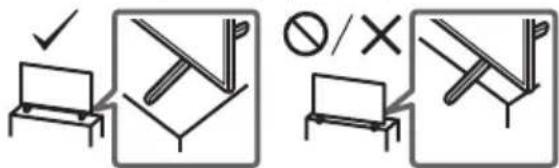
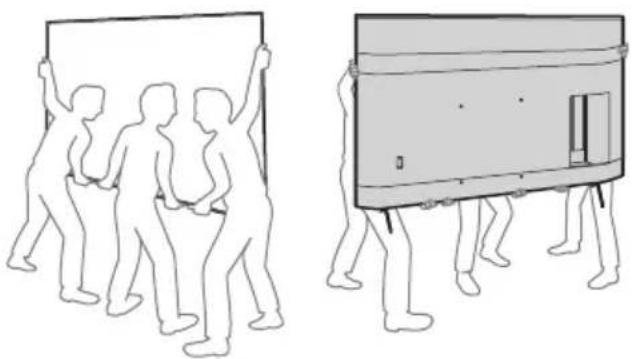
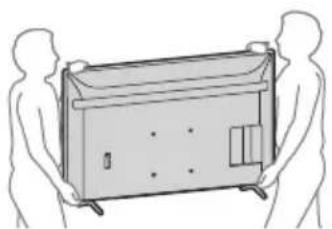
Transporting
- Before transporting the LCD Monitor, disconnect all cables.
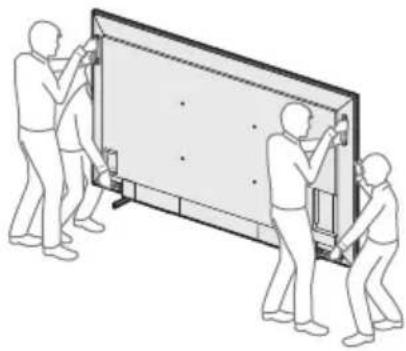
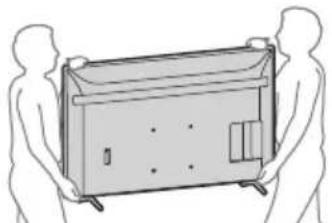
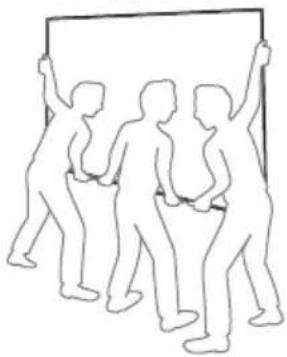
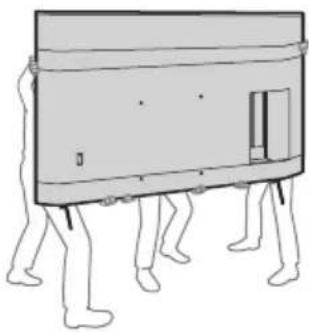
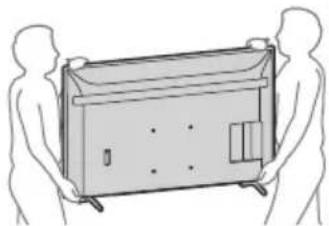
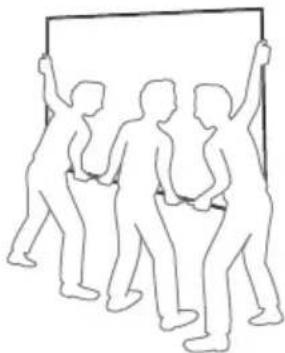
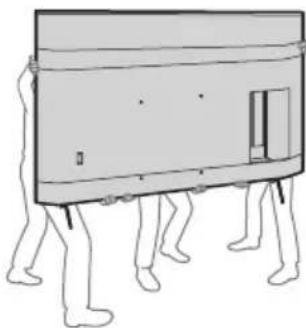
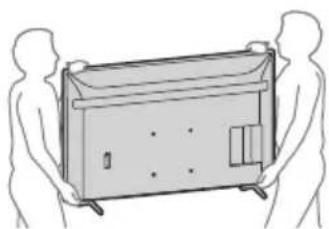
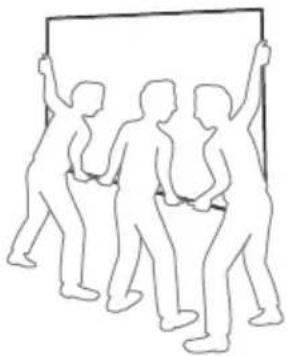
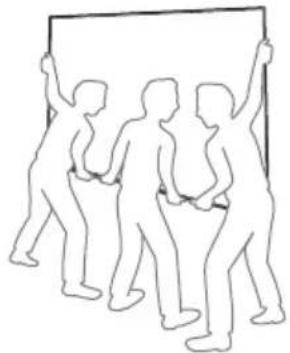
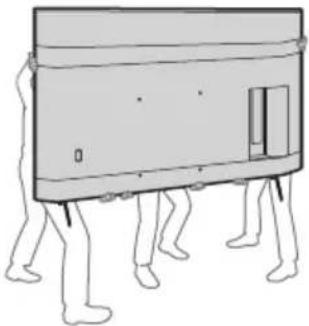
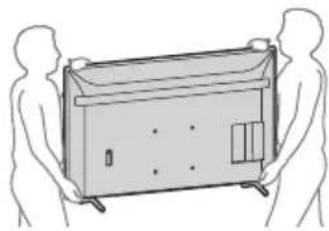
- Two or more persons (three or more persons for 214.8 cm (85 inches), four or more persons for 247.7 cm (98 inches) and above LCD Monitor) are needed to transport a large LCD Monitor.
- When transporting the LCD Monitor by hand, hold it as shown below. Do not put stress on the LCD panel and the frame around the screen.
- When lifting or moving the LCD Monitor, hold it firmly from the bottom.
FW-98BZ53L / 98BZ50L / 98BZ30L
FW-85BZ40L / 85BZ30L
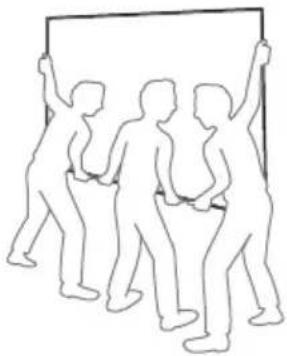
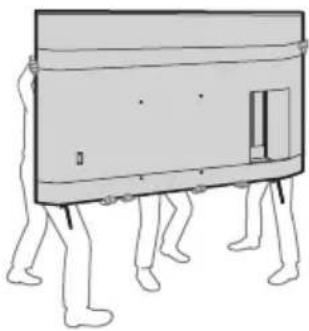
FW-75BZ40L / 75BZ35L / 75BZ30L / 65BZ40L / 65BZ35L / 65BZ30L / 55BZ40L / 55BZ35L / 55BZ30L / 50BZ30L / 43BZ30L
- When transporting the LCD Monitor, do not subject it to jolts or excessive vibration.
- When transporting the LCD Monitor for repairs or when moving, pack it using the original carton and packing material.
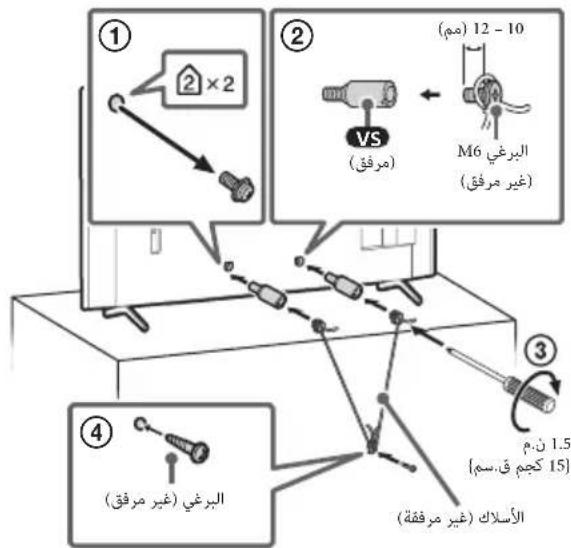
- When handling or mounting the LCD Monitor set, do not lay down the LCD Monitor (for applicable LCD Monitor model only).
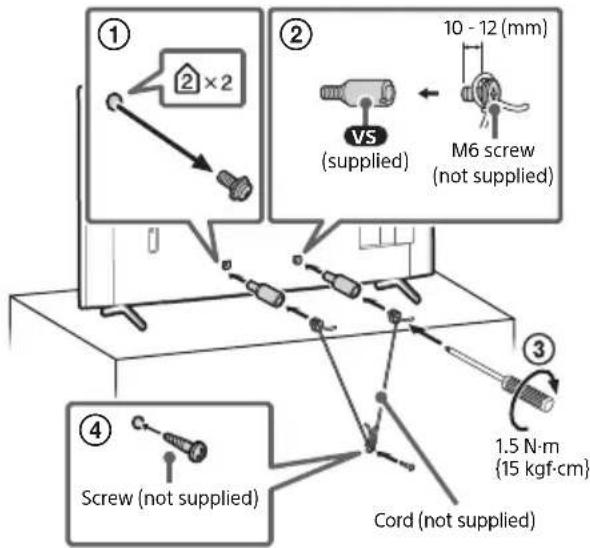
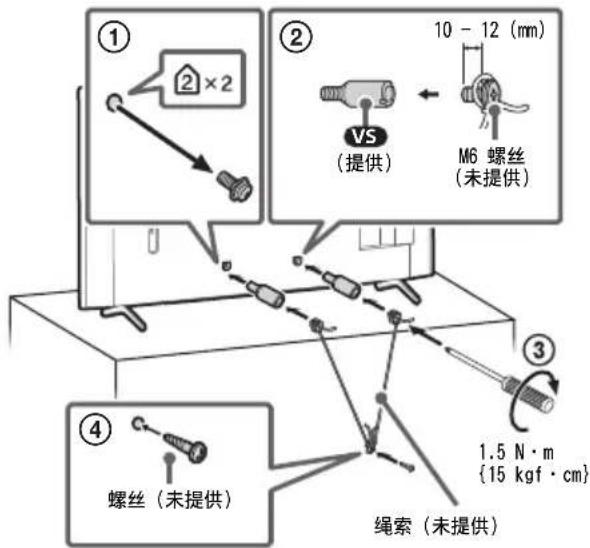
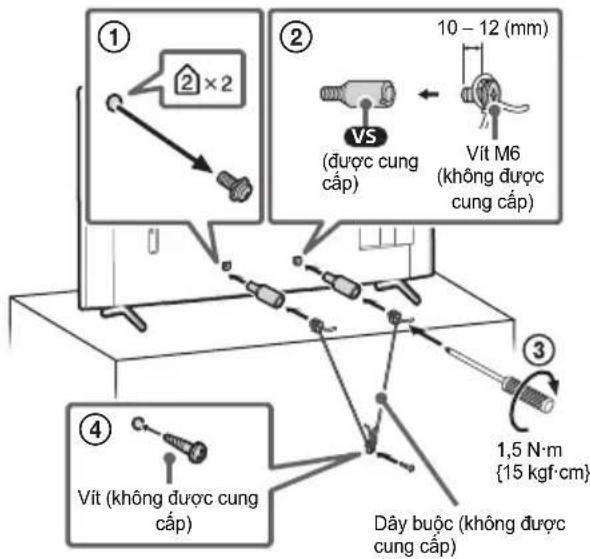
Topple prevention
(Models with supplied support belt kit)
Refer to the Setup Guide on top of the cushion.
The supplied wood screw is only for affixing to a solid object made of wood.
(Except models with supplied support belt kit)
FW-98BZ53L / 98BZ50L / 98BZ30L
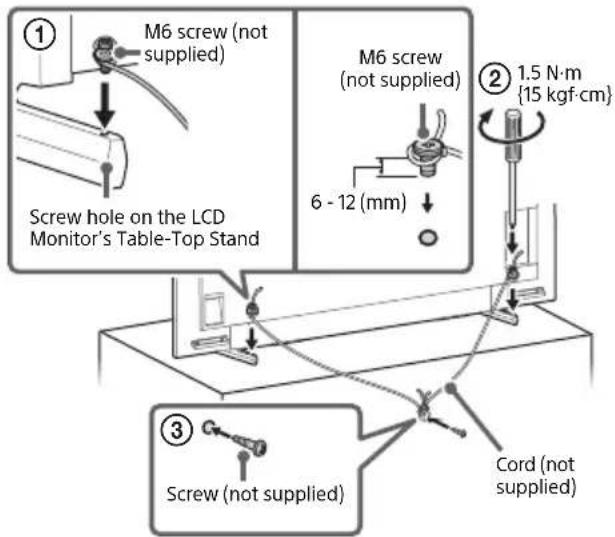
FW-85BZ40L / 85BZ30L / 75BZ40L / 75BZ35L / 75BZ30L / 65BZ40L / 65BZ35L / 65BZ30L / 55BZ40L / 55BZ35L / 55BZ30L / 50BZ30L / 43BZ30L
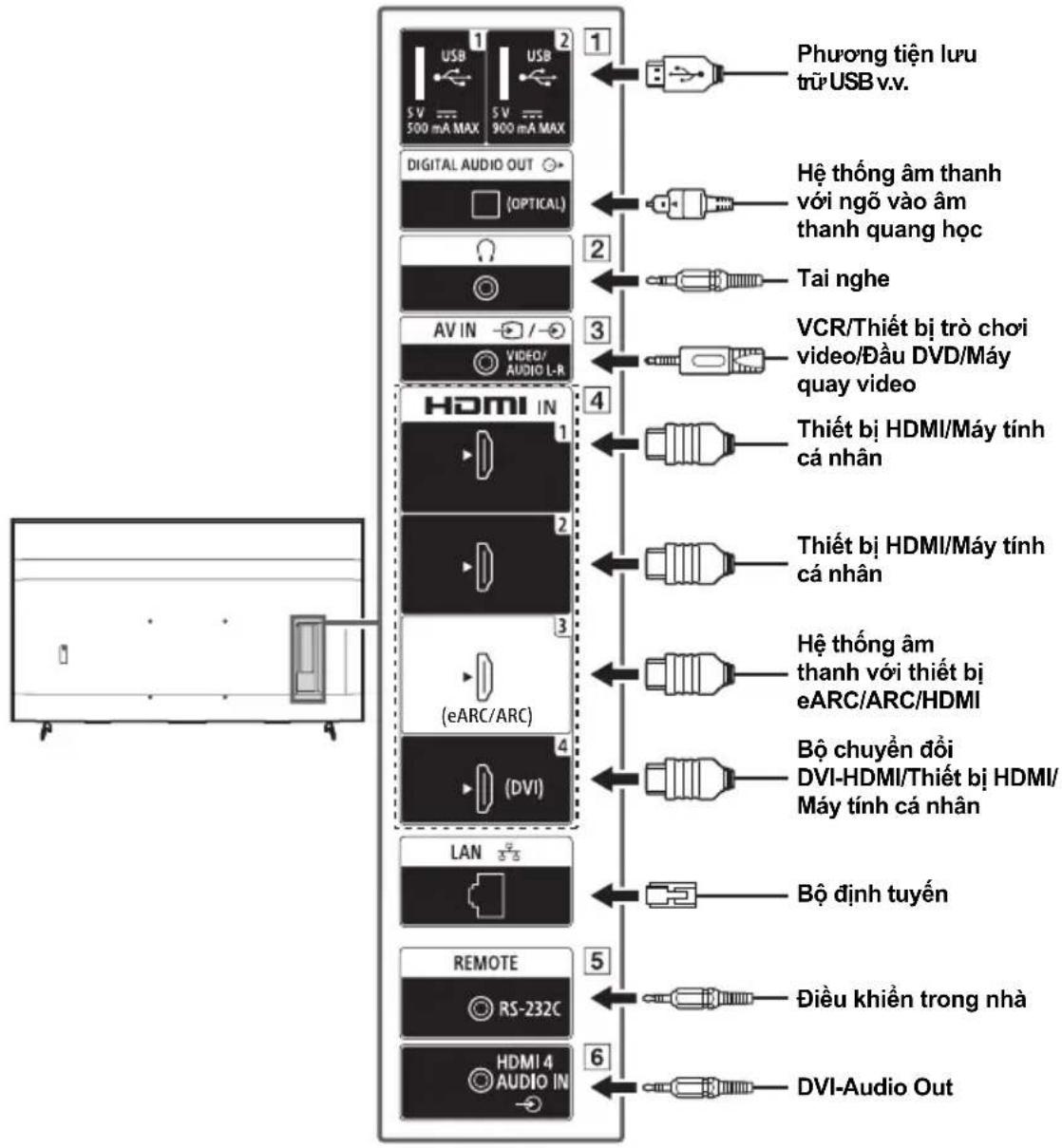
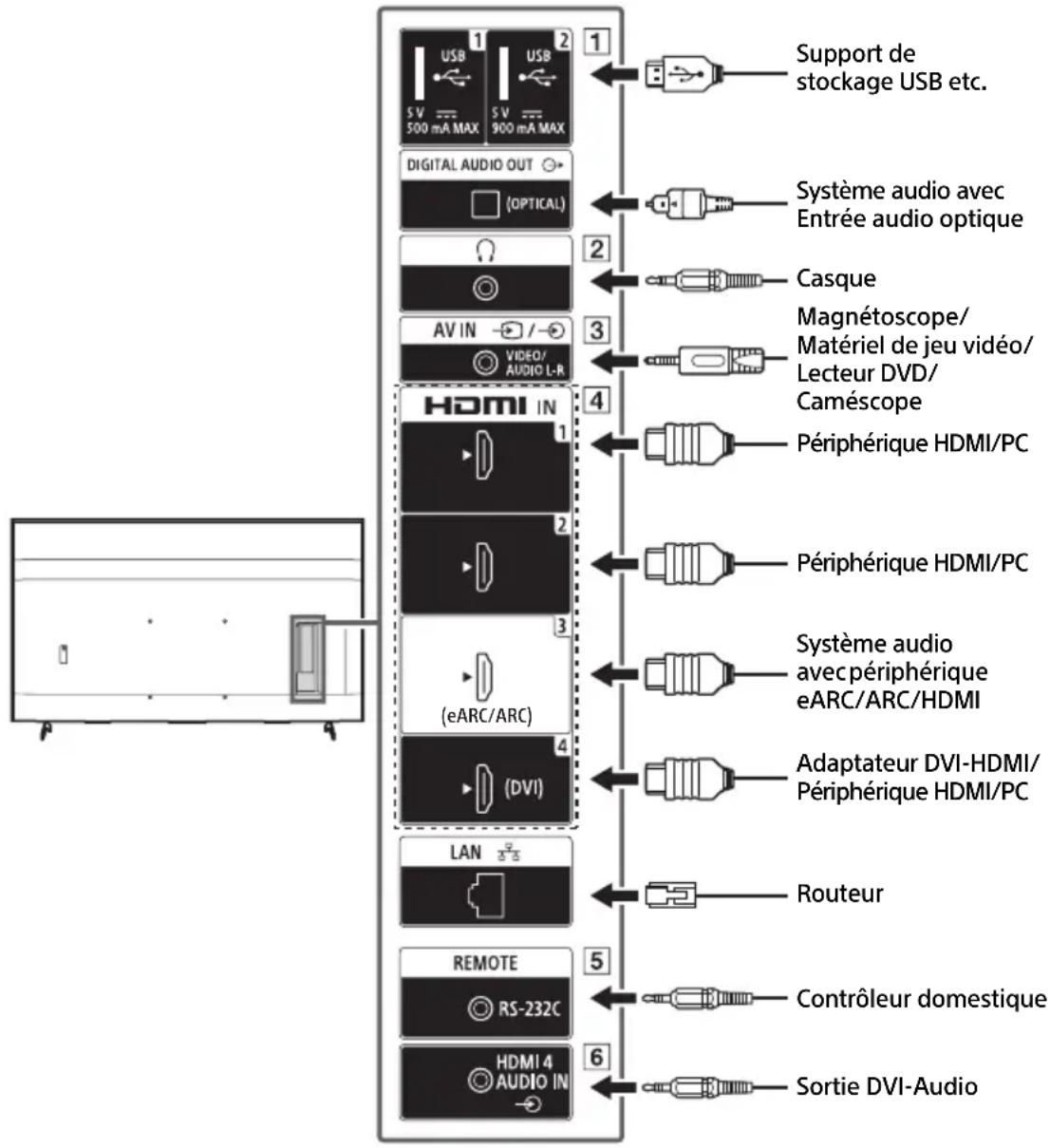
Connection Diagram
Note
- Terminals and labels may vary depending on region/country/LCD Monitor model.
FW-98BZ53L / 98BZ50L / 98BZ30L
![graph TD A["USB storage media etc."] --> B["1"] C["Audio System with Optical Audio Input"] --> D["2"] E["Headphone"] --> F["3"] G["VCR/Video game equipment/DVD player/Camcorder"] --> H["4"] I["HDMI Device/PC"] --> J["5"] K["HDMI Device/PC"] --> L["6"] M["Audio System with eARC/ARC/HDMI Device"] -->…](/content/2026/04/643114/images/11db2994bb9d1808c85af01b295623c14032710b58164d9a4102353516b19b35.jpg)
FW-85BZ40L / 85BZ30L / 75BZ40L / 75BZ35L / 75BZ30L / 65BZ40L / 65BZ35L / 65BZ30L / 55BZ40L / 55BZ35L / 55BZ30L / 50BZ30L / 43BZ30L
![graph TD A["USB storage media etc."] --> B["USB"] B --> C["5V 500 mA MAX"] B --> D["900 mA MAX"] E["Audio System with Optical Audio Input"] --> F["(OPTICAL)"] G["Headphone"] --> H["AV IN"] H --> I["VIDEO/AUDIO L-R"] J["VCR/Video game equipment/DVD player/Camcorder"] --> K["3"] K --> L["HDMI IN"] L -…](/content/2026/04/643114/images/3e54225f936fa11923883ce37b1d180f395d75c0433c90682cc4de5ccd2e85fe.jpg)
1


USB
2
- Connecting a large USB device may interfere with other connected devices beside it.
2 (Headphone)
• Supports 3-pole stereo mini jack only.
- You cannot output sound from both the headphone and the LCD Monitor speakers at the same time.
3 - A V I N
- For a composite connection, use an Analogue Extension Cable (not supplied).
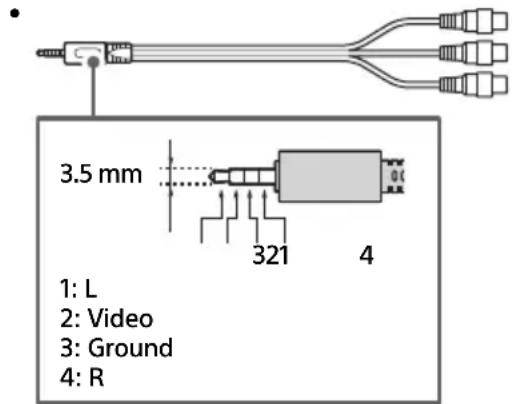
4 HDMI IN 1/2/3/4
- HDMI interface can transfer the digital video and audio on a single cable.
- If the device has a DVI jack, connect it to HDMI IN 4 through a DVI - HDMI adaptor interface (not supplied), and connect the device's audio out jack to HDMI 4 AUDIO IN.
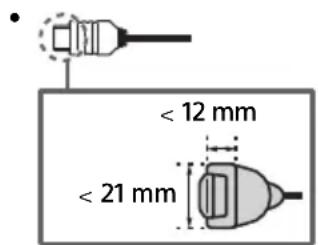
- HDMI IN 3 eARC/ARC (Enhanced Audio Return Channel/Audio Return Channel) Connect your audio system to the HDMI IN 3 to route LCD Monitor audio to your audio system. An audio system that supports HDMI eARC/ARC can send video to the LCD Monitor, and receive audio from the LCD Monitor via the same HDMI cable. If your audio system does not support HDMI eARC/ARC, an additional connection with DIGITAL AUDIO OUT (OPTICAL) is necessary.
- Use the HDMI cable with Ethernet to connect audio system with eARC.
5 REMOTE RS-232C
- Terminal for serial communication. For details, see "Control functions".
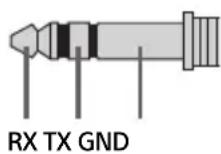
6 HDMI 4 AUDIO IN
- If the device has a DVI jack, connect it to HDMI IN 4 through a DVI - HDMI adaptor interface (not supplied), and connect the device's audio out jack to HDMI 4 AUDIO IN.
Using LCD Monitor as Part of Audio System
(FW-98BZ53L / 98BZ50L / 98BZ30L only)
Note
- Before connecting cables, disconnect the AC power cord (mains lead) of both LCD Monitor and AV receiver.
- Refer to the instruction manual of the Audio system with S-CENTER OUT terminal for detail.
![graph TD A["S-CENTER SPEAKER IN"] -->|Centre speaker mode cable| B["S-CENTER OUT"] B --> C["HDMI (eARC/ARC) connection"] C --> D["Antenna"] D --> E["Antenna"]](/content/2026/04/643114/images/d8472bb85d1fd6f461d082091115316fe05094ebe1d44787001c5e4d61e805c6.jpg)
Remote Control and LCD Monitor
The remote control shape, layout, availability and function of remote control buttons may vary depending on your region/country/LCD Monitor model/LCD Monitor settings.
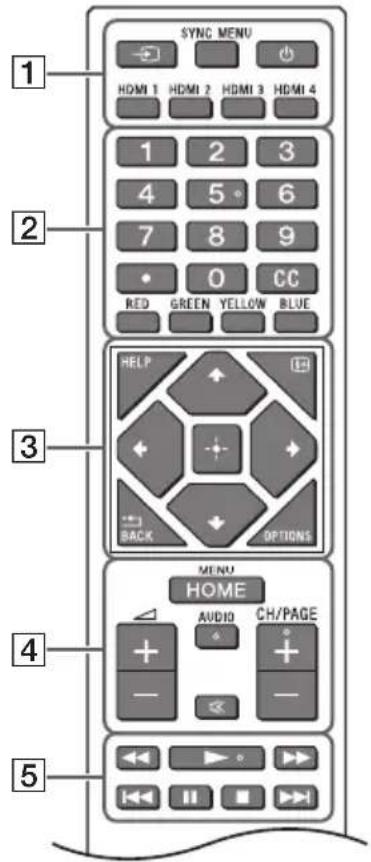
1 - (Input select): Display and select the input source, etc.
SYNC MENU: Display the BRAVIA Sync Menu.
(Power)
HDMI 1/2/3/4
2 Number buttons
(dot)
cc
Colour buttons
3 HELP: Display the Help menu.
i+ (Screen display): Display information.
/BACK
OPTIONS: Displays a list of functions that can be used at that time.
+/↓/←/→/☐ (Navigation D-Pad): On screen menu navigation and selection.
4 HOME/MENU
△ +/- (Volume)
AUDIO: Select the sound of multilingual source or dual sound (depend on programme source).
呂 (Mute)*
CH/PAGE +/-
5
![graph TD A["6"] --> B["Power"] B --> C["↑"] C --> D["7"]](/content/2026/04/643114/images/27f1c929815810e01c50eaa4744a34365632c2ecd6961010ecad3b6436da224f.jpg)
6 ⏻ (Power)
7 Remote Control sensor / Light sensor / LED
* Accessibility shortcut is available by pressing and holding ☑ (Mute).
Settings
Pro mode
In [Pro mode], you can use various convenient functions for professional use. Here, we introduce how to change to [Pro mode] and typical functions of [Pro mode].
Pro mode
Normal mode: This is the default mode. [Pro mode] functions are not available in this mode. Pro settings mode: This mode allows you to set various settings of [Pro mode] functions. Pro mode: This is the operation mode for professional use where you can use the [Pro mode] functions.
How to change the mode
When the Monitor is in Normal mode
- Go to [Home] → [Apps] → [Pro settings], then select [Pro settings mode].
When the Monitor is in Pro settings mode
- Go to [Home] → [Apps] → [Pro settings], then select [Start Pro mode].
When the Monitor is in the Pro mode
- Press the activation keys described below on the remote control in order within a one second interval.
After restarting the Monitor, the mode changes to [Pro settings mode].
Activation key: i+ (Screen display) / ☐ (Mute) / △ +/- (Volume +) / HOME/MENU
*Initially you cannot change the mode from [Pro settings] in [Pro mode]. If you want to change the mode from [Pro settings], go to [Pro settings] → [Function restrictions] → [Apps] and change [Pro settings] to [Enable] in [Pro settings mode].
Introduction of the Pro mode functions
In [Pro mode], you can use various convenient functions. Typical [Pro mode] functions are introduced below.
— Setting Monitor operation when turning the AC power on
You can set the operation of the Monitor when unplugging and reinserting the AC power plug.
— Optimized display of the PC input screen
The screen displays the PC input screen with optimum size according to the PC format.
— Automatic wake up and input switching by HDMI signal detection
Automatically turn on the Monitor and switch to connected HDMI input when the HDMI device is connected.
— Settings of the displaying menu when pressing the HOME/MENU button
You can select the menu displayed when pressing the HOME/MENU button on the remote control.
- Initial input source designation when starting the Monitor
You can designate the initial input source when starting the Monitor.
- Pro mode lock
You can protect the settings of [Pro mode] by using a PIN.
— Initial/maximum volume setting
You can set the initial and maximum volume of the Monitor.
— Restriction of the Monitor operation on the remote control
You can restrict the Monitor operation using the remote control.
— Restriction of external inputs
You can restrict the use of external inputs.
— Restriction of using applications
You can restrict the use of Monitor applications.
How to set Pro mode functions
Go to [Home] → [Settings] → [Pro settings] when the Monitor is in [Pro settings mode].*
*Varies depending on the version of the OS.
Control functions
RS-232C
You can control the Monitor from an external service via RS-232C. The RS-232C connection is briefly explained in this page.
Interface
Establish the RS-232C connection to the Monitor by using a 3.5 mm stereo mini plug.
TIP: Monitor → Controller RING: Controller → Monitor
Connection settings
When establishing the RS-232C connection, make connection settings as below.
| Baud rate 9600 bps |
| Data 8 bit |
| Parity None |
| Start bit 1 bit |
| Stop bit 1 bit |
| Flow control None |
Data format
We introduce the data format for the RS-232C communication below.
(a) Requests from the controller to the Monitor
| No. Item Value | |||||||
| 1 | H | e | a | d | e | r | 0 |
| 2 | Category | 0x00 | (fixed) | ||||
| 3 | Function | 0xXX | |||||
| 4 | Length | 0xXX | (=Data X+1 byte) | ||||
| 5 | Data 1 | 0xXX | |||||
| : | : | 0xXX | |||||
| : | : | 0xXX | |||||
| X+4 | Data X | 0xXX | |||||
| X+5 | Check Sum | 0xXX | |||||
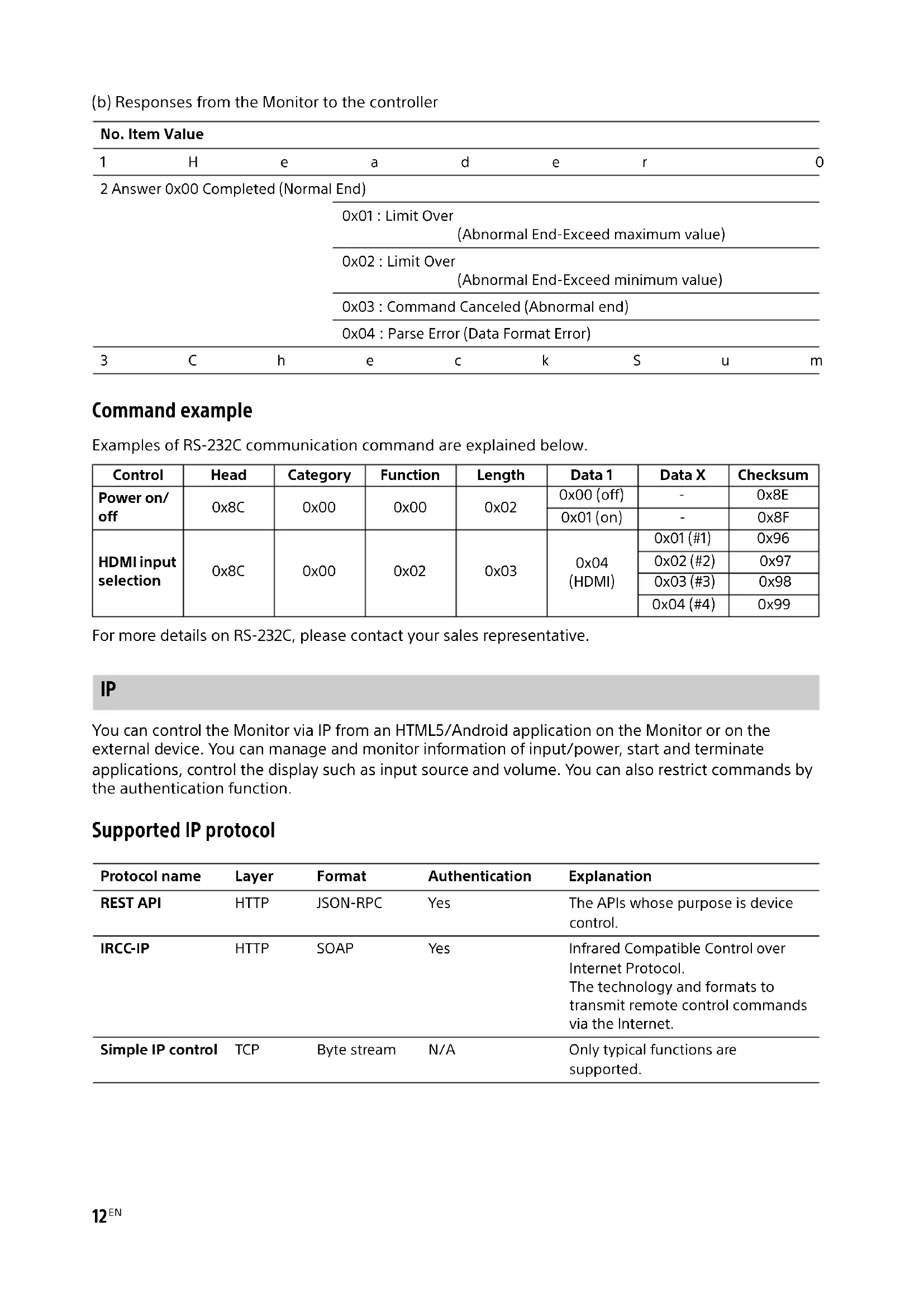
(b) Responses from the Monitor to the controller
| No. Item Value | ||||||||
| 1 | H | e | a | d | e | r | 0 | |
| 2 Answer 0x00 Completed (Normal End) | ||||||||
| 0x01 : Limit Over(Abnormal End-Exceed maximum value) | ||||||||
| 0x02 : Limit Over(Abnormal End-Exceed minimum value) | ||||||||
| 0x03 : Command Canceled (Abnormal end) | ||||||||
| 0x04 : Parse Error (Data Format Error) | ||||||||
| 3 | C | h | e | c | k | S | u | m |
Command example
Examples of RS-232C communication command are explained below.
| Control | Head | Category | Function | Length | Data 1 | Data X | Checksum |
| Power on/off | 0x8C | 0x00 | 0x00 | 0x02 | 0x00 (off) | - | 0x8E |
| 0x01 (on) | - | 0x8F | |||||
| HDMI input selection | 0x8C | 0x00 | 0x02 | 0x03 | 0x04 (HDMI) | 0x01 (#1) | 0x96 |
| 0x02 (#2) | 0x97 | ||||||
| 0x03 (#3) | 0x98 | ||||||
| 0x04 (#4) | 0x99 |
For more details on RS-232C, please contact your sales representative.
IP
You can control the Monitor via IP from an HTML5/Android application on the Monitor or on the external device. You can manage and monitor information of input/power, start and terminate applications, control the display such as input source and volume. You can also restrict commands by the authentication function.
Supported IP protocol
| Protocol name | Layer | Format | Authentication | Explanation |
| REST API | HTTP | JSON-RPC | Yes | The APIs whose purpose is device control. |
| IRCC-IP | HTTP | SOAP | Yes | Infrared Compatible Control over Internet Protocol.The technology and formats to transmit remote control commands via the Internet. |
| Simple IP control | TCP | Byte stream | N/A | Only typical functions are supported. |
Monitor settings
When using [IP control], set the Monitor as follows first.
Go to [Settings] → [Network and Internet] → [Local network setup] → [IP control].
For REST API and IRCC-IP,
- Select [Authentication].
- Set [Pre-Shared Key] if needed.
For Simple IP control, - Enable [Simple IP control].
Example of HTTP request and response for REST API
Here is the example of a request and response to acquire the power status to the Monitor (IP address: 192.168.0.1 Pre-shared Key "1234").
URL
http://192.168.0.1/sony/system
Request
POST /sony/system HTTP/1.1
Host: 192.168.0.1
Content-Type: application/json; charset=UTF-8
Content-Length: 70
X-Auth-PSK: 1234
{"method": "getPowerStatus", "params": [], "id": 50, "version": "1.0"}
Response
HTTP/1.1 200 OK
Content-Type: application/json; charset=UTF-8
Content-Length: 44
{"result": [{"status": "active"}], "id": 50}
For more details on [IP control], please contact your sales representative.
Installing the LCD Monitor to the Wall
Using the optional Wall-Mount Bracket (SU-WL850 or SU-WL450)* (not supplied)
To Customers:
For product protection and safety reasons, Sony strongly recommends that installation of your LCD Monitor be performed by Sony dealers or licensed contractors. Do not attempt to install it yourself.
To Sony Dealers and Contractors:
Provide full attention to safety during the installation, periodic maintenance and examination of this product.
Wall-Mount Bracket Installation Information
For instructions on Wall-Mount Bracket installation, see the Installation Information (Wall-Mount Bracket) on the product page for your LCD Monitor model. https://www.sony-asia.com/support
- Follow the instruction guide provided with the Wall-Mount Bracket for your model. Sufficient expertise is required in installing this LCD Monitor, especially to determine the strength of the wall for withstanding the LCD Monitor's weight.
- Sony is not liable for any damage or injury caused by mishandling or improper installation.
- Only qualified service personnel should carry out wall-mount installations.
- For safety reasons, it is strongly recommended that you use Sony accessories, including: - Wall-Mount Bracket SU-WL850 - Wall-Mount Bracket SU-WL450
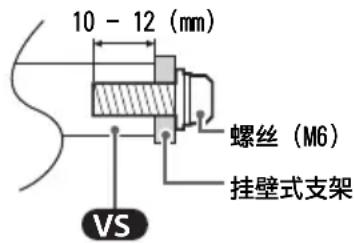
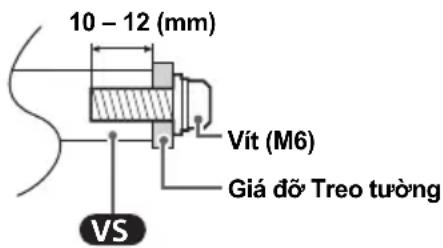
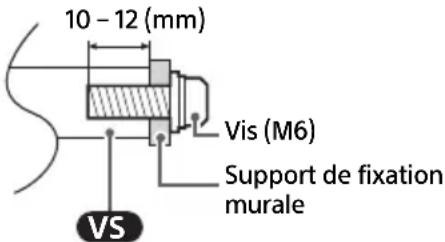
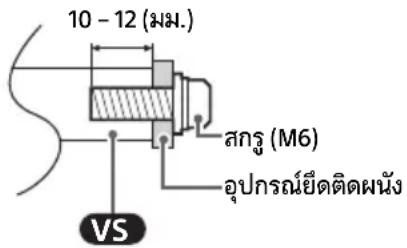
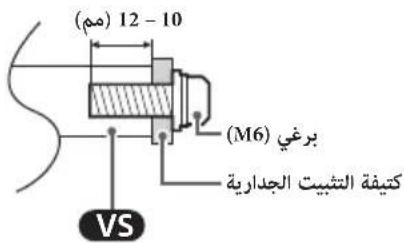
- Be sure to use the screws supplied with the Wall-Mount Bracket when attaching the Wall-Mount Bracket to the LCD Monitor. The supplied screws are designed as indicated by illustration when measured from the attaching surface of the Wall-Mount Bracket.
The diameter and length of the screws differ depending on the Wall-Mount Bracket model. Use of screws other than those supplied may result in internal damage to the LCD Monitor or cause it to fall, etc.
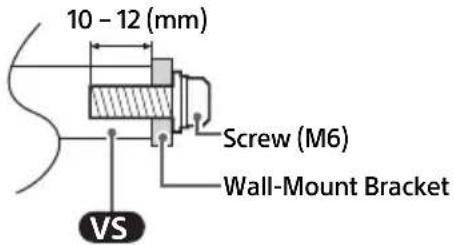
- Be sure to store the unused screws and Table-Top Stand in a safe place until you are ready to attach the Table-Top Stand. Keep the screws away from small children.
* Only for limited region/country/model.
Using the optional Wall-Mount Bracket (except SU-WL850 or SU-WL450) (not supplied)
This LCD Monitor's instruction manual only provides the steps to prepare the LCD Monitor for Wall-Mount installation before it is installed on the wall.
Your LCD Monitor can be mounted to a wall using a suitable Wall-Mount Bracket (not supplied). If the Table-Top Stand is attached to the LCD Monitor, the LCD Monitor may require detaching the Table-Top Stand.
Prepare the LCD Monitor for the Wall-Mount Bracket before making cable connections.
For product protection and safety reasons, Sony strongly recommends that installation of your LCD Monitor on the wall be performed by qualified professionals. Do not attempt to install it yourself.
- Follow the instruction guide provided with the Wall-Mount Bracket for your model. Sufficient expertise is required in installing this LCD Monitor, especially to determine the strength of the wall for withstanding the LCD Monitor's weight.
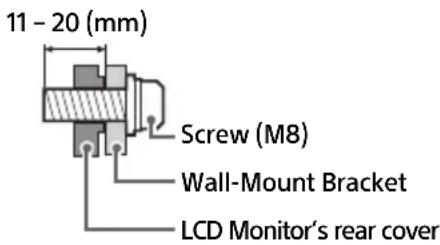
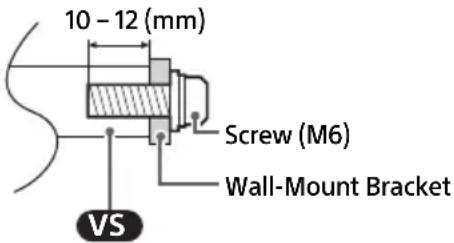
- The screws for installing the Wall-Mount Bracket to the LCD Monitor are not supplied.
- The length of the screw for Wall-Mount Bracket differs depending on the Wall-Mount Bracket thickness. Please refer to below illustration.
FW-98BZ53L / 98BZ50L / 98BZ30L
FW-85BZ40L / 85BZ30L / 75BZ40L / 75BZ35L / 75BZ30L / 65BZ40L / 65BZ35L / 65BZ30L / 55BZ40L / 55BZ35L / 55BZ30L / 50BZ30L / 43BZ30L
Troubleshooting
General troubleshooting for issues like: black screen, no sound, frozen picture, LCD Monitor does not respond, or network is lost, do the following steps.
1 Restart your LCD Monitor by pressing the power button on the remote control for about five seconds and select [Restart]. The LCD Monitor will restart. If the LCD Monitor does not recover, try unplugging the AC power cord (mains lead) then press the power button on the LCD Monitor and release it. Wait for two minutes, and plug in the AC power cord (mains lead). Or, press the power button on the LCD Monitor for about 40 seconds until the LCD Monitor turns off.
2 Refer to the Help menu by pressing HELP on the remote control.
3 Connect your LCD Monitor to the Internet and perform a software update. Sony recommends you to keep your LCD Monitor software updated. Software updates provide new features and performance improvements.
When you plug in the LCD Monitor, the LCD Monitor may not be able to turn on for a while even if you press the power button on the remote control or the LCD Monitor.
It takes time to initialize the system. Wait for about one minute, then operate it again.
The remote control does not function.
- Replace the batteries.
Specifications
System
Panel system
LCD (Liquid Crystal Display) Panel, LED
Backlight
Sound output (W)
FW-98BZ53L / 98BZ50L / 98BZ30L:
10 + 10 + 10 + 10
FW-85BZ40L / 85BZ30L / 75BZ40L / 75BZ35L /
75BZ30L / 65BZ40L / 65BZ35L / 65BZ30L /
55BZ40L / 55BZ35L / 55BZ30L / 50BZ30L /
43BZ30L: 10 + 10
Wireless technology
Protocol IEEE 802.11a/b/g/n/ac
Bluetooth® Version 4.2
Input/Output jacks
→/→ AV IN
Video/Audio input (mini jack)
S-CENTER SPEAKER IN (FW-98BZ53L / 98BZ50L /
98BZ30L only)
S-centre speaker input (mini jack)
HDMI IN 1/2/3/4 (HDCP 2.3-compatible)
Video (FW-98BZ53L / 98BZ50L / 98BZ30L only):
4096 × 2160p (50, 60 Hz)12, 4096 × 2160p
(24 Hz) 1 , 3840 × 2160p (50, 60 Hz) 2 , 3840 ×
2160p (24, 25, 30 Hz), 1080p (24, 30, 50, 60,
100, 120 Hz), 1080i (50, 60 Hz), 720p (24, 30,
50, 60 Hz), 576p, 480p, PC Formats
3840 × 2160p (100, 120 Hz)* 2 * 3
Video (FW-85BZ40L / 85BZ30L / 75BZ40L /
75BZ35L / 75BZ30L / 65BZ40L / 65BZ35L /
65BZ30L / 55BZ40L / 55BZ35L / 55BZ30L /
50BZ30L / 43BZ30L only):
4096 × 2160p (50, 60 Hz)12, 4096 × 2160p
(24 Hz) 1 , 3840 × 2160p (50, 60 Hz) 2 , 3840 ×
2160p (24, 25, 30 Hz), 1080p (24, 30, 50,
60 Hz), 1080i (50, 60 Hz), 720p (24, 30, 50,
60 Hz), 576p, 480p, PC Formats
Audio:
In eARC (Enhanced Audio Return Channel) mode
7.1 channel linear PCM: 32/44.1/48 kHz
16 bits, Dolby Digital, Dolby Digital Plus,
DTS, Dolby TrueHD, DTS-HD MA, Dolby
Atmos, DTS:X Master Audio
Except eARC mode
5.1 channel linear PCM: 32/44.1/48/88.2/
96/176.4/192 kHz 16/20/24 bits, Dolby
Audio, Dolby Atmos, DTS
eARC/ARC (Enhanced Audio Return Channel/
Audio Return Channel) (HDMI IN 3 only)*4
In eARC mode
7.1 channel linear PCM: 32/44.1/48 kHz
16 bits, Dolby Digital, Dolby Digital Plus, DTS,
Dolby TrueHD, DTS-HD MA, Dolby Atmos, DTS:X Master Audio
In ARC mode
Two channel linear PCM: 48 kHz 16 bits,
Dolby Audio, Dolby Atmos, DTS
→ DIGITAL AUDIO OUT (OPTICAL)
Digital optical jack (Two channel linear PCM: 48 kHz 16 bits, Dolby Audio, DTS)
HDMI 4 AUDIO IN
USB port 1 supports High Speed USB (USB 2.0)
USB port 2 supports Super Speed USB (USB 3.2 Gen 1)
LAN
10BASE-T/100BASE-TX connector (Depending on the operating environment of the network, connection speed may differ. The communication rate and quality are not guaranteed.)
REMOTE
RS-232C, mini jack
This jack is for receiving the external control signal.
Power and others
Power requirements
110 V AC, 60 Hz (Taiwan only)
220 V - 240 V AC, 50/60 Hz (except Taiwan)
Screen size (measured diagonally) (Approx.)
(inches/cm)
FW-98BZ53L / 98BZ50L / 98BZ30L: 98 / 247.7
FW-85BZ40L / 85BZ30L: 85 / 214.8
FW-75BZ40L / 75BZ35L / 75BZ30L: 75 / 189.3
FW-65BZ40L / 65BZ35L / 65BZ30L: 65 / 163.9
FW-55BZ40L / 55BZ35L / 55BZ30L: 55 / 138.8
FW-50BZ30L: 50 / 125.7
FW-43BZ30L: 43 / 108.0
Power consumption
Indicated on the rear of the LCD Monitor
Standby power consumption 56
Jordan/UAE/Egypt: 0.50 W, Others: 0.5 W
Display resolution (horizontal × vertical) (pixels)
3840 × 2160
Output Rating
500 mA (for USB 1), 900 mA (for USB 2)
Dimensions (Approx.) (w × h × d) (mm)
with Table-Top Stand
FW-98BZ53L: 2199 × 1305 × 465
FW-98BZ50L: 2199 × 1305 × 465
FW-98BZ30L: 2199 × 1305 × 465
FW-85BZ40L: 1899 × 1176 × 456
FW-85BZ30L: 1899 × 1176 × 456
FW-75BZ40L: 1686 × 1045 × 410
FW-75BZ35L: 1686 × 1045 × 410
FW-75BZ30L: 1686 × 1045 × 410
FW-65BZ40L: 1462 × 912 × 338
FW-65BZ35L: 1462 × 912 × 338
FW-65BZ30L: 1462 × 912 × 338
FW-55BZ40L: 1243 × 787 × 338
FW-55BZ35L: 1243 × 787 × 338
FW-55BZ30L: 1243 × 787 × 338
FW-50BZ30L: 1126 × 718 × 286
FW-43BZ30L: 972 × 632 × 286
without Table-Top Stand
FW-98BZ53L: 2199 × 1255 × 85
FW-98BZ50L: 2199 × 1255 × 85
FW-98BZ30L: 2199 × 1255 × 85
FW-85BZ40L: 1899 × 1089 × 71
FW-85BZ30L: 1899 × 1089 × 71
FW-75BZ40L: 1686 × 969 × 72
FW-75BZ35L: 1686 × 969 × 72
FW-75BZ30L: 1686 × 969 × 72
FW-65BZ40L: 1462 × 842 × 71
FW-65BZ35L: 1462 × 842 × 71
FW-65BZ30L: 1462 × 842 × 71
FW-55BZ40L: 1243 × 721 × 71
FW-55BZ35L: 1243 × 721 × 71
FW-55BZ30L: 1243 × 721 × 71
FW-50BZ30L: 1126 × 653 × 70
FW-43BZ30L: 972 × 567 × 70
Mass (Approx.) (kg)
with Table-Top Stand
FW-98BZ53L: 68.9
FW-98BZ50L: 68.9
FW-98BZ30L: 68.9
FW-85BZ40L: 46
FW-85BZ30L: 46
FW-75BZ40L: 32.7
FW-75BZ35L: 32.7
FW-75BZ30L: 32.9
FW-65BZ40L: 22.3
FW-65BZ35L: 22.1
FW-65BZ30L: 22.1
FW-55BZ40L: 16.7
FW-55BZ35L: 16.6
FW-55BZ30L: 16.6
FW-50BZ30L: 12.9
FW-43BZ30L: 10.5
without Table-Top Stand
FW-98BZ53L: 67.2
FW-98BZ50L: 67.2
FW-98BZ30L: 67.2
FW-85BZ40L: 44.5
FW-85BZ30L: 44.5
FW-75BZ40L: 31.5
FW-75BZ35L: 31.5
FW-75BZ30L: 31.7
FW-65BZ40L: 21.4
FW-65BZ35L: 21.2
FW-65BZ30L: 21.2
FW-55BZ40L: 15.8
FW-55BZ35L: 15.7
FW-55BZ30L: 15.7
FW-50BZ30L: 12.3
FW-43BZ30L: 10
Others
Optional accessories
Wall-Mount Bracket: SU-WL850 (except FW-98BZ53L / 98BZ50L / 98BZ30L / 85BZ40L / 85BZ30L / 50BZ30L / 43BZ30L), SU-WL450 (except FW-98BZ53L / 98BZ50L / 98BZ30L) USB Clock Unit: FWA-UB100AT USB Anti-Theft Cover: FWA-AT100
Operating temperature: 0 °C – 40 °C
*1 When 4096 × 2160p is input and [Wide mode] is set to [Normal], the resolution is displayed as 3840 × 2160p . To display 4096 × 2160p , set [Wide mode] setting to [Full 1] or [Full 2].
*2 Refer to the on screen menu to set [HDMI signal format].
*3 HDMI IN 3 and 4 only. Use the Ultra High Speed HDMI Cable to connect.
*4 Connect your audio system to the HDMI IN 3 to route LCD Monitor audio to your audio system.
*5 Specified standby power is reached after the LCD Monitor finishes necessary internal processes.
*6 Standby power consumption will increase when your LCD Monitor is connected to the network.
Note
- Support belt kit FB not supplied to Philippines.
- Optional accessories availability depends on countries/region/LCD Monitor model/stock.
- Design and specifications are subject to change without notice.
- Some of the on-screen instructions may not apply to your LCD Monitor model.
Trademark Information
- The terms HDMI, HDMI High-Definition Multimedia Interface, HDMI Trade dress and the HDMI Logos are trademarks or registered trademarks of HDMI Licensing Administrator, Inc.
- Dolby, Dolby Vision, Dolby Atmos, Dolby Audio, and the double-D symbol are trademarks of Dolby Laboratories Licensing Corporation. Manufactured under license from Dolby Laboratories. Confidential unpublished works. Copyright © 1992-2022 Dolby Laboratories. All rights reserved.
- Vewd® Core. Copyright 1995-2023 Vewd Software AS. All rights reserved.
- Google, YouTube and Android TV are trademarks of Google LLC.
- Wi-Fi , Wi-Fi Alliance and Wi-Fi Direct are registered trademarks of Wi-Fi Alliance.
- Wi-Fi CERTIFIED™ and Wi-Fi CERTIFIED 6™ logos are certification marks of Wi-Fi Alliance.
- For DTS patents, see http://patents.dts.com. Manufactured under license from DTS, Inc. DTS, Digital Surround, and the DTS logo are registered trademarks or trademarks of DTS, Inc. in the United States and other countries. © 2020 DTS, Inc. ALL RIGHTS RESERVED.
- The Bluetooth® word mark and logos are registered trademarks owned by Bluetooth SIG, Inc. and any use of such marks by Sony Group Corporation and its subsidiaries is under license.
- TUXERA is a registered trademark of Tuxera Inc. in the US and other countries.
- Apple, Apple Home, AirPlay and HomeKit are trademarks of Apple Inc., registered in the U.S. and other countries and regions. To use AirPlay and Apple HomeKit with this TV, the latest version of iOS, iPadOS, or macOS is recommended.
- Covered by one or more claims of the HEVC patents listed at patentlist.accessadvance.com.
- All other trademarks are the property of their respective owners.
目录
安全信息 2
连接示意图 4
使用 LCD 监视器作为音频系统的
一部分 7
搬运
FW-85BZ40L / 85BZ30L
FW-75BZ40L / 75BZ35L / 75BZ30L / 65BZ40L / 65BZ35L /
65BZ30L / 55BZ40L / 55BZ35L / 55BZ30L / 50BZ30L / 43BZ30L
FW-85BZ40L / 85BZ30L / 75BZ40L / 75BZ35L / 75BZ30L / 65BZ40L / 65BZ35L / 65BZ30L / 55BZ40L / 55BZ35L / 55BZ30L / 50BZ30L / 43BZ30L
FW-85BZ40L / 85BZ30L / 75BZ40L / 75BZ35L / 75BZ30L / 65BZ40L / 65BZ35L / 65BZ30L / 55BZ40L / 55BZ35L / 55BZ30L / 50BZ30L / 43BZ30L
![graph TD A["空调界面"] --> B["USB 500 mA MAX"] A --> C["USB 900 mA MAX"] B --> D["DIGITAL AUDIO OUT (OPTICAL)"] C --> E["AV IN VIDEO/AUDIO L-R"] D --> F["带音频光端机输入的音频系统"] E --> G["VCR/视频游戏设备/DVD播放器/摄录像机"] F --> H["HDMI 设备/PC"] G --> I["HDMI 设备/PC"] H --> J["带eARC/ARC的音频系统/HDMI设备"] I --> K["DVI-HDMI适配器/HD…](/content/2026/04/643114/images/217c8d9013304944afab14e35d269481aa0fe7b3e3a573b564601b2e7ae60872.jpg)
1 USB 1, USB 2
http://192.168.0.1/sony/system
请求
POST /sony/system HTTP/1.1
Host: 192.168.0.1
Content-Type: application/json; charset=UTF-8
Content-Length: 70
X-Auth-PSK: 1234
{"method": "getPowerStatus", "params": [], "id": 50, "version": "1.0"}
响应
HTTP/1.1 200 OK
Content-Type: application/json; charset=UTF-8
Content-Length: 44
{"result": [{"status": "active"}], "id": 50}
FW-85BZ40L / 85BZ30L / 75BZ40L / 75BZ35L / 75BZ30L / 65BZ40L / 65BZ35L / 65BZ30L / 55BZ40L / 55BZ35L / 55BZ30L / 50BZ30L / 43BZ30L
故障排除
75BZ30L / 65BZ40L / 65BZ35L / 65BZ30L /
55BZ40L / 55BZ35L / 55BZ30L / 50BZ30L /
43BZ30L: 10 + 10
无线技术
IEEE 802.11a/b/g/n/ac 协议
Bluetooth® 版本 4.2
输入 / 输出插孔
→/→ AV IN
视频 / 音频输入 (迷你插孔)
S-CENTER SPEAKER IN (仅限 FW-98BZ53L /
98BZ50L / 98BZ30L)
75BZ35L / 75BZ30L / 65BZ40L / 65BZ35L /
65BZ30L / 55BZ40L / 55BZ35L / 55BZ30L /
50BZ30L / 43BZ30L):
4096 × 2160p (50, 60 Hz) 12 , 4096 × 2160p (24 Hz) 1 , 3840 × 2160p (50, 60 Hz) 2 , 3840 × 2160p (24, 25, 30 Hz), 1080p (24, 30, 50, 60 Hz), 1080i (50, 60 Hz), 720p (24, 30, 50, 60 Hz), 576p, 480p, PC 格式
音频:
eARC (Enhanced Audio Return Channel) 模式时
7.1 声道线性 PCM:32/44.1/48 kHz 16 比特、Dolby Digital、Dolby Digital Plus、DTS、Dolby TrueHD、DTS-HD MA、Dolby Atmos、DTS:X Master Audio
eARC 模式除外
5.1 声道线性 PCM:32/44.1/48/88.2/96/176.4/192 kHz 16/20/24 比特、Dolby Audio、Dolby Atmos、DTS
eARC/ARC (Enhanced Audio Return Channel/Audio Return Channel) (仅限 HDMI IN 3) 4
eARC 模式时
7.1 声道线性 PCM: 32/44.1/48 kHz 16 比特、Dolby Digital、Dolby Digital Plus、DTS、Dolby TrueHD、DTS-HD MA、Dolby Atmos、DTS:X Master Audio
ARC 模式时
DIGITAL AUDIO OUT (OPTICAL)
FW-75BZ40L / 75BZ35L / 75BZ30L: 75 / 189.3
FW-65BZ40L / 65BZ35L / 65BZ30L: 65 / 163.9
FW-55BZ40L / 55BZ35L / 55BZ30L: 55 / 138.8
FW-50BZ30L: 50 / 125.7
FW-43BZ30L: 43 / 108.0
消耗功率
显示于 LCD 监视器的背面
待机功耗 *5*6
FW-65BZ35L: 1462 × 912 × 338
FW-65BZ30L: 1462 × 912 × 338
FW-55BZ40L: 1243 × 787 × 338
FW-55BZ35L: 1243 × 787 × 338
FW-55BZ30L: 1243 × 787 × 338
FW-50BZ30L: 1126 × 718 × 286
FW-43BZ30L: 972 × 632 × 286
不含台式底座
FW-98BZ53L: 2199 × 1255 × 85
FW-98BZ50L: 2199 × 1255 × 85
FW-98BZ30L: 2199 × 1255 × 85
FW-85BZ40L: 1899 × 1089 × 71
FW-85BZ30L: 1899 × 1089 × 71
FW-75BZ40L: 1686 × 969 × 72
FW-75BZ35L: 1686 × 969 × 72
FW-75BZ30L: 1686 × 969 × 72
FW-65BZ40L: 1462 × 842 × 71
FW-65BZ35L: 1462 × 842 × 71
FW-65BZ30L: 1462 × 842 × 71
FW-55BZ40L: 1243 × 721 × 71
FW-55BZ35L: 1243 × 721 × 71
FW-55BZ30L: 1243 × 721 × 71
FW-50BZ30L: 1126 × 653 × 70
FW-43BZ30L: 972 × 567 × 70
质量(约)(kg)
含台式底座
FW-98BZ53L: 68.9
FW-98BZ50L: 68.9
FW-98BZ30L: 68.9
FW-85BZ40L: 46
FW-85BZ30L: 46
FW-75BZ40L: 32.7
FW-75BZ35L: 32.7
FW-75BZ30L: 32.9
FW-65BZ40L: 22.3
FW-65BZ35L: 22.1
FW-65BZ30L: 22.1
FW-55BZ40L: 16.7
FW-55BZ35L: 16.6
FW-55BZ30L: 16.6
FW-50BZ30L: 12.9
FW-43BZ30L: 10.5
不含台式底座
FW-98BZ53L: 67.2
FW-98BZ50L: 67.2
FW-98BZ30L: 67.2
FW-85BZ40L: 44.5
FW-85BZ30L: 44.5
FW-75BZ40L: 31.5
FW-75BZ35L: 31.5
FW-75BZ30L: 31.7
FW-65BZ40L: 21.4
FW-65BZ35L: 21.2
FW-65BZ30L: 21.2
FW-55BZ40L: 15.8
FW-55BZ35L: 15.7
FW-55BZ30L: 15.7
FW-50BZ30L: 12.3
FW-43BZ30L: 10
其他
选购附件
挂壁式支架:SU-WL850(FW-98BZ53L / 98BZ50L /
98BZ30L / 85BZ40L / 85BZ30L / 50BZ30L /
搬動
FW-85BZ40L / 85BZ30L
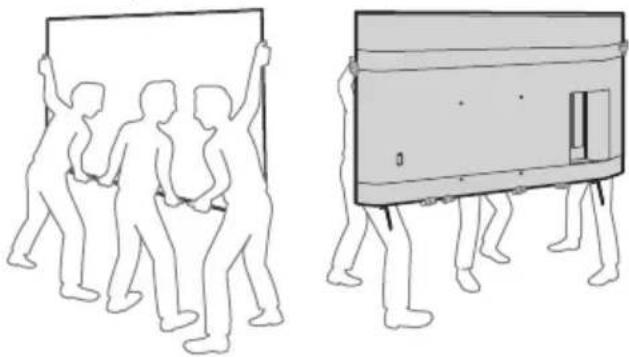
FW-75BZ40L / 75BZ35L / 75BZ30L / 65BZ40L / 65BZ35L / 65BZ30L / 55BZ40L / 55BZ35L / 55BZ30L / 50BZ30L / 43BZ30L
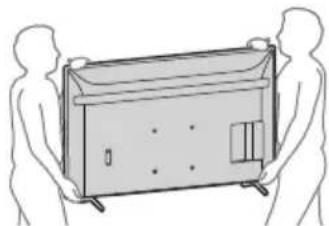
FW-85BZ40L / 85BZ30L / 75BZ40L / 75BZ35L / 75BZ30L / 65BZ40L / 65BZ35L / 65BZ30L / 55BZ40L / 55BZ35L / 55BZ30L / 50BZ30L / 43BZ30L
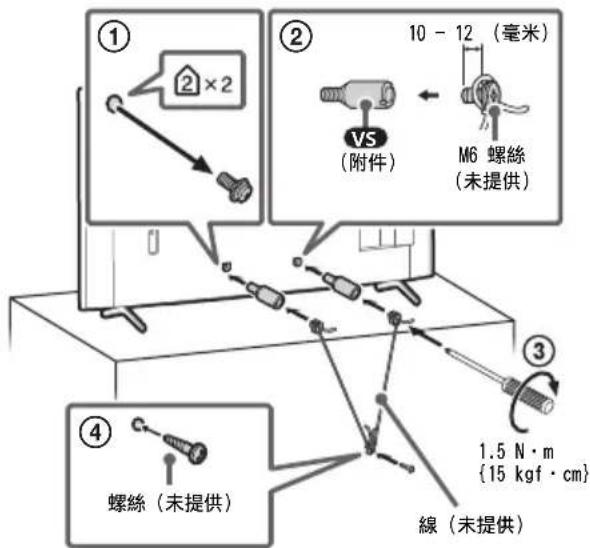
FW-85BZ40L / 85BZ30L / 75BZ40L / 75BZ35L / 75BZ30L / 65BZ40L / 65BZ35L / 65BZ30L / 55BZ40L / 55BZ35L / 55BZ30L / 50BZ30L / 43BZ30L
![graph TD A["USB 儲存媒體等"] --> B["USB 500 mA MAX"] C["带有光纖音訊輸入的音訊系統"] --> D["USB 500 mA MAX"] E["耳機"] --> F["USB 500 mA MAX"] G["錄影機 / 電玩設備 / DVD 播放器 / 攝影機"] --> H["USB 500 mA MAX"] I["HDMI 裝置 / PC"] --> J["USB 500 mA MAX"] K["HDMI 裝置 / PC"] --> L["USB 500 mA MAX"] M["帶有eARC/ARC的音訊系統/HDMI 裝置"] --> N["U…](/content/2026/04/643114/images/e2f622fd920b2b6c6ac60dc4cda633026ad8f54f2c052a131574dfdaa9c37e7b.jpg)
1 USB 1, USB 2
http://192.168.0.1/sony/system
請求
POST /sony/system HTTP/1.1
Host: 192.168.0.1
Content-Type: application/json; charset=UTF-8
Content-Length: 70
X-Auth-PSK: 1234
{"method": "getPowerStatus", "params": [], "id": 50, "version": "1.0"}
響應
HTTP/1.1 200 OK
Content-Type: application/json; charset=UTF-8
Content-Length: 44
{"result": [{"status": "active"}], "id": 50}
FW-85BZ40L / 85BZ30L / 75BZ40L / 75BZ35L / 75BZ30L / 65BZ40L / 65BZ35L / 65BZ30L / 55BZ40L / 55BZ35L / 55BZ30L / 50BZ30L / 43BZ30L
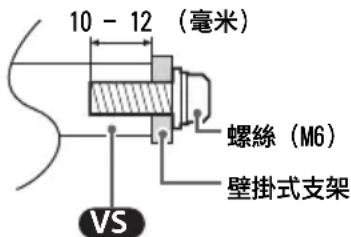
75BZ30L / 65BZ40L / 65BZ35L / 65BZ30L /
55BZ40L / 55BZ35L / 55BZ30L / 50BZ30L /
43BZ30L: 10 + 10
無線技術
IEEE 802.11a/b/g/n/ac 协定
藍牙® 4.2 版
輸入 / 輸出插孔
→/→ AV IN
視訊 / 音訊輸入 (迷你插孔)
S-CENTER SPEAKER IN (僅限 FW-98BZ53L /
98BZ50L / 98BZ30L)
S- 中置揚聲器輸入 (迷你插孔)
HDMI IN 1/2/3/4 (HDCP 2.3 相容)
1080i (50, 60 Hz), 720p (24, 30, 50,
60 Hz), 576p, 480p, PC 格式
3840 × 2160p (100, 120 Hz)*2*3
75BZ35L / 75BZ30L / 65BZ40L / 65BZ35L /
65BZ30L / 55BZ40L / 55BZ35L / 55BZ30L /
50BZ30L / 43BZ30L) :
4096 × 2160p (50, 60 Hz) *1*2, 4096 ×
2160p (24 Hz) *1 , 3840 × 2160p (50,
60 Hz)*2, 3840 × 2160p (24, 25, 30 Hz),
1080p (24, 30, 50, 60 Hz), 1080i (50,
60 Hz), 720p (24, 30, 50, 60 Hz), 576p,
480p,PC 格式
音訊:
eARC(Enhanced Audio Return Channel)模式
7.1 聲道線性 PCM: 32/44.1/48 kHz 16 位
元,Dolby Digital, Dolby Digital Plus,
DTS, Dolby TrueHD, DTS-HD MA, Dolby
Atmos, DTS:X Master Audio
eARC 模式除外
eARC/ARC (Enhanced Audio Return Channel/
Audio Return Channel) ( 僅限 HDMI IN 3) 4
eARC 模式
→ DIGITAL AUDIO OUT (OPTICAL)
FW-75BZ40L / 75BZ35L / 75BZ30L: 75 / 189.3
FW-65BZ40L / 65BZ35L / 65BZ30L: 65 / 163.9
FW-55BZ40L / 55BZ35L / 55BZ30L: 55 / 138.8
FW-50BZ30L: 50 / 125.7
FW-43BZ30L: 43 / 108.0
耗電量
標示於 LCD 顯示器的背面上
待機耗電量 *5*6
FW-65BZ35L: 1462 × 912 × 338
FW-65BZ30L: 1462 × 912 × 338
FW-55BZ40L: 1243 × 787 × 338
FW-55BZ35L: 1243 × 787 × 338
FW-55BZ30L: 1243 × 787 × 338
FW-50BZ30L: 1126 × 718 × 286
FW-43BZ30L: 972 × 632 × 286
不含顯示器底座
FW-98BZ53L: 2199 × 1255 × 85
FW-98BZ50L: 2199 × 1255 × 85
FW-98BZ30L: 2199 × 1255 × 85
FW-85BZ40L: 1899 × 1089 × 71
FW-85BZ30L: 1899 × 1089 × 71
FW-75BZ40L: 1686 × 969 × 72
FW-75BZ35L: 1686 × 969 × 72
FW-75BZ30L: 1686 × 969 × 72
FW-65BZ40L: 1462 × 842 × 71
FW-65BZ35L: 1462 × 842 × 71
FW-65BZ30L: 1462 × 842 × 71
FW-55BZ40L: 1243 × 721 × 71
FW-55BZ35L: 1243 × 721 × 71
FW-55BZ30L: 1243 × 721 × 71
FW-50BZ30L: 1126 × 653 × 70
FW-43BZ30L: 972 × 567 × 70
重量 (大約) (公斤)
包含顯示器底座
FW-98BZ53L: 68.9
FW-98BZ50L: 68.9
FW-98BZ30L: 68.9
FW-85BZ40L: 46
FW-85BZ30L: 46
FW-75BZ40L: 32.7
FW-75BZ35L: 32.7
FW-75BZ30L: 32.9
FW-65BZ40L: 22.3
FW-65BZ35L: 22.1
FW-65BZ30L: 22.1
FW-55BZ40L: 16.7
FW-55BZ35L: 16.6
FW-55BZ30L: 16.6
FW-50BZ30L: 12.9
FW-43BZ30L: 10.5
不含顯示器底座
FW-98BZ53L: 67.2
FW-98BZ50L: 67.2
FW-98BZ30L: 67.2
FW-85BZ40L: 44.5
FW-85BZ30L: 44.5
FW-75BZ40L: 31.5
FW-75BZ35L: 31.5
FW-75BZ30L: 31.7
FW-65BZ40L: 21.4
FW-65BZ35L: 21.2
FW-65BZ30L: 21.2
FW-55BZ40L: 15.8
FW-55BZ35L: 15.7
FW-55BZ30L: 15.7
FW-50BZ30L: 12.3
FW-43BZ30L:10
其他
選用的配件
- Vewd® Core. Copyright 1995–2023 Vewd Software AS. All rights reserved.
Vận chuyển
FW-85BZ40L / 85BZ30L
FW-75BZ40L / 75BZ35L / 75BZ30L / 65BZ40L / 65BZ35L / 65BZ30L / 55BZ40L / 55BZ35L / 55BZ30L / 50BZ30L / 43BZ30L
FW-85BZ40L / 85BZ30L / 75BZ40L / 75BZ35L / 75BZ30L / 65BZ40L / 65BZ35L / 65BZ30L / 55BZ40L / 55BZ35L / 55BZ30L / 50BZ30L / 43BZ30L
FW-85BZ40L / 85BZ30L / 75BZ40L / 75BZ35L / 75BZ30L / 65BZ40L / 65BZ35L / 65BZ30L / 55BZ40L / 55BZ35L / 55BZ30L / 50BZ30L / 43BZ30L
http://192.168.0.1/sony/system
Yêu cầu
POST /sony/system HTTP/1.1
Host: 192.168.0.1
Content-Type: application/json; charset=UTF-8
Content-Length: 70
X-Auth-PSK: 1234
{"method": "getPowerStatus", "params": [], "id": 50, "version": "1.0"}
Phản hồi
HTTP/1.1 200 OK
Content-Type: application/json; charset=UTF-8
Content-Length: 44
{"result": [{"status": "active"}], "id": 50}
https://www.sony-asia.com/support
FW-85BZ40L / 85BZ30L / 75BZ40L / 75BZ35L / 75BZ30L / 65BZ40L / 65BZ35L / 65BZ30L / 55BZ40L / 55BZ35L / 55BZ30L / 50BZ30L / 43BZ30L
Xử lý sự cố
75BZ30L / 65BZ40L / 65BZ35L / 65BZ30L /
55BZ40L / 55BZ35L / 55BZ30L / 50BZ30L /
43BZ30L: 10 + 10
Công nghệ không dây
Giao thúc IEEE 802.11a/b/g/n/ac
2160p (24, 25, 30 Hz), 1080p (24, 30, 50, 60,
100, 120 Hz), 1080i (50, 60 Hz), 720p (24, 30,
75BZ40L / 75BZ35L / 75BZ30L / 65BZ40L /
65BZ35L / 65BZ30L / 55BZ40L / 55BZ35L /
55BZ30L / 50BZ30L / 43BZ30L):
4096 × 2160p (50, 60 Hz)* 1*2 , 4096 × 2160p
(24 Hz) 1 , 3840 × 2160p (50, 60 Hz) 2 , 3840 ×
2160p (24, 25, 30 Hz), 1080p (24, 30, 50,
60 Hz), 1080i (50, 60 Hz), 720p (24, 30, 50,
eARC/ARC (Enhanced Audio Return Channel/
Audio Return Channel) (chỉ dành cho HDMI IN 3) 4
Ô' chê độ eARC
→ DIGITAL AUDIO OUT (OPTICAL)
FW-65BZ40L / 65BZ35L / 65BZ30L: 65 / 163,9
FW-55BZ40L / 55BZ35L / 55BZ30L: 55 / 138,8
FW-50BZ30L: 50 / 125,7
FW-43BZ30L: 43 / 108,0
Điện năng tiêu thụ
FW-75BZ35L: 1.686 × 1.045 × 410
FW-75BZ30L: 1.686 × 1.045 × 410
FW-65BZ40L: 1.462 × 912 × 338
FW-65BZ35L: 1.462 × 912 × 338
FW-65BZ30L: 1.462 × 912 × 338
FW-55BZ40L: 1.243 × 787 × 338
FW-55BZ35L: 1.243 × 787 × 338
FW-55BZ30L: 1.243 × 787 × 338
FW-50BZ30L: 1.126 × 718 × 286
FW-43BZ30L: 972 × 632 × 286
Không có Bệ để bàn
FW-98BZ53L: 2.199 × 1.255 × 85
FW-98BZ50L: 2.199 × 1.255 × 85
FW-98BZ30L: 2.199 × 1.255 × 85
FW-85BZ40L: 1.899 × 1.089 × 71
FW-85BZ30L: 1.899 × 1.089 × 71
FW-75BZ40L: 1.686 × 969 × 72
FW-75BZ35L: 1.686 × 969 × 72
FW-75BZ30L: 1.686 × 969 × 72
FW-65BZ40L: 1.462 × 842 × 71
FW-65BZ35L: 1.462 × 842 × 71
FW-65BZ30L: 1.462 × 842 × 71
FW-55BZ40L: 1.243 × 721 × 71
FW-55BZ35L: 1.243 × 721 × 71
FW-55BZ30L: 1.243 × 721 × 71
FW-50BZ30L: 1.126 × 653 × 70
FW-43BZ30L: 972 × 567 × 70
Transport
FW-85BZ40L / 85BZ30L
FW-75BZ40L / 75BZ35L / 75BZ30L / 65BZ40L / 65BZ35L / 65BZ30L / 55BZ40L / 55BZ35L / 55BZ30L / 50BZ30L / 43BZ30L
FW-85BZ40L / 85BZ30L / 75BZ40L / 75BZ35L / 75BZ30L / 65BZ40L / 65BZ35L / 65BZ30L / 55BZ40L / 55BZ35L / 55BZ30L / 50BZ30L / 43BZ30L
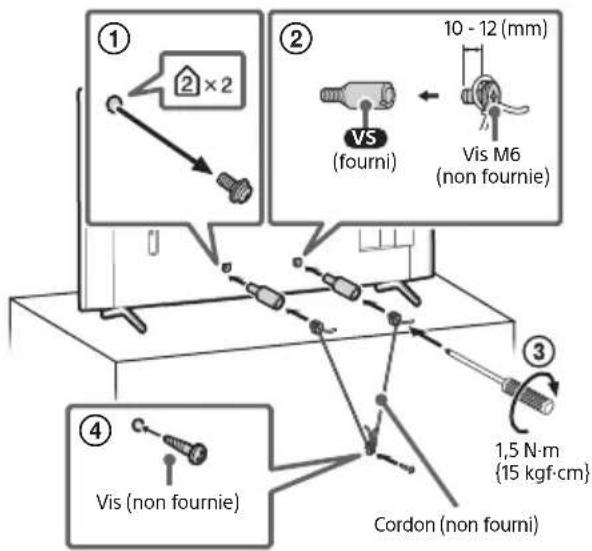
Schéma de connexion
Remarque
FW-85BZ40L / 85BZ30L / 75BZ40L / 75BZ35L / 75BZ30L / 65BZ40L / 65BZ35L / 65BZ30L / 55BZ40L / 55BZ35L / 55BZ30L / 50BZ30L / 43BZ30L
http://192.168.0.1/sony/system
Requête
POST /sony/system HTTP/1.1
Host: 192.168.0.1
Content-Type: application/json; charset=UTF-8
Content-Length: 70
X-Auth-PSK: 1234
{"method": "getPowerStatus", "params": [], "id": 50, "version": "1.0"}
Réponse
HTTP/1.1 200 OK
Content-Type: application/json; charset=UTF-8
Content-Length: 44
{"result": [{"status": "active"}], "id": 50}
https://www.sony-asia.com/support
FW-85BZ40L / 85BZ30L / 75BZ40L / 75BZ35L / 75BZ30L / 65BZ40L / 65BZ35L / 65BZ30L / 55BZ40L / 55BZ35L / 55BZ30L / 50BZ30L / 43BZ30L
Dépannage
75BZ30L / 65BZ40L / 65BZ35L / 65BZ30L /
55BZ40L / 55BZ35L / 55BZ30L / 50BZ30L /
43BZ30L : 10 + 10
Technologie sans fil
Protocole IEEE 802.11a/b/g/n/ac
Bluetooth® Version 4.2
2160p (24, 25, 30 Hz), 1080p (24, 30, 50, 60,
100, 120 Hz), 1080i (50, 60 Hz), 720p (24, 30,
50, 60 Hz), 576p, 480p, Formats PC
3840 × 2160p (100, 120 Hz)*2*3
75BZ35L / 75BZ30L / 65BZ40L / 65BZ35L /
65BZ30L / 55BZ40L / 55BZ35L / 55BZ30L /
50BZ30L / 43BZ30L uniquement) :
4096 × 2160p (50, 60 Hz)12, 4096 × 2160p
(24 Hz) 1 , 3840 × 2160p (50, 60 Hz) 2 , 3840 ×
2160p (24, 25, 30 Hz), 1080p (24, 30, 50,
60 Hz), 1080i (50, 60 Hz), 720p (24, 30, 50,
60 Hz), 576p, 480p, Formats PC
Audio :
En mode eARC (Enhanced Audio Return Channel)
eARC/ARC (Enhanced Audio Return Channel/
Audio Return Channel) (HDMI IN 3
uniquement)*4
En mode eARC
→ DIGITAL AUDIO OUT (OPTICAL)
FW-75BZ40L:1686×1045×410
FW-75BZ35L : 1686 × 1045 × 410
FW-75BZ30L:1686×1045×410
FW-65BZ40L : 1462 × 912 × 338
FW-65BZ35L : 1462 × 912 × 338
FW-65BZ30L : 1462 × 912 × 338
FW-55BZ40L:1243×787×338
FW-55BZ35L:1243×787×338
FW-55BZ30L:1243×787×338
FW-50BZ30L:1126×718×286
FW-43BZ30L : 972 × 632 × 286
Sans support de table
FW-98BZ53L : 2199 × 1255 × 85
FW-98BZ50L:2199×1255×85
FW-98BZ30L : 2199 × 1255 × 85
FW-85BZ40L:1899×1089×71
FW-85BZ30L : 1899 × 1089 × 71
FW-75BZ40L : 1686 × 969 × 72
FW-75BZ35L : 1686 × 969 × 72
FW-75BZ30L:1686×969×72
FW-65BZ40L : 1462 × 842 × 71
FW-65BZ35L:1462×842×71
FW-65BZ30L:1462×842×71
FW-55BZ40L : 1243 × 721 × 71
FW-55BZ35L : 1243 × 721 × 71
FW-55BZ30L : 1243 × 721 × 71
FW-50BZ30L : 1126 × 653 × 70
FW-43BZ30L : 972 × 567 × 70
Poids (Environ) (kg)
การขนย้าย
FW-85BZ40L / 85BZ30L
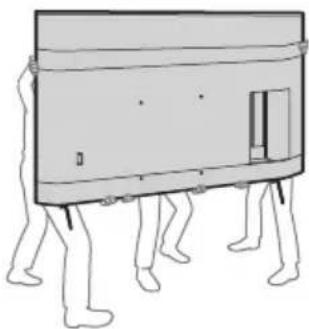
FW-75BZ40L / 75BZ35L / 75BZ30L / 65BZ40L / 65BZ35L / 65BZ30L / 55BZ40L / 55BZ35L / 55BZ30L / 50BZ30L / 43BZ30L
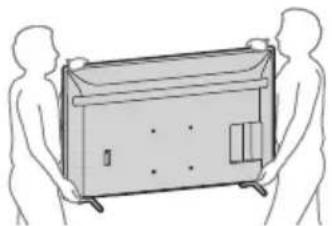
FW-85BZ40L / 85BZ30L / 75BZ40L / 75BZ35L / 75BZ30L / 65BZ40L / 65BZ35L / 65BZ30L / 55BZ40L / 55BZ35L / 55BZ30L / 50BZ30L / 43BZ30L
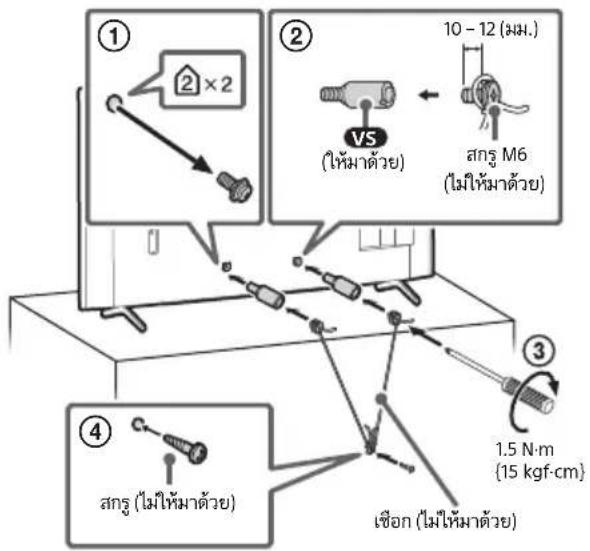
FW-85BZ40L / 85BZ30L / 75BZ40L / 75BZ35L / 75BZ30L / 65BZ40L / 65BZ35L / 65BZ30L / 55BZ40L / 55BZ35L / 55BZ30L / 50BZ30L / 43BZ30L
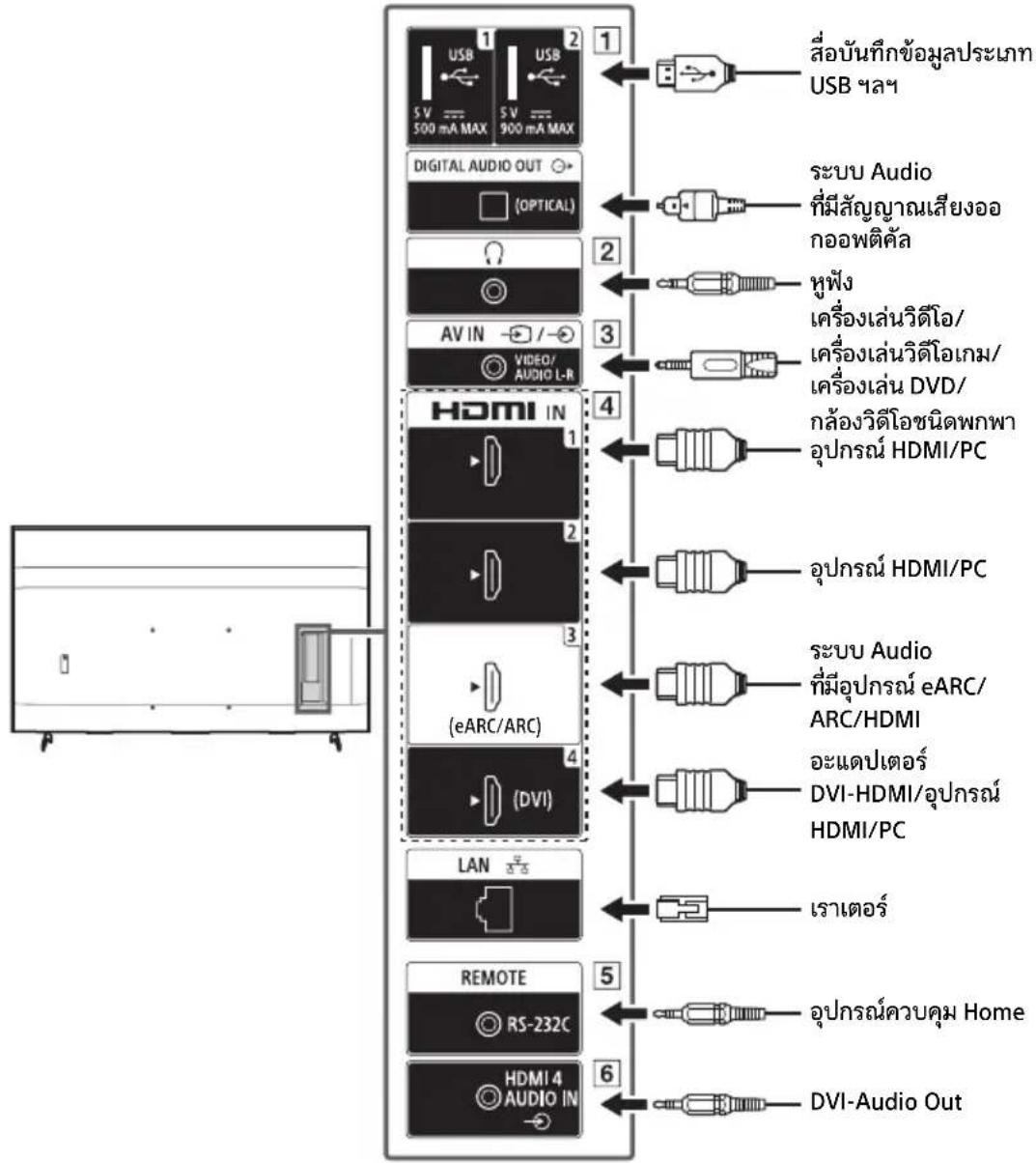
2 Ω(ηηη)
http://192.168.0.1/sony/system
คำขอ
POST /sony/system HTTP/1.1
Host: 192.168.0.1
Content-Type: application/json; charset=UTF-8
Content-Length: 70
X-Auth-PSK: 1234
{"method": "getPowerStatus", "params": [], "id": 50, "version": "1.0"}
การตอบสนอง
HTTP/1.1 200 OK
Content-Type: application/json; charset=UTF-8
Content-Length: 44
{"result": [{"status": "active"}], "id": 50}
FW-85BZ40L / 85BZ30L / 75BZ40L / 75BZ35L / 75BZ30L / 65BZ40L / 65BZ35L / 65BZ30L / 55BZ40L / 55BZ35L / 55BZ30L / 50BZ30L / 43BZ30L
75BZ30L / 65BZ40L / 65BZ35L / 65BZ30L /
55BZ40L / 55BZ35L / 55BZ30L / 50BZ30L /
43BZ30L: 10 + 10
เทคโนโลยีไร้สาย
75BZ35L / 75BZ30L / 65BZ40L / 65BZ35L /
65BZ30L / 55BZ40L / 55BZ35L / 55BZ30L /
50BZ30L / 43BZ30L เท่านี้น): 4096 × 2160p (50, 60 Hz)12, 4096 × 2160p (24 Hz)1, 3840 × 2160p (50, 60 Hz)2, 3840 × 2160p (24, 25, 30 Hz), 1080p (24, 30, 50, 60 Hz), 1080i (50, 60 Hz), 720p (24, 30, 50, 60 Hz), 576p, 480p, PC รูปแบบ
เสียง:
→ DIGITAL AUDIO OUT (OPTICAL)
FW-75BZ40L / 75BZ35L / 75BZ30L: 75 / 189.3
FW-65BZ40L / 65BZ35L / 65BZ30L: 65 / 163.9
FW-55BZ40L / 55BZ35L / 55BZ30L: 55 / 138.8
FW-50BZ30L: 50 / 125.7
FW-43BZ30L: 43 / 108.0
FW-65BZ35L: 1,462 × 912 × 338
FW-65BZ30L: 1,462 × 912 × 338
FW-55BZ40L: 1,243 × 787 × 338
FW-55BZ35L: 1,243 × 787 × 338
FW-55BZ30L: 1,243 × 787 × 338
FW-50BZ30L: 1,126 × 718 × 286
FW-43BZ30L: 972 × 632 × 286
FW-75BZ35L: 1,686 × 969 × 72
FW-75BZ30L: 1,686 × 969 × 72
FW-65BZ40L: 1,462 × 842 × 71
FW-65BZ35L: 1,462 × 842 × 71
FW-65BZ30L: 1,462 × 842 × 71
FW-55BZ40L: 1,243 × 721 × 71
FW-55BZ35L: 1,243 × 721 × 71
FW-55BZ30L: 1,243 × 721 × 71
FW-50BZ30L: 1,126 × 653 × 70
FW-43BZ30L: 972 × 567 × 70
Vewd Software AS. All rights reserved.
338×912×1462:FW-65BZ35L
338 × 912 × 1462 : FW-65BZ30L
338 × 787 × 1243 : FW-55BZ40L
338 × 787 × 1243 : FW-55BZ35L
338 × 787 × 1243 : FW-55BZ30L
286×718×1126:FW-50BZ30L
286×632×972:FW-43BZ30L
70 × 567 × 972 :FW-43BZ30L
كتلة (تقريبي) (كجم)
eARC/ARC (Enhanced Audio Return Channel/
4*(Eq. HDMI IN 3) (Audio Return Channel
eARC في الوضع
DIGITAL AUDIO OUT (OPTICAL)
189.3 / 75 :FW-75BZ40L / 75BZ35L / 75BZ30L
163.9 / 65 :FW-65BZ40L / 65BZ35L / 65BZ30L
138.8 / 55 :FW-55BZ40L / 55BZ35L / 55BZ30L
125.7 / 50 : FW-50BZ30L
108.0 / 43 : FW-43BZ30L
65BZ40L / 65BZ35L / 65BZ30L / 55BZ40L / 55BZ35L / 55BZ30L /
10 + 10 :50BZ30L / 43BZ30L
التقنية اللا슬لكية
75BZ30L / 65BZ40L / 65BZ35L / 65BZ30L / 55BZ40L /
:( Moz 55BZ35L / 55BZ30L / 50BZ30L / 43BZ30L
1 (هرت 24) 2160p × 4096 2 1* (هرت 60,50) 2160p × 4096
65BZ40L / 65BZ35L / 65BZ30L / 55BZ40L / 55BZ35L / 55BZ30L /
50BZ30L / 43BZ30L
https://www.sony-asia.com/support
• خاصة بالموديل.
http://192.168.0.1/sony/system
الطلب
POST /sony/system HTTP/1.1
Host:192.168.0.1
Content-Type: application/json; charset=UTF-8
Content-Length: 70
X-Auth-PSK: 1234
{"method": "getPowerStatus", "params": [], "id": 50, "version": "1.0"}
الاستجابة
HTTP/1.1 200 OK
Content-Type: application/json; charset=UTF-8
Content-Length: 44
{"result": [{"status":"active"}], "id": 50}
Enhanced Audio Return) HDMI IN 3 eARC/ARC (Channel/Audio Return Channel
FW-85BZ40L / 85BZ30L / 75BZ40L / 75BZ35L / 75BZ30L / 65BZ40L / 65BZ35L / 65BZ30L / 55BZ40L / 55BZ35L / 55BZ30L / 50BZ30L / 43BZ30L
FW-85BZ40L / 85BZ30L
FW-75BZ40L / 75BZ35L / 75BZ30L / 65BZ40L / 65BZ35L / 65BZ30L / 55BZ40L / 55BZ35L / 55BZ30L / 50BZ30L / 43BZ30L
و اhetزازات عنيفة.
النقل
- Pro ∪ ∪ ∪ ∪ ∪ ∪ ∪ ∪ ∪ ∪ ∪ ∪ ∪ ∪ ∪ ∪ ∪ ∪ ∪ ∪ ∪ ∪ ∪ ∪ ∪ ∪ ∪ ∪ ∪ ∪ ∪ ∪ ∪ ∪ ∪ ∪ ∪ ∪ ∪ ∪ ∪ ∪ ∪ ∪ ∪ ∪ ∪ ∪ ∪ ∪ ∸ ∪ ∸ ∸ ∸ ∸ ∸ ∸ ∸ ∸ ∸ ∸ ∸ ∸ ∸ ∸ ∸ ∸ ∸ ∸ ∸ ∸ ∸ ∸ ∸ ∸ ∸ ∸ ∸ ∸ ∸ ∸ ∸ ∸ ∸ ∸ ∸ ∸ ∸ ∸ ∸ ∸ ∸ ∸ ∸ ∸ ∸ ∸ ∸ ∸ ∸
11...... ...... ...... ...... ...... ...... ...... ...... ...... ...... ..... .....

- ABOUT MANUALS
- SETUP GUIDE
- REFERENCE GUIDE (THIS MANUAL) / SAFETY INFORMATION
- HELP
- NOTE
- LOCATION OF THE IDENTIFICATION LABEL
- SAFETY INFORMATION
- INSTALLATION/SET-UP
- INSTALLATION
- TRANSPORTING
- TOPPLE PREVENTION
- (MODELS WITH SUPPLIED SUPPORT BELT KIT)
- (EXCEPT MODELS WITH SUPPLIED SUPPORT BELT KIT)
- CONNECTION DIAGRAM
- USING LCD MONITOR AS PART OF AUDIO SYSTEM
- REMOTE CONTROL AND LCD MONITOR
- SETTINGS
- PRO MODE
- HOW TO CHANGE THE MODE
- WHEN THE MONITOR IS IN NORMAL MODE
- WHEN THE MONITOR IS IN PRO SETTINGS MODE
- WHEN THE MONITOR IS IN THE PRO MODE
- INTRODUCTION OF THE PRO MODE FUNCTIONS
- RESTRICTION OF EXTERNAL INPUTS
- RESTRICTION OF USING APPLICATIONS
- HOW TO SET PRO MODE FUNCTIONS
- CONTROL FUNCTIONS
- RS-232C
- INTERFACE
- CONNECTION SETTINGS
- DATA FORMAT
- COMMAND EXAMPLE
- IP
- MONITOR SETTINGS
- EXAMPLE OF HTTP REQUEST AND RESPONSE FOR REST API
- URL
- REQUEST
- RESPONSE
- INSTALLING THE LCD MONITOR TO THE WALL
- USING THE OPTIONAL WALL-MOUNT BRACKET (SU-WL850 OR SU-WL450)* (NOT SUPPLIED)
- TO CUSTOMERS
- TO SONY DEALERS AND CONTRACTORS
- WALL-MOUNT BRACKET INSTALLATION INFORMATION
- USING THE OPTIONAL WALL-MOUNT BRACKET (EXCEPT SU-WL850 OR SU-WL450) (NOT SUPPLIED)
- FOR PRODUCT PROTECTION AND SAFETY REASONS, SONY STRONGLY RECOMMENDS THAT INSTALLATION OF YOUR LCD MONITOR ON THE WALL BE PERFORMED BY QUALIFIED PROFESSIONALS. DO NOT ATTEMPT TO INSTALL IT YOURSELF
- TROUBLESHOOTING
- SPECIFICATIONS
- SYSTEM
- INPUT/OUTPUT JACKS
- POWER AND OTHERS
- DIMENSIONS (APPROX.) (W × H × D) (MM)
- MASS (APPROX.) (KG)
- OTHERS
- TRADEMARK INFORMATION
- 目录
- 搬运
- 请求
- 响应
- 故障排除
- 输入 / 输出插孔
- 质量(约)(KG)
- 其他
- 搬動
- 請求
- 響應
- 輸入 / 輸出插孔
- 耗電量
- 待機耗電量 *5*6
- 不含顯示器底座
- 重量 (大約) (公斤)
- 包含顯示器底座
- 選用的配件
- VẬN CHUYỂN
- YÊU CẦU
- PHẢN HỒI
- XỬ LÝ SỰ CỐ
- TRANSPORT
- SCHÉMA DE CONNEXION
- REMARQUE
- REQUÊTE
- RÉPONSE
- DÉPANNAGE
- POIDS (ENVIRON) (KG)
- การขนย้าย
- คำขอ
- การตอบสนอง
- ENHANCED AUDIO RETURN) HDMI IN 3 EARC/ARC (CHANNEL/AUDIO RETURN CHANNEL
- النقل
Brand : SONY
Model : FW-98BZ50L
Category : Monitor