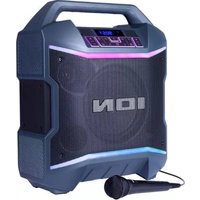
USER MANUAL Party Boom Plus ION
natural_image
Line drawing of an ION electric vehicle charging station module (no text or symbols on the device body)
ionaudio.com/support
TABLE OF CONTENTS
INTRODUCTION ....3
Box Contents 3
Support 3
SETUP 4
Charging and Battery Information 4
Outdoor Use and Care 5
FEATURES 6
Front Panel 6
Rear Panel 9
OPERATION....10
Pairing a Bluetooth ^® Device....10
Linking Two Speakers....11
Light Modes....12
Using the Radio....13
USB Mode....14
Using the USB Charge Port....15
App Control....16
TROUBLESHOOTING 17
APPENDIX....19
Technical Specifications....19
Trademarks & Licenses 20
INTRODUCTION
Thank you for purchasing the Party Boom™ Plus Speaker. At ION, your entertainment is as important to us as it is to you. That's why we design our products with one thing in mind—to make your life more fun and more convenient.
Note: Before you first use the product, please fully charge the batteries. Your unit was purposely shipped with a reduced battery charge to ensure safe transit. For optimal charging, power off the speaker while charging.
Use the included power cable to connect the unit to a power outlet and let it charge for up to 6 hours. This helps ensure the longest life for your battery.
Box Contents
Party Boom™ Plus
IEC (C7) Power Cable (4.9 ft / 150 cm)
Microphone with cable (7.5 ft. / 230 cm)
Quickstart Guide
Support
For the latest information about this product (documentation, technical specifications, system requirements, compatibility information, etc.) and product registration, visit ionaudio.com.
For additional product support, visit ionaudio.com/support.
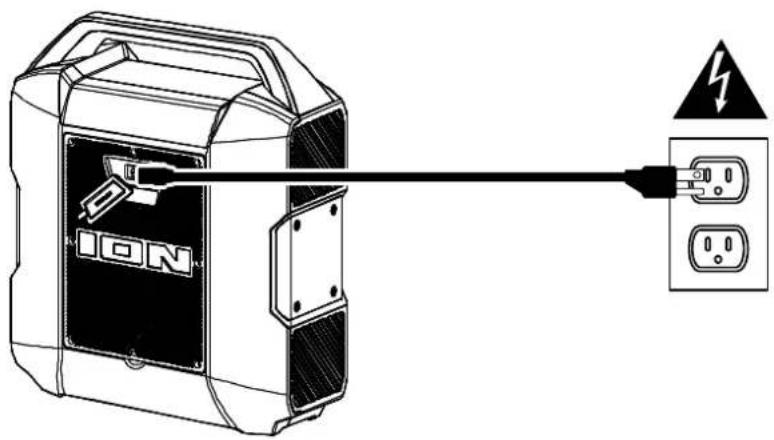
For the quickest charging time, power off Party Boom™ Plus and use the included IEC power cable connected to a power outlet. A full charge can take up to 6 hours.
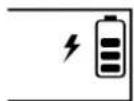
The lightning bolt icon on the display will light up when Party Boom™ Plus is connected to a power source and charging. The battery icon will fill to display the battery life percentage. When charging is complete, the lightning bolt icon will disappear, and the battery icon will be completely filled.
Rechargeable lead-acid batteries are the same type used in automobiles. As with your battery, how you use this battery has a significant impact on its lifespan. With proper use and treatment, a lead-acid battery can last for years. Here are some recommendations for getting the longest life from the internal battery.
General Fully charge the battery before using it.
Usage Charge the battery completely after each use.
Storage For best product longevity, do not store at exceedingly hot (greater than 90^ F/ 32^ C) or exceedingly cold (less than 32^ F/ 0^ C) temperatures.
It is acceptable to leave your sound system plugged in. This will not overcharge the battery.
If you leave the battery level low and do not charge it for 3 months, it may permanently lose capacity.
Repair If the battery fails to charge, contact ION Audio at ionaudio.com.
Disposal Bring the unit to a recycling center or dispose of in accordance with local ordinances.
Outdoor Use and Care
Though Party Boom ^™ Plus is water-resistant and able to tolerate splashing water, please review the tips below to get the best performance from your Party Boom ^™ Plus:
- Bring Party Boom™ Plus indoors during extreme weather.
- Please do not place Party Boom™ Plus in standing water.
- Please do not connect the power adapter to a Party Boom™ Plus in a wet environment. Make sure the power input, power adapter, and power outlet are all completely dry before making any connections.
- WARNING: Keep any non-water-resistant devices (phones, music players, etc.) in a dry place where they will not be affected by water and cause a risk of electric shock.
Front Panel
Click a control below to jump to that section.
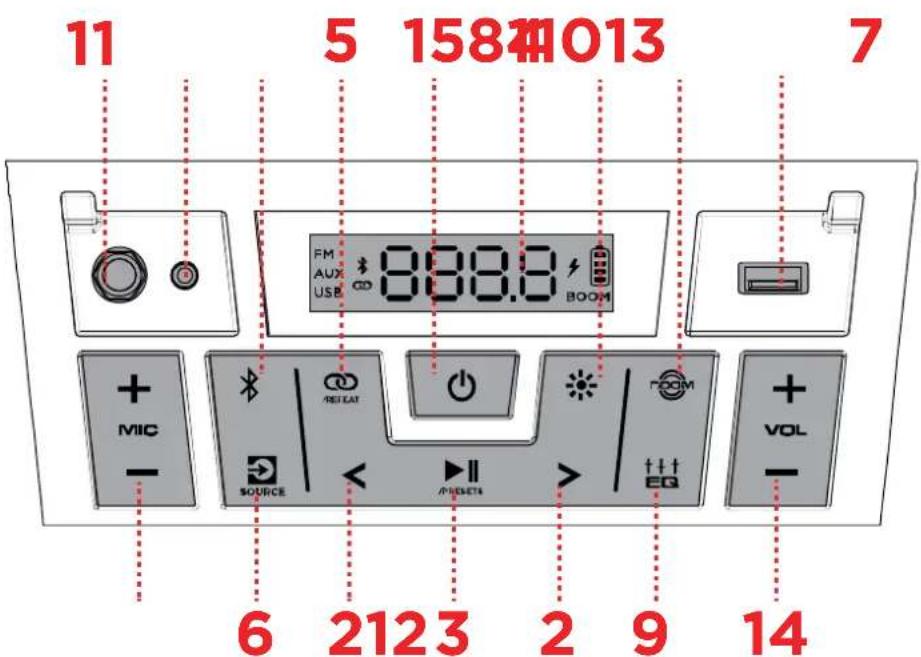
1. Display
This screen shows information relevant to the current operation on Party Boom™ Plus.
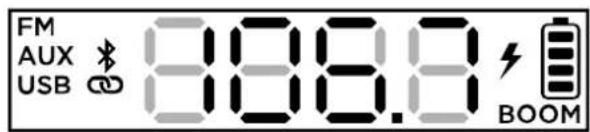
Note: The Display comes with a plastic protector on it. Remove this for optimal viewing.
In FM mode, press these buttons briefly to go to the previous or next station. Press and hold these buttons to seek the previous or next strong station.
In Bluetooth and USB modes, press the Previous or Next button to go to the beginning of the current track or skip to the following track, respectively. Press the Previous button again within one second to skip to the previous track.
Press this button to start and stop Bluetooth or USB audio.
In FM mode, press this button to save and recall radio presets. See Operation > Using the Radio for more details.
Press this button to enter Bluetooth pairing mode. When connected to a Bluetooth device, press this button to disconnect a paired device and re-enter pairing mode. Once disconnected, press this button to re-pair to the last connected device. See Operation > Pairing a Bluetooth® Device to learn how to connect a Bluetooth device.
Press and hold this button to enable or disable voice prompts.
Press and hold this button to start stereo-linking to another Party Boom™ Plus. See Operation > Linking Two Speakers for more details.
In USB mode, press this button to change the playback mode. See Operation > USB Mode for more details.
Press this button to cycle between FM, USB, and Aux modes. The current mode will be shown on the Display.
Press this button to cycle through the 10 light modes. See Operation > Light Modes for more information.
Press this button to simultaneously enhance the bass EQ and volume and activate a light show that pulses to the beat of the music.
Press this button to cycle through the Low, Mid, and Hi EQ frequencies. Then press the VOL +/- buttons to adjust the EQ frequency settings from -12 to +12.
10. USB Charge/Playback Port
You can use this port for charging the USB device, such as a tablet or smartphone. To charge a device that is streaming music via Bluetooth, pause the music first and then wait for it to reconnect after the USB cable (not included) is inserted.
You can also connect a USB flash drive here to play music. See Operation > USB Mode for more information.
- Mic In
Connect a microphone into this into using a 1/4" (6.35 mm) cable. Press the MIC +/- buttons to control the mic volume.
- Mic +/- Buttons
Press these buttons to adjust the microphone volume.
- Aux In
Connect a CD player, MP3 player, or other audio source to this 1/8" (3.5 mm) input.
- Volume +/- Buttons
Use these buttons to raise and lower the volume of the Bluetooth, USB, radio, or aux input from 0-30. Press and hold a button to raise or lower the volume quickly.
- Power Button
Press and hold this button to turn Party Boom ^™ Plus on and off.
Rear Panel
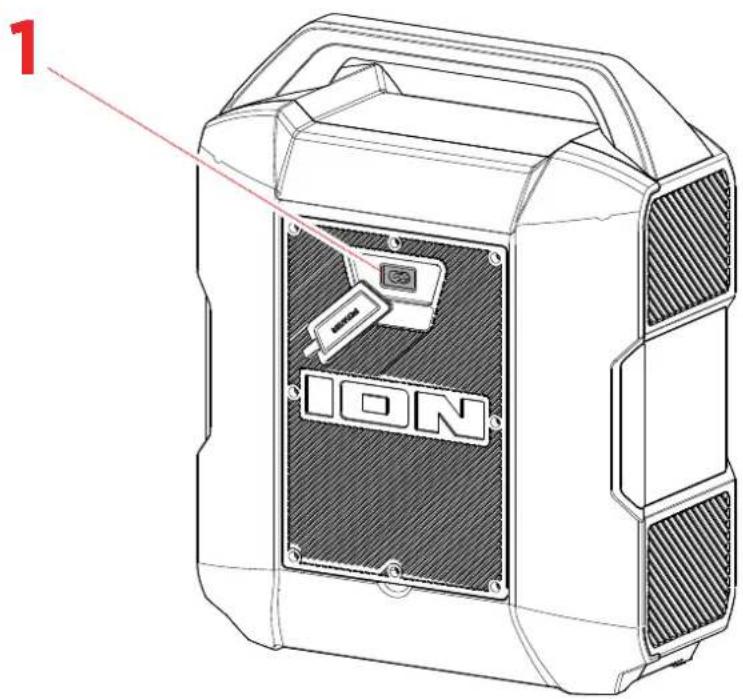
Note: Pull the tab on the protective rubber panel to release it and access the rear panel port.
- Power Input: Connect the included power cable here to charge the speaker.
Pairing a Bluetooth® Device
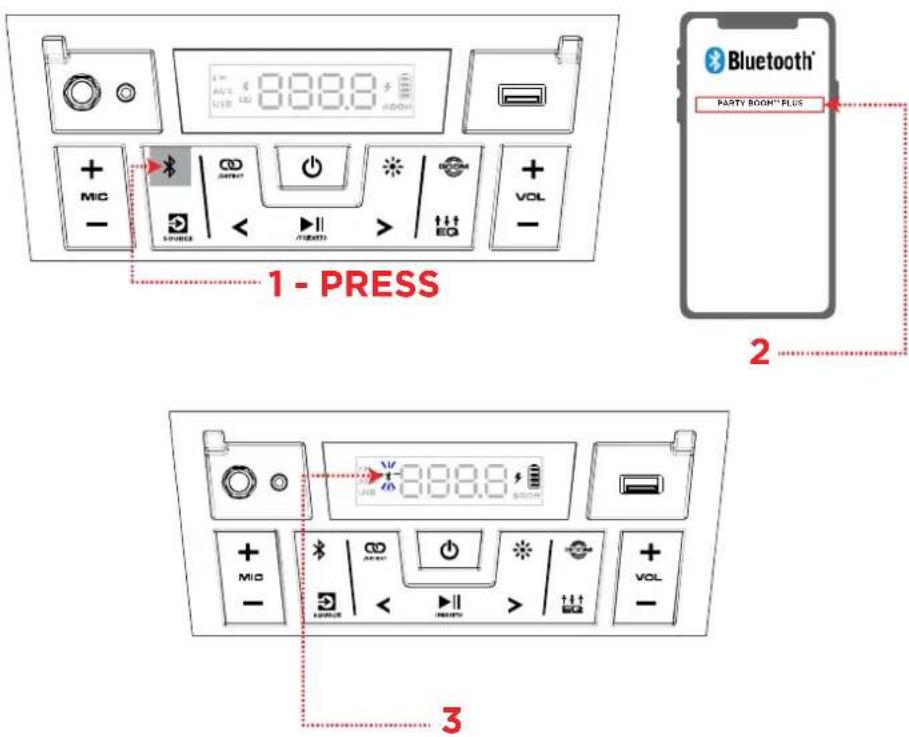
- Turn on your Bluetooth device.
- Turn on Party Boom™ Plus by holding down the Power button for 2 seconds. When the unit is first turned on, it will automatically enter Bluetooth pairing mode. If necessary, press the Bluetooth button to select Bluetooth mode. The Bluetooth icon on the display will flash to indicate the speaker is ready to pair and you will hear "Bluetooth Pairing" if voice prompts are enabled.
- Navigate to your device's Bluetooth setup screen, find PARTY BOOM PLUS, and connect. The Bluetooth icon will appear in the display, and if voice prompts are enabled, you will hear "Bluetooth Connected". If after 90 seconds if there is no connection, the speaker will stop searching for a Bluetooth device and enter AUX mode.
Note: If your Bluetooth device prompts for a pairing code, enter "0000".
To disconnect a paired device, do any of the following:
- Turn off Bluetooth from your device's Bluetooth settings. The speaker will enter Bluetooth pairing mode to make it available for another device.
- Press the Bluetooth button to disconnect and re-enter pairing mode.
Once you have disconnected, you will hear "Bluetooth Disconnected" if voice prompts are enabled.
Tip: Press and hold the Bluetooth button to turn voice prompts on or off.
Linking Two Speakers
If you would like to play music from a Bluetooth device, you can first “link” two Party Boom ^™ Plus speakers together in order to listen to your music in stereo. One Party Boom ^™ Plus will serve as the left speaker and the other will serve as the right speaker.
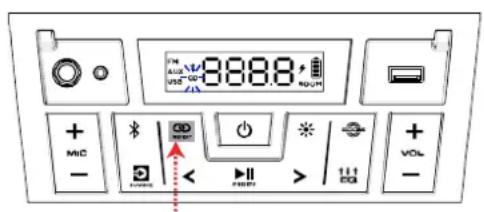
1 - PRESS AND HOLD
(on the Primary speaker)
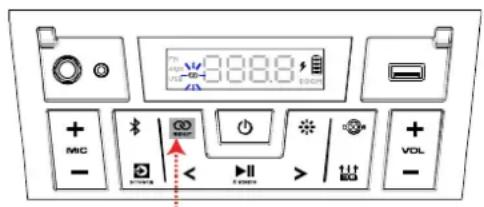
2 - PRESS AND HOLD
(on the Secondary speaker)
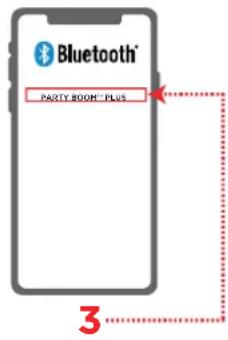
To link two Party Boom™ Plus speakers together:
Note: When you begin the Stereo-Link™ process, any connected Bluetooth devices will be automatically disconnected. You can also disconnect your device prior to beginning by pressing the Bluetooth button.
- Press and hold the Stereo-Link™/ Repeat button on both speakers to enter Stereo-Link™ mode. This first unit pressed will be the primary speaker (Left channel).
- Next, press and hold the Stereo-Link™ / Repeat button on the second speaker. This will be the secondary speaker (Right channel).
Note: The linking process can take up to 30 seconds to complete. Speakers should be within 50' (15 m) of each other to properly link. The closer the two speakers are, the quicker the link is established.
- Once the speakers are linked, the primary speaker will automatically enter Bluetooth pairing mode. Navigate to your device's Bluetooth settings screen, find PARTY BOOM PLUS, and connect. When the connection is successful, you will hear "Bluetooth Connected" from the primary speaker (if voice prompts are enabled). When audio playback begins, you should hear it through both speakers. The primary speaker will play the left channel while the secondary speaker plays the right channel. Playback controls are active on both speakers.
To disconnect two speakers or cancel linking between the two, press and hold the Stereo-Link™/Repeat button on one Party Boom™ Plus. You will hear "Bluetooth Disconnected" from the primary speaker to indicate the link has been broken (if voice prompts are enabled.)
Note: Press and hold the Power button on each speaker while in Stereo-Link ^™ mode to power off the connected speakers. Party Boom ^™ Plus speakers powered off in Stereo-Link ^™ mode will automatically enter Stereo-Link ^™ mode the next time they are powered on and begin searching for secondary speakers to connect to.
Light Modes
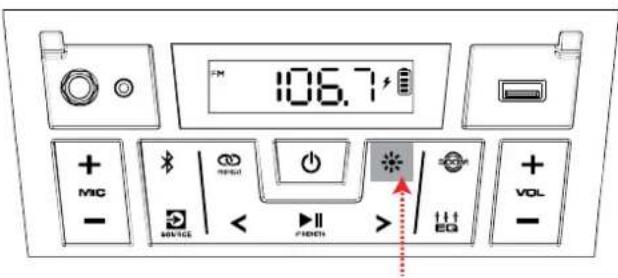
PRESS
Press the Light button repeatedly to toggle between one of the modes for the LEDs on Party Boom™ Plus.
Note: For the best lighting effect, you may need to increase the volume of your connected device or input source.
The LED light modes are:
- Crazy Rainbow (Default mode when powered on): The four corner LEDs cycle in a circle of rainbow colors and the backlit buttons match the top left corner LED.
- Beat Sync: All LEDs cycle through the spectrum of colors in sync with the beat of the music.
- Fade: All LEDs fade in and out with the same color as they cycle through the spectrum of colors.
- Flowing Rainbow: All LEDs flow down through the spectrum of colors. The backlit buttons will only be one color.
- Fire Pit: The corner LEDs and the backlit buttons flicker red, yellow, and orange. The lights rise up and down based on the volume of the music.
- Cyber Lighting: The LEDs flow downward, cycling through light green, blue, and purple colors.
- Random: The side LEDs cycle through the full spectrum of colors randomly, changing every 5-7 seconds.
- Solid: All LEDs stay the same color (the color can be adjusted from the ION Sound Control™ app). The default color is blue unless changed in the ION Sound Control™ app.
- Backlight: Only the backlit buttons will light up with the same color (the color can be adjusted from the ION Sound Control™ app). The default color is blue unless changed in the ION Sound Control™ app.
• Off: All LEDs are off.
Using the Radio
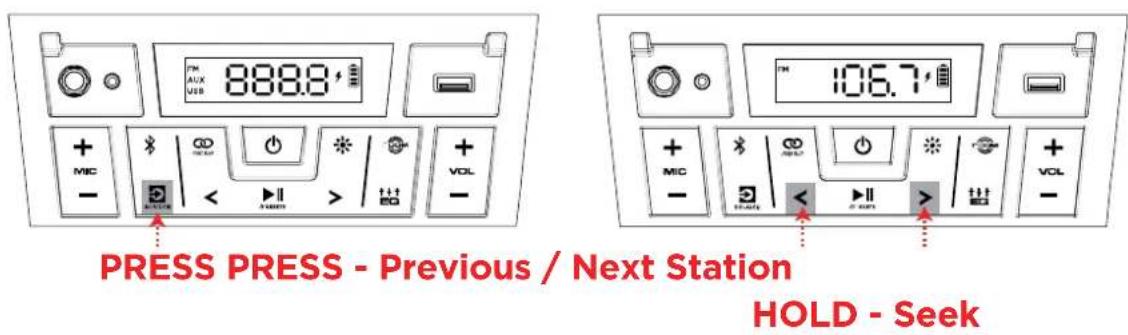
To use the radio, press the Source button so that FM is selected and shown on the display.
While in FM mode, briefly press the Previous and Next buttons (</>) to move to the previous or next station. Press and hold the </> buttons to seek for the next strongest station in that direction.
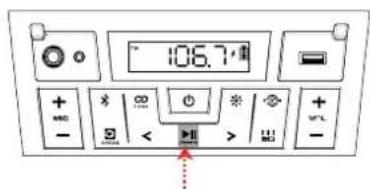
To save a radio station as a preset:
- Press and hold the Play/Pause / Presets button.
- Use the </> buttons to select a preset number, 1-12, shown on the display.
- When you have selected the desired preset number, quickly press and release the Play/Pause / Presets button again to save it.
To recall a previously saved preset, press and release the Play/Pause / Presets button to cycle through the saved presets.
USB Mode
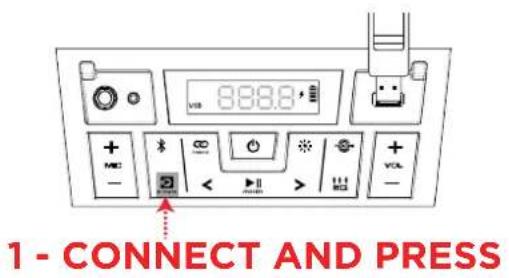
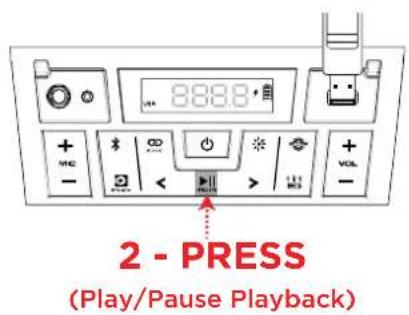
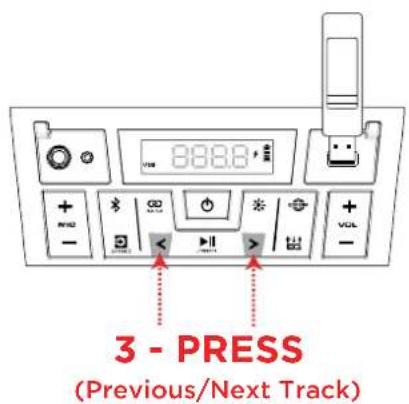
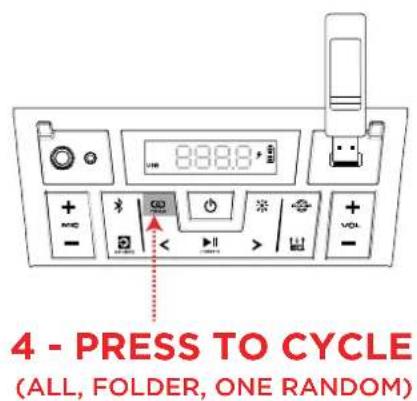
When a USB drive with compatible files is inserted into the USB Charge/Playback Port, Party Boom™ Plus will automatically switch to USB mode. If the USB drive has already been inserted and you are using another mode, press the Source button until USB mode is selected.
Party Boom™ Plus will automatically play the first compatible MP3 file. Files are played in alphabetical order of what is on the root level, then alphabetical by folder, and then alphabetical by track name. Media playback will stop when all media has been played on the USB drive.
Note: The USB drive must have playable MP3 files for it to appear on the media panel's display.
Press the Next and Previous ( </>) buttons to go to the next or previous track. Press and hold these buttons to fast forward or rewind within the track.
With each press of the Stereo-Link™ / Repeat button the following Repeat settings will cycle through on the display:
- ALL: Repeat all of the tracks on the USB drive (Default mode).
• FOLd: Repeat all of the tracks in the folder.
- OnE: Repeat the current playing USB track.
• rAn: Shuffle the track order.
Using the USB Charge Port
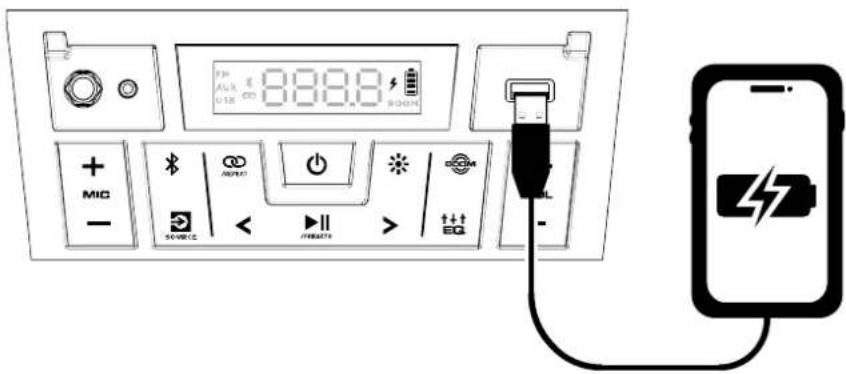
To use the USB charge port:
- Connect a USB type-A cable to the USB Charge Port on the front panel of your Party Boom™ Plus speaker (see image).
- Connect the other end of the cable to the charging input on your smartphone, tablet, or other compatible device.
App Control
IMPORTANT: To ensure the best possible experience with the app, use the most current Android OS or iOS on your device.
Follow these steps to download the free app on your device:
- Open the Apple App Store or Google Play on your device. Then, search for the ION Sound Control™ app.
- Follow the on-screen instructions to download and install the app. Once downloaded, the ION Sound Control™ app will appear on your device's home screen.
- Connect your device to Party Boom™ Plus via Bluetooth. See Operation > Pairing a Bluetooth® Device to learn how to do this.
- Open the ION Sound Control™ app. If prompted, allow the app to access your device's Bluetooth and Location Services.
- Follow the steps on screen to find and connect to your Party Boom™ Plus. Once connected, you can control various functions of the speaker, such as:
• Volume: Adjust the speaker's volume.
- Mic Volume: Adjust the volume of the Mic input.
- EQ: Adjust the speaker's equalization.
• Voice Prompts: Enable or disable the voice prompts.
- Lights: Change the light modes.
- Battery Life: Check the speaker's battery life status.
- Support: Visit ionaudio.com, contact Technical Support, and view Warranty information and Frequently Asked Questions.
• Over-The-Air Firmware Updates: Stay up to date with the latest firmware installation.
TROUBLESHOOTING
If the unit is not charging: Make sure the power cable is properly connected to the power input and the power outlet.
If the sound is distorted: Try lowering the volume control of your sound source.
I hear a hum when cables are connected:
- Disconnect cables from the input jacks to see if it's a faulty cable.
- Make sure the signal cables are not placed near power cables.
- Connect all audio equipment power cables to outlets which share a common ground.
If there is a high-pitched whistling noise when using microphones: This is probably feedback. Point the microphone away from the speaker.
If you can't hear the microphone over the music volume: Turn down the music volume from your source or increase the microphone volume using the Mic + button.
If there is too much bass: Try adjusting the tone or EQ control on the Party Boom ^™ Plus or your sound source to lower the bass level. This will allow you to play the music louder before clipping (distortion) occurs. You can also check to see if the BOOM function is enabled, and disable it by pressing the BOOM button ^™ .
If you cannot connect your audio device to Party Boom™ Plus via Bluetooth:
- Have your audio device (e.g., smartphone or tablet) and Party Boom™ Plus as close together as possible while trying to connect. Make sure both the audio device and Party Boom™ Plus are unobstructed by walls, furniture, etc.
- Press the Bluetooth button to disconnect Party Boom™ Plus from any other audio device and restart the search process. If this does not work right away, power off Party Boom™ Plus and then power it back on. See Operation > Pairing a Bluetooth® Device for more information.
- Reset the Bluetooth connection on your audio device by turning Bluetooth off and back on. You can find this under the Bluetooth menu in the Settings for your phone or other audio device.
If this does not work, and you have connected to Party Boom™ Plus before, find Party Boom™ Plus in the list of available or previously connected devices in your audio device's Bluetooth menu, tap the "gear" or "i" icon located next to it and then select Unpair or Forget. Turn Party Boom™ Plus off and back on and try pairing again once it reappears in your available devices list.
Note: If Party Boom™ Plus has been paired to another audio device recently that is still within range, you may need to repeat this process with that audio c disconnect.
If you experience audio dropouts while playing music from a Bluetooth device, this may be happening because your unit is trying to link to another speaker. This can occur if you power off a speaker that was linked to your unit or if you have just turned on your unit and it is in Stereo-Link™ mode. To stop the audio dropouts, exit Stereo-Link™ mode by double-pressing the Stereo-Link™ / Repeat button. Alternatively, you can wait for your unit to link to another speaker if there is one within range.
Technical Specifications
| Speakers | Low | Frequency: 8.0” (205 mm) woofer |
| High Frequency (front): 2.3” (59 mm) tweeter |
| Full-Range Driver (sides): (2) 3.9” (98 mm) |
| Frequency Response 45 Hz - 20 kHz |
| USB Supported File System: FAT32 |
| Supported File Types: MP3 |
| Maximum File Size: 4 GB |
| Wireless Technology Bluetooth® |
| Classic Audio |
| Wireless Range * Bluetooth Range: Up to 100 ft. (30.5 m) |
| Stereo-LinkTM Range: Up to 100 ft. (30.5 m) between speakers |
| Battery | Capacity: 5Ah/12V, 60Wh |
| Battery Life: Up to 35 hours ** |
| Charge Time: Up to 6 hours |
| Power | Cable: IEC (C7) Power Cable |
| Input Voltage: 100-240 V~, 50/60 Hz, 120 W |
| Dimensions(width x depth x height) | 14.19” x 8.13” x 17.87” |
| 368 mm x 207 mm x 454 mm |
| Weight 14.99 lbs. | 6.8 kg |
Specifications are subject to change without notice.
* Bluetooth and wireless reception and range are affected by walls, obstructions, and movement. For optimal performance, place the product so it is unobstructed by walls or furniture and is raised off the ground.
** Battery life may vary based on temperature, age, and volume usage of product.
Trademarks & Licenses
ION Audio is a trademark of inMusic Brands, Inc., registered in the U.S. and other countries.
The Bluetooth word mark and logos are owned by the Bluetooth SIG, Inc., and any use of such marks by ION Audio is under license.
App Store is a trademark of Apple Inc., registered in the U.S. and other countries.
Android and Google Play are registered trademarks of Google Inc. All other product names, company names, trademarks, or trade names are those of their respective owners.
TABLE DES MATIÈRES
PRESENTATION....22
3. Bouton Lecture/Pause / Presets
APPUYEZ