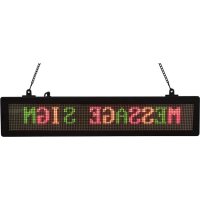
RSB1410 - LED display panel Royal Sovereign - Free user manual and instructions
Find the device manual for free RSB1410 Royal Sovereign in PDF.


| Product Type | Scrolling LED Display Panel |
| Brand | Royal Sovereign |
| Model | RSB1410 |
| Power Supply | AC adapter 18V DC, 2A (included) |
| Available Colors | Green, red, orange (selection via COLOR key) |
| Message Capacity | Up to 99 messages, 98 characters per message |
| Scroll Direction | Up, down, left, right, or static |
| Speed Adjustment | Fast or slow |
| Display Delay | 0 to 9 seconds (adjustable) |
| Remote Control | Yes (CR2025L battery included) |
| Housing Material | ABS Plastic |
| Included Accessories | Hanging chain, hooks, screws, adapter, remote control, manual |
| Installation | Wall mount by suspension (hardware included) |
| Warranty | 12 months limited (defects in material or workmanship) |
| Key Features | Scrolling message programming, color selection, speed and delay adjustment |
| Special Characters | Supports French characters (À, Â, Ç, É, Ê, Ô, Ù, Ü, etc.) |
| Number of Messages Displayed Simultaneously | One message at a time, but programmable sequence |
Frequently Asked Questions - RSB1410 Royal Sovereign
User questions about RSB1410 Royal Sovereign
0 question about this device. Answer the ones you know or ask your own.
Ask a new question about this device
Download the instructions for your LED display panel in PDF format for free! Find your manual RSB1410 - Royal Sovereign and take your electronic device back in hand. On this page are published all the documents necessary for the use of your device. RSB1410 by Royal Sovereign.
USER MANUAL RSB1410 Royal Sovereign
Page en Français 7
Please read and retain these instructions. To register your product, please go to www.royalsovereign.com
www.royalsovereign.com
Because our products are subject to continuous improvement, RS reserves the right to modify product design and specifications without notice and without incurring any obligation. E&OE
Royal Sovereign International, Inc.
2014.07
CONTENTS
- LED Scrolling Message Sign
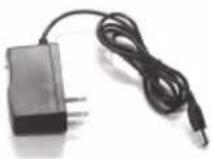
- 18V DC, power adapter
- Remote control (batteries included)
- Hang chain, hooks, and screws
- Owners manual

1
3
2

4
5
OPERATION
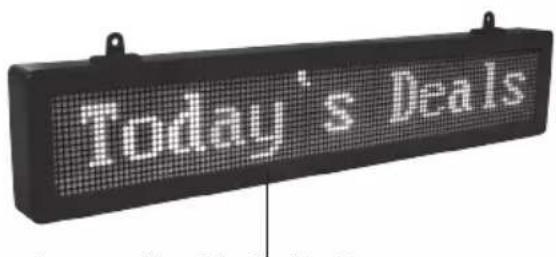
Programmable 3 Color Scrolling Message - up to 99 Separate Messages
natural_image
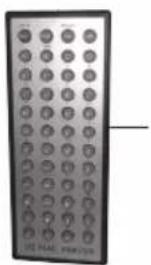
Front view of a black remote control with circular buttons (no visible text or symbols)Remote Control Allows For Quick and Easy Setting and Programming
LED Scrolling Message Sign
- Plug the 18V DC power adapter into an electrical outlet, the other end into the Message Sign
- A default message scrolling left on the display stating: "Say it with Message+" will appear
- Use included remote control to program custom messages
Remote Control
Use the [EXIT] button on the remote control to turn on/off the scrolling message sign.
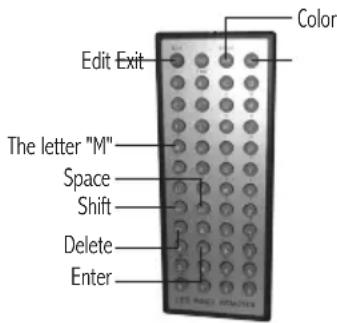
[EXIT] Key also acts as ON/OFF key
[EDIT] Key acts as EDIT
[SHIFT] Key acts as the function to switch upper case, lower case and punctuation
[SPACE] Key provides a space between words within a message
[COLOR] Key to change scrolling letters of message sign from red to green to orange
Left or Right arrows key to locate the cursor to the desired place on the sign
Scrolling Message Sign
A total of 99 programmable messages with a maximum of 98 characters per message can be created.
Please follow the below steps to program your message:
NOTE: in the following instructions, marks with [ ] means the keys on the remote control
Color of Letter / character
A total of 3 colors are available: green, red and orange. The default color is red. To change the letter/character color, move the cursor to the letter you wish to change, and press the [COLOR] key.
Entering / Programming a message
STEP 1: Inserting Message
After you press [Edit] key. The Edit Ins Del screen will appear. Press the left or right arrow button followed by pressing on the remote the [ENTER] key.
Edit= Edits existing message / Ins= Creates new message / Del=Deletes existing message
NOTE: When the cursor is flashing, it is waiting for the user to select an option. The programming will 'time out' if you do not select an option and return to the main screen setting.
STEP 2: Storing Message
Ins>1 will appear on the screen. Input a number to store your message (1 to 99). To save, press [ENTER]
STEP 3: Setting Display direction
1>M: To Left, will appear on the screen. Use the right/left arrows on the remote control to select the desired directional setting: To save, press [ENTER]
Down= Message scrolls down / Up= Message scrolls upward / Steady=Message to stay fixed on the display.
STEP 4: Setting display speed
1>Speed: F will appear on the screen. To change setting use the left and right arrow on the remote control to select Fast or Slow. To save, press [ENTER]
"F" = fast / "S" = slow
STEP 5: Setting delay time
1>Delay: 5 will appear on the screen. Press the number key [#] to select delay time of 0 to 9 seconds. To save, press [ENTER]
STEP 6: Entering Message
B1> will appear on the screen. Type in your message (up to 98 characters). To save, press [ENTER]
NOTE: FRENCH CHARACTER
To access the French Characters, please enter the English Character and then use the left arrow direction key (◀) and ensure that the cursor is flashing over the character to be modified. Press the Up arrow directional key (▲) to obtain the symbol desired.
For example to get the E character, press E. Press the left arrow direction key (◀) once to have the cursor flashing over the character E. Press the up arrow direction key once to obtain the French character .
A can be modified to À, C can be modified to Ç O can be modified to Ô,Ö a can be modified to â,ä,à c can be modified to Ç o can be modified to ô,ö E can be modified to Ê,Ë,Ë, É I can be modified to İ,Î U can be modified to Ù,Û,Ü E can be modified to ê,ë,è,é i can be modified to î,î u can be modified to ù,û,ü
STEP 7 (Optional): Viewing Message
You have the choice now of either entering additional messages by following steps 1-6 above, or to view the message just entered. To review your message, press the [Exit] button
Editing a Stored Message
Press the [Edit] button. Edit Ins Del will appear on the screen. Press the left arrow button on the remote control. Press the message number you wish to edit (1 to 99). Press the. [ENTER] button. Follow steps 3-7 above to complete your editing
Deleting a stored message
Press the [Edit] button. Edit Ins Del will appear on the screen. Press the right arrow button on the remote control. Press the message number you wish to deletet (1 to 99). Press the. [ENTER] button. Press the [EXIT] button to return to the messenger
To check the number of messages stored
Press the letter [T] button on the remote control. If, for example, you have stored 10 messages, after you press [T] button, the display will show: "10 messages"
NOTE: if there are just 10 messages stored, but you input number [12], then the system will remind you "No Message"
To have a specific sequence display
Press [Number key] + [,] + [Number key] + [ENTER], For example if you want to display message 2 and 5 only. For example, Press number key [2], then press comma [,] key(letter I), then press number key [5].
SPECIFICATIONS
| Description of Product RSB-1410 | |
| Messenger 1-99 up to 98 characters per message | |
| Setting Programmable Entry Animation (Up, Down, Left, Right) | |
| Speed Control Selectable for Flash and Scroll | |
| Color Settings Green, Red, Orange and $eries | |
| Remote Control Included (CR2025L battery – included) | |
| Adaptor 18V DC 2Am CUL Included | |
| Material High Quality ABS Plastic | |
| Installation Hang Chain (hardware Included) | |
LIMITED 12 MONTHS WARRANTY
This warranty applies to repair or replacement of product found to be defective in material or workmanship for 12 months from the date of the original purchase. This warranty is extended only to the original purchaser.
This warranty does not apply to damage resulting from abuse, misuse, or improper maintenance of damage that is attributable to acts of nature. Royal Sovereign International, Inc. (and its affiliated companies) is not liable for incidental or consequential damages of any nature. This limitation would not apply if you live in those areas that do not permit the exclusion or limitation of incidental or consequential damages.
Defective products for warranty repair or replacement cannot be returned without a Return Authorization number. Please go to www.royalsovereign.com USA-Customer Support Tab to make a request for an Office Product Return Authorization.
Defective products must be returned to Royal Sovereign International Consumer Return Department, freight prepaid, with proof of purchase and Return Shipping and Handling payment (check or money order). Upon repair or replacement the product will be returned to the customer.
Return defective product to the following address with a detailed description of the problem. If possible, pack in original carton. Please prepay shipping charges.
For out of warranty service or frequently asked questions please go to www.royalsovereign.com USA- Customer Support Tab.
For sales of product, parts or accessories please visit us at www.royalsovereign.com.
For service or sales please contact your local Royal Sovereign Office.
ROYAL SOVEREIGN INTERNATIONAL, INC. RS CANADA INC.
2 Volvo Drive Rockleigh, NJ 07647 USA 5610 Timberlea Blvd, Mississauga Ontario L4W 4M6 CANADA
TEL: +1) 800-397-1025 FAX: +1) 201-750-1022 TEL: +1) 905-461-1095 TF: +1) 866-961-6673
FAX: +1) 905-461-1096
www.royalsovereign.com
www.royalsovereign.com
natural_image
Close-up of a black remote control with circular buttons (no visible text or symbols)STEP 3: Setting Display direction
F = Rapide (fast)/ S = Lent (slow)
www.royalsovereign.com
- CONTENTS
- OPERATION
- LED Scrolling Message Sign
- Remote Control
- Scrolling Message Sign
- Color of Letter / character
- Entering / Programming a message
- STEP 1: Inserting Message
- STEP 2: Storing Message
- STEP 3: Setting Display direction
- STEP 4: Setting display speed
- STEP 5: Setting delay time
- STEP 6: Entering Message
- NOTE: FRENCH CHARACTER
- STEP 7 (Optional): Viewing Message
- Editing a Stored Message
- Deleting a stored message
- To check the number of messages stored
- To have a specific sequence display
- LIMITED 12 MONTHS WARRANTY
- ROYAL SOVEREIGN INTERNATIONAL, INC. RS CANADA INC.
Brand : Royal Sovereign
Model : RSB1410
Category : LED display panel