
SR-HD2500EU - Professional video recorder JVC - Free user manual and instructions
Find the device manual for free SR-HD2500EU JVC in PDF.
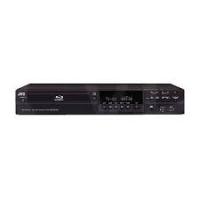


| Product Type | Professional Video Recorder |
| Brand | JVC |
| Model | SR-HD2500EU |
| Dimensions (W x H x D) | 430 x 88 x 400 mm |
| Weight | Approx. 5.2 kg |
| Power Supply | 100-240 V AC, 50/60 Hz |
| Power Consumption | 60 W (max) |
| Recording Formats | HDV, DV, DVCAM, MPEG-2 |
| Recording Media | MiniDV cassette, SD card |
| Maximum Resolution | 1080i (HDV) |
| Video Inputs | HD-SDI, Composite, S-Video |
| Video Outputs | HD-SDI, Composite, S-Video, HDMI |
| Audio Inputs | XLR (2 channels), RCA |
| Audio Outputs | XLR, RCA, Headphone |
| Connectivity | USB 2.0, RS-422, Ethernet |
| Main Functions | Recording, playback, linear editing, timecode, still image |
| Maintenance and Cleaning | Head cleaning with cleaning cassette; exterior dusting with dry cloth |
| Safety | Adequate ventilation, avoid shocks, disconnect before maintenance |
| Spare Parts and Repairability | Parts available through authorized JVC service; repair by qualified technician |
| General Information | Class A digital apparatus complies with Canadian ICES-003 |
Frequently Asked Questions - SR-HD2500EU JVC
User questions about SR-HD2500EU JVC
0 question about this device. Answer the ones you know or ask your own.
Ask a new question about this device
Download the instructions for your Professional video recorder in PDF format for free! Find your manual SR-HD2500EU - JVC and take your electronic device back in hand. On this page are published all the documents necessary for the use of your device. SR-HD2500EU by JVC.
USER MANUAL SR-HD2500EU JVC
dtts-hd Master Audio | Essential




POWERED
For Customer Use:
Enter below the Model No. and Serial No. which are located on the rear of cabinet. Retain this information for future reference.
Model No.
Serial No.
Dear Customer,
Thank you for purchasing the JVC BLU-RAY DISC & HDD recorder. Before use, please read the safety information and precautions to ensure safe use of your new unit.
Cautions
This Class A digital apparatus complies with
Canadian ICES-003.
The lightning flash with arrowhead symbol, within an equilateral triangle, is intended to alert the user to the presence of uninsulated "dangerous voltage" within the product's enclosure that may be of sufficient magnitude to constitute a risk of electric shock to persons.

The exclamation point within an equilateral triangle is intended to alert the user to the presence of important operating and maintenance (servicing) instructions in the literature accompanying the appliance.
CAUTION:
A UNIT IS A CLASS 1 LASER PRODUCT. HOWEVER THIS UNIT USES A VISIBLE LASER BEAM WHICH COULD CAUSE HAZARDOUS RADIATION EXPOSURE IF DIRECTED. BE SURE TO OPERATE THE UNIT CORRECTLY AS INSTRUCTED.
WHEN THIS UNIT IS PLUGGED INTO THE WALL OUTLET, DO NOT PLACE YOUR EYES CLOSE TO THE OPENING OF THE DISC TRAY AND OTHER OPENINGS TO LOOK INTO THE INSIDE OF THIS UNIT.
USE OF CONTROLS OR ADJUSTMENTS OR PERFORMANCE OF PROCEDURES OTHER THAN THOSE SPECIFIED HEREIN MAY RESULT IN HAZARDOUS RADIATION EXPOSURE.
DO NOT OPEN COVERS AND DO NOT REPAIR YOURSELF. REFER SERVICING TO QUALIFIED PERSONNEL.
CLASS 1 LASER PRODUCT
REPRODUCTION OF LABELS
WARNING LABEL INSIDE OF THE UNIT
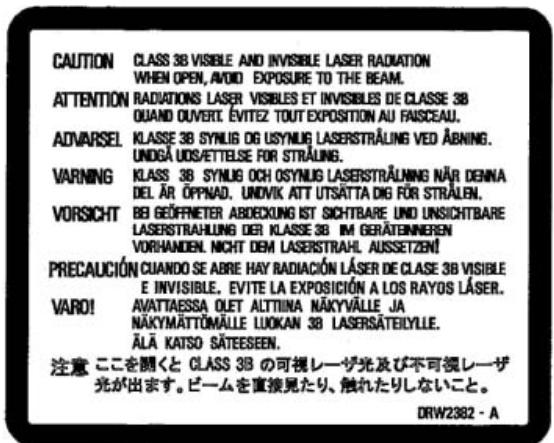
This unit applies to the standard "IEC60825-1:2007" for laser products.
WARNING:
TO PREVENT FIRE OR SHOCK HAZARD, DO NOT EXPOSE THIS UNIT TO RAIN OR MOISTURE.
CAUTION:
This unit should be used with AC 120V ~ 60Hz only. To prevent electric shocks and fire hazards, DO NOT use any other power source.
CAUTION:
TO PREVENT ELECTRIC SHOCK, MATCH WIDE BLADE OF PLUG TO WIDE SLOT, FULLY INSERT.
ATTENTION:
POUR ÉVITER LES CHOCS ÉLECTRIQUES, INTRODUIRE LA LAME LA PLUS LARGE DE LA FICHE DANS LA BORNE CORRESPONDANTE DE LA PRISE ET POUSSER JUSQU'AU FOND.
Note to CATV system installer:
This reminder is provided to call the CATV system installer's attention to Article 820-40 of the NEC that provides guidelines for proper grounding and, in particular, specifies that the cable ground shall be connected to the grounding system of the building, as close to the point of cable entry as practical.
"WARNING" and the following or equivalent. "To reduce the risk of fire or electric shock, do not expose this apparatus to rain or moisture."
A warning that an apparatus with CLASS I construction shall be connected to a MAINS socket outlet with protective earthing connection.
WARNING
Batteries shall not be exposed to excessive heat such as sunshine, fire or the like.
Main Plug
The Main Plug is used as the disconnect device, the disconnect device shall remain readily operable
IMPORTANT SAFETY INSTRUCTIONS
1) Read these instructions.
2) Keep these instructions.
3) Heed all warnings.
4) Follow all instructions.
5) Do not use this apparatus near water.
6) Clean only with dry cloth.
7) Do not block any ventilation openings. Install in accordance with the manufacturer's instructions.
8) Do not install near any heat sources such as radiators, heat registers, stoves, or other apparatus (including amplifiers) that produce heat.
9) Do not defeat the safety purpose of the polarized or grounding-type plug. A polarized plug has two blades with one wider than the other. A grounding type plug has two blades and a third grounding prong. The wide blade or the third prong are provided for your safety. If the provided plug does not fit into your outlet, consult an electrician for replacement of the obsolete outlet.
10) Protect the power cord from being walked on or pinched particularly at plugs, convenience receptacles, and the point where they exit from the apparatus.
11) Only use attachments/accessories specified by the manufacturer.
12) Use only with the cart, stand, tripod, bracket, or table specified by the manufacturer, or sold with the apparatus. When a cart is used, use caution when moving the cart/apparatus combination to avoid injury from tip-over.
13) Unplug this apparatus during lightning storms or when unused for long periods of time.
14) Refer all servicing to qualified service personnel. Servicing is required when the apparatus has been damaged in any way, such as power-supply cord or plug is damaged, liquid has been spilled or objects have fallen into the apparatus, the apparatus has been exposed to rain or moisture, does not operate normally, or has been dropped.
Failure to heed the following precautions may result in damage to the unit, remote control or disc/cassette.
- DO NOT place the unit —
in an environment prone to extreme temperatures or humidity. in direct sunlight. in a dusty environment. in an environment where strong magnetic fields are generated.
on a surface that is unstable or subject to vibration.
- DO NOT block the unit's ventilation openings or holes. (If the ventilation openings or holes are blocked by a newspaper or cloth, etc., the heat may not be able to get out.)
- DO NOT place heavy objects on the unit or remote control.
- DO NOT place anything which might spill on top of the unit or remote control. (If water or liquid is allowed to enter this equipment, fire or electric shock may be caused.)
- DO NOT expose the apparatus to dripping or splashing.
- DO NOT use this equipment in a bathroom or places with water. Also DO NOT place any containers filled with water or liquids (such as cosmetics or medicines, flower vases, potted plants, cups, etc.) on top of this unit.
- DO NOT place any naked flame sources, such as lighted candles, on the apparatus.
- AVOID violent shocks to the unit during transport.
CAUTION:
Changes or modifications not approved by JVC could void user's authority to operate the equipment.
Declaration of Conformity
Model Number: SR-HD2500US
Trade Name: JVC
Responsible Party: JVC Americas Corp.
Address: 1700 Valley Road Wayne, N.J. 07470
Telephone Number: 973-317-5000
This device complies with Part 15 of FCC Rules.
Operation is subject to the following two conditions:
(1) This device may not cause harmful interference, and (2) this device must accept any interference received, including interference that may cause undesired operation.
This equipment has been tested and found to comply with the limits for a Class A digital device, pursuant to Part 15 of the FCC Rules. These limits are designed to provide reasonable protection against harmful interference when the equipment is operated in a commercial environment.
This equipment generates, uses, and can radiate radio frequency energy and, if not installed and used in accordance with the instruction manual, may cause harmful interference to radio communications.
Operation of this equipment in a residential area is likely to cause harmful interference in which case the user will be required to correct the interference at his own expense.
When the equipment is installed in a cabinet or a shelf, make sure that it has sufficient space on all sides to allow for ventilation (10cm or more on both sides, on top and at the rear).
When discarding batteries, environmental problems must be considered and the local rules or laws governing the disposal of these batteries must be followed strictly.
Use the supplied power cord.
(If not, fire or electric shock may be caused.)
DON'T continue to operate the equipment if you are in any doubt about it working normally, or if it is damaged in any way -- switch off, withdraw the mains plug and consult your dealer.
DO be careful with glass panels or doors on equipment.
DO consult your dealer if you are ever in doubt about the installation, operation or safety of your equipment.
NEVER let anyone especially children push anything into holes, slots or any other opening in the case -- this could result in a fatal electrical shock.
MOISTURE CONDENSATION
Moisture in the air will condense on the unit when you move it from a cold place to a warm place, or under extremely humid conditions—just as water droplets form on the surface of a glass filled with cold liquid. In conditions where condensation may occur, disconnect the unit's power plug from the wall and keep it disconnected for a few hours to let the moisture dry, then turn on the unit.
DOLBY
TRUEID
DIGITAL PLUS

Master Audio | Essential
- Manufactured under license from Dolby Laboratories. Dolby and the double-D symbol are trademarks of Dolby Laboratories.
- Manufactured under license under U.S. Patent Nos: 5,956,674; 5,974,380; 6,226,616; 6,487,535; 7,392,195; 7,272,567; 7,333,929; 7,212,872 & other U.S. and worldwide patents issued & pending. DTS-HD, the Symbol, & DTS-HD and the Symbol together are registered trademarks & DTS-HD Master Audio | Essential is a trademark of DTS, Inc. Product includes software. © DTS, Inc. All Rights Reserved.
- This product incorporates copyright protection technology that is protected by U.S. patents and other intellectual property rights. Use of this copyright protection technology must be authorized by Rovi Corporation, and is intended for home and other limited viewing uses only unless otherwise authorized by Rovi Corporation. Reverse engineering or disassembly is prohibited. DVD logo is a registered trademark of DVD Format/Logo Licensing Corporation.
- HDMI, the HDMI Logo and High-Definition Multimedia Interface are trademarks or registered trademarks of HDMI Licensing LLC in the United States and other countries.
- Blu-ray Disc and the Blu-ray Disc logo are trademarks of Blu-ray Disc Association.
- "x.v.Color" and the "x.v.Color" logo are trademarks of Sony Corporation Co., Ltd.
- Java and all Java-based trademarks and logos are trademarks or registered trademarks of Sun Microsystems, Inc. in the United States and other countries.
- The SDHC logo is a trademark of SD-3C, LLC.
- iLINK and the iLINK logo are trademarks.
- "AVCHD" and the "AVCHD" logo are trademarks of Panasonic Corporation and Sony Corporation.
- Other product and company names included in this instruction manual are trademarks and/or registered trademarks of their respective holders.
- This product is licensed under the AVC patent portfolio license and VC-1 patent portfolio license for the personal and non-commercial use of a consumer to (i) encode video in compliance with the AVC Standard and VC-1 Standard ("AVC/VC-1 Video") and/or (ii) decode AVC/VC-1 Video that was encoded by a consumer engaged in a personal and non-commercial activity and/or was obtained from a video provider licensed to provide AVC/VC-1 Video. No license is granted or shall be implied for any other use. Additional information may be obtained from MPEG LA, LLC. See http://www.mpegla.com.
Batteries -- Incorrect use of batteries may cause the batteries to burst or ignite. A leaky battery may corrode the equipment, dirty your hands or spoil your clothing. In order to avoid these problems, make sure to observe the precautions below:
- Use the specified batteries only.
- Install the batteries with due attention to the plus (+) and minus (-) sides of the batteries according to the instructions in the compartment.
- Do not mix old and new batteries.
- Do not mix batteries of different types. Voltage specifications of batteries of the same shape may vary.
- Replace an exhausted battery with a new one promptly.
- If you will not use the remote control for a long time, remove the batteries.
- If leaked battery fluid gets on your skin or clothing, rinse immediately and thoroughly. If it gets into your eye, bathe your eye well rather than rubbing and seek medical treatment immediately. Leaked battery fluid that gets into your eye or your clothing may cause a skin irritation or damage your eye.
- Do not put the batteries in a place where young children can reach.
DISCLAIMER OF LIABILITY
JVC shall not be liable for any loss relating to the unit's failure to properly record, store or playback any content (video, audio or otherwise) for any reason whatsoever. Any applicable warranties shall only cover replacement or repair of the effected unit, and shall not apply to recovery or replacement of lost content.
ATTENTION:
Using a mobile phone in the vicinity of the unit may cause picture vibration on the TV screen or change the screen to a black back display. Some TVs or other appliances generate strong magnetic fields. Do not place such appliances on top of the unit as it may cause picture disturbance. - When moving the product, press ① /I to turn off the power, and wait at least 30 seconds before unplugging the power cord. Then, wait at least 2 minutes before moving the product. If there is a power outage when using the unit, the recorded data may be erased. It is recommended to back up discs which contain important recordings periodically (every few years). As digital signals do not deteriorate, failure to play back or record might arise due to the effects of the disc aging through the years depending on the storage environment. - Recorded programs and data cannot be restored once the disc or tape is damaged.
- This unit can play back and record only NTSC signals.
The hard disk is a consumable item. Replacement is recommended after 10000 hours of use (if use in a 25°C environment). For information on maintenance planning and costs, consult your nearest JVC dealer. The fan motor is a consumable item. Replacement is recommended after 30000 hours of use (if use in a 25°C environment). For information on maintenance planning and costs, consult your nearest JVC dealer.

If this symbol is shown, it is only valid in the European Union.
HOW TO USE THIS INSTRUCTION MANUAL
- All major sections and subsections are listed in the Table Of Contents on page 5. Use this when searching for information on a specific procedure or feature.
- The mark signals a reference to another page for instructions or related information.
- Operation buttons necessary for the various procedures are clearly indicated through the use of illustrations at the beginning of each major section.
BEFORE YOU INSTALL YOUR NEW UNIT...
... please read the sections/literature listed below.
Cautions" on page 2 "IMPORTANT SAFETY INSTRUCTIONS" on page 3 to 4
Contents
Safety Precaution
Contents
Getting Started
Key Features 6
How to Read this Manual 6
Other Precautionary Notes 7
Hard Disk Drive (HDD) 8
SD Cards 8
Discs 9
Precautions on the Use of Discs 11
On-screen Displays 12
Name and Function of Parts 13
Front panel 13
Display window 14
Rear panel 14
Remote control 15
Preparation
Connecting a Monitor 17
Connecting an Amplifier 18
Connecting a Video Deck or Other Equipment 18
Connecting External Devices 19
Connecting the Power Supply 19
Setting and Displaying Date/Time 20
Setting the Time Code 23
Dubbing/Importing
Dubbing/Importing 25
Dubbing chart 26
Formatting 27
Recording Modes 30
Importing Data from a BD/DVD to the HDD 32
Importing Data from a USB-compatible Device to the HDD 35
Importing Data from an SD Card to the HDD 37
Importing Data from an i.LINK-compatible Device to the HDD 39
Dubbing a Title from the HDD to a BD/DVD 41
Dubbing Still Images from the HDD 44
Enabling Playback on Other Devices (Finalizing) 46
Copying the Entire Disc 48
Recording Using External Inputs 49
Playing Back
About Playing Back 51
Using Playback Navigation 51
Option menu list 53
Video Playback Operation 54
Playing Videos on a BD/DVD 56
Playing Videos on the HDD 57
Playing Videos on a SD Card 57
Playing Still Images (JPEG) 58
Changing Playback Settings 59
Playback Settings Menu 59
Audio/subtitle settings 59
Playback settings 59
Video settings 60
Editing
Editing 61
Entering Characters 62
Character List 62
Grouping 63
Changing the Title/Group Name 65
Deleting a Title/Group 65
Turning On Title/Group Protection 66
Turning Off Title/Group Protection 67
Creating a Playlist 68
Editing a Thumbnail 69
Editing a Chapter 70
Dividing 72
Delete Scenes 73
Changing the Disc Name 75
Changing the Shooting Date/Time 75
Mode conversion 76
Settings Menu
Changing Settings of this Unit 77
Setting Menu List 77
78
PLAYBACK SETTING 79
RECORD 80
AUDIO 81
DISPLAY 83
CONNECTION 83
SDI CONNECTION 85
Others
Locking the Disc Tray 87
Turning on the Mode Lock 87
Last Function Memory 87
RS-232C Interface 88
Command Table 88
Specifications 88
Command 89
Language Code List 99
Country Code List 101
Using the HDMI Consumer Electronics Control (HDMI CEC) 103
Creating a Seamless BD 103
Troubleshooting 104
Specifications 106
Index 111
Key Features
Professional Blu-ray Disc recorder of the high-definition era
Copy videos to a Blu-ray Disc in high-definition from a high-definition camcorder, or downconvert the videos and record them onto DVDs, all without the need for a PC. The internal hard disk drive enables easy editing and dubbing of multiple discs.
Compatible with ProHD Camcorder GY-HM700/100
MOV files that are taken in SP mode (1) and HQ mode (2) using the JVC ProHD Camcorder GY-HM700/100 are compatible with the SR-HD2500, and can be imported into the HDD or dubbed onto discs.
(1) SP mode: 1280x720/60p, 30p, 24p, 1440x1080/60i (2) HQ mode: 1280x720/60p, 30p, 24p, 1440x1080/60i, 1920x1080/60i, 30p, 24p
Compatibility with other consumer camcorders
In addition to AVCHD, HDV and DV, JVC Everio file formats are also compatible, and digital dubbing can be done.
Digital interface that allows for camcorder compatibility
This unit is equipped with USB, SD slots and i.Link input terminals for connecting the camcorder.
Create menu-supported Blu-ray discs
Blu-ray discs can be created using the BDMV (with menu) format. BDAV discs can also be created and dubbed according to the intended use. The SR-HD2500 also enables users to use an original image as the background.
Compatible with dual-layer 50 GB Blu-ray discs, and records up to 24 hours of full high-definition images on a single disc
This unit is also compatible with high-capacity dual-layer 50 GB Blu-ray discs, and up to 24 hours (AE mode) of full high-definition images can be recorded on a single disc. Writing to inexpensive LTH discs is also supported.
Authoring menu enables discs to be created and used industrially such as for demonstrations
Disc authoring can be used to create discs for industrial use, such as discs that repeat playback automatically.
Equipped with external control RS-232C terminal
This unit is equipped with an RS-232C terminal that allows for external control using a PC.
Equipped with SDI output terminal
You can connect this unit directly to an SDI system without using any converter or peripheral device.
Supports direct recording to discs
You can record contents directly to an optical disc (BD-R/RE, DVD-R/RW).
How to Read this Manual
About this manual
This manual mainly describes operation procedures using the remote control unit buttons.
- The buttons on the remote control unit are indicated as [Button Name].
- The menu items are indicated as "Menu Item".
Supplementary remarks in the main text
Memo: States restrictions on the functions or use of this unit.
Note: States precautions to be taken during operation.
Indicates the page numbers or items to refer to.
Memo:
The displays of operable media are highlighted.
HDD: Hard disk
DVD: DVD
BD: Blu-ray disc
SD: SD card
SDHC: SDHC Card
CD: Music compact disc
JPEG: JPEG (still picture) file disc
Refer to the supplied CD-ROM for the Spain and French GUIDEBOOK.
In order to view the GUIDEBOOK, Adobe® Acrobat®
Reader™ or Adobe® Reader® must be installed.
Adobe Reader can be loaded from Adobe's web site: http://www.adobe.com/
Menu operation
Pressing the remote control buttons below calls up the respective menu screens.
- [SET UP], [NAVIGATION], [EDIT], [INFORMATION CORRECT], [DUBBING], [MEDIA MANAGE]
- Press any of the [△ / ▽ / ◀ / ▶] buttons to move to a specific menu item (the yellow item indicated by a small arrow).
- Press the [OK] button to confirm the selection.
- Press the [RETURN] button to return to the previous screen.
- Simple instructions on the operation procedure may be displayed at the bottom of the screen.
Other Precautionary Notes
Copyright protection
This unit supports copyright protection technologies.
Copyrights
- According to copyright law, video or music data that you store must not be used for purposes other than personal enjoyment without the authorization of the copyright holder.
- The copyright protection function prevents copyrighted video images from being saved to equipment such as a video recorder. This function may also cause deterioration in playback picture quality when the data is output to a monitor through a video recorder. This is not a hardware malfunction. To play back copyrighted videos, connect this product directly to the monitor.
- Read and understand fully the terms and conditions of all copyright works before using this unit in the correct manner. Under no circumstances shall JVC KENWOOD take any responsibility for any infringements of copyright caused by the customer when using this unit. The customer shall be responsible for resolving all legal issues regarding any copyright infringements.
Stored video content and compensation
- For discs containing important video content, backup on a periodic basis (once every few years) is recommended. Although digital signals do not deteriorate, playback or dubbing may fail due to aging of the disc resulting from the storage conditions.
- Recorded data may be lost if power outage occurs while this unit is being used. It is therefore recommended that videos stored on the HDD be dubbed to a BD or DVD as soon as possible in case the HDD breaks down.
- Videos or data stored on a BD/DVD, HDD, or SD card cannot be recovered if the media is damaged.
Disclaimer of compensation for loss or damage of stored video content
Please note that our company will not be liable for compensation of the content or any incidental damages in the event that dubbing or playback cannot be performed properly for some reasons. The same applies during repair of this unit.
Handling precautions
- Do not use the plug or power point with dust or metallic objects attached to it
- Failure to do so may cause short circuit or heating, and result in fire or electric shock.
- Remove the plug once every half a year, and clean it with a dry cloth. Make use of a power point that allows the power plug to be inserted or removed easily
- Make sure that the plug can be removed immediately in case an abnormality is found in the unit. Insert the plug firmly into the power point
- Failure to do so may cause short circuit or heating, and result in fire or electric shock.
- Do not make use of a power voltage other than that specified
- Doing so may result in fire or electric shock.
- Do not insert or remove the plug with wet hands
- Doing so may result in electric shock.
- Do not touch the plug when there is thunder or lightning
- Doing so may cause electric shock.
- Do not insert any foreign object into this unit
- Doing so may result in fire or electric shock.
- Do not dismantle or remodel this unit.
- This unit consists of high-voltage components. Dismantling or remodeling the unit may cause fire or electric shock. Request the authorized dealer to inspect the interior part of the unit once a year.
- Using this unit with dust accumulated inside may result in fire.
- It is particularly effective to perform servicing before the humid rainy season.
- Do not connect any video cameras that are not made by JVC to the USB terminal.
- Doing so may result in malfunction.
Hard Disk Drive (HDD)
Hard disk drive (HDD)
The HDD rotates at a high speed whenever the power is turned "On".
Pay particular attention to the following precautions when using this unit.
Warning
- Do not subject it to vibration or strong impact. Subjecting this unit to excessive impact may result in loss of recorded data and even damage of the HDD.
- Do not remove the power plug when this unit is running. Shutting down the power when the HDD is running may result in data loss and even damage of the HDD. Make sure that the power plug is removed only after turning off the power. (Wait for the "GOODBYE" message on the display window to disappear first.)
SD Cards
Precautions for handling SD and SDHC cards
Note:
- The disc operation display icon appears blinking and "READING" is displayed on the display window when the SD card is being accessed (such as during dubbing, playback, or formatting). When access to the SD card is in progress, do not remove the card or the power plug. Doing so may cause the SD card to become unusable. If the SD card is not usable, reformat the card. If the problem persists even after reformatting, use a new SD card.
- Do not use or store the card at a place that is subject to static or electrical noise.
- Inserting the SD card incorrectly may cause this unit or the card to malfunction.
- Our company will not be liable for any damage or loss of the stored data due to accidents. (Be sure to back up the data.)
- Use the card according to the prescribed conditions. Do not use it at the following locations.
- Places that are exposed to direct sunlight
- Places near heat-generating equipment
- Inside a car that is under the sun with the windows tightly shut
- Places that are subject to high humidity and corrosion
- Do not bend or drop the card, or subject it to strong impact or vibration.
- Do not expose the card to water.
- Do not place near devices that emit strong magnetic or radio waves.
- Do not touch the metal part of the card.
Memo:
- To dispose of a card after erasing all data inside, it is recommended that this be done using commercially available data deletion software, or by destroying the card physically, such as with a hammer. Formatting or deletion of data using this unit only changes the file administration information, and does not erase the data completely.
BD video data
You can erase BD Video data from the SD card as follows.
Insert the SD card which has BD video data stored on it, into the [SD SLOT]
Memo:
- The BD video data cannot be erased if the SD card is write-protected. In this case, turn off the write-protect lock before inserting the SD card.
2 Press the [MEDIA MANAGE] button on the remote control unit
3 Select "BD-VIDEO DATA ERASE" from "SD CARD"
- The confirmation screen for erasing the BD video data is displayed.
4 Select "ERASE", and press the [OK] button.
- The BD video data will be erased.
Discs
BD recording formats
BDAV mode
- Videos can be edited (chapter edit etc) and new videos can be added to the disc. This format is suitable for recording videos.
- MPEG2 with HD quality will be recorded as it is onto the disc. This format has low playback compatibility, but performs well when used for backups.
BDMV mode
- Compatible and playable on other BD players. Menu functions similar to those of DVD video mode are also included.
This format performs well for distribution purposes.
DVD recording formats
VR MODE
- Format the disc using "VR MODE" if you want to add new videos to the disc.
- Deleting currently saved videos increases the remaining space on the disc. (except for the case of DVD-R discs.)
VIDEO MODE
- Format the disc in this mode if you want to play the disc on a different DVD player.
Formatting of discs
Formatting is required for some disc types. Perform formatting if this is necessary.
- When using BD-RE or BD-R discs
Formatting is required. Format the disc using this unit.
- When using DVD-R discs
Formatting is required depending on the disc mode to be used.
- Formatting is required when the disc is used in "VR MODE". Format the disc using this unit.
- Formatting is not required when using the disc in "VIDEO MODE".
Note:
- BD-R and DVD-R discs cannot be reformatted. Check the disc mode before formatting the disc.
When using DVD-RW discs
Formatting is required. Format the disc using this unit. - Format using "VR MODE" or "VIDEO MODE".
Discs (Continued)
Discs that enable both dubbing and playback
| Disc Type | Recording Format | Format | Finalize | Repeated Use (Reformat) |
| BD-RE | BDAV mode | ○ | - | ○ |
| BDMV mode | ○ | - | ○ | |
| BD-R | BDAV mode | ○ | ○ | - |
| BDMV mode | ○ | - | - | |
| DVD-RW | Video mode | ○ | ○ | ○ |
| VR mode | ○ | ○ | ○ | |
| DVD-R | Video mode | - | ○ | - |
| VR mode | ○ | ○ | - |
Discs that enable playback only
| Disc Type | Description |
| DVD-RAM (4.7 GB) | Supports specific forms of playback, but no recording can be done. |
| BD-ROM | Commercially available Blu-ray discs (movies, music, etc.)The region code that can be played back on this unit is “A”. |
| DVD video | Commercially available DVD-Video discs (movies, music, etc.)The region code that can be played back on this unit is “1”. The video format used is NTSC. |
| Music CD | CD-DADTS music CDs are also playable. |
Memo:
- If 8 cm discs are used, only playback can be performed. The disc cannot be used for recording or editing.
- 8 cm discs can be used without adapters. DVD-RAM cartridges and BD-RE are not supported. Take the DVD-RAM out of the cartridge before using it.
Discs that are not supported
DVD-RAM (2.6 GB/5.2 GB) DVD-R (for authoring) - CD-ROM/R/RW (PhotoCD, CD-G, VCD etc.) - DDCD (1.3 GB, Double Density CD) - HDCD (High Density CD)
Memo:
- To playback a BD or DVD that was created using this unit on another player, finalize the disc.
- There is no need for finalizing if the BD-RE disc is recorded using BDAV mode.
- If a DVD that was recorded using VR mode has been finalized, the disc can only be played back on VR mode compatible devices.
- To perform high-speed dubbing, make use of a disc that supports high-speed recording.
- This unit can play back and record only NTSC signals.
Note:
- Do not use disc if the sticker or label is peeled off from the disc surface, if the disc is not round in shape, or if it is significantly warped or cracked.
Precautions on the Use of Discs
Maintenance of discs
- Dirt attached to the disc, such as fingerprints and dust, may cause distortion in the video image or sound. Keep the disc clean at all times, for example by using a soft cloth.
- Wipe the disc lightly from the center outward using the cloth.
- If dirt is stubborn, wipe it off using a slightly wet cloth, followed by a dry cloth.
- Do not use thinner, benzine, alcohol, conventional record cleaners, or antistatic sprays. Doing so may damage the disc surface.
Handling discs
Removing a disc
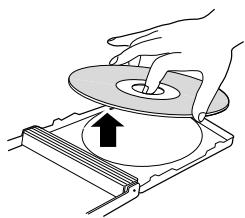
- Keeping a disc
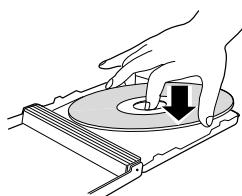
Correct way to hold a disc
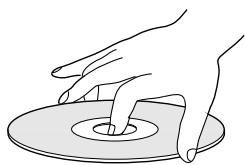
- Make sure that your hands do not touch the recording/playback side of the disc.
Disc storage
- Avoid storing the disc at the following locations.
- Places that are subject to high humidity, dust, or mold growth
- Places that are exposed to direct sunlight or near a heater
- Inside a car during summer
- Do not drop the disc or subject it to strong impact.
- Place the disc in a case and store it vertically.
- Stacking the discs without using a case, placing the discs against one another or dropping them may result in deformation or cracking.
When the recording/playback lens is dirty
Dust or dirt may be attached to the recording/playback lens after using this unit for a prolonged period of time, and recording or playback may not be properly performed as a result.
Although the performance of this unit varies according to the frequency of use and installation environment, it is recommended that cleaning of the lens be performed once every half a year using commercially available DVD lens cleaners.
For cleaning procedures, refer to the instruction manual of the lens cleaner.
Precautions when playing a dual disc
The side of the dual disc that is not used for DVD recording does not comply with the standard specifications of music CDs.
It is recommended that playback on this unit be limited to the DVD recording side of the dual disc.
Use genuine JVC discs
The best performance may not be obtained for some discs. It is recommended that genuine JVC discs be used to ensure the best results.
Power Cable
Do not unplug the cable during recording or playback.
Doing so may cause the disc to become unusable.
If the disc becomes unusable, refer to the following.
BD-R or : Use a new disc.
DVD-R
BD-RE or : Reformat the disc after erasing the data. If the DVD-RW disc is still not usable, use a new disc.
Do not turn off the [ /I] button or unplug the power cable immediately after closing the disc tray.
On-screen Displays
Status display
Displays the current settings and operating status (such as playback, pause) of this unit.
Pressing the [ON SCREEN] button on the remote control displays the status. To cancel the display, press the [ON SCREEN] button again.
You can select whether to display the statuses by changing the settings in the settings menu.
For more details, refer to "DISPLAY" (page 83).
Memo:
- To display the statuses, set the ON SCREEN GUIDE item on the DISPLAY menu screen to "AUTO".
- Setting the DISPLAY item to "OFF" hides display of all status information.
- You can display the status by pressing the [OPTION] button on the remote control unit when playback, dubbing or editing is not in progress.
① Press the [OPTION] button on the remote control unit. ② Select "ON-SCREEN DISPLAY", and press the [OK] button on the remote control unit.
Event display
An on-screen event display appears on the display window as well as the monitor when there is a misoperation.
- The event display appears for an interval of about three seconds.
Memo:
- The same event display may appear several times.
Alarm display
When an operation is not accepted by this unit, an on-screen alarm display appears on the display of the main unit as well as the monitor.
SDI time code display
The time code is displayed during recording of SDI input signals.
You can specify whether to display the time code, and also where to display it.
For details, refer to "TIME CODE INPUT SETTING" and "TIME CODE DISPLAY POSITION" under "SDI CONNECTION".
Memo:
- When "TIME CODE INPUT SETTING" of "SDI CONNECTION" is set to "OFF", the time code is not displayed.
Name and Function of Parts
Front panel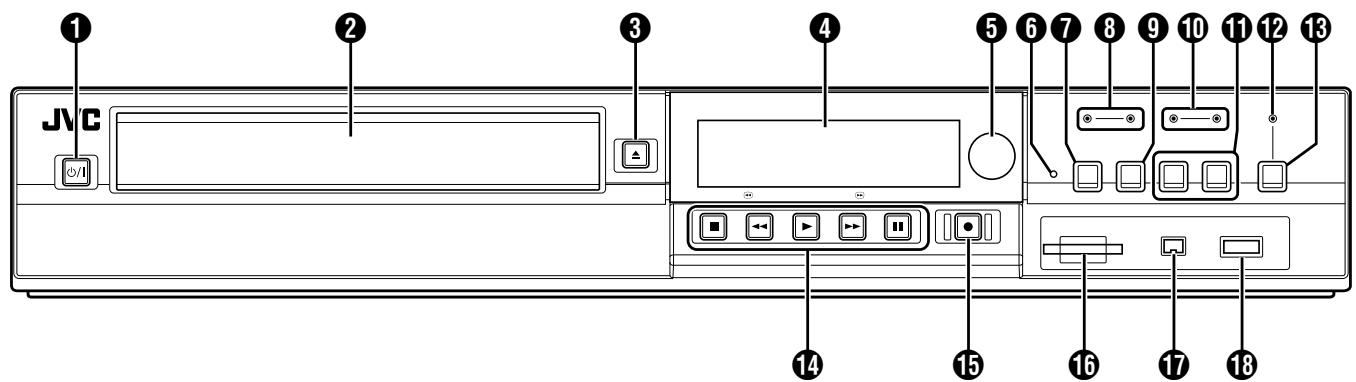
1[0/1]button
Turn On/Off the power.
2 Disc tray
3 [▲] button
Opens/closes the disc tray.
4 Display window
Remote control sensor
[RESET] switch
Reset the unit.
7 [REC MODE] button
Switches the recording mode.
HDD lamp
Lights up when in HDD mode.
The [REC] lamp lights up while recording/importing.
[INPUT SELECT] button
Switches the external input signals (SDI, HDV/DV, L-1).
[BD] lamp
Lights up when in BD/DVD mode.
The [REC] lamp lights up while recording/dubbing.
[MEDIA SELECT] button
Switches between HDD and BD/SD.
12 [DIRECT/MONITOR] lamp
Lights up in the MONITOR OUT mode.
13 [DIRECT/MONITOR] selection button
Switches the output of the rear SDI output terminal to "DIRECT OUT" or "MONITOR OUT".
14 Playback control buttons
- [▶] button
Plays back the data.
- [■] button
Stops playback/recording.
- [▲] button
Fast reverses playback.
- [▶▶] button
Fast forwards playback.
- [ ] button
Pauses playback.
15 [●] button
Starts recording of a title.
[SD SLOT]
Used for inserting SD cards.
[17] [i.LINK(HDV/DV IN)] terminal
Connect a video camera using i.LINK (HDV/DV IN).
[USB] terminal
Connect a video camera using USB.
Name and Function of Parts (Continued)
Display window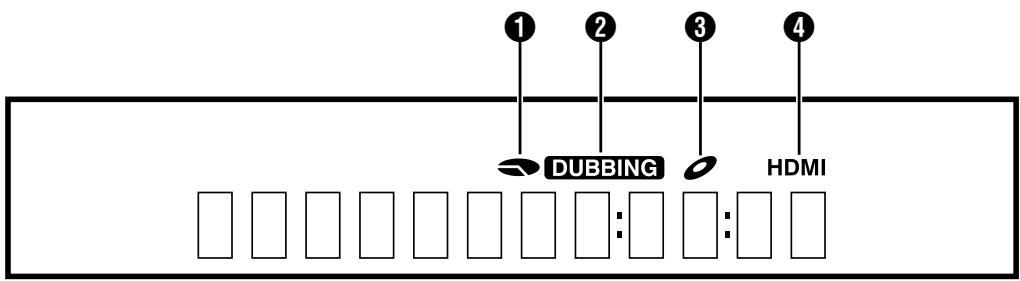
HDD/DISC remaining level display, Dubbing display, Disc status display, HDMI output display
Memo:
- The brightness of the display window can be adjusted.
For more details, refer to "PANEL DISPLAY BRIGHTNESS" (page 78).
English messages appear for a number of operations. (Examples)
HELLO : When the power plug is inserted
READING : When reading the disc
ONSCREEN : Upon moving to the playback navigation screen
Rear panel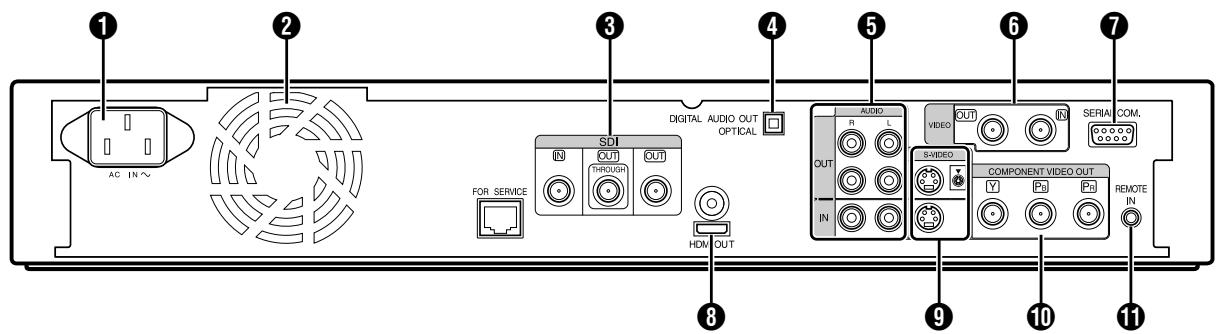
1 AC inlet
For connecting the power supply. Cooling fan [SDI IN/OUT THROUGH/OUT] terminal
For connecting using a BNC cable.
[DIGITAL AUDIO OUT (OPTICAL)] terminal For connecting to the amplifier using an optical audio cable. [AUDIO OUT/IN] terminals For connecting using an audio cable. [VIDEO OUT/IN] terminals For connecting using a video cable.
7 [SERIAL COM.(RS-232C)] terminal For connecting to a computer using a serial cable. [HDMI] terminal For connecting using an HDMI cable. [S-VIDEO OUT/IN] terminals For connecting using an S-video cable. 10 [COMPONENT VIDEO OUT] terminals For connecting using a component video cable. 1 [REMOTE IN] terminal For connecting a wired remote control.
Remote control
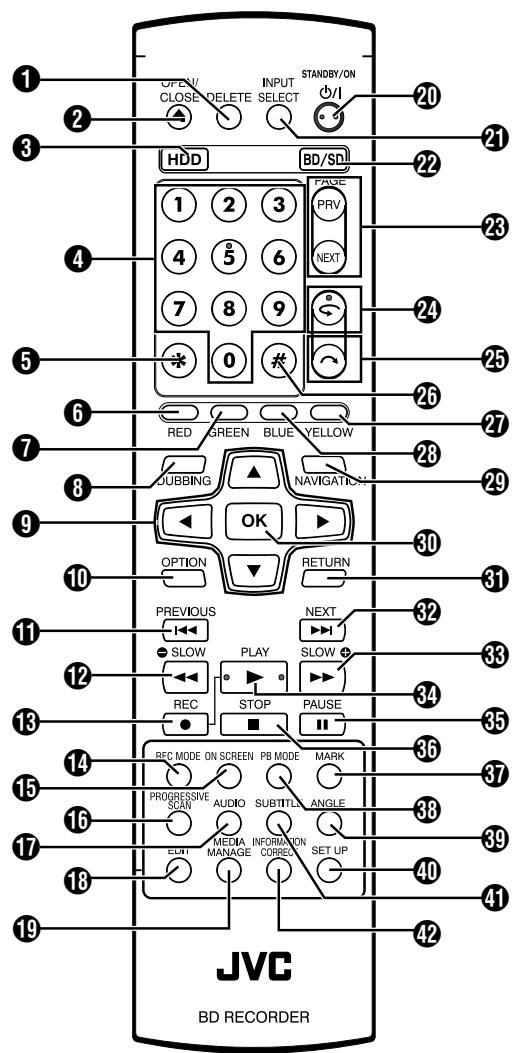
1 [DELETE]
Deletes a title or characters.
2 [△]
Opens/closes the disc tray.
3 [HDD]
For operating the HDD.
4 [1]-[9]
For entering characters.
5[*]
For entering characters.
[RED]
Enabled when the color button (red) is displayed.
[GREEN]
Enabled when the color button (green) is displayed.
[DUBBING]
Displays the dubbing menu screen.
[▲/▼/▲/▶]
The cursor can be moved to select an item.
10 [OPTION]
Displays the option screen.
1 [ ]
Move to the chapter just before the current chapter.
12 [ ]
Fast reverses the video and starts slow playback.
13 [●]
Press the [ ] and [ ] buttons together to start recording.
14 [REC MODE]
For checking the recording mode settings and amount of time remaining.
15 [ON SCREEN]
Displays information on the screen.
16 [PROGRESSIVE SCAN]
Switches the resolution of the image output.
[AUDIO]
Switches the playback audio.
18 [EDIT]
Displays the editing menu screen.
19 [MEDIA MANAGE]
Displays the media management menu screen.
[0/1]
For turning On/Off the power.
2 [INPUT SELECT]
Switches the external input signals (SDI, HDV/DV, L-1).
2 [BD/SD]
For operating BD/DVD or SD.
[PAGE PRV][PAGE NEXT]
Returns to the previous page. Or advances to the next page.
24 [G]
Move the playback position slightly backwards.
[ ]
Advance the playback position slightly.
26 [#]
For character input and switching between DIRECT OUT/MONITOR OUT.
Memo:
- During character input, it cannot be used for switching between DIRECT OUT/MONITOR OUT.
27 [YELLOW]
Enabled when the color button (yellow) is displayed.
[BLUE]
Enabled when the color button (blue) is displayed.
29 [NAVIGATION]
Displays the playback navigation screen.
[OK]
Confirms a selection or entry.
Name and Function of Parts (Continued)
31 [RETURN]
Returns to the previous screen without applying the selection or entry.
32 [▶▶]
Move to the next chapter.
33 [▶▶]
Fast forwards the video and starts slow playback.
34 [▶]
Plays the video.
35 [ ]
Pauses the video that is currently playing.
36 [ ]
Stops playback/recording.
[MARK]
Adds a chapter mark during playback or recording. Select multiple titles from the playback navigation screen or other screens.
[PB MODE]
Display the playback settings screen.
[ANGLE]
Switches the camera angle for playback.
40 [SET UP]
Displays the settings menu screen.
41 [SUB TITLE]
Switches the playback subtitle.
[INFORMATION CORRECT]
Displays the information editing screen.
Change batteries for the remote control
- If the operable distance of the remote control unit becomes shorter, this means that the batteries are running out. When this occurs, replace the batteries with new ones.
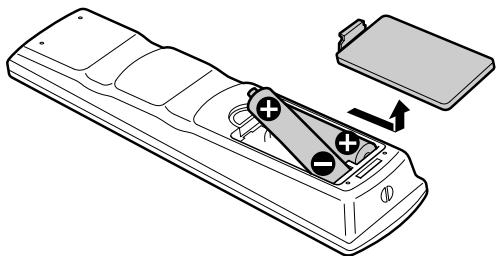
Batteries
- Insert the batteries correctly according to the + and - signs. Insert the - side of the battery first.
- If an error occurs while using the remote control unit, remove the batteries, wait for about five minutes, and operate the remote control unit again after re-inserting the batteries.
Battery life: Approximately 6 months (depending on the frequency of use)
Remote control codes
By setting a remote control code for the unit and remote control, you can prevent two recorders from operating simultaneously using the remote control for this unit. (The setting for the unit and remote control at time of purchase is "REMOTE CONTROL 3".)
Memo:
- Changing the remote control code for the remote control before the unit's remote control code is changed will cause the unit to be inoperable.
Change the unit's remote control code first when changing remote control codes.
Changing the remote control code for the unit
1 Press the [SET UP] button on the remote control to display the "SETUP" menu. 2 Change the "REMOTE CONTROL CODE" option in the "SETUP" menu.
Memo:
- For more details, refer to "REMOTE CONTROL CODE" (page 78). Changing the remote control code for the remote control
1. Press and hold the [OPTION] button on the remote control. 2. Press either of the [1], [2], [3], or [4] buttons - Press the number button that is equivalent to the remote control code you desire. 3. Press the [OK] button - Press the [OK] button to change the remote control code. 4. Release the [OPTION] button on the remote control.
Memo:
- If the remote control code is different from the unit, the remote control code for the unit will be displayed on the display window.
Examples: REMOTE CONTROL 3
Connecting a Monitor
To display video images from this unit, connect it to a monitor.
- This unit supports connections using "HDMI cable", "component video cable", "S-video cable", or "video cable".
Memo:
- Switch to the appropriate monitor input according to the type of connection cable used.
For details, refer to the instruction manual of the monitor.
Connecting using a HDMI cable
Connecting using a HDMI cable (sold separately) enables signals to be maintained in the digital format, and thus playback of clear video images.
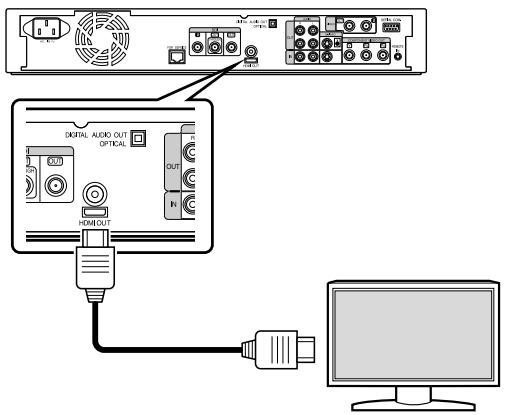
Memo:
- Videos cannot be displayed on a monitor that does not support the copyright protection system (HDCP).
- Use a High Speed HDMI Cable.
- After connecting using a HDMI cable, change the unit setting to "HDMI CONNECTION".
For more details, refer to "VIDEO PRIORITY MODE" (83).
Connecting using a component video cable
Connecting using a component video cable (sold separately) delivers playback images that are clearer than those by an S-video cable.
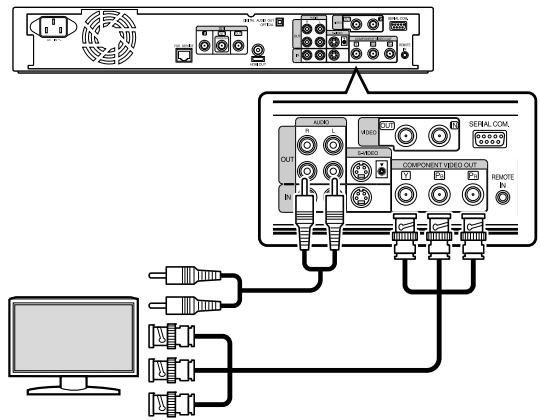
Memo:
- After connecting a component video cable, change the unit setting to "COMPONENT OUTPUT".
For more details, refer to "COMPONENT OUTPUT" (v8 page 85).
Connecting using an S-video cable
Connecting using an S-video cable (sold separately) delivers video images that are clearer than those by a video cable.
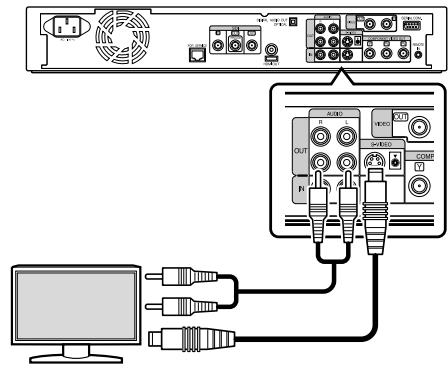
Connecting using a video cable
Connect the output terminal of this unit to the input terminal of a TV using the supplied video/audio cable.
(Use the supplied BNC adapter)
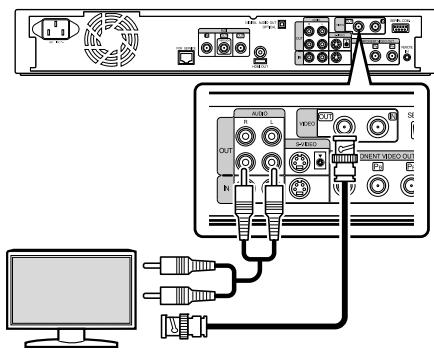
Note:
- Connect the S-video/video output of this unit directly to the TV (or monitor). Connecting this unit to the TV or monitor via a video deck triggers the copy protection function, and may cause distortion in the video images during playback.
Connecting using an SDI cable (BNC)
Connect using an SDI cable (sold separately). You can transmit both digital video and audio signals with a single cable.
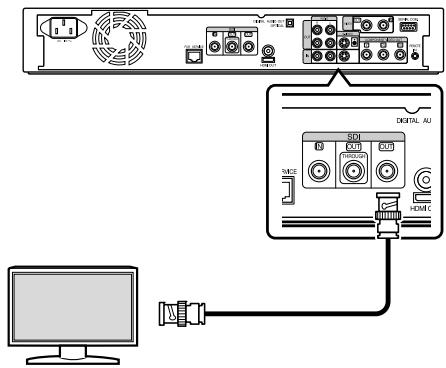
Memo:
- The SDI output terminal comes with two outputs: one is an SDI terminal that enables switching between DIRECT OUT/MONITOR OUT, while the other is an SDI through terminal used exclusively for through output.
Connecting an Amplifier
Connecting an audio amplifier
- Connecting using an optical digital cable
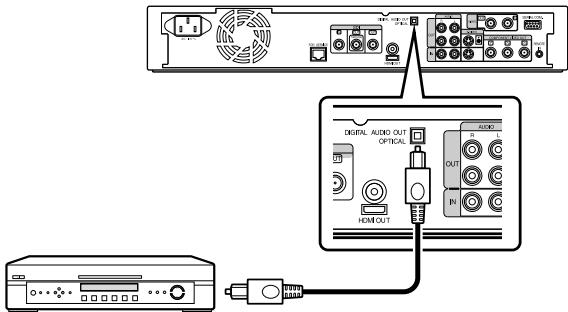
Memo:
- Remove the protection cap of the cable before connecting. Store the protection cap properly to prevent it from being misplaced.
- Connecting using an audio cable
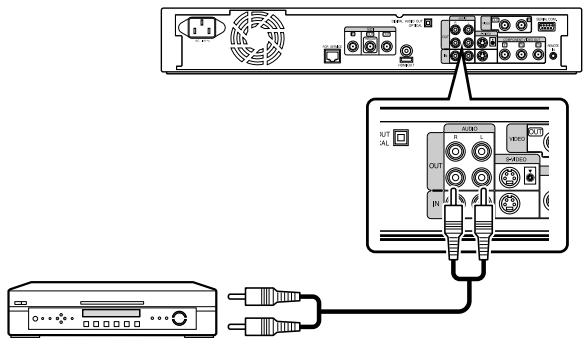
Connecting a Video Deck or Other Equipment
Connecting a video camera
- Connecting via the i.LINK terminal
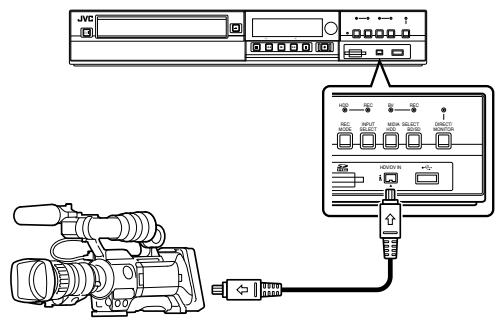
- Connecting via the USB terminal
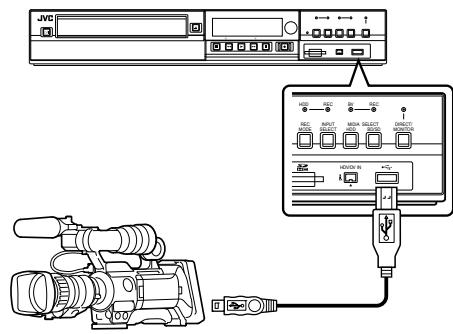
Memo:
- Some video camera models may require an AC adapter instead of batteries to run. For details, refer to the video camera's instruction manual.
Connecting a video deck or other equipment (recording using this unit)
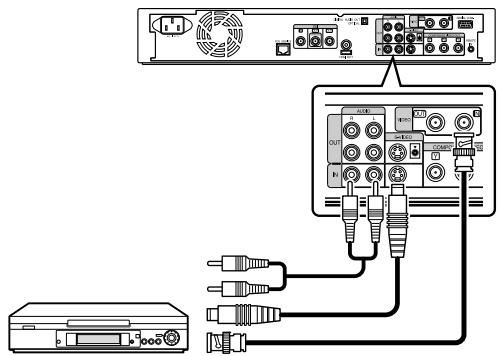
Memo:
- When connecting using an S-video cable, change the setting of "VIDEO INPUT SETTING" to "S-VIDEO".
For more details, refer to
"VIDEO INPUT SETTING" (page 85).
- To record video images played back on this unit to an external device (video deck, etc.), connect the output terminal of this unit to the input terminal of the external device.
Connecting External Devices
Connecting a wired remote control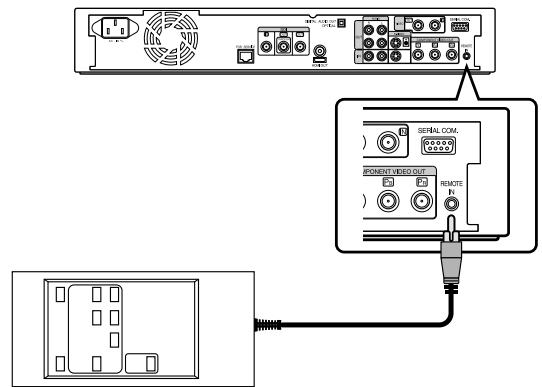
Using a wired connection enables stable control of this unit from an external device.
Operation is possible using any code (1 to 4) regardless of the remote control code settings of this unit.
Memo:
- There is currently no compatible remote control unit available.
- To create a wired remote controller, refer to "RS-232C Interface" (page 88).
Connecting using a RS-232C cable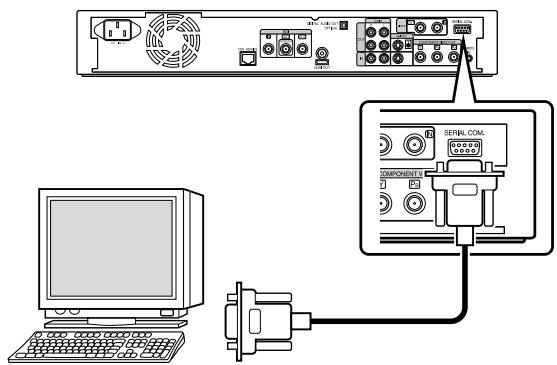
External operation is enabled by connecting a RS-232C cable to a PC or similar device.
For details on external operation, refer to "RS-232C Interface" (page 88).
Connecting the Power Supply
Connect the supplied power cable to this unit as follows.
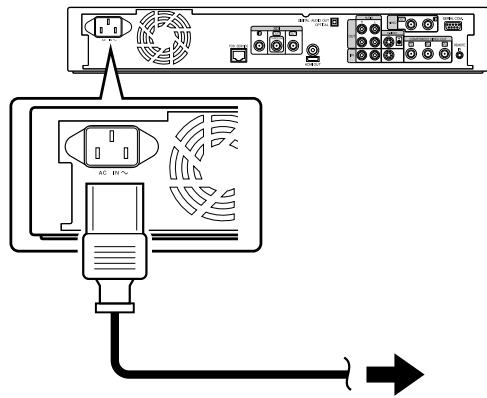
1. Connect the supplied power cable to the AC IN terminal of this unit. 2. Connect the other end of the power cable to a power point. 3. Press the [0/1] button on the remote control or this unit to switch on the unit. - The power of this unit turns on, and a "HELLO" message appears on the display window.
Note:
- Do not use power cables other than that supplied with this unit. Doing so may cause this unit to malfunction.
Setting and Displaying Date/Time
Set the date/time of the built-in clock as follows. The recording date/time is stored on the disc.
Setting the date/time
Set the date/time of the built-in clock as follows.
1. Press the [SET UP] button on the remote control unit.
- The Settings menu screen appears.
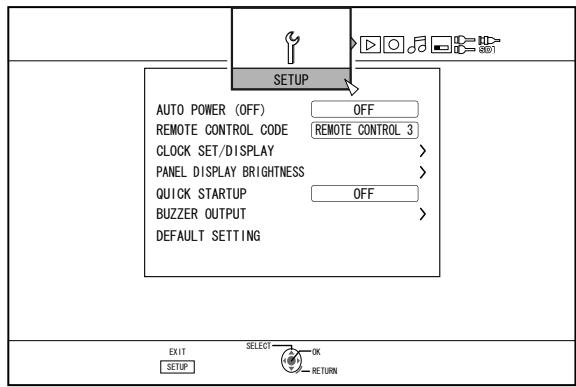
2. Select "SETUP", and press the [OK] button. 3. Select "CLOCK SET/DISPLAY", and press the [OK] button. - "CLOCK SET/DISPLAY" menu screen appears.
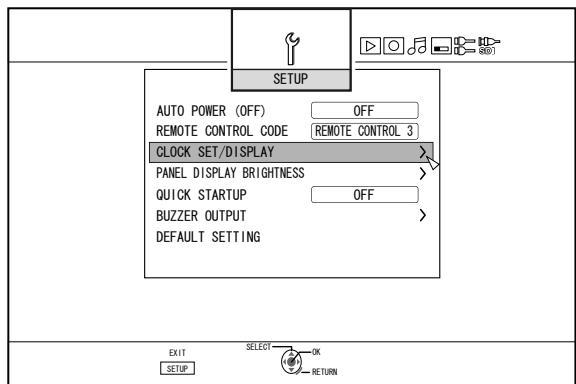
4 Select "CLOCK SET", and press the [OK] button
- The Clock Set menu screen appears.
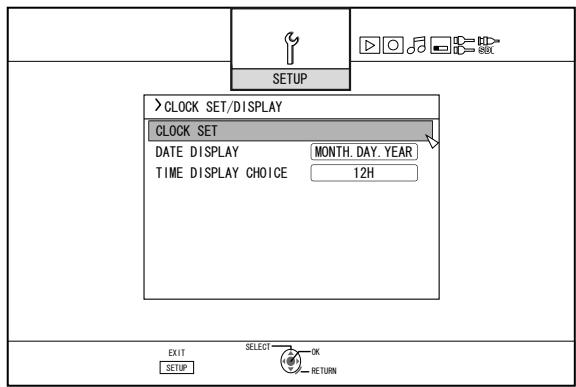
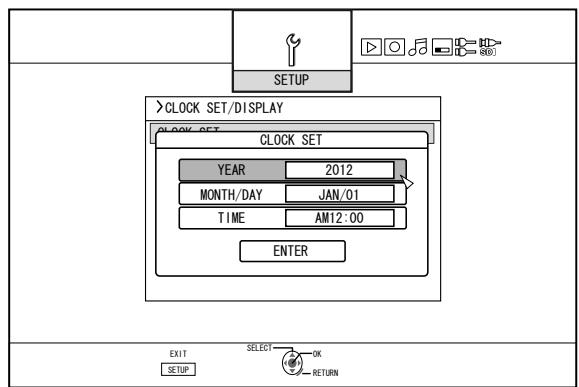
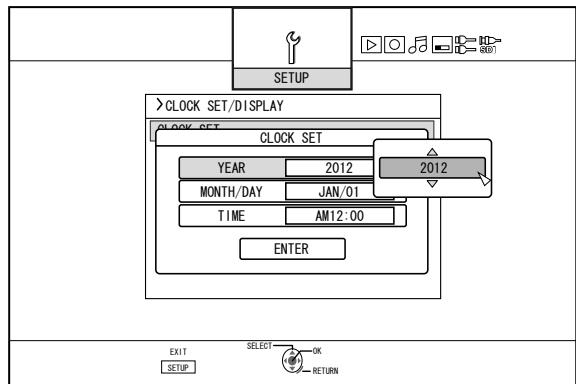
5 Set the time and date
- Repeat the steps below to specify the time and date.
① Press the [▲] or [▼] button, select the Clock Set item, and press the [OK] button.
② Press the [▲] or [▼] button, change the setting value, and press the [OK] button.
6 After setting is complete, select "ENTER", and press the [OK] button
- Doing so exits date/time setting, and returns to the initial screen.
![JVC SR-HD2500EU - After setting is complete, select "ENTER", and press the [OK] button - 1](/content/2019/10/6176/images/5b8e3c2cc79dc3780a3a4c4db72cdf1ff5e3450b688e4462001f43832ffce209.jpg)
Memo:
- The value for seconds cannot be set. After setting the minute, press the [SET UP] button according to the time signal.
- To cancel date/time setting, press the [RETURN] button. Doing so cancels date/time setting and returns to the initial screen.
- The year can be set from 2012 to 2037. If "2037.12.31 PM11:59" is set, the time will change to "2012.1.1 AM12:00" after one minute.
Changing the date display style
You can specify the display style of the date as follows.
1 Press the [SET UP] button on the remote control unit 2 Select "SETUP", and press the [OK] button - The Settings menu screen appears.
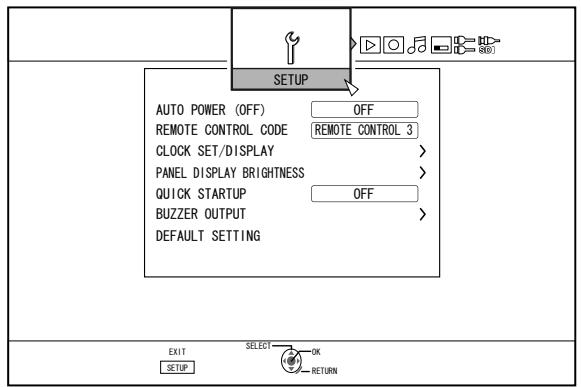
3 Select "CLOCK SET/DISPLAY", and press the [OK] button
- The Clock Set/Display menu screen appears.
![JVC SR-HD2500EU - Select "CLOCK SET/DISPLAY", and press the [OK] button - 1](/content/2019/10/6176/images/38e407befebb50d8f2836469cf34ca192b0536c9ac5c22ac90c8ecd1580795d5.jpg)
4 Select "DATE DISPLAY", and press the [OK] button
- The Date Display menu screen appears.
![JVC SR-HD2500EU - Select "DATE DISPLAY", and press the [OK] button - 1](/content/2019/10/6176/images/fd147cbf75df0eb791738fce239937e54a05e6c2ef7853ed07c15283d2a8e514.jpg)
5 Select the date display style.
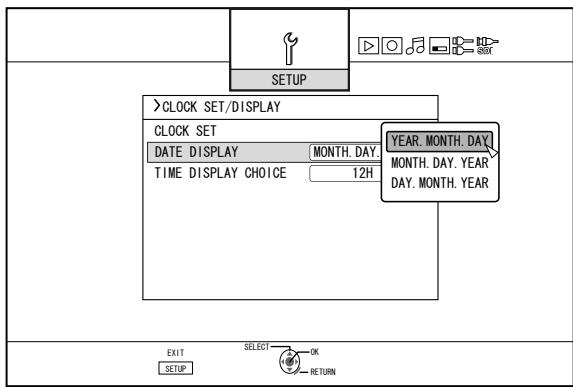
- Select a date display style from the following items.
YEAR.MONTH.DAY : Displays the date in the year/month/day order.
MONTH.DAY.YEAR : Displays the date in the month/day/year order.
DAY.MONTH.YEAR : Displays the date in the day/month/year order.
6 After selecting, press the [OK] button
- The date display style will be saved.
Setting and Displaying Date/Time (Continued)
Memo:
The date display style will be applied in the following information displays: - Recording date of the title that is shown in the playback navigation screen (The recording date will be shown in place of the title if the title has not been input). - Date that is displayed in the title information display screen
Changing the time display style
You can specify the display style of the time as follows.
1 Press the [SET UP] button on the remote control unit. 2 Select "SETUP", and press the [OK] button. - The Settings menu screen appears.
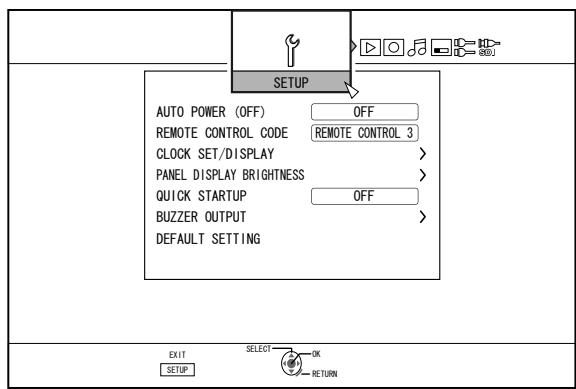
3 Select "CLOCK SET/DISPLAY", and press the [OK] button.
- The Clock Set/Display menu screen appears.
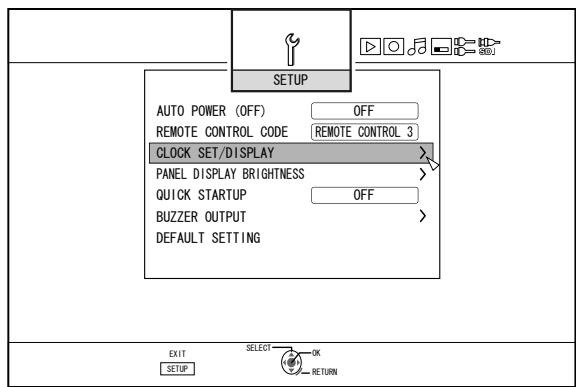
4 Select "TIME DISPLAY CHOICE", and press the [OK] button.
- The Time Display menu screen appears.
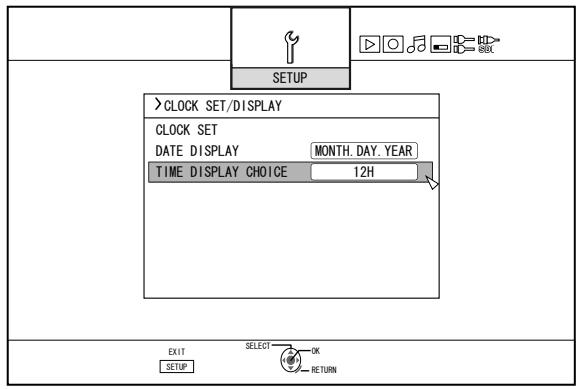
5 Select the time display style.
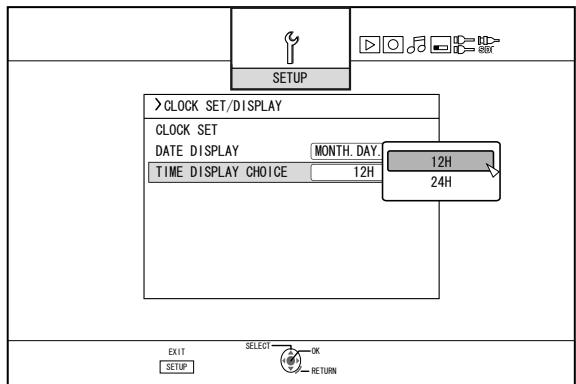
Select from "12H" or "24H".
12H: Displays the time in AM/PM format.
24H: Displays the time in 24-hour format.
6 After selecting, press the [OK] button.
- The time display style will be saved.
Memo:
- The time display style applies to the following.
- Current time
- Date/time registered on the disc
- Recording time of the title that is shown in the playback navigation screen (The recording time will be shown in place of the title if the title has not been input.)
- Time of recording that is displayed in the title information display screen
Setting the Time Code
You can add a time code while recording SDI input signals with this unit.
Memo:
- If recording is performed with the time code added, the time code will be recorded together with the video. In this case, you cannot hide the time code display on the recorded movie.
Setting time code input
1 Press the [SET UP] button on the remote control unit
- The Settings menu screen appears.
![JVC SR-HD2500EU - Press the [SET UP] button on the remote control unit - 1](/content/2019/10/6176/images/b38cc50ba47f61be8db8a36bdd24340b7f064e672eb0c83da0d883390370e2ac.jpg)
2 Press the [▶] button, and select "SDI CONNECTION"
The "SDI CONNECTION" screen appears.
![JVC SR-HD2500EU - Press the [▶] button, and select "SDI CONNECTION" - 1](/content/2019/10/6176/images/01868198d21f80815091e69497e6f30f0cbd85d07300ad9d76c626366c68e2a0.jpg)
3 Press the [▲] or the [▼] button, select "TIME CODE INPUT SETTING", and press the [OK] button
![JVC SR-HD2500EU - Press the [▲] or the [▼] button, select "TIME CODE INPUT SETTING", and press the [OK] button - 1](/content/2019/10/6176/images/76e50e5dd9a549086cc67a11d90e444253690c7a9eada0f7b0b26209c45c15cc.jpg)
4 Select "TIME CODE" or "DATE & TIME"
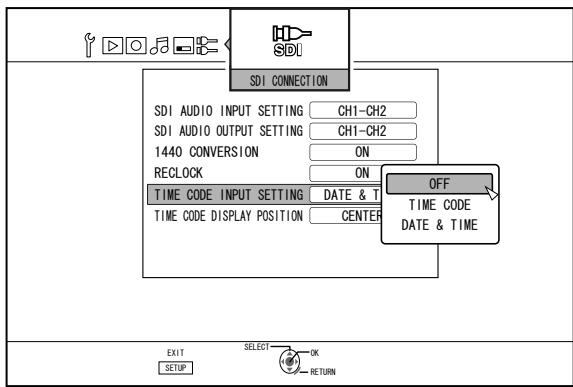
TIME CODE
: When there are multiple time code inputs from the SDI device, such information will be superimposed over the SDI video input.
DATE & TIME
: This unit superimposes the current date/time over the SDI video input.
Memo:
- Select "OFF" if you don't want to display the time code.
5 Press the [OK] button after making a selection
The time code setting is saved.
Memo:
- Setting is now complete. If multiple time code inputs are detected from the SDI signals, time code (TC) is displayed in case that "TIME CODE" is set. Current date and time is displayed if "DATE & TIME" is set. Examples: 2012.JAN.01 12:34:56
- For more details on the "TIME CODE DISPLAY POSITION" settings, refer to "Setting "TIME CODE DISPLAY POSITION"" (page 24).
Setting "TIME CODE DISPLAY POSITION"
1 Press the [SET UP] button on the remote control unit
- The Settings menu screen appears.
![JVC SR-HD2500EU - Press the [SET UP] button on the remote control unit - 1](/content/2019/10/6176/images/3bd6b2d676eb4bdfcca2cb1bce4fa0f66fbf8a6429e02537620d462e972f9233.jpg)
2 Press the [▶] button, and select "SDI CONNECTION"
The "SDI CONNECTION" screen appears.
![JVC SR-HD2500EU - Press the [▶] button, and select "SDI CONNECTION" - 1](/content/2019/10/6176/images/dbe2e00dea85fc6fdde106f159ee183a65b18016a4e98684d257a61ae20b46d4.jpg)
3 Press the [▲] or the [▼] button, select "TIME CODE DISPLAY POSITION", and press the [OK] button
![JVC SR-HD2500EU - Press the [▲] or the [▼] button, select "TIME CODE DISPLAY POSITION", and press the [OK] button - 1](/content/2019/10/6176/images/47f3af935db9dfea2d13e697c3378ecbeb9e7a9e139a7c255e28c63142956501.jpg)
4 Press the [▲] or the [▼] button to select the display position
![JVC SR-HD2500EU - Press the [▲] or the [▼] button to select the display position - 1](/content/2019/10/6176/images/3cd15dbb2f3ecb791e42c9f0cfa68a978167e90d25d2b098e775ea740cc0aeb1.jpg)
LOWER LEFT : Sets the time code display position to the bottom left.
LOWER : Sets the time code display position to the bottom right.
UPPER LEFT : Sets the time code display position to the top left.
UPPER RIGHT: Sets the time code display position to the top right.
CENTER : Sets the time code display position to the center.
5 Press the [OK] button after making a selection
The time code display position is saved.
Memo:
- Setting is now complete. If multiple time code inputs are not detected from the SDI signals, time code is displayed as "TC-------".
- If you have not set a date after selecting "DATE & TIME" and completing the setting, time code will be displayed as "...".
- Time code is not displayed when the monitor is connected to the [SDI OUT THROUGH] terminal.
Dubbing/Importing
Bi-directional dubbing between the HDD and a BD/DVD is possible using this unit alone. Also, data can be imported to the HDD from a video camera by connecting it via i.LINK or USB.
Dubbing from the HDD to a BD/DVD
High-speed dubbing
Select this option if you want to significantly shorten the time required for dubbing. Make use of a BD/DVD disc that supports high-speed recording.
- Dubbing in a specific recording mode
Select this option when you want to specify the recording mode for dubbing. Dubbing can be performed in the recording mode of your preference, such as whether to "maintain a high picture quality" or "save as many titles as possible". For more details, refer to "Recording Modes" (page 30).
Memo:
- The image quality will not improve even when a recording mode with image quality higher than that of the original recording mode is chosen.
- Dubbing using a specific recording mode will cause the disc to be re-encoded.
Other options for importing data into the HDD
- Importing data from a BD/DVD to the HDD
You can import titles from a BD/DVD.
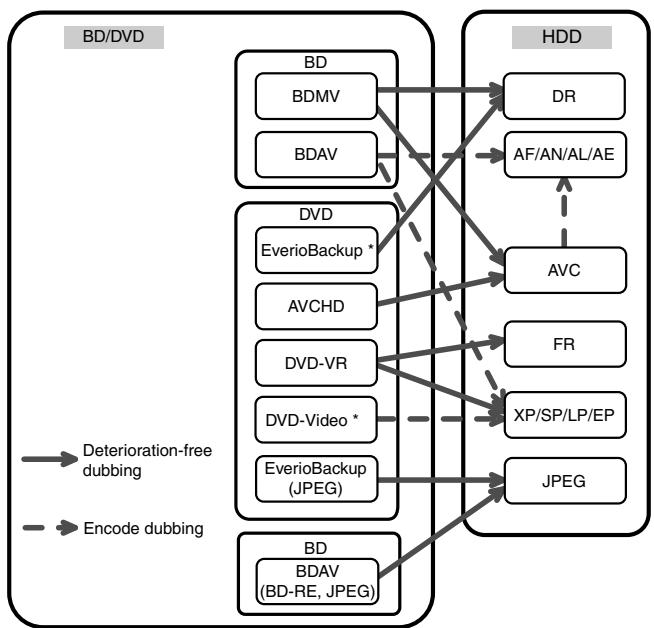
DVD-video*: Discs that are not finalized cannot be imported.
EverioBackup*: Data disc containing high-definition videos that are recorded in the MPEG2 format using a DVD writer for Everio.
- Importing data from a SDHC/SD to the HDD
Videos captured using a video camera can be imported to the HDD by inserting the SDHC/SD card that the videos are saved on.
- Importing data from a video camera to the HDD
Videos captured using a video camera can be imported to the HDD.
This unit supports video camera connections via i.LINK and USB.
Memo:
- For MOV format videos, only videos in MOV format (SP mode and HQ mode) taken using JVC ProHD camcorder GY-HM700/100 are compatible. There is no guarantee for importing videos taken on devices by other company.
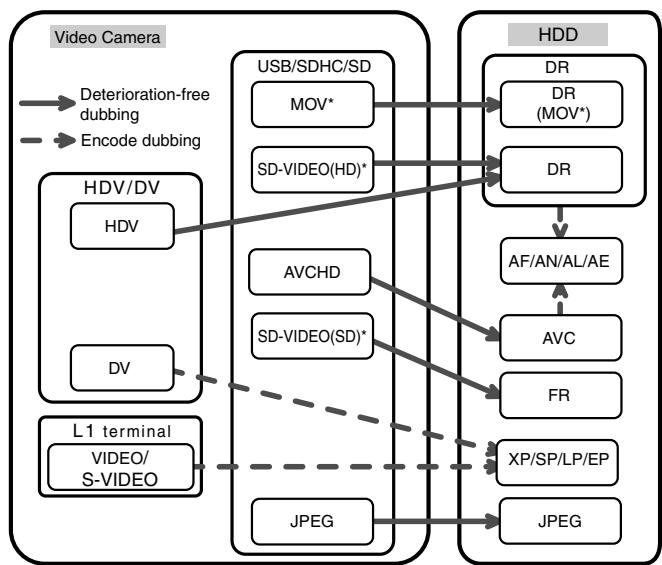
MOV*: MOV files that are taken in SP mode and HQ mode using the JVC ProHD Camcorder GY-HM700/100
SD-VIDEO(HD)*: SD-VIDEO(JVC Everio MPEG2 TS)
SD-VIDEO(SD)*: SD-VIDEO(JVC Everio MPEG2 PS)
- Importing data from a video deck
You can import data to the HDD from an external video deck by connecting it to a composite video or S input terminal. For more details, refer to "Recording Using External Inputs" (1 page 49).
Memo:
- Videos that are copy-controlled cannot be imported. Motion JPEG is not supported.
Dubbing chart
Dubbing the video data from the HDD
| Content Quality\Quality\Dubbing | Format (BD) | Format (DVD) | |||
| BDMV(HD Quality) | BDAV(HD Quality) | BDAV(SD Quality) | DVD-VR | DVD-VIDEO | |
| DR (MOV*) | High-speed dubbing | High-speed dubbing / Re-encoding | Re-encoding | Re-encoding | Re-encoding |
| DR (Other) | - | High-speed dubbing / Re-encoding | Re-encoding | Re-encoding | Re-encoding |
| AF/AN/AL/AE | High-speed dubbing | High-speed dubbing / Re-encoding | Re-encoding | Re-encoding | Re-encoding |
| AVC | High-speed dubbing | High-speed dubbing / Re-encoding | Re-encoding | Re-encoding | Re-encoding |
| FR | - | - | Re-encoding | High-speed dubbing / Re-encoding | Re-encoding |
| XP/SP/LP/EP* | - | - | Re-encoding | High-speed dubbing / Re-encoding | High-speed dubbing / Re-encoding |
Memo:
EP*: High-speed dubbing to DVD-VIDEO format discs in EP mode title. To perform high-speed dubbing of an EP mode title to a DVD-VIDEO format disc, set "HIGH-SPEED DUBBING" (page 80) in the settings menu to "4:3" before recording or importing. Only re-encoding will be performed when dubbing a title that is recorded or imported with a setting other than "4:3".
MOV*: MOV files that are taken in SP mode and HQ mode using the JVC ProHD Camcorder GY-HM700/100
- Dubbing the picture data from the HDD
| Importing file (HDD) | Media | |
| BDAV(BD-RE) | SDHC/SD | |
| JPEG | ○ | ○ |
Memo:
- Video images may be distorted in the following situations during re-encoding/dubbing when the monitor (TV) is connected to this unit using an HDMI cable, or when the screen resolution is set to 1080p.
- Proceeding with dubbing from the menu screen
- Returning to the normal screen after dubbing has finished
- This is not a malfunction. Change the screen resolution to a setting other than 1080p if you feel that this is annoying.
Formatting
Unused discs or SD cards may require formatting in some cases.
When the need arises, format the disc or SD card accordingly.
Memo:
- Formatting a disc or SD card erases all existing data from the media. Double-check carefully before formatting so as not to erase important titles.
- When using a DVD-R disc in the Video mode, formatting is not required.
Format chart
Refer to the following chart for the disc types and format when formatting a disc.
Note:
- If a disc is formatted using an equipment not manufactured by JVC, the disc may not be read correctly even though it corresponds to the chart below.
In this case, reformat the disc using this unit, or make use of another blank disc.
Memo:
BD-R and DVD-R discs can only be formatted once. - When a disc is re-formatted into another format, remove the disc and load it again.
DVD format chart
| Format | VR Format | Video Format | |
| DVD-RW | Single-sided, single layer (4.7 GB) | ○ | ○ |
| DVD-R | Single-sided, single layer (4.7 GB) | ○ | ○(*) |
| Single-sided, dual layer (8.5 GB) | ○ | ○(*) |
: Format supported. * : Formatting not required.
BD format chart
| Format | ||
| BD-RE | Single-sided, single layer (25 GB) | ○ |
| Single-sided, dual layer (50 GB) | ○ | |
| BD-R | Single-sided, single layer (25 GB) | ○ |
| Single-sided, dual layer (50 GB) | ○ |
: Format supported.
Formatting a disc
1 Set the DVD or BD to be formatted on the disc tray. 2 Press the [MEDIA MANAGE] button on the remote control unit.
- The Media Management menu screen appears.
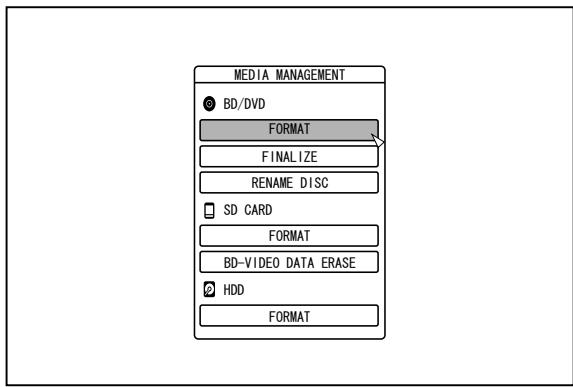
3 Select "FORMAT" from "BD/DVD".
DVD: A format selection screen appears. BD: A confirmation screen to execute formatting appears.
4 Select a format mode from the format selection screen.
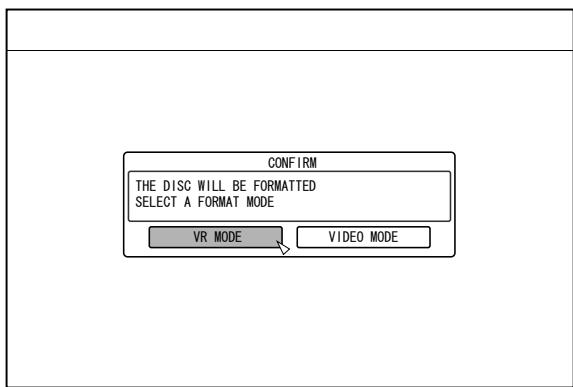
DVD-RW: Select a "Format mode" from "VR MODE" or "VIDEO MODE".
Memo:
- This screen does not appear when a BD or DVD-R disc is used.
Formatting (Continued)
5 Select "YES", and press the [OK] button in the format confirmation screen.
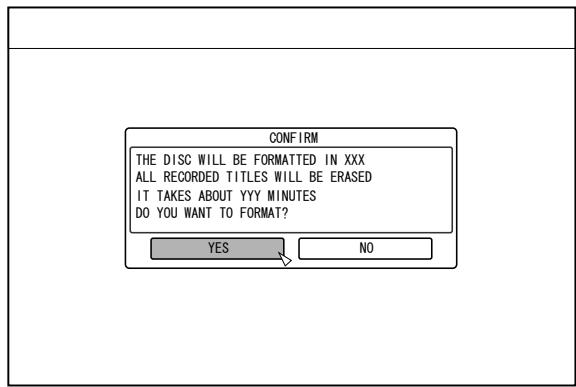
- Formatting starts.
- After formatting is complete, a "THE DISC HAS BEEN FORMATTED" message appears on the monitor, and the normal screen is displayed.
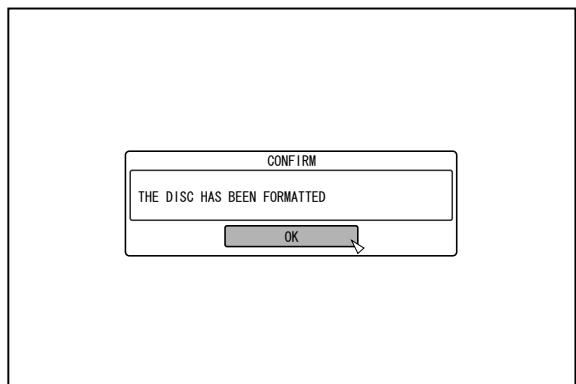
Memo:
- To return to the initial screen without formatting the disc, select "DO NOT FORMAT" and press the [OK] button. Alternatively, you can press the [RETURN] button to return to the initial screen without formatting.
Note:
- Do not turn off the power or unplug the power cable when the "FORMATTING DISC..." message is displayed.
- Note that formatting a disc with copyright-protected titles erases all the titles from the disc.
- Cancel formatting
1 Press the [OPTION] button while formatting
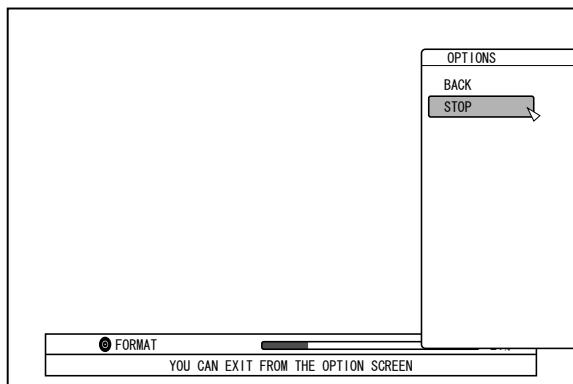
2 Select "STOP" and press the [OK] button
- A confirmation screen to stop formatting appears. 3 Select "YES" on the confirmation screen and press the [OK] button
![JVC SR-HD2500EU - Select "STOP" and press the [OK] button - 1](/content/2019/10/6176/images/ef24eed040ae32ae8b780a41bf3ee180b664be5c3ae87ff212cd7db7d907d4fe.jpg)
- Formatting is stopped.
Note:
- Formatting can be stopped if it seems to take a long time (more than two minutes).
- If for any reason formatting cannot be stopped, the confirmation screen for stopping formatting will not appear even if the [OPTION] button is pressed.
Formatting an SD Card
1 Insert the SD card to be formatted into the [SD SLOT]
- With the terminal side facing down, insert the SD card until a "click" sound is heard.
![JVC SR-HD2500EU - Insert the SD card to be formatted into the [SD SLOT] - 1](/content/2019/10/6176/images/f59f7f8ae5c0a23ae2b8d1b28bb385292c05de313c5594bf2e784c9e7a4b64a2.jpg)
Note:
- Formatting cannot be performed if the SD card is write-protected. In this case, turn off the write-protect lock before inserting the SD card.
2 Press the [MEDIA MANAGE] button on the remote control unit
- The Media Management menu screen appears.
![JVC SR-HD2500EU - Press the [MEDIA MANAGE] button on the remote control unit - 1](/content/2019/10/6176/images/5e2e4bf44fc09135e6a56a02a48d5930b762bf0fc4199013913a5c1a929237ff.jpg)
3 Select "FORMAT" from "SD CARD"
- A confirmation screen to execute formatting appears.
4 Select "YES", and press the [OK] button.
![JVC SR-HD2500EU - Select "YES", and press the [OK] button. - 1](/content/2019/10/6176/images/c77524dd653e5e7a97c08ccdc3543111d493d214d61d41cd0c7e1da8315556cb.jpg)
- Formatting starts.
- After formatting is complete, a "THE SD CARD HAS BEEN FORMATTED" message appears on the monitor, and the normal screen is displayed.
Memo:
- To return to the initial screen without formatting the disc, select "NO" and press the [OK] button. Alternatively, you can press the [RETURN] button to return to the initial screen without formatting.
Note:
- Do not turn off the power or unplug the power cable when the "FORMATTING SD CARD..." message is displayed. Do not remove the SD card as well. Doing so may damage the SD card.
- Note that formatting a disc with copyright-protected titles erases all the titles from the disc.
- Once the formatting of the SD card begins, it cannot be stopped.
Recording Modes
Maximum recording time for each recording mode
You can specify a recording mode according to the intended use. Setting the video to a high picture quality shortens the maximum recording time, while setting to a lower picture quality lengthens the recording time.
Refer to the following table for the maximum recording time in the respective modes. All figures shown in the table are approximate values.
| Recording Mode | Quality | BD (Single-sided, Single Layer) | BD (Single-sided, Dual Layer) | DVD (Single-sided, Single Layer) | DVD (Single-sided, Dual Layer) | HDD (500 GB) |
| DR | HD | 1.9 hours | 3.8 hours | - | - | 40 hours (*1) |
| AF | 4 hours | 8 hours | - | - | 80 hours | |
| AN | 6 hours | 12 hours | - | - | 126 hours | |
| AL | 9 hours | 18 hours | - | - | 189 hours | |
| AE | 12 hours | 24 hours | - | - | 252 hours | |
| XP | SD | 5.25 hours | 10.5 hours | 1 hours | 1.7 hours | 110 hours |
| SP | 10.5 hours | 21 hours | 2 hours | 3.5 hours | 222 hours | |
| LP | 21 hours | 42 hours | 4 hours | 7.1 hours | 442 hours | |
| EP | 42 hours | 84 hours | 8 hours | 14.3 hours | 887 hours | |
| DR1 | HD | 1.8 hours | 3.6 hours | - | - | 38 hours |
| DR2 | 2 hours | 4 hours | - | - | 42 hours | |
| DR3 | 2.9 hours | 6 hours | - | - | 62 hours | |
| DR4 | 3.9 hours | 7.8 hours | - | - | 82 hours |
*1 : An estimated figure when HDV is imported.
Memo:
DR mode
Abbreviation for Direct Recording. Videos are recorded in the original picture quality.
- AF/AN/XP/SP mode
Recommended for recording images with fast motion, such as sports videos.
- The AF/AN mode record images at the high-quality HD level.
- The XP/SP modes record images at the high-quality SD level.
- AL/AE/LP mode
Recommended for recording images with slow motion and little contrast, such as dramas.
- AL/AE mode records images at the low-quality HD level.
- LP mode records images at the low-quality SD level.
- EP mode
Recommended for recording images with sharp outlines, such as animation videos, and when the recordable time (remaining time) is limited.
- DR1/DR2/DR3/DR4 mode
Selection is enabled only when you are importing HD movies from the SDI input terminal.
Select DR1 to record in the finest image quality, and DR4 for the lowest quality. The recordable duration is longest in the DR4 quality, and shortest in the DR1 setting.
- Setting the DR1/DR2/DR3/DR4 recording mode
If the recording mode is changed to the DR1/DR2/DR3/DR4, it may take a little while to process the setting. In the meantime, input signals may not be displayed.
- You can change the recording mode by pressing the [OPTION] button on the remote control unit while playback, dubbing or editing is not in progress.
① Press the [OPTION] button on the remote control unit ② Select “RECORDING MODE”, and press the [OK] button on the remote control unit ③ Select "RECORDING MODE" to which you want to change, and press the [OK] button on the remote control unit
HD picture quality
- Using BD enables dubbing to be done with HD picture quality. To dub HD picture quality titles that are imported in the HDD, use BD.
Note:
- Dubbing to a DVD cannot be done in HD picture quality.
DR mode
- HDV, MOV* and SD-VIDEO (JVC Everio MPEG2 TS) titles are imported using DR mode.
MOV*: MOV files that are taken in SP mode and HQ mode using the JVC ProHD Camcorder GY-HM700/100.
FR mode
FR mode is displayed as the recording mode in the following cases.
- FR mode during import into HDD: During import of SD-VIDEO (JVC Everio MPEG2 PS) titles via high-speed dubbing. During import of data via high-speed dubbing from DVD-VR discs recorded using other units.
- FR mode during dubbing from HDD: When selecting the most appropriate mode automatically between XP and EP according to the remaining memory on the disc.
Importing Data from a BD/DVD to the HDD
Data can be imported from a BD/DVD to the HDD as follows. - File formats that can be imported
Videos: BD-MV, BD-AV, AVCHD, DVD-VR, DVD VIDEO, EverioBackup
Still Images: EverioBackup, BD-AV (BD-RE)
Memo:
- Titles that are imported using "FULL IMPORT" are combined into one title.
This unit does not support combining titles during the editing operation after import is complete. To combine and import data, select "FULL IMPORT".
- For data that is selected for import via "SEL. TITLE(VIDEO)", titles with the same date are combined.
- Titles of two or more scenes cannot be combined if the recording criteria, such as video size, are different.
Note:
- Only titles that are not copyright-protected can be imported.
- Recognizing the device and importing the files may take a long time depending on the amount of files in the device.
Preparations
1. Set a BD or DVD on the disc tray. 2. Press the [DUBBING] button on the remote control unit.
- The importing screen appears.
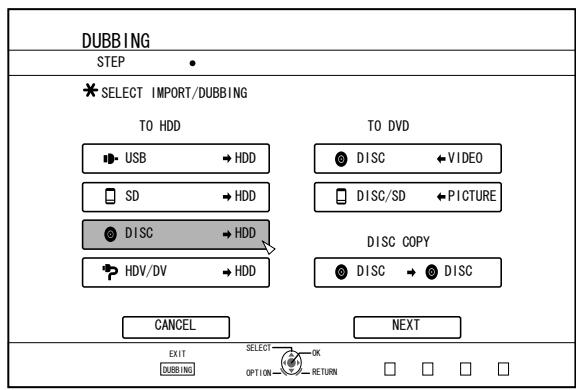
3. Select "DISC ⇒ HDD" in the importing screen, and press the [OK] button.
4. Select "NEXT", and press the [OK] button.
- A check mark is added to the "DISC ⇒ HDD" item.
- The import selection screen appears.
Memo:
- A recording mode selection appears instead of the import selection screen when DVD-VIDEO is detected. For more details, refer to "Importing DVD-VIDEO" (page 34).
Full import
1 Select "FULL IMPORT" in the import selection screen, and press the [OK] button - A check mark is added to the "FULL IMPORT" item.
2 Select "NEXT", and press the [OK] button
![JVC SR-HD2500EU - Select "NEXT", and press the [OK] button - 1](/content/2019/10/6176/images/0bc4ffc290cd5e8f493457a96d4dec5549e2dcc13b2c464e189bd137ffc9866e.jpg)
- "START" will appear instead of "NEXT" in the menu if the disc is of a format other than "BD-AV". In this case, go to Step 5.
3 Select "RECORDING MODE", and press the [OK] button
- A pop-up menu appears.
4 Select the "RECORDING MODE" option
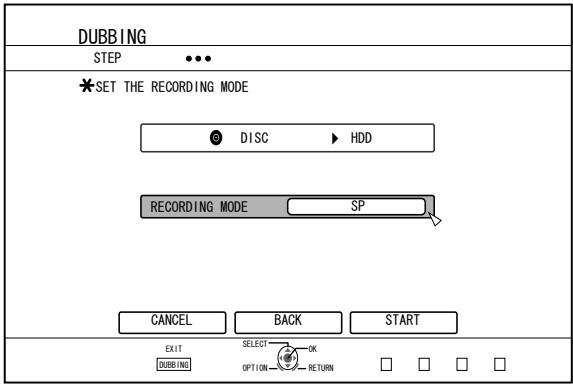
For more details, refer to "Recording Modes" (page 30).
5 Select "START", and press the [OK] button.
- Importing of the titles starts.
- After titles are successfully imported, a "DUBBING IS COMPLETED" message appears on the monitor.
![JVC SR-HD2500EU - Select "START", and press the [OK] button. - 1](/content/2019/10/6176/images/67588d1456a3f2da27a17e1ce712bb3f56bef7d13429df8ac17ad2e6c8cee106.jpg)
Specify a title
1 Select "SEL. TITLE(VIDEO)" in the import selection screen, and press the [OK] button
- A check mark is added to the "SEL. TITLE(VIDEO)" item.
2 Select "NEXT", and press the [OK] button
![JVC SR-HD2500EU - Select "NEXT", and press the [OK] button - 1](/content/2019/10/6176/images/6ba11c777e28f521a996f4199186a9faf1e74010b1b0711be33ca336f1eb59fd.jpg)
- If a "BD-AV" disc is set, a recording mode selection screen will appear.
- If the disc is of a format other than "BD-AV", a screen for creating an import title list will appear. Go to step 5.
3 Select "RECORDING MODE", and press the [OK] button
- A pop-up menu appears.
![JVC SR-HD2500EU - Select "RECORDING MODE", and press the [OK] button - 1](/content/2019/10/6176/images/e9b8929e44b9fa8330803d8a961abed925a4fd7b3c68e1ca7d596b8c72e4bf53.jpg)
4 Select the "RECORDING MODE" option.
For more details, refer to "Recording Modes" (page 30).
5 Select "NEXT", and press the [OK] button
- A screen for creating the import title list appears.
6 Create an import title list
- Follow the steps below to create an import title list.
① Select "ADD TITLE LIST FOR DUBBING", and press the [OK] button. The Title List screen is displayed. ② Select the titles to import, and press the [OK] button. Titles selected are added to the list.
Memo:
- Press the [MARK] button. A check mark will appear beside the title. All titles with a check mark can be added to the list at the same time.
- Select a title from the dubbing title list, and press the [OK] button to perform the following changes.
- Delete the selected title from the list
- Thumbnails may not be displayed during title selection depending on the discs used.
Importing Data from a BD/DVD to the HDD (Continued)
7 Select "START", and press the [OK] button
![JVC SR-HD2500EU - Select "START", and press the [OK] button - 1](/content/2019/10/6176/images/bee12d55125faa2f9ecdbb04a27da389cf7e80a65a0e2e2afb69fc73781d1daf.jpg)
- Importing of titles starts according to the sequence in the created title list.
- After titles are successfully imported, a “DUBBING IS COMPLETED” message appears on the monitor.
![JVC SR-HD2500EU - Select "START", and press the [OK] button - 2](/content/2019/10/6176/images/7d14fc3bb431243ae5a9e8d332bf0c7906bf8de59f00adf857d472a1d38a3d32.jpg)
Note:
- "START" cannot be selected for the following cases.
- A title that cannot be dubbed has been selected HDD memory is insufficient
- The amount of titles in the HDD has reached the maximum amount
- A dubbing title list has not been created
Importing DVD-VIDEO
When DVD-VIDEO is detected, a recording mode selection screen appears.
Follow the steps below to import DVD-VIDEO to the HDD.
1 Select "RECORDING MODE", press the [OK] button, and select "RECORDING MODE" from the recording mode selection screen - Select the "RECORDING MODE" option.
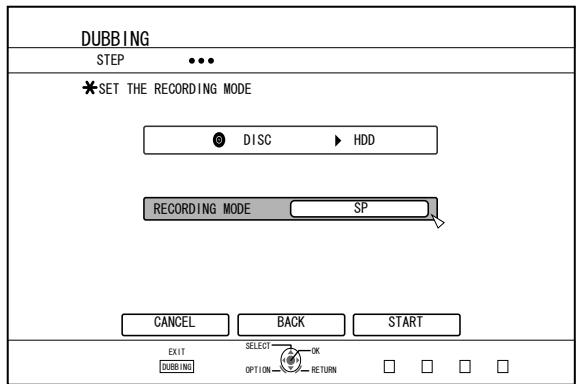
For more details, refer to "Recording Modes" (R page 30).
2 Select "START", and press the [OK] button
- Importing of the titles starts.
- After titles are successfully imported, a "DUBBING IS COMPLETED" message appears on the monitor.
![JVC SR-HD2500EU - Select "START", and press the [OK] button - 1](/content/2019/10/6176/images/5cc3c069f44b7d46bb0b908165546afb7f3f541f61aade8d86a55c98386aaf7f.jpg)
Memo:
- If the first play setting of the DVD-video has been set to top menu or other settings, the title will not playback. If playback does not start, press the play button or playback the DVD-Video.
Canceling importing
To cancel importing before it starts
- Select "CANCEL" from the menu, and press the [OK] button to cancel importing of a title.
- Alternatively, you can press the [RETURN] button to cancel importing and return to the initial screen.
To cancel importing while it is in progress
- Press the [OPTION] button to display the pop-up menu. Select "CANCEL" from the pop-up menu and press the [OK] button. Data will be written onto the disc up to the point where import is cancelled.
- Importing will also be stopped when the [■] button is pressed to stop playback.
Importing Data from a USB-compatible Device to the HDD
Data on devices connected to the USB terminal can be imported to the HDD as follows.
- File formats that can be imported
AVCHD, SD-VIDEO (JVC Everio MPEG2 TS, PS), MOV*, and JPEG
MOV*: MOV files that are taken in SP mode and HQ mode using the JVC ProHD Camcorder GY-HM700/100
Memo:
- Titles that are imported using "FULL IMPORT" are combined into one title. This unit does not support combining of titles during the editing operation after import is complete. To combine and import data, select "FULL IMPORT".
- For data that is selected for import via "SEL.
TITLE (VIDEO)", titles with the same date are combined.
- Titles of two or more scenes cannot be combined if the recording criteria, such as video size, are different.
- Import of MOV files recorded using JVC GY-HM700/100 SP mode 1080i (25 Mbps) requires a duration that is about 1.3 times longer than the usual time.
Note:
- Turn off the power for this unit and the connecting device if a USB compatible device is to be connected to this unit.
- Do not unplug the USB cable while importing a title. Doing so may result in loss or damage of the titles.
- Only titles that are not copyright-protected can be imported.
- For MOV format videos, only videos in MOV format (SP mode and HQ mode) taken using JVC ProHD camcorder GY-HM700/100 are compatible. There is no guarantee for importing videos taken on devices by other companies.
- Recognizing the device and importing the files may take a long time depending on the amount of files in the USB device.
- If a USB connection is used, this unit will only recognize one device out of all the recording devices. Depending on the video camera, the memory card slot will be recognized but the internal device will not be recognized. Use the following methods to solve this.
- If the internal device is not recognized: Copy the data from the camera's internal memory or HDD onto the SD card.
- If using a JVC camcorder that has two memory card slots: Put the memory card that has the required data in slot
- If the target device is not recognized using the USB connection, use the camcorder's burner or a similar device to dub the disc before proceeding with dubbing on this unit. For more details, refer to "Importing Data from a BD/DVD to the HDD" (page 32).
- When importing videos from a USB-connected camcorder, data reading from the internal memory of the camcorder may fail. If both the camcorder's internal memory and SD card are available, the SD card may be detected first. To prevent this from occurring, remove the SD card before reading data from the internal memory.
Preparations
1 Connect the USB device (Everio, etc.) to this unit using a USB cable
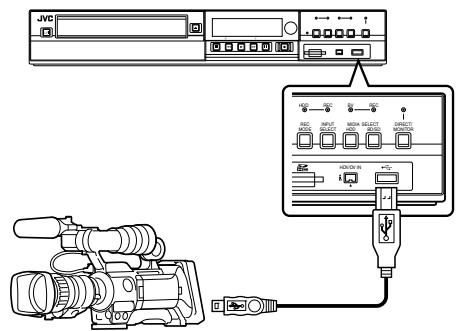
Memo:
- After connecting the USB cable, turn on the camera and switch the mode of the camera. (Choose "Connect to a computer" or a similar option. For details refer to the camera's instruction manual.)
- "USB RDY" appears on the display window of the unit when a USB device is recognized.
2 Press the [DUBBING] button on the remote control unit
- The importing screen appears.
![JVC SR-HD2500EU - Press the [DUBBING] button on the remote control unit - 1](/content/2019/10/6176/images/28920db34283fe4d9fc78712809645fe24f3a6b911548b22306ea19994c8517d.jpg)
3 Select "USB ⇒ HDD" in the importing screen, and press the [OK] button.
- A check mark is added to the "USB⇒HDD" item. 4 Select "NEXT", and press the [OK] button.
- The import selection screen appears.
Full import
1 Select "FULL IMPORT" in the import selection screen, and press the [OK] button. A check mark is added to the "FULL IMPORT" item. 2 Select "START", and press the [OK] button.
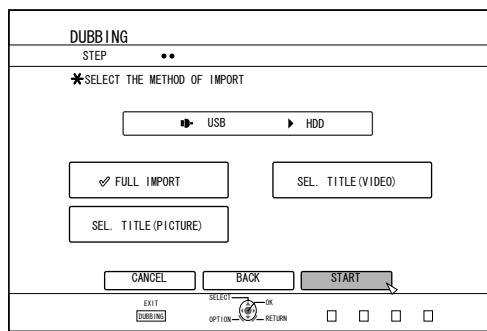
Importing Data from a USB-compatible Device to the HDD (Continued)
- Importing of the titles starts.
- After titles are successfully imported, a "DUBBING IS COMPLETED" message appears on the monitor.
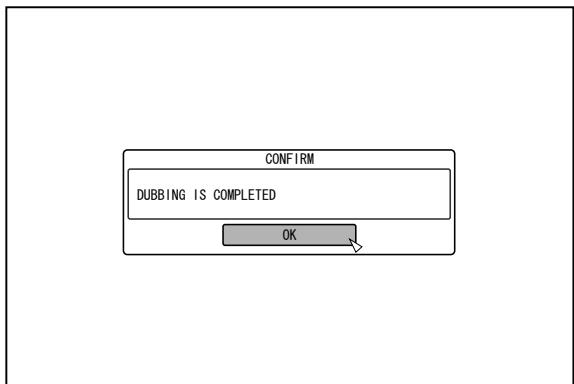
Specify a title
1 Select "SEL. TITLE(VIDEO)" in the import selection screen, and press the [OK] button. A check mark is added to the "SEL. TITLE(VIDEO)" item.
2 Select "NEXT", and press the [OK] button.
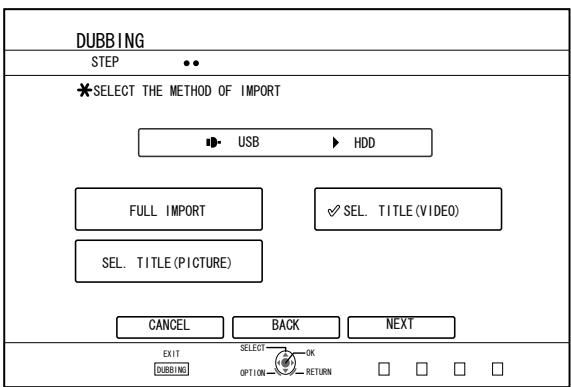
- A screen for creating the import title list appears.
3 Create an import title list.
- Follow the steps below to create an import title list.
① Select “ADD TITLE LIST FOR DUBBING”, and press the [OK] button. The Title List screen is displayed. (2) Select the titles to import, and press the [OK] button.
Titles selected are added to the list.
Memo:
- Press the [MARK] button. A check mark will appear beside the title. All titles with a check mark can be added to the list at the same time.
- You can perform the following editing operations by selecting a title from the dubbing title list and pressing the [OK] button.
- Delete the selected title from the list.
- Thumbnails will not be displayed when a title is selected.
4. Select "START", and press the [OK] button.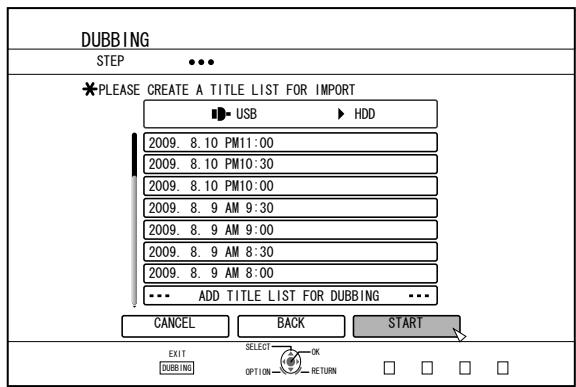
- Importing of titles starts according to the sequence in the created title list.
- After titles are successfully imported, a "DUBBING IS COMPLETED" message appears on the monitor.
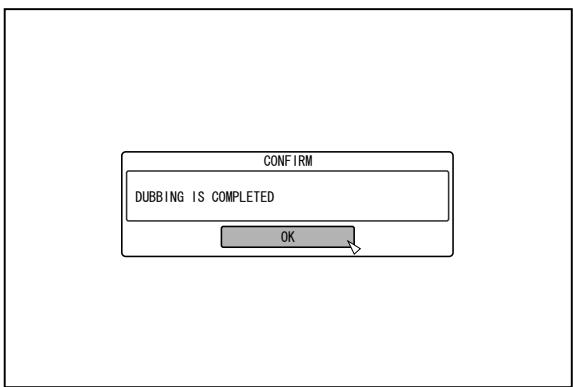
Note:
- "START" cannot be selected for the following cases.
- A title that cannot be dubbed has been selected. HDD memory is insufficient.
- The amount of titles in the HDD has reached the maximum amount
- A dubbing title list has not been created
Canceling importing
To cancel importing before it starts
- Select "CANCEL" from the menu, and press the [OK] button to cancel importing of a title.
- Alternatively, you can press the [RETURN] button to cancel importing and return to the initial screen.
To cancel importing while it is in progress
- Press the [OPTION] button. Select "CANCEL" from the Cancel Importing menu, and press the [OK] button. Doing so imports data to the HDD up to the position where you have chosen to stop.
Importing Data from an SD Card to the HDD
Data can be imported from a SD (SDHC) card to the HDD as follows. - File formats that can be imported
AVCHD, SD-VIDEO(JVC Everio MPEG2 TS, PS), MOV*, and JPEG
MOV*: MOV files that are taken in SP mode and HQ mode using the JVC ProHD Camcorder GY-HM700/100
Memo:
- Titles that are imported using "FULL IMPORT" combined into one title. This unit does not support combining of titles during the editing operation after import is complete. To combine and import data, select "FULL IMPORT".
- For data that is selected for import via "SEL
TITLE(VIDEO)", titles with the same date are combined.
- Titles of two or more scenes cannot be combined if the recording criteria, such as video size, are different.
- Import of MOV files recorded using JVC GY-HM700/100 SP mode 1080i (25 Mbps) requires a duration that is about 1.3 times longer than the usual time.
Note:
- Do not remove the SD card when importing of the titles is in progress or when the importing screen is displayed. Doing so may result in loss or damage of the titles.
- For MOV format videos, only videos in MOV format (SP mode and HQ mode) taken using JVC ProHD camcorder GY-HM700/100 are compatible. There is no guarantee for importing videos taken on devices by other company.
- Only titles that are not copyright-protected can be imported.
Preparations
1 Insert the SD (SDHC) card into the [SD SLOT]
![JVC SR-HD2500EU - Insert the SD (SDHC) card into the [SD SLOT] - 1](/content/2019/10/6176/images/1da2ce776f0be9b4295bf5855b4c80ad6ee3c27459c6ed0eca4ec1ddd59b7ae4.jpg)
Memo:
- "SD RDY" appears on the display window of the unit when an SD card is recognized.
2 Press the [DUBBING] button on the remote control unit
- The importing screen appears.
![JVC SR-HD2500EU - Press the [DUBBING] button on the remote control unit - 1](/content/2019/10/6176/images/6a1906154705fc11915ebe6637ea50a1f7f0d5fb831ea424436805f2e3ea43ef.jpg)
3 Select "SD ⇒ HDD" in the importing screen, and press the [OK] button - A check mark is added to the "SD ⇒ HDD" item. 4 Select "NEXT", and press the [OK] button. - The import selection screen appears.
Full import
1 Select "FULL IMPORT" in the import selection screen, and press the [OK] button. A check mark is added to the "FULL IMPORT" item. 2 Select "START", and press the [OK] button.
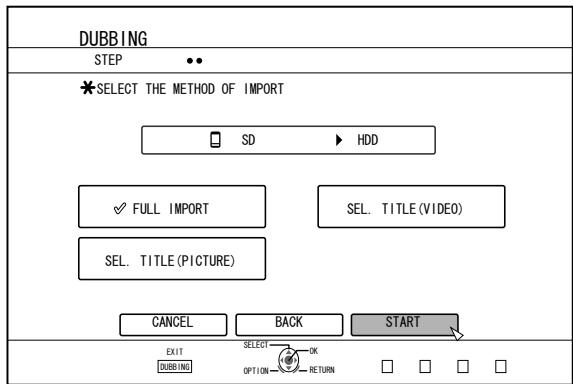
- Importing of the titles starts.
- After titles are successfully imported, a "DUBBING IS COMPLETED" message appears on the monitor.
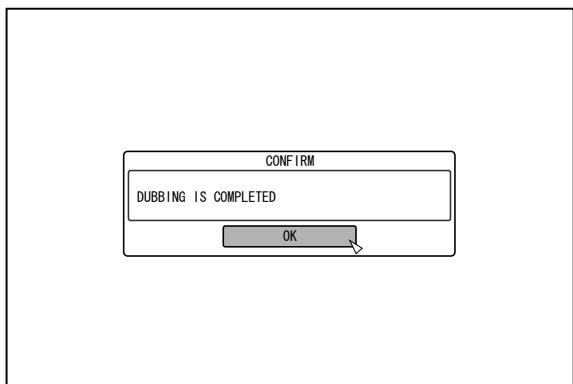
Memo:
- Choose "BACK" from the menu and press the [OK] button to return to the previous screen.
Importing Data from an SD Card to the HDD (Continued)
Specify a title.
1 Select "SEL. TITLE(VIDEO)" in the import selection screen, and press the [OK] button. A check mark is added to the "SEL. TITLE(VIDEO)" item.
2 Select "NEXT", and press the [OK] button.
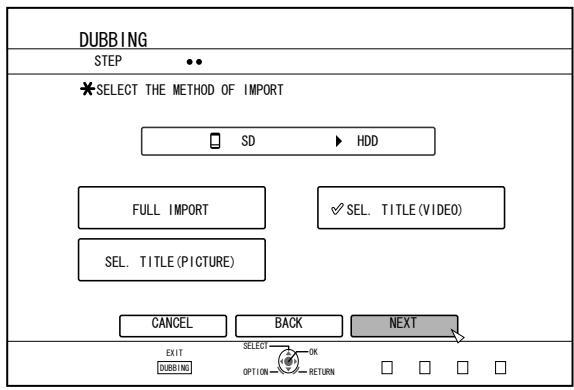
- A screen for creating the import title list appears.
3 Create an import title list.
- Follow the steps below to create an import title list.
1 Select "ADD TITLE LIST FOR DUBBING", and press the [OK] button. The Title List screen is displayed. 2 Select the titles to import, and press the [OK] button.
Titles selected are added to the list.
Memo:
- Press the [MARK] button. A check mark will appear beside the title. All titles with a check mark can be added to the list at the same time.
- You can perform the following editing operations by selecting a title from the dubbing title list and pressing the [OK] button.
- Delete the selected title from the list.
- When there are files of different formats (AVCHD, SDVIDEO, MOV*) in the SD card, press the [RED] button to select the format you want to display.
MOV*: MOV files that are taken in SP mode and HQ mode using the JVC ProHD Camcorder GY-HM700/100.
4 Select "START", and press the [OK] button.
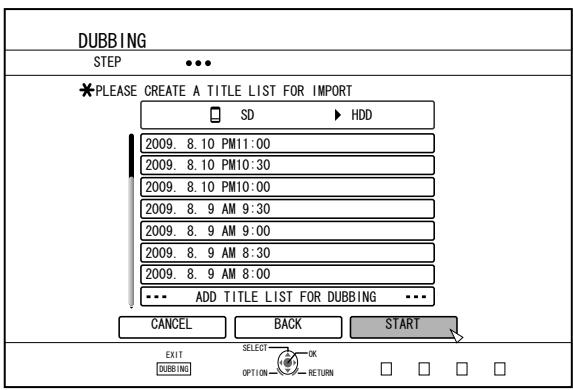
- Importing of titles starts according to the sequence in the created title list.
- After titles are successfully imported, a “DUBBING IS COMPLETED” message appears on the monitor.
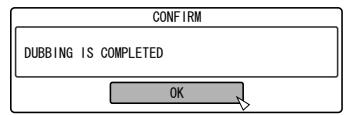
Memo:
- Choose "BACK" from the menu and press the [OK] button to return to the previous screen.
Note:
- "START" cannot be selected for the following cases.
- A title that cannot be dubbed has been selected. HDD memory is insufficient.
- The amount of titles in the HDD has reached the maximum amount
- A dubbing title list has not been created
- Thumbnails will not be displayed when a title is selected.
Canceling importing
To cancel importing before it starts
- Select "CANCEL" from the menu, and press the [OK] button to cancel importing of a title.
- Alternatively, you can press the [RETURN] button to cancel importing and return to the initial screen.
To cancel importing while it is in progress
- Press the [OPTION] button. Select "CANCEL" from the Cancel Importing menu, and press the [OK] button. Doing so imports data to the HDD up to the position where you have chosen to stop.
Importing Data from an i.LINK-compatible Device to the HDD
Data on devices connected to the i.LINK terminal can be imported to the HDD as follows.
Video formats that can be imported:
DV and HDV content
Memo:
- Only titles that are not copyright-protected can be imported. Devices that have in-built copyright protection such as D-VHS and digital tuners cannot be connected. This unit only allows import from tape media.
- Importing will not be performed if no tape has been inserted into the HDV/DV camera.
- Importing will be cancelled when the mode is changed from HDV to DV or vice versa.
- For camcorders that support both HDV and DV recording, use only one of the modes for recording and playback.
- There is no support for editing using a connected PC.
- Only one i.LINK device can be connected to this unit at a time.
Note:
- Turn off the power for this unit and the connecting device when connecting using an i.LINK compatible device.
- Do not unplug the i.LINK cable while importing to the HDD is in progress. Doing so may result in loss or damage of the titles.
- For example, during full import of HDV content from JVC GY-HD100 via i.LINK connection, the beginning of the image may not be captured if GY-HD100 is not set as follows.
(1) Set the [IEEE1394] switch at the rear of the GY-HD100 unit to [HDV] or [DV] according to the recorded content. (2) Set [MENU]/[VIDEO FORMAT]/[PB TAPE] on the GY-HD100 unit to [HDV] or [DV]. (As with (1), set according to the recorded content. Setting to [AUTO] is not allowed.) (3) Check to ensure that the [HDV] or [DV] lamp on the side of the GY-HD100 unit is lit. (Check to ensure that the lamp that is lit corresponds to the setting in (1) and (2).)
When importing from a tape that contains data captured in the HDV recording and DV recording modes, change the video camera setting according to each recording mode, check to ensure that the corresponding lamp in (3) is lit, and choose to start import from the current position.
Preparations
1 Connect the device (camera, etc.) to this unit using an i.LINK cable
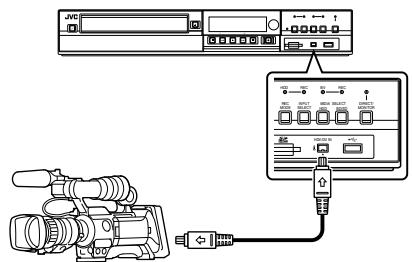
Memo:
- After the device (camera, etc.) has been connected using an i.Link cable, turn on the power of the device and switch it to playback mode. (Refer to the device's (camera, etc.) instruction manual for more details.)
- "HDV/DV RDY" appears on the display window of the unit when an i.Link device is recognized.
2 Press the [DUBBING] button on the remote control unit.
- The importing screen appears.
![JVC SR-HD2500EU - Press the [DUBBING] button on the remote control unit. - 1](/content/2019/10/6176/images/32bd494e0f7f6f3fc301a151b1cc50d7b21ea72c726346ba171f450578f3d0b0.jpg)
3 Select "HDV/DV => HDD" in the importing screen, and press the [OK] button.
- A check mark is added to the "HDV/DV <=> HDD" item.
4 Select "NEXT", and press the [OK] button.
- The import selection screen appears.
Imports data from the beginning.
You can import videos from the beginning to the end as follows. If the current position is halfway through the tape, import after rewinding the tape to the beginning.
1 Select "IMPORT FROM BEGINNING", and press the [OK] button.
- A check mark is added to the "IMPORT FROM BEGINNING" item.
2 Select "NEXT", and press the [OK] button.
![JVC SR-HD2500EU - Select "NEXT", and press the [OK] button. - 1](/content/2019/10/6176/images/6d4b1ccf6cec5bfa78a263f8263611e28f5cec7e34143b5c9cf2d3bf50f6cf5b.jpg)
- A recording mode selection screen appears.
3 Select "RECORDING MODE", press the [OK] button, and select from the pop-up menu.
Importing Data from an i.LINK-compatible Device to the HDD (Continued)
- Select "XP", "SP", "LP", or "EP" from the "RECORDING MODE" option.
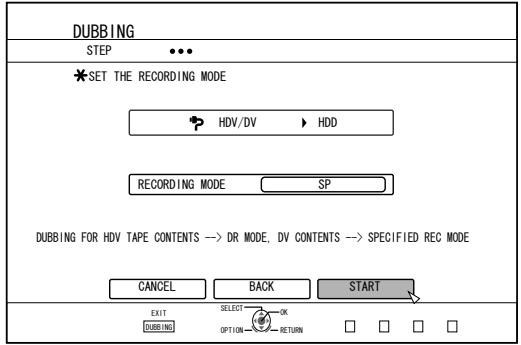
Memo:
- HDV contents will be imported in DR mode.
For more details, refer to "Recording Modes" (page 30).
4 Select "START", and press the [OK] button.
- Importing of the titles starts.
- After titles are successfully imported, a "DUBBING IS COMPLETED" message appears on the monitor.
![JVC SR-HD2500EU - Select "START", and press the [OK] button. - 1](/content/2019/10/6176/images/1862451a30a6a15d5081edb85129986764632ae374b127c89c02f85af36c0012.jpg)
Imports data from current position.
You can import videos from the current tape position till the end as follows.
1 Select "IMPORT FROM CURRENT POSITION", and press the [OK] button. A check mark is added to the "IMPORT FROM CURRENT POSITION" item.
2 Select "NEXT", and press the [OK] button.
![JVC SR-HD2500EU - Select "NEXT", and press the [OK] button. - 1](/content/2019/10/6176/images/58afae25efac2f42d67945bf3257d48d84af9e7a57c7be2c7e6b89fe0dd9c3a4.jpg)
- A recording mode selection screen appears.
3 Select "RECORDING MODE" and press the [OK] button to display the pop-up menu.
- Select "XP", "SP", "LP", or "EP" from the "RECORDING MODE" option.
![JVC SR-HD2500EU - Select "RECORDING MODE" and press the [OK] button to display the pop-up menu. - 1](/content/2019/10/6176/images/445885a40648edaac8ac010e173f792ddc0712686ac618654d115ebd6f748b1e.jpg)
Memo:
- HDV contents will be imported in DR mode.
For more details, refer to "Recording Modes" (page 30).
4 Select "START", and press the [OK] button.
- Importing of the titles starts.
- After titles are successfully imported, a "DUBBING IS COMPLETED" message appears on the monitor.
![JVC SR-HD2500EU - Select "START", and press the [OK] button. - 1](/content/2019/10/6176/images/44be8f6a417c444e326484b259ef28c0fda409b6bf08615082ce6b13aa1c1cad.jpg)
Cancel dubbing
To cancel importing before it starts
- Select "CANCEL" from the menu, and press the [OK] button to cancel importing of a title.
- Alternatively, you can press the [RETURN] button to cancel importing and return to the initial screen.
To cancel importing while it is in progress
- Press the [OPTION] button. Select "CANCEL" from the Cancel Importing menu, and press the [OK] button. Doing so imports data to the HDD up to the position where you have chosen to stop.
Dubbing a Title from the HDD to a BD/DVD
Titles stored in the internal HDD can be dubbed to a BD/DVD as follows.
Memo:
- Disc types that can be used for dubbing with this unit are: BD-RE, BD-R, DVD-RW, and DVD-R.
For more details, refer to "Discs that enable both dubbing and playback" (page 10).
- HD content for which the delete scene operation has been applied cannot be dubbed to BDMV. Perform seamless conversion before starting a dubbing operation.
For details, refer to "Mode conversion" (page 76).
Note:
- The following high bit-rate files may not meet the Blu-ray Disc standards when they are dubbed to a BD.
- When a BDAV/BDMV disc is created (high-speed dubbing) by importing content captured in the JVC GY-HM700/100 SP mode and HQ mode.
- When a BDAV disc is created (high-speed dubbing) by importing content captured in the JVC GZ-HD7/6 etc FHD mode.
- When a BDAV/BDMV disc is created by importing content that is captured using another video camera at a peak bit-rate that exceeds 28.8 Mbps.
- If the Blu-ray Disc standards are not met, playback on another player may fail. To ensure that the standards are satisfied, perform high-speed dubbing after converting the recording mode, or perform dubbing by specifying a recording mode.
Dubbing from the HDD to a BD/DVD
Preparation
1 Set a BD or DVD on the disc tray
Memo:
- A message appears on the monitor in the following cases where a disc cannot be written to. Take the necessary actions according to the message.
- When an incompatible disc type is set
- When there is insufficient space on the set disc
- When a finalized disc is set
2 Press the [DUBBING] button on the remote control unit
- The Dubbing menu screen appears.
3 On this screen, select "DISC\LVIDEO"
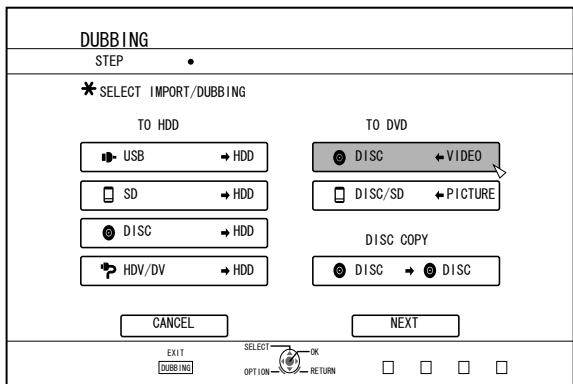
- A check mark is added to the "DISC\LVIDEO" item.
4 Select "NEXT", and press the [OK] button
Memo:
- Dubbing can also be performed from the Playback Navigation screen.
① Select the titles to dub, and press the [OPTION] button ② Select “DUB”, and press the [OK] button ③ Follow Steps 3 to 4 of "Preparation"
Dubbing titles
1 Select "RECORDING FORMAT", and press the [OK] button
![JVC SR-HD2500EU - Select "RECORDING FORMAT", and press the [OK] button - 1](/content/2019/10/6176/images/9ac28b1d76c505cb00bb5aba9a2469a85b55b55b4649ccad57a369786c46c4dd.jpg)
- Choose a format.
For more details, refer to "Format chart" (v8 page 27).
2 Select "RECORDING MODE", and press the [OK] button
![JVC SR-HD2500EU - Select "RECORDING MODE", and press the [OK] button - 1](/content/2019/10/6176/images/8cd525ddd240b8b90d6583a1b12eb1369c4c3729a175e92a9d41afd6ac24009f.jpg)
- Select "HIGH-SPEED DUBBING" or a recording mode of your preference.
Dubbing a Title from the HDD to a BD/DVD (Continued)
Memo:
High-speed dubbing: Select this option if you want to significantly shorten the time required for dubbing. Make use of a disc that supports high-speed recording. AF/AN/AL/AE can be selected for BD-R and BD-RE. Dubbing is done with HD picture quality. XP/SP/LP/EP: Dubbing is done with SD picture quality. • FR
An appropriate mode will be chosen automatically between XP to EP according to the remaining memory on the disc. For more details, refer to "Dubbing the video data from the HDD" (43 page 26) and "Recording Modes" (43 page 30).
3 Select "NEXT", and press the [OK] button
![JVC SR-HD2500EU - Select "NEXT", and press the [OK] button - 1](/content/2019/10/6176/images/8107b3d5cb9f6a1436dfddc2051a9017d5f93460ab33995cac93282f30b61865.jpg)
- A screen for creating a dubbing title list appears.
4 Create a dubbing title list
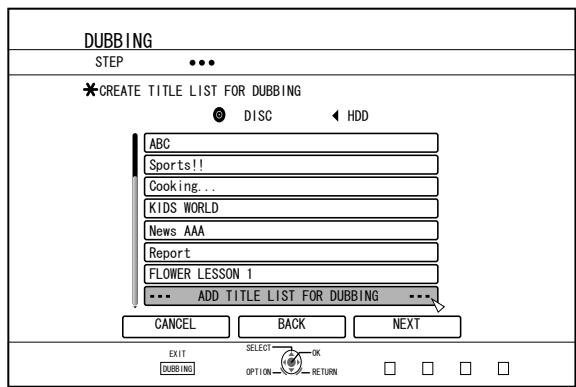
- Follow the steps below to create a dubbing title list.
① Select "ADD TITLE LIST FOR DUBBING", and press the [OK] button ② Select the titles to dub, and press the [OK] button
Memo:
- Press the [MARK] button. A check mark will appear beside the title. All titles with a check mark can be added to the list at the same time.
- You can perform the following editing operations by selecting a title from the dubbing title list and pressing the [OK] button.
- Delete the selected title from the list
- Change the list arrangement
- Change the name of the selected title
Select "RENAME TITLE", and press the [OK] button to change the title of the dubbing source. Dubbing of the new title is performed.
5 Select "NEXT", and press the [OK] button
![JVC SR-HD2500EU - Select "NEXT", and press the [OK] button - 1](/content/2019/10/6176/images/9b15ef8b934882ef9b0babe336f4812a28fb3df4bba993cd81646aadc4bd0cf3.jpg)
Note:
- "NEXT" cannot be selected for the following cases.
- A title that cannot be dubbed has been selected. Disc memory is insufficient.
- A dubbing title list has not been created.
Memo:
- Steps 6 and 7 are not applicable for "BDAV" and "DVD-VR" disc formats. Go to step 8.
6 Select a background image for the disc menu
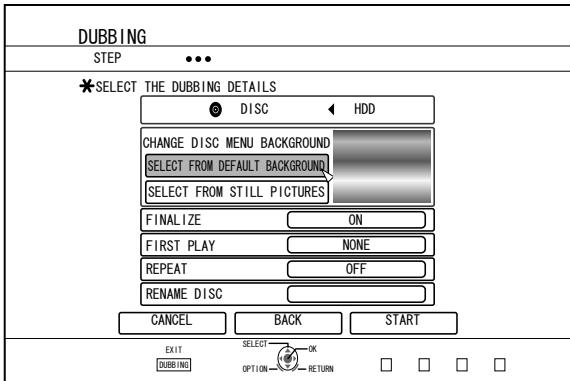
- Select a background image for the disc menu from "Background" or "Still Picture".
- SELECT FROM DEFAULT BACKGROUND: A default background set is used for the disc menu.
- "SELECT FROM STILL PICTURES"
Use a still image on the HDD for the disc menu.
The largest size allowed for a still image that is used as the background is 5120 x 3840.
Memo:
- The background image of the disc menu can be selected (only for DVD-Video and BD-MV).
- The following sizes are recommended for still images.
BD: 1920 x 1080
DVD: 720 x 480
- When a still image is used, the two vertical or horizontal edges are trimmed based on the side that is smaller than the aspect ratio of the video to be dubbed.
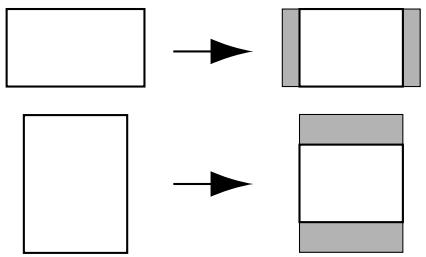
Example of Side-cut Still Image
7 Set the operations for finalize
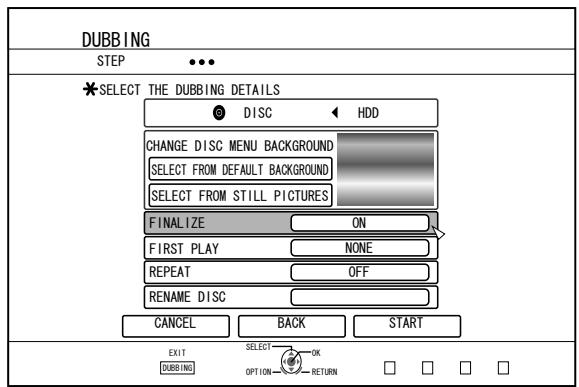
- Finalize will be performed after dubbing if "ON" has been set for "FINALIZE".
If a BD-MV disc is being dubbed, "OFF" cannot be set for "FINALIZE". And once the BD-MV disc is dubbed, the disc cannot be rewritten.
- If a DVD-Video or BD-MV disc is being dubbed, the settings for "FIRST PLAY", "REPEAT", and "RENAME DISC" can be changed.
① Select "FIRST PLAY", and select either "NONE", "TOP MENU", or "TITLE 1".
- "NONE": A finalized disc will not be automatically played back when it is inserted into another device.
- "TOP MENU":
The disc menu will be displayed automatically when a finalized disc is inserted into another device. - "TITLE 1":
The first title on a finalized disc will be played back automatically when it is inserted into another device.
Memo:
- "NONE" cannot be selected for "FIRST PLAY" for BD-MV.
② Select "REPEAT", and choose either "OFF" or "ON".
- "OFF":
The disc will stop and the menu will be displayed after all the titles are played back. - "ON":
Repeat playback from the first title will start automatically after all the titles are played back.
③ Select "RENAME DISC", and press the [OK] button.
- Change the disc name when finalizing is performed.
8 Select "START", and press the [OK] button
![JVC SR-HD2500EU - Select "START", and press the [OK] button - 1](/content/2019/10/6176/images/523bea8997d3c3baa26fc11a89adf6474aeac01bfe3e88c051ac716bc34a4064.jpg)
- Dubbing starts. A progress bar is displayed during the dubbing process.
- After dubbing is complete, a "DUBBING IS COMPLETED" message appears on the monitor.
Memo:
- Choose "BACK" from the menu and press the [OK] button to return to the previous screen.
- Cancel dubbing
To cancel dubbing before it starts
- Select "CANCEL" from the menu, and press the [OK] button to cancel dubbing.
- Alternatively, you can press the [RETURN] button to cancel dubbing and return to the initial screen.
To discontinue dubbing while it is in progress - Press the [OPTION] button. Select "CANCEL" from the Cancel Dubbing menu, and press the [OK] button.
Memo:
- When dubbing to a BD-R or DVD-R, the disc memory will be reduced as data will still be written onto the disc up to the point where dubbing is discontinued.
Dubbing Still Images from the HDD
Still images stored in the internal HDD can be dubbed to a BD-RE or an SD card as follows.
Memo:
- Only "JPEG" still image format is supported.
For more details, refer to "Dubbing the picture data from the HDD" (page 26).
Before dubbing
- Dubbing to a disc
Set the BD-RE for dubbing on the disc tray
- Dubbing to an SD card
Insert the SD card to be dubbed into the [SD SLOT]
- Dubbing still images
1 Press the [DUBBING] button on the remote control unit
- The Dubbing menu screen appears.
2 On this screen, select "DISC/SD\LIPTURE"
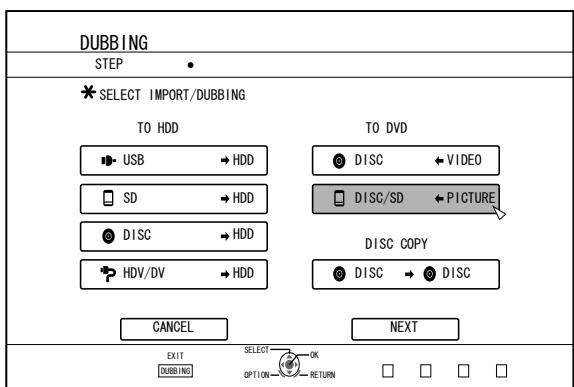
3 Select the media to dub to from the media selection screen
- A checkmark will be added to the selected media.
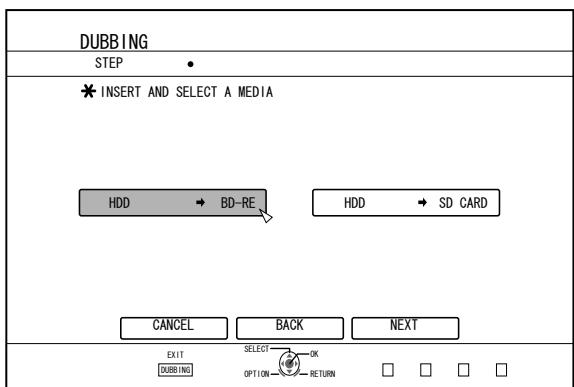
4 Select "NEXT", and press the [OK] button
Memo:
- A message appears on the monitor when dubbing cannot be performed in the following cases. When this occurs, replace the disc or SD card with one that is usable.
- When an incompatible disc or SD card is set
- When there is insufficient space on the set disc or SD card
- When an unformatted disc or SD card is set. For details, refer to "Formatting a disc" (page 27) or "Formatting an SD Card" (page 29).
5 Select the still images to dub, and press the [MARK] button.
![JVC SR-HD2500EU - Select the still images to dub, and press the [MARK] button. - 1](/content/2019/10/6176/images/14b215ee596fbfa08a9ca31725ab679433b05f66b5affad575fbadb7610a27d6.jpg)
- Pressing the [MARK] button adds a check mark to the selected image.
All still images with a check mark are dubbed.
Memo:
- To clear the check mark, select the corresponding still image, and press the [MARK] button.
- Pressing the [OPTION] button displays a pop-up menu. The pop-up menu enables you to perform the following operations.
BACK: Exits the pop-up menu and returns to the initial screen.
Exits the pop-menu and returns to the initial screen.
DESELECT A
Selects all still images within the same group.
DESELECT A
Clears the selection of all still images within the same group.
Note:
- A message appears if the selected still images do not fit into the disc. Check marks cannot be added to a still image if there is insufficient space on the disc.
6 Select "START", and press the [OK] button.
![JVC SR-HD2500EU - Select "START", and press the [OK] button. - 1](/content/2019/10/6176/images/05d76b5a803d74086db541f833975687973d4b4d55f43ba330c85bbfffa98614.jpg)
- Dubbing starts. A progress bar is displayed during the dubbing process.
- After dubbing is complete, a "DUBBING IS COMPLETED" message appears on the monitor.
Memo:
- A directory of the following configuration is created in the media, and still images are written with file names ranging from "PIC_0001.jpg" to "PIC_9999.jpg".
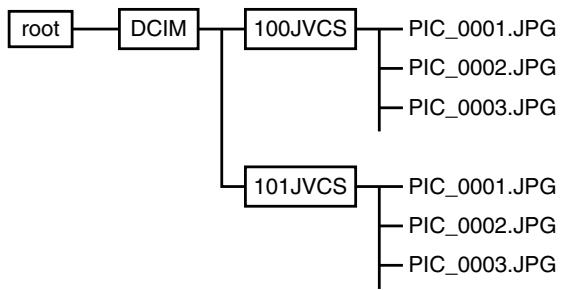
- Dubbing from the Playback Navigation screen
Dubbing can also be performed from the Playback Navigation screen.
1 Select the still images to dub, and press the [OPTION] button.
![JVC SR-HD2500EU - Select the still images to dub, and press the [OPTION] button. - 1](/content/2019/10/6176/images/fa222e6b3855dcab3de5d8c55fc4373e7860272fa322f5395a583d1477334691.jpg)
2 Select "DUB", and press the [OK] button.
3 Follow steps 3 to 5 of "Dubbing still images".
Memo:
- Check marks of still images that appear on the Playback Navigation screen will remain added to the image on the still image selection screen.
- Cancel dubbing
To cancel dubbing before it starts
- Select "CANCEL" from the menu, and press the [OK] button to cancel dubbing.
- Alternatively, you can press the [RETURN] button to cancel dubbing and return to the initial screen.
To discontinue dubbing while it is in progress
- Press the [OPTION] button. Select "CANCEL" from the Cancel Dubbing menu, and press the [OK] button.
Enabling Playback on Other Devices (Finalizing)
DVD-R and DVD-RW discs may need to be finalized before they can be played on other DVD players.
Memo:
- Discs in Video mode become a DVD-Video format with a title menu after finalizing.
- Discs containing DVD-Video data can be finalized by setting the disc operation settings according to when the disc is inserted into this unit.
- Recording or editing of the disc will not be possible after it is finalized.
- If a DVD that was recorded using VR mode has been finalized, the disc can only be played back on VR mode compatible devices.
Finalizing
1. Set the BD or DVD to be finalized on the disc tray. 2. Press the [MEDIA MANAGE] button on the remote control unit. - The Media Management menu screen appears.
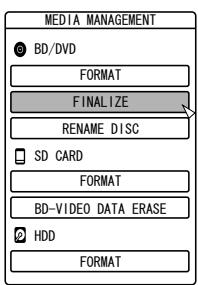
3 Select "FINALIZE" from "BD/DVD" 4 Select "YES" and press the [OK] button - The top menu setting screen appears.
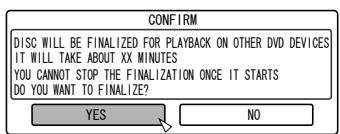
Memo:
- To cancel the finalizing operation, select "NO" and press the [OK] button.
5 Setting the top menu items
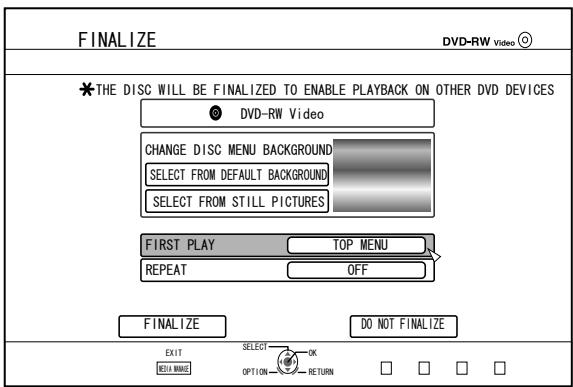
- Before finalizing, set "FIRST PLAY", "REPEAT", and "CHANGE DISC MENU BACKGROUND" accordingly. Set according to the steps below.
① Select "FIRST PLAY", and select an appropriate first play setting item - This item is used for setting the disc operation when a finalized disc is inserted into another device.
NONE
: A finalized disc will not be automatically played back when it is inserted into another device.
TOP MENU
: The disc menu will be displayed automatically when a finalized disc is inserted into another device.
TITLE 1
The first title on a finalized disc will be played back automatically when it is inserted into another device.
② Select "REPEAT", and select an appropriate repeat setting item - Set the disc action to be taken after all titles have been played back. OFF: The disc will stop and the menu will be displayed after all the titles are played back. ON: Repeat playback from the first title will start automatically after all the titles are played back.
③ Select "CHANGE DISC MENU BACKGROUND" to select a background image for the top menu - You can register and use a background image of your preference.
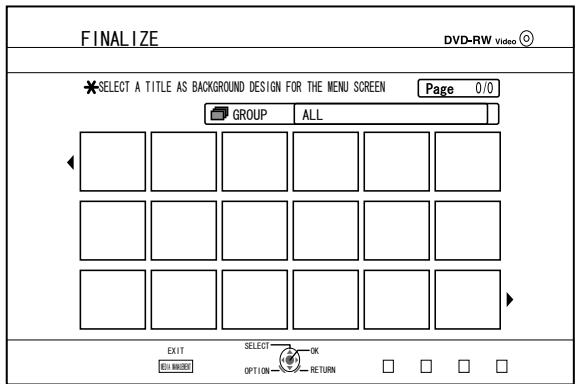
Memo:
- The items in "FIRST PLAY", "REPEAT" and "CHANGE DISC MENU BACKGROUND" can also be set in "Dubbing a Title from the HDD to a BD/DVD" (see page 41).
6 Select "FINALIZE", and press the [OK] button.
![JVC SR-HD2500EU - Select "FINALIZE", and press the [OK] button. - 1](/content/2019/10/6176/images/26d3ecd0fdc3a78154c28eec034312419e5f725ff0d559aa090910b2dadc930f.jpg)
- Finalizing starts.
- After finalization is complete, a "THE DISC HAS BEEN FINALIZED" message appears on the monitor.
![JVC SR-HD2500EU - Select "FINALIZE", and press the [OK] button. - 2](/content/2019/10/6176/images/0560d5c718d4ccc0845f11e84ccbad63d649b8bb747bb1b064209769366db787.jpg)
Unfinalizing a disc
Only DVD-RW discs that are finalized on this unit can be unfinalized.
After a disc is unfinalized, addition of new titles and editing are possible.
Note:
- All discs except DVD-RW (VR mode) cannot be unfinalized.
To unfinalize a disc
1 Set a DVD-RW disc that is finalized by this unit on the disc tray. 2 Press the [MEDIA MANAGE] button on the remote control unit. - The media management menu screen appears.
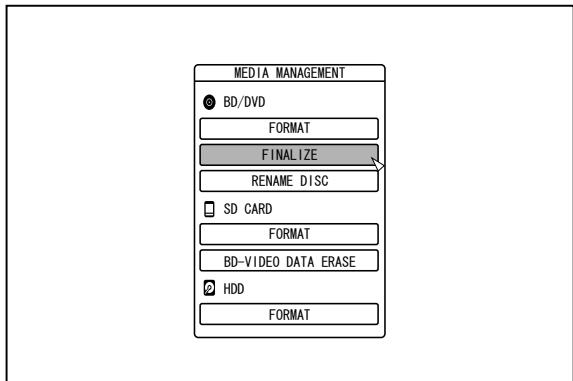
3 Select "FINALIZE" from "BD/DVD". 4 Select "YES" and press the [OK] button.
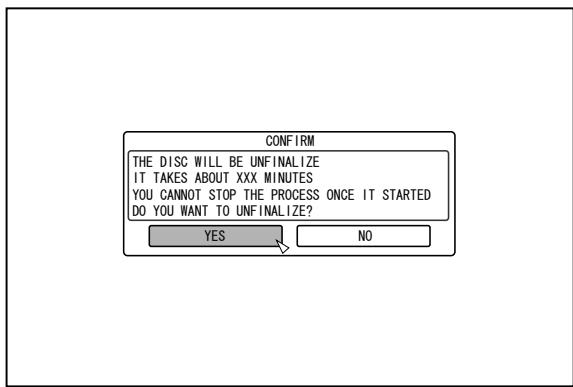
- Unfinalizing starts.
- After unfinalizing is complete, a "THE DISC HAS BEEN UNFINALIZED" message appears on the monitor.
Copying the Entire Disc
Copying the entire disc allows all content on a BD (BDMV) or DVD (AVCHD, DVD-Video) to be copied onto another disc.
Note:
- Content cannot be copied to a formatted BD-R or DVD-R disc. Make use of an unformatted disc.
- Use a DVD-R/-RW instead of a BD-R/-RE or DVD when the source disc is a BD disc.
- The disc to be copied onto will be formatted when copy is performed. Check that the disc has not been used before or if it is ok to delete data on the disc when using a BD-RE or a DVD-RW.
- In the case of BD, volume labels are not copied.
- If an unsupported disc is set, "UNABLE TO IMPORT FROM DISC" or "UNABLE TO DUB ONTO DISC INSERT ANOTHER DISC" will be displayed on the monitor. Use a disc that is supported by this unit.
For details on discs that are supported by this unit, refer to "Discs that enable both dubbing and playback" ( page 10) and "Discs that enable playback only" (page 10).
1 Press the [DUBBING] button on the remote control unit
- The Dubbing screen appears.
![JVC SR-HD2500EU - Press the [DUBBING] button on the remote control unit - 1](/content/2019/10/6176/images/7341b86457831cc3935b8547f41a719d2a81ad94c0af654da27b7b3650d8b3f8.jpg)
2 Select "DISC ⇒ DISC", and press the [OK] button
- A menu screen for copying the entire disc appears.
Memo:
- During copy of the entire disc, data is temporarily copied to the internal HDD.
- Only discs that are not copyright-protected can be copied.
3 Set the number of discs to copy using the [Δ/∇] buttons
- You can specify up to a maximum of 10 discs.
![JVC SR-HD2500EU - Set the number of discs to copy using the [Δ/∇] buttons - 1](/content/2019/10/6176/images/a4c038834f6f104b0310d137425d6387b6cb3329e7839f002ff0d2ac9e35d2b7.jpg)
4 Select "NEXT", and press the [OK] button
- The disc tray will open automatically.
5 Set the source BD or DVD on the disc tray
6 Select "START", and press the [OK] button
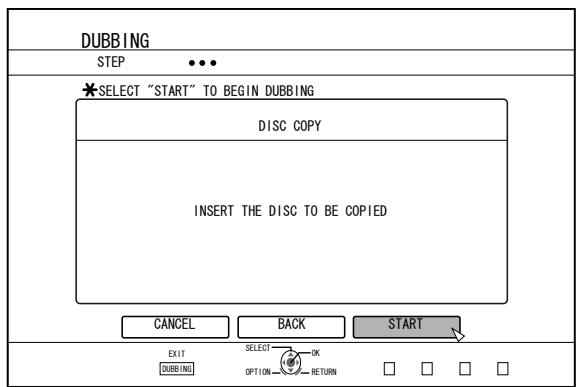
- The disc tray will close automatically. The source BD or DVD will be recognized, and copying to the internal HDD will proceed.
- The disc tray will open automatically after copying has finished and "READY TO COPY NOW. INSERT THE DISC FOR COPYING" will be displayed on the monitor.
Memo:
- Confirm the insufficient space on the internal HDD when the copy interrupts.
7 Set a BD or DVD to copy on the disc tray
8 Select "START", and press the [OK] button.
![JVC SR-HD2500EU - Select "START", and press the [OK] button. - 1](/content/2019/10/6176/images/c09f7bebc38a4a7fb7723fee9b09b370f9c9f68d561650e2c154ed98eab18b6a.jpg)
- The disc tray will close automatically. BD or DVD will be recognized, and the contents that were copied to the HDD will be copied to the disc.
Memo:
- The copy operation will not be performed when the remaining disc memory is not sufficient.
9 Complete the entire disc copying
- After copy is complete the tray will open automatically, and copy of the entire disc ends.
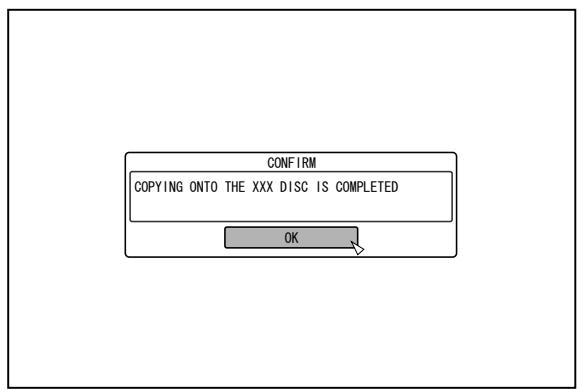
Memo:
- The screen prompting you to insert a new disc appears repeatedly until this unit has finished copying the number of discs specified in Step 3. When the message appears, set a new BD or DVD on the disc tray, select "START", and press the [OK] button.
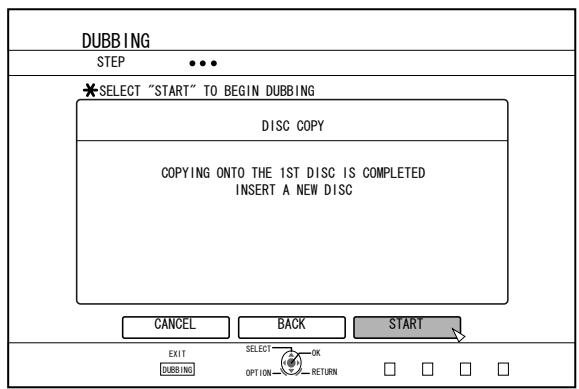
- After copy is complete, the data copied onto the HDD will be deleted.
- Select "CANCEL" from the menu, and press the [OK] button to cancel disc copying.
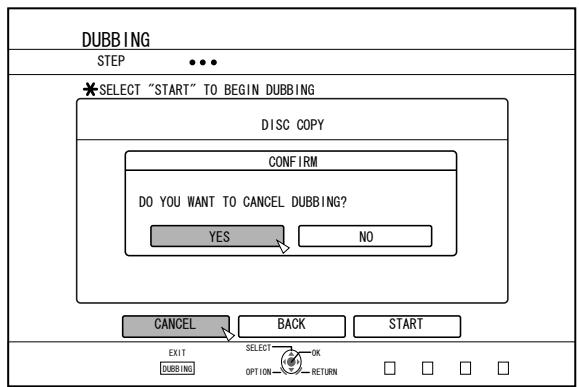
Recording Using External Inputs
Videos on an external device that is connected to i.LINK (HDV/ DV) or video / S-video input can be recorded to the HDD. BD, DVD can be recorded from the [VIDEO]/[S-VIDEO] or SDI input.
Memo:
- Only titles that are not copyright-protected can be imported.
1 Press the [HDD] or [BD/SD] button to select the location to record the file 2 Press the [INPUT SELECT] button on the remote control, and choose external input (SDI or HDV/DV or L-1) 3 Press the [REC MODE] button and select a recording mode 4 Press the [●] and [▶] remote control buttons together to start the recording process - Recording can also be start by pressing the [●] button on this unit. 5 Operate the external device using i.LINK(HDV/ DV) or the video/S-video input or SDI input to output the videos to be recorded 6 Press the [ ] button on either this unit or the remote control to display the pop-up screen, choose "STOP" and press the [OK] button End the recording.
Memo:
- When recording images via a video camera using i.LINK connection, recording may stopped if the video camera is loaded with a DV tape while in the shooting mode. In this case, remove the DV tape before recording.
- Recording will be stopped if the maximum recording time has been reached, or if there is insufficient memory in the media.
- For HDV contents, "DR" will be used to record instead of the selected recording mode. MAXIMUM CONTINUOUS RECORDING TIME
HDD: 24 hours (*1)
DVD-RW: 8 hours
BD-RE: 8 hours
*1: The title will automatically be split into segments of 8 hours. The dividing point will not be recorded.
For the recording modes and maximum recording time for each disc, refer to "Recording Modes" (page 30).
- Checking whether SDI input signals can be recorded
1 Press the [OPTION] button on the remote control, and select "SDI INPUT SIGNAL"
A screen showing the details of the SDI input signal appears.
2 Check to ensure that "RECORD" is displayed as "POSSIBLE"
Recording is not possible if it is displayed as "IMPOSSIBLE".
Memo:
- It takes a little moment to start recording after the button is pressed.
RECORDABLE MEDIA
| RECORDING MODE | RECORDABLE MEDIA | ||
| HDD | DVD-R/RW(VR format) | BD-R/RE(BD-AV format) | |
| DR | HDV | - | HDV |
| AF (HD) | - | - | - |
| AN (HD) | - | - | - |
| AL (HD) | - | - | - |
| AE (HD) | - | - | - |
| XP (SD) | SD-SDI/DV/L-1 | SD-SDI/DV/L-1 | SD-SDI/L-1 |
| SP (SD) | SD-SDI/DV/L-1 | SD-SDI/DV/L-1 | SD-SDI/L-1 |
| LP (SD) | SD-SDI/DV/L-1 | SD-SDI/DV/L-1 | SD-SDI/L-1 |
| EP (SD) | SD-SDI/DV/L-1 | SD-SDI/DV/L-1 | SD-SDI/L-1 |
| DR1(HD) | HD-SDI | - | HD-SDI |
| DR2(HD) | HD-SDI | - | HD-SDI |
| DR3(HD) | HD-SDI | - | HD-SDI |
| DR4(HD) | HD-SDI | - | HD-SDI |
Recordable (Imageable) SDI Signals
| Pixel Structure | INPUT | OUTPUT | ||
| HD-SDI | SD-SDI | HD-SDI | SD-SDI | |
| 720x480/59.94i | - | ✓ | - | ✓ |
| 1280x720/23.98p | ✓ | - | - | - |
| 1280x720/59.94p | ✓ | - | ✓ | - |
| 1920x1080/23.98p | ✓ | - | - | - |
| 1920x1080/23.98psf | ✓ | - | - | - |
| 1920x1080/59.94i | ✓ | - | ✓ | - |
About Playing Back
Videos or edited videos stored on the internal HDD, as well as videos stored on a disc or SD card, can be played back on this unit. The types of media that are playable on this unit are as follows.
- Videos and still images stored on the internal HDD
- Videos stored on different disc types
- Videos and still images stored on backup discs created using the "Everio Writer"
- Videos and still images stored on SD cards
These videos can be easily played back for viewing using the "Playback Navigation" software that comes with this unit. For details on the "Playback Navigation" software, refer to "Using Playback Navigation" (page 51).
Memo:
- This unit does not support DivX videos.
- If AVCHD files are displayed in thumbnails, black bars may appear on the left and right borders depending on the video resolution.
- To display MOV* files stored on an SD card using Playback Navigation, make use of list display. Thumbnail display is not supported. Files on the SD card cannot be played back directly. To do so, import them into the HDD.
- For details on importing MOV* files from an SD card, refer to "Importing Data from an SD Card to the HDD" (page 37).
MOV*: MOV files that are taken in SP mode and HQ mode using the JVC ProHD Camcorder GY-HM700/100
Display Marks on the Playback Navigation Screen
| Icon | Mark name | Explanation |
| CTI | Protect Mark | Indicates protected titles. |
| Mode Conversion Preset Mark | Indicates titles for which mode conversion has been preset. | |
| NEW | Not Viewed Mark | Indicates titles that have not been viewed or groups containing titles that have not been viewed. |
| >8 | Scene Delete Mark | Indicates titles for which scene delete or chapter delete has been applied. |
| Group Mark | Indicates a group. | |
| Playlist Mark | Indicates a playlist. | |
| Not Playable Mark | Indicates titles that cannot be played. | |
| ? | Question Mark | Indicates titles of which the thumbnails cannot be displayed. Playback may not be possible. |
Using Playback Navigation
Videos can be easily played back for viewing using the "Playback Navigation" function available on this unit.
Displaying the Playback Navigation screen
1 Select the location of the playback file
- Press the [HDD] button on the remote control unit. Play back videos or still images stored on the HDD.
- Press the [BD/SD] button on the remote control unit. Play back videos or still images stored on a BD/DVD or an SD.
2 Press the [NAVIGATION] button on the remote control unit
- The Playback Navigation screen appears.
Memo:
- Pressing the [BD/SD] button each time switches the media to play back between BD/DVD and SD.
- You can also switch the media to play back by pressing the [HDD] or [BD/SD] button when the Playback Navigation screen is displayed.
Operating Playback Navigation
Playing a video/still image
Plays the selected video/still image.
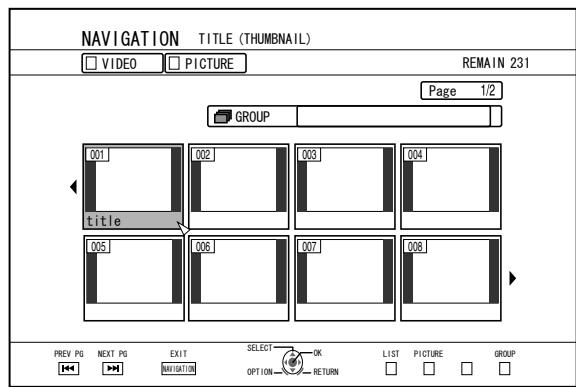
- Select a title to play back, then press the [OK] or [▶] button to play the selected video/still image.
Memo:
- Select a group and press the [OK] button to display all titles in the group.
- Switching between thumbnail and list displays
You can switch between the thumbnail display and list display of a video.
- When the video thumbnail list screen is displayed
Press the [RED] button to display the title list screen.
- When the title list screen is displayed
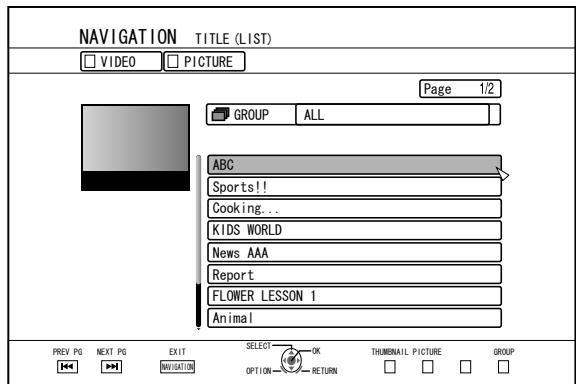
Press the [RED] button to display the video thumbnail list screen.
Displaying a group/folder
A group/folder screen can be displayed.
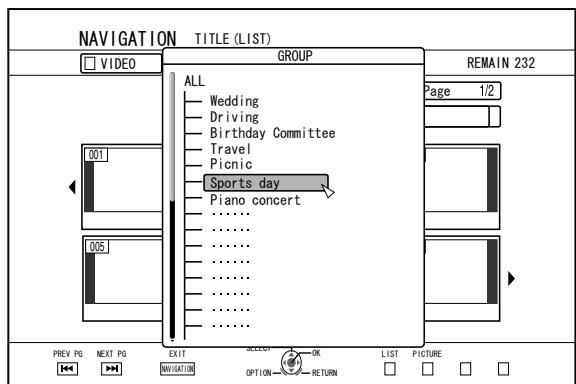
Press the [YELLOW] button to display the group/folder screen.
- Switching between video and still image displays
You can switch the display between the video thumbnail list screen and still image thumbnail screen.
- When the video thumbnail list screen is displayed
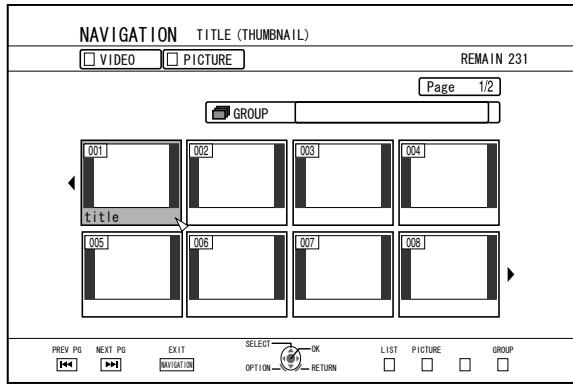
Press the [GREEN] button to display the still image thumbnail list screen.
- When the still image thumbnail list screen is displayed
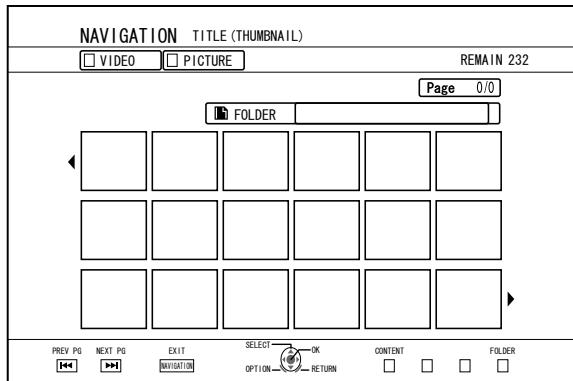
Press the [RED] button to display the video thumbnail list screen.
Displaying the Option menu
Displaying the Option menu enables you to perform different operations on a selected title/group, including "BACK", "PLAY", "DELETE", "DUB", "GROUP", "UNGROUP", "DO NOT GROUP", "MODE CHANGE", "EDIT", "EDIT INFO" and "OTHERS".
1 Select a title/group, and press the [OPTION] button
- An Option menu appears.
![JVC SR-HD2500EU - Select a title/group, and press the [OPTION] button - 1](/content/2019/10/6176/images/414ac24cca5ef45411c6f158e121a7d77826dbc933bf9d7074f017d0c9943006.jpg)
Using Playback Navigation (Continued)
2 Select an operation option, and press the [OK] button
- Options that cannot be operated are displayed in gray and cannot be selected.
For details on the Option menu items, refer to "Option menu list" ( page 53).
Option menu list
- BACK
Returns to the previous screen.
- PLAY
Plays back the selected title/group.
For details on the button operations during playback, refer to "Video Playback Operation" ( page 54).
- DELETE
Deletes a selected title/group.
For details, refer to "Deleting a Title/Group" (page 65).
DUB
Performs dubbing of a selected title/group.
For details, refer to "Dubbing/Importing" (page 25).
GROUP
Groups the selected titles/groups.
For details, refer to "Grouping" (page 63).
- UNGROUP
Ungroups a selected group.
For details, refer to "Ungrouping" (page 63).
DO NOT GROUP
Removes the selected titles from a group.
For details, refer to "Excluding from a group" (page 64).
- MODE CHANGE
Changes the mode of the selected title/group.
For details, refer to "Mode conversion" (page 76).
CHAPTER LIST
Displays the chapters of a selected title.
- EDIT
Switches to the menu screen of the sub-items.
CHAPTER EDIT
Switches to the chapter edit screen of the selected title. For details, refer to "Editing a Chapter" (page 70).
- PLAYLIST EDIT
Switches to the playlist edit screen of the selected title. For details, refer to "Creating a Playlist" (page 68).
- DELETE SCENE
Switches to the delete scene screen of the selected title. For details, refer to "Delete Scenes" (page 73).
- DIVIDE
Switches to the dividing screen of the selected title. For details, refer to "Dividing" (page 72).
- EDIT INFO
Switches to the menu screen of the sub-items.
- MODIFY TITLE NAME/MODIFY GROUP NAME Switches to the rename screen for the selected title/group name. For details, refer to "Changing the Title/Group Name" (page 65).
- MODIFY THUMBMAIL
Switches to the thumbnail modification screen of the selected title.
For details, refer to "Editing a Thumbnail" (page 69).
- MODIFY DATE
Switches to the recording date modification screen of the selected title. For details, refer to "Changing the Shooting Date/Time" (page 75).
PROTECT
Switches to the protection screen of the selected title/group.
For details, refer to "Turning On Title/Group Protection" (page 66).
- UNPROTECT
Switches to the screen for turning off protection of the selected title/group.
For details, refer to "Turning Off Title/Group Protection" (page 67).
OTHERS
Switches to the menu screen of the other-items.
CHAPTER LIST - DETAILS - THUMBNAIL LIST VIDEO - PICTURE GROUP - FOLDER SELECT - CONTENT
Video Playback Operation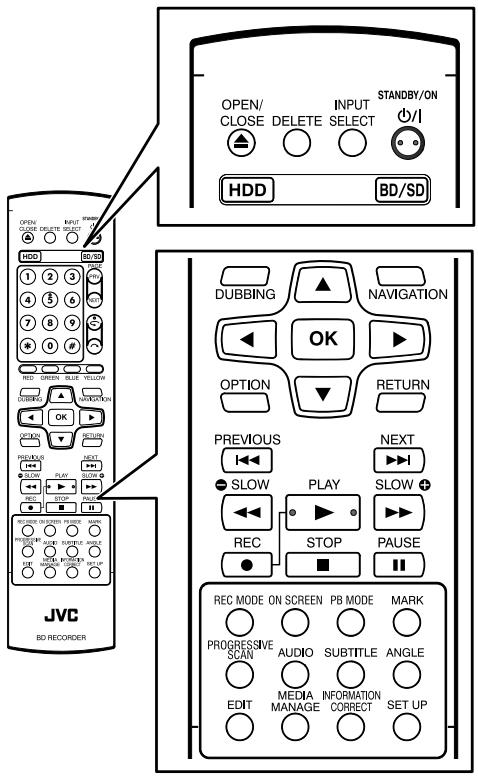
Frequently used button operations
[ ] button
- If the stop position (resume point) is memorized in the selected video, pressing the button plays back the video from this position. The video may not resume playback depending on the media and settings used. Refer to "RESUME" (v8 page 80).
- If playback is paused (Still mode), pressing the button resumes playback.
- [■] button
- Pressing the button stops playback after memorizing the stop position (resume point).
- Pressing the button again after playback stops clears the memory of the stop position (resume point).
[ ] button
- Pressing the button stops playback temporarily.
[ ] button
- Pressing the button once during playback switches to a playback speed of 1.3 times (with audio sound).
- Pressing the button in the 1.3x playback or fast forward mode fast forwards the video. Pressing the button each time switches the search speed. (5x → 10x → 30x → 60x)
Memo:
- The listed speed for searching and slow motion is an approximate amount.
- Pressing the button in the Still mode forwards the video frame by frame.
- Pressing and holding down the button in the Still mode starts playback in slow motion. Pressing the button during playback in slow motion switches the playback speed. The speed changes each time the button is pressed. (1/24x → 1/16x → 1/8x → 1/2x)
[ ] button
- During normal playback, 1.3x playback, fast forward, or fast reverse, pressing the button fast reverses playback. Pressing the button each time switches the search speed. (1x → 5x → 10x → 30x)
- Pressing the button in the Still mode reverses the video frame by frame.
- Pressing and holding down the button in the Still mode starts reverse playback of the video in slow motion. Pressing the button during playback in slow motion switches the playback speed. The speed changes each time the button is pressed. (1/24x → 1/16x → 1/8x → 1/2x)
Memo:
- The listed speed for searching and slow motion is an approximate amount.
[▶▶]/[←] button
- Pressing any of the buttons moves the chapter position.
MARK] button
- Pressing the button enables you to add a chapter mark to a title.
Video Playback Operation (Continued)
[ ] button
- During normal playback, 1.3x playback, slow motion playback, fast forward, or fast reverse, pressing the button moves the playback position forward by about 30 seconds. Pressing the button multiple times moves playback to the position equivalent to the number of times pressed multiplied by 30 seconds.
- Normal playback will resume after the position has been moved. If pressed during 1.3x playback, 1.3x playback will continue after the position has been moved. Contents may be played back in the normal mode depending on the type of disc or content.
- Pressing the button in the Still mode moves the current paused position forward by about 30 seconds while maintaining the Still mode.
[ ] button
- During normal playback, 1.3x playback, slow motion playback, fast forward, or fast reverse, pressing the button moves the playback position back by about seven seconds. Pressing the button multiple times moves playback to the position equivalent to the number of times pressed multiplied by seven seconds.
- Normal playback will resume after the position has been moved. If pressed during 1.3x playback, 1.3x playback will continue after the position has been moved. Contents may be played back in the normal mode depending on the type of disc or content.
- Pressing the button in the Still mode moves the current paused position back by about seven seconds while maintaining the Still mode.
[HDD] button
- During playback of videos on a "BD/DVD" or "SD", pressing the button stops the current playback and switches to the "HDD" mode. Pressing the button during display of the Playback Navigation screen switches to the Playback Navigation screen for the "HDD" mode.
[BD/SD] button
- During playback of videos on a "BD/DVD" or "SD", pressing the button stops the current playback and switches from "BD/DVD" to "SD" or vice versa. Pressing the button during display of the Playback Navigation screen switches to the Playback Navigation screen for the other media. During playback of videos on the "HDD", pressing the button stops the current playback and switches to "BD/DVD" mode.
Memo:
- The display switches automatically to the SD mode only if the inserted SD card contains playable videos or still images.
Useful button operations
[PB MODE] button
- Displays the Playback Settings screen, which enables you to modify the settings. For details, refer to "Changing Playback Settings".
[AUDIO] button
- Switches the audio channel.
[SUB TITLE] button
- Switches the subtitle display.
[ANGLE] button
- Switches the angle.
Memo:
- Pressing the [AUDIO], [SUB TITLE], or [ANGLE] button has no effect if their selection is not available in the playback video.
Playing Videos on a BD/DVD
Playback starts automatically after a BD/DVD is set. If the Auto Play feature is disabled, play the title using Playback Navigation.
Memo:
- For details on the button operations during playback, refer to "Video Playback Operation" (page 54).
Playing a disc when Auto Play is enabled
1 Set a BD or DVD on the disc tray
- Auto Play starts.
Playing a disc when Auto Play is disabled
1 Set a BD or DVD on the disc tray
2 Press the [NAVIGATION] button
- The Playback Navigation screen appears.
![JVC SR-HD2500EU - Press the [NAVIGATION] button - 1](/content/2019/10/6176/images/5341d498c464a4df028a476d921ec2be9e0f94d0568748fb77a370757e8d50cf.jpg)
3 Select a title, and press the [OK] button.
- Playback of the selected title starts.
Memo:
- If the current playback location is HDD or SD, press the [BD/SD] button on the remote control unit to switch it to BD/DVD.
- Videos can also be played back without starting up Playback Navigation.
Pressing the [▶] button starts playback from the stop position (resume point) of the disc.
If the stop position (resume point) is not memorized or if the setting for resume has been set to "OFF", playback starts from the beginning of the disc.
Playing an EverioBackup Disc*
EverioBackup*: Data disc containing high-definition videos that are recorded in the MPEG2 format using a DVD writer for Everio.
1 Set the disc on the disc tray
2 Press the [NAVIGATION] button
- The Playback Navigation screen appears.
3 Select a title, and press the [OK] button.
- Playback of the selected title starts.
Memo:
- If the current playback location is HDD or SD, press the [BD/SD] button on the remote control unit to switch it to BD/DVD.
- Videos can also be played back without starting up Playback Navigation.
Pressing the [▶] button plays back titles starting from that with the oldest recording date.
Playing Video Discs Created Using a PC
Videos that are created using a PC can be played back using Playback Navigation.
1 Set the disc on the disc tray
2 Press the [NAVIGATION] button
- The Playback Navigation screen appears.
3 Select a title, and press the [OK] button.
- Playback of the selected title starts.
Memo:
- The formats that can be played back are BDAV, BDMV, DVD-Video and DVD-VR (CPRM-compatible).
- If the current playback location is HDD or SD CARD, press the [BD/SD] button on the remote control unit to switch it to BD/DVD.
- Videos can also be played back without starting up Playback Navigation. Pressing the [▶] button starts playback from the stop position (resume point) of the disc. If the stop position (resume point) is not memorized or if the setting for resume has been set to "OFF", playback starts from the beginning of the disc.
- Playback may not be possible due to compatibility problems.
Playing Videos on the HDD
Titles stored on the HDD can be played back using Playback Navigation.
You can select a video to play from "Title", "Group", or " Playlist".
Memo:
- For details on the button operations during playback, refer to "Video Playback Operation" (13 page 54).
Playing titles stored on the HDD
1 Press the [NAVIGATION] button
- The Playback Navigation screen appears.
2 Select the titles to playback, and press the [▶] button
- Playback of the selected title starts.
Memo:
- If the current playback location is "BD/DVD" or "SD CARD", press the [HDD] button on the remote control unit to switch it to "HDD".
- To play back specific titles within a group, select the group, press the [OK] button, and select the titles accordingly.
- Videos can also be played back without starting up Playback Navigation.
Pressing the [▶] button starts playback of the most recently played title.
If there are no recently played titles, playback starts from the title with the most recent recording date.
Playing Videos on a SD Card
Titles stored on an SD card can be played back using Playback Navigation.
You can select a video to play from "Title".
1 Insert the SD card into the [SD SLOT]
- Switch the playback location to "SD CARD" after the SD card is detected by the unit.
2 Press the [NAVIGATION] button
- The Playback Navigation screen appears.
![JVC SR-HD2500EU - Press the [NAVIGATION] button - 1](/content/2019/10/6176/images/3d3c6825d6a3d5607b6fee67c4faa7b7c5a796c0c31bab084036bd4d2b28c0a3.jpg)
3 Select a title, and press the [OK] button
- Playback of the selected title starts.
Memo:
- Playback navigation displays AVCHD files stored on the SD card in titles, not in scenes (chapters). Titles are grouped such as according to the date, recording mode, or number of scenes. Make use of thumbnail display to display titles. List display is not supported.
- The formats that can be played back are AVCHD and SDVIDEO. If AVCHD files are displayed in thumbnails, black bars may appear on the left and right borders depending on the video resolution.
- When there are files of different formats (AVCHD, SDVIDEO, MOV*) in the SD card, press the [RED] button to select the format you want to display.
MOV*: MOV files that are taken in SP mode and HQ mode using the JVC ProHD Camcorder GY-HM700/100
- Videos can also be played back without starting up Playback Navigation.
Pressing the [▶] button starts playback from the stop position (resume point).
If the stop position (resume point) is not memorized, playback starts from the beginning of the playable content. If the setting for "QUICK STARTUP" is set to "OFF", the resume point will not be memorized when the power is turned OFF.
For details on the button operations during playback, refer to "VideoPlaybackOperation" ( page 54).
Playing Still Images (JPEG)
Still images stored on the HDD/BD/DVD/SD card can be played back using Playback Navigation.
Playing still images
1 Select the playback location
HDD: If the current playback location is "BD/DVD" or "SD CARD", press the [HDD] button on the remote control unit to switch it to "HDD".
BD/DVD: If the current playback location is "HDD" or "SD CARD", press the [BD/SD] button on the remote control unit to switch it to "BD/DVD".
SD card: If the current playback location is "HDD" or "BD/DVD", press the [BD/SD] button on the remote control unit to switch it to "SD CARD".
2 Set the media
- To play a media other than "HDD", set the media on which the still images are stored.
BD/DVD: Set a BD or DVD on the disc tray.
SD card: Insert the SD card into the [SD SLOT].
3 Select the still images to play, and press the [▶] button.
- Images selected are played back in a slideshow.
![JVC SR-HD2500EU - Select the still images to play, and press the [▶] button. - 1](/content/2019/10/6176/images/cea2c7de1cc515c12d9ab6f796361fa155d4c03fc44dfd2c595d4cd717578b7f.jpg)
Memo:
- The slide show plays back images according to the date of the files.
- If folders exist, files inside the selected folder will be played.
- You can specify the "REPEAT", "SLIDESHOW INTERVAL" and "SLIDESHOW EFFECTS" settings in the Playback Settings menu.
For details, refer to the "REPEAT" (page 59),
"SLIDESHOW INTERVAL" (page 59), and
"SLIDESHOW EFFECTS" (page 59) items under
"Playback Settings".
Enabled button operations during still image playback
[ ] button
- Pressing the button when a title/group is selected starts playback of the still images in the title/group in a slideshow.
- [ ] button
- Pressing the button stops the slideshow and displays the Playback Navigation screen.
[ ] button
- Pressing the button stops the slideshow temporarily.
[1] button
- Pressing the button displays the previous or next still image.
[ /] button
- Pressing the button ends playback of the still images and turns the power of the unit to "Off".
Memo:
- The display of still images can be zoomed in/out or rotated using the following buttons when the slideshow is paused.
- [ ]/ [BLUE] button
Rotates the still image by 90 degrees in the anti-clockwise direction.
- [G] / [YELLOW] button
Rotates the still image by 90 degrees in the clockwise direction.
- [OK] / [RED] button
Enlarges the still image.
- [RETURN] / [GREEN] button
Reduces the still image.
- [▲/▼/▲/▶] button
Moves the display position toward the direction indicated by the button.
- This unit does not have a still image edit feature. Still images cannot be saved when they are zoomed in or rotated.
- Priority of display is given to the media ("BD/DVD" or "SD CARD") that contains playable still images.
If both "BD/DVD" and "SD CARD" contain playable videos, priority of display will be given to the most recently used media.
Changing Playback Settings
Displaying the playback settings menu
1 Press the [PB MODE] button on the remote control unit during the playback of a title
- The Settings Menu screen appears.
- The playback settings menu can only be displayed during the playback of a title.
- Only settings that are supported by the current title being played back can be changed in the playback settings menu.
Items displayed in gray cannot be set.
Playback Settings Menu
Audio/subtitle settings
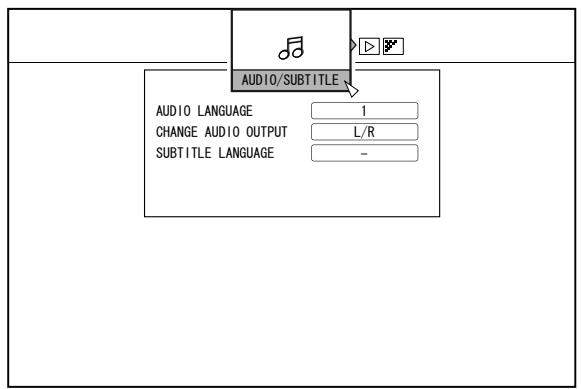
Memo:
AUDIO LANGUAGE
CHANGE AUDIO OUTPUT
■ SIGNAL TYPE (BD-ROM)
SUBTITLE LANGUAGE
SUBTITLE STYLE
CHANGE ANGLE
- "AUDIO/SUBTITLE" will be displayed only if they are available in the video content. The setting value differs depending on the content. Items that are not available in the content cannot be set.
- PRIMARY VIDEO PRIMARY AUDIO SECONDARY VIDEO
- CHANGE SECONDARY VIDEO SECONDARY AUDIO
- SECONDARY AUDIO LANGUAGE
Playback settings
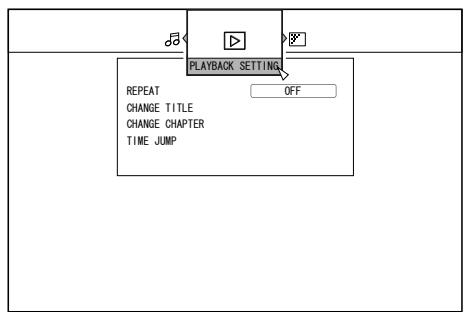
REPEAT
The following items can be set. Items are not displayed if they cannot be set.
| Setting Values | Description |
| OFF | Turns off repeat. |
| TITLE | Repeats playback of the currently played title. |
| CHAPTER | Repeats playback of the currently played chapter. |
| TRACK | Repeats playback of the currently played track. |
| FOLDER | Repeats playback within the currently played folder. |
| ALL | Repeats playback of the entire disc. |
| A-B | Repeats playback of the section between the specified starting and ending points. Pressing the [OK] button specifies the displayed scene as the starting point (Point A). Pressing the [OK] button after forwarding playback specifies the displayed scene as the ending point (Point B). |
CHANGE TITLE
You can change to a different title by entering the corresponding numeric value. Any value that is larger than the number of titles cannot be entered.
CHANGE CHAPTER
You can change to a different chapter by entering the corresponding numeric value. Any value that is larger than the number of chapters cannot be entered.
TIME JUMP
You can move to a specific playback position by entering a time. This is not possible if the specified time is not valid.
SLIDESHOW INTERVAL
The following items can be set: 3SEC/5SEC/10SEC/20SEC/30SEC modes.
SLIDESHOW EFFECTS
The following items can be set.
| Setting Values | Description |
| OFF | Turns off slideshow effect. |
| ON | Turns on slideshow effect. “Fade out” and “Fade in” effects can be applied when switching from one slide to another. |
Video settings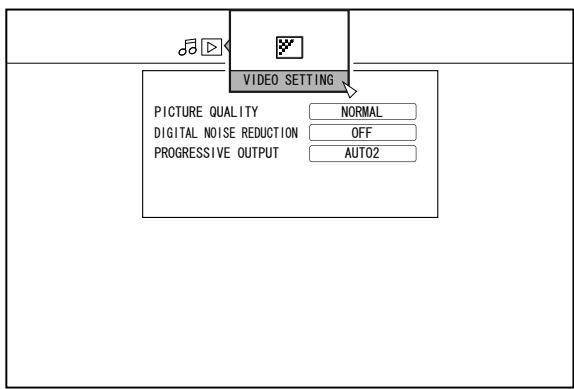
PICTURE QUALITY
The following items can be set.
| Setting Values | Description |
| NORMAL | Standard picture quality. |
| CINEMA | Effective when playing movies. |
| FINE | Produces sharp images with enhanced outlines. |
| SOFT | Reduces noise that is prominent in the video image. |
| USER SETTING | Enables the Details setting. For more details, refer to “DETAIL SETTING”. |
DETAIL SETTING
The following items can be set. Choose an option and press [OK] to set the respective values.
| Setting Values | Description |
| CONTRAST | A value between “-7” and “+7” can be set. |
| BRIGHTNESS | A value between “0” and “15” can be set. |
| SHARPNESS | A value between “-6” and “+6” can be set. |
| COLOR | A value between “-7” and “+7” can be set. |
| GAMMA | A value between “0” and “5” can be set. |
DIGITAL NOISE REDUCTION
The following items can be set.
| Setting Values | Description |
| OFF | Turns off DNR (Digital Noise Reduction). |
| ON | Reduces noise that is prominent in images of lengthy videos. |
PROGRESSIVE OUTPUT
The following items can be set.
| Setting Values | Description |
| AUTO1 | Displays video images after they are converted according to the film material. |
| AUTO2 | In addition to the “AUTO1” option, support is also provided for progressive videos recorded at 30 frames per second. |
| VIDEO | Most suitable for video images (TV broadcast, etc.). Select this option when playing videos with significant movements or animated videos. |
Editing
Before editing
This unit mainly edits video images stored on the HDD. To edit video images stored in a disc or SD card, do so after importing them to the HDD.
Data on a finalized disc cannot be edited. To edit a finalized disc, you have to either unfinalize the disc, or do so after importing the data to the HDD.
Memo:
- Only discs that are finalized using this unit can be unfinalized.
Editable items for different media
Items that are editable vary according to the type of media on which the video data is stored. For details, refer to the media chart below.
Media chart
| Editing option | HDD | BD-R (BDAV) | BD-RE (BDAV) | DVD-RW/ DVD-R | SD | HDD/BD- RE/SD (picture) |
| Grouping | ◯ | - | - | - | - | - |
| Changing the Title/Group Name | ◯ | ◯ | ◯ | ◯ | - | - |
| Deleting a Title/Group | ◯ | ◯ | ◯ | ◯ | - | ◯ |
| Turning On Title/Group Protection | ◯ | ◯ | ◯ | *1 | - | ◯ |
| Turning Off Title/Group Protection | ◯ | ◯ | ◯ | *1 | - | - |
| Creating a Playlist | ◯ | - | - | - | - | - |
| Editing a Thumbnail | ◯ | ◯ | ◯ | ◯ | - | - |
| Editing a Chapter | ◯ | *2 | *2 | *1, *2 | - | - |
| Delete Scene | ◯ | - | - | - | - | - |
| Dividing | ◯ | - | - | - | - | - |
| Changing the Disc Name | - | ◯ | ◯ | ◯ | - | - |
| Changing the Shooting Date/Time | ◯ | - | - | - | - | - |
Memo:
1 : Supports only the "VR MODE". 2 : Supports only dividing and combining of chapters.
Entering Characters
Names can be changed or given to stored videos or groups. You can enter characters while referring to the input on the monitor.
Character input screen
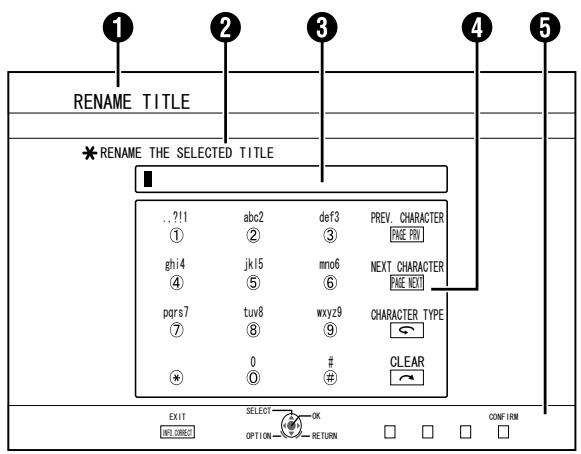
Function name field Screen description 3 Input window
Characters entered appear in the input window.
Operation guide 1
The [0]-[9], [*], [#], [PAGE PRV], [<] and [<] buttons are displayed. Operation guide 2
[ \triangle / \triangledown / \triangleleft / \triangleright ], [OK], [RETURN], [OPTION], [BLUE], [RED], [GREEN] and [YELLOW] buttons are displayed. Character input keyboard
A character input keyboard appears during input of symbol. You can enter characters by selecting them accordingly from the keyboard.
Entering characters
1 Enter characters using the [0]-[9], [*] or [#] buttons 2 After character input is complete, press the [YELLOW] button
Memo:
- Switch between alphanumeric and symbol input by pressing the [ ] button.
- For details on the correspondence between each button and the input characters, refer to the "Character List".
- Press the [ ] button to delete an input character. Press and hold down the [ ] button to delete all input characters.
- Pressing the [RETURN] button calls up the confirmation screen to cancel character input.
To cancel character input and return to the initial screen, select "YES" and press the [OK] button. To return to the character input screen, select "NO" and press the [OK] button.
- Up to about 20 alphanumeric characters can be displayed on the disc menu of BDMV and DVD-VIDEO. (The number of characters that can be displayed varies with the character.)
Note:
- If you switch the screen display before confirming the input characters, a message will appear on the screen. To cancel character input and proceed to switch the screen display, select "YES" and press the [OK] button. To return to the character input screen, select "NO" and press the [OK] button.
- If the converted characters exceed the maximum number of input characters, a message will appear on the screen. Select "OK" and press the [OK] button to delete the excess characters and to input the remaining ones. Select "RETURN" and press the [OK] button to restore the unconfirmed characters.
- No more characters can be input if the maximum character limit has been reached.
Character List
| [1] | . | , | ? | ! | 1 | - | ( | ) | @ | / | : | _ | ||||||||||||||||||||
| [2] | a | b | c | A | B | C | ä | æ | å | à | á | ä | ã | ç | Ä | Æ | Å | Á | Á | Ä | C | 2 | ||||||||||
| [3] | d | e | f | D | E | F | è | é | ê | ë | ð | É | É | É | É | D | 3 | |||||||||||||||
| [4] | g | h | i | T | G | H | I | ì | í | î | ì | ì | ì | ì | ì | 4 | ||||||||||||||||
| [5] | j | k | l | J | K | L | £ | 5 | ||||||||||||||||||||||||
| [6] | m | n | o | M | N | O | ö | ø | ò | ó | ô | ō | ñ | Ö | Ø | Ó | Ó | Ö | Ö | Ñ | 6 | |||||||||||
| [7] | p | q | r | s | P | Q | R | S | ŷ | β | 7 | |||||||||||||||||||||
| [8] | t | u | v | T | U | V | ù | ú | ü | ü | ù | Ü | Ü | Ü | 8 | |||||||||||||||||
| [9] | w | x | y | z | W | X | Y | Z | ŷ | þ | ¥ | P | 9 | |||||||||||||||||||
| [0] | 0 | . | @ | - | - | / | : | ! | ? | ( ) | * | # | + | , | ^ | ; | < | = | > | ¥ | % | & | [ ] | ' | ` | { | | | } | *1 | |||
| [*] | , | . | - | ~ | ! | ? | *1 |
1: Single-byte space 2: Press the [#] button to return to the previous input character.
Grouping
Multiple titles stored on the HDD can be combined into a group.
Memo:
- Only video data stored on the HDD can be grouped.
Grouping
1 Press the [NAVIGATION] button on the remote control unit - The Playback Navigation screen appears. 2 Select the titles or groups to be grouped, and press the [MARK] button - Pressing the [MARK] button adds a check mark to the selected titles/groups.
All titles and groups with the check mark will be grouped together.
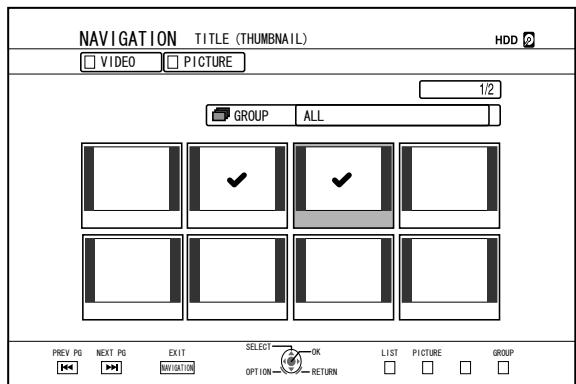
3 Press the [OPTION] button on the remote control unit - A pop-up option list appears. 4 Select "GROUP", and press the [OK] button - A grouping confirmation screen appears.
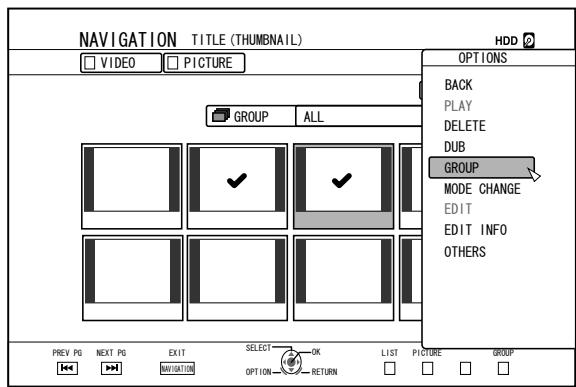
5 Select "GROUP", and press the [OK] button. - The selected titles and groups are now grouped together.
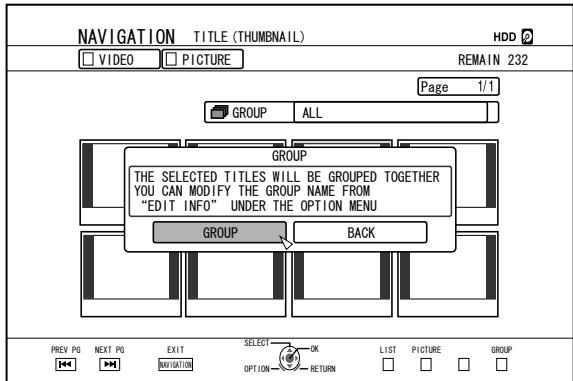
Memo:
- To cancel grouping, select "BACK" and press the [OK] button.
- Alternatively, you can press the [RETURN] button to cancel grouping and return to the initial screen.
Ungrouping
1 Press the [NAVIGATION] button on the remote control unit - The Playback Navigation screen appears. 2 Select the group to ungroup, and press the [OPTION] button - A pop-up option list appears. 3 Select "UNGROUP", and press the [OK] button. - An ungroup confirmation screen appears.
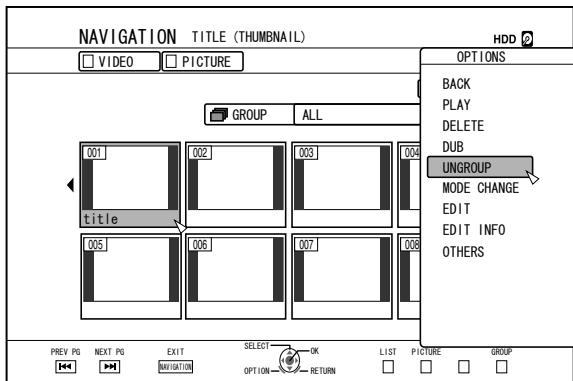
Memo:
- You cannot ungroup multiple groups at the same time. When multiple groups are selected, the "UNGROUP" item does not appear in the option list.
4 Select "YES", and press the [OK] button
- All titles within the selected group are ungrouped.
![JVC SR-HD2500EU - Select "YES", and press the [OK] button - 1](/content/2019/10/6176/images/943a925dbecebebddc5c4826fd335b2b7c02f34ced56758e1dc3e00aa19f3e82.jpg)
Memo:
- To cancel ungrouping, select "NO" and press the [OK] button.
- Alternatively, you can press the [RETURN] button to cancel ungrouping and return to the initial screen.
Excluding from a group
You can select titles and exclude them from a group.
1 Press the [NAVIGATION] button on the remote control unit
2 Select the titles to exclude from the group, and press the [MARK] button
- The Playback Navigation screen appears.
- Pressing the [MARK] button adds a check mark to the selected titles/groups. All titles with the check mark will be excluded from the group.
![JVC SR-HD2500EU - Select the titles to exclude from the group, and press the [MARK] button - 1](/content/2019/10/6176/images/fa3492300e660d5d3a66c5bb769eed961eefea8a953bfedbb88f3e63c1d59fd4.jpg)
3 Press the [OPTION] button on the remote control unit
- A pop-up option list appears.
4 Select "DO NOT GROUP", and press the [OK] button
- A confirmation screen for group exclusion appears.
5 Select "YES", and press the [OK] button
- The selected titles are now excluded from the group.
![JVC SR-HD2500EU - Select "YES", and press the [OK] button - 1](/content/2019/10/6176/images/f53710670520434c7b86e775a7c3d8c75347b993bcaf748b03d23d1f10b40fcd.jpg)
Memo:
- To cancel, select "NO" and press the [OK] button.
- Alternatively, you can press the [RETURN] button to cancel group exclusion and return to the initial screen.
Changing the Title/Group Name
The saved title/group name can be changed as follows.
Memo:
- A title/group name can be added to video data stored on the HDD, BD-RE, BD-R, DVD-RW, or DVD-R, and the name can be changed.
- Video data stored on a DVD-RW or DVD-R in the Video mode cannot be changed.
1 Press the [NAVIGATION] button on the remote control unit - The Playback Navigation screen appears. 2 Select the title/group for which the name is to be changed, and press the [OPTION] button - A pop-up option list appears.
3 Select "EDIT INFO", and press the [OK] button - An information editing screen appears.
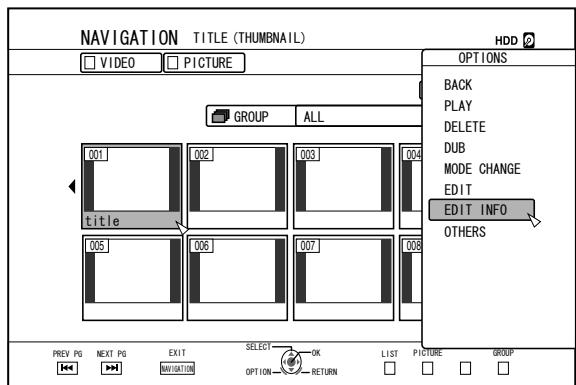
4 Select "MODIFY TITLE NAME" or "MODIFY GROUP NAME", and press the [OK] button
- A title/group name modifying screen appears.
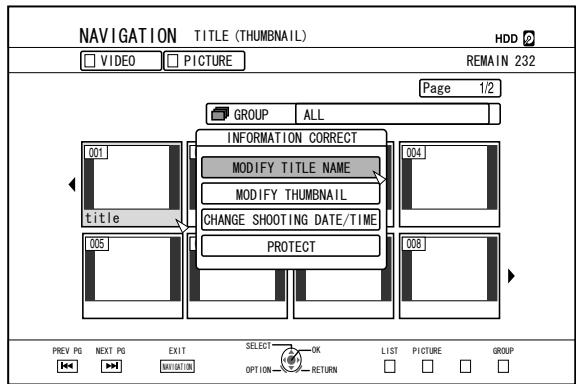
5 Modify the title/group name - The modified title/group name is now saved.
Memo:
- For details on the method of character input, refer to "Entering Characters" (R page 62).
Deleting a Title/Group
Titles/groups can be deleted. When you delete a group, all titles contained within the group are deleted.
Memo:
- When a title/group is deleted from the HDD, BD-RE, or DVD-RW, the remaining space on the media increases according to the size of the deleted title/group. Deleting a title/group from a BD-R or DVD-R does not increase the amount of available space on the disc. 1 Press the [NAVIGATION] button on the remote control unit
- The Playback Navigation screen appears. 2 Select the titles/groups to delete, and press the [OPTION] button
- A pop-up option list appears. 3 Select "DELETE", and press the [OK] button
- A confirmation screen for title/group deletion appears.
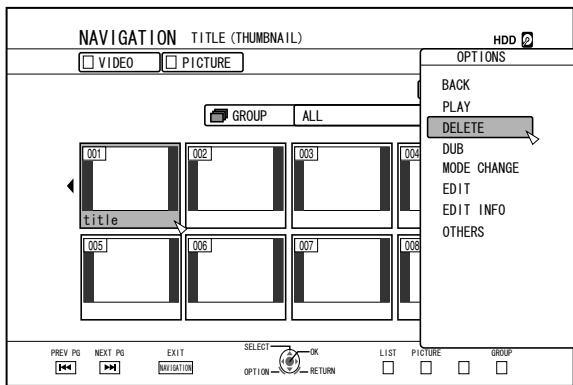
4 Select "DELETE", and press the [OK] button
- The selected titles/groups are deleted.
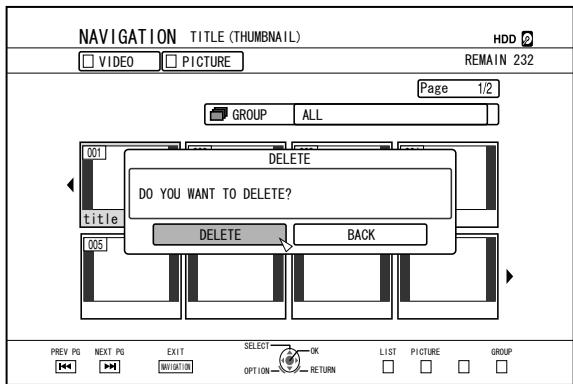
Memo:
- To cancel the title/group deletion operation, select "BACK" and press the [OK] button.
- Alternatively, you can press the [RETURN] button to cancel the deletion operation and return to the initial screen.
Turning On Title/Group Protection
Titles/groups can be protected.
Editing and deletion cannot be performed on protected titles/groups.
- Title/group protection can be turned on for video data stored on the HDD, BD-RE (BDAV), BD-R (BDAV), and DVD-RW (VR). 1 Press the [NAVIGATION] button on the remote control unit
- The Playback Navigation screen appears. 2 Select the titles/groups to be protected, and press the [OPTION] button
- A pop-up option list appears.
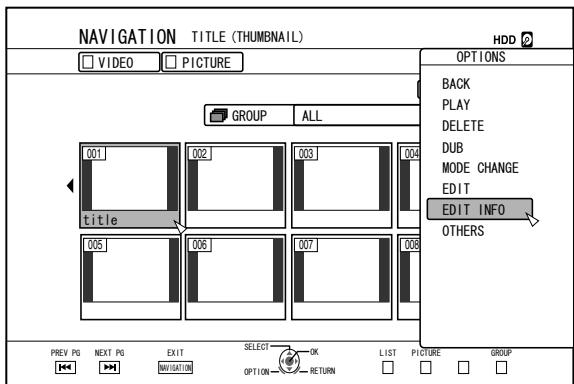
3 Select "EDIT INFO", and press the [OK] button - An information editing screen appears.
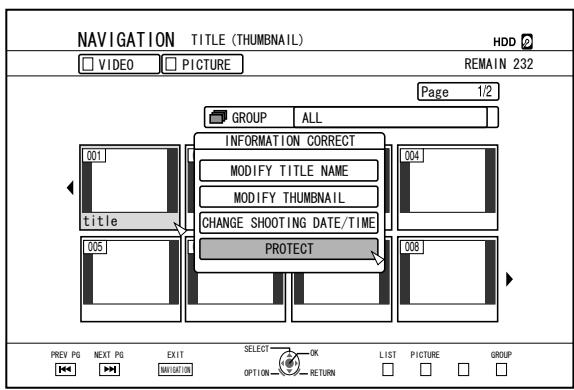
4 Select "PROTECT", and press the [OK] button
- If only a single title was selected in step 2, a confirmation screen for title protection will appear.
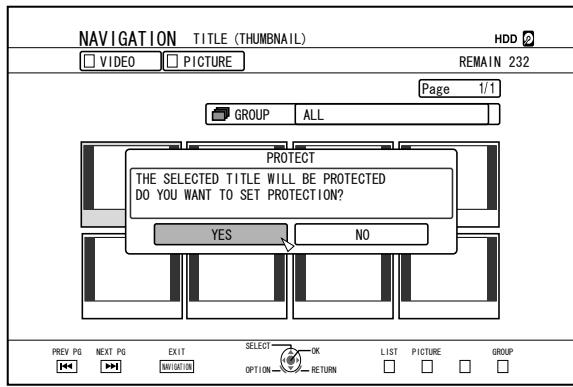
- If multiple titles or groups were selected in step 2, "PROTECT" and "UNPROTECT" items will be displayed. 5 Select "YES" or "PROTECT", and press the [OK] button
- The selected titles/groups are now protected.
Memo:
- All selected titles and groups will be protected when multiple titles or groups are selected.
- To turn off the title/group protection, select "NO" and press the [OK] button.
- Alternatively, you can press the [RETURN] button to turn off the protection and return to the initial screen.
Turning Off Title/Group Protection
Protection of a title/group can be turned off.
Titles/groups can be edited and deleted after their protection is turned off.
- Title/group protection can be turned off for video data stored on the HDD, BD-RE (BDAV), BD-R (BDAV), and DVD-RW (VR). 1 Press the [NAVIGATION] button on the remote control unit
- The Playback Navigation screen appears. 2 Select the titles/groups to turn off protection for, and press the [OPTION] button
- A pop-up option list appears.
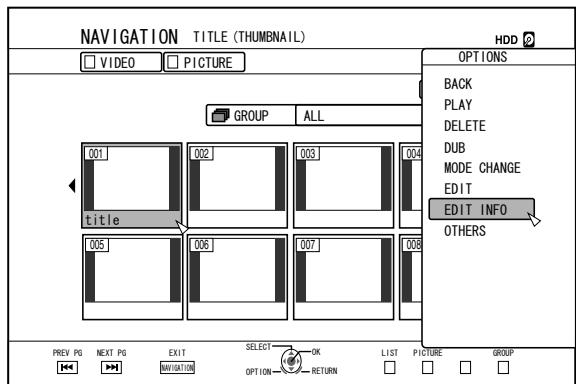
3 Select "EDIT INFO", and press the [OK] button - An information editing screen appears.
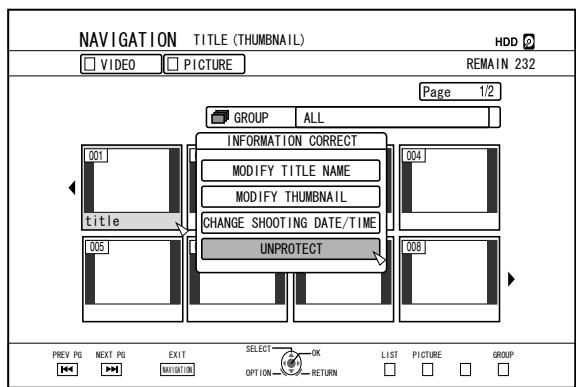
4 Select "UNPROTECT", and press the [OK] button
- If only a single title was selected in step 2, a confirmation screen for turning off protection will appear.
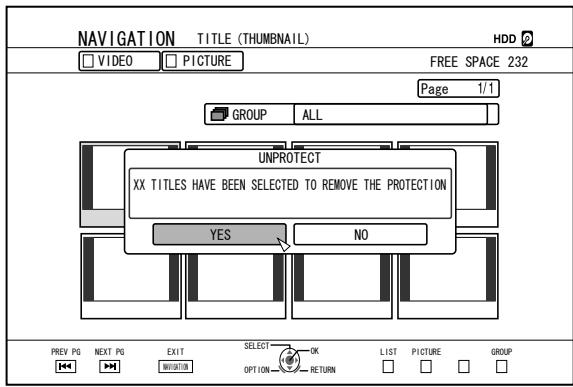
- If multiple titles or groups were selected in step 2, "UNPROTECT" and "PROTECT" items will be displayed. 5 Select "YES", and press the [OK] button.
- Protection of the selected titles/groups is now turned off.
Memo:
- Protection will be turned off from all selected titles and groups when multiple titles or groups are selected.
- If you do not want to turn off the title/group protection, select "NO" and press the [OK] button.
- Alternatively, you can press the [RETURN] button to cancel protection removal and return to the initial screen.
Creating a Playlist
A playlist can be created from the video titles on the HDD.
- Playlists can only be created for titles that are stored on the HDD.
Playlist: Enables you to create a program by selecting chapters from a specific title and editing their playback sequence.
Memo:
- The playlist created comes in handy during playback and dubbing to a disc.
Creating a Playlist
1 Press the [NAVIGATION] button on the remote control unit - The Playback Navigation screen appears. 2 Select the title for which a playlist is to be created, and press the [OPTION] button. 3 Select "EDIT", and press the [OK] button - The Edit menu screen appears.
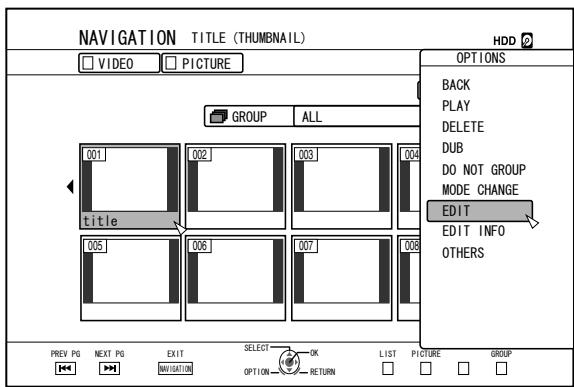
4 Select "PLAYLIST EDIT", and press the [OK] button - The playlist edit screen appears.
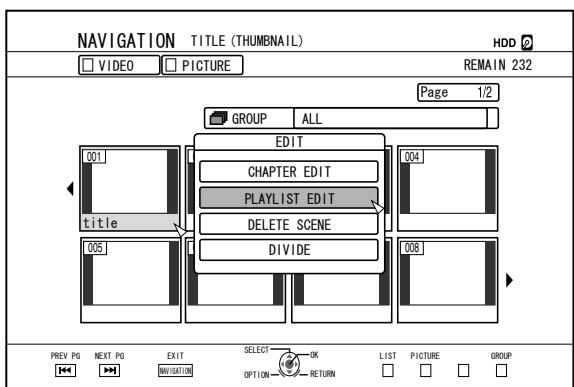
5 Edit the playlist accordingly by selecting chapters from the source title according to your preference.
- Edit the playlist.
For details, refer to "Editing the playlist".
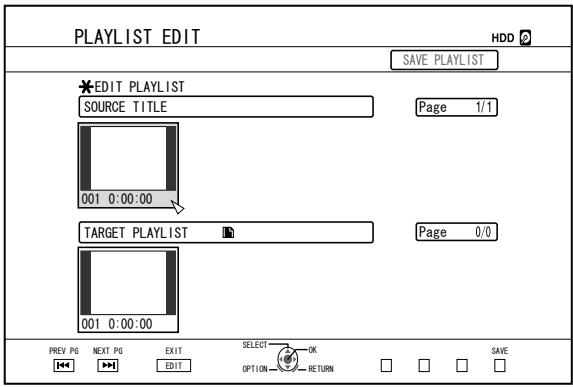
6 Press the [YELLOW] button on the remote control unit.
- A playlist is created.
Editing the playlist
Chapter insertion
① Select the chapter to insert from the thumbnails of the “SOURCE TITLE”, and press the [OK] button. ② Select the position to insert the chapter from the “TARGET PLAYLIST”, and press the [OK] button.
Chapter deletion
① Select the chapter to delete from the thumbnails of the “TARGET PLAYLIST”, and press the [OK] button. ② Select "DELETE", and press the [OK] button.
- Entering the playlist name
① Select “TARGET PLAYLIST”, and press the [OK] button. ② Enter a playlist name, and press the [OK] button.
Memo:
- For details on the method of character input, refer to "Entering Characters".
Note:
- Deleting the original title list will cause the playlist to be deleted as well.
Editing the original title list, or changing the recording mode may cause the playlist to be deleted.
Editing a Thumbnail
Thumbnails (index images) can be changed to a still image according to your preference.
Memo:
- Thumbnails of titles stored on the HDD, BD-RE, BD-R, DVD-RW, and DVD-R can be edited.
- However, thumbnails of titles that are stored on an SD card or finalized disc cannot be edited.
1 Press the [INFORMATION CORRECT] button on the remote control unit.
- An information editing screen appears.
![JVC SR-HD2500EU - Press the [INFORMATION CORRECT] button on the remote control unit. - 1](/content/2019/10/6176/images/1c77a2b6a30daf40eefe5e3c39819f728c6d7972735426a0c081225a7bb28253.jpg)
2 Select "MODIFY THUMBNAIL", and press the [OK] button.
- A thumbnail modification screen appears.
3 Play the video, and press the [I] button to stop at the scene you want to use as thumbnail display.
![JVC SR-HD2500EU - Play the video, and press the [I] button to stop at the scene you want to use as thumbnail display. - 1](/content/2019/10/6176/images/0c69beb7b964c859349b859c543408b6965258f79cf98b9fca027026c9f1e609.jpg)
Memo:
- For details on how to play videos, refer to "Video Playback Operation" (R5 page 54).
4 Select "CHANGE", and press the [OK] button.
- The displayed still image now becomes the thumbnail image.
5 Select "CONFIRM", and press the [OK] button.
- Doing so ends the editing of thumbnails.
Memo:
- You can also display the thumbnail modification screen from the Playback Navigation screen.
① Select the title for which the thumbnail is to be changed, and press the [OPTION] button. ② Select “EDIT INFO”, and press the [OK] button.
- An information editing screen appears.
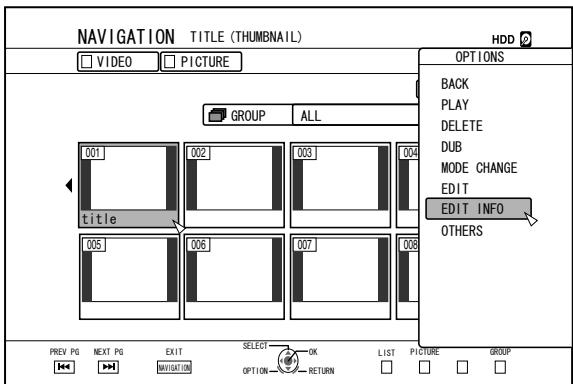
③ Select “MODIFY THUMBNAIL”, and press the [OK] button.
- A thumbnail modification screen appears.
![JVC SR-HD2500EU - ③ Select “MODIFY THUMBNAIL”, and press the [OK] button. - 1](/content/2019/10/6176/images/a0b605843cba31f1ba5e5063c576d9a6c7905543a7da0904586666af70923a0f.jpg)
Editing a Chapter
Creating a chapter mark for a saved title enables you to find a specific scene within the title.
Memo:
- All chapter editing functions can be performed on titles stored on the HDD.
Titles stored on a BD-RE (BDAV), BD-R (BDAV), DVD-R (VR), or DVD-RW (VR) only allow chapters to be divided or combined. - The chapters of titles that are stored on an SD card or finalized disc cannot be edited. - Also, protected titles cannot be edited. To perform chapter edit of a title, turn off the protection.
For details on turning off protection of a title, refer to "Turning Off Title/Group Protection" (page 67).
Chapter edit functions
- Chapter mark insertion (divide chapter): Divides a chapter by inserting a chapter mark.
- Chapter mark deletion (combine chapters): Combines chapters by deleting the chapter mark. Chapter deletion: Deletes a specified chapter.
Editing a chapter
1 Press the [EDIT] button on the remote control unit - The Edit menu screen appears.
2 Select "CHAPTER EDIT", and press the [OK] button
- The title screen appears.
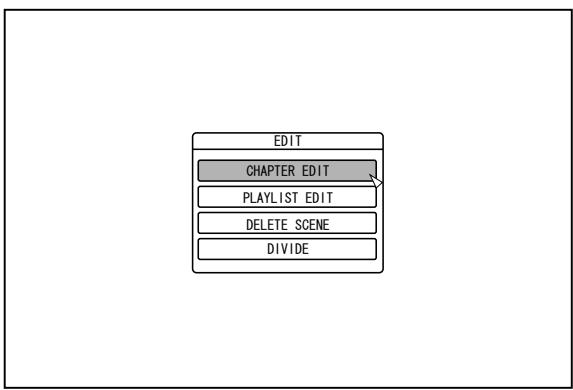
3 Select a title, and press the [OK] button
Memo:
- The chapter edit screen can also be called up from the Playback Navigation screen.
① Select the title to perform chapter edit, and press the [OPTION] button ② Select "EDIT", and press the [OK] button
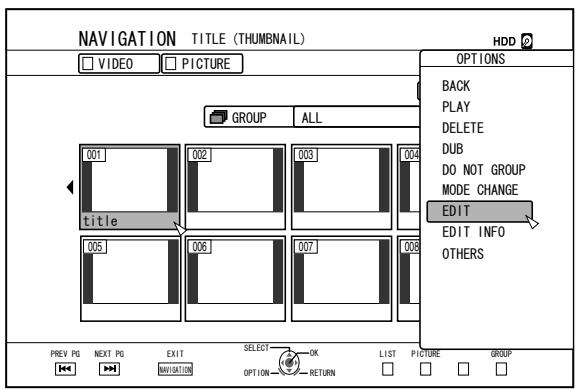
③ Select "CHAPTER EDIT", and press the [OK] button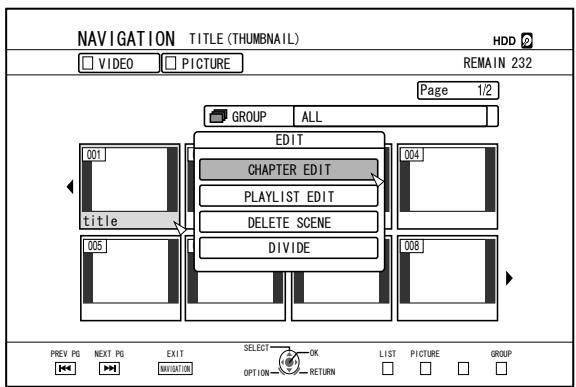
- For details on how to play videos, refer to "Video Playback Operation" (page 54).
- Frame movement on the Chapter Edit screen can only be performed one frame at a time regardless of the "STILL MODE" (page 80) setting.
Editing a Chapter (Continued)
Chapter mark insertion (divide chapter)
1 Play the video, and press the [I] button to stop at the scene you want to add a chapter mark. 2 Press the [MARK] button on the remote control unit - A chapter mark is inserted into the paused scene.
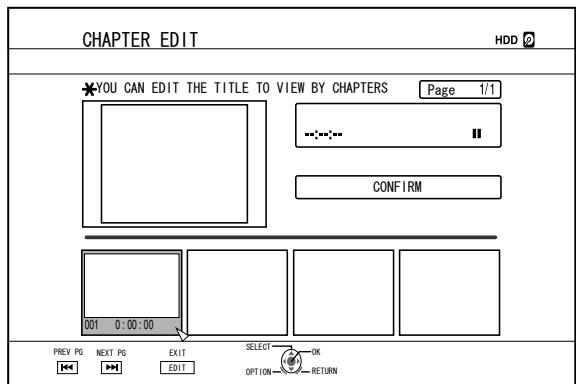
Memo:
- The chapter is now divided into two parts at the position of the chapter mark.
Chapter mark deletion (combine chapters)
1 Play the video, and press the [III] and [▲/▲] buttons to display the scene for which you want to delete the chapter mark. 2 Press the [MARK] button on the remote control unit. A confirmation screen for deleting the chapter mark appears.
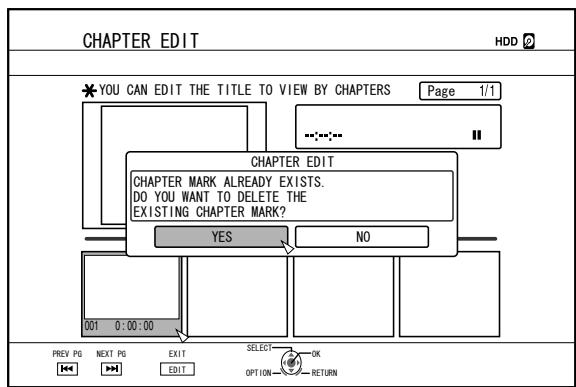
3 Select "YES", and press the [OK] button.
- The chapter mark is deleted from the selected scene.
Memo:
- The chapters before and after the position of the chapter mark are now combined.
- Pressing the [>> / |<] button displays the next/previous page.
- Deleting a video chapter
1 Select the chapter for which you want to delete the video from the chapter edit screen. 2 Press the [DELETE] button on the remote control unit. A confirmation screen for deleting the chapter appears.
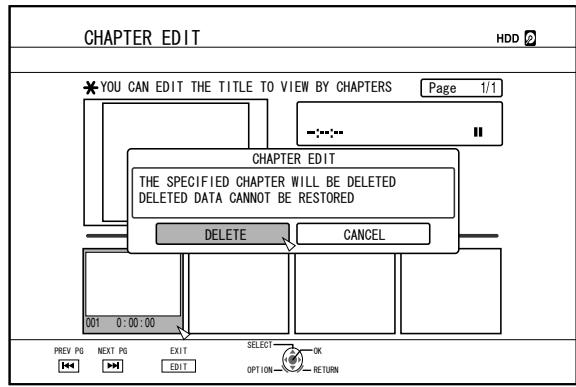
3 Select "DELETE", and press the [OK] button.
- The selected video chapter is deleted.
Note:
- Videos cannot be restored once they are deleted.
- Deletion of the video may fail if the length of the chapter is too short.
Chapter options
Pressing the [OPTION] button on the remote control when the Chapter Edit screen is displayed enables you to perform the following editing operations.
Combining with previous chapter
- Combines the selected chapter with the previous chapter.
① Select a chapter, followed by “COMB. W/PREV CH”, and press the [OK] button - Combines chapters.
Combining with next chapter
- Combines the selected chapter with the next chapter.
① Select a chapter, followed by “COMB. W/NEXT CH”, and press the [OK] button - Combines chapters.
Combining all chapters
- Combines all chapters.
① Select “COMB. ALL CHAP.”, and press the [OK] button - A confirmation screen for combining all the chapters is displayed. ② Select “YES”, and press the [OK] button - Combines all the chapters.
Dividing
You can select a saved title and divide it into two titles.
Memo:
- Dividing can only be applied to titles stored on the HDD.
- Titles that are protected cannot be divided. To divide a title, turn off the protection.
For details on turning off the title protection, refer to “Turning Off Title/Group Protection” (page 145, 67).
Dividing
1 Press the [EDIT] button on the remote control unit.
- The Edit menu screen appears. 2 Select "DIVIDE", and press the [OK] button.
- The title screen appears.
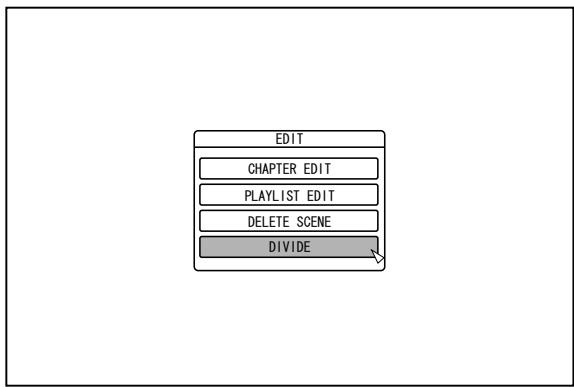
3 Select a title, and press the [OK] button. 4 Play the video, and press the [ ] button at the scene where you want to perform dividing. 5 Select "DIVIDING POINT", and press the [OK] button.
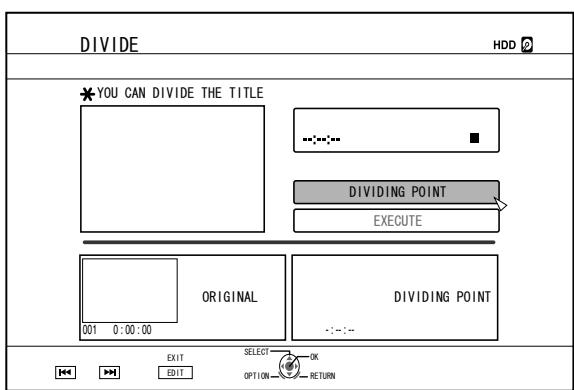
Memo:
- For details on how to play videos, refer to "Video Playback Operation" (page 13, 54).
- Frame movement on the Chapter Edit screen can only be performed one frame at a time regardless of the "STILL MODE" (page 14, 80) setting.
6 Select "EXECUTE", and press the [OK] button. - A confirmation screen for performing dividing appears.
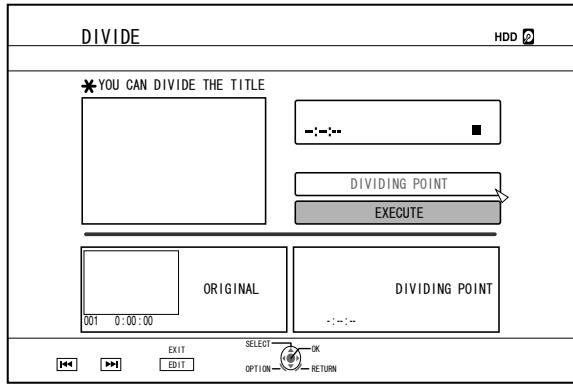
7 Select "DIVIDE", and press the [OK] button.
- Dividing starts.
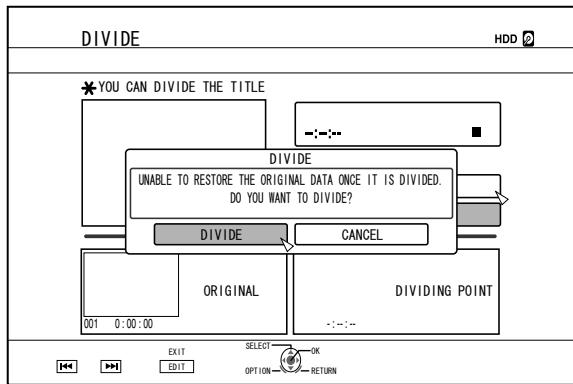
Dividing (Continued)
Memo:
- To cancel the dividing operation, select "CANCEL" and press the [OK] button.
- Alternatively, you can press the [RETURN] button to cancel the divide operation and return to the initial screen.
- The dividing edit screen can also be called up from the Playback Navigation screen.
① Select the titles to divide, and press the [OPTION] button. ② Select "EDIT", and press the [OK] button.
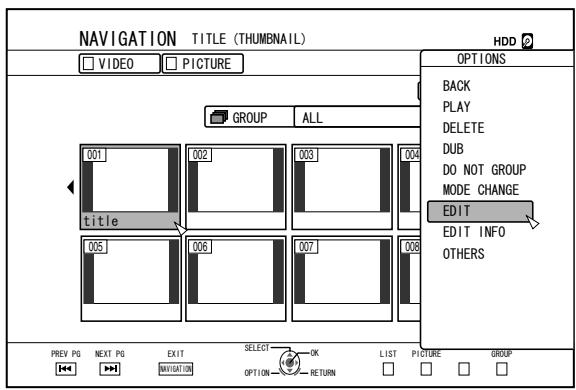
③ Select "DIVIDE", and press the [OK] button.
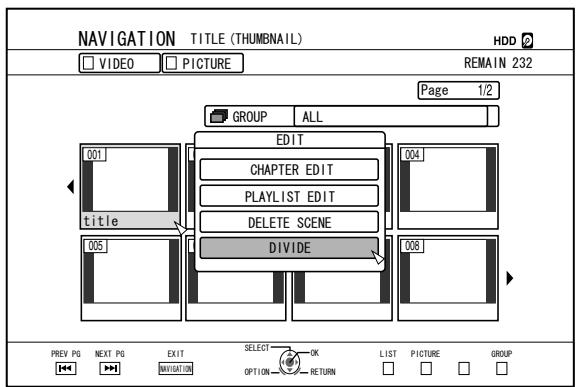
Delete Scenes
Unwanted scenes of a saved title can be deleted. Doing so helps to increase the free space on the disc.
Memo:
- Deleting scenes can only be applied to titles stored on the HDD.
- Titles that are protected cannot be deleted. To enable scene delete of a title, turn off the protection.
For details on turning off the title protection, refer to "Turning Off Title/Group Protection" (page 67).
- HD content for which the delete scene operation has been applied cannot be dubbed to BDMV. Perform seamless conversion before starting a dubbing operation.
For details, refer to "Mode conversion" (v3 page 76).
Delete Scenes
1. Press the [EDIT] button on the remote control unit. - The Edit menu screen appears. 2. Select "DELETE SCENE", and press the [OK] button. - Displays the Title Display screen.
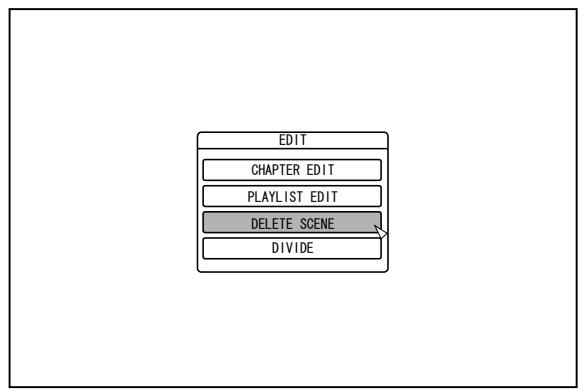
3. Select a title, and press the [OK] button.
4 Edit the delete scene section
Follow the steps below to edit the section for which delete scene is to be applied.
① Play the video, and press the [ ] button at the point where you want to start the delete operation. ② Select “START”, and press the [OK] button.
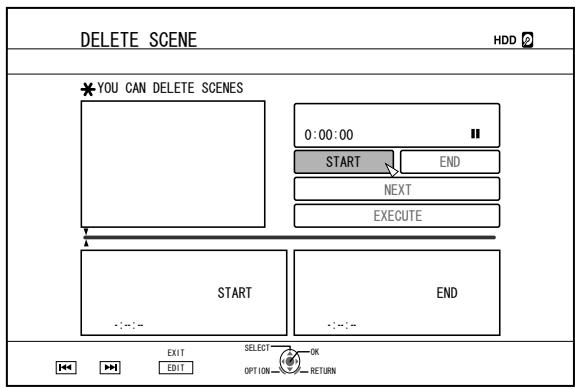
③ Play the video, and press the [ ] button at the point where you want to end the delete operation. ④ Select “END”, and press the [OK] button.
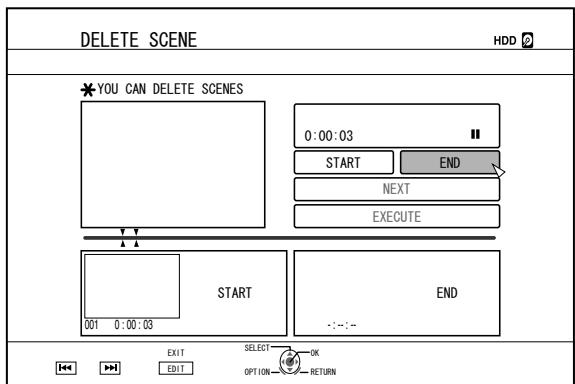
(5) To continue specifying other sections to delete, select "NEXT", and press the [OK] button.
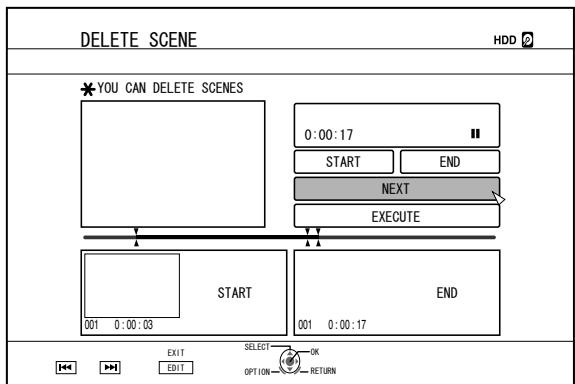
⑥ Repeat Steps 1 to 4 to specify the sections to delete.
Memo:
- For details on how to play videos, refer to "Video Playback Operation" (13 page 54).
- Frame movement on the Chapter Edit screen can only be performed one frame at a time regardless of the "STILL MODE" (12 page 80) setting.
5 Select "EXECUTE", and press the [OK] button. - A confirmation screen for performing scene delete appears.
6 Select "EXECUTE", and press the [OK] button.
- Scene deletion starts.
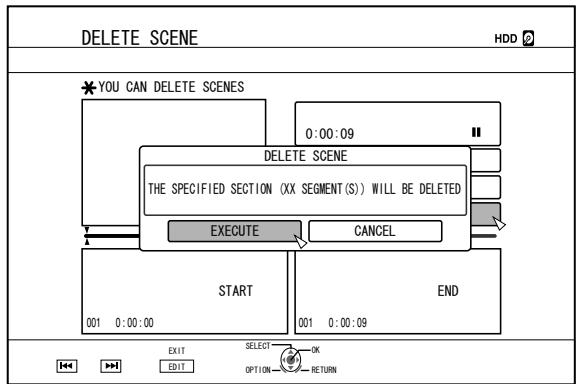
Memo:
- To cancel the delete scene operation, select "CANCEL" and press the [OK] button.
- Alternatively, you can press the [RETURN] button to cancel delete scene and return to the initial screen.
Changing the Disc Name
The name of a BD or DVD disc can be changed as follows.
1. Set the BD or DVD for which the disc name is to be changed on the disc tray. 2. Press the [MEDIA MANAGE] button on the remote control unit. The Media Management menu screen appears.
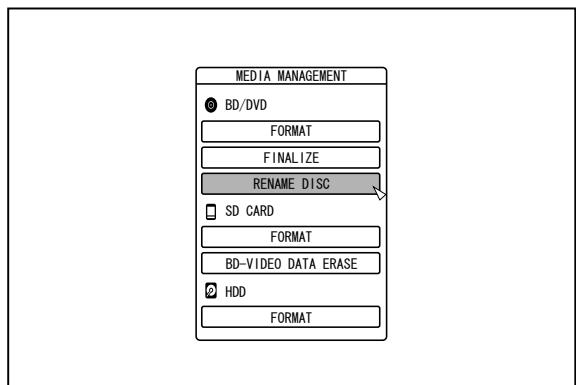
3. Select “RENAME DISC” under “BD/DVD”, and press the [OK] button. A disc name modification screen appears.
- 4. Modify the disc name.
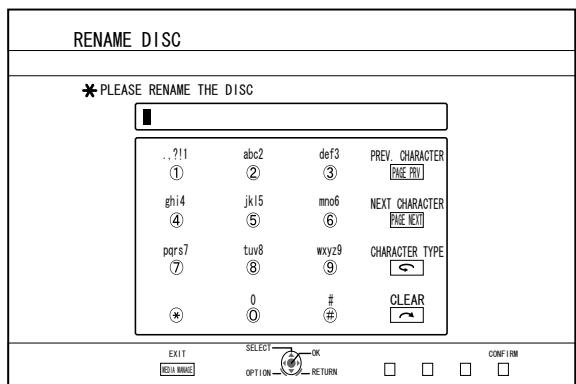
The new disc name is now saved.
- Memo: For details on the method of character input, refer to "Entering Characters" (page 62).
Memo: - For details on the method of character input, refer to "Entering Characters" (R page 62).
The date/time of the stored video can be changed as follows.
The date/time of the stored video can be changed as follows.
- The shooting date/time of videos stored on the HDD can be changed. 1 Press the [INFORMATION CORRECT] button on the remote control unit.
- ① Use the [▲] and [▼] buttons to move the cursor to the item you want to change. ② Press the [OK] button to display the pop-up screen. ③ Use the [▲] and [▼] buttons to select a desired value. ④ Press the [OK] button to choose the value. ⑤ Repeat steps 1 to 4 to change settings for any desired items.
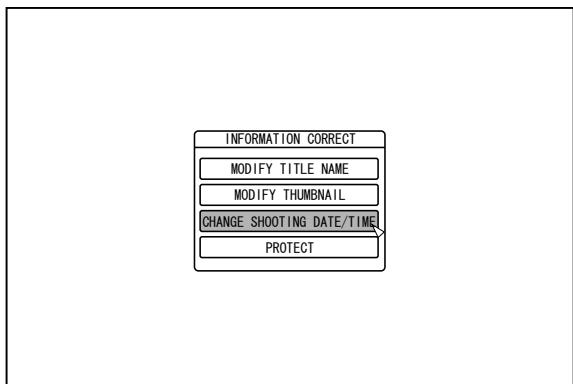
2 Select "CHANGE SHOOTING DATE/TIME", and press the [OK] button. A thumbnail screen appears. 3 Select the title for which the shooting date/time is to be changed, and press the [OK] button. The screen for changing the shooting date/time appears. 4 Change the shooting date/time. Perform the following steps to change the shooting date/time.
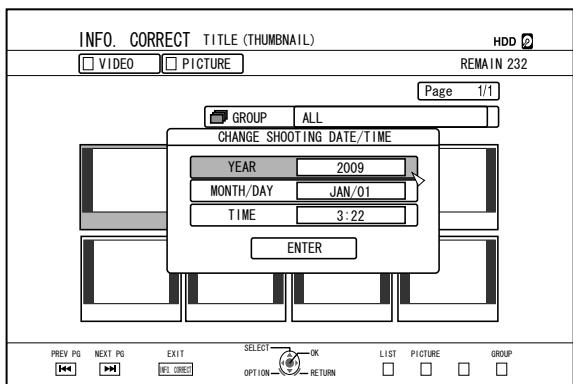
① Use the [▲] and [▼] buttons to move the cursor to the item you want to change. ② Press the [OK] button to display the pop-up screen. ③ Use the [▲] and [▼] buttons to select a desired value. ④ Press the [OK] button to choose the value. ⑤ Repeat Steps 1 to 4 to change settings for any desired items.
5 Select "ENTER", and press the [OK] button
- The modified shooting date/time is saved.
Memo:
- Alternatively, you can press the [RETURN] button to cancel the shooting date/time modification and return to the initial screen.
- The shooting date/time modification will not be reflected on a title that was dubbed.
- Pressing the [OPTION] button in the playback navigation screen instead of the [INFORMATION CORRECT] button will also display the shooting date/time edit screen.
① Select the title for which the shooting date/time is to be changed, and press the [OPTION] button. ② Select “EDIT INFO”, and press the [OK] button.
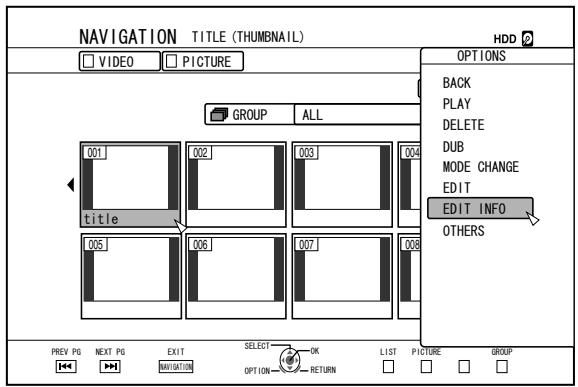
③ Select “CHANGE SHOOTING DATE/TIME”, and press the [OK] button.
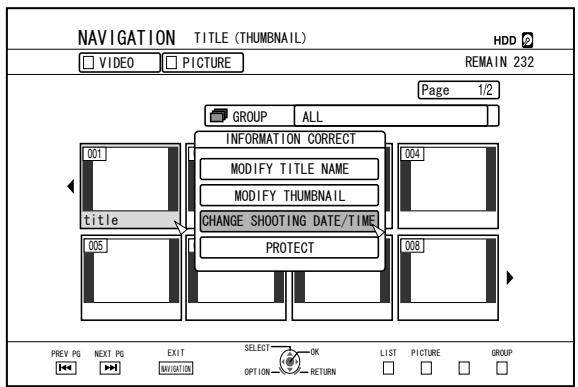
Mode conversion
You can convert HD quality video titles saved on the HDD if they are recorded in the DR, AVC, AF, AN, AL, or AE mode.
Seamless conversion
: Seamless conversion can be performed to enable smooth playback of joined scenes after dubbing to a BD. (Titles recorded in the DR recording mode → seamless)
Recording mode conversion
: Enables conversion of recording mode. (Titles recorded in the DR, AVC, AF, AN, AL, or AE mode → AF/AN/AL/AE/XP/SP/LP/EP)
Memo:
- As seamless conversion does not re-encode video and audio, there is no deterioration in the image quality.
- Re-encoding is performed during recording mode conversion.
- Only titles that are recorded in the DR mode enable conversion to the XP/SP/LP/EP mode.
- To apply "MODE CHANGE" after turning off the power, select "AFTER POWER OFF" for "START METHOD" under the "MODE CHANGE".
Note:
- When seamless conversion is performed, the chapters (excluding joints of scenes) will be combined. To divide the chapters, insert chapter marks after seamless conversion. For details on dividing the chapters, refer to "Chapter mark insertion (divide chapter)" (13 page 71).
1 Press the [NAVIGATION] button on the remote control 2 Select a title/group, and press the [OPTION] button 3 Select "MODE CHANGE" from the Option menu, and press the [OK] button - The "MODE CHANGE" screen appears.
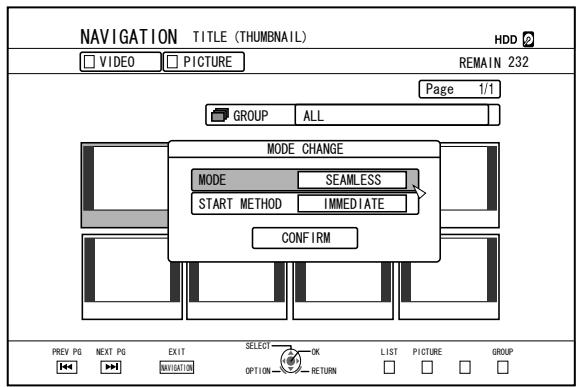
4 Select a recording mode from "MODE CHANGE", and press the [OK] button 5 Select "CONFIRM", and press the [OK] button.
Changing Settings of this Unit
Settings changed in the Settings Menu screen are stored on this unit even when its power is turned off.
Displaying the Settings Menu
1 Press the [SET UP] button on the remote control unit
- The Settings Menu screen appears.
Memo:
- When playback is in progress, pressing the button stops it and displays the Settings Menu screen.
- The cursor position appears at the position when the screen was last closed.
Setting Menu List
The following items can be set. Items that cannot be set cannot be selected.
SETUP (page 78)
AUTO POWER (OFF) (page 78) REMOTE CONTROL CODE (page 78) CLOCK SET/DISPLAY (page 78)
CLOCK SET (page 78) DATE DISPLAY (page 78) TIME DISPLAY CHOICE (page 78)
PANEL DISPLAY BRIGHTNESS (page 78)
DIMMER (POWER ON) (page 78) DIMMER (POWER OFF) (page 79)
QUICK STARTUP (page 79) BUZZER OUTPUT (page 79)
REMOTE CONTROL SENSOR TONE (page 79) ALERT/WARNING TONE (page 79)
DEFAULT SETTING (page 79)
PLAYBACK SETTING (page 79) BD-/DVD-VIDEO PB SETTING (page 79)
BD-VIDEO RATINGS (page 79) COUNTRY CODE (page 79)
AUDIO LANGUAGE (page 79) SUBTITLE LANGUAGE (page 79)
MENU LANGUAGE (page 79)
RESUME (page 80) STILL MODE (page 80)
SEAMLESS PLAYBACK (page 80)
RECORD (page 80)
XP MODE RECORDING AUDIO (page 80) HIGH-SPEED DUBBING (page 80)
VIDEO MODE RECORDING ASPECT (page 80) DISC RECORDING AUDIO (page 81)
AUTO MARKING (page 81) AUDIO (R page 81)
DYNAMIC RANGE CONTROL (page 81)
DOWN MIX (page 81) DIGITAL OUT (page 82)
PCM DOWN SAMPLING (page 82) Dolby Digital (page 82) Dolby Digital Plus/TrueHD (page 82)
DTS (page 82) DTS-HD (page 82)
AAC (page 82)
DV IN AUDIO SETTING (page 82) BD MIX SOUND (page 82)
DISPLAY (page 83)
ON SCREEN GUIDE (page 83) BLUE BACK (page 83)
SCREENSAVER (page 83) OSD LANGUAGE (page 83)
CONNECTION (page 83)
MONITOR TYPE (page 83) HDMI CONNECTION (page 83)
HDMI VIDEO MODE (page 83) HDMI OUTPUT RESOLUTION (page 84) BD-VIDEO 24p OUT (page 84) x.v.Color (page 84) Deep Color (page 84) HDMI RGB OUTPUT RANGE (page 84) HDMI → DVI COLOR (page 84) HDMI AUDIO OUTPUT (page 84) HDMI-CEC (page 85) COMPONENT OUTPUT (page 85)
VIDEO INPUT SETTING (page 85)
SDI CONNECTION (page 85)
SDI AUDIO INPUT SETTING (page 85) SDI AUDIO OUTPUT SETTING (page 86) 1440 CONVERSION (page 86) RECLOCK (page 86) TIME CODE INPUT SETTING (page 86) TIME CODE DISPLAY POSITION (page 86)
Memo:
- The highlighted value is the default setting.
SETUP
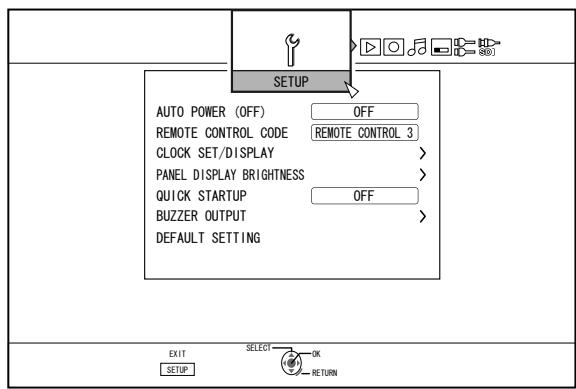
AUTO POWER (OFF)
You can specify a time for the power of the unit to turn off automatically when it is not being operated.
| Setting Values | Description |
| OFF | Power does not turn off automatically. |
| 2 HOURS | Turns off power after two hours. |
| 6 HOURS | Turns off power after six hours. |
REMOTE CONTROL CODE
For remote control units compliant with JVC's products, different remote control codes can be specified for those that are used with this unit.
| Setting Values | Description |
| REMOTE CONTROL 1 | Sets remote control code to 1. |
| REMOTE CONTROL 2 | Sets remote control code to 2. |
| REMOTE CONTROL 3 | Sets remote control code to 3. |
| REMOTE CONTROL 4 | Sets remote control code to 4. |
CLOCK SET/DISPLAY
The current date/time and the display format on the screen can be specified using the "CLOCK SET", "DATE DISPLAY", and "TIME DISPLAY CHOICE" items.
CLOCK SET
Sets the current date and time.
Memo:
- For details on the setting procedures, refer to "Setting the date/time" (page 20).
DATE DISPLAY
For setting the date (year, month, and day) display format.
| Setting Values | Description |
| YEAR.MONTH.DAY | Displays the date in the year/month/day order. |
| MONTH.DAY.YEAR | Displays the date in the month/day/year order. |
| DAY.MONTH.YEAR | Displays the date in the day/month/year order. |
TIME DISPLAY CHOICE
For setting the time display format.
| Setting Values | Description |
| 12H | Displays the time in AM/PM format. |
| 24H | Displays the time in 24-hour format. |
The brightness of the display window can be specified using the "DIMMER (POWER ON)" and "DIMMER (POWER OFF)" control items.
- DIMMER (POWER ON)
For setting the brightness of the display window when the power is turned "On".
| Setting Values | Description |
| BRIGHT | Bright |
| DIMMED1 | Slightly dim |
| DIMMED2 | Dim |
| DIMMED3 | Dimmer |
| OFF | Off |
- DIMMER (POWER OFF)
For turning on/off the light of the display window when the power is turned "Off".
| Setting Values | Description |
| OFF | Turns off the light. |
| ON | Turns on the light. |
- QUICK STARTUP
The quick startup setting can be specified as follows.
| Setting Values | Description |
| OFF | Starts up in the normal way. |
| ON | Operation is speedily enabled after turning on the power. (Quick start) |
Memo:
- Setting to "ON" increases power consumption while the unit is in the standby mode.
BUZZER OUTPUT
The buzzer setting can be specified as follows.
- REMOTE CONTROL SENSOR TONE
For setting whether to sound the buzzer when the remote control sensor receives signals.
| Setting Values | Description |
| OFF | Buzzer does not sound when the remote control sensor receives signals. |
| ON | Sounds the buzzer when the remote control sensor receives signals. |
- ALERT/WARNING TONE
For setting whether to sound the buzzer when an operation is completed or when a warning message appears.
| Setting Values | Description |
| OFF | Buzzer does not sound. |
| ON | Sounds the buzzer. |
DEFAULT SETTING
Restores the setting values on the setting screen to their factory default values.
| Setting Values | Description |
| YES | Restores the factory default values. |
| NO | Returns to the initial screen without resetting the values. |
Memo:
- "BD-VIDEO RATINGS" and "COUNTRY CODE" settings cannot be reset once they have been specified.
PLAYBACK SETTING
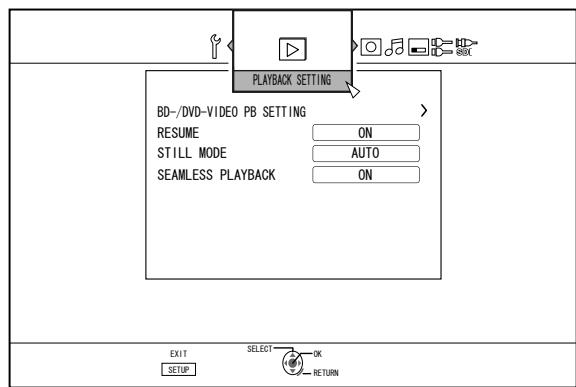
BD-/DVD-VIDEO PB SETTING
BD-Video and DVD-Video playback settings can be specified using the "BD-VIDEO RATINGS", "COUNTRY CODE", "AUDIO LANGUAGE", "SUBTITLE LANGUAGE", and "MENU LANGUAGE" items.
- BD-VIDEO RATINGS
For setting the lower age limit for BD-Video ratings.
| Setting Values | Description |
| NO LIMIT | All BD-Videos can be viewed. |
| 254YEAR(S)-0YEAR(S) | BD-Videos that are subject to the age limit cannot be viewed. |
Memo:
- In order to set the restrictions, password (four-digit number) registration is required.
- The password status becomes unregistered if the restriction setting is disabled. A new password can be registered after setting the age limit again.
- It is recommended that you note down the password in case it is lost or forgotten.
COUNTRY CODE
For setting the country code.
For details on the country codes, refer to the "Country Code List" (page 101).
Memo:
- If the "BD-VIDEO RATINGS" setting is specified, you will be required to enter the password registered for the "BD-VIDEO RATINGS" in order to change the "COUNTRY CODE". AUDIO LANGUAGE
For setting the audio sound when playing back BD-Video or DVD-Video.
For details on the language codes, refer to the "Language Code List" (page 99).
- SUBTITLE LANGUAGE
For setting the subtitle language when playing back BD-Video or DVD-Video.
For details on the language codes, refer to the "Language Code List" (page 99).
- MENU LANGUAGE
For setting the menu language when playing back BD-Video or DVD-Video.
For details on the language codes, refer to the "Language Code List" (page 99).
RESUME
The stop position can be stored when playback of a BD-Video, DVD-Video, BDMV, AVCHD, finalized discs, or SD card is stopped halfway.
| Setting Values | Description |
| OFF | Resume information is not stored. |
| ON | Stores resume information. |
Memo:
- Resume information is stored at all times for other discs as well as the HDD regardless of this setting.
- When a HDD title is selected using Playback Navigation, it is played back from the beginning.
- Some discs do not allow playback from the resume point.
■ STILL MODE
For setting the method for displaying paused images during playback of the HDD or a disc.
| Setting Values | Description |
| AUTO | Automatic control. |
| FIELD | Use this setting for moving images or when there is blurring in the “AUTO” mode. |
| FRAME | Use this setting when detailed patterns or designs are not clear in the “AUTO” mode. |
Memo:
- This setting is disabled for programs in the DR mode and during playback of AVCHD videos.
SEAMLESS PLAYBACK
For setting the method for playing back partially erased scenes.
| Setting Values | Description |
| OFF | Plays back with high accuracy. |
| ON | Plays back smoothly. |
Memo:
- SD picture quality is retained during re-encode dubbing.
- For joints of scenes that are 15 seconds or shorter, seamless playback may fail even when it is set to "ON". The same applies during re-encode dubbing in the SD picture quality.
RECORD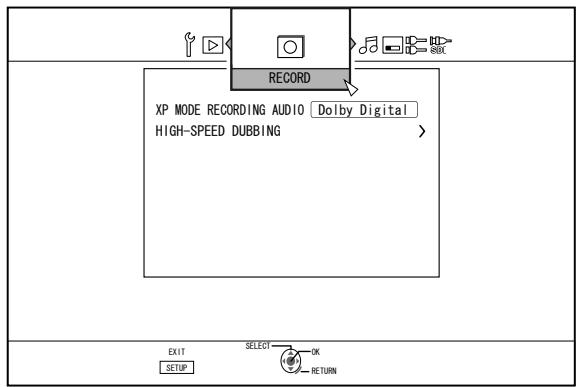
XP MODE RECORDING AUDIO
For changing the settings of audio mode during recording in the XP mode.
| Setting Values | Description |
| Dolby Digital | Records in “Dolby Digital”. |
| LPCM | Records in “LPCM”. |
■ HIGH-SPEED DUBBING
Items under "VIDEO MODE RECORDING ASPECT" and "DISC RECORDING AUDIO" can be set to support high-speed dubbing.
For setting the aspect ratio during recording.
| Setting Values | Description |
| AUTO | Performs recording in the aspect ratio setting when recording starts. |
| 4:3 | Records at the fixed aspect ratio of 4:3. |
| 16:9 | Records at the fixed aspect ratio of 16:9. |
Memo:
- High-speed dubbing to a DVD-Video disc cannot be performed when there are different aspect ratios in a title. In this case, fix the aspect ratio to 4:3 or 16:9. This setting remains valid during re-encode dubbing.
For details on high-speed dubbing and re-encode dubbing, refer to the "Dubbing chart" (R page 26).
For changing the settings of audio to be recorded to the disc when in the AF, AN, AE or AL mode.
| Setting Values | Description |
| AUTO | Records “Stereo”, “Surround” or “Dual broadcast” audio sounds as they are. |
| FIXED | Records “Stereo” and “Surround” sounds in “Stereo”. “Dual broadcast” audio sounds are recorded as they are. |
Memo:
- Surround sounds of a title become stereo sounds when re-encode dubbing is performed.
AUTO MARKING
During direct recording to a recording media (HDD or optical disc), you can append chapters by adding a mark at a fixed interval of 10 minutes.
| Setting Values | Description |
| OFF | Disables addition of chapters. |
| ON | Enables addition of chapters. |
Memo:
- The interval for each chapter is fixed at 10 minutes. This cannot be altered.
- Regardless of whether "AUTO MARKING" is set to "ON" or "OFF", you can perform manual marking using the Mark button on the remote control.
During manual marking, an on-screen message is displayed regardless of the "ON SCREEN GUIDE" setting under "DISPLAY".
AUDIO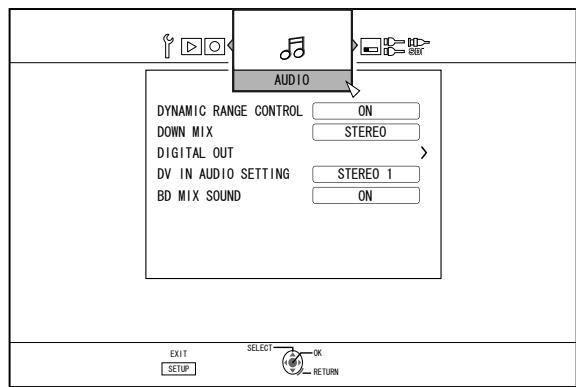
DYNAMIC RANGE CONTROL
For setting the dynamic range compression ratio (ratio between the maximum and minimum volume) during Dolby Digital playback.
| Setting Values | Description |
| AUTO | Perform compression only for Dolby TrueHD. |
| OFF | Not compressed. |
| ON | Perform maximum compression. |
Memo:
- Setting to "OFF" may produce the same effects as the "ON" mode for some discs.
- Performing compression allows even the slightest sound to be heard clearly.
- There may be differences in the effect depending on the disc used.
DOWN MIX
For setting whether to output analog audio.
| Setting Values | Description |
| STEREO | Use this setting when connecting an audio amplifier or TV. |
| DOLBY SURROUND | Use this setting when connecting an amplifier that supports Dolby Surround. |
DIGITAL OUT
Set this item according to the device connected to the digital audio output terminal (optical digital).
PCM DOWN SAMPLING
For specifying settings on sampling frequency conversion.
| Setting Values | Description |
| OFF | Sampling frequency is not converted. |
| ON | Audio recorded at a sampling frequency of 96 kHz or 88.2 kHz is converted to 48 kHz and 44.1 kHz respectively. |
Memo:
- Setting to "OFF" may produce the same effects as the "ON" mode for some discs. Dolby Digital
For setting audio output to "BITSTREAM" or "PCM".
| Setting Values | Description |
| BITSTREAM | Use this setting when connecting a device that is able to decode “Dolby Digital”. |
| PCM | Audio input will be changed and output as “PCM”. Use this setting when connecting a device that is unable to decode “Dolby Digital”. |
- Dolby Digital Plus/TrueHD
For setting audio output to "BITSTREAM" or "PCM".
| Setting Values | Description |
| BITSTREAM | Use this setting when connecting a device that is able to decode “Dolby Digital Plus/TrueHD”. |
| PCM | Audio input will be changed and output as “PCM”. Use this setting when connecting a device that is unable to decode “Dolby Digital Plus/TrueHD”. |
DTS
For setting audio output to "BITSTREAM" or "PCM".
| Setting Values | Description |
| BITSTREAM | Use this setting when connecting a device that is able to decode “DTS”. |
| PCM | Audio input will be changed and output as “PCM”. Use this setting when connecting a device that is unable to decode “DTS”. |
- DTS-HD
For setting audio output to "BITSTREAM" or "PCM".
| Setting Values | Description |
| BITSTREAM | Use this setting when connecting a device that is able to decode “DTS-HD”. |
| PCM | Audio input will be changed and output as “PCM”. Use this setting when connecting a device that is unable to decode “DTS-HD”. |
AAC
For setting audio output to "BITSTREAM" or "PCM".
| Setting Values | Description |
| BITSTREAM | Use this setting when connecting a device that is able to decode “AAC”. |
| PCM | Audio input will be changed and output as “PCM”. Use this setting when connecting a device that is unable to decode “AAC”. |
Memo:
- Audio sound may not be properly played back if the audio equipment in use does not support "BITSTREAM" output. In this case, set to "PCM".
DV IN AUDIO SETTING
For changing the audio recording settings during DV input.
| Setting Values | Description |
| STEREO 1 | Records the audio sound during video recording (L1, R1). |
| STEREO 2 | Records audio sound that is added later (L2, R2), such as during editing. |
| MIX | Records “STEREO 1” and “STEREO 2” sounds. |
BD MIX SOUND
For setting a mixture of BD video secondary audio and operation sounds output.
| Setting Values | Description |
| OFF | Outputs main audio only. |
| ON | Outputs a mixture of BD video secondary audio and operation sounds during playback of BD-Videos that contain BD video secondary audio and menu operation sounds. |
Memo:
- Output is converted to Dolby Digital or DTS according to the main audio when the "DIGITAL OUT" item is set to "BITSTREAM".
DISPLAY
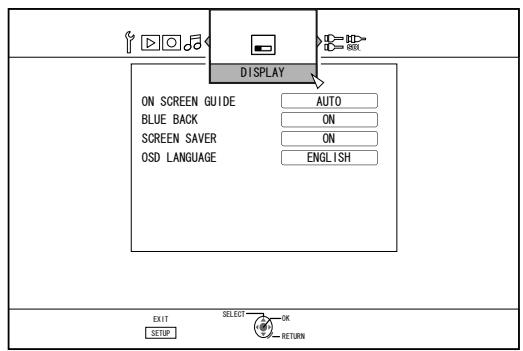
ON SCREEN GUIDE
For displaying operation details.
| Setting Values | Description |
| AUTO | Appears for five seconds when an operation is performed. |
| OFF | Not displayed. |
BLUE BACK
For setting the screen display when there is no signal input.
| Setting Values | Description |
| OFF | Displays screen as it is. |
| ON | Switches display to a blue screen. |
SCREENSAVER
For setting whether to use a screenshot.
| Setting Values | Description |
| OFF | Screen saver is not used. |
| ON | Screen saver is used. Switches to the burn-in prevention screen when the unit is not operated for more than five minutes. |
OSD LANGUAGE
For setting the language for messages displayed on-screen.
CONNECTION
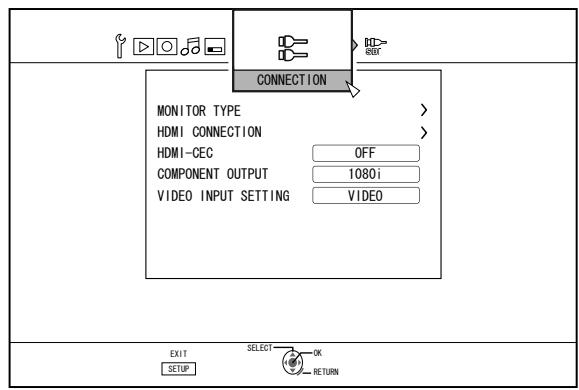
■ MONITOR TYPE
For setting the aspect ratio according to the connected monitor.
| Setting Values | Description |
| 16:9 | Set to this value when connected to monitors with 16:9 aspect ratio. |
| 16:9FULL | Choose this setting when a 16:9 monitor is connected to display images without the black borders. |
| 4:3 PAN&SCAN | Set to this value when connecting to monitors with an aspect ratio of 4:3. Plays back videos with the left and right edges trimmed off. |
| 4:3 LETTERBOX | Set to this value when connecting to monitors with an aspect ratio of 4:3. Plays back videos with a black band at the upper and lower ends. |
HDMI CONNECTION
VIDEO PRIORITY MODE
| Setting Values | Description |
| SDI/COMPONENT | Set to this value for output at a resolution of “480p” or higher from the [COMPONENT VIDEO OUT] terminal, or from the [SDI OUT] terminal. |
| HDMI | Set to this value when priority is to be given to the “HDMI OUTPUT RESOLUTION” setting. |
Memo:
- During data output from the [HDMI] terminal, setting to "SDI/COMPONENT" automatically outputs data in the "COMPONENT OUTPUT" setting. Setting to "HDMI" outputs data in the "HDMI OUTPUT RESOLUTION" setting.
- During data output from the [HDMI] and [COMPONENT VIDEO OUT] terminals, setting to "SDI/COMPONENT" automatically outputs data in the "COMPONENT OUTPUT" setting. Setting to "HDMI" outputs data at the "480i" resolution from the [COMPONENT VIDEO OUT] terminal.
- When the [SDI OUT] terminal and the [HDMI] terminal are connected at the same time, setting to "SDI/COMPONENT" outputs data from the [SDI OUT] terminal.
HDMI OUTPUT RESOLUTION
| Setting Values | Description |
| AUTO | Automatically selects an appropriate resolution according to the connected device. |
| 480p | Fixes the resolution at 480p. |
| 1080i | Fixes the resolution at 1080i. |
| 720p | Fixes the resolution at 720p. |
| 1080p | Fixes the resolution at 1080p. |
Memo:
- When the resolution is set to "720p", videos are output at "1080i" other than those recorded at "720p" even though "720p" is shown on the display. Depending on the conditions (monitor type 16:9, resolution "720p" and above, aspect 4:3), some of the OSD display of the component output may be cut off. In this case, set "HDMIVIDEO MODE" to "OFF". OSD of the [VIDEO OUT]/[S-VIDEO OUT] terminals may be cut off with the above conditions even when "OFF" is selected. In this case, set the component resolution to "480p" or below, or set the monitor type to other settings except 16:9.
- BD-VIDEO 24p OUT
| Setting Values | Description |
| OFF | Outputs in the resolution set by “HDMI OUTPUT RESOLUTION”. |
| ON | Outputs 24p elements at 24p. |
Memo:
- 24p playback is possible for commercially available BD-Video or BDMVs that are recorded in 24p. Content other than BDMVs that is dubbed or recorded on this unit at 24p, as well as 24p content on SD cards are played back at 60p or 60i.
- This is applicable for BD-ROM and DVD-Video titles. This is available when connected to a 24p compatible monitor.
- Elements other than 24p ones are output at 60p.
- No video images will be output from the video, S-video and component outputs when the HDMI output resolution is at 1080/24p.
x.v.Color
| Setting Values | Description |
| AUTO | Outputs x.v.Color information with HDMI when video images that include x.v.Color information are played back. |
| OFF | This is applicable when an x.v.Color compatible monitor is connected. |
Memo:
- This is applicable when an x.v.Color compatible monitor is connected.
- Deep Color
| Setting Values | Description |
| AUTO | Set to this value when a “Deep Color” device is connected. |
| OFF | Set to this value when the video image is distorted, or colors are unnatural. |
HDMI RGB OUTPUT RANGE
| Setting Values | Description |
| STANDARD | Set to this value for standard uses. |
| ENHANCED | Set to this value when the black and white parts of the video image are not distinct. |
Memo:
- This is available when connected to a DVI device that only supports RGB input.
HDMI → DVI COLOR
| Setting Values | Description |
| AUTO | Value is set automatically according to the monitor. |
| RGB FIX | Use this setting when video images are not correctly displayed on the monitor. |
Memo:
- This is available when the "x.v.Color" setting is set to "OFF". When the "x.v.Color" setting is set to "AUTO", this setting will be set to "AUTO" automatically.
- Change this setting when no video image appears while connected to a DVI device.
HDMI AUDIO OUTPUT
| Setting Values | Description |
| OFF | Use this setting if you do not want to send audio output from the HDMI cable. |
| ON | Use this setting to send audio output from the HDMI cable. |
HDMI-CEC
For setting the HDMI-CEC operation from the connected device.
| Setting Values | Description |
| OFF | Disables HDMI-CEC. |
| ON | Enables HDMI-CEC. |
COMPONENT OUTPUT
For setting the resolution of video output from the [COMPONENTVIDEOOUT] terminals.
| Setting Values | Description |
| 480i | Sets output to “480i”. |
| 480p | Sets output to “480p”. |
| 720p | Sets output to “720p”. |
| 1080i | Sets output to “1080i”. |
Memo:
- When the resolution is set to "720p", videos are output at "1080i" other than those recorded at "720p" even though "720p" is shown on the display.
- This unit does not support component output at "1080p". To output at "1080p", do so via HDMI connection.
- If "HDMI VIDEO MODE" is set to "ON", the unit will output at "480i" regardless of the current setting.
- If "HDMI VIDEO MODE" is set to "OFF", or when a HDMI connection is used, DVD videos will be output at "480p" even if "720p" or "1080i" has been set.
- The aspect ratio of video/S-video output changes according to the component output setting. As such, there may be cases where the aspect ratio of the video/S-video output is different from the predefined setting of the content.
VIDEO INPUT SETTING
Choose a setting according to the video terminal to be connected when an external analog input terminal is used.
| Setting Values | Description |
| VIDEO | Use this setting when connecting via the video (BNC) terminal. |
| S-VIDEO | Use this setting when connecting via the S-video (black) terminal. |
SDI CONNECTION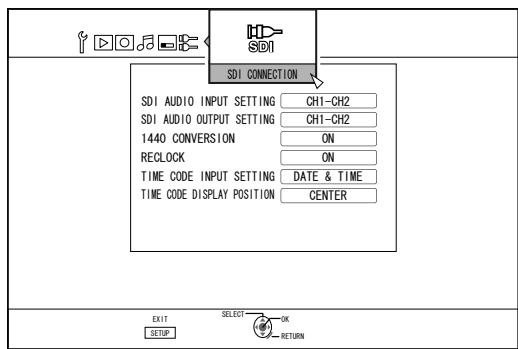
For specifying settings related to the SDI output terminal.
SDI AUDIO INPUT SETTING
Set the channel (Lch, Rch) to which the video/audio of the SD-SDI/HD-SDI input is to be recorded.
| Setting Values | Description |
| CH1-CH2 | Use this setting to record the digital audio input by assigning Lch to CH-1 of GROUP1 and Rch to CH-2. |
| CH3-CH4 | Use this setting to record the digital audio input by assigning Lch to CH-3 of GROUP1 and Rch to CH-4. |
| CH5-CH6 | Use this setting to record the digital audio input by assigning Lch to CH-5 of GROUP2 and Rch to CH-6. |
| CH7-CH8 | Use this setting to record the digital audio input by assigning Lch to CH-7 of GROUP2 and Rch to CH-8. |
| ANALOG | Use this setting to record analog audio signals from the SDI device to the L/Rch. |
Memo:
- SD-SDI/HD-SDI digital audio (embedded audio) can be recorded to a maximum of four groups, two channel pairs per group (four channels per group).
- This unit uses Group 1 and Group 2, and records SD-SDI/HD-SDI digital audio in the combinations of channels described below:
| GROUP NUMBER | Lch | Rch |
| GROUP1 | CH1 | CH2 |
| GROUP1 | CH3 | CH4 |
| GROUP2 | CH5 | CH6 |
| GROUP2 | CH7 | CH8 |
- SDI AUDIO OUTPUT SETTING
Set the channel (Lch, Rch) for outputting the SD-SDI/HD-SDI audio.
| Setting Values | Description |
| CH1-CH2 | Set the audio output from this unit (Lch, Rch) by assigning Lch to CH1 and Rch to CH2. |
| CH3-CH4 | Set the audio output from this unit (Lch, Rch) by assigning Lch to CH3 and Rch to CH4. |
| CH5-CH6 | Set the audio output from this unit (Lch, Rch) by assigning Lch to CH5 and Rch to CH6. |
| CH7-CH8 | Set the audio output from this unit (Lch, Rch) by assigning Lch to CH7 and Rch to CH8. |
1440 CONVERSION
When the HD-SDI digital video input signal is 1080, you can select whether to record in 1920x1080 or 1440x1080.
| Setting Values | Description |
| OFF | Records the SDI signals as they are in 1920x1080. |
| ON | Records the SDI signals upon converting them from 1920x1080⇒1440x1080. |
Memo:
- SDI signals for which this feature is applicable are 1920x1080/59.94i, 1920x1080/23.98p, and 1920x1080/23.98psf.
- SDI signals that can be recorded with this unit are 1920x1080/59.94i, 1280x720/59.94p, 1920x1080/23.98p, 1920x1080/23.98psf, 1280x720/23.98p, and 720x480/59.94i (SD).
- RECLK
Setting to "ON" helps to further stabilize the [THROUGH OUT] output.
To output signals as they are, set to "OFF".
| Setting Values | Description |
| OFF | Use this setting if you do not want to use the Reclock feature. |
| ON | Use this setting if you want to use the Reclock feature. |
TIME CODE INPUT SETTING
You can select whether to add a time code while recording SDI input signals with this unit.
| Setting Values | Description |
| OFF | Use this setting if you want to disable time code input. |
| TIME CODE | When there are multiple time code inputs from the SDI device, such information will be superimposed over the SDI video input. |
| DATE & TIME | This unit superimposes the current date/ time over the SDI video input. |
TIME CODE DISPLAY POSITION
For setting the time code display position.
| Setting Values | Description |
| LOWER LEFT | Sets the time code display position to the bottom left. |
| LOWER RIGHT | Sets the time code display position to the bottom right. |
| UPPER LEFT | Sets the time code display position to the top left. |
| UPPER RIGHT | Sets the time code display position to the top right. |
| CENTER | Sets the time code display position to the center. |
Locking the Disc Tray
By turning on the lock for the disc tray, the tray cannot be opened or closed using the [▲] button.
Memo:
- When the [▲] button is pressed while the disc tray lock is turned on, a "LOCKED" message will appear on the display window of the unit for about three seconds.
Locking the disc tray
1. Press the [0/1] button on the unit to turn "Off" the power. 2. Press and hold the [■] button on this unit, then press the [▲] button. - A "LOCKED" message appears on the display window of the unit, indicating that the disc tray is locked.
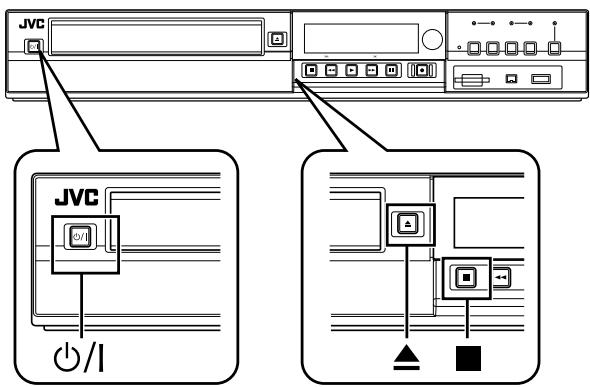
Unlocking the disc tray
1 Press the [0/1] button on the unit to turn "Off" the power. 2 Press and hold the [■] button on this unit, then press the [▲] button. - An "UNLOCK" message appears on the display window of the unit, indicating that the disc tray is unlocked.
Turning on the Mode Lock
Turning on the mode lock disables all operations using the buttons on the unit and remote control, except for "Play" and "Record".
Memo:
- When a button that is disabled is pressed, a "LOCKED" message will appear on the display window of the unit for three seconds.
Turning on the mode lock
1 Press the [] button on the remote control for five seconds or longer when in the "Normal Recording", "Stop", or "Normal Playback" mode. - A "LOCKED" message appears on the display window of the unit, indicating that the mode lock is turned on.
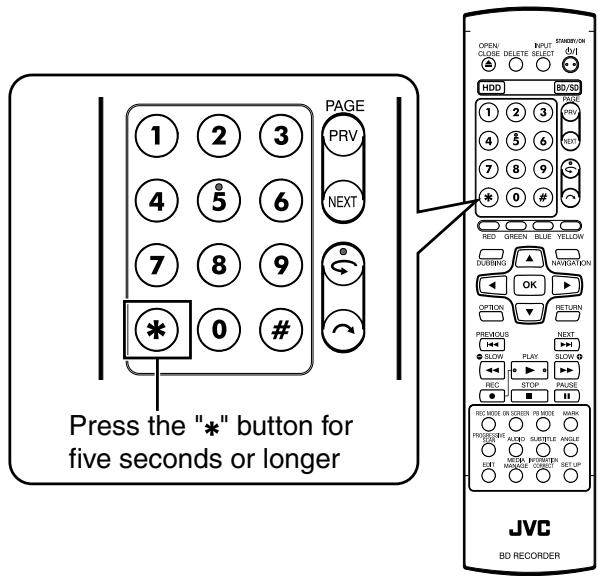
Turning off the mode lock
1 Press the [※] button on the remote control for five seconds or longer when the mode lock is turned on. - An "UNLOCK" message appears on the display window of the unit, indicating that the mode lock is turned off.
Last Function Memory
When the power plug is disconnected from unit or when power failure occurs, your settings for the following functions are kept in the memory. These settings will resume when the unit is turned on again.
- Various setting menus (Page 77 - 85)
- Deck selection: HDD/BD/SD
- Recording mode: XP, etc. (page 30)
- Input selection: SDI/DV/L-1 (see page 49)
- Repeat playback of the disc playback settings menu (see page 59)
Kept for DVD-Video/AVCHD/BDMV and title/chapter only.
RS-232C Interface
Command Table
| Lower Order → Higher Order ↓ | 0 | 1 | 2 | 3 | 4 | 5 | 6 | 7 | 8 | 9 | A | B | C | D | E | F |
| 0 | Complete | Error | Cassette Out | Not Target | ACK | NAK | ||||||||||
| 1 | ||||||||||||||||
| 2 | ||||||||||||||||
| 3 | Play | Stop | ||||||||||||||
| 4 | Still | |||||||||||||||
| 5 | Clear | |||||||||||||||
| 6 | Sense Chapter | Title Sense | ||||||||||||||
| 7 | ||||||||||||||||
| 8 | Chapter Search | Title Search | Date Preset | Clock Preset | ||||||||||||
| 9 | Finalize | Cancel-DiscFinalization | Disc Erase | TOP MENU | MENU | NEXT CHAPTER | PREV CHAPTER | Setup | SET | UP | DOWN | RIGHT | LEFT | Next Title | Prev Title | Remote Data |
| A | Standby On | Standby Off | Eject | FF | REW | Fwd Field Step | Rev Field Step | |||||||||
| B | Fwd Shtl | Rev Shtl | Select Preset | Select Sense | Date Data Sense | Clock Data Sense | ||||||||||
| C | Rec | |||||||||||||||
| D | Status Sense | Tc Data Sense | CTL Data Sense | JVC Status Sense | ||||||||||||
| E | ||||||||||||||||
| F | Command Target | Rec/Dub Request |
Specifications
Pin layout
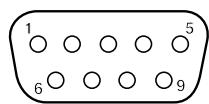
| PIN No. | Signal | Operation | Direction of signal |
| 2 | TxD | Transmit data | This unit ⇌ PC |
| 3 | RxD | Receive data | This unit ⇌ PC |
| 5 | GND | Signal grounding |
Mode: Non-synchronous
Character length: 8 bits
Parity check: Odd
Start bit: 1
Stop bit: 1
Data rate: 9600 bps
- Bit configuration
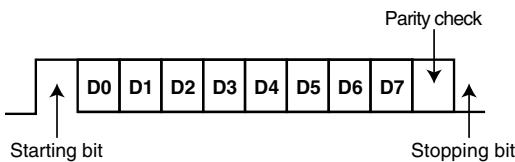
Memo:
- When using the Serial Command Connector, the cable to be used should be a RS-232C interface cable (straight type, 3 m or shorter).
- When using RS-232C, set "QUICK STARTUP" in the settings menu to "ON".
- During command transmission, a minimum interval of about 50 milliseconds is required between each command.
- During command transmission, do not send the next command until the ACK (refer to "System Commands" (page 95)) or response (refer to "Response Commands" (page 95)) for each command is received.
- The recommended maximum waiting time for the ACK or response for each command is as follows.
ACK : About 50 milliseconds
Response : About 5 seconds
Command
Operation Commands
Commands for operating functions such as PLAY and REC on the BLU-RAY DISC & HDD REORDER
| Command | Description |
| 3A | Plays the selected deck. |
| 3F | Stops the selected deck. Resume will be cleared when this is pressed while in the Stop mode. Rec Request will be cleared. |
| 4F | Switches the selected deck to the Still mode. |
| 56 | Clear: Clears the Error status. |
| 80 | Searches the specified chapter and starts playback from the beginning. |
| 81 | Searches the specified title under “ORIGINAL” or in the “PLAY LIST” by its number and starts playback from the beginning. |
| 8E | For setting the date. |
| 8F | For setting the time. |
| 90 | Finalizes the disc. (BD Deck) |
| 91 | Cancel discs finalization. (BD Deck) |
| 92 | For erasing rewritesDiscs. |
| 93 | Displays/Closes the top menu of a disc. (BD Deck) |
| 94 | Displays/Closes the disc menu. (BD Deck) |
| 95 | Advances to the next chapter. Functions like the▶ button on the remote control. |
| 96 | Returns to the previous chapter. Functions like the▶ button on the remote control. |
| 97 | Displays/Closes the Main Menu, Editing, Library Database Navigation or Dubbing screen. 97 ⇒ 30: Closes the screen. 97 ⇒ 31: Displays the Main Menu screen. 97 ⇒ 32: Displays the Library Database Navigation screen. 97 ⇒ 35: Displays the Editing screen. 97 ⇒ 37: Displays the Dubbing screen. |
| 98 | Functions as a confirmation key. |
| 99 | Functions as an up key. |
| 9A | Functions as a down key. |
| 9B | Functions as a right key. |
| 9C | Functions as a left key. |
| 9D | Advances to the next title. Functions like the▶ button on the remote control. |
| 9E | Returns to the previous title. Functions like the▶ button on the remote control. |
| 9F | Issues the same codes as the wired remote control via RS-232C. |
| A0 | Power On |
| A1 | Power Off |
| A3 | Eject: Opens/Closes tray. (BD Deck) |
| AB | FF: Functions only during playback. Activates forward search. |
| AC | REW: Functions only during playback. Activates reverse search. |
| AD | Functions as a key for advancing (FWD) a frame. When this command is received during still mode, the unit advances the still picture by one frame (or field) in the FWD direction. |
| AE | Functions as a key for reversing (REV) a frame. When this command is received during still mode, the unit reverses the still picture by one frame (or field) in the REV direction. |
| B5 | Fwd Shtl: Functions only during playback. Activates forward search. B5 ⇒ 30: STILL B5 ⇒ 31: FWD SLOW at a slow speed. B5 ⇒ 33: FWD SLOW at a fast speed. B5 ⇒ 35: 1x B5 ⇒ 36: FWD SEARCH at a fast speed. B5 ⇒ 37: FWD SEARCH at a faster speed. B5 ⇒ 38: FWD SEARCH at the fastest speed. |
| B6 | Rev Shtl: Functions only during playback. Activates reverse search. B6 ⇒ 30: STILL B6 ⇒ 31: REV SLOW at a slow speed. B6 ⇒ 33: REV SLOW at a fast speed. B6 ⇒ 36: REV SEARCH at a fast speed. B6 ⇒ 37: REV SEARCH at a faster speed. B6 ⇒ 38: REV SEARCH at the fastest speed. |
| B8 | For setting the input/output, recording mode, audio language selection and subtitle selection. |
| CA | Rec: Starts recording at the selected deck when a Rec Request is received. |
| F0 | Command Target: F0 ⇒ 34: For selecting HDD deck. F0 ⇒ 38: For selecting BD deck. F0 ⇒ 3C: For selecting SD deck. |
| FA | Rec Request: For issuing approval for recording. This can be cleared using STOP. |
80-8F
80: Chapter Search
| 1st Byte | 2nd Byte | 3rd Byte | |
| Chapter Search | Hundreds | Tens | Ones |
| ASCII codes (30 - 39) | 3* | 3* | 3* |
| E.g. (012) | 30 | 31 | 32 |
E.g.: When searching the 12th chapter.
81: Title Search under "ORIGINAL"
| 1st Byte | 2nd Byte | 3rd Byte | 4th Byte | |
| Title Search (ORIGINAL) | 30 | Hundreds | Tens | Ones |
| ASCII codes (30 - 39) | 30 | 3* | 3* | 3* |
| E.g. (345) | 30 | 33 | 34 | 35 |
E.g.: When searching the 345th title, as indicated by the title number on the top right corner of the index, under "ORIGINAL".
81: Title Search in "PLAY LIST"
| 1st Byte | 2nd Byte | 3rd Byte | 4th Byte | |
| Title Search (PLAY LIST) | 38 | Hundreds | Tens | Ones |
| ASCII codes (30 - 39) | 38 | 3* | 3* | 3* |
| E.g. (028) | 38 | 30 | 32 | 38 |
E.g.: When searching the 28th play list, as indicated by the play list number on the top right corner of the index, in the "PLAY LIST".
8E: Date Preset
| 1st Byte | 2nd Byte | 3rd Byte | 4th Byte | 5th Byte | 6th Byte | |
| Date Preset | Mth (Tens) | Mth (Ones) | Day (Tens) | Day (Ones) | Yr (Tens) | Yr (Ones) |
| ASCII code (30 - 39) | 3* | 3* | 3* | 3* | 3* | 3* |
| E.g. (09.14.2012) | 30 | 39 | 31 | 34 | 31 | 32 |
E.g.: When setting the date to September 14, 2012.
8F: Clock Preset
| 1st Byte | 2nd Byte | 3rd Byte | 4th Byte | 5th Byte | 6th Byte | |
| Clock Preset | Hr (Tens) | Hr (Ones) | Min (Tens) | Min (Ones) | Sec (Tens) | Sec (Ones) |
| ASCII code (30 - 39) | 3* | 3* | 3* | 3* | 3* | 3* |
| E.g. (12:34:56) | 31 | 32 | 33 | 34 | 35 | 36 |
E.g.: When setting the time to 12 hours 34 minutes and 56 seconds.
9F
The remote control codes for controlling the wired remote controller via RS-232C are as shown in the following table. The codes apply to all three HDD, BD, and SD decks unless otherwise stated.
9F: Remote Data
| Code | Items | Remarks |
| 01 | INPUT SELECT | |
| 03 | STOP | |
| 06 | F.F/SPEED+ | |
| 07 | REW/SPEED- | |
| 0B | POWER ON/OFF | |
| 0C | PLAY | |
| 0D | PAUSE/STILL | |
| 14 | FWD SKIP | |
| 15 | REV SKIP | |
| 17 | AUDIO | |
| 1A | Power Off | |
| 1D | Power On | Use with “QUICK STARTUP” set to “ON”. Refer to “QUICK STARTUP” (e3 page 79). |
| 21 | TEN KEY 1 | |
| 22 | TEN KEY 2 | |
| 23 | TEN KEY 3 | |
| 24 | TEN KEY 4 | |
| 25 | TEN KEY 5 | |
| 26 | TEN KEY 6 | |
| 27 | TEN KEY 7 | |
| 28 | TEN KEY 8 | |
| 29 | TEN KEY 9 | |
| 2A | KEY * | |
| 2B | TEN KEY 0 | |
| 2C | KEY # | |
| 31 | REC MODE (XP/SP/LP/EP...) | |
| 32 | BD/DVD DECK | |
| 34 | DUBBING | |
| 37 | SET UP | |
| 3C | OK/ENTER | |
| 3E | ON SCREEN | |
| 44 | HDD DECK | |
| 48 | MEDIA MANAGEMENT |
| 80 | CUSOR 0° | Moves the arrow in the index list to the right. (▲) |
| 81 | MENU | BD/DVD Deck only |
| 82 | CUSOR 90° | Moves the arrow in the index list to the up. (▲) |
| 84 | CUSOR 180° | Moves the arrow in the index list to the left. (▲) |
| 86 | CUSOR 270° | Moves the arrow in the index list to the down. (▼) |
| 87 | OPEN/CLOSE | BD/DVD Deck only |
| 8E | PROGRESSIVE | HDD/BD Deck only |
| 8F | TOP MENU | DVD Deck only |
| 90 | MARK | HDD/DVD Deck only |
| 96 | CM SKIP | |
| AF | REV FRAME | |
| B0 | -SLOW D | |
| B1 | SHUTTLE-C | |
| B2 | SHUTTLE-B | |
| B3 | SHUTTLE-A | |
| B4 | SHUTTLE-2 | |
| B5 | SHUTTLE-1 | |
| B6 | -SLOW B | |
| B7 | -SLOW C | |
| B8 | +SLOW C | |
| B9 | +SLOW B | |
| BA | SHUTTLE +1 | |
| BB | SHUTTLE +2 | |
| BC | SHUTTLE+A | |
| BD | SHUTTLE+B | |
| BE | SHUTTLE+C | |
| BF | +SLOW D | |
| C0 | ANGLE/LIVE CHECK | ANGLE (BD/DVD Deck only) LIVE CHECK (HDD/BD Deck only) |
| C4 | SUBTITLE | DVD Deck only |
| CC | REC | |
| D3 | OPTION | |
| D4 | RETURN | |
| D5 | COLOR KEY BLUE | |
| D7 | COLOR KEY RED | |
| D9 | JOG-1/6 | |
| DA | JOG +1/6 | |
| DB | JOG +1 | |
| DC | INSTANT REPLAY | |
| DD | EDIT | |
| DE | COLOR KEY GREEN | |
| DF | COLOR KEY YELLOW | |
| E0 | NAVIGATION |
| E1 | L1 Y/C INPUT SELECT | HDD Deck only |
| E2 | L1 COMPOSITE INPUT SELECT | HDD Deck only |
| E3 | PLAYBACK SETTING | |
| E4 | DELETE | |
| E5 | INFORMATION CORRECT | |
| ED | FWD FRAME | |
| F2 | MODE LOCK |
B8
B8: Input/Output Selection
| 1st Byte | 2nd Byte | ||
| External input selection | L-1 VIDEO | 30 | 31 |
| External input selection | L-1 SVIDEO | 30 | 39 |
| External input selection | DV | 30 | 34 |
| External input selection | SDI | 30 | 35 |
B8: Recording Mode Selection
| 1st Byte | 2nd Byte | |
| XP | 34 | 30 |
| SP | 34 | 31 |
| LP | 34 | 32 |
| EP | 34 | 33 |
| DR1 | 34 | 40 |
| DR2 | 34 | 41 |
| DR3 | 34 | 42 |
| DR4 | 34 | 43 |
B8: Subtitle Selection
| 1st Byte | 2nd Byte | 1st Byte | 2nd Byte | 1st Byte | 2nd Byte | 1st Byte | 2nd Byte | ||||
| OFF | 3C | 10 | EL | 3C | 31 | LO | 3C | 56 | SL | 3C | 78 |
| JAPANESE | 3C | 11 | EO | 3C | 32 | LT | 3C | 57 | SM | 3C | 79 |
| ENGLISH | 3C | 12 | ET | 3C | 33 | LV | 3C | 58 | SN | 3C | 7A |
| GERMAN | 3C | 13 | EU | 3C | 34 | MG | 3C | 59 | SO | 3C | 7B |
| FRENCH | 3C | 14 | FA | 3C | 35 | MI | 3C | 5A | SQ | 3C | 7C |
| ITALIAN | 3C | 15 | FJ | 3C | 36 | MK | 3C | 5B | SR | 3C | 7D |
| SPANISH | 3C | 16 | FO | 3C | 37 | ML | 3C | 5C | SS | 3C | 7E |
| DUTCH | 3C | 17 | FY | 3C | 38 | MN | 3C | 5D | ST | 3C | 7F |
| SWEDISH | 3C | 18 | GA | 3C | 39 | MO | 3C | 5E | SU | 3C | 80 |
| NORWEGIAN | 3C | 19 | GD | 3C | 3A | MR | 3C | 5F | SW | 3C | 81 |
| FINNISH | 3C | 1A | GL | 3C | 3B | MS | 3C | 60 | TA | 3C | 82 |
| DANISH | 3C | 1B | GN | 3C | 3C | MT | 3C | 61 | TE | 3C | 83 |
| AA | 3C | 1C | GU | 3C | 3D | MY | 3C | 62 | TG | 3C | 84 |
| AB | 3C | 1D | HA | 3C | 3E | NA | 3C | 63 | TH | 3C | 85 |
| AF | 3C | 1E | HI | 3C | 3F | NE | 3C | 64 | TI | 3C | 86 |
| AM | 3C | 1F | HR | 3C | 40 | OC | 3C | 65 | TK | 3C | 87 |
| AR | 3C | 20 | HU | 3C | 41 | OM | 3C | 66 | TL | 3C | 88 |
| AS | 3C | 21 | HY | 3C | 42 | OR | 3C | 67 | TN | 3C | 89 |
| AY | 3C | 22 | IA | 3C | 43 | PA | 3C | 68 | TO | 3C | 8A |
| AZ | 3C | 23 | IE | 3C | 44 | PL | 3C | 69 | TR | 3C | 8B |
| BA | 3C | 24 | IK | 3C | 45 | PS | 3C | 6A | TS | 3C | 8C |
| BE | 3C | 25 | IS | 3C | 47 | PT | 3C | 6B | TT | 3C | 8D |
| BG | 3C | 26 | KA | 3C | 4B | QU | 3C | 6C | TW | 3C | 8E |
| BH | 3C | 27 | KK | 3C | 4C | RM | 3C | 6D | UK | 3C | 8F |
| BI | 3C | 28 | KL | 3C | 4D | RN | 3C | 6E | UR | 3C | 90 |
| BN | 3C | 29 | KM | 3C | 4E | RO | 3C | 6F | UZ | 3C | 91 |
| BO | 3C | 2A | KN | 3C | 4F | RU | 3C | 70 | VI | 3C | 92 |
| BR | 3C | 2B | KO | 3C | 50 | RW | 3C | 71 | VO | 3C | 93 |
| CA | 3C | 2C | KS | 3C | 51 | SA | 3C | 72 | WO | 3C | 94 |
| CO | 3C | 2D | KU | 3C | 52 | SD | 3C | 73 | XH | 3C | 95 |
| CS | 3C | 2E | KY | 3C | 53 | SG | 3C | 74 | YO | 3C | 96 |
| CY | 3C | 2F | LA | 3C | 54 | SI | 3C | 76 | ZH | 3C | 97 |
| DZ | 3C | 30 | LN | 3C | 55 | SK | 3C | 77 | ZU | 3C | 98 |
"Language Code List" (page 99)
B8: Audio Language Selection
| 1st Byte | 2nd Byte | 1st Byte | 2nd Byte | 1st Byte | 2nd Byte | 1st Byte | 2nd Byte | ||||
| JAPANESE | 39 | 11 | EO | 39 | 32 | LT | 39 | 57 | SM | 39 | 79 |
| ENGLISH | 39 | 12 | ET | 39 | 33 | LV | 39 | 58 | SN | 39 | 7A |
| GERMAN | 39 | 13 | EU | 39 | 34 | MG | 39 | 59 | SO | 39 | 7B |
| FRENCH | 39 | 14 | FA | 39 | 35 | MI | 39 | 5A | SQ | 39 | 7C |
| ITALIAN | 39 | 15 | FJ | 39 | 36 | MK | 39 | 5B | SR | 39 | 7D |
| SPANISH | 39 | 16 | FO | 39 | 37 | ML | 39 | 5C | SS | 39 | 7E |
| DUTCH | 39 | 17 | FY | 39 | 38 | MN | 39 | 5D | ST | 39 | 7F |
| SWEDISH | 39 | 18 | GA | 39 | 39 | MO | 39 | 5E | SU | 39 | 80 |
| NORWEGIAN | 39 | 19 | GD | 39 | 3A | MR | 39 | 5F | SW | 39 | 81 |
| FINNISH | 39 | 1A | GL | 39 | 3B | MS | 39 | 60 | TA | 39 | 82 |
| DANISH | 39 | 1B | GN | 39 | 3C | MT | 39 | 61 | TE | 39 | 83 |
| AA | 39 | 1C | GU | 39 | 3D | MY | 39 | 62 | TG | 39 | 84 |
| AB | 39 | 1D | HA | 39 | 3E | NA | 39 | 63 | TH | 39 | 85 |
| AF | 39 | 1E | HI | 39 | 3F | NE | 39 | 64 | TI | 39 | 86 |
| AM | 39 | 1F | HR | 39 | 40 | OC | 39 | 65 | TK | 39 | 87 |
| AR | 39 | 20 | HU | 39 | 41 | OM | 39 | 66 | TL | 39 | 88 |
| AS | 39 | 21 | HY | 39 | 42 | OR | 39 | 67 | TN | 39 | 89 |
| AY | 39 | 22 | IA | 39 | 43 | PA | 39 | 68 | TO | 39 | 8A |
| AZ | 39 | 23 | IE | 39 | 44 | PL | 39 | 69 | TR | 39 | 8B |
| BA | 39 | 24 | IK | 39 | 45 | PS | 39 | 6A | TS | 39 | 8C |
| BE | 39 | 25 | IS | 39 | 47 | PT | 39 | 6B | TT | 39 | 8D |
| BG | 39 | 26 | KA | 39 | 4B | QU | 39 | 6C | TW | 39 | 8E |
| BH | 39 | 27 | KK | 39 | 4C | RM | 39 | 6D | UK | 39 | 8F |
| BI | 39 | 28 | KL | 39 | 4D | RN | 39 | 6E | UR | 39 | 90 |
| BN | 39 | 29 | KM | 39 | 4E | RO | 39 | 6F | UZ | 39 | 91 |
| BO | 39 | 2A | KN | 39 | 4F | RU | 39 | 70 | VI | 39 | 92 |
| BR | 39 | 2B | KO | 39 | 50 | RW | 39 | 71 | VO | 39 | 93 |
| CA | 39 | 2C | KS | 39 | 51 | SA | 39 | 72 | WO | 39 | 94 |
| CO | 39 | 2D | KU | 39 | 52 | SD | 39 | 73 | XH | 39 | 95 |
| CS | 39 | 2E | KY | 39 | 53 | SG | 39 | 74 | YO | 39 | 96 |
| CY | 39 | 2F | LA | 39 | 54 | SI | 39 | 76 | ZH | 39 | 97 |
| DZ | 39 | 30 | LN | 39 | 55 | SK | 39 | 77 | ZU | 39 | 98 |
| EL | 39 | 31 | LO | 39 | 56 | SL | 39 | 78 |
"Language Code List" (page 99)
Response Commands
Commands relating to RS-232C control system.
| Command | Description |
| 01 | Complete: Issued by the external recorder upon completing all specified operations by commands. |
| 02 | Error: Issued by the external recorder when receiving invalid commands in the context. In such cases, commands that are sent will not be accepted. However, a return command will be issued but only to the Status Sense. To clear the Error status, perform command 56 (Clear). |
| 05 | Not Target: Issued by the external recorder when specified operations by commands cannot be completed properly. |
| 0A | ACK: A return command issued when a defined command is received. |
| 0B | NAK: A return command issued when an undefined or possibly nonexistent command is received. |
| 03 | Cassette Out: Issued upon completing the operation of opening and closing the tray when the HDD/DVD deck is selected. |
System Commands
Commands for acquiring information such as deck status.
| Command | Description |
| 60 | Chapter Sense: For acquiring the current chapter number. (*) |
| 61 | Title/Track Sense: For acquiring the current title number under “ORIGINAL” or in the “PLAY LIST”. (*) |
| B9 | Select Sense: For acquiring the status of the inputs, outputs, recording mode, audio language selection and subtitle selection. (*) |
| BE | Date Sense: For acquiring the currently configured year, month and day. (*) |
| BF | Time Sense: For acquiring the currently configured hour, minute and second. (*) |
| D7 | Status Sense: For acquiring the deck information. (*) |
| D8 | TC Data Sense: For acquiring the total remaining time in the current recording mode when there is a media in the selected deck. (*) |
| D9 | CTL Data Sense: For acquiring the lapse counter when there is a media in the selected deck. (*) |
| DD | JVC Status Sense: Returns data from the unit. (*) |
| FB | VTR Ind: A command for checking whether the connected device is the external recorder. |
(*): See pages 95-98 for data format.
Sense
Chapter Sense
| 1st Byte | 2nd Byte | 3rd Byte | |
| Chapter Sense | Hundreds | Tens | Ones |
| 60 | 3* | 3* | 3* |
| E.g. (012) | 30 | 31 | 32 |
E.g.: When the current chapter is the 12th chapter.
- Title/Track Sense under "ORIGINAL"
| 1st Byte | 2nd Byte | 3rd Byte | 4th Byte | |
| Title/Track Sense (ORIGINAL) | 30 | Hundreds | Tens | Ones |
| 61 | 30 | 3* | 3* | 3* |
| E.g. (345) | 30 | 33 | 34 | 35 |
E.g.: When the current title under "ORIGINAL" is the 345th title.
- Title/Track Sense in "PLAY LIST"
| 1st Byte | 2nd Byte | 3rd Byte | 4th Byte | |
| Title/Track Sense (PLAY LIST) | 38 | Hundreds | Tens | Ones |
| 61 | 38 | 3* | 3* | 3* |
| E.g. (028) | 38 | 30 | 32 | 38 |
E.g.: When the current title under "PLAY LIST" is the 28th title.
- Select Sense
| 1st Byte | 2nd Byte | 3rd Byte | 4th Byte | 5th Byte | |
| Select Sense | External input selection | Output selection | Recording mode selection | Audio language selection | Subtitle selection |
| B9 | 3* | 3* | ** | ** | ** |
| E.g. (3930311213) | 39 | 30 | 31 | 12 | 13 |
E.g.: When the selection status of the video deck is as follows:
External input selection ⇔ L-1 S-VIDEO
Output selection ⇒ Common output (Frame is fixed at 0.)
Recording mode selection ⇔ SP
Audio language selection ⇒ ENGLISH
Subtitle selection GERMAN
For response data for B9, see data format for "B8 (Select Preset)" (R page 92-94).
When the current status cannot be acquired, the value is fixed as “-” (0x2D).
- Date Data Sense
For acquiring the currently configured year, month and day in ASCII codes.
| 1st Byte | 2nd Byte | 3rd Byte | 4th Byte | 5th Byte | 6th Byte | |
| Date Sense | Mth (Tens) | Mth (Ones) | Day (Tens) | Day (Ones) | Yr (Tens) | Yr (Ones) |
| BE | 3* | 3* | 3* | 3* | 3* | 3* |
| E.g. (09.14.2012) | 30 | 39 | 31 | 34 | 31 | 32 |
When the current date is not set, the value is fixed as “-” (0x2D).
Time Data Sense
For acquiring the currently configured hour, minute and second in ASCII codes.
| 1st Byte | 2nd Byte | 3rd Byte | 4th Byte | 5th Byte | 6th Byte | |
| Time Sense | Hr (Tens) | Hr (Ones) | Min (Tens) | Min (Ones) | Sec (Tens) | Sec (Ones) |
| BF | 3* | 3* | 3* | 3* | 3* | 3* |
| E.g. (12:34:56) | 31 | 32 | 33 | 34 | 35 | 36 |
When the current time is not set, the value is fixed as “-” (0x2D).
- Status Data Sense
For acquiring the remaining time in the current recording mode in hours, minutes and seconds for HDD/DVD.
| D7 STATUS SENSE | 1byte | 1byte | 1byte | 2byte | 3byte | 4byte | 5byte |
| HDD | BD | SD | HDD/BD/SD | HDD/BD/SD | HDD/BD/SD | HDD/BD/SD | |
| bit7 | 1 (Fixed) | 1 (Fixed) | 1 (Fixed) | Video EE | 0 (Fixed) | During PLAY | During PAUSE (Set to 1 simultaneously with “During PLAY” in STILL mode.) |
| bit6 | 0 (Fixed) | 1 (Fixed) | 1 (Fixed) | Audio EE | 0 (Fixed) | 0 (Fixed) | 0 (Fixed) |
| bit5 | 0 (Fixed) | 0 (Fixed) | 1 (Fixed) | 0 (Fixed) | 0 (Fixed) | 0 (Fixed) | During Reverse Shuttle Search (Excluding STILL) |
| bit4 | Record Forbidden | Record Forbidden | 1 (Fixed) | 0 (Fixed) | 0 (Fixed) | During STOP | During Forward Shuttle Search (Excluding STILL) |
| bit3 | Disc Not Inserted | Disc Not Inserted | Disc Not Inserted | Occurrence of abnormality in VTR | 0 (Fixed) | During STANDBY (Unit Power Off) | Refer to the SEARCH SPEED table. |
| bit2 | 0 (Fixed) | 0 (Fixed) | 0 (Fixed) | 0 (Fixed) | During RepeatPlayback (Including PAUSE) | 0 (Fixed) | Refer to the SEARCH SPEED table. |
| bit1 | 0 (Fixed) | 0 (Fixed) | 0 (Fixed) | 0 (Fixed) | 0 (Fixed) | During REC | Refer to the SEARCH SPEED table. |
| bit0 | RS-232C command error status.Clear using 56 (Clear). | RS-232C command error status.Clear using 56 (Clear). | RS-232C command error status.Clear using 56 (Clear). | 0 (Fixed) | 0 (Fixed) | 0 (Fixed) | Refer to the SEARCH SPEED table. |
- TC Data Sense
| 1st Byte | 2nd Byte | 3rd Byte | 4th Byte | 5th Byte | 6th Byte | 7th Byte | 8th Byte | |
| TC Data Sense | Hr (Tens) | Hr (Ones) | Min (Tens) | Min (Ones) | Sec (Tens) | Sec (Ones) | Frame (Tens) | Frame (Ones) |
| D8 | 3* | 3* | 3* | 3* | 3* | 3* | 3* | 3* |
| E.g. (01:23:45) | 30 | 31 | 32 | 33 | 34 | 35 | 30 | 30 |
E.g.: When remaining time is 1 hr 23 min 45 sec. Frame is fixed as 0.
SEARCH SPEED
| bit3 | bit2 | bit1 | bit0 | |
| STILL | 0 | 0 | 0 | 0 |
| x1 | 0 | 0 | 0 | 1 |
| SEARCH1 | 0 | 1 | 0 | 0 |
| SEARCH2 | 0 | 1 | 0 | 1 |
| SEARCH3 | 0 | 1 | 1 | 0 |
| SEARCH4 | 0 | 1 | 1 | 1 |
| SEARCH5 | 1 | 0 | 0 | 0 |
- CTL Data Sense For acquiring lapse counter of selected deck in hours, minutes and seconds.
| 1st Byte | 2nd Byte | 3rd Byte | 4th Byte | 5th Byte | 6th Byte | 7th Byte | 8th Byte | |
| CTL Data Sense | Hr (Tens) | Hr (Ones) | Min (Tens) | Min (Ones) | Sec (Tens) | Sec (Ones) | Frame (Tens) | Frame (Ones) |
| D9 | 3* | 3* | 3* | 3* | 3* | 3* | 3* | 3* |
| E.g. (01:23:45) | 30 | 31 | 32 | 33 | 34 | 35 | 30 | 30 |
E.g.: When time lapse counter is 1 hr 23 min 45 sec. Frame is fixed as 0.
JVC Status Sense
| 1byte | 2byte | 3byte | 4byte | |
| HDD/BD/SD | HDD/BD/SD | HDD/BD/SD | HDD/BD/SD | |
| bit7 | 1 (Fixed) | 0 (Fixed) | 1 (Fixed) | 1 (Fixed) |
| bit6 | 0 (Fixed) | 0 (Fixed) | 0 (Fixed) | 1 (Fixed) |
| bit5 | 0 (Fixed) | 1 (Fixed) | 0 (Fixed) | 0 (Fixed) |
| bit4 | 0 (Fixed) | 0 (Fixed) | 0 (Fixed) | 0 (Fixed) |
| bit3 | 0 (Fixed) | Refer to the DISC TYPE table below. | 0 (Fixed) | During dubbing (Including PAUSE) |
| bit2 | 0 (Fixed) | Refer to the DISC TYPE table below. | 0 (Fixed) | 0 (Fixed) |
| bit1 | 0 (Fixed) | Refer to the DISC TYPE table below. | 0 (Fixed) | 0 (Fixed) |
| bit0 | 1 (Fixed) | Refer to the DISC TYPE table below. | During dubbing (Including PAUSE) | 0 (Fixed) |
DISC TYPE
| bit3 | bit2 | bit1 | bit0 | bit3 | bit2 | bit1 | bit0 | ||
| DVD | 0 | 0 | 0 | 0 | CD | 0 | 1 | 1 | 1 |
| DVD-RAM | 0 | 0 | 0 | 1 | BD-ROM | 1 | 0 | 0 | 0 |
| DVD-R | 0 | 0 | 1 | 0 | BD-R | 1 | 0 | 0 | 1 |
| DVD-RW | 0 | 0 | 1 | 1 | BD-RE | 1 | 0 | 1 | 0 |
| DVD+R | 0 | 0 | 0 | 0 | No disc | 1 | 1 | 1 | 1 |
| DVD+RW | 0 | 0 | 0 | 0 | Unknown | 1 | 1 | 1 | 0 |
When SD deck is selected, the values are fixed as bit3:0, bit2:0, bit1:1 and bit0:0.
Language Code List
| Code | Language | Code | Language | Code | Language |
| AA | Afar | HI | Hindi | OS | Ossetian |
| AB | Abkhazian | HO | Hiri Motu | PA | Panjabi |
| AF | Afrikaans | HU | Hungarian | FA | Persian |
| AK | Akan | IG | Igbo | PI | Pali |
| SQ | Albanian | IS | Icelandic | PL | Polish |
| AM | Amharic | IO | Ido | PT | Portuguese |
| AR | Arabic | II | Sichuan Yi | PS | Pashto |
| AN | Aragonese | IU | Inuktitut | QU | Quechua |
| HY | Armenian | IE | Interlingue | RM | Rhaeto-Romance |
| AS | Assamese | IA | Interlingua (International Auxiliary language Association) | RO | Romanian |
| AV | Avar | ID | Indonesian | RN | Kirundi |
| AE | Avestan | IK | Inupiak | RU | Russian |
| AY | Aymara | IT | Italian | SG | Sango |
| AZ | Azerbaijani | JV | Javanese | SA | Sanskrit |
| BA | Bashkir | JA | Japanese | SR | Serbia |
| BM | Bambara | KL | Kalaallisut | HR | Croatian |
| EU | Basque | KN | Kannada | SI | Sinhala |
| BE | Belarusian | KS | Kashmiri | SK | Slovak |
| BN | Bengali | KR | Kanuri | SL | Slovenian |
| BH | Bihari | KK | Kazakh | SE | Northern Sami |
| BI | Bislama | KM | Khmer | SM | Samoan |
| BS | Bosnian | KI | Kikuyu | SN | Shona |
| BR | Breton | RW | Kinyarwanda | SD | Sindhi |
| BG | Bulgarian | KY | Kirghiz | SO | Somali |
| MY | Burmese | KV | Komi | ST | Southern Sotho |
| CA | Catalan, Valencian | KG | Kongo | ES | Spanish |
| CH | Chamorro | KO | Korean | SC | Sardinian |
| CE | Chechen | KJ | Kwanyama | SS | Swati |
| ZH | Chinese | KU | Kurukh | SU | Sundanese |
| CU | Church Slavic | LO | Lao | SW | Swahili |
| CV | Chuvash | LA | Latin | SV | Swedish |
| KW | Cornish | LV | Latvian | TY | Tahitian |
| CO | Corsican | LI | Limburgish | TA | Tamil |
| CR | Cree | LN | Lingala | TT | Tatar |
| CS | Czech | LT | Lithuanian | TE | Telugu |
| DA | Danish | LB | Luxembourgish | TG | Tajik |
| DV | Divehi | LU | Luba-Katanga | TL | Tagalog |
| NL | Dutch | LG | Ganda | TH | Thai |
| DZ | Dzongkha | MK | Macedonian | BO | Tibetan |
| EN | English | MH | Marshallese | TI | Tigrinya |
| EO | Esperanto | ML | Malayalam | TO | Tongan |
| ET | Estonian | MI | Māori | TN | Tswana |
| EE | Ewe | MR | Marathi | TS | Tsonga |
| FO | Faroese | MS | Malay | TK | Turkmen |
| FJ | Fijian | MG | Malagasy | TR | Turkish |
| FI | Finnish | MT | Maltese | TW | Twi |
| FR | French | MO | Moldavian | UG | Uighur |
| FY | Western Frisian | MN | Mongolian | UK | Ukrainian |
| FF | Fulah | NA | Nauruan | UR | Urdu |
| KA | Georgian | NV | Navajo | UZ | Uzbek |
| DE | German | NR | South Ndebele | VE | Venda |
| GD | Scottish Gaelic | ND | North Ndebele | VI | Vietnamese |
| GA | Irish | NG | Ndonga | VO | Volapük |
| GL | Galician | NE | Nepali | CY | Welsh |
| GV | Manx | NN | Norwegian Nynorsk | WA | Walloon |
| EL | Greek | NB | Norwegian Bokmål | WO | Wolof |
| GN | Guaraní | NO | Norwegian | XH | Xhosa |
| GU | Gujarati | NY | Chichewa | YI | Yiddish |
| HT | Haitian | OC | Occitan | YO | Yoruba |
| HA | Hausa | OJ | Ojibwa | ZA | Zhuang |
| HE | Hebrew | OR | Oriya | ZU | Zulu |
| HZ | Herero | OM | Oromo |
Country Code List
| Code | Country Name | Code | Country Name | Code | Country Name |
| AD | Andorra | GM | Gambia | NU | Niue |
| AE | United Arab Emirates | GN | Guinea | NZ | New Zealand |
| AF | Afghanistan | GP | Guadeloupe | OM | Oman |
| AG | Antigua and Barbuda | GQ | Equatorial Guinea | PA | Panama |
| AI | Anguilla | GR | Greece | PE | Peru |
| AL | Albania | GS | South Georgia and South Sandwich Islands | PF | Polynesia |
| AM | Armenia | GT | Guatemala | PG | Papua New Guinea |
| AN | Netherlands Antilles | GU | Guam | PH | Philippines |
| AO | Angola | GW | Guinea-Bissau | PK | Pakistan |
| AQ | Antarctica | GY | Guyana | PL | Poland |
| AR | Argentina | HK | Hong Kong | PM | Saint Pierre and Miquelon |
| AS | American Samoa | HM | Heard and McDonald Islands | PN | Pitcairn Islands |
| AT | Austria | HN | Honduras | PR | Puerto Rico |
| AU | Australia | HR | Croatia | PT | Portugal |
| AW | Aruba | HT | Haiti | PW | Palau |
| AZ | Azerbaijan | HU | Hungary | PY | Paraguay |
| BA | Bosnia and Herzegovina | ID | Indonesia | QA | Qatar |
| BB | Barbados | IE | Ireland | RE | Reunon Island |
| BD | Bangladesh | IL | Israel | RO | Romania |
| BE | Belgium | IN | India | RU | Russian Federation |
| BF | Burkina Faso | IO | British Indian Ocean Territory | RW | Rwanda |
| BG | Bulgaria | IQ | Iraq | SA | Saudi Arabia |
| BH | Bahrain | IR | Iran | SB | Solomon Islands |
| BI | Burundi | IS | Iceland | SC | Seychelles |
| BJ | Benin | IT | Italy | SD | Sudan |
| BM | Bermuda | JM | Jamaica | SE | Sweden |
| BN | Brunei | JO | Jordan | SG | Singapore |
| BO | Bolivia | JP | Japan | SH | Saint Helena |
| BR | Brazil | KE | Kenya | SI | Slovenia |
| BS | Bahamas | KG | Kyrgyzstan | SJ | Svalbard and Jan Mayen Islands |
| BT | Bhutan | KH | Cambodia | SK | Slovakia |
| BV | Bouvet Island | KI | Kiribati | SL | Sierra Leone |
| BW | Botswana | KM | Comoros | SM | San Marino |
| BY | Belarus | KN | Saint Kitts and Nevis | SN | Senegal |
| BZ | Belize | KP | Korea, Democratic People's Republic of | SO | Somalia |
| CA | Canada | KR | Korea, Republic of | SR | Suriname |
| CC | Cocos Islands | KW | Kuwait | ST | Sao Tome and Principe |
| CF | Central African Republic | KY | Cayman Islands | SV | El Salvador |
| CG | Congo, Republic of | KZ | Kazakhstan | SY | Syria |
| CH | Switzerland | LA | Laos | SZ | Swaziland |
| CI | Cote d'lvoire | LB | Lebanon | TC | Turks and Caicos Islands |
| CK | Cook Islands | LC | Saint Lucia | TD | Chad |
| CL | Chile | LI | Liechtenstein | TF | French Southern Territories |
| CM | Cameroon | LK | Sri Lanka | TG | Togo |
| CN | China | LR | Liberia | TH | Thailand |
| CO | Colombia | LS | Lesotho | TJ | Tajikistan |
| CR | Costa Rica | LT | Lithuania | TK | Tokelau |
| CU | Cuba | LU | Luxembourg | TM | Turkmenistan |
| CV | Cape Verde | LV | Latvia | TN | Tunisia |
| CX | Christmas Island | LY | Libya | TO | Tonga |
| CY | Cyprus | MA | Morocco | TP | East Timor |
| CZ | Czech Republic | MC | Monaco | TR | Turkey |
| DE | Germany | MD | Moldova | TT | Trinidad and Tobago |
| DJ | Djibouti | MG | Madagascar | TV | Tuvalu |
| DK | Denmark | MH | Marshall Islands | TW | Taiwan |
| DM | Dominica, Commonwealth of | ML | Mali | TZ | Tanzania |
| DO | Dominican Republic | MM | Myanmar | UA | Ukraine |
| DZ | Algeria | MN | Mongolia | UG | Uganda |
| EC | Ecuador | MO | Macau | UM | Minor Outlying Islands |
| EE | Estonia | MP | Northern Mariana Islands | US | United States |
| EG | Egypt | MQ | Martinique | UY | Uruguay |
| EH | Western Sahara | MR | Mauritania | UZ | Uzbekistan |
| ER | Eritrea | MS | Montserrat | VA | Vatican |
| ES | Spain | MT | Malta | VC | Saint Vincent and the Grenadine |
| ET | Ethiopia | MU | Mauritius | VE | Venezuela |
| FI | Finland | MV | Maldives | VG | British Virgin Islands |
| FJ | Fiji | MW | Malawi | VI | Virgin Islands of the United States |
| FK | Falkland Islands (Malvinas) | MX | Mexico | VN | Vietnam |
| FM | Micronesia (Federated States of) | MY | Malaysia | VU | Vanuatu |
| FO | Faroe Islands | MZ | Mozambique | WF | Wallis and Futuna |
| FR | France | NA | Namibia | WS | Samoa |
| FX | France, Metropolitan | NC | New Caledonia | YE | Yemen |
| GA | Gabon | NE | Niger | YT | Mayotte |
| GB | United Kingdom of Great Britain and Northern Ireland | NF | Norfolk Island | YU | Yugoslavia |
| GD | Grenada | NG | Nigeria | ZA | South Africa |
| GE | Georgia | NI | Nicaragua | ZM | Zambia |
| GF | French Guiana | NL | Netherlands | ZR | Zaire |
| GH | Ghana | NO | Norway | ZW | Zimbabwe |
| GI | Gibraltar | NP | Nepal | ||
| GL | Greenland | NR | Nauru |
Using the HDMI Consumer Electronics Control (HDMI CEC)
HDMI Consumer Electronics Control
- By using a HDMI cable to connect this unit with a TV that supports the HDMI CEC standard, this unit and the TV can be linked and operated together.
- HDMI CEC (Consumer Electronics Control) is an industrial standard that allows HDMI devices to be linked and operated among each other by connecting them with a HDMI cable.
HDMI Consumer Electronics Control operations
- Perform the following operations when this unit is turned on, and the TV will switch automatically to the HDMI input that this unit is connected to.
- Playback from HDD, BD/DVD or SD CARD
- Press the [NAVIGATION] or [SETUP] button
- Turning off the power for the TV will also turn the power off for this unit automatically. If HDD, BD/DVD or SD CARD is being used for dubbing, the power will be turned off after dubbing finishes.
Using HDMI Consumer Electronics Control (activating the function)
1 Connect this unit to a TV that is HDMI CEC compatible using a HDMI cable 2 Change the setting of "HDMI-CEC" to "ON"
- Check the monitor (TV) setting if the HDMI CEC function does not work.
Memo:
- If you are not using the HDMI CEC function (deactivating), change the setting of "HDMI-CEC" to "OFF".
Note:
- The HDMI CEC function cannot be used if a TV that is not compatible with HDMI CEC has been connected.
- If a HDMI cable is not used for connecting, the HDMI CEC function will not be usable.
Creating a Seamless BD
When titles are imported into the HDD in the HD quality from a video camera, or when edited titles (e.g., after applying scene delete) are dubbed to a disc, seamless playback may not be possible at the joints of scenes. In this case, perform dubbing after executing "SEAMLESS" under the "MODE CHANGE" setting menu.
For details, refer to "Mode conversion" (page 76).
Creating a seamless BD that uses "MODE CONVERSION" (seamless conversion, recording mode conversion)
Procedures to create a seamless BDMV
| File to import | If you do not want to perform scene delete/ chapter delete | If you want to perform scene delete/chapter delete |
| AVCHD | Recording mode conversion | - |
| MOV* | Conversion not required | Seamless conversion |
| SD-VIDEO(HD)* HDV | Recording mode conversion after seamless conversion | Recording mode conversion after seamless conversion |
SD-VIDEO(HD)*: SD-VIDEO(JVC Everio MPEG2 TS) MOV*: MOV files that are taken in SP mode and HQ mode using the JVC ProHD Camcorder GY-HM700/100
Procedures to create a seamless BDAV
| File to import | If you do not want to perform scene delete/ chapter delete | If you want to perform scene delete/chapter delete |
| AVCHD | Conversion not required | - |
| MOV* | Conversion not required | Seamless conversion |
| SD-VIDEO(HD)* HDV | Seamless conversion | Seamless conversion |
SD-VIDEO(HD)*: SD-VIDEO(JVC Everio MPEG2 TS)
MOV*: MOV files that are taken in SP mode and HQ mode using the JVC ProHD Camcorder GY-HM700/100
Memo:
- During dubbing to BDMV, the recording mode cannot be specified.
- Do not perform recording mode conversion before seamless conversion. Otherwise, seamless conversion cannot be performed.
- If scene delete or chapter delete is applied to a title, it cannot be dubbed to a BDMV disc without performing seamless conversion.
- For titles that are imported into the HDD in the SD picture quality, you can create a seamless DVD by setting "SEAMLESS PLAYBACK" under the "Setting Menu List" to "ON", followed by performing re-encode dubbing.
Refer to "SEAMLESS PLAYBACK" ( page 80).
Troubleshooting
| Problem | Symptom | Action | Reference Page |
| Power does not turn on | The “HELLO” message remains displayed, and the unit does not start up. | Press the [RESET] button on the front panel. If it does not start up, stop using this unit, unplug the plug from the power point, and bring it to the dealer or “Service Center”. | (18) page 13 |
| “FAN LOCKED” is displayed on the display window of this unit | The cooling fan motor is not working. | The cooling fan motor is spoiled. Remove the power plug from the power point, and consult the dealer from which this product is purchased, or any nearby JVC Servicing Center. | - |
| Power turns off automatically | The “AUTO POWER (OFF)” setting is set to “2 HOURS” or “6 HOURS”. | Change the “AUTO POWER (OFF)” setting of “SETUP” to “OFF”. | (19) page 78 |
| The temperature of this unit has rose, and operation has ceased for safety purposes. | Place this unit in an area with ventilation if possible, and wait approximately 30 minutes for it to cool down. | - | |
| The power turns on automatically | The “HDMI-CEC” setting is set to “ON”. | Change the “HDMI-CEC” setting of “CONNECTION” to “OFF”. | (19) page 85 |
| Input cannot be switched | iLINK connection is currently being established. | Cancel importing, or wait until the connection ends. | (19) page 39 |
| There are no video images on the monitor | Monitor only supports RGB input. | Set “HDMI-->DVI COLOR” in the setting menu to “RGB FIX”. | (19) page 84 |
| “HDCP ERROR” is displayed. | Use a monitor that supports HDCP. | - | |
| Video images may be distorted during reencoding/dubbing when the monitor (TV) is connected to this unit using a HDMI cable, or when the screen resolution is set to “1080p”. | This is not a malfunction. Change the “HDMI OUTPUT RESOLUTION” to a value other than “1080p” (e.g., 1080i) if you find it annoying. | (19) page 84 | |
| Screen is distorted | Video images may be distorted during reencoding/dubbing when the monitor (TV) is connected to this unit using a HDMI cable, or when the screen resolution is set to “1080p”. | This is not a malfunction. Change the “HDMI OUTPUT RESOLUTION” to a value other than “1080p” (e.g., 1080i) if you find it annoying. | (19) page 26 |
| There is no audio sound | The “HDMI AUDIO OUTPUT” setting is set to “OFF”. | Change the “HDMI AUDIO OUTPUT” setting of “CONNECTION” to “ON”. | (19) page 84 |
| The amplifier does not support “BITSTREAM” output. | Use an amplifier that supports bitstream output. | (19) page 82 | |
| Dubbing cannot be performed | The title to be dubbed is copyright protected. | Titles that are copyright-protected cannot be dubbed. Select a title that is not copyright-protected. | (19) page 25 |
| A finalized disc has been inserted. | Insert a disc that has not been finalized. | - | |
| The disc is not formatted. | Format the disc. | (19) page 27 | |
| The SD card is write-protected. | Remove the SD card and remove the write protect lock. | (19) page 29 | |
| High-speed dubbing cannot be performed for EP mode titles | Dubbing cannot be performed and “SOME TITLES CANNOT BE DUBBED” is displayed when trying to perform high-speed dubbing of a EP mode title to a DVD-VIDEO mode disc. | Set “HIGH-SPEED DUBBING” in the settings menu to “4:3” before recording or importing in the EP mode. | (19) page 26 (19) page 80 |
| Data cannot be imported | The title to be dubbed is copyright protected. | Titles that are copyright-protected cannot be dubbed. Select a title that is not copyright-protected. | (13 page 25) |
| The number of titles stored in the HDD has reached the maximum amount. | Delete or combine the titles in the HDD to reduce the amount of titles to less than 500. | (14 page 65) | |
| The remaining space on the HDD is running out. | Delete the titles in the HDD to increase the remaining space. | (15 page 65) | |
| The title/group name cannot be changed | Protection of the title/group name is turned on. | Turn protection off for the title/group name. | (16 page 67) |
| The remote control unit does not work | The battery of the remote control unit has run out. | Change new batteries for the remote control. | (17 page 16) |
| The remote control code of this unit and the remote control unit are different from each other. | Change the “REMOTE CONTROL CODE” for the remote control to the same number used by this unit. | (18 page 16) | |
| A “LOCKED” message appears on the display window of the unit. | Disable the “mode lock” setting. | (19 page 87) | |
| The disc cannot be ejected | A “LOCKED” message appears on the display window of the unit. | Disable the “tray lock” setting. | (20 page 87) |
| The “READING” message does not disappear from the unit’s display window, and the disc tray does not open when the [▲] button is pressed. | Pressing the [▲] button at the front of the unit for five seconds or longer opens the disc tray. To close the disc tray after removing the disc, press the [○/I] button, and wait until the tray is closed and power is turned off.(If the disc tray does not open after pressing the [▲] button for five seconds or longer, consult our authorized dealer.) | - | |
| The disc cannot be played | A disc that cannot be played on this unit is inserted. | Confirm that the disc is playable on this unit. | (21 page 10) |
| The region code of the BD or DVD is different from that of this unit. | Confirm that the region number is playable on this unit. | (22 page 10) | |
| An unfinalized DVD disc that is recorded using another device is inserted. | Use that device to finalize the disc. | - | |
| Output is at 480i regardless of the component output resolution setting | The component output setting may be changed to 480i after viewing at a setting of 1080/24p using a HDMI connection. | Turn the power off, and turn it on again. | - |
| The aspect ratios of the HDMI output and component output are different | When two monitors are connected respectively to the HDMI output and component output terminals of this unit, the screen aspect ratio of the component output may not be appropriate if “HDMI VIDEO MODE” is set to “ON”. | When two monitors are connected simultaneously, users are recommended to set “HDMI VIDEO MODE” to “OFF”. | (23 page 83) |
Specifications
General
Power requirement
AC 120 V~, 60 Hz
Power consumption
Power on: 41 W
Power off: 3.0 W
Laser specification
For CD
Wavelength: 779 nm to 789 nm
Output: No hazardous radiation is emitted with the safety protection.
For DVD
Wavelength: 656 nm to 663 nm
Output: No hazardous radiation is emitted with the safety protection.
For BD
Wavelength: 400 nm to 410 nm
Output: No hazardous radiation is emitted with the safety protection.
Temperature
Operating: 5°C to 35°C (41°F to 95°F)
Storage: -20°C to 60°C (-4°F to 140°F)
Operating: Horizontal only position
Dimensions: 435 mm x 70 mm x 351 mm
(WxHxD) (17-1/10" x 2-6/8" x 13-13/16")
Weight: 5.3 kg (11.7 lbs)
Input/Output
HD-SDI/SD-SDI: SMPTE 292M-compliant / SMPTE 259M-C-compliant input (BNC)
HD-SDI/SD-SDI: SMPTE 292M-compliant / SMPTE 259M-C-compliant output (BNC: switchable between Direct/Monitor)
HD-SDI/SD-SDI: SMPTE 292M- / SMPTE 259M-C- / SMPTE 424M-compliant [THROUGH] output (BNC)
OUT] output
Video input: 1.0 Vp-p, 75 Ω (BNC)
Video output: 1.0 Vp-p, 75 Ω (BNC)
Audio input: Max 2 Vrms / 10 kΩ (pin jack)
Audio output: 2 Vrms / 10 kΩ terminated (pin jack)
S-video input Y: 1.0 Vp-p, 75 Ω
C: 0.286 Vp-p, 75 Ω
S-video output Y: 1.0 Vp-p, 75 Ω
C: 0.286 Vp-p, 75 Ω
DV: 4-pin for HDV/DV IN
Remote Input: φ3.5mm Jack
Serial Command: D-SUB 9-PIN
Component video output:
Y: 1.0 Vp-p, 75 Ω
CB/CR, PB/PR: 0.7 Vp-p, 75 Ω
Memo:
- Corresponding to copy protection
Digital audio output:
Optical: PCM, AAC, Dolby Digital and DTS
HDMI output
19-pin type A
(Deep Color, x.v.Color, Ver1.3)
USB terminal
USB2.0
SD memory card
SD, SDHC
HDD Deck
500 GB
Recording compression system Video
MPEG2 (VBR)
H.264/AVC
Audio
Dolby Digital (2 ch)
Linear PCM (2ch, XP mode only)
MPEG1 Audio Layer2 (2ch, recorded in HD-SDI)
BD/DVD Deck
Recording compression system Video
MPEG2 (CBR/VBR)
H.264/AVC
Audio
Dolby Digital (2 ch)
Linear PCM (2ch, XP mode only)
MPEG1 Audio Layer2 (2ch, recorded in HD-SDI)
Region code
BD : Region A
DVD : #1
- ACCESSORIES
Provided accessories
- AC power cord
- Infrared remote control unit
- "AA" battery x 2
- CD-ROM
Design and specifications subject to change without notice.
Important Notice Concerning the Software
Software License Attached to the Product
The Software embedded in the Product is composed of several independent software components, and in each of such individual components, a copyright of either JVC KENWOOD or a third party subsists. The Product uses the software component designated in the End-User License Agreement that was executed between JVC KENWOOD and a third party (hereinafter "EULA"). "EULA" covers those corresponding to free software, and, as a condition of distribution of the software component in executable format which is based on the license granted under the GNU General Public License or Lesser General Public License (hereinafter "GPL/LGPL"), it requires an availability of the source code for the relevant component. For details of the software component covered by "GPL/LGPL", please visit the following website: URL : http://www3.jvckenwood.com/english/download/gpl/index.html Please note that we are unable to answer any inquiry relating to the contents, etc. of the source code. Please note that any software component licensed under "EULA" which is not subject to "GPL/LGPL", and those developed or created independently by JVC KENWOOD shall not be subject to the requirement for provision of the source code. The software component distributed under "GPL/LGPL" shall be licensed to users without charge, and, therefore, no warranty is given for such software component, either express or implied, within the scope of the applicable laws and regulations. Unless otherwise permitted by applicable laws and regulations or agreed in written form, none of the owners of the copyright or persons entitled to alter or redistribute the software component under the said license shall have any liability for any type of damage or loss resulting from the use of or inability to use such software component. For further details of the conditions of use of such software component or matters required to be complied with, please refer to the relevant "GPL/LGPL". Users are urged to read the details for the relevant license carefully before using the software component covered by "GPL/LGPL" and embedded in the Product. Since the terms and conditions of individual licenses are provided by parties other than JVC KENWOOD, the original English version will be included.
GNU GENERAL PUBLIC LICENSE
Copyright (C) 1989, 1991 Free Software Foundation, Inc.,
51 Franklin Street, Fifth Floor, Boston, MA 02110-1301 USA Everyone is permitted to copy and distribute verbatim copies of this license document, but changing it is not allowed.
Preamble
The licenses for most software are designed to take away your freedom to share and change it. By contrast, the GNU General Public License is intended to guarantee your freedom to share and change free software—to make sure the software is free for all its users. This General Public License applies to most of the Free Software Foundation's software and to any other program whose authors commit to using it. (Some other Free Software Foundation
software is covered by the GNU Lesser General Public License instead.) You can apply it to your programs, too. When we speak of free software, we are referring to freedom, not price. Our General Public Licenses are designed to make sure that you have the freedom to distribute copies of free software (and charge for this service if you wish), that you receive source code or a .git file and that you get access to the source code.
can get it if you want it, that you can change the software or use pieces of it in new free programs; and that you know you can do these things. To protect your rights, we need to make restrictions that forbid anyone to deny you these rights or to ask you to surrender the rights.
These restrictions translate to certain responsibilities for you if you distribute copies of the software, or if you modify it. For example, if you distribute copies of such a program, whether gratis or for a fee, you must give the recipients all the rights that you have. You must make sure that they, too, receive or can get the source code. And you must show them these terms so they know their rights. We protect your rights with two steps: (1) copyright the software,
and (2) offer you this license which gives you legal permission to copy, distribute and/or modify the software. Also, for each author's protection and ours, we want to make certain that everyone understands that there is no warranty for this free software. If the software is modified by someone else and passed on, we want its recipients to know that what they have is not the original, so that any problems introduced by others will not reflect on the original authors' reputations. Finally, any free program is threatened constantly by software patents. We wish to avoid the danger that redistributors of a free program will individually obtain patent licenses, in effect making the program proprietary. To prevent this, we have made it clear that any patent must be licensed for everyone's free use or not licensed
at all. The precise terms and conditions for copying, distribution and modification follow.
GNU GENERAL PUBLIC LICENSE TERMS AND
CONDITIONS FOR COPYING, DISTRIBUTION AND MODIFICATION
- This License applies to any program or other work which contains a notice placed by the copyright holder saying it may be distributed under the terms of this General Public License. The "Program", below, refers to any such program or work, and a "work based on the Program" means either the Program or any derivative
work under copyright law: that is to say, a work containing the Program or a portion of it, either verbatim or with modifications and/or translated into another language. (Hereinafter, translation is included without limitation in the term "modification.") Each licensee is addressed as "you".
END OF TERMS AND CONDITIONS How to Apply These Terms to Your
If you develop a new program, and you want it to be of the greatest possible use to the public, the best way to achieve th
and change free software--to make sure that the software is free for all its users. This license, the Lesser General Public License, applies to some specially designated software packages--typically libraries--of the Free Software Foundation and other authors who decide to use it. You can use it too, but we suggest you first think carefully about whether this license or the ordinary General Public License is the better strategy to use in any particular case, based on the explanations below. When we speak of free software, we are referring to freedom of use, not price. Our General Public Licenses are designed to make sure that you have the freedom to distribute copies of free software (and charge for this service if you wish); that you receive source code or can get it if you want it; that you can change the software and use pieces of it in new free programs; and that you are informed that you can do these things. To protect your rights, we need to make restrictions that forbid distributors to deny you these rights or to ask you to surrender these rights. These restrictions translate to certain responsibilities for you if you distribute copies of the library or if you modify it. For example, if you distribute copies of the library, whether gratis or for a fee, you must give the recipients all the rights that we gave you. You must make sure that they, too, receive or can get the source code. If you link other code with the library, you must provide complete object files to the recipients, so that they can relink them with the library after making changes to the library and recompiling it. And you must show them these terms so they know their rights. We protect your rights with a two-step method: (1) we copyright the library, and (2) we offer you this license, which gives you legal permission to copy, distribute and/or modify the library. To protect each distributor, we want to make it very clear that there is no warranty for the free library. Also, if the library is modified by someone else and passed on, the recipients should know that what they have is not the original version, so that the original author's reputation will not be affected by problems that might be introduced by others. Finally, software patents pose a constant threat to the existence of any free program. We wish to make sure that a company cannot effectively restrict the users of a free program by obtaining a restrictive license from a patent holder. Therefore, we insist that any patent license obtained for a version of the library must be consistent with the full freedom of use specified in this license. Most GNU software, including some libraries, is covered by the ordinary GNU General Public License. This license, the GNU Lesser General Public License, applies to certain designated libraries, and is quite different from the ordinary General Public License. We use this license for certain libraries in order to permit linking those libraries into non-free programs. When a program is linked with a library, whether statically or using a shared library, the combination of the two is legally speaking a combined work, a derivative of the original library. The ordinary General Public License therefore permits such linking only if the entire combination fits its criteria of freedom. The Lesser General Public License permits more lax criteria for linking other code with the library. We call this license the "Lesser" General Public License because it does Less to protect the user's freedom than the ordinary General Public License. It also provides other free software developers Less of an advantage over competing non-free programs.
| These disadvantages are the reason we use the ordinary General Public License for many libraries. However, the Lesser license provides advantages in certain special circumstances.For example, on rare occasions, there may be a special need to encourage the widest possible use of a certain library, so that it becomes a de-facto standard. To achieve this, non-free programs must be allowed to use the library. A more frequent case is that a free library does the same job as widely used non-free libraries. In this case, there is little to gain by limiting the free library to free software only, so we use the Lesser General Public License.In other cases, permission to use a particular library in non-free programs enables a greater number of people to use a large body of free software. For example, permission to use the GNU C Library in non-free programs enables many more people to use the whole GNU operating system, as well as its variant, the GNU/Linux operating system. Although the Lesser General Public License is Less protective of the users’ freedom, it does ensure that the user of a program that is linked with the Library has the freedom and the wherewithal to run that program using a modified version of the Library.The precise terms and conditions for copying, distribution and modification follow. Pay close attention to the difference between a “work based on the library” and a “work that uses the library”. The former contains code derived from the library, whereas the latter must be combined with the library in order to run.GNU LESSER GENERAL PUBLIC LICENSE TERMS AND CONDITIONS FOR COPYING, DISTRIBUTION ANDMODIFICATION0. This License Agreement applies to any software library or other program which contains a notice placed by the copyright holder or other authorized party saying it may be distributed under the terms of this Lesser General Public License (also called “this License”). Each licensee is addressed as “you”.A “library” means a collection of software functions and/or data prepared so as to be conveniently linked with application program (which use some of those functions and data) to form executables.The “Library”, below, refers to any such software library or work which has been distributed under these terms. A “work based on the Library” means either the Library or any derivative work under copyright law: that is to say, a work containing the Library or a portion of it, either verbatim or with modifications and/or translated straightforwardly into another language.(Hereinafter, translation is included without limitation in the term “modification”).“Source code” for a work means the preferred form of the work for making modifications to it. For a library, complete source code means all the source code for all modules it contains, plus any associated interface definition files, plus the scripts used to control compilation and installation of the library.Activities other than copying, distribution and modification are not covered by this License; they are outside its scope. The act of running a program using the Library is not restricted, and output from such a program is covered only if its contents constitute a work based on the Library (independent of the use of the Library in a tool for writing it). Whether that is true depends on what the Library does and what the program that uses the Library does.1. You may copy and distribute verbatim copies of the Library’s complete source code as you receive it, in any medium, provided that you conspicuously and appropriately publish on each copy an appropriate copyright notice and disclaimer of warranty; keep intact all the notices that refer to this License and to the absence of any warranty; and distribute a copy of this License along with the Library.You may charge a fee for the physical act of transferring a copy, and you may at your option offer warranty protection in exchange for a fee. |
| END OF TERMS AND CONDITIONS How to Apply These Terms to Your New Programs |
| If you develop a new program, and you want it to be of the greatest possible use to the public, the best way to achieve this is to make it free software which everyone can redistribute and change under these terms. |
| To do so, attach the following notices to the program. It is safest to attach them to the start of each source file to most effectively convey the exclusion of warranty; and each file should have at least the "copyright" line and a pointer to where the full notice is found. |
| <one line to give the program's name and a brief idea of what it does.>Copyright (C)<year><name of author>This program is free software; you can redistribute it and/or modify it under the terms of the GNU General Public License as published by the Free Software Foundation; either version 2 of the License, or (at your option) any later version.This program is distributed in the hope that it will be useful, but WITHOUT ANY WARRANTY; without even the implied warranty of MERCHANTABILITY or FITNESS FOR A PARTICULAR PURPOSE. See the GNU General Public License for more details.You should have received a copy of the GNU General Public License along with this program; if not, write to the Free Software Foundation, Inc., 51 Franklin Street, Fifth Floor, Boston, MA 02110-1301 USA |
| Also add information on how to contact you by electronic and paper mail.If the program is interactive, make it output a short notice like this when it starts in an interactive mode:Gnomovision version 69, Copyright (C) year name of authorGnomovision comes with ABSOLUTELY NO WARRANTY; for details type 'show w'.This is free software, and you are welcome to redistribute it under certain conditions; type 'show c' for details.The hypothetical commands 'show w' and 'show c' should show the appropriate parts of the General Public License. Of course, the commands you use may be called something other than 'show w' and 'show c'; they could even be mouse-clicks or menu items-whatever suits your program.You should also get your employer (if you work as a programmer) or your school, if any, to sign a "copyright disclaimer" for the program, if necessary.Here is a sample; alter the names:Yoyodyne, Inc., hereby disclaims all copyright interest in the program 'Gnomovision' (which makes passes at compilers) written by James Hacker.<signature of Ty Coon>, 1 April 1989Ty Coon, President of ViceThis General Public License does not permit incorporating your program into proprietary programs. If your program is a subroutine library, you may consider it more useful to permit linking proprietary applications with the library. If this is what you want to do, use the GNU Lesser General Public License instead of this License.GNU LESSER GENERAL PUBLIC LICENSEVersion 2.1, February 1999Copyright (C) 1989, 1991 Free Software Foundation, Inc.,51 Franklin Street, Fifth Floor, Boston, MA 02110-1301 USAEveryone is permitted to copy and distribute verbatim copies of this license document, but changing it is not allowed.[This is the first released version of the Lesser GPL. It also counts as the successor of the GNU Library Public License, version 2, hence the version number 2.1.] |
- A program that contains no derivative of any portion of the Library, but is designed to work with the Library by being compiled or linked with it, is called a "work that uses the Library". Such a work, in isolation, is not a derivative work of the Library, and therefore falls outside the scope of this License.
However, linking a "work that uses the Library" with the Library creates an executable that is a derivative of the Library (because it contains portions of the Library), rather than a "work that uses the Library". The executable is therefore covered by this License. Section 6 states terms for distribution of such executables.
When a "work that uses the Library" uses material from a header file that is part of the Library, the object code for the work may be a derivative work of the Library even though the source code is not. Whether this is true is especially significant if the work can be linked without the Library, or if the work is itself a library. The threshold for this to be true is not precisely defined by law.
If such an object file uses only numerical parameters, data structure layouts and accessors, and small macros and small inline functions (ten lines or less in length), then the use of the object file is unrestricted, regardless of whether it is legally a derivative work. (Executables containing this object code plus portions of the Library will still fall under Section 6.)
Otherwise, if the work is a derivative of the Library, you may distribute the object code for the work under the terms of Section 6. Any executables containing that work also fall under Section 6, whether or not they are linked directly with the Library itself. 6. As an exception to the Sections above, you may also combine or link a "work that uses the Library" with the Library to produce a work containing portions of the Library, and distribute that work under terms of your choice, provided that the terms permit modification of the work for the customer's own use and reverse engineering for debugging such modifications. You must give prominent notice with each copy of the work that the Library is used in it and that the Library and its use are covered by this License. You must supply a copy of this License. If the work during execution displays copyright notices, you must include the copyright notice for the Library among them, as well as a reference directing the user to the copy of this License. Also, you must do one of these things:
a) Accompany the work with the complete corresponding machine-readable source code for the Library including whatever changes were used in the work (which must be distributed under Sections 1 and 2 above); and, if the work is an executable linked with the Library, with the complete machine-readable "work that uses the Library", as object code and/or
Source code, so that the user can modify the Library and then relink to produce a modified executable containing the modified Library. (It is understood that the user who changes the contents of definitions files in the Library will not necessarily be able to recompile the application to use the modified definitions.)
b) Use a suitable shared library mechanism for linking with the Library. A suitable mechanism is one that (1) uses at run time a copy of the library already present on the user's computer system, rather than copying library functions into the executable, and (2) will operate properly with a modified version of the library, if the user installs one, as long as the modified version is interface-compatible with the version that the work was made with.
c) Accompany the work with a written offer, valid for at least three years, to give the same user the materials specified in Subsection 6a, above, for a charge no more than the cost of performing this distribution. d) If distribution of the work is made by offering access to copy from a designated place, offer equivalent access to copy the
| 5. A program that contains no derivative of any portion of the Library, but is designed to work with the Library by being compiled or linked with it, is called a "work that uses the Library". Such a work, in isolation, is not a derivative work of the Library, and therefore falls outside the scope of this License. However, linking a "work that uses the Library" with the Library creates an executable that is a derivative of the Library (because it contains portions of the Library), rather than a "work that uses the library". The executable is therefore covered by this License. Section 6 states terms for distribution of such executables. When a "work that uses the Library" uses material from a header file that is part of the Library, the object code for the work may be a derivative work of the Library even though the source code is not. Whether this is true is especially significant if the work can be linked without the Library, or if the work is itself a library. The threshold for this to be true is not precisely defined by law. If such an object file uses only numerical parameters, data structure layouts and accessories, and small macros and small inline functions (ten lines or less in length), then the use of the object file is unrestricted, regardless of whether it is legally a derivative work. (Executables containing this object code plus portions of the Library will still fall under Section 6.) Otherwise, if the work is a derivative of the Library, you may distribute the object code for the work under the terms of Section 6. Any executables containing that work also fall under Section 6, whether or not they are linked directly with the Library itself. 6. As an exception to the Sections above, you may also combine or link a "work that uses the Library" with the Library to produce a work containing portions of the Library, and distribute that work under terms of your choice, provided that the terms permit modification of the work for the customer's own use and reverse engineering for debugging such modifications. You must give prominent notice with each copy of the work that the Library is used in it and that the Library and its use are covered by this License. You must supply a copy of this License. If the work during execution displays copyright notices, you must include the copyright notice for the Library among them, as well as a reference directing the user to the copy of this License. Also, you must do one of these things: a) Accompany the work with the complete corresponding machine-readable source code for the Library including whatever changes were used in the work (which must be distributed under Sections 1 and 2 above); and, if the work is an executable linked with the Library, with the complete machine-readable "work that uses the Library", as object code and/or source code, so that the user can modify the Library and then relink to produce a modified executable containing the modified Library. (It is understood that the user who changes the contents of definitions files in the Library will not necessarily be able to recompile the application to use the modified definitions.) b) Use a suitable shared library mechanism for linking with the Library. A suitable mechanism is one that (1) uses at run time a copy of the library already present on the user's computer system, rather than copying library functions into the executable, and (2) will operate properly with a modified version of the library, if the user installs one, as long as the modified version is interface-compatible with the version that the work was made with. c) Accompany the work with a written offer, valid for at least three years, to give the same user the materials specified in Subsection 6a, above, for a charge no more than the cost of performing this distribution. d) If distribution of the work is made by offering access to copy from a designated place, offer equivalent access to copy the above specified materials from the same place. | e) Verify that the user has already received a copy of these materials or that you have already sent this user a copy. For an executable, the required form of the "work that uses the Library" must include any data and utility programs needed for reproducing the executable from it. However, as a special exception, the materials to be distributed need not include anything that is normally distributed (in either source or binary form) with the major components (compiler, kernel, and so on) of the operating system on which the executable runs, unless that component itself accompanies the executable. It may happen that this requirement contradicts the license restrictions of other proprietary libraries that do not normally accompany the operating system. Such a contradiction means you cannot use both them and the Library together in an executable that you distribute. 7. You may place library facilities that are a work based on the Library side-by-side in a single library together with other library facilities not covered by this License, and distribute such a combined library, provided that the separate distribution of the work based on the Library and of the other library facilities is otherwise permitted, and provided that you do these two things: a) Accompany the combined library with a copy of the same work based on the Library, uncombined with any other library facilities. This must be distributed under the terms of the Sections above. b) Give prominent notice with the combined library of the fact that part of it is a work based on the Library, and explaining where to find the accompanying uncombined form of the same work. 8. You may not copy, modify, sublicense, link with, or distribute the Library except as expressly provided under this License. Any attempt otherwise to copy, modify, sublicense, link with, or distribute the Library is void, and will automatically terminate your rights under this License. However, parties who have received copies, or rights, from you under this License will not have their licenses terminated so long as such parties remain in full compliance. 9. You are not required to accept this License, since you have not signed it. However, nothing else grants you permission to modify or distribute the Library or its derivative works. These actions are prohibited by law if you do not accept this License. Therefore, by modifying or distributing the Library (or any work based on the Library), you indicate your acceptance of this License to do so, and all its terms and conditions for copying, distributing or modifying the Library or works based on it. 10. Each time you redistribute the Library (or any work based on the Library), the recipient automatically receives a license from the original licensor to copy, distribute, link with or modify the Library subject to these terms and conditions. You may not impose any further restrictions on the recipients' exercise of the rights granted herein. You are not responsible for enforcing compliance by third parties with this License. 11. If, as a consequence of a court judgment or allegation of patent infringement or for any other reason (not limited to patent issues), conditions are imposed on you (whether by court order, agreement or otherwise) that contradict the conditions of this License, they do not excuse you from the conditions of this License. If you cannot distribute so as to satisfy simultaneously your obligations under this License and any other pertinent obligations, then as a consequence you may not distribute the Library at all. For example, if a patent license would not permit royalty-free redistribution of the Library by all those who receive copies directly or indirectly through you, then the only way you could satisfy both it and this License would be to refrain entirely from distribution of the Library. |
A AUDIO CABLE 14, 18, 17 AUDIO LANGUAGE 59, 79, 94 AUDIO/SUBTITLE SETTINGS 59 AUTO MARKING 81 B BD (BD-R/BD-RE) 9, 10, 27, 41, 61, 98 BD MIX SOUND 82 BD VIDEO DATA 8 BDAV 9, 10, 26 BDMV 9, 10, 26 BD-ROM 10, 59, 98 BD-VIDEO RATINGS 79 BLUE BACK 83 C CHANGE ANGLE 59 CHANGE AUDIO OUTPUT 59 CHANGE CHAPTER 59 CHAPTER EDIT 53, 70 CHAPTER MARK 16, 54, 70, 71 COMPONENT OUTPUT 85 COMPONENT VIDEO CABLE 14, 17 CONNECTION 17, 18, 19, 83 COUNTRY CODE LIST 79, 101 D DATE DISPLAY STYLE 21, 78 DETAIL SETTING 60 DIGITAL NOISE REDUCTION 60 DIMMER (POWER ON) 78 DISPLAY WINDOW 13, 14, 78, 87 Dolby Digital 80, 81 Dolby Digital Plus/TrueHD 82 DTS 10, 82 DTS-HD 82 DUAL DISC 11 DVD (DVD-R/DVD-RW) 9, 10, 25, 27, 32, 41, 48, 56, 61, 75, 98 DVD VIDEO 10, 26, 32, 34, 79 F FINALIZE 10,43,46,61 H HDMI 14,83,84 HDMI AUDIO OUTPUT .84 HDMI CABLE. 14,17,103 HDMI OUTPUT RESOLUTION .84 HDMI-CEC .85,103 HIGH-SPEED DUBBING 10,25,26,41,80 I i.LINK 13, 18, 25, 39 J JPEG 26, 35, 37, 44, 58 L LANGUAGE CODE 79, 99 LOCKING THE DISC TRAY 87 M MENU LANGUAGE 79 MODE LOCK 87 MPEG2 9 ON SCREEN 12,83 OPTICAL 14,18,82 OSD LANGUAGE 83
P PICTURE QUALITY 25, 30, 42, 60 PLAYBACK NAVIGATION 15, 45, 51 PLAYBACK SETTINGS 16, 55, 59, 79 PROGRESSIVE OUTPUT 60 R RECLOCK 86 RECORDING MODE 13, 15, 25, 26, 30, 49, 53, 92 REGION CODE 10 REMOTE CONTROL 13, 14, 15, 16, 87 REMOTE CONTROL CODE 16, 78 RESUME POINT 54, 56, 57, 80 RS-232C 14, 19, 88 SCREENSAVER 83 SDI 18,49,85 SEAMLESSPLAYBACK 80 SETTING THE DATE/TIME 20 SUBTITLE LANGUAGE 59,79 S-VIDEO 14,17,18,85 T TIME CODE 23,86 TIME DISPLAY STYLE 22,78 U USB 13,18,25,35 VIDEO CABLE 14, 17 VIDEO INPUT SETTING 85 VIDEO MODE 9, 10, 80 VIDEO SETTINGS 60 VR MODE 9, 10
JVC
- FOR CUSTOMER USE
- CAUTIONS
- CAUTION
- IMPORTANT SAFETY INSTRUCTIONS
- FAILURE TO HEED THE FOLLOWING PRECAUTIONS MAY RESULT IN DAMAGE TO THE UNIT, REMOTE CONTROL OR DISC/CASSETTE
- DECLARATION OF CONFORMITY
- MOISTURE CONDENSATION
- DOLBY
- TRUEID
- DIGITAL PLUS
- DISCLAIMER OF LIABILITY
- ATTENTION
- HOW TO USE THIS INSTRUCTION MANUAL
- BEFORE YOU INSTALL YOUR NEW UNIT
- CONTENTS
- SAFETY PRECAUTION
- GETTING STARTED
- PREPARATION
- DUBBING/IMPORTING
- PLAYING BACK
- EDITING
- SETTINGS MENU
- OTHERS
- KEY FEATURES
- PROFESSIONAL BLU-RAY DISC RECORDER OF THE HIGH-DEFINITION ERA
- COMPATIBLE WITH PROHD CAMCORDER GY-HM
- COMPATIBILITY WITH OTHER CONSUMER CAMCORDERS
- DIGITAL INTERFACE THAT ALLOWS FOR CAMCORDER COMPATIBILITY
- CREATE MENU-SUPPORTED BLU-RAY DISCS
- COMPATIBLE WITH DUAL-LAYER 50 GB BLU-RAY DISCS, AND RECORDS UP TO 24 HOURS OF FULL HIGH-DEFINITION IMAGES ON A SINGLE DISC
- AUTHORING MENU ENABLES DISCS TO BE CREATED AND USED INDUSTRIALLY SUCH AS FOR DEMONSTRATIONS
- EQUIPPED WITH EXTERNAL CONTROL RS-232C TERMINAL
- EQUIPPED WITH SDI OUTPUT TERMINAL
- SUPPORTS DIRECT RECORDING TO DISCS
- HOW TO READ THIS MANUAL
- ABOUT THIS MANUAL
- SUPPLEMENTARY REMARKS IN THE MAIN TEXT
- MEMO
- MENU OPERATION
- OTHER PRECAUTIONARY NOTES
- COPYRIGHT PROTECTION
- COPYRIGHTS
- STORED VIDEO CONTENT AND COMPENSATION
- DISCLAIMER OF COMPENSATION FOR LOSS OR DAMAGE OF STORED VIDEO CONTENT
- HANDLING PRECAUTIONS
- HARD DISK DRIVE (HDD)
- WARNING
- SD CARDS
- PRECAUTIONS FOR HANDLING SD AND SDHC CARDS
- NOTE
- BD VIDEO DATA
- INSERT THE SD CARD WHICH HAS BD VIDEO DATA STORED ON IT, INTO THE [SD SLOT]
- PRESS THE [MEDIA MANAGE] BUTTON ON THE REMOTE CONTROL UNIT
- SELECT "BD-VIDEO DATA ERASE" FROM "SD CARD
- SELECT "ERASE", AND PRESS THE [OK] BUTTON
- DISCS
- BD RECORDING FORMATS
- BDAV MODE
- BDMV MODE
- DVD RECORDING FORMATS
- VR MODE
- VIDEO MODE
- FORMATTING OF DISCS
- WHEN USING BD-RE OR BD-R DISCS
- WHEN USING DVD-R DISCS
- WHEN USING DVD-RW DISCS
- DISCS (CONTINUED)
- DISCS THAT ENABLE BOTH DUBBING AND PLAYBACK
- DISCS THAT ENABLE PLAYBACK ONLY
- DISCS THAT ARE NOT SUPPORTED
- PRECAUTIONS ON THE USE OF DISCS
- MAINTENANCE OF DISCS
- HANDLING DISCS
- REMOVING A DISC
- KEEPING A DISC
- CORRECT WAY TO HOLD A DISC
- DISC STORAGE
- WHEN THE RECORDING/PLAYBACK LENS IS DIRTY
- PRECAUTIONS WHEN PLAYING A DUAL DISC
- USE GENUINE JVC DISCS
- POWER CABLE
- ON-SCREEN DISPLAYS
- STATUS DISPLAY
- EVENT DISPLAY
- ALARM DISPLAY
- SDI TIME CODE DISPLAY
- NAME AND FUNCTION OF PARTS
- NAME AND FUNCTION OF PARTS (CONTINUED)
- REMOTE CONTROL
- [DELETE]
- [△]
- [HDD]
- [1]-[9]
- [*]
- [RED]
- [GREEN]
- [DUBBING]
- [▲/▼/▲/▶]
- [OPTION]
- [ ]
- [●]
- [REC MODE]
- [ON SCREEN]
- [PROGRESSIVE SCAN]
- [AUDIO]
- [EDIT]
- [MEDIA MANAGE]
- [0/1]
- [INPUT SELECT]
- [BD/SD]
- [PAGE PRV][PAGE NEXT]
- [G]
- [#]
- [YELLOW]
- [BLUE]
- [NAVIGATION]
- [OK]
- CHANGE BATTERIES FOR THE REMOTE CONTROL
- BATTERIES
- REMOTE CONTROL CODES
- CONNECTING A MONITOR
- CONNECTING USING A HDMI CABLE
- CONNECTING USING A COMPONENT VIDEO CABLE
- CONNECTING USING AN S-VIDEO CABLE
- CONNECTING USING A VIDEO CABLE
- CONNECTING USING AN SDI CABLE (BNC)
- CONNECTING AN AMPLIFIER
- CONNECTING AN AUDIO AMPLIFIER
- CONNECTING A VIDEO DECK OR OTHER EQUIPMENT
- CONNECTING A VIDEO CAMERA
- CONNECTING A VIDEO DECK OR OTHER EQUIPMENT (RECORDING USING THIS UNIT)
- CONNECTING EXTERNAL DEVICES
- CONNECTING THE POWER SUPPLY
- SETTING AND DISPLAYING DATE/TIME
- SETTING THE DATE/TIME
- AFTER SETTING IS COMPLETE, SELECT "ENTER", AND PRESS THE [OK] BUTTON
- CHANGING THE DATE DISPLAY STYLE
- SELECT "CLOCK SET/DISPLAY", AND PRESS THE [OK] BUTTON
- SELECT "DATE DISPLAY", AND PRESS THE [OK] BUTTON
- SELECT THE DATE DISPLAY STYLE
- AFTER SELECTING, PRESS THE [OK] BUTTON
- SETTING AND DISPLAYING DATE/TIME (CONTINUED)
- CHANGING THE TIME DISPLAY STYLE
- SETTING THE TIME CODE
- SETTING TIME CODE INPUT
- PRESS THE [SET UP] BUTTON ON THE REMOTE CONTROL UNIT
- PRESS THE [▶] BUTTON, AND SELECT "SDI CONNECTION
- PRESS THE [▲] OR THE [▼] BUTTON, SELECT "TIME CODE INPUT SETTING", AND PRESS THE [OK] BUTTON
- SELECT "TIME CODE" OR "DATE & TIME
- TIME CODE
- DATE & TIME
- PRESS THE [OK] BUTTON AFTER MAKING A SELECTION
- SETTING "TIME CODE DISPLAY POSITION
- PRESS THE [▲] OR THE [▼] BUTTON, SELECT "TIME CODE DISPLAY POSITION", AND PRESS THE [OK] BUTTON
- PRESS THE [▲] OR THE [▼] BUTTON TO SELECT THE DISPLAY POSITION
- DUBBING FROM THE HDD TO A BD/DVD
- HIGH-SPEED DUBBING
- DUBBING IN A SPECIFIC RECORDING MODE
- OTHER OPTIONS FOR IMPORTING DATA INTO THE HDD
- IMPORTING DATA FROM A BD/DVD TO THE HDD
- IMPORTING DATA FROM A SDHC/SD TO THE HDD
- IMPORTING DATA FROM A VIDEO CAMERA TO THE HDD
- IMPORTING DATA FROM A VIDEO DECK
- DUBBING CHART
- DUBBING THE VIDEO DATA FROM THE HDD
- DUBBING THE PICTURE DATA FROM THE HDD
- FORMATTING
- FORMAT CHART
- FORMATTING A DISC
- SELECT "FORMAT" FROM "BD/DVD
- FORMATTING (CONTINUED)
- CANCEL FORMATTING
- SELECT "STOP" AND PRESS THE [OK] BUTTON
- FORMATTING AN SD CARD
- INSERT THE SD CARD TO BE FORMATTED INTO THE [SD SLOT]
- SELECT "FORMAT" FROM "SD CARD
- SELECT "YES", AND PRESS THE [OK] BUTTON
- RECORDING MODES
- MAXIMUM RECORDING TIME FOR EACH RECORDING MODE
- HD PICTURE QUALITY
- DR MODE
- FR MODE
- PREPARATIONS
- SELECT "DISC ⇒ HDD" IN THE IMPORTING SCREEN, AND PRESS THE [OK] BUTTON
- SELECT "NEXT", AND PRESS THE [OK] BUTTON
- FULL IMPORT
- SELECT "RECORDING MODE", AND PRESS THE [OK] BUTTON
- SELECT THE "RECORDING MODE" OPTION
- SELECT "START", AND PRESS THE [OK] BUTTON
- SPECIFY A TITLE
- SELECT "SEL. TITLE(VIDEO)" IN THE IMPORT SELECTION SCREEN, AND PRESS THE [OK] BUTTON
- CREATE AN IMPORT TITLE LIST
- IMPORTING DATA FROM A BD/DVD TO THE HDD (CONTINUED)
- IMPORTING DVD-VIDEO
- CANCELING IMPORTING
- TO CANCEL IMPORTING BEFORE IT STARTS
- TO CANCEL IMPORTING WHILE IT IS IN PROGRESS
- IMPORTING DATA FROM A USB-COMPATIBLE DEVICE TO THE HDD
- PRESS THE [DUBBING] BUTTON ON THE REMOTE CONTROL UNIT
- IMPORTING DATA FROM A USB-COMPATIBLE DEVICE TO THE HDD (CONTINUED)
- IMPORTING DATA FROM AN SD CARD TO THE HDD
- INSERT THE SD (SDHC) CARD INTO THE [SD SLOT]
- IMPORTING DATA FROM AN SD CARD TO THE HDD (CONTINUED)
- IMPORTING DATA FROM AN I.LINK-COMPATIBLE DEVICE TO THE HDD
- CONNECT THE DEVICE (CAMERA, ETC.) TO THIS UNIT USING AN I.LINK CABLE
- SELECT "HDV/DV => HDD" IN THE IMPORTING SCREEN, AND PRESS THE [OK] BUTTON
- IMPORTS DATA FROM THE BEGINNING
- SELECT "IMPORT FROM BEGINNING", AND PRESS THE [OK] BUTTON
- SELECT "RECORDING MODE", PRESS THE [OK] BUTTON, AND SELECT FROM THE POP-UP MENU
- IMPORTING DATA FROM AN I.LINK-COMPATIBLE DEVICE TO THE HDD (CONTINUED)
- IMPORTS DATA FROM CURRENT POSITION
- SELECT "RECORDING MODE" AND PRESS THE [OK] BUTTON TO DISPLAY THE POP-UP MENU
- CANCEL DUBBING
- DUBBING A TITLE FROM THE HDD TO A BD/DVD
- SET A BD OR DVD ON THE DISC TRAY
- ON THIS SCREEN, SELECT "DISC\LVIDEO
- DUBBING TITLES
- SELECT "RECORDING FORMAT", AND PRESS THE [OK] BUTTON
- DUBBING A TITLE FROM THE HDD TO A BD/DVD (CONTINUED)
- CREATE A DUBBING TITLE LIST
- SELECT A BACKGROUND IMAGE FOR THE DISC MENU
- SET THE OPERATIONS FOR FINALIZE
- DUBBING STILL IMAGES FROM THE HDD
- BEFORE DUBBING
- DUBBING STILL IMAGES
- ON THIS SCREEN, SELECT "DISC/SD\LIPTURE
- SELECT THE MEDIA TO DUB TO FROM THE MEDIA SELECTION SCREEN
- SELECT THE STILL IMAGES TO DUB, AND PRESS THE [MARK] BUTTON
- DUBBING FROM THE PLAYBACK NAVIGATION SCREEN
- SELECT THE STILL IMAGES TO DUB, AND PRESS THE [OPTION] BUTTON
- SELECT "DUB", AND PRESS THE [OK] BUTTON
- FOLLOW STEPS 3 TO 5 OF "DUBBING STILL IMAGES
- ENABLING PLAYBACK ON OTHER DEVICES (FINALIZING)
- FINALIZING
- SETTING THE TOP MENU ITEMS
- SELECT "FINALIZE", AND PRESS THE [OK] BUTTON
- UNFINALIZING A DISC
- TO UNFINALIZE A DISC
- COPYING THE ENTIRE DISC
- SELECT "DISC ⇒ DISC", AND PRESS THE [OK] BUTTON
- SET THE NUMBER OF DISCS TO COPY USING THE [Δ/∇] BUTTONS
- SET THE SOURCE BD OR DVD ON THE DISC TRAY
- SET A BD OR DVD TO COPY ON THE DISC TRAY
- COMPLETE THE ENTIRE DISC COPYING
- RECORDING USING EXTERNAL INPUTS
- CHECKING WHETHER SDI INPUT SIGNALS CAN BE RECORDED
- PRESS THE [OPTION] BUTTON ON THE REMOTE CONTROL, AND SELECT "SDI INPUT SIGNAL
- CHECK TO ENSURE THAT "RECORD" IS DISPLAYED AS "POSSIBLE
- ABOUT PLAYING BACK
- USING PLAYBACK NAVIGATION
- DISPLAYING THE PLAYBACK NAVIGATION SCREEN
- SELECT THE LOCATION OF THE PLAYBACK FILE
- PRESS THE [NAVIGATION] BUTTON ON THE REMOTE CONTROL UNIT
- OPERATING PLAYBACK NAVIGATION
- PLAYING A VIDEO/STILL IMAGE
- SWITCHING BETWEEN THUMBNAIL AND LIST DISPLAYS
- DISPLAYING A GROUP/FOLDER
- SWITCHING BETWEEN VIDEO AND STILL IMAGE DISPLAYS
- DISPLAYING THE OPTION MENU
- SELECT A TITLE/GROUP, AND PRESS THE [OPTION] BUTTON
- USING PLAYBACK NAVIGATION (CONTINUED)
- SELECT AN OPERATION OPTION, AND PRESS THE [OK] BUTTON
- OPTION MENU LIST
- FREQUENTLY USED BUTTON OPERATIONS
- [ ] BUTTON
- [■] BUTTON
- [▶▶]/[←] BUTTON
- MARK] BUTTON
- VIDEO PLAYBACK OPERATION (CONTINUED)
- [HDD] BUTTON
- [BD/SD] BUTTON
- USEFUL BUTTON OPERATIONS
- [PB MODE] BUTTON
- [AUDIO] BUTTON
- [SUB TITLE] BUTTON
- [ANGLE] BUTTON
- PLAYING VIDEOS ON A BD/DVD
- PLAYING A DISC WHEN AUTO PLAY IS ENABLED
- PLAYING A DISC WHEN AUTO PLAY IS DISABLED
- PRESS THE [NAVIGATION] BUTTON
- SELECT A TITLE, AND PRESS THE [OK] BUTTON
- PLAYING AN EVERIOBACKUP DISC
- SET THE DISC ON THE DISC TRAY
- PLAYING VIDEO DISCS CREATED USING A PC
- PLAYING VIDEOS ON THE HDD
- PLAYING TITLES STORED ON THE HDD
- SELECT THE TITLES TO PLAYBACK, AND PRESS THE [▶] BUTTON
- PLAYING VIDEOS ON A SD CARD
- INSERT THE SD CARD INTO THE [SD SLOT]
- PLAYING STILL IMAGES (JPEG)
- PLAYING STILL IMAGES
- SELECT THE PLAYBACK LOCATION
- SET THE MEDIA
- SELECT THE STILL IMAGES TO PLAY, AND PRESS THE [▶] BUTTON
- ENABLED BUTTON OPERATIONS DURING STILL IMAGE PLAYBACK
- [1] BUTTON
- [ /] BUTTON
- CHANGING PLAYBACK SETTINGS
- DISPLAYING THE PLAYBACK SETTINGS MENU
- PRESS THE [PB MODE] BUTTON ON THE REMOTE CONTROL UNIT DURING THE PLAYBACK OF A TITLE
- PLAYBACK SETTINGS MENU
- AUDIO/SUBTITLE SETTINGS
- AUDIO LANGUAGE
- CHANGE AUDIO OUTPUT
- SIGNAL TYPE (BD-ROM)
- SUBTITLE LANGUAGE
- SUBTITLE STYLE
- CHANGE ANGLE
- PLAYBACK SETTINGS
- REPEAT
- CHANGE TITLE
- CHANGE CHAPTER
- TIME JUMP
- SLIDESHOW INTERVAL
- SLIDESHOW EFFECTS
- PICTURE QUALITY
- DETAIL SETTING
- DIGITAL NOISE REDUCTION
- PROGRESSIVE OUTPUT
- BEFORE EDITING
- EDITABLE ITEMS FOR DIFFERENT MEDIA
- ENTERING CHARACTERS
- CHARACTER INPUT SCREEN
- CHARACTER LIST
- GROUPING
- UNGROUPING
- EXCLUDING FROM A GROUP
- SELECT THE TITLES TO EXCLUDE FROM THE GROUP, AND PRESS THE [MARK] BUTTON
- PRESS THE [OPTION] BUTTON ON THE REMOTE CONTROL UNIT
- SELECT "DO NOT GROUP", AND PRESS THE [OK] BUTTON
- CHANGING THE TITLE/GROUP NAME
- DELETING A TITLE/GROUP
- TURNING ON TITLE/GROUP PROTECTION
- TURNING OFF TITLE/GROUP PROTECTION
- CREATING A PLAYLIST
- EDITING THE PLAYLIST
- EDITING A THUMBNAIL
- PRESS THE [INFORMATION CORRECT] BUTTON ON THE REMOTE CONTROL UNIT
- SELECT "MODIFY THUMBNAIL", AND PRESS THE [OK] BUTTON
- PLAY THE VIDEO, AND PRESS THE [I] BUTTON TO STOP AT THE SCENE YOU WANT TO USE AS THUMBNAIL DISPLAY
- SELECT "CHANGE", AND PRESS THE [OK] BUTTON
- SELECT "CONFIRM", AND PRESS THE [OK] BUTTON
- ③ SELECT “MODIFY THUMBNAIL”, AND PRESS THE [OK] BUTTON
- EDITING A CHAPTER
- CHAPTER EDIT FUNCTIONS
- EDITING A CHAPTER (CONTINUED)
- CHAPTER MARK INSERTION (DIVIDE CHAPTER)
- CHAPTER MARK DELETION (COMBINE CHAPTERS)
- DELETING A VIDEO CHAPTER
- SELECT "DELETE", AND PRESS THE [OK] BUTTON
- CHAPTER OPTIONS
- COMBINING WITH PREVIOUS CHAPTER
- COMBINING WITH NEXT CHAPTER
- COMBINING ALL CHAPTERS
- DIVIDING
- DIVIDING (CONTINUED)
- DELETE SCENES
- EDIT THE DELETE SCENE SECTION
- CHANGING THE DISC NAME
- THE DATE/TIME OF THE STORED VIDEO CAN BE CHANGED AS FOLLOWS
- SELECT "ENTER", AND PRESS THE [OK] BUTTON
- MODE CONVERSION
- CHANGING SETTINGS OF THIS UNIT
- DISPLAYING THE SETTINGS MENU
- SETTING MENU LIST
- SETUP
- AUTO POWER (OFF)
- REMOTE CONTROL CODE
- CLOCK SET/DISPLAY
- DATE DISPLAY
- TIME DISPLAY CHOICE
- DIMMER (POWER ON)
- QUICK STARTUP
- BUZZER OUTPUT
- DEFAULT SETTING
- PLAYBACK SETTING
- BD-/DVD-VIDEO PB SETTING
- RESUME
- STILL MODE
- SEAMLESS PLAYBACK
- XP MODE RECORDING AUDIO
- AUTO MARKING
- DYNAMIC RANGE CONTROL
- DOWN MIX
- DIGITAL OUT
- DV IN AUDIO SETTING
- BD MIX SOUND
- DISPLAY
- ON SCREEN GUIDE
- BLUE BACK
- SCREENSAVER
- OSD LANGUAGE
- CONNECTION
- MONITOR TYPE
- HDMI CONNECTION
- HDMI-CEC
- COMPONENT OUTPUT
- VIDEO INPUT SETTING
- SDI AUDIO INPUT SETTING
- SDI AUDIO OUTPUT SETTING
- CONVERSION
- RECLK
- TIME CODE INPUT SETTING
- TIME CODE DISPLAY POSITION
- LOCKING THE DISC TRAY
- UNLOCKING THE DISC TRAY
- TURNING ON THE MODE LOCK
- TURNING OFF THE MODE LOCK
- LAST FUNCTION MEMORY
- RS-232C INTERFACE
- SPECIFICATIONS
- COMMAND
- OPERATION COMMANDS
- F
- B
- RESPONSE COMMANDS
- SYSTEM COMMANDS
- SENSE
- STATUS DATA SENSE
- USING THE HDMI CONSUMER ELECTRONICS CONTROL (HDMI CEC)
- HDMI CONSUMER ELECTRONICS CONTROL
- HDMI CONSUMER ELECTRONICS CONTROL OPERATIONS
- USING HDMI CONSUMER ELECTRONICS CONTROL (ACTIVATING THE FUNCTION)
- CREATING A SEAMLESS BD
- CREATING A SEAMLESS BD THAT USES "MODE CONVERSION" (SEAMLESS CONVERSION, RECORDING MODE CONVERSION)
- PROCEDURES TO CREATE A SEAMLESS BDMV
- PROCEDURES TO CREATE A SEAMLESS BDAV
- GENERAL
- INPUT/OUTPUT
- SD MEMORY CARD
- HDD DECK
- BD/DVD DECK
- ACCESSORIES
- IMPORTANT NOTICE CONCERNING THE SOFTWARE
- SOFTWARE LICENSE ATTACHED TO THE PRODUCT
- GNU GENERAL PUBLIC LICENSE
- PREAMBLE
- GNU GENERAL PUBLIC LICENSE TERMS AND
- CONDITIONS FOR COPYING, DISTRIBUTION AND MODIFICATION
- END OF TERMS AND CONDITIONS HOW TO APPLY THESE TERMS TO YOUR
Brand : JVC
Model : SR-HD2500EU
Category : Professional video recorder