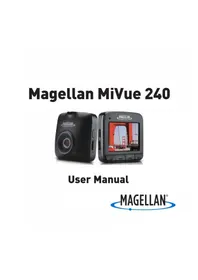
MiVue 240 - Camcorder MAGELLAN - Free user manual and instructions
Find the device manual for free MiVue 240 MAGELLAN in PDF.



| Product Type | Dashboard Camera |
| Brand | Magellan |
| Model | MiVue 240 |
| Video Resolution | Full HD (1920 x 1080) |
| Power Supply | 5 V DC / 1 A via mini-USB cable |
| Battery | Built-in rechargeable Lithium-ion |
| Storage Capacity | microSD card up to 32 GB (Class 10) |
| Main Functions | Continuous recording, event recording (G-sensor), photo capture, time stamp |
| Sensor | Built-in accelerometer |
| Microphone | Built-in |
| Speaker | Built-in |
| Display | LCD (size not specified) |
| Dimensions (approx.) | 60 x 50 x 30 mm |
| Weight (approx.) | 100 g |
| Operating Temperature | Up to 60 °C |
| Mounting | Suction cup mount for windshield |
| Connection | Mini-USB for power and data transfer |
| Software | MiVue Manager (viewing, KML export) |
| Limited Warranty | 1 year (original purchaser) |
Frequently Asked Questions - MiVue 240 MAGELLAN
User questions about MiVue 240 MAGELLAN
0 question about this device. Answer the ones you know or ask your own.
Ask a new question about this device
Download the instructions for your Camcorder in PDF format for free! Find your manual MiVue 240 - MAGELLAN and take your electronic device back in hand. On this page are published all the documents necessary for the use of your device. MiVue 240 by MAGELLAN.
USER MANUAL MiVue 240 MAGELLAN
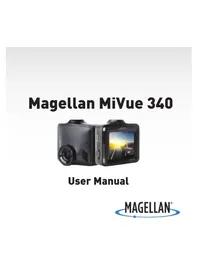
This Magellan device is a dashboard camera and recording device designed to assist you in recording videos, taking photos, and managing the content stored on the device.
Please check with your state or local law enforcement for applicable regulations regarding mounting to the windshield. Go to the Magellan store at magellanGPS.com for alternate mounting solutions.
The driver should enter data or program the Magellan receiver only when the vehicle is stopped. Only a vehicle passenger should enter data or program the device while the vehicle is moving. It is your responsibility to comply with all traffic laws.
Every attempt is made to ensure that the database is accurate. However, roadways, points of interest (POIs), and business and service locations may change over time.
Keep the receiver safe from extreme temperature conditions. For example, do not leave it exposed to direct sunlight for an extended period of time. The maximum operating temperature is 140^ (60^) .
Take care when mounting the device in your vehicle, whether using the windshield mount or other mount or accessories, that it does not obstruct the driver's view of the road, interfere with the operation of the vehicle's safety devices such as air bags, or present a hazard to occupants of the vehicle should the receiver be dislodged while driving.
You assume the risks associated with damage to your vehicle or vehicle occupants as the result of your choices in mounting the receiver.
The battery is rechargeable and should not be removed. In the event it should need to be replaced, please contact Magellan Technical Support at support.magellanGPS.com or 800-707-8871.
Magellan Take-Back Program
Magellan's Take-Back Program provides a way for customers to recycle certain Magellan equipment. As part of this program, all Magellan GPS models will be accepted.
Visit magellanGPS.com/Support for more information.
In some jurisdictions, audio recordings require the consent of all parties before you begin recording. It is your responsibility to know and comply with applicable audio recording consent laws in your jurisdiction.
In some jurisdictions, it could be considered an invasion of privacy rights to take or publicly display photographs or videos of people or their vehicles using this product. It is your responsibility to know and comply with applicable laws and rights to privacy in your jurisdiction.
Before using the suction cup mount on your windshield, check the state and local laws and ordinances where you drive. Some state laws prohibit or restrict drivers from using suction mounts on their windshields while operating motor vehicles.
IT IS THE USER'S RESPONSIBILITY TO MOUNT AND OPERATE THE DEVICE IN COMPLIANCE WITH ALL APPLICABLE LAWS AND ORDINANCES.
FCC RF Radiation Exposure Statement
- This Transmitter must not be co-located or operating in conjunction with any other antenna or transmitter.
- This equipment complies with FCC RF radiation exposure limits set forth for an uncontrolled environment. This equipment should be installed and operated with a minimum distance of 20 centimeters between the radiator and your body.
Wi-Fi 5G Band 1 is for indoor use only.
Table Of Contents.
Getting To Know Your Dashcam. 6
Setting Up Your Dashcam 9
Operating Your Dashcam 10
Changing System Settings. 15
UsingMiVueManager 17
Taking Care of Your Dashcam 20
Warranty 23

Precautions and notices.
- Do NOT operate your dashcam while driving.
You'll need a window mount to use your dashcam in your vehicle. Make sure to place the recorder so that you don't obstruct the driver's view or airbags.
Make sure that no object is blocking the camera lens and that no reflective material appears near the lens. Keep the lens clean.
Recording quality may be impacted if your vehicle's windshield is tinted.
Getting To Know Your Dashcam.
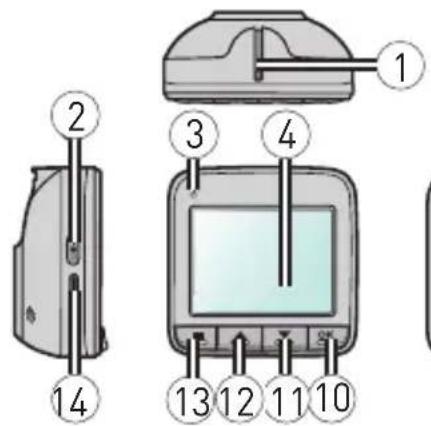
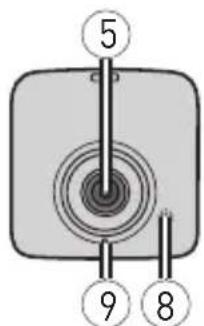

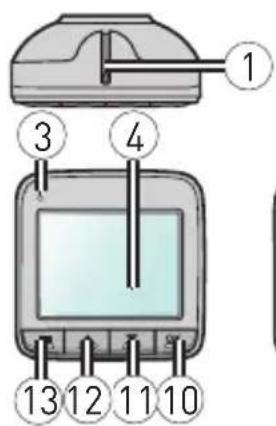
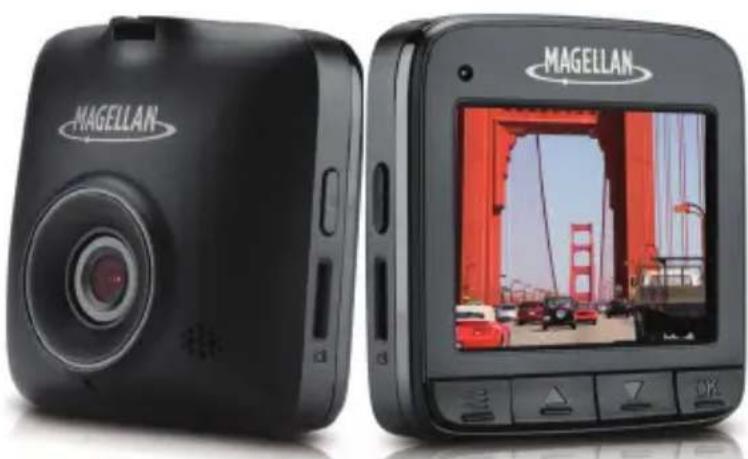
| 1 | Device mount socket For mounting the device. | |
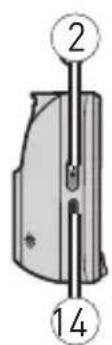
| 2 | Power key | Press briefly to turn on the device; press and hold to turn off the device. When the device is on and not recording, press rapidly to cycle through operation modes: Video > Capture > Playback. |
| 3 | Status indicator | Glows red when charging is in progress. (The indicator will be off when the device is fully charged.) Flashes green when recording is in progress. Glows green when the device is turned on. |
| 4 | LCD screen Displays your device's output. | |
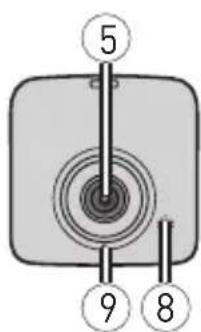
| 5 | Camera lens *Make sure that no object is blocking the camera lens and that no reflective material appears near the lens. | |
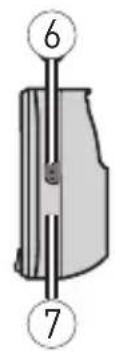
| 6 | Mini-USB connector Connects to the charger. | |
| 7 | Shutdown switch Turns off the device. | |
| 8 | Speaker Outputs audio. | |
| 9 | Microphone Receives sounds. | |
| 10 | OK key | • Starts or stops recording. • Acts as the ENTER button. |
| 11 | Down key | • Moves to the next item. • Zooms out of the image. |
| 12 | Up key | • Moves to the previous item. • Zooms in the image. |
| 13 | Menu key | • Opens the Settings menu when not recording. • Returns to the previous screen. • Changes video playback speed [1X, 2X, 4X, 8X). |
| 14 | Memory card slot Insert microSD card to record data. | |
Inserting A Memory Card.
Note: Do not apply pressure to the center of the memory card.
You must insert a memory card before you can start recording. Your device supports Class 10 memory cards up to 32GB. Hold the card (microSD) by the edges and gently insert it into the slot (as illustrated).
To remove a card, gently push the top edge of the card inwards to release it, and pull it out of the slot.
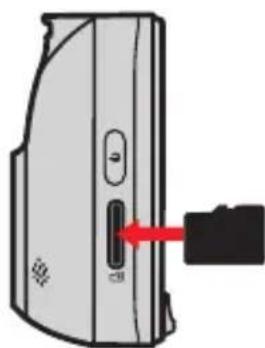
Note: Before you start recording, format the MicroSD card to avoid malfunction caused by files not created by MiVue. Format the card on your computer or on MiVue.
Note: Magellan does not guarantee the product's compatibility with MicroSD cards from all manufacturers.
Formatting a card.
To format a microSD card (all data will be erased):
- When not recording, press twice to open the Setup menu.
- Select Format > press OK
- Select Yes > press OK
Setting Up Your Dashcam.
CAUTION:
- Select an appropriate location for mounting the device in a vehicle. Never place the device where the driver's field of vision is blocked.
- DO NOT insert or remove the memory card when operating the recorder.
To ensure the best recording angle:
- Make sure that your car is parked on level ground.
- Make sure that the camera view is level with the ground and the horizon is slightly below the middle of the camera screen.
Use cable clips to secure the power cord so that it doesn't interfere with driving. To ensure the high-quality recordings, place the recorder near the rear-view mirror.
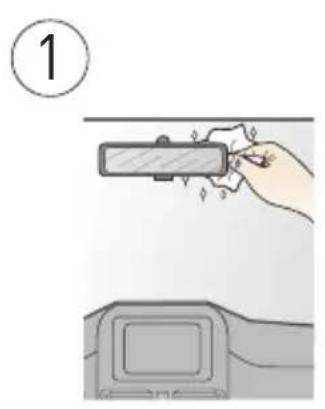
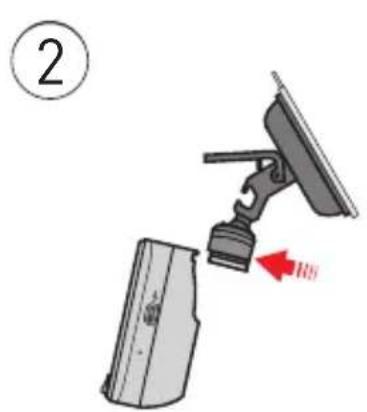
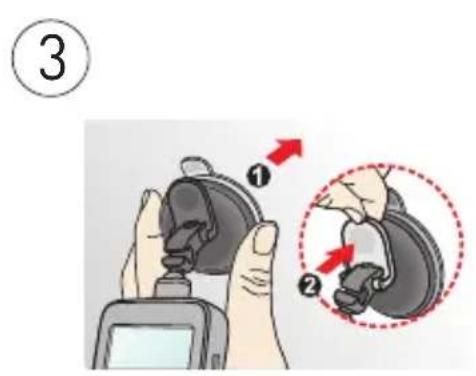
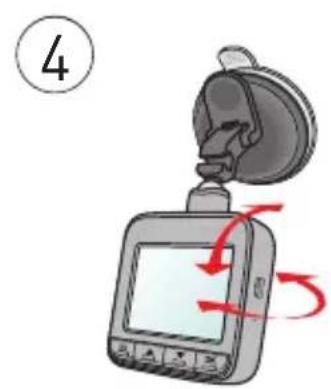
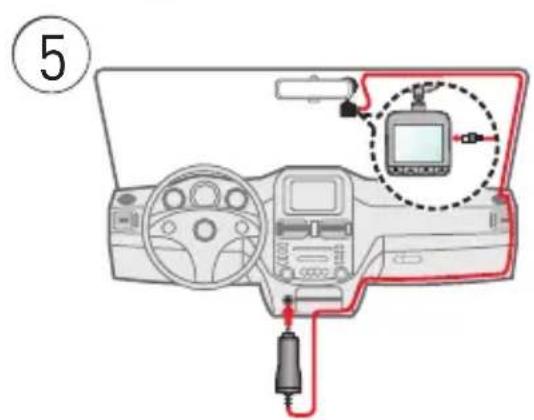
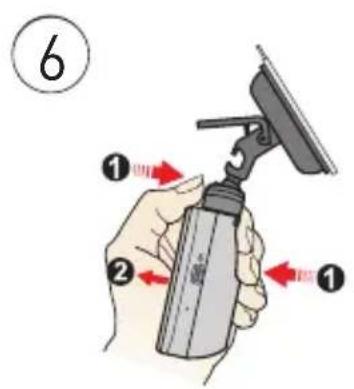
Operating Your Dashcam.
Note: DO NOT remove or insert the memory card while recording.
Connect the recorder to the car charger according to the Setting Up Your Dashcam section.
Setting the date and time.
To make sure of the correct date and time stamp for your recordings, check the date and time settings before you begin recording.

- When not recording, press
twice to open the Setup menu. - Select Date/Time > press
- Select Set > press OK
- Press the Power key repeatedly to change the setting fields.
Date format
Date fields
Time fields
Use and to select a setting press. OK
Recording in driving mode.
Continuous recording
When you connect the car charger to your vehicle's Vehicle Power Adapter (VPA), the dashcam starts Continuous recording automatically. The recording is divided into individual 130MB video clips, and recording doesn't stop between clips.
Your dashcam automatically stops and saves the recording when the vehicle engine is turned off. Then, your dashcam turns off automatically. To stop recording manually, press OK.
When recording is not in progress, manually start Continuous recording at any time by pressing OK. To stop recording, press OK
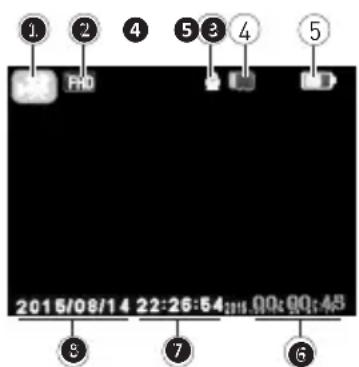
Current operation mode
2 Image resolution
3 Microphone status
Memory card status
5 Battery power status
Elapsed time of recording; remaining time for recording
Current time
Current date
Note: If Continuous recording is ongoing, but there isn't enough space on your memory card, new video clips will replace the old ones.
Note: When not recording, open the Video menu by pressing
Event recording
By default, if an event happens, such as high-speed driving, an abrupt turn, or an accidental crash, the G sensor prompts the dashcam to start an Emergency recording (or Event recording).
To manually start an Event recording while Continuous recording is in progress, press
To stop recording, press OK.
Note: Your dashcam automatically protects/locks Event recordings.
Capture mode.
When not recording, press the Power key rapidly to switch to Capture mode. Press OK to capture a photo.
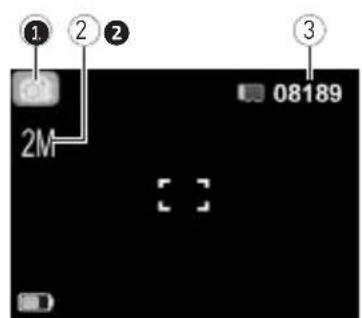
Current operation mode
Image resolution
3 Remaining amount of photos
Note: In Capture mode, open the Capture menu by pressing
Playback mode
To select a video or photo for playback (when not recording):
- Press the Power key rapidly to switch to playback mode. The screen displays the latest file.
- Press to play/pause playback.
- During playback, use to switch to the previous/next file.
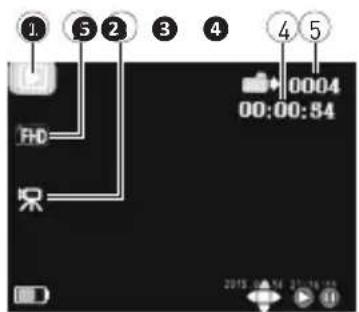
Current operation mode
Image resolution
3 Video
Video duration
Current file number
Note: In playback mode, open the Playback menu by pressing
Managing Your Files.
You can protect files from being deleted.
-
When not recording, press the Power key rapidly to switch to playback mode.
-
Press to open the Playback menu.
-
Select Protect > press OK
-
To add protection to the current file, select One > press OK. Select Set > press OK.
To add protection to all files, select All > press OK. Select Set > press OK.
To add protection to a certain file, select Select > press OK. Select the desired file > press OK
A lock icon will appear on the playback screen.
- To remove protection from the current file, select One > press OK. Select Remove > press OK
To remove protection from all files, select All > press OK. Select Remove > press OK
To remove protection from a certain file, select Select > press OK. Select the desired file > press OK
Deleting files.
CAUTION:
- Deleted files cannot be recovered. Back up your files before deletion.
-
You cannot delete protected files.
-
When not recording, press the Power key rapidly to switch to playback mode.
- Press to open the Playback menu.
- Select Delete > press OK
- To delete the current file, select One > press OK
To delete all files, select All > press.
To delete a certain file, select Select > press OK. Select the desired file > press OK
Changing System Settings.
When not recording, press to open the Video/Capture/Playback menu, or press twice to open the Setup menu.
| Menu | Item Description | |||
| Video Resolution Sets | Sets image resolution. | |||
| REC Sound Sets whetherto include sounds in recordings. | ||||
| Time Stamp Sets date and time display in recordings. | ||||
| G-sensor Sets G sensor sensitivity or disables G sensor. | ||||
| Capture Resolution | Sets image resolution. | |||
| Time Stamp Sets date and time display in photos. | ||||
| Playback Delete Deletes file(s). | ||||
| Protect Sets or removes file protection. | ||||
| Thumbnail Switches to thumbnail view. | ||||
| Volume Adjusts volume level. | ||||
| Setup Format Formats a memory card (all data will be erased). | ||||
| Language Sets language. | ||||
| Sys. Reset Restores system settings to factory defaults. | ||||
| Light Freq. Sets the frequency to match the flicker frequency of the local power supply when recording. | ||||
| Date/Time Sets syste tm date and time. | ||||
| LCD Timer Sets the timer for the LCD to turn off automatically (in the specified time) after recording starts. | ||||
Using MiVue Manager.
MiVue Manager™ allows you to view the videos recorded on your dashcam.
Note: Not all features are available for every model.
Installing MiVue Manager.
Download MiVue Manager from support MAGellangps.com and follow the on-screen prompts to install it. Make sure to download the correct software version (Windows or Mac) according to your computer's operating system.
Playing the recording files.
- Remove the memory card from the recorder and access the card on the computer via a card reader. Copy the recording files to your computer for backup and playback.
You may also leave the memory card inserted in the MiVue device and connect the device to your computer via a USB cable.
-
Start MiVue Manager on the computer.
-
By default MiVue Manager shows the calendar and the file list on the right.
- When a recording file exists you will see the date marked with “ .” Click that date to display the files that were recorded on that date.
- You can choose the file type to display: Event / Normal / Parking.
-
To display all files in the current folder, click All. To return to the calendar view, click Calendar.
-
Double-click a file on the file list to start playback.
-
The playback controls are described as follows:

① Skip to next/previous file.
Mute/unmute volume.
7 Display playback progress. Click along the bar or drag the slider to move directly to that point in the video.
2 Start/pause playback.
5 Adjust volume level.
3 Change playback speed.
6 Play full-screen video.
-
During playback, you can check more driving information from the dashboard panel and the G sensor chart that are displayed below the video playback screen.
-
On the dashboard panel, click to display the map screen*.
G sensor chart displays data in 3-axis waveform about the car's shift forward/backward [X], to the right/left (Y) and upward/downward (Z). -
The map screen may not display when the computer is not connected to the Internet or when your MiVue model does not support the GPS function.
-
The tool bar allows you to do the following:

1 Select folder that stores files.
Preview/print current image.
Save files to your computer.
4 Capture/save video image to your computer.
5 Open Settings menu.*
Export and save GPS info as KML format to your computer.
Upload files to Facebook and YouTube.
*Settings menu:
- Change Language: Sets the display language of MiVue Manager.
- Change Skin: Sets the colour scheme of MiVue Manager.
- Check for Update: Checks if there is any new version of MiVue Manager. Internet access is required for this feature.
- About: Displays the version and copyright information of MiVue Manager.
Taking Care Of Your Dashcam.
Taking care of your dashcam ensures smooth operation and reduces damage risk.
- Keep your device away from excessive moisture and extreme temperatures.
- Avoid exposing your device to direct sunlight or strong ultraviolet light for extended periods of time.
- Do not place anything on top of your device or drop objects on your device.
- Do not drop your device or subject it to severe shock.
- Do not subject your device to sudden and severe temperature changes. This could cause moisture condensation inside the unit, which could damage your device. In the event of moisture condensation, allow the device to dry out completely before use.
- The screen surface can easily be scratched. Avoid touching it with sharp objects. Non-adhesive generic screen protectors designed specifically for use on portable devices with LCD panels may be used to help protect the screen from minor scratches.
- Never clean your device with it powered on. Use a soft, lint-free cloth to wipe the screen and the exterior of your device.
- Do not use paper towels to clean the screen.
- Never attempt to disassemble, repair or make any modifications to your device. Disassembly, modification or any attempt at repair could cause damage to your device and even bodily injury or property damage and will void any warranty.
-
Do not store or carry flammable liquids, gases or explosive materials in the same compartment as your device, its parts or accessories.
-
Do not attempt to service the unit. There are no serviceable parts inside.
Replace the unit if it is damaged or exposed to excess moisture. - To discourage theft, do not leave the device and accessories in plain view in an unattended vehicle.
Overheating may damage the device.
Safety precautions.
About charging
Use only the charger supplied with your device. Use of another type of charger may result in malfunction and/or danger.
This product is intended to be supplied by a LISTED Power Unit marked with "LPS", "Limited Power Source" and output rated +5V dc / 1 A.
Use a specified battery in the equipment.
About the charger
- Do not use the charger if the cord becomes damaged.
- Do not use the charger in a high moisture environment. Never touch the charger when your hands or feet are wet.
- Allow adequate ventilation around the charger when using it to operate the device or charge the battery. Do not cover the charger with paper or other objects that will reduce cooling. Do not use the charger while it is inside a carrying case.
- Connect the charger to a proper power source. The voltage requirements are found on the product case and/or packaging.
About the battery
Use a specified battery in the equipment.
- CAUTION: This unit contains a non-replaceable internal Lithium Ion battery. The battery can burst or explode, releasing hazardous chemicals. To reduce the risk of fire or burns, do not disassemble, crush, puncture, or dispose of in fire or water.
Important instructions (for service personnel only)
- Caution: Risk of explosion if battery is replaced by an incorrect type. Dispose of used batteries according to the instructions.
- Replace only with the same or equivalent type recommended by the manufacturer.
The battery must be recycled or disposed of properly.
Use the battery only in the specified equipment.
Warranty.
Magellan Limited Warranty
All Magellan global positioning system (GPS) receivers are navigation aids, and are not intended to replace other methods of navigation. The purchaser is advised to perform careful position charting and use good judgment. READ THE USER GUIDE CAREFULLY BEFORE USING THE PRODUCT.
1. MAGELLAN WARRANTY
(a) MiTAC Digital Corp. ("Magellan") warrants its GPS receivers and hardware accessories to be free from defects in material and workmanship and will conform to its published specifications for the product for a period of one year from the date of original purchase. THIS WARRANTY APPLIES ONLY TO THE ORIGINAL CONSUMER PURCHASER OF THIS PRODUCT.
(b) In the event of a defect, Magellan will, at its discretion, repair or replace the hardware product with a product of like kind or quality, which may be new or reconditioned, with no charge to the purchaser for parts or labor. Magellan's limit of liability under the limited warranty shall be the actual cash value of the product at the time the purchaser returns the product to Magellan for repair less a reasonable amount for usage, as determined by Magellan in its sole discretion. The repaired or replaced product will be warranted for 90 days from the date of return shipment, or for the balance of the original warranty, whichever is longer.
(c) Magellan warrants that software products or software included in hardware products will be free from defects in the media for a period of 30 days from the date of shipment and will substantially conform to the then current user documentation provided with the software (including updates thereto). Magellan's sole obligation shall be the correction or replacement of the media or the software so that it will substantially conform to the then- current user documentation. Magellan does not warrant the software will meet purchaser's requirements or that its operation will be uninterrupted, error-free or virus-free. The purchaser assumes the entire risk of using the software.
2. PURCHASER'S REMEDY
PURCHASER'S EXCLUSIVE REMEDY UNDER THIS WRITTEN WARRANTY OR ANY IMPLIED WARRANTY SHALL BE LIMITED TO THE REPAIR OR REPLACEMENT, AT MAGELLAN'S OPTION, OF ANY DEFECTIVE PART OF THE RECEIVER OR ACCESSORIES WHICH ARE COVERED BY THIS WARRANTY. REPAIRS UNDER THIS WARRANTY SHALL ONLY BE MADE AT AN AUTHORIZATED MAGELLAN SERVICE CENTER. ANY REPAIRS BY A SERVICE CENTER NOT AUTHORIZATION BY MAGELLAN WILL VOID THIS WARRANTY.
3. PURCHASER'S DUTIES
For repair or replacement on a Magellan product the purchaser must obtain a Return Materials Authorization (RMA) number from Magellan Technical Support or by submitting a repair request through our website at www.magellanGPS.com, prior to shipping. The purchaser must return the product postpaid with a copy of the original sales receipt, purchaser's return address and the RMA number clearly printed on the outside of the package to the Authorized Magellan Service Center address provided by Magellan with the RMA number. Magellan reserves the right to refuse to provide service free-of-charge if the sales receipt is not provided or if the information contained in it is incomplete or illegible or if the serial number has been altered or removed. Magellan will not be responsible for any losses or damage to the product incurred while the product is in transit or is being shipped for repair. Insurance is recommended. Magellan recommends the use of a trackable shipping method such as UPS or FedEx when returning a product for service.
4. LIMITATION OF IMPLIED WARRANTYES
Except as set forth in item 1 above, all other expressed or implied warranties, including those of fitness for any particular purpose or merchantability, are hereby disclaimed AND IF APPLICABLE, IMPLIED WARRANTY UNDER ARTICLE 35 OF THE UNITED NATIONS CONVENTION ON CONTRACTS FOR THE INTERNATIONAL SALE OF GOODS. Some national, state, or local laws do not allow limitations on implied warranty on how long an implied warranty lasts, so the above limitation may not apply to you.
5. EXCLUSIONS
The following are excluded from the warranty coverage:
(a) periodic maintenance and repair or replacement of parts due to normal wear and tear;
(b) batteries;
[c] finishes;
(d) installations or defects resulting from installation;
(e) any damage caused by (i) shipping, misuse, abuse, negligence, tampering, moisture, liquids, proximity or exposure to heat, or improper use; (ii) disasters such as fire, flood, wind, and lightning; (iii) unauthorized attachments or modification;
[f] service performed or attempted by anyone other than an authorized Magellan Service Center;
[g] any product, components or parts not manufactured by Magellan,
(h) that the receiver will be free from any claim for infringement of any patent, trademark, copyright or other proprietary right, including trade secrets
(i) any damage due to accident, resulting from inaccurate satellite transmissions. Inaccurate transmissions can occur due to changes in the position, health or geometry of a satellite or modifications to the receiver that may be required due to any change in the GPS.
[Note: Magellan GPS receivers use GPS or GPS+GLONASS to obtain position, velocity and time information. GPS is operated by the U.S. Government and GLONASS is the Global Navigation Satellite System of the Russian Federation, which are solely responsible for the accuracy and maintenance of their systems. Certain conditions can cause inaccuracies which could require modifications to the receiver. Examples of such conditions include but are not limited to changes in the GPS or GLONASS transmission.]
The opening, dismantling or repairing of this product by anyone other than an authorized Magellan Service Center will void this warranty.
6. EXCLUSION OF INCIDENTAL OR CONSEQUENTIAL DAMAGES
(a) MAGELLAN SHALL NOT BE LIABLE TO PURCHASER
(b) OR ANY OTHER PERSON FOR ANY INDIRECT, INCIDENTAL OR CONSEQUENTIAL DAMAGES WHATSOEVER, INCLUDING BUT NOT LIMITED TO LOST PROFITS, DAMAGES ARISING FROM A DELAY OR LOSS OF USE, OR OUT OF THE BREACH OF THIS WARRANTY OR ANY IMPLIED WARRANTY EVEN IF CAUSED BY THE NEGLIGENCE OR ANOTHER FAULT OF MAGELLAN OR OUT OF THE NEGLIGENT USAGE OF THE PRODUCT. IN NO EVENT WILL MAGELLAN BE HELD RESPONSIBLE FOR SUCH DAMAGES, EVEN IF MAGELLAN HAS BEEN ADVISED OF THE POSSIBILITY OF SUCH DAMAGES.
[cl] Some national, state, or local laws do not allow the exclusion or limitation of incidental or consequential damages, so the above limitation or exclusion may not apply to you.
7. COMPLETE AGREEMENT
(a) This written warranty is the complete, final and exclusive agreement between Magellan and the purchaser with respect to the quality of performance of the goods and any and all warranties and representations. THIS WARRANTY SETS FORTH ALL OF MAGELLAN'S RESPONSIBILITIES REGARDING THIS PRODUCT. THIS WARRANTY GIVES YOU SPECIFIC RIGHTS. YOU MAY HAVE OTHER RIGHTS WHICH VARY FROM LOCALITY TO LOCALITY AND CERTAIN LIMITATIONS CONTAINED IN THIS WARRANTY MAY NOT APPLY TO YOU.
(b) If any part of this limited warranty is held to be invalid or unenforceable, the remainder of the limited warranty shall nonetheless remain in full force and effect.
This limited warranty is governed by the laws of the State of California, without reference to its conflict of law provisions or the U.N. Convention on Contracts for the International Sale of Goods, and shall benefit Magellan, its successors and assigns. This warranty does not affect the consumer's statutory rights under applicable laws in force in their locality, nor the customer's rights against the dealer arising from their sales/purchase contract.
For further information concerning this limited warranty, please visit Magellan's website at magellangps.com or contact:
MiTAC Digital Corp. 279 E Arrow Hwy, San Dimas, CA 91773, USA
USA & Canada: 800-707-9971
Mexico:866-310-7223
Need Technical Support?
If you need technical support for your Magellan product, go to support.magellangps.com for answers to most questions.
If you can't find a solution there, contact Magellan Technical Support by e-mail at support.us@cs.magellangps.com or call 800-707-9971.
Connect with us
MagellanGPS





MAGELLAN
MiTAC Digital Corporation
279 E Arrow Hwy, San Dimas, CA 91773 USA
www.magellanGPS.com
112-0102-001
© 2016 MiTAC Digital Corporation. The Magellan logo and Magellan are registered trademarks of MiTAC International Corporation, and OneTouch is a trademark of MiTAC International Corporation and are used under license by MiTAC Digital Corporation. All rights reserved.
All other trademarks and registered trademarks are property of their respective owners.
Magellan MiVue 240
Guía del Usario

Seguridad.
2uDemarrer/arrer la lecture.


- Magellan Take-Back Program
- FCC RF Radiation Exposure Statement
- Table Of Contents.
- Precautions and notices.
- Getting To Know Your Dashcam.
- Inserting A Memory Card.
- Formatting a card.
- Setting Up Your Dashcam.
- CAUTION:
- Operating Your Dashcam.
- Setting the date and time.
- Recording in driving mode.
- Continuous recording
- Event recording
- Capture mode.
- Playback mode
- Managing Your Files.
- Deleting files.
- Changing System Settings.
- Using MiVue Manager.
- Installing MiVue Manager.
- Playing the recording files.
- Taking Care Of Your Dashcam.
- Safety precautions.
- About charging
- About the charger
- About the battery
- Warranty.
- Magellan Limited Warranty
- MAGELLAN WARRANTY
- PURCHASER'S REMEDY
- PURCHASER'S DUTIES
- LIMITATION OF IMPLIED WARRANTYES
- EXCLUSIONS
- EXCLUSION OF INCIDENTAL OR CONSEQUENTIAL DAMAGES
- COMPLETE AGREEMENT
- Need Technical Support?
- Magellan MiVue 240
- Seguridad.
Brand : MAGELLAN
Model : MiVue 240
Category : Camcorder