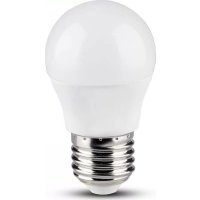
VT5124 - Lighting V-TAC - Free user manual and instructions
Find the device manual for free VT5124 V-TAC in PDF.



| Brand | V-TAC |
| Model | VT5124 |
| Product Type | Smart LED Bulb |
| Usage | Indoor use only |
| Power Supply | Mains 220-240 V~, 50/60 Hz |
| Wi-Fi Frequency | 2.4 GHz |
| Max Transmission Power | 20 dBm |
| Main Functions | App control, dimming, color temperature change, scheduling, synchronization |
| Compatibility | Amazon Alexa, Google Home, V-TAC Smart Light app |
| Installation | Requires 2.4 GHz Wi-Fi and smartphone |
| Warranty | 2 years |
| Safety | Do not use in enclosed spaces, do not dispose of with household waste |
| Maintenance and Cleaning | Clean with a dry cloth, store in a cool, dry place |
| Spare Parts | Not available |
| General Information | CE marking, WEEE |
Frequently Asked Questions - VT5124 V-TAC
User questions about VT5124 V-TAC
0 question about this device. Answer the ones you know or ask your own.
Ask a new question about this device
Download the instructions for your Lighting in PDF format for free! Find your manual VT5124 - V-TAC and take your electronic device back in hand. On this page are published all the documents necessary for the use of your device. VT5124 by V-TAC.
USER MANUAL VT5124 V-TAC
natural_image
White plastic light bulb with a flared rim and two small protrusions at the base (no text or symbols visible)GU10 Milky Cover
natural_image
White LED light bulb with a flared top and small base (no text or symbols visible)GU10 LENS
E27 G45
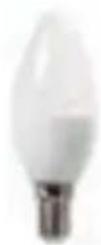
E14 Candle
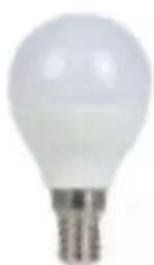
natural_image
Close-up of a white LED light bulb with a metallic screw base (no text or symbols visible)E14 P45
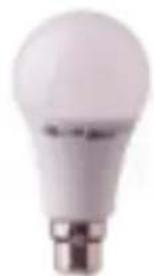
natural_image
Close-up of a white LED light bulb with a metallic base (no text or symbols visible)B22 A60
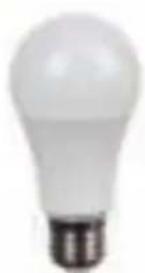
natural_image
Close-up of a white light bulb with a black screw base (no text or symbols visible)E27 A60
natural_image
Close-up of a white light bulb with a small metallic base (no text or symbols visible)E27 A65

works with Ok Google
works with


MULTI-LANGUAGE MANUAL - QR CODE
Please scan the QR code to access the manual in multiple languages.

INTRODUCTION & WARRANTY
Thank you for selecting and buying V-TAC SMART LED Lighting. V-TAC will serve you the best. Please read these instructions carefully before starting the installation and keep this manual handy for future reference. If you have any other query, please contact our dealer or local vendor from whom you have purchased the product. They are trained and ready to serve you at the best. The warranty is valid for 2 years from the date of purchase. The warranty does not apply to damage caused by incorrect installation or abnormal wear and tear. The company gives no warranty against damage to any surface due to incorrect removal and installation of the product. The products are suitable for 10-12 Hours Daily operation. Usage of product for 24 Hours a day would void the warranty. This product is warranted for manufacturing defects only.
SAFETY WARNING
1) Lamps are limited to indoor use and are not advisable for use in humid environment
2) Lamp is to be used in well ventilated areas and normal installation.
3) Caution: This lamp is NOT to be used in a totally enclosed fixture which is not good for heat emission. Please do not install the lamp in enclosed space as it will shield the wifi signal due to which resulting in the poor functioning of the product.
4) Lamps and lanterns cannot be installed on the surface of ordinary combustible materials. Increase in temperature is normal for lamps.
5) Do not exert external force or throw on the lamp.
6) Lamps should be stored in cool/dry place. Always make sure the environment is clean before installing the lamp.
7) Do not discard the lamps with regular trash. Lamps are made with electronic components and should be properly disposed at designated locations with unified treatment like traditional electronic equipment.
NOTE:
- This device requires Wi-Fi Frequency 2.4Ghz
- Indoor use only
- Operating frequency (maximum transmitted power) 2400MHz -2483.5MHz (20dBm)
This marking indicates that this product should not be disposed of with other household wastes.
INSTALLATION
Step 1: Disconnect the power supply and install the lamp.
Step 2: Turn the power ON to test the lamp.
Step 3: Enable WI-FI and bluetooth on your phone device.
Step 4: Scan the given QR code, or download "V-TAC Smart Light" from the App Store (iOS) or the Google Play Store (Android).
For ANDROID

For IOS

Step4: Open the V-TAC Smart Light app and tap on register for creating a new account.
V-TAC Smart Light

Step6: Enter the verification code which will be sent to your mobile number/email id, then assign a new password to your account and tap on "Confirm".
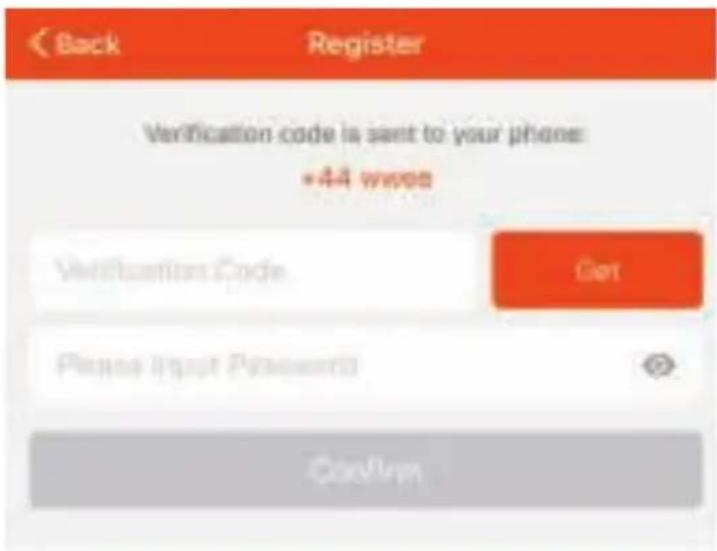
Step5:
A) Mobile Number: Select the country, then enter your mobile number. Once done, tap 'Next'.
B) E-Mail: Enter your email id and tap on 'Next'.
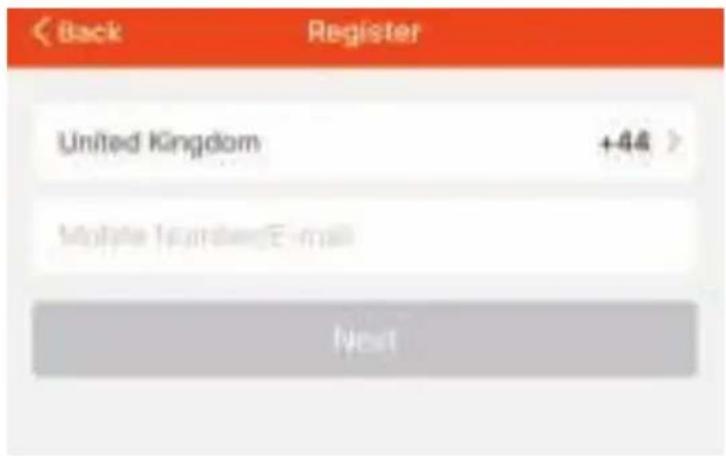
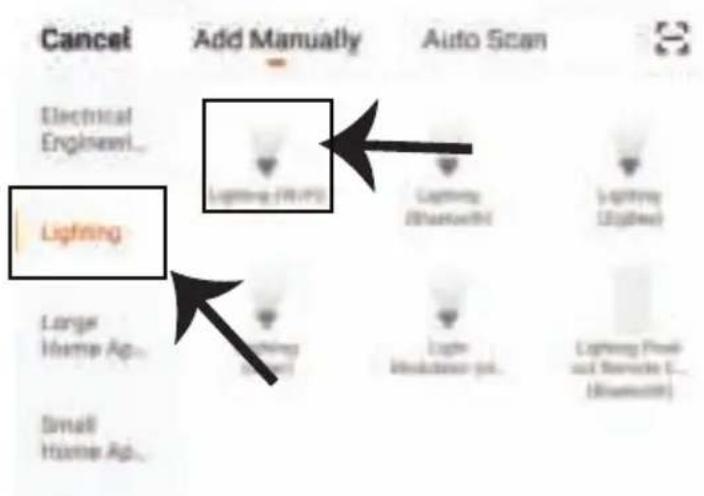
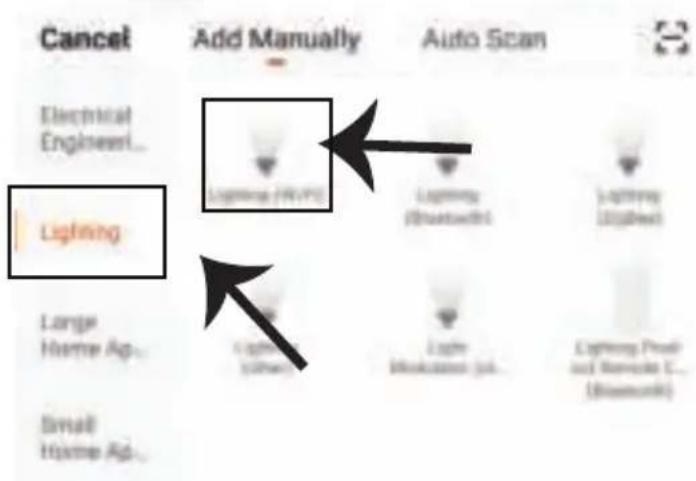
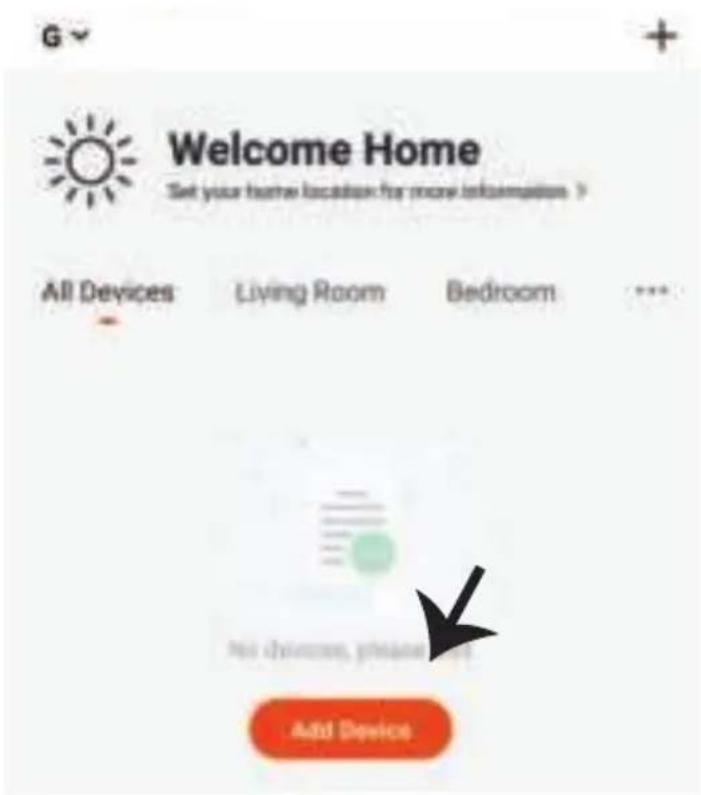
Step7: Tap on 'Add Device' or the + sign. Make sure the lamp is switched on.
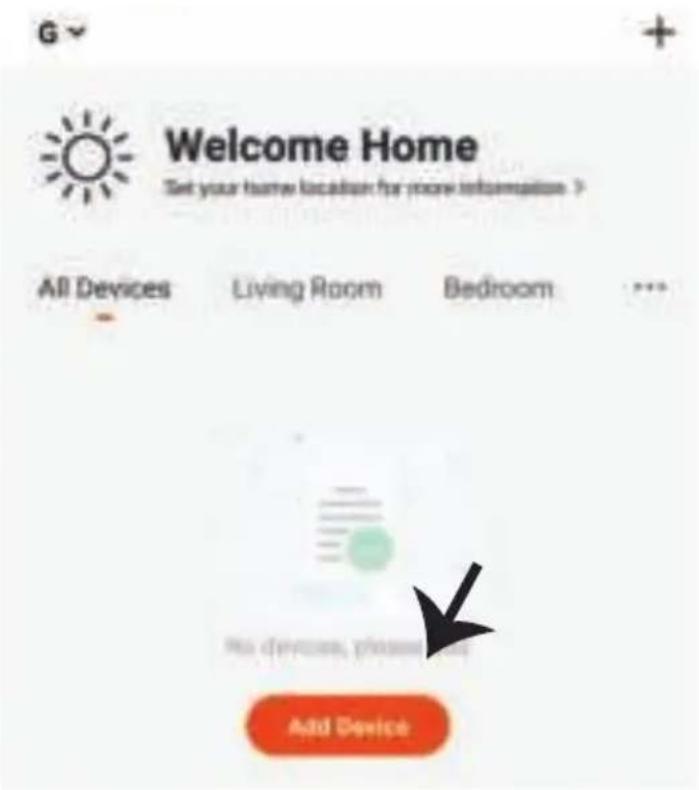
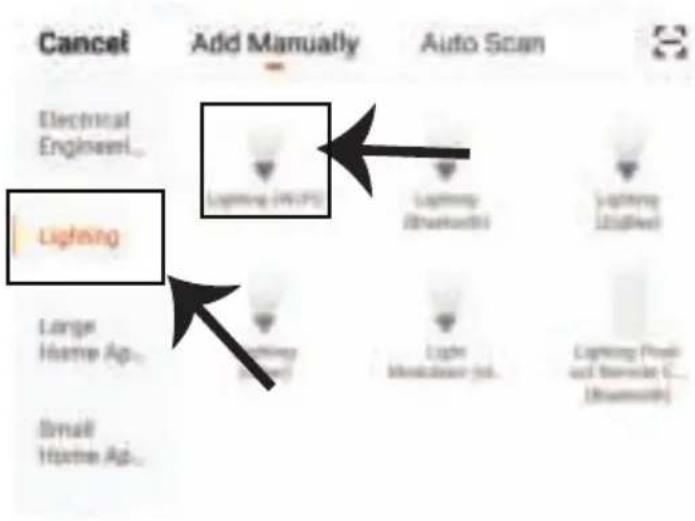
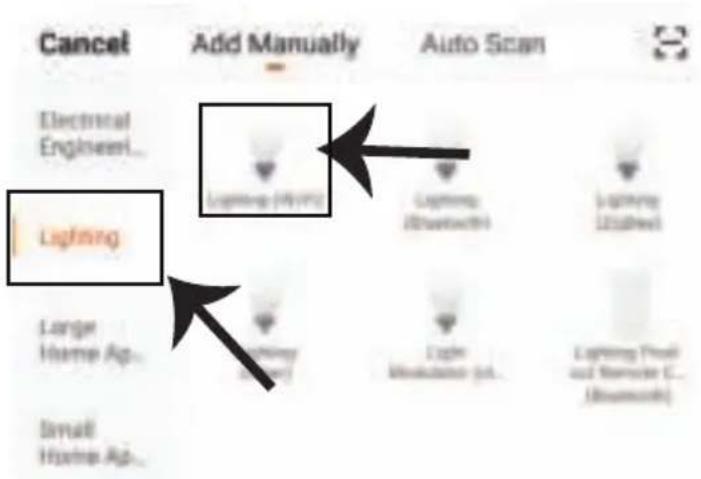
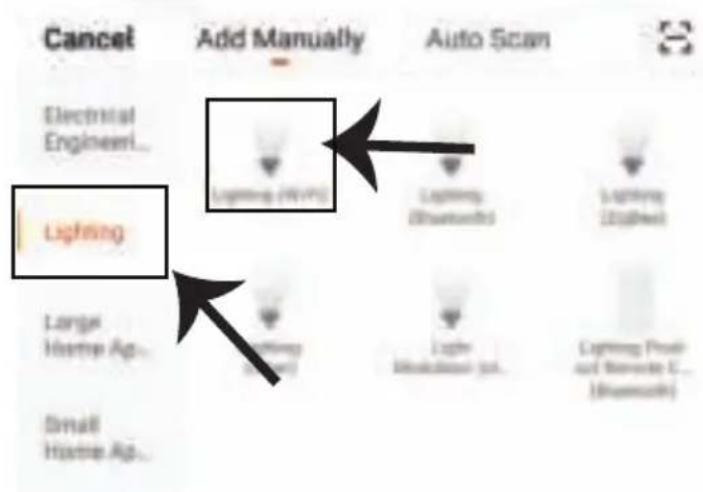
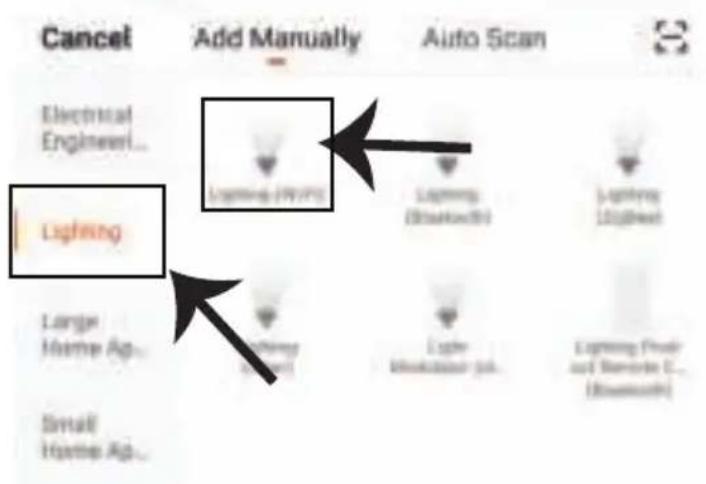
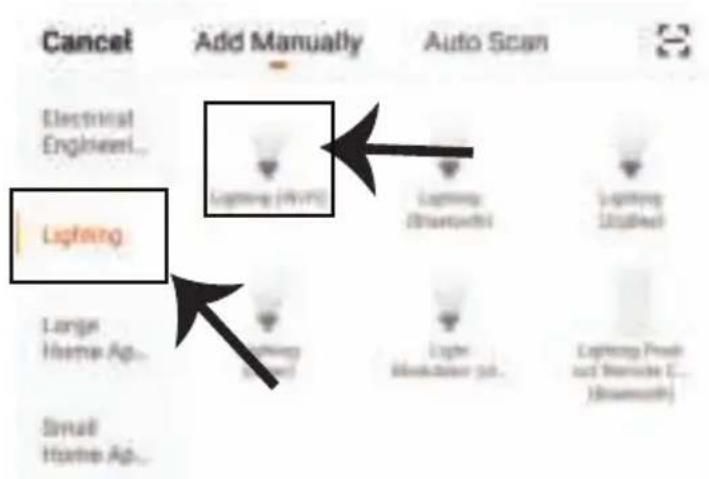
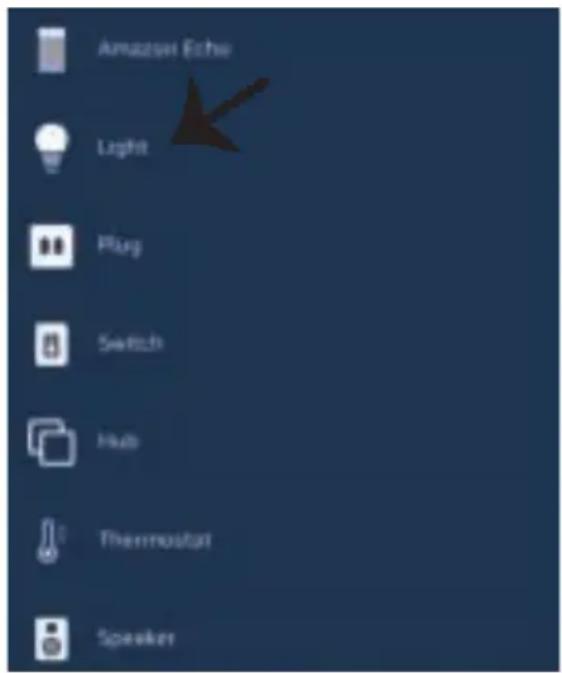
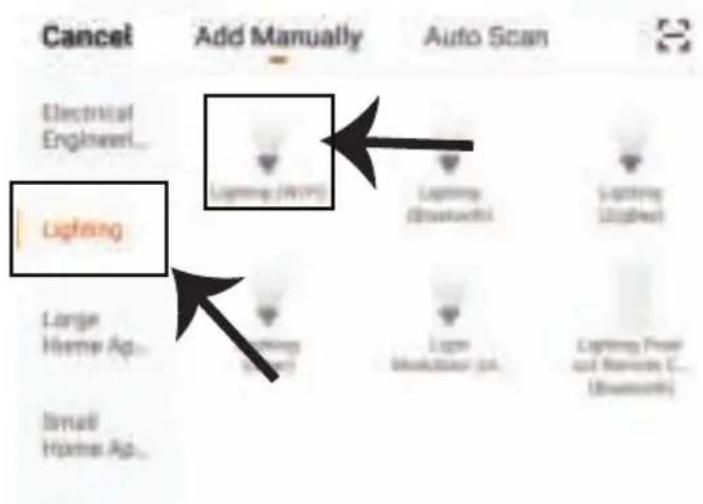
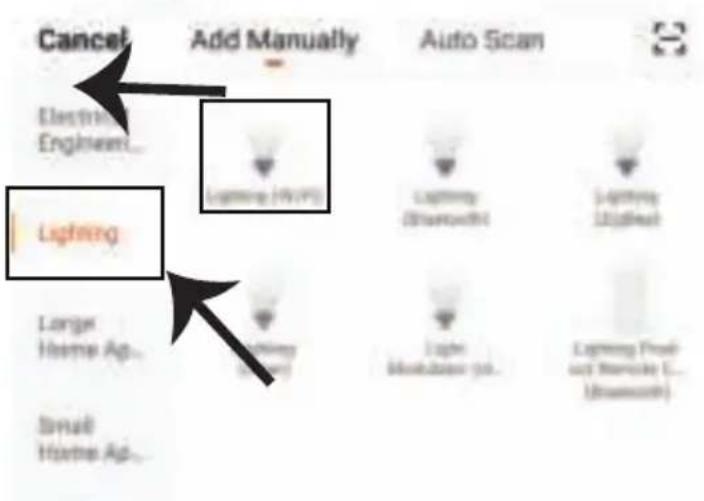
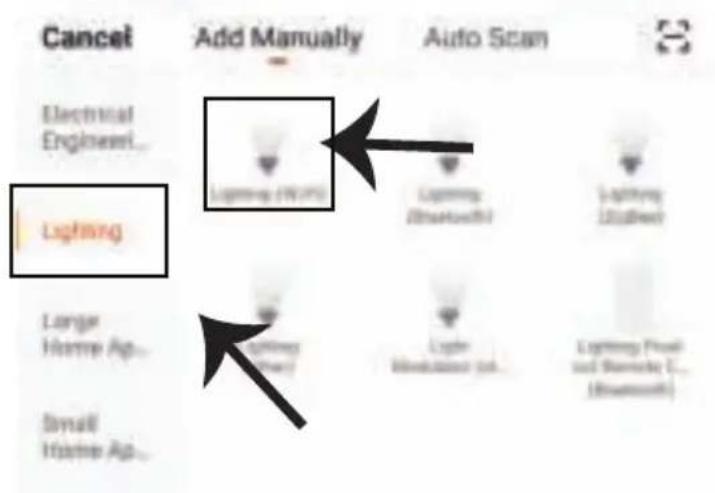
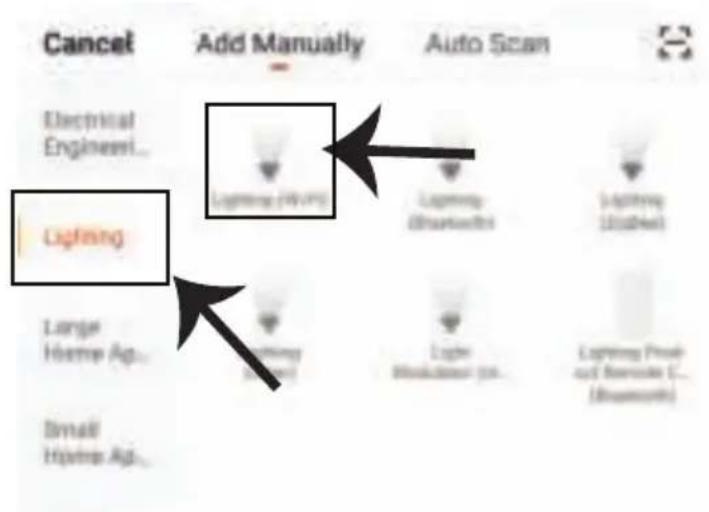
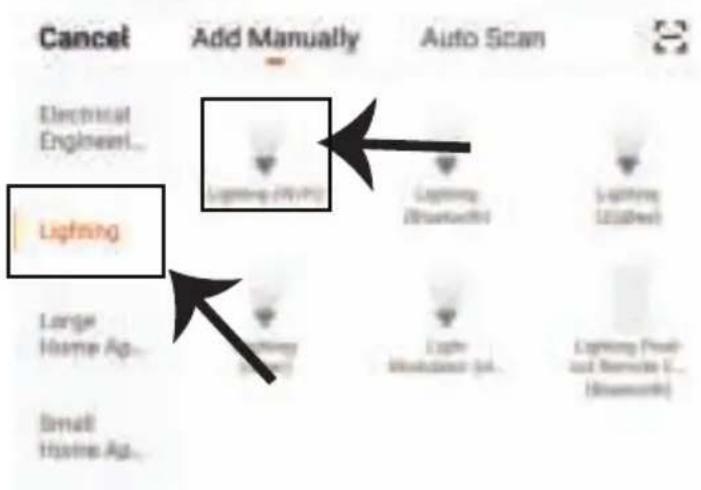
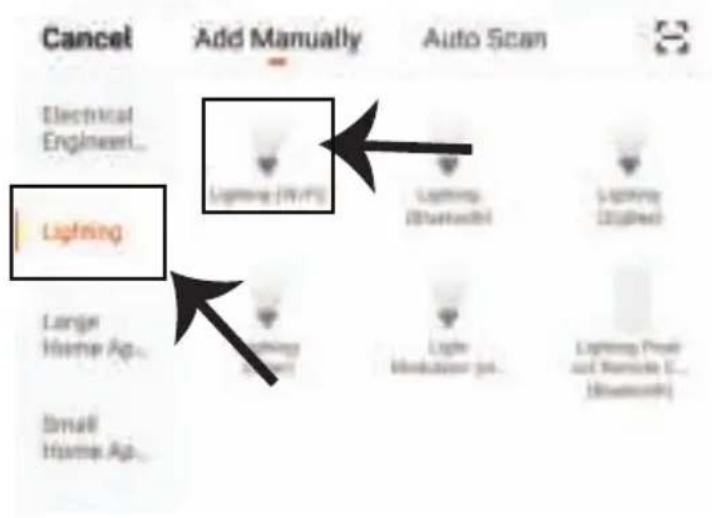
Step8: Choose 'Lighting' to start pairing the lamp to the app.
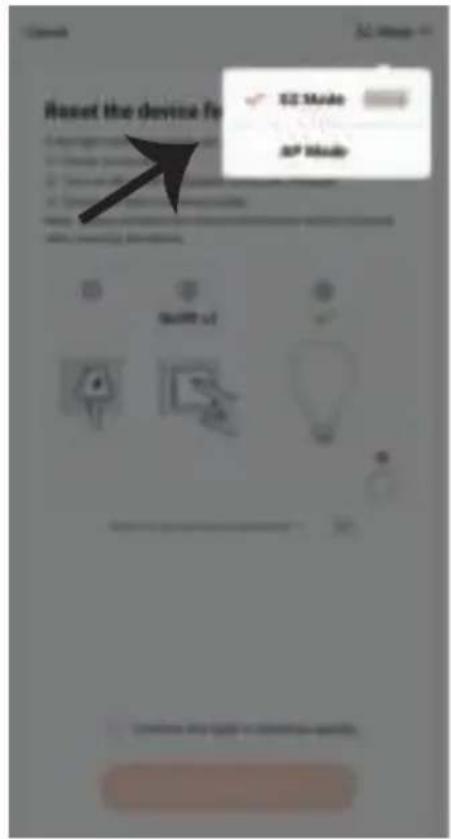
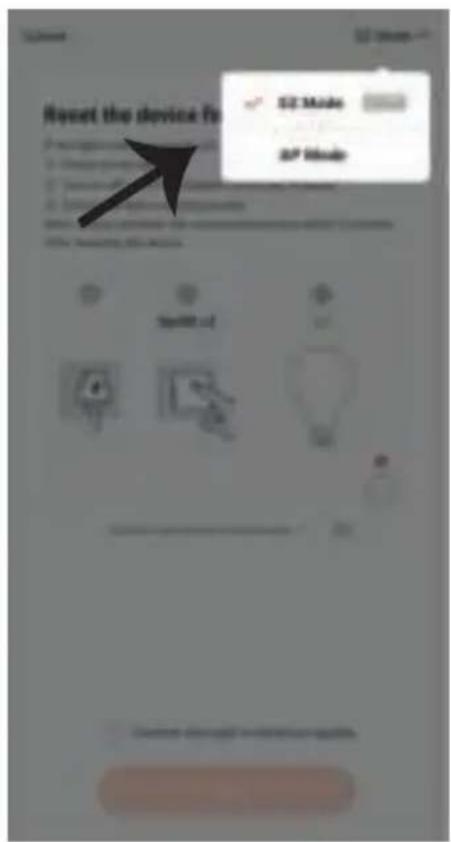
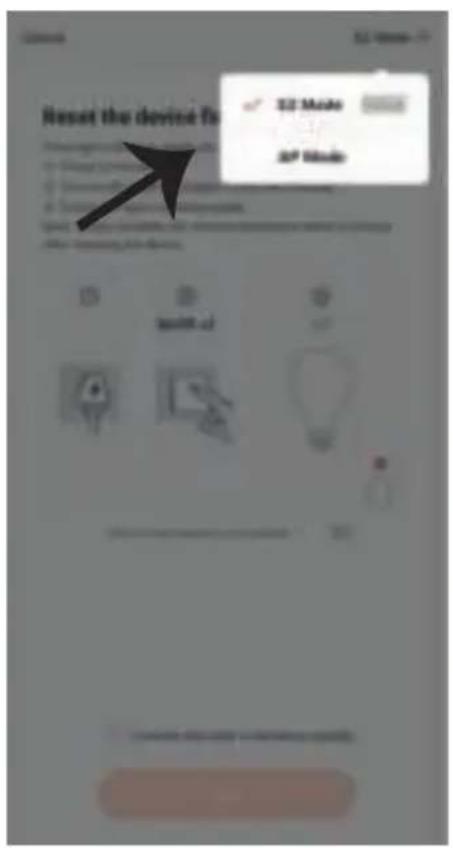
Step9: To pair the device with lamp make sure the light is blinks rapidly.
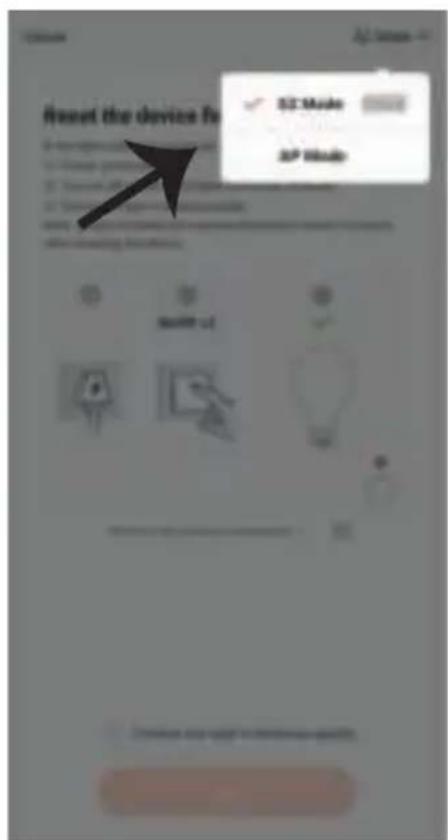
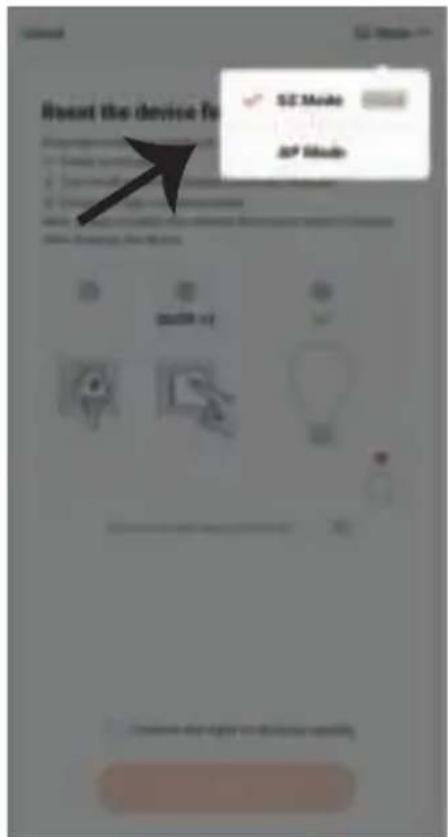
Once the light blinks rapidly, the lamp is in pairing mode. If the bulb is not blinking rapidly, you can do one of the following steps:
A. Switch the bulb on & off repeatedly for 3 times, with short intervals of less than 2 seconds.
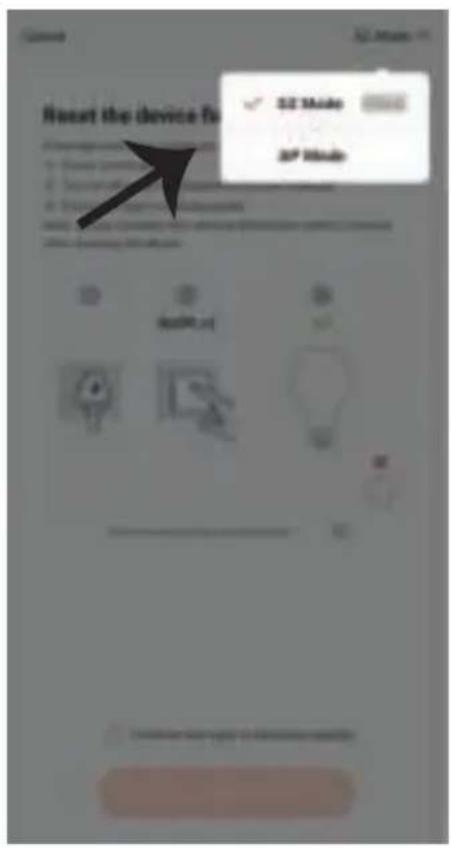
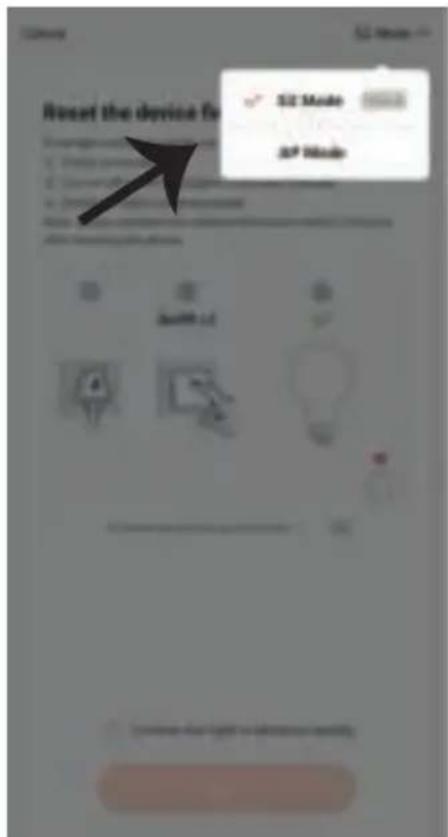
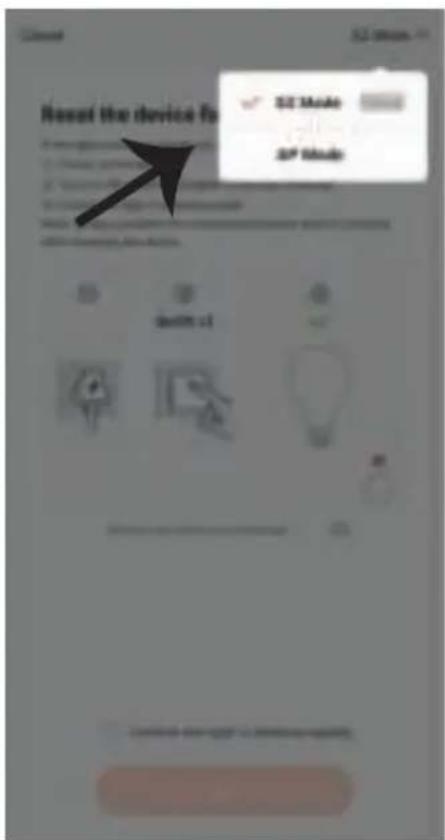
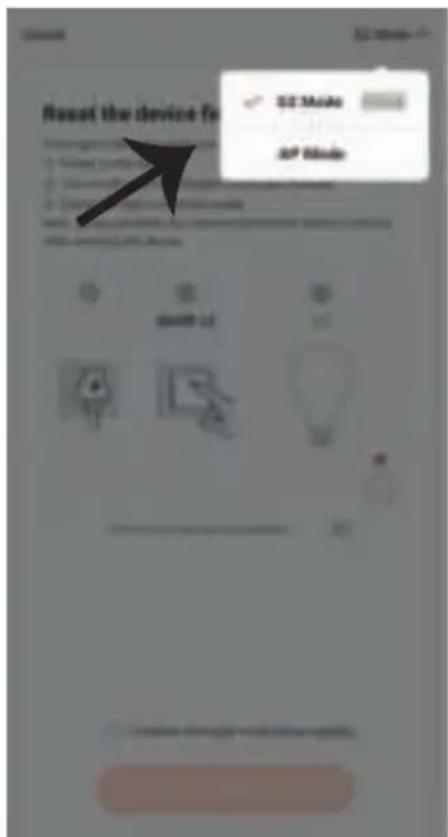
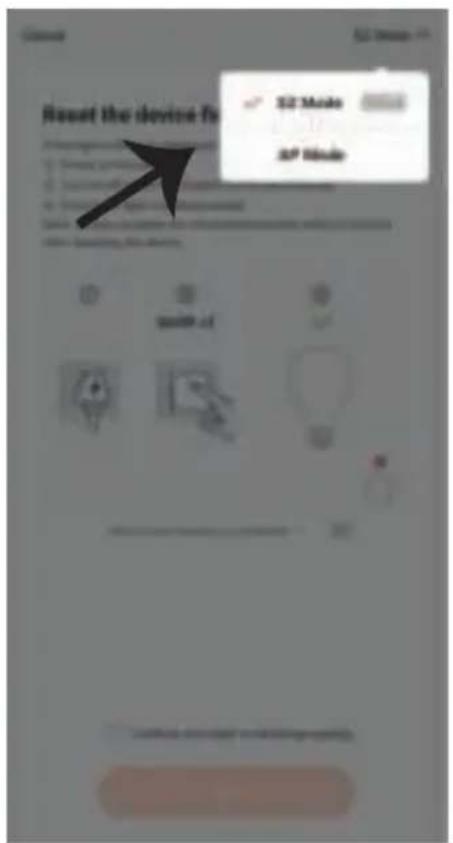
B. Tap the 'How to make light blink rapidly' link. (ref image below)
Network Modes:
1) EZ Mode: Light flashes twice per second
2) AP mode: Slow flash, once every 2 second
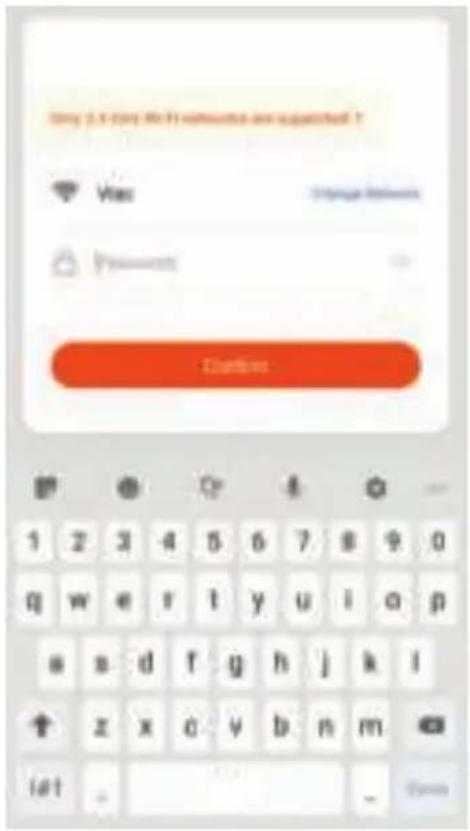
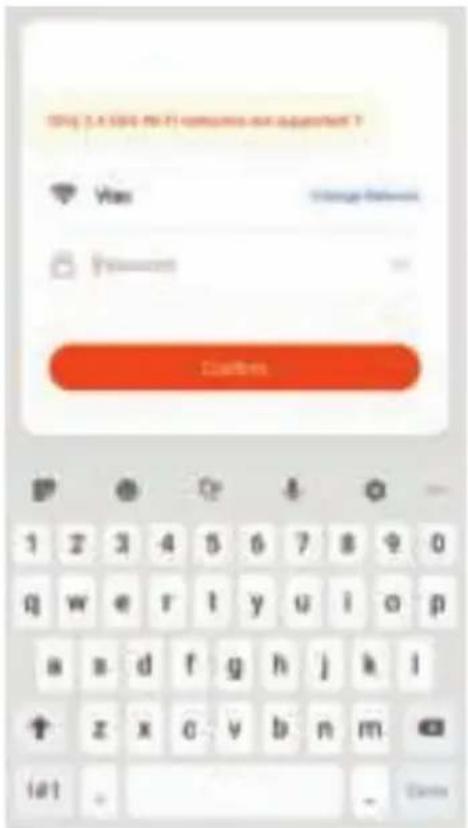
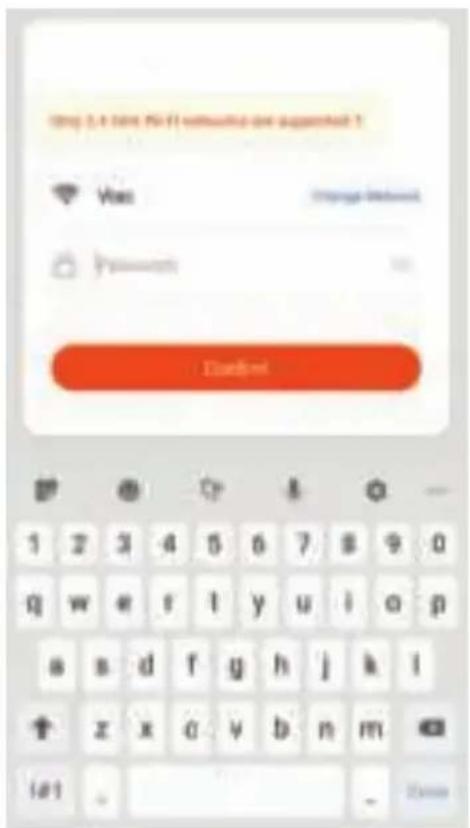
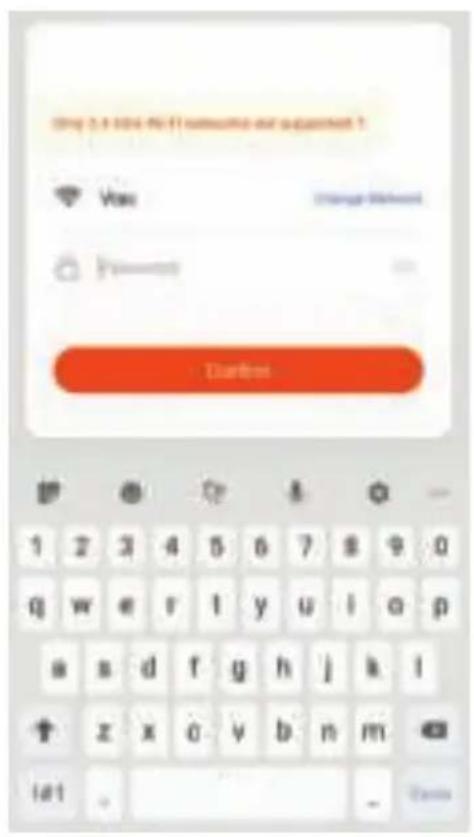
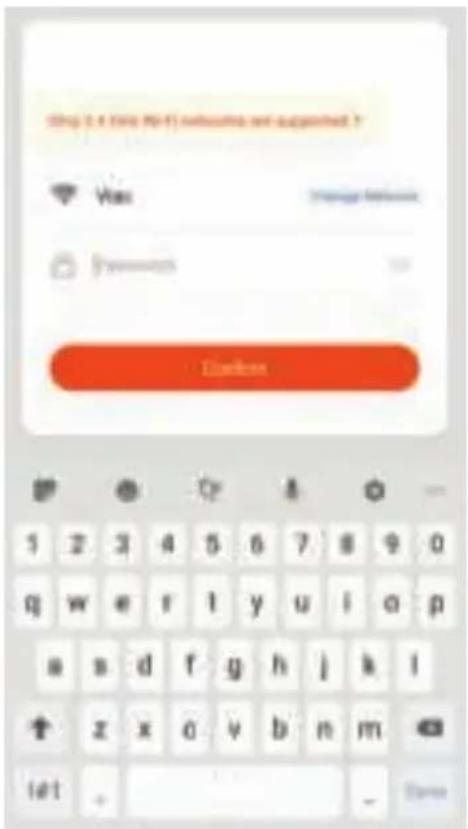
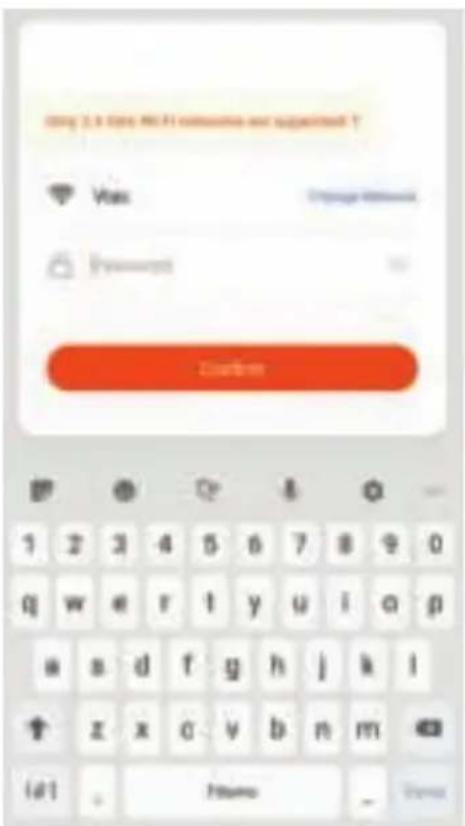
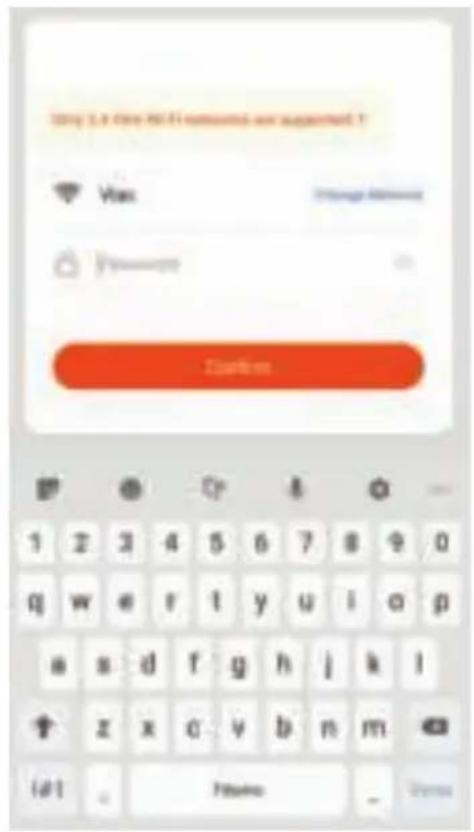
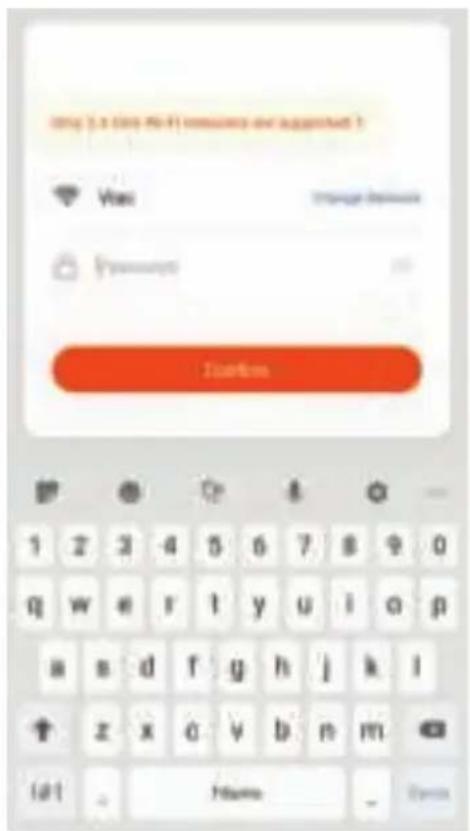
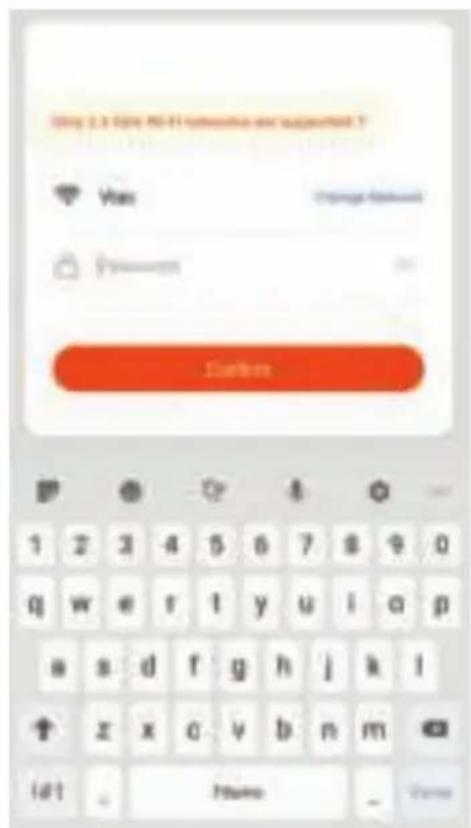
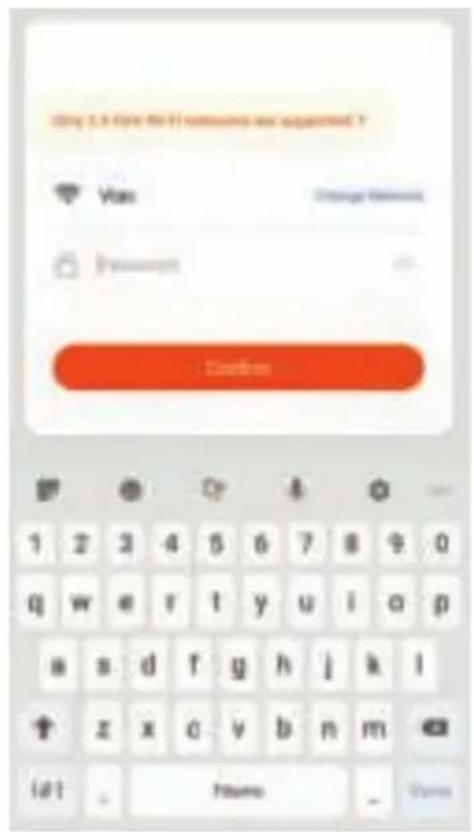
Confirm if the light blinks rapidly, select the WiFi network, and enter the password.
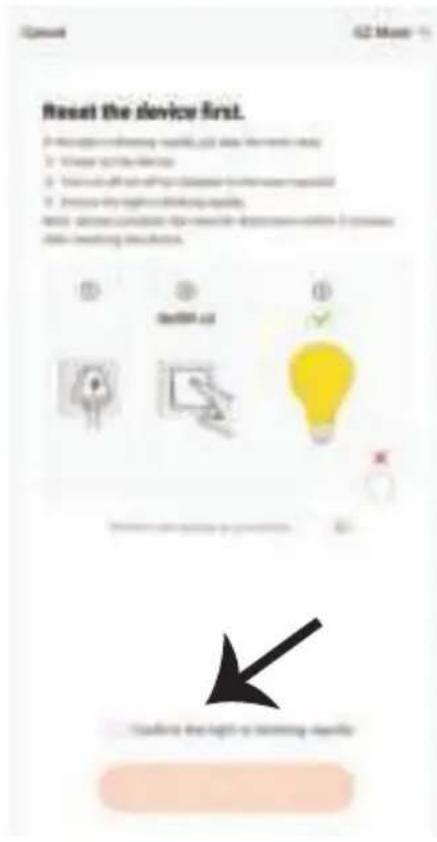
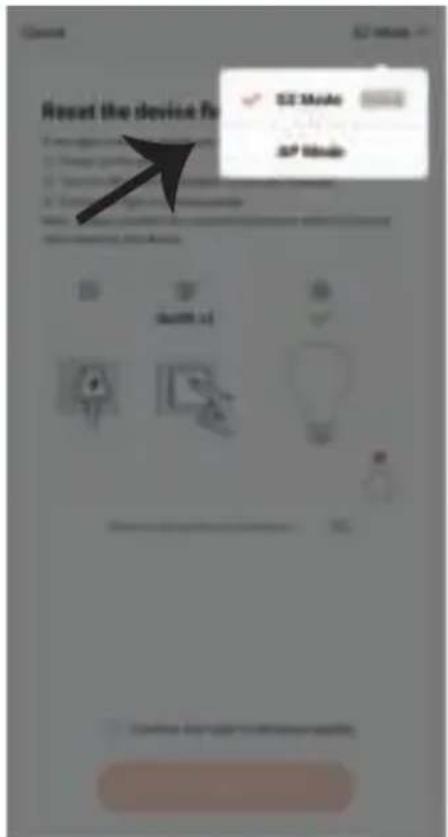
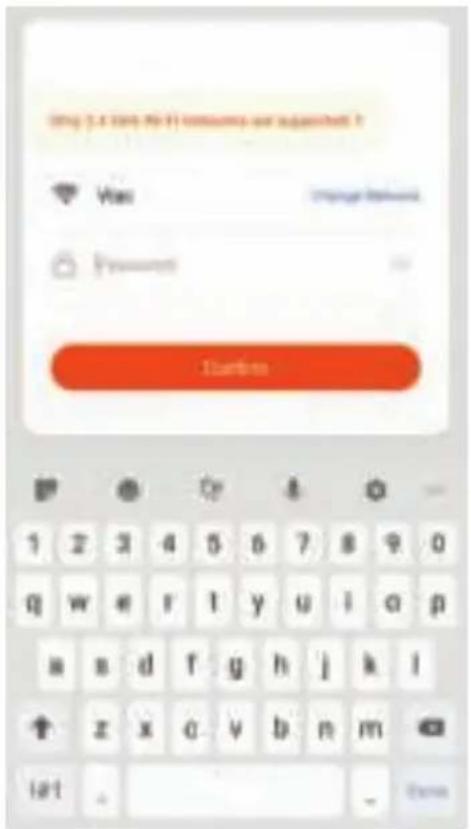
Step10: Once you have successfully completed step 9, you will be redirected to below page, where the App searches, registers and initializes the device(lamp) (ref image below)
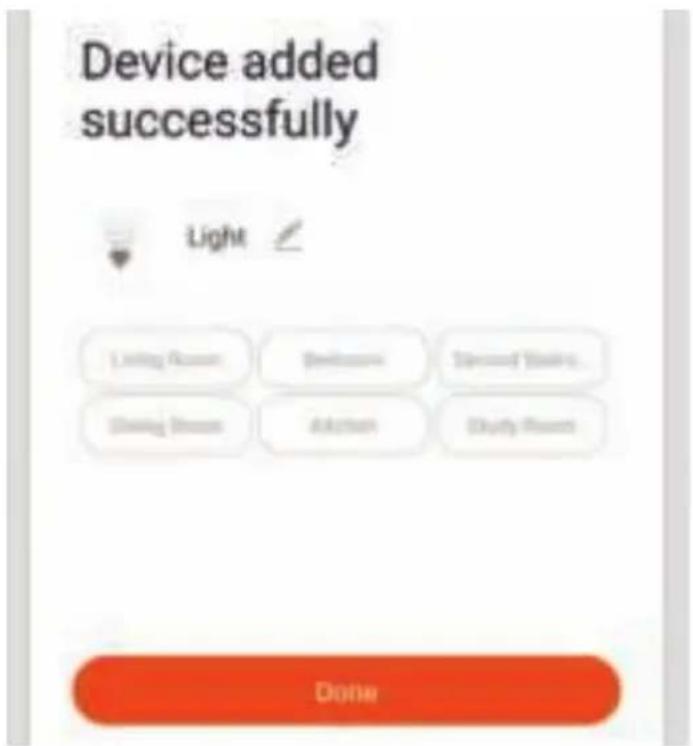
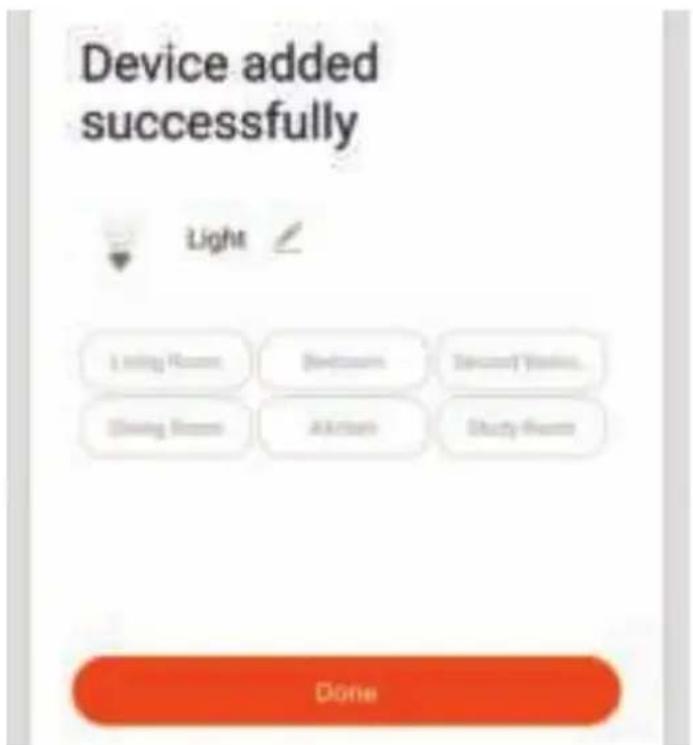
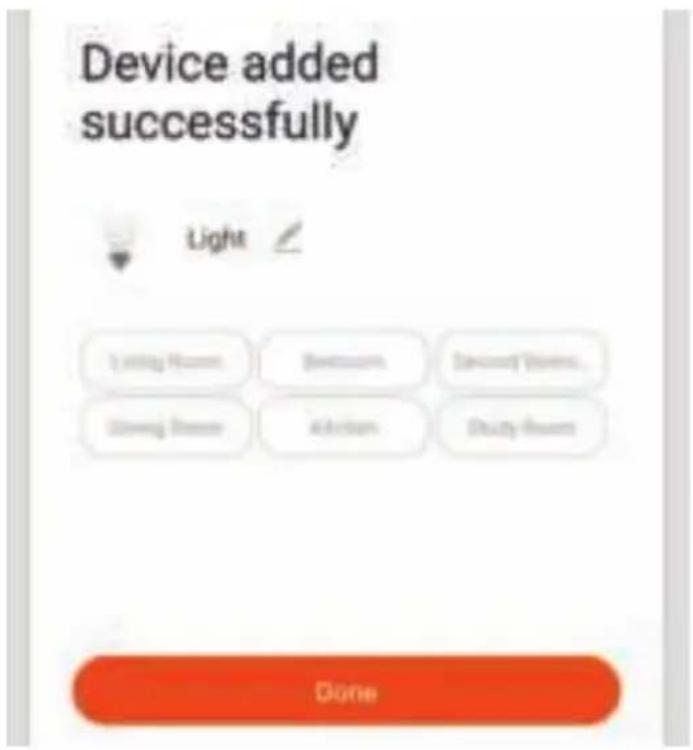
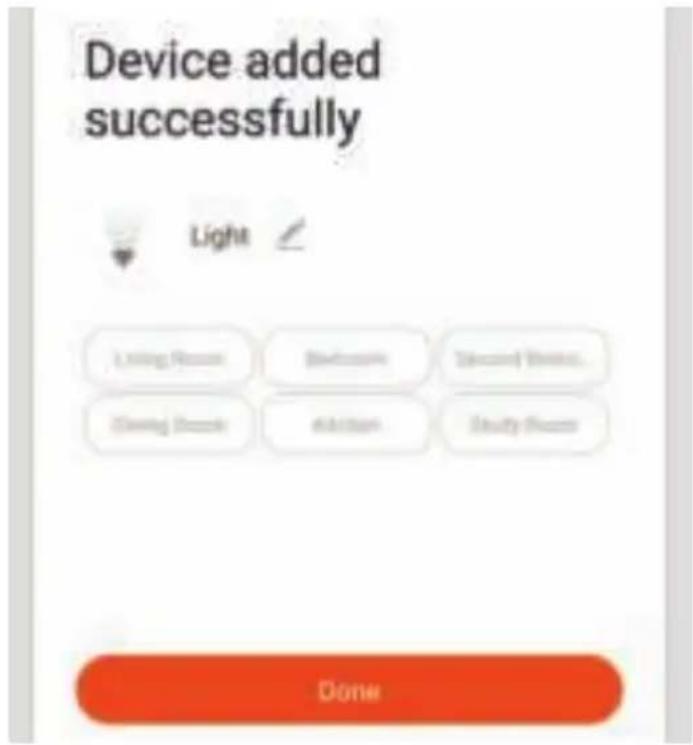
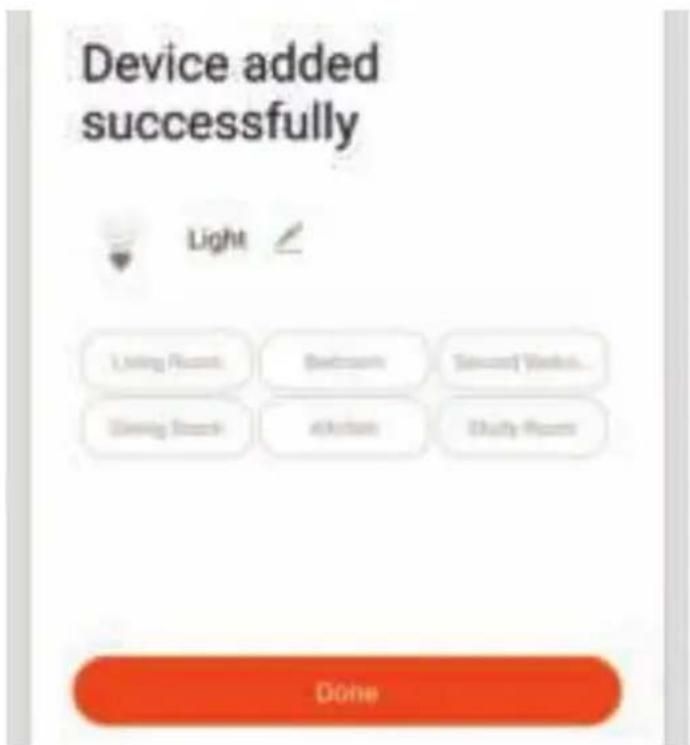
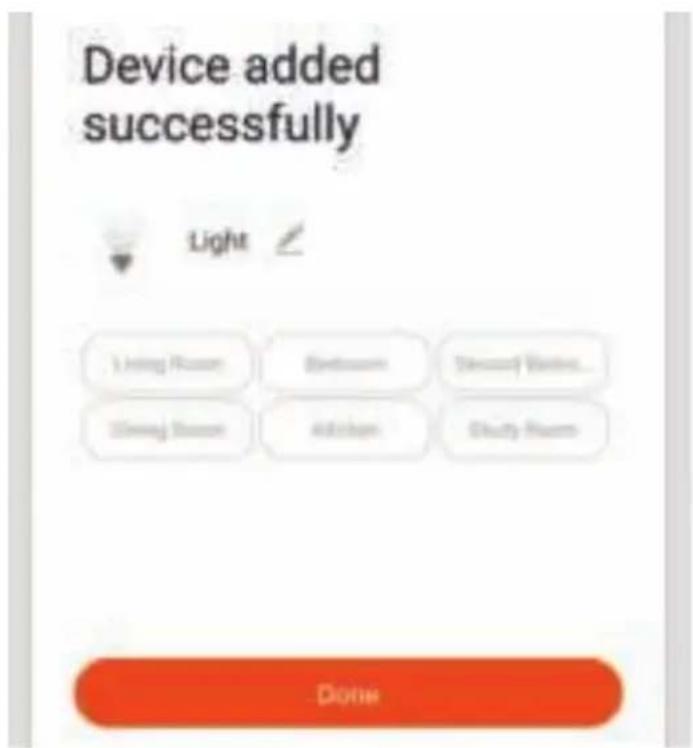
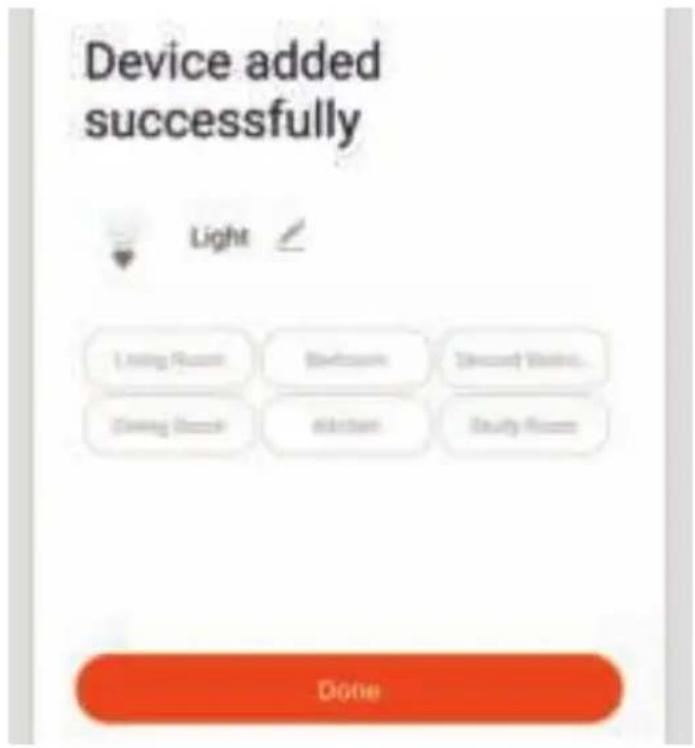
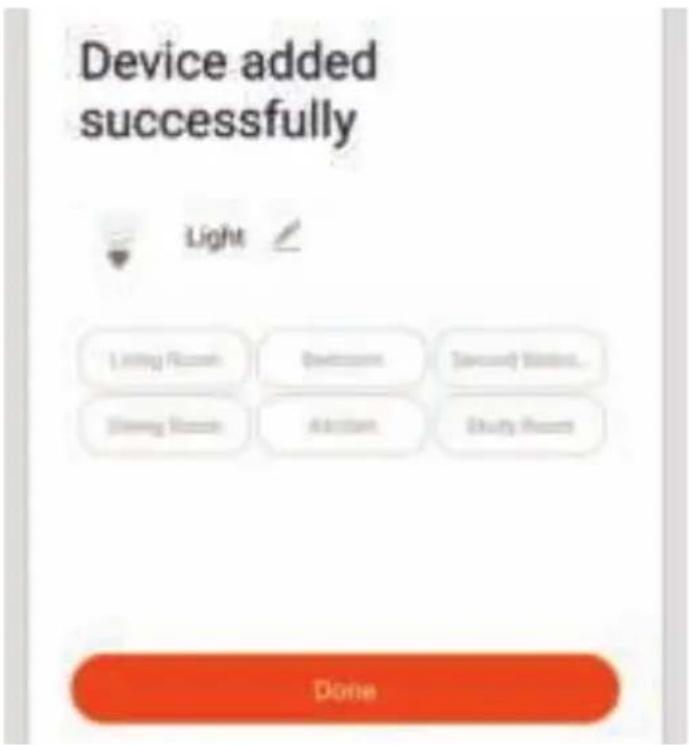
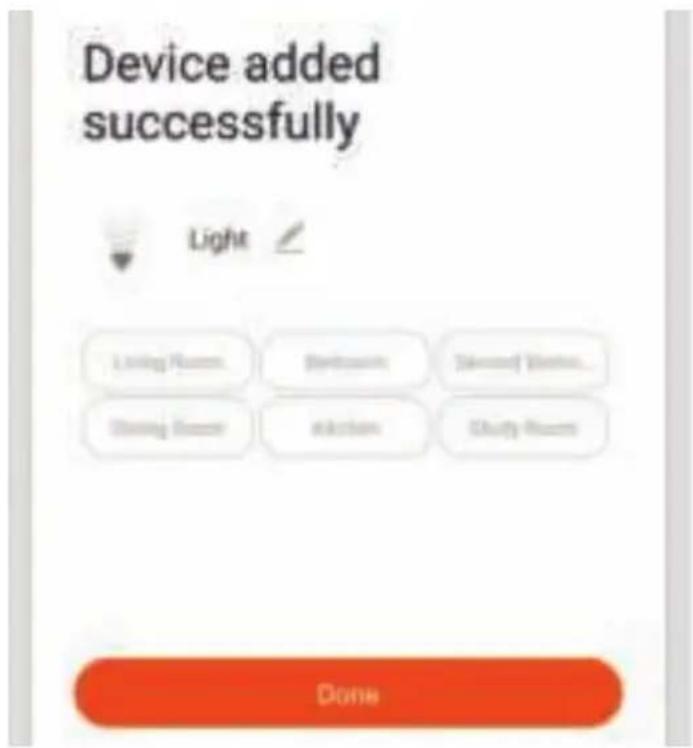
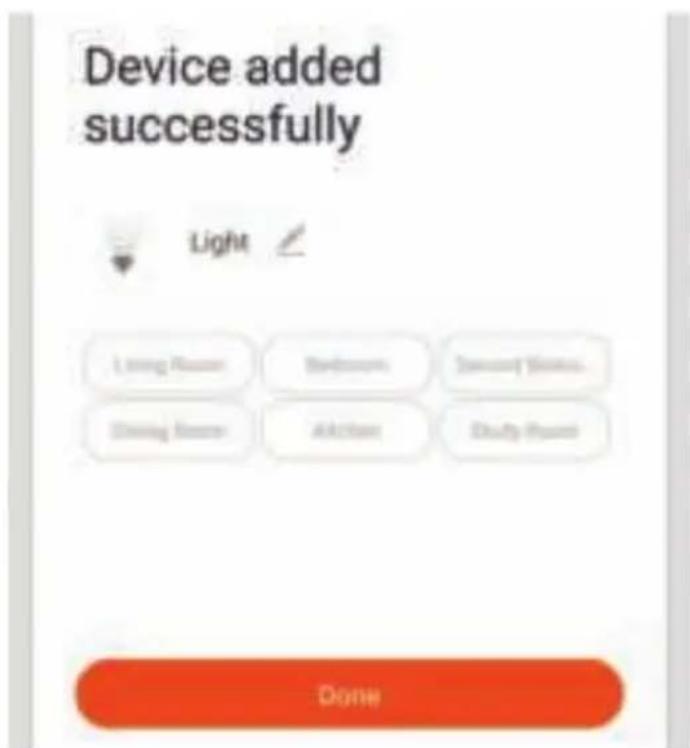
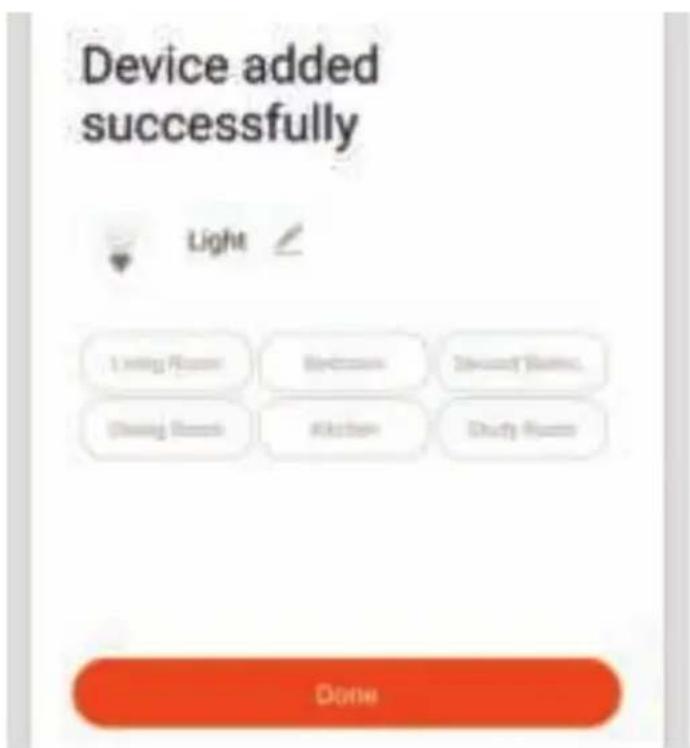
Step11: Once your device is successfully added, rename the device to your preference.
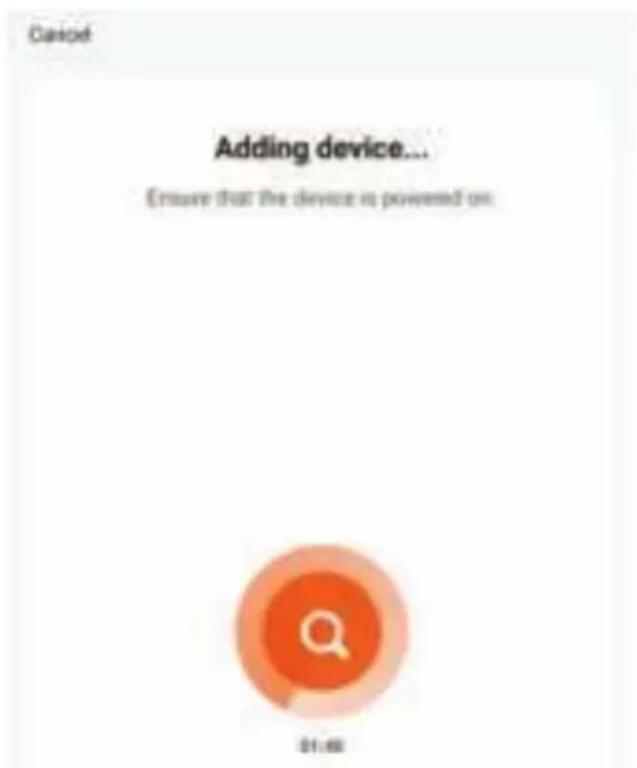
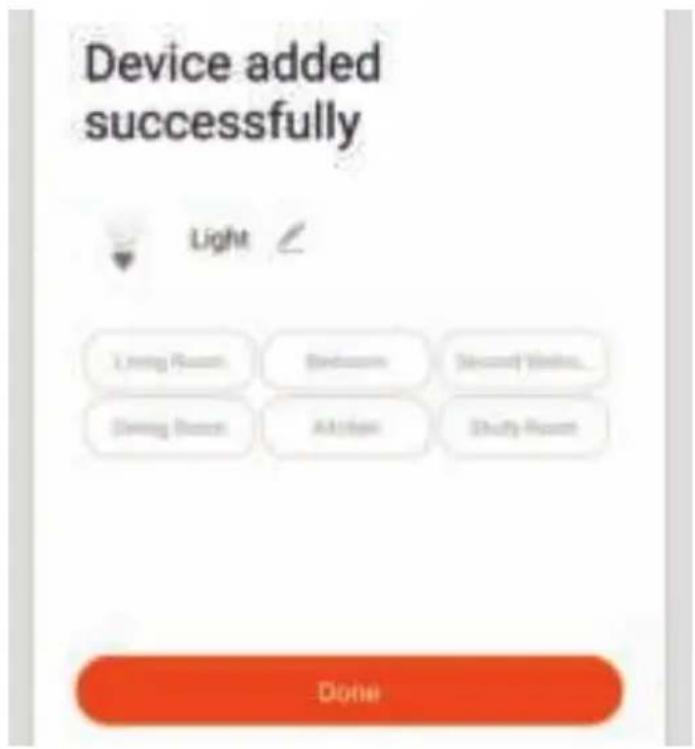
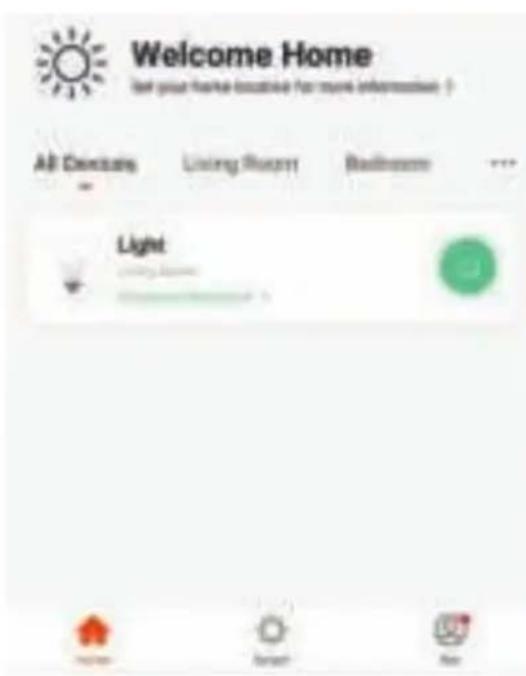
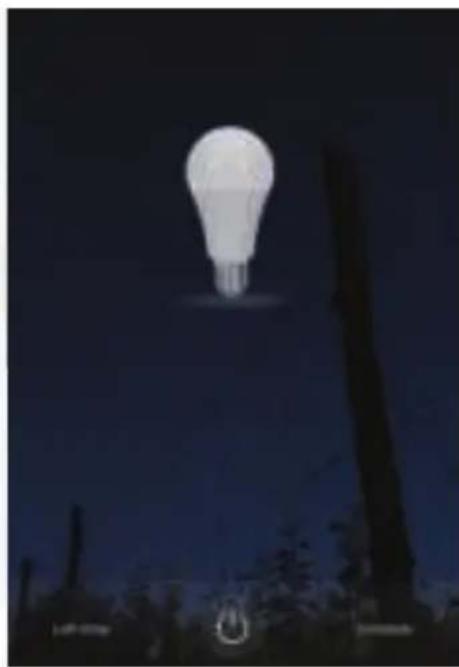
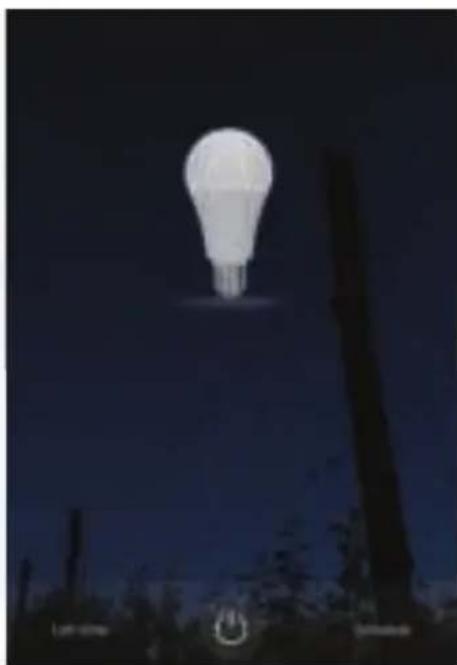
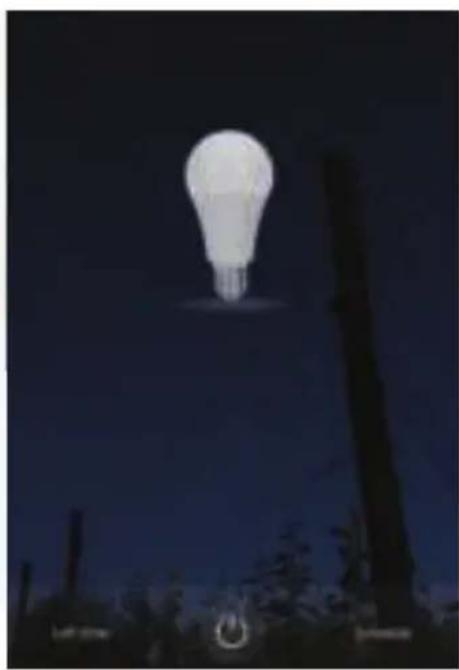
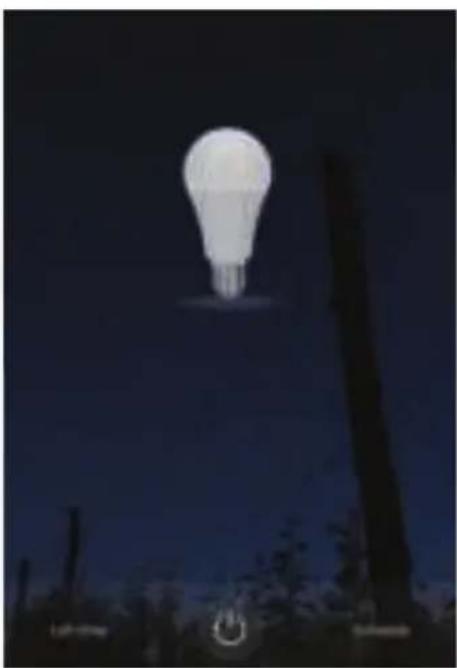
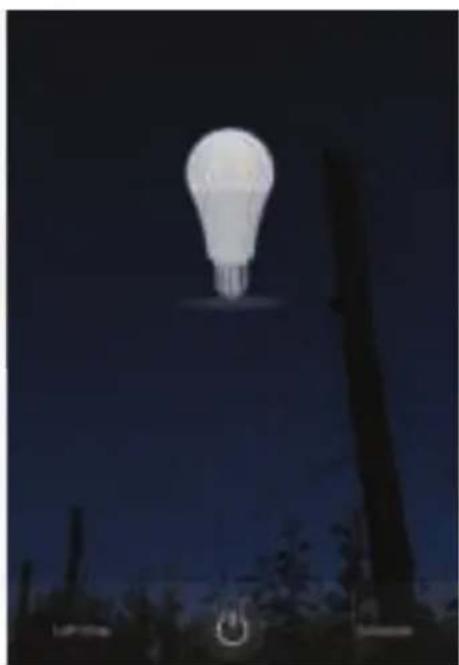
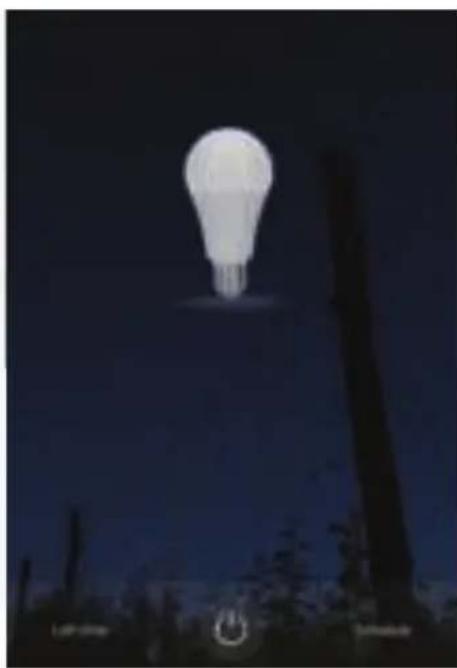
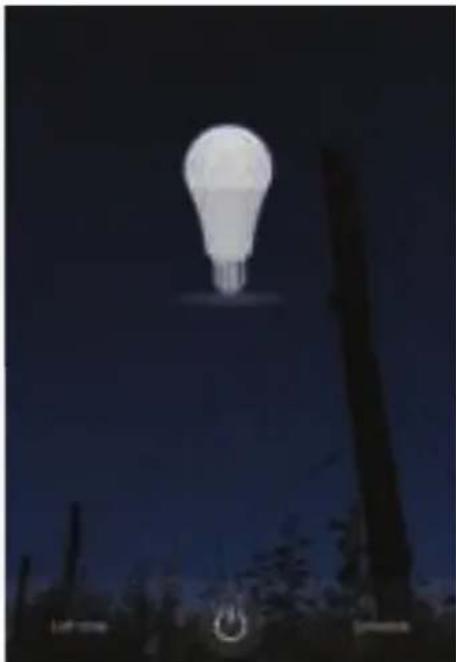
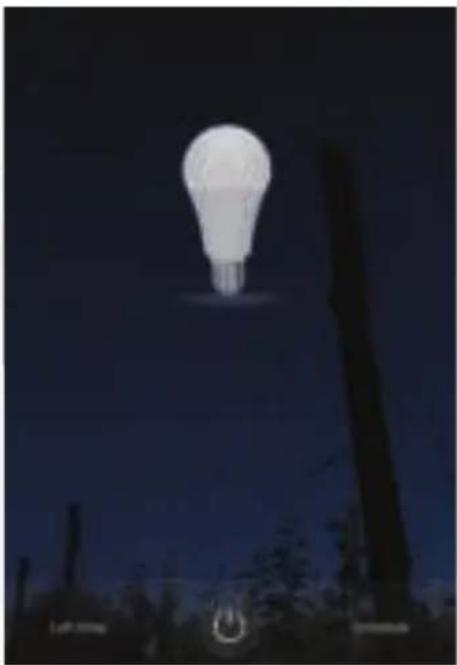
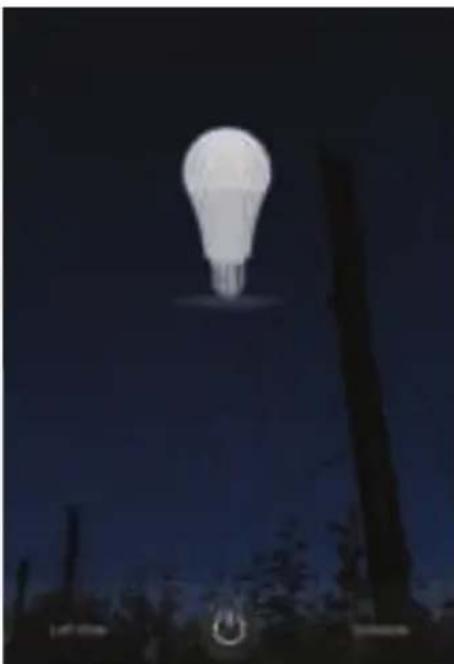
Step12: After successfully pairing the lamp with the app, you can start controlling multiple features of the lamp through your mobile—on/off switch, changing the colour temperature, timing & schedules, dimming options, and more.
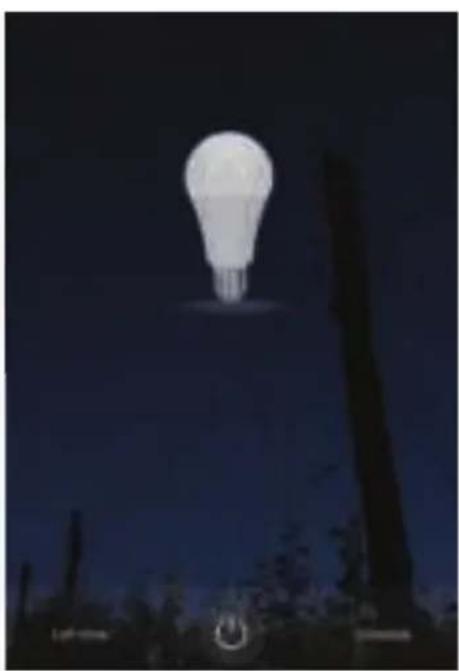
natural_image
Night sky with a glowing light bulb above silhouetted trees (no text or symbols visible)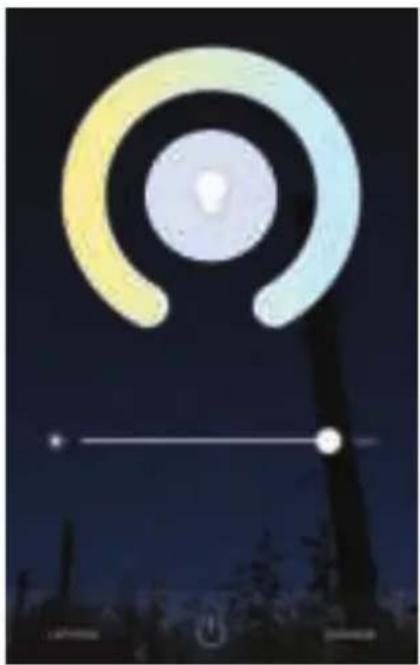
natural_image
Night sky with concentric rings and a horizontal line, no text or symbols visibleALEXA SETTINGS
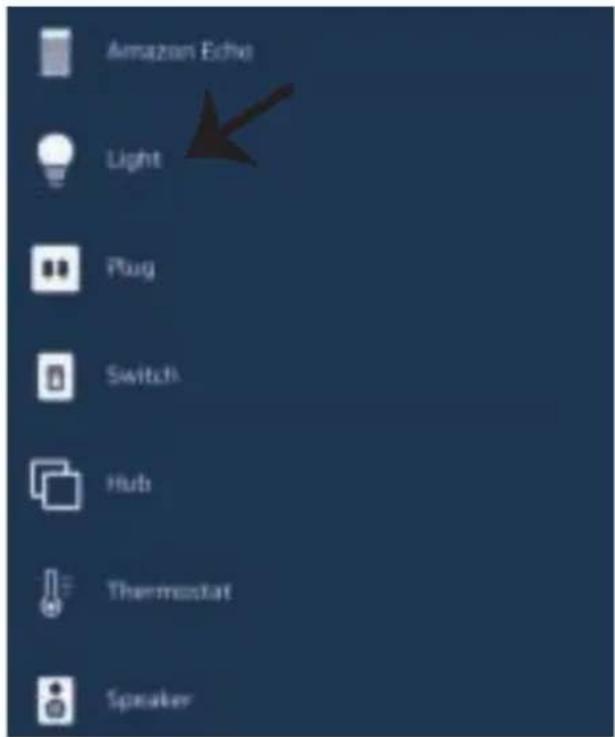
Step1: Install the Amazon Alexa app via the App Store(iOS) or the Play Store (Android) and register. If you already have an existing account with Amazon Alexa, please proceed to logging in.
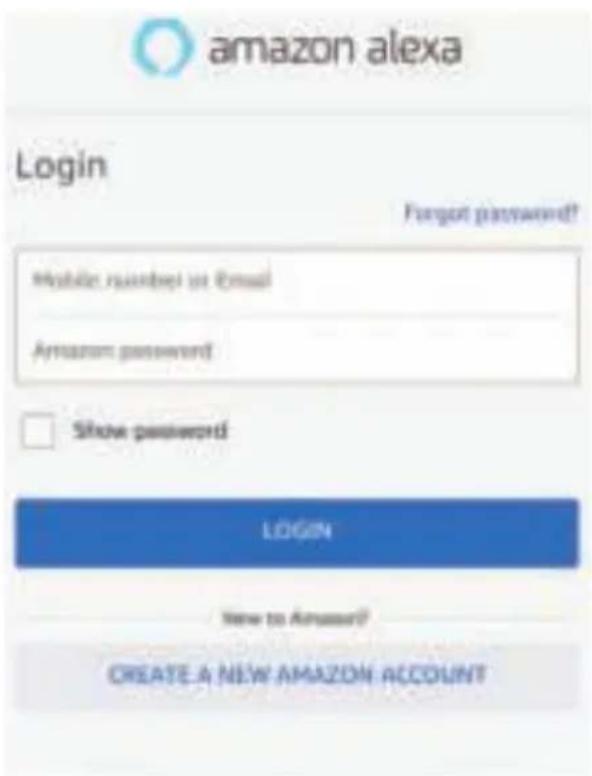
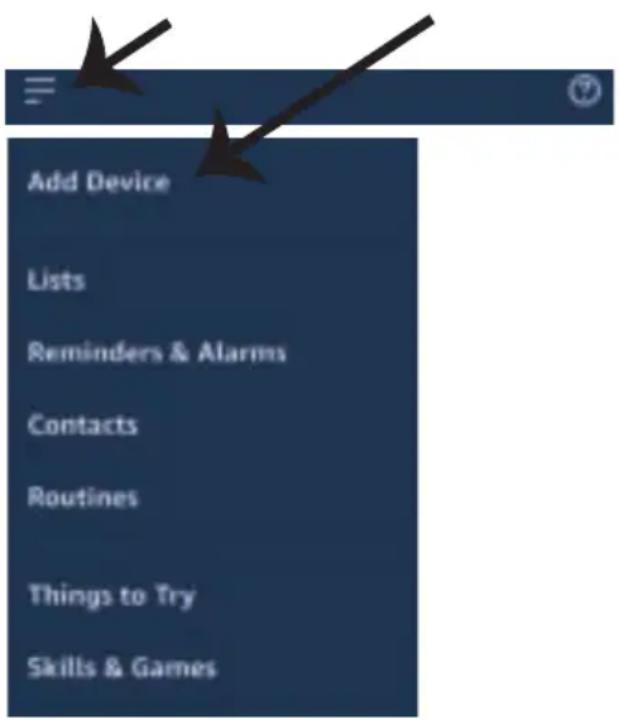
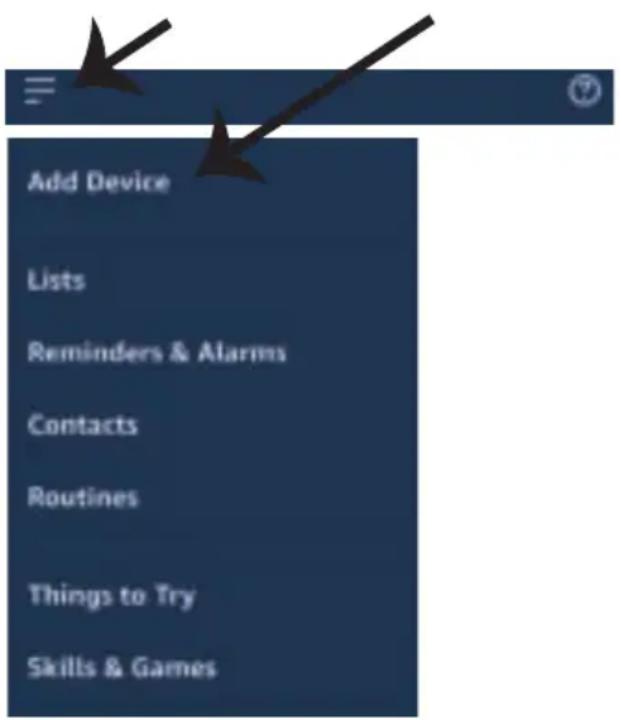
Step3: Tap on = settings and tap on
"skills and games" as shown below.
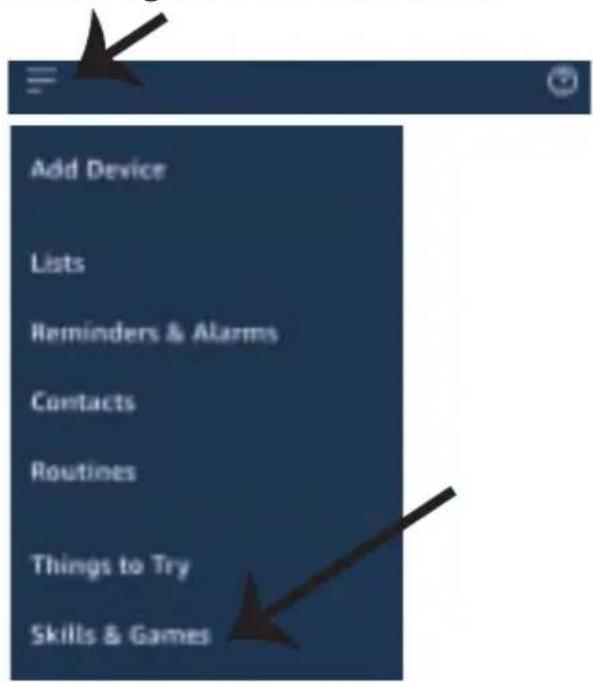
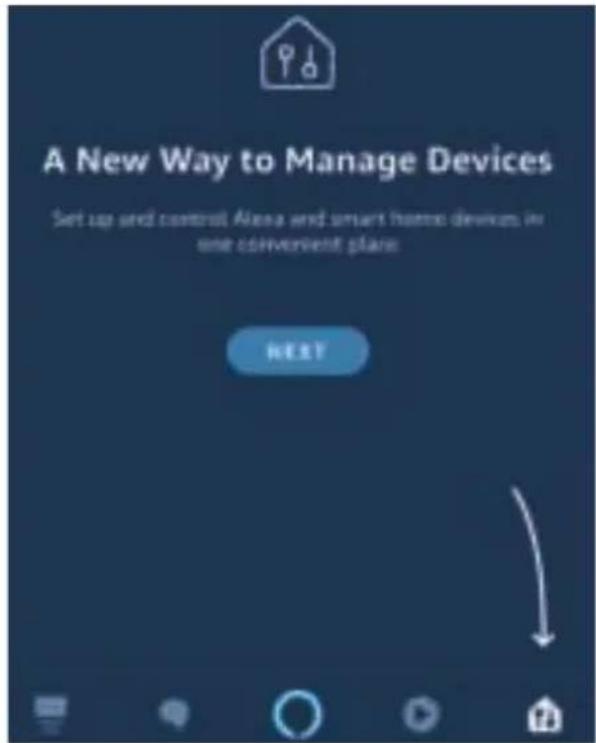
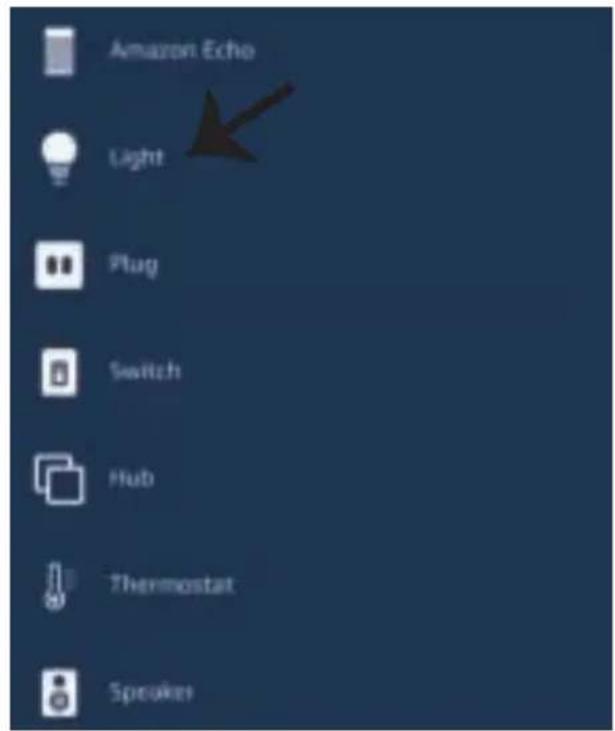
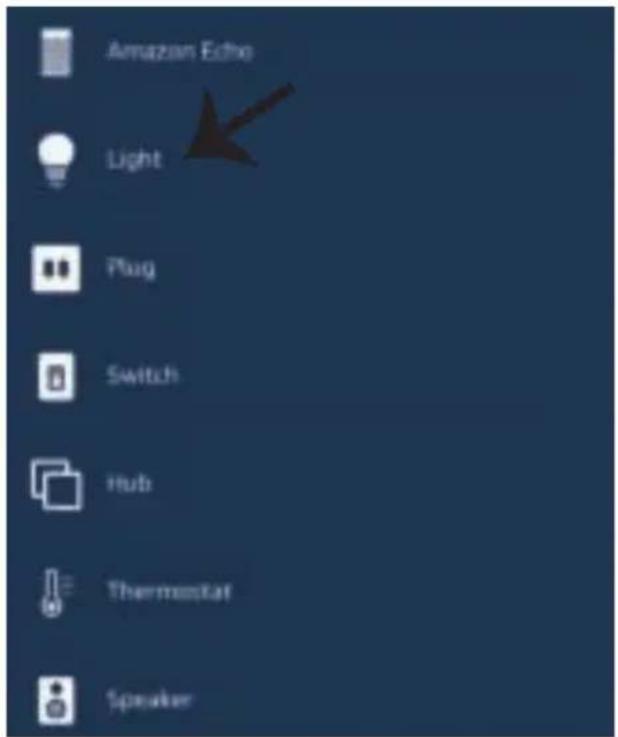
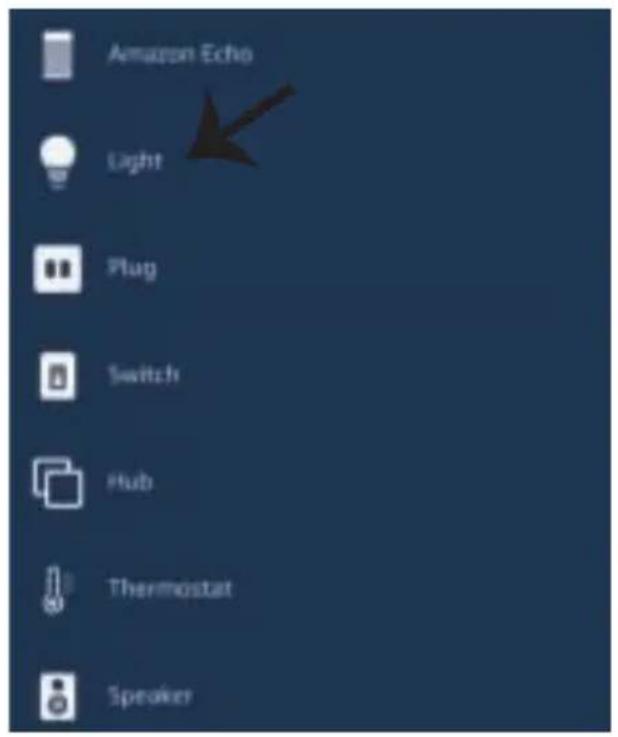
Step2: Once you are on the Amazon Alexa home page, tap on the lower right icon — where the arrow is pointed— to add a new device and skill.
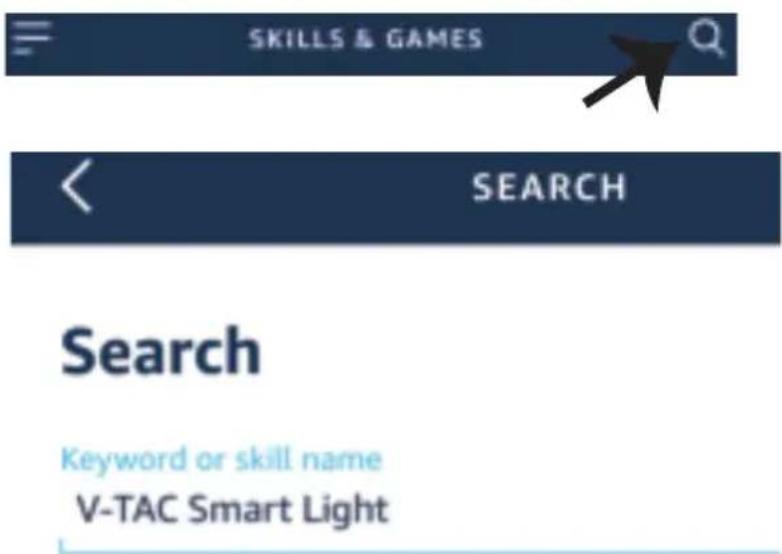
Step4: Search for 'V-TAC Smart Light' on the "Skills & Games" page as shown below.
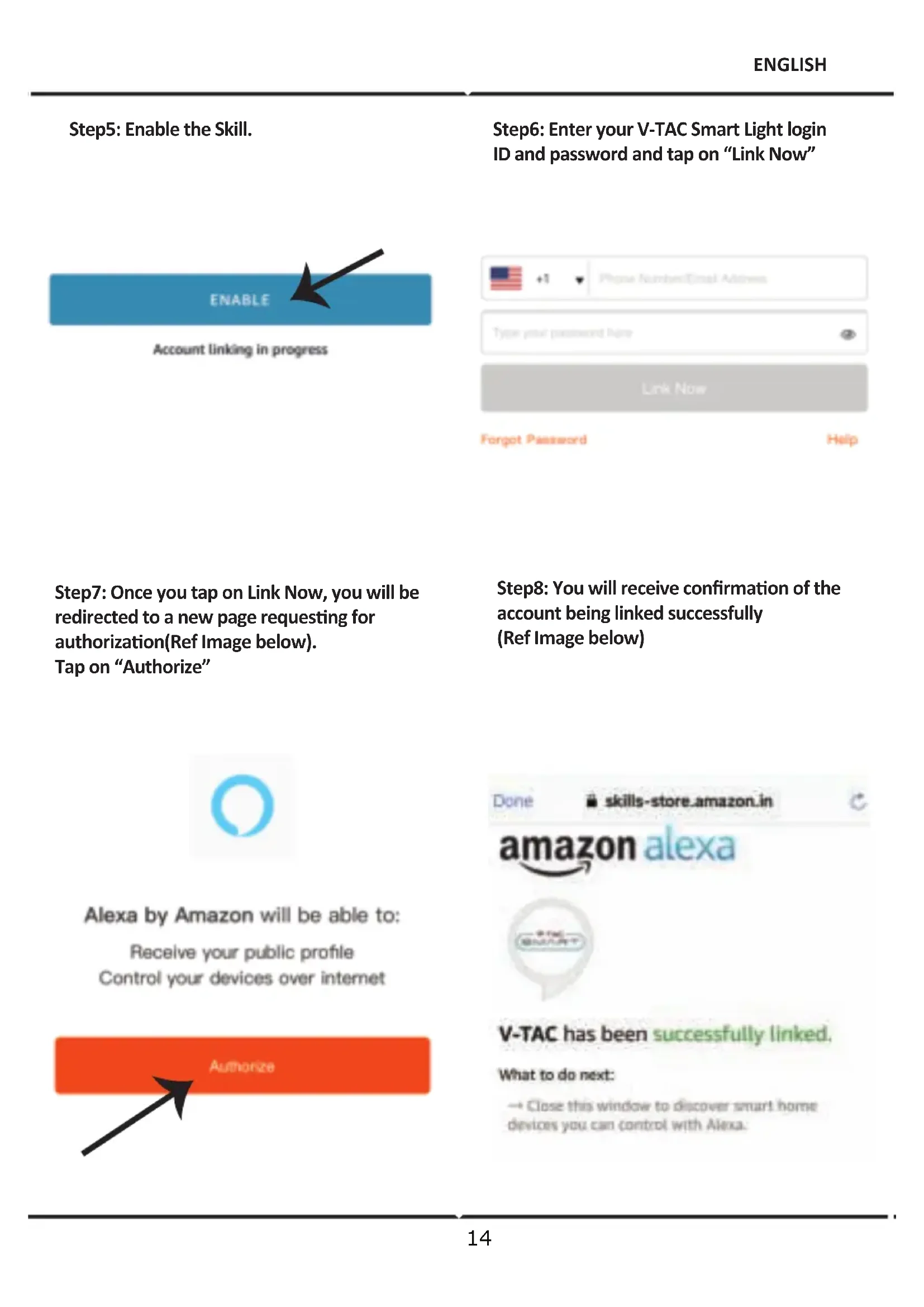
Step5: Enable the Skill.
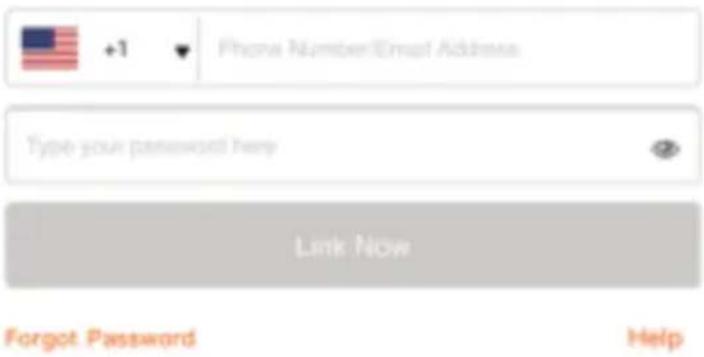
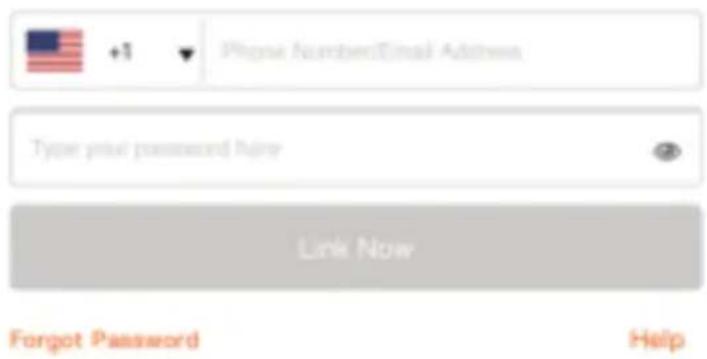
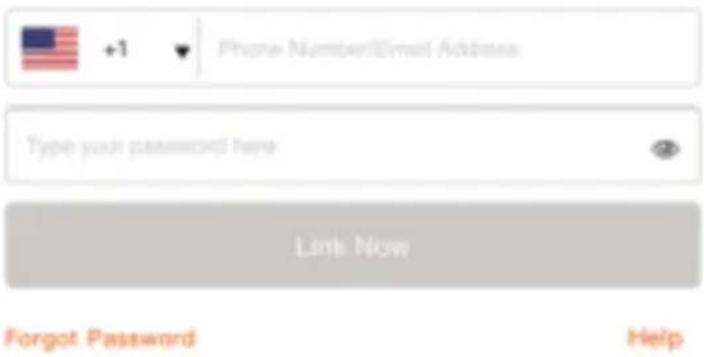
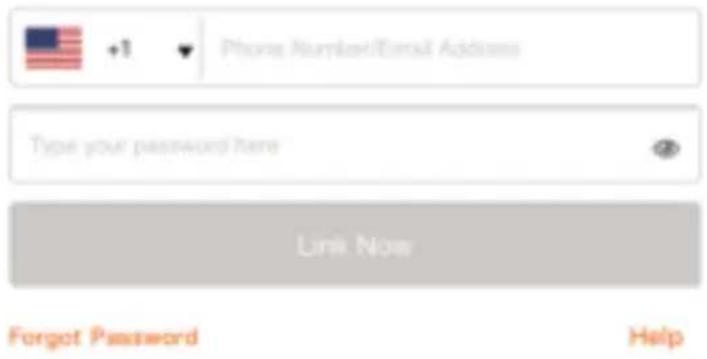
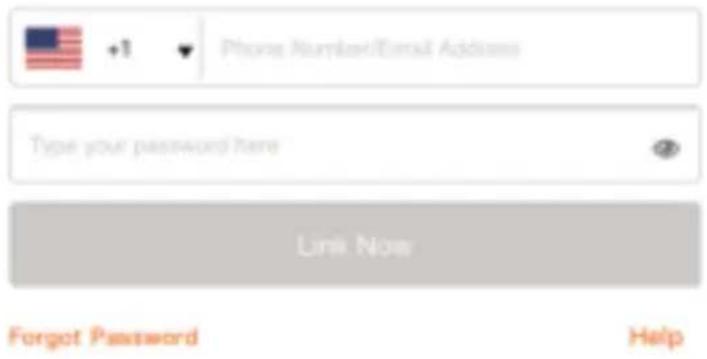
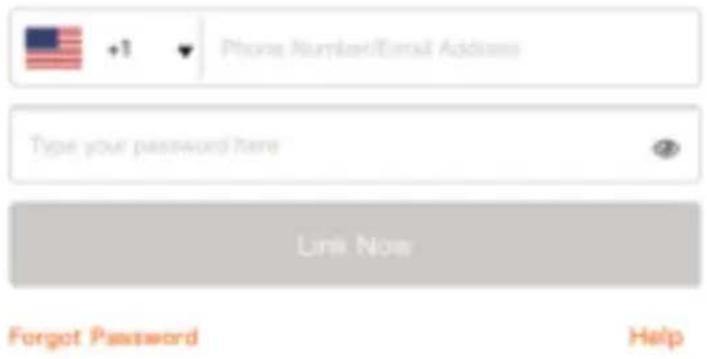
Step6: Enter your V-TAC Smart Light login ID and password and tap on "Link Now"
Step7: Once you tap on Link Now, you will be redirected to a new page requesting for authorization(Ref Image below). Tap on "Authorize"
Step8: You will receive confirmation of the account being linked successfully (Ref Image below)

Alexa by Amazon will be able to:
Receive your public profile Control your devices over internet


V-TAC has been successfully linked.
What to do next:
→ Close this window to discover smart home devices you can control with Alexa.
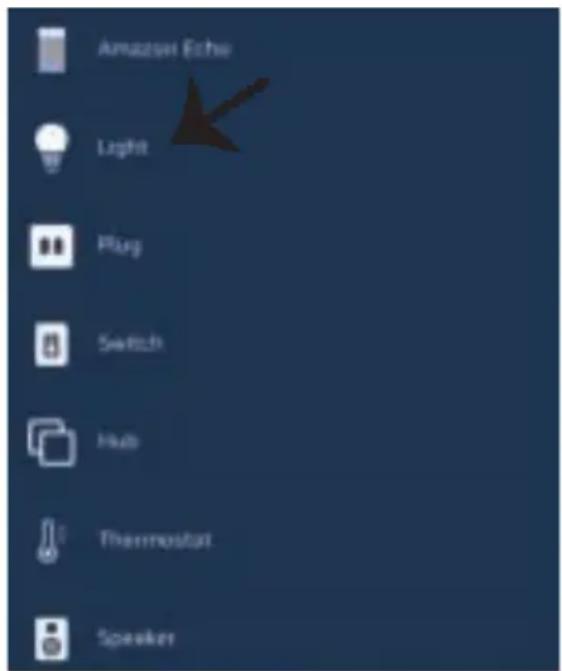
Step8: Discover your smart device on Alexa. Once you have enabled the skill
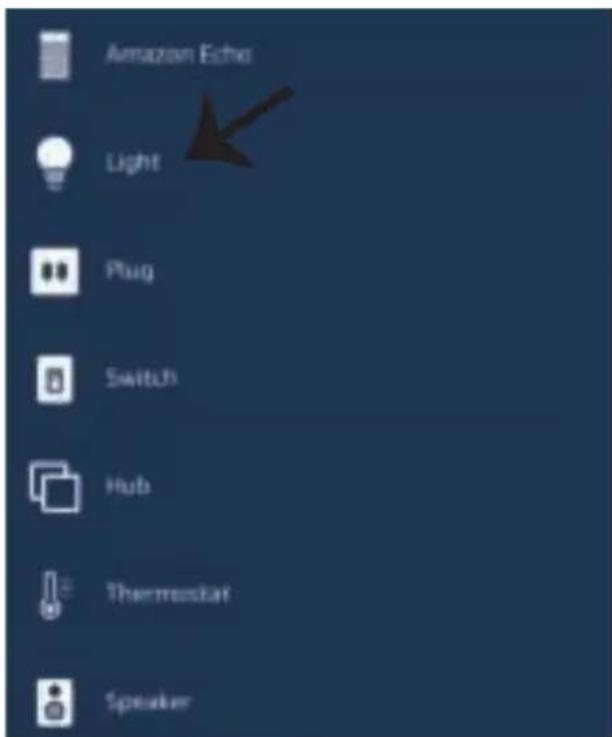
A) You can use voice command "Alexa discover devices" to the Alexa device which you have.
B) To add device manually on home page tap on which you are adding and tap on discover device.

and tap on Add device, select the device
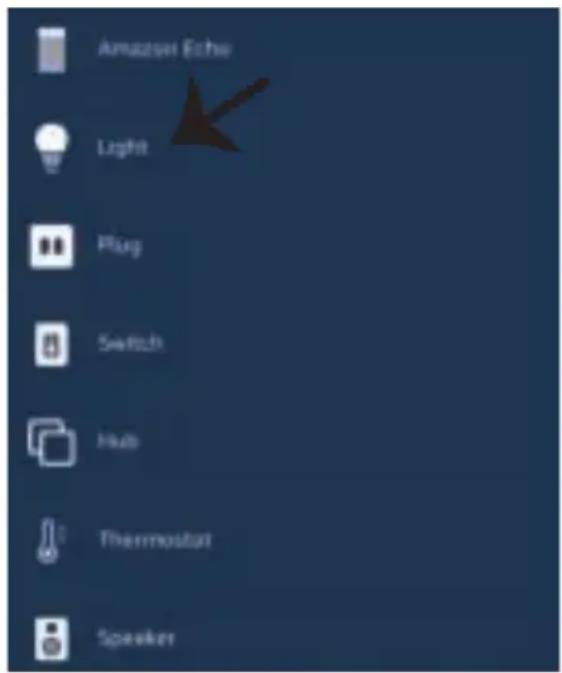
Note: Discovering the device must be done every time the device's name is changed on the app.
ALEXA Commands
Now, you can control your smart device using voice commands on Alexa. Below are a few commands you can use:
➢! Alexa, turn on/off bedroom light.
➢! Alexa, set bedroom light to 50 percent.
➢! Alexa, set bedroom light to green.
➢! Alexa, set bedroom light to warm white.
THINGS TO REMEMBER BEFORE STARTING INSTALLATION:
- V-TAC Smart Light App & Amazon Alexa App
- Make sure you have Amazon Alexa Device(including Echo, Echo Tap, or Echo Dot)
- Smart Device - Lamp
- Stable Wifi network
GOOGLE HOME SETTINGS
Step1:
a&b) Install the Google Home app via the App Store (iOS) or the Play Store (Android) and register. If you already have an existing account with Google Home, please proceed to logging in.
c) Create a New Home/Choose from the existing home if any.
d) Power ON the Google Home device and connect it to the App.(Then Proceed to step 2)
a. Welcome home
Your content and devices all in one place

natural_image
Abstract geometric shapes including a triangle, circle, and rectangle (no text or symbols)-GET STARTED
b. Choose account
This account will be used to personalize your experience
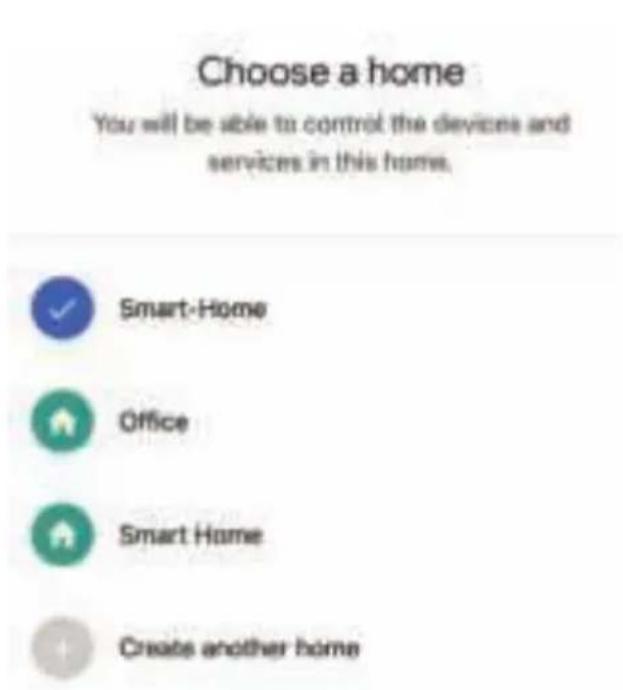
c. Choose a home
You will be able to control the devices and services in this home.

Create another home
d. Plug in your device
Make sure your device is nearby and connected to power, then try again

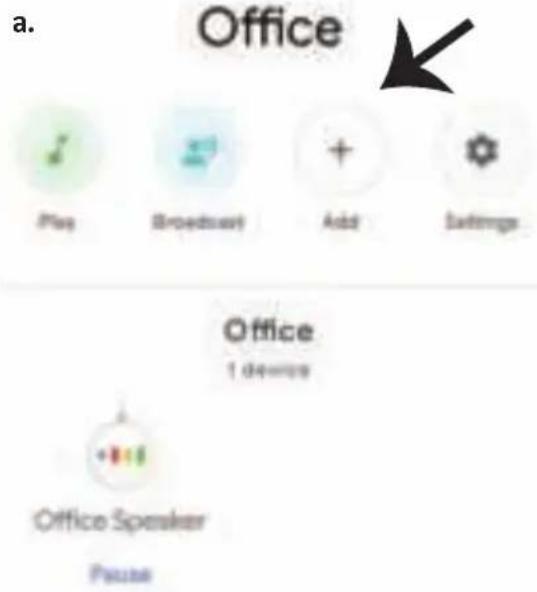
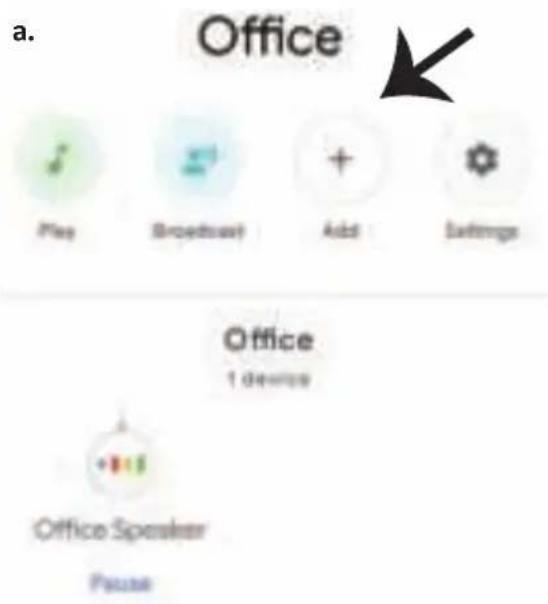
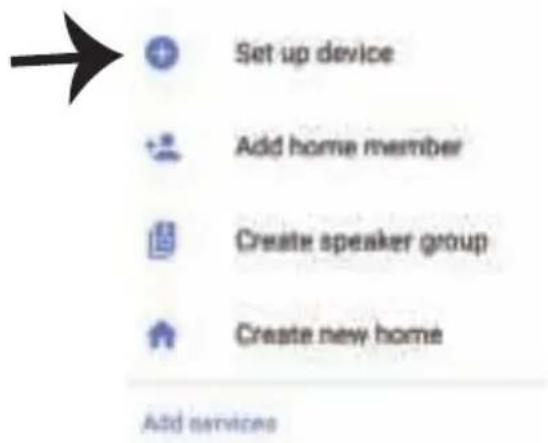
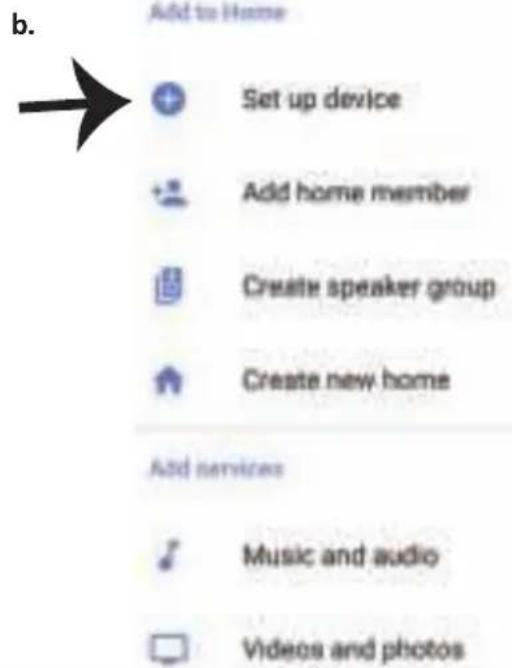
Step2: Once you are on the Google home page, tap on the Add "+" icon—to add a new device and skill. And then tap on Set up device as shown in below image.
b.

Add to Home

Set up device

Add home member

Create speaker group

Create new home
Add services

Music and audio

Videos and photos
Step3: Make sure the Smart Bulb is paired with V-TAC Smart Light app before starting step 3. Tap on the arrow section as highlighted in the below image.
Step4: Type "V-TAC Smart Light" on the search bar and tap on the icon of "V-TAC Smart Light"
Set up
Set up new devices or add existing devices and services to your home

V-TAC Smart Light

New devices

Set up new devices
Google Home, smart displays and devices labelled 'Made for Google' such as C by GE smart bulbs
Works with Google

Have something already set up?
Link your smart home services such as Philips Hue and TP-Link

Step5: Sign In with your V-TAC Smart Light Login credentials to Link the Smart Light device
Step6: Tap on Authorize in order to proceed to linking the device.
Google will be able to:
Receive your public profile Control your devices over internet

Step7
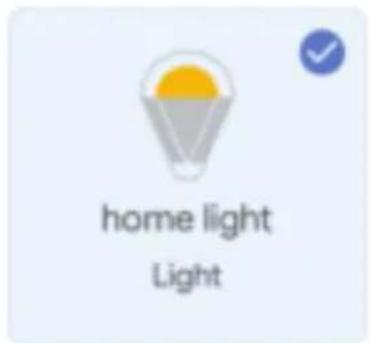
a. Account will now be linked, please stay on the page you will be redirected in few seconds to select the device to add to your home.
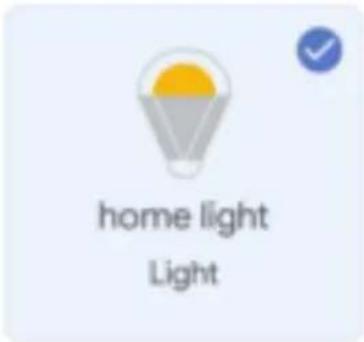
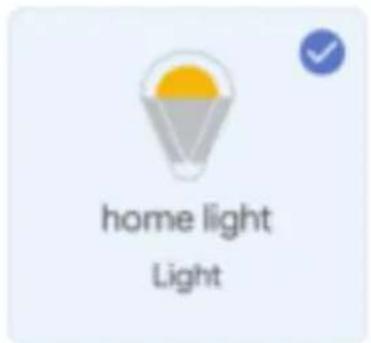
b. Select the device and tap on Next as show in image b.
a.
Done

assistant.google.com

Account is now Linked
b.

Choose device
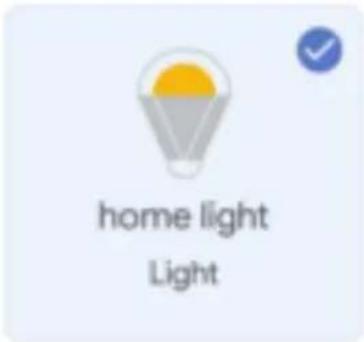
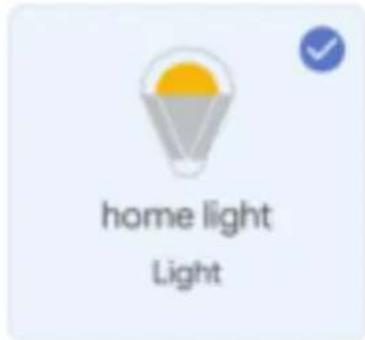
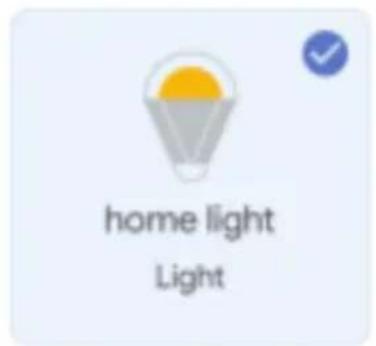
Step8: Select the Home where you would like to add the Smart Light under. (Or) you can create a New home in order to add the Smart Light to it.
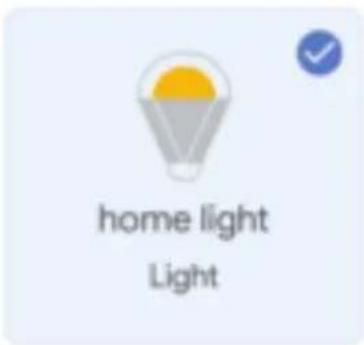
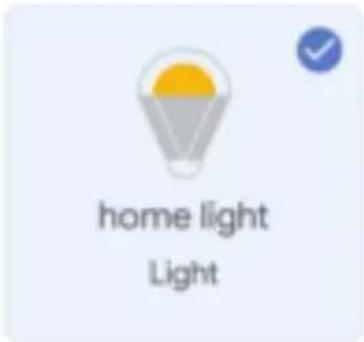
Step9: You have successfully added Smart Light device to your Google home App.
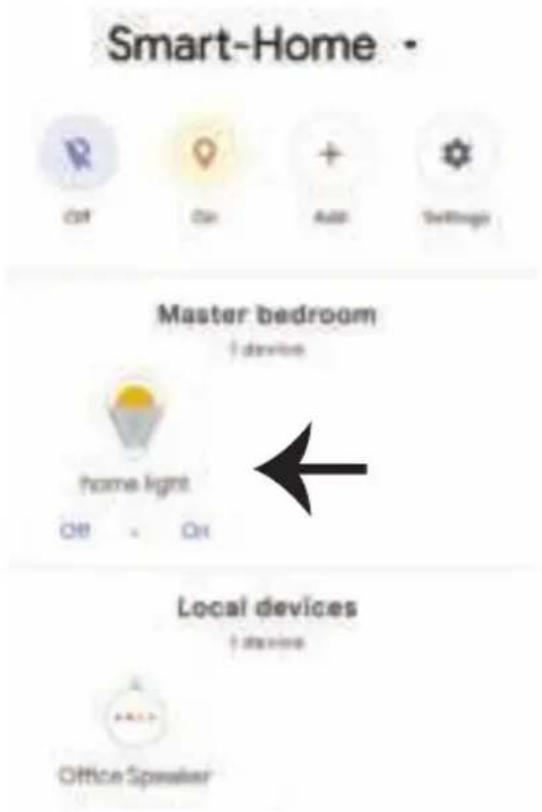
Step10:
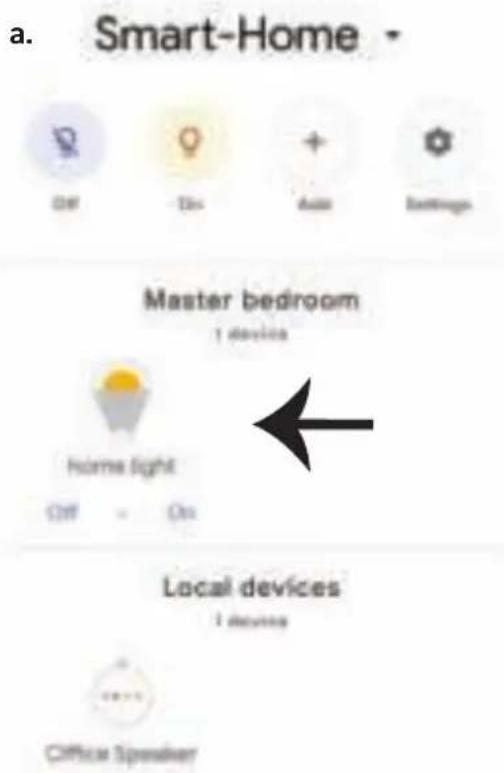
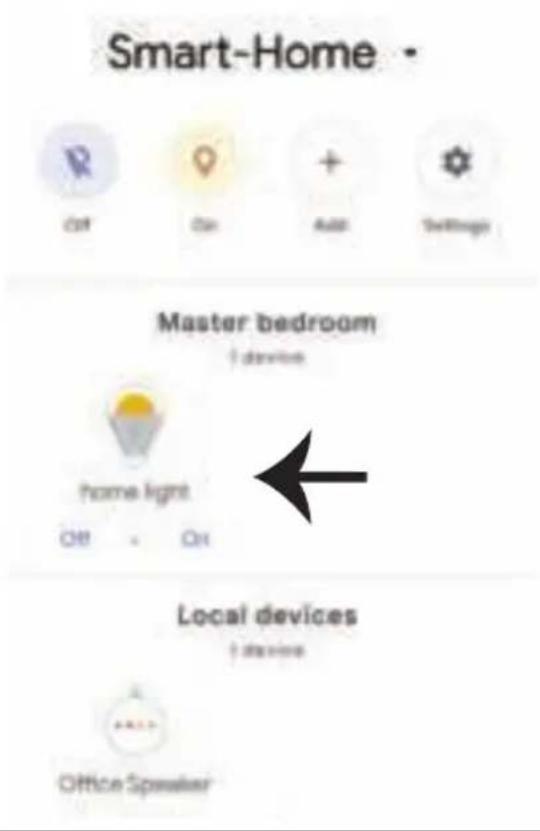
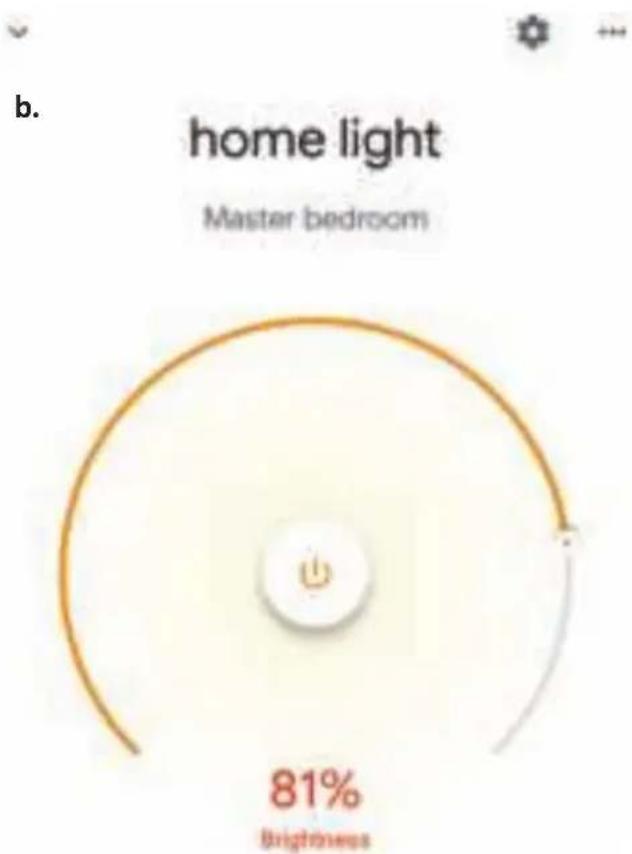
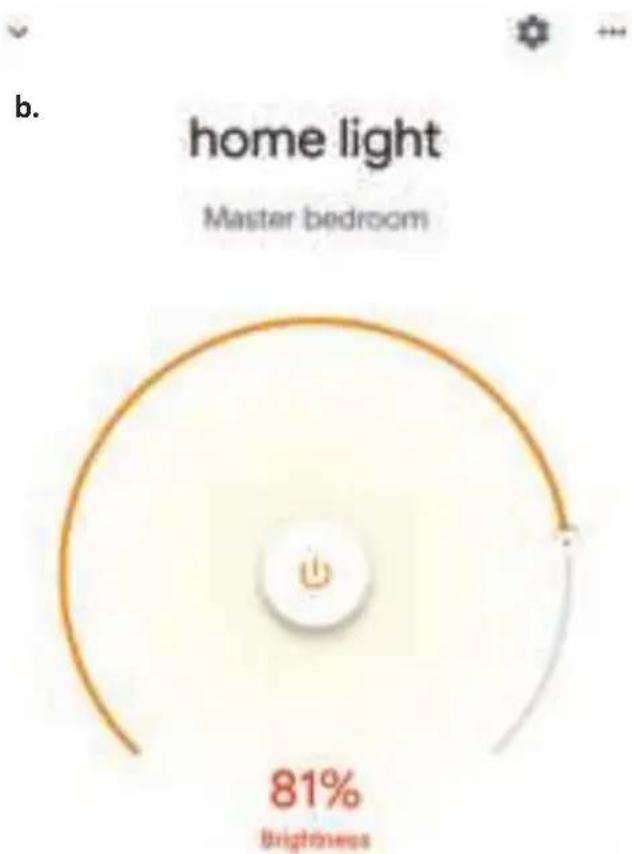
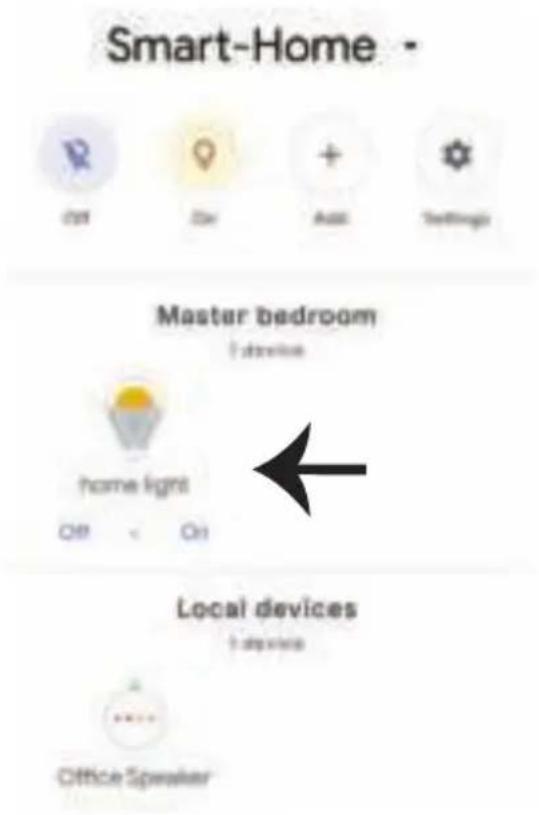
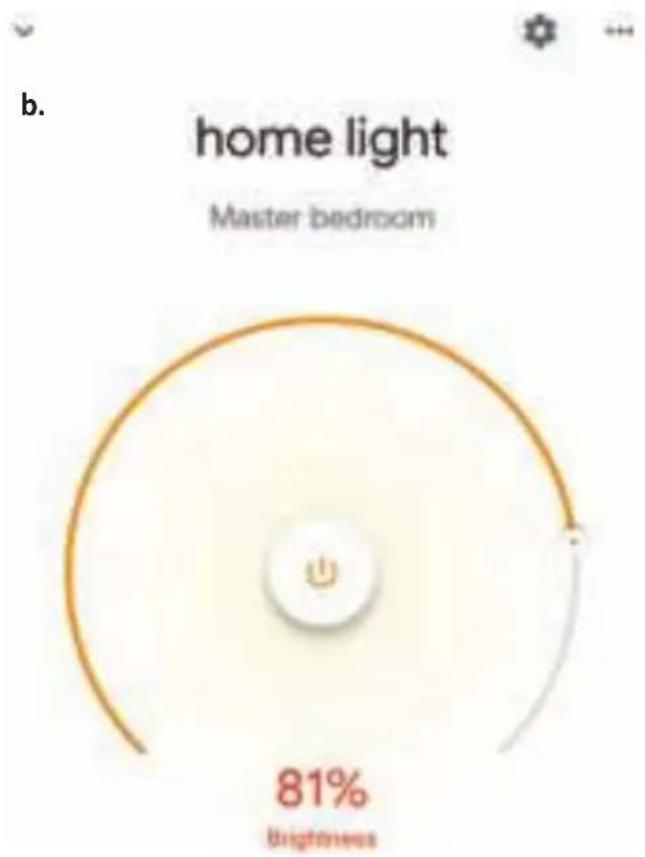
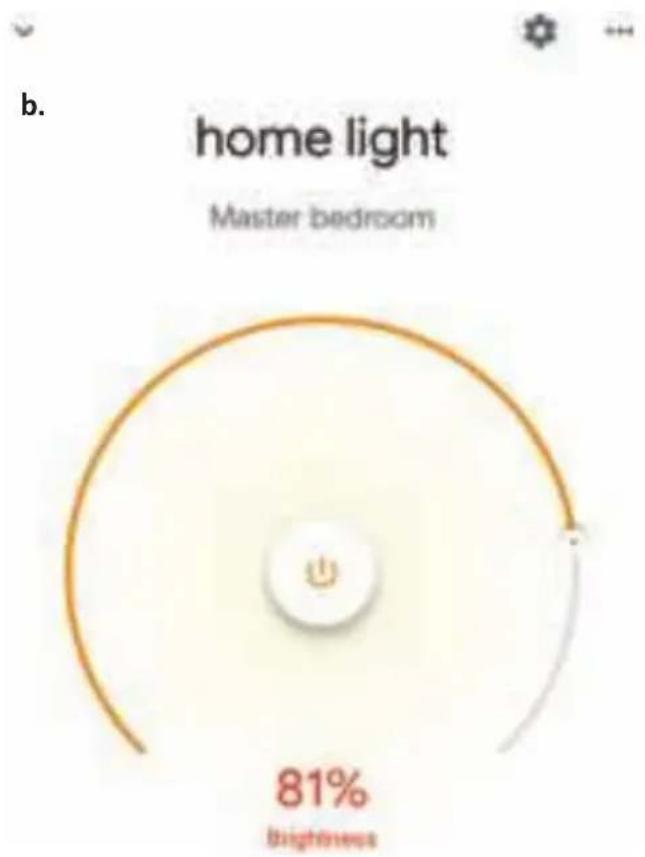
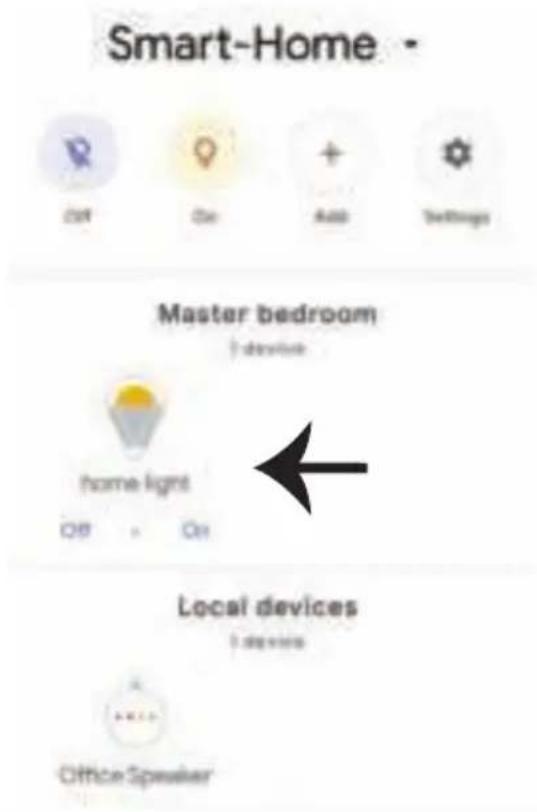
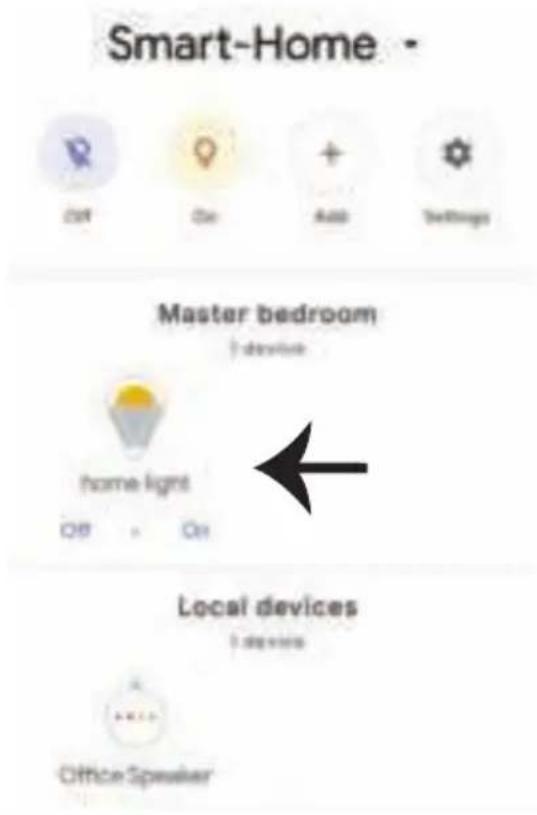
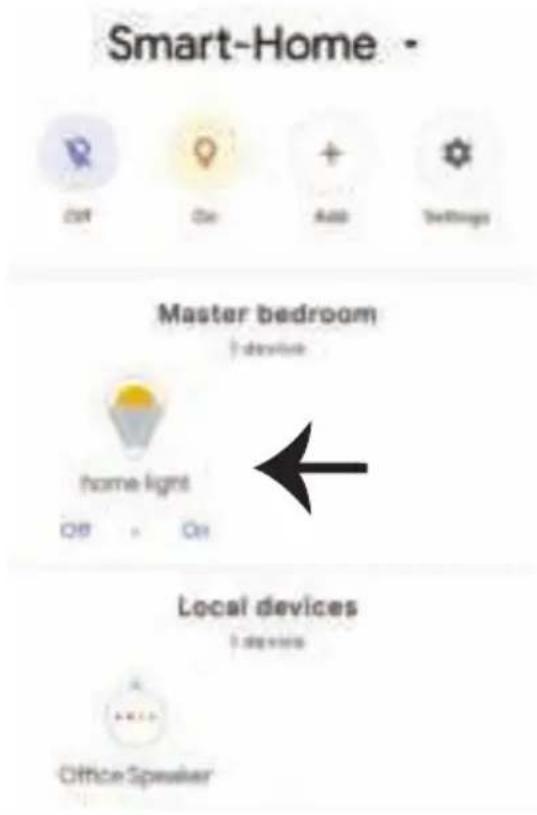
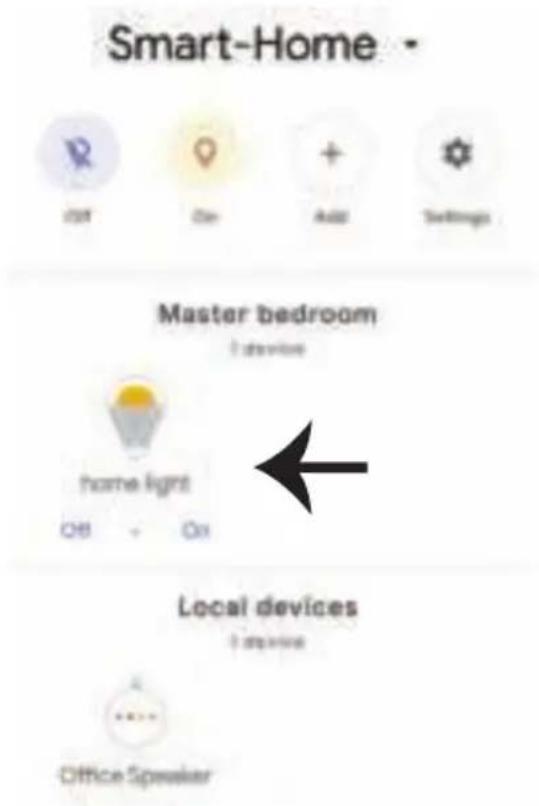
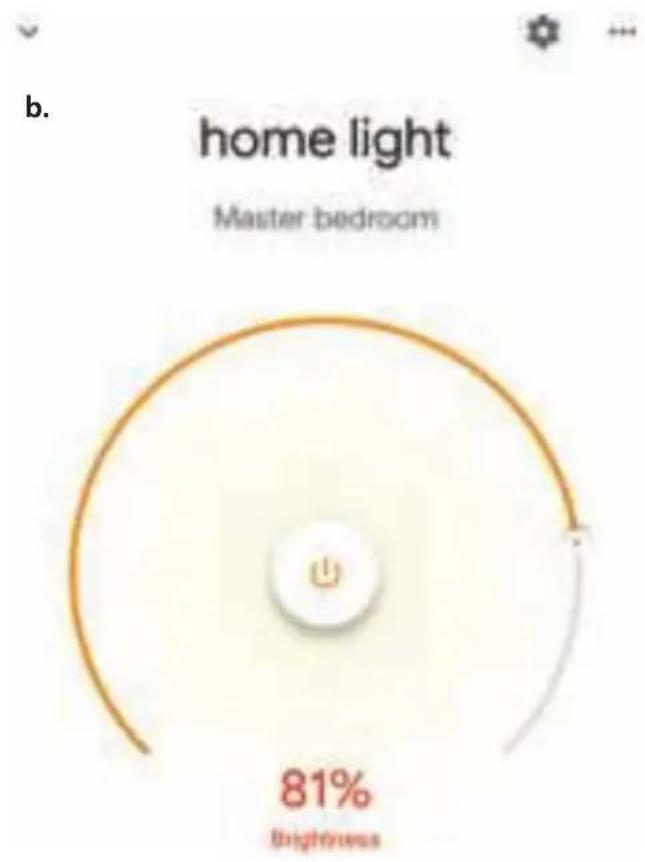
a. You can turn the Lamp On/OFF by taping on On/Off options as shown below. (OR) You can tap on the Smart Lamp.
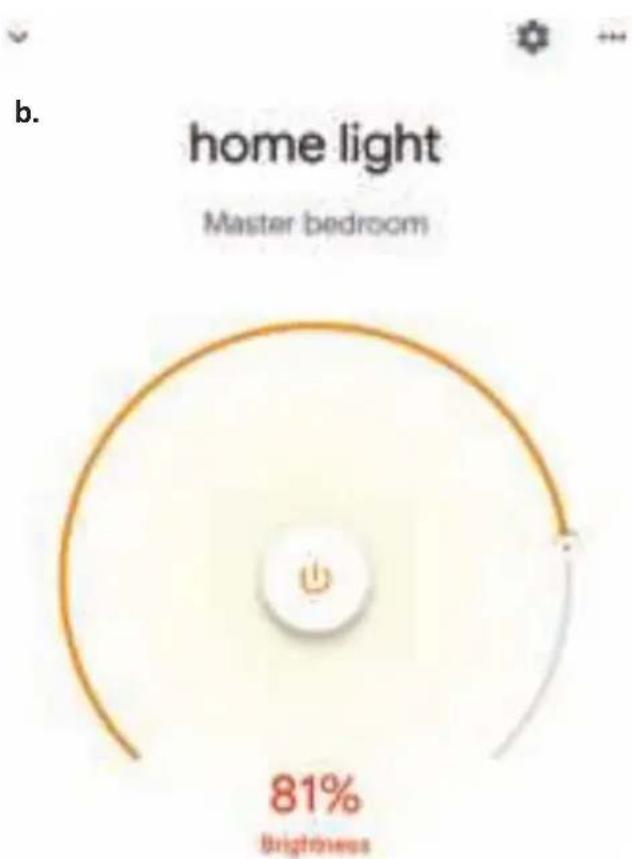
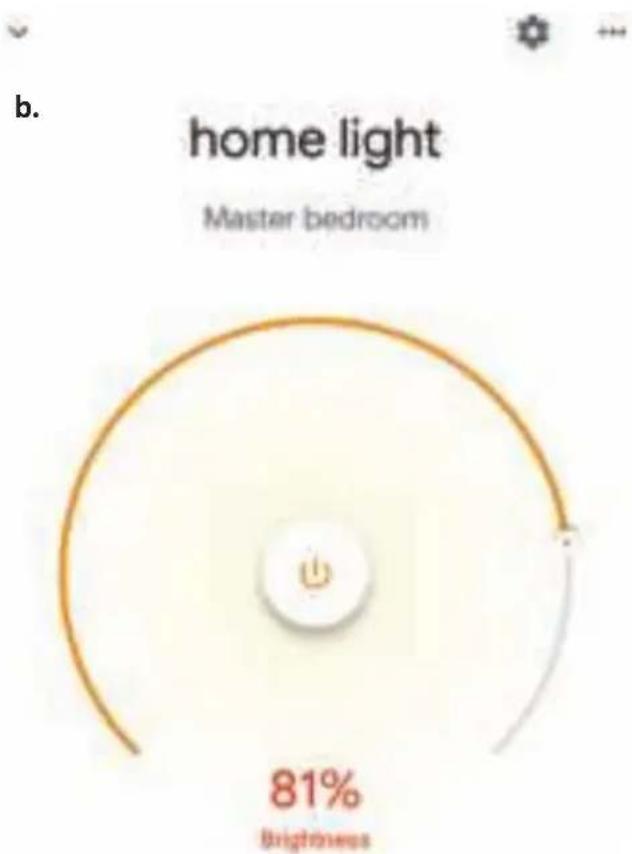
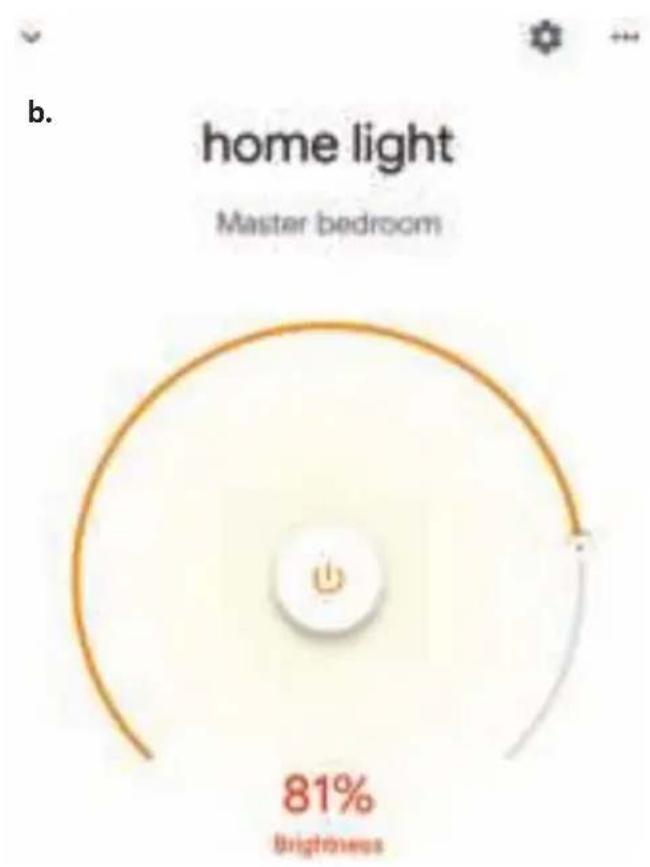
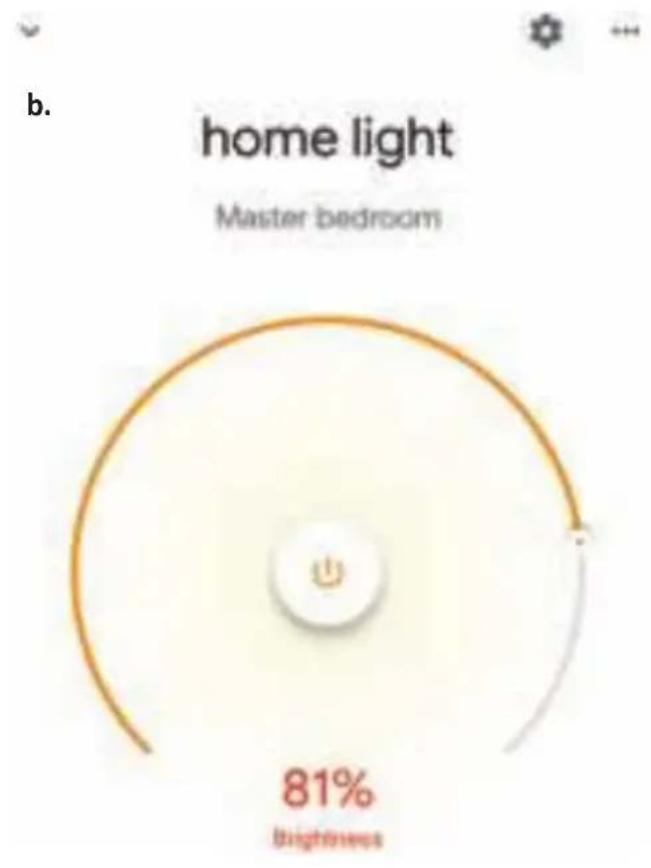
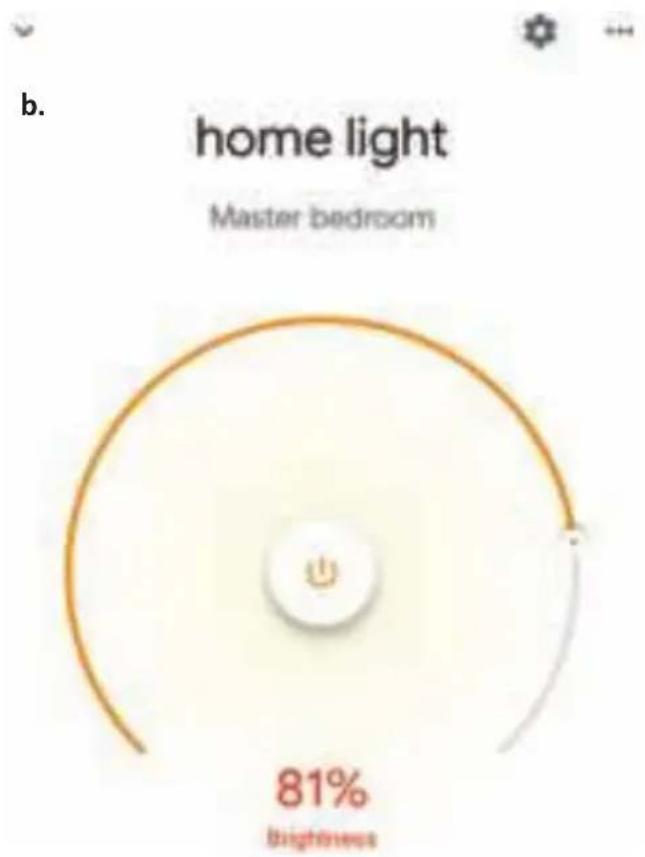
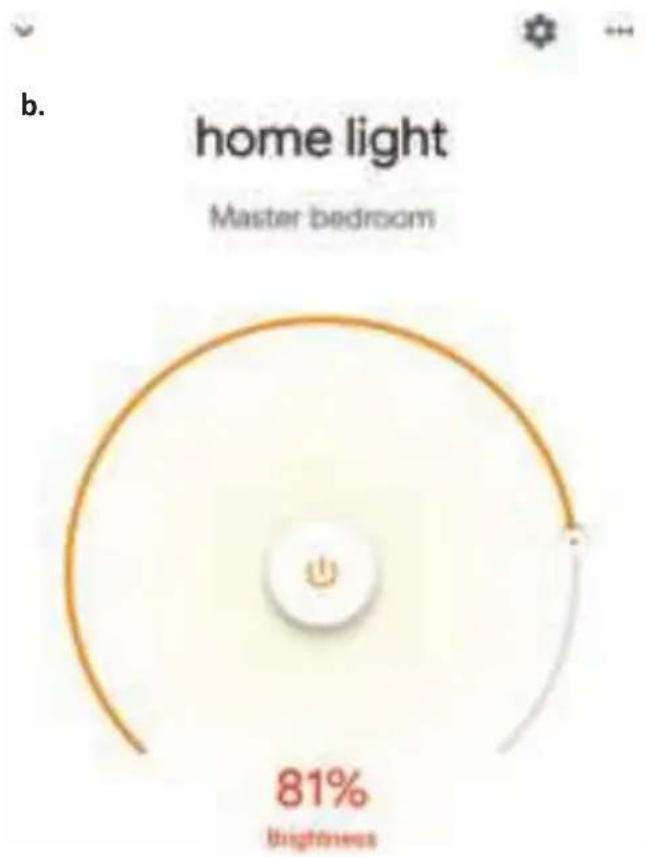
b. You will be redirected to page(as shown in image b) where you can control the lights "Power and Dimmingfunctionality".
Google Commands:
Now, you can control your smart device using voice commands on Google Home. Below are a few commands you can use:
➢! OK Google, turn on/off bedroom light
➢! OK Google, set bedroom light to 50 percent.
➢! OK Google, set bedroom light to green.
➢! OK Google, set bedroom light to warm white.
THINGS TO REMEMBER BEFORE STARTING INSTALLATION:
- V-TAC Smart Light App & Google Home App
- Make sure you have Google Home Device
- Smart Device - Lamp
- Stable Wifi network
INTRODUCTION & GARANTIE
For IOS

Étape 5:
natural_image
Night scene with a glowing light bulb above a dark, silhouetted tree (no text or symbols visible)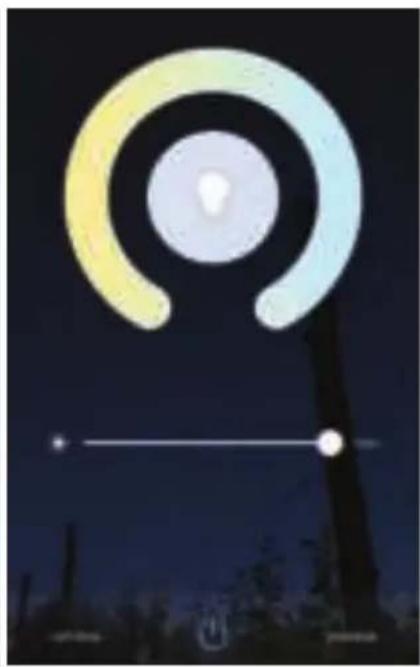
natural_image
Night sky with a glowing circular light source and a horizontal white line, silhouetted figures below (no text or symbols)RÉGLAGES ALEXA
Alexa by Amazon will be able to:
Receive your public profile Control your devices over internet


V-TAC has been successfully linked.
What to do next:
→ Close this window to discover smart home devices you can control with Alexa.
➢! Alexa, turn on/off bedroom light.
➢! Alexa, set bedroom light to 50 percent.
➢! Alexa, set bedroom light to green.
➢! Alexa, set bedroom light to warm white.
CHOSES À RAPPELER AVANT DE COMMENCER L'INSTALLATION:
Your content and devices all in one place

natural_image
Abstract geometric shapes including triangles, squares, and circles (no text or symbols)GET STARTED
b. Choose account
This account will be used to personalize your experience
c. Choose a home
You will be able to control the devices and services in this home.

Create another home
d. Plug in your device
Make sure your device is nearby and connected to power, then try again

b.

Add to Home

Set up device

Add home member

Create speaker group

Create new home
Add services

Music and audio

Videos and photos
Set up new devices or add existing devices and services to your home

V-TAC Smart Light

New devices

Set up new devices
Google Home, smart displays and devices labelled 'Made for Google' such as C by GE smart bulbs
Works with Google

Have something already set up?
Link your smart home services such as Philips Hue and TP-Link

Google will be able to:
Receive your public profile Control your devices over internet

Étape 7:
Account is now Linked
b.

Choose device
Étape 11:
Commandes Google:
➢! OK Google, turn on/off bedroom light
➢! OK Google, set bedroom light to 50 percent.
➢! OK Google, set bedroom light to green.
➢! OK Google, set bedroom light to warm white.
CHOSES À RAPPELER AVANT DE COMMENCER L'INSTALLATION:
For IOS

Schritt 5:
natural_image
Night sky with a glowing light bulb above a tall tree silhouette (no text or symbols visible)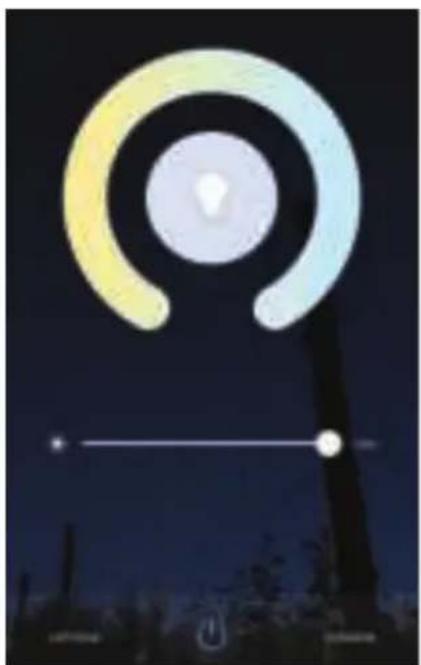
natural_image
Night sky with concentric circular light patterns and a horizontal line, no visible text or symbolsALEXA SETTINGS
Alexa by Amazon will be able to:
Receive your public profile Control your devices over internet


V-TAC has been successfully linked.
What to do next:
→ Close this window to discover smart home devices you can control with Alexa.
➢! Alexa, turn on/off bedroom light.
➢! Alexa, set bedroom light to 50 percent.
➢! Alexa, set bedroom light to green.
➢! Alexa, set bedroom light to warm white.
EMPFEHLUNGEN VOR DEM START DER INSTALLATION:
Your content and devices all in one place

natural_image
Abstract geometric shapes including squares, circles, and triangles (no text or symbols)GET STARTED
b. Choose account
This account will be used to personalize your experience
c. Choose a home
You will be able to control the devices and services in this home.

Create another home
d. Plug in your device
Make sure your device is nearby and connected to power, then try again

Office
1 device

Office Speaker
Pauze
b.

Add to Home

Set up device

Add home member

Create speaker group

Create new home
Add services

Music and audio

Videos and photos
Set up new devices or add existing devices and services to your home
Google Home, smart displays and devices labelled 'Made for Google' such as C by GE smart bulbs
Works with Google

Have something already set up?
Link your smart home services such as Philips Hue and TP-Link

Google will be able to:
Receive your public profile Control your devices over internet

Schritt 7:
Account is now Linked
b. ✗ Choose device
Schritt 11:
GOOGLE HOME-Befehle
➢! OK Google, turn on/off bedroom light
➢! OK Google, set bedroom light to 50 percent.
➢! OK Google, set bedroom light to green.
➢! OK Google, set bedroom light to warm white.
EMPFEHLUNGEN VOR DEM START DER INSTALLATION:
For IOS

Стъпка 5:
natural_image
Night sky with a glowing light bulb above silhouetted trees (no text or symbols visible)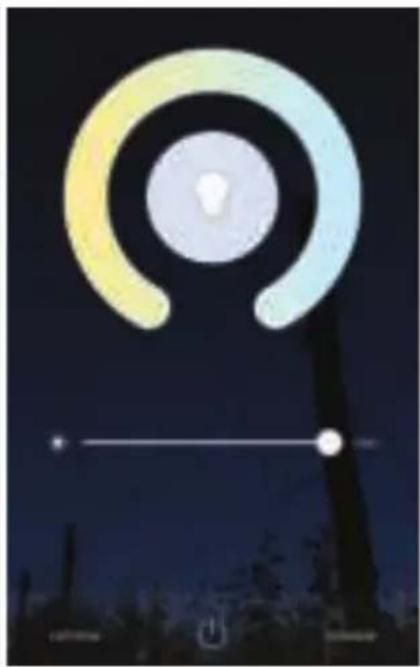
natural_image
Digital icon of a light bulb with concentric rings against a dark night sky, with a horizontal line and silhouette in the foreground (no text or symbols)НАСТРОЙКИ НА АЛЕКСА
Alexa by Amazon will be able to:
Receive your public profile Control your devices over internet


V-TAC has been successfully linked.
What to do next:
→ Close this window to discover smart home devices you can control with Alexa.
➢! Alexa, turn on/off bedroom light.
➢! Alexa, set bedroom light to 50 percent.
➢! Alexa, set bedroom light to green.
➢! Alexa, set bedroom light to warm white.
НЕЩА, КОИТО ТРЯБВА ДА ЗАПОМНИТЕ ПРЕДИ ДА ЗАПОЧНЕТЕ ИНСТАЛАЦИЯ:
Your content and devices all in one place

natural_image
Abstract geometric shapes including a triangle, circle, and rectangle (no text or symbols)GET STARTED
b. Choose account
This account will be used to personalize your experience
c. Choose a home
You will be able to control the devices and services in this home.

Create another home
d. Plug in your device
Make sure your device is nearby and connected to power, then try again

b.

Add to Home

Set up device

Add home member

Create speaker group

Create new home
Add services

Music and audio

Videos and photos
Set up new devices or add existing devices and services to your home
Google Home, smart displays and devices labelled 'Made for Google' such as C by GE smart bulbs
Works with Google

Have something already set up?
Link your smart home services such as Philips Hue and TP-Link

Google will be able to:
Receive your public profile Control your devices over internet

Стъпка 7:
Account is now Linked
b.

Choose device
Стъпка 11:
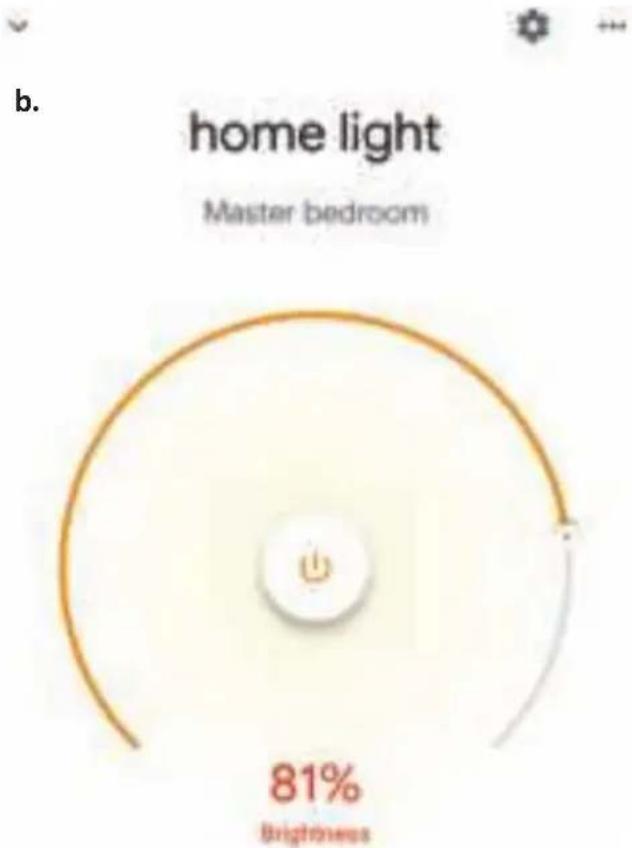
gauge
| Metric | Value | |--------|-------| | Brightness | 81% |Команди на Google:
➢! OK Google, turn on/off bedroom light
➢! OK Google, set bedroom light to 50 percent.
➢! OK Google, set bedroom light to green.
➢! OK Google, set bedroom light to warm white.
КАКВО ДА НЕ ЗАБРАВЯМЕ ПРЕДИ ДА СТАРТИРАМЕ ИНСТАЛАЦИЯТА:
For IOS

Korak 4.: Otvorite aplikaciju V-TAC Smart Light i kliknite Register (registriranje) da biste registrirali novi račun (account).
V-TAC Smart Light
Korak 5.:
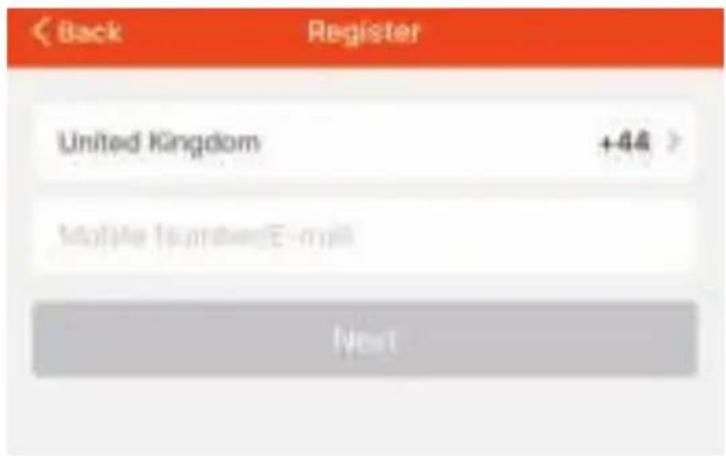
A) Broj mobitela: Odaberite svoju zemlju i unesite broj mobilnog telefona. Zatim pritisnite 'Next'. B) E-mail: Unesite adresu e-pošte i pritisnite 'Next'.
natural_image
Silhouette of a bright light bulb above a dark sky with silhouetted trees at the bottom (no text or symbols visible)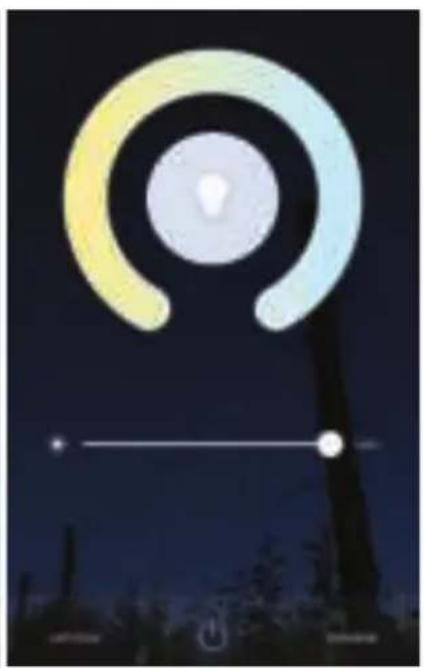
natural_image
Digital night sky with a glowing circular light source and horizontal line, no text or symbols present.POSTAVKE ZA ALEXA
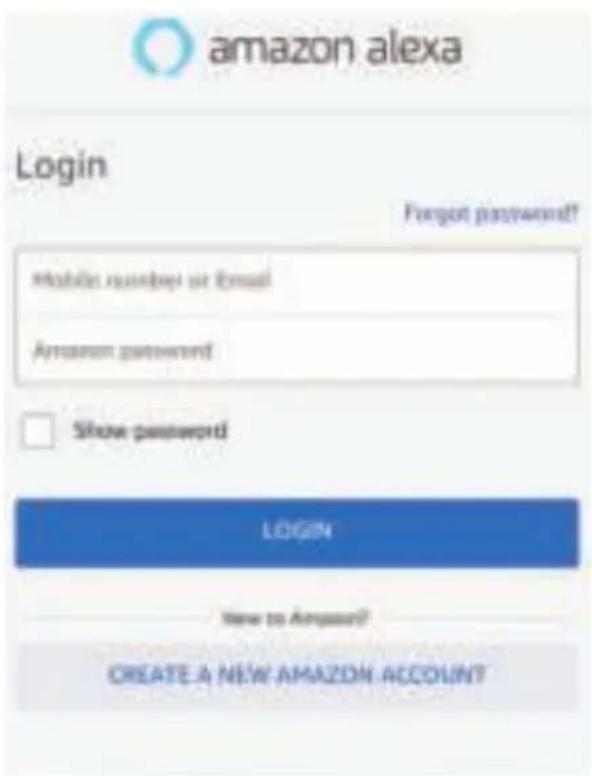
Korak 1: Instalirajte Amazon Alexa aplikaciju s App Store-a (iOS) ili Play Store-a (Android) i registrirajte ju. Ako već imate račun za Amazon Alexa, jednostavno se prijavite.
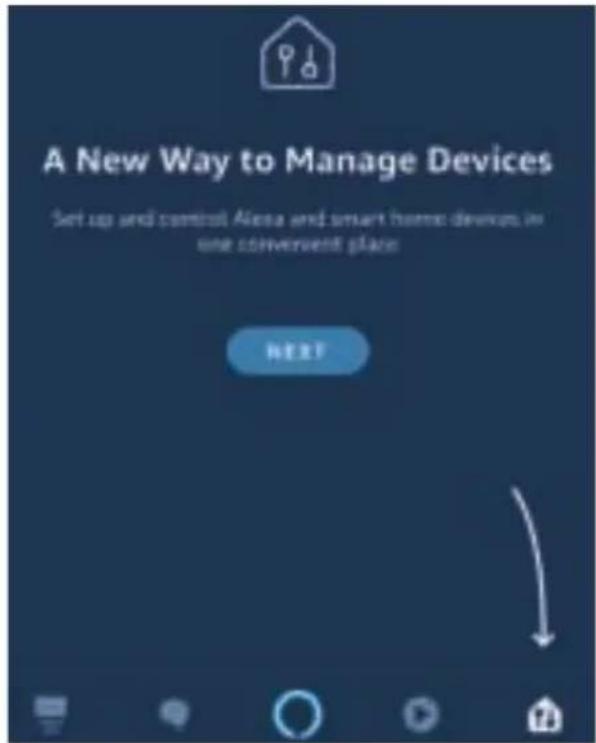
Korak 2: Kada dođete na domaću stranicu Amazon Alexa, pritisnite donju desnu ikonu — kuda ukazuje strelica — da biste dodali novi uređaj ili vještinu.
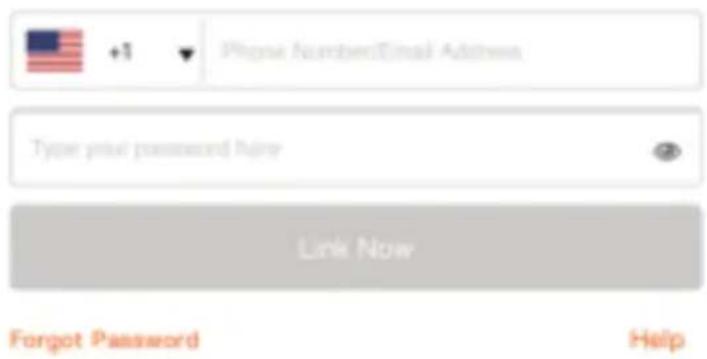
Korak 7.: Nakon što kliknete "Link Now" bit ćete preusmjereni na novu stranicu koja zahtijeva autorizaciju (pogledajte sliku u nastavku). Pritisnite "Authorize".
Alexa by Amazon will be able to:
Receive your public profile Control your devices over internet


V-TAC has been successfully linked.
What to do next:
→ Close this window to discover smart home devices you can control with Alexa.
Korak 9. Otkrijte Vaš pametni uređaj u Alexa. Nakon što odobrite opciju:
A) Možete dati glasovnu naredbu „Alexa discover devices“ Vašem uređaju Alexa.
B) Da biste ručno dodali uređaj, na početnoj stranici pritisnite 📄 , a zatim Add devices, odaberite uređaj, koji želite dodati, i pritisnite Discover device.
➢! Alexa, turn on/off bedroom light.
➢! Alexa, set bedroom light to 50 percent.
➢! Alexa, set bedroom light to green.
➢! Alexa, set bedroom light to warm white.
PRIJE POČETKA INSTALACIJE NEMOJTE ZABORAVITI:
- Aplikaciju V-TAC Smart Light i aplikaciju Amazon Alexa
- Uvjerite se da imate uređaj Amazon Alexa (uključujući Echo, Echo Tap, ili Echo Dot)
- Pametni uređaj – Svjetiljku
- Stabilnu Wifi mrežu
GOOGLE HOME POSTAVKE
Korak 1:
a&b) Instalirajte aplikaciju Google Home s App Store-a (iOS) ili Play Store-a (Android) i registrirajte ju. Ako već imate račun za Google Home, jednostavno se prijavite.
c) Napravite novi Home/Odaberite postojeći, ukoliko postoji.
d) Uključite uređaj Google Home ai povežite ga s aplikacijom. (Zatim nastavite s korakom 2)
a. Welcome home
Your content and devices all in one place

natural_image
Abstract geometric shapes including squares, triangles, and circles (no text or symbols)GET STARTED
b. Choose account
This account will be used to personalize your experience
c. Choose a home
You will be able to control the devices and services in this home.

Create another home
d. Plug in your device
Make sure your device is nearby and connected to power, then try again

Korak 2: Čim dođete do Googlove početne stranice, pritisnite ikonu Dodaj("+" ) da biste dodali novi uređaj ili vještinu. Zatim pređite na "Postavi uređaj" kao što je prikazano na slici ispod.
b.

Add to Home

Set up device

Add home member

Create speaker group

Create new home
Add services

Music and audio

Videos and photos
Korak 3: Uvjerite se da je Pametna žarulja uparena s aplikacijom V-TAC Smart Light prije nego prijeđete na korak 3. Pritisnite strelicu kao što je prikazano na slici ispod.
Set up
Set up new devices or add existing devices and services to your home
Korak 4.: Upišite "V-TAC Smart Light" u traku za pretraživanje i pritisnite ikonu "V-TAC Smart Light"

V-TAC Smart Light

New devices

Set up new devices
Google Home, smart displays and devices labelled 'Made for Google' such as C by GE smart bulbs
Works with Google

Have something already set up?
Link your smart home services such as Philips Hue and TP-Link

Korak 5: Prijavite se sa svojim V-TAC Smart Light vjerodajnicama da biste uključili Smart Light uređaj
Korak 6: Odaberite V-TAC Smart Light kao što je prikazano ispod i pritisnite Poveži sada (Link Now).
Google will be able to:
Receive your public profile Control your devices over internet

Korak 8:
a. Računi će biti povezani, ostanite na strani te ćete za par sekundi biti preusmjereni na odabir domaćeg uređaja.
b. Odaberite uređaj i pritisnite Dalje (kao što je prikazano na slici b).
a.
Done

assistant.google.com

Account is now Linked
b.

Choose device
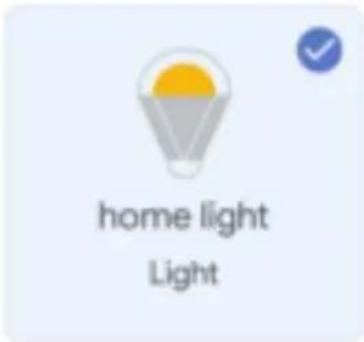
Korak 9: Odaberite Home, kojem ćete dodati Smart Light (ili) možete napraviti novi Home kojem ćete dodati Smart Light.
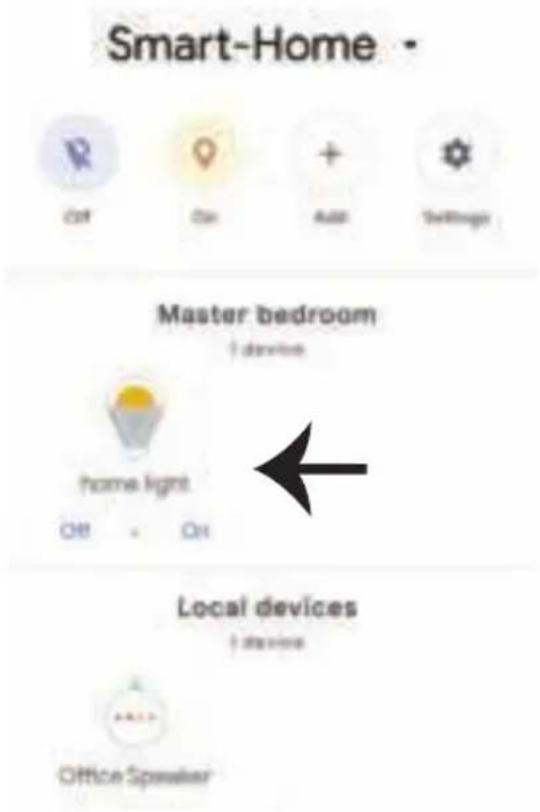
Korak 11:
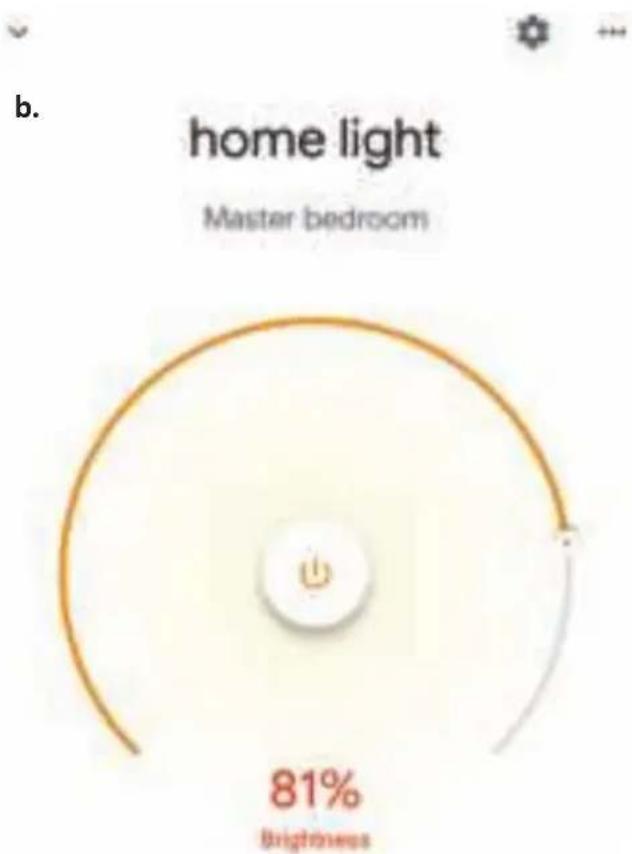
Google Naredbe:
Sada možete kontrolirati Vaš pametni uređaj pomoću glasovnih naredbi na Google Home. Ispod ćete naći nekoliko naredbi koje možete koristiti:
➢! OK Google, turn on/off bedroom light
➢! OK Google, set bedroom light to 50 percent.
➢! OK Google, set bedroom light to green.
➢! OK Google, set bedroom light to warm white.
PRIJE POČETKA INSTALACIJE NEMOJTE ZABORAVITI:
- Aplikaciju V-TAC Smart Light i aplikaciju Google Home
- Provjerite da li imate uređaj Google Home
- Pametni uređaj - svjetiljku
- Stabilnu Wifi mrežu
For IOS

Passo 5:
Passo 7: Clique em
natural_image
Night sky with a glowing light bulb above a tall tree silhouette (no text or symbols visible)
natural_image
Digital icon of a light bulb with concentric rings against a dark background, with no visible text or symbols.CONFIGURAÇÕES ALEXA
Alexa by Amazon will be able to:
Receive your public profile Control your devices over internet


➢! Alexa, turn on/off bedroom light.
➢! Alexa, set bedroom light to 50 percent.
➢! Alexa, set bedroom light to green.
➢! Alexa, set bedroom light to warm white.
DICAS QUE DEVERÁ MEMORIZAR ANTES DE COMEÇAR A INSTALAÇÃO:
a. Welcome home
Your content and devices all in one place

natural_image
Abstract geometric shapes including a triangle, circle, and rectangle (no text or symbols)b. Choose account
This account will be used to personalize your experience
-GET STARTED
c. Choose a home
You will be able to control the devices and services in this home.

Create another home
d. Plug in your device
Make sure your device is nearby and connected to power, then try again

b.
Passo 4: Digite "V-TAC Smart Light" na barra de pesquisa e toque no ícone de "V-TAC Smart Light"
Set up new devices or add existing devices and services to your home
Passo 4: Digite "V-TAC Smart Light" na barra de pesquisa e toque no ícone de "V-TAC Smart Light"

V-TAC Smart Light

New devices

Set up new devices
Google Home, smart displays and devices labelled 'Made for Google' such as C by GE smart bulbs
Works with Google

Have something already set up?
Link your smart home services such as Philips Hue and TP-Link

Google will be able to:
Receive your public profile Control your devices over internet

Passo 8:
Account is now Linked
b.

Choose device
Passo 11:
Comados do Google:
➢! OK Google, turn on/off bedroom light
➢! OK Google, set bedroom light to 50 percent.
➢! OK Google, set bedroom light to green.
➢! OK Google, set bedroom light to warm white.
For IOS

Step5:
natural_image
Night sky with a glowing light bulb above silhouetted trees (no text or symbols visible)
natural_image
Night sky with concentric circular light patterns and a horizontal white line, no text or symbols present.Alexa by Amazon will be able to:
Receive your public profile Control your devices over internet


➢! Alexa, turn on/off bedroom light.
➢! Alexa, set bedroom light to 50 percent.
➢! Alexa, set bedroom light to green.
➢! Alexa, set bedroom light to warm white.
a. Welcome home
Your content and devices all in one place

natural_image
Abstract geometric shapes including a circle, square, triangle, and rectangle (no text or symbols)b. Choose account
This account will be used to personalize your experience
GET STARTED>
c. Choose a home
You will be able to control the devices and services in this home.

Create another home
d. Plug in your device
Make sure your device is nearby and connected to power, then try again

Office
1 device

Office Speaker
Pusale
b.

Add to Hoffer

Set up device

Add home member

Create speaker group

Create new home
Add services

Music and audio

Videos and photos
Set up new devices or add existing devices and services to your home
Google Home, smart displays and devices labelled 'Made for Google' such as C by GE smart bulbs
Works with Google

Have something already set up?
Link your smart home services such as Philips Hue and TP-Link


Google will be able to:
Receive your public profile Control your devices over internet

Paso 7:
Account is now Linked
b.

Choose device
Paso 8:
Paso 11:
gauge
| Metric | Value | |--------|-------| | Brightness | 81% |Comandos de Google:
➢! OK Google, turn on/off bedroom light
➢! OK Google, set bedroom light to 50 percent.
▶! OK Google, set bedroom light to green.
➢! OK Google, set bedroom light to warm white.
natural_image
Silhouette of a bright light bulb above a dark, tree-covered structure at night (no text or symbols visible)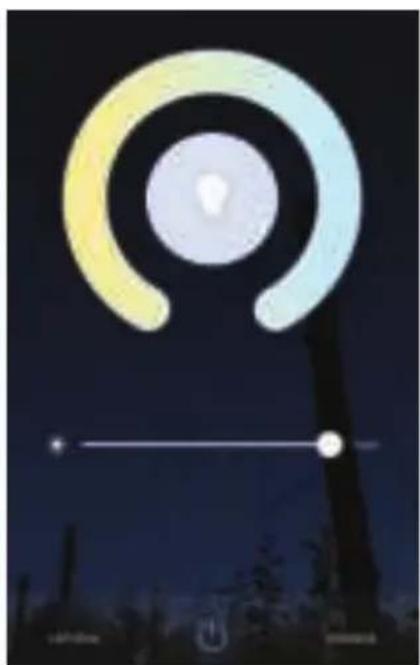
natural_image
Night sky with a glowing circular light source and horizontal lines, no text or symbols visible.ALEXA BEÁLLÍTÁSAI
Account linking in progress
Alexa by Amazon will be able to:
Receive your public profile Control your devices over internet

Done
skills-store.amazon.in

amazon alexa

V-TAC has been successfully linked.
What to do next:
→ Close this window to discover smart home devices you can control with Alexa.
➢! Alexa, turn on/off bedroom light.
➢! Alexa, set bedroom light to 50 percent.
➢! Alexa, set bedroom light to green.
➢! Alexa, set bedroom light to warm white.
a. Welcome home
Your content and devices all in one place

natural_image
Abstract geometric shapes including squares, triangles, and circles (no text or symbols)b. Choose account
This account will be used to personalize your experience
GET STARTED >
c. Choose a home
You will be able to control the devices and services in this home.

Create another home
d. Plug in your device
Make sure your device is nearby and connected to power, then try again

Set up new devices or add existing devices and services to your home

V-TAC Smart Light

New devices

Set up new devices
Google Home, smart displays and devices labelled 'Made for Google' such as C by GE smart bulbs
Works with Google

Have something already set up?
Link your smart home services such as Philips Hue and TP-Link:

Google will be able to:
Receive your public profile Control your devices over internet

7. lépés:
b. ✗ Choose device
11. lépés:
gauge
| Metric | Value | |--------|-------| | Brightness | 81% |Google Parancsai:
➢! OK Google, turn on/off bedroom light
➢! OK Google, set bedroom light to 50 percent.
➢! OK Google, set bedroom light to green.
➢! OK Google, set bedroom light to warm white.
Passo 5:
natural_image
Silhouette of a bright light bulb against a dark blue night sky, with no visible text or symbols.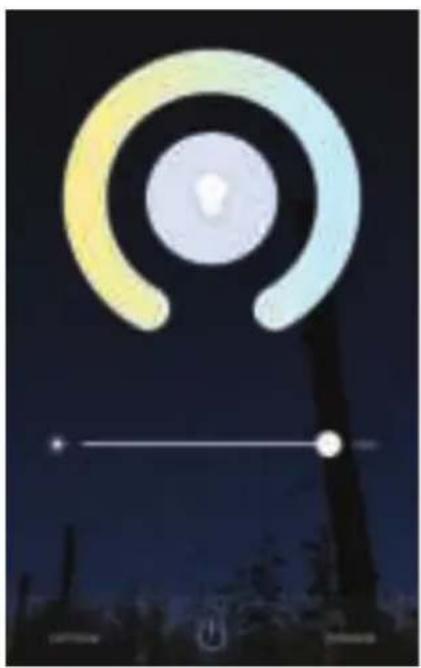
natural_image
Night sky with a glowing lightbulb and circular design, no visible text or symbolsAccount linking in progress
Alexa by Amazon will be able to:
Receive your public profile Control your devices over internet

Done
skills-store.amazon.in

amazon alexa

V-TAC has been successfully linked.
What to do next:
→ Close this window to discover smart home devices you can control with Alexa.
➢! Alexa, turn on/off bedroom light.
➢! Alexa, set bedroom light to 50 percent.
➢! Alexa, set bedroom light to green.
➢! Alexa, set bedroom light to warm white.
Your content and devices all in one place

natural_image
Abstract geometric shapes including triangles, squares, and circles (no text or symbols)GET STARTED >
b. Choose account
This account will be used to personalize your experience
c. Choose a home
You will be able to control the devices and services in this home.

Create another home
d. Plug in your device
Make sure your device is nearby and connected to power, then try again.

b.

Add to Home

Set up device

Add home member

Create speaker group

Create new home
Add services

Music and audio

Videos and photos
Set up new devices or add existing devices and services to your home
Google Home, smart displays and devices labelled 'Made for Google' such as C by GE smart bulbs
Works with Google

Have something already set up?
Link your smart home services such as Philips Hue and TP-Link

Google will be able to:
Receive your public profile Control your devices over internet

Passo 7:
b. ✗ Choose device
Passo 11:
gauge
| Metric | Value | |--------|-------| | Brightness | 81% |Comandi di Google:
▶! OK Google, turn on/off bedroom light
➢! OK Google, set bedroom light to 50 percent.
➢! OK Google, set bedroom light to green.
➢! OK Google, set bedroom light to warm white.
Βήμα 5:
natural_image
Silhouette of a bright light bulb above a dark sky with silhouetted trees (no text or symbols visible)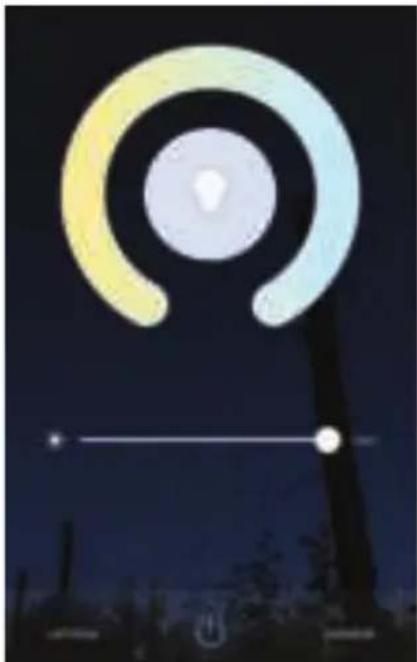
natural_image
Night sky with concentric rings and a lightbulb icon, silhouetted trees at night (no text or symbols)PYOMIZEIS THΣ ALEXA
Account linking in progress
Alexa by Amazon will be able to:
Receive your public profile Control your devices over internet

Done
skills-store.amazon.in

amazon alexa

V-TAC has been successfully linked.
What to do next:
→ Close this window to discover smart home devices you can control with Alexa.
➢! Alexa, turn on/off bedroom light.
➢! Alexa, set bedroom light to 50 percent.
➢! Alexa, set bedroom light to green.
➢! Alexa, set bedroom light to warm white.
Your content and devices all in one place

natural_image
Abstract geometric shapes including squares, triangles, and circles (no text or symbols)GET STARTED >
b.Choose account
This account will be used to personalize your experience
c. Choose a home
You will be able to control the devices and services in this home.

Create another home
d. Plug in your device
Make sure your device is nearby and connected to power, then try again

b.

Add to Home

Set up device

Add home member

Create speaker group

Create new home
Add services

Music and audio

Videos and photos
Set up new devices or add existing devices and services to your home
Google Home, smart displays and devices labelled 'Made for Google' such as C by GE smart bulbs
Works with Google

Have something already set up?
Link your smart home services such as Philips Hue and TP-Link

Google will be able to:
Receive your public profile Control your devices over internet

Βήμα 7:
b. ✗ Choose device
Βήμα 11:
gauge
| Metric | Value | |--------|-------| | Brightness | 81% |Εντολές στο Google:
▶! OK Google, turn on/off bedroom light
➢! OK Google, set bedroom light to 50 percent.
➢! OK Google, set bedroom light to green.
➢! OK Google, set bedroom light to warm white.
Krok 5:
natural_image
Night sky with a glowing light bulb above silhouetted trees (no text or symbols visible)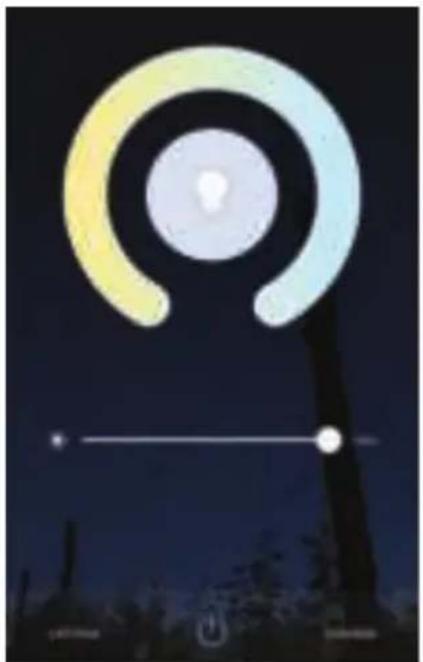
natural_image
Night sky with a glowing circular light source and horizontal white lines, no text or symbols visible.USTAWIENIA ALEXA
Account linking in progress
Alexa by Amazon will be able to:
Receive your public profile Control your devices over internet

Done
skills-store.amazon.in

amazon alexa

V-TAC has been successfully linked.
What to do next:
→ Close this window to discover smart home devices you can control with Alexa.

➢! Alexa, turn on/off bedroom light.
➢! Alexa, set bedroom light to 50 percent.
➢! Alexa, set bedroom light to green.
➢! Alexa, set bedroom light to warm white.
RZECZY O KTÓRYCH MUSISZ PAMIĘTAĆ PRZED PRZYSTĄPIENIEM DO INSTALACJI:
Your content and devices all in one place

natural_image
Abstract geometric shapes including squares, circles, and triangles (no text or symbols)GET STARTED >
b.Choose account
This account will be used to personalize your experience
c. Choose a home
You will be able to control the devices and services in this home.

Create another home
d. Plug in your device
Make sure your device is nearby and connected to power, then try again

b.

Add to Home

Set up device

Add home member

Create speaker group

Create new home
Add services

Music and audio

Videos and photos
Set up new devices or add existing devices and services to your home
Google Home, smart displays and devices labelled 'Made for Google' such as C by GE smart bulbs
Works with Google

Have something already set up?
Link your smart home services such as Philips Hue and TP-Link

Google will be able to:
Receive your public profile Control your devices over internet

Krok 7:
Account is now Linked
b. ×
Choose device
Krok 11:
gauge
| Metric | Value | |--------|-------| | Brightness | 81% |Komendy Google:
➢! OK Google, turn on/off bedroom light
➢! OK Google, set bedroom light to 50 percent.
➢! OK Google, set bedroom light to green.
➢! OK Google, set bedroom light to warm white.
RZECZY O KTÓRYCH MUSISZ PAMIĘTAĆ PRZED PRZYSTĄPIENIEM DO INSTALACJI:
INTRODUCERE, GARANTIA
Pasul 5:
natural_image
Night sky with a glowing light bulb above silhouetted trees (no text or symbols visible)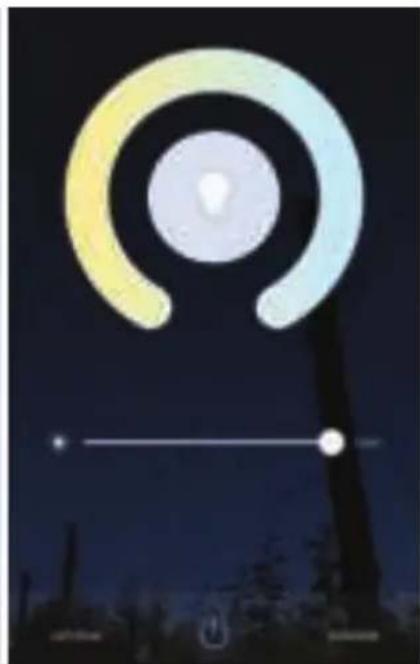
natural_image
Night sky with concentric circular light patterns and a horizontal line, no text or symbols presentSETĂRI ALEXA
Account linking in progress
Alexa by Amazon will be able to:
Receive your public profile Control your devices over internet

Done
skills-store.amazon.in

amazon alexa

V-TAC has been successfully linked.
What to do next:
→ Close this window to discover smart home devices you can control with Alexa.
➢! Alexa, turn on/off bedroom light.
➢! Alexa, set bedroom light to 50 percent.
➢! Alexa, set bedroom light to green.
➢! Alexa, set bedroom light to warm white.
LUCRURILE PE CARE TREBUIE SĂ LE RETINETI ÎNAINTE SĂ ÎNCEPETI INSTALAREA:
Your content and devices all in one place

natural_image
Abstract geometric shapes including squares, triangles, and circles (no text or symbols)GET STARTED>
b.Choose account
This account will be used to personalize your experience
c. Choose a home
You will be able to control the devices and services in this home.

Create another home
d. Plug in your device
Make sure your device is nearby and connected to power, then try again

b.

Add to Home

Set up device

Add home member

Create speaker group

Create new home
Add services

Music and audio

Videos and photos
Set up new devices or add existing devices and services to your home
Google Home, smart displays and devices labelled 'Made for Google' such as C by GE smart bulbs
Works with Google

Have something already set up?
Link your smart home services such as Philips Hue and TP-Link

Google will be able to:
Receive your public profile Control your devices over internet

Pasul 8:
Account is now Linked
b. ×
Choose device
Pasul 11:
gauge
| Metric | Value | |--------|-------| | Brightness | 81% |Comenzile Google:
➢! OK Google, turn on/off bedroom light
➢! OK Google, set bedroom light to 50 percent.
➢! OK Google, set bedroom light to green.
➢! OK Google, set bedroom light to warm white.
CE NU TREBUIE SĂ UITĂM ÎNAINTE SĂ ÎNCEPEM INSTALAREA:

Krok 5:
natural_image
Night sky with a glowing light bulb above a tall tree silhouette (no text or symbols visible)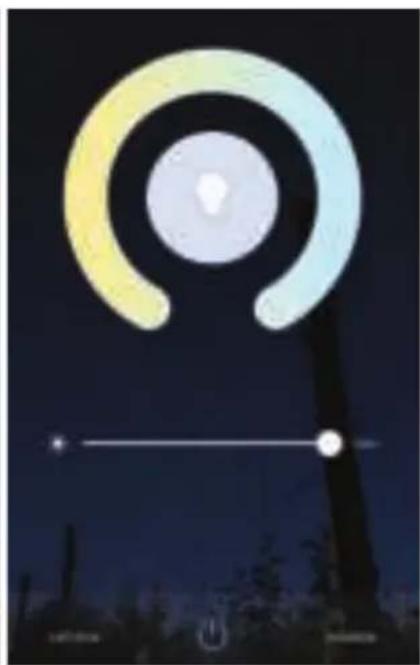
natural_image
Night sky with a glowing circular light source and horizontal lines, no visible text or symbolsNASTAVENÍ APLIKACE ALEXA
Account linking in progress
Alexa by Amazon will be able to:
Receive your public profile Control your devices over internet


V-TAC has been successfully linked.
What to do next:
→ Close this window to discover smart home devices you can control with Alexa.
POVELY APLIKACE ALEXA
➢! Alexa, turn on/off bedroom light.
➢! Alexa, set bedroom light to 50 percent.
➢! Alexa, set bedroom light to green.
➢! Alexa, set bedroom light to warm white.
DOPORUČENÍ PŘED ZAHÁJENÍM INSTALACE:
a. a. Welcome home
Your content and devices all in one place

natural_image
Abstract geometric shapes including a triangle, circle, and rectangle (no text or symbols)b. Choose account
This account will be used to personalize your experience
GET STARTED
c. Choose a home
You will be able to control the devices and services in this home.

Create another home
d. Plug in your device
Make sure your device is nearby and connected to power, then try again.

b.

Sold to Home

Set up device

Add home member

Create speaker group

Create new home
Add services

Music and audio

Videos and photos
Set up new devices or add existing devices and services to your home
Google Home, smart displays and devices labelled 'Made for Google' such as C by GE smart bulbs
Works with Google

Have something already set up?
Link your smart home services such as Philips Hue and TP-Link

Google will be able to:
Receive your public profile Control your devices over internet

Krok 7:
b. ✗ Choose device
Krok 10:
gauge
| Metric | Value | |--------|-------| | Brightness | 81% |Povely v Google:
➢! OK Google, turn on/off bedroom light
➢! OK Google, set bedroom light to 50 percent.
➢! OK Google, set bedroom light to green.
➢! OK Google, set bedroom light to warm white.
DOPORUČENÍ PŘED ZAHÁJENÍM INSTALACE:
- INTRODUCTION & WARRANTY
- SAFETY WARNING
- NOTE:
- INSTALLATION
- Step5:
- ALEXA SETTINGS
- Step8: Discover your smart device on Alexa. Once you have enabled the skill
- ALEXA Commands
- THINGS TO REMEMBER BEFORE STARTING INSTALLATION:
- GOOGLE HOME SETTINGS
- Step1:
- a. Welcome home
- b. Choose account
- c. Choose a home
- d. Plug in your device
- Set up
- New devices
- Works with Google
- Step7
- Step10:
- Google Commands:
- INTRODUCTION & GARANTIE
- Étape 5:
- Design software available, plus other settings
- RÉGLAGES ALEXA
- CHOSES À RAPPELER AVANT DE COMMENCER L'INSTALLATION:
- Set up new devices
- Have something already set up?
- Google will be able to:
- Étape 7:
- Étape 11:
- Commandes Google:
- Schritt 5:
- EMPFEHLUNGEN VOR DEM START DER INSTALLATION:
- Schritt 7:
- Schritt 11:
- GOOGLE HOME-Befehle
- Стъпка 5:
- НАСТРОЙКИ НА АЛЕКСА
- НЕЩА, КОИТО ТРЯБВА ДА ЗАПОМНИТЕ ПРЕДИ ДА ЗАПОЧНЕТЕ ИНСТАЛАЦИЯ:
- Стъпка 7:
- Стъпка 11:
- Команди на Google:
- КАКВО ДА НЕ ЗАБРАВЯМЕ ПРЕДИ ДА СТАРТИРАМЕ ИНСТАЛАЦИЯТА:
- Korak 5.:
- POSTAVKE ZA ALEXA
- Korak 9. Otkrijte Vaš pametni uređaj u Alexa. Nakon što odobrite opciju:
- PRIJE POČETKA INSTALACIJE NEMOJTE ZABORAVITI:
- GOOGLE HOME POSTAVKE
- Korak 1:
- Korak 8:
- Korak 11:
- Google Naredbe:
- CONFIGURAÇÕES ALEXA
- DICAS QUE DEVERÁ MEMORIZAR ANTES DE COMEÇAR A INSTALAÇÃO:
- Passo 8:
- Passo 11:
- Comados do Google:
- Paso 7:
- Paso 8:
- Paso 11:
- Comandos de Google:
- ALEXA BEÁLLÍTÁSAI
- lépés:
- lépés:
- Google Parancsai:
- Passo 5:
- Passo 7:
- Comandi di Google:
- Βήμα 5:
- PYOMIZEIS THΣ ALEXA
- b.Choose account
- Βήμα 7:
- Βήμα 11:
- Εντολές στο Google:
- Krok 5:
- USTAWIENIA ALEXA
- RZECZY O KTÓRYCH MUSISZ PAMIĘTAĆ PRZED PRZYSTĄPIENIEM DO INSTALACJI:
- Krok 7:
- Krok 11:
- Komendy Google:
- INTRODUCERE, GARANTIA
- Pasul 5:
- SETĂRI ALEXA
- LUCRURILE PE CARE TREBUIE SĂ LE RETINETI ÎNAINTE SĂ ÎNCEPETI INSTALAREA:
- Pasul 8:
- Pasul 11:
- Comenzile Google:
- CE NU TREBUIE SĂ UITĂM ÎNAINTE SĂ ÎNCEPEM INSTALAREA:
- NASTAVENÍ APLIKACE ALEXA
- POVELY APLIKACE ALEXA
- DOPORUČENÍ PŘED ZAHÁJENÍM INSTALACE:
- Krok 10:
- Povely v Google:
Brand : V-TAC
Model : VT5124
Category : Lighting