JKCPL181GM - Fridge JENN-AIR - Free user manual and instructions
Find the device manual for free JKCPL181GM JENN-AIR in PDF.


User questions about JKCPL181GM JENN-AIR
0 question about this device. Answer the ones you know or ask your own.
Ask a new question about this device
Download the instructions for your Fridge in PDF format for free! Find your manual JKCPL181GM - JENN-AIR and take your electronic device back in hand. On this page are published all the documents necessary for the use of your device. JKCPL181GM by JENN-AIR.
USER MANUAL JKCPL181GM JENN-AIR
natural_image
Line drawing of an open refrigerator with multiple shelves and doors (no text or symbols)
JENNAIR®
natural_image
Abstract geometric design with a white number '4' and 'TM' label, no readable text or symbols beyond the graphic elements.INTRODUCTION
SAFETY
Your safety and the safety of others are very important.
We have provided many important safety messages in this manual and on your appliance. Always read and obey all safety messages.

This is the safety alert symbol.
This symbol alerts you to potential hazards that can kill or hurt you and others.
All safety messages will follow the safety alert symbol and either the word "DANGER" or "WARNING."
These words mean:
DANGER
WARNING
You can be killed or seriously injured if you don't immediately follow instructions.
You can be killed or seriously injured if you don't follow instructions.
All safety messages will tell you what the potential hazard is, tell you how to reduce the chance of injury, and tell you what can happen if the instructions are not followed.
IMPORTANT SAFETY INSTRUCTIONS
WARNING: To reduce the risk of fire, electric shock, or injury when using your refrigerator, follow these basic precautions:
■To avoid a hazard due to instability of the appliance, it must be fixed in accordance with the instructions.
■Installation shall be performed only by manufacturer, or an authorized agent.
■ Plug into a grounded 3 prong outlet.
■ Do not remove ground prong.
■ Do not use an adapter.
■ Do not use an extension cord.
■Disconnect power to all units before servicing.
■If the SUPPLY CORD is damaged, it must be replaced by the manufacturer, its service agent or similarly qualified person in order to avoid a hazard.
■ Replace all parts and panels before operating.
■ Remove doors from your old refrigerator.
■ Connect to a potable water supply only.
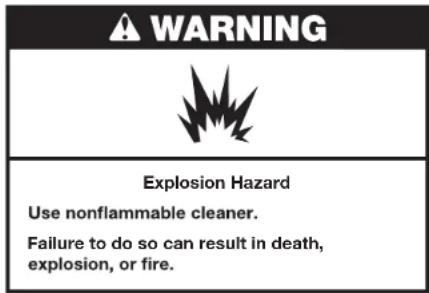
■Use nonflammable cleaner.
- Keep flammable materials and vapors, such as gasoline, away from refrigerator.
■Do not store explosive substances such as aerosol cans with a flammable propellant in this refrigerator.
■ Use two or more people to move and install refrigerator.
■ Disconnect power before installing ice maker (on ice maker kit ready models only).
■ Use a sturdy glass when dispensing ice (on some models).
■Do not hit the refrigerator glass doors (on some models).
■This appliance is not intended for use by persons (including children) with reduced physical, sensory or mental capabilities, or lack of experience and knowledge, unless they have been given supervision or instruction concerning use of the appliance by a person responsible for their safety.
■Children should be supervised to ensure that they do not play with the appliance.
■This refrigerator is intended to be used in household and similar applications such as:
– staff kitchen areas in shops, offices, and other working environments
– f arm houses and by clients in hotels, motels, and other residential type environments
- b ed and breakfast type environments
– c catering and similar non-retail applications
SAVE THESE INSTRUCTIONS
INTRODUCTION
PROPER DISPOSAL OF YOUR OLD REFRIGERATOR
WARNING
Suffocation Hazard
Remove doors from your old refrigerator.
Failure to do so can result in death or brain damage.
natural_image
Line drawing of a closed book with a bookmark (no text or symbols)IMPORTANT: Do your part to prevent accidental child entrapment and suffocation by properly disposing of your old refrigerator or freezer.
■ Take off the doors.
■ Leave the shelves in place so children may not easily climb inside.
Important information to know about disposal of refrigerants:
Dispose of refrigerator in accordance with Federal and Local regulations. Refrigerants must be evacuated by a licensed, EPA certified refrigerant technician in accordance with established procedures.
INTRODUCTION
REGISTERING YOUR APPLIANCE
Gain access to our concierge-level Customer Support by registering your appliance. We make product registration simple and straightforward so you can start using your exclusive JennAir benefits today.
Registering your appliance allows you to:
■ Streamline your warranty service
If we have your appliance information, we can help you faster.
■ Protect your purchase
In case of an insurance loss—such as fire, flood, or theft—your product registration could serve as a proof of purchase.
- Keep your family safe
We'll notify you in the rare case of a safety notification.
Start taking advantage of these benefits today by going online to register your appliance at https://register.jennair.com.
PRODUCT IDENTIFICATION
Your product identification, which includes the model and serial numbers, is listed on the product rating plate.
Recording this information below allows us to assist you more easily if your appliance should ever require service from one of our JennAir® Authorized Service Providers.
Model Number: ____
Serial Number: ____
Date of Installation: ____
Authorized Dealer: ____
Authorized Dealer Phone #: ____
TABLE OF CONTENTS
INTRODUCTION
Safety 3
Proper Disposal of
Your Old Refrigerator 4
Registering Your Appliance 5
Product Identification 5
Product Features......6
Refrigerator Controls....8
Freezer Controls....10
GETTING STARTED
Before Use....12
Smart Features....12
Smart Grid....13
Automatic Setup (WPS)....14
Manual Setup (First-Time Use) 16
Shelves....17
Deli/Crisper Drawers....17
CARE AND CLEANING
Cleaning 18
Leather Panel Care....18
Vacation Care....19
Power Interruptions 19
Replacing The Water Filter....20
TROUBLESHOOTING
Operation....22
Temperature And Moisture....23
Ice And Water 23
Lights....24
ASSISTANCE
Contact 25
In The U.S.A. 25
In Canada 25
Accessories 25
Connected Appliance
Regulatory Notices....26
Performance Data Sheet....28
Warranty....30
TABLE DES MATIÈRES......35
INTRODUCTION
-
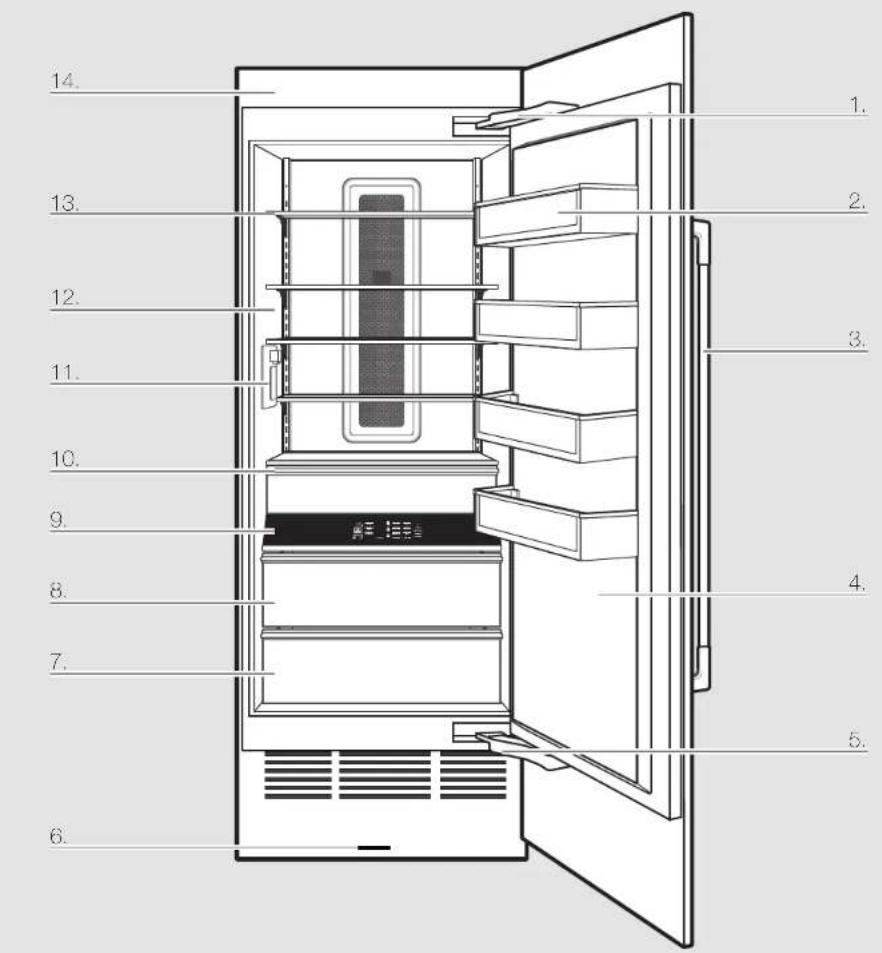
Fully Integrated and Flush Design with Articulating Hinge Creates an integrated appearance with custom cabinets without exposed hinges or trim pieces.
-
Adjustable Aluminum and Glass Door Bins
Make it easy to customize storage according to your preferences, providing quick access to frequently used items. Refrigerator and freezer door bins can be positioned to accommodate a variety of container sizes.
- Custom Overlay Design
Ships with factory-installed doors. To create a finished refrigerator, customers must purchase either custom overlay panels and handles from a cabinet manufacturer, or a JennAir ^® suite-coordinating panel kit.
- Obsidian Interior
Showcases food items throughout the refrigerator or freezer, and provides a sharper contrast than white interiors.
- 90°/115° Door Stop Position
Provides options to ensure ample clearance between the open door and adjacent cabinetry.
- Wi-Fi Connectivity
This refrigerator can connect with in-home Wi-Fi to provide remote control through the JennAir® App, available to download for use with either iOS or Android devices.
INTRODUCTION
- Soft, Auto-Close Crisper Drawers Provide smooth operation by rolling open even when fully loaded, and feature an innovative auto-close design that pulls the drawer closed.
- Electronic Temperature-Controlled Crisper Drawer (Refrigerator)
Drawer slides open effortlessly, even when fully loaded, with soft, self-close glides.
Two temperature presets are available on the interior control to keep items at the optimal temperature. You can choose from following:
■ Produce: 39°F (3.9°C)
■ Assorted: 37°F (2.8°C)
- Capacitive Touch Controls with LED Display
The touch panel houses the control menu and function controls. The touch keypads are very sensitive and only require a light touch. The controls are located in the midsection of each column for easy access.
- Electronic Temperature-Controlled Deli Drawer (Refrigerator)
Deli slides open effortlessly, even when fully loaded, with soft, self-close glides.
Five temperature presets are available on the interior control to keep items at the optimal temperature. You can choose from following:
■ Produce: 39°F (3.9°C)
■ Assorted: 37^ F ( 2.8^ C)
■ Beverage: 34°F (1°C)
■ Deli: 33°F (0.6°C)
■ Meat: 32°F (0°C)
Electronic Temperature-Controlled Deli Drawer (Freezer)
Three temperature presets are available on the interior control to keep items at the optimal temperature. You can choose from following:
■ Assorted: 0°F (-17.8°C)
■ Spirits: -2^ F ( -18.9^ C)
■ DeepFreeze: -8°F (-22.2°C)
- Water Dispenser (Refrigerator)
Allows you to dispense filtered water.
- Interior Perimeter LED Theater Lighting
Perimeter LED lighting elegantly ramps up to full brightness when the door or interior drawers are opened, increasing visibility by minimizing shadows caused by top lighting. Selecting a cooling zone on the control panel causes the lighting in the same zone to pulse.
- Adjustable Clear Glass Shelves
Tint-free, clear glass shelves that offer an open, refined look that makes food and beverages easy to see and locate. Glass shelves complement the LED lighting for exceptional clarity that allows more light to fill the interior.
- EveryDrop® Filter
EveryDrop ^® water filters are NSF ^®1 certified to reduce most contaminants, including chlorine taste and odor, lead, pesticides, and trace amounts of pharmaceuticals. EveryDrop ^® brand filters are the only filters tested and certified for your refrigerator system. Replace your EveryDrop ^® filter every 6 months for maximum contaminant reduction.
- Automatic Ice Maker (Freezer)
Ensures a continuous supply of fresh ice cubes made from filtered water.
INTRODUCTION
text_image
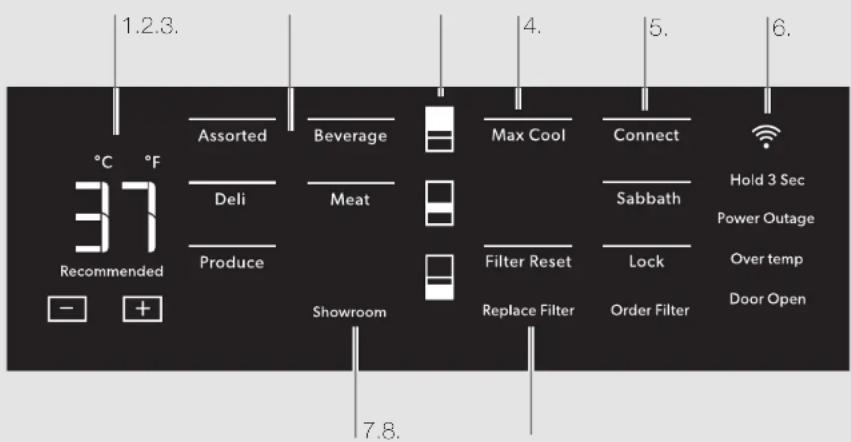
1.2.3. Assorted Beverage Max Cool Connect Hold 3 Sec Power Outage Over temp Door Open °C °F Deli Meat Sabbath Produce Filter Reset Lock Order Filter Showroom Replace Filter 7.8.REFRIGERATOR CONTROLS
1. Viewing and Adjusting Temperature
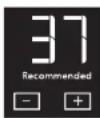
When you first install your refrigerator, make sure that the control is still set to the recommended setting. The factory-recommended temperature is 37^ F ( 3^ C). Touch - or + to select a
temperature setting. Press and hold - and + to change display from Fahrenheit to Celsius.
2. Activate Temperature Mode for Refrigerator Deli Drawer
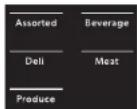
Touch Assorted, Beverage, Deli, Meat, or Produce to select a zone temperature setting.
3. Cooling Zones
Select features of your refrigerator are tied to the perimeter lighting.
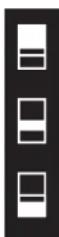
Press a zone key to light the corresponding zone in your refrigerator.
INTRODUCTION
4. Max Cool
Max Cool
The Max Cool feature assists with periods of high refrigerator use, full grocery loads, or temporarily warm
room temperatures. Press MAX COOL to activate Max Cool. After the Max Cool cycle completes, the refrigerator will return to its previous setting.
5. Connect
Connect
Wi-Fi connectivity allows your Smart Refrigerator to connect to the Internet and interact with the JennAir ^™ App from
your smartphone or mobile device. See the "Automatic Setup—Wi-Fi Protected Setup (WPS)" section for more information.
Sabbath
Sabbath
Allows the door of the refrigerator to be opened or closed during the Sabbath or other religious holidays
without activating the interior lights or controls. Press and hold Sabbath for 3 seconds to activate Sabbath mode.
Lock
Lock
The control panel can be locked for easy cleaning or to avoid unintentional mode changes.
6. Power Outage
Power Outage
The Power Outage indicator lets you know if the power supply to the refrigerator has
been off and the temperature has risen.
Over temp Alarm
Over temp
Helps avoid food spoilage and high energy costs by sounding an alert when
refrigerator temperatures remain at unusually high levels.
Door Open
Door Open
The Door Open alarm feature sounds an alarm when the refrigerator door(s) or freezer door is open for 5 minutes
and cooling is turned on. The alarm will repeat every 2 minutes. Close the door to turn the alarm and "Door Open" alert off. To stop the alarm noise with the door open, press any key.
7. Showroom
Showroom
This mode is used when the refrigerator is on display in a retail store or if you want to turn the cooling off and
deactivate all other functions except interior lighting.

To activate showroom mode, press and hold top and bottom zone icons simultaneously for 3 seconds.
To deactivate the showroom mode, press and hold top and bottom zone icons simultaneously for 3 seconds.

8. Filter Reset
Filter Reset
Displays the status of the water filter. To reset the filter, press and hold FILTER RESET for 3 seconds. After
countdown, the "Replace Filter" indicator will turn off.
Replace Filter
Replace Filter
Replace the water filter. While you are dispensing water, the "Replace Filter" icon will flash constantly
from beginning to the end of dispensing. After 14 days without replacing the water filter, the "Replace Filter" icon will blink seven times and an alert tone will sound three times at the end of dispensing. See the "Water Filtration System" section. NOTE: "Replace Filter" will remain illuminated if a filter reset is not completed.
Order Filter
Order Filter
Order a replacement water filter.
INTRODUCTION
text_image
1.2.3. Pure Freeze °C °F Recommended - + Assorted Spirits DeepFreeze Showroom 7.8. 4. Max Ice Connect Ice Maker Off Sabbath Filter Reset Lock Replace Filter Order Filter Hold 3 Sec Power Outage Over temp Door Open10 | INTRODUCTION
FREEZER CONTROLS
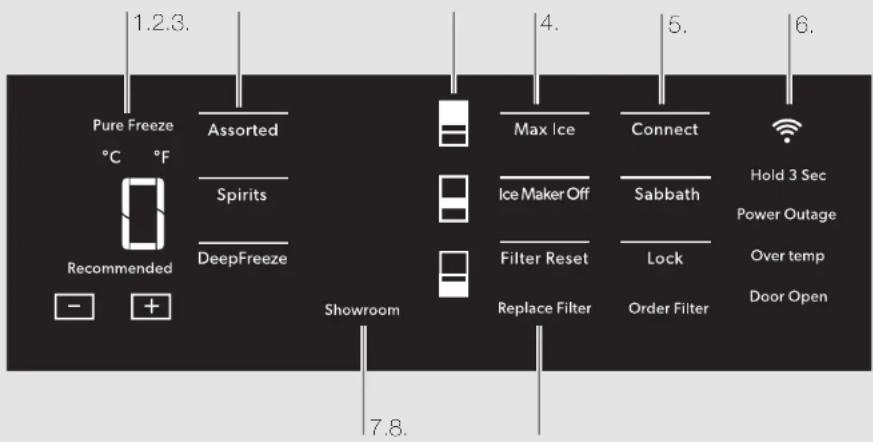
1. Pure Freeze ^® Feature

Pure Freeze® feature is activated automatically when the freezer is at its lowest
setting. The Pure Freeze* setting reduces freezer burn.
Viewing and Adjusting Temperature
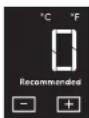
When you first install your freezer, make sure that the control is still set to the recommended temperature. The factory recommended setting is -2^ ( 19^ ) for the freezer.
Touch - or + to select a temperature setting.
2. Activate Temperature Mode for Freezer Deli Drawer
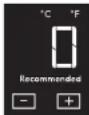
Touch Assorted, Spirits, or DeepFreeze to select a zone temperature setting.
3. Cooling Zones
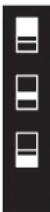
Select features of your freezer are tied to the perimeter lighting. Press the zone keys to light the corresponding zones in your freezer.
INTRODUCTION
4. Max Ice
The Max Ice Setting increases the freezer cooling capacity improving the ice making rate.
Ice Maker Off
To turn the ice maker off, touch ICE MAKER OFF.
5. Connect
Wi-Fi connectivity allows your Smart Freezer to connect to the Internet and interact with the JennAir ^4 App from
your smartphone or mobile device. See the "Automatic Setup—Wi-Fi Protected Setup (WPS)" section for more information.
Sabbath
Allows the door of the freezer to be opened or closed during the Sabbath or other religious holidays without
activating the interior lights or controls. Press and hold Sabbath for 3 seconds to activate Sabbath mode.
Lock
The dispenser can be locked for easy cleaning or to avoid unintentional dispensing.
6. Power Outage
The Power Outage indicator lets you know if the power supply to the freezer has
been off and the freezer temperature has risen.
Over temp Alarm
Over temp
Helps avoid food spoilage and high energy costs by sounding an alert when
freezer temperatures remain at unusually high levels.
Door Open
Door Open
The Door Open alarm feature sounds an alarm when the refrigerator door(s) or freezer door is open for 5 minutes
and cooling is turned on. The alarm will repeat every 2 minutes. Close the door to turn the alarm and "Door Open" alert off. To stop the alarm noise with the door open, press any key.
7. Showroom
This mode is used when the freezer is on display in a retail store or if you want to turn the cooling off and
deactivate all other functions except interior lighting.
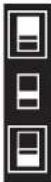
To activate showroom mode, press and hold top and bottom zone icons simultaneously for 3 seconds.
To deactivate the showroom mode, press and hold top and bottom zone icons simultaneously for 3 seconds.
8. Filter Reset
Displays the status of the water filter. To reset the filter, press and hold FILTER RESET for 3 seconds. After
countdown, the "Replace Filter" indicator will turn off.
Replace Filter
Replace the water filter. While you are dispensing water, the "Replace Filter" icon will flash constantly from
beginning to the end of dispensing. After 14 days without replacing the water filter, the "Replace Filter" icon will blink seven times and an alert tone will sound three times at the end of dispensing. See the "Water Filtration System" section.
NOTE: "Replace Filter" will remain illuminated if a filter reset is not completed.
Order Filter
Order Filter
Order a replacement water filter.
GETTING STARTED
BEFORE USE
Before using your refrigerator, all packaging materials should be removed and the interior should be cleaned.
■ Remove tape and glue residue from surfaces before turning on the refrigerator. With your fingers, rub a small amount of liquid dish soap over any adhesive and wipe with warm water to remove.
■ Do not use sharp instruments, rubbing alcohol, flammable fluids, or abrasive cleaners to remove tape or glue. These can damage the surfaces of your refrigerator.
■ Dispose of and/or recycle all packaging materials.
■ After all packaging materials have been removed, clean the inside of your refrigerator.
■ Flush 3 gallons (11.4 L) of water through the water system to clear air from the water line and to keep the dispenser from dripping and/or avoiding decreased dispenser flow.
NOTE: If the filter is not installed correctly, water may dispense at a lower flow rate and there will be slower ice production. Improper filter installation may also cause the water filter housing to leak.
SMART FEATURES
Smart Features help make your every day a little more efficient by letting you remotely monitor, manage, and maintain your refrigerator.
REMOTE TEMPERATURE CONTROL
What it does: Allows you to control the temperature of your refrigerator remotely from your mobile device via the JennAir® App.
What it does for you: Lets you control temperatures in your refrigerator, freezer, and temp-controlled pantry remotely—not just when you are standing in front of it.
WATER FILTER STATUS
What it does: Gives you a look at the life remaining for your air and water filters before a replacement is needed.
What it does for you: Helps you be more efficient in planning for, ordering, and replacing filters.
AUTO REORDER
What it does: Allows you to order replacement filters, consumables, and accessories via the JennAir® App for delivery directly to your home.
What it does for you: Simplifies ordering correct water and air filters—no trips to the store and searching for the correct filters.
OVER TEMPERATURE
What it does: Sends you a notification when the temperature in your refrigerator reaches and rises above a specified value in the refrigerator and freezer compartments.
What it does for you: Alerts you to over-temperature status to provide input regarding disposition of refrigerator/freezer contents.
MAX COOL—REFRIGERATOR
What it does: Allows you to control your refrigerator remotely from your mobile device via the JennAir® App.
What it does for you: Lets you turn on/off Max Cool options remotely to make temperatures colder in the refrigerator in anticipation of loading newly purchased grocery items.
MAX ICE—FREEZER
What it does: Allows you to control your freezer remotely from your mobile device via the JennAir ^® App.
What it does for you: Makes fresh-tasting ice to accommodate your entertainment needs - up to 4 pounds in 24 hours.
PURE FREEZE® MODE
What it does: Allows you to receive status of your refrigerator remotely to your mobile device via the JennAir® App.
What it does for you: Indicates when temperatures are adjusted down to a deep freeze level to reduce freezer burn and helps frozen items maintain their appearance and taste.
GETTING STARTED
SMART FEATURES (CONT.)
SABBATH MODE
What it does: Allows the door of the refrigerator or freezer to be opened or closed during the Sabbath or other religious holidays without activating the interior lights or controls. Allows you to turn on and off remotely from your mobile device via the JennAir® App.
What it does for you: Lets you turn on/off Sabbath mode options remotely.
DOOR OPEN ALERT
What it does: Sends you a notification when the door of the appliance has been left open.
What it does for you: Alerts you to door ajar status so you can close the door(s) or call home to ask someone else to close the door before an over-temp situation arises.
POWER OUTAGE
What it does: Sends you a notification when power to your refrigerator goes out, returns, or highest temperature is reached.
What it does for you: Alerts you to power status and disposition of the appliance contents.
SMART GRID
This product has WiFi capability and requires Internet connectivity and a wireless router to enable interconnection with an Energy Management System, and/or with other external devices, systems, or applications.
GETTING STARTED
AUTOMATIC SETUP—WI-FI PROTECTED SETUP (WPS)
YOU WILL NEED:
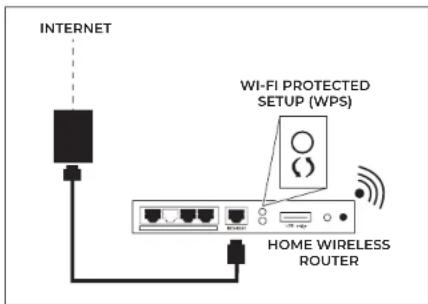
A home wireless router capable of WPS (Wi-Fi protected Setup). The router should be on and have a live internet connection.
To use this feature you need:
■ A smartphone running Android 4.3 (or higher) with a 1280x720 (or higher) screen or a tablet or a smartphone running iOS 8 (or higher).
■ A wireless router 2.4 Ghz Wi-Fi b/g/n connected to internet (verify with your smart device that the signal of your home wireless network is strong close to the appliance).
■ The Smart Appliance Identification Number (SAID) from your refrigerator. This is located on a sticker on the inside of the water filter door.

SAID: 0123456789
Contains FCC ID: A5UWICHIN01
MAC ID: 88:E7:12:XX:YY:ZZ Contains IC: 10248A-WICHIN01
NOTE: If your home wireless router is not equipped with a WPS button, please check the user manual of your router to confirm if it is WPS capable. If not, alternate setup instructions are at www.jennair.com/connect.
- Set up router
text_image
INTERNET WI-FI PROTECTED SETUP (WPS) HOME WIRELESS ROUTERPress the WPS button on the router. An indicator light will begin blinking.
NOTE: The WPS function on your router is active for 2 minutes. Complete the next step within that timeframe, or you will need to reinitiate WPS.
2. Set up refrigeration appliance
(time-sensitive step)
Press and hold CONNECT on the control panel for 3 seconds.
The Wi-Fi status indicator (💡) on the appliance control panel will blink slowly while your appliance and router
attempt to connect. If the connection is successful, the Wi-Fi status indicator will illuminate and remain lit.
IF YOUR APPLIANCE DOESN'T CONNECT:
If your appliance and router fail to connect after 2 minutes, the Wi-Fi status indicator will blink rapidly for 5 seconds and then turn off. Check any connection instructions for your specific router, and refer to alternate instructions at
www.jennair.com/connect.
NOTE: If this is your first smart appliance, you will need to download the JennAir® App and create an online user account.
If you already have the app and a user account, please skip ahead to Step 4, "Register your refrigerator in your user account."
GETTING STARTED
AUTOMATIC SETUP—WI-FI PROTECTED SETUP (WPS) (CONT.)
DISCONNECT AND RECONNECT WI-FI
To disconnect Wi-Fi, press and the hold CONNECT for 7 to 15 seconds. The Wi-Fi status indicator will turn off, indicating that you have disabled Wi-Fi.
To reconnect Wi-Fi, press and hold CONNECT for 3 seconds on the control panel.
■ The Wi-Fi status indicator ( ) on the appliance control panel will blink slowly while your appliance and router attempt to connect.
If the connection is successful, the Wi-Fi status indicator will illuminate and remain lit.
DISCONNECT AND RECONNECT ROUTER
■ To disconnect your refrigerator from your router, press and hold CONNECT for more than 15 seconds. The Wi-Fi indicator will turn off, indicating that your refrigerator is completely disconnected from Wi-Fi and your router.
■ To reconnect your appliance to your router and reconnect Wi-Fi, press and hold CONNECT for 3 seconds.
The Wi-Fi status indicator ( ) on the appliance control panel will blink slowly while your refrigerator and router attempt to connect.
If the connection is successful, the Wi-Fi status indicator will come on and remain lit.
Press the WPS button on the router. An indicator light will begin blinking.
NOTE: The WPS function on your router is active for 2 minutes. Complete the next step within that timeframe or you will need to reinitiate WPS.
- Download JennAir account App and set up user
From your mobile device, smartphone, or tablet, go to www.jennair.com/connect and follow the instructions to download and install the JennAir App.
Once installed, tap the JennAir App icon to open the app. You will be guided through the steps to set up a user account. The App will make sure to get the necessary personal and home information as well as information about your energy company.
- Register your refrigerator in your user account
natural_image
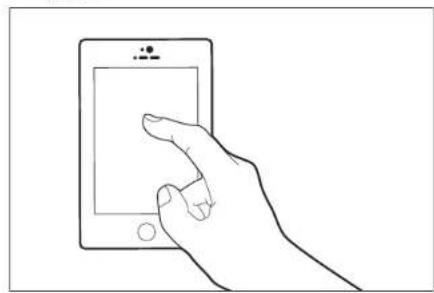
Line drawing of a hand holding a smartphone with a screen (no text or symbols)Registering your refrigerator in your account is a necessary step in order for you to take full advantage of the Smart features. When prompted by the app, enter the SAID (case-sensitive), which can be found on a sticker on the inside of the water filter door.
My Smart Appliance ID# is:
The Wi-Fi status indicator on the refrigerator control panel will blink slowly while your refrigerator and router attempt to connect.
NOTE: This blinking only applies to first-time registration after provisioning. Blinking will not occur for automatic reconnection after a connection is established.
Once you've connected your refrigerator to your home Wi-Fi network, it will remain linked even if the power goes out, you move the appliance, or if you put it in storage.
If you replace your wireless router or get a different Smart appliance, you will need to repeat this connectivity set-up process.
GETTING STARTED | 15
GETTING STARTED
MANUAL SETUP (FIRST-TIME USE) — ACCESS POINT METHOD
This procedure uses Micro Access Point technology and is applicable if your router does not support WPS.
- Before starting the Setup procedure, please take note of the home wireless network name (SSID), its password and the SAID of appliance. These will be required during the installation process.
- Turn on your router and make sure the internet connection is working.
- On your appliance, activate the provisioning process using the AP method. You should see the Wi-Fi icon blinking on the appliance HMI.
- Turn on your smart device (phone or tablet) and access your list of available wireless networks in the settings menu.
- The appliance has created a wireless network (SSID). Select this network from the list of available wireless networks. The network name is made up of the prefix from your appliance type (e.g. washer, dryer, etc.) followed by the MAC address (ex. REFRID_88_E7_I2_B3_66_C3). If you don't see it, you may need to refresh the list of networks or verify the Wi-Fi icon is on the appliance display.
- Once you have selected the SSID, a password will be required. Use the SAID as a password (i.e., 444441ABCD).
NOTE: This password is case-sensitive.
- Connect to the network.
- Wait until your device is confirmed to be connected to the appliance Wi-Fi network.
-
Open a web browser. If nothing appears, type "192.168.10.1" in the address bar (URL) and press Enter. The browser displays a Smart web page. It is the configuration page of the Wi-Fi radio of your appliance.
-
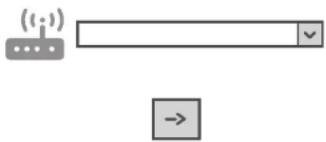
In the drop-down list of available networks, select the name of your home wireless network.
text_image
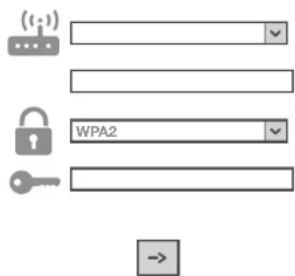
Simple UI element showing a router icon and a button with an arrow, likely for navigation or command.- If your home wireless network is hidden, select "Other" and manually enter its name (SSID) and security protocol.
text_image
(... WPA2 →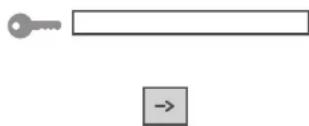
- Enter the password for your home wireless network, if required, and submit. Remember, this kind of password is case-sensitive.
- Click the "☐" button to submit, and wait a few seconds.
- The Wi-Fi icon on the appliance should stop blinking and turn on permanently once connected. Otherwise, disconnect and reconnect the appliance to the main power and repeat the procedure.
- The Setup process is complete.
GETTING STARTED
SHELVES
The shelves in your appliance are adjustable to meet your individual storage needs.
Storing similar food items together in your appliance and adjusting the shelves to fit different heights of items will make finding the exact item you want easier. It will also reduce the amount of time the refrigerator door is open and save energy.
Important information to know about glass shelves and covers:
Do not clean glass shelves or covers with warm water when they are cold. Shelves and covers may break if exposed to sudden temperature changes or impact, such as bumping.
Tempered glass is designed to shatter into many small, pebble-sized pieces. This is normal. Glass shelves and covers are heavy. Use both hands when removing them to avoid dropping.
TO REMOVE AND REPLACE THE SHELF AND SHELF SUPPORTS:
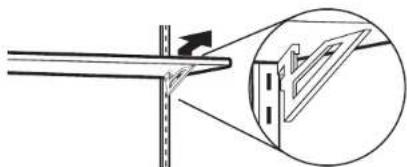
- Remove the shelf by tilting it up at the front and lifting it out of the shelf supports. Pull the shelf straight out.
- To replace the shelf, reposition the shelf supports in the desired location. Check that they are level and firmly inserted in the support rails.
natural_image
Diagram showing a mechanical assembly with a bracket and a magnified inset of a structural detail (no text or symbols)- Place the back of the shelf in the shelf supports.
- Lower the front of the shelf and make sure that it is positioned correctly.
DELI/CRISPER DRAWERS
TO REMOVE AND REPLACE THE DELI/CRISPER DRAWERS:
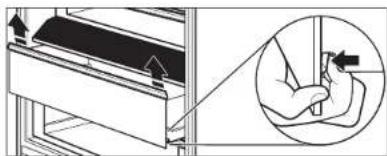
- To remove the deli/crisper drawers, press the clips located at the bottom of the drawer.
- Lift up on the drawer and pull straight out.
natural_image
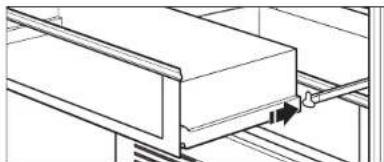
Technical diagram showing a mechanical assembly with an inset close-up of a hand holding a tool, no text or symbols present.- To replace the deli/crisper drawers, extend the glides to their fullest extent.
- Using your fingers, hold the glides in place as you place the drawer back on the glides.
natural_image
Pure technical line drawing of a mechanical assembly without any text, numbers, or symbolsCARE AND CLEANING
CLEANING
text_image
WARNING Explosion Hazard Use nonflammable cleaner. Failure to do so can result in death, explosion, or fire.Below are the recommended steps to clean your appliance.
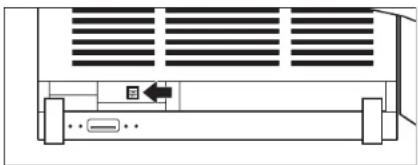
- Press the power switch to OFF.
A. To access the power switch, remove the toe kick by pulling out to release it from the brackets.
natural_image
Diagram of a computer drive rear panel with ventilation grille and indicator lights (no text or symbols)-
Remove all removable parts (such as shelves and crispers) from the inside of the appliance.
-
Hand wash, rinse, and dry removable parts and interior surfaces thoroughly. Use a clean sponge or soft cloth and a mild detergent in warm water.
■ Do not use abrasive or harsh cleaners such as window sprays, scouring cleansers, flammable fluids, cleaning waxes, concentrated detergents, bleaches, or cleansers containing petroleum on plastic parts, interior, door liners, or gaskets. Do not use paper towels, scouring pads, or other harsh cleaning tools. These can scratch or damage materials.
■ To help remove odors, you can wash interior walls with a mixture of warm water and baking soda (2 tbs to 1 qt [26 g to 0.95 L] of water).
4. Wash stainless steel and painted metal exteriors with a clean sponge or soft cloth and a mild detergent in warm water. Do not use abrasive or harsh cleaners, or cleaners containing chlorine. Dry thoroughly with a soft cloth.
5. Press the power switch to ON.
6. To replace, press the toekick panel onto the toekick bracket to engage the gripping pads.
LEATHER PANEL CARE
Under normal usage conditions, regular dusting and vacuum cleaning in crevices or bottoms is all that is necessary to clean the leather panel.
For minor spots, wipe any excess liquid up immediately with a clean absorbent cloth or sponge. If necessary, use a lightly moistened cloth with clean lukewarm water and let dry naturally.
NOTE:
■ Using hairdryer for drying may damage leather panel, so do not dry using hairdryers.
■ Do not use saddle soap, cleaning solvents, furniture polish, oils, varnish, abrasive cleaners, detergent soaps, or ammonia on leather panel.
CARE AND CLEANING
VACATION CARE
- Remove all food from the refrigerator/freezer.
- Empty the ice bin.
- Turn the power switch to Off.
A. To access the power switch, remove the toekick by pulling out to release it from the brackets.
B. To replace, press the toekick panel onto the toekick bracket to engage the gripping pads.
- Clean refrigerator/freezer, wipe it, and dry well.
- Tape rubber or wood blocks to the tops of both doors to prop them open far enough for air to get in. This stops odor and mold from building up.
POWER INTERRUPTIONS
If the power will be out for 24 hours or less, keep the door closed to help food stay cold and frozen.
If the power will be out for more than 24 hours, do one of the following:
■ Remove all frozen food and store it in a frozen food locker.
Place 2 lbs (907 g) of dry ice in the freezer for every cubic foot (28 L) of freezer space. This will keep the food frozen for 2 to 4 days.
■ If neither a food locker nor dry ice is available, consume or can perishable food at once.
REMEMBER: A full freezer stays cold longer than a partially filled one. A freezer full of meat stays cold longer than a freezer full of baked goods. If you see that food contains ice crystals, it may be refrozen, although the quality and flavor may be affected. If the condition of the food is poor, dispose of it.
CARE AND CLEANING
REPLACING THE WATER FILTER
The water filter should be replaced every 6 months based on a flow rate of 0.75 gpm-0.80 gpm (1.89-2.27 Lpm) that filters 200 gallons (757 L) of water.
NOTE: If the filter is not installed correctly, water may dispense at a lower flow rate and there will be slower ice production. Improper filter installation may also cause the water filter housing to leak.
- To open, push the water filter door up, which is located at the upper left above the refrigerator or freezer compartment.
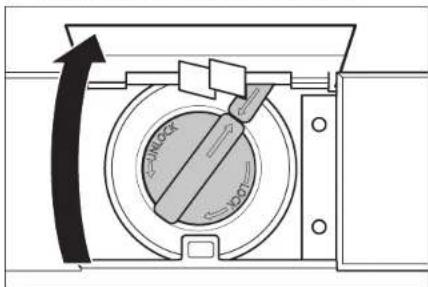
natural_image
Diagram of a mechanical device with a circular component and directional arrow (no text or symbols)- Turn the water filter 90° counterclockwise to unlock.
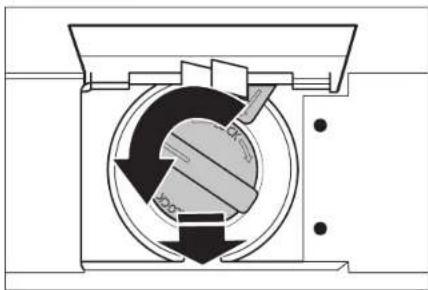
natural_image
Cross-sectional diagram of a mechanical device showing internal components and directional arrows (no text or labels)- Pull the filter out of the housing.
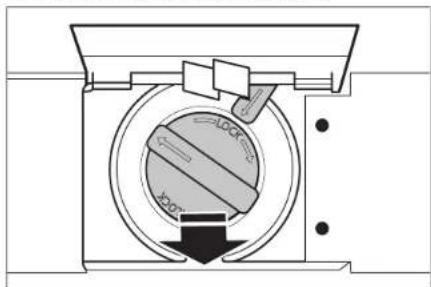
natural_image
Cross-sectional diagram of a mechanical device with internal components and directional arrow (no text or symbols)- Remove the water filter cap from the water filter.
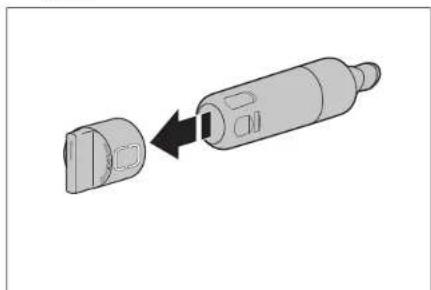
natural_image
Diagram of a mechanical component with a close-up view showing a pin or connector (no text or symbols present)CARE AND CLEANING
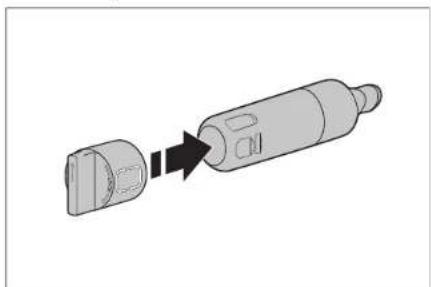
- Install the water filter cap onto the new filter. Be sure to align the arrows so the grooves in the filter align with ribs in the filter cap.
natural_image
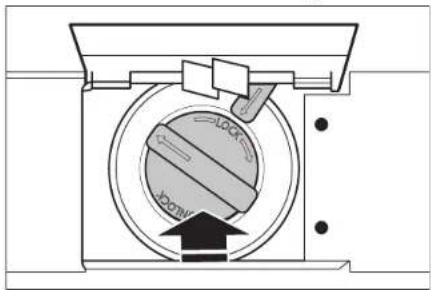
Diagram of a cylindrical device with a connector inserted, showing a close-up of its internal structure (no text or symbols)- Insert the filter into the housing.
natural_image
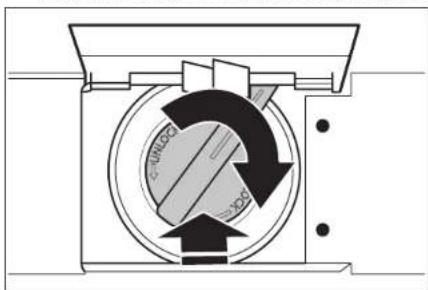
Cross-sectional diagram of a mechanical device with internal components and an upward arrow (no text or symbols)- Turn the water filter 90° clockwise until it locks into place and the arrows are aligned.
natural_image
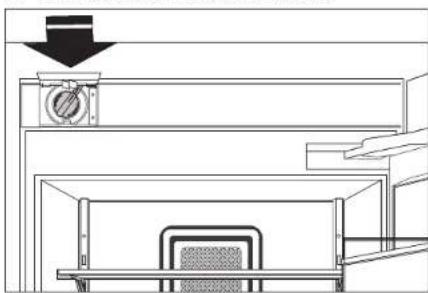
Cross-sectional diagram of a mechanical device showing internal components with no visible text or symbols- Push the water filter door closed.
natural_image
Technical line drawing of a mechanical assembly or enclosure with no visible text or symbols- The filter light does not automatically reset when the new filter is installed. To reset the filter, press and hold FILTER RESET for 3 seconds. After 3 second countdown, the Filter Reset button light will flash 3 times and replace Filter indicator will turn off.
TROUBLESHOOTING
OPERATION
THE APPLIANCE WILL NOT OPERATE
WARNING

Electrical Shock Hazard
Plug into a grounded 3 prong outlet.
Do not remove ground prong.
Do not use an adapter.
Do not use an extension cord.
Failure to follow these instructions can result in death, fire, or electrical shock.
■ Power cord unplugged? Plug into a grounded 3 prong outlet.
■ Is outlet working? Plug in a lamp to see if the outlet is working.
■ Household fuse blown or circuit breaker tripped? Replace the fuse or reset the circuit breaker. If the problem continues, call an electrician.
Are controls on? Make sure the appliance controls are on. See the "Refrigerator Controls" or "Freezer Controls" section.
Is refrigerator defrosting? Your refrigerator will regularly run an automatic defrost cycle. Recheck in 30 minutes to see if it is operating.
■ New installation? Allow 24 hours following installation for the refrigerator to cool completely.
NOTE: Adjusting the temperature controls to coldest setting will not cool either compartment more quickly.
THE MOTOR SEEMS TO RUN TOO MUCH
Your new refrigerator may run longer than your old one due to its high-efficiency compressor and fans. The unit may run even longer if the room is warm, a large food load is added, doors are opened often, or if the doors have been left open.
THE APPLIANCE IS NOISY
Overall refrigerator noise has been reduced over the years. Due to this reduction, you may hear other intermittent noises from your new appliance that you did not notice from your old model. Listed below are some unfamiliar but normal sounds, followed by an explanation.
■ Buzzing - heard when the water valve opens to fill the ice maker
■ Pulsating - fans/compressor adjusting to optimize performance
■ Rattling - flow of refrigerant, water line, or from items placed on top of the refrigerator
■ Sizzling/Gurgling - water dripping on the heater during the defrost cycle
■ Popping - contraction/expansion of inside walls, especially during initial cool-down
■ Water running - may be heard when water melts during the defrost cycle and runs into the drain pan
THERE IS NO AUDIBLE DOOR OPEN ALARM
Has the door been open less than 5 minutes? The door open alarm will only flash when the door has been open for 5 minutes. The audible alarm will sound the first time the door is left open for more than 5 minutes. Subsequent door open alarms will only flash. You must reset the audible alarm each time.
THE DOORS WILL NOT CLOSE COMPLETELY
■ Door blocked open? Move food packages away from the door.
■ Bin or shelf in the way? Push the bin or shelf back in the correct position.
THE DOORS ARE DIFFICULT TO OPEN
WARNING

Explosion Hazard
Use nonflammable cleaner.
Failure to do so can result in death, explosion, or fire.
■ Are the gaskets dirty or sticky? Clean the gaskets with mild soap and warm water.
TROUBLESHOOTING
TEMPERATURE AND MOISTURE
TEMPERATURE IS TOO WARM
■ New installation? Allow 24 hours following installation for the appliance to cool completely. Increased temperature around the front face of the refrigerator cabinet may be warm to the touch.
■ Door(s) opened often or left open? Allows warm air to enter the refrigerator. Minimize door openings and keep doors fully closed.
■ Large load of food added? Allow several hours for appliance to return to normal temperature.
■ Controls set correctly for the surrounding conditions? Adjust the controls one setting colder. Check the temperature in 24 hours. See the "Refrigerator Controls" or "Freezer Controls" section.
■ Appliance not cooling? Turn the appliance off and then on to reset. If this does not correct the problem, call for service.
■ Air vents blocked? Remove any item from in front of the air vents.
THERE IS INTERIOR MOISTURE BUILDUP
NOTE: Some moisture buildup is normal.
■ Humid room? Contributes to moisture buildup.
■ Door(s) opened often or left open? Allows humid air to enter the refrigerator. Minimize door openings and keep doors fully closed.
ICE AND WATER
THE ICE MAKER IS NOT PRODUCING ICE OR ENOUGH ICE
■ Ice maker turned on? Check the control panel to make sure the ice maker is turned on.
■ New installation? Wait 24 hours after ice maker installation for ice production to begin. Wait 72 hours for full ice production.
■ Large amount of ice recently removed? Allow 24 hours for ice maker to produce more ice.
■ Reverse osmosis water filtration system connected to your cold water supply?
This can decrease water pressure. See the "Water Supply Requirements" section in the Installation Instructions.
THE ICE CUBES ARE HOLLOW OR SMALL
NOTE: This is an indication of low water pressure.
■ Reverse osmosis water filtration system connected to your cold water supply? This can decrease water pressure. See the "Water Supply Requirements" section in the Installation Instructions.
■ Questions remain regarding water pressure? Call a licensed, qualified plumber.
ICE IS STICKING TOGETHER IN THE ICE STORAGE BIN
■ It is normal for frost to be on top of the ice storage bin due to normal opening and closing of the freezer.
It is normal for ice to stick together when it is not dispensed or used frequently. It is recommended that the ice storage bin be emptied and cleaned as needed.
TROUBLESHOOTING
ICE AND WATER (CONT.)
OFF-TASTE, ODOR, OR GRAY COLOR IN THE ICE
■ New plumbing connections? New plumbing connections can cause discolored or off-flavored ice.
■ Ice stored too long? Discard the ice. Wash the ice bin. Allow 24 hours for the ice maker to make new ice.
■ Odor transfer from food? Use airtight, moisture-proof packaging to store food.
■ Are there minerals (such as sulfur) in the water? A water filter may need to be installed to remove the minerals.
■ Is there a water filter installed on the refrigerator? Gray or dark discoloration in ice indicates that the water filtration system needs additional flushing.
THE ICE MAKER WILL NOT OPERATE PROPERLY
■ Freezer door closed completely? Close the door firmly. If it does not close completely, see "The doors will not close completely."
■ Ice bin installed correctly? Be sure the ice bin is firmly in position.
■ New installation? Wait 24 hours after ice maker installation for ice production to begin. Wait 72 hours for full ice production.
■ Has other ice been added to the bin? Use only cubes produced by the current ice maker.
THE WATER DISPENSER WILL NOT OPERATE PROPERLY
■ Is the water pressure at least 30 psi (207 kPa)? The water pressure to the home determines the flow from the dispenser. See the "Water Supply Requirements" section in the Installation Instructions.
■ New installation? Flush and fill the water system.
■ Water filter installed on the refrigerator?
The filter may be clogged or incorrectly installed.
Is a reverse osmosis water filtration system connected to your cold water supply? See the "Water Supply Requirements" section in the Installation Instructions.
LIGHTS
THE LIGHTS DO NOT WORK
■ Is the appliance in Sabbath Mode? See the "Refrigerator Controls" or "Freezer Controls" section.
■ Has the door been open more than 5 minutes? See the "Refrigerator Controls" or "Freezer Controls" section.
NOTE: The lights in both refrigerator and freezer are perimeter LEDs which do not need to be replaced. If the lights do not illuminate when the door is opened call
1-800-JENNAIR (1-800-536-6247) for assistance or service.
ASSISTANCE
CONTACT
IF YOU NEED SERVICE
Please refer to the warranty page in this manual.
IF YOU NEED REPLACEMENT PARTS
If you need to order replacement parts, we recommend that you use only factory-specified parts. Factory-specified parts will fit right and work right because they are made with the same precision used to build every new JennAir® appliance.
To locate factory-specified parts in your area, call us or your nearest designated service center.
IN THE U.S.A.
Call the JennAir Customer eXperience Center toll free at 1-800-JENNAIR (1-800-536-6247), or visit our website at www.jennair.com.
Our consultants provide assistance with:
■ Features and specifications on our full line of appliances.
■ Referrals to local JenniAppliance brand dealers.
■ Installation information.
■ Use and maintenance procedures.
■ Accessory and repair parts sales.
■ Specialized customer assistance (Spanish speaking, hearing impaired, limited vision, etc.).
If you need further assistance, you can write to JennAir with any questions or concerns at:
JennAir® Brand Home Appliances
Customer eXperience Center
553 Benson Road
Benton Harbor, MI 49022-2692
Please include a daytime phone number in your correspondence.
IN CANADA
Call the JennAir Canada Customer eXperience Centre toll free
1-800-JENNAIR (1-800-536-6247) or visit our website at www.jennair.ca.
Our consultants provide assistance with:
■ Scheduling services: JenniAppliances designated service technicians are trained to fulfill the appliance warranty and provide after-warranty service anywhere in Canada.
■ Features and specifications on our full line of appliances.
■ Referrals to local JennAbrand dealers.
■ Use and maintenance procedures.
■ Accessory and repair parts sales.
If you need further assistance, you can write to JennAir Canada with any questions or concerns at:
JennAir® Brand Home Appliances
Customer eXperience Centre
200 - 6750 Century Ave.
Mississauga, Ontario L5N 0B7
Please include a daytime phone number in your correspondence.
ACCESSORIES
To order accessories, call
1-800-JENNAIR (1-800-536-6247), and ask for the appropriate part number or contact your authorized JennAir ^® dealer. In Canada, call 1-800-536-6247.
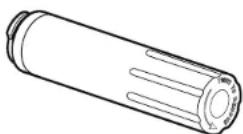
REPLACEMENT WATER FILTER:
In U.S.A., order Part #EDR2RXD1
ASSISTANCE
CONNECTED APPLIANCE REGULATORY NOTICES
Federal Communications Commission (FCC) Compliance Notice
This equipment has been tested and found to comply with the limits for a Class B digital device, pursuant to Part IS of the FCC Rules. These limits are designed to provide reasonable protection against harmful interference in a residential installation. This equipment generates, uses, and can radiate radio frequency energy and, if not installed and used in accordance with the instructions, may cause harmful interference to radio communications. However, there is no guarantee that interference will not occur in a particular installation. If this equipment does cause harmful interference to radio or television reception, which can be determined by turning the equipment off and on, the user is encouraged to try to correct
the interference by one of the following measures: Reorient or relocate the receiving antenna.
Increase the separation between the equipment and receiver.
Connect the equipment into an outlet on a circuit different from that to which the receiver is connected.
Consult the dealer or an experienced radio/TV technician for help.
This device complies with Part 15 of the FCC Rules. Operation is subject to the following two conditions:
-
This device may not cause harmful interference, and
-
This device must accept any interference received, including interference that may cause undesired operation.
Changes or modifications not expressly approved by the party responsible for compliance could void the user's authority to operate the equipment.
RF Exposure Information
To comply with FCC/IC RF exposure requirements for mobile transmitting devices, this transmitter should only be used or installed at locations where there is at least 20 cm separation distance between the antenna and all persons.
To comply with FCC/IC RF exposure limits for general
population/uncontrolled exposure, the antenna(s) used for this transmitter must be installed to provide a separation distance of at least 20 cm from all persons and must not be co-located or operating in conjunction with any other antenna or transmitter.
Industry Canada (IC) Compliance Notice
This Device complies with Industry Canada License-exempt RSS standard(s). Operation is subject to the following two conditions:
- This device may not cause interference,
- This device must accept any interference, including interference that may cause undesired operation of the device.
Under Industry Canada regulations, this radio transmitter may only operate using an antenna of a type and maximum (or lesser) gain approved for the transmitter by Industry Canada. To reduce potential radio interference to other users, the antenna type and its gain should be so chosen that the equivalent isotropically radiated power (e.i.r.p.) is not more than that necessary for successful communication.
This radio transmitter IC: 10248A-XPWG3 has been approved by Industry Canada to operate with the antenna types listed below with the maximum permissible gain and required antenna impedance for each antenna type indicated. Antenna types not included in this list, having a gain greater than the maximum gain indicated for that type, are strictly prohibited for use with this device.
| Antenna Type | Maximum Permissible Antenna Gain (dBi) | Required Impendance (OHM) |
| Slot 1.76 50 |
To comply with FCC and Industry Canada RF radiation exposure limits for general population, the antenna(s) used for this transmitter must be installed such that a minimum separation distance of 20 cm is maintained between the radiator (antenna) and all persons at all times and must not be co-located or operating in conjunction with any other antenna or transmitter.
OEM RESPONSIBILITIES TO COMPLY WITH FCC AND INDUSTRY CANADA REGULATIONS
The XPWG3 Module has been certified for integration into s only by OEM integrators under the following conditions:
- The antenna(s) must be installed such that a minimum separation distance of 20 cm is maintained between the radiator (antenna) and all persons at all times.
- The transmitter module must not be co-located or operating in conjunction with any other antenna or transmitter.
As long as the two conditions above are met, further transmitter testing will not be required. However, the OEM integrator is still responsible for testing their end- for any additional compliance requirements required with this module installed (for example, digital device emissions, PC peripheral requirements, etc.).
IMPORTANT NOTE: In the event that these conditions cannot be met (for certain configurations or co-location with another transmitter), then the FCC and Industry Canada authorizations are no longer considered valid and the FCC ID and IC Certification Number cannot be used on the final. In these circumstances, the OEM integrator will be responsible for re-evaluating the end product (including the transmitter) and obtaining a separate FCC and Industry Canada authorization.
END PRODUCT LABELING
The XPWG3 Module is labeled with its own FCC ID and IC Certification Number. If the FCC ID and IC Certification Number are not visible when the module is installed inside another device, then the outside of the device into which the module is installed must also display a label referring to the enclosed module. In that case, the final end product must be labeled in a visible area with the following: "Contains Transmitter Module FCC ID: A5UXPWG3" "Contains Transmitter Module IC: 10248A-XPWG3" or
"Contains FCC ID: A5UXPWG3"
"Contains IC:10248A-XPWG3"
The OEM of the XPWG3 Module must only use the approved antenna(s), which have been certified with this module. The OEM integrator has to be aware not to provide information to the end user regarding how to install or remove this RF module or change RF related parameters in the user manual of the end.
The user manual for the end product must include the following information in a prominent location: "To comply with FCC and Industry Canada RF radiation exposure limits for general population, the antenna(s) used for this transmitter must be installed such that a minimum separation distance of 20 cm is maintained between the radiator (antenna) and all persons at all times and must not be co-located or operating in conjunction with any other antenna or transmitter."
Open Source License Usage
The following statements refer to the portions of this software based in part on FreeRTOS v7.0.2, http://www.freertos.org. The use of this software is governed by the terms of GNU General Public License v. 2, which is available at: http://www.gnu.org/licenses/gpl-2.0.html. A copy of the source code may be obtained by written request for the software by name to opensource@whirlpool.com, along with the address for delivery.
The following statements refer to those portions
of the software copyrighted by Eclipse Foundation, Inc. Copyright (c) 2007, Eclipse Foundation, Inc. and its licensors. All rights reserved.
Redistribution and use in source and binary forms, with or without modification, are permitted provided that the following conditions are met:
nRedistributions of source code must retain the above copyright notice, this list of conditions, and the following disclaimer.
☐Redistributions in binary form must reproduce the above copyright notice, this list of conditions, and the following disclaimer in the documentation and/or other materials provided with the distribution.
Neither the name of the Eclipse Foundation, Inc. nor the names of its contributors may be used to endorse or promote s derived from this software without specific prior written permission.
THIS SOFTWARE IS PROVIDED BY THE COPYRIGHT HOLDERS AND CONTRIBUTORS "AS IS" AND ANY EXPRESS OR IMPLIED WARRANTIES, INCLUDING, BUT NOT LIMITED TO, THE IMPLIED WARRANTIES OF MERCHANTABILITY AND
FITNESS FOR A PARTICULAR PURPOSE ARE DISCLAIMED. IN NO EVENT SHALL THE COPYRIGHT OWNER OR CONTRIBUTORS BE LIABLE FOR ANY DIRECT, INDIRECT, INCIDENTAL, SPECIAL, EXEMPLARY, OR CONSEQUENTIAL DAMAGES (INCLUDING, BUT NOT LIMITED TO, PROCUREMENT OF SUBSTITUTE GOODS OR SERVICES; LOSS OF USE, DATA, OR PROFITS; OR BUSINESS INTERRUPTION) HOWEVER CAUSED AND ON ANY THEORY OF LIABILITY, WHETHER IN CONTRACT, STRICT LIABILITY, OR TORT (INCLUDING NEGLIGENCE OR OTHERWISE) ARISING IN ANY WAY OUT OF THE USE OF THIS SOFTWARE, EVEN IF ADVISED OF THE POSSIBILITY OF SUCH DAMAGE. Portions of this software are copyright (c) Sawtooth Consulting Ltd. 2006-2015 All rights reserved. Portions of this software are copyright (c) Arrayent, Inc. 2015 All rights reserved.
The following statements refer to those portions of the software copyrighted by Swedish Institute of Computer Science.
Copyright (c) 2001-2004 Swedish Institute of Computer Science. All rights reserved. Redistribution and use in source and binary forms, with or without modification, are permitted provided that the following conditions are met:
- Redistributions of source code must retain the above copyright notice, this list of conditions, and the following disclaimer.
- Redistributions in binary form must reproduce the above copyright notice, this list of conditions, and the following disclaimer in the documentation and/or other materials provided with the distribution.
- The name of the author may not be used to endorse or promote s derived from this software without specific prior written permission.
THIS SOFTWARE IS PROVIDED BY THE AUTHOR "AS IS" AND ANY EXPRESS OR IMPLIED WARRANTIES, INCLUDING, BUT NOT LIMITED TO, THE IMPLIED WARRANTIES OF MERCHANTABILITY AND FITNESS FOR A PARTICULAR PURPOSE ARE DISCLAIMED. IN NO EVENT SHALL THE AUTHOR BE LIABLE FOR ANY DIRECT, INDIRECT, INCIDENTAL, SPECIAL, EXEMPLARY, OR CONSEQUENTIAL DAMAGES (INCLUDING, BUT NOT LIMITED TO, PROCUREMENT OF SUBSTITUTE GOODS OR SERVICES; LOSS OF USE, DATA, OR PROFITS; OR BUSINESS INTERRUPTION) HOWEVER CAUSED AND ON ANY THEORY OF LIABILITY, WHETHER IN CONTRACT, STRICT LIABILITY, OR TORT (INCLUDING NEGLIGENCE OR OTHERWISE) ARISING IN ANY WAY OUT OF THE USE OF THIS SOFTWARE, EVEN IF ADVISED OF THE POSSIBILITY OF SUCH DAMAGE.
The following statements refer to those portions of the software copyrighted by Marvell International Ltd. Copyright (c) Marvell International Ltd. All rights reserved.
DISCLAIMER. THIS SOFTWARE IS PROVIDED BY THE COPYRIGHT HOLDERS AND CONTRIBUTORS "AS IS" AND ANY EXPRESS OR IMPLIED WARRANTIES, INCLUDING, BUT NOT LIMITED TO, THE IMPLIED WARRANTIES OF MERCHANTABILITY AND FITNESS FOR A PARTICULAR PURPOSE ARE DISCLAIMED. IN NO EVENT SHALL THE COPYRIGHT OWNER OR CONTRIBUTORS BE LIABLE FOR ANY DIRECT, INDIRECT, INCIDENTAL, SPECIAL, EXEMPLARY, OR CONSEQUENTIAL DAMAGES (INCLUDING, BUT NOT LIMITED TO, PROCUREMENT OF SUBSTITUTE GOODS OR SERVICES; LOSS OF USE, DATA, OR PROFITS; OR BUSINESS INTERRUPTION) HOWEVER CAUSED AND ON ANY THEORY OF LIABILITY, WHETHER IN CONTRACT, STRICT LIABILITY, OR TORT (INCLUDING NEGLIGENCE OR OTHERWISE) ARISING IN ANY WAY OUT OF THE USE OF THIS SOFTWARE, EVEN IF ADVISED OF THE POSSIBILITY OF SUCH DAMAGE.
PERFORMANCE DATA SHEET
WATER FILTRATION SYSTEM
MODEL P9WB2L/P9RFWB2L CAPACITY 200 GALLONS (757 LITERS)

System tested and certified by NSF International against NSF/ANSI Standard 42, Standard 53, and Standard 401 for the reduction of contaminants specified on the Performance Data Sheet.
This system has been tested according to NSF/ANSI Standards 42, 53 and 401 for the reduction of the substances listed below. The concentration of the indicated substances in water entering the system was reduced to a concentration less than or equal to the permissible limit for water leaving the system, as specified in NSF/ANSI Standards 42, 53, and 401.
| Substance Reduction Aesthetic Effects | Influent Challenge Concentration Maxim | Num Permissible Product Water Concentration | Average% Reduction |
| Chlorine Taste/Odor Particulate Class I | 2.0 mg/L ± 10% At least 10,000 particles/mL | 50% reduction 85% reduction | 97.0% >99.9% |
| Contaminant Reduction Influent Challenge | Concentration | Maximum Permissible Product Water Concentration | Average% Reduction |
| Lead*: @ pH 6.5 / @ pH 8.5 0.15 mg/L± 10% 0.010 mg/L >99.3% / 98.6% | |||
| Benzene 0.015 mg/L ± 10% 0.005 mg/L 93.8% | |||
| p-Dichlorobenzene 0.225 mg/L ± 10% 0.075 mg/L 99.8% | |||
| Carbofuran 0.08 mg/L ± 10% 0.040 mg/L | 81.9% | ||
| Toxaphene | 0.015 ± 10% | 0.003 mg/L | >95% |
| Atrazine | 0.009 mg/L ± 10% | 0.003 mg/L | 87.0% |
| Asbestos | 10^7 to 10^8 fibers/L ^-1 | 99% | >99% |
| Live Cysts ^ | 50,000/L min. | 99.95% | >99.99% |
| Turbidity 11 NTU ± 10% | 0.5 NTU | 96.9% | |
| Lindane | 0.002 ± 10% 0.0002 mg/L | >99.2% | |
| Tetrachloroethylene | 0.015 mg/L ± 10% | 0.005 mg/L | 96.6% |
| o-Dichlorobenzene | 1.8 mg/L ± 10% | 0.60 mg/L | 92.3% |
| Ethylbenzene | 2.1 mg/L ± 10% | 0.70 mg/L | 86.9% |
| 1,2,4-Trichlorobenzene | 0.210 mg/L ± 10% | 0.07 mg/L | >99.8% |
| 2,4 - D | 0.210 mg/L ± 10% 0.07 mg/L | 88.5% | |
| Styrene | 2.0 mg/L ± 10% | 0.1 mg/L | 99.6% |
| Toluene | 3.0 mg/L ± 10% | 1.0 mg/L | 93.5% |
| Endrin | 0.006 mg/L ± 10% | 0.002 mg/L 81.7% | |
| Atenolol | 200 ± 20% | 30 ng/L | 95.7% |
| Trimethoprim | 140 ± 20% | 20 ng/L | 96.1% |
| Linuron | 140 ± 20% | 20 ng/L | 96.3% |
| Estrone | 140 ± 20% | 20 ng/L | 95.3% |
| Nonylphenol | 1400 ± 20% 200 ng/L 95.5% | ||
| Carbamazepine | 1400 ± 20% 200 ng/L 97.94% | ||
| Phenytoin | 200 ± 20% | 30 ng/L | 93.58% |
| Naproxen | 140 ± 20% | 20 ng/L | 96.04% |
| Bisphenol A | 2000 ± 20% 300 ng/L 99.20% | ||
Test Parameters: pH = 7.5 ± 0.5 unless otherwise noted. Flow = 0.6 gpm (2.27 lpm). Pressure = 60 psig (413.7 kPa). Temp. = 68°F to 71.6°F (20°C to 22°C). Rated service capacity = 200 gallons (757 liters).
The compounds certified under NSF 4QI have been deemed as "emerging compounds/incidental contaminants." Emerging compounds/incidental contaminants are those compounds that have been detected in drinking water supplies at trace levels. While occurring at only trace levels, these compounds can affect the public acceptance/perception of drinking water quality.
PERFORMANCE DATA SHEET (CONTD.)
☐ It is important that operational, maintenance, and filter replacement requirements be carried out for the product to perform as advertised. Property damage can occur if all instructions are not followed.
☐ The disposable cartridge must be changed at least every 6 months.
Use replacement filter P9RFWB2L, part #EDR2RXD1/EDR2RXD1B. 2015 suggested retail price of \49.99 U.S.A./\49.99 Canada. Prices are subject to change without notice.
The filter monitor system measures the amount of water that passes through the filter and alerts you when it is time to replace the filter. Refer to the "Using the Controls" or "Water Filtration System" sections in the User Instructions or User Guide to learn how to check the water filter status.
After changing the water filter, flush the water system. See the "Water and Ice Dispensers" or "Water Dispenser" sections in the User Instructions or User Guide.
These contaminants are not necessarily in your water supply. While testing was performed under standard laboratory conditions, actual performance may vary.
☐The product is for cold water use only.
The water system must be installed in compliance with state and local laws and regulations.
Do not use with water that is microbiologically unsafe or of unknown quality without adequate disinfection before or after the system. Systems certified for cyst reduction may be used on disinfected waters that may contain filterable cysts. EPA Est. No. 082047-TWN-001
Refer to the "Warranty" section in the User Instructions or User Guide for the Manufacturer's limited warranty, name, and telephone number.
Application Guidelines/Water Supply Parameters
Water Supply Potable City or Well
Water Pressure 30-120 psi (207 - 827 kPa)
Water Temperature 33°-100°F (0.6° - 37.8°C)
Service Flow Rate 0.50 gpm (1.89 Lpm) @ 60 psi (413.7 kPa)
*Class I particle size: >0.5 to <1 um
^1 Based on the use of Cryptosporidium parvum oocysts
^†† Fibers greater than 10 um in length
JENNAIR® REFRIGERATION LIMITED WARRANTY
ATTACH YOUR RECEIPT HERE. PROOF OF PURCHASE IS REQUIRED TO OBTAIN WARRANTY SERVICE.
Please have the following information available when you call the Customer eXperience Center:
Name, address, and telephone number
nModel number and serial number
□A clear, detailed description of the problem
Proof of purchase including dealer or retailer name and address
IF YOU NEED SERVICE:
-
Before contacting us to arrange service, please determine whether your product requires repair. Some questions can be addressed without service. Please take a few minutes to review the Troubleshooting section of the Use and Care Guide or visit producthelp.jennair.com.
-
All warranty service is provided exclusively by our authorized JennAir Service Providers. In the U.S. and Canada, direct all requests for warranty service to:
JennAir Customer eXperience Center
1-800-JENNAIR (1-800-536-6247).
If outside the 50 United States or Canada, contact your authorized JennAir dealer to determine whether another warranty applies.
TEN YEAR LIMITED WARRANTY
WHAT IS COVERED WHAT IS NOT COVERED
TWO YEAR LIMITED WARRANTY (PARTS AND LABOR)
For two years from the date of purchase, when this major appliance is installed, operated and maintained according to instructions attached to or furnished with the product, JennAir brand of Whirlpool Corporation or Whirlpool Canada LP (hereafter "JennAir") will pay for factory specified replacement parts and repair labor to correct defects in materials or workmanship that existed when this major appliance was purchased, or at its sole discretion replace the product. In the event of product replacement, your appliance will be warranted for the remaining term of the original unit's warranty period.
THIRD THROUGH FIFTH YEAR LIMITED WARRANTY ON CAVITY LINER AND SEALED REFRIGERATION SYSTEM (PARTS & LABOR)
In the third through fifth years from the date of purchase, when this major appliance is installed, operated and maintained according to the instructions attached to or furnished with the product, JennAir brand will pay for factory specified replacement parts and repair labor for the following components to correct non-cosmetic defects in materials and workmanship in this part that prevent function of the refrigerator and that existed when this major appliance was purchased:
u Refrigerator/freezer cavity liner if the part cracks due to defective materials or workmanship
☐ Sealed Refrigeration system (includes compressor, evaporator, condenser, dryer and connecting tubing).
SIXTH THROUGH TENTH YEAR LIMITED WARRANTY
(SEALED REFRIGERATION SYSTEM ONLY - LABOR NOT INCLUDED)
In the sixth through tenth year from the date of purchase, when this major appliance is installed, operated and maintained according to instructions attached to or furnished with the product. JennAir brand will pay for factory specified replacement parts for the following components to correct defects in materials or workmanship in the sealed refrigeration system (includes compressor, evaporator, condenser, dryer and connecting tubing) that existed when this major appliance was purchased.
- Commercial, non-residential or multiple-family use, or use inconsistent with published user, operator or installation instructions.
- In-home instruction on how to use your product.
- Service to correct improper product maintenance or installation, installation not in accordance with electrical or plumbing codes or correction of household electrical or plumbing (e.g., house wiring, fuses or water inlet hoses).
- Consumable parts (e.g., light bulbs, batteries, air or water filters, preservation solutions).
- Defects or damage caused by the use of non-genuine JennAir parts or accessories.
- Damage from accident, misuse, abuse, fire, floods, acts of God, or use with products not approved by JennAir.
- Repairs to parts or systems to correct product damage or defects caused by unauthorized service, alteration or modification of the appliance.
- Cosmetic damage, including scratches, dents, chips, and other damage to appliance finishes unless such damage results from defects in materials and workmanship and is reported to JennAir within 30 days.
- Discoloration, rust or oxidation of surfaces resulting from caustic or corrosive environments including but not limited to high salt concentrations, high moisture or humidity, or exposure to chemicals.
- Food or medicine loss due to product failure.
- Pickup or delivery. This product is intended for in-home repair.
- Travel or transportation expenses for service in remote locations where an authorized JennAir servicer is not available.
- Removal or reinstallation of inaccessible appliances or built-in fixtures (e.g., trim, decorative panels, flooring, cabinetry, islands, countertops, drywall) that interfere with servicing, removal or replacement of the product.
- Service or parts for appliances with original model/serial numbers removed, altered or not easily determined.
The cost of repair or replacement under these excluded circumstances shall be borne by the customer.
TEN YEAR LIMITED WARRANTY
WHAT IS COVERED WHAT IS NOT COVERED
YOUR SOLE AND EXCLUSIVE REMEDY UNDER THIS LIMITED WARRANTY SHALL BE PRODUCT REPAIR AS PROVIDED HEREIN. Service must be provided by a JennAir designated service company. This limited warranty is valid only in the United States or Canada and applies only when the major appliance is used in the country in which it was purchased. This limited warranty is effective from the date of original consumer purchase. Proof of original purchase date is required to obtain service under this limited warranty.
DISCLAIMER OF IMPLIED WARRANTIES
IMPLIED WARRANTIES, INCLUDING ANY IMPLIED WARRANTY OF MERCHANTABILITY OR IMPLIED WARRANTY OF FITNESS FOR A PARTICULAR PURPOSE, ARE LIMITED TO TEN YEARS OR THE SHORTEST PERIOD ALLOWED BY LAW. Some states and provinces do not allow limitations on the duration of implied warranties of merchantability or fitness, so this limitation may not apply to you. This warranty gives you specific legal rights, and you also may have other rights that vary from state to state or province to province.
DISCLAIMER OF REPRESENTATIONS OUTSIDE OF WARRANTY
JennAir makes no representations about the quality, durability, or need for service or repair of this major appliance other than the representations contained in this warranty. If you want a longer or more comprehensive warranty than the limited warranty that comes with this major appliance, you should ask JennAir or your retailer about buying an extended warranty.
LIMITATION OF REMEDIES: EXCLUSION OF INCIDENTAL AND CONSEQUENTIAL DAMAGES
YOUR SOLE AND EXCLUSIVE REMEDY UNDER THIS LIMITED WARRANTY SHALL BE PRODUCT REPAIR AS PROVIDED HEREIN. JENNAIR SHALL NOT BE LIABLE FOR INCIDENTAL OR CONSEQUENTIAL DAMAGES. Some states and provinces do not allow the exclusion or limitation of incidental or consequential damages, so these limitations and exclusions may not apply to you. This warranty gives you specific legal rights, and you also may have other rights that vary from state to state or province to province.
08/17
INTRODUCTION
SÉCURITÉ
natural_image
Line drawing of a rectangular cabinet or enclosure with a lid and side panel (no text or symbols)CARACTÉRISTIQUES DU PRODUIT
www.jennair.com/connect.
natural_image
Line drawing of a hand interacting with a smartphone screen (no text or symbols)text_image
Simple diagram showing a router with signal icons and a navigation button with an arrowtext_image
(... WPA2 →natural_image
Diagram showing a mechanical assembly with an arrow indicating direction, no text or symbols presenttext_image
Technical diagram showing a mechanical assembly with directional arrows and an inset close-up of a hand holding a tool.natural_image
Pure technical line drawing of a mechanical assembly without any text, numbers, or symbolsENTRETIEN ET NETTOYAGE
NETTOYAGE

natural_image
Diagram of a computer rack with ventilation grilles and a mouse pointer (no text or symbols)natural_image
Diagram of a mechanical device with a circular component and directional arrow, no text or symbols presentnatural_image
Cross-sectional diagram of a mechanical device showing internal components and directional arrows (no text or labels)natural_image
Cross-sectional diagram of a mechanical device with internal components and a downward arrow indicating motion (no text or symbols)natural_image
Diagram of a mechanical component with a close-up view showing internal structure (no text or symbols)ENTRETIEN ET NETTOYAGE
natural_image
Diagram of a cylindrical device with a connector and arrow indicating process (no text or symbols)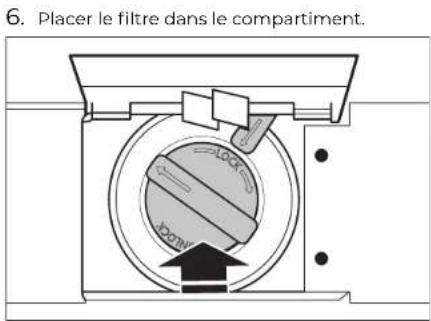
natural_image
Cross-sectional diagram of a mechanical device with internal components and directional arrows (no text or symbols)natural_image
Technical line drawing of a furnace or oven structure with a downward arrow indicating direction (no text or symbols)JennAir® Brand Home Appliances
Customer eXperience Centre
200 - 6750 Century Ave.
Mississauga, Ontario L5N 0B7
FICHE DE DONNÉES RELATIVES AU RENDEMENT
SYSTÈME DE FILTRATION D'EAU
MODÈLE P9WB2L/P9RFWB2L CAPACITÉ 200 GALLONS (757 LITRES)