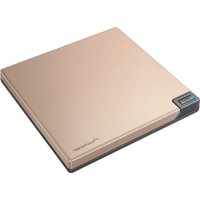
BDRXD08G - Hard Drive PIONEER - Free user manual and instructions
Find the device manual for free BDRXD08G PIONEER in PDF.


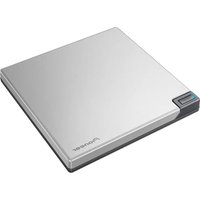
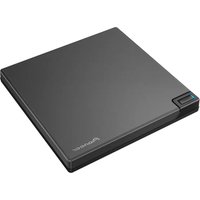
| Product Type | External Blu-ray writer/player |
| Brand | Pioneer |
| Model | BDR-XD08G |
| Dimensions (W x H x D) | 133 mm x 14.8 mm x 133 mm (without feet) |
| Weight | 230 g (drive only) |
| Power Supply | +5 V DC, 1.0 A (via USB or optional AC adapter DCA-003) |
| Interface | USB 3.2 Gen1 Type-C (compatible with USB 2.0 and 1.1) |
| Maximum Write Speed | BD-R: 6x, DVD±R: 8x, CD-R: 24x |
| Maximum Read Speed | BD-ROM: 6x, DVD-ROM: 8x, CD-ROM: 24x |
| Buffer Size | 4 MB |
| Operating Temperature | +5 °C to +35 °C |
| Operating Humidity | 5% to 85% (no condensation) |
| Compatible Operating Systems | Windows 11, 10, 8.1; macOS 10.11 to 12 |
| Special Features | PureRead (3 modes: Master, Perfect, Off), Custom Eco, M-DISC playback |
| Included Accessories | USB Type-A cable, USB Type-C cable, user manual, CyberLink Media Suite product key |
| Warranty | 1-year limited (USA and Canada) |
| Standby Power Consumption | 0.65 W |
| Safety | Class 1 laser; avoid exposure to beam; do not open |
| Protection Rating | Not waterproof |
| Maintenance and Cleaning | Soft dry cloth; mild neutral detergent possible; avoid chemicals |
| Spare Parts and Repairability | Optional DCA-003 AC adapter; repair by authorized personnel only |
Frequently Asked Questions - BDRXD08G PIONEER
User questions about BDRXD08G PIONEER
0 question about this device. Answer the ones you know or ask your own.
Ask a new question about this device
Download the instructions for your Hard Drive in PDF format for free! Find your manual BDRXD08G - PIONEER and take your electronic device back in hand. On this page are published all the documents necessary for the use of your device. BDRXD08G by PIONEER.
USER MANUAL BDRXD08G PIONEER
natural_image
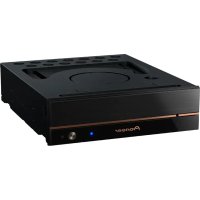
Black Pioneer DVD drive with a small indicator light on the front panel (no text or symbols visible on the device body)BDXL™
b TM Blu-rayDisc
DVD MULTI RECORDER
DVD R/RW/RAM



Thank you for purchasing this Pioneer product. Before using the drive, please ensure that you read all warnings, cautions, notices, and other important safety information in this owner's manual, which also contains important information including regulatory data, the software license agreement, details on product registration, service procedures, and guidelines on installation and use. Be sure to keep this manual in a safe place.
Contents
Operating System 6
Before Use 7
IMPORTANT SAFETY INSTRUCTIONS....9
Cautions in Usage....12
Features 14
Part Names and Functions.... 16
Operations....18
Connection....20
Downloading and Installing CyberLink Media Suite
(with Product Key) 22
Useful Functions....23
Specifications....28
Problems and Solutions ....30
Others 33
Precautions Regarding Use
- Pioneer accepts no liability for the loss of any data and limits its responsibility for any failure of the product to perform properly as provided in the product's One Year Limited Warranty. It is strongly recommended to regularly back up all critical data.
- Care must be taken not to infringe copyright restrictions under the laws of each country. If this device is used to record copyrighted materials, approval must be obtained from the respective copyright holders. The recording of copyrighted materials without the express approval of the respective copyright holders may result in legal penalties. YOU ARE RESPONSIBLE FOR YOUR USE OF THIS PRODUCT. Pioneer disclaims any and all responsibility for any legal damages resulting from the use of this device in the unauthorized copying of copyrighted materials.
- All names of corporations, products, and systems listed herein, even when the (TM) or (®) symbols are omitted, are considered the registered trademarks of the respective owners.
- Specifications and the external appearance may be subject to change without notice.
Images used in this Owner's Manual may be different from actual product.

WARNING
This product's classification has been determined under IEC 60825-1:2014, Safety of Laser Products. This Class 1 product contains a laser diode classified as Class 3B. To ensure continued safety, do not remove any covers or attempt to gain access to the inside of the product. Refer all servicing to qualified personnel.
CLASS 1 LASER PRODUCT
The following caution label appears on your unit:
Location: bottom of the unit
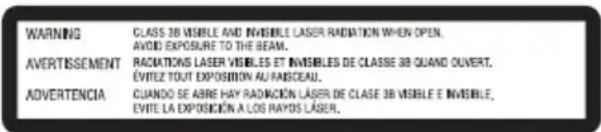
CAUTION : USE OF CONTROLS OR ADJUSTMENTS OR PERFORMANCE OF PROCEDURES OTHER THAN THOSE SPECIFIED HEREIN MAY RESULT IN HAZARDOUS RADIATION EXPOSURE.
CAUTION : THE USE OF OPTICAL INSTRUMENTS WITH THIS PRODUCT WILL INCREASE EYE HAZARD.
FEDERAL COMMUNICATIONS COMMISSION DECLARATION OF CONFORMITY
This device complies with part 15 of the FCC Rules. Operation is subject to the following two conditions: (1) This device may not cause harmful interference, and (2) this device must accept any interference received, including interference that may cause undesired operation.
Product Name: BD/DVD/CD WRITER
Model Number: BDR-XD08B / BDR-XD08S / BDR-XD08G
Responsible Party Name: Pioneer Electronics (USA) Inc.
Address: 2050 W. 190th Street, Suite 100, Torrance, CA 90504
Phone: (800) 421-1404
URL: https://www.pioneerelectronics.com/PUSA/
NOTE
This equipment has been tested and found to comply with the limits for a Class B digital device, pursuant to Part 15 of the FCC Rules. These limits are designed to provide reasonable protection against harmful interference in a residential installation. This equipment generates, uses, and can radiate radio frequency energy and, if not installed and used in accordance with the instructions, may cause harmful interference to radio communications. However, there is no guarantee that interference will not occur in a particular installation. If this equipment does cause harmful interference to radio or television reception, which can be determined by turning the equipment off and on, the user is encouraged to try to correct the interference by one or more of the following measures:
— Reorient or relocate the receiving antenna.
— Increase the separation between the equipment and receiver.
— Connect the equipment into an outlet on a circuit different from that to which the receiver is connected.
— Consult the dealer or an experienced radio/TV technician for help.
Information to User
Alterations or modifications carried out without appropriate authorization may invalidate the user's right to operate the equipment.

WARNING
TO PREVENT THE RISK OF ELECTRIC SHOCK, DO NOT REMOVE COVER (OR BACK). NO USER-SERVICEABLE PARTS INSIDE. REFER SERVICING TO QUALIFIED SERVICE PERSONNEL.

WARNING
THIS PRODUCT IS NOT WATER RESISTANT. To prevent a fire or shock hazard, do not place any container filled with liquid near this equipment (such as a vase or flower pot) or expose it to dripping, splashing, rain or moisture.
For PLUGGABLE EQUIPMENT, the socket-outlet shall be installed near the equipment and shall be easily accessible.
CAUTION
This product satisfies FCC regulations when shielded cables and connectors are used to connect the unit to other equipment. To prevent electromagnetic interference with electric appliances such as radios and televisions, use shielded cables and connectors for connections.
Operating System
Operating Environment (Windows®)
DVD/CD disc recording and playback
• Supported OS: Windows 11, Windows 10, Windows 8.1
Blu-ray disc recording and playback
• Supported OS: Windows 11, Windows 10, Windows 8.1
The required operating environment may differ depending on the OS or applications used.
Please consult with software or OS providers regarding any questions about the OS or applications.
Operating Environment (macOS®)
- Supported OS: OS X El Capita ^ 10.11, macOS Sierra ^ 10.12, macOS High Sierra ^ 10.13, macOS Mojave ^ 10.14, macOS Catalina ^ 10.15, macOS Big Sur ^ 11, macOS Monterey ^ 12
Checking accessories
Owner's manual (including warranty information and application product key)
USB cable (Type-A)
USB exchange cable (Type-A → Type-C)
- Download the application software from the website at https://jpn.pioneer/cyberlink_soft/en.php
The application download key (product key) is attached to back of this Owner's manual.
- If any accessories are not included, please contact the dealer from which you purchased this product.
- Please download the Pioneer BD Drive Utility from the Pioneer website. https://pioneer.jp/device_e/product-e/ibs/device_e/dev00001r_e.html#DriveUtility
The Drive Utility lets the user configure various drive functions such as adjusting the reading method if correct reading of a music CD is not possible, and setting the PureRead function, which minimizes the occurrence of data interpolation resulting from errors.
For details, refer to "Useful Functions" on page 23.
Information on the product
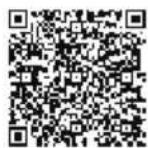
https://www.pioneerelectronics.com/PUSA/Computer/Computer+Drives/BDR-XD08B
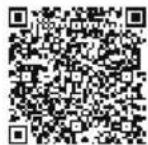
https://www.pioneerelectronics.com/PUSA/Computer/Computer+Drives/BDR-XD08S
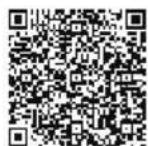
https://www.pioneerelectronics.com/PUSA/Computer/Computer+Drives/BDR-XD08G

WARNING
Measures in the event of abnormalities
- CONTINUING TO USE THE DEVICE UNDER ABNORMAL CONDITIONS, SUCH AS WHERE THERE IS SMOKE, ABNORMAL SMELLS, STRANGE NOISES, OR SIMILAR MAY LEAD TO FIRE OR ELECTRIC SHOCK. IMMEDIATELY REMOVE THE USB CABLE FROM THE DEVICE (IF USING AN AC ADAPTER, UNPLUG THE POWER PLUG FROM THE OUTLET). ENSURE THAT NO MORE SMOKE IS BEING EMITTED, AND CONTACT YOUR DEALER FOR REPAIR. ATTEMPTING TO REPAIR THE DEVICE YOURSELF IS DANGEROUS, AND SHOULD NOT BE ATTEMPTED.
- If water or other foreign matter have entered the device, remove the USB cable from the device (if using an AC adapter, unplug the power plug from the outlet), and contact your dealer. Continuing to use the device may lead to fire or electric shock.
- If the device is dropped or the cover damaged, remove the USB cable from the device (if using an AC adapter, unplug the power plug from the outlet) and contact your dealer. Continuing to use the device may lead to fire or electric shock.
Operating Environment
- Operating environment temperature and humidity:
+5 °C to +35 °C (+41 °F to +95 °F); less than 85% relative humidity (ensure cooling vents not blocked)
Do not install this unit in a poorly ventilated area, or in locations exposed to high humidity or direct sunlight (or strong artificial light). - Ensure that water does not enter the device, and that it is kept dry. Do not use in locations with high humidity. Doing so may lead to fire or electric shock.
- Do not use in wet locations such as in bathrooms or shower rooms. Doing so may lead to fire or electric shock.
Installation
- Do not install near any heat sources such as radiators, heat registers, stoves, or other apparatus (including amplifiers) that produce heat.
- Slots and openings in the chassis are for cooling and proper operation of the unit. Do NOT block or cover the openings. Do NOT place this unit on a bed, rug, etc. as this can block the openings. This unit should not be placed in a built-in installation unless properly ventilated.
- To prevent a fire hazard, do not place any naked flame sources (such as a lighted candle) on or anywhere near the equipment.
- Do not place near open flames, such as a fireplace, or heat sources. Doing so may lead to fire or deforming.

WARNING
- Unplug the USB cable (if using an AC adapter, the power plug) from this device during lightning storms or when unused for long periods of time.
- During operation, do not subject the device to vibration or shock, or plug in or unplug the USB cable (if using an AC adapter, the power plug).
- During operation, do not move or pick up the device. The disc rotates at high speed, and picking up or moving the device may damage the disc. To move the device, first remove the disc, and turn the power off.
- Do not remove the device cover, or modify the device. The interior of the device contains high-voltage parts, and doing so may lead to fire or electric shock. Ask your dealer to carry out any internal inspections, maintenance, and repairs. This device is a precision instrument, so refer this product to an authorized dealer or service center if disassembly is required.
- Do not place any objects on this device, which may damage it or cause it to become unstable and fall over or fall off, potentially leading to injury.
- Do not use discs that are cracked, deformed, or have been repaired with glue or other adhesives. Discs rotate at high speed within the device, and in these cases may fly out and lead to injury or damage.
• DO NOT LOOK INTO THE INTERIOR OF THE DEVICE FROM GAPS IN THE TOP COVER. LIGHT FROM LASERS MAY CAUSE VISUAL IMPAIRMENT TO EYES. - Avoid operating or locating this drive near water or other sources of fluid.
- Do not place this product on an unstable cart, stand, or table. The product may fall and become seriously damaged.
- When using this device, ensure that you adhere to the displayed warnings and cautions from your PC manufacturer.

WARNING
Ensure you abide by the following precautions, as failure to do so may lead to fire or electric shock.
- Connect cables to the device only after checking that the cables have not deteriorated and are not damaged. Do not use any cables that have deteriorated or are damaged.
- Do not disassemble or modify the device. Do not allow metal, flammable objects, chemicals, water or other foreign matter to enter the device.
- Ensure that water does not enter the device, and that it is kept dry.
- Ensure it is used with the specified power supply voltage.
In the following circumstances, turn off the device power, unplug the PC, and contact your dealer or Pioneer.
• If the device smokes, or abnormalities such as strange smells or noises are observed.
• If water or foreign objects have entered the device.
• If the device has been dropped or the power cord, plug, or chassis is damaged.
When using an AC adapter compatible with this device, ensure that you observe the following.
- Do not place any objects on the power cord or AC adapter cord. Additionally, ensure that the cords do not become trapped under the device. Do not cover the cord with a rug or other items.
- Do not damage, modify, forcibly bend, twist, pull, or heat the power cord or AC adapter cord. Doing so may lead to damage to the cord, which can result in fire or electric shock.
- Do not connect this device to a direct current (DC) power source (such as used on a ship). Doing so may lead to fire or electric shock.
- Do not use AC adapters other than those compatible with this device. Using other AC adapters may lead to fire.
- Do not plug in or unplug the power plug with wet hands. Doing so may lead to electric shock.
- When unplugging the power cord, do not pull on the cord. Doing so may lead to damage to the cord, which can result in fire or electric shock. Ensure that you hold the plug when unplugging.
- Keep the power cord away from heat sources. Failure to do so may cause the insulation on the cord to melt, which can result in fire or electric shock.
- When moving the device, ensure that the power plug is first unplugged from the outlet, and that external connection cords are removed. Failure to do so may lead to damage to the cord, which can result in fire or electric shock.
The indicator symbols used for this product (including accessories) indicate the following:
\~ AC (Alternating Current)
--- DC (Direct Current)
Cautions in Usage
- Do not use in dusty locations, or in locations with high temperature or humidity.
• Do not subject the device to vibration or shock.
• During operation, do not move or pick up the device. - Beware of condensation. If there is condensation, leave the device for one to two hours for the moisture to evaporate before use.
• Do not inspect or modify the interior of the device. - Use a soft, dry cloth to wipe any soiling from the exterior of the device. In the case of significant soiling, dilute a neutral cleaner five to six times in water and use this to moisten a soft cloth, wipe the soiling away, then dry with a dry cloth. Do not use volatile chemicals including benzene, thinners, alcohol, or aerosol sprays, as these may damage the surface. Before using chemically treated cloth intended for the care of electronics, carefully read the cautions included with the cloths.
- There are no guarantees regarding data if data is lost while using this device. Ensure you make regular backups of your data for recovery in the case of malfunctions.
Handling discs
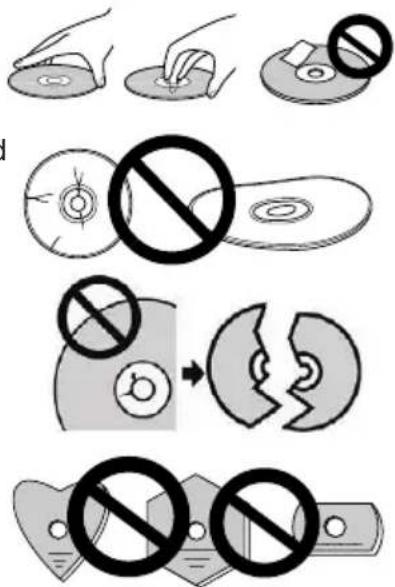
- Do not touch or scratch the signal (shiny) side of the disc.
- Hold the disc either by both edges, or by the center hole and one edge.
• Do not apply stickers or labels to the disc. - Do not use cracked or significantly warped discs. Doing so may lead to a malfunction in the device.
- When using old or rental discs, check that there are no cracks around the center hole. Centrifugal force from high-speed rotation may enlarge these cracks, causing the disc to break.
- Do not use discs with special shapes (heart-shaped, hexagonal, etc.) or other non-standard discs. Doing so may lead to a malfunction.
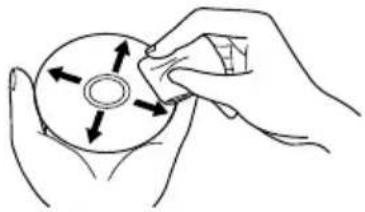
- If there is dust or fingerprints on the disc, use a soft cloth to wipe outwards from the center to the outer edge of the disc. Do not wipe using a circular motion on the disc.
- Do not use record spray or antistatic agents. Doing so may damage the disc.
natural_image
Hand holding a CD or DVD disc with arrows indicating rotation direction (no text or symbols)To protect the disc, ensure it is kept in a disc case, and check for soiling or dust on the recording surface before use.
Write speed / Read speed
| WRITE SPEED (MAX)* READ SPEED (MAX)* | ||
| BD-ROM (SL/DL) - 6X | ||
| BD-R (SL/DL) 6X 6X | ||
| BD-RE (SL/DL) 2X 6X | ||
| BD-R (TL/QL) 4X 4X | ||
| BD-RE (TL) 2X 4X | ||
| BD-R LTH 6X 6X | ||
| M-DISC (BD) SL 4X 6X | ||
| M-DISC (BD) DL 6X 6X | ||
| M-DISC (BD) TL 4X 4X | ||
| DVD-ROM (SL/DL) - 8X | ||
| DVD±R (SL) 8X 8X | ||
| DVD±R (DL) 6X 8X | ||
| DVD-RW 6X 8X | ||
| DVD+RW | 8X 8X | |
| DVD-RAM | 5X 5X | |
| M-DISC (DVD) | 4X 8X | |
| CD-ROM | - | 24X |
| CD-R | 24X | 24X |
| CD-RW | 24X | 24X |
* When using a USB 2.0 port, BD writing/reading speed will not achieve 6X.
Note
- Playback of recorded BD/DVD/CD discs is possible in drives and players that support these formats. Please consult with the respective product manufacturer regarding compatibility.
To perform high-speed writing, please use media that supports high-speed recording and writing. Refer to the Pioneer website for details.
https://pioneer.jp/device_e/product-e/ibs/device_e/dev00003r_e.html
- Dual Disc playback
— The Dual Disc format can record DVD-standard video and audio on one side, and audio that can be played by a CD player on the other.
— When inserting a Dual Disc into a playback device or removing it from the device, the surface opposite to the playback side may be scratched. Problems may occur when playing the scratched side.
— The audio side (non-DVD side) is not compliant with general physical CD standards, and may not play in some cases.
— The Dual Disc DVD side can be played.
— For more details on Dual Disc specifications and standards, please contact the distributor or vendor of the disc.
Part Names and Functions
Front / Top
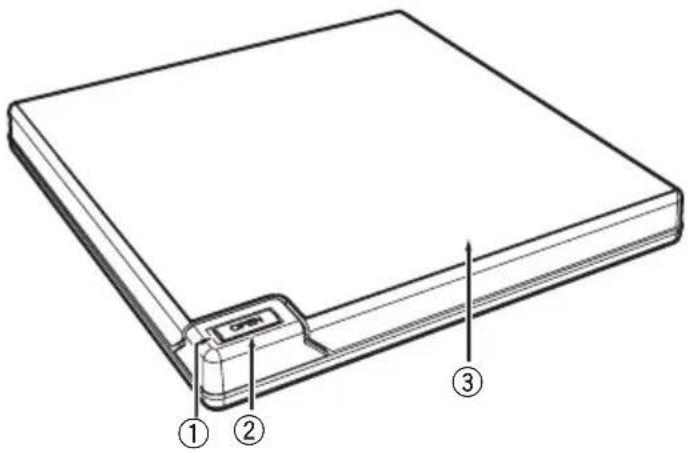
① Power/Busy Indicator
Operation status is indicated as follows:
During Power ON: Lights dimly
During reading/writing: Lights
During disc cover open/close: Lights dimly
② OPEN Button
Press to open the disc cover.
- When this device is connected to a Mac® with a disc inserted, this function cannot be used due to macOS® specifications. Please check the macOS User Guide for how to operate with a Mac.
PureRead mode display function
Press and hold the [OPEN] button to see the set PureRead mode. Refer to page 24 for details.
③ Disc Cover
Press the [OPEN] button to open the disc cover then place only a BD, DVD or CD disc onto the tray with the label facing up. Close the disc cover gently.
Do not manually force open the disc cover.
Use the Forced Open Lever (see next page) to open the disc cover during POWER OFF.

WARNING
Take care not to let your hand or fingers become pinched by the cover.
Rear / Bottom
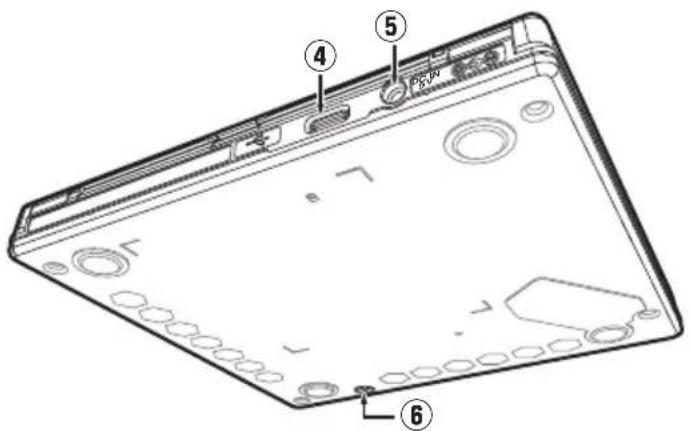
④ USB Connector
USB 3.2 Gen1 & USB 2.0 Type-C Connector
⑤ AC Adapter Connector (DC IN)
Some computers may not provide enough power through a USB port to operate the drive. An AC adapter (not included) can be connected to the drive through the DC IN connector to provide power. For more details, visit or contact
https://www.pioneerelectronics.com/PUSA/
Phone: 1-800-421-1404
Do not connect any AC adapter other than that specified by Pioneer.
In the case of emergency (smoke, abnormal smells, strange noises, or similar), immediately remove the power plug from the outlet if safe to do so.
⑥ Forced Open Lever
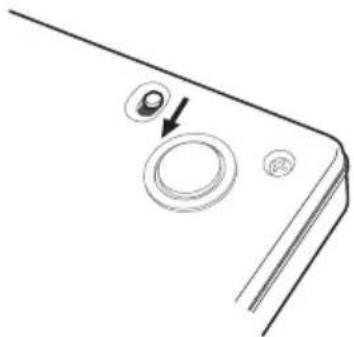
Use to open the disc cover when the drive is not powered. If the disc cover fails to open when the [OPEN] button is pressed, turn the power to the drive OFF and wait approximately one minute until the disc stops spinning before trying to open the disc cover. During normal operation, the [OPEN] button should be used to open the disc cover.
Operations
The unit writes to discs when the supplied software application is installed on your PC. Writing fails if the PC or operating system does not support the software.
Begin writing to disc
① Connect the supplied USB cable.
② Turn on the PC.
③ Press the [OPEN] button, and gently lift the disc cover by hand.
When this device is connected to a Mac ^® with a disc inserted, this function cannot be used due to macOS ^® specifications. Please check the macOS User Guide for how to operate with a Mac.
④ Place the disc in the tray with the label facing up.
⑤ Close the disc cover gently.
⑥ Start the disc burning application.
End the writing session
① Quit the disc burning application.
② Press the [OPEN] button, and gently lift the disc cover by hand.
When this device is connected to a Mac with a disc inserted, this function cannot be used due to macOS specifications. Please check the macOS User Guide for how to operate with a Mac.
③ Remove the disc.
④ Close the disc cover gently.
⑤ Shut down the PC.
When the lock mechanism is released, the disc cover needs to be fully opened in order to close again.
Manual disc cover open
Use the Forced Open Lever to remove discs if the disc cover fails to open and all other methods have been exhausted.
① Shut down the PC.
② Wait for the disc to stop spinning.
③ Slide the Forced Open Lever to open the disc cover.
④ Gently open the disc cover and remove the disc.
natural_image
Diagram of a device's corner panel with a circular button and an arrow pointing to it (no text or symbols)
WARNING
To prevent injury and damage to the unit, do NOT force the disc cover to open while the disc is spinning.
Connection
This unit can be added without shutting down or rebooting the computer. Connect the unit to the supplied USB cable.
① Confirm that your computer (PC) has an available USB port.
② With your Windows ^® or Mac ^® operating system running, use the supplied USB cable to connect this unit to the PC.
Caution
- Do not disconnect the USB cable during data transfers.
- Do not disconnect the USB cable during PC startup or any operation with the unit.
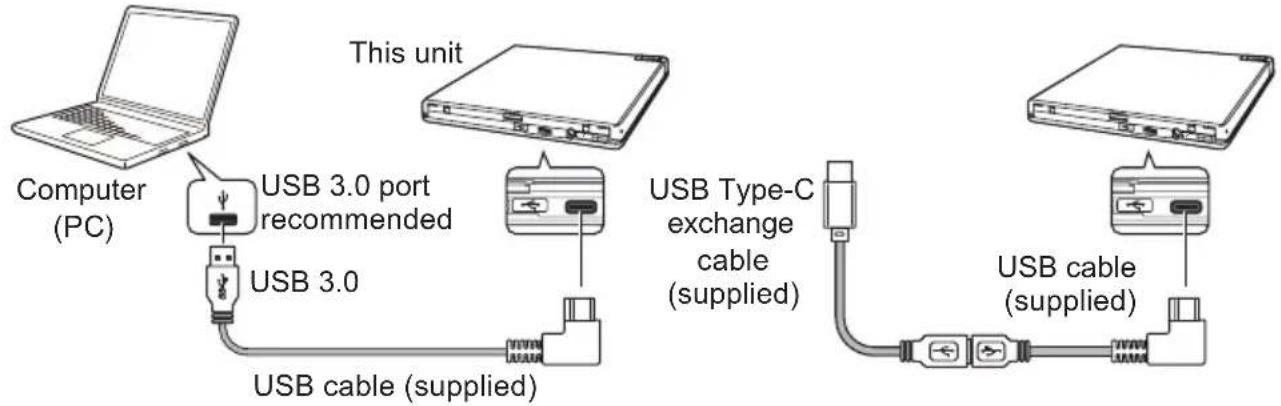
The L-shaped USB cable can connect to the drive in either direction, but when plugged in with the cord extending to the right, the cable blocks the AC Adapter Connector. To avoid damage if using an optional AC adapter, plug in the USB cable so the cord extends to the left.
Note
- Connection to a USB 3.0 port is recommended, since when a USB 3.0 cable is connected to a USB 2.0 port, the connection will be limited to USB 2.0 performance standards.
• This unit can operate with USB 1.1 but will not provide optimum performance. - Connecting this unit through a USB hub or using unspecified cables may not achieve proper operation.
-
If power is insufficient when using a USB port, connect an AC adapter (not included) through the DC IN connector on the unit's rear panel and plug into a wall outlet to deliver power. Connect the USB cable (included) after connecting the AC adapter for proper operation. For more details about the AC adapter connection, visit or contact https://www.pioneerelectronics.com/PUSA/ Phone: 1-800-421-1404
-
Do not connect any AC adapter other than that specified by Pioneer.
- This unit is for use only with compatible UL Listed personal computers that have instructions detailing user installation of USB accessories.
- UL Listed, Class 2 AC Adapter (Output 5 V, min. 1.0 A) must be used.
Removal procedure
Check that the status shows that the main unit is not being accessed (the indicator LED is not lit brightly), then remove the USB cable.
Separately sold AC adapter (DCA-003)\*
This device operates using power supplied via the USB connector (bus power). However, use the device by connecting the optional AC adapter (DCA-003) in the following cases:
- When the device does not operate properly, such as when power is not supplied or when discs are not recognized.
- When using together with other USB devices.
- When using a USB hub.
* The compatible AC adapter (DCA-003) is available for purchase from the following website: https://www.pioneerelectronics.com/PUSA/Computer/Computer+Drives/DCA-003
Downloading and Installing CyberLink Media Suite (with Product Key)
CyberLink ^® Media Suite is compatible with Windows ^® OS only. It cannot be used with macOS ^® .
① Visit the website shown on the back of this manual.
② Review the License Agreement, and click “Agree” to proceed to the CyberLink webpage.
Download
① After accessing the download website, sign in with your CyberLink member e-mail address and password.
(If you have not registered as a CyberLink member, click "Register now" and register to be a member.)
② After signing in, the product key input screen will be displayed. Enter the provided product key and click "Submit".
The product key is on the back of this manual.
(The 16-character key printed on the label.)
③ If the product key has been entered correctly, the screen to download the downloader will be displayed. Click the download link to download the downloader.
Re-downloading the downloader
After registering the product key on the download website, an e-mail will be sent to your registered CyberLink member e-mail address.
The downloader can be re-downloaded from the Link in the e-mail for 30 days from registration of the product key.
Installation
① Connect the drive to Windows PC.
② Run the downloaded file to start downloading the program.
③ After the download is complete, the installation message will be displayed in the dialog box. Click "Install" to start up the installer.
(Even if you do not click "Install", the installer will automatically start up after 1 minute.)
④ After the installer starts up, follow the instructions on the installer to install the product.
Useful Functions
These functions can be used if the Drive Utility is downloaded and installed. For details on other functions in the Drive Utility, refer to the drive utility help page. Please download the Drive Utility from the Pioneer website.
https://pioneer.jp/device_e/product-e/ibs/device_e/dev00001r_e.html#DriveUtility
Custom Eco function
Explanation of function
If the drive does not receive any commands (instructions for operation) from the PC for a specified period, this function will reduce the device's power consumption (enter the power saving mode), such as by stopping the disc from rotating or reducing the disc rotation speed. Shortening this specified period will make the device enter the power saving mode earlier.
- If a command is received after entering the power saving mode, the device will require some time to bring the disc back up to high-speed rotation, which means a reduced speed of operation in the interim.
Using this function
Configure the setting in the "Pioneer BD Drive Utility."
① Install the "Pioneer BD Drive Utility."
② Start the "Pioneer BD Drive Utility."
③ Click the [Utility] tab.
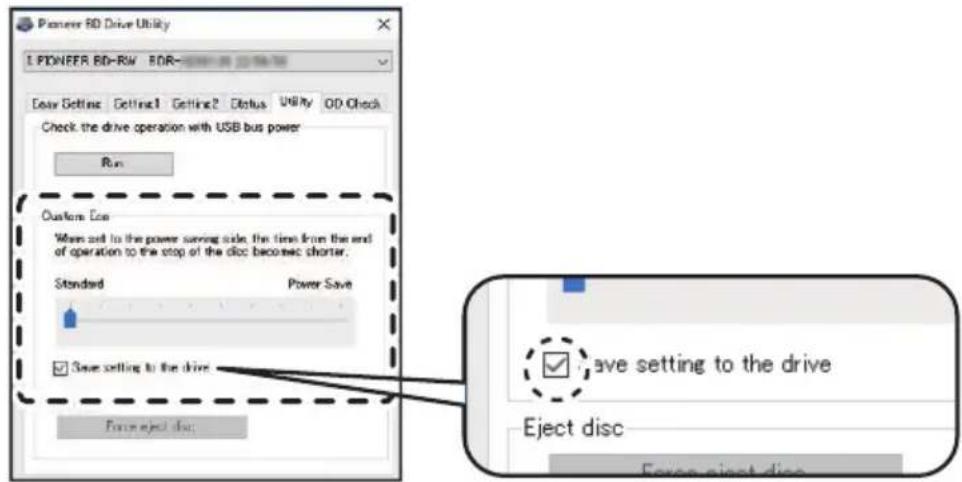
④ Slide the [▲] under [Custom Eco] to the [Power Save] side.
There are 10 levels between the standard mode and power saving mode.
⑤ Select [Save setting to the drive].
The set values will be saved to the drive. Settings will be retained even after turning off the device power.
Cautions in usage
• The default setting is standard mode.
- If power to the drive is turned off without selecting the [Save setting to the drive] checkbox, the settings will revert to the previously saved settings.
- In a Windows® environment, the setting can be changed at any time using the Pioneer BD Drive Utility, when the drive is recognized.
- Custom Eco settings can only be changed in Windows. After changing the settings in Windows, the device can be used with a Mac ^ .
PureRead
Explanation of PureRead function
When using this device to read a music CD, you can use PureRead. This function allows the device to work to acquire and reproduce the original sound as much as possible such as by repeatedly reading scratched or soiled parts of the CD. PureRead can be set to the following two modes or turned off.
| Master Mode (default setting) | This mode works to acquire and reproduce the original sound as much as possible, but if it encounters audio data that cannot be completely reproduced, it interpolates that data and continues with acquisition. |
| Perfect Mode This mode | reproduces the original sound, and if it encounters audio data that cannot be completely reproduced, it stops and halts acquisition. |
| OFF This mode carries out normal acquisition of music CD data. If there is a scratch that prevents reading, interpolation will occur. | |
What is interpolation?
Audio data that cannot be read because of scratches or other damage is created by inference from sounds before and after it. This sound will be degraded compared to the original sound.
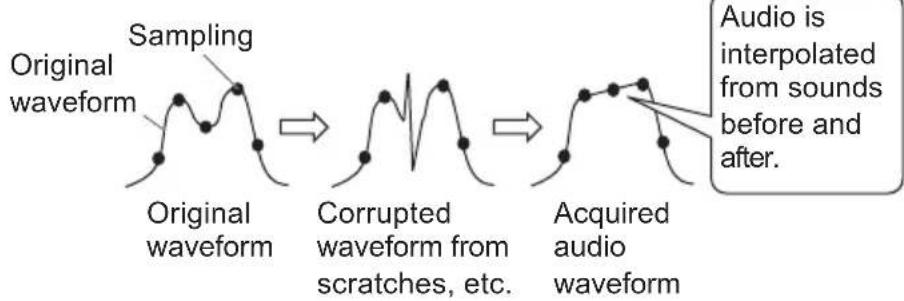
flowchart
graph LR
    A["Original waveform"] --> B["Sampling"]
    B --> C["Corrupted waveform from scratches, etc."]
    C --> D["Acquired audio waveform"]
    D --> E["Audio is interpolated from sounds before and after."]
Using PureRead
[Windows®]
① Install the "Pioneer BD Drive Utility."
② Start the "Pioneer BD Drive Utility."
③ Click the [Setting2] tab.
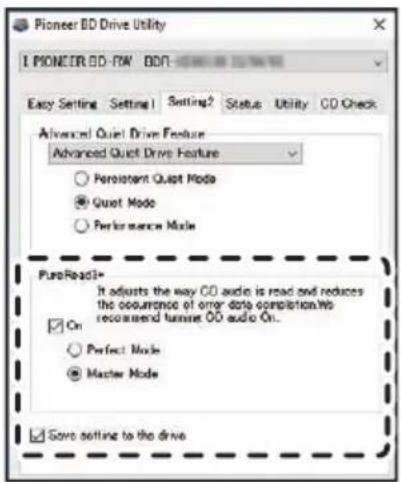
④ Select the [On] checkbox under [PureRead3+].
⑤ Select from either [Perfect Mode] or [Master Mode].
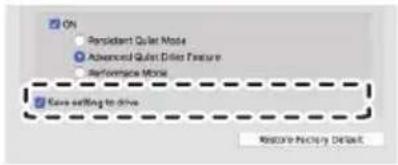
⑥ Select [Save setting to the drive].
The set values will be saved to the drive. Settings will be retained even after turning off the device power.
[Mac®]
① Install "Pioneer BD Drive Utility" (macOS ^ 10.14 or earlier) or "Pioneer BD Drive Utility Lite" (macOS 10.15 or later).
② Start "Pioneer BD Drive Utility" or "Pioneer BD Drive Utility Lite."
When using "Pioneer BD Drive Utility Lite," operate without a disc inserted.
③ Select the [On] checkbox under [PureRead].
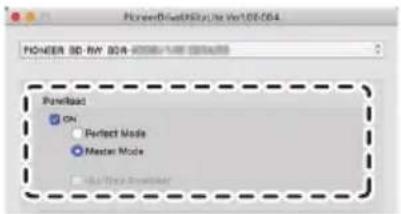
④ Select from either [Perfect Mode] or [Master Mode].
⑤ Select [Save setting to drive].
The set values will be saved to the drive. Settings will be retained even after turning off the device power.
Displaying PureRead mode
With no disc inserted, press and hold the open button for at least two seconds. The busy indicator flashes, and the current PureRead mode setting is displayed.
Mode display
| Master Mode — | ☆☆ — ☆☆ — Returning to the normal operating state. |
| Perfect Mode — | ☆☆☆ — ☆☆☆ — Returning to the normal operating state. |
| OFF — | ☆ — ☆ — Returning to the normal operating state. |
☆ : Number of flashing, —: Off (One second)
Cautions in usage
- The PureRead mode display function cannot be used while a disc is inserted in the device and the cover is closed.
- If power to the drive is turned off without selecting the [Save setting to the drive] checkbox, the settings will revert to the previously saved settings.
- Changing PureRead with the Drive Utility while using the PureRead mode display function causes the display to be incorrect.
Specifications
[Installation]
The device can only be installed horizontally.
[Disc size]
12 cm (4-23/32 in.) / 8 cm (3-9/64 in.)
• Drive does not support non-standard shapes such as business cards, diamond, etc.
• Drive does not support 8 cm (3-9/64 in.) adapter.
[Transfer rate]
Data reading (sustained)
BD Max. 27.00 MB/s
DVD Max. 10.80 MB/s
CD Max. 3.60 MB/s
Data writing (sustained)
BD Max. 27.00 MB/s (6X BD-R)
DVD Max. 10.80 MB/s (8X BD-R)
CD Max. 3.60 MB/s (24X BD-R)
• The transfer rate may be reduced depending on the condition (scratches, etc.) of the disc.
[Access time/Seek time]
Access time (random average)
BD-ROM 270 ms DVD-ROM 270 ms CD-ROM 270 ms
Seek time (random average)
BD-ROM 250 ms DVD-ROM 250 ms CD-ROM 250 ms
[Others]
Power supply....DC +5 V, 1.0 A (AVE)
External dimensions (excluding foot pad).... 133 mm (W) x 14.8 mm (H) x 133 mm (D)
5-15/64 in. (W) x 37/64 in. (H) x 5-15/64 in. (D)
Weight (Drive only)....230 g (0.51 lb)
Operating temperature (Normal humidity)....+5 °C to +35 °C (41 °F to 95 °F)
Operating humidity 5% to 85% (no condensation)
Storage temperature (Normal humidity)....-40 °C to +60 °C (-40 °F to 140 °F)
Storage humidity....5 % to 90 % (no condensation)
Buffer size....4 MB
Power (Standby)....0.65 W
[Accessories]
Owner's manual (including warranty information and application product key)
USB cable (Type-A)
USB exchange cable (Type-A → Type-C)
Problems and Solutions
Unexpected errors in operation are often thought to be malfunctions. If you think there is a malfunction, check the items below according to the symptoms.
If the abnormality is not resolved even after taking the following measures, please contact your dealer or Pioneer.
Additionally, please consult with the application software manufacturer regarding any problems occurring in the application software.
The computer or application does not correctly recognize the device
• Is the USB cable or AC adapter connected correctly?
→ Make sure the cable is connected correctly. If you are using a USB hub, the power supply may be insufficient. Connect the USB cable directly to your computer.
• Is the OS compatible with the device?
→ Use an OS that supports this device. (Windows ^® 11, Windows 10, Windows 8.1, OS X El Capitan ^® 10.11, macOS Sierra ^® 10.12, macOS High Sierra ^® 10.13, macOS Mojave ^® 10.14, macOS Catalina ^® 10.15, macOS Big Sur ^® 11, macOS Monterey ^® 12)
• Are you using the supplied application?
→ Use the application included with this device.
Data cannot be recorded/Error occurs during recording
• Is there sufficient space for recording?
- Check that the required application software is installed in the usage environment.
- Check that the operating environment being used meets the specifications for the application software being used.
• Recording on the disc at the selected speed is not possible.
→ Check that the disc supports the different recording speeds.
→ The speed may drop depending on the condition of the disc.
• Are you using a disc that has been finalized (no more recording is possible)?
- Is the disc correctly inserted with the label side facing up and the recording side facing down?
• Is the disc dirty or scratched?
A recorded disc cannot be read
• Is the disc inserted into the disc tray with the label side facing up?
• Are you using a blank disc?
• Is the disc dirty or scratched?
- Check that the required application software is installed in the usage environment.
• Is the device installed in a flat location?
- The optical components or disc may have condensation on them. Therefore, turn the device power off for a period of time and wait for it to fully dry before usage.
For other details on how to record on discs, refer to the manual or help screens for the application software being used.
For more stable disc recording and playback
The operating temperature range for this product is +5 °C to +35 °C (41 °F to 95 °F). However, recording and playback at normal temperatures is recommended in order to ensure stable recording as well as playback on various players and drives.
Region codes
The region code for the drive can be set only five times (including the initial setting). The region code selected with the fifth setting will be locked as the final region code. Accordingly, take care when changing this code.
• DVD discs that do not have a region code set can be played on all players.
There are no images. There is no sound.
- Digital output of BD-Video content (output using DVI or HDMI terminals) requires graphics functionality and monitors that support HDCP standards.
Check that your PC environment supports HDCP standards.
Playback of BD-Video content and other high-definition videos requires very high processing power. If you encounter phenomena such as frame dropping or choppy audio, it may be possible to prevent this by reducing the load on the PC, either by stopping resident software or using video playback support functionality in the graphics function.
Review the operating environment, and try playback again with as little load on the PC as possible from other applications.
Playback of BD-Video content requires periodic updates to the playback software, as the content decryption key has an expiration date. Before playback, ensure that the latest update from the software manufacturer has been applied. - During DVD-Video title playback, if the playback software counter is counting correctly and audio is output, but no images are displayed, check the resolution and number of colors of your monitor. The standard settings are 800 x 600 resolution and 16-bit color. Additionally, check that the video card (video chip) drivers are the latest versions, and update if necessary.
If a message such as "Failed to create overlay" is displayed, this indicates insufficient video card performance as above, so set the resolution and number of colors as above.
Furthermore, if your PC has a TV output function, an error message starting with "Macrovision . . ." may be displayed. In these cases, turn off the TV output function. - If images are displayed but no audio is output, the video may be being output in an audio format not supported by your playback software. Check the audio format recorded with the BD/DVD-Video title, and switch to a supported audio format (surround sound, etc.).
• Media and files such as videos from BD/DVD-Video and digital broadcasting include content protection, and have restrictions on copying and playback. Check that there are no restrictions on the content to be played and on the playback environment.
Warranty and After-Sales Service
AFTER-SALES SERVICE FOR PIONEER PRODUCTS
Please contact the dealer or distributor where you purchased the product for its after-sales service (including warranty) or any other information. You may also contact Pioneer Customer Support at 1-800-421-1404 in the U.S. and Canada, or at the address listed below:
PLEASE DO NOT SHIP YOUR PRODUCT to the address listed below for repair. Units requiring service must be sent to a different address and with an RMA number. Please contact Pioneer Customer Support or an authorized service company if service is required for your product. PIONEER ELECTRONICS (USA) INC.
P.O.BOX 1720, Long Beach, California 90801 U.S.A.
Questions about the included application software
Direct inquiries to the following software manufacturers.
CyberLink Support Center
https://www.cyberlink.com/support/index.html
Trademarks and registered trademarks
• Pioneer and the Pioneer logo are registered trademarks of Pioneer Corporation.
• Windows is a registered trademark of Microsoft Corporation in the U.S. and other countries.
• Mac, OS X El Capitan, macOS, macOS Sierra, macOS High Sierra, macOS Mojave, macOS Catalina, macOS Big Sur and macOS Monterey are registered trademarks of Apple Inc.
• M-DISC is a trademark of Millenniata, Inc.
- BLU-RAY DISC, the Blu-ray Disc logo, BDXL and the BDXL logo are trademarks of the Blu-ray Disc Association.
• CyberLink is a trademark or a registered trademark of CyberLink Corporation.
• USB Type-C is a registered trademark of USB Implementers Forum.
• All other trademarks belong to their respective owners.
https://www.pioneerelectronics.com/PUSA/Computer/Computer+Drives/BDR-XD08B
https://www.pioneerelectronics.com/PUSA/Computer/Computer+Drives/BDR-XD08S
https://www.pioneerelectronics.com/PUSA/Computer/Computer+Drives/BDR-XD08G
BDR-XD08B / BDR-XD08S / BDR-XD08G Fr
INSTRUCTIONS IMPORTANTES RELATIVES À LA SÉCURITÉ

AVERTISSEMENT
natural_image
Hand holding a CD or DVD disc with arrows indicating rotation direction (no text or symbols)④ Connecteur USB
natural_image
Diagram of a device's corner panel with two circular components and an arrow indicating direction (no text or symbols)
AVERTISSEMENT
PIONEER ELECTRONICS (USA) INC.
P.O.BOX 1720, Long Beach, Californie 90801 ÉTATS-UNIS
Centre de support CyberLink
https://www.cyberlink.com/support/index.html
GARANTIE LIMITÉE D'UN AN
(In the U.S. and Canada)
When purchased from an authorized Pioneer dealer, this product is covered by Pioneer's
One Year Limited Warranty. Please visit our website to review and download the full
terms and conditions of the Limited Warranty, or you can receive a copy by calling 1-800-421-1404 or writing to the address below.
Customer Support, Pioneer Electronics (USA) Inc., P.O. Box 1720, Long Beach, California 90801 U.S.A. RECORD THE PLACE AND DATE OF PURCHASE. KEEP THIS INFORMATION AND YOUR SALES RECEIPT IN A SAFE PLACE.
Model No.
Serial No.
Purchase Date
Purchased From
Website for downloading application / Site Web de téléchargement de l'application https://jpn.pioneer/cyberlink\_soft/en.php
The downloader can be re-downloaded from the Link in the e-mail sent from CyberLink for 30 days from registration of the product key.
© 2022 PIONEER CORPORATION. All rights reserved.
PIONEER CORPORATION 28-8, Honkomagome 2-chome, Bunkyo-ku, Tokyo 113-0021, Japan / Japon PIONEER ELECTRONICS (USA) INC. P.O.BOX 1720, Long Beach, California 90801 U.S.A.
Pioneer Digital Design and Manufacturing Corporation 5-5, Koishikawa 5-chome, Bunkyo-ku, Tokyo 112-0002, Japan / Japon
Printed in China / Imprimé en Chine


- Contents
- Precautions Regarding Use
- WARNING
- FEDERAL COMMUNICATIONS COMMISSION DECLARATION OF CONFORMITY
- NOTE
- Information to User
- CAUTION
- Operating System
- Operating Environment (Windows®)
- DVD/CD disc recording and playback
- Blu-ray disc recording and playback
- Operating Environment (macOS®)
- Checking accessories
- Information on the product
- Measures in the event of abnormalities
- Operating Environment
- Installation
- Ensure you abide by the following precautions, as failure to do so may lead to fire or electric shock.
- In the following circumstances, turn off the device power, unplug the PC, and contact your dealer or Pioneer.
- When using an AC adapter compatible with this device, ensure that you observe the following.
- Cautions in Usage
- Handling discs
- Part Names and Functions
- Front / Top
- PureRead mode display function
- Rear / Bottom
- Operations
- Begin writing to disc
- End the writing session
- Manual disc cover open
- Connection
- Removal procedure
- Separately sold AC adapter (DCA-003)\*
- Downloading and Installing CyberLink Media Suite (with Product Key)
- Download
- Re-downloading the downloader
- Useful Functions
- Custom Eco function
- Explanation of function
- Using this function
- PureRead
- Explanation of PureRead function
- What is interpolation?
- Using PureRead
- [Windows®]
- [Mac®]
- Displaying PureRead mode
- Specifications
- [Installation]
- [Disc size]
- [Transfer rate]
- [Access time/Seek time]
- [Others]
- [Accessories]
- Problems and Solutions
- The computer or application does not correctly recognize the device
- Data cannot be recorded/Error occurs during recording
- A recorded disc cannot be read
- For more stable disc recording and playback
- Region codes
- There are no images. There is no sound.
- Warranty and After-Sales Service
- AFTER-SALES SERVICE FOR PIONEER PRODUCTS
- Questions about the included application software
- Trademarks and registered trademarks
- INSTRUCTIONS IMPORTANTES RELATIVES À LA SÉCURITÉ
- AVERTISSEMENT
- GARANTIE LIMITÉE D'UN AN
- Website for downloading application / Site Web de téléchargement de l'application https://jpn.pioneer/cyberlink\_soft/en.php
Brand : PIONEER
Model : BDRXD08G
Category : Hard Drive