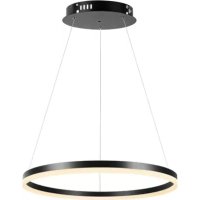
LPS580 - Lighting DENVER - Free user manual and instructions
Find the device manual for free LPS580 DENVER in PDF.



| Product Type | Connected LED Ceiling Light |
| Brand | Denver |
| Model | LPS580 |
| Power Supply | Mains 230 V ~ 50 Hz |
| Connectivity | Wi-Fi 2.4 GHz |
| Mobile App | Tuya (iOS / Android) |
| Remote Control | Included (wireless) |
| Color Temperature | 2700 K (warm white) to 6500 K (cool white) |
| Colors | RGB (16 million colors) |
| Brightness | Adjustable (dimming) |
| Special Features | Night mode, reading mode, 60 s sleep timer |
| Installation | Ceiling mounted, by a qualified electrician |
| Usage | Indoor, dry rooms only |
| Ingress Protection | IP20 |
| Material | Plastic, metal |
| Dimensions | Approx. Ø 30 cm (not provided) |
| Weight | Approx. 500 g (not provided) |
| Maintenance and cleaning | Unplug, wipe with a soft dry cloth |
| Safety | Do not open, do not use in damp environments, cut power before servicing |
| Spare parts / repairability | Not repairable by user, contact a professional |
| Recycling | Device recyclable, take to a recycling center or return to store |
| Radio frequency | 2400 - 2483.5 MHz |
| Max radio power | 20 dBm |
| Certification | CE, compliant with Directive 2014/53/EU |
Frequently Asked Questions - LPS580 DENVER
User questions about LPS580 DENVER
0 question about this device. Answer the ones you know or ask your own.
Ask a new question about this device
Download the instructions for your Lighting in PDF format for free! Find your manual LPS580 - DENVER and take your electronic device back in hand. On this page are published all the documents necessary for the use of your device. LPS580 by DENVER.
USER MANUAL LPS580 DENVER
natural_image
Abstract geometric logo with a stylized white letter 'D' on a black hexagonal background (no text or symbols)denver
natural_image
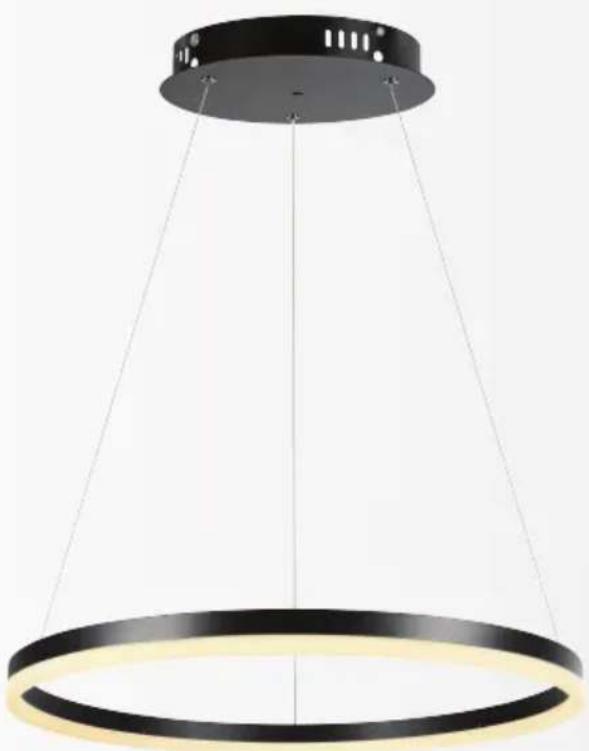
Modern black and gold pendant light with circular ring design (no text or symbols)LPS-580
denver.eu
09/2022


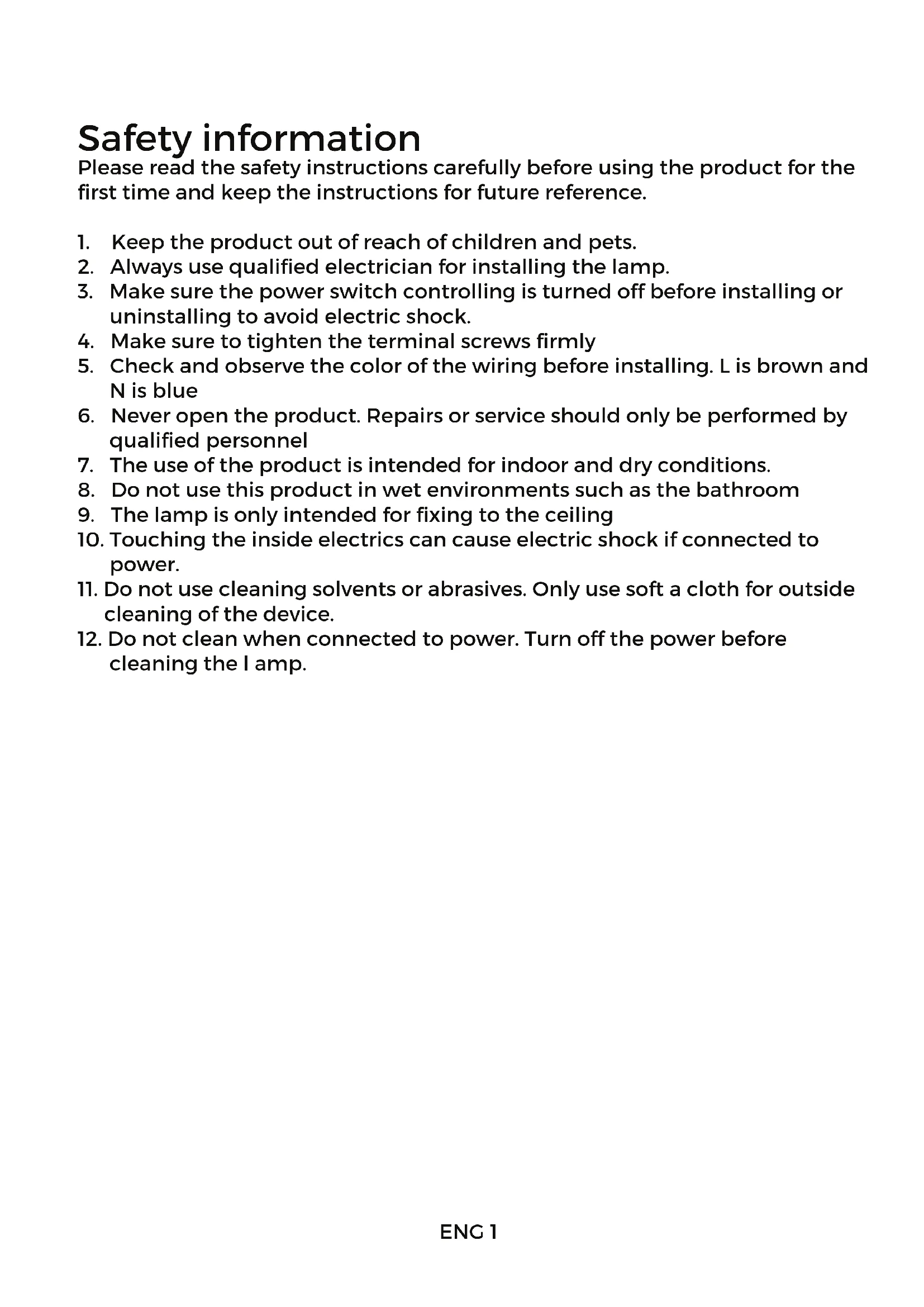
Please read the safety instructions carefully before using the product for the first time and keep the instructions for future reference.
- Keep the product out of reach of children and pets.
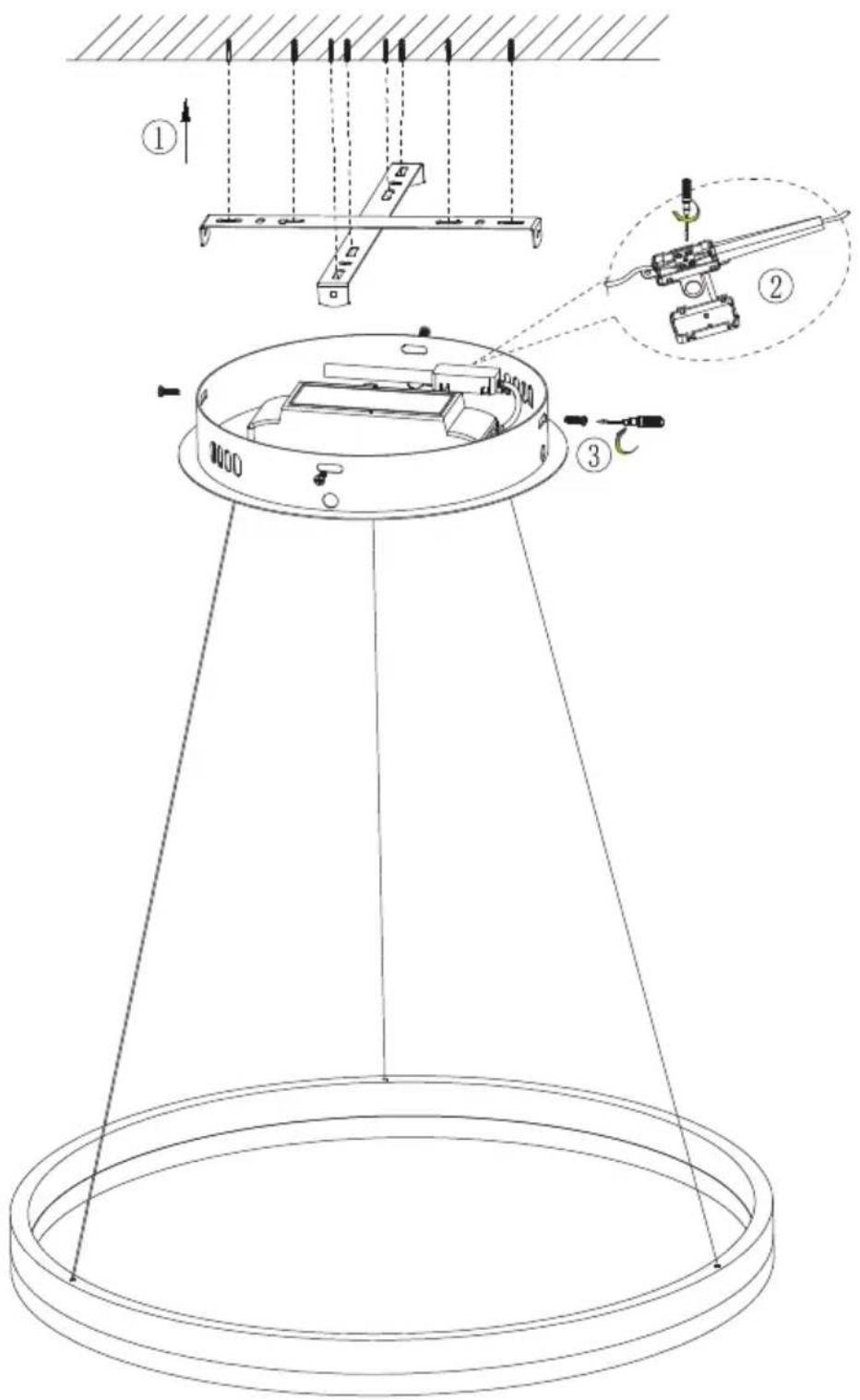
- Always use qualified electrician for installing the lamp.
- Make sure the power switch controlling is turned off before installing or uninstalling to avoid electric shock.
- Make sure to tighten the terminal screws firmly
- Check and observe the color of the wiring before installing. L is brown and N is blue
- Never open the product. Repairs or service should only be performed by qualified personnel
- The use of the product is intended for indoor and dry conditions.
- Do not use this product in wet environments such as the bathroom
- The lamp is only intended for fixing to the ceiling
- Touching the inside electrics can cause electric shock if connected to power.
- Do not use cleaning solvents or abrasives. Only use soft a cloth for outside cleaning of the device.
- Do not clean when connected to power. Turn off the power before cleaning the lamp.
Step 1

Search for and download "Tuya" in mobile app stores or scan the QR code to download the App.
Step 2
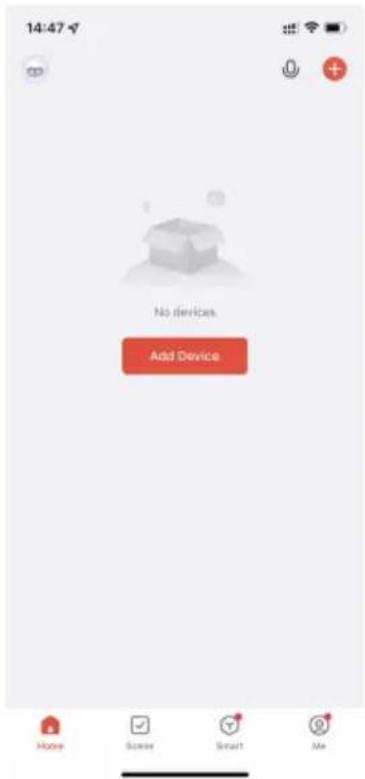
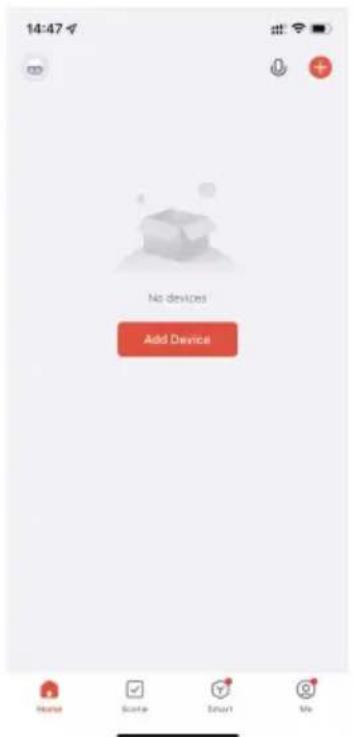
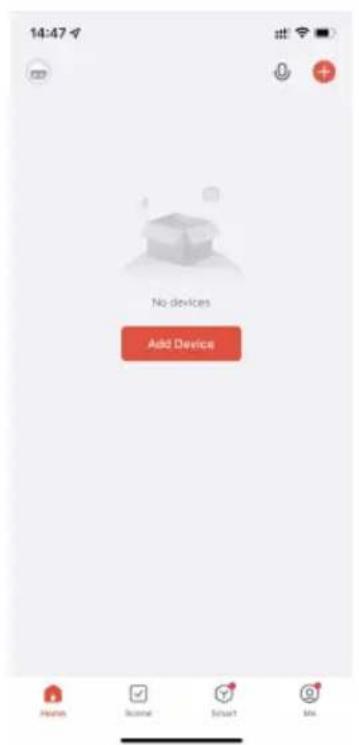
Click "Add Device" or "+" at the top right corner of the App homepage to enter the "Add Device" page.
Step 3 Step 4
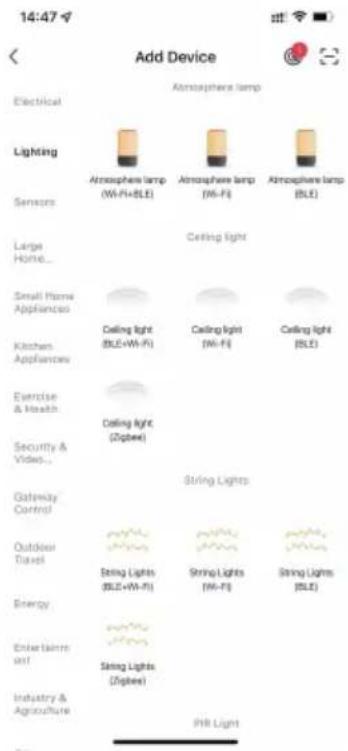
Add Manually - Wi-Fi Devices Click Lighting -> Lighting (Wi-Fi).
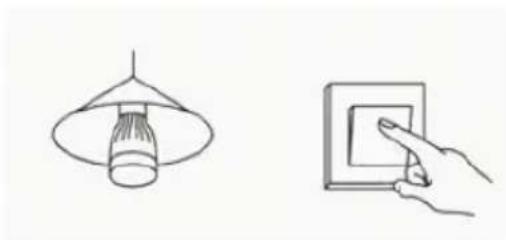
Power on device.
Power off after 10s and then power on.
natural_image
Line drawings of a lamp and a hand holding a wall-mounted switch (no text or symbols)Step 5
Turn on->off->on->off->on->off->on (Keep time interval not too short; turn off after light is on.)
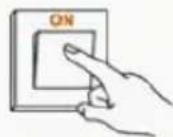
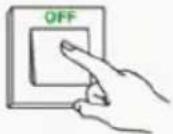
Set the light to blinking:
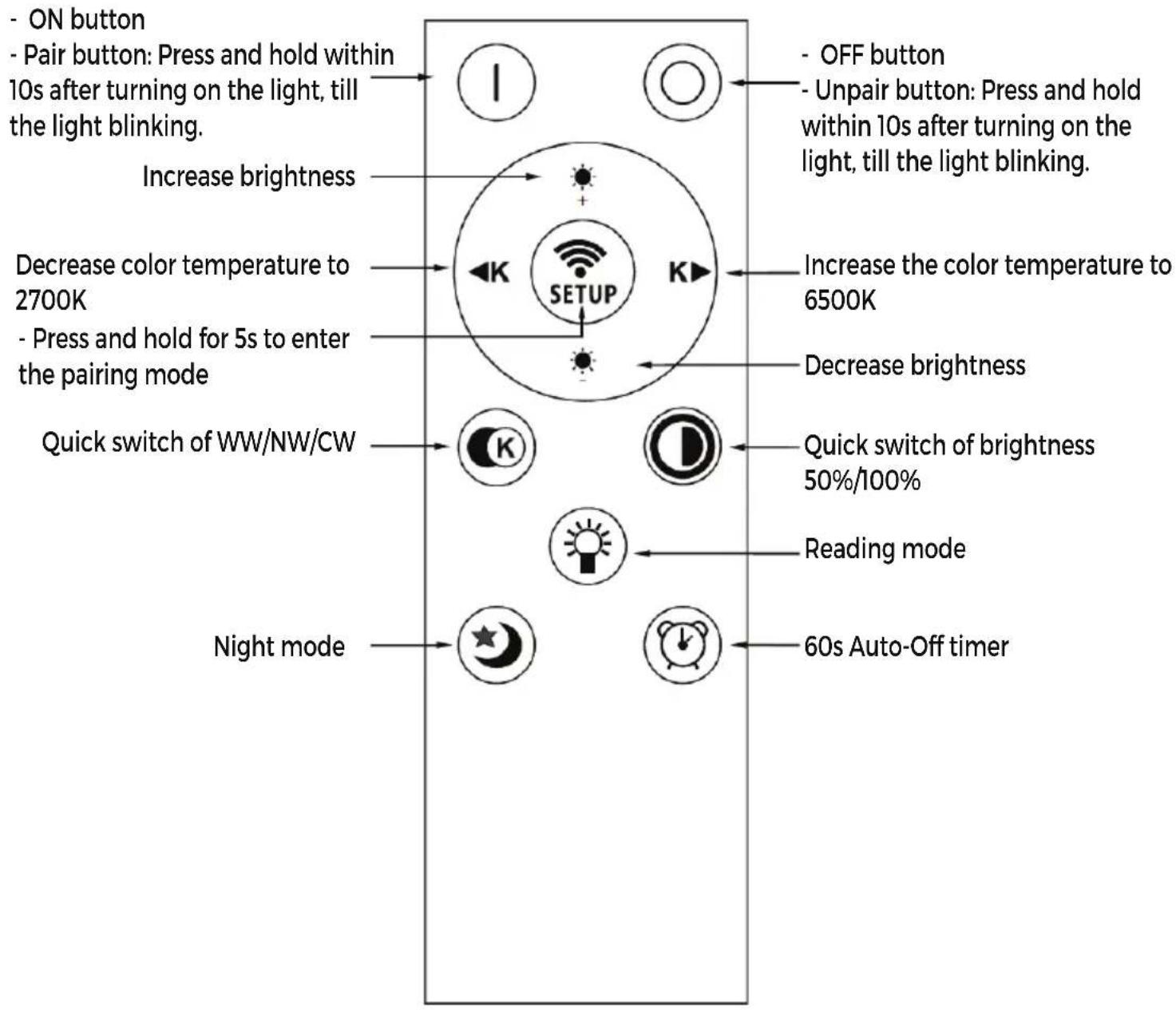
To get the lamp into pairing mode, press and hold the SETUP key on the remote control for 5 seconds. The lamp will start blinking, and is ready to be configured using the app.
If above not working, follow below steps:
- Power on device. Power off after 10s and then power on again.
- Within 10 seconds, turn on->off->on->off->on (note: keep time interval not too short; turn off after light is on.)
Step 6
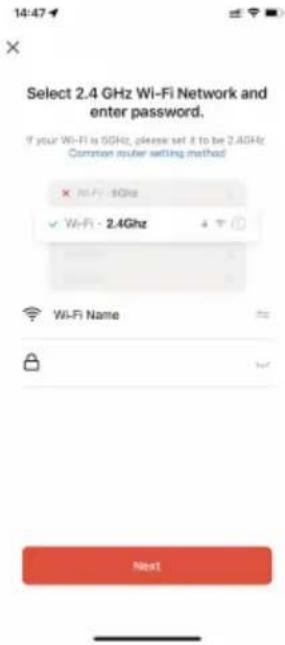
Select the Wi-Fi in the work area of a device that can enable successful Internet connection, enter the Wi-Fi password, and click "Next" to proceed to configuration.
Note: Only 2.4G Wi-Fi network is supported.
Step 7 Step 8
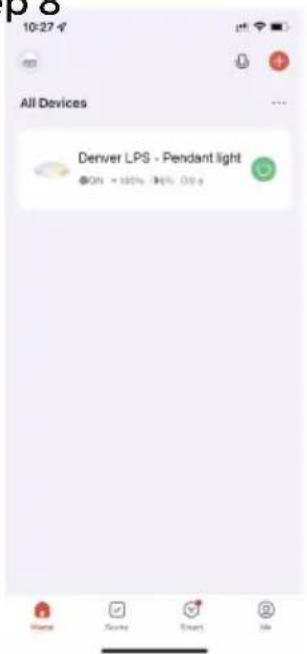
Select the Wi-Fi in the work area of a device that can enable successful Internet connection, enter the Wi-Fi password, and click "Next" to proceed to configuration.
Note: Only 2.4G Wi-Fi network is supported.
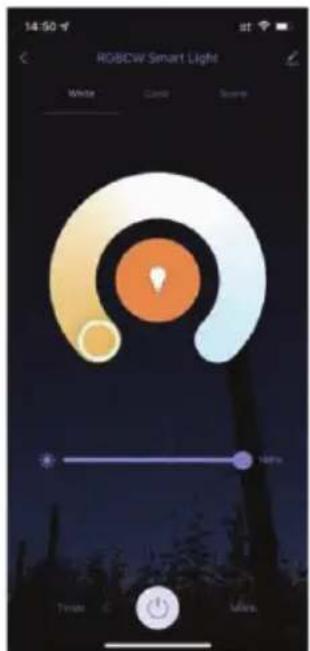
The control panel for devices shows the light is on or off. Color, brightness, and schedule can be configured when the light is on. Click "..." at the top right corner of the control panel to manage a device separately.
Remote Control Guide
Please notice - All products are subject to change without any notice. We take reservations for errors and omissions in the manual.
ALL RIGHTS RESERVED, COPYRIGHT DENVER A/S

denver.eu

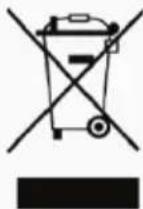
Electric and electronic equipment contains materials, components and substances that can be hazardous to your health and the environment, if the waste material (discarded electric and electronic equipment) is not handled correctly.
Electric and electronic equipment is marked with the crossed out trash can symbol, seen above. This symbol signifies that electric and electronic equipment should not be disposed of with other household waste, but should be disposed of separately.
All cities have established collection points, where electric and electronic equipment can either be submitted free of charge at recycling stations and other collection sites, or be collected from the households. Additional information is available at the technical department of your city.
Hereby, Denver A/S declares that the radio equipment type LPS-580 is in compliance with Directive 2014/53/EU. The full text of the EU declaration of conformity is available at the following internet address: denver.eu and then click the search ICON on topline of website. Write model number: LPS-580. Now enter product page, and RED directive is found under downloads/other downloads.
Operating Frequency Range: 2400MHz\~2483.5MHz
Max Output Power: 20dBm
DENVER A/S
Omega 5A, Soeften
DK-8382 Hinnerup
Denmark
www.facebook.com/denver.eu
Sicherheitshinweise
natural_image
Line drawings of a lamp and a hand holding a wall-mounted switch (no text or symbols)Step 5
Søg efter, og hent "Tuya" i en app store, eller scan QR-koden for at downloade appen.
Step 2
natural_image
Line drawing of a lamp and a hand holding a wall-mounted switch (no text or symbols)Step 5
natural_image
Line drawing of a lamp and a hand holding a wall-mounted switch (no text or symbols)Step 5
natural_image
Line drawings of a lamp and a wall-mounted switch, both without any text or symbolsStep 5
natural_image
Line drawings of a lamp and a wall-mounted switch, both without any text or symbolsStep 5
natural_image
Line drawings of a lamp and a hand holding a switch (no text or symbols)Step 5
natural_image
Line drawings of a lamp and a hand interacting with a wall-mounted panel (no text or symbols)Step 5
natural_image
Line drawing of a lamp and a hand holding a wall-mounted switch (no text or symbols)Step 5
natural_image
Line drawings of a lamp and a hand holding a wall-mounted switch (no text or symbols)FIN 2
Step 5
FIN 5
natural_image
Line drawings of a lamp and a hand holding a wall-mounted switch (no text or symbols)Step 5
natural_image
Line drawings of a lamp and a hand holding a wall-mounted switch (no text or symbols)Step 5

U mobilnim trgovinama aplikacija potražite preuzimanje pod nazivom „Tuya“ ili skenirajte QR kod kako biste preuzeli aplikaciju.
Step 2
natural_image
Line drawing of a lamp and a hand holding a wall-mounted switch (no text or symbols)Step 5
(Push "1" for support)
For technical questions, please write to:
support.hq@denver.eu
For all other questions please write to:
contact.hq@denver.eu
Benelux
DENVER BENELUX B.V.
Barwoutswaarder 13C+D
3449 HE Woerden
The Netherlands
Phone: 0900-3437623
E-Mail: support.nl@denver.eu
Spain/Portugal
DENVER SPAIN S.A
Ronda Augustes y Louis Lumiere, n° 23 - nave 16
Parque Tecnológico
46980 PATERNA
Valencia (Spain)
Spain
Phone: +34 960 046 883
Mail: support.es@denver.eu
Portugal:
Phone: +35 1255 240 294
E-Mail: denver.service@satfiel.com
Germany
Denver Germany GmbH Service
Max-Emanuel-Str. 4
94036 Passau
Phone: +49 851 379 369 40
support.de@denver.eu
Fairfixx GmbH
Repair and service
(for TV, E-Mobility/Hoverboards/Balanceboards,
Smartphones & Tablets)
Tel.: +49 851 379 369 69
If your country is not listed above,
please write an email to
support@denver.eu

denver
Omega 5A, Soeften
DK-8382 Hinnerup
Denmark
denver.eu
facebook.com/denver.eu
Version 1.1
Brand : DENVER
Model : LPS580
Category : Lighting