HP LASERJET 1000 PRINTER - Laser printer

LASERJET 1000 PRINTER - Laser printer HP - Free user manual and instructions

Find the device manual for free LASERJET 1000 PRINTER HP in PDF.
📄 108 pages English EN Download 💬 AI Question 10 questions ⚙️ Specs
Notice HP LASERJET 1000 PRINTER - page 5
View the manual : Français FR English EN
Pick your language and provide your email: we'll send you a specifically translated version.
Product Type Monochrome laser printer
Brand HP
Model LaserJet 1000
Dimensions (W x D x H) 253 x 486 x 230 mm
Weight Approximately 5.5 kg
Power supply 110-127 V or 220-240 V depending on model, 50/60 Hz
Print resolution 600 dpi
Print speed Up to 10 pages per minute (A4)
Input tray capacity 250 sheets (80 g/m²) or 10 envelopes
Supported media types Plain paper, envelopes, transparencies, labels, cardstock, custom sizes (76 x 127 mm to 216 x 356 mm)
Toner cartridge HP C7115A (2,500 pages at 5% coverage)
Toner economy mode EconoMode (reduces toner consumption)
Connection USB 1.1
Supported operating systems Windows 98, Millennium, 2000, XP
Maintenance and cleaning Cleaning the paper path, cartridge area, feed roller; replacement of the roller and separation pad
Safety Unplug before servicing; do not expose cartridge to light; avoid touching the transfer roller
Replacement parts Feed roller (RF0-1008CN), separation pad (RF0-1007CN), input tray (RG0-1013CN), cover (RA0-1405CN)
Warranty 1 year (hardware); limited warranty on toner cartridge until depletion
Recycling HP cartridge recycling program; return label included

Frequently Asked Questions - LASERJET 1000 PRINTER HP

How to install the HP LaserJet 1000 printer?
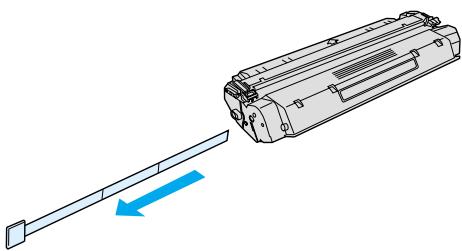
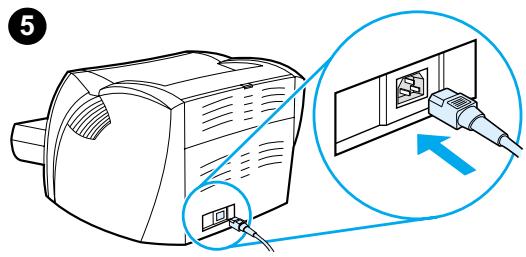
Unpack the printer, place it on a flat surface, install the toner cartridge by removing the mylar tape, load the input tray, connect the USB cable and power cord, then install the software from the included CD-ROM.
What to do if the printer does not print?
Check that the Ready (green) light is on. If no lights are on, check the power cord and USB cable connections. You can also print an engine test page by pressing the corresponding button.
How to load paper in the input tray?
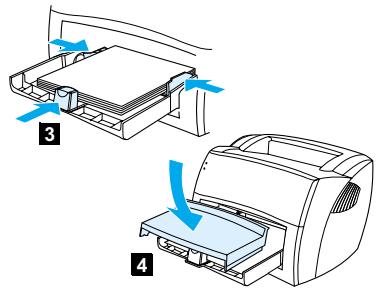
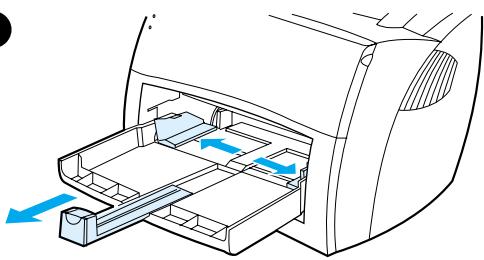
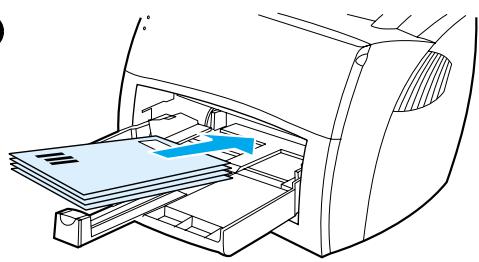
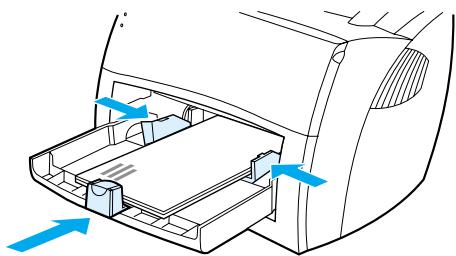
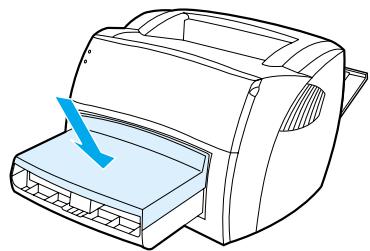
Place the media with the printable side facing up, top edge forward. Adjust the paper guides to the width and length of the media. Do not exceed 250 sheets of 80 g/m² paper. For envelopes, place them with the narrow edge and stamp side facing forward.
How to clear a paper jam?
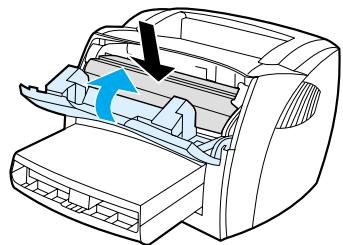
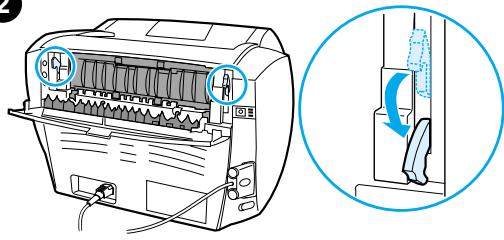
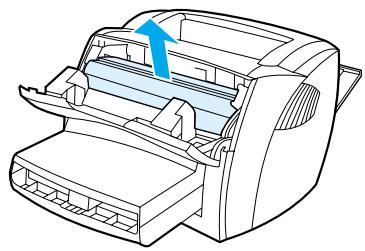
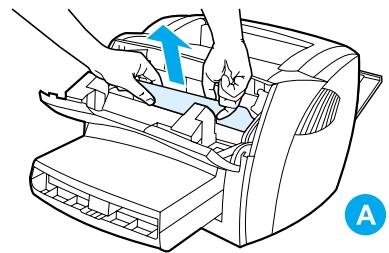
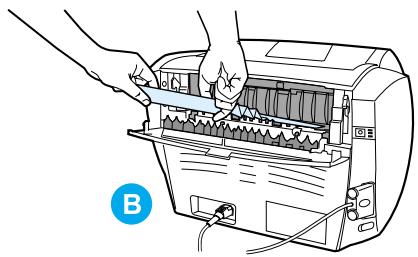
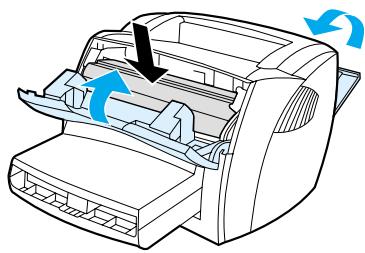
Open the cartridge access door and the direct paper path output door. Lower the release levers, remove the cartridge, then gently remove the jammed paper by pulling on the most visible part. Reinstall the cartridge and close the doors.
How to improve print quality if streaks or smudges appear?
Clean the printer using the HP LaserJet cleaning utility (Settings tab in printer properties). You can also manually clean the cartridge area with a dry, lint-free cloth. If the problem persists, replace the toner cartridge.
How to replace the toner cartridge?
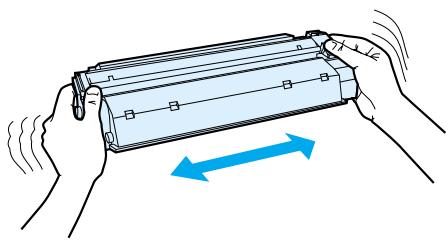
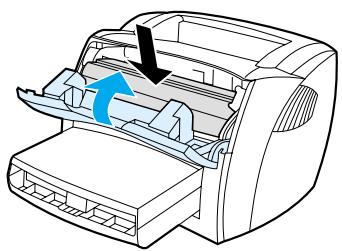
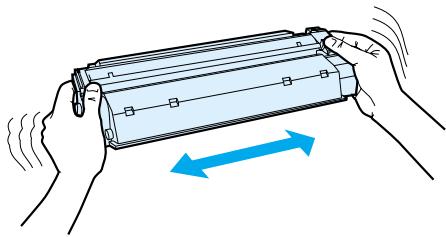
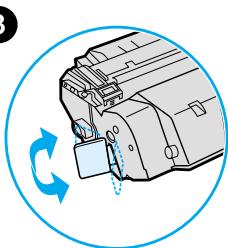
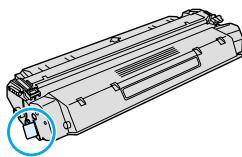
Open the cartridge access door, remove the old cartridge. Unpack the new one, gently shake it, remove the adhesive tape by twisting the tab, then insert it into the printer ensuring it is properly positioned. Close the door.
How to activate EconoMode to save toner?
Access printer properties (via File > Print > Properties), click the Finishing tab, then check the box EconoMode (toner saving). Click OK to confirm. This mode reduces toner consumption, ideal for drafts.
Can I use non-HP toner cartridges?
HP does not recommend the use of non-HP cartridges. The printer warranty does not cover damage caused by cartridges of other brands, whether new or remanufactured. For optimal performance, use genuine HP cartridges.
How to clean the feed roller?
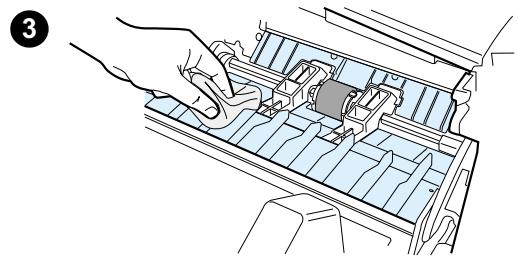
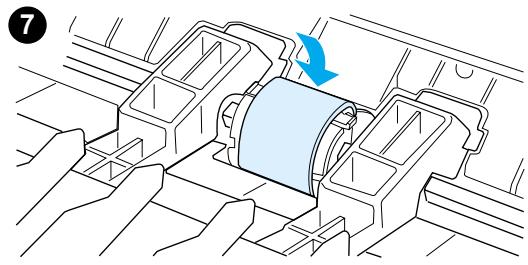
Remove the feed roller (see manual), dampen a lint-free cloth with isopropyl alcohol, rub the roller, then wipe with a dry cloth. Allow to dry completely before reassembling. Caution: alcohol is flammable, keep away from flame.
How to share the printer on a Windows network?
On the host computer, share the printer via printer properties. On other computers, use the Add Printer wizard, select Network printer, and enter the network path (e.g., \\computer_name\share_name). Follow the instructions to install the driver from the CD.

User questions about LASERJET 1000 PRINTER HP

0 question about this device. Answer the ones you know or ask your own.

Ask a new question about this device

The email remains private: it is only used to notify you if someone responds to your question.

No questions yet. Be the first to ask one.

Download the instructions for your Laser printer in PDF format for free! Find your manual LASERJET 1000 PRINTER - HP and take your electronic device back in hand. On this page are published all the documents necessary for the use of your device. LASERJET 1000 PRINTER by HP.

USER MANUAL LASERJET 1000 PRINTER HP

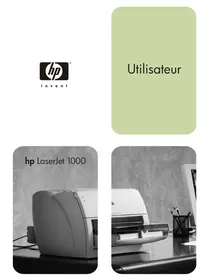
natural_image Black-and-white photo of a desktop desk with a HP scanner, a computer monitor, and a pen holder (no visible text or symbols)
natural_image Line drawing of a HP LaserJet 1000 series printer (no text or symbols on the device body)

Guide d'utilisation

Disque compact Hewlett-Packard Support Assistant 69

Informations de services Hewlett-Packard 69

HP SupportPack 69

natural_image Illustration of a printer placed inside a window with a diagonal line crossing through it, no text or symbols present.
natural_image Technical illustration of a mechanical assembly with a circular inset showing a rotating component and a separate view of a cylindrical component (no text or symbols present)
natural_image Line drawing of a printer with an open lid and blue arrow indicating a component (no text or symbols present)

Diagram showing two steps of printer printing process: first with directional arrows, second with blue arrow indicating motion.

natural_image Line drawing of a printer with paper feed and ventilation slots (no text or symbols)

Voyants d'état

natural_image Line drawing of a printer with paper feed (no text or symbols)
natural_image Line drawing of a printer with an open lid and internal compartments (no text or symbols)
natural_image Technical line drawing of a mechanical device with a blue arrow indicating direction (no text or symbols)

Circuit papier direct

natural_image Technical line drawing of a mechanical component with a blue directional arrow indicating flow or movement (no text or symbols present)

Remarque

natural_image Two technical diagrams showing a printer's internal structure with blue arrows indicating motion or rotation (no text or symbols present)

Mise hors tension

natural_image Diagram showing a computer adapter connected to an electrical outlet with a magnified inset illustrating the connection (no text or symbols present)

Conversion des tensions

Types de support particuliers

natural_image Illustration of two printer machines with blue arrows indicating process flow (no text or symbols)
natural_image Diagram of a printer or scanner with blue arrows indicating rotation, no text or symbols present

2
HP LASERJET 1000 PRINTER - Types de support particuliers - 1

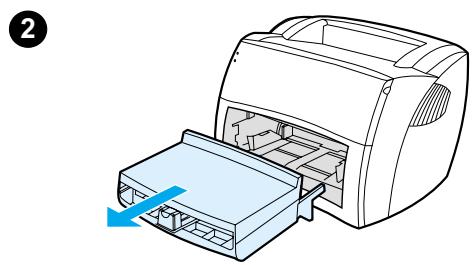
natural_image Diagram of a printer drawer with blue arrows indicating flow direction (no text or symbols)

3
HP LASERJET 1000 PRINTER - Types de support particuliers - 2

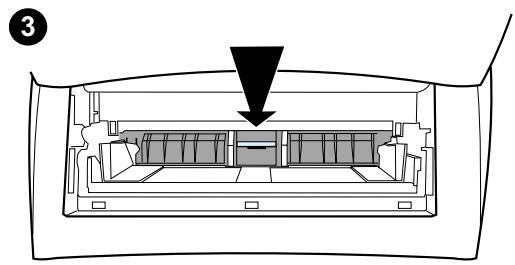
natural_image Diagram of a printer's internal structure showing paper feeding into a slot (no text or symbols)

4
HP LASERJET 1000 PRINTER - Types de support particuliers - 3

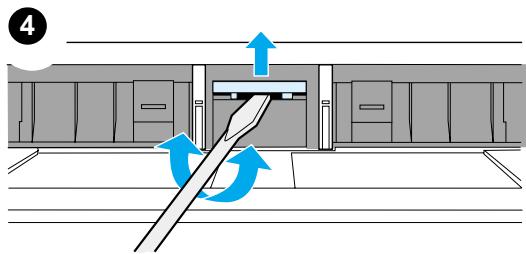
natural_image Technical diagram of a mechanical device showing internal components and directional arrows (no text or symbols)

5

HP LASERJET 1000 PRINTER - Types de support particuliers - 4

natural_image Illustration of a printer with a blue arrow indicating compression or disassembly (no text or symbols present)
natural_image Diagram of a printer's internal structure showing paper feeding into a printer (no text or symbols present)

Remarque

natural_image Diagram showing two steps of printer printing process: one with a stack of paper and arrow indicating direction, the other with a blank sheet (no text or symbols)
natural_image Diagram of a printer with arrows indicating process flow (no text or symbols)

2
HP LASERJET 1000 PRINTER - Remarque - 1

natural_image Illustration of two hands holding a cylindrical device with motion arrows indicating movement (no text or symbols)

3

HP LASERJET 1000 PRINTER - Remarque - 2

natural_image Diagram of a printer with an open lid and internal structure, showing no text or symbols
natural_image Diagram of a printer with internal structure and directional arrows indicating flow or movement (no text or symbols)

2
HP LASERJET 1000 PRINTER - Remarque - 3

natural_image Illustration of hands holding a cylindrical device with motion arrows indicating rotation (no text or symbols)

3
HP LASERJET 1000 PRINTER - Remarque - 4

natural_image Diagram of a mechanical device with a blue circular arrow indicating rotational motion (no text or symbols)

HP LASERJET 1000 PRINTER - Remarque - 5

natural_image Technical line drawing of a mechanical component with a highlighted section (no text or symbols)

4
HP LASERJET 1000 PRINTER - Remarque - 6

natural_image Diagram showing a mechanical component with a blue arrow indicating direction, no text or symbols present

5

HP LASERJET 1000 PRINTER - Remarque - 7

natural_image Diagram of a printer with internal components and directional arrows indicating flow or movement (no text or symbols)

Remarque

natural_image Line drawing of a printer with a magnified inset showing two circular components (no text or symbols)

Etat des voyants

natural_image Diagram of a printer with an open lid and blue arrow indicating rotation or movement (no text or symbols)

HP LASERJET 1000 PRINTER - Remarque - 1

natural_image Illustration of a hand using a tool to adjust or install a mechanical component inside a device (no text or symbols visible)
natural_image Diagram of a printer with an open lid and internal structure, showing no text or symbols

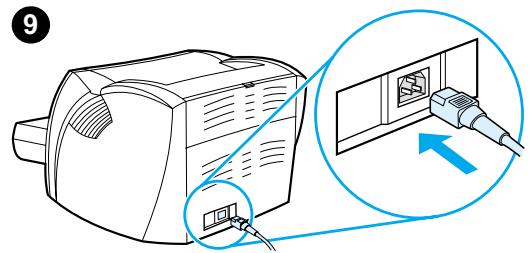
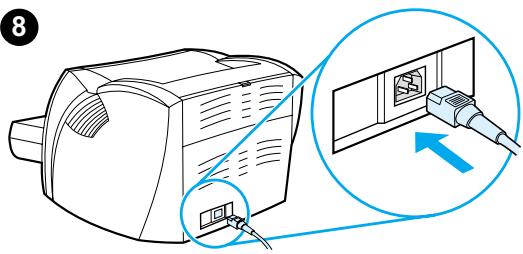
Diagram showing a device with an attached cable and its internal panel, with a magnified inset highlighting the cable's connection.

natural_image Line drawing showing two steps of printer printing process: one with a paper feed into the printer, the other with a close-up of the printer's internal structure (no text or symbols)
natural_image Diagram of a printer with blue arrows indicating process flow (no text or symbols)

2
Diagram showing a printer with labeled parts and a magnified view of the device's internal structure, including a blue circular arrow indicating rotation.

3

HP LASERJET 1000 PRINTER - Remarque - 4

natural_image Line drawing of a printer drawer with an arrow indicating the paper direction (no text or symbols present)

4
HP LASERJET 1000 PRINTER - Remarque - 5

natural_image Illustration of a printer presser with hands operating the cover (no text or symbols visible)

HP LASERJET 1000 PRINTER - Remarque - 6

natural_image Illustration of hands installing or adjusting a printer into a machine (no text or symbols visible)

5
HP LASERJET 1000 PRINTER - Remarque - 7

natural_image Diagram of a printer with arrows indicating motion or operation, showing internal structure and no text labels

ATTENTION

natural_image Diagram of a printer internal structure with no visible text or symbols
natural_image Diagram of a vehicle interior showing airflow or movement arrows (no text or symbols)

Remarque

natural_image Diagram of a vehicle air intake system showing airflow path and component placement (no text or labels)
natural_image Diagram of a mechanical component with a blue arrow indicating direction, no text or symbols present

HP LASERJET 1000 PRINTER - Remarque - 1

natural_image Diagram of a mechanical assembly with a blue arrow indicating direction, no text or symbols present
natural_image Diagram of a printer with an open lid and internal structure, showing a blue arrow indicating rotation (no text or symbols present)

9

natural_image Illustration of hands cleaning a bottle and cloth (no text or symbols)
natural_image Illustration of two hands holding a small object, one being cut with a ring (no text or symbols)

AVERTISSEMENT !

natural_image Mechanical assembly diagram showing a blue arrow pointing to a component inside a housing (no text or symbols)

HP LASERJET 1000 PRINTER - AVERTISSEMENT ! - 1

natural_image Diagram of a printer with a blue arrow indicating a loading or insertion process (no text or symbols present)

HP LASERJET 1000 PRINTER - AVERTISSEMENT ! - 2

natural_image Diagram of a device interior showing a rectangular chamber with an arrow pointing to it, no text or symbols present.

4

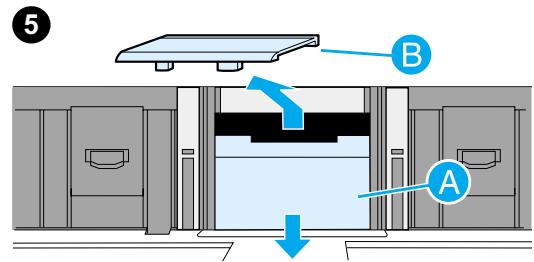
5 B A

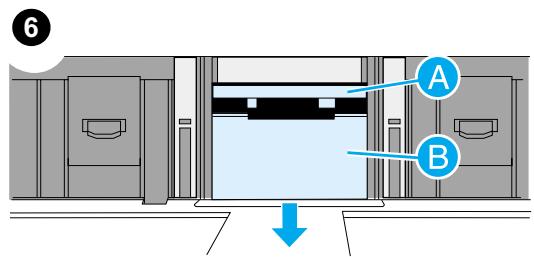
6 A B

Remarque

natural_image Diagram of a mechanical or architectural component with two blue arrows pointing to internal features (no text or symbols present)

8
8

natural_image Line drawing of a portable electronic device with cable connections and a magnified inset showing the internal components (no text or symbols)

Disque compact Hewlett-Packard Support Assistant

Informations de services Hewlett-Packard

KLASS 1 LASER APPARAT

natural_image Line drawing of a flat-screen computer monitor with a base (no text or symbols)

CD HP Support Assistant 69

HP SupportPack 62, 69

HP SupportPack 62, 69

1

Impression

enveloppes 23

étiquettes 22

enveloppes, impression 23

transparents, impression 22

Supports de format non standard

impression 25

Supports épais

natural_image Line drawing of a HP printer with paper feed and paper tray (no text or symbols)
Manual assistant
Powered by Anthropic
Waiting for your message
Product information

Brand : HP

Model : LASERJET 1000 PRINTER

Category : Laser printer