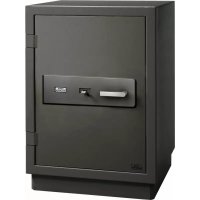
Royal 512 - Safe Burg Wächter - Free user manual and instructions
Find the device manual for free Royal 512 Burg Wächter in PDF.



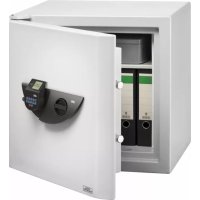
| Product type | Safe |
| Brand | Burg Wächter |
| Model | Royal 512 |
| Locking technology | TRSE 6000 electronic (VdS class B certified) |
| Opening methods | Code (6 digits), E-Key (contactless), Fingerprint (Fingerscan)* |
| Number of users (code) | 1 administrator + 9 users |
| Number of E-Keys | Up to 300 |
| Number of fingerprints* | Up to 10 Fingerscan users |
| Factory code | 123456 (to change) |
| Lockout time after errors | 5 min after 3 errors, then 10 min after each new series |
| Power supply | Batteries |
| Display | Screen with navigation menus |
| Available functions | Code change, recording/users, E-Key management, language setting, clock, date, radio channel, priority, reorganization, synchronization, FS-Reset* |
| Certification | VdS class B |
| Maintenance | Regular battery change (see manual) |
| Safety | Tamper protection, code not based on personal data |
| Manual languages | French, German, English, Dutch, and others |
| Number of pages in manual | 44 |
| Repairability | Batteries replaceable by user |
Frequently Asked Questions - Royal 512 Burg Wächter
User questions about Royal 512 Burg Wächter
0 question about this device. Answer the ones you know or ask your own.
Ask a new question about this device
Download the instructions for your Safe in PDF format for free! Find your manual Royal 512 - Burg Wächter and take your electronic device back in hand. On this page are published all the documents necessary for the use of your device. Royal 512 by Burg Wächter.
USER MANUAL Royal 512 Burg Wächter
TRSE 6000
Inhaltsverzeichnis
de Deutsch 3
en English 12
fr Français....22
nl Nederlands 32
Batteriewechsel/Replacement of batteries/ Changer la batterie/Batterijwissel. 42
it Download: www.burg.biz
es Descarga: www.burg.biz
pt Download: www.burg.biz
sv Download: www.burg.biz
no Download: www.burg.biz
dk Download: www.burg.biz
fi Ladattava tiedosto: www.burg.biz
el Λήψη: www.burg.biz
tr Indir: www.burg.biz
ro Descărcare: www.burg.biz
p! Pobieranie pliku: www.burg.biz
cz Stáhnout: www.burg.biz
hu Letölthető: www.burg.biz
sl Download: www.burg.biz
hr Download: www.burg.biz
ru Загрузка: www.burg.biz
bg Download(зареди):
www.burg.biz
et Download: www.burg.biz
1 Allgemeines
Thank you for deciding for a safe with the BURG-WÄCHTER TRSE 6000 electronics. This electronics is VdS-certified for class B. You have acquired a product meeting extremely high security requirements and developed and manufactured using the latest technical potential.
Please read the entire User Manual before programming and store it at a safe place for future reference.
The TRSE 6000 electronics is available in a TRSE 6000 FP version with a fingerscan unit and in another version TRSE 6000 without the fingerscan unit. The present user manual applies to both versions, however, the menu structure is able to detect automatically the appropriate version and thus only the menu items intended for it are active. The items relevant only for the electronics with a fingerscan unit are marked with*.
Generally, you can open the safe in three possible ways:
- with a code
– with an E-Key (ident medium TSE 5103 E-Key SB and TSE 6103 E-Key not included in the delivery) - with your fingerprint*
The administrator code when delivered from the factory is 123456. This code must be changed. Additional 9 users with a code to be entered by the keyboard can be defined. Such code has always six digits, similarly to administrator's code.
Additionally, up to 300 E-Keys for contactless opening can be stored.
In case you possess a safe with a fingerscan unit, up to 10 users with fingerscan can be additionally stored. Users with fingerscan are identified in the user list of the lock as USER xxx_FP.
The TRSE 6000 FP electronics is the first safe electronics, for which the opening based on fingerscan is certified.
At least two opening codes shall be entered to open the safe using fingerprint. Another opening code must be entered in addition to fingerscan. This can be either another fingerscan, but also a pin code or an E-Key. All the fingerscans are stored in the system with a value of 1/2 . In order to acquire the authorization to open, a value of at least 1 must be achieved. A pin code with a value of at least 1/2 must be therefore entered for the opening, a value of 1 can be also achieved with an additional fingerscan.
Attention: The values can only be adjusted using TSE Light, TSE System and System + software. When a PIN code user or an E-Key user is being created for the safe, an inquiry is made on whether the opening code shall be used together with a fingerprint. Correspondingly, the value is then automatically set to 1/2 . Otherwise the PIN code and the E-Key are assigned values of 1, the fingerscan is always assigned a value of 1/2 .
Blocking times: To protect the lock against manipulation the electronics block the access to the safe for 5 minutes if 3 incorrect pincodes have been entered one after another. With every following wrong pincode for 10 minutes. During this period, the display shows the remaining countdown time. Opening the safe is also not possible with a valid user or administrator code.
In order to enhance the protection against intrusion, the following points should be observed:
For locking systems with material code carriers, e. g. an E-Key:
- The code carrier should be consistently stored safely, so that it is accessible only to the authorized persons.
- In case of a loss of the code carrier, the lock should be immediately replaced or converted to a new combination by changing the coding, and / or the code of the lost code carrier should be blocked / deleted.
For locking systems requiring a code:
- No personal data (e. g. dates of birth) or other data, for which a link can be derived to the code owner, should be used for coding.
- If the code is stored in writing, such document should be consistently stored safely, so that it is accessible only to the authorized persons.
- Attention: Any changes of the administrator code and of the user codes shall be made with the safe door opened!
- When the locking system has been reset to another code, this new code should be repeatedly used with the safe door opened.
2.1 Description of basic functions
You can program your lock based on the following description.
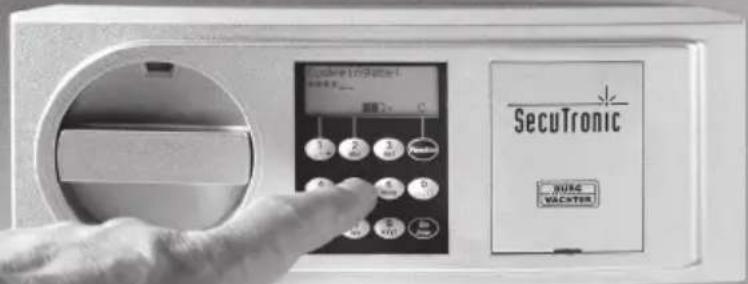
You can see the programming instructions on the display. To program the lock (enter into the menu), please press the "Function" key, when the symbol "M" is displayed. You can move within the menu using the keys "1" scroll up (symbol on display) and "2" scroll down (symbol on display). When the symbol "<" is displayed, you can use the "Function" key to skip to the next higher menu level, and choose a particular menu item using the "Enter / On" key. The battery symbol indicates the current battery status:
Battery full
[][][] Battery empty (please replace the batteries)
The batteries are replaced in a way depending on the safe fittings. Battery replacement page 42
2.2 Description of programming and user mode
Please find the menu structure shown on the following pages. Also the navigation is indicated. Additionally, each of the menu items is clarified:
Code change menu
Change of the administrator and user codes
Language/Sprache menu
Language setup
E-Key synchronization menu
In this program, the channel of the E-Key is adapted to the channel of the input unit.
This function is necessary when the radio channel of an input unit is modified, although other radio keys (with the old channel setup) are still logged.
Info menu
– Indication of version and serial number
– SNA: Lock serial number (via type in the Administration code)
Administrator menu
This includes all the menus that can be used only with the administrator authorizations. They include:
- Create User:
Users can be created here. A user has either a code, or an E-Key, or both. A separate user is always created for a fingerscan.
Anatomically, there are people, the fingerprints of whom are not sufficiently articulated for the system.
- Assign E-Key:
An E-Key can be additionally assigned to a selected user here.
- Delete:
Users and E-Keys can be deleted here. When a user is deleted, also the code and the E-Key belonging to the user are deleted. When an E-Key is deleted, the user is retained. To delete a fingerscan, the corresponding user has to be deleted. To delete all the fingerscans, please use the "FS-Reset" function (see below).*
- Time:
Entry of the time and calibration of the clock. The clock is automatically calibrated between two specific times. Exceptions are a replacement of batteries and the switchover from summer to winter time.
- Date:
Entry of date
- Radio Channel:
The radio channel can be set up here (12 channels to select from). This can be required when the radio channel is already used by another application, e. g. WLAN. In case of collision with WLAN systems, a space of three channels is recommended.
- Priority:
In case the door cannot be opened after several attempts with the E-Key, the priority of the door can be increased by this function. Inversely, also the priority of other door within the direct environment can be reduced.
- Restructure:
The use of this function is recommended when several users have been deleted.
- Register:
When either the lock unit or the keyboard is replaced, the two units are newly tuned to each other.
- FS-Reset*:
All the stored fingerprints are deleted, however, the corresponding users are retained. Please select this menu and follow the instructions on the display also in case of repeated error functions related to the use of fingerscans. These fingers could not be stored because of security reasons.
2.3 Menu structure
![graph TD A["Menu Code Change"] -->|F| B["Administrator User 1"] A -->|E| C["Menu Language Selection"] B -->|F| D["Previous code"] D -->|E| E["New code"] E -->|C| F["Repeat entry"] F -->|E| G["Code change completed"] G -->|F| H["Admin. Setup Create User"] H -->|L| I["Admin. Setup Assign E-Key"] I -->…](/content/2026/04/591153/images/b151956c6413d44d535bfa1e457a31b5880220b5e519b6c5e78bdfbcbaa0ebf8.jpg)

Display Input

Administrator User
E=Enter
![graph TD A["Admin. Setup Data Entry"] -->|L| B["Admin. Code"] B -->|Day| C["Month"] C -->|F| D["Years"] D -->|E| E["Data are stored!"] E -->|C| F["Admin. Setup Radio Channel"] F -->|L| G["Admin. Code"] G --> H["Connection Channel"] H -->|L| I["Data are stored!"] I --> J["Admin. Setup Priority"] J --…](/content/2026/04/591153/images/a08f0b1bfc959b7c069551a04c5c11333a6a7a01a7ff991aa8b03e3aaf928b0e.jpg)
2.4 Detailed description of selected basic functions
1. Opening the safe using the factory code
- Press the On/Enter key
- The Code/Fingerp indication is displayed (in case you possess electronics without fingerscan, Code is displayed instead.)
- At this point you are asked to enter the Admin. Code (factory setting 123456)
- The instruction Please turn knob is displayed
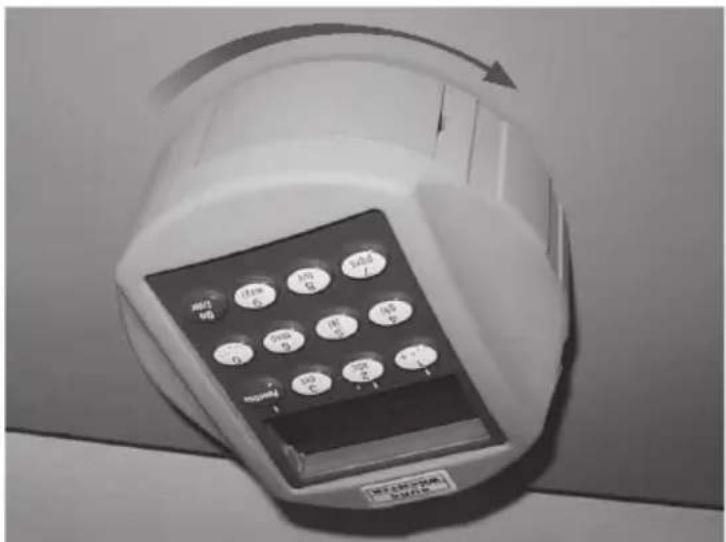
Attention: The message Please turn knob implies the action with the knob of the locking unit, for which the opening code has been entered.
2. Changing the Administrator Code
-PresstheOn/Enter key
- The indication of Code/Fingerp is displayed
- Press the Function key
-TheChange code menu is displayed
-PresstheOn/Enter key
– The indication of Administrator is displayed
—PresstheOn/Enter key
- The indication of the Old code is displayed
- At this point you are asked to enter the Admin. Code (factory setting 123456)
—PresstheOn/Enter key
- The indication of the New code is displayed
- Enter the new code
-PresstheOn/Enter key
– The indication of Repeat code is displayed
- Enter the new code
—PresstheOn/Enter key
- The indication of Code successfully changed is displayed
3. Creating a user with a code
-PresstheOn/Enter key
- The indication of Code/Fingerp is displayed
- Press the Function key
—TheChange code menu is displayed
- By pressing the key 2 reach the Administrator menu
-PresstheOn/Enter key
-AdminsetupCreate user is displayed
-PresstheOn/Enter key
- Createcode is displayed
-PresstheOn/Enter key
- At this point you are asked to enter the Admin. Code (factory setting 123456)
- The indication of User 00x is displayed
- Please enter the user code and confirm it with ENTER
- Press the On/Enter key
- FS combination to be confirmed with ENTER is displayed 1
- Press the On/Enter key and accordingly the Function key
—Afterconfirmation, Save with the On key is displayed.
4. Creating a user with an E-Key
—PresstheOn/Enter key
- The indication of Code/Fingerp is displayed
- Press the Function key
- The Change code menu is displayed
- By pressing the key 2 reach the Administrator menu
- Press the On/Enter key
- Admin setup Create user is displayed
- Press the On/Enter key
- CreateE-Key is displayed
—PresstheOn/Enter key
- At this point you are asked to enter the admin. Code (factory setting 123456)
- FS combination to be confirmed with ENTER is displayed 1
- Press the On / Enter key and accordingly the Function key
- User 00x Store E-Key using ENTER is displayed
- Please bring the E-Key in the programming mode.
-PresstheOn/Enter key
- E-Key in Prog mode, continue with Enter is displayed
—PresstheOn/Enter key
-Afterconfirmation, Save with the On key is displayed
1 If the message FS combination to be confirmed with ENTER is displayed you have to decide whether the user should get the full opening right or half of it.
Full opening right: press Function key
Half opening right: press ENTER key
If you create a half opening right the Pin code is only to be allowed to open with another opening secret e. g. the fingerprint.
5. Storing a user with fingerprint*
—PresstheOn/Enter key
- The indication of Code/Fingerp is displayed
- Press the Function key
- The Change code menu is displayed
- By pressing the key 2 reach the Administrator menu
- Press the On/Enter key
- Admin setup Create user is displayed
- Press the On/Enter key
- By pressing the key 2 several times reach the Create fingerscan menu
—PresstheFunction key
- At this point you are asked to enter the admin. Code (factory setting 123456)
- The indication of Create fingerscan is displayed
- The indication of Store finger is displayed
- Please pull your finger over the sensor for several times according to the instructions shown on the display
- After a successful entry the indication User xxx successfully created is displayed
Attention: When saving a fingerprint it is important that the finger is laid evenly and in a straight position over the sensor. Follow the instructions on the display. The finger is saved only when it can be read in an optimum quality.
6. Opening with fingerprint*
-PresstheOn/Enter key
- The indication of Code/Fingerp is displayed
- Move the saved finger over the sensor
– Value not achieved is displayed for a short time
—TheCode/Fingerp indication is displayed
- At this point, enter an additional opening code.
–TheinstructionPlease turn knob is displayed
7. Deleting a finger*
- Press the On/Enter key
- The indication of Code/Fingerp is displayed
-PresstheFunction key
- The Change code menu is displayed
- By pressing the key 2 reach the Administrator menu
- Press the On/Enter key
- Admin setup Create user is displayed
- By pressing the key 2 reach the Admin. setup Delete menu
- Press the On / Enter key
- Delete user is displayed
-PresstheOn/Enter key
– At this point you are asked to enter the admin.
Code (factory setting 123456)
- Now you have to select the appropriate user by pressing the keys 1 or 2
-PresstheOn/Enter key
- The indication of Delete data to be confirmed with the On key is displayed.
-PresstheOn/Enter key
- The indication of Data record deleted is displayed
Additional users can be deleted using the On / Enter key. By pressing the Function key, you can reach higher menu levels up to the code entry.
2.5 Error messages*
The following error messages are indicated when a finger is being saved or the safe opened:
| Error message Elimination of causes | |
| too fast!please repeat | Move the finger more slowly over the sensor |
| too aslant!please repeat | Move the finger straight over the sensor |
| too short!please repeat | Move the finger over the sensor in a way allowing more surface area to be rea |
| place to the center and repeat! | Place your finger centrally over the sensor |
Disposal
Dear customer,
Please help us avoid unnecessary waste.
Should you intend to dispose of this device at any time, please remember that many components of this device contain valuable materials, which can be recycled.

Please be aware that electrical and electronic equipment and batteries shall not be disposed of as household waste, but rather collected separately. Please obtain information on the collecting points for electrical waste from the responsible authority of you municipality.

If you have any questions concerning the EC declaration of conformity, please use info@burg.biz.
3 Généralités

Display Input

Administrator User
E=Enter
![graph TD A["Admin. Setup Data Entry"] --> B["Admin. Code"] B --> C["Day"] C --> D["Month"] D --> E["Year"] E --> F["Data are stored!"] F --> G["Data are stored!"] G --> H["Admin. Setup Radio Channel"] H --> I["Admin. Code"] I --> J["Connection Channel"] J --> K["Data are stored!"] K --> L["Admin. Se…](/content/2026/04/591153/images/82fc89d56160cdafe59b09e1e2dfe68aa4a6e0c44d76f6083c376090612c3294.jpg)

Display Input

Administrator User
E=Enter
![graph TD A["Admin. Setup Data Entry"] --> B["Admin. Code"] B --> C["Day"] C --> D["Month"] D --> E["Year"] E --> F["Data are stored!"] F --> G["Data are stored!"] G --> H["Admin. Setup Radio Channel"] H --> I["Admin. Code"] I --> J["Connection Channel"] J --> K["Data are stored!"] K --> L["Admin. Se…](/content/2026/04/591153/images/73bf108a57ec7b1c581c2a2f4a5a99428a83c27ad9b3d9ef91b1fb317cfb6bcd.jpg)
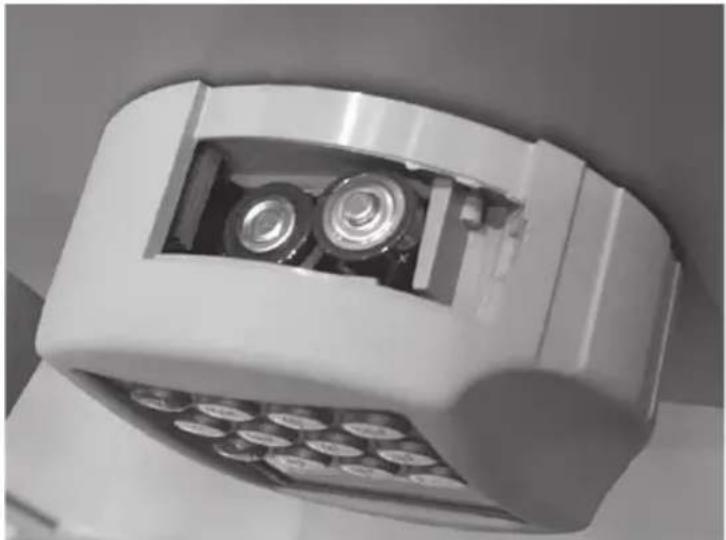
Batterien/Batteries/Batterijen: 2x 1,5V Mignon (LR6)

BURG WÄCHTER
BURG-WÄCHTER KG
Altenhofer Weg 15
58300 Wetter
Germany
info@burg.biz
www.burg.biz

- INHALTSVERZEICHNIS
- 1 ALLGEMEINES
- GENERALLY, YOU CAN OPEN THE SAFE IN THREE POSSIBLE WAYS
- IN ORDER TO ENHANCE THE PROTECTION AGAINST INTRUSION, THE FOLLOWING POINTS SHOULD BE OBSERVED
- 2.1 DESCRIPTION OF BASIC FUNCTIONS
- 2.2 DESCRIPTION OF PROGRAMMING AND USER MODE
- CODE CHANGE MENU
- LANGUAGE/SPRACHE MENU
- E-KEY SYNCHRONIZATION MENU
- INFO MENU
- ADMINISTRATOR MENU
- CREATE USER
- ASSIGN E-KEY
- DELETE
- TIME
- DATE
- RADIO CHANNEL
- PRIORITY
- RESTRUCTURE
- REGISTER
- FS-RESET
- 2.3 MENU STRUCTURE
- 2.4 DETAILED DESCRIPTION OF SELECTED BASIC FUNCTIONS
- OPENING THE SAFE USING THE FACTORY CODE
- CHANGING THE ADMINISTRATOR CODE
- CREATING A USER WITH A CODE
- CREATING A USER WITH AN E-KEY
- STORING A USER WITH FINGERPRINT
- OPENING WITH FINGERPRINT
- DELETING A FINGER
- 2.5 ERROR MESSAGES
- DISPOSAL
- DEAR CUSTOMER
- 3 GÉNÉRALITÉS
- BURG WÄCHTER
Brand : Burg Wächter
Model : Royal 512
Category : Safe