Stem Audio Control - Video conferencing system

Control - Video conferencing system Stem Audio - Free user manual and instructions

Find the device manual for free Control Stem Audio in PDF.

📄 6 pages English EN Download 💬 AI Question 10 questions ⚙️ Specs
Notice Stem Audio Control - page 2
View the manual : Français FR English EN
Pick your language and provide your email: we'll send you a specifically translated version.
Product Type All-in-one video conferencing system
Brand Stem Audio
Model Control
Dimensions (L x W x H) 28 cm x 28 cm x 8 cm
Weight 2.5 kg
Power supply 24 V DC power adapter (included)
Network connectivity Gigabit Ethernet (PoE+ optional)
Microphones 6 omnidirectional beamforming microphones
Speakers 2 wideband speakers with integrated amplification
Microphone range Up to 4.5 meters in a standard room
Frequency response 20 Hz – 20 kHz
Supported protocols USB, Bluetooth, VoIP (SIP), analog (line in/out)
Software compatibility Zoom, Microsoft Teams, Google Meet, Cisco Webex, etc.
Configuration Via web portal or Stem Ecosystem app
Operating temperature 0°C to 40°C
Maintenance and cleaning Clean with a soft, dry cloth. Do not use abrasive products.
Safety Complies with CE and FCC standards. Detachable power cord for safety.
Warranty 2 years (parts and labor)
Country of manufacture United States

Frequently Asked Questions - Control Stem Audio

How to connect the Control to the network?
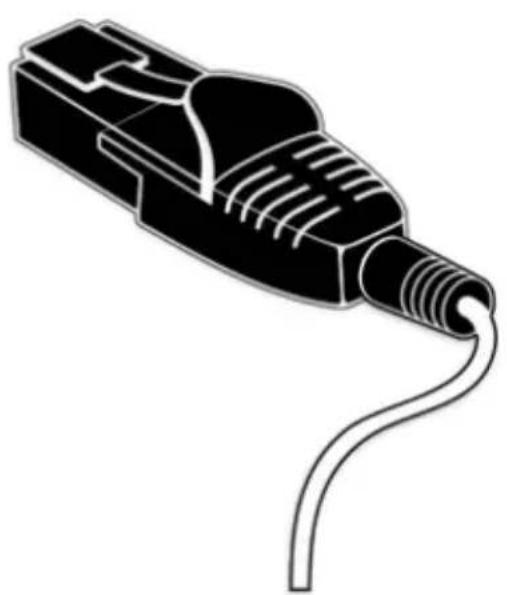
Plug in the power adapter or use PoE+ via an Ethernet cable. Connect the Ethernet cable to an active network port. The device powers on automatically and appears in the Stem Ecosystem software.
Is the Control compatible with macOS and Windows?
Yes, it works as a USB audio device natively recognized by Windows, macOS, and Chrome OS. No additional drivers are needed.
Can I use the Control with a traditional video conferencing system (codec)?
Yes, thanks to its analog connections (line in/out) and support for the SIP protocol, the Control can interface with standard codecs or analog systems.
How to install the Control in a room?
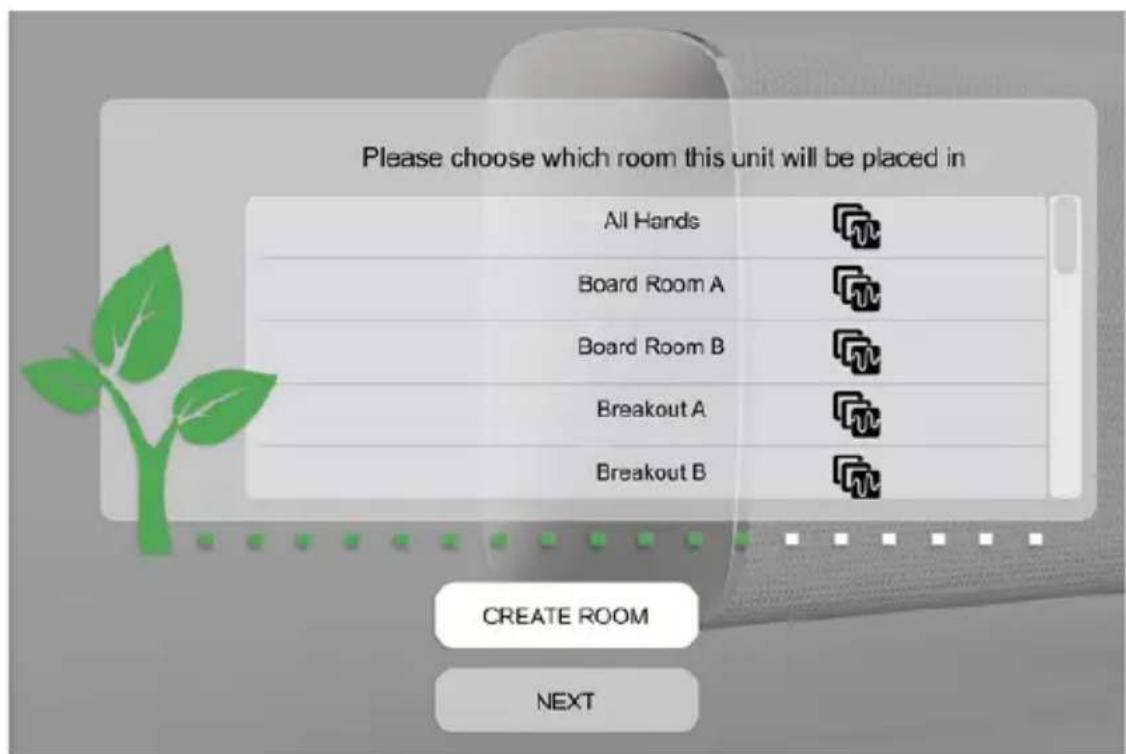
Place the Control at the center of the conference table. Connect it to power and the network. Launch the Stem Ecosystem app to detect the device, name it, and assign it to a room.
Does the Control have echo and noise cancellation?
Yes, it integrates advanced audio processing with acoustic echo cancellation (AEC) and noise reduction for clear conversations.
Can I extend coverage with other Stem Audio devices?
Absolutely. The Control is part of the Stem ecosystem. You can add Stem Speaker microphones or Stem Wall speakers via the same network to cover larger rooms.
How to update the Control's firmware?
Updates are done automatically via the Stem Ecosystem app when a new version is available. Make sure the device remains connected to the Internet.
What to do if the Control is not detected on the network?
Check that the Ethernet cable is properly plugged in and that the LED is on. Restart the device by unplugging power for 10 seconds. Check your network DHCP settings.
Can the Control be mounted on a wall or ceiling?
The Control is designed for tabletop use. For wall mounting, use the optional Stem Control Wall Mount (sold separately).
How to clean the Control?
Use a soft, lint-free cloth slightly dampened with water or a mild cleaner. Never use solvents, sprays, or abrasive products.

User questions about Control Stem Audio

0 question about this device. Answer the ones you know or ask your own.

Ask a new question about this device

The email remains private: it is only used to notify you if someone responds to your question.

No questions yet. Be the first to ask one.

Download the instructions for your Video conferencing system in PDF format for free! Find your manual Control - Stem Audio and take your electronic device back in hand. On this page are published all the documents necessary for the use of your device. Control by Stem Audio.

USER MANUAL Control Stem Audio

1 Connect your Control

Plug-in your Control unit and connect it to the network

Stem Audio Control - Connect your Control - 1

Stem Audio Control - Connect your Control - 2

Stem Audio Control - Connect your Control - 3

2 Find your unit Identify the Control unit you want on the network & select it via the Stem ecosystem platform


Stem Audio Control - Find your unit Identify the Control unit you want on the network & select it via the Stem ecosystem platform - 1

Stem Audio Control - Find your unit Identify the Control unit you want on the network & select it via the Stem ecosystem platform - 2

3

Name your unit

Give your Control unit a name

(Ex. Medium Conference Room -Control 1)

Please name your unit

Typical name might relate to the location of the device ex. Room 304, Table Unit A

DEVICE NAME

Stem Audio Control - Name your unit - 1

4

Give it a home

Create a new room or choose which room this unit will be placed in via the Stem ecosystem platform

Stem Audio Control - Give it a home - 1

Stem Audio Control - Give it a home - 2

Need some help?

Email: customerservice@stemaudio.com

Telephone: (949) 877-STEM (7836)

Product User Manuals:

stemaudio.com/manuals

Stem Audio Control - Need some help? - 1

Manual assistant
Powered by Anthropic
Waiting for your message
Product information

Brand : Stem Audio

Model : Control

Category : Video conferencing system