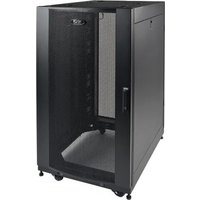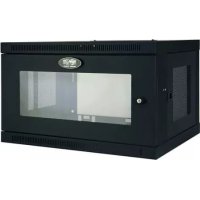
SmartRack SRW6UG - Server Tripp Lite - Free user manual and instructions
Find the device manual for free SmartRack SRW6UG Tripp Lite in PDF.



| Product Type | SmartRack Non-Swinging Wall-Mount Rack |
| Brand | Tripp Lite |
| Model | SmartRack SRW6UG |
| Category | Server / 19-inch Rack |
| Rated Height | 6U (266 mm) |
| External Dimensions (H x W x D) | Approx. 34.9 cm x 51.4 cm x 47.6 cm |
| Weight (Empty) | Approx. 14 kg |
| Material | Steel |
| Load Capacity | Up to 45 kg (installed equipment) |
| Mounting Type | Fixed wall mount, includes mounting plate |
| Front Door | Lockable, reversible, quick-release |
| Side Panels | Removable and lockable |
| Mounting Rails | Depth adjustable, square and threaded holes |
| Cable Management | Rectangular top opening with removable cover |
| Grounding | Grounding point with included M6 screw |
| Ventilation | Front and rear vents, clearance required for airflow |
| Supplied Accessories | Keys, mounting screws (black and silver), cage nuts, mounting plate, wall mounting hardware |
| Warranty | 5-year limited |
| Maintenance and Cleaning | Clean with a dry cloth inside; store in a controlled environment, away from moisture and dust |
| Repairability | Spare parts not listed; after-sales service via www.tripplite.com/support |
Frequently Asked Questions - SmartRack SRW6UG Tripp Lite
User questions about SmartRack SRW6UG Tripp Lite
0 question about this device. Answer the ones you know or ask your own.
Ask a new question about this device
Download the instructions for your Server in PDF format for free! Find your manual SmartRack SRW6UG - Tripp Lite and take your electronic device back in hand. On this page are published all the documents necessary for the use of your device. SmartRack SRW6UG by Tripp Lite.
USER MANUAL SmartRack SRW6UG Tripp Lite
Non-Swinging Wall-Mounted SmartRack® Enclosures
Applies to Model Series: SRWxxU
(Agency Series Number: AG-00E9)
Table of Contents
- Important Safety Instructions 2
- Overview 2
- Feature Identification 3
- Enclosure Installation 4
4.1 Preparation 4
4.2 Unpacking 4
4.3 Ground Connection 4
- Enclosure Configuration 5
5.1 Door Locks 5
5.2 Cable Access & Management 5
5.3 Reversing the Enclosure 5
5.4 Mounting Rails 6
5.5 Adjusting Mounting Rail Depth 6
- Wall Mounting the Enclosure 6
- Equipment Installation 7
7.1 Installing or Removing Cage Nuts 7
7.2 Alternate Mounting: 8 Tapped Hole Mounting Rail
- Storage and Service 9
- Warranty and Product Registration 9
Español 10
Français 19
Русский 28
PROTECT YOUR INVESTMENT!
Register your product for quicker service and ultimate peace of mind.
You could also win an ISOBAR6ULTRA surge protector—a \$50 value!
www.tripplite.com/warranty



1. Important Safety Instructions
SAVE THESE INSTRUCTIONS
This manual contains instructions and warnings that must be followed during the installation and operation of the product described in this manual.
Failure to comply may invalidate the warranty and cause property damage or personal injury.
- Keep the enclosure in a controlled indoor environment, away from moisture, temperature extremes, flammable liquids and gasses, conductive contaminants, dust and direct sunlight.
- Leave adequate space at the front and rear of the enclosure for proper ventilation. Do not block, cover or insert objects into the external ventilation openings of the enclosure.
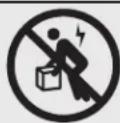
- The enclosure is extremely heavy. Use caution when handling the enclosure. Do not attempt to unpack, move or install it unassisted. Use a mechanical device such as a forklift or pallet jack to move the enclosure in the shipping container.
- Do not place any object on the enclosure, especially containers of liquid, and do not attempt to stack the enclosures.
- Inspect the shipping container and the enclosure for shipping damage. Do not use the enclosure if it is damaged.
- Leave the enclosure in the shipping container until it has been moved as close to the final installation location as possible.
• Install the enclosure in a structurally sound area capable of handling the load, or on a level floor that is able to bear the weight of the enclosure, all equipment that will be installed in the enclosure and any other enclosures and/or equipment that will be installed nearby. - For permanent wall mounting, be sure to securely fasten the enclosure to the building structure before operation.
- Use caution when cutting packing materials. The enclosure could be scratched, causing damage not covered by the warranty.
- Save all packing materials for later use. Repacking and shipping the enclosure without the original packing materials may cause product damage that will void the warranty.
- Do not reship the enclosure with additional equipment unless the enclosure was shipped with a special shock pallet ("SP1" models only). The combined weight of the enclosure and installed equipment must not exceed the load capacity of the pallet. Tripp Lite is not responsible for any damage that occurs during reshipment.
- Use of this equipment in life support applications where failure of this equipment can reasonably be expected to cause the failure of the life support equipment or to significantly affect its safety or effectiveness is not recommended. Do not use this equipment in the presence of a flammable anesthetic mixture with air, oxygen or nitrous oxide.
2. Overview
Non-swinging wall-mounted SmartRack enclosures accommodate all standard 19-inch rackmount equipment, regardless of vendor, and ship fully assembled for quick and easy deployment. They feature adaptable, heavy-duty cabinets in various heights.
Non-swinging wall-mounted SmartRack enclosures have variable mounting depths, ideal for servers. The cabinets include quick-release doors and side panels for convenient maintenance. Front access doors are reversible for installation flexibility. Front door and side panels are lockable. An optional rolling caster kit (SRCASTER) is available for easy maneuvering of enclosures.
3. Feature Identification
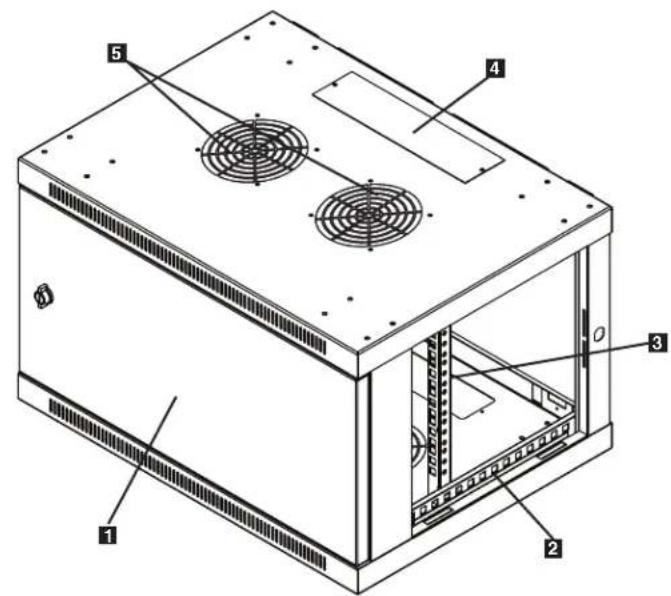
Model SRW6U is shown. The other models have similar features, with the only differences being rack height and depth.
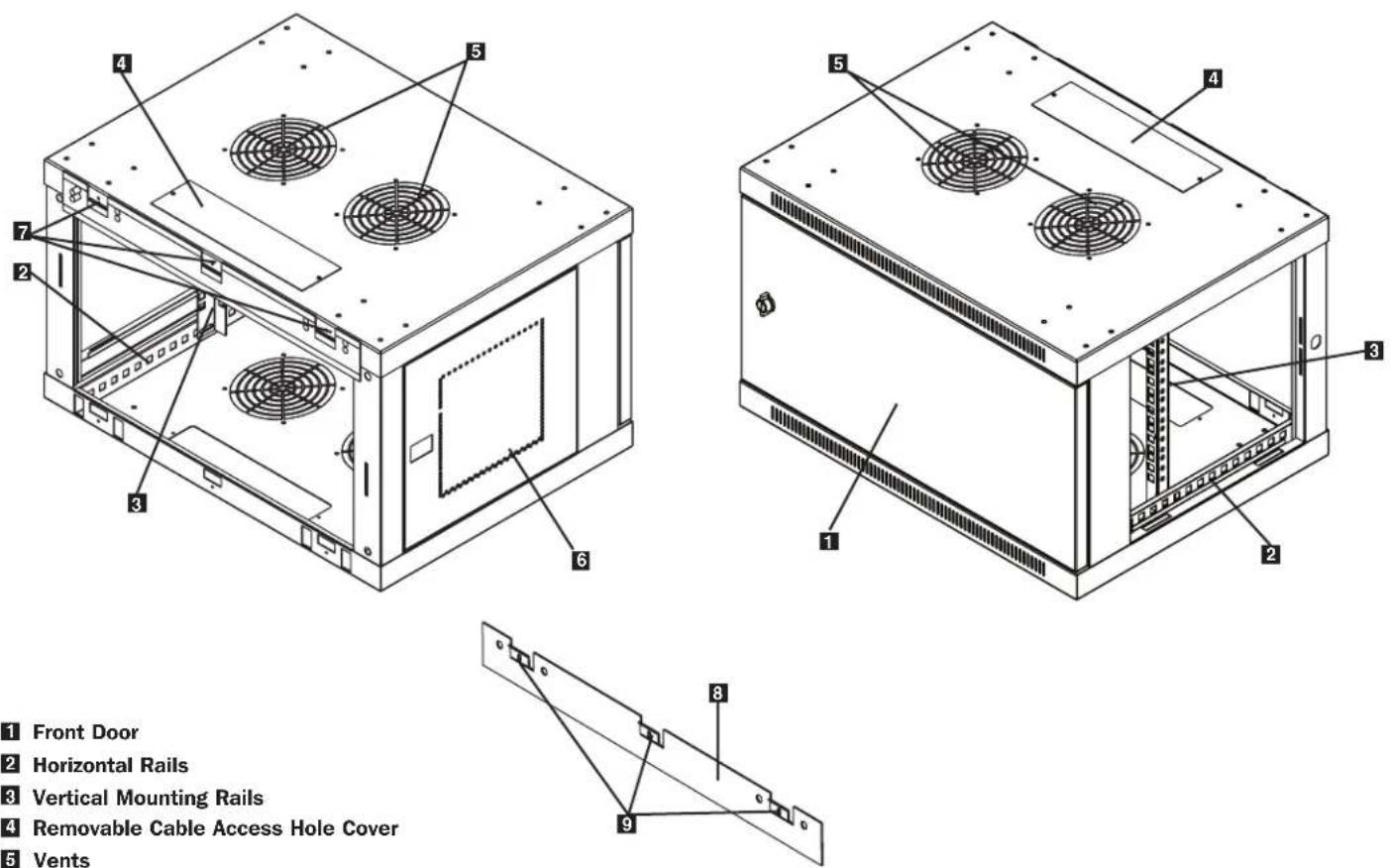
1 Front Door
2 Horizontal Rails
3 Vertical Mounting Rails
4 Removable Cable Access Hole Cover
5 Vents
6 Locking/Removable Side Panels
7 Mounting Notches (found on the enclosure's back panel)
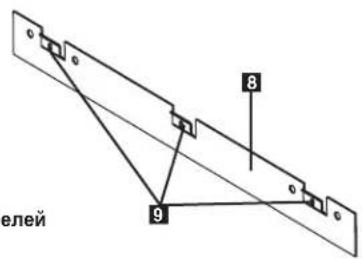
8 Mounting Plate (separate piece)
9 Mounting Plate Hooks
4. Enclosure Installation

Caution! Read All Instructions and Warnings Before Installation!

Warning: Rack enclosures can be extremely heavy. Do not attempt to unpack, move or install the enclosure without assistance. Use extreme caution when handling the enclosure and be sure to follow all handling and installation instructions. Do not attempt to install equipment without first stabilizing the enclosure.
4.1 Preparation
The enclosure must be installed in a structually sound area that is able to bear the weight of the enclosure, all the equipment that will be installed in the enclosure and any other enclosures and/or equipment that will be installed nearby. Before unpacking the enclosure, you should transport the shipping container closer to the final installation location to minimize the distance you will need to move the unit after the protective packaging has been removed. If you plan to store the enclosure for an extended period before installation, follow the instructions in the Storage and Service section.
You need several tools:
- Level
• Phillips-head screwdriver - Appropriate tools for wall mounting
You also need the following hardware:
- Appropriate hardware for wall mounting (not included)
4.2 Unpacking

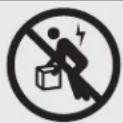
Use at least two people to unpack the enclosure.
1 Move shipping pallet to a firm, level surface.
2 Open box and remove the four foam corner protectors. Save all packing materials for later use unless you are certain they will not be required. Packing materials are recyclable.
3 With one person on each side, carefully lift the enclosure out of the box and place on a firm, level surface.
4 Examine the enclosure for any damage or loose parts. Confirm all parts are present. If anything is missing or damaged, contact Tripp Lite for assistance. Do not attempt to use the enclosure if it has been damaged.

Never extend more than one component from the enclosure at a time.


Warning: Never attempt to lift or install without adequate help. Do not try lifting the enclosure alone.
4.3 Ground Connection
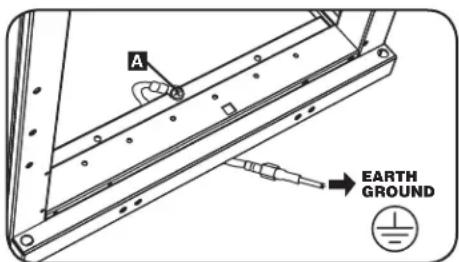
All parts of the enclosure are grounded to the frame of the enclosure. Use the enclosure's front or rear threaded grounding point A and an M6 screw (included) to connect the frame of the enclosure directly to your facility's earth ground connection with an 8 AWG (3.264 mm) wire. Route the ground wire under the enclosure's frame to ensure unhindered door operation. Warning: Attach each enclosure to earth ground separately. Do not use the enclosure without an earth ground connection.
5. Enclosure Configuration
Before installation, be sure to plan the location and arrangement of components within the enclosure. Be sure all mounting rails are reversed or adjusted for depth, depending on your equipment configuration.
5.1 Door Locks
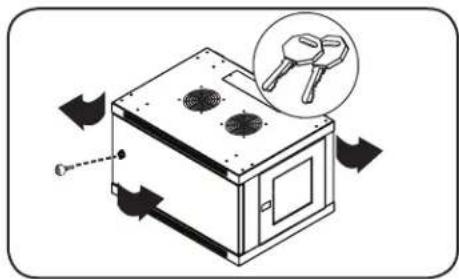
The front and back doors have locks that are accessible by the included keys.
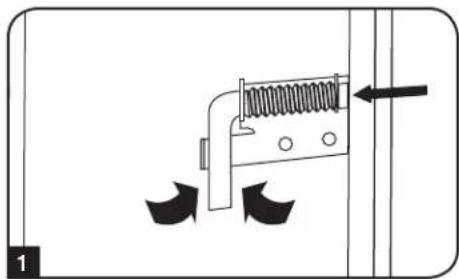
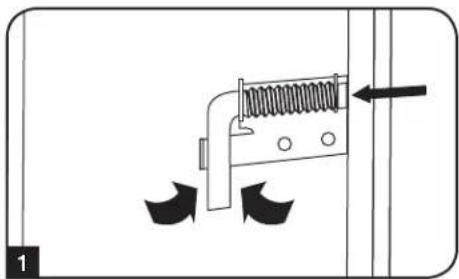
Each side panel locks using an L-shaped lever on the inside of the enclosure.
To unlock and remove the side panels, lift the shorter leg of the "L" up and pull it away from the side panel. Pull the tab on the side panel and remove it from the enclosure.
2 To re-lock the side panels, secure it in the proper position, lift the shorter leg of the "L" up and push it toward the side panel, back into the hole that it was in initially. Once it is in place, push the shorter leg of the "L" down to lock it. Note: To lock and unlock the side panels, you will need to have access to the interior of the enclosure.
natural_image
Diagram of a mechanical spring assembly with directional arrows indicating motion (no text or symbols)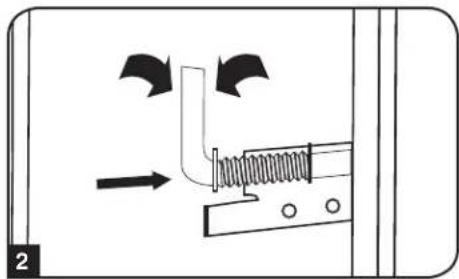
natural_image
Diagram of a mechanical assembly with arrows indicating motion or force direction (no text or symbols)5.2 Cable Access and Management
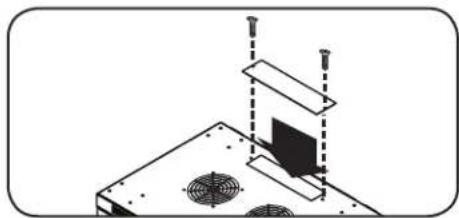
The top of the cabinet has a rectangular opening for cable access and management. This opening can be opened or closed by unscrewing or screwing in the removable cable access panel.
natural_image
Technical diagram of a mechanical assembly with mounting holes and a central monitor (no text or symbols)5.3 Reversing the Enclosure
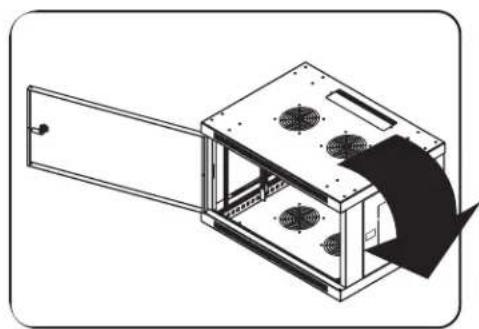
In order to accommodate various rack configurations, the enclosure can be reversed. To do so, simply turn the enclosure over so that the doors open in the opposite direction.
natural_image
Diagram of a device with ventilation fans inside a housing, showing airflow direction (no text or symbols)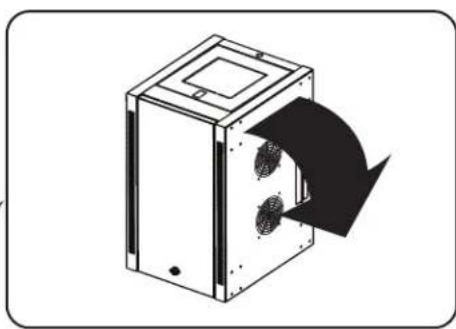
natural_image
Diagram of a mechanical device with a black arrow indicating direction, showing internal components and a circular feature (no text or symbols)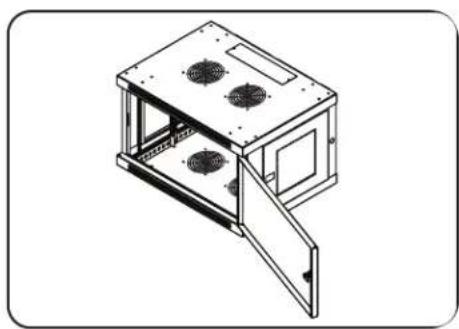
natural_image
Isometric line drawing of a modular device with open lid and ventilation slots (no text or symbols)5. Enclosure Configuration continued
5.4 Mounting Rails
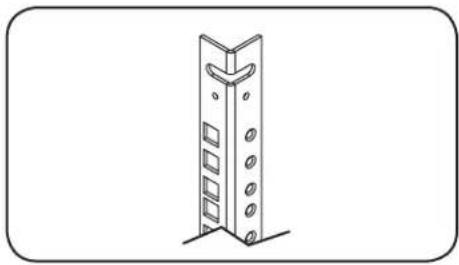
The enclosure comes with mounting rails that have both square and tapped holes for mounting rack equipment. To install equipment, use the included cage nuts and other hardware. (section 7.1 for installation of cage nuts.) Warning: Be sure to have the enclosure securely mounted to the wall, or in its final position on the floor, before mounting any equipment inside. Also be sure to have all the right adjustments on your rails before mounting equipment. (See below for Adjusting Mounting Rail Depth.)
natural_image
Simple line drawing of a vertical metal bracket with bolt holes, no text or symbols present5.5 Adjusting Mounting Rail Depth
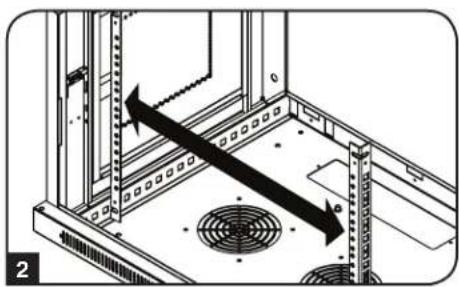
Warning: Do not attempt to adjust rails while equipment is installed in the enclosure. Do not attempt to use rails without screws installed. (2 per rail.)
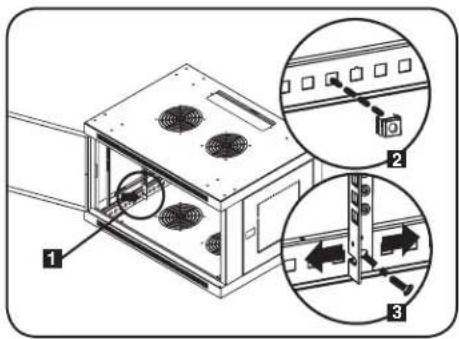
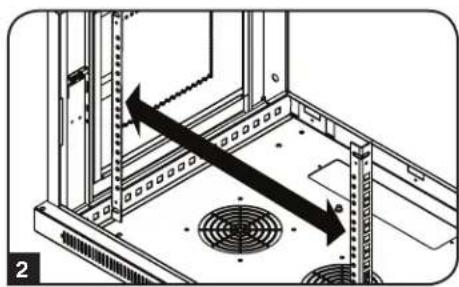
The 2 mounting rails are pre-installed to accommodate different mounting depths, depending on the model. Do not adjust the mounting rails unless your equipment requires a different mounting depth. The front and rear sets of rails can be adjusted independently in 1/4-inch (6mm) increments.
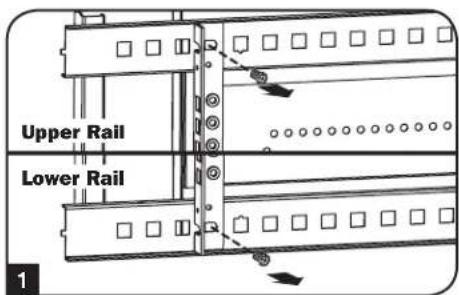
1 Each rail is connected to the enclosure with 2 screws and 2 cage nuts: 1 set in the upper corner and another in the lower corner. Using a Phillips-head screwdriver, remove the screws that fasten the rails to the enclosure.
2 Move cage nuts to the desired depth and reinstall.
3 Slide the mounting rails to the desired depth and reattach them using the screws you removed in Step 1.
6. Wall Mounting the Enclosure
Warning: Do not attempt to mount the enclosure to the wall with equipment in the enclosure.
Note: Enclosure must be installed by a qualified technician. Before mounting, use a level and tape measure to position your mounting area precisely. Use appropriate fasteners (not included) to secure the enclosure to the wall. Use suitable mounting means when installing to cinder block, concrete, drywall or wood studs. Warning: The supporting surface must be able to safely support the combined load of the equipment and all attached hardware and components. For the actual weight, size and load capacity of the enclosure, view the product specifications and other support resources at www.tripplite.com/support.
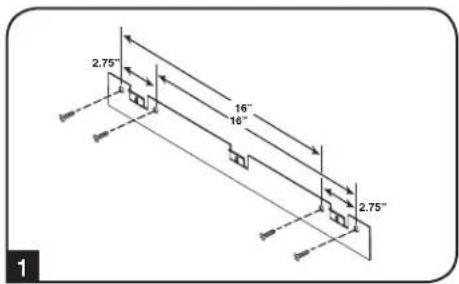
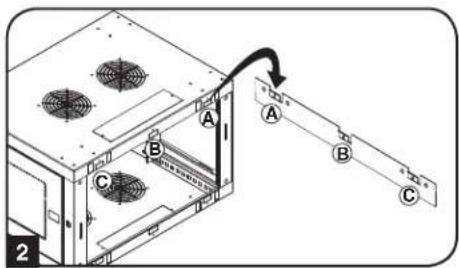
1 Using user-supplied hardware, attach the mounting plate to a wall or other suitable mounting surface. Each mounting hole can accommodate an M8 or 5/16" bolt and the holes are spaced 16" apart to accommodate standard stud placement as reflected in the diagram. Note: When mounting the mounting plate to the wall, be sure the three mounting hooks are facing outwards and away from the wall.
2 After the mounting plate has been securely attached to the mounting surface, hang the enclosure's three mounting notches onto the three mounting hooks on the plate attached to the wall. The notches will fit over the hooks and the enclosure should slide down onto the hooks until secure. Note: Mounting notches exist on both the upper and lower rails of the back panel. This allows for mounting in the standard or reversed positions.
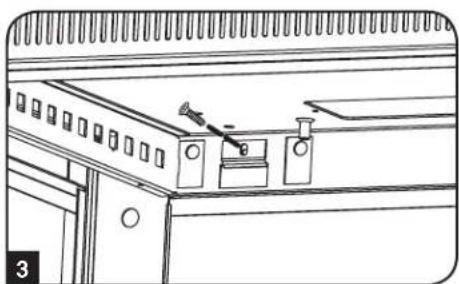
3 After the mounting plate has been secured and the enclosure hung properly, secure the enclosure to the mounting plate by installing the three supplied screws in the holes on the mounting hooks as shown.
natural_image
Line drawing of a cabinet interior with doors, drawers, and fixtures (no text or symbols)7. Equipment Installation
Warning: Do not install equipment until you have stabilized the enclosure. Install heavier equipment first towards the bottom of the enclosure. Install equipment starting from the bottom of the enclosure and proceed toward the top of the enclosure - never the reverse. If using sliding equipment rails, be careful when extending the rails. Do not extend more than one set of sliding equipment rails at one time. Avoid extending sliding equipment rails near the top of the enclosure.
Note: The unit comes with two different kinds of screws for equipment installation, black and silver. Use the black mounting screws if you are securing your equipment to the square hole side of the mounting rail. Use the silver screws if you are securing your equipment to the tapped hole side of the mounting rail.
Note: The square holes in the middle of each rack unit are numbered and also include a small notch to aid identification. A single rack unit includes the space occupied by the numbered hole and the holes directly above and below.

7.1 Installing or Removing Cage Nuts
WARNING: The flanges of the cage nuts should engage the sides of the square opening in the rail, not the top and bottom. Follow the instructions in your equipment documentation to ensure proper installation of your equipment.
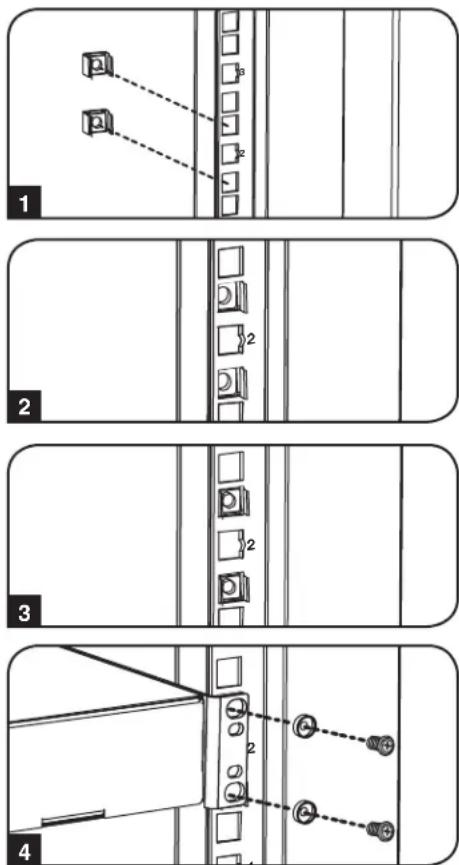
1 Locate the numbered square openings in the mounting rails where you plan to install your equipment. You will install cage nuts (included) into the square openings in order to provide an attachment point for the mounting screws (included). Note: Consult your equipment documentation to determine how many cage nuts will be required and where they will need to be installed.
2 From the inside of the mounting rail, insert one of the flanges of the cage nut through the square opening. Press it against the side of the square opening. Each flange should engage one side of the square opening, not the top or bottom.
3 Compress the cage nut at the sides slightly to allow the remaining flange to fit through the square opening. When the cage nut is properly installed, both flanges will protrude through the square opening and will be visible on the outer surface of the mounting rail. Repeat steps 1-3 until all required cage nuts are installed.
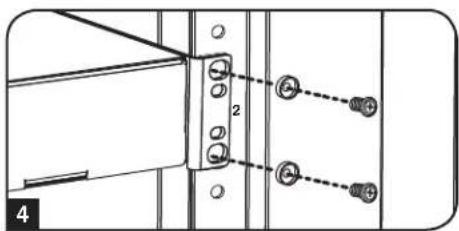
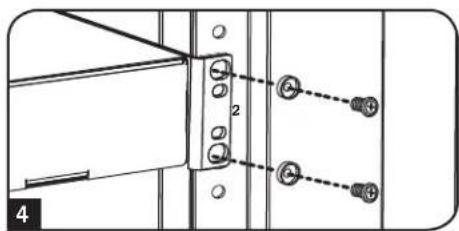
4 After installing the required cage nuts, use the included black mounting screws and cup washers to secure your equipment to the rack rail. Place the cup washers between the screws and the equipment mounting brackets.
Note: Your equipment may also include mounting hardware. Read the mounting instructions that came with your equipment before installing your equipment.
To Remove Cage Nuts, Reverse Steps 1-3
Note: You may wish to use a cage nut tool (user-supplied) to aid cage nut installation and removal.
7. Equipment Installation continued
7.2 Alternate Mounting: Tapped Hole Mounting Rail
Warning: Do not attempt to adjust rails while equipment is installed in the enclosure. Do not attempt to use rails without screws installed. (2 per rail.)
The 2 mounting rails are pre-installed for securing equipment using the square hole side of the mounting rail. To switch to the tapped hole side of the mounting rail, follow the steps below:
1 Each rail is connected to the enclosure with 2 screws: 1 in the upper corner and another in the lower corner. Using a Phillips-head screwdriver, remove the screws that fasten the rails to the enclosure.
2 Switch the rail locations. Ensure the tapped hole side of each rail is facing the front door.
3 Reattach the mounting rails.
4 Use the included silver mounting screws to secure your equipment to the rack rail. Place the cup washers between the screws and the equipment mounting brackets.
Note: Your equipment may also include mounting hardware. Read the mounting instructions that came with your equipment before installing.
natural_image
Technical diagram of a server rack with directional arrows indicating movement or force (no text or symbols present)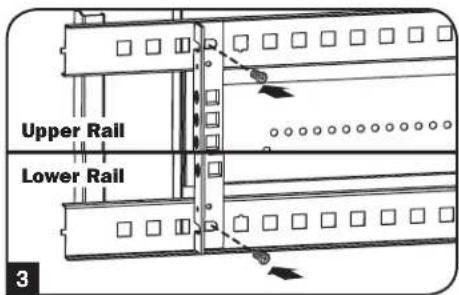
8. Storage and Service
Storage
The enclosure should be stored in a controlled indoor environment, away from moisture, temperature extremes, flammable liquids and gasses, conductive contaminants, dust and direct sunlight. Store the enclosure in its original shipping container if possible.
Service
Your Tripp Lite product is covered by the warranty described in this manual. A variety of Extended Warranty and On-Site Service Programs are also available from Tripp Lite. For more information on service, visit www.triplite.com/support. Before returning your product for service, follow these steps:
- Review the installation and operation procedures in this manual to insure that the service problem does not originate from a misreading of the instructions.
- If the problem continues, do not contact or return the product to the dealer. Instead, visit www.tripplite.com/support.
- If the problem requires service, visit www.triplite.com/support and click the "Request Return (RMA)" link. From here you can request a Returned Material Authorization (RMA) number, which is required for service. This simple on-line form will ask for your unit's model and serial numbers, along with other general purchaser information. The RMA number, along with shipping instructions will be emailed to you. Any damages (direct, indirect, special or consequential) to the product incurred during shipment to Tripp Lite or an authorized Tripp Lite service center are not covered under warranty. Products shipped to Tripp Lite or an authorized Tripp Lite service center must have transportation charges prepaid. Mark the RMA number on the outside of the package. If the product is within its warranty period, enclose a copy of your sales receipt. Return the product for service using an insured carrier to the address given to you when you request the RMA.
9. Warranty and Product Registration
5-Year Limited Warranty
Seller warrants this product, if used in accordance with all applicable instructions, to be free from original defects in material and workmanship for a period of 5 years from the date of initial purchase. If the product should prove defective in material or workmanship within that period, Seller will repair or replace the product, at its sole discretion.
THIS WARRANTY DOES NOT APPLY TO NORMAL WEAR OR TO DAMAGE RESULTING FROM ACCIDENT, MISUSE, ABUSE OR NEGLECT. SELLER MAKES NO EXPRESS WARRANTIES OTHER THAN THE WARRANTY EXPRESSLY SET FORTH HEREIN. EXCEPT TO THE EXTENT PROHIBITED BY APPLICABLE LAW, ALL IMPLIED WARRANTIES, INCLUDING ALL WARRANTIES OF MERCHANTABILITY OR FITNESS, ARE LIMITED IN DURATION TO THE WARRANTY PERIOD SET FORTH ABOVE; AND THIS WARRANTY EXPRESSLY EXCLUDES ALL INCIDENTAL AND CONSEQUENTIAL DAMAGES. (Some states do not allow limitations on how long an implied warranty lasts, and some states do not allow the exclusion or limitation of incidental or consequential damages, so the above limitations or exclusions may not apply to you. This warranty gives you specific legal rights, and you may have other rights which vary from jurisdiction to jurisdiction).
WARNING: The individual user should take care to determine prior to use whether this device is suitable, adequate or safe for the use intended. Since individual applications are subject to great variation, the manufacturer makes no representation or warranty as to the suitability or fitness of these devices for any specific application.
Product Registration
Visit www.triplite.com/warranty today to register your new Tripp Lite product. You'll be automatically entered into a drawing for a chance to win a FREE Tripp Lite product!*
* No purchase necessary. Void where prohibited. Some restrictions apply. See website for details.
Tripp Lite has a policy of continuous improvement. Specifications are subject to change without notice.


1111 W. 35th Street, Chicago, IL 60609 USA • www.tripplite.com/support
1111 W. 35th Street, Chicago, IL 60609 USA • www.tripplite.com/support
natural_image
Diagram of a mechanical spring assembly with directional arrows indicating movement (no text or symbols)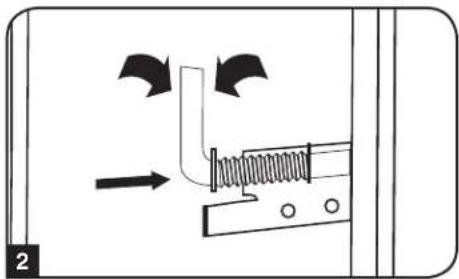
natural_image
Diagram of a mechanical or fluidic system with directional arrows and a spring-like component (no text or symbols)natural_image
Technical diagram of a mechanical assembly with mounting brackets and a central monitor (no text or symbols)natural_image
Technical line drawing of a modular device with fan-like components and a curved arrow indicating motion (no text or symbols)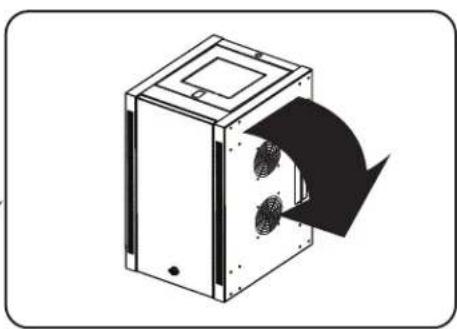
natural_image
Diagram of a mechanical device with a curved arrow indicating direction, showing internal components (no text or symbols)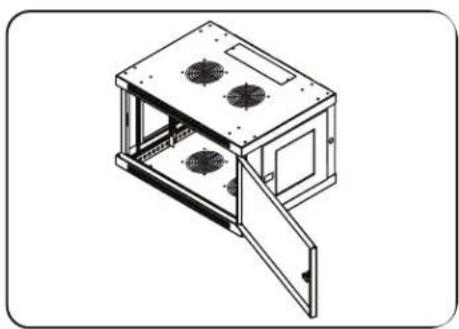
natural_image
Isometric line drawing of a modular device with open lid and mounting holes (no text or symbols)natural_image
Simple line drawing of a vertical metal bracket with bolt holes, no text or symbols present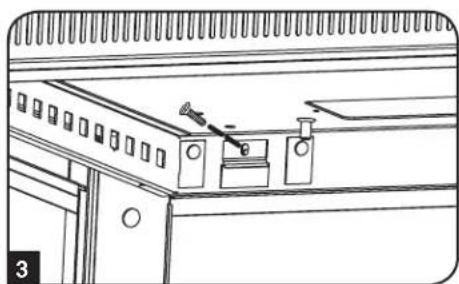
natural_image
Line drawing of a cabinet interior with drawers and fixtures (no text or symbols)natural_image
Pure diagram of a door with four hanging boxes and a label '2' on the left (no text or symbols on the main elements)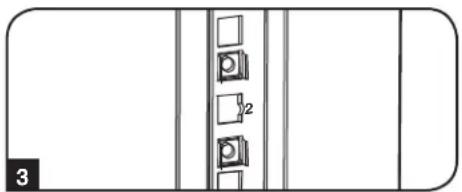
natural_image
Pure diagram of a door with three doors and a vertical panel, no text or symbols present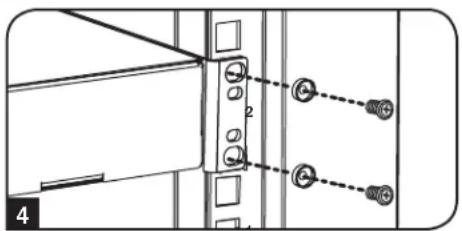
natural_image
Technical diagram of a server rack with directional arrows indicating movement or force (no text or symbols present)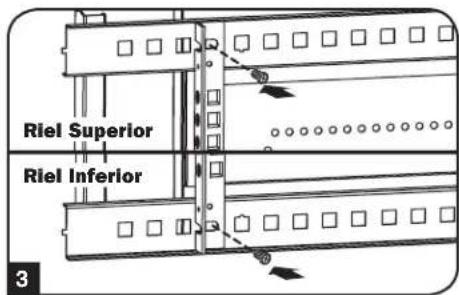
natural_image
Technical diagram showing a mechanical assembly with two bolted components and dashed connection lines (no text or symbols)1111 W. 35th Street, Chicago, IL 60609 USA • www.tripplite.com/support
natural_image
Diagram of a mechanical spring assembly with directional arrows indicating motion (no text or symbols)natural_image
Diagram of a mechanical or electrical component with arrows indicating flow direction (no text or symbols)natural_image
Technical diagram of a mechanical assembly with mounting holes and a central monitor (no text or symbols)5.3 Inverser la baie
natural_image
Isometric line drawing of a device with ventilation fans and a curved arrow indicating direction (no text or symbols)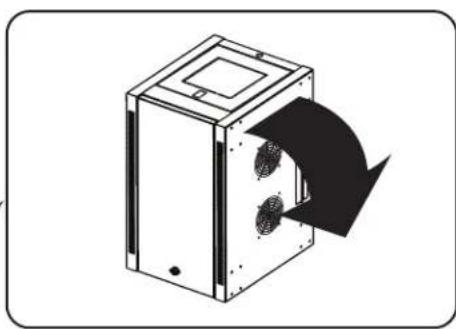
natural_image
Diagram of a mechanical device with a black arrow indicating direction, showing internal components and a circular feature (no text or symbols)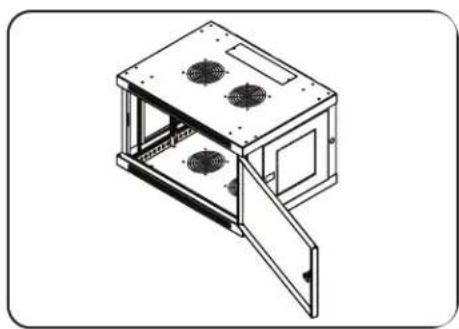
natural_image
Isometric line drawing of a modular device with open lid and vented cutouts (no text or symbols)5. Configuration de la baie suite
natural_image
Simple line drawing of a vertical metal bracket with bolt holes, no text or symbols present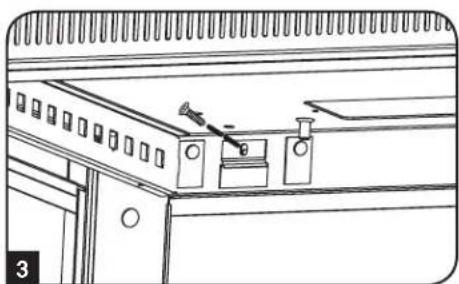
natural_image
Line drawing of a cabinet interior with doors, drawers, and fixtures (no text or symbols)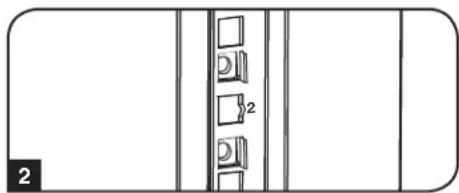
natural_image
Pure diagram of a door with four compartments and a label '2' on the left (no text or symbols within the diagram itself)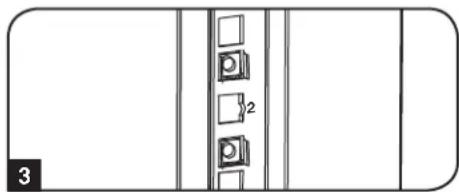
natural_image
Pure diagram of a door or cabinet with three doors and a vertical panel, no text or symbols present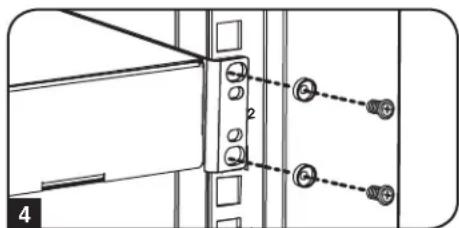
natural_image
Technical diagram of a server rack with directional arrows indicating movement or force (no text or symbols present)
1111 W. 35th Street, Chicago, IL 60609 USA • www.tripplite.com/support
1111 W. 35th Street, Chicago, IL 60609 USA • www.tripplite.com/support
natural_image
Illustration of a kitchen appliance with arrows indicating rotation and a magnified view of key inserted into the lid (no text or symbols)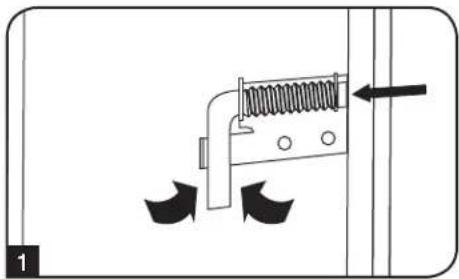
natural_image
Diagram of a mechanical spring assembly with directional arrows indicating movement (no text or labels)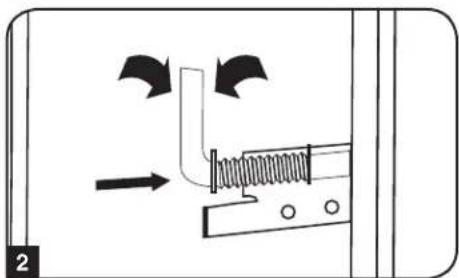
natural_image
Diagram of a mechanical or fluidic system with directional arrows and a spring-like component (no text or symbols)natural_image
Technical diagram of a mechanical assembly with mounting brackets and a central component (no text or symbols)natural_image
Technical line drawing of a mechanical device with cooling fans and a directional arrow (no text or symbols)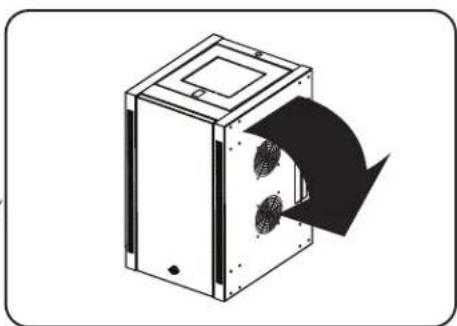
natural_image
Diagram of a device with a black arrow indicating direction, showing internal components (no text or symbols)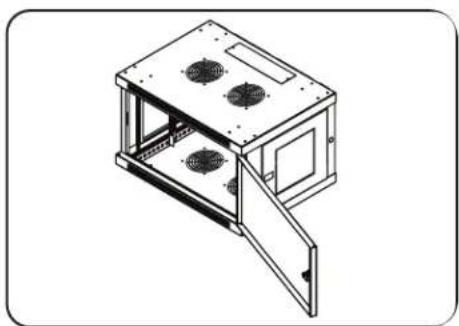
natural_image
Isometric line drawing of a modular device with open lid and internal compartments (no text or symbols)natural_image
Isometric line drawing of a vertical metal bracket with mounting holes and a V-shaped groove (no text or symbols)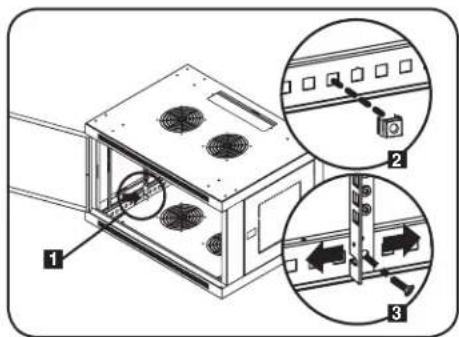
natural_image
Line drawing of a cabinet interior with drawers and fixtures (no text or symbols)natural_image
Simple line drawing of a door with four hanging compartments, no text or symbols present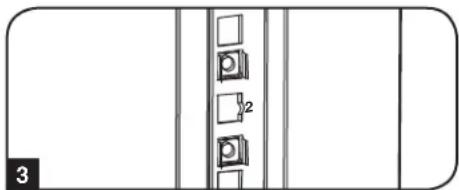
natural_image
Pure diagram of a door or cabinet with three doors and a label '3' at the bottom left (no text or symbols on the door itself)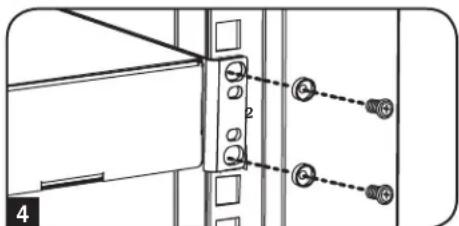
natural_image
Technical diagram of a server rack with directional arrows indicating movement or force (no text or symbols present)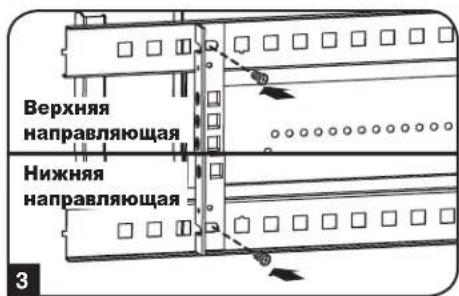
natural_image
Technical diagram showing a mechanical assembly with two bolted components and two connected electrical connectors (no text or symbols)1111 W. 35th Street, Chicago, IL 60609 USA • www.tripplite.com/support