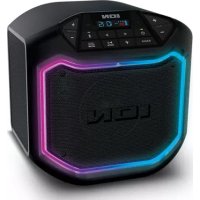
USER MANUAL Game Day Party ION
User Guide English (3-9)
Appendix English (46)
User Guide (English)
Introduction
Thank you for purchasing Game Day Party. At ION, your entertainment is as important to us as it is to you. That's why we design our products with one thing in mind—to make your life more fun and more convenient.
Note: Before you first use the product, please fully charge the battery. Your unit was purposely shipped with a reduced battery charge to ensure safe transit.
Use the included power cable to connect the unit to a power outlet and let it charge for up to 5 hours. This helps ensure the longest life for your battery.
Box Contents
Game Day Party
Power Cable (2-pin IEC)
Quickstart Guide
Safety & Warranty Manual
Support
For the latest information about this product (documentation, technical specifications, system requirements, compatibility information, etc.) and product registration, visit ionaudio.com.
For additional product support, visit ionaudio.com/support.
Rechargeable Batteries
Rechargeable lead-acid batteries are the same type used in automobiles. As with your car battery, how you use this battery has a significant impact on its lifespan. With proper use and treatment, a lead-acid battery can last for years. Here are some recommendations for getting the longest life from the internal battery.
General Usage Charge fully before use.
Charge fully before storing.
Storage For best product longevity, do not store at exceedingly hot (greater than 90^ F / 32^ C) or exceedingly cold (less than 32^ F / 0^ C) temperatures.
It is acceptable to leave your sound system plugged in. This will not overcharge the battery.
If you leave the battery level low and do not charge it for 3 months, it may permanently lose capacity.
Repair If the battery fails to charge, check the fuse near the power cable input. If the fuse is not intact, please replace it.
The battery can be replaced (details in the Technical Specifications).
For Warranty and Parts, visit ionaudio.com.
Disposal Bring the unit to a recycling center or dispose of in accordance with local ordinances.
Quick Setup
Getting Started
- Make sure all items listed in the Box Contents are included in the box.
- READ THE SAFETY & WARRANTY MANUAL BEFORE USING THE PRODUCT.
- MAKE SURE THE BATTERY IS COMPLETELY CHARGED PRIOR TO FIRST USE FOR MAXIMUM BATTERY LIFE.
- Study the connection diagram.
- Ensure the Volume on Game Day Party is at zero.
- Connect your devices.
- Raise the volume to a comfortable level.
- Return the Volume to zero when you are finished using Game Day Party.
Connection Diagram
Items not listed under the Box Contents are sold separately.
Top Panel
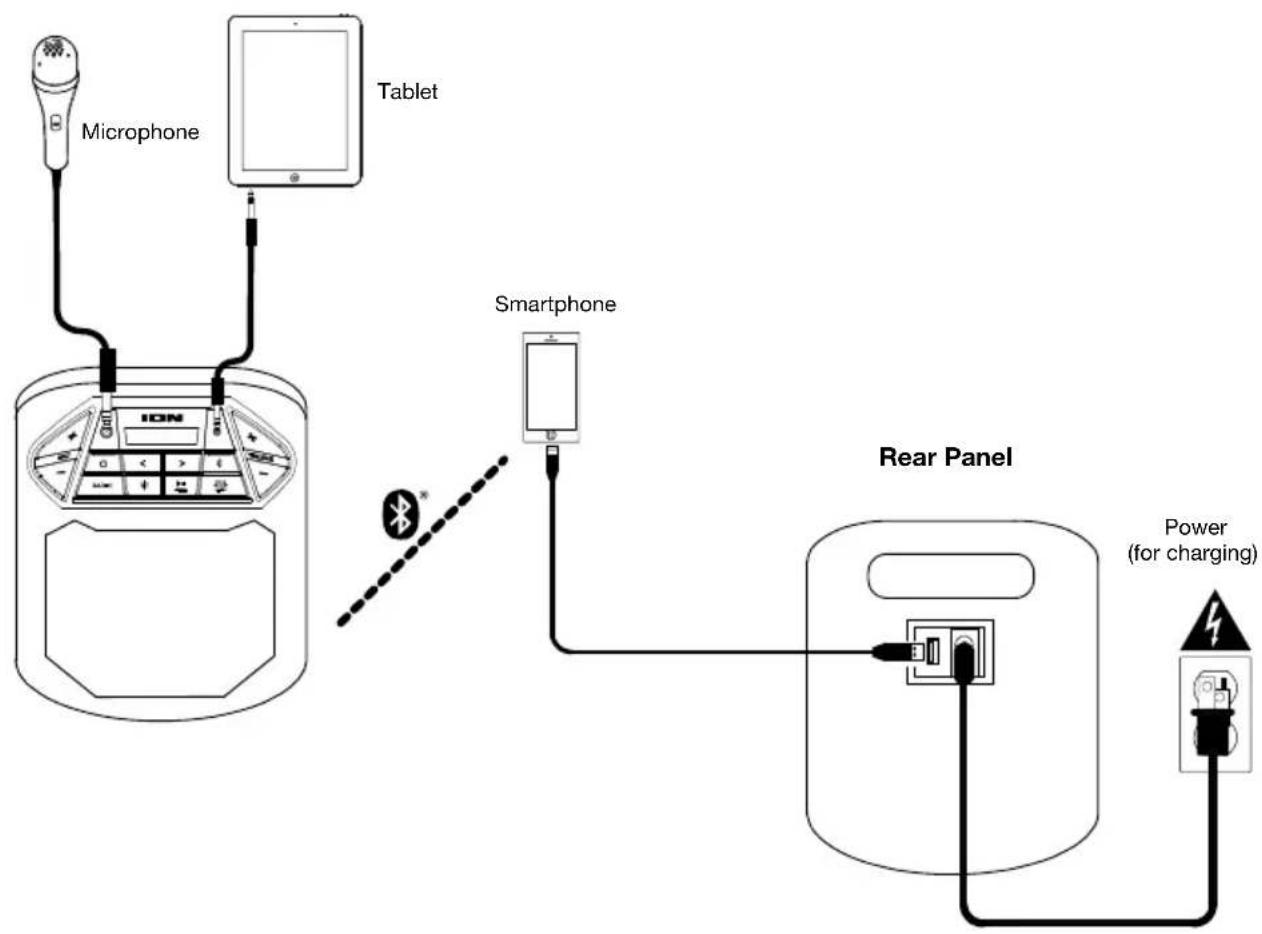
flowchart
graph TD
    A["Microphone"] --> B["ICN"]
    C["Tablet"] --> B
    D["Smartphone"] --> B
    B --> E["Rear Panel"]
    E --> F["Power (for charging)"]
    style A fill:#f9f,stroke:#333
    style C fill:#f9f,stroke:#333
    style D fill:#f9f,stroke:#333
    style E fill:#ccf,stroke:#333
    style F fill:#ccf,stroke:#333
Features
Front Panel
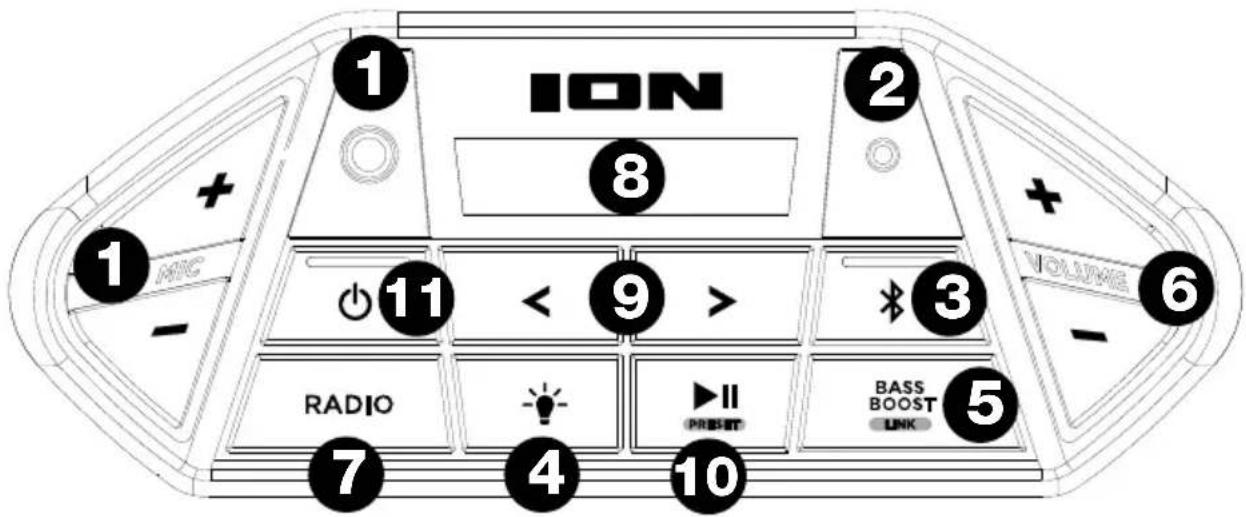
- Microphone Input with Volume Control (1/4"): This mono input accepts a 1/4" (6.35 mm) audio source such as a microphone, guitar, or other musical instrument.
- Auxiliary Input (1/8"): This stereo 3.5 mm (1/8") input can be used to connect a CD player, MP3 player, or other audio source.
- Bluetooth Button: Press and release the Bluetooth button to pair to a Bluetooth device. Tap this button to disconnect a paired Bluetooth device. Double press this button to disable (or enable) the voice prompts.
-
Lights Button: Press this button to select how the lights function:
-
Color Cycle: The lights slowly glow and cycle through colors. Press and hold the light mode button to freeze the lights on one color.
- Beat Sync: The lights react to the beat of the music. If there is no music playing, the lights will cycle through colors.
• Static Color: The lights are lit solidly white.
-
Off: The lights turn off.
-
Bass Boost /Link: Press this button to enhance the overall bass frequency response by +4 dB for the Radio, Bluetooth, and Aux input sources. Press and hold this button to start stereo-linking to another Game Day Party speaker. Double press this button to disconnect the link to another Game Day Party speaker.
- Volume: This adjusts the speaker's main mix volume, which includes the Microphone Input, Auxiliary Input, Radio, and the audio of a paired Bluetooth device.
-
Radio Selector: This button sets the radio to FM or turns the radio off. Make sure to pause any Bluetooth or Aux music source before turning on the radio.
-
Display: Displays the current radio station, battery status, and Bluetooth status.
- Charging Indicator:
When the power cable is connected, movement of the battery segments shows the battery is charging. When fully charged, all battery segments will be lit without blinking.
When the power cable is disconnected, the battery segment shows the level of the battery.
- When the battery level is low, the bottom battery segment will blink.
If a front panel button is not pressed within 60 seconds, the battery level indicator will turn off (to save energy). The battery level indicator will reappear when any button is pressed. Also, when the battery gets to the lowest battery icon segment, the battery level indicator will turn back on.
- Lightning Bolt Icon: The lightning bolt icon will illuminate when the power cable is connected to wall power.
- Bluetooth Icon: The Bluetooth icon will be lit solid when a device is paired to Game Day Party.
- Power Icon: The power icon will be lit when Game Day Party is powered on. The power icon will not be lit when Game Day Party is powered off.
- Bass Boost Icon: The Bass Boost icon will be on when the Bass Boost function is activated. The icon will be off when the function is deactivated.
-
Link Icon: The Link icon will be on when stereo-linked to another speaker. The Link icon will be off when a single speaker is used.
-
Tune/Track Buttons: Tap these buttons to tune in a radio station or go to the previous/next track on a Bluetooth-connected device. To "seek" (jump to the next available station), hold either button down for a few seconds until it starts to seek a station. The unit will remember the last station it was on and start at that station when powered off and on again.
Note: With some apps, pressing the Track < button or Track > button may go to another playlist or music genre.
- Play/Pause/Preset: Press to play or pause a track from a connected Bluetooth device. In Radio Mode, press and release this button to select a previously saved preset station. See the section Using the Radio for more details on saving and recalling presets.
- Power ON/OFF Switch: Press and hold this button for 3 seconds to power Game Day Party on/off. Please note that while Game Day Party is connected to a power source, it does not need to be powered on to charge the battery. When the power is on, the display will show the decimal icon or your current radio station.
Rear Panel
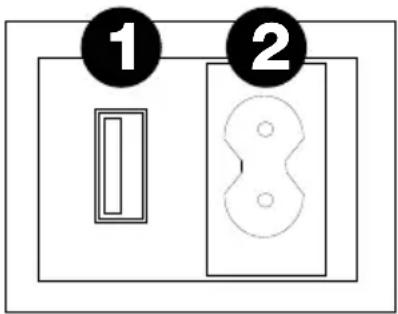
- USB Charging Port: Connect your device's charge cable here to charge it. USB charging only functions when the unit's power is turned on.
Note: To charge smartphones and tablets faster, put the device's screen to sleep.
- Power Cable Input: Insert the included power cable here to charge the unit. Note that the Game Day Party can be used with the power cable while it simultaneously charges the battery.
Operation
Pairing a Bluetooth Device
- Turn on your Bluetooth device.
- Power on Game Day Party. Press and release the Bluetooth button to enter Bluetooth pairing mode. *
- Navigate to your Bluetooth device's setup screen, find Game Day Party and connect.
Note: If your Bluetooth device prompts for a pairing code, enter "0000".
- The Bluetooth icon will be lit solid when a device is "paired" to Game Day Party. *
Note: Users should consider updating their OS if experiencing trouble with pairing or playing music.
- Tap the Bluetooth button to disconnect a paired Bluetooth device. *
- To connect to another Bluetooth device, repeat steps 3-4.
Note: Maximum range will be achieved when using devices with Bluetooth 4.0.
* Tip: If you would like to disable (or enable) the voice prompts, double press the Bluetooth button.
Using the Radio
Selecting a Radio Station:
- Press the Radio button.
- Select a radio station using the </> buttons.
Saving a preset:
- Press the Radio button and select a radio station that you want to save to a preset location using the </> buttons.
- Press and hold Play/Pause for 1 second. A preset number will appear on the screen.
- Use the </> buttons to select which preset you want to save it to.
- Press Play/Pause to confirm. SAV will appear on the screen.
Selecting a preset:
- Press the Radio button.
- Press Play/Pause to cycle through the saved presets.
Stereo-Linking Two Game Day Party Speakers
To link two Game Day Party speakers together for stereo sound:
- Press and hold the Bass Boost / Link button on both speakers to enter Stereo-Link mode. A tone will be heard and the word LINK will blink when in the process of linking to the second speaker. Once a link has been established, the word LINK will be lit solid.
Note: The linking process can take up to a minute to complete. The closer the two speakers are to each other, the quicker the linking process occurs.
- Once the two speakers are linked, press and release the Bluetooth button on either speaker to begin the Bluetooth pairing process. The speaker you use for Bluetooth pairing will serve as the primary speaker. On its Display screen, the Bluetooth icon will flash to indicate that Bluetooth pairing is in process.
- Navigate to your Bluetooth device's setup screen, find Game Day Party and connect. When your Bluetooth device is connected, the Bluetooth icon will be lit solid on the primary speaker's Display, and you will be able to play audio from the Bluetooth device through your two linked speakers.
Note: If you would like to reverse which speaker plays the left channel audio and which plays the right channel, press and hold the Bluetooth button on either speaker.
- To unpair the Bluetooth device, press and release the Bluetooth button on the primary speaker. To disconnect/cancel linking between the two speakers, double press the Bass Boost / Link button.
Troubleshooting
If the unit is not charging: Make sure the power cable is properly connected to the power input and the power outlet.
If the sound is distorted: Try lowering the volume control of your sound source, musical instrument, or microphone. Also, try to reduce the overall volume of Game Day Party using the Volume buttons.
If there is too much bass: Try adjusting the tone or EQ control on your sound source to lower the bass level. This will allow you to play the music louder before clipping (distortion) occurs.
If there is a high-pitched whistling noise when using microphones: This is probably feedback. Point the microphone away from the speaker.
If you can't hear the microphone over the music volume: Turn down the music volume from your source.
If you can't play music from a flash drive: The USB port is only for charging USB devices.
If you cannot connect your audio device to Game Day Party via Bluetooth:
- Have your audio device (e.g., smartphone or tablet) and Game Day Party as close together as possible while trying to connect. Make sure both the audio device and Game Day Party are unobstructed by walls, furniture, etc.
- Reset the Bluetooth connection on Game Day Party to disconnect Game Day Party from any other audio device and restart the search process. If this does not work right away, power off Game Day Party and then power it back on. See Pairing a Bluetooth Device for more information.
- Reset the Bluetooth connection on your audio device by turning Bluetooth off and back on. You can find this under the Bluetooth menu in the Settings for your phone or other audio device.
If this does not work, and you have connected to Game Day Party before, find Game Day Party in the list of available or previously connected devices in your audio device's Bluetooth menu, tap the "gear" or "i" icon located next to it and then select Unpair or Forget. Turn Game Day Party off and back on and try pairing again once it reappears in your available devices list.
Note: If Game Day Party has been paired to another audio device recently that is still within range, you may need to repeat this process with that audio device to fully disconnect.
If you experience audio dropouts while playing music from a Bluetooth device, this may be happening because your unit is trying to link to another speaker. This can occur if you power off a speaker that was linked to your unit or if you have just turned on your unit and it is in Stereo-Link mode. To stop the audio dropouts, exit Stereo-Link mode by double-pressing the Link button. Alternatively, you can wait for your unit to link to another Game Day Party speaker if there is one within range.
If you would like to stop your speaker from automatically linking when you power it on, make sure you double-press the Link button to exit Stereo-Link mode before you power it off.
Assistance technique
Batteries rechargeables
Technical Specifications
| Output Power | 50 W (peak) |
| Drivers | Low-Frequency: 6.5" / 165 mm wooferHigh-Frequency: 2" / 50.8 mm tweeter |
| Supported Bluetooth Profile | A2DP, AVRCP |
| Bluetooth Range | Up to 100' / 30.5 m |
| Linked Range | 50' / 15.2 m |
| Microphone Type | Dynamic microphone (not included) |
| Water Resistant Rating | IPX5 |
| Aux Input | 1/8" (3.5 mm) line-level |
| Frequency Response (± 3 dB) | 50 Hz – 20 kHz |
| Battery | Sealed lead acid (non-spillable)Recharge time: Approximately 5 hours (depending on usage) |
| Power | Input Voltage: 100-240 V, 50/60 Hz |
| Charge Port | USB; +5 V, 1 A |
| Radio Frequency Range US: | FM 87.5 – 107.9 MHz |
| Dimensions(Depth x Width x Height) | 13.1" x 9.8" x 13.3"33.3 x 24.9 x 33.8 cm |
| Weight | 12.55 lbs.5.69 kg |
Specifications are subject to change without notice.
Bluetooth range is affected by walls, obstructions, and movement. For optimal performance, place the product in your room at line of sight, so it is unaffected by walls, furniture, etc.
Battery life may vary based on temperature, age, and volume usage of product.
Trademarks & Licenses
ION Audio is a trademark of inMusic Brands, Inc., registered in the U.S. and other countries. The Bluetooth word mark and logos are owned by the Bluetooth SIG, Inc. and any use of such marks by ION Audio is under license. All other product or company names are trademarks or registered trademarks of their respective owners.
ionaudio.com