
KXMB1500HX - Phone PANASONIC - Free user manual and instructions
Find the device manual for free KXMB1500HX PANASONIC in PDF.


| Product Type | Landline phone with fax and copy functions |
| Brand | Panasonic |
| Model | KX-MB1500HX |
| Modem speed | 33,600 bps with automatic fallback |
| Dimensions (approx.) | 390 x 300 x 210 mm |
| Weight (approx.) | 5 kg |
| Power supply | Mains 220-240 V |
| Main functions | Fax, copy, phone, built-in answering machine |
| Maintenance and cleaning | Clean with a soft dry cloth; avoid solvents |
| Safety | Do not expose to moisture; unplug before maintenance |
| Spare parts and repairability | Consult an authorized Panasonic after-sales service |
| General information | Landline phone with answering machine and fax; LCD screen; compatible with analog lines |
Frequently Asked Questions - KXMB1500HX PANASONIC
User questions about KXMB1500HX PANASONIC
0 question about this device. Answer the ones you know or ask your own.
Ask a new question about this device
Download the instructions for your Phone in PDF format for free! Find your manual KXMB1500HX - PANASONIC and take your electronic device back in hand. On this page are published all the documents necessary for the use of your device. KXMB1500HX by PANASONIC.
USER MANUAL KXMB1500HX PANASONIC
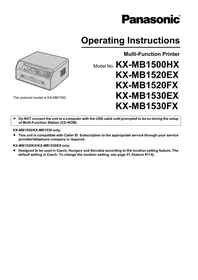
The pictured model is KX-MB1500.
Operating Instructions
Multi-Function Printer
Model No. KX-MB1500HX
KX-MB1520EX
KX-MB1520FX
KX-MB1530EX
KX-MB1530FX
- Do NOT connect the unit to a computer with the USB cable until prompted to do so during the setup of Multi-Function Station (CD-ROM).
KX-MB1520/KX-MB1530 only:
- This unit is compatible with Caller ID. Subscription to the appropriate service through your service provider/telephone company is required.
KX-MB1520EX/KX-MB1530EX only:
- Designed to be used in Czech, Hungary and Slovakia according to the location setting feature. The default setting is Czech. To change the location setting, see page 51 (feature #114).
Thank you for purchasing a Panasonic product.
You can select the Czech, Hungarian, Slovak or English language (KX-MB1500HX/KX-MB1520EX/KX-MB1530EX only).
The display and reports will be in the selected language. If you want to change the setting, see feature #110 on page 51.
Designed to be used in Czech, Hungary and Slovakia according to the location setting feature (KX-MB1520EX/KX-MB1530EX only).
The default setting is Czech. To change the location setting, see page 51 (feature #114).
Caution:
- Do not rub or use an eraser on the printed side of the recording paper, as the print may smear.
Notice for product disposal, transfer, or return (KX-MB1520/KX-MB1530 only):
- This product can store your private/confidential information. To protect your privacy/confidentiality, we recommend that you erase the information from the memory before you dispose of, transfer or return the product.
Environment:
- Panasonic's strategic direction incorporates concern for the environment into all aspects of the product life cycle, from product development to energy saving designs; from greater product reusability to waste-conscious packaging practices.
Note:
- The suffix in the model number will be omitted in these instructions.
- Most illustrations shown in these instructions are based on a KX-MB1500.
ENERGY STAR (European Union only):
- As an ENERGY STAR® Partner, Panasonic has determined that this product meets the ENERGY STAR guidelines for energy efficiency. ENERGY STAR is a U.S. registered mark.
ENERGY STAR
Trademarks:
- Microsoft, Windows, Windows Vista, Internet Explorer and PowerPoint are either registered trademarks or trademarks of Microsoft Corporation in the United States and/or other countries.
- Pentium is a trademark of Intel Corporation in the U.S. and other countries.
- Microsoft product screen shot(s) reprinted with permission from Microsoft Corporation.
- Adobe and Reader are either registered trademarks or trademarks of Adobe Systems Incorporated in the United States and/or other countries.
- Avery is a registered trademark of Avery Dennison Corporation.
- XEROX is a registered trademark of Xerox Corporation in the U.S. and/or other countries.
- All other trademarks identified herein are the property of their respective owners.
Copyright:
- This material is copyrighted by Panasonic System Networks Co., Ltd., and may be reproduced for internal use only. All other reproduction, in whole or in part, is prohibited without the written consent of Panasonic System Networks Co., Ltd.
© Panasonic System Networks Co., Ltd. 2011
For your safety
Laser radiation
CLASS 1 LASER PRODUCT
- The printer of this unit utilizes a laser. Use of controls or adjustments or performance of procedures other than those specified herein may result in hazardous radiation exposure.
Laser diode properties
Laser output: Max. 10 mW
Wavelength: 760 nm - 800 nm
Emission duration: Continuous
LED light
CLASS 1 LED PRODUCT
- When using the unit, do not look directly at the CIS's LED light. Direct eye exposure can cause eye damage.
CIS's LED light properties
LED radiation output: Max. 1 mW
Wavelength:
Red 630 nm typical
Green 520 nm typical
Blue 465 nm typical
Emission duration: Continuous
Fuser unit
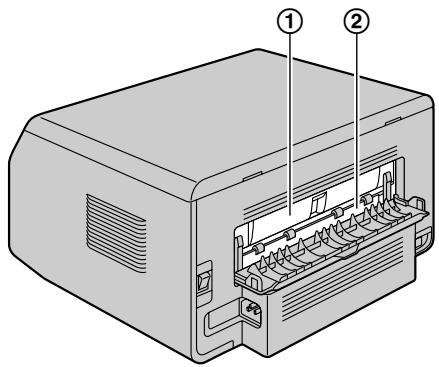
- During or immediately after printing, the fuser unit (①) gets hot. This is normal. Do not touch the fuser unit.
Note:
- The area near the rear cover (②) may also get warm. This is normal.
For best performance
Toner cartridge
- When replacing the toner cartridge, do not allow dust, water, or liquids to come in contact with it. This may affect print quality. - For optimal performance, genuine Panasonic toner cartridge is recommended. We cannot be responsible for problems that may be caused by a non-Panasonic toner cartridge:
- Damage to the unit – Poor print quality
- Improper operation
- Do not leave the toner cartridge out of the protective bag for a long time. It will affect the printing quality.
- Read the instructions on page 10 before you begin installation of the toner cartridge. After you have read them, open the toner cartridge protective bag. The toner cartridge contains a photosensitive drum. Exposing it to light may damage the drum.
- Do not expose the toner cartridge to light for more than 5 minutes.
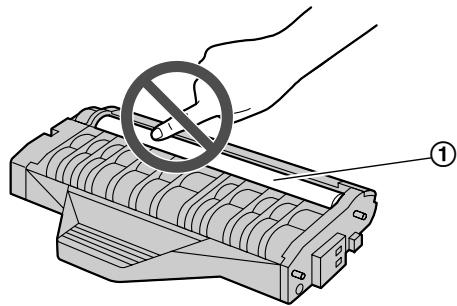
- Do not touch or scratch the drum surface (①).
- Do not place the toner cartridge near dust or dirt, or in a high humidity area.
- Do not expose the toner cartridge to direct sunlight.
- To extend the life of the toner cartridge, the power should never be turned OFF immediately after printing. Leave the power turned ON for a minimum of 30 minutes after printing.
Location
- To avoid malfunction, do not position the unit near appliances such as TVs or speakers which generate an intense magnetic field.
Static electricity
- To prevent static electricity damage to the interface connectors or other electrical components inside the unit, touch a grounded metal surface before touching the components.
Environment
- Keep the unit away from electrical noise generating devices, such as fluorescent lamps and motors.
- The unit should be kept free from dust, high temperature and vibration.
- The unit should not be exposed to direct sunlight.
- Do not place heavy objects on top of the unit. When you leave the unit unused for a long period of time, unplug this unit from the power outlet.
- The unit should be kept away from heat sources such as heaters, kitchen stoves, etc. Damp basements should also be avoided.
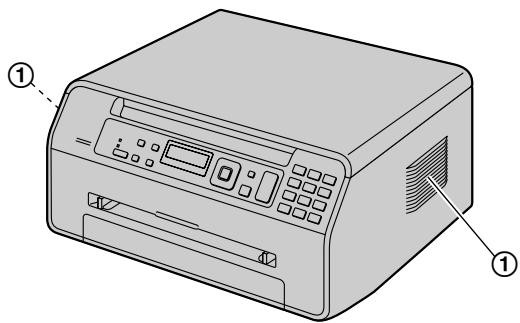
- Do not cover slots or openings on the unit. Inspect the air circulation vents regularly and remove any dust build-up with a vacuum cleaner (①).
Routine care
- Wipe the outer surface of the unit with a soft cloth. Do not use benzine, thinner, or any abrasive powder.
Moving the unit
When moving the unit, carry it as shown.
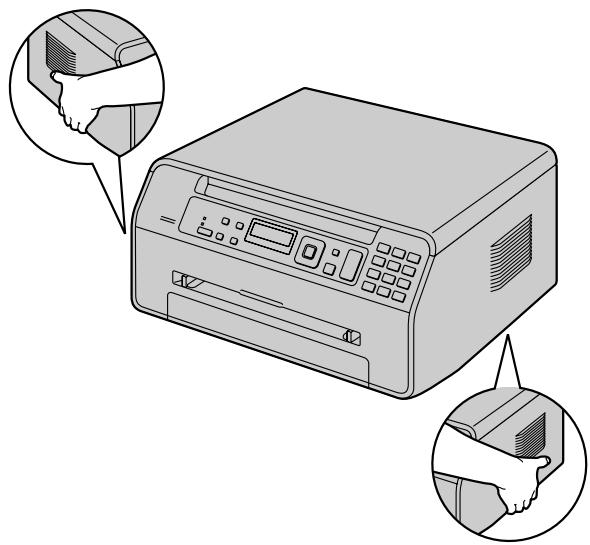
Illegal copies
- It is unlawful to make copies of certain documents.
Copying certain documents may be illegal in your country. Penalties of fines and/or imprisonment may be imposed on those found guilty. The following are
examples of items that may be illegal to copy in your country.
- Currency – Bank notes and cheques – Bank and government bonds and securities – Passports and identification cards – Copyright material or trademarks without the consent of the owner
- Postage stamps and other negotiable instruments
This list is not inclusive and no liability is assumed for either its completeness or accuracy. In case of doubt, contact your legal counsel.
Notice:
- Install your machine near a supervised area to prevent illegal copies from being made.
1. Introduction and Installation
Accessories
1.1 Supplied accessories ....7 1.2 Accessory information ....7
Finding the Controls
1.3 Button descriptions .....8 1.4 Overview 9
Installation
1.5 Toner cartridge ....10 1.6 Connections ......11 1.7 Turning the power ON 12 1.8 Recording paper 13
2. Preparation
Setup
2.1 Dialling mode (KX-MB1520/KX-MB1530 only) 17 2.2 Selecting the operation mode (Scan/Copy) (Fax: KX-MB1520/KX-MB1530 only) .....17
Document Requirements
2.3 Setting the original 18
Volume
2.4 Adjusting the volume (KX-MB1520/KX-MB1530 only) 20
Initial Programming
2.5 Date and time (KX-MB1520/KX-MB1530 only) 20 2.6 Your logo (KX-MB1520/KX-MB1530 only) 21 2.7 Your fax number (KX-MB1520/KX-MB1530 only) 22 2.8 Installing Multi-Function Station .....22 2.9 Starting Multi-Function Station .....24
3. Printer
Printer
3.1 Printing from Windows applications .....26 3.2 Easy Print Utility 27
4. Scanner
Scanner
4.1 Scanning from the unit (Push Scan) .....28 4.2 Scanning from a computer (Pull Scan) 29
5. Copier
Copy
5.1 Making a copy ....31 5.2 More copying features ....32
6. Fax (KX-MB1520/KX-MB1530 only)
Sending Faxes
6.1 Sending a fax manually ....38 6.2 Storing items for the phonebook 39 6.3 Sending a fax using phonebook .....40
6.4 Sending an electronic document as a fax message from your computer ....40
Receiving Faxes
6.5 Selecting the way to use your unit .....41 6.6 Receiving a fax automatically : Auto answer ON 43 6.7 Receiving a fax manually : Auto answer OFF 43 6.8 Using the unit with an answering machine 45 6.9 Receive polling (retrieving a fax placed on another fax machine) 46 6.10 Junk fax prohibitor (preventing fax reception from undesired callers) 46 6.11 Receiving a fax on your computer .....47
7. Caller ID (KX-MB1520/KX-MB1530 only)
Caller ID
7.1 Caller ID service 48 7.2 Viewing and calling back using caller information 48 7.3 Editing a caller's telephone number before calling back/storing 48 7.4 Erasing caller information 49 7.5 Storing caller information into the phonebook 49
8. Programmable Features
Features Summary
8.1 Programming 50 8.2 Basic features .....51 8.3 Fax features (KX-MB1520/KX-MB1530 only) 56 8.4 Copy features 60 8.5 PC print features 61 8.6 Scan features 62
9. Useful Information
Useful Information
9.1 Character entry (KX-MB1520/KX-MB1530 only) 63 9.2 Status of the unit 64 9.3 Cancelling the operations 65 9.4 Reordering the document (KX-MB1530 only) 65
10. Help
Reports and Displays
10.1 Report messages (KX-MB1520/KX-MB1530 only) 66 10.2 Display messages 67
Troubleshooting
10.3 When a function does not work .....69
11. Paper Jams
Jams
11.1 Recording paper jam 75 11.2 Document jams (Automatic document feeder) (KX-MB1530 only) 78
12. Cleaning
Cleaning
12.1 Cleaning the white plates and glass .....80 12.2 Cleaning the document feeder rollers (KX-MB1530 only) 81
13. General Information
Printed Reports
13.1 Reference lists and reports .....82
Specifications
13.2 Specifications 82
14. Index
14.1 Index....85
1.1 Supplied accessories
① Toner cartridge (starter) *1
② CD-ROM
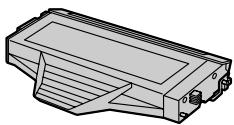
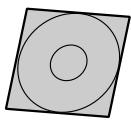
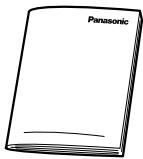
③ Important information guide
④ Quick installation guide

⑤ Power cord
⑥ Telephone line cord 4


- Environment: 23 ± 2 °C / 50 ± 10 % RH – Print mode: Continuous printing
*1 Prints about 500 pages at ISO/IEC 19752 standard page. *2 KX-MB1520/KX-MB1530 only
Note:
- Save the original carton and packing materials for future shipping and transportation of the unit.
- After unpacking the product, take care of the packing materials and/or power plug cap appropriately.
1.2 Accessory information
■ Replacement accessory
To ensure that the unit operates properly, we recommend the use of Panasonic toner cartridge.
- Toner cartridge
● Model No. (Part No.): KX-FAT390X - Prints about 1,500 pages at ISO/IEC 19752 standard page. - KX-FAT390X is not available depending on country/area.
– Toner cartridge (high capacity)
● Model No. (Part No.): KX-FAT410X - Prints about 2,500 pages at ISO/IEC 19752 standard page.
Note:
- ISO/IEC 19752 standard is as follows:
1.3 Button descriptions
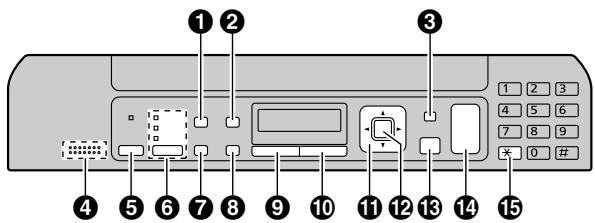
* The pictured model is KX-MB1520/KX-MB1530.
① 【Quality】
- To select the contrast (page 31) and resolution (page 31) when copying.
- To select the contrast (page 38) and resolution (page 38) when sending a fax (KX-MB1520/KX-MB1530 only).
②【Caller ID】(KX-MB1520/KX-MB1530 only)
- To use Caller ID features (page 48).
【Page Layout】
- To make copies using various page layouts (page 33).
③ [Menu]
- To start or exit programming.
4 Mic (KX-MB1520/KX-MB1530 only)
- The built-in microphone.
For beep sounds (KX-MB1500 only)
● Key beeps etc. will be heard.
⑤ 【Fax Auto Answer】(KX-MB1520/KX-MB1530 only)
- To turn the auto answer setting ON/OFF (page 43).
- To switch to the fax mode (KX-MB1520/KX-MB1530 only), scan mode or copy mode (page 17).
⑦【Redial】(KX-MB1520/KX-MB1530 only)
- To redial the last number dialled. If the line is busy when you make a phone call using the [SP-Phone] button, or when you send a fax, the unit will automatically redial the number 2 or more times.
【∅】(Pause) (KX-MB1520/KX-MB1530 only)
- To insert a pause during dialling.
【Copy Size】
- To select the copy size (page 31).
⑧ 【Flash】(KX-MB1520/KX-MB1530 only)
- To access special telephone services or for transferring extension calls.
[Zoom]
- To enlarge or reduce a document when copying (page 32).
- To mute your voice during a conversation. Press again to resume the conversation.
10【SP-Phone】(KX-MB1520/KX-MB1530 only)
- To make or receive phone calls.
11 Navigator key
- To select desired settings.
- To adjust the volume (KX-MB1520/KX-MB1530 only) (page 20).
【□□】(Phonebook) (KX-MB1520/KX-MB1530 only)
- To search for a stored item (page 40). To make a phone call, press [SP-Phone]. To send a fax, see page 40.
- To initiate the phonebook (page 39).
【-∈】(Collate)
- To make a collate copy (page 33).
12 [Set]
- To store a setting during programming.
13 [Stop]
- To stop an operation or programming session.
- To erase a character/number.
14 [Start]
- To copy a document (page 31).
- To scan a document (push scan) (page 28).
- To send a fax (KX-MB1520/KX-MB1530 only) (page 38).
15 [Tone] (KX-MB1520/KX-MB1530 only)
- To change from pulse to tone temporarily during dialling when your line has rotary/pulse service.
1.4 Overview
1.4.1 Front view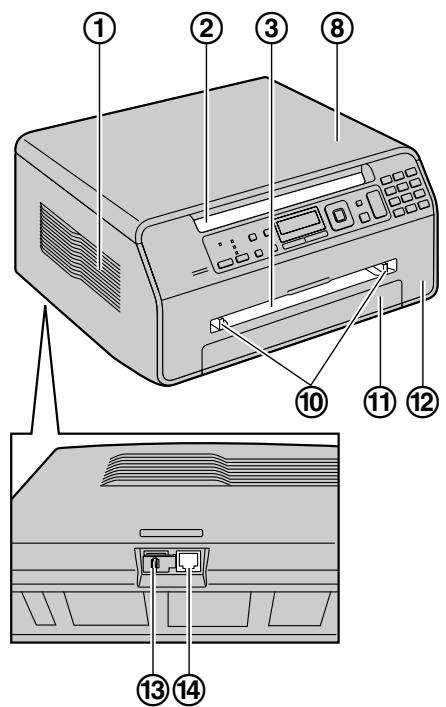
* The pictured model is KX-MB1520.
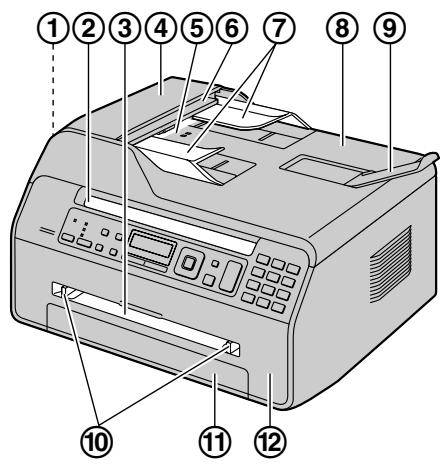
* The pictured model is KX-MB1530.
① Speaker (KX-MB1520/KX-MB1530 only) ② Recording paper exit
The unit can hold up to approximately 30 sheets of printed paper. Remove the printed paper before the recording paper exit becomes full.
③ Manual input tray ④ ADF (Automatic Document Feeder) cover (KX-MB1530 only)
⑤ Document entrance (KX-MB1530 only) ⑥ Document exit (KX-MB1530 only) ⑦ Document guides (KX-MB1530 only) ⑧ Document cover ⑨ Document sub tray (KX-MB1530 only) ⑩ Recording paper guides ⑪ Paper input tray ⑫ Front cover ⑬ External telephone jack (KX-MB1520/KX-MB1530 only) ⑭ Telephone line jack (KX-MB1520/KX-MB1530 only)
1.4.2 Rear view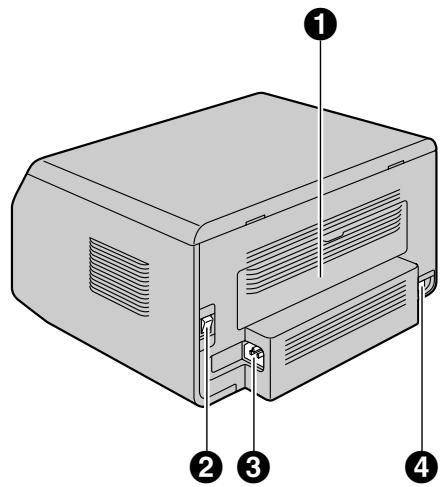
① Rear cover ② Power switch ③ Power inlet ④ USB interface connector
* The pictured model is KX-MB1530.
The unit can hold up to approximately 30 sheets of printed paper. Remove the printed paper before the recording paper exit becomes full. Manual input tray ADF (Automatic Document Feeder) cover (KX-MB1530 only)
1.5 Toner cartridge
The supplied toner cartridge is a starter toner cartridge.
Caution:
Read the following instructions before you begin installation. After you have read them, open the toner cartridge protective bag. The toner cartridge contains a photosensitive drum. Exposing it to light may damage the drum.
- Do not expose the toner cartridge to light for more than 5 minutes.
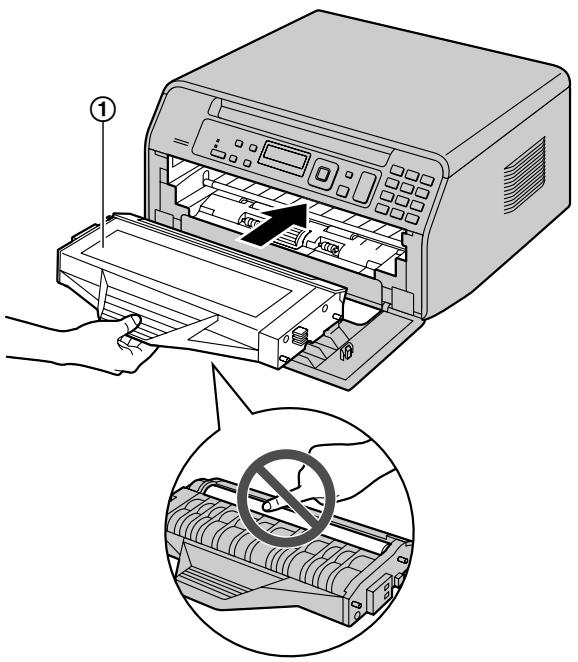
- Do not touch or scratch the drum surface (①).
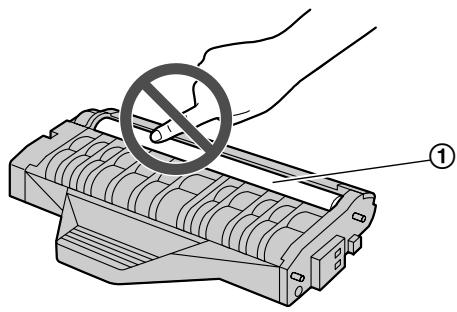
- Do not place the toner cartridge near dust or dirt, or in a high humidity area.
- Do not expose the toner cartridge to direct sunlight.
- Do not leave the toner cartridge out of the protective bag for a long time. It will affect the printing quality.
- Do not add toner to the toner cartridge. We cannot be responsible for any damage to the unit or degradation of print quality which may occur from the use of a non-Panasonic toner cartridge.
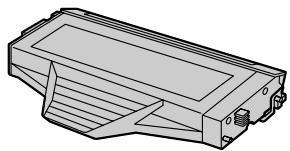
1 Remove the toner cartridge from the protective bag.
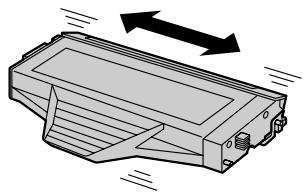
2 Shake the toner cartridge horizontally more than 5 times.
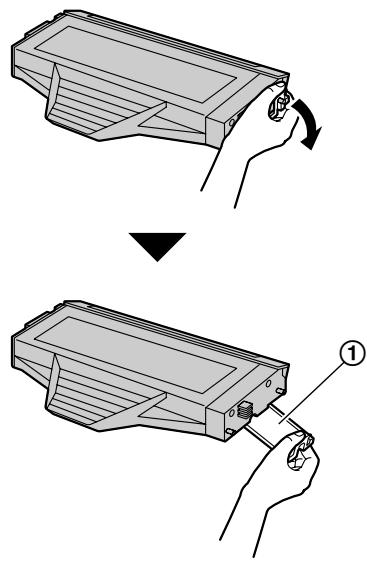
3 Detach the orange protective cover (①) from the toner cartridge.
- Do not touch or scratch the drum surface (page 10).
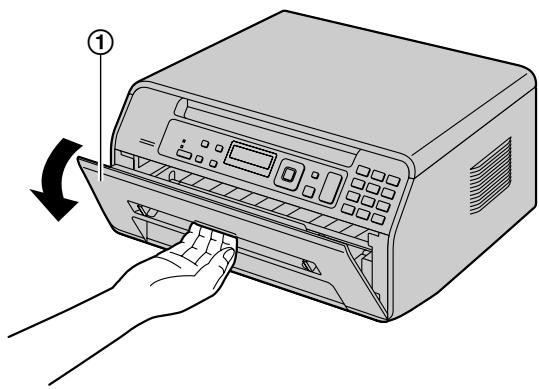
4 Open the front cover (①).
5 Hold the toner cartridge (①) by the centre handle, then insert firmly to lock into place.
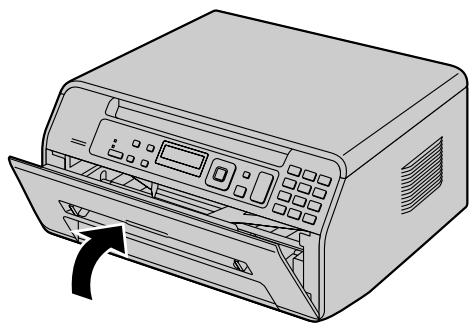
6 Close the front cover.
When to replace the toner cartridge
When the display shows the following, replace the toner cartridge.
- "TONER LOW"
- "TONER EMPTY"
- "DRUM LIFE LOW REPLACE SOON"
- "DRUM LIFE OVER CHANGE CARTRIDGE"
Toner cartridge life:
- See page 84 for information on the toner cartridge life.
- To check the life and quality of the drum inside the toner cartridge, print the printer test list (page 82). If the printing quality is still poor or "DRUM LIFE OVER CHANGE CARTRIDGE" appears on the display, replace the toner cartridge.
Note:
- To ensure that the unit operates properly, we recommend the use of Panasonic toner cartridge. See page 7 for accessory information.
Waste disposal method
Waste material should be disposed of under conditions which meet all national and local environmental regulations.
Toner save feature
If you want to reduce toner consumption, set the toner save setting to ON (feature #482 on page 55). The toner cartridge will last approximately 20% longer. This feature may lower the print quality.
1.6 Connections
Caution:
- When you operate this product, the power outlet should be near the product and easily accessible.
- Be sure to use the telephone line cord supplied with this unit (KX-MB1520/KX-MB1530 only).
- Do not extend the telephone line cord (KX-MB1520/KX-MB1530 only).
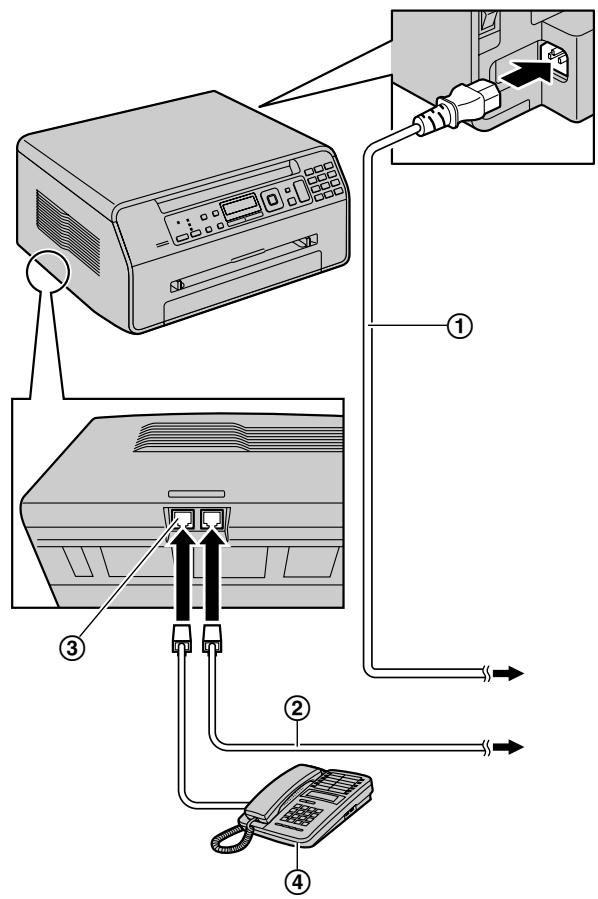
* The pictured model is KX-MB1520.
① Power cord
- Connect to a power outlet (220-240 V, 50/60 Hz).
② Telephone line cord *1
- Connect to a single telephone line jack.
③ [EXT] jack *1
- You can connect an answering machine or an extension telephone. Remove the stopper if attached, and take care of it appropriately.
④ Answering machine (not supplied) *1
*1 KX-MB1520/KX-MB1530 only
IMPORTANT NOTICE FOR THE USB CONNECTION
- DO NOT CONNECT THE UNIT TO A COMPUTER WITH THE USB CABLE UNTIL PROMPTED TO DO SO DURING THE SETUP OF MULTI-FUNCTION STATION (page 22).
Note:
- Do not place any objects within 10 cm of the right and left sides of the unit.
- Do not cover slots and openings on the unit. They are provided for ventilation and protection against overheating.
- If any other device is connected to the same telephone line, this unit may disturb the network condition of the device (KX-MB1520/KX-MB1530 only).
- If you use the unit with a computer and your internet provider instructs you to install a filter (⑤), please connect it as follows (KX-MB1520/KX-MB1530 only).
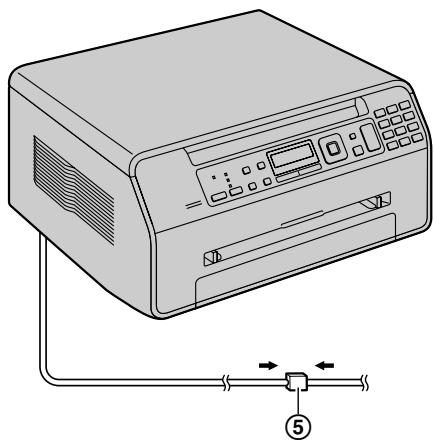
* The pictured model is KX-MB1520.
Designed to be used in Czech, Hungary and Slovakia according to the location setting feature (KX-MB1520EX/KX-MB1530EX only).
The default setting is Czech. To change the location setting, see page 51 (feature #114).
1.7 Turning the power ON
Turn the power switch to the ON position (①).
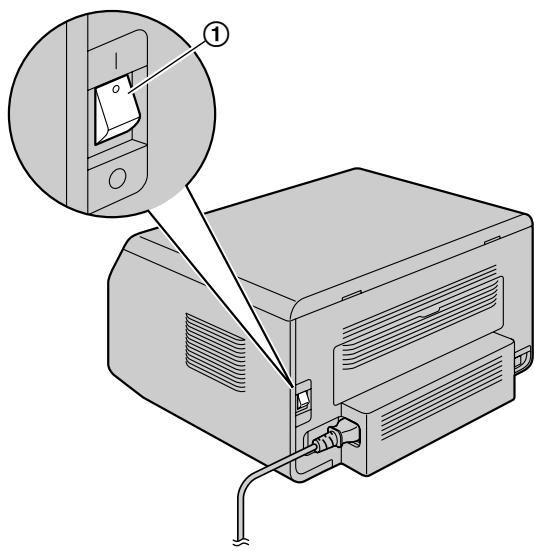
1.8 Recording paper
Note for recording paper:
- We recommend that you test paper (especially special sizes and types of paper) on the unit before purchasing large quantities.
- Do not use the following types of paper:
- Paper with cotton and/or fibre content that is over 20 %, such as letterhead paper or paper used for resumes
- Extremely smooth or shiny paper, or paper that is highly textured – Coated, damaged or wrinkled paper – Paper with foreign objects attached, such as tabs or staples – Paper that has dust, lint or oil stains
- Paper that will melt, vaporize, discolour, scorch or emit dangerous fumes near 200 °C, such as vellum paper. These materials may transfer onto the fusing roller and cause damage.
- Moist paper
- Inkjet paper
- Some paper is designed to be printed on only one side. Try printing on the other side of the paper if you are not happy with the print quality, or if misfeeding occurs.
- For proper paper feeding and best print quality, we recommend using long-grained paper.
- Do not use paper of different types or thicknesses at the same time. This may cause paper jams.
- Avoid double-sided printing.
- Do not use paper printed from this unit for double-sided printing with other copiers or printers. This may cause paper jams. Do not use paper printed from other copiers or printers for printing with this unit. This may cause paper jams.
- To avoid curling, do not open paper packs until you are ready to use the paper. Store unused paper in the original packaging, in a cool and dry location.
- For customers who live in high humidity areas: Please be sure to store paper in an air-conditioned room at all times. If you print using moist paper, it may cause paper jam.
1.8.1 Paper input tray
The paper input tray unit can hold the following paper. If you load more than the specified amount of paper, paper jam may occur and the paper may be damaged.
- Up to 150 sheets of 64 g/m² to 75 g/m² paper.
- Up to 130 sheets of 90 g/m² paper.
- A4, letter, and 16K-size paper can be used. 16K-size paper can only be used when using the unit for printing or copying.
- Please refer to page 83 for information on recording paper.
- The unit is set for printing A4-size plain paper by default.
- To use other paper sizes, change the recording paper size setting (feature #380 on page 54).
- To use thin paper, change the recording paper type setting (feature #383 on page 54).
1 Lift the paper input tray (①), and pull it completely out.
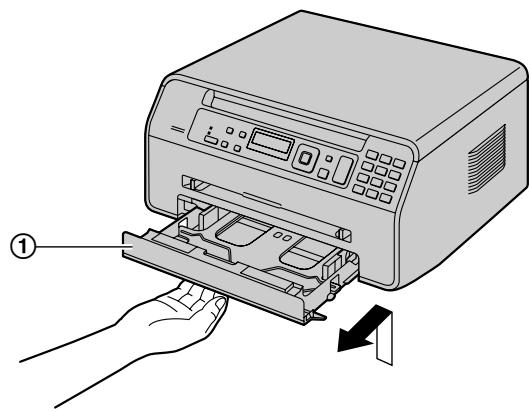
2 Before loading a stack of paper, fan the paper to prevent paper jams.

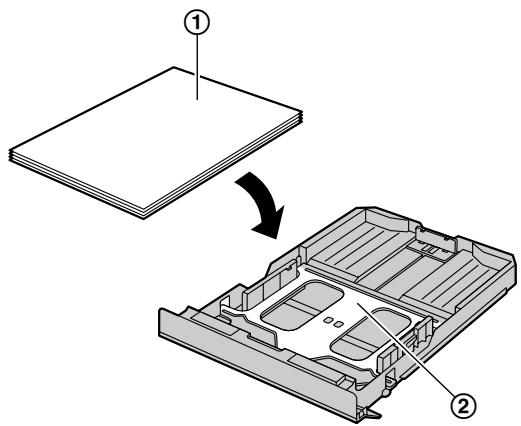
3 Load the paper, print-side down (①).
Important:
- Push down to lock the plate (②) in the paper input tray, if necessary.
4 Adjust the recording paper guides. Pinch the rear guide (①), then slide it to match the paper size mark. Pinch the right guide (②), then slide it to adjust the width to the size of the recording paper.
- Make sure that the recording paper is under the paper limit mark (③), and the paper should not be loaded over the snubbers (④).
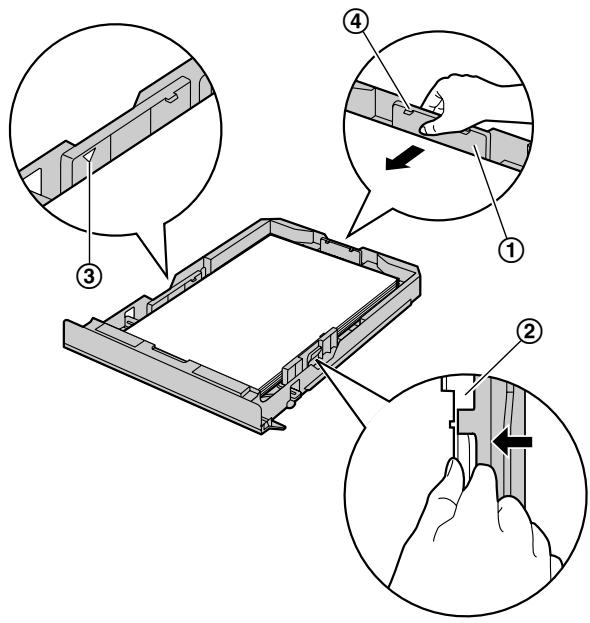
5 Insert the paper input tray into the unit.
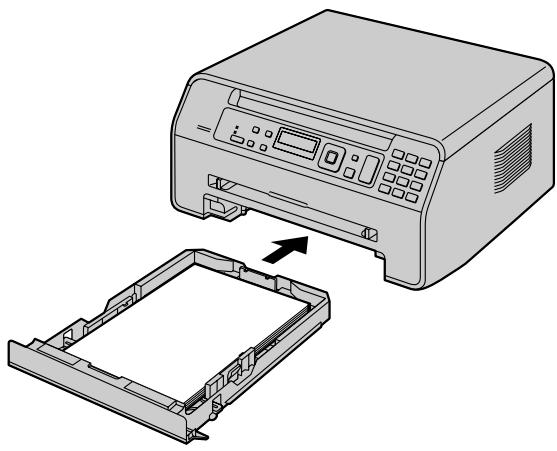
Note:
- If the paper is not loaded correctly, re-adjust the paper guides, or the paper may jam.
- If the paper input tray does not close, the plate in the paper input tray may not be in the locked position. Push the paper down and make sure that the paper is laying flat in the paper input tray.
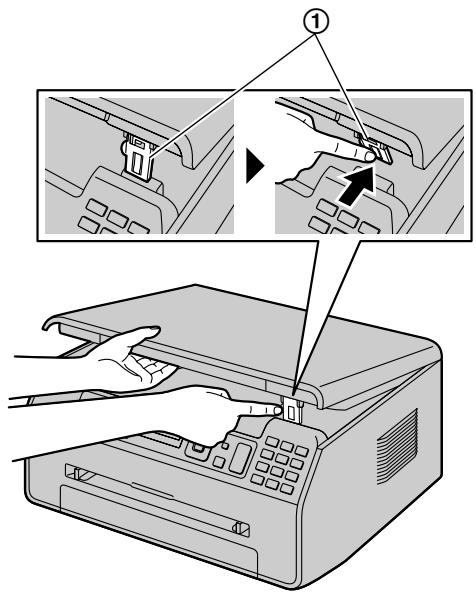
To expand the paper exit
You can temporarily expand the paper exit before printing.
- When printing on small sized paper, you can pull it out easily.
- When printing several pages (20 to 30 pages), paper stacking will be supported.
When using the automatic document feeder, we recommend to replace the document cover to original position beforehand (KX-MB1530 only).

- After use, pull up the paper exit, and then replace the tab (①) to the original position.
Caution for the paper input tray
- Do not drop the paper input tray.
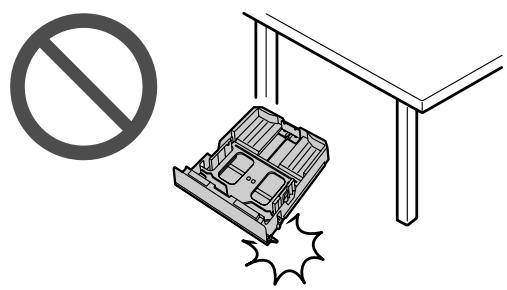
- Hold the paper input tray with both hands when removing or installing. The paper input tray weighs approximately 1.5 kg when fully loaded with recording paper.
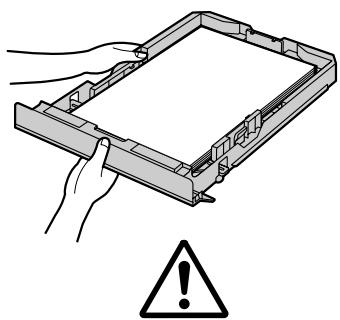
Approx. 1.5 kg
1.8.2 Manual input tray
You can use the manual input tray for printing with the computer and for copying. It can hold one page at a time. When printing or copying multiple pages, add the next page after the first page has been fed into the unit.
- Please refer to page 83 for information on recording paper.
- When printing with the computer, custom size recording paper can also be used.
- The unit is set for printing A4-size plain paper by default.
- To use other paper sizes, change the recording paper size setting (feature #381 on page 54).
- To use thin or thick paper, change the recording paper type setting (feature #384 on page 54).
1 Adjust the width of the guides (①) to the size of the recording paper. 2 Insert the paper, print-side up (②) until the unit grasps the paper and a single beep is heard.
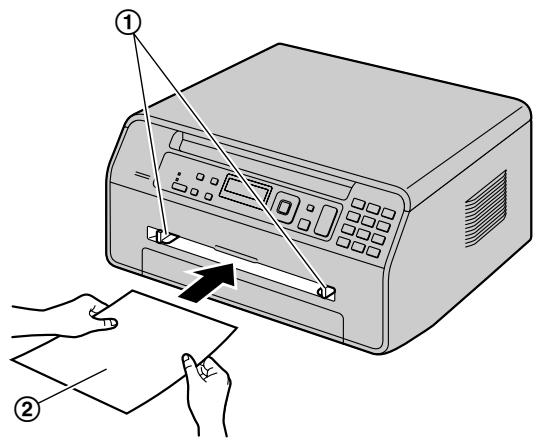
Note:
- To print from the manual input tray;
- when printing with the computer, select #2 for the printer properties.
- when making a copy, set the copy input tray setting to “#2” beforehand (feature #460 on page 60).
If these settings are not changed, when printing or copying multiple pages, the 1st page will be printed from the manual input tray, but the rest of the pages will be printed from the paper input tray.
- If the paper is not inserted correctly, re-adjust the paper, or the paper may jam.
When printing on thick paper
- When you use thick paper for the recording paper, be sure to open the rear cover before start printing. Thick paper will be printed out from the rear side.
Therefore, if you print with the cover closed, the paper may jam inside the unit.

2.1 Dialling mode (KX-MB1520/KX-MB1530 only)
If you cannot dial (page 38), change this setting according to your telephone line service.
![[Menu] [Set]](/content/2020/05/57281/images/b30476696f7bd6979b3958c40f3009a39dd6e89c7de6107b5347dbc4452d657d.jpg)
1 Press [Menu]. 2 Press [#][1][2][0] to display "DIALLING MODE". 3 Press [1] or [2] to select the desired setting.
[1] "PULSE": For rotary/pulse dial service.
[2] "TONE" (default): For tone dial service.
4 Press [Set]. 5 Press [Menu] to exit.
2.2 Selecting the operation mode (Scan/Copy) (Fax: KX-MB1520/KX-MB1530 only)
You can select the desired mode by pressing the following button repeatedly.
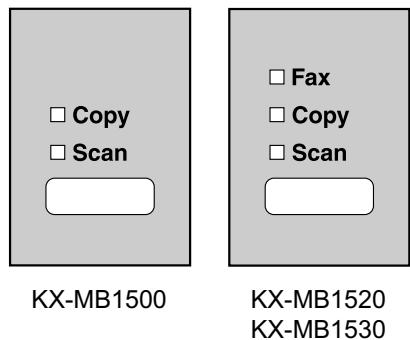
- [Fax] (KX-MB1520/KX-MB1530 only): Select this mode when using the unit as a fax machine (page 38).
- [Copy]: Select this mode when using the unit as a copier (page 31).
- [Scan]: Select this mode when using the unit as a scanner (page 28).
Note:
- The default operation mode is the copy mode.
- You can change the default operation mode (feature #463 on page 54) and the timer before returning to the default operation mode (feature #464 on page 55) (KX-MB1520/KX-MB1530 only).
2.3 Setting the original
2.3.1 Using the scanner glass
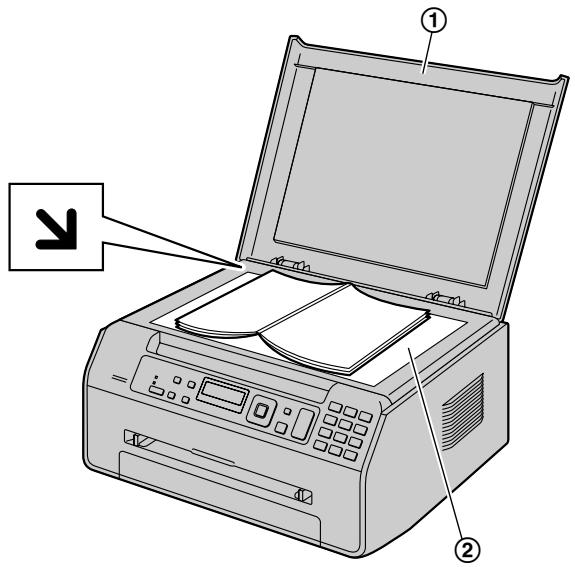
1 Open the document cover (①). 2 Place the document FACE DOWN on the scanner glass (②), aligning the top left of the document with the corner where the ▶ mark is positioned. 3 Close the document cover.
Note:
- Confirm that there are no documents in the automatic document feeder (KX-MB1530 only).
- Place the original onto the scanner glass gently. To avoid malfunction, do not press down too firmly.
- If the original is a book thicker than 15 mm, do not close the document cover.
- Confirm that any ink, paste or correction fluid has dried completely.
- Effective scanning area is shown by the shaded area: Effective scanning area
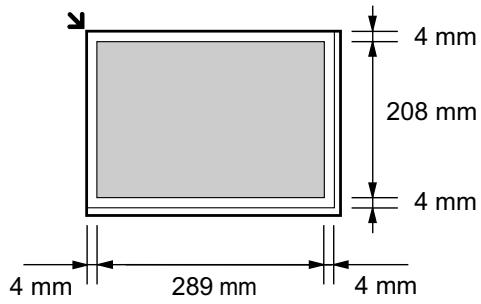
2.3.2 Using the automatic document feeder (KX-MB1530 only)
1 Open the document sub tray (①) by pressing its centre part (②).
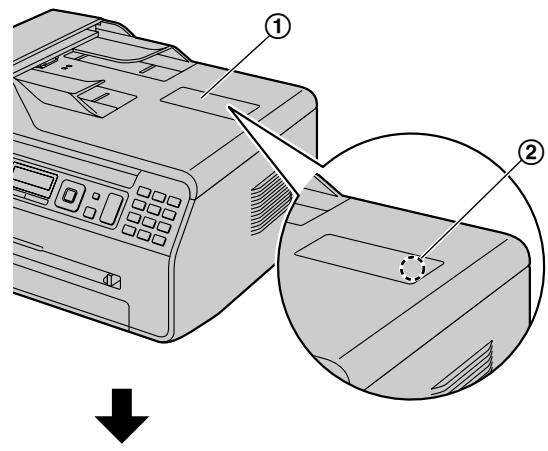
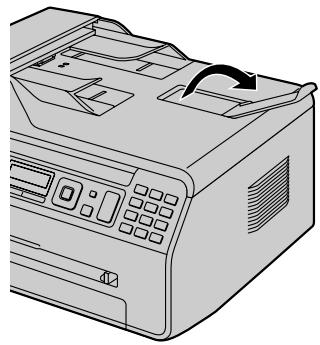
2 Insert the document (up to 15 pages) FACE DOWN into the feeder until a single beep is heard.
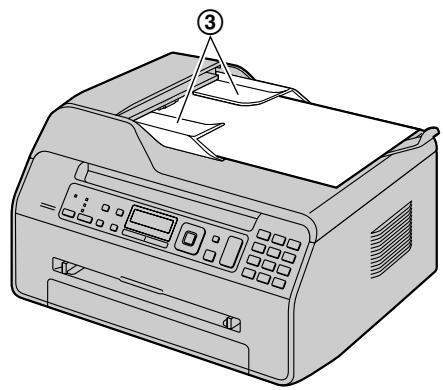
3 Adjust the width of the document guides (③) to fit the actual size of the document.
Note:
- Do not place the unit in an area where the document sub tray may be easily bumped into.
- The order of multiple page documents will be reversed after being fed through the automatic document feeder. To return the document to its original order you can feed it through the document feeder a second time, see page 65.
document feeder. To return the document to its original order, you can feed it through the document feeder a second time; see page 65.
- Confirm that there are no documents on the scanner glass.
- Confirm that any ink, paste or correction fluid has dried completely.
- Do not insert the following types of documents (Make a copy of the document using the scanner glass and set the copy instead.):
- Do not insert the following types of documents (Make a copy of the document using the scanner glass and set the copy instead.):
- Chemically treated paper such as carbon or carbonless duplicating paper – Electrostatically charged paper – Badly curled, creased or torn paper – Paper with a coated surface – Paper with printing on the opposite side that can be seen through the other side, such as newsprint
- When feeding multi-page documents into the automatic document feeder, dirty marks may be added to the originals. To prevent this, we recommend feeding documents one page at a time when using the automatic document feeder, or using the scanner glass.
- The total height of the documents when laid flat must be less than 2 mm. If the documents exceed the capacity of the automatic document feeder, they may fall or cause a jam in the feeder.
- To set a document with a width of less than 210 mm, we recommend using the scanner glass to copy the original document onto A4 or letter-size paper, then setting the copied document for better results.
- Do not set documents that do not satisfy the requirements of size and weight. Make a copy of the document using the scanner glass and set the copy. ● Available document size, document weight and effective scanning area are as follows:
Minimum document size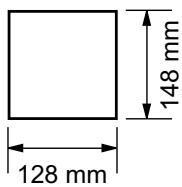
Maximum document size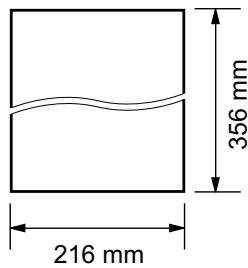
Effective scanning area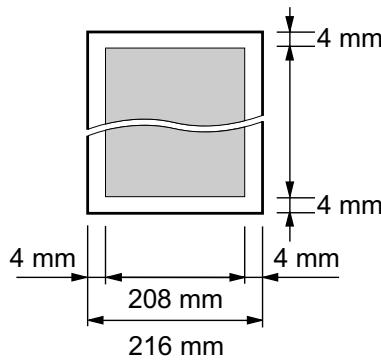
- Shaded area will be scanned.
- When using the unit as a scanner (page 28, 29), the effective scanning length depends on the selected paper size.
Document weight
- Single sheet: 60 g/m² to 75 g/m²
- Multiple sheets: 60 g/m² to 75 g/m²
2.4 Adjusting the volume (KX-MB1520/KX-MB1530 only)
Important:
- Before adjusting the volume, set the operation mode to fax mode. If the [Fax] light is OFF, turn it ON by pressing [Fax] repeatedly.
![[Set] [▼][▲] [Fax]](/content/2020/05/57281/images/43a6e2dbc4f05ae4e9d6909161792f7f6c863d9c6d230b4e9a7d45d0908ce907.jpg)
Ringer volume
While the unit is idle, press [▼] or [▲].
To turn the ringer OFF
Press [▼] repeatedly to display "RINGER OFF= OK?". → [Set]
- The unit will not ring.
- To turn the ringer back ON, press [▲].
Speaker volume
While using the speakerphone, press [▼] or [▲].
2.5 Date and time (KX-MB1520/KX-MB1530 only)
We recommend you to set the date and time. The other party will receive your unit's date and time as the header information.
![[Menu] [Set] [◀][▶] [Fax]](/content/2020/05/57281/images/b715f3d46a8b24106917088de66d990492eaacdd0e9520782ce459226d136616.jpg)
1 [Menu] → [#][1][0][1] → [Set] 2 Enter the current date/month/year by selecting 2 digits for each. Example: 3 August, 2011 [0][3][0][8][1][1] 3 Enter the current hour/minute by selecting 2 digits for each. Example: 10:15 PM (12 hour clock format) 1. [1][0] [1][5] 2. Press [*] repeatedly to select "PM". Press [★] repeatedly to select "AM" or "PM", or 24-hour time entry.
4 [Set]
5 Press [Menu] to exit.
Note:
- To check the current date and time setting, temporarily change the unit to the fax mode by pressing [Fax] repeatedly (page 17).
- Your unit's date and time will be used as the header information for the following:
- When sending faxes (page 38).
- If the date and time is not set correctly, the other party will receive an incorrect date and time as their header. This may confuse the other party.
- The accuracy of the clock is approximately ±60 seconds a month.
To correct a mistake
Press [◀] or [▶] to move the cursor to the incorrect number, and make the correction.
If you have subscribed to a Caller ID service
The date and time will be automatically set according to the received caller information.
- To use this feature, make sure the time adjustment is set to "AUTO" (feature #226 on page 53).
- If the time has not previously been set, Caller ID will not adjust the clock.
2.6 Your logo (KX-MB1520/KX-MB1530 only)
You can program your logo (name, company name, etc.) so that it appears on the top of each page sent.
![[Stop] [Menu] [Set] [◀][▶]](/content/2020/05/57281/images/3e64746e55790a1328f841f3a35a9847a2d5d5a03c268e44706066b03ab5978b.jpg)
1 [Menu] → [#][1][0][2] → [Set] 2 Enter your logo, up to 30 characters (see page 63 for character entry). → [Set] 3 Press [Menu] to exit.
To correct a mistake
Press [◀] or [▶] to move the cursor to the incorrect character, and make the correction.
- To erase all characters, press and hold [Stop].
2.7 Your fax number (KX-MB1520/KX-MB1530 only)
You can program your fax number so that it appears on the top of each page sent.
![[Stop] [Menu] [Flash] [Set] [◀][▶]](/content/2020/05/57281/images/750f4d9ba774ff3a68c26a067f04396c096e5d97e179650660951e9487430d6b.jpg)
1 [Menu] → [#][1][0][3] → [Set] 2 Enter your fax number, up to 20 digits.
- To enter a “+”, press [★].
- To enter a space, press [#].
- To enter a hyphen, press [Flash].
- To erase a number, press [Stop].
3 [Set]
4 Press [Menu] to exit.
To correct a mistake
Press [◀] or [▶] to move the cursor to the incorrect number, and make the correction.
- To erase all numbers, press and hold [Stop].
2.8 Installing Multi-Function Station
2.8.1 Required computer environment
Panasonic Multi-Function Station software enables the unit to carry out the following functions:
- Printing on plain paper, thin and thick paper and labels
- Previewing documents and changing printer settings before printing (Easy Print Utility)
- Scanning documents and converting an image into text with OCR software (not supplied)
- Scanning from other applications for Microsoft® Windows® that support TWAIN scanning and WIA scanning (Windows XP/Windows Vista®/Windows 7)
- Storing, editing or erasing items in the phonebook using your computer (KX-MB1520/KX-MB1530 only)
- Programming the features using your computer – Sending, receiving fax documents using your computer (KX-MB1520/KX-MB1530 only)
To use Multi-Function Station on your computer, the following are required:
Operating System:
Windows 2000/Windows XP/Windows Vista/Windows 7 CPU:
Windows 2000: Pentium® II or higher processor Windows XP: Pentium III or higher processor Windows Vista/Windows 7: Pentium 4 or higher processor
RAM:
Windows 2000/Windows XP: 128 MB (256 MB or more recommended)
Windows Vista: 512 MB (1 GB or more recommended) Windows 7: 1 GB (2 GB or more recommended)
Other Hardware:
CD-ROM drive
Hard disk drive with at least 600 MB of available space USB interface
Other:
Internet Explorer® 5.0 or later
Warning:
- To assure continued emission limit compliance: – use only shielded USB cable (Example: Hi-Speed USB 2.0 certified cable).
- To protect the unit, use only shielded USB cable in areas where thunderstorms occur.
Note:
- A USB cable is not supplied. Please purchase a shielded Type-A male/Type-B male USB cable.
2.8.2 Installing Multi-Function Station on a computer
- Install Multi-Function Station (CD-ROM) before connecting the unit to a computer with the USB cable. If the unit is connected to a computer with the USB cable before installing Multi-Function Station, the [Found New Hardware Wizard] dialogue box will appear. Click [Cancel] to close it.
- The screenshots shown in these instructions are for Windows XP and are included for reference only.
- The screenshots shown in these instructions may differ slightly from those of the actual product.
- Software features and appearance are subject to change without notice.
- If you are also using KX-MB200/KX-MB700/KX-FLB880 series, see page 74.
1 Start Windows and exit all other applications.
- You must be logged in as an administrator in order to install Multi-Function Station.
2 Insert the supplied CD-ROM into your CD-ROM drive.
- If the [Select Language] dialogue box appears, select the language that you want to use with this software. Click [OK].
- If the installation does not start automatically: Click [Start]. Choose [Run...]. Type "D:\Install" (where "D" is the drive letter of your CD-ROM drive). Click [OK]. (If you are not sure what the drive letter is for your CD-ROM drive, use Windows Explorer and look for the CD-ROM drive.)
3 [Easy Installation]
- The installation will start automatically.
4 When the setup program starts, follow the on-screen instructions.
- Easy Print Utility (page 27) and Device Monitor (page 64) will also be installed.
5 If the [Connection Type] dialogue box appears, select [Connect directly with a USB cable.]. → [Next]
- The [Connect Device] dialogue box will appear.
6 Connect the unit to a computer with the USB cable (①), then click [Next].
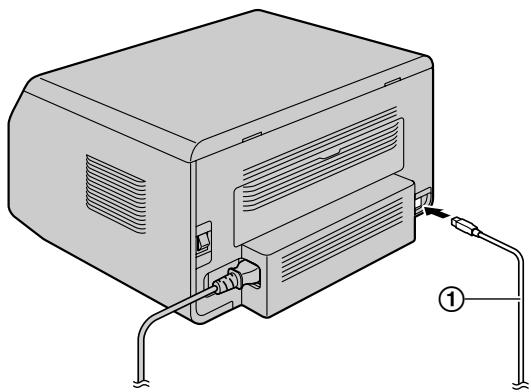
- If the unit is connected to your computer, the model name will be automatically detected.
- You can change the name of the unit if necessary.
7 Click [Install], then follow the on-screen instructions.
- The files will be copied to your computer.
Important notice
If you are using Windows XP, Windows Vista or Windows 7, a message may appear after connecting the unit with the USB cable. This is normal and the software will not cause any difficulties with your operating system. You can continue the installation with no problem. This kind of message is displayed:
- For Windows XP users: "The software you are installing for this hardware has not passed Windows Logo testing to verify its compatibility with Windows XP."
- For Windows Vista/Windows 7 users: "Would you like to install this device software?"
To view or install the operating instructions data
- Start Windows and insert the supplied CD-ROM into your CD-ROM drive.
- Click [Operating Instructions], then follow the on-screen instructions to view or install the operating instructions in PDF format.
- Adobe® Reader® is required to view the operating instructions.
Note:
- If the screen prompts you to insert the CD-ROM for the operating system when installing Multi-Function Station, insert it into your CD-ROM drive.
- If you install the operating instructions, you can view them anytime by clicking [?] on the Multi-Function Station launcher.
To use another unit with the computer
You need to add the printer driver for each unit, as follows.
- Start Windows and insert the supplied CD-ROM into your CD-ROM drive.
- [Modify] → [Add Multi-Function Station Driver]. Then follow the on-screen instructions.
Note:
- You cannot connect more than one unit to the same computer at the same time.
To modify the software (To add or uninstall each component)
You can select the components to install or uninstall anytime after the installation.
You must be logged in as an administrator in order to modify Multi-Function Station.
- Start Windows and insert the supplied CD-ROM into your CD-ROM drive.
- [Modify] → [Modify Utilities]. Then follow the on-screen instructions.
To uninstall the software
You must be logged in as an administrator in order to uninstall Multi-Function Station.
[Start] → [All Programs] or [Programs] → [Panasonic] → the unit's name → [Uninstall]. Then follow the on-screen instructions.
2.9 Starting Multi-Function Station
[Start] → [All Programs] or [Programs] → [Panasonic] → the unit's name → [Multi-Function Station]
- Multi-Function Station will appear.
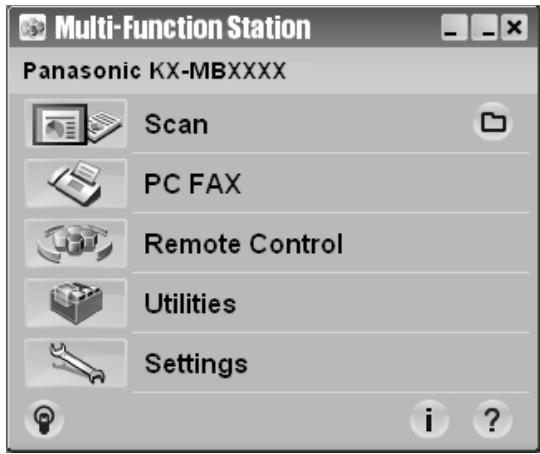
* The pictured model is KX-MB1520/KX-MB1530.
[Scan] (page 29)
- To scan and display the scanned images.
- To scan and create an image file.
- To scan and send by email.
- To scan and convert an image into editable text data using OCR software (not supplied).
[PC FAX] (KX-MB1520/KX-MB1530 only)
- To send a document created on the computer as a fax message (page 40).
- To display a fax document received on the computer (page 47).
[Remote Control] (page 64)
- To program the features.
- To store, edit or erase items in phonebook. *1
- To view items in the journal report or Caller ID list. *1
- To store caller information into phonebook. *1 *1 KX-MB1520/KX-MB1530 only
[Utilities]
- To start the Multi-Function Viewer (page 29).
- To start the Device Monitor (page 64).
- To start the OCR application (page 28). [OCR Path] must be set beforehand.
[Settings] (page 25)
- To change the general settings.
- To change the settings for scanning.
[?]
- For detailed instructions on Multi-Function Station.
- To view operating instructions.
[ ]
- To display usage tips.
[i]
- To display information about Multi-Function Station.
Note:
- You can confirm if the unit is connected to your computer by using Device Monitor (page 64). - Computer features (printing, scanning, etc.) may not function properly in the following situations:
- When the unit is connected to a computer that was custom-built by the user.
- When the unit is connected to the computer via a PCI card or other expansion card.
- When the unit is connected to another piece of hardware (such as a USB hub or interface adapter) and not connected directly to the computer.
To change the settings
You can change the settings for Multi-Function Station beforehand.
- Select [Settings] from Multi-Function Station.
- Click the desired tab and change the settings. → [OK]
[General]
- [Launcher display setting]: To select the display type of the launcher.
- [OCR Path]: To select the OCR software (not supplied).
[Scan]
- [Save to]: To select the folder where the scanned image will be saved.
- [Viewer][File][Email][OCR][Custom]: To change scanning settings for Multi-Function scan application.
To select the default Email software
The default Email software is used when using scan to email (page 28).
You can select the default Email software as follows.
For Windows 2000:
- [Start] → [Settings] → [Control Panel] → [Internet Options] → [Programs] → [E-mail]
- Select the desired MAPI-compliant Email software such as [Outlook Express], etc. → [OK]
For Windows XP:
- [Start] → [Control Panel] → [Internet Options] → [Programs] → [E-mail]
- Select the desired MAPI-compliant Email software such as [Outlook Express], etc. → [OK]
For Windows Vista:
- [Start] → [Control Panel] → [Internet Options] → [Programs] → [Set programs] → [Set program access and computer defaults]
- If the [User Account Control] dialogue box appears, click [Continue].
2. [Custom]
- Select the desired MAPI-compliant Email software such as [Windows Mail], etc. from [Choose a default e-mail program]. → [OK]
For Windows 7:
- [Start] → [Control Panel] → [Network and Internet] → [Internet Options] → [Programs] → [Set programs] → [Set program access and computer defaults]
2. [Custom]
- Select the desired MAPI-compliant Email software from [Choose a default e-mail program]. → [OK]
3.1 Printing from Windows applications
You can print a file created in a Windows application. For example, to print from WordPad, proceed as follows:
1 Open the document you want to print. 2 Select [Print...] from the [File] menu.
- The [Print] dialogue box will appear.
For details about the [Print] dialogue box, click [?], then click the desired item.
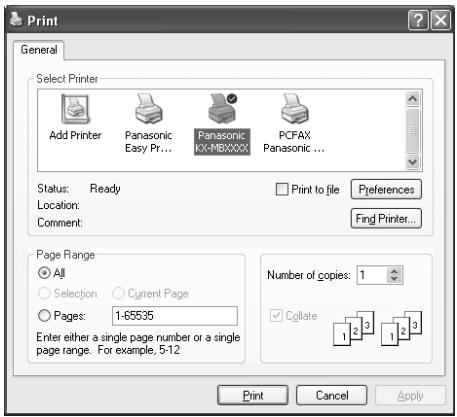
* The pictured model is KX-MB1520/KX-MB1530.
Note:
- For Microsoft PowerPoint®, select [Color] or remove the check next to [Grayscale] in the print dialogue so that coloured or grey objects will be printed in greyscale properly.
3 Select the unit's name as the active printer.
- If you have changed the name of the unit when installing, select that name from the list.
- To change the printer settings, proceed as follows.
For Windows 2000:
Click the desired tab and change the printer settings.
For Windows XP/Windows Vista/Windows 7:
Click [Preferences], then click the desired tab. Change the printer settings, then click [OK].
4 Click [Print].
- The unit will start printing.
Note:
- To stop printing from the unit, see page 65.
- To load paper, see pages 13 and 15.
- For details about the paper specifications, see page 83.
- If a printing error occurs, the Device Monitor (page 64) will start automatically and display the error information.
Setting the printer properties
You can change the printer settings in step 3. We recommend that you test paper (especially special sizes and types of paper) on the unit before purchasing large quantities.
You can change or display the settings on the following tabs.
[Basic]: Paper size, media type, pages per sheet, etc.
[Output]: Number of prints, collate, etc.
[Quality]: Quality, contrast, toner save feature, etc.
[Effects]: Watermark, overlay.
[Profile]: Saving the desired settings, selecting the saved settings, etc.
[Support]: Version information.
Note:
- Select the desired media type on the [Basic] tab according to the recording paper.
| Recording paper type | Media type |
| Plain paper75 g/m2 to 90 g/m2 | [Plain Paper] |
| Thin paper64 g/m2 to 75 g/m2 | [Thin Paper] |
| Thick paper90 g/m2 to 165 g/m2 | [Thick Paper] |
| Label | [Label] |
- When printing from a computer, the printer properties setting overrides the following unit's programming features:
– Media type setting (feature #383 on page 54 and feature #384 on page 54) - Toner save setting (feature #482 on page 55)
To print on labels
You can print not only on plain paper but also on special media (labels).
- Please refer to page 83 for information on recording paper.
- To load paper, see page 15.
Use labels designed for laser printing. We recommend the following:
Avery®
- Use the manual input tray to print labels.
- Load label sheets one page at a time for printing, print-side up.
- Remove each label after printing.
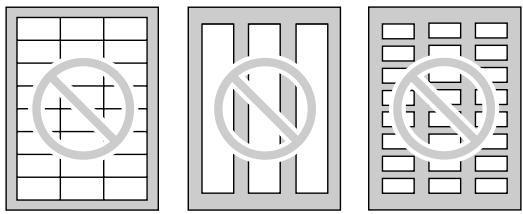
- Do not use the following types of labels:
- Labels that are wrinkled, damaged or separated from the backing sheet. – Any sheet of labels that has spaces in it where some of the labels have been removed.
- Labels that do not completely cover the backing sheet as follows:
3.2 Easy Print Utility
By printing using the Panasonic Easy Print Utility instead of the printer driver, you can use useful printing features for your convenience.
- Preventing unnecessary prints by checking the preview on PC screen
- Combining multiple documents
- Saving a file in PDF format
For example, to print from WordPad, proceed as follows:
1 Open the document you want to print. 2 Select [Print...] from the [File] menu. 3 Select [Panasonic Easy Print Driver] as the active printer. 4 Click [Print].
- The [Panasonic Easy Print Utility] dialogue will be displayed. For details about the Easy Print Utility, click [?], then click the desired item.
5 View the print image by clicking the desired page in the [Print Page Operation] window (left column list).
![Panasonic Easy Print Utility Printer | Panasonic KX-MBXXXXX Print Page Operation Page - [ Full page for print ] Print Preview 1 / 1 sheets 38% Title of Document 1. Text of Document - Production and Installation Accessories 2. Include electronic 3. Designary software - Finding the Controls 4. Create…](/content/2020/05/57281/images/92dc35a43db620491226e0ae7faa048f45cadddc8dfe0443e8055129d4c646c2.jpg)
- To change the printer settings, see page 27.
- To combine multiple documents created in various applications, see page 27.
- To save the file in PDF format, see page 27.
- Even if you set the number of prints on the original application beforehand, you may have to re-set it for the Easy Print Utility.
6 Click [Print] icon on the print toolbar.
- The unit will start printing.
3.2.1 Ecology printing features
You can use various printing features and preview the print image without test print.
Printer settings
You can change or display the settings on the following tabs in step 5.
[Basic]: Paper size, layout printing
[Output]: Number of prints, paper source, media type
[Quality]: Colour mode, toner save
[Effects]: Header, watermark, footer
Combining multiple documents
You can display multiple pages created in various applications and handle it as a single document.
- Perform step 1 to 4 on "3.2 Easy Print Utility".
- Open another document you want to add to Easy Print Utility.
- Select [Print...] from the [File] menu.
- The [Print] dialogue box will appear.
- Select [Panasonic Easy Print Driver] as the active printer.
- Click [Print].
- The document will be added after the last page of the previous document in the print preview window.
- Repeat step 2 to 5.
- If necessary, change the printer settings (page 27).
- Click [Print] icon on the print toolbar.
Note:
- The maximum number of documents that can be displayed in the [Print Page Operation] window is 999 pages.
Saving a file as PDF file
You can save the previewed files in PDF format instead of printing it.
- Perform step 1 to 4 on "3.2 Easy Print Utility".
- Click the [Save PDF file] icon on the print toolbar.
- The [Save As] dialogue box appears.
- Specify the folder to save, enter the file name, and then click [Save]. The [Save PDF file] dialogue appears while PDF files are being created and saved.
Note:
- The PDF file created with Easy Print Utility is an image type.
4.1 Scanning from the unit (Push Scan)
You can easily scan the document by using the operation panel on the unit. You can select one of the following scanning modes depending on how you intend to use the scanned image.
Scanning mode
| “VIEWER” | Viewing using Multi-Function Viewer (Scan to Multi-Function Viewer) |
| “FILE” | Saving as a file to your computer (Scan to save as a file) |
| “EMAIL” | Sending as an attached file to an email destination from your computer (Scan to email) |
| “OCR” | Using OCR software (Scan to OCR) |
Note:
- When scanning a document, we recommend using the scanner glass rather than the automatic document feeder for better results (KX-MB1530 only).
- Do not open the document cover when scanning a document with the automatic document feeder (KX-MB1530 only).
![[Scan] [Stop] [Start] [Set][▼][▲][►]](/content/2020/05/57281/images/36bff59936c0f783065857caa199620306cfed8ff792b77660d05185e4c9a72e.jpg)
1 Set the original (page 18). 2 If the [Scan] light is OFF, turn it ON by pressing [Scan] repeatedly. 3 Press [▼] or [▲] repeatedly to select a scanning mode. → [Set] 4 If necessary, change the scanning settings. Press [▶], press [▼] or [▲] repeatedly to select the desired setting. → [Set]
5 When using the scanner glass:
[Start] → The unit will scan 1 page. Place the next document on the scanner glass and press [Set]. Repeat this until all the documents are scanned, then press [Start].
When using the automatic document feeder (KX-MB1530 only):
[Start]
- When scanning to Multi-Function Viewer, the scanned image will be displayed in the [Multi-Function Viewer] window after scanning. However, when you select PDF as a file format, the software that is associated to open PDF files will start.
- When scanning to email, the email software will automatically start and the scanned image will be attached to a new email message.
- When scanning to OCR, the scanned image will be displayed in the OCR window after scanning.
6 After you finish scanning, press [Stop] to reset the setting you set in step 4.
Note:
- To stop scanning, see page 65.
- The following data formats can be selected to save the scanned images.
| Scanning mode | TIFF | JPEG | BMP | |
| “VIEWER” | ● | ● | ● | ● |
| “FILE” | ● | ● | ● | ● |
| “EMAIL” | ● | ● | — | ● |
| “OCR” | ● | ● | ● | — |
If you want to scan several pages and save as a single file, select TIFF or PDF as the file format.
- The scanned image will be automatically saved in the folder selected in the [Settings] window. To change the folder, see page 25.
- You can set the desired scan mode for push scan beforehand (feature #493 on page 62).
Helpful hints:
The OCR software is not supplied. Install the desired third-party OCR software, then specify the path of the OCR software. To specify the path, see following. Start Multi-Function Station → [Settings] → Specify the path to the OCR program file (.exe) in the [OCR Path] field. → [OK]
- We cannot guarantee the performance of third-party OCR software.
4.2 Scanning from a computer (Pull Scan)
Note:
- When scanning a document, we recommend using the scanner glass rather than the automatic document feeder for better results (KX-MB1530 only).
- Do not open the document cover when scanning a document with the automatic document feeder (KX-MB1530 only).
4.2.1 Using Multi-Function scan application
By clicking an application icon, the selected application starts automatically after scanning.
1 Set the original (page 18). 2 Start Multi-Function Station. → [Scan] 3 Click the desired application icon.
- When you click [Custom], the pre-programmed application starts.
- To cancel scanning while the documents are being scanned, click [Cancel].
Note:
- You can change the scanning settings beforehand for each application (page 25).
- When you point to an application icon, the scanning settings for that application are displayed as a tooltip.
- The scanned image will be automatically saved in the folder selected in the [Settings] window (page 25).
4.2.2 Using Multi-Function Viewer
1 Set the original (page 18). 2 Start Multi-Function Station. 3 [Utilities] → [Viewer]
• [Multi-Function Viewer] will appear.
4 Click the [Scan] icon in the [Multi-Function Viewer] window.
- The unit's name dialogue box will appear.
5 If necessary, change the scanning settings on your computer.
- To preview the scanned image, click [Preview]. You can drag the frame to specify the scanning area. If you change the scan settings, click [Preview] to refresh the scanned image. If you use the automatic document feeder (KX-MB1530 only), only the first page will be previewed. When you need to refresh the scanned image, set the document to preview again.
6 [Scan]
- If you preview the scanned image using the automatic document feeder in step 5, set the
document again and click [Scan] (KX-MB1530 only).
- The scanned image will be displayed in the [Multi-Function Viewer] window after scanning.
- To save the scanned image, select [Save As ...] from the [File] menu.
- To cancel scanning while the documents are being scanned, click [Cancel].
Note:
- You can display images in applications that support TIFF, JPEG, PCX, DCX and BMP formats.
- You can save images in TIFF, JPEG, PCX, DCX, BMP or PDF formats.
- If the [Select...] button is displayed in [Target Device], click [Select...] to select the unit from the list, and then click [OK]. The [Select...] button will not be displayed when there is only one printer driver installed.
- You can move, copy and delete a file or page.
- The order of multiple page documents will be reversed after being fed through the automatic document feeder. To return the document to its original order you can feed it through the document feeder a second time, see page 65.
4.2.3 Using other applications
Multi-Function Station includes a TWAIN and WIA compliant scanner driver. You can also scan using other applications that support TWAIN or WIA scanning. For scanning example, proceed as follows:
1 Set the original (page 18). 2 Start an application that supports TWAIN or WIA scanning. 3 For TWAIN scanning: Select [Acquire Image...] from the [File] menu. For WIA scanning: Select [From Scanner or Camera...] from the [File] menu.
- The unit's name dialogue box will appear.
4 If necessary, change the scanning settings on your computer. → [Scan]
- The scanned image will be displayed in the application window after scanning.
- To cancel scanning while the documents are being scanned, click [Cancel].
Note:
- Scanning from WIA compliant applications is only available for Windows XP, Windows Vista and Windows 7.
- Depending on the application used, the appearance may differ slightly.
- If the [Select...] button is displayed in [Target Device] when performing TWAIN scanning, click [Select...] to select the unit from the list, and then click [OK].
4. Scanner
The [Select...] button will not be displayed when there is only one printer driver installed.
5.1 Making a copy
5.1.1 Using the scanner glass
![[Copy] [Copy Size] [Quality] [Set][▼][▲][►] [Fax Auto Answer] [Stop] [Start]](/content/2020/05/57281/images/f3672d327852dca5c6ac2b554c94a7e82863cd9ee4b6ef5a8a46bc267835ebad.jpg)
* The pictured model is KX-MB1520.
1 If the [Copy] light is OFF, turn it ON by pressing [Copy] repeatedly. 2 Set the original (page 18). 3 If necessary, change the copy size (original document size and recording paper size), resolution and contrast according to the type of document.
- To select the copy size, see page 31.
- To select the contrast, see page 31.
- To select the resolution, see page 31.
4 If necessary, enter the number of copies (up to 99).
5 [Start]
- The unit will start copying.
6 After you finish copying, press [Stop] to reset the settings you set in step 3 and 4.
Note:
- To stop copying, see page 65.
- You can change the default operation mode (feature #463 on page 54) and the timer before returning to the default operation mode (feature #464 on page 55) (KX-MB1520/KX-MB1530 only).
- If the [Fax Auto Answer] light is ON, the unit can receive faxes automatically even when in the copy mode (KX-MB1520/KX-MB1530 only).
To select the copy size
- Press [Copy Size] repeatedly to select "ORIGINAL SIZE".
- Press [▼] or [▲] repeatedly to select the size of your original document. → [Set]
- Press [▼] or [▲] repeatedly to select the size of recording paper.
- When “#2” is selected, you can change the recording paper size by pressing [▶] repeatedly.
- The appropriate zoom rate will be set automatically. Some copying features cannot be used during zoom copy. See page 32 for details.
4. [Set]
To select the contrast
Adjust this setting depending on the darkness or lightness of the document. 5 levels (low to high) are available.
- Press [Quality] repeatedly to display "CONTRAST".
- Press [▼] or [▲] to change the contrast.
- [Set]
Note:
- You can hold the previous contrast setting (feature #462 on page 54).
To select the resolution
- Press [Quality] repeatedly to display "RESOLUTION".
- Press [▼] or [▲] to change the resolution.
- “TEXT/PHOTO”: For both text and photographs.
- “TEXT”: For text only.
- “PHOTO”: For photographs, shaded drawings, etc.
3. [Set]
Note:
- You can change the default resolution (feature #461 on page 60).
5.1.2 Using the automatic document feeder (KX-MB1530 only)
![[Copy] [Stop] [Start]](/content/2020/05/57281/images/b784698f6eefcaee78041204b1f7c7f42dcc21f5e8122c9848d25fa09b45733a.jpg)
1 If the [Copy] light is OFF, turn it ON by pressing [Copy] repeatedly. 2 Set the original (page 18). 3 If necessary, change the copy size (original document size and recording paper size), resolution and contrast according to the type of document.
- To select the copy size, see page 31.
- To select the contrast, see page 31.
- To select the resolution, see page 31.
4 If necessary, enter the number of copies (up to 99).
5 [Start] - The unit will start copying. 6 After you finish copying, press [Stop] to reset the settings you set in step 3 and 4.
Note:
- To stop copying, see page 65.
5.2 More copying features
- Make sure that the [Copy] light is ON.
5.2.1 Zoom copy (enlargement / reduction)
1 Set the original (page 18). 2 Press [Zoom] repeatedly to select the zoom rate that fits the size of your document and recording paper. *1 Press [▼] or [▲] repeatedly to change the zoom rate by 1 % at a time from “25%” to “400%”. You can also enter the desired percentage specifically by using the dial keys.
- “ZOOM = 1 0 0 %*1 - “ 50 % ” - “ 200 % ”
3 [Set] 4 If necessary, enter the number of copies (up to 99). → [Start] 5 After you finish copying, press [Stop] to reset this feature.
Note:
- Zoom copy is not available for the following features:
– Quick ID copy feature (page 33) – Image repeat feature (page 33) – Poster feature (page 35) – N in 1 feature (page 35) - Separate N in 1 feature (page 36)
- You can hold the previous zoom setting (feature #468 on page 60).
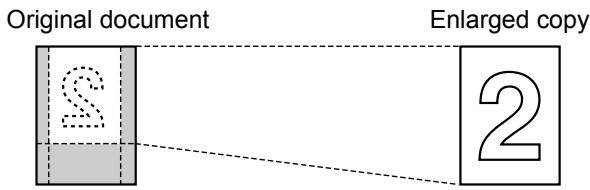
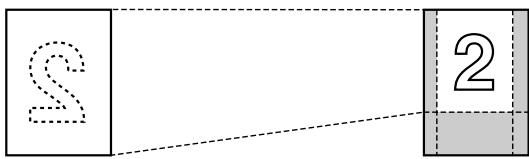
- When using the scanner glass, the unit will only enlarge the right top corner of the document starting from the ▼ mark on the unit.
- When using the automatic document feeder, the unit will only enlarge the centre of the upper part of the document. To make an enlarged copy of the bottom of the document, turn the document around, and then make a copy (KX-MB1530 only).
Example: 150 % enlarged copy Using the scanner glass (①):
Original document Enlarged copy
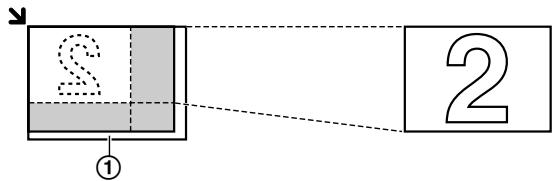
Using the automatic document feeder (KX-MB1530 only):
Example: 70% reduced copy Using the scanner glass (①):
Original document Reduced copy
![graph TD A["Step 1"] --> B["Step 2"] style A fill:#f9f,stroke:#333 style B fill:#bbf,stroke:#333](/content/2020/05/57281/images/a70d72b78485a920a7ceb597fee4e3c8721eab1b1d525e9003d399a26bb07d4d.jpg)
Using the automatic document feeder (KX-MB1530 only):
Original document Reduced copy
5.2.2 Collate copy
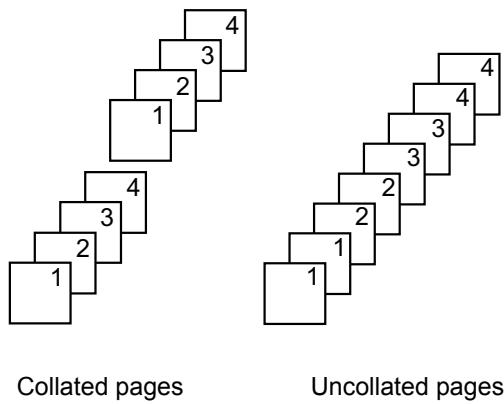
The unit can collate multiple copies in the same order as the original document pages.
1 If the [Copy] light is OFF, turn it ON by pressing [Copy] repeatedly. 2 Set the original (page 18). 3 Press ◀ to display “COLLATE”. 4 Press ▼ or ▲ repeatedly to display "ON". 5 Press [Set]. 6 Enter the number of copies (up to 99). 7 When using the scanner glass:
- Press [Start].
- The unit will scan 1 page.
- Place the next document on the scanner glass and press [Set]. Repeat this until you have scanned all pages, and then press [Start].
- The unit will start copying.
When using the automatic document feeder (KX-MB1530 only):
Press [Start].
8 After you finish copying, press [Stop] to reset this feature.
Example: Making 2 copies of a 4-page original document
Note:
- The unit will store the documents into memory while collating the copies. If the memory becomes full while storing, the unit will only print out the stored pages.
- You can hold the previous collate setting (feature #469 on page 60).
Proof set feature (KX-MB1530 only)
To make 1 set of a collated copy first, press [▼] or [▲] repeatedly to display “PROOF SET” (step 4 on “5.2.2 Collate copy”, page 33). The unit will make 1 set of a collated copy and stop temporarily so you can check whether the copy was made as you expected. If the copy is correct, press [Start] to continue copying.
If the copy is not correct, press [Stop] and start again from the beginning.
5.2.3 Quick ID copy feature / Image repeat feature (Scanner glass only)
Quick ID copy feature: To copy 2-sided documents onto one page.
Image repeat feature: To copy a single document repeatedly onto one page.
Note:
- The copied documents will not be reduced to fit the recording paper, and useful for copying small sized documents such as business cards.
1 Set the original (page 18).
- To make a landscape copy, set the original in landscape direction. To make a portrait copy, set the original in portrait direction.
5. Copier
- The scanning area changes according to the selected setting in step 4. See the following table for details. The shaded area will be scanned.
2 Press [Page Layout] repeatedly to select "PAGE LAYOUT". 3 Press [▼] or [▲] repeatedly to select "QUIK ID COPY" or "IMAGE REPEAT". → [Set] 4 Press [▼] or [▲] repeatedly to select the number of original documents from "2 in 1", "4 in 1" or "8 in 1". → [Set]
- For quick ID copy feature, go to the next step.
- For image repeat feature, go to step 6.
5 Press [▼] or [▲] repeatedly to select the page layout from "LANDSCAPE" or "PORTRAIT". → [Set] 6 If necessary, enter the number of copies (up to 99).
7 Quick ID copy feature:
- [Start]
- The unit will scan 1 page.
- Place the next document on the scanner glass and press [Set]. Repeat this until all the documents are scanned.
- The unit will start copying.
- You can press [Start] anytime to start copying.
Image repeat feature:
[Start]
8 After you finish copying, press [Stop] to reset this feature.
Note:
- You can save the previous page layout setting (feature #467 on page 60).
For quick ID copy feature
| Original document | Page layout |
| “2 in 1” | “LANDSCAPE” |
| 12 | |
| “PORTRAIT” | |
| 12 |
| Original document | Page layout |
“4 in 1”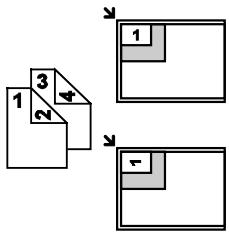 | “LANDSCAPE” “PORTRAIT” “PORTRAIT” ____ ____ |
“8 in 1”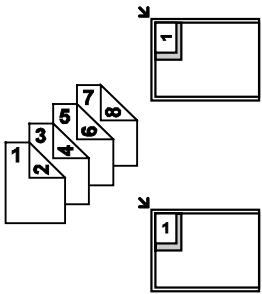 | “LANDSCAPE”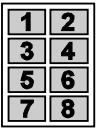 “PORTRAIT” “PORTRAIT”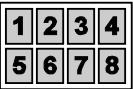 ____ ____ |
For image repeat feature
| Original document | Page layout |
“2 in 1”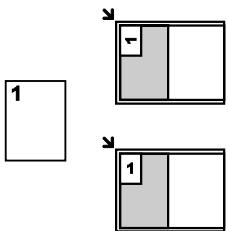 ____ ____ | [282D] |
“4 in 1”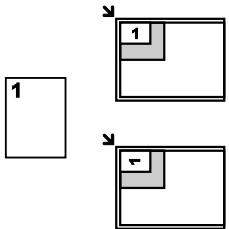 | [C33B] ____ ____ |
“8 in 1”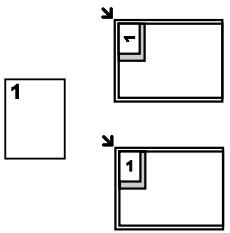 | 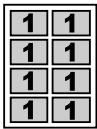  |
5.2.4 Poster feature (Scanner glass only)
You can make copies divided into 2 (“1 x 2”), 4 (“2 x 2”) or 9 (“3 x 3”) sections to make enlarged copies of the individual sections. You can then glue them together to make a poster.
![graph TD A["Flower Image"] --> B["Output 1"] A --> C["Output 2"] A --> D["Output 3"]](/content/2020/05/57281/images/99cc2e120282e51a139a25e00afe3335708f3103f4eb9709af193a0f9b9e5a7c.jpg)
1 Set the original (page 18). 2 Press [Page Layout] repeatedly to select "PAGE LAYOUT". 3 Press [▼] or [▲] repeatedly to select "POSTER". → [Set] 4 Press [▼] or [▲] repeatedly to select “1 x 2”, “2 x 2” or “3 x 3”. → [Set] 5 If necessary, enter the number of copies (up to 99). → [Start] 6 After you finish copying, press [Stop] to reset this feature.
Note:
- You can save the previous page layout setting (feature #467 on page 60).
5.2.5 N in 1 feature
You can save paper by copying 2, 4 or 8 pages onto 1 page. The documents will be reduced to fit the recording paper.
1 Set the original (page 18). - To make a portrait copy, set the original in portrait direction. To make a landscape copy, set the original in landscape direction.
2 Press [Page Layout] repeatedly to select "PAGE LAYOUT".
3 Press [▼] or [▲] repeatedly to select "N in 1". → [Set]
4 Press [▼] or [▲] repeatedly to select the number of original documents from “2 in 1”, “4 in 1” or “8 in 1”. → [Set]
5 Press [▼] or [▲] repeatedly to select the layout from "PORTRAIT" or "LANDSCAPE". → [Set]
6 If necessary, enter the number of copies (up to 99).
7 When using the scanner glass:
1. Press [Start].
- The unit will scan 1 page.
- Place the next document on the scanner glass and press [Set]. Repeat this until all the documents are scanned.
- The unit will start copying.
- You can press [Start] anytime to start copying.
When using the automatic document feeder (KX-MB1530 only):
Press [Start].
8 After you finish copying, press [Stop] to reset this feature.
| Original document | Page layout |
“2 in 1”![PANASONIC KXMB1500HX - Press [Start]. - 1](/content/2020/05/57281/images/a9c078d96eee43b7d8d8fda8ab83f58d2e4bbd7c5f9a7c495a87fdca67b97d9b.jpg) | “PORTRAIT”![PANASONIC KXMB1500HX - Press [Start]. - 2](/content/2020/05/57281/images/e232a4c7619013f300a928e099017e6a58d814922195a8582a968885d82f96f0.jpg) “LANDSCAPE” “LANDSCAPE”![PANASONIC KXMB1500HX - Press [Start]. - 3](/content/2020/05/57281/images/e02914abafde8171b80475e6f69096b9c2cb42735f7f0a9437e98caca9540e0e.jpg) |
“4 in 1”![PANASONIC KXMB1500HX - Press [Start]. - 4](/content/2020/05/57281/images/3fbbf4b789543049d3ae03ed146d803dbfef146083cd684fdb26d7204decade5.jpg) | “PORTRAIT”![PANASONIC KXMB1500HX - Press [Start]. - 5](/content/2020/05/57281/images/256dfdcf6bc5193bee67ee0b2fbd7ca264b57210a02064e7a759ae5a2255a622.jpg) “LANDSCAPE” “LANDSCAPE”![PANASONIC KXMB1500HX - Press [Start]. - 6](/content/2020/05/57281/images/77c769148183e489da21aa6dbc983ead80c0ecb4835c84508a282699204cd865.jpg) |
“8 in 1”![PANASONIC KXMB1500HX - Press [Start]. - 7](/content/2020/05/57281/images/bbe8b576bb47db2904ff79a43d28e1d89e06b6d0de3ba9dc2b183e8bb9a88b7e.jpg) | “PORTRAIT”![PANASONIC KXMB1500HX - Press [Start]. - 8](/content/2020/05/57281/images/3536b15bc0ff15725b91be8afd114ea555d781305ab2b88bfca41b246aa19397.jpg) “LANDSCAPE” “LANDSCAPE”![PANASONIC KXMB1500HX - Press [Start]. - 9](/content/2020/05/57281/images/0e69a7020c2cf538fc7b61fc7fddf28a9f2826e81a5644ccfafa55fb76108f9e.jpg) |
Note:
- You can save the previous page layout setting (feature #467 on page 60).
Separate N in 1 feature (Scanner glass only)
You can separate an N in 1 copied document back into its original, separate pages. This feature is available for documents created using the “2 in 1” and “4 in 1” settings.
- Set the original (page 18).
- Press [Page Layout] repeatedly to select "PAGE LAYOUT".
- Press [▼] or [▲] repeatedly to select “SEPARATE N in 1”. → [Set]
- Press [▼] or [▲] repeatedly to select the number of original documents from “2 in 1” or “4 in 1”. → [Set]
- Press [▼] or [▲] repeatedly to select the page layout of the original document from "PORTRAIT" or "LANDSCAPE". → [Set]
- If necessary, enter the number of documents (up to 99). → [Start]
- After you finish copying, press [Stop] to reset this feature.
5.2.6 Edge feature
You can set the unit not to copy the outer edges of the document without reducing the copied documents to fit the recording paper. This is useful for copying documents with dirty edges.
Note:
- This feature and page layout features cannot be used at the same time (except for N in 1). 1 Set the original (page 18). 2 Press [Page Layout] repeatedly to select "EDGE". 3 Press [▼] or [▲] repeatedly to select "ON". → [Set] 4 Press [▼] or [▲] repeatedly to select “LONG EDGE”. → [Set]
5 Enter the desired edge width of long edge using the dial keypad. → [Set] 6 Press [▼] or [▲] repeatedly to select “SHORT EDGE”. → [Set] 7 Enter the desired edge width of short edge using the dial keypad. → [Set] 8 If necessary, enter the number of documents (up to 99). → [Start] 9 After you finish copying, press [Stop] to reset this feature.
Note:
- You can hold the previous edge setting (feature #473 on page 60).
5.2.7 Margin feature
You can set the unit not to copy a particular edge of the document to make a margin. This is useful for binding the copied documents.
Note:
- To automatically reduce the copies according to the set margin, see feature #474 on page 60.
- This feature and page layout features cannot be used at the same time.
1 Set the original (page 18).
- To make a portrait copy, set the original in portrait direction. To make a landscape copy, set the original in landscape direction.
2 Press [Page Layout] repeatedly to select "MARGIN".
3 Press [▼] or [▲] repeatedly to select "ON". → [Set]
4 Press [▼] or [▲] repeatedly to select the page layout from “PORTRAIT” or “LANDSCAPE”. → [Set]
5 Press [▼] or [▲] repeatedly to select the edge you want to set the margin for from "TOP", "RIGHT", "LEFT" or "BOTTOM". → [Set]
6 Enter the desired margin width using the dial keypad. → [Set]
7 If necessary, enter the number of documents (up to 99). → [Start]
8 After you finish copying, press [Stop] to reset this feature.
Note:
- You can hold the previous margin setting (feature #475 on page 60).
5.2.8 Copy reservation
You can make a copy reservation under the following conditions:
- while the unit is printing documents from your computer.
- - while the unit is printing received fax documents (KX-MB1520/KX-MB1530 only). 1 Set the original (page 18). 2 While “PC PRINTING” or “PRINTING” (KX-MB1520/KX-MB1530 only) is displayed, switch to copy mode by pressing [Copy] repeatedly (page 17), then press [Start]. 3 Make necessary settings such as number of copies, resolution, zoom features and page layout features. → [Start]
- "COPY RESERVED" will be displayed. The unit will start copying after the current printing job.
6.1 Sending a fax manually
6.1.1 Using the scanner glass
By using the scanner glass, you can send a page from booklets or small size paper.
![[Fax] [Redial] [SP-Phone] [Start] [Quality] [Set][▼][▲]](/content/2020/05/57281/images/e486451245cf874d44c78f6214730ac449358328f30af237b99c16ebd126c579.jpg)
* The pictured model is KX-MB1520.
1 If the [Fax] light is OFF, turn it ON by pressing [Fax] repeatedly. 2 Set the original (page 18). 3 If necessary, change the resolution and contrast according to the type of document.
- To select the contrast, see page 38.
- To select the resolution, see page 38.
4 Dial the fax number. 5 Press [Start] to scan the document into memory. Wait until "SCAN: PRESS SET" "SEND: PRESS START" is displayed. 6 To send a single page:
Press [Start].
To send multiple pages:
- Place the next page on the scanner glass. → [Set]
- To send more pages, repeat this step.
- When all pages are scanned, press [Start].
Note:
- To stop sending, see page 65.
- While talking to the other party using the [SP-Phone], you can send a fax using the scanner glass by pressing [Start], and then [1] (To receive a fax, press [2]).
glass by pressing [Start], and then [1] (To receive a fax, press [2]).
- You can change the default operation mode (feature #463 on page 54) and the timer before returning to the default operation mode (feature #464 on page 55).
Adjust this setting depending on the darkness or lightness of the document. 5 levels (low to high) are available.
Adjust this setting depending on the darkness or lightness of the document. 5 levels (low to high) are available.
- Press [▼] or [▲] to change the contrast.
- Press [▼] or [▲] to change the contrast.
3. [Set]
Note:
- You can save the previous contrast setting (feature #462 on page 54).
To select the resolution
- Press [Quality] repeatedly to display "RESOLUTION".
- Press [▼] or [▲] to change the resolution.
- "STANDARD": For normal-sized characters.
- "FINE": For small-sized characters.
- "SUPER FINE": For very small-sized characters.
- "PHOTO": For photographs, shaded drawings, etc.
3. [Set]
- Using the "FINE", "SUPER FINE" and "PHOTO" settings will increase transmission time.
To redial the last number
[Redial]
- If the line is busy, the unit will automatically redial the number 2 or more times.
Note:
- To stop sending, see page 65.
Reserving the fax transmission (Dual Access)
You can reserve a fax transmission even when the unit is just receiving a fax or sending a fax from memory.
– Up to 3 reservations when sending – Up to 4 reservations when receiving
- Set the original during fax reception or fax memory transmission.
- Enter the fax number using the dial keypad or phonebook.
- When using the scanner glass, press [Start]. The unit will scan 1 page. Place the next document on the scanner glass and press [Set]. Repeat this until all the documents are scanned, then press [Start].
When using the automatic document feeder, press [Start] (KX-MB1530 only).
- If the document exceeds the memory capacity, the reservation for that document will be cancelled. You must send the entire document manually.
Printing a sending report
A sending report provides you with a printed record of transmission results. To print the sending reports, make sure that feature #401 is activated (page 56). For an explanation of the messages, see page 66.
Printing a journal report
A journal report provides you with a printed record of the 30 most recent faxes. To print it manually, see page 82. To print it automatically after every 30 new fax transmissions and receptions, make sure feature #402 is activated (page 56). For an explanation of the messages, see page 66.
6.1.2 Using the automatic document feeder (KX-MB1530 only)
![[Fax] [SP-Phone] [Start]](/content/2020/05/57281/images/db23242058cd8747402c7cec94da3bbf4333c09dc3274e8412829a438279dcf3.jpg)
1 If the [Fax] light is OFF, turn it ON by pressing [Fax] repeatedly. 2 Set the original (page 18). 3 If necessary, change the resolution and contrast according to the type of document.
- To select the contrast, see page 38.
- To select the resolution, see page 38.
4 [SP-Phone]
5 Dial the fax number. → [Start]
Note:
- To stop sending, see page 65.
- Do not open the document cover when sending a fax with the automatic document feeder.
Pre-dialling a fax number
- Enter the fax number.
- Set the original (page 18). → [Start]
Sending from memory (Quick scan feature)
Important:
- Make sure the quick scan feature is activated beforehand (feature #419 on page 57).
- Set the original (page 18).
- Enter the fax number. → [Start]
6.2 Storing items for the phonebook
The unit provides the phonebook (100 items).
- Make sure that the [Fax] light is ON.
![[Stop] [Menu] [1 2 3 4 5 6 7 8 9 * 0 # [Set] [▼][▲][►] [Fax]](/content/2020/05/57281/images/66b3665229392579eb424a231efa93cb9a6412e9d63bc631c22b057493362f4b.jpg)
6.2.1 Storing phonebook items
1 Press [Menu] repeatedly to display "PHONEBOOK SET". → [▶] 2 Enter the name, up to 16 characters (see page 63 for character entry). → [Set] 3 Enter the telephone number, up to 32 digits. → [Set] - To program other items, repeat steps 2 to 3.
4 [Menu]
Note:
- A hyphen or a space entered in a telephone number counts as 2 digits.
6.2.2 Editing a stored item
1 Press [▶]. 2 Press [▼] or [▲] repeatedly to display the desired item. → [Menu] → [★] 3 Edit the name if necessary. → [Set] 4 Edit the telephone number if necessary. → [Set] → [Stop]
6.2.3 Erasing a stored item
1 Press [▶]. 2 Press [▼] or [▲] repeatedly to display the desired item. → [Menu] → [#] - To cancel erasing, press [Stop]. 3 [Set] → [Stop]
6.3 Sending a fax using phonebook
Before using this feature, store the desired names and telephone numbers into the phonebook (page 39).
- Make sure that the [Fax] light is ON.
6.3.1 Using the scanner glass
1 Set the original (page 18). 2 If necessary, change the contrast (page 38) and the resolution (page 38). 3 Press [▶], then press [▼] or [▲] repeatedly to display the desired item. 4 Press [Start] to scan the document into memory. Wait until "SCAN: PRESS SET" "SEND: PRESS START" is displayed. - To send a single page, go to step 6. - To send multiple pages, go to the next step. 5 Place the next page. → [Set] - To send more pages, repeat this step.
6 【Start】
To search for a name by initial
Example: "LISA"
- Press [▶].
- Press [▼] or [▲] to initiate the phonebook.
- Press [5] repeatedly to display any name with the initial “L” (see page 63 for character entry).
- To search for symbols, press [★].
- Press [▼] or [▲] repeatedly to display "LISA".
- To stop the search, press [Stop].
Fax auto redial
If the line is busy or if there is no answer, the unit will automatically redial the number 2 or more times.
Note:
- To stop sending, see page 65.
6.3.2 Using the automatic document feeder (KX-MB1530 only)
1 Set the original (page 18). 2 If necessary, change the contrast (page 38) and the resolution (page 38). 3 Press [▶], then press [▼] or [▲] repeatedly to display the desired item. 4 Press [Start].
6.4 Sending an electronic document as a fax message from your computer
You can access the fax function from a Windows application using Multi-Function Station.
For example, to send a document created from WordPad, proceed as follows.
1 Open the document you want to send. 2 Select [Print...] from the [File] menu. - The [Print] dialogue box will appear. 3 Select the PCFAX unit's name as the active printer. 4 Click [Print]. - The [Send a Fax] dialogue box will appear.
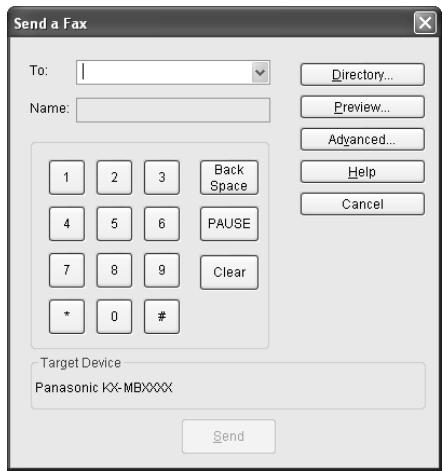
5 Enter the fax number using the keypad display or the phonebook. - To stop the operation, click [Cancel].
6 Click [Send].
- The document will be sent through the unit from your computer.
Note:
- To stop sending, see page 65.
- If the document exceeds the memory capacity of the unit, sending will be cancelled.
- For details, see the help file by selecting [💡] from Multi-Function Station.
- Click [Select...] to change the active unit.
To prevent fax sending to the wrong destination
- Start Multi-Function Station. → [PC FAX]
- [Tools] → [Function Setup...]
- Select the desired setting from the [Send] list.
- [Display the Fax Send confirmation for every transmission]: The confirmation dialogue box of the fax number is displayed before sending a fax.
- [Do not enter a fax number directly]: You can only select fax numbers stored in the phonebook.
- [Re-enter to confirm the fax number]: When entering the fax number using the dial keypad display, re-entry of the number is required.
4. [OK]
Note:
- For details about each function, click [Help].
6.5 Selecting the way to use your unit
Depending on your situation, select the way you prefer to use your unit.
– Use only as a fax (FAX ONLY mode) – Use mostly as a telephone (TEL mode) – Use as a telephone and/or fax (TEL/FAX mode) – Use with answering machine
6.5.1 Use only as a fax (FAX ONLY mode)
Your situation
You have a separate telephone line just for faxes, or you want to use the unit only for receiving faxes.
Setup
Set the unit to FAX ONLY mode (page 43) by pressing [Fax Auto Answer] repeatedly.
- The [Fax Auto Answer] light turns ON.
![Fax Auto Answer [Start]](/content/2020/05/57281/images/c3bbf75dcecc3993552b3be9dafe1ac7344ab1430e94deefd00aea543a9caf2f.jpg)
* The pictured model is KX-MB1520.
How faxes are received
All incoming calls will be answered as faxes.
6.5.2 Use mostly as a telephone (TEL mode)
Your situation
You want to answer calls by yourself. If a fax call is received, you must receive the fax manually.
Setup
Set the unit to TEL mode (page 43) by pressing [Fax Auto Answer] repeatedly.
- The [Fax Auto Answer] light turns OFF.
Note:
- Make sure feature #404 is set to “TEL” beforehand (page 56).
How to receive phone calls and faxes
You have to answer all calls manually.
To receive a fax document, press [Start] and then [2].
6.5.3 Use as a telephone and/or fax (TEL/FAX mode)
Your situation
You want to answer phone calls yourself and receive faxes automatically without rings.
Setup
Set the unit to TEL/FAX mode (page 44) by pressing [Fax Auto Answer] repeatedly.
- The [Fax Auto Answer] light turns OFF.
Note:
- Make sure feature #404 is set to "TEL/FAX" beforehand (page 56).
How phone calls and faxes are received
If the call is a phone call, the unit will ring. If a fax calling tone is detected, the unit will receive the fax automatically without ringing.
6.5.4 Use with answering machine
Your situation
You want to use the unit with an answering machine.
Setup
Connect an extension telephone answering machine and set the ring count of the answering machine to less than 4.
- Set the ring count in FAX ONLY mode of the unit to more than 4, if you use with auto answer ON.
How to receive calls
When receiving phone calls, the answering machine will record voice messages.
6.6 Receiving a fax automatically : Auto answer ON
● A4 or letter size recording paper can be used.
6.6.1 Activating FAX ONLY mode
Press [Fax Auto Answer] repeatedly to display "FAX ONLY MODE".
- The display will show the ring count in FAX ONLY mode. If you wish to change it, press [▼] or [▲] repeatedly to display the desired setting, and press [Set].
- The [Fax Auto Answer] light turns ON.
![Fax Auto Answer [Set][▼][▲]](/content/2020/05/57281/images/17c9555015508a775be5ffd92591121753bfb0531e9276905eb521abb030d4d3.jpg)
* The pictured model is KX-MB1520.
How faxes are received
When receiving calls, the unit will automatically answer all calls and only receive fax documents.
Note:
- The number of rings before a call is answered in FAX ONLY mode can be changed (feature #210 on page 53).
6.7 Receiving a fax manually : Auto answer OFF
● A4 or letter size recording paper can be used.
6.7.1 Activating TEL mode
1 Make sure feature #404 is set to "TEL" beforehand (page 56). 2 Press [Fax Auto Answer] repeatedly to display "TEL MODE".
- The [Fax Auto Answer] light turns OFF.
![Fax Auto Answer [SP-Phone] [Start]](/content/2020/05/57281/images/90ce87e79d5ed266c68863e6b4015ab36bc6d35ac1072d59528c80484c428eae.jpg)
* The pictured model is KX-MB1520.
Note:
- If you do not answer the call within 10 rings, the unit will temporarily switch to fax reception. The other party can then send a fax.
How to receive phone calls and faxes
- Press [SP-Phone] to answer the call.
- When:
– document reception is required, – a fax calling tone (slow beep) is heard, or – no sound is heard,
press [Start], and then [2].
Note:
- To stop receiving, see page 65.
How to receive faxes with an extension telephone If you have another telephone connected to the [EXT] jack or the same line (extension telephone), you can use the extension telephone to receive faxes.
- When the extension telephone rings, lift the handset of the extension telephone.
- When:
– document reception is required, - a fax calling tone (slow beep) is heard, or – no sound is heard,
press [★] [#] [9] (default fax activation code) firmly.
3. Replace the handset.
Note:
- To stop receiving, see page 65.
- To receive fax documents using the extension telephone, make sure remote fax activation is turned ON (feature #434 on page 58) beforehand. The default setting is ON.
6.7.2 Activating TEL/FAX mode
1. Make sure feature #404 is set to "TEL/FAX" beforehand (page 56). 2. Press [Fax Auto Answer] repeatedly to display "TEL/FAX MODE". - The [Fax Auto Answer] light turns OFF. 3. The ringer volume setting should be ON (page 20).
![Fax Auto Answer [SP-Phone] [Stop]](/content/2020/05/57281/images/dfb9a68a150b53b023d23902f5c625795c0eaf1920734c948d6ab9101438e2f1.jpg)
* The pictured model is KX-MB1520.
How phone calls and faxes are received
- "INCOMING CALL" will be displayed but the unit will not ring.
- The unit will wait for the duration of 2 rings before answering the call.
- The number of rings is determined by the “TEL/FAX delayed ring count” (feature #212 on page 56).
- During this time, an extension telephone will ring.
- The unit will answer the call and try to detect a fax calling tone.
When a fax calling tone is detected
The unit receives the fax automatically without ringing.
When a fax calling tone is not detected
① The unit will ring 3 times. You may answer the call. - To answer the call, press [SP-Phone] and talk to the other party.
- To answer using another telephone connected to the [EXT] jack of this unit, lift the handset, then press [Stop] on the unit to talk to the other party.
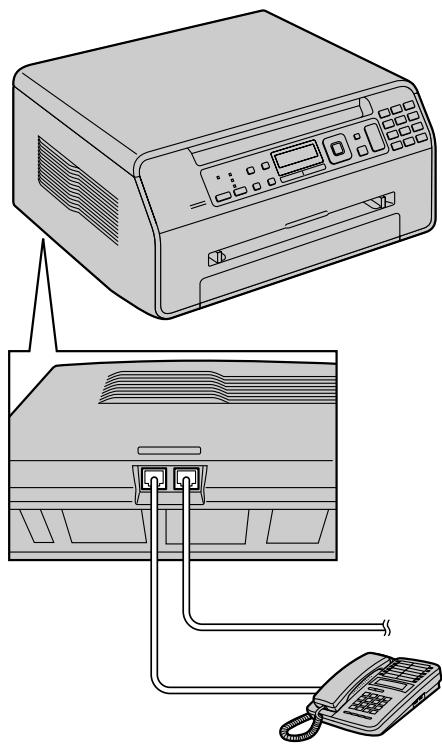
* The pictured model is KX-MB1520. - To answer using another telephone connected to the same telephone line as this unit, lift the handset and press [★] [0] (default auto disconnection code, feature #435 on page 58) to talk to the other party.
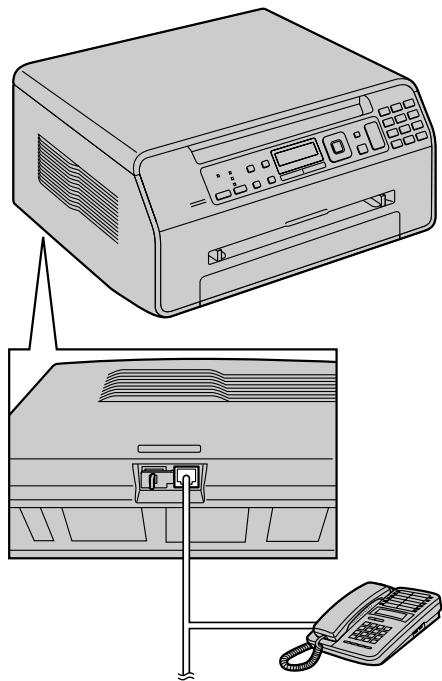
* The pictured model is KX-MB1520.
- The number of rings is determined by the “Silent fax recognition ring count” (feature #436 on page 58).
- Callers will hear a ring back tone different from the one generated by the telephone company. ② If you do not answer the call, the unit will activate the fax function.
- Some fax machines do not generate fax calling tones when sending faxes, therefore the unit will try to receive a fax even if no fax calling tone is detected.
6.8 Using the unit with an answering machine
6.8.1 Setting up the unit and an answering machine
1 Connect the answering machine (①).
- Answering machine is not supplied. The illustration is just an example.
- Remove the stopper (②) if attached.
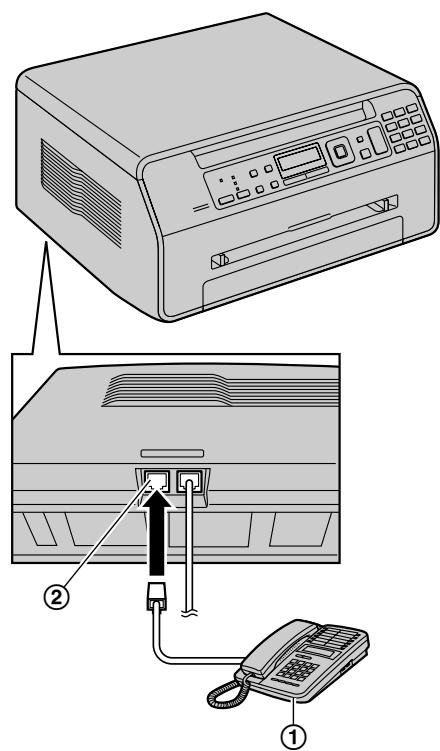
* The pictured model is KX-MB1520.
2 Set the number of rings on the answering machine to 4 rings or less.
- This will allow the answering machine to answer the call first.
3 Record a greeting message on the answering machine.
- We recommend you record a message up to 10 seconds long, and not to pause for more than 4 seconds during the message. Otherwise, neither machine will function correctly.
4 Activate the answering machine.
5 Set the unit to the desired receiving mode (page 43).
- If you set to FAX ONLY mode, change the ring count in FAX ONLY mode to more than 4 (feature #210 on page 53).
6 Make sure each of the following is unique:
– the remote access code of the answering machine
– the fax activation code (feature #434 on page 58)
Note:
- If the call is a phone call, the answering machine will record voice messages. If a fax calling tone is detected, the fax machine will receive a fax automatically.
- Regarding the remote access code for the answering machine, see the operating instructions of the answering machine.
Receiving a voice message and fax document in one call
The caller can leave a voice message and send a fax document during the same call. Inform the caller of the following procedure beforehand.
- The caller calls your unit.
- The answering device will answer the call.
- The caller can leave a message after the greeting message.
- The caller presses [★] [#] [9] (pre-selected fax activation code).
- The unit will activate the fax function.
- The caller presses the start button to send a document.
Note:
- To use this feature, make sure remote fax activation is turned ON (feature #434 on page 58). The fax activation code can also be changed.
- If there is no room left in the memory of your answering machine, the unit may not be able to receive documents. See the operating instructions of the answering machine and erase unnecessary messages.
6.9 Receive polling (retrieving a fax placed on another fax machine)
This feature allows you to retrieve a document from another compatible machine. Therefore you pay for the call.
- Make sure that the other party's machine is ready for your call.
- Make sure that no documents are fed into your unit's automatic document feeder (KX-MB1530 only).
1 Press [Menu] repeatedly to display "POLLING". → [Set]
2 Dial the fax number. → [Start]
6.10 Junk fax prohibitor (preventing fax reception from undesired callers)
If you subscribe to Caller ID service (page 48), this feature prevents fax reception from calls that do not show caller information.
Additionally, the unit will not accept faxes originating from numbers that match the ones on a programmable junk fax prohibitor list.
Important:
- This feature does not work if you receive faxes manually.
6.10.1 Activating the junk fax prohibitor
1 Press [Menu] repeatedly to display "JUNK FAX PROH.". → [▶] 2 Press [▼] or [▲] repeatedly to select "ON". → [Set] 3 Press [Stop] to exit.
6.10.2 Storing undesired callers
You can register up to 20 undesired numbers from the Caller ID list (page 48) if you do not wish to receive faxes from them.
1 Press [Menu] repeatedly to display "JUNK FAX PROH.". 2 Press [▶] repeatedly to display "JUNK LIST SET". → [Set] 3 Press [▼] or [▲] repeatedly to display the party you do not want to receive faxes from. → [Set] 4 Press [Stop] 2 times to exit.
To display the junk fax prohibitor list
- Press [Menu] repeatedly to display "JUNK FAX PROH."
- Press [▶] repeatedly to display "JUNK LIST DISP.". → [Set]
- Press [▼] or [▲] to display the items on the list.
- Press [Stop] to exit.
To print the junk fax prohibitor list
- Press [Menu] repeatedly to display "JUNK FAX PROH.".
- Press [▶] repeatedly to display "JUNK LIST PRINT". → [Set]
- Press [Stop] to exit.
To erase an item from the junk fax prohibitor list
- Press [Menu] repeatedly to display "JUNK FAX PROH."
- Press [▶] repeatedly to display "JUNK LIST DISP.". → [Set]
- Press [▼] or [▲] repeatedly to display the desired item. → [◀]
- To cancel erasing, press [Stop], then press [Menu].
- [Set] → [Menu]
6.11 Receiving a fax on your computer
You can receive a fax document on your computer. The received fax document is saved as an image file (TIFF-G4 format).
Important:
- Make sure the PC fax setting is set to "ALWAYS" or "CONNECTED" beforehand (feature #442 on page 59). 1 Press [Fax Auto Answer] repeatedly to turn the auto answer setting ON (page 43). 2 Start Multi-Function Station. → [PC FAX] 3 When a fax call is received, your computer will receive a document through the unit.
Note:
- You can view, print or transfer the received document using your computer.
- Messages transferred to your computer will be deleted from the unit.
Viewing a received document
- Select [PC FAX] from Multi-Function Station.
- Select [Received Log] in [Communication Log].
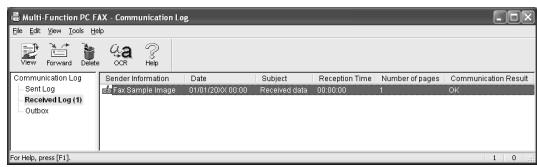
- Click the item you want to view.
- Click [File] in the menu bar, then select [View], or click the [View] icon in the toolbar.
- The received fax will be displayed.
If a received fax document is stored in the unit's memory
You can load the document into your computer.
- Select [PC FAX] from Multi-Function Station.
- Select [Received Log] in [Communication Log].
- Click [File] in the menu bar. → [Receive a Fax]
- If the PC fax setting (feature #442 on page 59) is activated, the received fax document will be automatically transferred to the computer.
7.1 Caller ID service
This unit is compatible with the Caller ID service offered by your local telephone company. To use this unit's Caller ID features, you must subscribe to a Caller ID service.
Important:
- This unit is designed in accordance with the ETS (European Telecommunication Standard) and only supports the basic CLIP (Calling Line Identification Presentation) features.
- This unit will only display the caller's telephone number and name.
- This unit will not support future additional telephone services.
- Depending on the service of the local telephone company, the date/time of the call or the caller's name may not be displayed.
Make sure the following ring count is set to 2 or more rings beforehand.
– FAX ring count (feature #210 on page 53) – TEL/FAX ring count (feature #212 on page 56) - The name display service may not be available in some areas. For further information, please contact your telephone company.
7.1.1 How Caller ID is displayed
The calling party's name or telephone number will be displayed after the 1st ring. You have the option of whether or not to answer the call.
The unit will automatically store caller information (name, telephone number and date and time of the call) from the 30 most recent calls. It is possible to view caller information on the display (page 48) or print the entire Caller ID list (page 82).
Note:
- When caller information is received and it matches a telephone number stored in the unit's phonebook, the stored name will be displayed.
- If the unit is connected to a PBX (Private Branch Exchange) system, caller information may not be received properly. Consult your PBX supplier.
- If the unit cannot receive caller information, the following will be displayed: "OUT OF AREA": The caller dialled from an area which does not provide Caller ID service. "PRIVATE CALLER": The caller requested not to send caller information. "LONG DISTANCE": The caller made a long distance call.
To confirm caller information by printing the Caller ID list
– To print manually, see page 82. – To print automatically after every 30 new calls, activate feature #216 (page 53).
7.2 Viewing and calling back using caller information
Important:
- If the area code of the received telephone number is the same as yours, the area code may need to be deleted before calling back. This may only apply to some areas. To edit the number, see page 48. 1 If the [Fax] light is OFF, turn it ON by pressing [Fax] repeatedly. → [Caller ID] 2 Press [▼] to search from the recently received caller information.
- If you press [▲], the display order will be reversed.
- To send a fax, see page 38.
3 Press [SP-Phone] to return the call.
To change the way caller information is displayed While displaying the desired caller information, press [Caller ID] repeatedly to change name/telephone number information.
7.2.1 Symbols and operations for caller information
What “√” means
“√” on the display means the call has already been viewed or answered.
To stop viewing
Press [Stop].
7.3 Editing a caller's telephone number before calling back/storing
- Make sure that the [Fax] light is ON.
1 【Caller ID】
2 Press [▼] or [▲] to display the desired item.
3 Press [Caller ID] to display the telephone number.
4 Press dial key (0 to 9) or 【*】 to enter the editing mode and edit the telephone number.
- To send a fax, see page 38.
5 Press [SP-Phone] to call back the edited number.
- The unit will start dialling automatically.
Note:
- The edited telephone number will not be saved in the caller information. To save in the phonebook, see page 49.
To correct a mistake
- Press [◀] or [▶] to move the cursor to the incorrect number.
- Press [Stop] to delete the number.
- Enter the correct number.
To delete a number
Press [◀] or [▶] to move the cursor to the number you want to delete and press [Stop].
7.4 Erasing caller information
7.4.1 Erasing all caller information
1 Press [Menu] repeatedly to display "CALLER SETUP". → [Set] - “CALL LIST ERASE” will be displayed. 2 [Set]. - To cancel erasing, press [Stop], then [Menu]. 3 [Set] → [Stop]
7.4.2 Erasing specific caller information
- Make sure that the [Fax] light is ON. 1 Press [Caller ID]. 2 Press [▼] or [▲] repeatedly to display the desired item. → [◀] → [Set] → [Stop]
7.5 Storing caller information into the phonebook
- Make sure that the [Fax] light is ON. 1 Press [Caller ID]. 2 Press [▼] or [▲] repeatedly to display the desired item. 3 Press [Menu]. 4 Press [◀] or [▶]. → [Set] 5 [Set]
Note:
- To edit a name or number, see page 39.
8.1 Programming
![[Menu] [Set]](/content/2020/05/57281/images/9296fbb1f5dc5507047beaff2718ad8528e694f460caf5132237c055b9eedf70.jpg)
1 Press [Menu]. 2 Press [#] and the 3-digit code (page 51 to page 62). 3 Press the appropriate selection to display the desired setting. - This step will vary depending on the feature. 4 [Set] 5 Press [Menu] to exit.
8.2 Basic features
| Feature/Code | Selection |
| Setting the date and time【#】【1】【0】【1】(KX-MB1520/KX-MB1530 only) | Enter the date and time using the dial keypad. See page 20 for details. |
| Setting your logo【#】【1】【0】【2】(KX-MB1520/KX-MB1530 only) | Enter your logo using the dial keypad. See page 21 for details. |
| Setting your fax number【#】【1】【0】【3】(KX-MB1520/KX-MB1530 only) | Enter your fax number using the dial keypad. See page 22 for details. |
| Selecting the language【#】【1】【1】【0】(KX-MB1500HX/KX-MB1520EX/KX-MB1530EX only) | The display and reports will be in the selected language.The location setting must also match your location. See feature #114 on page 51.[1] “ENGLISH”[2] “CZECH”[3] “SLOVAK”[4] “HUNGARIAN”1. [Menu] → [#][1][1][0]2. Press [1] to [4] to select the desired language. → [Set] → [Menu]Note:The default may vary depending on the model. |
| Selecting the location where you use【#】【1】【1】【4】(KX-MB1520EX/KX-MB1530EX only) | This setting must match your location.The language setting is also available (feature #110 on page 51).[1] “CZECH” (default): To use in Czech.[2] “SLOVAKIA”: To use in Slovakia.[3] “HUNGARY”: To use in Hungary. |
| Setting the dialling mode【#】【1】【2】【0】(KX-MB1520/KX-MB1530 only) | [1] “PULSE”[2] “TONE” (default)See page 17 for details. |
| Setting recall/flash time【#】【1】【2】【1】(KX-MB1520/KX-MB1530 only) | The recall/flash time depends on your telephone exchange or host PBX.[0] “900ms”[1] “700ms”[2] “600ms”[3] “400ms”[4] “300ms”[5] “250ms”[6] “200ms”[7] “160ms”[8] “110ms”[9] “100ms” (default)[*] “90ms”[##] “80ms”Note:If the unit is connected via a PBX, PBX functions (transferring a call, etc.) might not work correctly. Consult your PBX supplier for the correct setting. |
| Setting the ADSL mode【#】【1】【2】【4】(KX-MB1520/KX-MB1530 only) | When you use a DSL/ADSL line, this feature improves the reliability by reducing the transmission speed.【0】“OFF” (default)【1】“ON”Note:Calling charges may be higher than usual. |
| Changing the LCD display contrast【#】【1】【4】【5] | 【1】“NORMAL” (default)【2】“DARKER” |
| Selecting the scale【#】【1】【4】【7] | 【1】“MILLIMETRES” (default)【2】“INCHES”Note:The selected scale will be used when measurements are shown on the unit’s display. |
| Changing the password for feature programming via remote operation【#】【1】【5】【5] | 【Menu】→【#】【1】【5】【5】→【Set】Enter the current password. →【Set】The default password is “1234”.Enter a new 4-digit password using 0-9. →【Set】Enter the new password again. →【Set】→【Menu】Note:It is recommended that you change this password from the default password. |
| Setting the toner maintenance time【#】【1】【5】【8】(KX-MB1520/KX-MB1530 only) | The unit will automatically activate for maintenance, once every 24 hours. Because this is to prevent the toner from solidifying, the noise that the unit makes during maintenance cannot be stopped. However, if the unit’s noise bothers you, you can change the start time.【Menu】→【#】【1】【5】【8】→【Set】Enter the maintenance start time.The default time is “12:00”.If you selected 12-hour time entry (page 20), press 【*】 repeatedly to select AM or PM.If you selected 24-hour time entry (page 20), the time is set using 24-hour time entry.【Set】→【Menu】 |
| Resetting all features (and deleting all data in memory)【#】【1】【5】【9] | Before you dispose of, transfer or return the product, activate this feature to reset all programmable features and to delete all data stored in memory.KX-MB1520/KX-MB1530 only:Phonebook (or caller information) and fax transmission data (journal report and faxes received in memory) will be deleted.【0】“NO” (default)【1】“YES”Disconnect the telephone line cord (KX-MB1520/KX-MB1530 only) and USB cable before activating this feature.To reset all features:【Menu】→【#】【1】【5】【9】Press【1】to select “YES”. →【Set】Press【1】to select “YES”. →【Set】 |
| Setting the ringer pattern【#】【1】【6】【1】(KX-MB1520/KX-MB1530 only) | 【1】“A” (default)【2】“B”【3】“C” |
| Setting the beep sounds and keytones【#】【1】【6】【5】 | [0] “OFF”: Deactivates this feature.【1】“ON” (default): You will hear confirmation/error beep sounds and keytones.Note:Even if this feature is set to “OFF”, the unit beeps in some cases. For example:- the memory reception alert setting (feature #437 on page 59) is activated (KX-MB1520/KX-MB1530 only).- the front cover is opened. |
| Setting the off-hook alert【#】【1】【7】【1】(KX-MB1520/KX-MB1530 only) | To alert you with a beeping sound when the telephone line has been left off-hook for more than 1 minute without dialling.【0】“OFF”: Deactivates this feature.【1】“ON” (default): You have to press【Stop】or【SP-Phone】to stop the beeping sound. |
| Setting the job end notification feature【#】【1】【7】【4】(KX-MB1530 only) | To set the unit to alert you with a beeping sound after the print job is finished.【0】“OFF” (default): Deactivates this feature.【1】“ON”: Beep sounds will be made after documents are printed.Note:This setting is valid for PC printing, printing received faxes, and printing reports/lists automatically.When a printing error occurs, the unit will beep the error beep instead of this beep, even if this feature is set to “ON”. |
| Changing the ring count in FAX ONLY mode【#】【2】【1】【0】(KX-MB1520/KX-MB1530 only) | KX-MB1520EX/KX-MB1530EX:【2】“2” (default)【3】“3”【4】“4”【5】“5”KX-MB1520FX/KX-MB1530FX:【1】“1”【2】“2” (default)【3】“3”【4】“4”【5】“5”【6】“6”【7】“7”【8】“8”【9】“9”Note:If you are using the unit with an answering machine, set to more than 4 (page 45). |
| Setting the Caller ID list to print automatically【#】【2】【1】【6】(KX-MB1520/KX-MB1530 only) | 【0】“OFF” (default): The unit will not print the Caller ID list, but will keep records of the information for the last 30 callers.【1】“ON”: The unit will print the Caller ID list automatically after every 30 new calls (page 48). |
| Setting the time adjustment【#】【2】【2】【6】(KX-MB1520/KX-MB1530 only) | Using this feature, the unit’s date and time setting will be automatically adjusted when caller information is received.【1】“AUTO”: The date and time setting will be automatically adjusted.【2】“MANUAL” (default): Deactivates this feature. |
| Setting the recording paper size in the paper input tray [#][3][8][0] | [1] “LETTER”: Letter-size paper[2] “A4” (default): A4-size paper[6] “16K”: 16K-size paperNote:When “16K” is selected, received fax documents will be stored in memory (KX-MB1520/KX-MB1530 only). |
| Setting the recording paper size in the manual input tray [#][3][8][1] | [1] “LETTER”: Letter-size paper[2] “A4” (default): A4-size paper[3] “LEGAL”: Legal-size paper[4] “B5 (ISO)”: B5(ISO)-size paper[5] “B5 (JIS)”: B5(JIS)-size paper[6] “16K”: 16K-size paper[7] “216X330”[8] “216X340”Note:When you set feature #147 to “INCHES”, the numbers are displayed in inches. |
| Setting the recording paper type for paper input tray [#][3][8][3] | [1] “PLAIN PAPER” (default): 75 g/m2 to 90 g/m2 paper.[2] “THIN PAPER”: 64 g/m2 to 75 g/m2 paper.Note:This setting will be deactivated when printing from a computer. To set the recording paper type for printing, see page 26. |
| Setting the recording paper type for manual input tray [#][3][8][4] | [1] “PLAIN PAPER” (default): 75 g/m2 to 90 g/m2 paper.[2] “THIN PAPER”: 64 g/m2 to 75 g/m2 paper.[3] “THICK PAPER”: 90 g/m2 to 165 g/m2 paper.Note:This setting will be deactivated when printing from a computer. To set the recording paper type for printing, see page 26. |
| Setting the waiting time for the power save mode [#][4][0][3] | To set the length of time before the unit enters power save mode.[1] “5min” (default): 5 minutes[2] “15min”: 15 minutes[3] “30min”: 30 minutes[4] “1h”: 1 hourNote:When in power save mode, the unit needs to preheat the fuser unit before it can begin printing. |
| Holding the previous contrast setting [#][4][6][2] | [0] “DISABLED” (default): Deactivates this feature.[1] “ENABLED”: The unit will hold the previous setting.Note:The previous setting will be held individually for copying.The previous setting will be held individually for sending faxes (KX-MB1520/KX-MB1530 only). |
| Setting the default operation mode [#][4][6][3](KX-MB1520/KX-MB1530 only) | To select the default operation mode when the selected time of the mode timer (feature #464) passes.[1] “COPY” (default): Copy mode is selected as default.[2] “FAX”: Fax mode is selected as default.Note:You cannot select the scan mode using this feature. |
| Setting the default operation mode timer【#】【4】【6】【4】(KX-MB1520/KX-MB1530 only) | To set the timer before returning to the default operation mode (feature #463).【0】“OFF”: Deactivates this feature.【1】“30s”: 30 seconds【2】“1min” (default): 1 minute【3】“2min”: 2 minutes【4】“5min”: 5 minutes |
| Setting toner save feature【#】【4】【8】【2] | 【0】“OFF” (default): Deactivates this feature.【1】“ON”: The toner cartridge will last longer.Note:This feature may lower the print quality by reducing toner consumption.This setting is valid for copying, and when the unit prints reports/lists.This setting is invalid for printing received faxes (KX-MB1520/KX-MB1530 only). |
| Setting the reordering feature【#】【4】【9】【6】(KX-MB1530 only) | 【0】“OFF” (default): Deactivates this feature.【1】“ON”: After passing multiple page documents through the automatic document feeder, “REORDER DOC . ?” is displayed.To return the documents to their original order:While “REORDER DOC . ?” is displayed, press【Set].To cancel reordering the documents, press【Stop】.Insert the document FACE DOWN into the automatic document feeder again. → 【Start】Note:Documents can be reordered at any time, even when this feature is not activated. See page 65 for details. |
8.3 Fax features (KX-MB1520/KX-MB1530 only)
| Feature/Code | Selection |
| Changing the TEL/FAX delayed ring count[♯][2][1][2] | If you use an extension telephone in TEL/FAX mode, select the desired number of times the extension telephone rings before the unit answers the call.KX-MB1520EX/KX-MB1530EX:[2] “2” (default)[3] “3”[4] “4”KX-MB1520FX/KX-MB1530FX:[1] “1”[2] “2” (default)[3] “3”[4] “4”[5] “5”[6] “6”[7] “7”[8] “8”[9] “9”Note:See page 44 for details. |
| Erasing all items stored for the phonebook[♯][2][8][9] | [0] “NO” (default)[1] “YES”Disconnect the telephone line cord and USB cable before activating this feature.To erase all items:1. [Menu] → [♯][2][8][9]2. Press [1] to select “YES”. → [Set]3. Press [1] to select “YES”. → [Set] → [Menu] |
| Printing a sending report[♯][4][0][1] | [0] “OFF”: Sending reports will not be printed.[1] “ON”: A sending report will be printed after every fax transmission.[2] “ERROR” (default): A sending report will be printed only when fax transmission fails. |
| Setting the journal report to print automatically[♯][4][0][2] | [0] “OFF”: The unit will not print a journal report, but will keep a record of the last 30 fax transmissions and receptions.[1] “ON” (default): The unit will print a journal report automatically after every 30 new fax transmissions and receptions (page 39). |
| Changing the receiving mode in the manual answer setting[♯][4][0][4] | [1] “TEL” (default): Telephone mode (page 43)[2] “TEL/FAX”: Telephone/Fax mode (page 44) |
| Sending documents overseas[♯][4][1][1] | If you cannot send a fax overseas even if the number is correct and the line is connected, activate this feature before sending the fax.This feature improves the reliability by reducing the transmission speed.[0] “OFF”: Deactivates this feature.[1] “NEXT FAX”: This setting is effective only for the next attempted fax transmission. After transmission, the unit will return to the previous setting.[2] “ERROR” (default): When the previous fax transmission fails and you wish to re-send the document.Note:Calling charges may be higher than usual. |
| Sending a fax at a specific time[#][4][1][2] | This feature allows you to take advantage of low-cost calling hours offered by your telephone company. This feature can be set up to 24 hours in advance of the desired time.[0] “OFF” (default)[1] “ON”To send a document:If the [Fax] light is OFF, turn it ON by pressing [Fax] repeatedly.Set the original (page 18).If necessary, change the contrast (page 38) and the resolution (page 38).[Menu] → [#][4][1][2].Press [1] to select “ON”. → [Set].Enter the fax number.To enter an item using phonebook, see step 3 on “6.3 Sending a fax using phonebook”, page 40. (When using phonebook, you do not have to press [▶] before pressing [▼] or [▲].)7. [Set].Enter the transmission start time.If you selected 12-hour time entry (page 20), press [∗] repeatedly to select AM or PM.If you selected 24-hour time entry (page 20), the time is set using 24-hour time entry.When using the scanner glass, press [Set]. → [Start]When using the automatic document feeder, press [Set] (KX-MB1530 only).The document will be scanned into memory. The unit will then send the data at the specified time. You cannot use this feature for another fax transmission until the former sending is completed.Note:To cancel this setting after programming, press [Stop] while the unit is idle, and then press [Set]. |
| Setting the Error Correction Mode (ECM)[#][4][1][3] | This feature is available when the sending / receiving fax machines are ECM compatible.[0] “OFF”: Deactivates this feature.[1] “ON” (default): Fax transmission / reception will be carried out so that the errors do not occur. |
| Setting the connecting tone [#][4][1][6] | If you often have trouble when sending faxes, this feature allows you to hear connecting tones: fax tone, ring back tone and busy tone. You can use these tones to confirm the status of the other party’s machine.[0] “OFF”: Deactivates this feature.[1] “ON” (default): You will hear connecting tones.Note:If the ring back tone continues, the other party’s machine may not be a fax machine or may have run out of paper. Check with the other party.The connecting tone volume cannot be adjusted. |
| Setting the maximum fax speed[#][4][1][8] | [1] “14.4kbps”[2] “33.6kbps” (default)Note:The fax speed maybe lower than the selected speed depending on your line. |
| Setting the quick scan mode [#][4][1][9](KX-MB1530 only) | [0] “OFF” (default): Deactivates this feature.[1] “ALWAYS”: The unit will scan the document and store it into memory first, then the unit will start sending the documents. |
| Confirming the destination before sending a fax [#][4][2][0] | [0] “OFF” (default): Deactivates this feature.[1] “ON”: You can send a fax after confirming the destination. When the displayed destination is correct, press [Start] to send the fax. |
| Setting dial keypad entry restriction [#][4][2][1] | [0] “OFF” (default): Deactivates this feature.[1] “ON”: If you do not wish to dial a fax number manually using the dial keypad, activate this feature.Note:If you select “ON”, you cannot make redial calls to fax numbers entered using the dial keypad.If you select “ON”, the fax number re-entry setting (feature #422 on page 58) will be deactivated. |
| Setting the fax number re-entry before sending [#][4][2][2] | [0] “OFF” (default): Deactivates this feature.[1] “ON”: If you dial a fax number manually using the dial keypad, you have to re-enter the number and press [Start]. When the 2nd entry number matches the 1st entry number, you can send the fax. |
| Setting auto reduction feature [#][4][3][2] | To receive a fax document that is longer than your recording paper.[0] “OFF”: Deactivates this feature.[1] “ON” (default): The unit will fit received documents onto your recording paper. |
| Changing the fax activation code [#][4][3][4] | If you wish to use an extension telephone to receive faxes, activate this feature and program the activation code.Important:The fax activation code must be different from the code that you programmed on the answering machine.[0] “OFF”[1] “ON” (default)1. [Menu] → [#][4][3][4]2. Press [1] to select “ON”. → [Set]3. Enter your code from 2 to 4 digits, using 0-9, [*] and [#].The default code is “*#9”.4. [Set] → [Menu] |
| Setting the auto disconnection [#][4][3][5] | To answer a call with an extension telephone in TEL/FAX mode (page 44), activate this feature and program the code.[0] “OFF”[1] “ON” (default)1. [Menu] → [#][4][3][5]2. Press [1] to select “ON”. → [Set]3. Enter your code from 2 to 4 digits, using 0-9 and [*].The default code is “*0”.4. [Set] → [Menu] |
| Changing the silent fax recognition ring count [#][4][3][6] | To change the number of times the unit rings while in TEL/FAX mode.[3] “3” (default)[4] “4”[5] “5”[6] “6”[7] “7”[8] “8”[9] “9”Note:See page 44 for details. |
| Setting the memory reception alert[#][4][3][7] | To alert you with a beeping sound when a received fax document is stored into memory.[0] “OFF”: Deactivates this feature.[1] “ON” (default): You will hear a beeping sound.Note:If documents are stored into memory due to some printing problem, the beeps will continue until you solve the problem. If a message is displayed, see page 67 to page 68 for directions on printing out the stored documents. Make sure the unit is supplied with enough paper to print the stored document. |
| Setting friendly reception[#][4][3][8] | To receive a fax automatically when you answer a call and hear a fax calling tone (slow beep).[0] “OFF”: You have to press [Start], and then [2] for fax reception.[1] “ON” (default): You do not have to press [Start], and then [2] for fax reception. |
| Receiving a fax into the computer[#][4][4][2] | If you wish to receive a fax into a computer, activate this feature and run [PC FAX] from Multi-Function Station.[0] “OFF”: Deactivates this feature.[1] “ALWAYS”: If the unit recognizes the connection to the computer, it will transfer received documents to the computer. If the unit cannot recognize the connection, it will store received documents into memory, and then transfer the data after recognition of the computer connection.[2] “CONNECTED” (default): If the unit recognizes the connection to the computer, it will transfer received documents to the computer. If the unit cannot recognize the connection, it will print the data. |
| Setting notification of fax reception[#][4][5][1] | [0] “OFF” (default): Deactivates this feature.[1] “ON”: The computer connected to your unit using USB will receive a notification when a fax document is received. |
| Erasing all received fax memory[#][4][5][8] | [0] “NO” (default)[1] “YES”Disconnect the telephone line cord and USB cable before activating this feature.To erase all received fax:1. [Menu] → [#][4][5][8]2. Press [1] to select “YES”. → [Set] → [Set] → [Menu] |
| Resetting fax features to their default settings[#][4][5][9] | [0] “NO” (default)[1] “YES”To reset the fax features:1. [Menu] → [#][4][5][9]2. Press [1] to select “YES”. → [Set] → [Set] → [Menu] |
8.4 Copy features
| Feature/Code | Selection |
| Setting the input tray to use for copy【#】【4】【6】【0】 | 【1】“#1” (default): The paper input tray is selected. The displayed paper size depends on the recording paper size setting (feature #380 on page 54).【2】“#2”: The manual input tray is selected. The displayed paper size depends on the recording paper size setting (feature #381 on page 54). |
| Changing the default copy resolution【#】【4】【6】【1】 | To change the default resolution setting for copying.【1】“TEXT/PHOTO” (default): For documents containing both text and photographs.【2】“TEXT”: For documents containing only text.【3】“PHOTO”: For documents containing photographs, shaded drawings, etc. |
| Holding the previous page layout setting【#】【4】【6】【7】 | 【0】“DISABLED” (default): Deactivates this feature.【1】“ENABLED”: The unit will hold the previous setting. |
| Holding the previous zoom setting【#】【4】【6】【8】 | 【0】“DISABLED” (default): Deactivates this feature.【1】“ENABLED”: The unit will hold the previous setting. |
| Holding the previous collate setting【#】【4】【6】【9】 | 【0】“DISABLED” (default): Deactivates this feature.【1】“ENABLED”: The unit will hold the previous setting. |
| Holding the previous edge setting【#】【4】【7】【3】 | 【0】“DISABLED” (default): Deactivates this feature.【1】“ENABLED”: The unit will hold the previous setting. |
| Setting the frame margin【#】【4】【7】【4】 | 【0】“DISABLED” (default): Deactivates this feature.【1】“ENABLED”: Your copies will be automatically reduced according to the margin setting. However, if you change the zoom rate (page 32), your copies will not be automatically reduced. |
| Holding the previous margin setting【#】【4】【7】【5】 | 【0】“DISABLED” (default): Deactivates this feature.【1】“ENABLED”: The unit will hold the previous setting. |
8.5 PC print features
| Feature/Code | Selection |
| Changing the data timeout setting【#】【7】【7】【4】 | The unit will automatically print the remaining data in memory when the computer does not send data to the unit during the set time.1. 【Menu】 → 【#】【7】【7】【4】 → 【Set】2. Enter the desired data timeout setting from “005” seconds to “600” seconds, using the dial keypad.The default setting is “060” seconds.3. 【Set】 → 【Menu】 |
| Setting mutual A4/letter print【#】【7】【7】【6】 | This feature allows printing in A4-size even if letter-size recording paper is loaded in the paper input tray, and vice versa.【0】“OFF”: Deactivates this feature.【1】“ON” (default): Printing is possible between A4/letter-size. |
8.6 Scan features
| Feature/Code | Selection |
| Setting the scan mode for Push Scan[#][4][9][3] | [1] “VIEWER” (default): The scanned image will be displayed in the [Multi-Function Viewer] window.[2] “FILE”: The scanned image will be saved as a file.[3] “EMAIL”: The scanned image will be saved for email attachment.[4] “OCR”: The scanned image will be displayed in the OCR window.Note:● The OCR software is not supplied. To use OCR software, you need to specify the path of the OCR software (page 28). |
| Holding the previous scanning parameter for Push Scan[#][4][9][4] | [0] “DISABLED” (default): Deactivates this feature.[1] “ENABLED”: The unit will hold the previous scan settings for each mode of push scan. |
9.1 Character entry (KX-MB1520/KX-MB1530 only)
The dial keypad is used to enter characters and numbers.
- Press [◀] or [▶] to move the cursor.
- Press the dial keys to enter characters and numbers.
- Press [Stop] to erase the character or number highlighted by the cursor. Press and hold [Stop] to erase all characters or numbers.
- To enter another character located on the same dial key, press [▶] to move the cursor to the next space, then press the appropriate dial key.
| Keypad | Characters |
| [1] | 1 . _ - [ ] { } +/ = , ` : ; ? | |
| [2] | A B C 2 |
| a b c 2 | |
| [3] | D E F 3 |
| d e f 3 | |
| [4] | G H I 4 |
| g h i 4 | |
| [5] | J K L 5 |
| j k l 5 | |
| [6] | M N O 6 |
| m n o 6 | |
| [7] | P Q R S 7 |
| p q r s 7 | |
| [8] | T U V 8 |
| t u v 8 | |
| [9] | W X Y Z 9 |
| w x y z 9 | |
| [0] | 0 @ ( ) < > ! " #$ % & \ * ^ ' → |
| [*] | To switch between uppercase or lowercase letters. |
| [Flash] | Hyphen |
| [Mute] | To insert a space. |
| [Stop] | To delete a character. |
To select characters using [▼] or [▲]
Instead of pressing the dial keys, you can select characters using [▼] or [▲].
- Press [▼] repeatedly to display the desired character. Characters will be displayed in the following order:
① Uppercase letters ② Numbers ③ Symbols ④ Lowercase letters - If you press [▲], the order will be reversed.
- Press [▶] to insert the displayed character.
- Return to step 1 to enter the next character.
9.2 Status of the unit
9.2.1 Using Remote Control
You can easily operate the following functions from your computer.
– Programming the features (page 51)
KX-MB1520/KX-MB1530 only:
- Storing, editing or erasing items in phonebook (page 39) – Viewing items in the journal report (page 39) – Saving the journal report to your computer – Viewing items in the Caller ID list (page 48) – Storing caller information into phonebook (page 49) – Saving the Caller ID list on your computer
1 Start Multi-Function Station. → [Remote Control]
- The [Multi-Function Remote Control] window will appear.
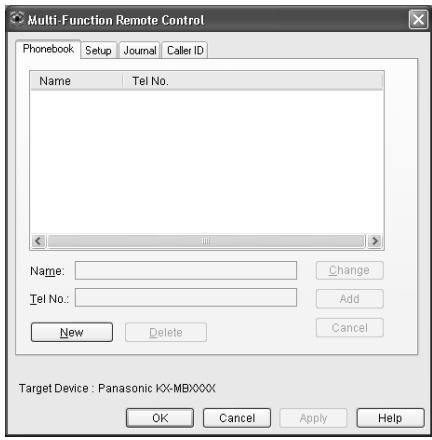
* The pictured model is KX-MB1520/KX-MB1530.
2 Select the desired tab (KX-MB1520/KX-MB1530 only).
● The latest data in the unit will be displayed.
3 Perform the desired operation.
- For details about each function, click [Help].
- To stop the operation, click [Cancel].
4 [OK]
- You can also click [Apply] to continue the next operation without closing the window.
5 Enter the password (feature #155 on page 52). → [OK]
- The new data will be transferred to the unit and the window will close.
Note:
- Some of the features cannot be programmed from your computer.
- When another person is adjusting stored data in the unit, it may be overwritten. Make sure the unit is not currently being used for the same function.
9.2.2 Using Device Monitor
You can confirm the setting information and current status of the unit from your computer.
1 Start Multi-Function Station. ● The [Device Monitor] window will appear. [Status]: Current status of the unit
2 [Utilities] → [Device Monitor]
3 Confirm the status of the unit.
Note:
- Additional information (toner and recording paper status, unit information, etc.) will be displayed in [Status] tab by clicking [Advanced Information].
- You can update the status of the unit by clicking [Refresh].
- If a printing error occurs, the Device Monitor will start automatically and display the error information.
- For details, see the help file by selecting [💡] from Multi-Function Station.
9.3 Cancelling the operations
You can cancel the current operation from the unit. You can also select the desired operation to cancel.
1 【Stop】
- "USER STOPPED" is displayed.
- If "USER STOPPED" is not displayed, go to step 2.
2 To cancel printing:
Press [Stop] repeatedly to display "STOP PRINTING?".
To cancel scanning (KX-MB1520/KX-MB1530 only):
Press [Stop] repeatedly to display "STOP SCANNING?".
To cancel copying:
Press [Stop] repeatedly to display "STOP COPYING?".
To cancel sending or receiving faxes
(KX-MB1520/KX-MB1530 only):
Press [Stop] repeatedly to display "STOP FAX?".
To cancel fax redialling (KX-MB1520/KX-MB1530 only):
Press [Stop] repeatedly to display "SEND CANCELLED?".
3 [Set]
9.4 Reordering the document (KX-MB1530 only)
The order of multiple page documents will be reversed after being fed into the automatic document feeder. You can return the documents to their original order by passing the documents through the feeder again.
1 Press [Menu] repeatedly to display "DOC. REORDERING".
2 Insert the document FACE DOWN into the automatic document feeder. → [Start]
- To cancel reordering, press [Stop].
Note:
- You can also set the reordering feature (feature #496 on page 55) to reorder document.
10.1 Report messages (KX-MB1520/KX-MB1530 only)
To indicate the unit's fax transmission/reception status, one of the following messages will be printed on the sending and journal reports (page 39).
| Message | Code | Cause & Solution |
| COMMUNICATION ERROR | 40-4246-72FF | A transmission or reception error occurred. Try again or check with the other party. |
| 4344 | A line problem occurred. Connect the telephone line cord to a different jack and try again.An overseas transmission error occurred. Try using the overseas mode (feature #411 on page 56). | |
| DOCUMENT JAMMED | ---- | Remove the jammed document (page 78). |
| ERROR-NOT YOUR UNIT | 53545970 | A transmission or reception error occurred because of a problem with the other party's fax machine.Check with the other party. |
| JUNK FAX PROH. REJECT | ---- | The junk fax prohibitor feature of this unit rejected fax reception. |
| MEMORY FULL | ---- | The memory is full of received documents due to a lack of recording paper or a recording paper jam.Load paper (page 13) or remove the jammed paper (page 75).If the PC fax setting (feature #442 on page 59) is set to “ALWAYS”, check the connection between the computer and the unit. |
| NO DOCUMENT / FAILED PICKUP | ---- | The document was not fed into the unit properly.Re-insert it and try again. |
| OTHER FAX NOT RESPONDING | ---- | The other party's fax machine is busy or has run out of recording paper. Try again.The other party's fax machine rings too many times.Send the fax manually (page 38).The other party's machine is not a fax machine.Check with the other party.The number you dialled is not in service. |
| PRESSED THE ‘Stop’ KEY | ---- | 【Stop】was pressed and fax communication was cancelled. |
| THE COVER WAS OPENED | ---- | The front cover was opened. Close it and try again. |
| OK | ---- | Fax transmission or reception was successful. |
10.2 Display messages
To indicate the unit's status, one or more of the following messages will appear on the display.
| Display | Cause & Solution |
| “CALL SERVICE” | There is something wrong with the unit. Contact our service personnel. |
| “CHANGE CARTRIDGE” | The toner cartridge is not inserted properly. Re-insert it correctly (page 10).There is something wrong with the toner cartridge. Replace the toner cartridge. |
| “CHECK CARTRIDGE” | The toner cartridge is not inserted properly. Re-insert it correctly (page 10). |
| “CHECK DOCUMENT” | The document was not fed into the unit properly. Remove the document, and then press [Stop] to clear the message. Re-insert the document. If misfeeding occurs frequently, clean the document feeder rollers (page 81) and try again. |
| “CHECK PAPER #1” | Recording paper is not installed or the paper input tray has run out of paper. Install paper (page 13).Recording paper was not fed into the unit properly. Re-insert the recording paper (page 77).The paper input tray is not installed or is not inserted completely. Insert the paper input tray into the unit. |
| “CHECK PAPER TRAY #1” | The loaded recording paper is not the appropriate size. Load recording paper of the size that is shown on the display.If this message is often displayed, also change the recording paper size setting (feature #380 on page 54).The recording paper size setting (feature #380 on page 54) is set to “16K”, so received faxes have been stored into memory. Change the recording paper size setting and load the appropriate recording paper.Note:“#1”: Check the paper input tray. The displayed paper size depends on the recording paper size setting (feature #380 on page 54).“#2”: Check the manual input tray. The displayed paper size depends on the recording paper size setting (feature #381 on page 54). |
| “CHECK PICK UP INPUT TRAY #2” | Recording paper was not fed into the unit properly. Load the paper again (page 77). |
| “COOL DOWN FUSER” | The unit is cooling down the fuser unit. Wait for a while. |
| “DRUM LIFE LOW REPLACE SOON” | The drum inside the toner cartridge is reaching the end of its life. Replace the toner cartridge as soon as possible. |
| “DRUM LIFE OVER CHANGE CARTRIDGE” | The drum inside the toner cartridge has finished its service life. Replace the toner cartridge immediately.Note:As a temporary measure, you can press [Start] to continue printing. However, the printing quality may be poor, so we do not recommend continuous use of the finished cartridge. |
| “FAX IN MEMORY” | The unit has a document in memory. See the other displayed message instructions to print out the document. For fax memory capacity, see page 83.If the PC fax setting (feature #442 on page 59) is set to “ALWAYS”,– check the connection between the computer and the unit.– check that the computer is turned ON. |
| “FRONT COVER OPEN” | The front cover is open. Close it. |
| “KEEP COPYING” | Copying has stopped due to some existing problem (Example: a lack of recording paper or a recording paper jam). See the other displayed message instructions to continue copying. |
| “LOW TEMP.” | The inside of the unit is extremely cold and cannot be operated. Use the unit in a warmer area. |
| “MEMORY FULL” | When performing memory transmission, the document being stored exceeded the memory capacity of the unit. Send the entire document manually.When making a copy, the document being stored exceeded the memory capacity of the unit. Press [Stop] to clear the message. Divide the document into sections. |
| “MODEM ERROR” | There is something wrong with the unit’s modem. Contact our service personnel. |
| “NO FAX REPLY” | The other party’s fax machine is busy or has run out of recording paper. Try again. |
| “OUT OF PAPER INPUT TRAY #2” | Recording paper is not loaded in the manual input tray. Load paper (page 15). |
| “PAPER IN TRAY #2” | The recording paper is installed in the manual input tray (page 15). |
| “PAPER JAMMED”“OPEN REAR COVER”“OPEN FRONT COVER” | A recording paper jam occurred. Remove the jammed paper (page 75). |
| “PC FAIL OR BUSY” | The cable between the unit and the computer is not connected correctly. Check the connections (page 11, 23).The computer has some kind of problem. (Example: Make sure that the computer is turned ON.)The software is not running on the computer. Restart the software and try again. |
| “PHONEBOOK FULL” | There is no space to store new items in the phonebook. Erase unnecessary items (page 39). |
| “PLEASE WAIT” | The unit is warming up. Wait for a while. |
| “POLLING ERROR” | The other party’s fax machine does not offer the polling function. Check with the other party. |
| “REDIAL TIME OUT” | The other party’s fax machine is busy or has run out of recording paper. Try again. |
| “REMOVE DOCUMENT” | The document is jammed. Remove the jammed document (page 78).Attempted to send or copy a document longer than 600 mm using the automatic document feeder. Remove the document, and then press [Stop] to clear the message. Divide the document into two or more sheets and try again. |
| “REMOVE PAPER IN INPUT TRAY #2” | The recording paper is installed in the manual input tray when trying to receive faxes or print reports. Remove the recording paper from manual input tray. |
| “RX MEMORY FULL” | The memory is full of received documents due to a lack of recording paper or a recording paper jam. Load paper (page 13) or remove the jammed paper (page 75).If the PC fax (feature #442 on page 59) is set to “ALWAYS”,– check the connection between the computer and the unit.– check that the computer is turned ON. |
| “TONER EMPTY”“CHANGE CARTRIDGE” | The toner is empty. Replace the toner cartridge immediately. |
| “TONER LOW”“REPLACE SOON” | The toner is reaching the end of its life. You will need to replace the toner cartridge soon. |
| “TRANSMIT ERROR” | A transmission error occurred. Try again. |
10.3 When a function does not work
10.3.1 General
| Problem | Cause & Solution |
| The unit does not work. | Check the connections (page 11, 23). |
| The recording paper exit becomes full quickly or the recording paper does not stack properly on the recording paper exit. | High humidity may cause the recording paper to curl. Try turning the paper over and re-inserting it. If the curl on the paper is heavy, please remove it from the recording paper exit. If you still have this problem, contact our service personnel. |
| I cannot adjust the volume, display items stored in the phonebook or display Caller ID information (KX-MB1520/KX-MB1530 only). | The unit is set to scan mode or copy mode. Set the unit to fax mode by pressing [Fax] repeatedly (page 17). If you still have this problem, contact our service personnel. |
| A printing error is displayed while using PC FAX (KX-MB1520/KX-MB1530 only) and Remote Control. | The printer driver is used for PC FAX and Remote Control. Transmission errors will be displayed as printing errors. |
| Multi-Function Station does not work properly. | If the USB cable is connected to a USB hub, connect the cable directly to the USB port on your computer.Make sure you have installed the latest Service Pack available for the version of Windows installed on your computer. See the Microsoft web site for details.Check that your computer has enough memory and hard disk space. If your computer warns that there is insufficient memory, close other applications. If there is not enough space on the hard disk, delete unnecessary files.Uninstall Multi-Function Station once, and re-install it. |
| I cannot install or uninstall Multi-Function Station. | Some of the files needed to install or uninstall Multi-Function Station may be corrupted. Use the MfsCleaner utility (found on the supplied CD-ROM) to solve the problem.Insert the supplied CD-ROM into your CD-ROM drive.The setup program will start automatically.[Tools] → [Cleanup Tool]The [MfsCleaner] window will appear.Click [Clean], and then click [Yes] to restart the computer.Note:To install Multi-Function Station again, see page 22. |
| I cannot view the operating instructions using Multi-Function Station. | Install the operating instructions on your computer beforehand (page 23). |
| I cannot find the unit in the [Target Device] or [Device Select] dialogue box when operating the following functions.- Scanning- Remote Control- PC FAX (KX-MB1520/KX-MB1530 only)- Device Monitor | The printer driver has not been installed. Install it on your computer (page 22). |
| I forgot the password for feature programming via remote operation. | You may have changed the feature programming password. If you do not remember it, assign a new password using feature #155 (page 52). When required to enter the current password, enter “0101” instead. |
| During programming, I cannot enter the code or ID number. | All or part of the number is the same as another code or ID. Change the number:fax activation code: feature #434 on page 58.auto disconnection: feature #435 on page 58. |
| The unit is beeping the off-hook alert (KX-MB1520/KX-MB1530 only). | Press [Stop] to stop the beeping sound. The unit beeps when the off-hook alert (feature #171 on page 53) is activated, and the unit is in the following status.You pressed [SP-Phone], but did not dial.You pressed [SP-Phone] during a conversation using the extension telephone. |
| The speakerphone is not working (KX-MB1520/KX-MB1530 only). | Use the speakerphone in a quiet room.If the other party has difficulty hearing you,adjust the volume.speak near the microphone. |
10.3.2 Printing problems
| Problem | Cause & Solution |
Recording paper is wrinkled or folded when printed. | Make sure that the recording paper is loaded properly (page 13).Try turning the recording paper over or rotating it 180 degrees. |
The printing quality is poor (e.g. has smudges, blurred points or lines).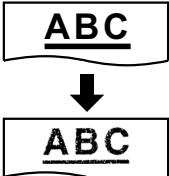 | Some paper has instructions recommending which side to print on. Try turning the recording paper over.You may have used paper with a cotton and/or fibre content that is over 20 %, such as letterhead or resume paper.The recording paper is too damp. Use new paper.When you print several pages, the stacked paper may have smudges on the back side after printing. To avoid this, expand the paper exit (page 14). |
| I changed the recording paper, but the printing quality is still poor. | The glass or rollers are dirty with correction fluid, etc. Clean them (page 80, 81). Please do not insert a document before correction fluid has dried completely.The toner save mode of feature #482 is ON (page 55).The remaining toner is low. Replace the toner cartridge.To check the toner cartridge life and quality, please print the printer test list (page 82). If printing quality is still poor, replace the toner cartridge. |
| A blank sheet is ejected. | You placed the document facing the wrong way when using the copier.The other party placed the document in their fax machine the wrong way. Check with the other party (KX-MB1520/KX-MB1530 only). |
| Coloured and grey objects are printed in black instead of greyscale when printing from Microsoft PowerPoint or other applications. | Select [Color] or remove the check next to [Grayscale] in the print dialogue so that coloured or grey objects will be printed in greyscale properly. |
| When using the unit as a printer, the printing result is distorted. | ● When your unit is connected to the computer by USB, if you cancel printing using your computer, then immediately re-start printing, the printing result may be distorted. To avoid this, you must wait for 60 seconds before re-printing. |
10.3.3 Scanner
| Problem | Cause & Solution |
| I cannot scan. | When scanning at a high resolution, a large amount of available memory is required. If your computer warns that there is insufficient memory, close other applications and try again.Select a lower resolution and try again.Reduce the scanning area and try again.To preview the scanned image, click [Preview].You can drag the frame to specify the scanning area.Click [Scan] to start scanning.The unit is in use. Try again later.There is not enough space on the hard disk. Delete unnecessary files and try again.Check the connection between the computer and the unit (page 11, 23).Restart the computer, and try again.You attempted to scan a document longer than the paper size which you set. Change the setting or divide the document into the appropriate paper size, and try again. |
| The document is not fed into the unit when using the unit as a scanner (KX-MB1530 only). | Remove the document in the automatic document feeder and re-insert it (page 18). |
| Even after clicking [Cancel], scanning continues. | Please wait. It may take a while for the cancel request to be accepted. |
10.3.4 Copier
| Problem | Cause & Solution |
| The unit will not make a copy. | You cannot make a copy during programming. Make the copy after programming.The document was not set properly (page 18).Recording paper is not loaded or the unit has run out of paper. Load paper (page 13). |
| Letters on the copied documents are not clear. | The original document is too dark or too light. Change the contrast (page 31) and try again. |
| The copied documents are too dark and cannot be read. | You used a coloured paper as a document. Change the contrast (page 31) and make a lighter copy of the document, using “TEXT” resolution (page 31). |
10.3.5 Fax (KX-MB1520/KX-MB1530 only)
| Problem | Cause & Solution |
| I cannot send documents. | The telephone line cord is connected to the [EXT] jack on the unit. Connect to the [LINE] jack (page 11).The other party's fax machine is busy or has run out of recording paper. Try again.The other party's machine is not a fax machine. Check with the other party.The other party's fax machine failed to answer the fax automatically. Send the fax manually (page 38).Set the maximum fax speed to “14 . 4kbps” (feature #418 on page 57). |
| I cannot send a fax overseas. | Use the overseas transmission mode (feature #411 on page 56).Add two pauses at the end of the telephone number or dial manually. |
| The other party complains that letters on their received document are distorted. | If your line has special telephone services such as call waiting, the service may have been activated during fax transmission. Connect the unit to a line that does not have these services.Another telephone on the same line is off the hook. Hang up the extension telephone and try again. |
| The other party complains about the quality of their received documents. | Try copying the document. If the copied image is clear, there may be something wrong with the other party's machine.If the copied image is not clear, too dark, or black and white lines or smudges appear, refer to “10.3.2 Printing problems”, page 70.The original document is too dark or too light. Change the contrast (page 38) and try again. |
| The other party complains that received documents are too dark and cannot be read. | You used a coloured paper as a document. Change the contrast (page 31) and make a lighter copy of the document, using “TEXT” resolution (page 31), and try again. |
| I cannot receive documents. | The telephone line cord is connected to the [EXT] jack on the unit. Connect to the [LINE] jack (page 11).The PC fax setting (feature #442 on page 59) is activated and the received fax documents are automatically transferred to the computer. View the received documents using the computer (page 47).Set the maximum fax speed to “14 . 4kbps” (feature #418 on page 57).Recording paper is installed in the manual input tray. Remove the recording paper from the manual input tray. |
| I cannot receive documents automatically. | The receiving mode is set to TEL mode. Set to FAX ONLY mode (page 43) or TEL/FAX mode (page 44).The time taken to answer the call is too long. Decrease the number of rings before the unit answers a call (feature #210 on page 53). |
| The display shows “CONNECTING . . . .”, but faxes are not received. | The incoming call is not a fax. Change the receiving mode to TEL mode (page 43) or TEL/FAX mode (page 44). |
| The printing quality of the received documents is poor. | If documents can be copied properly, the unit is working normally. The other party may have sent a faint document or there may be something wrong with the other party's machine. Ask them to send a clearer copy of the document or to check their fax machine.If documents can not be copied properly, refer to “10.3.2 Printing problems”, page 70. |
| The other party complains that they cannot send a document. | The memory is full of received documents due to a lack of recording paper or a recording paper jam. Load paper (page 13) or remove the jammed paper (page 75).If the PC fax setting (feature #442 on page 59) is set to “ALWAYS”, check the connection between the computer and the unit.The unit is not in FAX ONLY mode. Press [Fax Auto Answer] repeatedly to turn ON the [Fax Auto Answer] light. |
| I cannot select the desired receiving mode. | If you want to set FAX ONLY mode: press [Fax Auto Answer] repeatedly to turn ON the [Fax Auto Answer] light.If you want to set TEL mode or TEL/FAX mode: select the desired mode using feature #404 (page 56), and press [Fax Auto Answer] repeatedly to turn OFF the [Fax Auto Answer] light. |
| When an extension telephone is connected, I cannot receive documents by pressing [*][#][9]. | You must set remote fax activation to ON (feature #434 on page 58) beforehand.Press [*][#][9] firmly.You may have changed the remote fax activation code from [*][#][9] (default setting). Verify the remote fax activation code (feature #434 on page 58). |
| I cannot hear a dial tone. | The telephone line cord is connected to the [EXT] jack on the unit. Connect to the [LINE] jack (page 11).If you use a splitter/coupler to connect the unit, remove the splitter/coupler and connect the unit to the wall jack directly. If the unit operates properly, check the splitter/coupler.Disconnect the unit from the telephone line and connect a known working telephone. If the working telephone operates properly, contact our service personnel to have the unit repaired. If the working telephone does not operate properly, contact your telephone company.The power cord or telephone line cord is not connected. Check the connections (page 11).If you connected the unit through a computer modem, connect the unit directly to a telephone line jack. |
| I cannot make calls. | The dialling mode setting may be wrong. Change the setting (feature #120 on page 17). |
| The unit does not ring. | The ringer volume is turned OFF. Adjust it (page 20). |
| The other party complains they only hear a fax tone and cannot talk. | FAX ONLY mode is set (page 43). Tell the other party the number is only used for faxes.Change the receiving mode to TEL mode (page 43) or TEL/FAX mode (page 44). |
| The [Redial] or [◎] button does not function properly. | If this button is pressed during dialling, a pause will be inserted. If pressed immediately after a dial tone is obtained, the last number dialled will be redialed. |
| I cannot receive a fax document on the computer. | Make sure the PC fax reception (feature #442 on page 59) is set beforehand. |
10.3.6 Using an answering machine (KX-MB1520/KX-MB1530 only)
| Problem | Cause & Solution |
| I cannot receive documents automatically. | Your greeting message on the answering machine is too long. Shorten the message. Record a message less than 10 seconds long.The answering machine rings too many times. Set to 1 or 2 rings. |
| I cannot receive voice messages. | Check if the answering machine is turned ON and connected to the unit properly (page 45).Set the number of rings on the answering machine to 1 or 2. |
| I pressed the remote access code to access the answering machine remotely, but the line was disconnected. | The code may include “#” which is used for certain features provided by telephone companies. Change the code on the answering machine to another number which does not include “#”. |
| Callers complain that they cannot send a document. | There is no room left in the memory of your answering machine to record voice messages. See the operating instructions of the answering machine and erase unnecessary messages.You set the answering machine to only give a greeting message. |
10.3.7 If a power failure occurs
- The unit will not function.
- If any documents are stored in the memory (i.e. during copying, PC printing), they will be lost.
KX-MB1520/KX-MB1530 only:
- The unit is not designed for making emergency telephone calls when the power fails. Alternative arrangements should be made for access to emergency services.
- Fax transmission and reception will be interrupted.
- Documents during fax transmission or fax reception will be lost.
- When power is restored, a power down report will be printed out stating which fax items in the memory have been erased.
10.3.8 Notice for KX-MB200/KX-MB700/KX-FLB880 series users
If you have already installed KX-MB200/KX-MB700/KX-FLB880 series Multi-Function Station on your computer, use the following instructions to modify or add the printer driver, which changes after installing the KX-MB1500 series Multi-Function Station.
You can modify or add a printer driver, as follows:
1. Start Windows and insert the KX-MB200/KX-MB700/KX-FLB880 series CD-ROM into your CD-ROM drive. - If the [Select Language] dialogue box appears, select the desired language that you want to use with this software. Click [OK].
2. [Modify]
3. Select [Modify Utilities] or [Add Multi-Function Station Driver]. Then follow the on-screen instructions.
Important:
- For users of versions prior to 1.21, download the latest software as follows, then activate it. [Start] → [All Programs] or [Programs] → [Panasonic] → the unit's name → [Support Web Page]. Then follow the on-screen instructions.
11.1 Recording paper jam
11.1.1 When the recording paper has jammed inside of the unit
The display will show the following:
- "PAPER JAMMED"
↑↓
"OPEN REAR COVER"
"OPEN FRONT COVER"
Caution:
- Do not open the paper input tray before opening the front and rear covers as the jammed paper may be pulled and the jam may get worse.
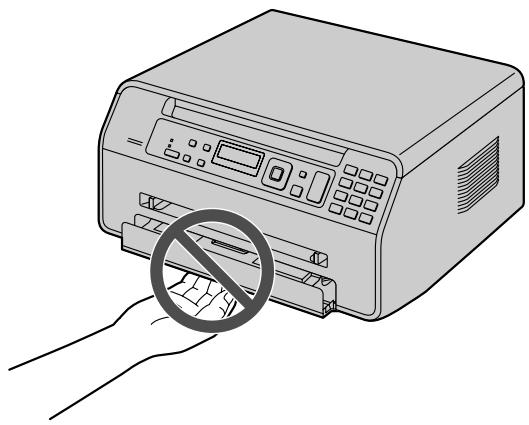
Case 1:
When the recording paper has jammed inside the rear cover:
- Open the rear cover (①).
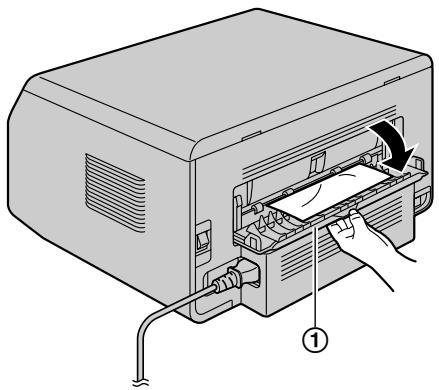
- Push down both green levers (①) until they stop.
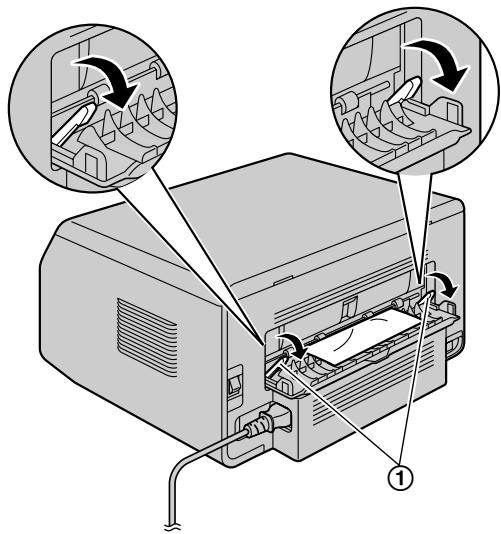
- Remove the jammed paper (①) carefully by pulling it toward you.
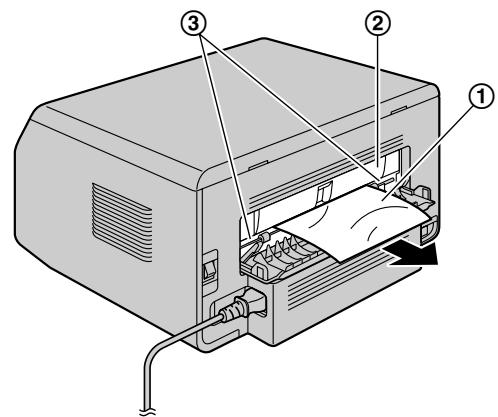

Caution:
- The fuser unit (②) gets hot. Do not touch it.
Note:
- The area near the rear cover (③) may also get warm.
- Push up the green levers (①) to the original position.
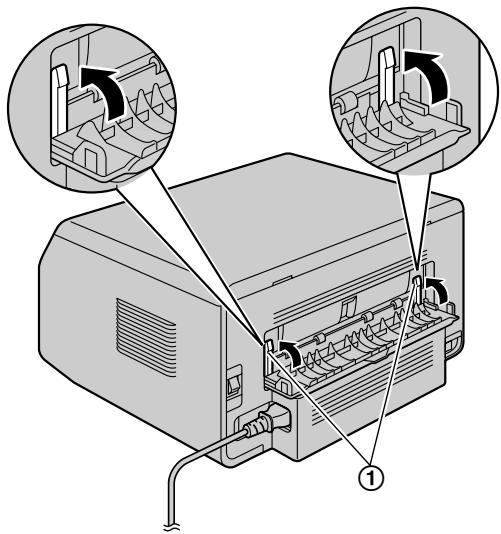
- Close the rear cover.
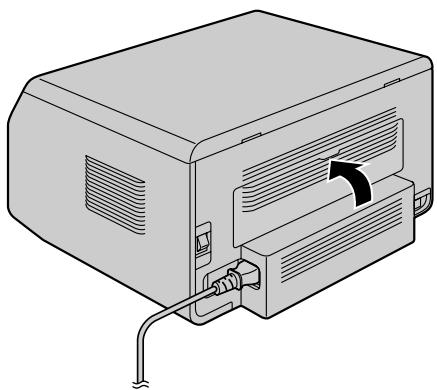
- Open and close the front cover to clear the error message.
Case 2:
When the recording paper has jammed inside the front cover:
- Open the front cover (①).
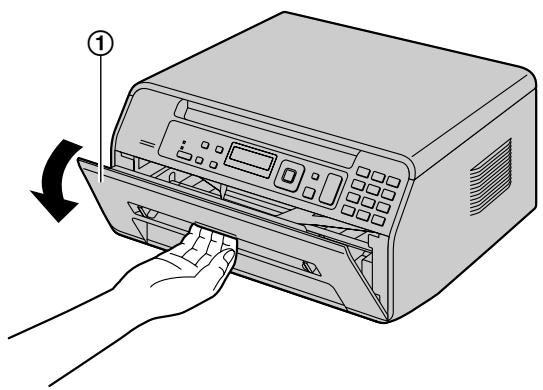
- Remove the jammed paper (①) carefully by pulling it toward you.
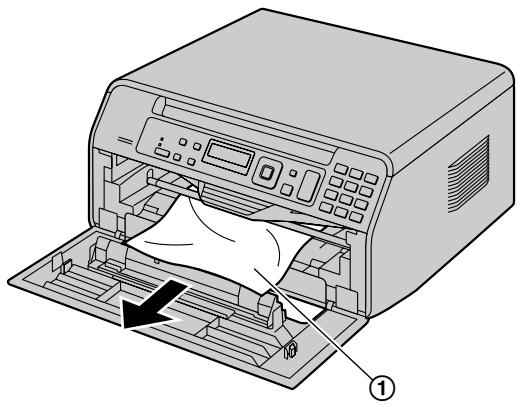
- If the recording paper has jammed behind the toner cartridge, remove the toner cartridge (①) first, and remove the jammed paper (②). Then reinsert the toner cartridge into the unit.
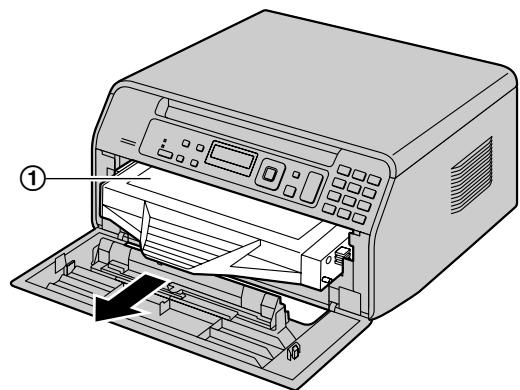
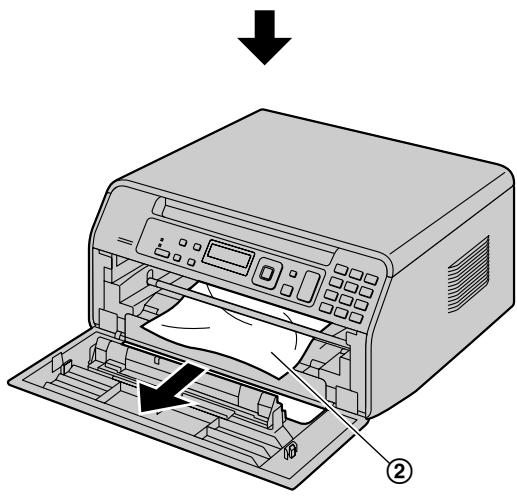
3. Close the front cover.
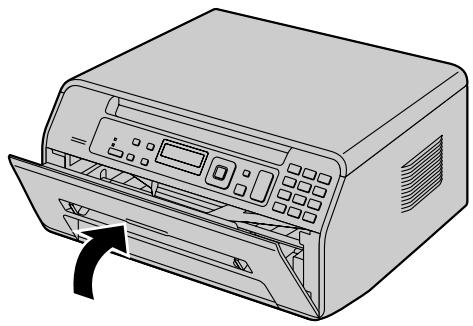
11.1.2 When the recording paper is not fed into the unit properly
The display will show the following:
- "CHECK PAPER #1 PRESS START"
1 Pull the paper input tray completely out. 2 Re-load the recording paper.
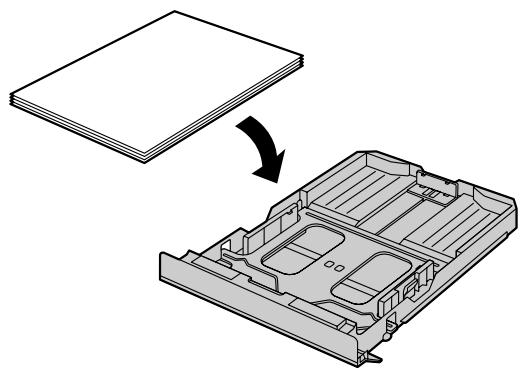
3 Insert the paper input tray into the unit.
Note:
- If the message is still displayed, check the recording paper specifications and load the recording paper again. See page 13 for details.
11.1.3 When the recording paper in the manual input tray is not fed into the unit properly
The display will show the following.
- "CHECK PICK UP INPUT TRAY #2"
1 Remove the recording paper. 2 Re-insert the recording paper.
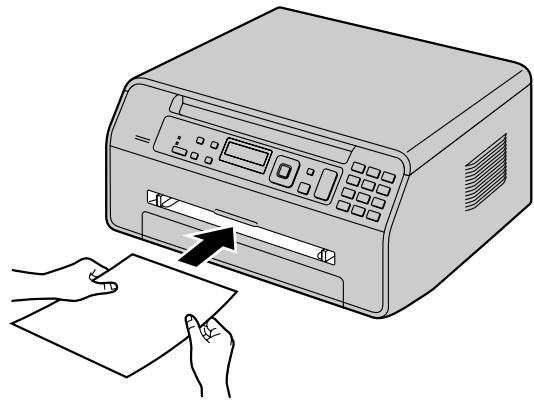
Note:
- If the message is still displayed, check the recording paper specifications and re-install recording paper. See page 15 for details.
11.2 Document jams (Automatic document feeder) (KX-MB1530 only)
The display will show the following:
- "REMOVE DOCUMENT"
Caution:
- Do not pull out the jammed document forcibly before lifting the ADF cover.
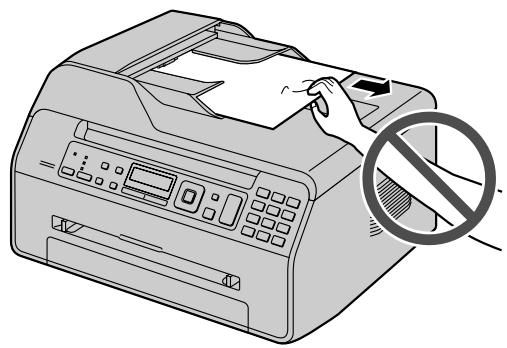
- Be careful not to damage the transparent plastic sheets (①).
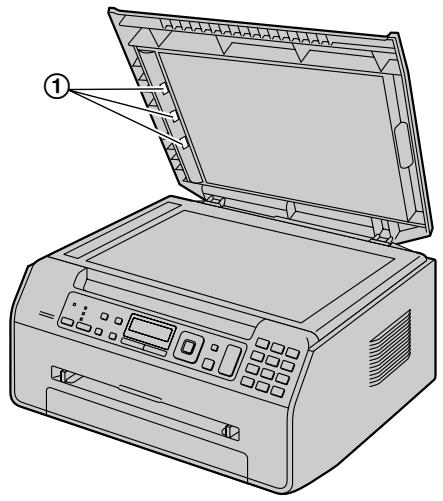
1 Open the ADF cover (①) while holding the document cover (②).
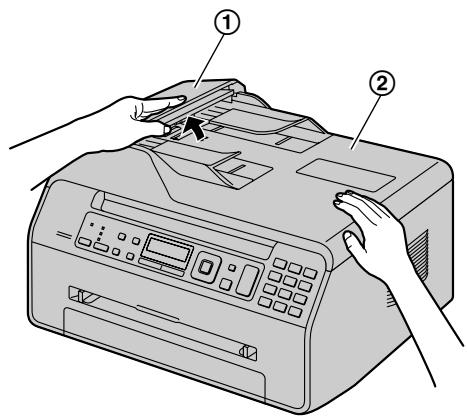
2 Remove the jammed document (①) carefully. When the document has jammed near the document entrance:
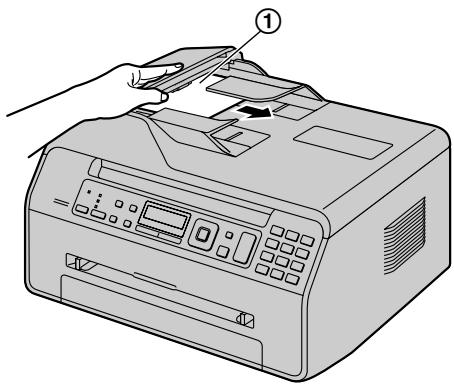
When the document has jammed near the document exit:
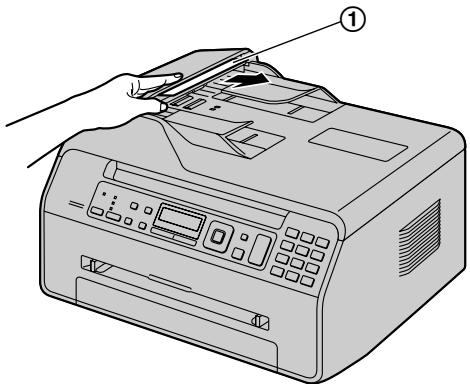
- If you cannot remove the jammed document (①), open the document cover, remove the document, then close the document cover.
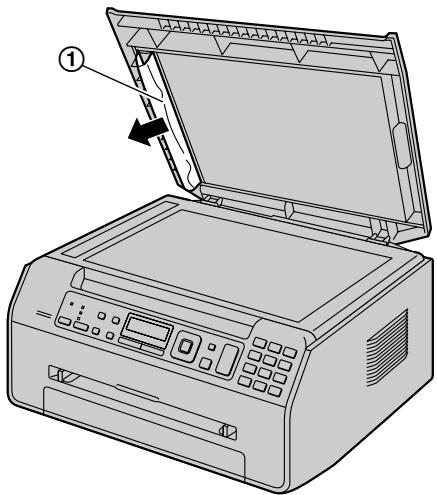
3 Close the ADF cover.
![[Stop]](/content/2020/05/57281/images/5fb4c33d736cf2826a30027466a4dad85aa0ee2413e75cae4e36891da2f950e3.jpg)
- Press [Stop] to clear the message.
12.1 Cleaning the white plates and glass
Clean the white plates and glass when a black line, a white line, or a dirty pattern appears on:
- your recording paper, – the original document, – the scanned data, or – the fax document received by the other party (KX-MB1520/KX-MB1530 only).
Caution:
- Do not use paper products, such as paper towels or tissues for cleaning.
- Be careful not to damage the transparent plastic sheets (①) (KX-MB1530 only).
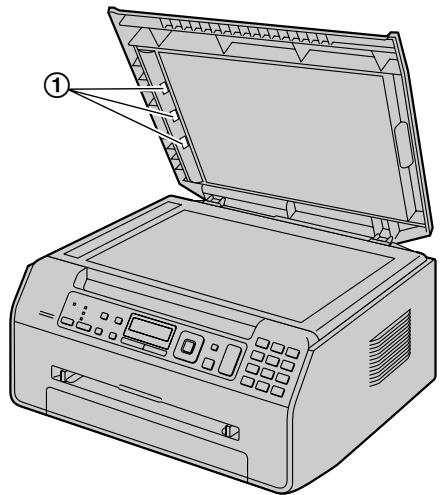
* The pictured model is KX-MB1530.
1 Open the document cover (①).
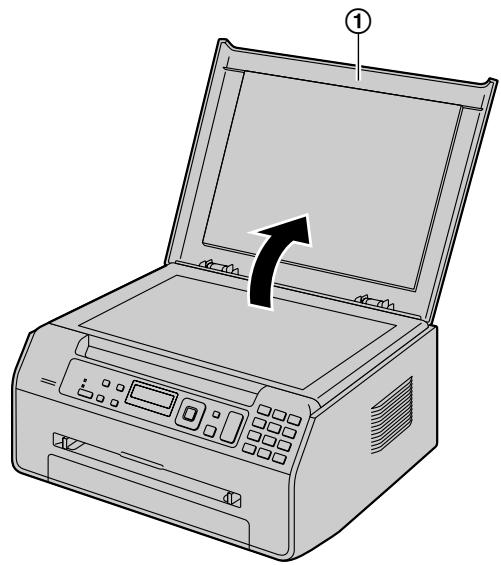
2 Hold the document cover while cleaning the white plates (①) and the scanner glass (②).
KX-MB1500/KX-MB1520:
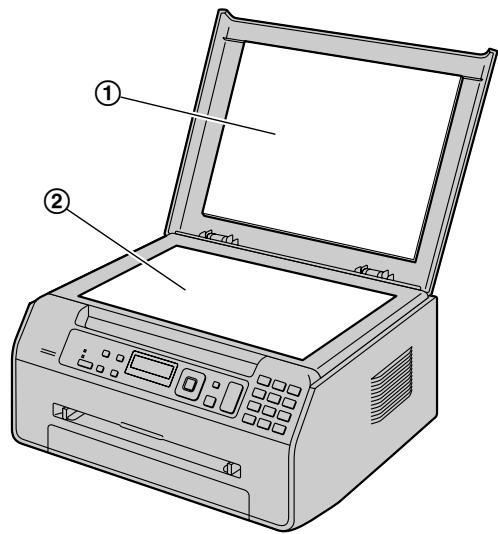
KX-MB1530:
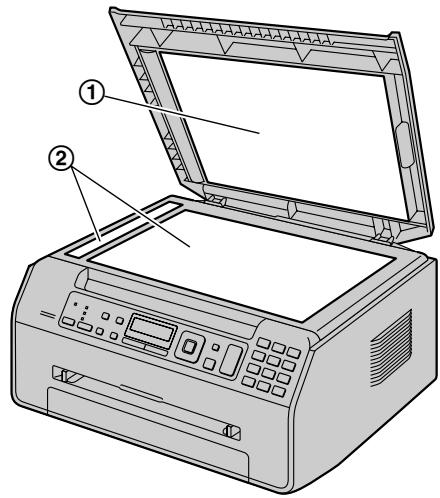
3 Close the document cover.
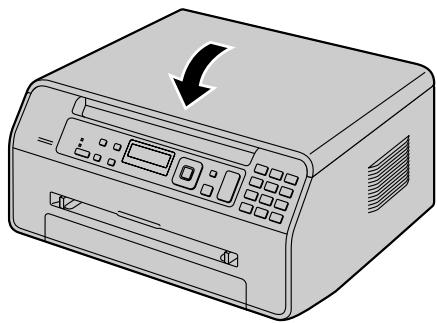
12.2 Cleaning the document feeder rollers (KX-MB1530 only)
Clean the rollers when documents frequently misfeed, or when a line or a dirty pattern appears on documents.
Caution:
- Do not use paper products, such as paper towels or tissues for cleaning. 1 Turn the power switch OFF. 2 Open the ADF cover (①) while holding the document cover (②).
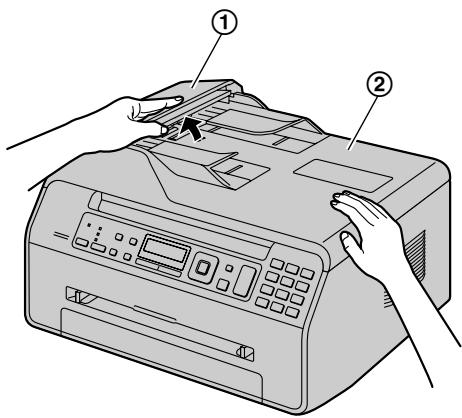
3 Clean the document feeder rollers (①) with a cloth moistened with water, and let all parts dry thoroughly.
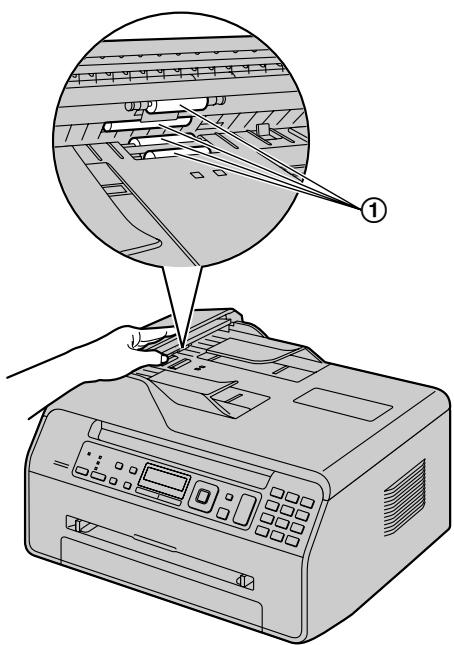
4 Close the ADF cover.
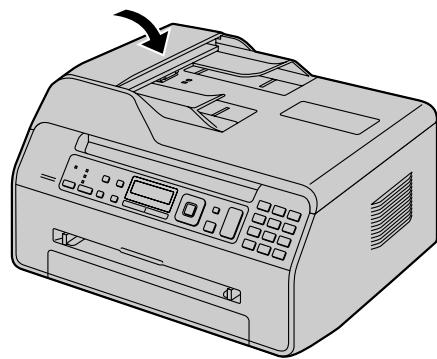
5 Turn the power switch ON.
13.1 Reference lists and reports
You can print out the following lists and reports for your reference.
- "SETUP LIST"
- "TEL NO. LIST"*1
- "JOURNAL REPORT"*1
- "PRINTER TEST"
- "CALLER ID LIST"*1 *1 KX-MB1520/KX-MB1530 only
![[Menu] [Set] [◀][▶]](/content/2020/05/57281/images/12c7dede5f39c3580e7c255f8bd54aa056aa084282adf1a3070dae7bfedf58ae.jpg)
1 Press [Menu] repeatedly to display "PRINT REPORT". 2 Press [◀] or [▶] repeatedly to display the desired item. 3 Press [Set] to start printing. → [Menu]
13.2 Specifications
■ Applicable lines *1 :
Public Switched Telephone Network
■ Document size:
Scanner glass: Max. 216 mm in width, Max. 297 mm in length
Automatic document feeder (KX-MB1530): Max.
216 mm in width, Max. 356 mm in length
■ Effective scanning width:
208 mm
■ Effective printing width:
Letter/Legal: 208 mm
A4: 202 mm
■ Transmission time 1 2 :
Approx. 4 s/page (ECM-MMR Memory transmission) 4
■ Scanning density:
Scanning resolution:
Up to 600 × 1,200 dpi (Optical)
Up to 19,200 × 19,200 dpi (Interpolated)
Copy resolution:
Up to 600 × 600 dpi
Fax resolution *1:
Horizontal: 8 pels/mm
Vertical: 3.85 lines/mm in standard resolution, 7.7 lines/mm in fine/photo resolution, 15.4 lines/mm in super fine resolution
Photo resolution:
64-level
Scanner type:
Colour Contact Image Sensor
Printer type:
Laser Printer
Data compression system *1:
Modified Huffman (MH), Modified READ (MR), Modified Modified READ (MMR)
Operating environment:
10 °C - 32.5 °C, 20 % - 70 % RH (Relative Humidity)
Dimensions:
KX-MB1500/KX-MB1520: Approx. width 380 mm × depth 360 mm × height 203 mm
KX-MB1530: Approx. width 391 mm × depth
360 mm × height 242 mm
■ Mass (Weight):
KX-MB1500/KX-MB1520: Approx. 9 kg
KX-MB1530: Approx. 9.5 kg
■ Power consumption:
Standby: Approx. 4 W (KX-MB1500)
Approx. 4.3 W (KX-MB1520)
Approx. 5 W (KX-MB1530)
Preheat: Approx. 55 W
Copy: Approx. 350 W
Maximum: Approx. 950 W (When the fuser lamp turns on)
■ Power supply:
220-240 V AC, 50/60 Hz
■ Memory capacity
(for operation and storing memory):
32 MB
■ Fax memory capacity *1:
3.5 MB in total
Approx. 110 pages of memory reception
Approx. 150 pages of memory transmission
(Based on the ITU-T No. 1 Test Chart in standard resolution.)
■ Laser diode properties:
Laser output: Max. 10 mW
Wavelength: 760 nm - 800 nm
Emission duration: Continuous
■ Print speed:
A4: Approx. 18 ppm (pages per minute)
Letter: Approx. 19 ppm (pages per minute)
Printing resolution:
600 × 600 dpi
CIS's LED light properties:
LED radiation output: Max. 1 mW
Wavelength: Red 630 nm typical
Green 520 nm typical
Blue 465 nm typical
Emission duration: Continuous
*1 KX-MB1520/KX-MB1530 only
*2 Transmission speed depends on the contents of the pages, resolution, telephone line conditions and capability of the other party's machine.
*3 Transmission speed is based on the ITU-T No. 1 Test Chart with original mode. If the capability of the other party's machine is inferior to your unit, the transmission time may be longer.
ITU-T No.1 Test Chart
Note:
- Design and specifications are subject to change without notice.
- The pictures and illustrations in these instructions may vary slightly from the actual product.
Recording paper specifications
Plain paper/Thin paper/Thick paper size:
A4: 210 mm × 297 mm
Letter: 216 mm × 279 mm
Legal: 216 mm × 356 mm *4
B5(JIS): 182 mm × 257 mm *1
B5(ISO): 176 mm × 250 mm *1
16K: 195 mm × 270 mm
216 × 330: 216 mm × 330 mm *1
216 × 340: 216 mm × 340 mm *1
Custom size: 210-216 mm × 279-356 mm *1,2
Label size:
A4: 210 mm × 297 mm *1
Letter: 216 mm × 279 mm *4
Recording paper weight:
64 g/m² to 90 g/m² (Paper input tray)
64 g/m² to 165 g/m² (Manual input tray)
*1 Manual input tray only
*2 When printing with the computer, custom size recording paper can also be used.
Toner cartridge life
The toner cartridge needs to be replaced regularly.
Toner cartridge life depends on the amount of content in a printed document. Toner cartridge life varies in actual usage. The following is the approximate number of pages that the toner cartridge can print according to the various printing examples.
Example 1
- Approx. 1,500 pages can be printed using KX-FAT390X.
- Approx. 2,500 pages can be printed using KX-FAT410X.
Example 2
- Approx. 750 pages can be printed using KX-FAT390X.
- Approx. 1,250 pages can be printed using KX-FAT410X.
Example 3
- Approx. 500 pages can be printed using KX-FAT390X.
- Approximately 800 pages can be printed using KX-FAT410X.
Note:
- There are various factors that determine the actual toner cartridge life, such as temperature, humidity, type of paper, and how much toner you use for the number of pages per print job. The actual number of pages your toner cartridge will print may be significantly less than this estimate if your unit is often used for printing small numbers of pages per job. Because many of the factors that determine the actual toner cartridge life cannot be controlled, we cannot guarantee a minimum number of pages that will be printed by your toner cartridge.
- The number of pages changes with the depth, thickness, and size of the characters.
- If you turn on the toner save feature, the toner cartridge will last approximately 20% longer.
Waste disposal method
Waste material should be disposed of under conditions that meet all national and local environmental regulations.
14.1 Index
#
101 Date and time: 20
102 Your logo: 21
103 Your fax number: 22
110 Language: 51
114 Location: 51
120 Dialling mode: 17
121 Recall/Flash time: 51
124 ADSL mode: 52
145 LCD display contrast: 52
147 Scale selection: 52
155 Change password: 52
158 Maintenance time: 52
159 Set all features to default: 52
161 Ringer pattern: 52
165 Beep sound: 53
171 Off-hook alert: 53
174 Job end notification: 53
210 FAX ring count: 53
212 TEL/FAX ring count: 56
216 Automatic caller ID list: 53
226 Time adjustment: 53
289 All phonebook erase: 56
380 Paper size in the paper input tray: 54
381 Paper size in the manual input tray: 54
383 Paper type for paper input tray: 54
384 Paper type for manual input tray: 54
401 Sending report: 39, 56
402 Automatic journal report: 39, 56
403 Power save: 54
404 Manual answer mode: 56
411 Overseas mode: 56
412 Delayed send: 57
413 ECM selection: 57
416 Connecting tone: 57
418 Maximum fax speed: 57
419 Quick scan: 57
420 Confirming the destination: 58
421 Dial keypad entry restriction: 58
422 Fax number re-entry: 58
432 Auto reduction: 58
434 Fax activation code: 58
435 Auto disconnection: 58
436 Silent fax ring count: 58
437 Memory reception alert: 59
438 Friendly reception: 59
442 PC fax setting: 59
451 Fax receive notify: 59
458 All received fax erase: 59
459 Set fax features to default: 59
460 Input tray setting for copy: 60
461 Default copy resolution: 60
463 Default operation mode: 54
464 Mode timer: 55
467 Page layout hold: 60
468 Zoom hold: 60
469 Collate hold: 60
473 Edge hold: 60
474 Frame margin: 60
475 Margin hold: 60
482 Toner save: 11, 55
493 Scan mode: 62
494 Scan parameter hold: 62
496 Reordering feature setting: 55
774 Data timeout: 61
776 Mutual A4/letter print: 61
ADSL mode (Feature #124): 52
Answering machine: 45
Auto disconnection (Feature #435): 58
Auto reduction (Feature #432): 58
Automatic document feeder: 18, 32, 39
B
Basic features: 51
Beep sound (Feature #165): 53
C
Caller ID
Calling back: 48
Storing: 49
Caller ID list (Feature #216): 53
Character entry: 63
Cleaning: 80, 81
Collate hold (Feature #469): 60
Confirming the destination (Feature #420): 58
Connecting tone (Feature #416): 57
Connections: 11
USB: 23
Contrast: 31, 38
Contrast hold (Feature #462): 54
Copy: 31
Collation: 33
Edge: 36
Image repeat: 33
Margin: 36
N in 1: 35
N in 1 (Separate): 36
Poster: 35
Proof set: 33
Quick ID: 33
Reserve: 36
Zoom: 32
Copy features: 60
Copy size: 31
D
Data timeout (Feature #774): 61
Date and time (Feature #101): 20
Default copy resolution (Feature #461): 60
Default operation mode (Feature #463): 54
Delayed transmission (Feature #412): 57
Dial keypad entry restriction (Feature #421): 58
Dialling mode (Feature #120): 17
Display contrast (Feature #145): 52
Display messages: 67
Document size: 18
E
Easy Print Utility: 27
ECM selection (Feature #413): 57
Edge hold (Feature #473): 60
Extension telephone: 43
F
Fax activation code (Feature #434): 58
Fax features: 56
Fax number (Feature #103): 22
Fax number re-entry (Feature #422): 58
FAX ONLY mode: 43
Fax receive notify (Feature #451): 59
FAX ring count (Feature #210): 53
Flash time (Feature #121): 51
Frame margin (Feature #474): 60
Friendly reception (Feature #438): 59
Input tray setting
Copy (Feature #460): 60
Jams
Document: 78
Recording paper: 75
Job end notification (Feature #174): 53
Journal report (Feature #402): 39, 56, 82
Junk fax prohibitor: 46
L
Label: 26
Language (Feature #110): 51
Location setting (Feature #114): 51
Logo (Feature #102): 21
M
Maintenance time (Feature #158): 52
Manual answer mode (Feature #404): 56
Manual input tray: 15
Margin hold (Feature #475): 60
Maximum fax speed (Feature #418): 57
Memory reception alert (Feature #437): 59
Mode timer (Feature #464): 55
Multi-Function Station software
Activating: 24
Installing: 22
Uninstalling: 24
Mutual A4/letter print (Feature #776): 61
0
OCR software: 28
Off-hook alert (Feature #171): 53
Overseas mode (Feature #411): 56
P
Page layout hold (Feature #467): 60
Paper input tray: 13
Paper size
Manual input tray (Feature #381): 54
Paper input tray (Feature #380): 54
Paper type
Manual input tray (Feature #384): 54
Paper input tray (Feature #383): 54
Password (Feature #155): 52
PC fax setting (Feature #442): 59
PC print features: 61
Phonebook
All erase (Feature #289): 56
Sending faxes: 40
Storing: 39
Polling: 46
Power failure: 74
Power save (Feature #403): 54
Power switch: 12
Printer test: 82
Programming: 50
Pull scan: 29
Scan application: 29
Viewer: 29
Push scan: 28
Q
Quick scan: 39
Quick scan mode (Feature #419): 57
R
Recall time (Feature #121): 51
Receiving faxes
All erase (Feature #458): 59
Automatically: 43
Computer: 47
Manually: 43
Recording paper: 13
Recording paper size: 83
Redialling: 38, 40
Reordering feature setting (Feature #496): 55
Reports
Caller ID: 53, 82
Journal: 39, 56, 66, 82
Power down: 74
Printer test: 82
Sending: 39, 56, 66
Setup: 82
Telephone number: 82
Reset all features (Feature #159): 52
Reset fax features (Feature #459): 59
Resolution: 31, 38
Ring count
FAX ONLY (Feature #210): 53
Silent fax (Feature #436): 58
TEL/FAX (Feature #212): 56
Ringer pattern (Feature #161): 52
S
Scale selection (Feature #147): 52
Scan features: 62
Scan mode (Feature #493): 62
Scan parameter hold (Feature #494): 62
Scanner glass: 18, 31, 38
Sending faxes
Computer document: 40
From memory: 39
Manually: 38
Multiple pages using the scanner glass: 38
Phonebook: 40
Sending report (Feature #401): 39, 56
Set fax default (Feature #459): 59
Setup list: 82
Storing
Phonebook: 39
T
TEL mode: 43
TEL/FAX mode: 42, 44
Telephone number list: 82
Time adjustment (Feature #226): 53
Toner cartridge: 10
Toner cartridge life: 84
Toner save (Feature #482): 11, 55
V
Volume: 20
Z
Zoom hold (Feature #468): 60
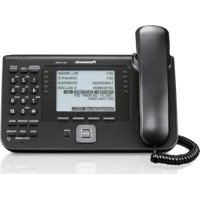


- OPERATING INSTRUCTIONS
- THANK YOU FOR PURCHASING A PANASONIC PRODUCT
- YOU CAN SELECT THE CZECH, HUNGARIAN, SLOVAK OR ENGLISH LANGUAGE (KX-MB1500HX/KX-MB1520EX/KX-MB1530EX ONLY)
- DESIGNED TO BE USED IN CZECH, HUNGARY AND SLOVAKIA ACCORDING TO THE LOCATION SETTING FEATURE (KX-MB1520EX/KX-MB1530EX ONLY)
- CAUTION
- NOTICE FOR PRODUCT DISPOSAL, TRANSFER, OR RETURN (KX-MB1520/KX-MB1530 ONLY)
- ENVIRONMENT
- NOTE
- ENERGY STAR (EUROPEAN UNION ONLY)
- TRADEMARKS
- COPYRIGHT
- FOR YOUR SAFETY
- LASER RADIATION
- CLASS 1 LASER PRODUCT
- LASER DIODE PROPERTIES
- LED LIGHT
- CLASS 1 LED PRODUCT
- CIS'S LED LIGHT PROPERTIES
- FUSER UNIT
- FOR BEST PERFORMANCE
- TONER CARTRIDGE
- LOCATION
- STATIC ELECTRICITY
- ROUTINE CARE
- MOVING THE UNIT
- ILLEGAL COPIES
- NOTICE
- INTRODUCTION AND INSTALLATION
- ACCESSORIES
- FINDING THE CONTROLS
- INSTALLATION
- PREPARATION
- SETUP
- DOCUMENT REQUIREMENTS
- VOLUME
- INITIAL PROGRAMMING
- PRINTER
- SCANNER
- COPIER
- COPY
- FAX (KX-MB1520/KX-MB1530 ONLY)
- SENDING FAXES
- RECEIVING FAXES
- CALLER ID (KX-MB1520/KX-MB1530 ONLY)
- CALLER ID
- PROGRAMMABLE FEATURES
- FEATURES SUMMARY
- USEFUL INFORMATION
- HELP
- REPORTS AND DISPLAYS
- TROUBLESHOOTING
- PAPER JAMS
- JAMS
- CLEANING
- GENERAL INFORMATION
- PRINTED REPORTS
- SPECIFICATIONS
- INDEX
- SUPPLIED ACCESSORIES
- ACCESSORY INFORMATION
- REPLACEMENT ACCESSORY
- TONER CARTRIDGE (HIGH CAPACITY)
- BUTTON DESCRIPTIONS
- ① 【QUALITY】
- ②【CALLER ID】(KX-MB1520/KX-MB1530 ONLY)
- 【PAGE LAYOUT】
- ③ [MENU]
- MIC (KX-MB1520/KX-MB1530 ONLY)
- FOR BEEP SOUNDS (KX-MB1500 ONLY)
- ⑤ 【FAX AUTO ANSWER】(KX-MB1520/KX-MB1530 ONLY)
- ⑦【REDIAL】(KX-MB1520/KX-MB1530 ONLY)
- 【∅】(PAUSE) (KX-MB1520/KX-MB1530 ONLY)
- 【COPY SIZE】
- ⑧ 【FLASH】(KX-MB1520/KX-MB1530 ONLY)
- [ZOOM]
- 【SP-PHONE】(KX-MB1520/KX-MB1530 ONLY)
- NAVIGATOR KEY
- 【□□】(PHONEBOOK) (KX-MB1520/KX-MB1530 ONLY)
- 【-∈】(COLLATE)
- [SET]
- [STOP]
- [START]
- [TONE] (KX-MB1520/KX-MB1530 ONLY)
- OVERVIEW
- WHEN TO REPLACE THE TONER CARTRIDGE
- WASTE DISPOSAL METHOD
- TONER SAVE FEATURE
- CONNECTIONS
- IMPORTANT NOTICE FOR THE USB CONNECTION
- TURNING THE POWER ON
- RECORDING PAPER
- NOTE FOR RECORDING PAPER
- PAPER INPUT TRAY
- IMPORTANT
- TO EXPAND THE PAPER EXIT
- CAUTION FOR THE PAPER INPUT TRAY
- MANUAL INPUT TRAY
- WHEN PRINTING ON THICK PAPER
- DIALLING MODE (KX-MB1520/KX-MB1530 ONLY)
- SELECTING THE OPERATION MODE (SCAN/COPY) (FAX: KX-MB1520/KX-MB1530 ONLY)
- SETTING THE ORIGINAL
- USING THE SCANNER GLASS
- USING THE AUTOMATIC DOCUMENT FEEDER (KX-MB1530 ONLY)
- DOCUMENT WEIGHT
- ADJUSTING THE VOLUME (KX-MB1520/KX-MB1530 ONLY)
- RINGER VOLUME
- TO TURN THE RINGER OFF
- SPEAKER VOLUME
- DATE AND TIME (KX-MB1520/KX-MB1530 ONLY)
- TO CORRECT A MISTAKE
- IF YOU HAVE SUBSCRIBED TO A CALLER ID SERVICE
- YOUR LOGO (KX-MB1520/KX-MB1530 ONLY)
- YOUR FAX NUMBER (KX-MB1520/KX-MB1530 ONLY)
- INSTALLING MULTI-FUNCTION STATION
- REQUIRED COMPUTER ENVIRONMENT
- OPERATING SYSTEM
- RAM
- OTHER HARDWARE
- OTHER
- WARNING
- INSTALLING MULTI-FUNCTION STATION ON A COMPUTER
- [EASY INSTALLATION]
- IMPORTANT NOTICE
- TO VIEW OR INSTALL THE OPERATING INSTRUCTIONS DATA
- TO USE ANOTHER UNIT WITH THE COMPUTER
- TO MODIFY THE SOFTWARE (TO ADD OR UNINSTALL EACH COMPONENT)
- TO UNINSTALL THE SOFTWARE
- STARTING MULTI-FUNCTION STATION
- [SCAN] (PAGE 29)
- [PC FAX] (KX-MB1520/KX-MB1530 ONLY)
- [REMOTE CONTROL] (PAGE 64)
- [UTILITIES]
- [SETTINGS] (PAGE 25)
- [?]
- [ ]
- [I]
- TO CHANGE THE SETTINGS
- [GENERAL]
- [SCAN]
- TO SELECT THE DEFAULT EMAIL SOFTWARE
- FOR WINDOWS
- FOR WINDOWS XP
- FOR WINDOWS VISTA
- [CUSTOM]
- PRINTING FROM WINDOWS APPLICATIONS
- FOR WINDOWS XP/WINDOWS VISTA/WINDOWS
- SETTING THE PRINTER PROPERTIES
- TO PRINT ON LABELS
- AVERY®
- EASY PRINT UTILITY
- ECOLOGY PRINTING FEATURES
- PRINTER SETTINGS
- COMBINING MULTIPLE DOCUMENTS
- SAVING A FILE AS PDF FILE
- SCANNING FROM THE UNIT (PUSH SCAN)
- WHEN USING THE SCANNER GLASS
- HELPFUL HINTS
- SCANNING FROM A COMPUTER (PULL SCAN)
- USING MULTI-FUNCTION SCAN APPLICATION
- USING MULTI-FUNCTION VIEWER
- USING OTHER APPLICATIONS
- MAKING A COPY
- TO SELECT THE COPY SIZE
- TO SELECT THE CONTRAST
- TO SELECT THE RESOLUTION
- MORE COPYING FEATURES
- ZOOM COPY (ENLARGEMENT / REDUCTION)
- COLLATE COPY
- PROOF SET FEATURE (KX-MB1530 ONLY)
- QUICK ID COPY FEATURE / IMAGE REPEAT FEATURE (SCANNER GLASS ONLY)
- POSTER FEATURE (SCANNER GLASS ONLY)
- N IN 1 FEATURE
- PRESS [START]
- WHEN USING THE AUTOMATIC DOCUMENT FEEDER (KX-MB1530 ONLY)
- SEPARATE N IN 1 FEATURE (SCANNER GLASS ONLY)
- EDGE FEATURE
- MARGIN FEATURE
- COPY RESERVATION
- SENDING A FAX MANUALLY
- TO SEND MULTIPLE PAGES
- ADJUST THIS SETTING DEPENDING ON THE DARKNESS OR LIGHTNESS OF THE DOCUMENT. 5 LEVELS (LOW TO HIGH) ARE AVAILABLE
- TO REDIAL THE LAST NUMBER
- [REDIAL]
- RESERVING THE FAX TRANSMISSION (DUAL ACCESS)
- PRINTING A SENDING REPORT
- PRINTING A JOURNAL REPORT
- PRE-DIALLING A FAX NUMBER
- SENDING FROM MEMORY (QUICK SCAN FEATURE)
- STORING ITEMS FOR THE PHONEBOOK
- STORING PHONEBOOK ITEMS
- [MENU]
- EDITING A STORED ITEM
- ERASING A STORED ITEM
- SENDING A FAX USING PHONEBOOK
- TO SEARCH FOR A NAME BY INITIAL
- EXAMPLE: "LISA
- FAX AUTO REDIAL
- SENDING AN ELECTRONIC DOCUMENT AS A FAX MESSAGE FROM YOUR COMPUTER
- CLICK [SEND]
- TO PREVENT FAX SENDING TO THE WRONG DESTINATION
- [OK]
- SELECTING THE WAY TO USE YOUR UNIT
- USE ONLY AS A FAX (FAX ONLY MODE)
- YOUR SITUATION
- HOW FAXES ARE RECEIVED
- USE MOSTLY AS A TELEPHONE (TEL MODE)
- HOW TO RECEIVE PHONE CALLS AND FAXES
- USE AS A TELEPHONE AND/OR FAX (TEL/FAX MODE)
- HOW PHONE CALLS AND FAXES ARE RECEIVED
- USE WITH ANSWERING MACHINE
- HOW TO RECEIVE CALLS
- RECEIVING A FAX AUTOMATICALLY : AUTO ANSWER ON
- ACTIVATING FAX ONLY MODE
- RECEIVING A FAX MANUALLY : AUTO ANSWER OFF
- ACTIVATING TEL MODE
- REPLACE THE HANDSET
- ACTIVATING TEL/FAX MODE
- WHEN A FAX CALLING TONE IS DETECTED
- WHEN A FAX CALLING TONE IS NOT DETECTED
- USING THE UNIT WITH AN ANSWERING MACHINE
- SETTING UP THE UNIT AND AN ANSWERING MACHINE
- CONNECT THE ANSWERING MACHINE (①)
- SET THE NUMBER OF RINGS ON THE ANSWERING MACHINE TO 4 RINGS OR LESS
- RECORD A GREETING MESSAGE ON THE ANSWERING MACHINE
- ACTIVATE THE ANSWERING MACHINE
- SET THE UNIT TO THE DESIRED RECEIVING MODE (PAGE 43)
- MAKE SURE EACH OF THE FOLLOWING IS UNIQUE
- RECEIVING A VOICE MESSAGE AND FAX DOCUMENT IN ONE CALL
- RECEIVE POLLING (RETRIEVING A FAX PLACED ON ANOTHER FAX MACHINE)
- JUNK FAX PROHIBITOR (PREVENTING FAX RECEPTION FROM UNDESIRED CALLERS)
- ACTIVATING THE JUNK FAX PROHIBITOR
- STORING UNDESIRED CALLERS
- TO DISPLAY THE JUNK FAX PROHIBITOR LIST
- TO PRINT THE JUNK FAX PROHIBITOR LIST
- TO ERASE AN ITEM FROM THE JUNK FAX PROHIBITOR LIST
- RECEIVING A FAX ON YOUR COMPUTER
- VIEWING A RECEIVED DOCUMENT
- IF A RECEIVED FAX DOCUMENT IS STORED IN THE UNIT'S MEMORY
- CALLER ID SERVICE
- HOW CALLER ID IS DISPLAYED
- TO CONFIRM CALLER INFORMATION BY PRINTING THE CALLER ID LIST
- VIEWING AND CALLING BACK USING CALLER INFORMATION
- SYMBOLS AND OPERATIONS FOR CALLER INFORMATION
- EDITING A CALLER'S TELEPHONE NUMBER BEFORE CALLING BACK/STORING
- TO DELETE A NUMBER
- ERASING CALLER INFORMATION
- ERASING ALL CALLER INFORMATION
- ERASING SPECIFIC CALLER INFORMATION
- STORING CALLER INFORMATION INTO THE PHONEBOOK
- PROGRAMMING
- CHARACTER ENTRY (KX-MB1520/KX-MB1530 ONLY)
- STATUS OF THE UNIT
- USING REMOTE CONTROL
- KX-MB1520/KX-MB1530 ONLY
- START MULTI-FUNCTION STATION. → [REMOTE CONTROL]
- SELECT THE DESIRED TAB (KX-MB1520/KX-MB1530 ONLY)
- PERFORM THE DESIRED OPERATION
- ENTER THE PASSWORD (FEATURE #155 ON PAGE 52). → [OK]
- USING DEVICE MONITOR
- [UTILITIES] → [DEVICE MONITOR]
- CONFIRM THE STATUS OF THE UNIT
- CANCELLING THE OPERATIONS
- 【STOP】
- TO CANCEL PRINTING
- REORDERING THE DOCUMENT (KX-MB1530 ONLY)
- REPORT MESSAGES (KX-MB1520/KX-MB1530 ONLY)
- DISPLAY MESSAGES
- WHEN A FUNCTION DOES NOT WORK
- PRINTING PROBLEMS
- IF A POWER FAILURE OCCURS
- NOTICE FOR KX-MB200/KX-MB700/KX-FLB880 SERIES USERS
- [MODIFY]
- RECORDING PAPER JAM
- WHEN THE RECORDING PAPER HAS JAMMED INSIDE OF THE UNIT
- CASE
- CLOSE THE FRONT COVER
- WHEN THE RECORDING PAPER IS NOT FED INTO THE UNIT PROPERLY
- WHEN THE RECORDING PAPER IN THE MANUAL INPUT TRAY IS NOT FED INTO THE UNIT PROPERLY
- DOCUMENT JAMS (AUTOMATIC DOCUMENT FEEDER) (KX-MB1530 ONLY)
- CLEANING THE WHITE PLATES AND GLASS
- OPEN THE DOCUMENT COVER (①)
- HOLD THE DOCUMENT COVER WHILE CLEANING THE WHITE PLATES (①) AND THE SCANNER GLASS (②)
- CLOSE THE DOCUMENT COVER
- CLEANING THE DOCUMENT FEEDER ROLLERS (KX-MB1530 ONLY)
- REFERENCE LISTS AND REPORTS
- ITU-T NO.1 TEST CHART
- RECORDING PAPER SPECIFICATIONS
- PLAIN PAPER/THIN PAPER/THICK PAPER SIZE
- LABEL SIZE
- RECORDING PAPER WEIGHT
- TONER CARTRIDGE LIFE
- EXAMPLE
- DATE AND TIME
- YOUR LOGO
- YOUR FAX NUMBER
- LANGUAGE
- DIALLING MODE
- RECALL/FLASH TIME
- ADSL MODE
- LCD DISPLAY CONTRAST
- SCALE SELECTION
- CHANGE PASSWORD
- MAINTENANCE TIME
- SET ALL FEATURES TO DEFAULT
- RINGER PATTERN
- BEEP SOUND
- OFF-HOOK ALERT
- JOB END NOTIFICATION
- FAX RING COUNT
- TEL/FAX RING COUNT
- AUTOMATIC CALLER ID LIST
- TIME ADJUSTMENT
- ALL PHONEBOOK ERASE
- PAPER SIZE IN THE PAPER INPUT TRAY
- PAPER SIZE IN THE MANUAL INPUT TRAY
- PAPER TYPE FOR PAPER INPUT TRAY
- PAPER TYPE FOR MANUAL INPUT TRAY
- SENDING REPORT
- AUTOMATIC JOURNAL REPORT
- POWER SAVE
- MANUAL ANSWER MODE
- OVERSEAS MODE
- DELAYED SEND
- ECM SELECTION
- CONNECTING TONE
- MAXIMUM FAX SPEED
- QUICK SCAN
- CONFIRMING THE DESTINATION
- DIAL KEYPAD ENTRY RESTRICTION
- FAX NUMBER RE-ENTRY
- AUTO REDUCTION
- FAX ACTIVATION CODE
- AUTO DISCONNECTION
- SILENT FAX RING COUNT
- MEMORY RECEPTION ALERT
- FRIENDLY RECEPTION
- PC FAX SETTING
- FAX RECEIVE NOTIFY
- ALL RECEIVED FAX ERASE
- SET FAX FEATURES TO DEFAULT
- INPUT TRAY SETTING FOR COPY
- DEFAULT COPY RESOLUTION
- DEFAULT OPERATION MODE
- MODE TIMER
- PAGE LAYOUT HOLD
- ZOOM HOLD
- COLLATE HOLD
- EDGE HOLD
- FRAME MARGIN
- MARGIN HOLD
- TONER SAVE
- SCAN MODE
- SCAN PARAMETER HOLD
- REORDERING FEATURE SETTING
- DATA TIMEOUT
- MUTUAL A4/LETTER PRINT
- B
- C
- D
- E
- F
- L
- M
- P
- Q
- R
- S
- T
- V
- Z
Brand : PANASONIC
Model : KXMB1500HX
Category : Phone