
CQ-C5303U - Car radio PANASONIC - Free user manual and instructions
Find the device manual for free CQ-C5303U PANASONIC in PDF.
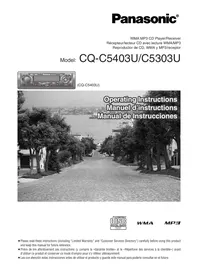


| Product type | Car radio |
| Brand | PANASONIC |
| Model | CQ-C5303U |
| Category | Car radio |
| Dimensions (W x H x D) | 178 x 50 x 155 mm |
| Weight | 1.6 kg |
| Power supply | 12 V DC (11 - 16 V), negative ground |
| Maximum output power | 50 W x 4 channels |
| Fuse | 15 A |
| Supported audio formats | CD, CD-R/RW, MP3, WMA |
| Radio | FM (87.9 - 107.9 MHz), AM |
| Front panel | Motorized, tiltable (15/25/35°), detachable |
| Sound quality | 6 preset modes (FLAT, ROCK, POP, VOCAL, JAZZ, CLUB) + SQ3 (3 adjustable bands) |
| Security function | Detachable front panel with SLED indicator and reminder alarm |
| Remote control | Supplied, CR2025 battery (life ~6 months) |
| Optional connectivity | CD changer, iPod, XM/Sirius Satellite Radio, Bluetooth hands-free kit (via adapters) |
| Maintenance | Clean with a dry, soft cloth; do not use solvents |
| Operating temperature | Not specified, avoid excessive heat and humidity |
| Repairability | Entrust to qualified personnel; do not disassemble yourself |
Frequently Asked Questions - CQ-C5303U PANASONIC
User questions about CQ-C5303U PANASONIC
0 question about this device. Answer the ones you know or ask your own.
Ask a new question about this device
Download the instructions for your Car radio in PDF format for free! Find your manual CQ-C5303U - PANASONIC and take your electronic device back in hand. On this page are published all the documents necessary for the use of your device. CQ-C5303U by PANASONIC.
USER MANUAL CQ-C5303U PANASONIC
WMA MP3 CD Player/Receiver
- Read the operating instructions for the unit and all other components of your car audio system carefully before using the system. They contain instructions about how to use the system in a safe and effective manner. Panasonic assumes no responsibility for any problems resulting from failure to observe the instructions given in this manual.
This manual uses pictographs to show you how to use the product safely and to alert you to potential dangers resulting from improper connections and operations. The meanings of the pictographs are explained below. It is important that you fully understand the meanings of the pictographs in order to use this manual and the system properly.

This pictograph intends to alert you to the presence of important operating instructions and installation instructions. Failure to heed the instructions may result in severe injury or death.

This pictograph intends to alert you to the presence of important operating instructions and installation instructions. Failure to heed the instructions may result in injury or material damage.
Warning
Observe the following warnings when using this unit.
The driver should neither watch the display nor operate the system while driving.
Watching the display or operating the system will distract the driver from looking ahead of the vehicle and can cause accidents. Always stop the vehicle in a safe location and use the parking brake before watching the display or operating the system.
Use the proper power supply.
This product is designed for operation with a negative grounded 12 V DC battery system. Never operate this product with other battery systems, especially a 24 V DC battery system.
- Keep batteries and insulation film out of reach of infants.
Batteries and insulation film can be ingested, so keep them out of the reach of infants. If an infant ingests a battery or insulation film, please seek immediate medical attention.
- Protect the Deck Mechanism.
Do not insert any foreign objects into the slot of this unit.
- Do not disassemble or modify the unit.
Do not disassemble, modify the unit, or attempt to repair the product yourself. If the product needs to be repaired, consult your dealer or an authorized Panasonic Servicenter.
Do not use the unit when it is out of order.
If the unit is out of order (no power, no sound) or in an abnormal state (has foreign objects in it, is exposed to water, is smoking, or smells), turn it off immediately and consult your dealer.
The remote control unit should not lie about in the car.
If the remote control unit lies about, it could fall on the floor while driving, get wedged under the brake pedal, and lead to a traffic accident.
Refer fuse replacement to qualified service personnel.
When the fuse blows out, eliminate the cause and have it replaced with the fuse prescribed for this unit by a qualified service engineer. Incorrect replacement of the fuse may lead to smoke, fire, and damage to the product.
Observe the following warnings when installing.
- Disconnect the lead from the negative (-) battery terminal before installation. Wiring and installation with the negative (-) battery terminal connected may cause electrical shock and injury due to a short circuit. Some cars equipped with the electrical safety system have specific procedures of battery terminal disconnection. FAILURE TO FOLLOW THE PROCEDURE MAY LEAD TO THE UNINTENDED ACTIVATION OF THE ELECTRICAL SAFETY SYSTEM RESULTING IN DAMAGE TO THE VEHICLE AND PERSONAL INJURY OR DEATH.
- Never use safety-related components for installation, grounding, and other such functions. Do not use safety-related vehicle components (fuel tank, brake, suspension, steering wheel, pedals, airbag, etc.) for wiring or fixing the product or its accessories. Installing the product on the air bag cover or in a location where it interferes with airbag operation is prohibited. Check for piping, gasoline tank, electric wiring, and other items before installing the product. If you need to open a hole in the vehicle chassis to attach or wire the product, first check where the wire harness, gasoline tank, and electric wiring are located. Then open the hole from outside if possible.
- Never install the product in a location where it interferes with your field of vision.
- Never have the power cord branched to supply other equipment with power. After installation and wiring, you should check the normal operation of other electrical equipment. The continuation of their using in abnormal conditions may cause fire, electrical shock or a traffic accident. In the case of installation to an airbag-equipping car, confirm warnings and cautions of the vehicle manufacturer before installation. Make sure the leads do not interfere with driving or getting in and out of the vehicle. Insulate all exposed wires to prevent short circuiting.

Caution
Observe the following cautions when using this unit.
- Keep the sound volume at an appropriate level.
- Keep the volume level low enough to be aware of road and traffic conditions while driving.
- Do not insert or allow your hand or fingers to be caught in the unit. To prevent injury, do not get your hand or fingers caught in moving parts or in the disc slot. Especially watch out for infants. This unit is designed for use exclusively in automobiles.
- Do not operate the unit for a prolonged period with the engine turned off. Operating the audio system for a long period of time with the engine turned off will drain the battery.
- Do not expose the unit to direct sunlight or excessive heat.
Otherwise these will raise the interior temperature of the unit, and it may lead to smoke, fire, or other damage to the unit.
- Do not use the product where it is exposed to water, moisture, or dust.
Exposure of the unit to water, moisture, or dust may lead to smoke, fire, or other damage to the unit. Make especially sure that the unit does not get wet in car washes or on rainy days.
Observe the following cautions when installing.
Refer wiring and installation to qualified service personnel.
Installation of this unit requires special skills and experience. For maximum safety, have it installed by your dealer. Panasonic is not liable for any problems resulting from your own installation of the unit.
- Follow the instructions to install and wire the product.
Not following the instructions to properly install and wire the product could cause an accident or fire.
Take care not to damage the leads.
When wiring, take care not to damage the leads. Prevent them from getting caught in the vehicle chassis, screws, and moving parts such as seat rails. Do not scratch, pull, bend or twist the leads. Do not run them near heat sources or place heavy objects on them. If leads must be run over sharp metal edges, protect the leads by winding them with vinyl tape or similar protection.
Use the designated parts and tools for installation.
Use the supplied or designated parts and appropriate tools to install the product. The use of parts other than those supplied or designated may result in internal damage to the unit. Faulty installation may lead to an accident, a malfunction or fire.
- Do not block the air vent or the cooling plate of the unit.
Blocking these parts will cause the interior of the unit to
overheat and will result in fire or other damage.
- Do not install the product where it is exposed to strong vibrations or is unstable.
Avoid slanted or strongly curved surfaces for installation. If the installation is not stable, the unit may fall down while driving and this can lead to an accident or injury.
Installation Angle: The product should be installed in a horizontal position with the front end up at a convenient angle, but not more than 30 degrees. The user should bear in mind that in some areas there may be restrictions on how and where this unit can be installed. Consult your dealer for further details. Wear gloves for safety. Make sure that wiring is completed before installation. To prevent damage to the unit, do not connect the power connector until the whole wiring is completed. - Do not connect more than one speaker to one set of speaker leads (except for connecting to a tweeter).
Observe the following cautions when handling the battery for the remote control unit.
Use only specified battery (CR2025). - Match the polarity of the battery with the (+) and (-) marks in the battery case. - Replace dead battery as soon as possible. - Remove the battery from the remote control unit when not using it for an extended period of time. - Insulate the battery (by placing them in a plastic bag or covering them with vinyl tape) before disposal or storage. - Dispose of the battery according to the local regulations. - Do not disassemble, recharge, heat or short the battery. Do not throw a battery into a fire or water.
In case of battery leakage
- Thoroughly wipe the battery liquid off the battery case and insert new battery.
- If any part of your body or clothing comes into contact with battery liquid, wash it with plenty of water.
- If battery liquid comes into contact with your eyes, wash them with plenty of water and get immediate medical attention.
Safety Information (continued)

Caution
THIS PRODUCT IS A CLASS I LASER PRODUCT. USE OF CONTROLS OR ADJUSTMENTS OR PERFORMANCE OF PROCEDURES OTHER THAN THOSE SPECIFIED HEREIN MAY RESULT IN HAZARDOUS RADIATION EXPOSURE. DO NOT OPEN COVERS AND DO NOT REPAIR BY YOURSELF. REFER SERVICING TO QUALIFIED PERSONNEL.
The following applies only in the U.S.A.
Part 15 of the FCC Rules
FCC Warning:
Any unauthorized changes or modifications to this equipment would void the user's authority to operate this device.
Before Reading These Instructions
Panasonic welcomes you to our constantly growing family of electronic products owners.
We endeavor to give you the advantages of precise electronic and mechanical engineering, manufactured with carefully selected components, and assembled by people who are proud of the reputation their work has built for our company. We know this product will bring you many hours of enjoyment, and after you discover the quality, value and reliability we have built into it, you too will be proud to be a member of our family.
Differences between 2 Models
- This operating instruction manual is for 2 models CQ-C5403U and CQ-C5303U. All illustrations throughout this manual represent model CQ-C5403U unless otherwise specified. The following table describes the differences between 2 models.
| Models Features | CQ-C5403U | CQ-C5303U |
| Pre-amp output voltage/impedance | 4 V/60 Ω | 2.5 V/200 Ω |
| Subwoofer output voltage/impedance | 4 V/60 Ω | 2.5 V/200 Ω |
Customer Services Directory
U.S.A.
Obtain Product Information and Operating Assistance; locate your nearest Dealer or Servicenter; purchase Parts and Accessories; or make Customer Service and Literature requests by visiting our Web Site at:
http://www.panasonic.com/support
or, contact us via the web at:
http://www.panasonic.com/contactinfo
You may also contact us directly at:
1-800-211-PANA (7262),
Monday-Friday 9 am-9 pm; Saturday-Sunday 10 am-7 pm, EST.
For hearing or speech impaired TTY users, TTY: 1-877-833-8855
Accessory Purchases:
Purchase Parts, Accessories and Instruction Books online for all Panasonic Products by visiting our Web Site at:
http://www.pasc.panasonic.com
or, send your request by E-mail to:
npcparts@panasonic.com
You may also contact us directly at:
1-800-332-5368 (Phone) 1-800-237-9080 (Fax Only) (Monday-Friday 9 am to 8 pm, EST.)
Panasonic Services Company
20421 84th Avenue South, Kent, WA 98032
(We accept Visa, MasterCard, Discover Card, American Express, and Personal Checks)
For hearing or speech impaired TTY users, TTY: 1-866-605-1277
Service in Puerto Rico
Panasonic Puerto Rico, Inc.
Panasonic Sales Company
Factory Servicenter:
FOR PRODUCT OPERATION ASSISTANCE, please contact:
Our Customer Care Centre:
Telephone #: (905) 624-5505
1-800#: 1-800-561-5505
Fax #: (905) 238-2360
Email link: "Contact Us" on www.panasonic.ca
FOR PRODUCT REPAIRS, please locate your nearest Authorized
Servicentre at www.panasonic.ca:
Link: "Servicentres™ locator" under "Customer support"
Panasonic Factory Service:
Vancouver
Panasonic Canada Inc.
12111 Riverside Way
Richmond, BC V6W 1K8
Tel: (604) 278-4211
Fax: (604) 278-5627
Toronto
Panasonic Canada Inc.
5770 Ambler Drive
Mississauga, ON L4W 2T3
Tel: (905) 624-8447
Fax: (905) 238-2418
IF YOU SHIP THE PRODUCT TO A SERVICENTRE
Carefully pack and send prepaid, adequately insured and preferably in the original carton.
Include details of the defect claimed, and proof of date of original purchase.
Limited Warranty
U.S.A.
PANASONIC CONSUMER ELECTRONICS COMPANY, DIVISION OF PANASONIC CORPORATION OF NORTH AMERICA One Panasonic Way, Secaucus, New Jersey 07094
PANASONIC SALES COMPANY, DIVISION OF PANASONIC PUERTO RICO, INC. Ave. 65 de infanteria, Km. 9.5, San Gabriel Industrial Park Carolina, Puerto Rico 00985
PANASONIC AUTO PRODUCTS LIMITED WARRANTY
LIMITED WARRANTY COVERAGE
If your product does not work properly because of defects in materials and workmanship.
Panasonic Consumer Electronics Company or Panasonic Sales Company (collectively referred to as "the warrantor") will, for the length of the period indicated in the chart below, which starts with the date of original purchase ("warranty period"), at its option either (a) repair your product with new or refurbished parts, or (b) replace it with a new or refurbished product. The decision to repair or replace will be made by the warrantor.
| Categories | Parts | Labor |
| Audio Components (except items listed below) | One (1) Year | One (1) Year |
| MXE Series Audio Components (except items listed below) | Two (2) Years | Two (2) Years |
| Speakers | One (1) Year | Not Applicable |
| Accessories (in exchange for defective items) | Ninety (90) Days | Not Applicable |
During the "Labor" warranty period, there will be no charge for labor. During the "Parts" warranty period, there will be no charge for parts. You must carry in or mail in your product during the warranty period. If non-rechargeable batteries are included, they are not warranted. This warranty only applies to products purchased and serviced in the United States or Puerto Rico. This warranty is extended only to the original purchaser of a new product which was not sold "as is". A purchase receipt or other proof of the original purchase date is required for warranty service.
CARRY-IN OR MAIL-IN SERVICE
For Carry-In or Mail-In Service in the United States, call 1-800-211-PANA (7262) or visit Panasonic Web Site: http://www.panasonic.com For assistance in Puerto Rico, call Panasonic Sales Company (787)-750-4300 or fax (787)-768-2910.
LIMITED WARRANTY LIMITS AND EXCLUSIONS
This warranty ONLY COVERS failures due to defects in materials and workmanship, and DOES NOT COVER normal wear and tear or cosmetic damage. The warranty ALSO DOES NOT COVER damages which occurred during shipment, failures which are caused by products not supplied by the warrantor, failures which result from accident, misuse, abuse, neglect, mishandling, misapplication, alteration, faulty installation, set-up adjustment, maladjustment of consumer control, improper maintenance, improper antenna, inadequate signal reception or pickup, power line surge, improper voltage supply, lightning, modification, commercial use (such as use in hotels, offices, restaurants, or other business uses) or rental use of the product, or service by anyone other than the technician from Factory Servicenter or other authorized service centers, or damage that is attributable to acts of God.
THERE ARE NO EXPRESS WARRANTIES EXCEPT AS LISTED UNDER "LIMITED WARRANTY COVERAGE". THE WARRANTOR IS NOT LIABLE FOR INCIDENTAL OR CONSEQUENTIAL DAMAGES RESULTING FROM THE USE OF THIS PRODUCT, OR ARISING OUT OF ANY BREACH OF THIS WARRANTY. (As examples, this excludes damages for lost time, cost of having someone remove or re-install an installed unit if applicable, travel to and from the servicer, and loss of media, data or other memory contents. The items listed are not exclusive, but are for illustration only.) ALL EXPRESS AND IMPLIED WARRANTIES, INCLUDING THE WARRANTY OF MERCHANTABILITY, ARE LIMITED TO THE PERIOD OF THE LIMITED WARRANTY.
Some states do not allow the exclusion or limitation of incidental or consequential damages, or limitations on how long an implied warranty lasts, so the
exclusions may not apply to you.
This warranty gives you specific legal rights and you may also have other rights which vary from state to state. If a problem with this product develops during or after the warranty period, you may contact your dealer or Servicenter. If the problem is not handled to your satisfaction, then write to warrantor's Consumer Affairs Department at the addresses of the warrantor.
PARTS AND SERVICE WHICH ARE NOT COVERED BY THIS LIMITED WARRANTY ARE YOUR RESPONSIBILITY.
| Customer's Record |
| Model |
| No. |
| Serial |
| No. |
| Dealer's |
| No. |
| Code |
| No. |
| Dealer's |
| Address |
| Date of |
| Purchase |
CANADA
Panasonic Canada Inc. 5770 Ambler Drive, Mississauga Ontario L4W 2T3
PANASONIC PRODUCT LIMITED WARRANTY
Panasonic Canada Inc. warrants this product to be free from defects in materials and workmanship and agrees to remedy any such defect for a period as stated below from the date of original purchase.
CAR AUDIO PRODUCT - ONE (1) YEAR, PARTS AND LABOUR
(The labour to install or remove the product is not warranted)
LIMITATIONS AND EXCLUSIONS
This warranty does not apply to products purchased outside Canada or to any product which has been improperly installed, subjected to usage for which the product was not designed, misused or abused, damaged during shipping, or which has been altered or repaired in any way that affects the reliability or detracts from the performance, nor does it cover any product which is used commercially. Dry cell batteries are also excluded from coverage under this warranty.
This warranty is extended to the original end user purchaser only. A purchase receipt or other proof of the original purchase date is required before warranty service is performed. THIS EXPRESS, LIMITED WARRANTY IS IN LIEU OF ALL OTHER WARRANTIES, EXPRESS OR IMPLIED, INCLUDING ANY IMPLIED WARRANTY OF MERCHANTABILITY AND FITNESS FOR A PARTICULAR PURPOSE. IN NO EVENT WILL PANASONIC CANADA INC. BE LIABLE FOR ANY SPECIAL, INDIRECT OR CONSEQUENTIAL DAMAGES.
In certain instances, some jurisdictions do not allow the exclusion or limitation of incidental or consequential damages, or the exclusion of implied warranties, so the above limitations and exclusions may not be applicable.
Features
Wide array of components for system upgrade
Various optional components allow users to obtain availability of wide range of system upgrade. Upgrading the system delivers relaxed AV space in a car. For further information, refer to the separate System Upgrade Guidebook.
CD changer
The optional adapter (Conversion Cable for DVD/CD Changer: CA-CC30U) allows you to connect the optional Panasonic CD changer unit (CX-DP880).
iPod®
The optional adapter (Direct Cable for iPod: CA-DC300U) allows you to connect the optional iPod series.
XM Satellite Radio
You can connect the optional XM receiver (XMD1000) with optional Digital Adapter. For details, refer to the operating instructions for the XM receiver.
Sirius Satellite Radio
You can connect the optional Sirius Satellite radio receiver (SIR-PAN1).
Hands Free Phone System
You can connect the optional Bluetooth hands-free kit (CY-BT100U).
Note:
- CY-BT100U is designed only for receiving calls. It cannot send calls.
- You can connect the optional Expansion Module (hub unit) (CY-EM100U). Connection of the Expansion Module allows you to simultaneously connect optional devices mentioned before as well as other AV devices. For details, refer to the operating instructions for the Expansion Module.
Fully Motorized Face Plate
A touch is all it takes to slide the face plate down for access to the disc slot. A three-stage tilt function permits viewing angle to be adjusted to 15, 25 or 35 degrees for optimum display visibility.
SQ (Sound Quality)
You have 6 preset modes (FLAT, ROCK, POP, VOCAL, JAZZ, CLUB). You can customize your setting for these (except FLAT) and save them for instant recall.
SQ3 (3-Band Sound Quality)
Center frequency and level are adjustable in each of 3 bands. This lets you fine-tune sound quality for each genre to suit car-interior acoustics and your personal preferences. (→ Page 22)
Contents
Common
Safety Information 2 Before Reading These Instructions. 5 Customer Services Directory. 5 Limited Warranty. 6 Features 7 Contents 7 Accessories 8 Remote Control Unit 8 Preparation 9
- Remote Control Unit
- Main Unit Cancellation of Demonstration Clock Setting
General 10
Each source
Radio 14 Before DiscPlayback 16 CD Player 17 MP3/WMA Player 18 Notes on MP3/WMA 20
As needed
Audio Settings 22
Volume - Bass/Treble - SQ Adjustment Balance/Fader - Subwoofer Level - Subwoofer LPF (Low Pass Filter)
Function Settings 26
- Demonstration
- Dimmer (display brightness setting)
- Spectrum Analyzer Display Patterns (PATTERN)
- Mute/Attenuation AUX Skip
- Security Function
Anti-Theft System 30
Fuse 31
Maintenance 31
Notes on Discs 31
Troubleshooting 32
Specifications 37
Note:
Refer to the System Upgrade Guidebook for operation of optional devices such as a CD changer and iPod.
Accessories
Instruction kit Q'ty: 1 set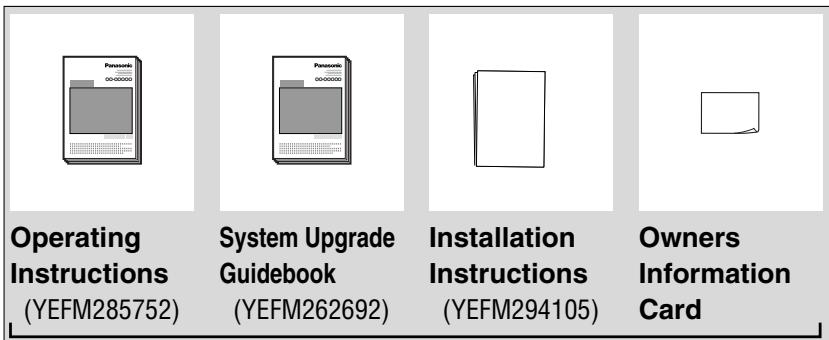
Q'ty: 1 Q'ty: 1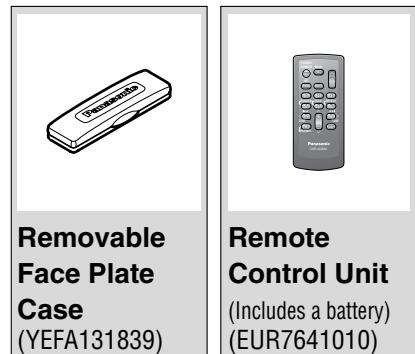
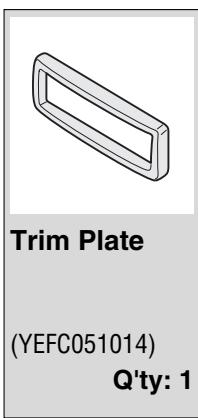
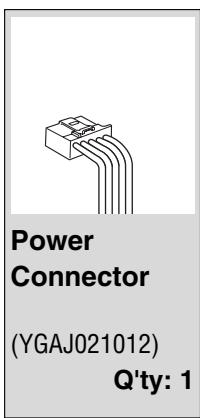
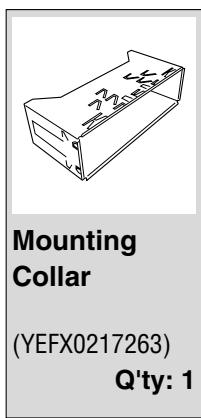
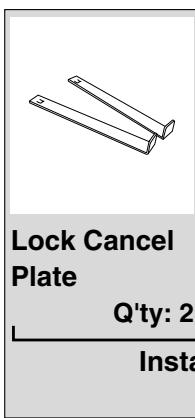
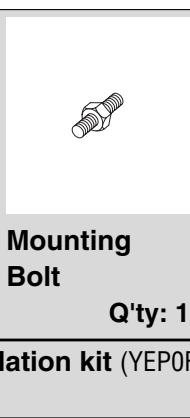
Note:
- The number in parentheses underneath each accessory part name is the part number for maintenance and service.
- Accessories and their parts numbers are subject to modification without prior notice due to improvements.
- Trim Plate and Mounting Collar are mounted on the main unit at shipment.
Remote Control Unit
- This instruction manual explains operations for use with the buttons on the main unit. (Different operations excluded)
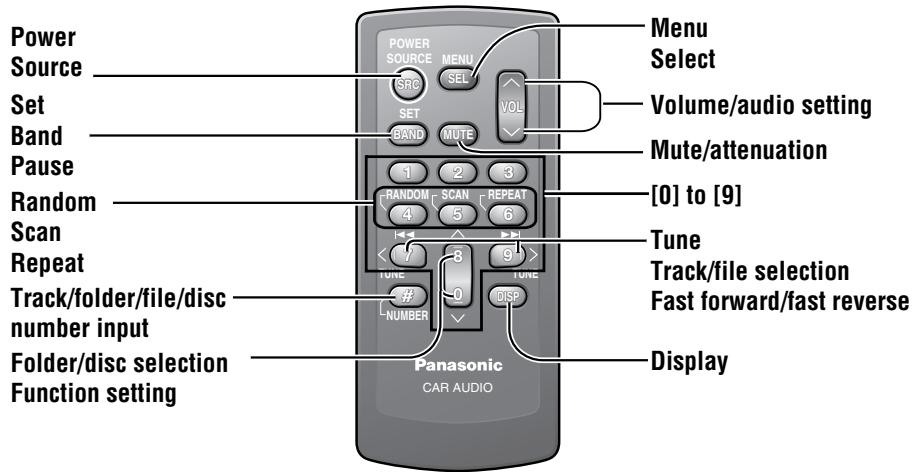
Remote Control Unit
Preparation Before Initial Use
Pull the insulation film out from the backside of remote control gently.
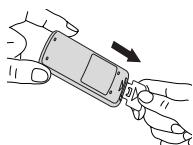
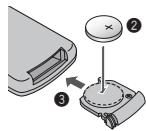
Battery Replacement
1 Remove the battery holder with the remote control unit placed on a flat surface.
① Stick your thumbnail into the groove, and push the holder in the direction of the arrow, and at the same time. ② Pull it out in the direction of the arrow using a tough pointed object.
Put a battery in the case with the (+) side facing up. Put the case back.
Back side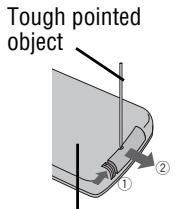
Warning
- Keep a battery away from children to avoid the risk of accidents. If an infant ingests a battery, please seek immediate medical attention.
Caution
- Remove and dispose of an old battery immediately.
- Do not disassemble, heat or short a battery. Do not throw a battery into a fire or water.
- Follow local regulations when disposing of a battery.
- Improper use of a battery may cause overheating, an explosion or ignition, resulting in injury or a fire.
Note:
- Battery Information: Battery Type: Panasonic lithium battery (CR2025) (Included in the remote control) Battery Life: Approximately 6 months under normal use (at room temperature)
Main Unit
Cancellation of Demonstration
The demonstration message appears for initial use.
① Set your car's ignition switch to the ACC or ON position. The demonstration screen appears.
HELLO
② Press [SRC/PWR] to turn on the power. ③ Press and hold [VOLUME] (PUSH SEL) for more than 2 seconds to open the menu. ④ Press [VOLUME] (PUSH SEL) to select the Demonstration setting. ("DEMO" is displayed.) ⑤ Turn [VOLUME] counterclockwise. (Press [0] (V) on the remote control unit.)
Note:
- To return to the regular mode, press [D] (DISP). Refer to the section on "Function Settings".
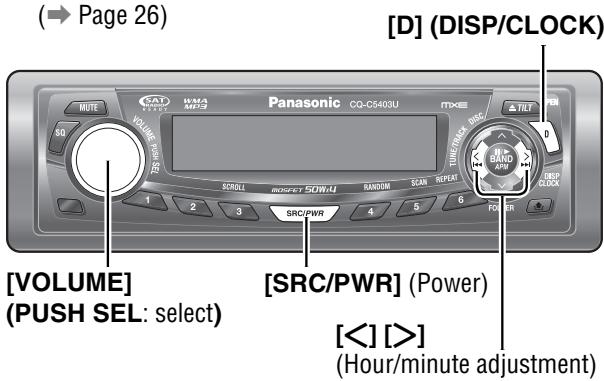
Clock Setting
The 12-hour system is used for the clock.
① Press [SRC/PWR] to turn on the power. ② Press [D] (DISP/CLOCK).
ALUST Clock display
③ Press and hold [D] (DISP/CLOCK) for more than 2 seconds.

④ Adjust the hour.
[>] : put forward hour. [<] : put back hour.

⑤ Press [D] (DISP/CLOCK).

⑥ Adjust the minute.
[>] : put forward minute. [ ] : put back minute.

⑦ Press [D] (DISP/CLOCK).

Note:
- "ADJUST" is displayed before adjusting the clock.
- Press and hold [> or [ ] to change numbers rapidly.
General
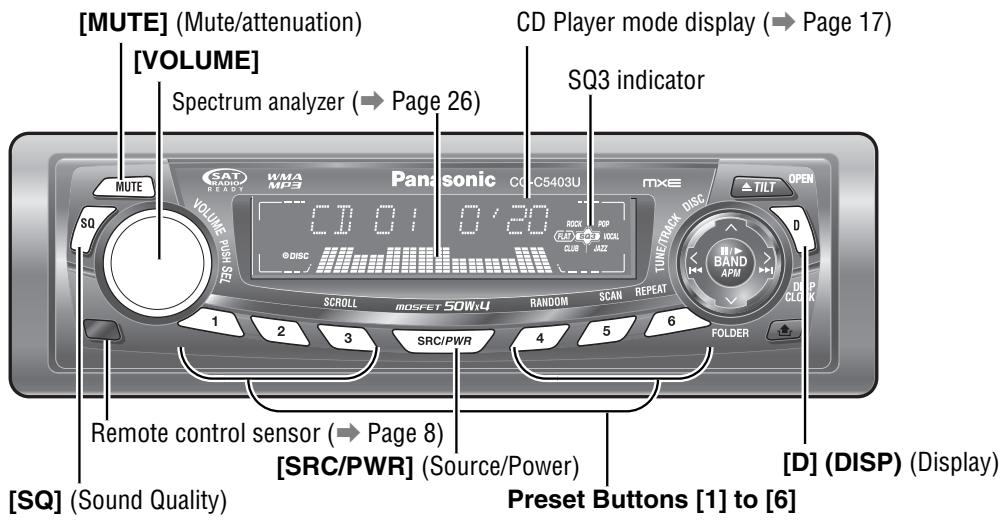
Power
Set your car's ignition switch to the ACC or ON position.
ON : Press [SRC/PWR].
WELCOME
OFF: Press and hold [SRC/PWR] until you hear a beep (approximately 1 second), then release it.
Note:
- When the ignition switch is set to ON, the face plate is tilted to secure their former positions.
- If you turn the key to the ACC OFF position during the security function is active, the security message appears with a warning alarm. (Default: SLED ON) (⇒ Page 28 about Security Function setting)
Volume
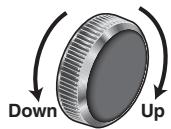
VOLUME 18
Default: 18
Setting range: 0 to 40
Note:
- The volume level can be set independently for each source. (For radio, one volume setting for AM, one volume setting for all FMs)
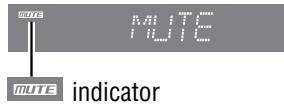
Mute/Attenuation

ON: Press [MUTE].
OFF: Press [MUTE] again.
You can select mute or attenuation. (→ Page 26)
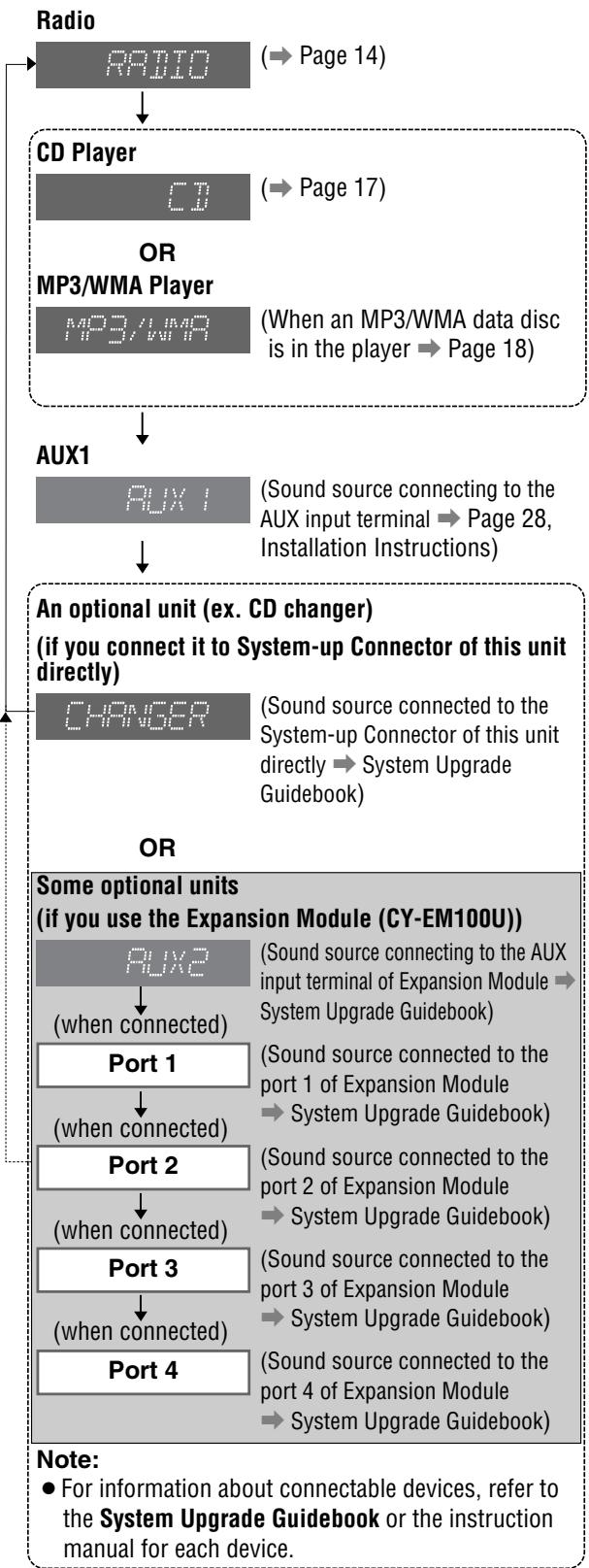
Source
Press [SRC/PWR] to change the source.
SQ (Sound Quality)
You have 6 preset modes (FLAT, ROCK, POP, VOCAL, JAZZ, CLUB). You can customize your setting for these (except SQ-FLAT) and save them for instant recall.
SQ3 (3-Band Sound Quality)
Center frequency and level are adjustable in each of 3 bands. This lets you fine-tune sound quality for each genre to suit car-interior acoustics and your personal preferences. (→ Page 22)
Press [SQ] to activate the SQ selection mode. Then press [SQ] to select the sound type as follows:
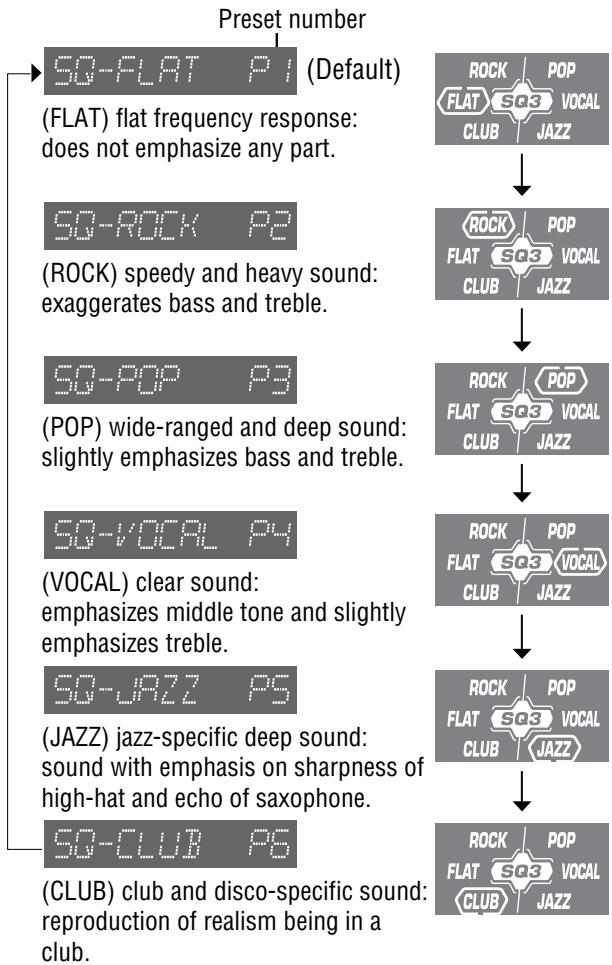
Press [D] (DISP) to return to the regular mode.
Note:
- After pressing [SQ] on the main unit, you can also select a sound type by pressing the preset buttons [1] to [6].
General (continued)

Caution
- Do not pinch your finger or hand in the face plate.
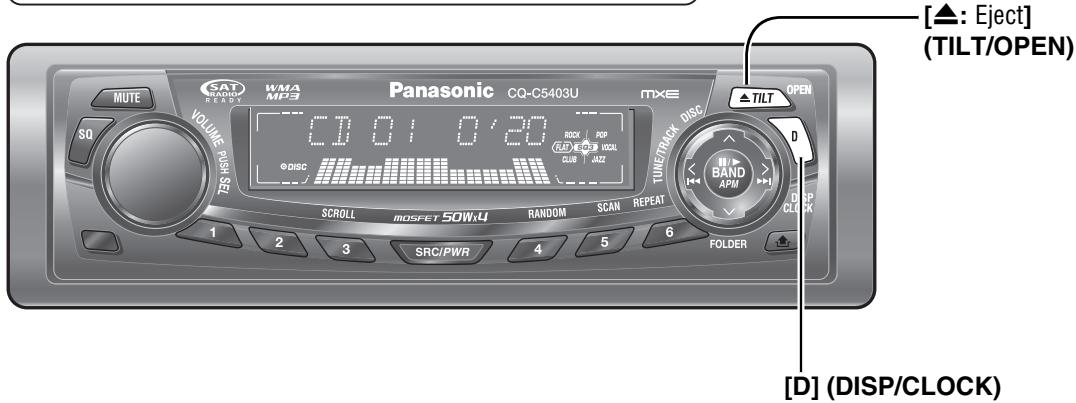
Open the Face Plate
Press [A: Eject] (OPEN).
Note:
- The face plate automatically closes after a warning alarm sounds if no operation is performed for approximately 20 seconds.
- When a disc is already loaded, the disc will be ejected after the face plate fully opens. (Disc Eject ⇒ Page 16)
Close the Face Plate
Press [△] (OPEN).
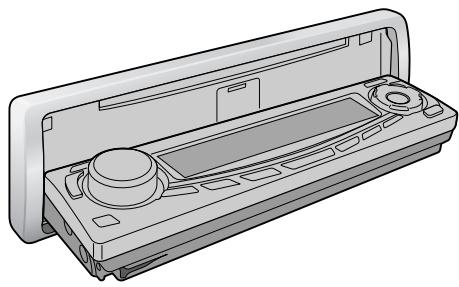
Face Plate Angle (Tilt)
Press and hold [▲] (TILT) until you hear a beep (approximately 1 second) from the speaker output, then release it. Set the face plate to the position at which it is easy to read what is on the display. Each time the above operation is repeated, the face plate angle changes in the sequence shown below.
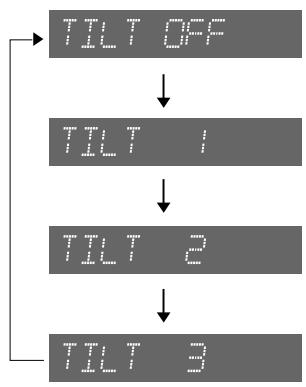
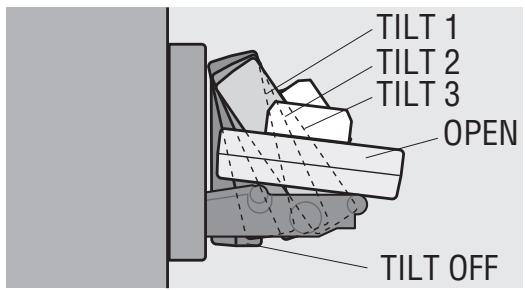
Note:
- The positions specified at "Face Plate Angle (Tilt)" are memorized even after the following operations.
- Open/close
- ACC on/off
Clock Display (at Power off)
When the power of the unit is set to OFF, press [D] (DISP/CLOCK).
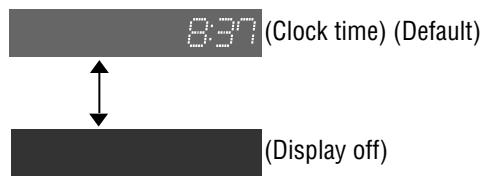
When the power is set to ON, refer to the description for each source mode.
Radio
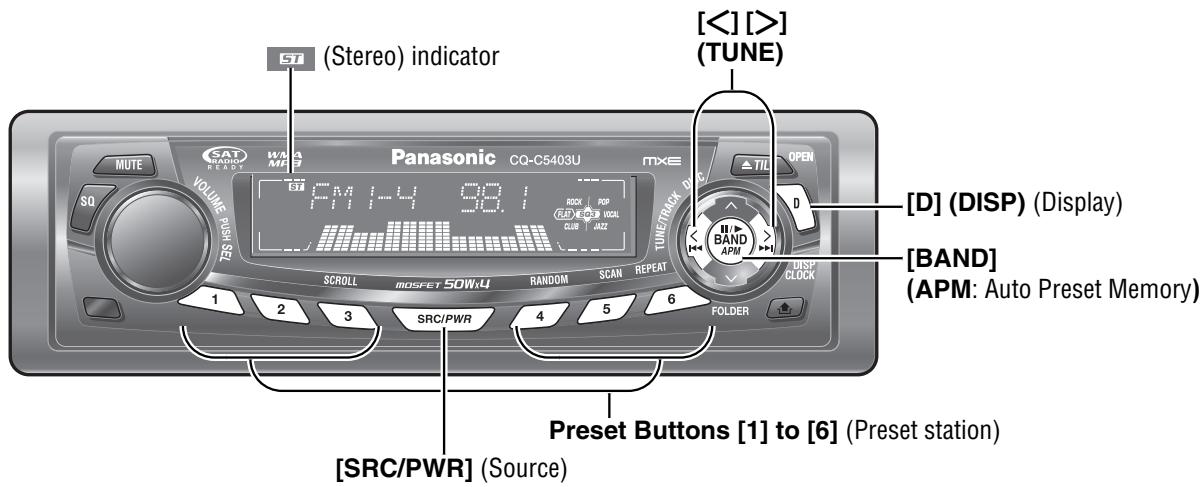
Radio Mode
Press [SRC/PWR] to select the radio mode.
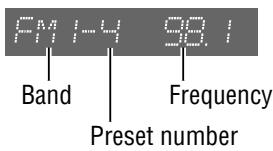
2 Band Press [BAND].
![PANASONIC CQ-C5303U - Band Press [BAND]. - 1](/content/2019/11/57151/images/6a208bd0f6f31d0adf213247b122c78c91684a990d79ed5cdf749ffffed4e84b.jpg)
3 Tuning
[>]: Higher frequency
[<]: Lower frequency
Press and hold [> or [ ] for more than 0.5
seconds, then release it. Seeking will start.
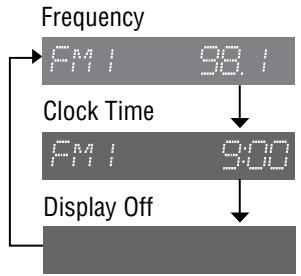
Display Change
Press [D] (DISP) to change the display as follows.
Station Preset
Up to 6 stations can be stored in each of the FM1, FM2, FM3 and AM band selections.
Note:
- New stations overwrite existing saved stations after these procedures.
Warning
- To ensure safety, never attempt to preset stations while you are driving.
Auto Preset Memory (APM)
With this operation, stations with good receiving conditions can be automatically stored in the preset memory.
① Select a band. (→ Previous page) (2) Press and hold [BAND] (APM) for more than 2 seconds.
6 stations with first to 6th highest in signal strength will be preset to each band.
Once set, the preset stations are sequentially scanned for 5 seconds each. (scanning)
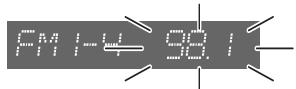
Note:
- To stop scanning, press one of the buttons from [1] to [6].
Manual Preset Memory
With this operation, a station can be manually stored in the preset memory.
① Select a band and frequency. (→ Previous page) ② Press and hold one of the preset buttons from [1] to [6] until the display blinks once.
Preset number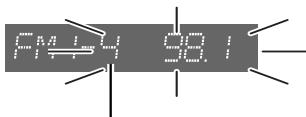
Preset Station Calling
① Select a band. (→ Previous page) ② Press one of the preset buttons from [1] to [6].
Before Disc Playback

Caution
- 8 cm (3'') discs are not available for this unit, therefore, do not insert them.
- Do not use irregularly shaped discs.
- Do not use discs that have a seal or label attached.
- To avoid damaging the face plate, do not push down or place objects on it while it is open.
- Do not pinch your finger or hand in the face plate.
- Do not insert foreign objects into the disc slot.
Available Discs
| CD-R | CD-RW | CD-TEXT | CD-ROM |
| CD-DA | CD-DA | CD-DA | - |
| MP3/WMA | MP3/WMA | - | MP3/WMA |
Note:
Refer to the section on "Notes on MP3/WMA" (→ Page 20) and "Notes on Discs" (→ Page 31). - The power will be turned on automatically when a disc is loaded. - A disc which has both CD-DA data and MP3/WMA data on it may not be reproduced normally.
Disc Insert
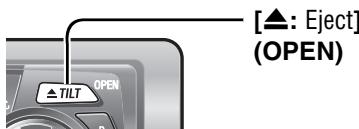
① Press [▲] (OPEN).
When a disc is already loaded (DISC lights), the disc will be ejected after the face plate fully opens.
② Insert a disc.
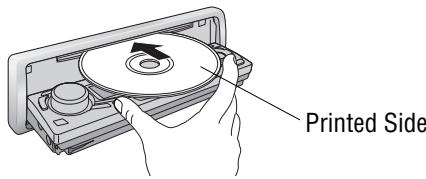
Note:
It may take some time to start playing. - Playback will start automatically after recognizing the data of the loaded disc.
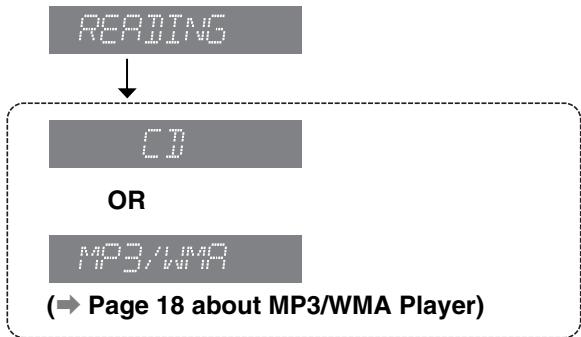
Disc Eject
① Press [▲] (OPEN).
The disc will be ejected after the face plate fully opens.
② Take the disc out. ③ Press [▲] (OPEN) to close the face plate.
Note:
- The face plate is automatically closed after a warning alarm sounds if no operation is performed for approximately 20 seconds.
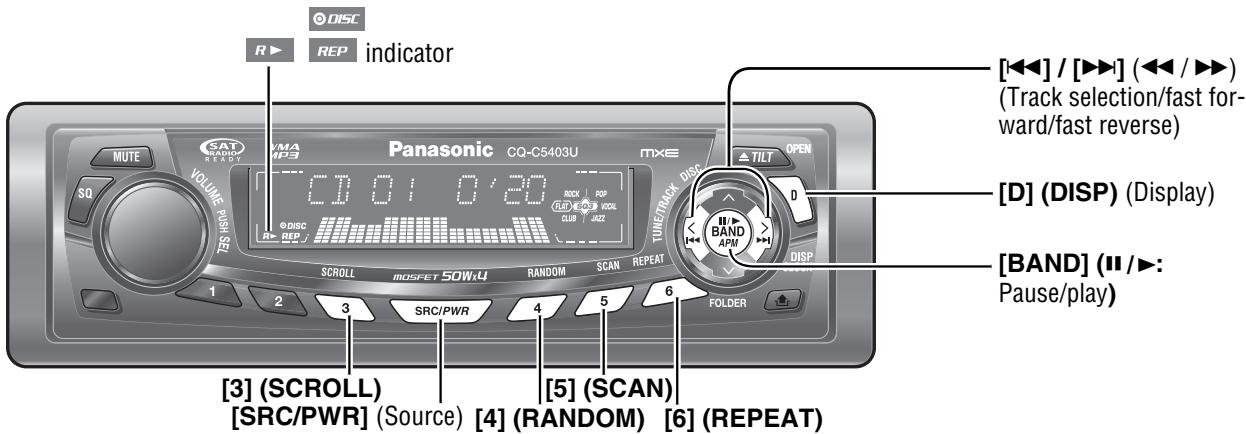
When CD is in the player
DISC
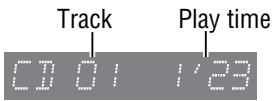
Press [SRC/PWR] to select the CD player mode and playback starts. Track Play time
Display Change
Press [D] (DISP).
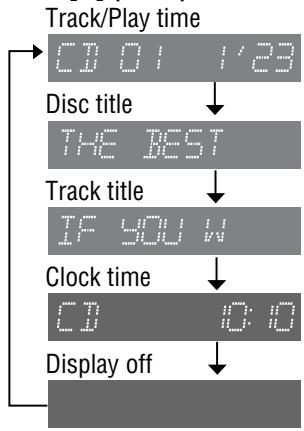
Note:
- "NO TEXT" is displayed when there is no information on the disc.
- To have another circle scroll while a title is displayed, press [3] (SCROLL). If the number of displayed characters is 8 or less, the characters do not scroll.
Track Selection
▶▶ : Next track [beginning of the current track For the previous track, press twice.
Fast Forward/Fast Reverse
Press and hold
▶▶ : Fast forward
[ ] (F): Fast reverse
Release to resume normal playback.
Pause (II /▶)
Press [BAND] (II /▶).
Press [BAND] (II /▶) again to cancel.
Random Play
All the available tracks are played in a random sequence.
Press [4] (RANDOM).
R> lights.
Press [4] (RANDOM) again to cancel.
Scan Play
The first 10 seconds of each track is played in sequence.
Press [5] (SCAN).
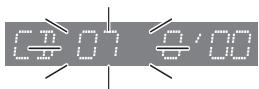
Press [5] (SCAN) again to cancel.
Repeat Play
The current track is repeated.
Press [6] (REPEAT).
REP lights.
Press [6] (REPEAT) again to cancel.
Direct Track Selection
(Only for remote control unit)
Example: Track number 10
TRACK IO
① Press [#]. ② Press [1] [0] ③ Press [BAND] (SET).
Note:
- To suspend direct selection, press [DISP].
- Random, Scan and Repeat plays are canceled once [#] is pressed.
MP3/WMA Player
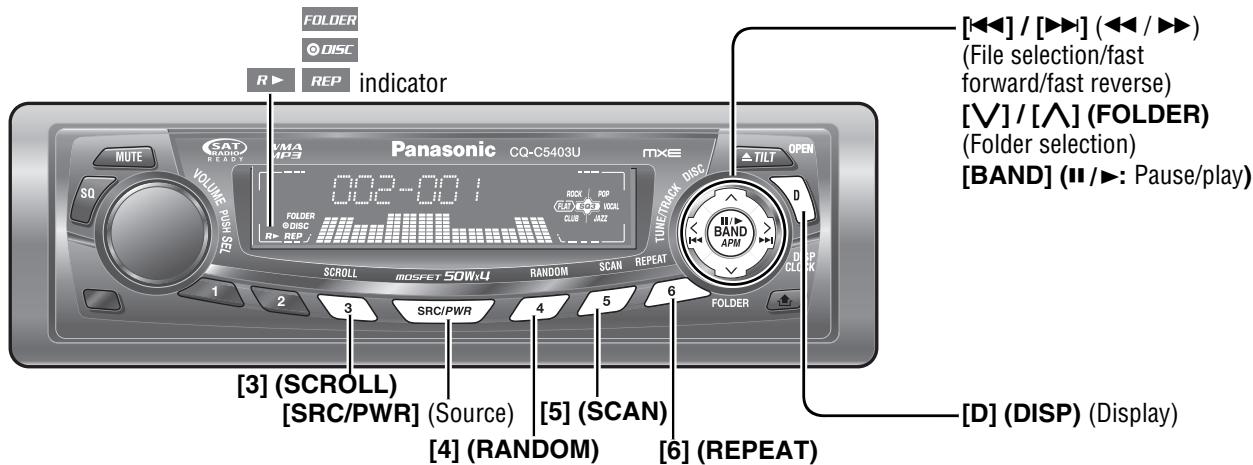
When a disc is in the player DISC
Press [SRC/PWR] to select the MP3/WMA player mode and playback starts.
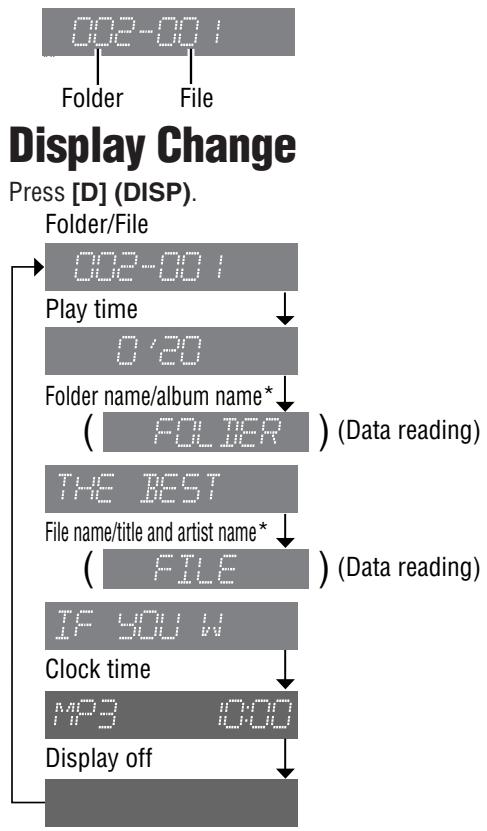
Note:
- "NO TEXT" is displayed when there is no information on the disc.
- To have another circle scroll while a title is displayed, press [3] (SCROLL). If the number of displayed characters is 8 or less, the characters do not scroll.
*ID3/WMA Tag Setting
Press and hold [3] (SCROLL) for more than 2 seconds.
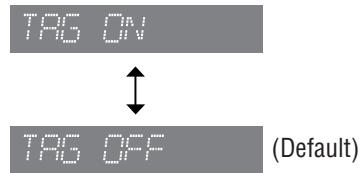
When a folder name is displayed:
TAG ON: The album title is displayed.
TAG OFF: The folder name is displayed.
When a file name is displayed:
TAG ON: The title/artist name is displayed.
TAG OFF: The file name is displayed.
Folder Selection
A : Next folder
V : Previous folder
File Selection
[▶]: Next file [beginning of the current file]
For the previous file, press twice.
Fast Forward/Fast Reverse
Press and hold
▶▶ : Fast forward
[ ] (F): Fast reverse
Release them to resume normal playback.
Pause (II /▶)
Press [BAND] (II /▶).
Press [BAND] (II /▶) again to cancel.
Random Play

All the available files are played in a random sequence.
Press [4] (RANDOM).
R> lights.
Press [4] (RANDOM) again to cancel.
Folder Random Play

All the files in the current folder are played in a random sequence.
Press and hold [4] (RANDOM) for more than 2 seconds.
FOLDER R light.
Press and hold [4] (RANDOM) again for more than 2 seconds to cancel.
Scan Play
The first 10 seconds of each file is played in sequence.
Press [5] (SCAN).
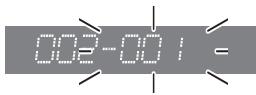
Press [5] (SCAN) again to cancel.
Folder Scan Play

From the next folder, the first 10 seconds of the first file in each folder is played in sequence.
Press and hold [5] (SCAN) for more than 2 seconds. FOLDER lights.
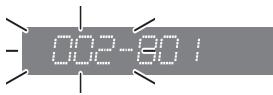
Press and hold [5] (SCAN) again for more than 2 seconds to cancel.
Repeat Play

The current file is repeated.
Press [6] (REPEAT).
REP lights.
Press [6] (REPEAT) again to cancel.
Folder Repeat Play

The current folder is repeated.
Press and hold [6] (REPEAT) for more than 2 seconds.
FOLDER REP light.
Press and hold [6] (REPEAT) again for more than 2 seconds to cancel.
Direct Selection
(Only for remote control)
Direct Folder Selection
Example: Folder number 10 (→ Page 21)

① Press[#] twice. ② Press [1] [0]. ③ Press [BAND] (SET).
Direct File Selection
Example: File number 10

① Press[#]. ② Press [1] [0]. ③ Press [BAND] (SET).
Note:
- To suspend direct selection, press [DISP].
- Random, Folder Random, Scan, Folder Scan, Repeat and Folder Repeat plays are canceled once [ ] is pressed.
Notes on MP3/WMA
What is MP3/WMA?
MP3 (MPEG Audio Layer-3) and WMA (Windows Media™ Audio) are the compression formats of digital audio. The former is developed by MPEG (Motion Picture Experts Group), and the latter is developed by Microsoft Corporation. Using these compression formats, you can record the contents of about 10 music CDs on a single CD (This figure refers to data recorded on a 650 MB CD-R or CD-RW at a fixed bit rate of 128 kbps and a sampling frequency of 44.1 kHz).
Note:
- MP3/WMA encoding and CD writing software programs are not supplied with this unit.
Points to remember when making MP3/WMA files
Common
- High bit rate and high sampling frequency are recommended for high quality sound.
- Selecting VBR (Variable Bit Rate) is not recommended because playing time is not displayed properly and sound may be skipped.
- The playback sound quality differs depending on the encoding circumstances. For details, refer to the instructions of your own encoding software and writing software.
MP3
- It is recommended to set the bit rate to "128 kbps or more" and "fixed".
WMA
- It is recommended to set the bit rate to "64 kbps or more" and "fixed".
- Do not set the copy protection on the WMA file to enable this unit to play back.
Caution
- Never assign the ".mp3" or ".wma" file name extension to a file that is not in the MP3/WMA format. This may not only produce noise from the speaker damage, but also damage your hearing.
Display Information
Displayed items
- CD-TEXT
Disc title
Track title
MP3/WMA
Folder name
File name
- MP3 (ID3 tag)
Album name
Title and artist name
WMA (WMA tag)
Album name
Title and artist name
Displayable characters
- Displayable length of file name/folder name: within 64 characters. (Unicoded file and folder names are reduced by half in the number of displayable characters.)
- Name files and folders in accordance with the standard of each file system. Refer to the instructions of writing software for details.
- ASCII character set and special characters in each language can be displayed.
- Some Cyrillic characters in the Unicode can be displayed.
ASCII character set
A to Z, a to z, digits 0 to 9, and the following symbols: (space)! " # $ % & ' ( ) * + , - . / ; < = > ? @ [ \ ] ^ _ ` { | }
Special characters
- With some software in which MP3/WMA format files have been encoded, the character information may not be displayed properly.
- Undisplayable characters and symbols will be converted into an asterisk (X).
- It is recommended that the length of the file name is less than 8 (excluding the file extension).
Recording MP3/WMA files on a CD-media
- You are recommended to minimize the chances of making a disc that contains both CD-DA files and MP3/WMA files.
- If CD-DA files are on the same disc as MP3 or WMA files, the songs may not play in the intended order, or some songs may not play at all.
- When storing MP3 data and WMA data on the same disc, use different folders for each data.
- Do not record files other than MP3/WMA files and unnecessary folder on a disc.
- The name of an MP3/WMA file should be added by rules as shown in the following descriptions and also comply with the rules of each file system.
- The file extension ".mp3" or ".wma" should be assigned to each file depending on the file format.
- You may encounter trouble in playing MP3/WMA files or displaying the information of MP3/WMA files recorded with certain writing software or CD recorders.
- This unit does not have a play list function.
- Although Multi-session recording is supported, the use of Disc-at-One is recommended.
Supported file systems
ISO 9660 Level 1/Level 2, Apple Extension to ISO 9660, Joliet, Romeo
Note:
- Apple HFS, UDF 1.50, Mix CD and CD Extra are not supported.
Compression formats (Recommendation: "Points to remember when making MP3/WMA files" on the previous page)
| Compression method | Bit rate | VBR | Sampling frequency |
| MPEG 1 audio layer 3 (MP3) | 32 k – 320 kbps | Yes | 32, 44.1, 48 kHz |
| MPEG 2 audio layer 3 (MP3) | 8 k – 160 kbps | Yes | 16, 22.05, 24 kHz |
| Windows Media Audio Ver. 2, 7, 8, 9* | 32 k – 192 kbps | Yes | 32, 44.1, 48 kHz |
- WMA 9 Professional/LossLess/Voice are not supported.
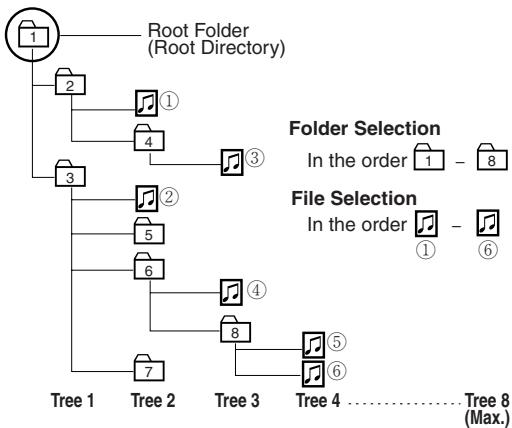
Folder selection order/file playback order
Maximum number of files/folders
Maximum number of files/folders: 511 (files + folders) Maximum number of files in one folder: 255 Maximum depth of trees: 8 Maximum number of folders: 255 (Root folder is included.)
Note:
- You can shorten the duration between data read and playback by decreasing the quantity of files or folders, or the depth of the hierarchy.
- This unit counts the number of folders irrespective of the presence or absence of an MP3/WMA file.
- If the selected folder does not contain any MP3/WMA files, the nearest MP3/WMA files in the order of playback will be played.
- Playback order may be different from other MP3/WMA players even if the same disc is used.
- "ROOT" appears when displaying the root folder name.
Copyright
It is prohibited by copyright laws to copy, distribute and deliver copyrighted materials such as music without the approval of copyright holder except enjoying yourself personally.
No warranty
Above description complies with our investigations as of December 2005. It has no warranty for reproducibility and displayability of MP3/WMA.
Audio Settings
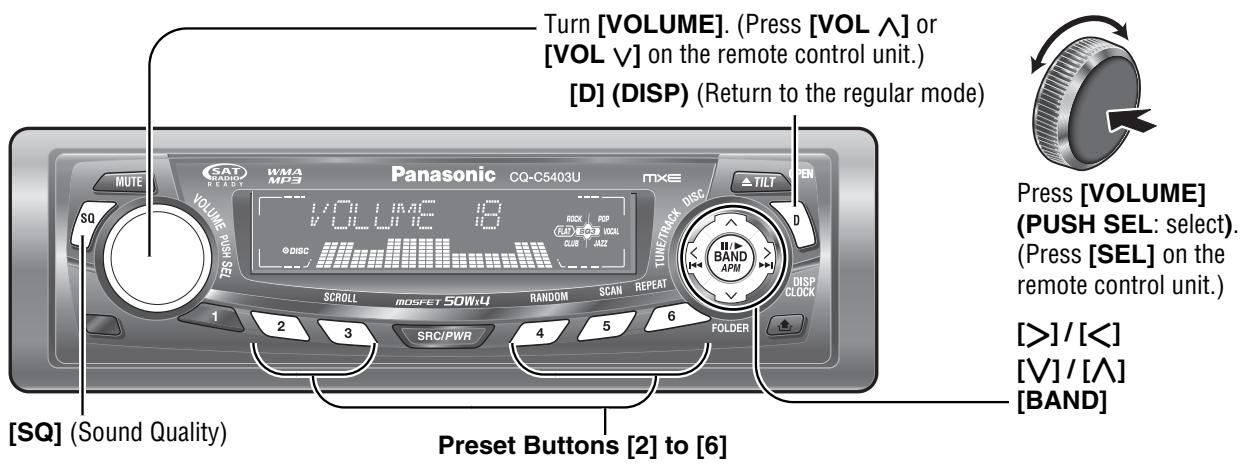
Volume
Default: 18
Setting range: 0 to 40
Bass/Treble
You can adjust the bass and treble sounds.
Default: BAS (bass) 0 dB
TRE (treble) 0 dB
Setting range: -12 dB to +12 dB (by 2 dB)
SQ Adjustment
You can adjust the characteristics of the currently selected sound type (SQ). (See Page 11)
It is also possible to preset up to 5 different adjusted SQs.
Tone/SQ adjustable range: -12 dB to +12 dB (by 2 dB)
SQ Low/Bass: ± 12 dB (at 60 Hz, 80 Hz, 100 Hz, 200 Hz)
SQ Mid: ±12 dB (at 500 Hz, 1 kHz, 2 kHz, 3 kHz)
SQ High/Treble: ±12 dB (at 10 kHz, 12 kHz, 15 kHz, 18 kHz)
- The bass/treble control level of each frequency is fixed to the frequency that has been selected for SQ.
To return an adjusted SQ to the default setting
① Press [SQ], and select the SQ which is to be returned to the default setting. (Only for main unit) ② Press and hold [BAND] for more than 2 seconds.
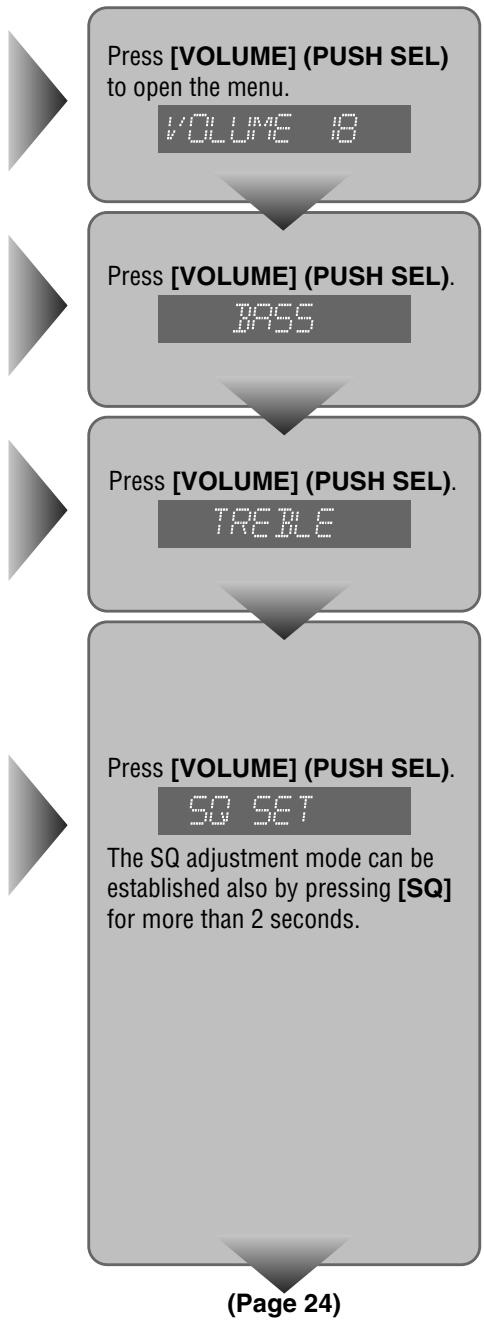

Note:
- The sequence and contents of setting items may depend on the conditions of devices to be connected. For further information, refer to the System Upgrade Guidebook or the instruction manuals for the devices to be connected.
- To return to the regular mode, press [D] (DISP).
- If no operation takes place for more than 5 seconds in audio setting (2 seconds in the volume adjustment, 10 seconds in the SQ adjustment), the display returns to the regular mode.
- The volume can also be adjusted directly using [VOLUME] on the main unit. (→ Page 10)
- Please refer to page 11 for calling up a preset SQ.




Note:
- You cannot save any SQ presetting value in [1] button.
- Any SQ adjustments will not change the call up screen names such as ROCK and JAZZ.
Press [>] or [<] to select a frequency band (Low, Mid, High). [>]: Higher frequency band [<]: Lower frequency band Turn [VOLUME] to select a frequency. ①: Higher frequency ②: Lower frequency Press A or V to adjust the level.
3 Press and hold one of the preset buttons from [2] to [6] for more than 2 seconds. - The adjusted SQ is preset in the number of the selected button, and return to the regular mode resumes. - When you suspend the SQ preset adjustment, each level remains your recent adjustment until a new SQ presetting operation is performed or you call up the SQ preset.
Audio Settings (continued)
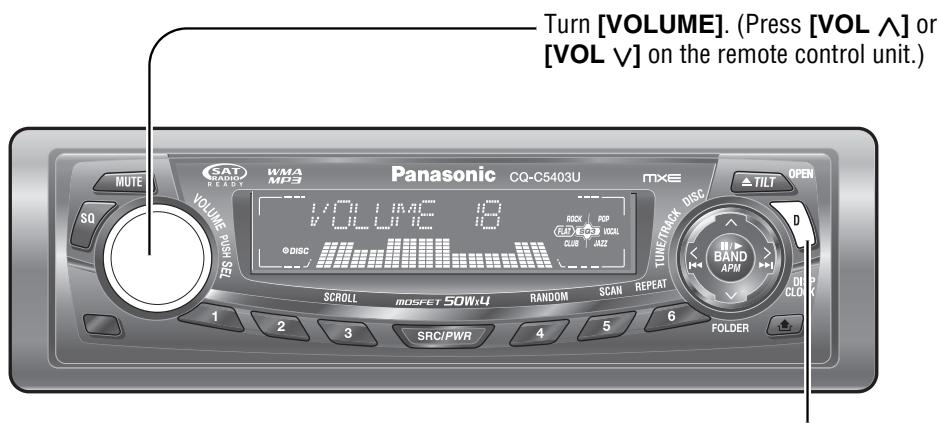
Press [VOLUME] (PUSH SEL: select). (Press [SEL] on the remote control unit.) [D] (DISP) (Return to the regular mode)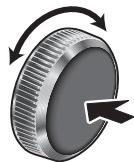
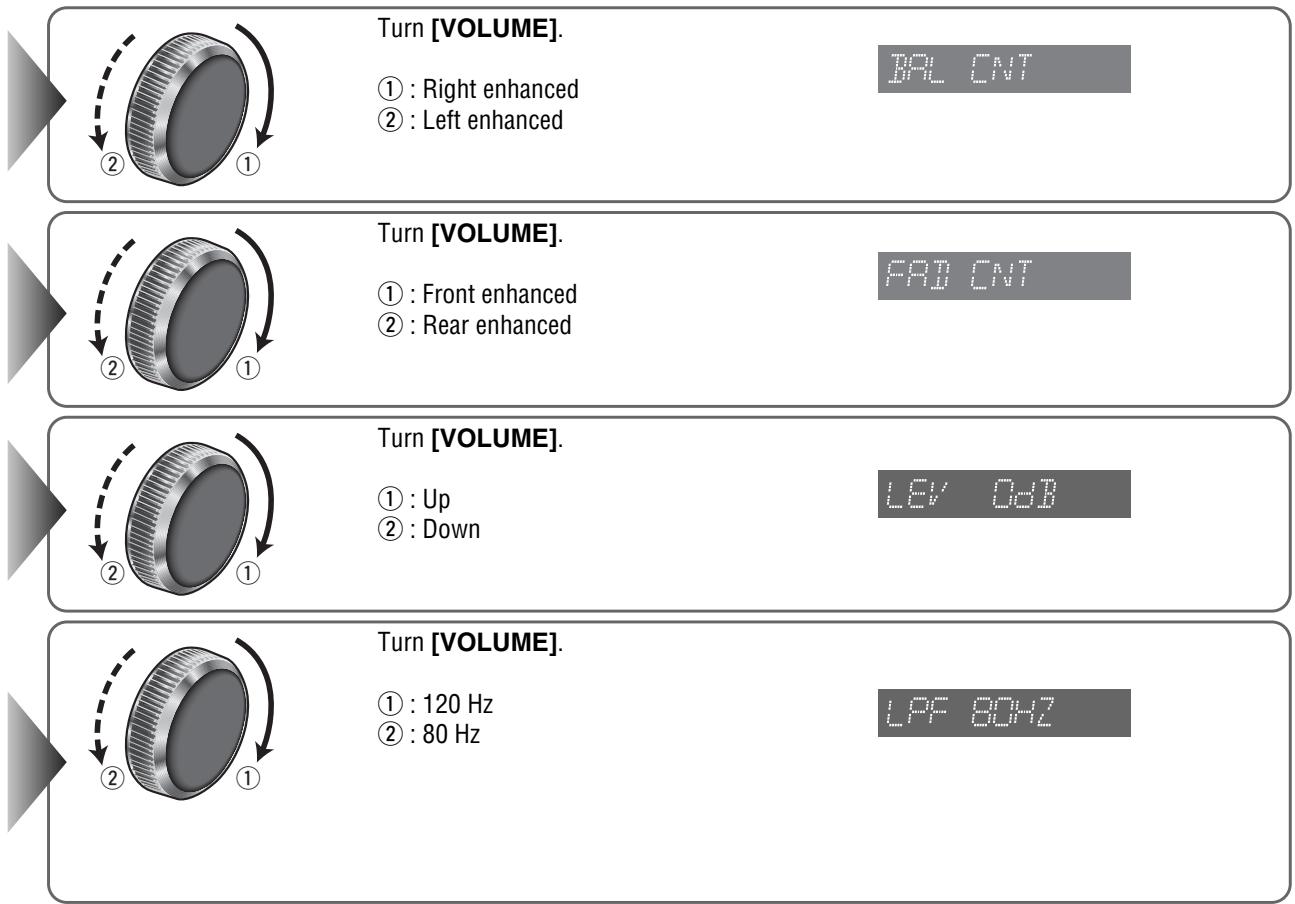
Balance/Fader
You can adjust the sound level among the right, left, front and rear speakers.
Default: BAL (balance) CNT (center)
FAD (fader) CNT (center)
Setting range: 15 levels each and CNT (center)
Subwoofer Level
You can change the subwoofer volume level.
Default: 0
Setting range: MUTE (-∞) , -6 dB to +6 dB (by 2 dB)
Subwoofer LPF (Low Pass Filter)
You can select the upper limit frequency of the sound from subwoofer.
Default: 80Hz
Setting range: 80Hz 120Hz
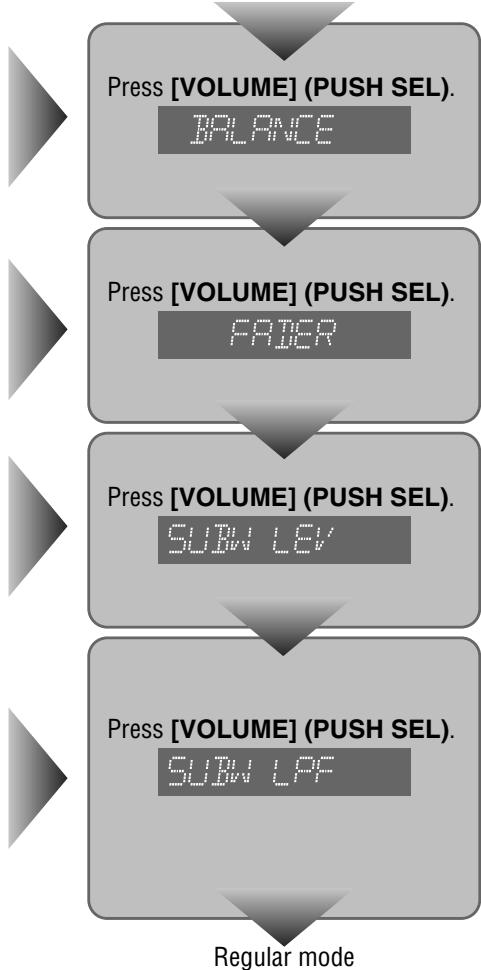

Note:
- The sequence and contents of setting items may depend on the conditions of devices to be connected. For further information, refer to the System Upgrade Guidebook or the instruction manuals for the devices to be connected.
- To return to the regular mode, press [D] (DISP).
- If no operation takes place for more than 5 seconds in audio setting, the display returns to the regular mode.
- Adjustments of the subwoofer level and low pass filter are effective when the subwoofer is connected.
Function Settings
[D] (DISP) (Return to the regular mode)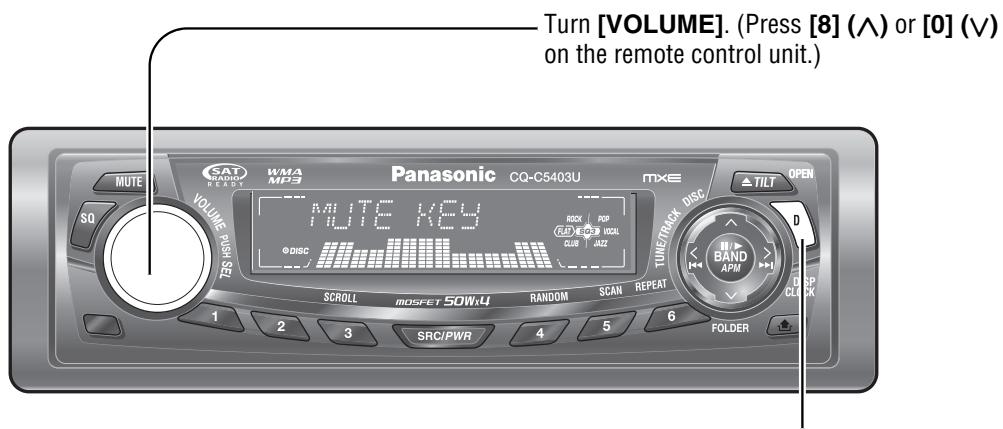
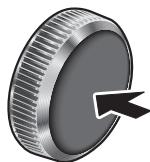
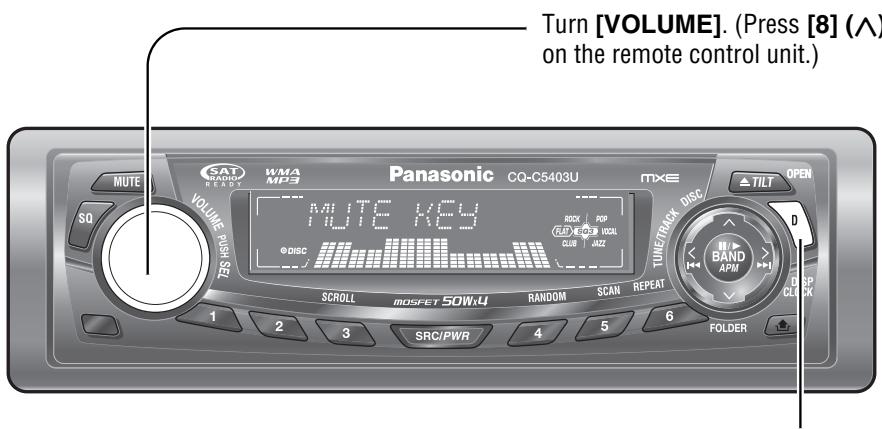
Press and hold [VOLUME] (PUSH SEL: select) for more than 2 seconds. (Press and hold [SEL] (MENU) for more than 2 seconds on the remote control unit.)
Demonstration
You can set up the monitor to display or hide the demonstration screen.
Default: ON
Dimmer (display brightness setting)
You can adjust the display brightness.
Default: DIMMER 3
Variety: DIMMER 1-3
Spectrum Analyzer Display Patterns (PATTERN)
Default: Pattern 1
Variety: 6 types, OFF
Mute/Attenuation
You can select mute or attenuation. (See Page 10)
Default: MUTE

Press and hold [VOLUME]
(PUSH SEL) for more than 2 seconds to open the menu.
M

Press [VOLUME] (PUSH SEL).
DIMMER

Press [VOLUME] (PUSH SEL).
PATTERN

Press [VOLUME] (PUSH SEL).
MUTE KEY

Note:
- The sequence and contents of setting items may depend on the conditions of devices to be connected. For further information, refer to the System Upgrade Guidebook or the instruction manuals for the devices to be connected.
- To return to the regular mode, press [D] (DISP).
- If no operation takes place for more than 5 seconds in function setting, the display returns to the regular mode.
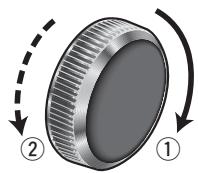
Turn [VOLUME].
![PANASONIC CQ-C5303U - Turn [VOLUME]. - 1](/content/2019/11/57151/images/6bd1e5957bdd879b9099184a57aeca20ad3fe34e6b6686a0425860e1fa8db454.jpg)
Note:
- Button operation with either the main unit or remote control allows users to cancel the demonstration screen for 20 seconds and enable the selected operation even in the demo-on mode.
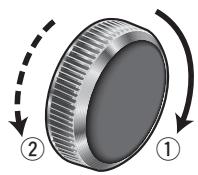
Turn [VOLUME].
![PANASONIC CQ-C5303U - Turn [VOLUME]. - 1](/content/2019/11/57151/images/b462fee9511ed217cf32b77aafaa280330b83b81efa26f881b26d4667ca59729.jpg)
![PANASONIC CQ-C5303U - Turn [VOLUME]. - 2](/content/2019/11/57151/images/9f953b8b026e9190fd84aab1d5b785bdaab686231f72be9c52aa966e5927e116.jpg)
Turn [VOLUME].
![PANASONIC CQ-C5303U - Turn [VOLUME]. - 1](/content/2019/11/57151/images/aee7b6b92f28488581d9c74cdbb678d6ffbc843a82241358cda73b1e732c6438.jpg)
![PANASONIC CQ-C5303U - Turn [VOLUME]. - 2](/content/2019/11/57151/images/bb7dd103a4fa869327fc29637f48ad6ba62b6e35600f76b5a169f34ce11ce39b.jpg)
Turn [VOLUME].
![PANASONIC CQ-C5303U - Turn [VOLUME]. - 1](/content/2019/11/57151/images/01e9b4ec6405633d76f7ec44c6c9048402adef2c67df3d488dded634c36eb22b.jpg)
Function Settings (continued)
[D] (DISP) (Return to the regular mode)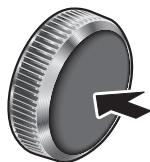
Press and hold [VOLUME] (PUSH SEL: select) for more than 2 seconds. (Press and hold [SEL] (MENU) for more than 2 seconds on the remote control unit.)
AUX Skip
If AUX1 is not used, the AUX mode is skipped when selecting the source.
Default: ON (Skip disabled)
Security Function
You can activate the anti-theft function when leaving your car.
Default: ON

Press [VOLUME] (PUSH SEL).
BUXIN

Press [VOLUME] (PUSH SEL).
SECURITY
(Page 26)

Note:
- The sequence and contents of setting items may depend on the conditions of devices to be connected. For further information, refer to the System Upgrade Guidebook or the instruction manuals for the devices to be connected.
- To return to the regular mode, press [D] (DISP).
- If no operation takes place for more than 5 seconds in function setting, the display returns to the regular mode.
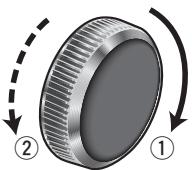
Turn [VOLUME].
![PANASONIC CQ-C5303U - Turn [VOLUME]. - 1](/content/2019/11/57151/images/025a7b78df5ef21cf421697867f6efe5b3a6b1807f120d9b5b9f2dfb246eb68c.jpg)
![PANASONIC CQ-C5303U - Turn [VOLUME]. - 2](/content/2019/11/57151/images/eeac21059972471f114f2a1fb483073c0d5fee068ada295c874bf3bbcccf10d1.jpg)
Turn [VOLUME].
![PANASONIC CQ-C5303U - Turn [VOLUME]. - 1](/content/2019/11/57151/images/8c8103993a66e7a86584b0cb300de6917f1f9e7151896678dd09957ab9548b6a.jpg)
SLED (Security Light Emitting Diode) ON
When the ignition switch is turned OFF...
- The security message will be displayed.
- The face plate removal alarm will be active. (⇒ Page 30)
When the face plate is removed...
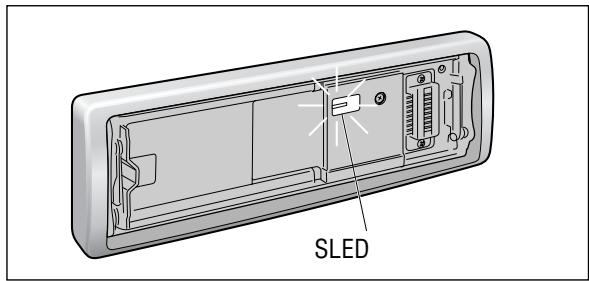
- The security indicator (SLED) blinks. (⇒ Page 30)
Anti-Theft System
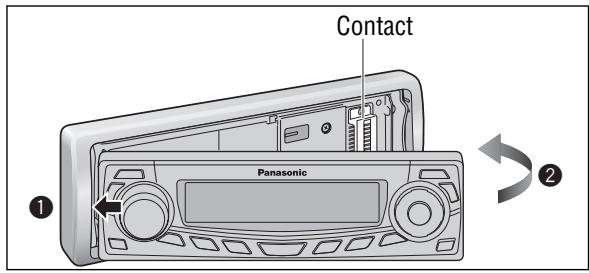
This unit is equipped with a removable face plate. Removing this face plate makes the unit totally inoperable. SLED will blink.
Remove the Face Plate
Switch off the power of the unit. Press [ ] (release) to remove the face plate. (The face plate disengages with a click when it is removed.) Place the face plate into the case and take it with you when you leave the car.
Note:
- Be absolutely sure to turn off the power of the unit before removing the face plate.
- Do not install or remove the face plate while it is moving.
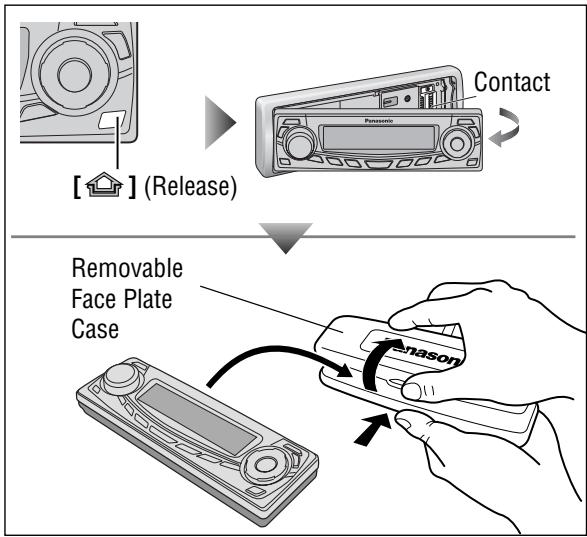
Install the Face Plate
Slide the left side of the face plate in place. Press the right end of the face plate until a "click" is heard.
Security Indicator (SLED)
SLED blinks when the face plate is removed from the unit. This function is activated when the Security Function is ON.
(See page 28)
Face Plate Removal Alarm
This alarm sounds to warn you not to forget to remove the face plate before leaving your car.
This function is activated when the Security Function is ON.
(See page 28)

Caution
- This face plate is not waterproof. Do not expose it to water or excessive moisture.
- Do not remove the face plate while driving your car.
- Do not place the face plate on the dashboard or nearby areas where the temperature rises high.
- Do not touch the contacts on the face plate and on the main unit, since this may result in poor electrical contact.
- If dirt or other foreign substances get on the contacts, wipe them off with a clean and dry cloth.
- To avoid damaging the face plate, do not push it down or place objects on it while it is open.
- The face plate will automatically close about 5 seconds after [release] is pressed while the face plate is tilted or open, so take care to ensure that your fingers will not be pinched by the closing face plate.
If the fuse blows out, consult your dealer, or your nearest authorized Panasonic Servicenter.

Warning
- Use fuses of the same specified rating (15 A). Using substitutes or fuses with higher ratings, or connecting the unit directly without a fuse could cause fire or damage to the unit. If the replaced fuse fails, contact your nearest authorized Panasonic Servicenter.
Maintenance
This unit is designed and manufactured to ensure the minimum of maintenance. Use a dry, soft cloth for routine exterior cleaning. Never use benzine, thinner, or other solvents.
Notes on Discs
Notes on CD/CD Media (CD-R, CD-RW, CD-ROM)
If you use commercial CDs, they must have either of these labels shown at right.
Some copy-protected music CDs are not playable.


How to hold a disc
- Do not touch the underside of a disc.
- Do not scratch a disc.
- Do not bend a disc.
- When not in use, keep a disc in a case.
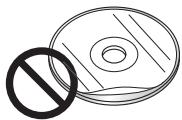
Do not use irregularly shaped discs.
Do not leave discs in the following places:
- In direct sunlight, near car heaters.
- Dirty, dusty, and damp areas.
- On seats and dashboards.
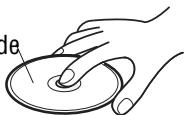
Disc cleaning.
Use a dry, soft cloth to wipe from the center outward.
Do not attach any seals or labels to your discs.
Do not write on the disc label with a ballpoint pen or other hard-point pens.
Printed side.
Labels created by a printer.

Irregularly shaped discs.
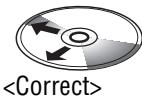
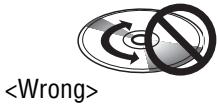
Notes on CD-Rs/RWs.
- You may have trouble playing back some CD-R/RW discs recorded using CD recorders (CD-R/RW drives), either due to their recording characteristics or dirt, fingerprints, scratches, etc. on the disc surface.
- CD-R/RW discs are less resistant to high temperatures and high humidity than ordinary music CDs. Leaving them inside a car for extended periods may damage them and make playback impossible.
- Some CD-R/RW discs cannot be played back successfully due to incompatibility among writing software, a CD recorder (CD-R/RW drive) and the discs.
- This player cannot play the CD-R/RW discs if the session is not closed.
- This player cannot play the CD-R/RW discs which contain other than CD-DA or MP3/WMA data.
- Be sure to observe the instructions of the CD-R/RW disc for handling it.
Troubleshooting
If You Suspect Something Wrong
Check and take steps as described below.
If the described suggestions do not solve the problem, it is recommended to take the unit to your nearest authorized Panasonic Servicenter. The product should be serviced only by qualified personnel. Please refer the checking and the repair to professionals. Panasonic shall not be liable for any accidents arising out of neglect of checking the unit or your own repair after your checking.
Never take measures especially those other than indicated by italic letters in "Possible Solution" described below because those are too dangerous for users to handle themselves.
Warning
- Do not use the unit in an irregular condition, for example, without sound, or with smoke or a foul smell, which can cause ignition or electric shock. Immediately stop using the unit and consult your dealer.
- Never try to repair the unit by yourself because it is dangerous to do so.
Common
| Problem | Possible cause → Possible solution |
| No power to the unit | The power cord (battery, power and ground) is connected in the wrong way. → Check the wiring. |
| Fuse blows out. → Eliminate the cause of fuse blowout and replace the fuse with new one. Consult your dealer. | |
| Sound is not gener- ed. | MUTE is set to ON. → Set MUTE to OFF. |
| The wiring of speaker lines is not correct, or a break or poor contact arises. → Check the wiring in accordance with the wiring diagram. (Installation Instructions) | |
| Noise | There is an electromagnetic-wave generator such as a cellular phone near the unit or its electrical lines. → Keep the electromagnetic-wave generator such as a cellular phone away from the unit and the wiring of the unit. If noise cannot be elimi- nated due to the wiring harness of the car, consult your dealer. |
| The contact of the ground lead is poor. → Make sure that the ground lead is connected to an unpainted part of the chassis securely. | |
| Noise is made in step with engine revolu- tions. | Alternator noise comes from the car. → Change the wiring position of the ground lead. → Mount a noise filter on the power supply. |
| Some operations are not executable. | Some operations are not executable in particular modes such as menu mode. → Read the operating instructions carefully and cancel the mode. If the unit is still out of order, consult your dealer. |
Common (continued)
| Problem | Possible cause → Possible solution |
| No sound from speaker(s) | Balance/Fader setting is not appropriate. → Readjust Balance/Fader. |
| There is a break, a short circuit, poor contact or wrong wiring regarding the speaker wiring. → Check the speaker wiring. | |
| The speaker channels are reversed between right and left. | The speaker wiring is reversed between right and left. → Perform the speaker wiring in accordance with the wiring diagram. |
| The sound field is not clear in the stereo mode. Central sound is not settled. | The plus and minus terminals at right and left channels of speakers are connected reversely. → Perform the speaker wiring in accordance with the wiring diagram. |
| The power of the unit fails unintentionally. | The safety device works. → Consult your dealer, or your nearest Panasonic Servicenter. |
Radio
| Problem | Possible cause ⇒ Possible solution |
| Poor reception or noise | Antenna installation or wiring of antenna cable is faulty. ⇒ Check whether the antenna mounting position and its wiring are correct. In addition, check to see whether the antenna ground is securely connected to the chassis. |
| No power is supplied to the antenna amplifier (when using a film antenna, etc.). ⇒ Check the wiring of the antenna battery lead. | |
| The number of auto preset stations is less than 6. | The number of receivable stations is less than 6. ⇒ Move to an area where receivable stations number is maximum, and try presetting. |
| Preset stations cannot be stored. | The contact of the battery lead is poor, or the battery lead is not always powered. ⇒ Make sure that the battery lead is connected securely, and preset stations again. |
Troubleshooting (continued)
CD
| Problem | Possible cause → Possible solution |
| No playback or disc ejected | The disc is inserted upside down. → Insert a disc correctly. |
| There is a flaw or foreign objects on the disc. → Remove the foreign objects, or use a flawless disc. | |
| Sound skipping or noise | There is a flaw or foreign objects on the disc. → Remove the foreign objects, or use a flawless disc. |
| Sound skipping due to vibration | The unit is not sufficiently secured. → Secure the unit to the console box. |
| The unit is tilted at over 30° in the front-to-end direction. → Make the angle 30° or less. | |
| Disc unrejectable | Something such as a peeled label obstructs the disc coming out. → Press and hold the [▲] (OPEN) for more than 2 seconds when the face plate is open (disc forced ejection). In case that the disc forced ejection does not work, consult your dealer. |
| The microcontroller in the unit operates abnormally due to noise or other factors. → Unplug the power cord and plug it again. In case the unit is still out of order, consult your dealer. |
MP3/WMA
| Problem | Possible cause → Possible solution |
| No playback or disc ejected | The disc has unplayable formatted data. → Refer to the description about MP3/WMA for playable sound data except CD-DA (i.e. music CD). |
| The CD-R/RWs that are playable on other devices are not playable on this unit. | The playability of some CD-R/RWs may depend on the combination of media, recording software and recorder to be used even if these CD-R/RWs are playable on other devices such as a PC. → Make CD-R/RW discs in a different combination of media, recording software and recorder after referring to the description about MP3/WMA. |
| Sound skipping or noise | There is a flaw or foreign objects on the disc. → Remove the foreign objects, or use a flawless disc. For MP3/WMA, refer to the description about MP3/WMA. |
| Playing VBR (Variable Bit Rate) files may cause sound skipping. → Play Non-VBR files. |
Note:
Refer to "Notes on MP3/WMA". (→ Page 20)
Remote control unit
| Problem | Possible cause → Possible solution |
| No response to pressing buttons | The battery is inserted in the wrong direction. A wrong battery is inserted. → Insert a correct battery in the correct direction. |
| The battery is weak. → Replace the battery with new one. | |
| The aiming direction of the remote control unit is wrong. → Aim the remote control unit at the sensor of the unit and press buttons. | |
| The sensor is exposed to direct sunlight. (The remote control unit may not be operable when the sensor is exposed to direct sunlight. In such a case, the system is not faulty.) → Block off sunlight to the sensor. |
Troubleshooting (continued)
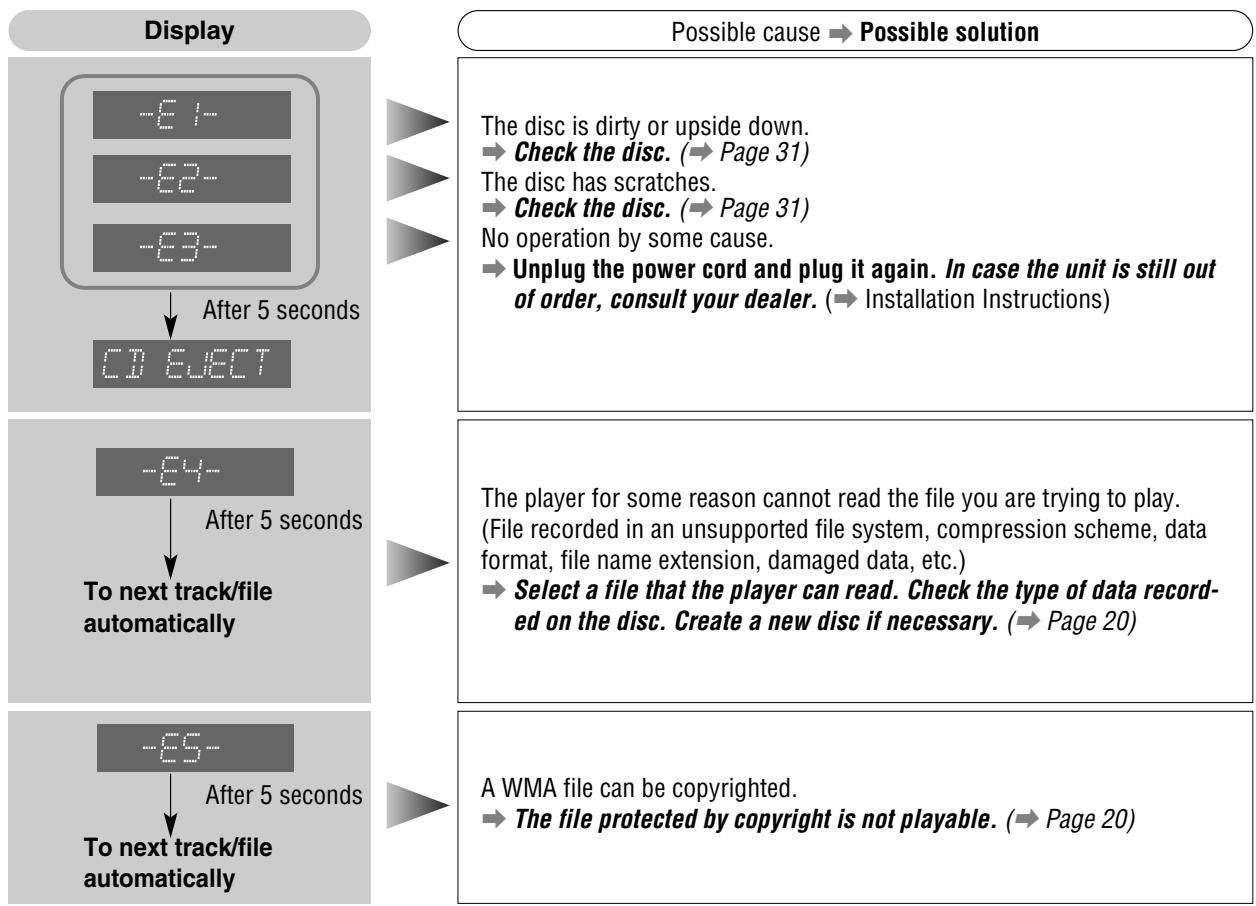
Error Display Messages
CD/MP3/WMA
Specifications
| General | FM Stereo Radio | |
| Power supply | DC 12 V (11 V - 16 V), test voltage 14.4 V, negative ground | Frequency range : 87.9 MHz - 107.9 MHz Usable sensitivity : 10.2 dBf (0.9 μV, 75 Ω) 50 dB quieting sensitivity : 15.2 dBf (1.6 μV, 75 Ω) Frequency response : 30 Hz - 15 kHz (±3 dB) Alternate channel selectivity : 75 dB Stereo separation : 35 dB (1 kHz) Image rejection ratio : 55 dB IF rejection ratio : 100 dB Signal to noise ratio : 62 dB |
| Current consumption | Less than 2.2 A (CD mode, 0.5 W 4-channels) | |
| Maximum power output | 50 W x 4 (at 1 kHz) volume control maximum | |
| Tone/SQ adjustment range | SQ Low/Bass: ± 12 dB (at 60 Hz, 80 Hz, 100 Hz, 200 Hz) SQ Mid: ± 12 dB (at 500 Hz, 1 kHz, 2 kHz, 3 kHz) | |
| SQ High/Treble: ± 12 dB (at 10 kHz, 12 kHz, 15 kHz, 18 kHz) | ||
| Speaker impedance | 4 - 8 Ω | AM Radio |
| Frequency range : 530 kHz - 1 710 kHz Usable sensitivity : 27 dB/μV (22 μV, S/N 20 dB) | ||
| CD Player | ||
| CQ-C5403U | Sampling frequency : 8 times oversampling DA converter : 1 bit DAC System Pick-up type : Astigma 3-beam Light source : Semiconductor laser Wave length : 790 nm Frequency response : 20 Hz - 20 kHz (±1 dB) Signal to noise ratio : 96 dB Total harmonic distortion : 0.01 % (1 kHz) Wow and flutter : Below measurable limits | |
| Pre-amp output voltage | 4 V (CD mode, 1 kHz, 0 dB) | |
| Pre-amp output impedance | 60 Ω | |
| Subwoofer output voltage | 4 V | |
| Subwoofer output impedance | 60 Ω | |
| CQ-C5303U | ||
| Pre-amp output voltage | 2.5 V (CD mode, 1 kHz, 0 dB) | |
| Pre-amp output impedance | 200 Ω | |
| Subwoofer output voltage | 2.5 V | |
| Subwoofer output impedance | 200 Ω | |
| Dimensions (W x H x D) | 178 x 50 x 155 mm | |
| Weight | {7" x 1" / 16" x 6" / 8"} | |
| {1.6 kg} | ||
| {3 lbs. 8 oz} | ||
Above Specifications comply with EIA standards.
Power Output:
18 W RMS x 4 Channels at 4 Ω and ≤ 1% THD+N
Signal to Noise Ratio:
78 dBA (reference: 1 W into 4 Ω) (for CQ-C5403U)
85 dBA (reference: 1 W into 4 Ω) (for CQ-C5303U)

Note:
- Specifications and design are subject to modification without notice due to improvements.
- Some figures and illustrations in this manual may be different from your product.
Panasonic Canada Inc.
12111 Riverside Way
Richmond, BC V6W 1K8
Tel: (604) 278-4211
Fax: (604) 278-5627
Mississauga, Ontario
Panasonic Canada Inc.
5770 Ambler Dr.
Mississauga, ON L4W 2T3
Tel: (905) 624-8447
Fax: (905) 238-2418
Panasonic Canada Inc.
5770 Ambler Drive, Mississauga, Ontario L4W 2T3
PANASONIC LIMITED WARRANTY
SQ mid: ±12 dB (at 500 Hz, 1 kHz, 2 kHz, 3 kHz)
SQ high/treble: ±12 dB (at 10 kHz, 12 kHz, 15 kHz, 18 kHz)
Electronics Company,
Division of Panasonic
Corporation of North America
One Panasonic Way, Secaucus,
New Jersey 07094
http://www.panasonic.com
Panasonic Sales Company, Division of Panasonic Puerto Rico, Inc. ("PSC")
Ave. 65 de Infanteria, Km. 9.5
San Gabriel Industrial Park,
Carolina, Puerto Rico 00985
http://www.panasonic.com
Panasonic Canada Inc.
5770 Ambler Drive,
Mississauga, Ontario
L4W 2T3
http://www.panasonic.ca
YEFM285752A
NT1005-1115
Printed in China
Printed in China
Printed in China
- WARNING
- OBSERVE THE FOLLOWING WARNINGS WHEN USING THIS UNIT
- OBSERVE THE FOLLOWING WARNINGS WHEN INSTALLING
- CAUTION
- OBSERVE THE FOLLOWING CAUTIONS WHEN USING THIS UNIT
- OBSERVE THE FOLLOWING CAUTIONS WHEN INSTALLING
- OBSERVE THE FOLLOWING CAUTIONS WHEN HANDLING THE BATTERY FOR THE REMOTE CONTROL UNIT
- IN CASE OF BATTERY LEAKAGE
- SAFETY INFORMATION (CONTINUED)
- PART 15 OF THE FCC RULES
- FCC WARNING
- BEFORE READING THESE INSTRUCTIONS
- DIFFERENCES BETWEEN 2 MODELS
- CUSTOMER SERVICES DIRECTORY
- U.S.A
- ACCESSORY PURCHASES
- SERVICE IN PUERTO RICO
- PANASONIC FACTORY SERVICE
- VANCOUVER
- TORONTO
- IF YOU SHIP THE PRODUCT TO A SERVICENTRE
- LIMITED WARRANTY
- PANASONIC AUTO PRODUCTS LIMITED WARRANTY
- LIMITED WARRANTY COVERAGE
- CARRY-IN OR MAIL-IN SERVICE
- LIMITED WARRANTY LIMITS AND EXCLUSIONS
- PARTS AND SERVICE WHICH ARE NOT COVERED BY THIS LIMITED WARRANTY ARE YOUR RESPONSIBILITY
- CANADA
- PANASONIC PRODUCT LIMITED WARRANTY
- CAR AUDIO PRODUCT - ONE (1) YEAR, PARTS AND LABOUR
- LIMITATIONS AND EXCLUSIONS
- FEATURES
- WIDE ARRAY OF COMPONENTS FOR SYSTEM UPGRADE
- CD CHANGER
- IPOD®
- XM SATELLITE RADIO
- SIRIUS SATELLITE RADIO
- HANDS FREE PHONE SYSTEM
- NOTE
- FULLY MOTORIZED FACE PLATE
- SQ (SOUND QUALITY)
- SQ3 (3-BAND SOUND QUALITY)
- CONTENTS
- COMMON
- EACH SOURCE
- AS NEEDED
- ACCESSORIES
- REMOTE CONTROL UNIT
- PREPARATION BEFORE INITIAL USE
- BATTERY REPLACEMENT
- MAIN UNIT
- CANCELLATION OF DEMONSTRATION
- CLOCK SETTING
- GENERAL
- POWER
- VOLUME
- MUTE/ATTENUATION
- SOURCE
- GENERAL (CONTINUED)
- OPEN THE FACE PLATE
- CLOSE THE FACE PLATE
- FACE PLATE ANGLE (TILT)
- CLOCK DISPLAY (AT POWER OFF)
- RADIO
- RADIO MODE
- BAND PRESS [BAND]
- TUNING
- DISPLAY CHANGE
- STATION PRESET
- AUTO PRESET MEMORY (APM)
- MANUAL PRESET MEMORY
- PRESET STATION CALLING
- BEFORE DISC PLAYBACK
- AVAILABLE DISCS
- DISC INSERT
- DISC EJECT
- WHEN CD IS IN THE PLAYER
- TRACK SELECTION
- FAST FORWARD/FAST REVERSE
- PAUSE (II /▶)
- RANDOM PLAY
- SCAN PLAY
- REPEAT PLAY
- DIRECT TRACK SELECTION
- MP3/WMA PLAYER
- WHEN A DISC IS IN THE PLAYER DISC
- ID3/WMA TAG SETTING
- FOLDER SELECTION
- FILE SELECTION
- FOLDER RANDOM PLAY
- FOLDER SCAN PLAY
- FOLDER REPEAT PLAY
- DIRECT SELECTION
- DIRECT FOLDER SELECTION
- DIRECT FILE SELECTION
- NOTES ON MP3/WMA
- WHAT IS MP3/WMA
- POINTS TO REMEMBER WHEN MAKING MP3/WMA FILES
- MP
- WMA
- DISPLAY INFORMATION
- DISPLAYED ITEMS
- CD-TEXT
- MP3/WMA
- MP3 (ID3 TAG)
- WMA (WMA TAG)
- DISPLAYABLE CHARACTERS
- ASCII CHARACTER SET
- SPECIAL CHARACTERS
- RECORDING MP3/WMA FILES ON A CD-MEDIA
- SUPPORTED FILE SYSTEMS
- FOLDER SELECTION ORDER/FILE PLAYBACK ORDER
- MAXIMUM NUMBER OF FILES/FOLDERS
- COPYRIGHT
- NO WARRANTY
- AUDIO SETTINGS
- BASS/TREBLE
- SQ ADJUSTMENT
- AUDIO SETTINGS (CONTINUED)
- BALANCE/FADER
- SUBWOOFER LEVEL
- SUBWOOFER LPF (LOW PASS FILTER)
- FUNCTION SETTINGS
- DEMONSTRATION
- DIMMER (DISPLAY BRIGHTNESS SETTING)
- SPECTRUM ANALYZER DISPLAY PATTERNS (PATTERN)
- TURN [VOLUME]
- FUNCTION SETTINGS (CONTINUED)
- AUX SKIP
- SECURITY FUNCTION
- SLED (SECURITY LIGHT EMITTING DIODE) ON
- ANTI-THEFT SYSTEM
- REMOVE THE FACE PLATE
- INSTALL THE FACE PLATE
- SECURITY INDICATOR (SLED)
- FACE PLATE REMOVAL ALARM
- MAINTENANCE
- NOTES ON DISCS
- NOTES ON CD/CD MEDIA (CD-R, CD-RW, CD-ROM)
- HOW TO HOLD A DISC
- DO NOT USE IRREGULARLY SHAPED DISCS
- DO NOT LEAVE DISCS IN THE FOLLOWING PLACES
- DISC CLEANING
- DO NOT ATTACH ANY SEALS OR LABELS TO YOUR DISCS
- NOTES ON CD-RS/RWS
- TROUBLESHOOTING
- IF YOU SUSPECT SOMETHING WRONG
- COMMON (CONTINUED)
- TROUBLESHOOTING (CONTINUED)
- CD
- ERROR DISPLAY MESSAGES
- CD/MP3/WMA
- SPECIFICATIONS
- MISSISSAUGA, ONTARIO
- PANASONIC LIMITED WARRANTY
Brand : PANASONIC
Model : CQ-C5303U
Category : Car radio