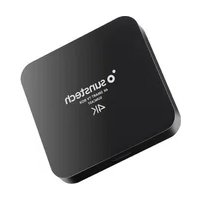
Suncast - Media player Sunstech - Free user manual and instructions
Find the device manual for free Suncast Sunstech in PDF.


| Product type | Android media player |
| Brand | Sunstech |
| Model | Suncast |
| Operating system | Android 6.0.1 |
| RAM memory | 2 GB DDRIII |
| Internal storage | 4 GB eMMC |
| Wi-Fi connectivity | IEEE 802.11 b/g/n |
| Ethernet connectivity | RJ45 10/100 Mbps | USB ports | 2 x USB 2.0 |
| HDMI output | HDMI 2.0, up to 4096x2160 at 60 fps |
| Digital audio output | Optical |
| A/V output | Composite (RCA) |
| Card reader | MicroSD, up to 64 GB |
| Power supply | AC adapter 100-240V, DC output 5V / 2A |
| Included accessories | Remote control, power adapter, HDMI cable, user manual, warranty card |
| Video decoding | 4K H.264, H.265 (HEVC) |
| Cleaning | Use a soft cloth, slightly damp if necessary; avoid abrasive products |
| Precautions | Do not expose to heat, moisture, do not block ventilation |
Frequently Asked Questions - Suncast Sunstech
User questions about Suncast Sunstech
0 question about this device. Answer the ones you know or ask your own.
Ask a new question about this device
Download the instructions for your Media player in PDF format for free! Find your manual Suncast - Sunstech and take your electronic device back in hand. On this page are published all the documents necessary for the use of your device. Suncast by Sunstech.
USER MANUAL Suncast Sunstech
natural_image
Abstract illustration of a white sphere resting on a gray book with a crescent moon, against a dark background (no text or symbols)SUNCAST
ANDROID TV BOX
USER GUIDE
ENGLISH
User guide SUNCAST
CONTENT
INTRODUCTION ....1
Package Content....1
Location of I/O ports....1
Remote control keys function 2
GET STARTED 3
Power on 3
Power off 3
Connect to UHD TV or display devices....3
Networking setup....3
Internet Browsing 4
Set up Gmail to download apps....4
Pre-install applications....4
Micro SD card slot and USB port....4
File manager....5
Play pictures and videos....5
Digital audio output (Optical) 5
TROUBLE SHOOTING....5
PRODUCT SPECIFICATIONS....7
WARNINGS....8
ENGLISH
User guide SUNCAST
INTRODUCTION
Package Content
Before use your new device, check that the content of the package and make sure that is the same as the following items:
- SUNCAST
- Remote control
- Power adaptor
- HDMI cable
- User manual
- Warranty card
Location of I/O ports
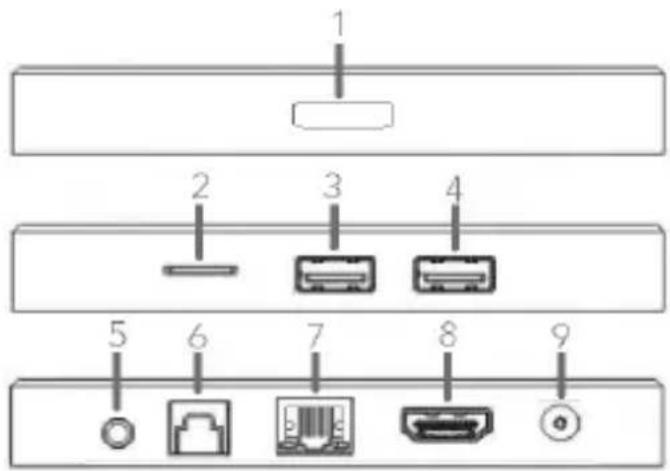
- IR and DISPLAY
- Micro SD card
- USB slot
- USB slot
- AV
- OPTICAL
- LAN
- HDMI
- DC in 5V
ENGLISH
User guide SUNCAST
Remote control keys function
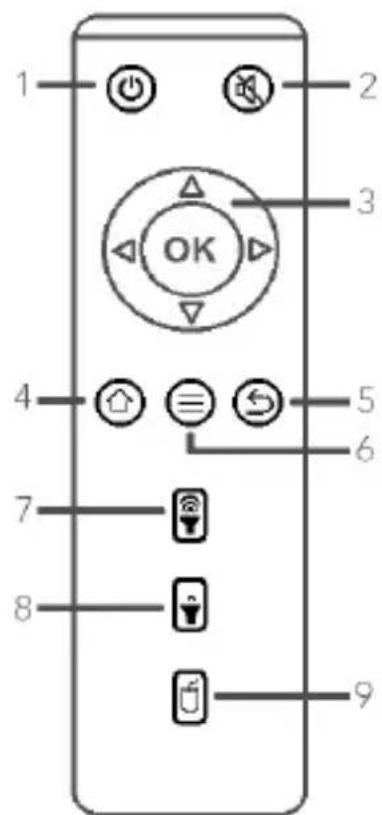
-
POWER
-
MUTE
-
OK, UP, DOWN, LEFT, RIGHT
-
HOME
-
RETURN
-
MENU
-
VOLUME+
-
VOLUME-
-
CURSOR
-
Press [POWER] button to put the unit in standby. Long press to access the options Turn OFF / Restart.
-
Press [MUTE] button to silence the volume unit.
-
Press [OK], [UP], [DOWN], [LEFT] and [RIGHT] buttons to navigate for all the menus and the applications.
-
Press [HOME] button on any screen to return to the main interface.
-
Press [RETURN] button in a pop-up option to cancel the operation. Press on any screen to return to the previous screen.
-
Press [MENU] button to open menu of some applications. In the main interface, press to open app manager.
-
Press [VOLUME+] button to adjust up the volume level.
-
Press [VOLUME-] button to adjust down the volume level.
-
Press [CURSOR] button on the first and then press one of the [UP], [DOWN], [LEFT] or [RIGHT] buttons to navigate like a mouse cursor function. Press again to return to the normal mode navigation.
ENGLISH
User guide SUNCAST
GET STARTED
Power on
Plug AC adaptor (100\~240V) to power outlet with AC adaptor plugged into DC in of the SUNCAST (the power indicator light will be red to blue). System will boot up after unit is turned on.
Power off
Press the power button to put the unit in standby. Long press to access the option to Turn OFF (the power indicator light will be blue to red).
*Note: The first start up can take several minutes because the system will install many apps and services in background.
Connect to UHD TV or display devices
Connect the SUNCAST to an UHD TV, HD monitor or projector via HDMI cable for 720P or 1080P or 3840*2160P resolution (depends on the resolution of your UHD TV, HD monitor or
HD projector equipped with HDMI input). An analog TV can be connected to the SUNCAST via the composite A/V out (resolution become 480P, see your TV settings). The SUNCAST home page will display on your UHD TV, monitor or projector. Go to "Settings → General → Resolution settings" to set and select the HDMI resolution to fit your UHD TV on the android home page display.
Networking setup
Wi-Fi connection setup: Go to "Settings" icon on home page; select "Wireless", select the Wi-Fi connection with necessary pass word setting; you will notice a Wi-Fi connection icon next to the net name.
ENGLISH
User guide SUNCAST
Internet Browsing
To browse the internet, click the Browser icon on home page. A soft keyboard will pop up when using the remote control or the wireless mouse after clicking the web browsing icon (plug the USB mouse dongle into one of the two USB ports located in the left of the box, switch on the wireless mouse). Type in the web site you wish to visit by using the remote or the mouse to operate on the soft keyboard pad on screen.
Set up Gmail to download apps
You need to sign in or set up new Gmail to access Google Play for more than 600.000 apps that are available to download. Go to Google market to download applications using your Gmail account. You can access to all your installed apps clicking on the "App" menu on home page.
To uninstall an application go to the "App" menu on home page and then click [MENU] button on the app that you want to uninstall. In the pop-up menu press "Uninstall → Ok".
Pre-install applications
Some applications can be customized according to the users' needs. Add apps to the Home screen pressing "+" option and selecting the apps that you wants to create a short cut (8 max.). Return to the home page and short cut to the app will automatically be created and visible on the home screen.
Micro SD card slot and USB port
Micro SD card slot: Your device comes with a full size SDHC card slot where you can store multimedia files, such as video clips, music, games, and photo images or business documents to be played back by the SUNCAST and displayed on your UHD TV or projector (Maximum capacity to 64GB).
USB2.0 Ports: USB ports support USB mouse (wireless mouse included), USB-keyboard and USB external memory, HDD and SSD drive up to 6TB for video streaming
ENGLISH
User guide SUNCAST
File manager
Click the icon and then select "ALL Files" to browse the local storage or external storage files of multimedia and apps.
Play pictures and videos
Go to the "Gallery" on "App" menu and then select "Photo" to view your pictures / images or play your videos.
Digital audio output (Optical)
When playing music or video, you can put the digital audio signal through the optical cable connected to the power amplifier with digital decoding function.
TROUBLE SHOOTING
Cannot power on the Device
Connect the supplied AC/DC Adapter.
Cannot go online
Check if your Wi-Fi setting is correct, correct password may be needed.
Check if your router is working properly.
Check your signal bar on the Device. It may not be connected due to weak signal.
How to buy/download the applications from the internet
Make sure your device is already connected to the Wi-Fi/ network.
Search, Buy, Download and Install the desired applications by following the on screen instruction.
*Warning: Personal details and Credit Card information may be required, please stay Alert!
ENGLISH
User guide SUNCAST
Media files can't be found
If new files were added onto the device; click the "File manager" icon on the
"Apps" menu to search. Use correct Apps to open corresponding media files.
Click "Movie Player" to play video files. Click "Gallery" to view photos. Click
"Music" Player to play music.
How to enter the Settings menu while applications/programs are running
After turning on the application/program, click the HOME button where is
Remote control to enter settings menu. Set each setting as instructed by the on screen instructions (functions depend on the software of the applications).
Cannot connect to Wi-Fi or the Wi-Fi signal is weak
Make sure Wi-Fi is available in your location and you are authorized (with correct password) to connect to it.
The device may be too far from the signal source. Move your device closer to the signal source.
How to remove personal data/email accounts from the device
In the settings menu, select and enter "Backup & reset" setting.
Click "Factory data reset" button to enter.
Click "Reset tablet" button.
Click "Erase SD card" button to start reset. Wait until the device finishes resetting by itself. The device will turn off automatically (it may need a few minutes).
*IMPORTANT: After Factory Data reset, all users' data (users installed applications, passwords, e-mail accounts, g-mail accounts, media files etc...) will be deleted. Backup this data before resetting.
ENGLISH
User guide
SUNCAST
PRODUCT SPECIFICATIONS
| RAM 2GB DDRIII | |
| Memory 4GB eMMC | |
| Wi-Fi | IEEE802.11 b/g/n Wireless internet |
| RJ45 10/100Mbps Ethernet*1 | |
| USB2.0 2*USB high speed | |
| SD slot | Support external Micro SD card (up to 64GB SDHC max) |
| USB OTG Support USB | OTG function with micro USB port |
| HDMI 2.0 output | HDMI 2.0 output, resolution 4096*2160@60fps output |
| Digital Audio output Optical output | |
| AV output RCA (CVBS-L&R) output | |
| Operating System Android 6.0.1 | |
| Decode | 4K*2K H.264,H.265 HEVC hardware decode |
| Accessories | Remote controlPower adaptor: AC100~240V, DC OUTPUT 5V/2AHDMI CableUser manual |
ENGLISH
User guide SUNCAST
WARNINGS
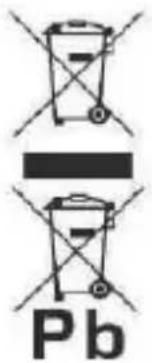 | Correct disposal of this Product(Waste Electrical & Electronic Equipment)(WEEE)Your product is designed and manufactured with high quality materials and components which can be recycled and reused.This symbol means that electrical and electronic equipment, at their end of-life should be disposed of separately from your household waste.Please dispose of this equipment at your local community waste collection/recycling centre.In the European Union there are separate collection systems for used electrical and electronic products. Please help us to conserve the environment we live in! |
 | DO NOT place objects on top of the device, as objects may scratch the device. |
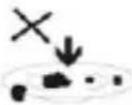 | DO NOT expose the device to dirty or dusty environments. |
 | DO NOT place the device on an uneven or unstable surface. |
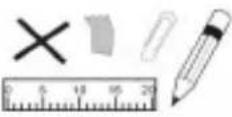 | DO NOT insert any foreign objects into the device. |
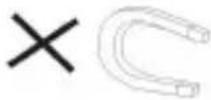 | DO NOT expose the device to strong magnetic or electrical field. |
 | DO NOT expose the device to direct sunlight as it can damage the device. Keep it away from heat sources. |
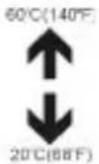 | DO NOT store your device in temperatures higher than 40°C(104°F). The internal operating temperature for this device is from 20°C(68°F) to 60°C(140°F). |
ENGLISH
User guide SUNCAST
 | DO NOT use the device in the rain. |
 | Please check with your Local Authority or retailer for proper disposal of electronic products. |
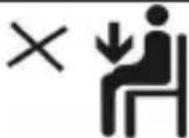 | The device and adaptor may product some heat during normal operation of charging. To prevent discomfort or injury from heat exposure, DO NOT leave the device on your lap. |
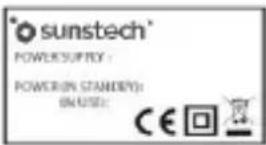 | POWER INPUT RATING: Refer to the rating label on the device and be sure that the power adaptor complies with the rating. Only use accessories specified by the manufacturer. |
 | Clean the device with a soft cloth. If needed, dampen the cloth slightly before cleaning. Never use abrasives or cleaning solutions. |
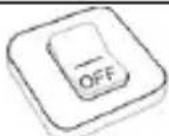 | Always power off the device to install or remove external devices that do not support hot-plug. |
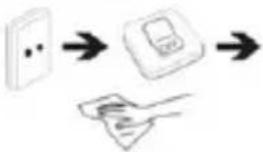 | Disconnect the device from an electrical outlet and power off before cleaning the device. |
 | DO NOT disassemble the device. Only a certified service technician should perform repair. |
 | The device has apertures to disperse heat. DO NOT block the device ventilation, the device may become hot and malfunction as a result. |
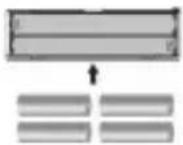 | Risk of explosion if battery replaced by an incorrect type. Dispose of used batteries according to the instruction. |
ENGLISH
User guide SUNCAST
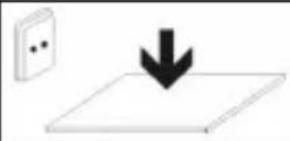 | PLUGGABLE EQUIPMENT: the socket-outlet shall be installed near the equipment and shall be easily accessible. |
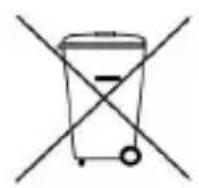 | European Union: Disposal Information.This symbol means that according to local laws and regulations your product and/or its battery shall be disposed of separately from household waste. When this product reaches its end of life, take it to a collection point designated by local authorities. The separate collection and recycling of your product and/or its battery at the time of disposal will help conserve natural resources and ensure that it is recycled in a manner that protects human health and the environment. |
| MADE IN CHINA | |

natural_image
Abstract illustration of a white sphere resting on a gray book with a crescent moon, against a dark background (no text or symbols)SUNCAST
ANDROID TV BOX
GUÍA DE USUARIO
ESPAÑOL
natural_image
Abstract illustration of a white sphere and a gray book with partial crescent shapes, set against a dark background with a white circle (no text or symbols)SUNCAST
SPÉCIFICATIONS DU PRODUIT
natural_image
Abstract illustration of a stylized white sphere above a gray book with partial moon and curved lines, set against a dark background (no text or symbols)SUNCAST
CAIXA ANDROID TV
GUIA DO UTILIZADOR
PORTUGUÊS
For you. For everyone.
- SUNCAST
- ENGLISH
- User guide SUNCAST
- CONTENT
- INTRODUCTION ....1
- GET STARTED 3
- TROUBLE SHOOTING....5
- PRODUCT SPECIFICATIONS....7
- WARNINGS....8
- INTRODUCTION
- Package Content
- Location of I/O ports
- Remote control keys function
- GET STARTED
- Power on
- Power off
- Connect to UHD TV or display devices
- Networking setup
- Internet Browsing
- Set up Gmail to download apps
- Pre-install applications
- Micro SD card slot and USB port
- File manager
- Play pictures and videos
- Digital audio output (Optical)
- TROUBLE SHOOTING
- User guide
- ESPAÑOL
- PORTUGUÊS
Brand : Sunstech
Model : Suncast
Category : Media player