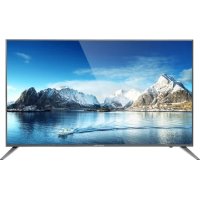
KM0255UHD - Television Krüger&Matz - Free user manual and instructions
Find the device manual for free KM0255UHD Krüger&Matz in PDF.



| Brand | Krüger&Matz |
| Model | KM0255UHD |
| Product type | LED TV |
| Screen size | 55 inches (diagonal) |
| Resolution | 3840 x 2160 (4K UHD) |
| Picture format | 16:9 |
| TV system | DVB-T2 / DVB-C |
| Video standard | PAL / SECAM |
| Audio power (RMS) | 2 x 10 W |
| Connections | 3x HDMI, 2x USB, 1x VGA, 1x PC Audio, 1x headphone output, 1x CI, 1x AV, 1x Coaxial, 1x RF |
| Power supply | 100-240 V ~ 50/60 Hz |
| Consumption (55") | 150 W (standby ≤0.5 W) |
| Main functions | USB recording (PVR), teletext, EPG, multilingual, picture mode (Standard, Film, Game, etc.) |
| Maintenance and cleaning | Soft damp cloth; do not use chemical products |
| Safety | Do not open the casing; avoid rain and humidity; do not block ventilation; disconnect during storms |
| Spare parts and repairability | Contact a qualified service; do not repair yourself |
| Accessories included | Remote control, base stand, batteries, user manual |
| General information | Made in China for Lechpol; website: www.krugermatz.com |
Frequently Asked Questions - KM0255UHD Krüger&Matz
User questions about KM0255UHD Krüger&Matz
0 question about this device. Answer the ones you know or ask your own.
Ask a new question about this device
Download the instructions for your Television in PDF format for free! Find your manual KM0255UHD - Krüger&Matz and take your electronic device back in hand. On this page are published all the documents necessary for the use of your device. KM0255UHD by Krüger&Matz.
USER MANUAL KM0255UHD Krüger&Matz
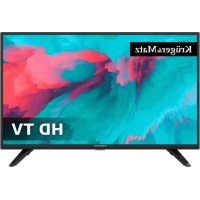
LED TV 4K 55” - KM0255UHD
LED TV 4K 65” - KM0265UHD
Owner's manual
3
山
芸
RO

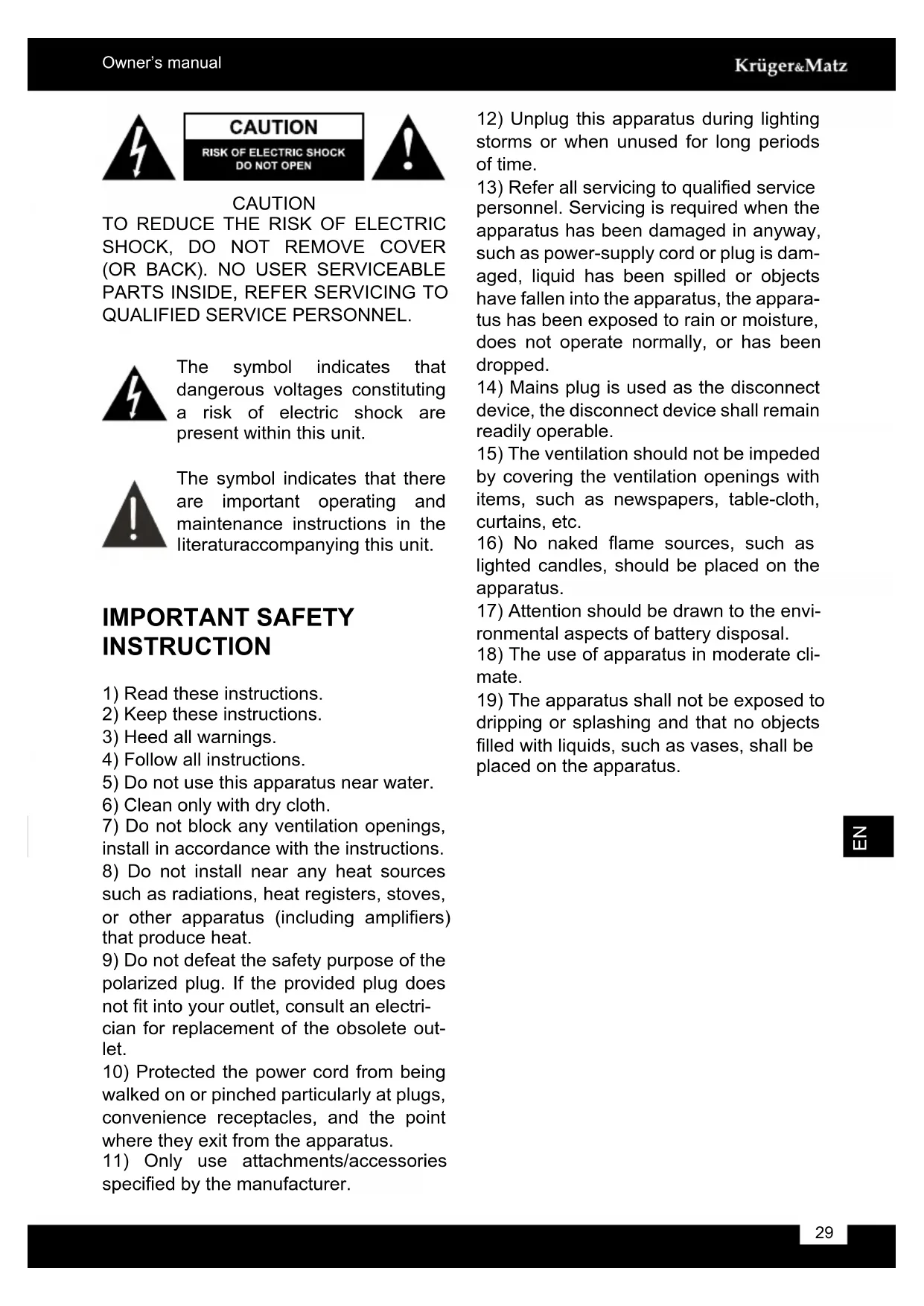
CAUTION
RISK OF ELECTRIC SHOCK DO NOT OPEN

The symbol indicates that dangerous voltages constituting a risk of electric shock are present within this unit.

The symbol indicates that there are important operating and maintenance instructions in the literaturaccompanying this unit.
IMPORTANT SAFETY INSTRUCTION
1) Read these instructions.
2) Keep these instructions.
3) Heed all warnings.
4) Follow all instructions.
5) Do not use this apparatus near water.
6) Clean only with dry cloth.
7) Do not block any ventilation openings, install in accordance with the instructions.
8) Do not install near any heat sources such as radiations, heat registers, stoves, or other apparatus (including amplifiers) that produce heat.
9) Do not defeat the safety purpose of the polarized plug. If the provided plug does not fit into your outlet, consult an electrician for replacement of the obsolete outlet.
10) Protected the power cord from being walked on or pinched particularly at plugs, convenience receptacles, and the point where they exit from the apparatus.
11) Only use attachments/accessories specified by the manufacturer.
12) Unplug this apparatus during lighting storms or when unused for long periods of time.
13) Refer all servicing to qualified service personnel. Servicing is required when the apparatus has been damaged in anyway, such as power-supply cord or plug is damaged, liquid has been spilled or objects have fallen into the apparatus, the apparatus has been exposed to rain or moisture, does not operate normally, or has been dropped.
14) Mains plug is used as the disconnect device, the disconnect device shall remain readily operable.
15) The ventilation should not be impeded by covering the ventilation openings with items, such as newspapers, table-cloth, curtains, etc.
16) No naked flame sources, such as lighted candles, should be placed on the apparatus.
17) Attention should be drawn to the environmental aspects of battery disposal.
18) The use of apparatus in moderate climate.
19) The apparatus shall not be exposed to dripping or splashing and that no objects filled with liquids, such as vases, shall be placed on the apparatus.

Warning

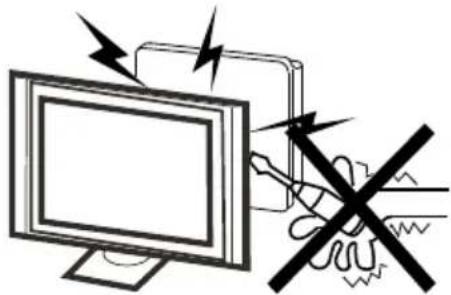
High voltages are used in the operation of this television receiver. Do not remove the cabinet back from your set. Refer servicing to qualified service personnel.
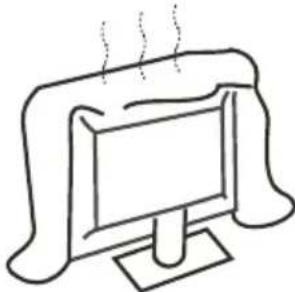
Caution

Do not block the ventilation holes in the back cover. Adequate ventilation is essential to prevent failure of electrical components.
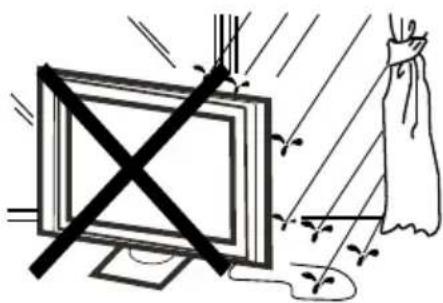
Warning

To prevent fire or electrical shock hazard, do not expose the television receiver to rain or moisture.
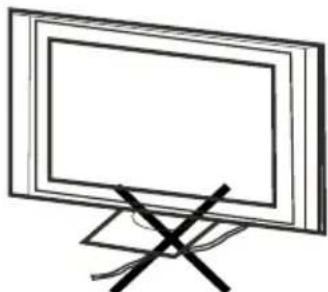
Caution

Do not trap the power supply cord under the television receiver.
Z
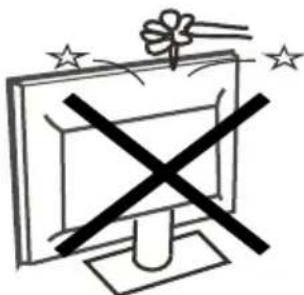
Warning

Do not drop or push objects into the television cabinet slots or openings. Never spill any kind of liquid on the television receiver.
Caution

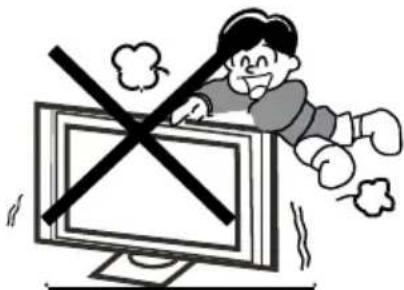
Never stand on, lean on, or suddenly push the television or its stand. You should pay special attention to children. Serious injury may result if it should fall.
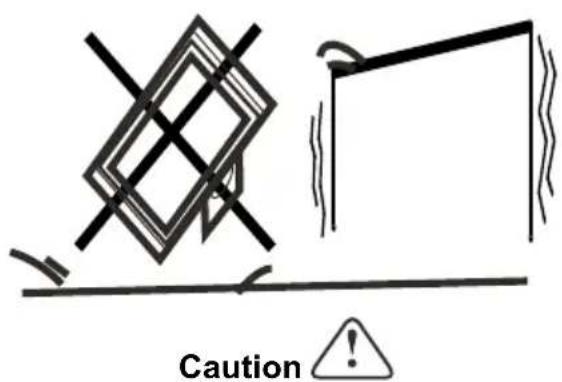
Do not place your television on an unstable cart, stand, shelf or table. Serious injury to an individual, and damage to the television, may result if it should fall.
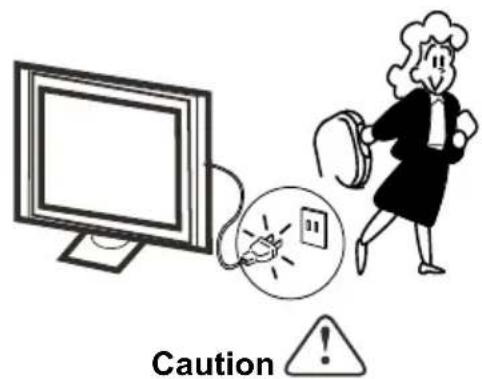
When the television receiver is not used for an extended period of time, it is advisable to disconnect the AC power cord from the AC outlet.
INSTALLATION
- Locate the TV in the room where light does not strike the screen directly.
- Total darkness or a reflection on the picture screen can cause eyestrain. Soft and indirect lighting is recommended for comfortable viewing.
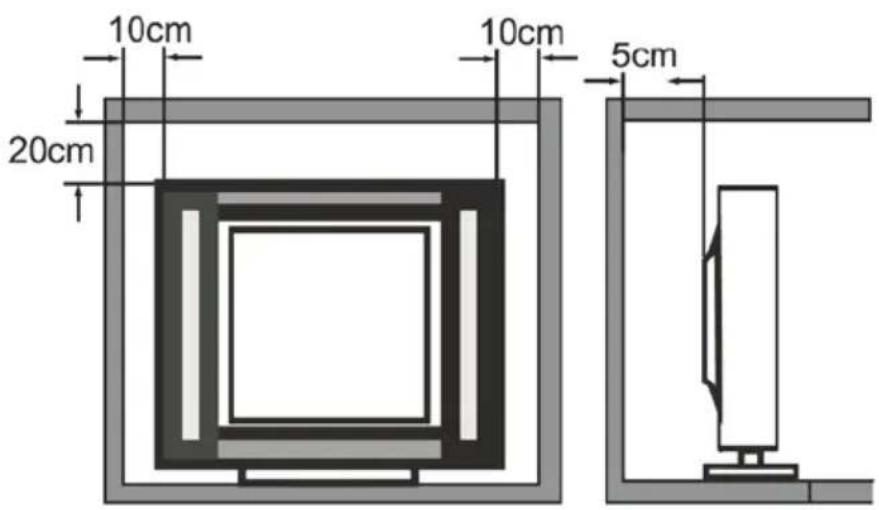
- Allow enough space between the TV and the wall to permit ventilation.
- Avoid excessively warm locations to prevent possible damage to the cabinet or premature component failure.
- Do not cover the ventilation openings when using the TV.
Minimum distances
Base stand assembly instruction
When you install the base, the need to face down flat on the TV platform. Before installing (or removing) the stand, unplug the AC power cord from the AC outlet before performing the operation, laying cushion in place the TV will be placed to prevent damage to the TV.
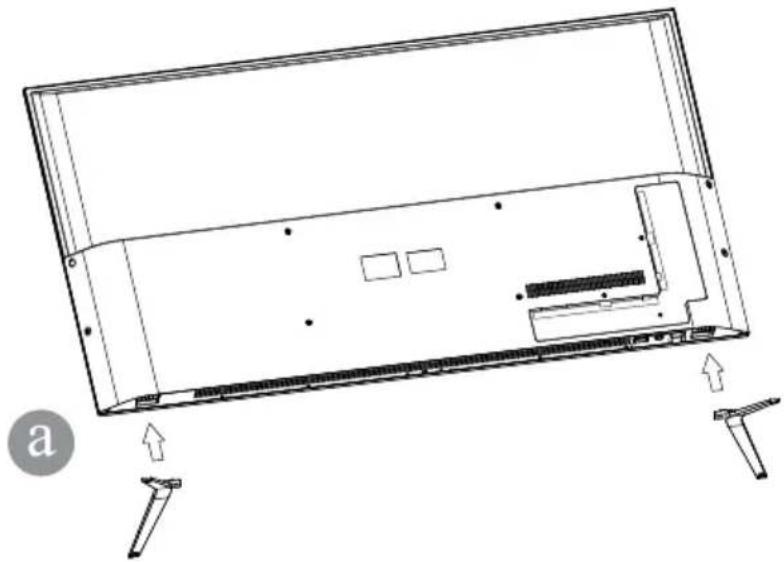
Step 1
Locate the 2 pcs of bottom bracket into the gap in the bottom of the TV, and check that it is securely held in place as in illustration a) below.
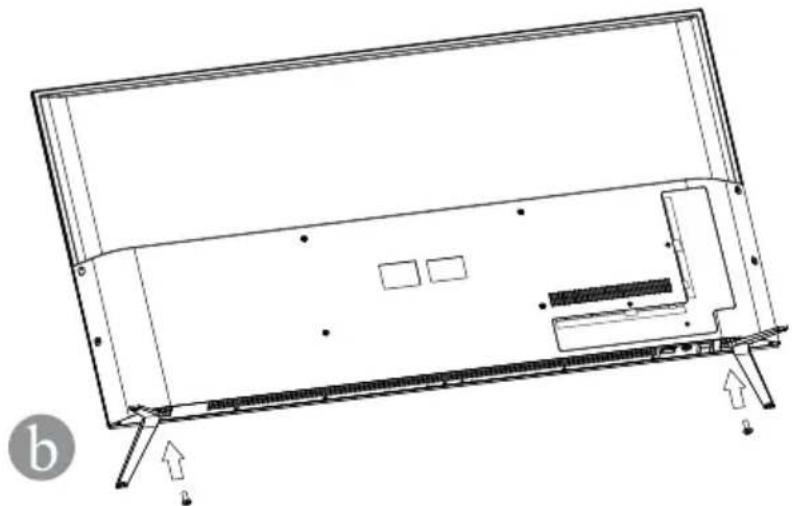
Step 2
Lock the 2 pcs screws in the designated location as in illustration b) below. Check each screw is firmly tightened.
Warning:
Be sure to follow the instructions for installation, if the base is not installed correctly, it may result in the TV falling over. To remove the stand, perform the steps in reverse order, the base can not adjust the angle. During the installation process, being careful to avoid damage to the TV and your hand caught and ground to the bottom of the TV.
Front panel
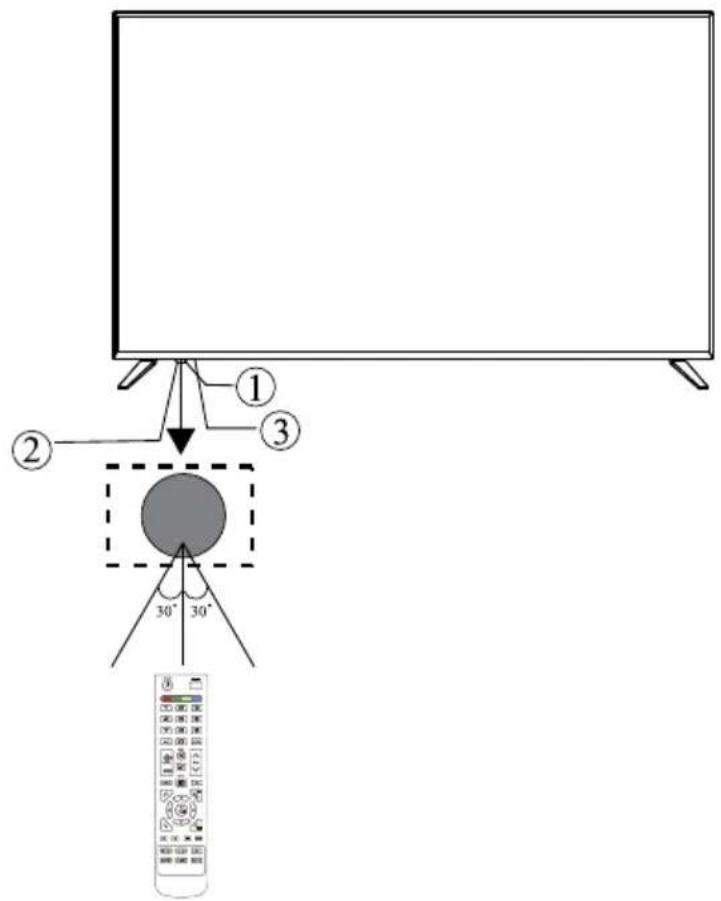
1: Remote control sensor
2:IndicatorLED
Red - standby
3: Keyboard
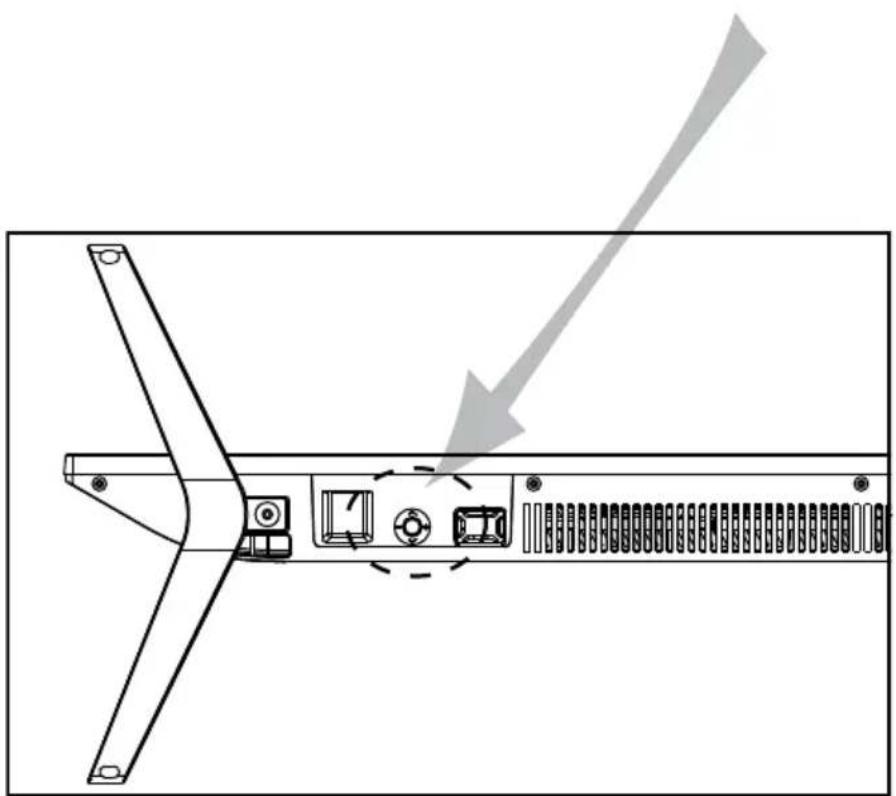
Keyboard
The keyboard is located at the bottom left near the right side of signal indicator.
乙
| TV status | Pull up/down Pull | left/right Press | |
| Powered off | - Press to power on | ||
| Powered on | Channel +/- Volume | +/- Press to pop | up source list |
| Source list displayed | Move up/down Select | Press and hold | for 3 seconds to power off the TV |
Rear AV connections

Terminals from left to right: AC power socket, HDMI3, HDMI2, HDMI1, PC Audio, VGA,VIDEO input,AUDIO input.
Rear AV connections (side)

Terminals from left to right: RF, USB, CI, Headphone, Coaxial, USB.
Note: Insert the plug of the earphone into the earphone jack on the unit HEADPHONE. The speakers are now muted.
Antenna

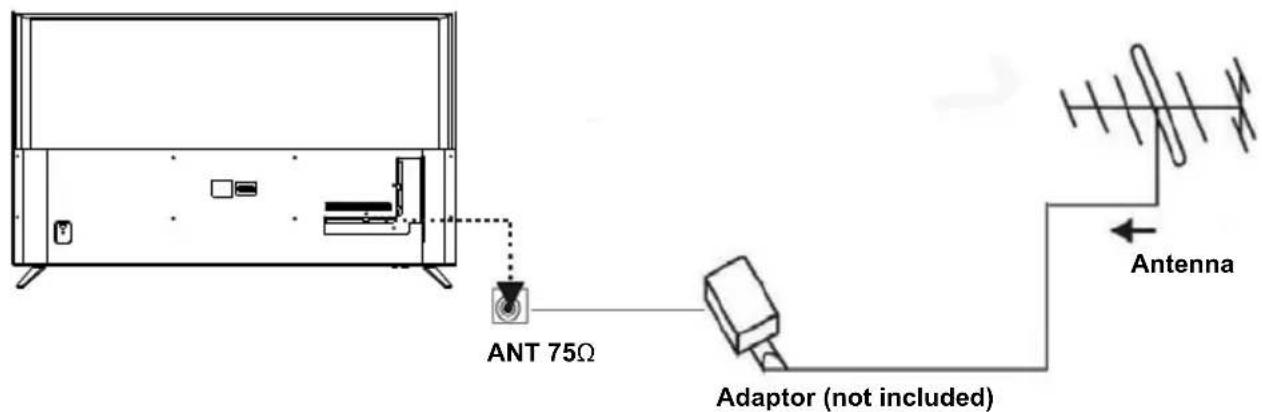
PC
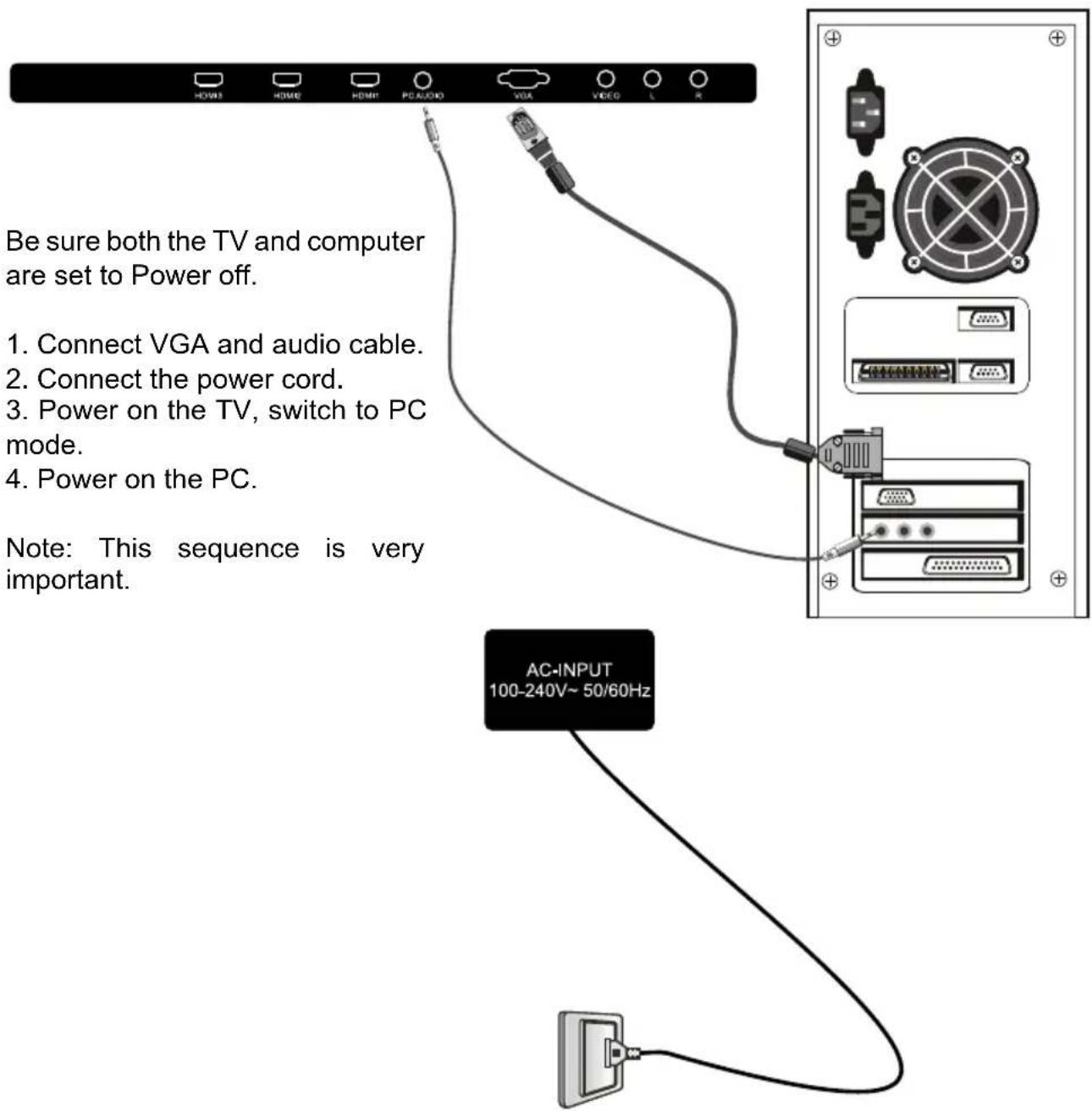
PRESET MODE (HDMI)
| Resolution V.Freq.(Hz) H.Freq.(kHz) | ||
| 1 800x600 60 37.88 | ||
| 2 1024x768 60 48.36 | ||
| 3 1366x768 60 47.7 | ||
| 4 1280x768 60 47.3 | ||
| 5 1920x1080 60 67.5 | ||
| 6 3840x2160 30 67.5 | ||
| 7 3840x2160 50 112.5 | ||
| 8 3840x2160 60 135 |
AV equipment
This TV provides one group of AV for convenient connection to VCR, DVD or other video equipment. Please refer to the owners manual of the equipment to be connected as well. You can use the input terminals on TV set rear as follows.
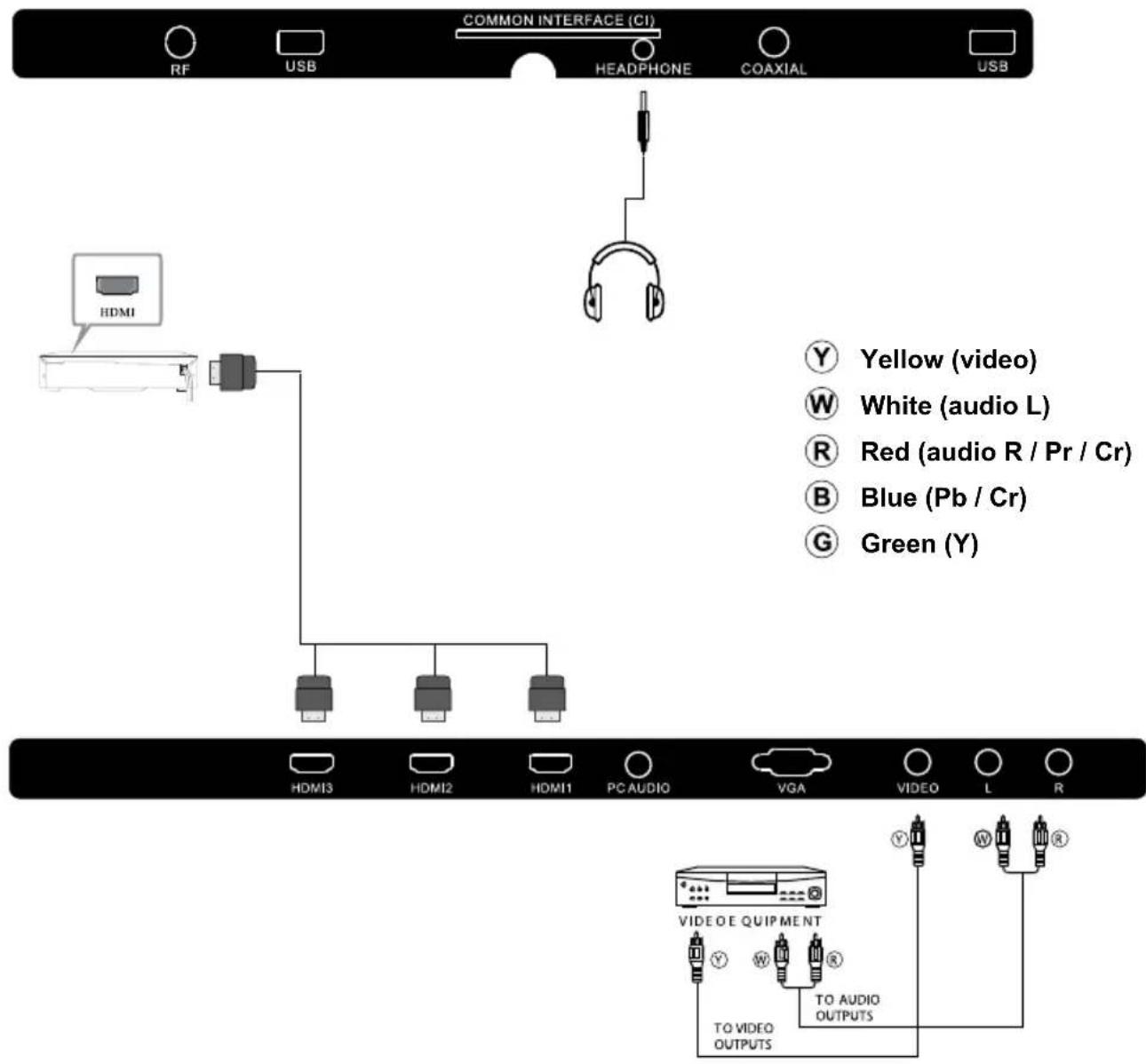
It can be connected to the following appliances: VCR, multi disc player, DVD, camcorder, video game or stereo system, etc ....
REMOTE CONTROL
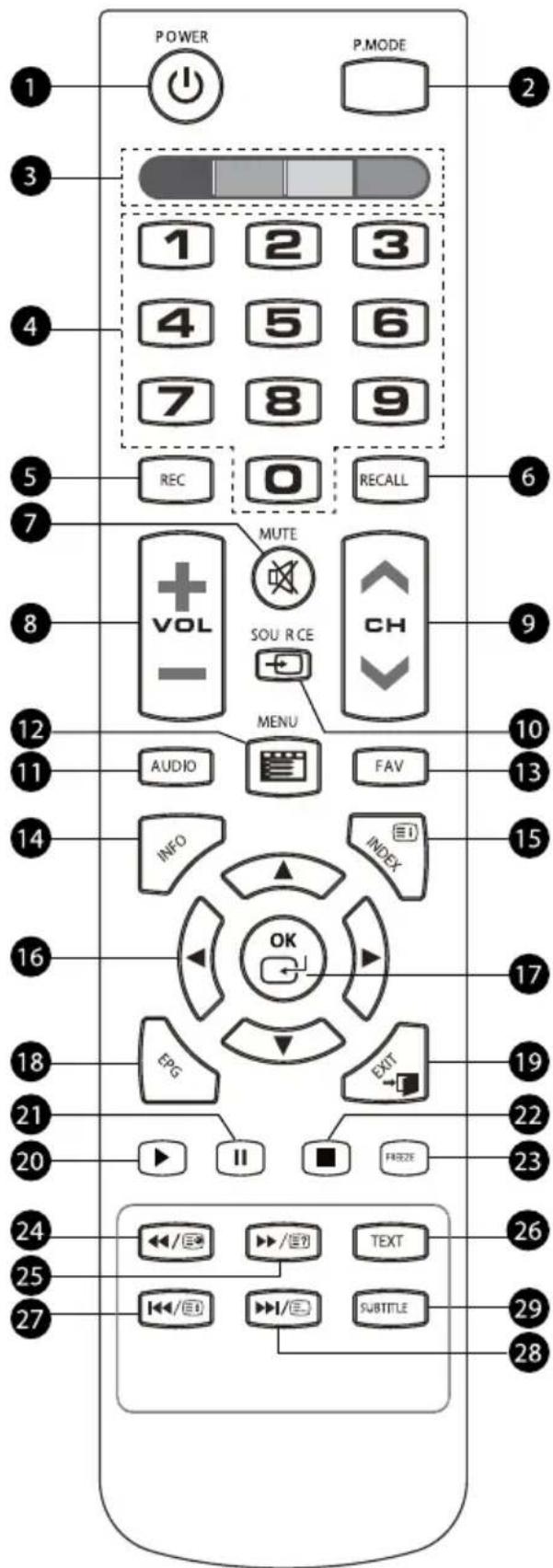
-
Switch the TV between on and standby mode.
-
P.MODE: Select picture mode: Standard / Movie / Game / User / Dynamic / Auto / PC. Only in PC and HDMI have Auto and PC mode.
-
COLOR BUTTONS: The color buttons are used to select tasks in specific menus.
-
Number button: Use these keys to input information into the menus or TV features.
-
REC: Press to record TV when watching DTV (to record a program a suitable USB device will need to be fitted to the TV).
-
RECALL: In DTV mode press to jump to the last channel viewed.
-
MUTE: Press to turn the sound on and off.
-
VOL + -: Press to adjust the level of the TV's sound.
-
CH + -: Press to access the next or previous channel.
-
SOURCE): Press to display and select the available video sources.
-
AUDIO: Use to select the available audio language for DTV programs.
-
MENU: Press to access the TVs on screen menus.
-
FAV: Press to access your favorite channels list in TV or DTV mode.
-
INFO: Press when watching TV to view programme information.
-
(INDEX): Press in TELETEXT mode to access the index.
-
Press to navigate through the menus on the TV.
-
OK: Press to confirm on screen selection.
-
EPG: Press to access the electronic programme guide when watching digital TV.
-
EXIT: Press to return to previous page in a menu or to exit the menus.
-
Press in USB mode to begin or continue playback.
-
Press in USB mode to pause playback.
-
Press to stop playback.
-
FREEZE: Press to freeze the picture you are watching.
-
B mode, use as rewind button. In TELETEXT mode used as subpage button.
-
HSB mode, use as fast forwards button. In TELETEXT mode used as reveal button.
-
TEXT: Press to access TELETEXT.
-
B mode, use as previous button. In TELETEXT mode used as hold button.
-
USB mode, use as next button. In TELETEXT mode used as list button.
-
SUBTITLE: Press to access subtitles on digital TV stations.

TELETEXT
Teletext is an information system broadcast by certain channels which can be consulted like a newspaper. It also offers access to subtitles for viewers with hearing problems or who are not familiar with the transmission language (cable networks, satellite channels, etc.)
| Press You will | obtain |
| TEXT | This is used to call or exit teletext modes. The summary ap- pears with a list of items that can be accessed. Each item has a corre-sponding 3 digit page number. If the channel selected does not broad-cast teletext, the indication 100 will be displayed and the screen will remain blank (in this case, exit teletext and select another channel). |
| SELECTING A PAGE▲▼▼ | Enter the number of the page required using the 0 to 9 up/ down.Example: page 120, enter 120. The number is displayed top left, the counter turns and then the page is displayed. Repeat this operation to view another page. If the counter continues to search, this means that the page is not transmitted. Select another number. |
| DIRECT ACCESS TO THE ITEM | Colored are as are displayed at the bottom of the screen. The 4 colored keys are used to access the items or corresponding pages. The colored are as flash when the item or the page is not yet available. |
| ∃i(INDEX) | This returns to the contents page (usually page 100). |
| ∃(SUB PAGE) | Certain pages contain sub-pages which are automatically displayed successively. This key is used to stop or resume subpage acquisition. The indication appears top left. |
| ∃(HOLD) | To freeze the page. |
| ∃? (REVEAL) | To display or hide the concealed information (games solutions). |
| ∃(LIST) | The user can set four favorite pages to be directly linked to the four color keys. While list mode is activated, it is not possibil- ity to use TOP or FLOF navigation with the color keys. The favorite page numbers should be stored and restored to/from nonvolatile memory for each channel by the system software. |
INSTALLATION GUIDE
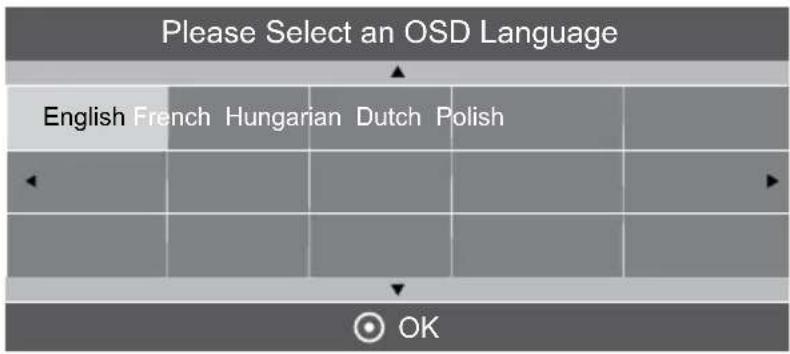
1). Press the buttons to navigate the menu and change the settings. Press the OK button to confirm.
Select your desired language to be displayed on the menu.
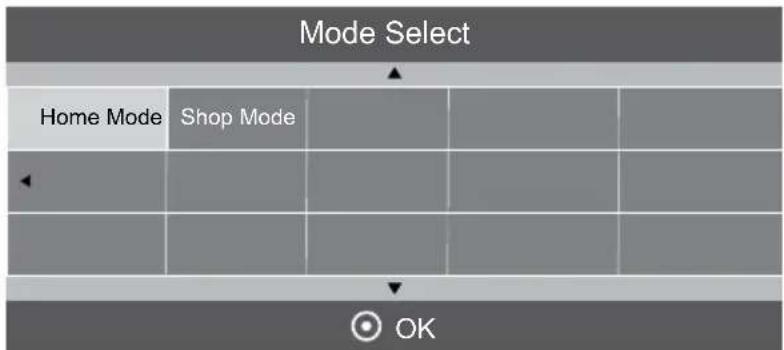
2). Press the buttons to select Home Mode / Shop mode, press the OK button to confirm.
3). Press the buttons to select DVB-T/DVB-C and then press the OK button to confirm.
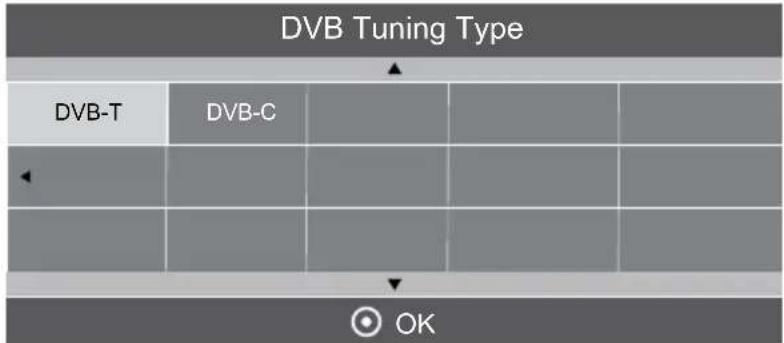
a. If you select DVB-T to next step is select the country the press the OK button to start tuning.
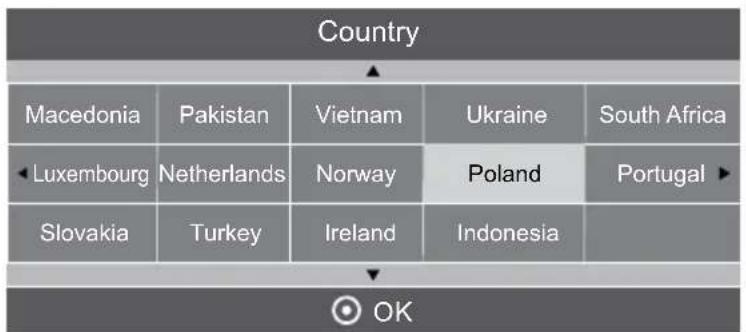
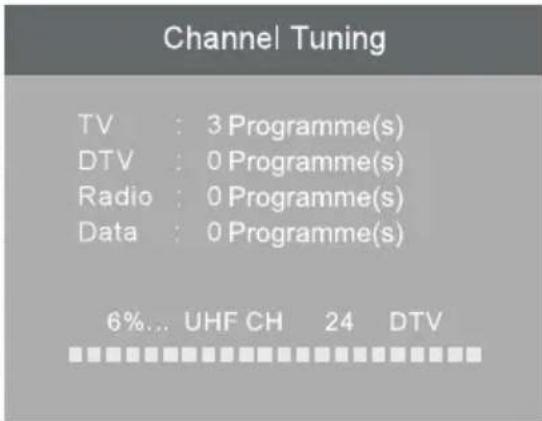
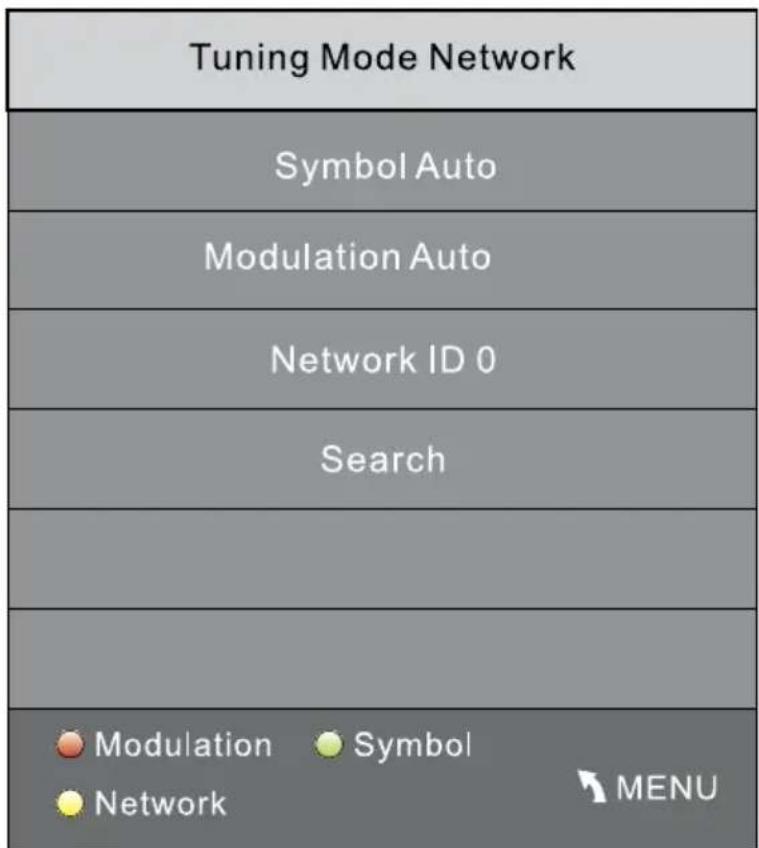
b. If you select DVB-C, the next step is to configure the DVB-C system, then press buttons, select Search, press OK button to start tuning.
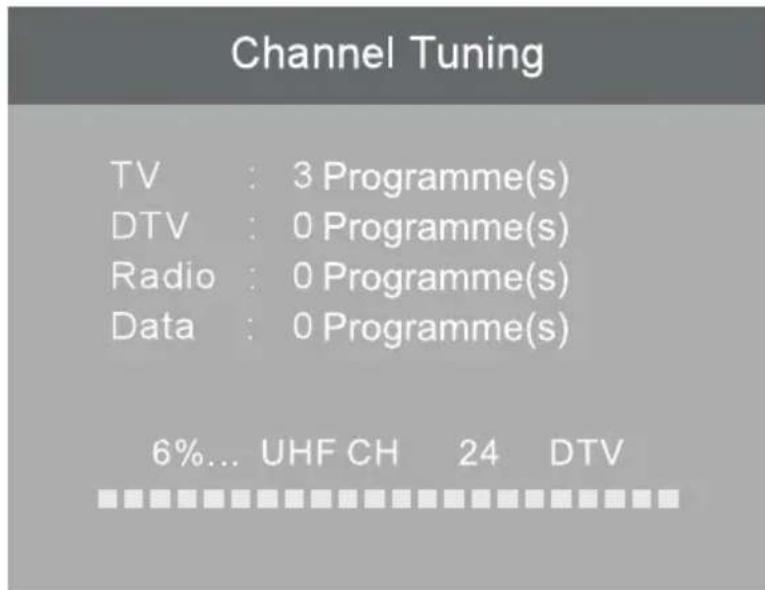
4). Channel tuning will commence. This operation may take up to 6 minutes. The display will show the progress of the tuning and the number of channels found. Press MENU button if you wish to skip tuning.
Z
CHANNEL MENU
Auto Tuning (DVB-T)
- Press Source button and then press buttons to select DVB-T and then press OK button.
| Input Source |
| DVB-T |
| DVB-C |
| ATV |
| PC |
| HDMI 1 |
| HDMI 2 |
| HDMI 3 |
| AV |
| USB |
| OK |
- Press the MENU button and then press the buttons to select the CHANNEL menu.
- Press the buttons to select Auto Tuning and then press OK button.
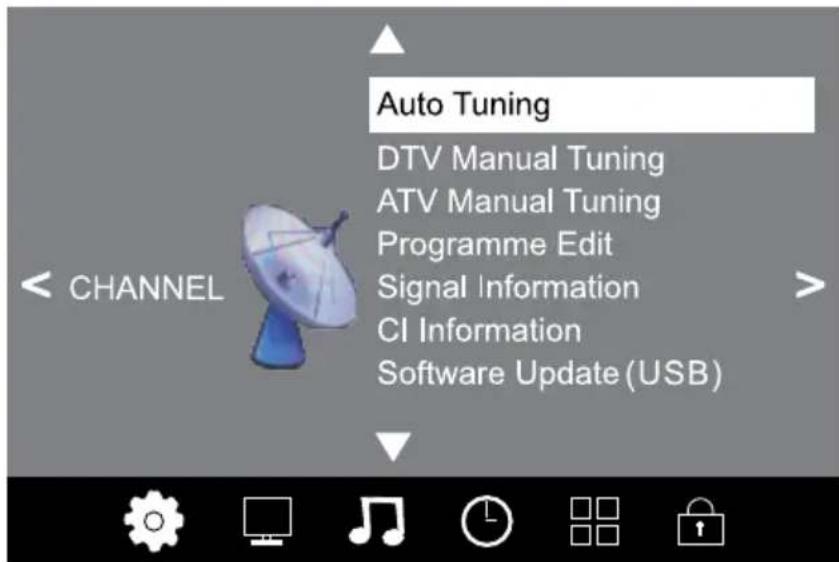
4). In the Tune Type menu, press the buttons to select ATV / DTV / DTV + ATV. Press the button and then press the buttons to select the country where you will operate the TV. Press the OK button to confirm.
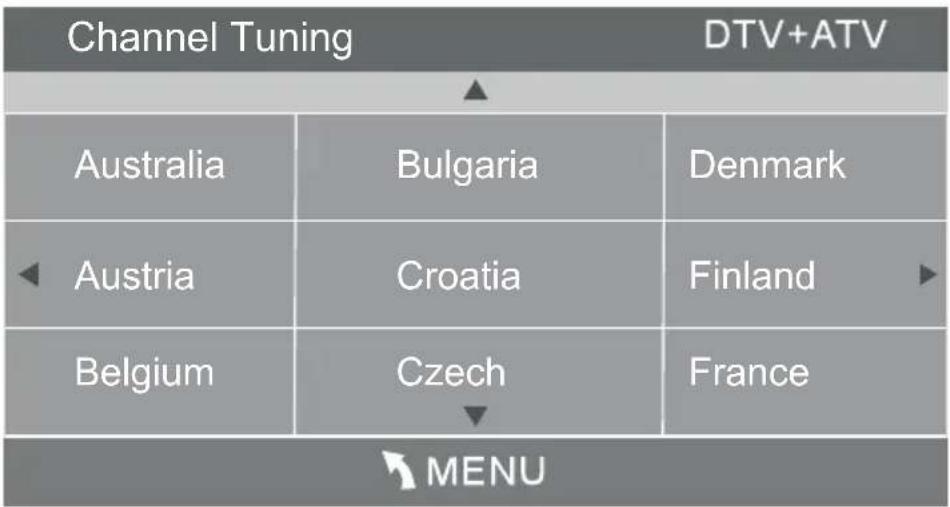
5). Channel tuning will commence. This operation may take up to 6 minutes. The display will show the progress of the tuning and the number of channels found. Press MENU button if you wish to skip tuning.
Channel Tuning
TV 3Programme(s)
DTV 0Programme(s)
Radio : 0 Programme(s)
Data : 0 Programme(s)
6%... UHF CH 24 DTV
Z
Auto Tuning (DVB-C)
- Press Source button and then press buttons to select DVB-C and then press OK button.
- Press the MENU button and then press the buttons to select the CHANNEL menu.
- Press the buttons to select Auto Tuning and then press OK button.
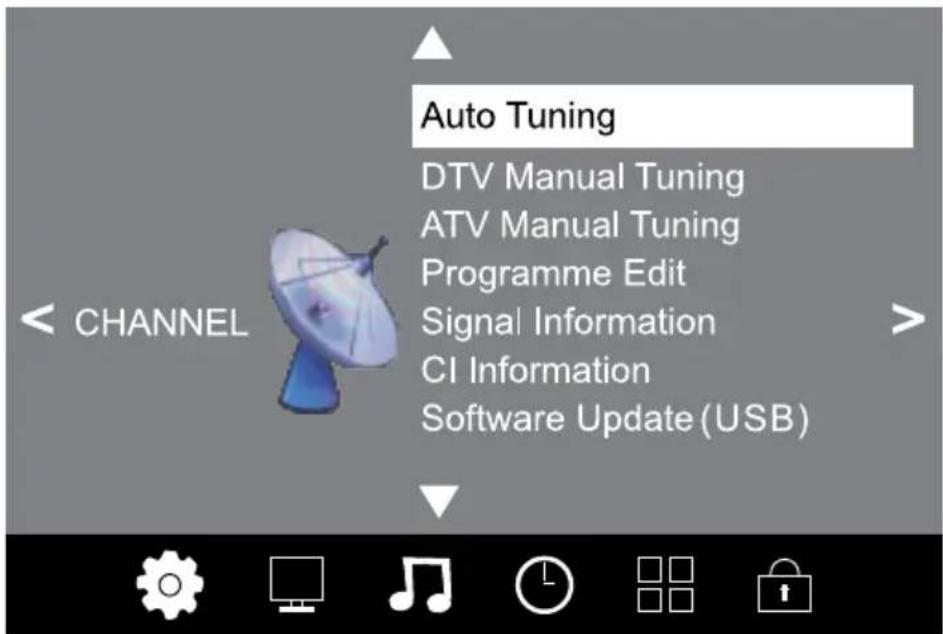
- In the Tune Type menu, press the buttons to select ATV/CADTV/DTV+ATV. Press the button and then press the buttons to select the country where you will operate the TV. Press the OK button to confirm.
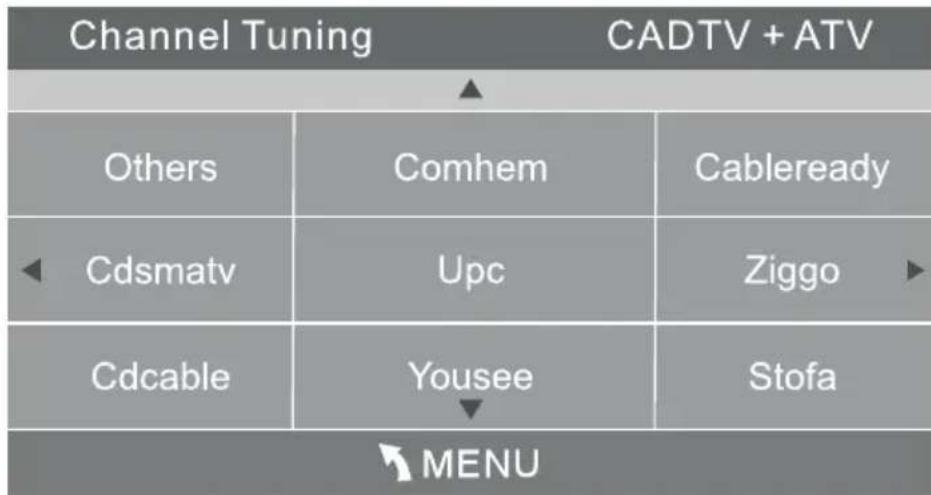
- Press RED button to change Modulation and press green button to change symbol and press yellow button to change Network Mode.
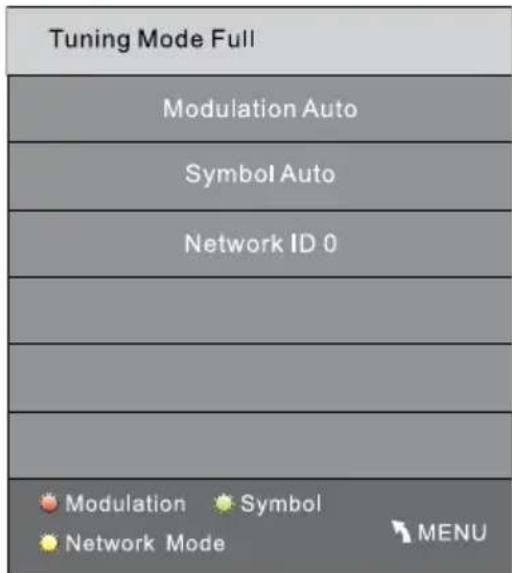
- Channel tuning will commence. This operation may take up to 6 minutes. The display will show the progress of the tuning and the number of channels found.
Channel Tuning
You can Delete, Rename, Move, Skip, FAV any programs.

Delete: Press teletext red button, the program in cursor will delete.

Move: Use the Arrow Buttons to select the channel you wish to move. Then press the low Button to select Move function. Once active use the Arrow Buttons to move and n press OK to confirm.

Skip: Press to choose the program, press teletext blue button to skip this prom, the will show on the right side of the program.
Choose the skipped program, press blue button again, you can cancel the skip, the will disappear.

Favourite
Press to choose the program, press FAV button, it will show × on the right side of the program. Choose the FAV program, press FAV button again, you can cancel the FAV, × the will disappear.
Once your favorite group is created, you can press the FAV key to quickly access your favorite channel.
PICTURE MENU
The second item of the MENU is PICTURE MENU. You can adjust picture effect here, such as contrast, brightness, etc. Press move, press OK to adjust.
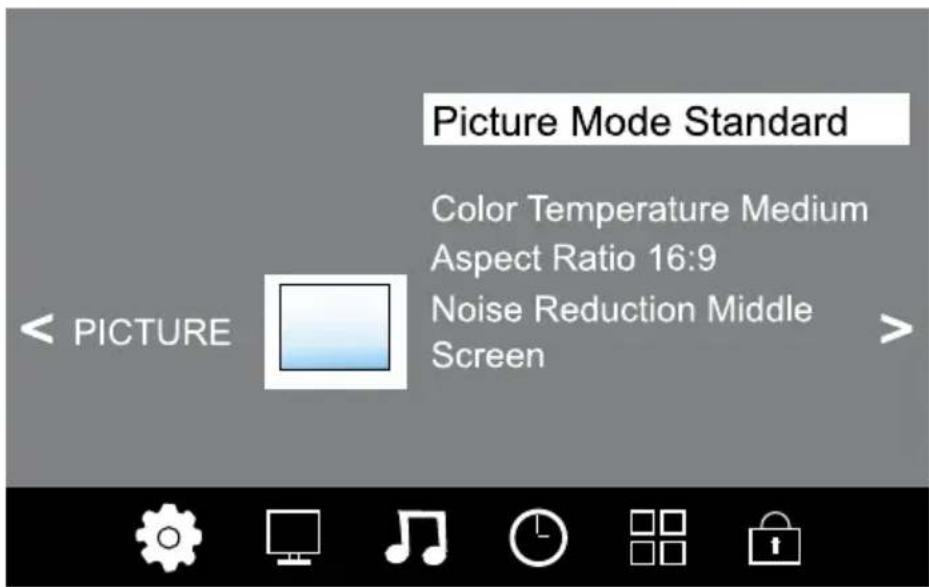
| Picture Mode Standard |
| Contrast 50 |
| Brightness 50 |
| Color 50 |
| Sharpness 50 |
| Tint 50 |
| Backlight 70 |
| MENU |
| Color Temperature Nature |
| Red 48 |
| Green 46 |
| Blue 48 |
| MENU |
SOUND MENU
The third item of the MENU is the SOUND MENU. You can adjust the sound effect here such as treble, bass, balance etc. Press to move, press OK to adjust.
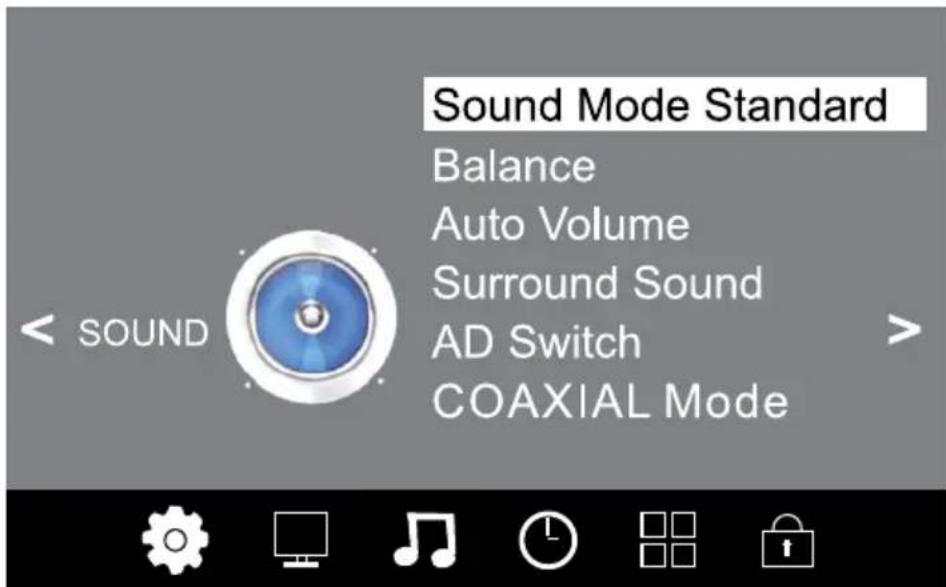
TIME MENU
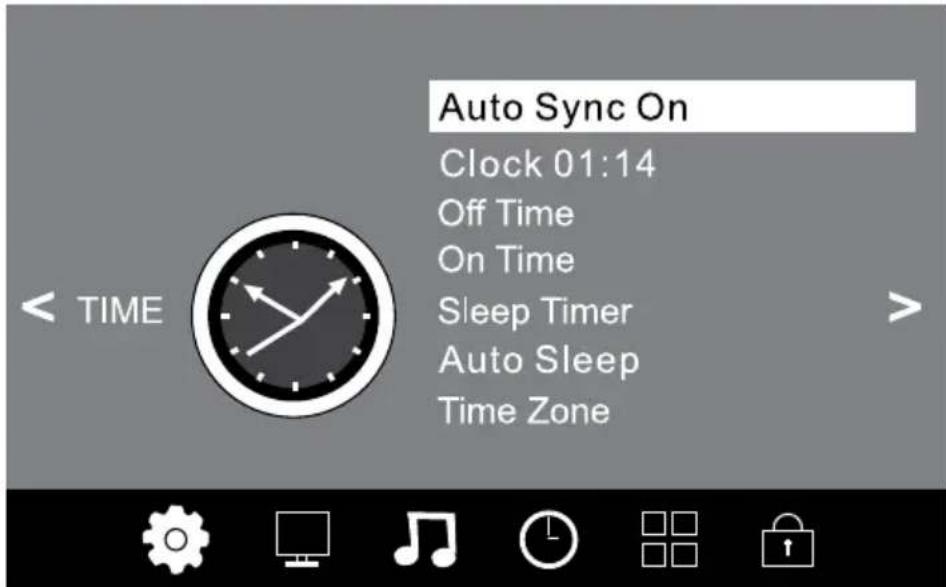
The fourth item of the menu is the TIME MENU You can adjust the clock, power on/off time, sleep time etc. Press move, press OK to adjust.

OPTION MENU
The fifth item of the MENU is the OPTION MENU. You can adjust the Menu language, Audio language, Subtitle language etc.
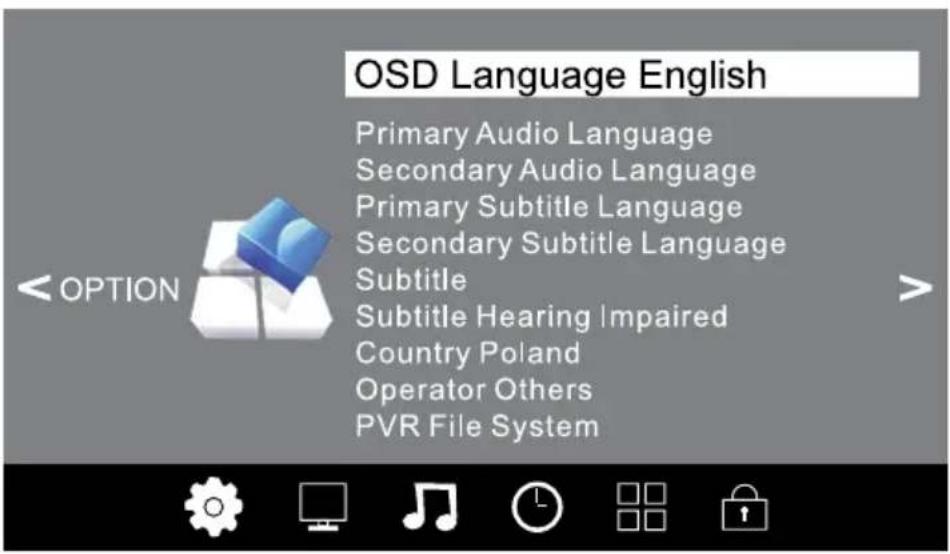
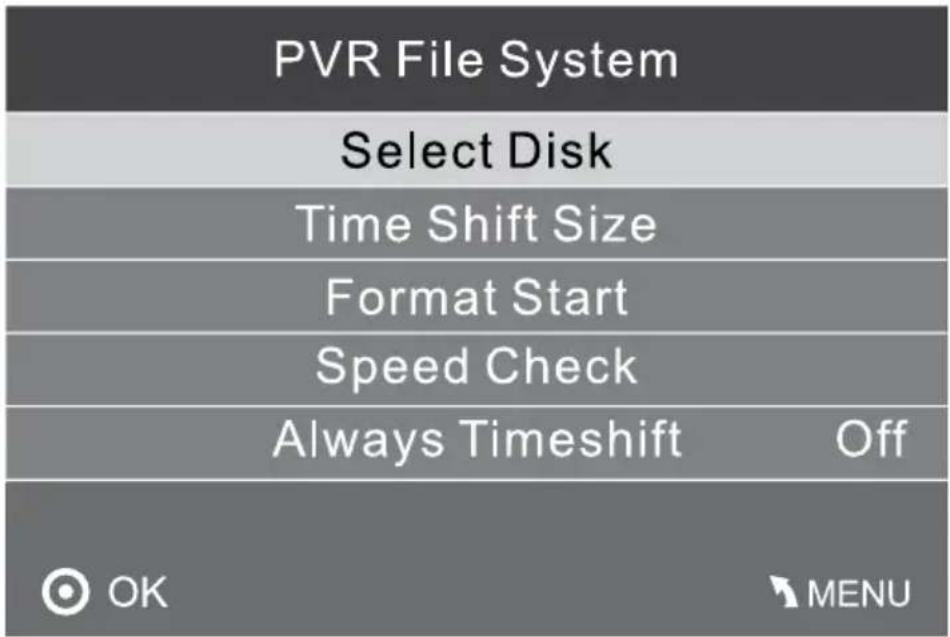
In PVR File system menu you can set up USB disk for PVR.
NOTE:
Restore factory default will clear all the programs and password.
LOCK MENU
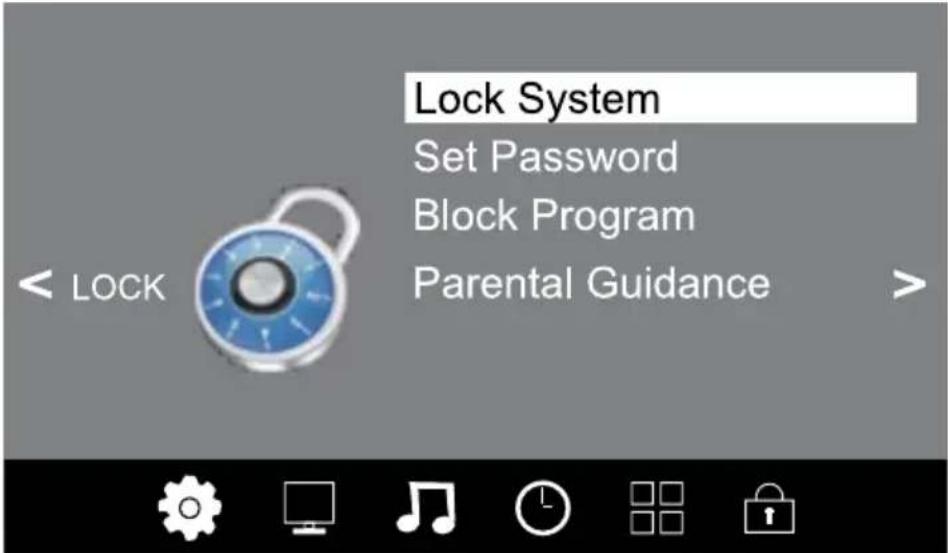
The sixth item of the menu is the LOCK MENU You can lock system, set password, block program and set parental guidance. Once you set the lock system on, you can not search the channels or change any programs.
NOTE:
The default pass word is 8888.
Block program: Press to choose the program, press teletext green button to block the program. If you want unblock the program, pls enter the main menu, input the password, then press green button again. Parental guidance: Press choose rating.
USB
Press the INPUT button and then select USB item to enter the USB menu.

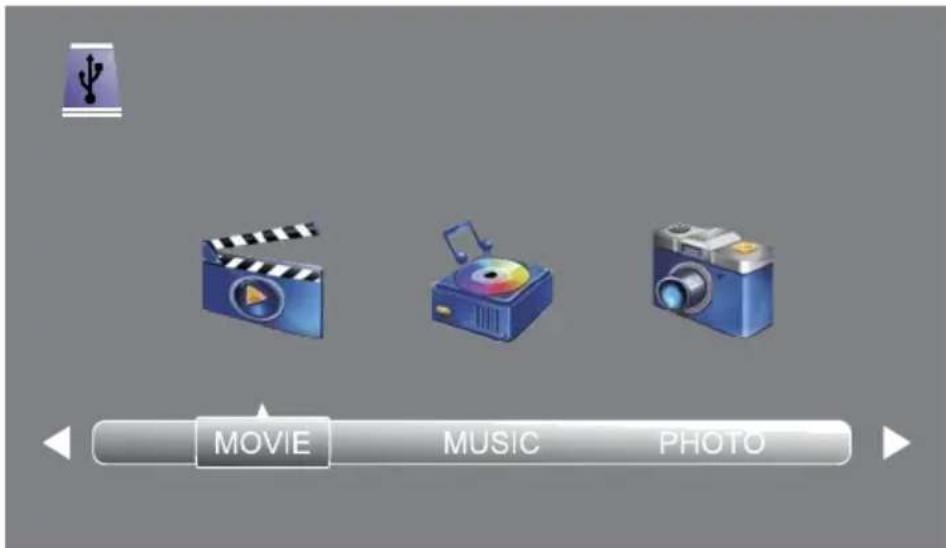
Please make sure that the USB device have plugged in the slot. There are four type media item can be selected, such as photo, music, Movie, and text. Select the type media item by pressing , press OK button to enter the disk selection menu.
Press the select the right disk and press OK to display media files and folder list or choose Return to back to the media type selection menu.
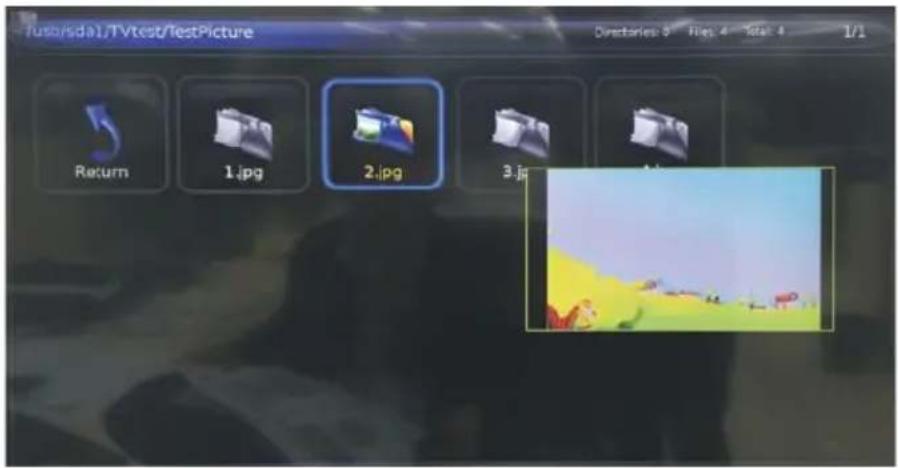
Select the media file by pressing , then the preview frame will pop up. Press the to play the media file in full screen. When the media file (photo, music, movie, or text type) is playing, press the OK or Info button con display the control bar.

Press to select the function icon, press OK button to confirm the function. Press or EXIT button to exit the control bar.
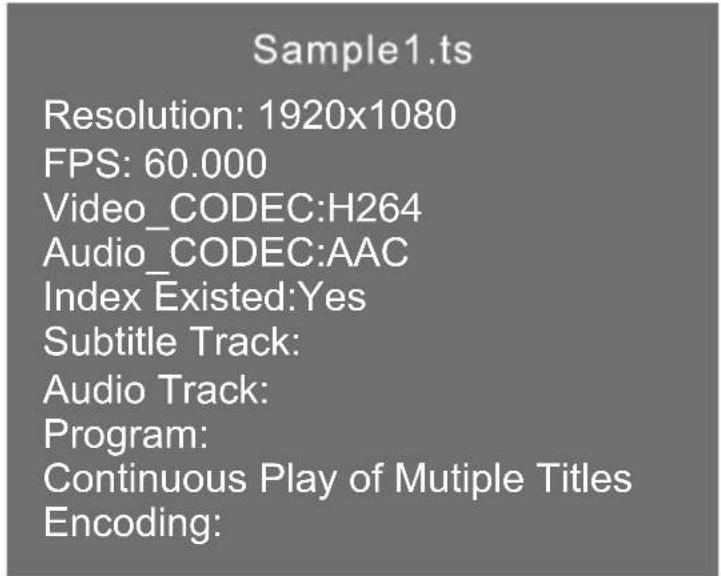
USB playback is supported for the following formats.
Photo: JPEG, BMP, PNG
Music: MP3
Text: TXT
Movie: TS (MPEG2 & H.264)
EPG Menu (Electronic Program Guide)
The EPG menu is used to look at what is being broadcasted on DTV or Radio channel in the day. To access the EPG menu, press the GUIDE button, the following menu will be displayed:
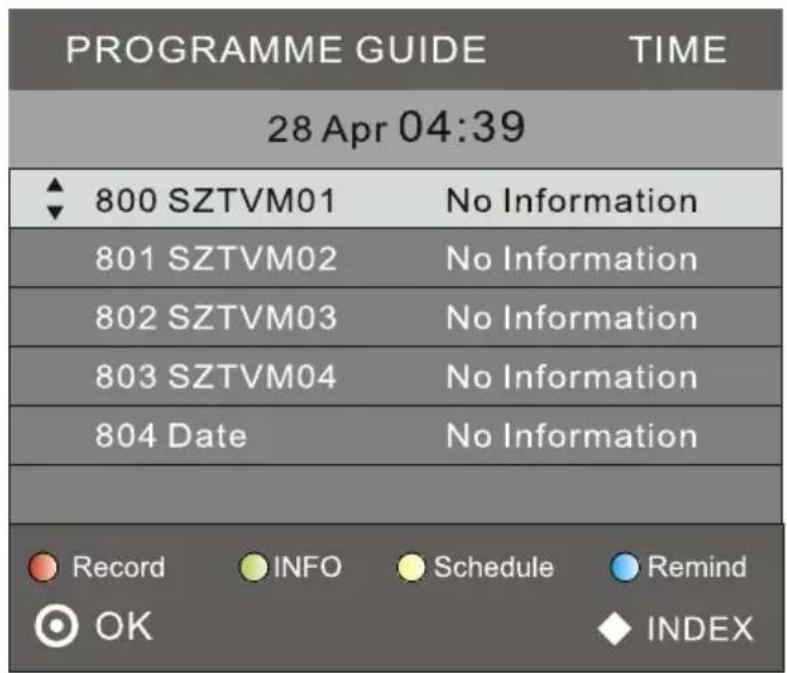

Info
Use to choose the programs. Press INFO key, you can display the highlight program's information.

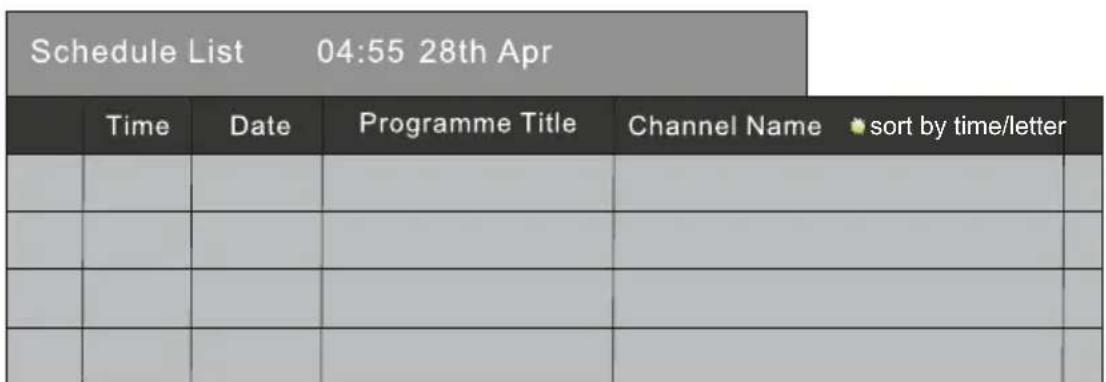
Schedule
Press the teletext yellow key. It can list all the reminder schedule, press to choose the list. Press GUIDE to return to EPG menu.
Record
Press the red key, it can set the program to be recorded.
Remind
Press the blue key to choose one program and set up one reminder time. The TV screen will skip to the chosen program in the reminder time automatically.
| Reminder setting |
| 18 The HITS |
| Minute 6 |
| Hour 17 |
| Month Nov. |
| Date 19 |
| Mode Once |
| OK BACK |
TROUBLESHOOTING
| Picture Sound Inspection check | |||
| Snow | Noise | - antenna position, direction or connection | |
| Ghost | Normal audio | - antenna position, direction or connection | |
| Interference | Noise | - electronic equipment, car / motorcycle, fluorescent light | |
| Normal picture | Mute | - volume (check if mute is activated or if the audio system connections are not correct) | |
| No picture | Mute | - power cord is not inserted - power switch is not opened - contrast and brightness/ volume setup - press standby key on the remote control for inspecting | |
| No color | Normal audio | - color control | |
| Picture breaking up | Normal audio or weak | - retune channel | |
| No color | Noise | - TV system | |
SPECIFICATION
| Screen size 55" 65" | ||
| Panel type LED backlight | ||
| Aspect ratio 16:9 | ||
| Pixel number 3840x2160 | ||
| System TV DVB-T2/ C | ||
| Standard video PAL / SECAM | ||
| Input power voltage 100-240 V; ~ 50/60 Hz | ||
| Power consumption 150 W 198 W | ||
| Power consumption (Standby) | ≤0,5 W | |
| Audio output power 2x10 W | ||
| RF tuner x1 | ||
| VGA x1 | ||
| PC Audio In | x1 | |
| Headphone | x1 | |
| CI | x1 | |
| HDMI | x3 | |
| USB | x2 | |
| AV | x1 | |
| Coaxial | x1 | |
Specifications are subject to change without notice.
LEARN MORE
For more information on this device visit: www.krugermatz.com.
Visit www.krugermatz.com website for more products and accessories.
In case of any doubts or questions reach out to our Frequently Asked Questions section.
Producer reserves rights to change product overview and specifications without prior notice.
Please note: below illustrations and descriptions concerning operating system are for reference only, and may vary from actual software on your device! Any information included in this manual are subject to change without prior notice.
"The Lechpol company declares that product KM0255UHD / KM0265UHD is consistent with the essential requirements and other relevant provisions of directive 2014/53/UE. The proper declaration for download from www.lechpol.eu"
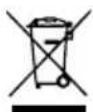
English
Correct Disposal of This Product
(Waste Electrical & Electronic Equipment)



(Applicable in the European Union and other European countries with separate collection systems) This marking shown on the product or Its literature, indicates that It should not be disposed with other household wastes at the end of its working life. To prevent possible harm to the environment or human health from uncontrolled waste disposal, please separate this from other types of wastes and recycle it responsibly to promote the sustainable reuse of material resources. Household users should contact either the retailer where they purchased this product, or their local government office, for details of where and how they can take this item for environmentally safe recycling. Business users should contact their supplier and check the terms and conditions of the purchase contract This product should not be mixed with other commercial wastes for disposal.
Made in China for LECHPOL, Mietne, 1 Garwolinska Street, 08-400 Garwolin.
HDMI
Z

CAUTION
RISK OF ELECTRIC SHOCK DO NOT OPEN

ATENCIón
PARA EVITAR EL RIESGO DE SUFRIR UNA DESCARGA ELECTRICA, NO DEBE RETIRARSE LA CARCASA DEL TELEVISOR. LOS TRABAJOS DESERVICIO TECNICO DEBERAN SER REALIZADOS EXCLUSIVAMENTE POR PERSONAL CUALIFICADO.

Resolution: 1920x1080
FPS: 60.000
Video CODEC:H264
Audio_CODE:AAC
Index Experienced:Yes
Subtitle Track:
Audio Track:
Program:
Continuous Play of Mutiple Titles
Encoding:
Rear AV connections (side)

Press the red key, it can set the program to be recorded.

Rappel
Press the blue key to choose one program and set up one reminder time. The TV screen will skip to the chosen program in the reminder time automatically.
| Reminder setting |
| 18 The HITS |
| Minute 6 |
| Hour 17 |
| Month Nov. |
| Date 19 |
| Mode Once |
| OK BACK |
SOLUTION DES PROBLEMES
Resolution: 1920x1080
FPS: 60.000
Video CODEC:H264
Audio CODEC:AAC
Index Experienced:Yes
Subtitle Track:
Audio Track:
Program:
Continuous Play of Mutiple Titles
Encoding:
Gesteunde formaten van multimedia.
Beeld: JPEG, BMP, PNG
Muziek: MP3
Tekst: TXT
Film: TS (MPEG2 & H.264)
Resolution: 1920x1080
FPS: 60.000
Video CODEC:H264
Audio CODEC:AAC
Index Experienced:Yes
Subtitle Track:
Audio Track:
Program:
Continuous Play of Mutiple Titles
Encoding:
Meniul EPG (Electronic Program Guide)
Krüger&Matz is a registered trademark


- CAUTION
- IMPORTANT SAFETY INSTRUCTION
- WARNING
- INSTALLATION
- MINIMUM DISTANCES
- BASE STAND ASSEMBLY INSTRUCTION
- STEP 1
- STEP 2
- FRONT PANEL
- KEYBOARD
- REAR AV CONNECTIONS
- REAR AV CONNECTIONS (SIDE)
- ANTENNA
- PC
- AV EQUIPMENT
- REMOTE CONTROL
- TELETEXT
- INSTALLATION GUIDE
- CHANNEL MENU
- AUTO TUNING (DVB-T)
- CHANNEL TUNING
- AUTO TUNING (DVB-C)
- FAVOURITE
- PICTURE MENU
- SOUND MENU
- TIME MENU
- OPTION MENU
- NOTE
- LOCK MENU
- USB
- EPG MENU (ELECTRONIC PROGRAM GUIDE)
- INFO
- SCHEDULE
- RECORD
- REMIND
- TROUBLESHOOTING
- SPECIFICATION
- LEARN MORE
- ENGLISH
- CORRECT DISPOSAL OF THIS PRODUCT
- (WASTE ELECTRICAL & ELECTRONIC EQUIPMENT)
- ATENCIÓN
- RAPPEL
- SOLUTION DES PROBLEMES
- MENIUL EPG (ELECTRONIC PROGRAM GUIDE)
Brand : Krüger&Matz
Model : KM0255UHD
Category : Television