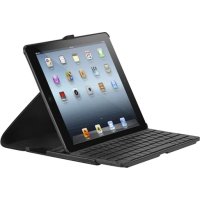
THZ192NO - Stapler TARGUS - Free user manual and instructions
Find the device manual for free THZ192NO TARGUS in PDF.


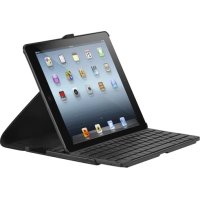
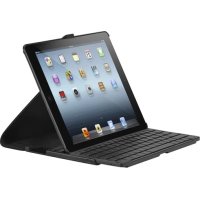
| Product Type | Bluetooth Keyboard Case |
| Brand | Targus |
| Model | THZ192NO |
| Compatibility | iPad Air (1st generation) |
| Connectivity | Bluetooth 3.0 |
| Bluetooth Range | Up to 10 meters |
| Battery Life | Approximately 90 hours after full charge |
| Charging Time | Approximately 2 hours |
| Power Source | Rechargeable battery via included Mini USB cable |
| Charging Indicator | Yellow light (charging), blue light (fully charged) |
| Sleep Mode | Automatic after 10 minutes of inactivity |
| Key Functions | Home screen, search, copy, paste, cut, select, volume control, lock, language switch |
| Package Contents | Versavu keyboard with case, Mini USB charging cable, user guide |
| Care and Cleaning | Wipe with a soft, dry cloth. Do not use abrasive products. |
| Safety | Disable automatic cover lock/unlock in iPad settings to avoid accidental activations |
| Repairability | Spare parts not available. In case of failure, contact Targus customer service. |
| Approximate Dimensions | 24 x 18 x 2 cm (fits iPad Air) |
| Approximate Weight | 500 g |
Frequently Asked Questions - THZ192NO TARGUS
User questions about THZ192NO TARGUS
0 question about this device. Answer the ones you know or ask your own.
Ask a new question about this device
Download the instructions for your Stapler in PDF format for free! Find your manual THZ192NO - TARGUS and take your electronic device back in hand. On this page are published all the documents necessary for the use of your device. THZ192NO by TARGUS.
USER MANUAL THZ192NO TARGUS
GB - English, Targus Versavu™ Keyboard Case for iPad® Air
DE-Deutsch, Targus VersavuTM Keyboard Case fur iPad Air
DK - Danish, Targus Versavu™ iPad Air cover med tastatur
FI - Suomi, Targus VersavuTM-nappaimistokotelo iPad Airille
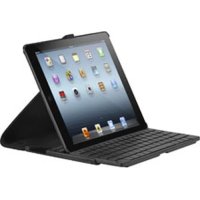
Thank you for your purchase of the VersavuTM Keyboard Case for iPad Air This keyboard uses Bluetooth technology which provides a seamless connection up to 33 feet (10 m) away This keyboard is compatible with iPad Air Its compact size is ideal for portability and travel
Contents
Versavu Keyboard and Case
- Micro USB Charging cable
- User Guide
System Requirements
Hardware
- iPad Air
Establishing the Connection: iPad Air
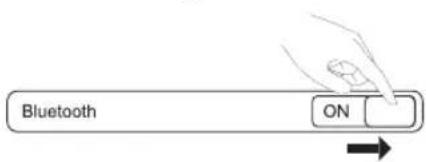
1 Switch ON the Bluetooth function of your iPadAir
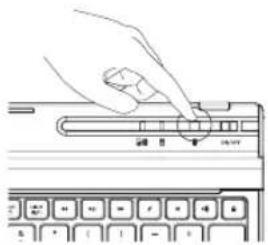
2 Switch ON the Bluetooth Keyboard, press the Bluetooth button on your keyboard. Blue LED will be blinking
3 Once the Targus Bluetooth 3 0 Keyboard is listed as a found device in the Bluetooth menu on the iPad Air, tap on the name and you will be prompted to enter a code as shown
Bluetooth Pairing Request
Enter the code "XXXX" on "Targus Bluetooth 3 0 Keyboard", followed by the return or enter key
Cancel
4 Enter the code shown on the pop up message, followed by the enter key
5 After pairing, the iPadAir will show the status "Connected"
6 Targus Bluetooth 3 0 Keyboard is now connected with your iPaMir
Note: To optimize the battery life of your iPad Air make sure that the iPad Air Cover Lock/ Unlock option in the settings menus is set to OFF This will keep the iPad Air from being accidentally awoken by a key press during transit
Power Saving Mode
The Versavu Keyboard will go to sleep mode after it is abandoned for 10 minutes To optimize the keyboard battery life, we recommend that you turn it off when not in use.
Targus VersavuTM Keyboard Case for iPad Air
Charging the Keyboard
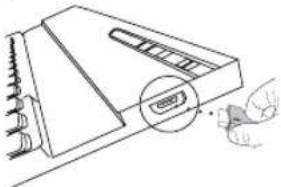
1 Connect the wireless keyboard to any USB outlet including a computer or iPad Air Charger via the supplied USB cable The Charging indicator light in yellow when charging
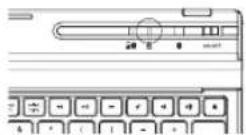
2 Charging is complete when the charging indicator turn in blue A full charge will take approximately 2 hours to complete
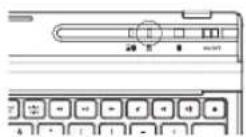
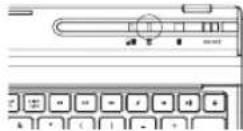
Battery Life Indicator /
Bluetooth Connection Light

This light will blink in blue when the keyboard switched to the Bluetooth Connection mode
- This Light will blink twice every second when the power level drops below 15% - Keyboard will shut down when power level is below 10%
The battery will provide approximately 90 hours of use on a full battery charge
Illustrate Key legend functions
| Key | Function |
| □ | Home |
| Q | Search |
| 000 | App display |
| Show and hide the Keyboard on your display | |
| Copy | |
| Paste | |
| Cut | |
| Select all | Selects all text |
| select left | Extend text selection one character to the left of the cursor |
| select right | Extend text selection one character to the right of the cursor |
| ← | Rewind or go to previous song, movie or slideshow |
| II | Play or pause songs, movies or slideshows |
| Fast forward or go to next song, movie or slideshow | |
| Mute the sound on the iPad® Air | |
| Decrease volume on the iPad® Air | |
| Increase volume on the iPad® Air | |
| Lock you display | |
| Language shift | |
Einführung
Establishing the Connection: iPad Air
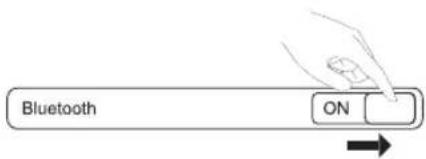
1 Ota kaytoon iPadAir in Bluetooth-toiminto
Targus VersavuTM Keyboard Case for iPad Air
A lade opp tastaturet
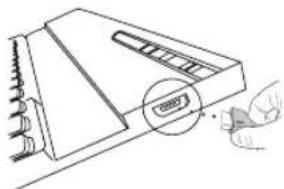
1 Koble det tradlose tastaturet til en innebygd USB-port pa datamaskinen erer bruk iPad Air-laderen med USB-kabel
Targus VersavuTM Keyboard Case for iPad Air
Ladda tangentbordet
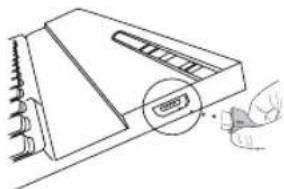
1 Anslut det tradlosa tangentbordet till ess USB-uttag, inklusive en dator ell iPfd Air-laddare med den medfoljande USB-kabeln Laddarens indicatorlampa lyser gult under laddning
For technical questions, please visit:
| • Denmark: | +45 35 25 87 51 (English) |
| • Finland: | +358 922948016 (English) |
| • France: | 01-6453-9151 (French) |
| • Germany: | 0211-6579-1151 (German) |
| • Norway: | +4722577729 (English) |
| • Sweden: | 08-751-4058 (English) |
| • Switzerland: | +41 (0) 44 212 0007 (French or German) |
| • UK: | 020-7744-0330 (English) |
Product Registration
Targus recommends that you register your Targus accessory shortly after purchasing it. Go to:
http://www.targus.com/registration.asp
You will need to provide your full name, email address, country of residence and product information
TWO YEAR WARRANTY
1 Targus warrants to the original purchaser that its products are free from defects in materials and workmanship for two years This warranty is limited to defects, materials and workmanship 2 The benefits to the consumer given by the warranty are in addition to other rights and remedies of the consumer under law in relation to the goods to which the warranty relates 3 The warranty is given by Targus Europe Ltd., 5 New Square, Bedfont Lakes Business Park, Feltham, Middlesex TW14 8HA, United Kingdom. 4. The purchaser must provide the purchaser's name, contact telephone number, the Targus model number on the product, date and place of purchase with receipt for purchase if required and describe the fault condition 5 Wha Targus must do:- (i) Targus will provide the purchaser with store return information or a return authorisation so that the purchaser may return the product for warranty inspection, (ii) If after inspection Targus finds the product is defective in materials or workmanship, Targus shall replace (or
repair) the defective product at the discretion of Targus and ship the product from Targus warehouse at its expense within three business days (Monday to Friday excluding public holidays) of receiving the returned goods If the product is no longer available Targus reserves the right to replace with the nearest corresponding product of no lesser quality, (ii) Targus will bear the cost of return delivery to the purchaser regardless of the inspection test result The purchaser must bear the cost of the delivery to Targus There is no charge for inspection 6 Our goods come with guarantees that cannot be excluded under the Australian Consumer Law You are entitled to a replacement or refund for a major failure and for compensation for any other reasonable foreseeable loss or damage You are also entitled to have the goods repaired or replaced if the goods fail to be of acceptable quality and the failure does not amount to a major failure 7 Please note: (i) Features and specifications of all Targus products are subject to change without notification, (ii) In some instances: Goods presented for repair may be replaced by refurbished goods of the same type rather than being repaired Refurbished parts may be used to repair the goods, (iii) If goods accepted for repair retain user-generated data: During the process of repair some or all of your stored data may be lost Please ensure that you have saved this data elsewhere prior to repair
Regulatory Compliance
This device complies with Part 15 of the FCC Rules Operation is subject to the following two conditions: (1) This device may not cause harmful interference, and (2) This device must accept any interference received, including interference that may cause undesired operation
FCC Statement
r Tested to Comply
This equipment has been tested and found to comply with the limits of a Class B digital device, pursuant to Part 15 of the FCC Rules These limits are designed to provide reasonable protection against harmful interference in a residential installation This equipment generates, uses, and can radiate radio frequency energy and if not installed and used in accordance with the instructions, may cause harmful interference to radio communications.
However, there is no guarantee that interference will not occur in a particular installation If this equipment does cause harmful interference to radio or television reception, which can be determined by turning the equipment off and on, the user is encouraged to try to correct the interference by one or more of the following measures:
Targus VersavuTM Keyboard Case for iPad Air
Reorient or relocate the receiving antenna;
- Increase the separation between the equipment and receiver;
- Connect the equipment into an outlet on a circuit different from that to which the receiver is connected;
- Consult the dealer or an experienced radio/TV technician for help
Changes or modifications not authorized by the party responsible for compliance could void the user's authority to operate this product
Declaration of Conformity
Hereby, Targus, declares that this device is in compliance with the essential requirements and other relevant provisions of Directive 1999/5/EC
Battery Warning
You are cautioned that changes or modifications not expressly approved by the party responsible for compliance could void your authority to operate the equipment
CAUTION:AVOID PROLONGED USE OF THE KEYBOARD WITHOUT BREAKS
Take regular breaks and keep a good posture Consult your physician prompty if you notice any lost of motion or pain in your wrist when using the keyboard
RF exposure warning
The equipment complies with FCC RF exposure limits set forth for an uncontrolled environment
The equipment must not be co-located or operating in conjunction with any other antenna or transmitter

This symbol on the product or in the instructions means that your electrical and electronic equipment should be disposed at the end its life separately from your household waste There are separate collection system for recycling in the EU For more information, please contact the local authority or your retailer where you purchased the product

TH-Z192EU/410-2983-003-C keyboard model: AKB35
2 YEARS LIMITED WARRANTY: We pride ourselves on the quality of our products. For complete warranty details and a list of our worldwide offices, please visit www targus.com Features and specifications are subject to change without notice. Bluetooth is a registered trademark of Bluetooth SIG, Inc. Apple and iPaID are trademarks of Apple Inc., registered in the U.S. and other countries trademarks and registered trademarks are the property of their respective owners ©2014 Targus Group International, Inc
All

Bluetooth
QD ID: B018080


FCC ID: OXM000052



- Contents
- System Requirements
- Hardware
- Establishing the Connection: iPad Air
- Bluetooth Pairing Request
- Cancel
- Power Saving Mode
- Targus VersavuTM Keyboard Case for iPad Air
- Charging the Keyboard
- Battery Life Indicator /
- Bluetooth Connection Light
- Illustrate Key legend functions
- Einführung
- A lade opp tastaturet
- Ladda tangentbordet
- Product Registration
- TWO YEAR WARRANTY
- Regulatory Compliance
- FCC Statement
- r Tested to Comply
- Declaration of Conformity
- Battery Warning
- RF exposure warning
Brand : TARGUS
Model : THZ192NO
Category : Stapler