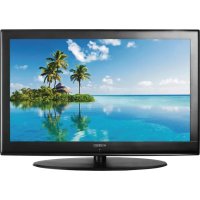
LCD4015A - Television CURTIS - Free user manual and instructions
Find the device manual for free LCD4015A CURTIS in PDF.


| Product Type | LCD TV |
| Brand | CURTIS |
| Model | LCD4015A |
| Screen Size | 40 inches (101.6 cm) |
| Display Resolution | 1920 x 1080 pixels (Full HD) |
| Power Supply | AC 100-240 V, 50/60 Hz |
| Power Consumption | Operation: ≤ 250 W; Standby: ≤ 1 W |
| Audio Power | 7 W + 7 W (2 channels) |
| Connectivity | 3 HDMI inputs, 1 VGA input, 2 YPbPr inputs, 2 AV (composite) inputs, 1 S-Video input, 1 RF (75 ohm antenna) input, PC audio input |
| Main Features | Remote control, multilingual OSD menu (French, English, Spanish), sleep timer, parental control, closed captioning (CC), automatic channel search, favorites list |
| Picture Modes | Standard, Dynamic, Soft, Personal |
| Audio Modes | Standard, Music, Movie, Personal |
| Picture Formats | 4:3, 16:9, Zoom, Cinema |
| Safety Instructions | Do not expose to moisture, do not open the cabinet, unplug before cleaning, use a grounded outlet |
| Care and Cleaning | Clean the screen with a soft cloth dampened with warm water; do not use abrasive products |
| Operating Temperature | 5°C to 35°C |
| Included Accessories | Remote control, AAA batteries (2), power cord, user manual |
Frequently Asked Questions - LCD4015A CURTIS
User questions about LCD4015A CURTIS
0 question about this device. Answer the ones you know or ask your own.
Ask a new question about this device
Download the instructions for your Television in PDF format for free! Find your manual LCD4015A - CURTIS and take your electronic device back in hand. On this page are published all the documents necessary for the use of your device. LCD4015A by CURTIS.
USER MANUAL LCD4015A CURTIS
LCD TV OWNER'S MANUAL
LCD4015A
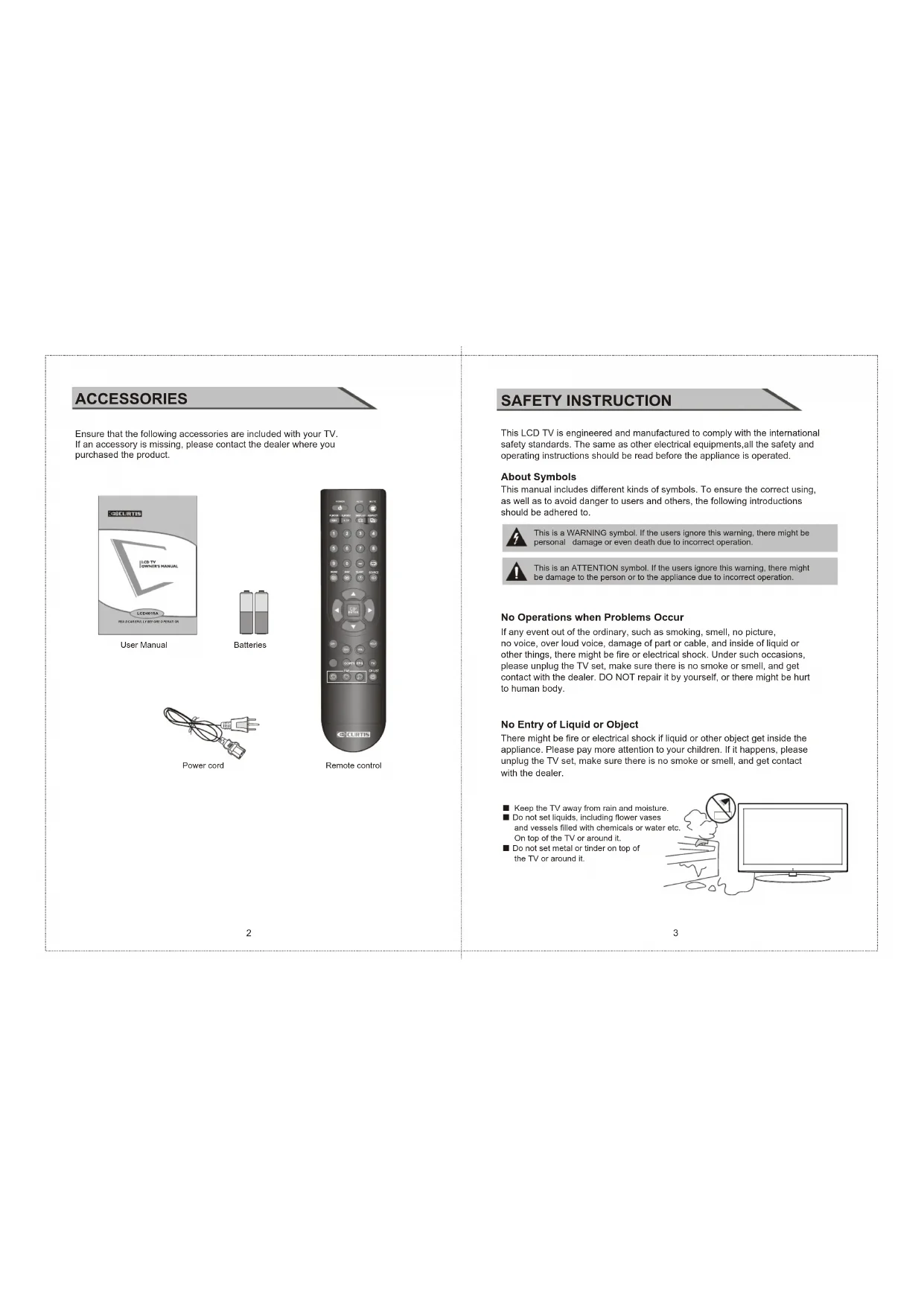
Ensure that the following accessories are included with your TV. If an accessory is missing, please contact the dealer where you purchased the product.

This LCD TV is engineered and manufactured to comply with the international safety standards. The same as other electrical equipments, all the safety and operating instructions should be read before the appliance is operated.
About Symbols
This manual includes different kinds of symbols. To ensure the correct using, as well as to avoid danger to users and others, the following introductions should be adhered to.

This is a WARNING symbol. If the users ignore this warning, there might be personal damage or even death due to incorrect operation.

This is an ATTENTION symbol. If the users ignore this warning, there might be damage to the person or to the appliance due to incorrect operation.
No Operations when Problems Occur
If any event out of the ordinary, such as smoking, smell, no picture, no voice, over loud voice, damage of part or cable, and inside of liquid or other things, there might be fire or electrical shock. Under such occasions, please unplug the TV set, make sure there is no smoke or smell, and get contact with the dealer. DO NOT repair it by yourself, or there might be hurt to human body.
No Entry of Liquid or Object
There might be fire or electrical shock if liquid or other object get inside the appliance. Please pay more attention to your children. If it happens, please unplug the TV set, make sure there is no smoke or smell, and get contact with the dealer.
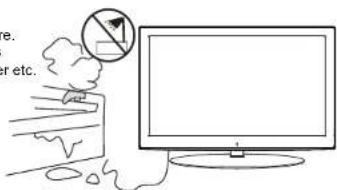
- Keep the TV away from rain and moisture.
■ Do not set liquids, including flower vases and vessels filled with chemicals or water etc. On top of the TV or around it.
■ Do not set metal or finder on top of the TV or around it.
Don't Remove or Rejigger the TV Set
There is high voltage subassembly inside the TV set, which may cause fire or electrical shock during repair.
■ DO NOT remove cover ( or back ).
NO Quiver or Concussion on TV Set
This appliance should not be exposed to dripping or broken. Continuous use might cause fire or electrical shock. If the panel gets broken, please unplug the TV set, and get contact with the dealer.
Set the TV on Balanced Spot
There will be damage if the TV drops or breaks.
■ Don't set the TV on uneven, oblique, or shacking surface.
Ventilation
Don't interfere with its proper ventilation when the TV is working or has just been unplugged, or the display may be spoiled or life shortened due to over heating. In order to keep proper ventilation, please allow a clearance of 10 inches on each side from the wall.
■ Don't set any object around the ventilation openings of the appliance.
■ Don't block the ventilation openings
■ No inversion of the screen.
■ Don't cover the appliance with table cloth.
■ Don't set the appliance on carpet, bedding, or near to curtain.
Power Sources
Unbefitting power sources may cause fire or electrical shock. The appliance should be connected to a power supply of the type described in the operating instructions or as marked on the appliance.
■ Power supply cord should adapt to the socket outlet.
Power Cord Connection
Incorrect connection of power cord may cause fire or electrical shock.
■ Don't touch the cord with wet hands.
■ Please check the pontes if it is clean ( no dust ) before use.
If it is not, please do the cleaning with dry and soft fabric.
■ Fix the power cord steadily in to the socket outlet to avoid it
becoming flexible, or it may have malfunction.
- Don't cut off the cord, for it may debase the performance. If you want to lengthen it, please make an appropriate one or get contact with the dealer.
If you want to change the fuse in the connector plugs, please change it with the same rating and model.
SAFETY INSTRUCTION SAFETY INSTRUCTION
Connect to Earthing Connection
This appliance shall be connected to a mains socket outlet with a protective earthing connection. If the provided plug does not fit into your outlet, consult an electrician for replacement of the obsolete outlet. Take care of the cord, or there might be fire or electrical shock due to broken cord. Please make sure that the cord is not over hot, pressed, or tensed. If the cord has problem (the core string emerges or the cord breaks), please get contact with the dealer.
■ Never allow heavy objects such as the TV set itself to be placed on the power cord. Never cover the cord with table cloth, for it may lead you to set heavy object on the cord due to ignorance.
■ When removing the power plug from the socket, always hold onto the plug, never pull by the cord.
■ Don't set the cord next to heaters.
■ Don't touch the plug right after it is unplugged to avoid electrical shock.
■ Don't touch the plug during lightning.
■ Don't allow cord to become knotted or tangled.
■ Protect the power cord from being walked on or pinched particularly at plugs, convenience receptacles, and the point where they exit from the apparatus.
Dispose the Batteries Carefully
■ Incorrect disposal of batteries may cause fire or human damage, and even explosion.
■ Don't throw batteries into fire or water.
- Keep the batteries far away from fire or heat.
- Keep the batteries under cool and dry environment.
■ Match the batteries to the (+) and (-) marks in the battery compartment.
■ Don't charge up the batteries.
■ Don't impact the batteries.
■ Please use the batteries that are appointed in the user's manual.
■ Please treat the used batteries with the observance of the local law.
Keep the TV Set away from Moisture and Dust
If you set the appliance under moisture or dust environment, it might cause fire or electrical shock due to lampblack or erosive gas.
■ Don't set the TV in kitchen, places nearby heaters, or places of lampblack and moisture. For heat from high temperature may affect the display or other components, and cause distortion, meltage, and fire.
■ Don't set the TV, remote control, or other components under sun or near heaters.
■ Don't set the TV where the difference in temperature is great.
Power Cords
Remove the power plug from the socket on occasions when you will not be using the set for an extended period.
■ Before cleaning, please turn off the TV and unplug the power cord. Or there might be fire or electrical shock.
SAFETY INSTRUCTION
Don't Set the TV in the places below
■ Under sun or near heaters.
■ Places where difference in temperature goes great.
■ Places that have bad ventilation.
Near fire.
■ Moist places such as bathroom.
■ Places that human walks frequently or places where are quivering fiercely.
■ Places where is deflective or unbalanced.
Watching TV
Please watch TV indoors where there is proper brightness. Please make sure the sunlight will not fall directly on the picture screen. Please relax your eyes every now and then by taking an overlook.
How to Clean the Picture Screen
Before cleaning, please turn off the TV and unplug the power cord.
Clean the screen with a soft cloth moistened in warm water.
A mild soap may be used if the screen is extremely dirty.
Dry the screen with a soft cloth after cleaning.

How to Clean the TV Set
Clean the TV and control panel with a soft cloth. A mild soap may be used if the screen is extremely dirty. Dry them with a soft cloth after cleaning. Choose the right cleanser, or it may fade the TV set, or make it scratched or cracked.
To Avoid Wireless Receiver
This TV set is designed to comply with the EMI standard to avoid problems of wireless receiver.
■ Set the TV far away from wireless receiver.
■ Adjust the wireless's antenna to avoid interference on TV:
■ Make sure the TV set is out of interference with the wireless;
■ The antenna should use coaxial line.
■ Turn off all the equipments, except the TV set to check if the TV interferes
the wireless receiver;
■ If the problem occurs, please check all the notes above.
SAFETY INTRODUCTIONS
Notes of Cable Connection
■ Make sure that all cables, including connector plugs, extend lines, and connecting cables between equipments are specify by the manufacturer. Before changing the connection, please turn off the power and unplug the power cord.
■ The power cord should not be the same one as other equipments.
■ Use plugs with a protective earthing connection.
Notes of Transportation
Please handle with care during transportation. Please use the original carton,
or it may damage the TV set. Please retain the original carton.
Handle the remote control with care
Impacts on remote control may lead to trouble.
- Please don't throw the remote control;
■ Don't set heavy object on remote control.
The sensor of remote control will not work if the lights, such as sunlight or bright indoor illumination fall directly on it. Make sure that there is no interference from wireless, or it may cause distortion of the picture or unusual sound. There should no equipment like mobile telephone or wireless receiver.
Notes on Installation
■ Never use wooden screws and bracket to fix. Use those that are specified by the manufacturer.
■ Use only the stand, tripod, bracket, or table specified by the manufacturer, or sold with the
apparatus. Use caution when moving the apparatus.
- Pleas follow all the operating instructions of the wall or ceiling mounting.
- Use only the attachments/accesories specified by the manufacturer.
■ Use only the attachments/accessories specified by the manufacturer.
■ If you have any questions on installation, operation, or safety, please call the dealer.
Other Notes
■ Please dispose the appliance with the observance of the local law.
■ Do be ware of all electrical equipments.
INSTRUCTION
CONTROLS
This manual explains the features available on the model of 40 inch LCD TV.
This is a simplified representation of a front panel. Here shown may be somewhat different from your TV.
Front Panel Controls
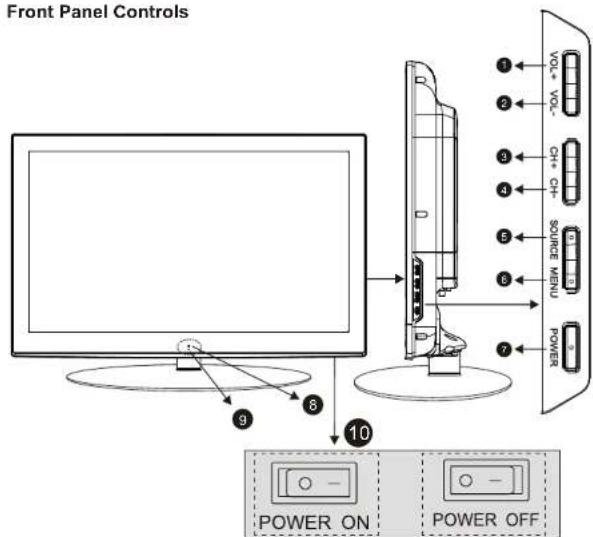
(01): (VOL+) Press Volume+ to increase the volume.
(02): (VOL-) Press Volume- to decrease the volume.
(03): (CH+) Press the button to up the channel.
(04): (CH-) Press the button to down the channel
(05): (SOURCE) Press this button to select AV source or TV source.
(06): (MENU) Press this button to display the OSD menu.
When the OSD menu is on, press this button to exit the menu.
(07): (Power) Press this button to standby mode.
(08): Remote control sensor window
(09): Indicator.
(10); (Main Power Switch) Power turn on/off.
INSTRUCTION
CONNECTION OPTION
This is the back panel LCD TV
■ This is a simplified representation of a back panel. Here shown may be somewhat different from your TV.
Back Connection Panel
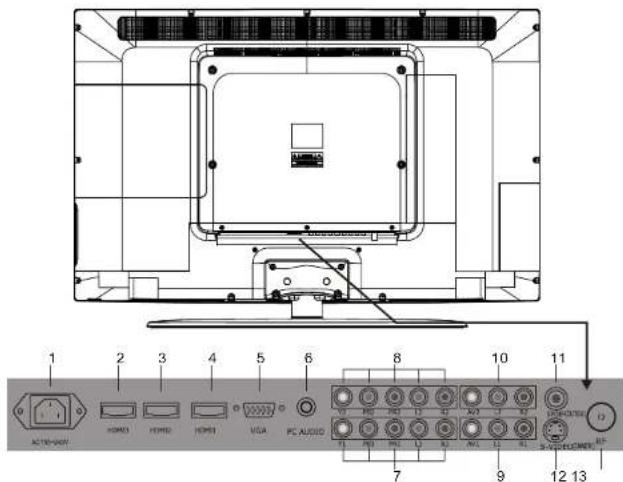
(01) AC100-240V: Connect the power cord with AC 100-240V to this input.
(02) HDMI3 Input: Connect HDMI3 signal.
(03) HDMI2 Input: Connect HDMI2 signal
(04) HDMI1 Input: Connect HDMI1 signal
(05) VGA Input: Connect PC VGA signal output.
(06) PC AUDIO Input: Connect PC audio output.
(07) YDRDD(Y:GREEN, PP:BLUE, PP:RED)1 Video Input: Connect the component image output
(07) YFBPR(Y:GREEN, PB:BLUE, PR:RED)1 video input. Connect the component image output of wave AV devices here. Then Cancel audio output of wave AV devices in P1 and L1
of your AV devices here. Then Connect audio output of your AV devices to RT and LT.
(08) YRBRP/Y:GREEN, PP:BLUE, PP:RED/V2 Video Input: Connect the component image output
(60) IF BPR(F.GREEN, FD.BEOL, FR.KRED)2 video input. Connect the component image of your AV devices here. Then Connect audio output of your AV devices to R2 and L2
(09) AV1 Video Input: Connect composite video output of your AV device and Connect
the audio output of your AV devices to R1 and L1
(10) AV2 Video Input: Connect composite video output of your AV device and Connect
the audio output of your AV devices to R2 and L2
(11) SPDIF(OUTER): Digital audio output.
(12) S-VIDEO(INNER) Input: Connect S-video output of your AV device.
(13) RF: Antenna Input (75 ohm).
INSTRUCTION
REMOTE CONTROL KEY FUNCTIONS
(1) POWER button: Switches the set on from power on or off (Main power switch must be turned on).
(2) AUTO button: Press to pc source picture auto adjust.
(3) MUTE button: Press to eliminate or restore the TV sound.
(4) P. MODE button: Press to select preset picture mode.
(5) S. MODE button: Press to select Sound mode button
(6) ASPECT button:
Press to select picture mode 4:3, 16:9 etc.
(7) DISPLAY button: Press to display current status,
TV channel, input source.
(8) Numerical buttons:
Press number buttons for direct access TV channels.
(9) ⬇ button: Press to return to previous channel.
(10) = button: Select sub channel of each
channel in DTV mode.
(11) MENU button: LCD menu selection.
(12) EXIT button: Exit the OSD menu (On-screen display).
(13) SOURCE button:
Press to display all possible input sources
(14) SLEEP button: Sets the sleep timer.
(15) "▲" button: When OSD menu is on, press this button to move the selection focus up or change settings.
(16) "▼"button: When OSD menu is on, press this button to move the selection focus down or change settings.
(17) "◀" button: When OSD menu is on, press this button to move the selection focus left.
(18) ▶ button: When OSD menu is on, press this button to move the selection focus right.
(19) * ENTER *button: Press the button to confirm the operation.
(20) CH- button: Changes the channels down.
(21) CH+ button: Changes the channels up.
(22) VOL- button: Adjusts the volume down.
(23) VOL+ button: Adjusts the volume up.
(24) MTS button: Press to select the audio channels.
(25) CC button: Press to display the closed caption
(26) EPG button: Enter Electronic Program Guide.
(27) TV button: Press the button to select the TV input.
(28) FAV-button: Changes the Favorite channels down
(29) FAV button: Switch between custom set "Favorite list".
(30) FAV+ button: Changes the Favorite channels up.
(31) CH LIST button: TV Channel List button.

INTRODUCTION
REMOTE CONTROL KEY FUNCTIONS
Universal remote code
This is the code for remote control of LCD4015A, if you want to change to a universal remote control, you can edit this code into your universal remote control.
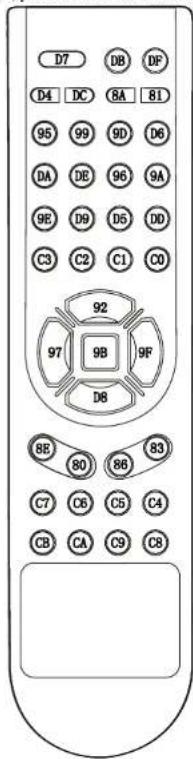
Not included.
INTRODUCTION
INSTALLING BATTERIES
(1) Open the battery compartment cover on the back side
(2) Insert two 1.5V batteries of AAA type with correct polarity
(3) Close the battery compartment cover on the back side
Notes on Using Batteries The use of the wrong type of batteries may cause chemical leaks and/or explosion.
Always ensure that the batteries are inserted with the positive and negative terminals in the correct direction as shown in the batteries compartment. Different types of batteries have different characteristics. Do not mix different types. Do not mix old and new batteries. Mixing old and new batteries will shorten battery life and/or cause chemical leaks from the old batteries. When batteries fail to function, replace them immediately. Chemicals which leak from batteries may cause skin irritation. If any chemical matter seeps out of the batteries, wipe it up immediately using a dry cloth. Due to varying storage conditions, the battery life for the batteries included with your unit may be shortened. If the remote control is not used for a long period of time, remove the batteries.
Notes on using the Remote control.
Do not strike or drop the remote.
Do not expose the remote control to liquids and do not place it in humid environment.
Do not install or place the remote control in direct sunlight.
The heat may damage the remote control.

INSTALLATION
STANDARD INSTALLATION
■The TV can be installed in various ways such as on a wall, or on a desktop etc.
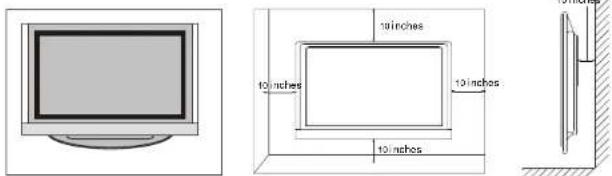
■The TV is designed to be mounted horizontally. Ensure that you connect the earth ground wire to prevent possible electric shock. If grounding methods are not possible, have a qualified electrician install a separate circuit breaker.

Do not try to ground the unit by connecting it to telephone wires, lightening rods or gas pipes.
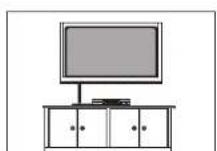
a. Desktop Pedestal Installation
This is the default installation way of the TV.
INSTALLATION
STANDARD INSTALLATION
b. Wall Mount: Horizontal installation
(1) Secure the wall brackets with the bolts (not provided as parts of the product, must purchase separately) on the wall. Match the height of the bracket that is mounted on the wall. The wall bracket is of nominal dimension. Please see the position of the wall brackets bolts as follow picture. The actual dimension of the wall brackets bolt should according to the products.
The wall brackets bolt position
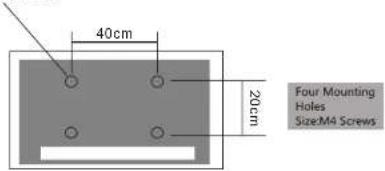
(2) Remove the table stand of the TV when install the TV on a wall as follow:

(3) For proper ventilation, allow a clearance of 10" on each side from the wall.

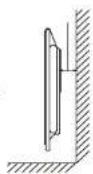
INSTALLATION
NOTES OF WALL INSTALLATION
(1) Keep the TV stand for may be future use.
(2) Don't set the TV set on shelves, carpets, beds, or closets.
(3) Don't cover the TV with curtain or paper.
(4) Leave ventilation space to avoid the following:
No good for ventilation No good for ventilation

■ To prevent the equipment damage, never plug in any power cords until you have finished connecting all equipment.
ANTENNA CONNECTION
■ For optimum picture quality, adjust antenna direction. ■ An antenna cable and converter are not supplied.
Multi-family Dwellings/Apartments (Connect to wall antenna socket)
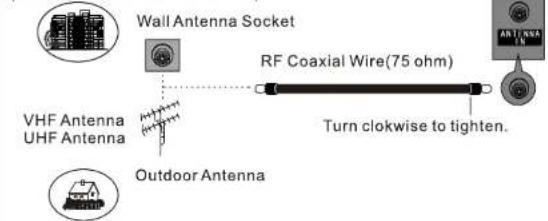
Single-family Dwelling/House (Connect to wall jack for outdoor antenna)
In poor signal areas, to get better picture quality, install a signal amplifier to the antenna as shown below.
■ If signal needs to be split for two TVs, use an antenna signal splitter for connection.
![graph LR A["VHF"] --> B["Signal Amplifier"] C["UHF"] --> B B --> D["Antenna IN"] D --> E["Sensor"]](/content/2026/03/566401/images/3abe1f70cfe1fe922cfbda860f76ae58fbc0f9a3c74a3530267f5d66c54c57fe.jpg)
CONNECTIONS & SETUP CONNECTIONS & SETUP
EXTERNAL EQUIPMENT CONNECTIONS
- Connect the AV jacks between TV and external equipment. Match the jack colors (Video = yellow, Audio Left = white, and Audio Right = red).
- Select AV source with using the SOURCE/ button on the remote control.
- Operate the corresponding external equipment. Refer to external equipment operating guide.
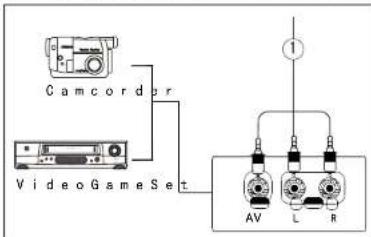
S-VIDEO CONNECTION
When connecting with a S-Video cable (cable not included)
- Connect the S-VIDEO output of the DVD to the S-VIDEO input on the set.
- Connect the audio outputs of the DVD to the Audio Input (L1/R1) jacks on the set.
- Turn on the DVD player, insert a DVD
- Select S-VIDEO source with using the SOURCE/ button on the remote control.
- Refer to the DVD player's manual for operating instructions

CONNECTIONS & SETUP CONNECTIONS & SETUP
PC CONNECTION
When connecting with a D-sub 15 pin cable(VGA)
- Connect the VGA output of the PC to the PC VGA Input jack on the set.
- Connect the audio outputs of the PC to the PC Audio Input jack on the set.
- Turn on the PC and the set.
- Select PC source with using the SOURCE/ button on the remote control.
- Refer to the PC manual for operating instructions.

HDMI CONNECTION
When connecting with a HDMI cable
- Connect the HDMI output of the DVD to the HDMI Input jack on the set.
- Select HDMI source with using the SOURCE/ button on the remote control
- Refer to the DVD player's manual for operating instructions.

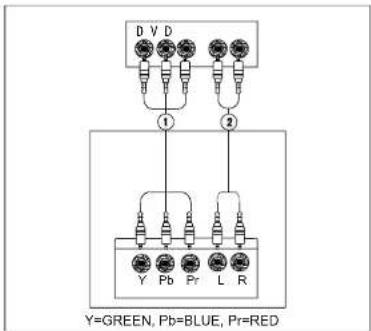
YPBPR CONNECTION
When connecting with a component cable
- Connect the video outputs (Y, PB, PR) of the DVD to the YpbPr jacks on the set
- Connect the audio outputs of the DVD to the Audio Input (L/R) jacks on the set.
- Turn on the DVD player, insert a DVD.
- Select YPbPr source with using the SOURCE/ button on the remote control.
- Refer to the DVD player's manual for operating instructions.
TURNING THE TV ON
If your TV will be turned on, you will be able to use its features.
Turning on the TV
First, Main power switch must be on position, connect power cord correctly. When the indicator illuminates red is standby mode.
Press the POWER button on the remote control.
after the TV initialization finished,
the indicator turns to green. It means the TV is in power mode. When you press the POWER/ ⏻ button on the remote
control once again, the power/stand-by Indicator illuminates red in standby mode.
If you intend to be away on vacation, disconnect the power plug from wall power outlet.
VOLUME ADJUSTMENT
- Press the VOL +/VOL- button on the control panel or the VOL +/VOL- button on the remote control to adjust the volume.
-
If you want to switch the sound off, press the MUTE/ button on the remote control.
-
You can resume the sound by pressing the MUTE/bullon on the remote control.

PROGRAM SELECTION
Press the CH+/CH- button on the control panel or the Numerical keys on the remote control.
You don't have to remember to switch the set off before you go to sleep.
The sleep timer automatically switches the set to standby after the preset time has elapsed.
Press the SLEEP/ Ⓤbutton on the remote control repeatedly to select the number of minutes.
The display will appear on the screen followed by circle, OFF, 5, 10, 15, 30, 45, 60, 90, 120, 180 and 240 minutes.
Sleep Timer: Off
RETURN FUNCTION
When you are watching TV programs, you can press the remote control to return to the previous channel.
CButton on
SOURCE INPUT SWITCH
-
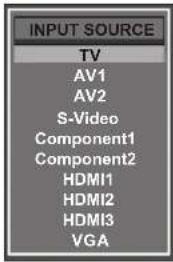
Press SOURCE/ button on the remote control to the source menu.
The source menu rank as:
TV-AV1-AV2-S-Video-Component1-Component2-HDMI1-HDMI2-HDMI3-VGA. -
Press Button on the remote control to select the source in the menu.
When the bar highlighted covering source selected,
then press / to confirm.ENTER
- Press ◀ / ▶ button to select PICTURE in the main menu.
- Press ▼ / ▲ button to select the option that you want to adjust in the PICTURE menu.
- Press ◀ / ▶ button to adjust.
- When you are satisfied with your adjustment, press the MENU button to return to the previous menu or press the EXIT button to exit the main menu.
VIDEO menu options
Picture Mode
Select Picture Mode in PICTURE menu. (Cycles among picture display modes: Standard, Dynamic, Soft, Personal.) You may select the picture mode directly by pressing P.MODE/HP button.
TIPS: You can press P.MODE/→ button on the remote control to select the Picture Mode directly.
Contrast
Controls the difference between the brightest and darkest regions of the picture. After adjust the value you want, press MENU/ button to return to the preview MENU.
Brightness
Controls the overall brightness of the picture.
Color
Control the color.
Tint
Controls the tint.
Sharpness
Increase this setting to see crisp edges in the picture; decrease it for soft edges.
Color Mode
Cycles among color modes: Normal, Warm, Cool.
OSD OPERATION
AUDIO menu options
Press MENU button on the front panel or MENU/☐ on the remote control to display the main menu.

- Press the ◀ / ▶ button to select SOUND in the main menu.
- Press the ▼ / ▲ button to select the option that you want to adjust in the SOUND menu.
- Press the ◀ / ▶ button to adjust.
- When you are satisfied with your adjustment, press the MENU/ button to return to the previous menu or press the EXIT/ button to exit the main menu.
Sound Mode
Allows you to select among: Standard, Music, Movie and Personal. You may select the sound mode directly by pressing S.MODE/ -按钮. TIPS: You can press S.MODE/ -button on the remote control to select the Sound Mode directly.
Bass
Controls the relative intensity of lower pitched sounds.
Treble
Controls the relative intensity of higher pitched sounds.
Balance
To adjust the balance of the left and right sound track, or turn off the volume of the left and right sound track.
Surround
Allows you to turn on or off the surround.
SPDIF Type
Allows you to select between PCM and RAW.
Audio Language
Allows you to select audio languages among: English, French and Spanish.
OSD OPERATION
Time Menu Options
Press MENU button on the front panel or MENU/☐ on the remote control to display the main menu.

- Press to select TIME in the main menu.
- Press to select your option what you want to adjust in the TIME menu.
- Press the ◀ / ▶ button to adjust.
- When you are satisfied with your adjustment, press the MENU/ button to return to the previous menu or press the EXIT/ button to exit the main menu.
Sleep Timer
Select the sleep time to put automatically the TV in standby mode.
Allows you to set up the sleep timer among:
5min, 10min, 15min, 30min, 45min, 60min, 90min, 120min, 180min, 240min and off.
Also you can select the sleep time by pressing SLEEP/ button repeatedly.
Time Zone
Allows you to set up the sleep timer among: Pacific, Alaska, Hawaii, Eastern, Central and Mountain.
Daylight Saving Time
Allows you to turn on or off the daylight saving time.
Clock
Daylight Saving Time Allows you to turn on or off the daylight saving time.
OSD OPERATION
Setup menu options
Select TV source as an example. (Press SOURCE/ button to select TV mode).
NOTE: SETUP menus are different for different input sources, if the input source is selected HDMI / VGA and there are no relative input signal, SETUP menu will be unavailable.
SETUP menu of TV input:

-
Press the POWER/ ⏻ button to turn the LCD TV on.
-
Press the MENU/ button on the remote control to display the Main menu, and use the button to select the SETUP.
-
Use the buttons to highlight an individual SETUP option,
use the ◀ / ▶ buttons to change the setting, and press the MENU/☐ button to exit.
The SETUP menu includes the following options:
Menu Language
Allows you to select menu language among: English, Français and Español.
Transparency
Allows you turn on or off the transparency function.
Zoom Mode
Allows you to select the zoom mode among: Cinema, Normal, Wide and Zoom.
Noise Reduction
Allows you to select the noise reduction mode among: Strong, Off, Weak, Middle.
DLC
Dynamic Luminance control ON or OFF.
OSD OPERATION
Setup menu options
Advance
Input PC signal first, then press SOURCE/ button to select VGA mode, press button to confirm.
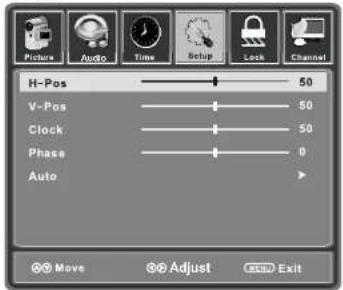
H-Position
Allow you to use ◀ / ▶ button to adjust the H Position.
V-Position
Allow you to use ◀ / ▶ button to adjust the V Position.
Clock
Allow you to prolong the image.
Phase
Allow you to adjust the definition.
Auto
Select "Auto" and press ▶, the unit will automatically adjust all items to achieve a best effect.
Close Caption
Use ▼button to highlight
the Close Caption item, then
press button to enter
into the following menu.
CC Mode
Allows you to select the
CC Mode among:
On, Off and CC on Mute.

Allows you to select the basic selection among: CC1, CC2, CC3, CC4, Text1, Text2, Text3 and Text4.
Advanced Selection
Allows you to select the advanced selection among: Service1, Service2, Service3, Service4, Service 5 and Service 6.
Option
Use ▼button to highlight the "Option" item, then press ▶ button to enter into the following menu.
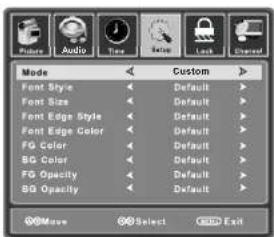
Use buttons to highlight the desired item, and use buttons to select.
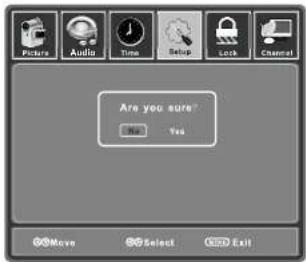
Restore Default
Restores all settings in SETUP menu to factory settings.
Lock menu options
Select TV source as an example. (Press SOURCE/→ button to select TV mode).
- Press the POWER/ ⏻ button to turn the LCD TV on.
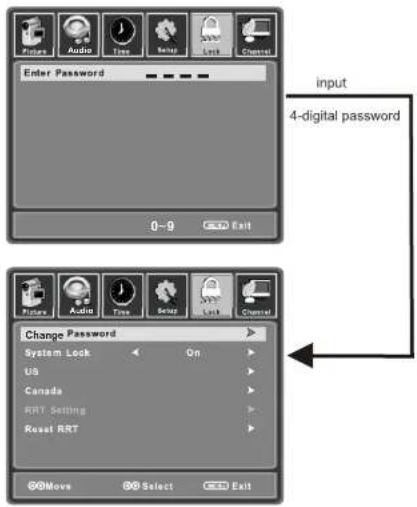
- Press the MENU/ button on the remote control to display the Main menu, and use the ◀/▶ buttons to select the LOCK.
- Use the ▼ button to highlight the "Enter Password" item, use the numeric keys to input 4-digital password. After you that, the screen will display the junior menu. After settings, press MENU/ button to exit.
NOTE: The factory password is 0000.
OSD OPERATION
Lock menu options
The LOCK menu includes the following options :
Change Password Default
Use ▼button to select the "Change Password" item, then press ▼button to enter into the following menu.
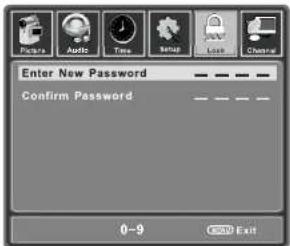
Input the new 4-digital password and input it again to confirm.
System Lock
Allows you to turn on or off the system lock.
If you turn off the system lock, then the following items(US, Canada, RRT Setting and Reset RRT) will unable to use.
OSD OPERATION
Channel menu options
- Press ▲ and ▼ to select Program Edit in SETUP menu.
- Press ▲ and ▼ to enter into the sub menu, a channel list will display.
- Press ▲ and ▼ to select the channel in the list which you would like to see.
-
Press ▶ to perform your selection.
-
Press ▲ and ▼ to select the location you would like to place the channel.
-
Press ◀ to perform you selection.
-
After completed, press MENU/ ☑ to return to the previous menu or press EXIT/ ☑ to exit.
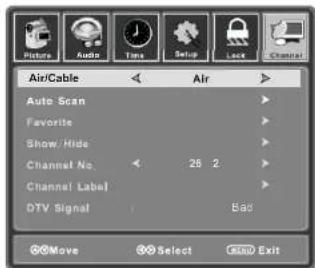
The CHANNEL menu includes the following options :
Air/Cable
Allows you to select antenna between Air and Cable. If you select "Cable", the following items(Favorite, Show/Hide, Channel NO., Channel Label and DTV Signal) are unable to use.
Auto Scan
Use button to highlight the "Auto Scan" item, then press button to enter into the following menu.
If you select "Air" as input signal in Antenna item, you can press button to search the channels automatically.
The receivable channels will be stored automatically. When searching channels, press MENU/☐ to stop
OSD OPERATION
Channel menu options
Favorite
Allows you to add these channels which you desired as the favorite channels. Use ▼ / ▲ button to highlight the "Favorite" item, then press ▶ button to enter into the following menu.
Use button to highlight the desired item, then press ENTER button add or remove the highlighted channel as favorite.
Show / Hide
Allows you to show or hide the channels.
Use Button to highlight the "Show / Hide" item, then press button to enter into the following menu.
Use button to highlight the desired item, then press ENTER button show or hide the highlighted channel.
Channel No.
Display the number of current channel.
Channel Label
Display the label of current channel.
DTV Signal
Display the quality of current DTV signal.
APPENDIX
TROUBLESHOOTING
The Symptom of Trouble
Attempt the following steps to diagnose the symptom you have seen. If the symptom couldn't be corrected, please contact the dealer.
| Symptom | Possible causes | Correct measures |
| There are spots on the screen, and the sound is not clear when you watch TV. | 1. The antenna cables may be disconnected.2. The antenna cables may be disconnected or cankered.3. The antenna cables may be weak.4. The weather is bad.5. The transmitter is wrong. | 1. Connect antenna cables again or change the plug.2. Connect antenna cables again or change new cables.3. Adjust antenna again.4. There is no need to correct.5. Check with local operator. |
| The picture is doubled or tripled, but sound is good. | 1. The antenna cables may be weak.2. The television could not tune correctly.3. The weather is bad4. The transmitter is wrong.5. Television input incorrectly. | 1. Adjust antenna again.2. Search channels again or adjust television.3. There is no need to correct.4. Check with local operator.5. Check the outside devices. |
| Disturb Intemittent | Your unit is being affected by other television, automobiles, fluorescent lamps, portable radio. | Check the shield contains of television and put the television as far away as possible through cables. |
| No picture & No sound | 1. Television is under AV mode.2. The picture and volume are set to minimum.3. The television is under sleep mode or electricity-saving mode. | 1. Check the picture/sound control (enter main menu).2. Make sure power in on. |

NOTE : Consumer should not repair by yourself, high-voltage is in unit, please request professional technician to help.
TROUBLESHOOTING P
Non-defect Judgment
Attempt the following steps to diagnose the symptom you have seen. If the symptom couldn't be corrected, please contact the dealer.
| Check PartsPhenomena | |
| The display monitor's panel goes hot. | LCD TV takes inside lighten phosphor. It may increase the temperature of the screen in some occasions. It's not a defect. |
| Unusual dots | Black dots and Bright points may appear on the LCD screen. This is a structural property of the LCD panel and is not a defect. |
| Stripes on screen | Adjust the impulse phase may decrease stripes. (RGB in) |
| Flicker fluctuate(only in PC source) | 1. Frequency from PC is below 75Hz, enhance it. But the picture may be less bright.2. Turn on the upright filter. But it may descend the upright resolution. |
| The top of the monitor gets hot. | It may occur during long-time working. It's not a defect. |
APPENDIXAPPENDIX
| Model | LCD4015A | |
| Resolution | 1920 X 1080 | |
| Viewing size(mm) | 885.6H X 498.15V | |
| PC best Mode | 1920 X 1080 @60Hz | |
| Sound output | 7W +7W 8Ω | |
| Power consumption | ≤ 250W | |
| Stand by power consumption | ≤ 1W | |
| Power input | AC100-240V, 50/60Hz | |
| Environment conditions | Temperature | Work: 5°C-35°C Store: -15°C-60°C |
| Relative humidity | Work: 20%-80% Store: 20%-90% | |
| PC input (VGA) | RGB Input impedance: 75ΩRGB Input range: 0.7±0.15Vp-pRGB Input supported format: support resolution 640X480 (60Hz)800X600 (60Hz) 1024X768 (60Hz) 1920X1080 (60Hz)Audio (L/R) Input impedance: 20KΩAudio (L/R) Input range: 500mVrms | |
| Radio frequency (RF) | Input impedance: 75Ω (un balance)Incept system: NTSC/ATSC | |
APPENDIX
PRODUCT SPECIFICATION
| YPbPr input | Y, PB/ CB, PR/CR Input Impedance: 75ΩY, PB/ CB, PR/CR Input range: Y: 1 ± 0.3 Vp-pPB/PR (CB/CR): 0.7 ± 0.3 Vp-pAudio(L/R) Input impedance: 20kΩAudio(L/R) Input range: 500mVrmsInput supported format: 480i, 480p, 576i, 576p, 720p, 1080i,1080p |
| Video input( AV ) | CVBS input impedance : 75ΩCVBS input range : 1±0.3Vp-pAudio(L/R) input impedance : 20KΩAudio(L/R) input range : 500mVrmsCVBS input supported format : NTSC |
| S-VIDEO input | Input impedance: 75ΩInput range: (Y: 1±0.3 Vp-p C (Burst ):0.3±0.15Vp-p)Input supported format: NTSCAudio (L/R) Input impedance: 20KΩAudio (L/R) Input range: 500mVrms |
| HDMI input | Input supported format: 480i, 480p, 576i, 576p, 720p, 1080i, 1080p |
CURTIS
MANUEL DE L'UTILISATEUR TV LCD
LCD4015A
LISEZ AVEC ATTENTION AVANT L'UTILISATION
SOMMAIRE
SOMMAIRE
SOMMAIRE 01
ACCESSORIES
ACCESSORIES 02
CONSIGNE DE SÉCURITÉ
CONSIGNE DE SÉCURITÉ 03-07
INTRODUCTION
CONTROLE 08
OPTIONS DE CONNEXIONS....09
FONCTIONS PRINCIPALES DE LA TELECOMMANDE 10\~11
INSTALLATION DE BATTERIES....12
INSTALLATION
STANDARD INSTALLATION....13
INSTALLATION DEBOUT 14 INSTALLATION MURALE 15
CONNEXIONS ET MIS EN PLACE
ANTENNE DE CONNEXION 16
EXTERNAL EQUIPMENT CONNECTIONS 17
CONNEXION ET MISE EN PLACE
FONCTIONNEMENT DE BASE
ACTIVER LA TV
Dynamic Luminance control.
OPERATION d'OSD
SE EN PLACE
Advance
NOTE: The factory password is 0000.


- ABOUT SYMBOLS
- NO OPERATIONS WHEN PROBLEMS OCCUR
- NO ENTRY OF LIQUID OR OBJECT
- DON'T REMOVE OR REJIGGER THE TV SET
- NO QUIVER OR CONCUSSION ON TV SET
- SET THE TV ON BALANCED SPOT
- VENTILATION
- POWER SOURCES
- POWER CORD CONNECTION
- SAFETY INSTRUCTION SAFETY INSTRUCTION
- CONNECT TO EARTHING CONNECTION
- DISPOSE THE BATTERIES CAREFULLY
- KEEP THE TV SET AWAY FROM MOISTURE AND DUST
- POWER CORDS
- SAFETY INSTRUCTION
- DON'T SET THE TV IN THE PLACES BELOW
- WATCHING TV
- HOW TO CLEAN THE PICTURE SCREEN
- HOW TO CLEAN THE TV SET
- TO AVOID WIRELESS RECEIVER
- SAFETY INTRODUCTIONS
- NOTES OF CABLE CONNECTION
- NOTES OF TRANSPORTATION
- HANDLE THE REMOTE CONTROL WITH CARE
- NOTES ON INSTALLATION
- OTHER NOTES
- INSTRUCTION
- CONTROLS
- CONNECTION OPTION
- REMOTE CONTROL KEY FUNCTIONS
- INTRODUCTION
- INSTALLING BATTERIES
- INSTALLATION
- STANDARD INSTALLATION
- DESKTOP PEDESTAL INSTALLATION
- WALL MOUNT: HORIZONTAL INSTALLATION
- NOTES OF WALL INSTALLATION
- ANTENNA CONNECTION
- CONNECTIONS & SETUP CONNECTIONS & SETUP
- EXTERNAL EQUIPMENT CONNECTIONS
- S-VIDEO CONNECTION
- PC CONNECTION
- WHEN CONNECTING WITH A D-SUB 15 PIN CABLE(VGA)
- HDMI CONNECTION
- WHEN CONNECTING WITH A HDMI CABLE
- YPBPR CONNECTION
- WHEN CONNECTING WITH A COMPONENT CABLE
- TURNING THE TV ON
- VOLUME ADJUSTMENT
- PROGRAM SELECTION
- RETURN FUNCTION
- SOURCE INPUT SWITCH
- VIDEO MENU OPTIONS
- PICTURE MODE
- CONTRAST
- BRIGHTNESS
- COLOR
- TINT
- SHARPNESS
- COLOR MODE
- OSD OPERATION
- AUDIO MENU OPTIONS
- SOUND MODE
- BASS
- TREBLE
- BALANCE
- SURROUND
- SPDIF TYPE
- AUDIO LANGUAGE
- TIME MENU OPTIONS
- SLEEP TIMER
- TIME ZONE
- DAYLIGHT SAVING TIME
- CLOCK
- SETUP MENU OPTIONS
- MENU LANGUAGE
- TRANSPARENCY
- ZOOM MODE
- NOISE REDUCTION
- DLC
- ADVANCE
- H-POSITION
- V-POSITION
- CLOSE CAPTION
- CC MODE
- ADVANCED SELECTION
- OPTION
- RESTORE DEFAULT
- LOCK MENU OPTIONS
- CHANGE PASSWORD DEFAULT
- SYSTEM LOCK
- CHANNEL MENU OPTIONS
- AIR/CABLE
- AUTO SCAN
- FAVORITE
- SHOW / HIDE
- CHANNEL NO
- CHANNEL LABEL
- DTV SIGNAL
- APPENDIX
- TROUBLESHOOTING
- THE SYMPTOM OF TROUBLE
- TROUBLESHOOTING P
- NON-DEFECT JUDGMENT
- APPENDIXAPPENDIX
- SOMMAIRE
- ACCESSORIES
- CONSIGNE DE SÉCURITÉ
- CONNEXIONS ET MIS EN PLACE
- CONNEXION ET MISE EN PLACE
- FONCTIONNEMENT DE BASE
- ACTIVER LA TV
- OPERATION D'OSD
- SE EN PLACE
Brand : CURTIS
Model : LCD4015A
Category : Television