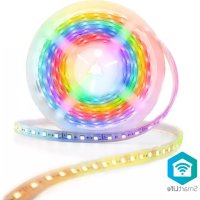
WIFILS51CRGB - Lighting NEDIS - Free user manual and instructions
Find the device manual for free WIFILS51CRGB NEDIS in PDF.

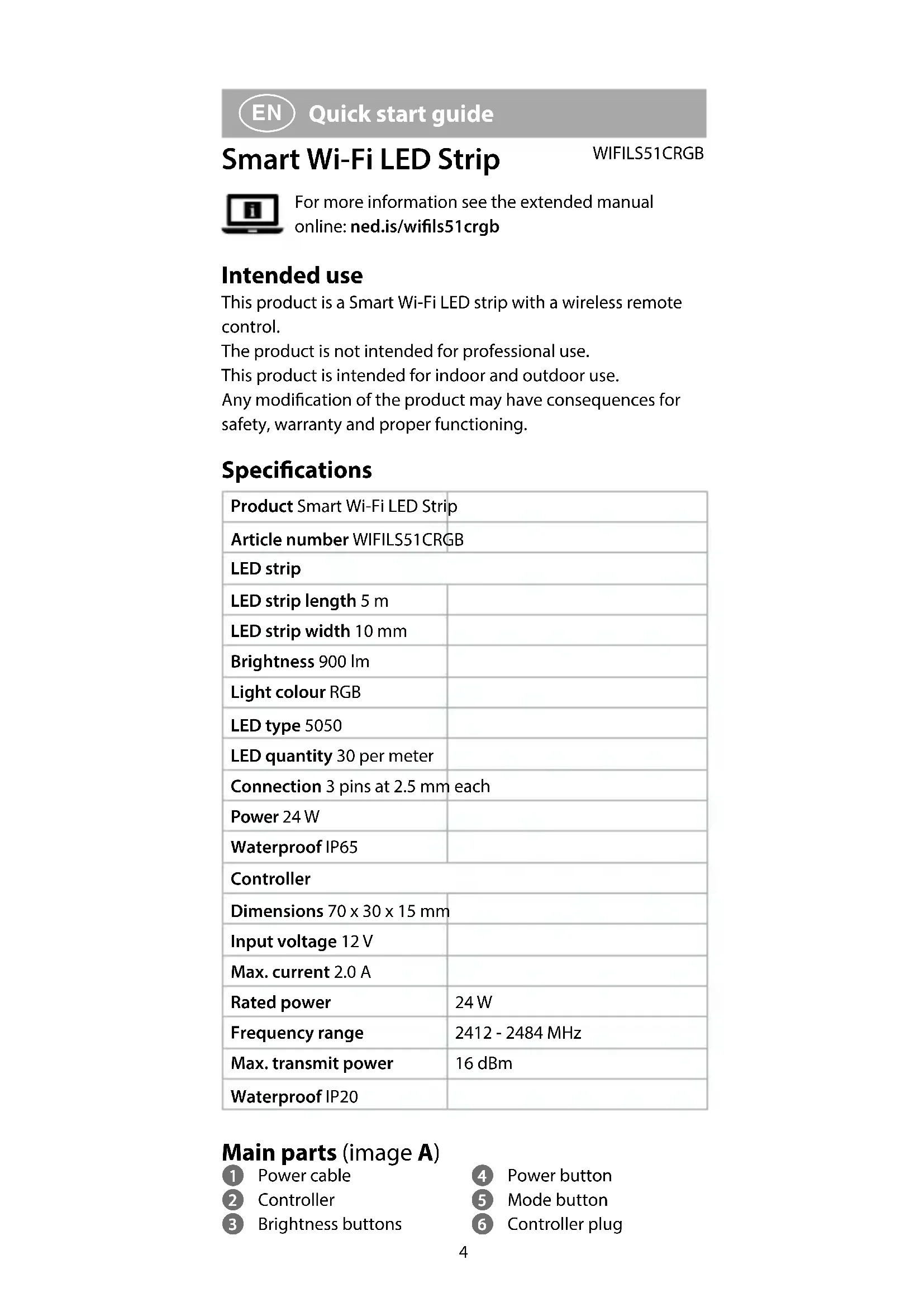


| Product type | Smart Wi-Fi LED strip with remote control |
| Brand | Nedis |
| Model | WIFILS51CRGB |
| LED strip length | 5 m |
| LED strip width | 10 mm |
| Brightness | 900 lm |
| Light color | RGB (Red, Green, Blue) |
| LED type | 5050 |
| Number of LEDs per meter | 30 |
| Connection | 3 pins (2.5 mm each) |
| Rated power | 24 W |
| Ingress protection rating (LED strip) | IP65 |
| Ingress protection rating (controller) | IP20 |
| Input voltage | 12 V |
| Max current | 2.0 A |
| Controller dimensions | 70 x 30 x 15 mm |
| Frequency range | 2412 - 2484 MHz |
| Max transmission power | 16 dBm |
| Power supply | Power adapter 12 V / 2 A included |
| Main functions | Control via Nedis Smartlife app, infrared remote control, Google Home and Amazon Alexa compatibility, music mode, motion patterns, brightness and color adjustment |
| Care and cleaning | Wipe with a clean, dry cloth; do not clean the interior |
| Safety | Indoor/outdoor use (IP65 strip); do not bend the strip at sharp angles; do not use if damaged; repair by qualified technician |
| Spare parts and repairability | LED strip can be cut at cut lines (loss of waterproofing); repair reserved for qualified technician |
Frequently Asked Questions - WIFILS51CRGB NEDIS
User questions about WIFILS51CRGB NEDIS
0 question about this device. Answer the ones you know or ask your own.
Ask a new question about this device
Download the instructions for your Lighting in PDF format for free! Find your manual WIFILS51CRGB - NEDIS and take your electronic device back in hand. On this page are published all the documents necessary for the use of your device. WIFILS51CRGB by NEDIS.
USER MANUAL WIFILS51CRGB NEDIS
Smart Wi-Fi LED strip
5 meters
WIFILS51CRGB
EN Quick start guide 4
DE) Kurzanleitung 7
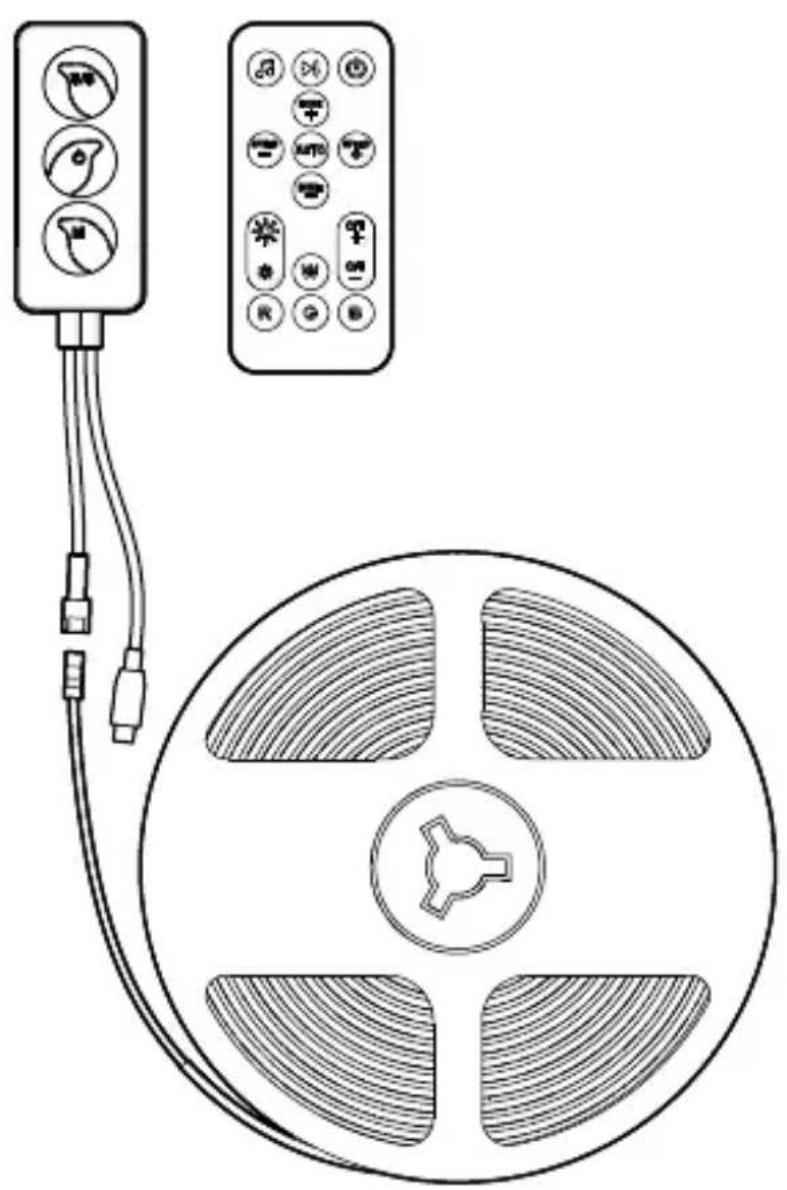
Smart Wi-Fi LED Strip
WIFILS51CRGB
For more information see the extended manual online: ned.is/wifils51crgb
Intended use
This product is a Smart Wi-Fi LED strip with a wireless remote control.
The product is not intended for professional use.
This product is intended for indoor and outdoor use.
Any modification of the product may have consequences for safety, warranty and proper functioning.
Specifications
| Product Smart Wi-Fi LED Strip | |
| Article number WIFILS51CRGB | |
| LED strip | |
| LED strip length 5 m | |
| LED strip width 10 mm | |
| Brightness 900 lm | |
| Light colour RGB | |
| LED type 5050 | |
| LED quantity 30 per meter | |
| Connection 3 pins at 2.5 mm each | |
| Power 24 W | |
| Waterproof IP65 | |
| Controller | |
| Dimensions 70 x 30 x 15 mm | |
| Input voltage 12 V | |
| Max. current 2.0 A | |
| Rated power | 24 W |
| Frequency range | 2412 - 2484 MHz |
| Max. transmit power | 16 dBm |
| Waterproof IP20 | |
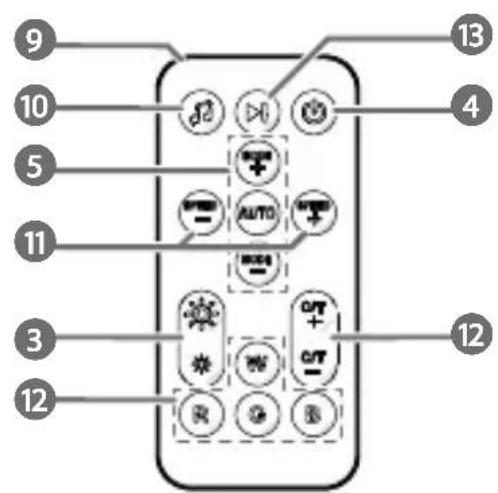
Main parts (image A)
1 Power cable
2 Controller
3 Brightness buttons
4 Power button
5 Mode button
6 Controller plug
7 IR receiver
8 LED strip
9 IR remote
10 Music mode
11 Speed buttons
12 Colour buttons
13 Start/stop moving pattern
Safety instructions
WARNING
- Ensure you have fully read and understood the instructions in this document before you install or use the product. Keep the packaging and this document for future reference.
- Only use the product as described in this document.
- Do not use the product if a part is damaged or defective. Replace a damaged or defective product immediately.
- Do not drop the product and avoid bumping.
- Do not expose the product to water or moisture.
- This product may only be serviced by a qualified technician for maintenance to reduce the risk of electric shock.
- Do not unplug the product by pulling on the cable. Always grasp the plug and pull.
- Only power the product with the voltage corresponding to the markings on the product.
- Wipe the battery terminals with a clean dry cloth if they are dirty.
• Non-rechargeable batteries are not to be recharged. - Do not short-circuit a battery.
• Children of less than 8 years should be kept away. - Cleaning and user maintenance shall not be done by children without supervision.
- Make sure to match the charger voltage to the voltage on the battery markings. Wrong voltage can destroy the charger and/or battery.
- The security circuit ensures that there is no voltage at the battery clamps when there is no battery connected.
- Make sure to match the (+) and (-) polarity markings.
- Do not clean the inside of the product.
Installing the app
- Download the Nedis Smartlife app for Android or iOS on your phone via Google Play or the Apple App Store.
- Open the Nedis Smartlife app on your phone.
- Create an account with your mobile phone number or your e-mail address and tap Continue.
- Enter the received verification code.
- Create a password and tap Done.
- Tap Add Home to create a SmartLife Home.
- Set your location, choose the rooms you want to connect with and tap Done.
Connecting the product
- Plug the power cable A 1 into the controller A 2.
- Plug the controller plug A6 into the LED strip A8.
- Plug A1 into a power outlet.
- Check if A8 is blinking. If so, confirm in the app.
If A 8 does not blink, press and hold the power button A 4 on A 2 for 5 seconds.
- Tap + in the top right corner.
- Under Search Device, select the product from the list of available devices.
- Check if A8 is blinking. If so, confirm in the app.
- Enter the password of the Wi-Fi network to which your phone is connected and tap Confirm.
- Rename the product after it has been found and added.
Setting up the product
- Unplug A1 from the power outlet.
- Clean the surface from dust and grease.
The surface must be smooth. Do not place the product on knitted/wool fabrics, dust wall, rough plastic surface or frosted glass.
- Remove part of the 3M tape from the back of A8.
- Place the start of A 8 in the desired position.
- Make sure the power outlet is within reach.
- Unroll A8.
- Remove the 3M tape and press A8 into the desired position.
- Firmly press A 8 down with your hand.
not use hard objects to press A8 down to prevent damage.
A not bend A 8 at sharp angles to prevent damage. If desired, cut A 8 to size on the indicated cut lines.
A1ting A8 removes the waterproof qualities of the product.
- Plug A1 into a power outlet.
Controlling the product
- Press A4 to switch the product on or off.
- Press and hold A 4 on A 2 for 5 seconds to factory reset the product.
- Press the mode button A5 to change modes.
- Press the brightness buttons A3 to adjust the brightness.
- Press the colour buttons A12 to adjust the colour.
- Press the speed buttons A11 to adjust the speed.
The product can be connected to Google Home or Amazon Alexa to enable speech control.
Declaration of Conformity
We, Nedis B.V. declare as manufacturer that the product WIFILS51CRGB from our brand Nedis ® , produced in China, has been tested according to all relevant CE standards and regulations and that all tests have been passed successfully. This includes, but is not limited to the RED 2014/53/EU regulation.
The complete Declaration of Conformity (and the safety datasheet if applicable) can be found and downloaded via: nedis.com/wifils51crgb#support
For additional information regarding the compliance, contact the customer service:
Web: www.nedis.com
E-mail: service@nedis.com
Nedis B.V., de Tweeling 28
5215 MC 's-Hertogenbosch, the Netherlands

Kurzanleitung
5215 MC 's-Hertogenbosch, the Netherlands

5215 MC 's-Hertogenbosch, the Netherlands

Rýchly návod
Inteligentný LED pás s funkciou Wi-Fi
WIFILS51CRGB


Brand : NEDIS
Model : WIFILS51CRGB
Category : Lighting