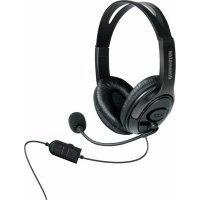
DGXB16617 - Headphones DREAMGEAR - Free user manual and instructions
Find the device manual for free DGXB16617 DREAMGEAR in PDF.


| Product Type | Audio headset for console and mobile |
| Brand | DreamGEAR |
| Model | DGXB16617 (X-Talk One) |
| Frequency Response | 20 Hz - 20 kHz |
| Speaker Diameter | 40 mm |
| Impedance | 32 Ω ± 15% |
| Sensitivity | -54 ± 3 dB |
| Maximum Input Power | 20 mW |
| Cable Length | Approximately 1.20 m |
| Connector Type | 3.5 mm jack (with 2.5 mm adapter included for Xbox 360) |
| Console Compatibility | Xbox One, Xbox 360, PS4, PS Vita, Wii U, Nintendo, smartphone and tablet |
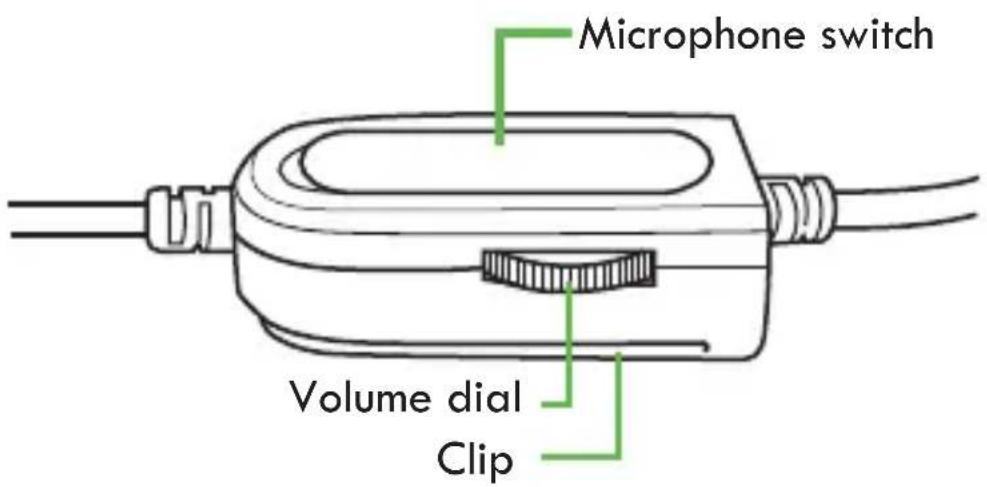
| Control Box Functions | Volume wheel, microphone ON/OFF switch (green/red indicator) |
| Weight | Approximately 250 g |
| Warranty | 120-day limited |
| Customer Support | Phone: 877-999-DREAM (USA/Canada), 310-222-1045 (international). Email: register online (save a tree) |
Frequently Asked Questions - DGXB16617 DREAMGEAR
User questions about DGXB16617 DREAMGEAR
0 question about this device. Answer the ones you know or ask your own.
Ask a new question about this device
Download the instructions for your Headphones in PDF format for free! Find your manual DGXB16617 - DREAMGEAR and take your electronic device back in hand. On this page are published all the documents necessary for the use of your device. DGXB16617 by DREAMGEAR.
USER MANUAL DGXB16617 DREAMGEAR
X-Talk One, Xbox 360® adapter cable, and user guide
Please read and follow this user guide thoroughly before using the X-Talk One.
Technical Specifications
Frequency response: 20 Hz - 20 kHz
Driver size: 40mm
Impedance: 32Ω ± 15%
Sensitivity: - 54 ± 3 dB
Max power: 20mW
Cable length: Approx 4 feet
Control box functions
Volume dial
- With the front of the control box facing you, turn the volume dial counterclockwise to raise the volume.
- With the front of the control box facing you, turn the volume dial clockwise to lower the volume.
Microphone switch
- To use the microphone, slide the microphone switch upwards. The switch will show a green color.
- To mute the microphone, slide the microphone switch downwards. The switch will show a red color.
How to connect your X-Talk One to your Xbox One™ controller with 3.5mm jack
- Turn down the volume on your X-Talk One to the lowest level.
- Place the headset on your head and adjust the headband until the headset fits comfortably. Adjust the microphone to fit properly.
- Insert the 3.5mm plug of your X-Talk One into the bottom of your Xbox One™ controller with 3.5mm jack.
- Slowly raise the volume to a comfortable level.
- Refer to the user guide of your Xbox One™ on how to set up your headset to work with online play.
How to connect your X-Talk One to your Xbox One™ controller using the Microsoft® Stereo Headset Adapter (not included)
- Insert your Microsoft® Stereo Headset Adapter into the bottom of your Xbox One™ controller.
NOTE: Please refer to the user guide of your Microsoft® Stereo Headset Adapter for connection instructions.
- Turn down the volume on your X-Talk One to the lowest level.
- Place the headset on your head and adjust the headband until the headset fits comfortably. Adjust the microphone to fit properly.
-
Insert the 3.5mm plug of your X-Talk One into the bottom of your Microsoft® Stereo Headset Adapter.
-
Slowly raise the volume to a comfortable level.
- Refer to the user guide of your Xbox One™ on how to set up your headset to work with online play.
How to connect your X-Talk One to your Xbox 360®
- Turn down the volume on your X-Talk One to the lowest level.
- Place the headset on your head and adjust the headband until the headset fits comfortably. Adjust the microphone to fit properly.
- Insert the 2.5mm end of the included Xbox 360® adapter cable into the bottom of your Xbox 360® controller.
- Insert the 3.5mm plug of the X-Talk One into the other end of the Xbox 360® adapter cable.
- Slowly raise the volume to a comfortable level.
- Refer to the user guide of your Xbox 360® on how to set up the headset to work with online play.
How to connect your X-Talk One to your DUALSHOCK® 4 controller
- Turn down the volume on the X-Talk One to the lowest level.
- Place the headset on your head and adjust the headband until the headset fits comfortably. Adjust the microphone to fit properly.
- Insert the 3.5mm plug of the X-Talk One into the bottom of the DUALSHOCK® 4 controller.
- Slowly raise the volume to a comfortable level.
- Refer to the user guide of your PS4™ on how to set up the headset to work with online play.
How to connect your X-Talk One to your Wii U™ GamePad
-
Turn down the volume on the X-Talk One to the lowest level.
-
Place the headset on your head and adjust the headband until the headset fits comfortably. Adjust the microphone to fit properly.
- Insert the 3.5mm plug of the X-Talk One into the top of the Wii U™ GamePad.
- Slowly raise the volume to a comfortable level.
- Refer to the user guide of your Wii U™ on how to set up the headset to work with online play.
How to connect your X-Talk One to your PS Vita® or Nintendo® handheld device
- Turn down the volume on the X-Talk One to the lowest level.
- Place the headset on your head and adjust the headband until the headset fits comfortably. Adjust the microphone to fit properly.
- Insert the 3.5mm plug of the X-Talk One into your handheld device.
- Slowly raise the volume to a comfortable level.
- Refer to the user guide of your handheld on how to set up the headset to work with online play.
How to connect your X-Talk One to a smartphone or tablet
- Turn down your audio device to the lowest level.
- Place the headset on your head and adjust the headband until the headset fits comfortably. Adjust the microphone to fit properly.
- Insert the 3.5mm plug of the X-Talk One into your smartphone or tablet.
- Raise the audio to a comfortable volume on your device and then adjust the volume on the X-Talk One using the volume dial.
NOTES:
- The volume dial only controls the volume of the headset. Console and device volume should be adjusted separately.
- Make sure that the X-Talk One is worn properly at all times. Do
not place the headset around the back of your head; it must be worn over the top of your head. Make sure you allow the microphone to be positioned as close to your mouth as possible for best voice results.
- When the microphone is switched to "OFF", other players cannot hear your conversation, but you will still be able to hear them speaking.
Important safety precautions
- Do not listen at a high volume level. Extended high volume levels can lead to permanent hearing loss.
- Start with setting the volume level at the lowest volume and adjust until you reach a comfortable volume level.
- Do not use while sleeping, as accidents may occur.
- If you experience any ringing in your ears, try lowering the volume. If the ringing persists, visit your physician.
- Tampering with the product can result in damage to your product, void of warranty, and could cause injuries.
Warranty information
All dreamGEAR products come with a limited warranty and have been subjected to a thorough series of tests to ensure the highest level of dependability and compatibility. It is unlikely that you will experience any problem, but if a defect should become apparent during the use of this product, dreamGEAR warrants to the original consumer purchaser that this product will be free from defects in material and workmanship for a period of 120 days from the date of your original purchase. If a defect covered by this warranty occurs, dreamGEAR, at its option, will repair or replace the product purchased at no charge or refund the original purchase price. If a replacement is necessary and your product is no longer available, a comparable product may be substituted at the sole discretion of dreamGEAR.
This warranty does not cover normal wear and tear, abusive use or misuse, modification, tampering or by any other cause not related to either materials or workmanship. This warranty does not apply to products used for any industrial, professional or commercial purposes.
Service information
For service on any defective product under the 120-day warranty policy, please contact Consumer Support to obtain a Return Authorization Number. dreamGEAR reserves the right to require the return of the defective product and proof of purchase. NOTE: dreamGEAR will not process any defective claims without a Return Authorization Number.
Consumer support hotline
877-999-DREAM (3732) (U.S. and Canada only) or 310-222-1045 (International)
Consumer support email
support@dreamgear.com
Website
www.dreamgear.com
Save a tree, register online
dreamGEAR is making the eco-friendly choice to have all products registered online. This saves the printing of physical paper registration cards. All the information you need to register your recent dreamGEAR purchase is available at: www.dreamgear.com/product-registration
Inclus
Specifications techniques
support@dreamgear.com
Site web
www.dreamgear.com
www.dreamgear.com/product-registration
ESpañOL
Incluye
support@dreamgear.com
Sittio web
www.dreamgear.com
- Technical specifications
- Control box functions
- Volume dial
- Microphone switch
- How to connect your x-talk one to your xbox one™ controller with 3.5mm jack
- How to connect your x-talk one to your xbox one™ controller using the microsoft® stereo headset adapter (not included)
- How to connect your x-talk one to your xbox 360®
- How to connect your x-talk one to your dualshock® 4 controller
- How to connect your x-talk one to your wii u™ gamepad
- How to connect your x-talk one to your ps vita® or nintendo® handheld device
- How to connect your x-talk one to a smartphone or tablet
- Notes
- Important safety precautions
- Warranty information
- Service information
- Consumer support hotline
- Consumer support email
- Website
- Save a tree, register online
- Inclus
- Specifications techniques
- Site web
- Español
- Incluye
- Sittio web
Brand : DREAMGEAR
Model : DGXB16617
Category : Headphones