
Saeco Xelsis Deluxe SM8780 - Coffee maker PHILIPS - Free user manual and instructions
Find the device manual for free Saeco Xelsis Deluxe SM8780 PHILIPS in PDF.
 FR
FR
 AZ
AZ
 BG
BG
 CS
CS
 DA
DA
 DE
DE
 EL
EL
 EN
EN
 ES
ES
 ET
ET
 FI
FI
 HE
HE
 HU
HU
 HY
HY
 IT
IT
 KA
KA
 KK
KK
 KY
KY
 LT
LT
 LV
LV
 MK
MK
 NL
NL
 NO
NO
 PL
PL
 PT
PT
 RO
RO
 RU
RU
 SK
SK
 SL
SL
 SQ
SQ
 SV
SV
 TG
TG
 TK
TK
 UK
UK
 UZ
UZ
| Product type | Automatic coffee machine with built-in grinder |
| Brand | Philips |
| Model | Saeco Xelsis Deluxe SM8780 |
| Dimensions (W x H x D) | 287 x 396 x 487 mm |
| Weight | 11 - 12.4 kg |
| Power supply | 230 V, 50 Hz, 1400 W |
| Water tank capacity | 1.7 L |
| Bean hopper capacity | 450 g |
| Grounds container capacity | 15 doses |
| Milk container capacity | 600 ml |
| Adjustable dispensing spout height | 75 - 148 mm |
| Power cord length | 1200 mm |
| Grinder | Ceramic, 12 grind settings |
| Smart functions | BeanMaestro, CoffeeMaestro, CoffeeEqualizer Touch+, ExtraShot |
| Milk system | HygieSteam with automatic steam cleaning |
| Connectivity | Wi-Fi 2.4 GHz 802.11 b/g/n |
| Water filter | AquaClean (optional) |
| Control panel | Touchscreen |
| Cleaning programs | HygieSteam Shot, HygieSteam, Deep Milk Clean |
| Descaling | Manual with Philips descaling solution |
| Included accessories | AquaClean filter, water hardness test strip, brush, grease tube, measuring spoon, milk container |
| Repairability | Error codes displayed, online support at www.saeco.com/care |
Frequently Asked Questions - Saeco Xelsis Deluxe SM8780 PHILIPS
User questions about Saeco Xelsis Deluxe SM8780 PHILIPS
0 question about this device. Answer the ones you know or ask your own.
Ask a new question about this device
Download the instructions for your Coffee maker in PDF format for free! Find your manual Saeco Xelsis Deluxe SM8780 - PHILIPS and take your electronic device back in hand. On this page are published all the documents necessary for the use of your device. Saeco Xelsis Deluxe SM8780 by PHILIPS.
USER MANUAL Saeco Xelsis Deluxe SM8780 PHILIPS
EN USER MANUAL
C Xelsis DELUXE: SM8780, SM8782, SM8785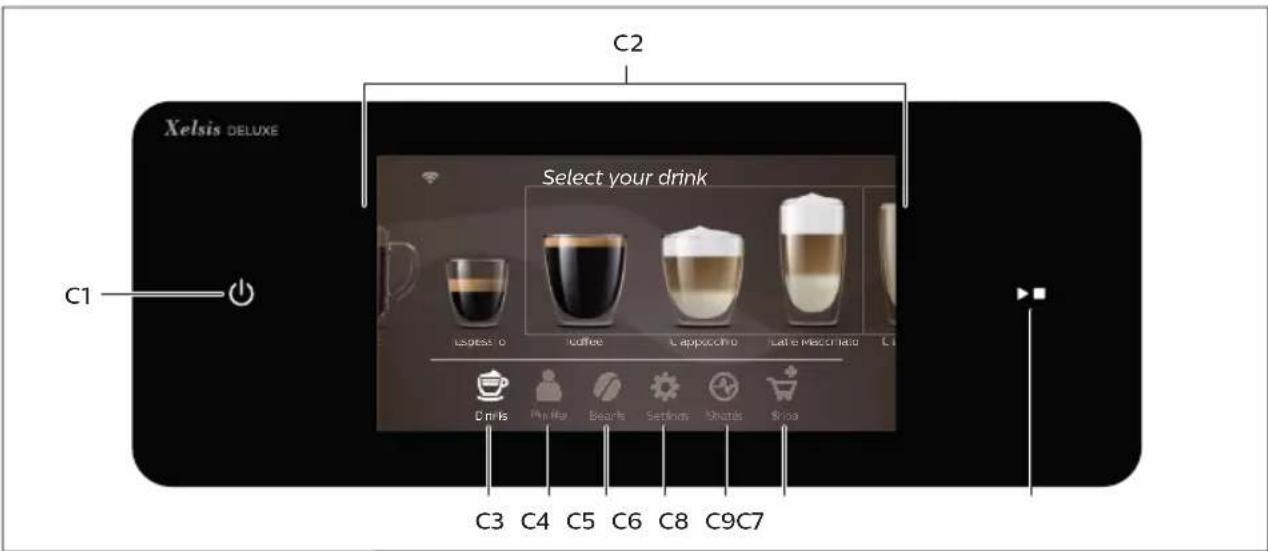
D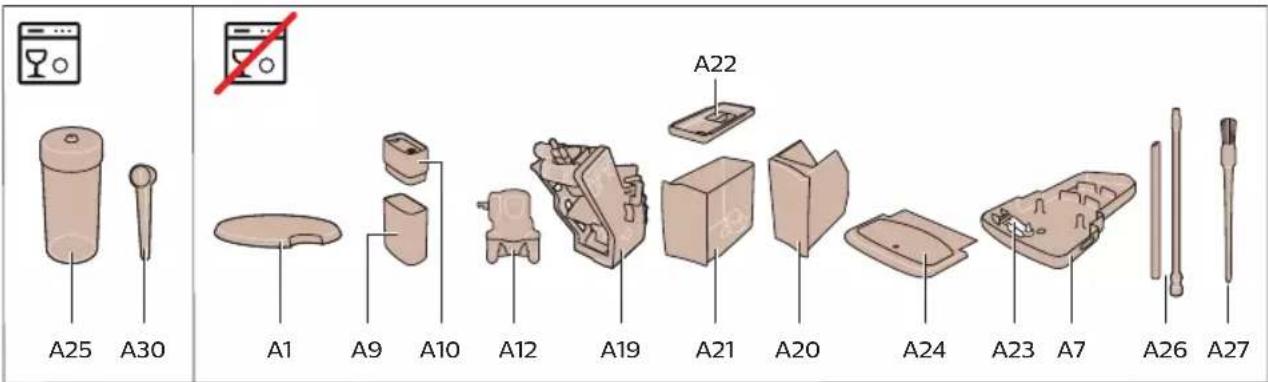
English 4
Azərbaycanca 25
Čeština 47
Crnogorski 68
Dansk 90
Deutsch 111
Eesti 135
Español 156
Français 179
Hrvatski 201
Italiano 223
Latviešu 246
Lithuanian 267
Hungarian 288
Dutch 310
Norwegian 332
Uzbek 353
Polish 375
Portuguese 397
Romanian 419
Albanian 441
Slovenian 463
Slovak 484
Serbian 506
Finnish 528
Swedish 549
Turkmen 570
Greek 592
Bulgarian 616
Kyrgyz 639
Macedonian 663
Russian 687
Tajik 712
Ukrainian 737
Kazakh 760
Ruijtntü 783
งบดีนที่ 807
Hebrew 832
Contents
Machine overview (Fig. A) 4
Control panel 5
Introduction 5
Special functions 6
Brewing drinks 7
Adjusting machine settings 10
AquaClean water filter 11
Removing and inserting the brew group 12
Cleaning and maintenance 13
Descaling procedure 15
Error codes 16
Ordering accessories 17
Software updates 18
Troubleshooting 18
Technical specifications 23
Declaration of Conformity 24
Wi-Fi 24
Machine overview (Fig. A)
A1 Lid of bean hopper
A2 Lid of pre-ground coffee compartment
A3 Cup tray
A4 Control panel
A5 Socket for cord
A6 Main switch
A7 Drip tray
A8 Drip tray release grip
A9 HygieSteam container
A10 HygieSteam cover with milk tube holder
A11 Height-adjustable coffee and milk dispensing spout
A13 Power cord with plug
Accessories
A25 Milk container
A26 Milk tube
A27 Cleaning brush
A28 Grease tube
A14 Grind setting knob (to learn more, visit www.saeco.com/care)
A15 Bean hopper
A16 Service door
A17 Coffee funnel
A18 Coffee residues drawer
A19 Brew group (to learn more, visit www.saeco.com/care)
A20 Coffee grounds container
A21 Water tank
A22 Lid of water tank
A23 'Drip tray full' indicator
A24 Drip tray cover
A29 AquaClean filter
A30 Measuring spoon
A31 Water hardness test strip
Control panel
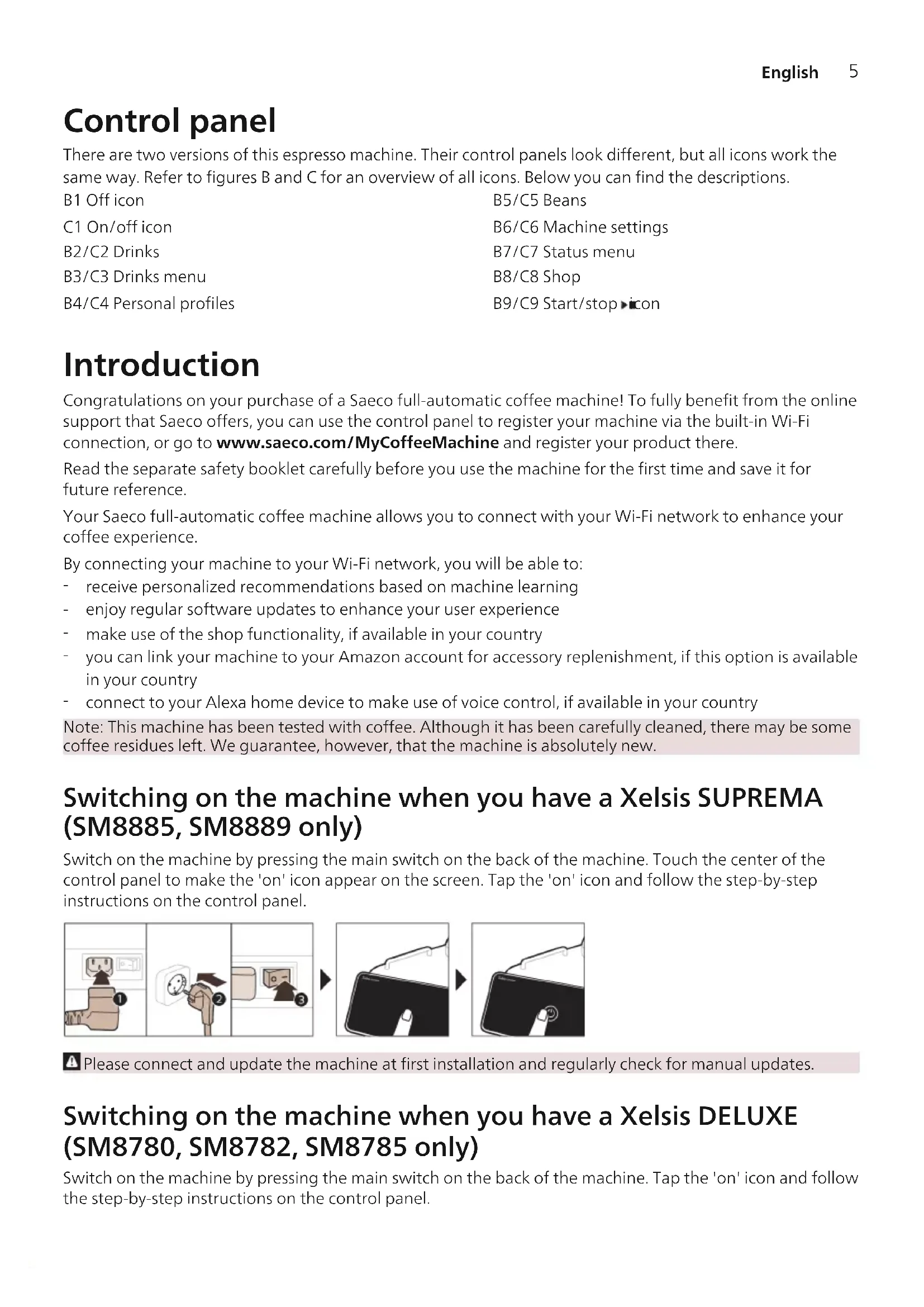
There are two versions of this espresso machine. Their control panels look different, but all icons work the same way. Refer to figures B and C for an overview of all icons. Below you can find the descriptions.
B1 Off icon
B5/C5 Beans
C1 On/off icon
B6/C6 Machine settings
B2/C2 Drinks
B7/C7 Status menu
B3/C3 Drinks menu
B8/C8 Shop
B4/C4 Personal profiles
B9/C9 Start/stop icon
Introduction
Congratulations on your purchase of a Saeco full-automatic coffee machine! To fully benefit from the online support that Saeco offers, you can use the control panel to register your machine via the built-in Wi-Fi connection, or go to www.saeco.com/MyCoffeeMachine and register your product there.
Read the separate safety booklet carefully before you use the machine for the first time and save it for future reference.
Your Saeco full-automatic coffee machine allows you to connect with your Wi-Fi network to enhance your coffee experience.
By connecting your machine to your Wi-Fi network, you will be able to:
- receive personalized recommendations based on machine learning
- enjoy regular software updates to enhance your user experience
- make use of the shop functionality, if available in your country
- you can link your machine to your Amazon account for accessory replenishment, if this option is available in your country
- connect to your Alexa home device to make use of voice control, if available in your country
Note: This machine has been tested with coffee. Although it has been carefully cleaned, there may be some coffee residues left. We guarantee, however, that the machine is absolutely new.
Switching on the machine when you have a Xelsis SUPREMA (SM8885, SM8889 only)
Switch on the machine by pressing the main switch on the back of the machine. Touch the center of the control panel to make the 'on' icon appear on the screen. Tap the 'on' icon and follow the step-by-step instructions on the control panel.
![graph LR A["Hand installation with plug"] --> B["Pump switch"] B --> C["Battery charging"] C --> D["Battery charging"] D --> E["After installation"]](/content/2026/03/553324/images/a8602f31c1c05e9cf94c86e497da6b3d7ef4302239e71f8380edecaf83dc6720.jpg)
Please connect and update the machine at first installation and regularly check for manual updates.
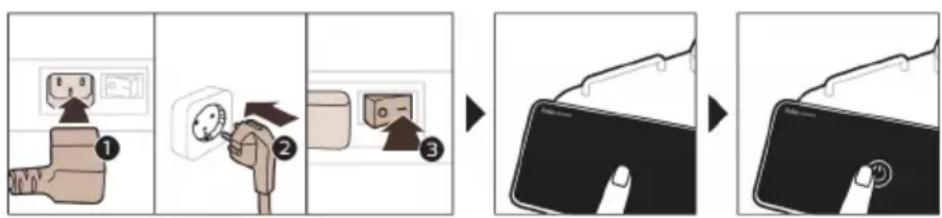
Switching on the machine when you have a Xelsis DELUXE (SM8780, SM8782, SM8785 only)
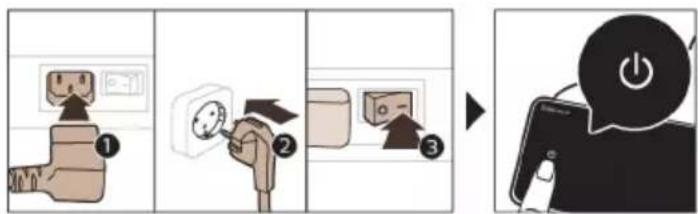
Switch on the machine by pressing the main switch on the back of the machine. Tap the 'on' icon and follow the step-by-step instructions on the control panel.
![graph TD A["Plug"] --> B["Pump"] B --> C["Switch"] C --> D["Battery"] D --> E["Final State"]](/content/2026/03/553324/images/26732a2d97d421647cdbe39807e9194413522faaa4b4f9df0c77b1e6975356c5.jpg)
Please connect and update the machine at first installation and regularly check for manual updates.
Connecting to Wi-Fi
Connect your coffee machine to a 2.4 GHz 802.11 b/g/n home Wi-Fi network. Connecting your coffee machine to your home Wi-Fi network provides you with an enhanced user experience. Make sure that the coffee machine and the Wi-Fi router are within range of each other.
Follow the steps below to connect your coffee machine to your Wi-Fi network.
![graph LR A["Device Setup"] --> B["Software Update"] B --> C["WiFi Update"] C --> D["Current Network Interface"]](/content/2026/03/553324/images/c0502214b02c49fd7db2986e5bcfabcbc9ee619d8331601a2f8ba1a8e925eb26.jpg)
1. Tap the Settings icon and swipe from left to right to find the Wi-Fi icon. 2. Tap the Wi-Fi icon. 3. Follow the steps on the screen to connect your machine to your Wi-Fi network.
You are now ready to start your connected experience.
The machine will perform the automatic rinsing cycle when it is switched on and off via voice control and when the machine has been inactive for a while and switches off. Please make sure that the environment of the machine is safe.
Special functions
Special function Purpose

With BeanMaestro you are able to select the type and roast of your beans. It then optimizes the brewing settings automatically, to get the best out of your coffee beans.

HygieSteam function automatically cleans the milk system, removing microorganisms: use it after brewing cappuccino or other milk-based drinks.

Our durable grinder is made from 100% ceramic to be exceptionally hard and precise. It can be adjusted to your taste with 12-step levels.
The Maintenance Dashboard gives you a helpful overview and notifies you with status information on things like your water level or tell you that the AquaClean is running low.
Brewing drinks
General steps
To brew a drink, you need to follow a few simple steps.
![graph LR A["Start: Coffee Cup"] --> B["Select: Screen, Clip"] B --> C["Add App to Print, Edit View"] C --> D["Apply Print to Print Mask"] D --> E["Output: 100% Print, 100% Print Mask"]](/content/2026/03/553324/images/4fc0e899016ea454b493be26a2a14526e7a61603f7dac2e5699b79f48a7c3880.jpg)
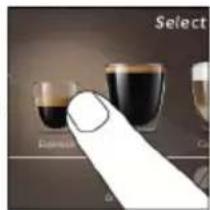
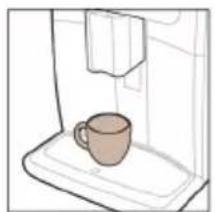
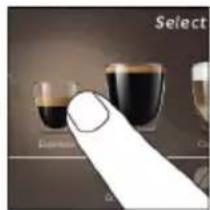
1 Fill the water tank with tap water and fill the bean hopper with beans. 2 Place one or two cups under the height-adjustable dispensing spout. Slide the dispensing spout up or down to adjust the height to the size of the cup or glass you are using. 3 Tap the Drinks icon to enter the 'Drinks' menu. Swipe from left to right to select your drink by tapping on it. Tap the '2x' icon if you want to brew two cups. The machine automatically carries out two grinding cycles in sequence of the selected drinks. Note: The '2x' icon is not available for all drinks.
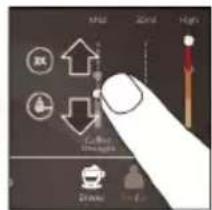
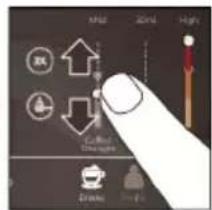
4 After selecting a drink, you can adjust the settings to your preference by swiping the adjustable bars up and down.
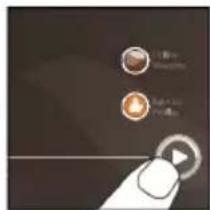
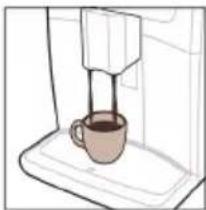
5 Press the start/stop icon to start brewing the selected drink.
Do not use caramelized or flavored coffee beans.
Note: Turn the grind setting knob in small steps and after brewing 5 cups of coffee you start to taste the difference.
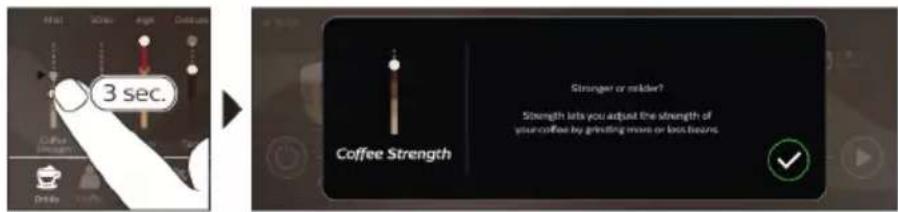
Support on drink parameters
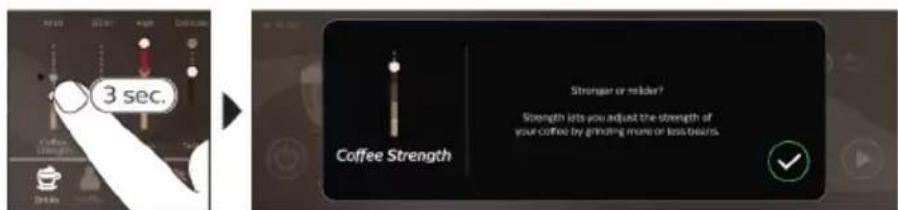
To get additional information about a specific drink parameter, press and hold an adjustable bar for 3 seconds.
Brewing milk-based drinks
To brew milk-based drinks, you need to follow a few simple steps.
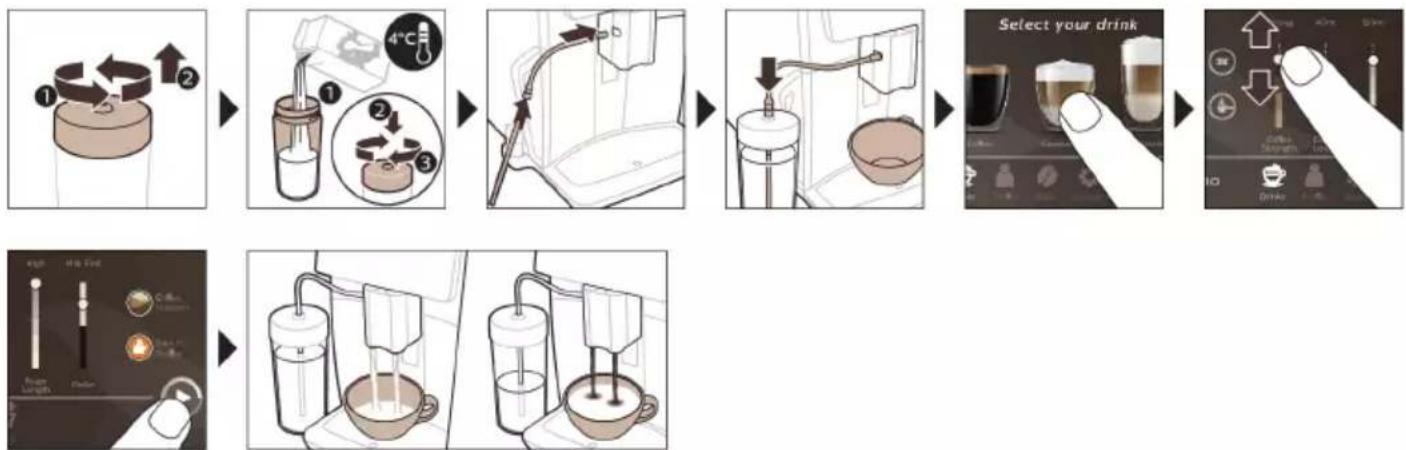
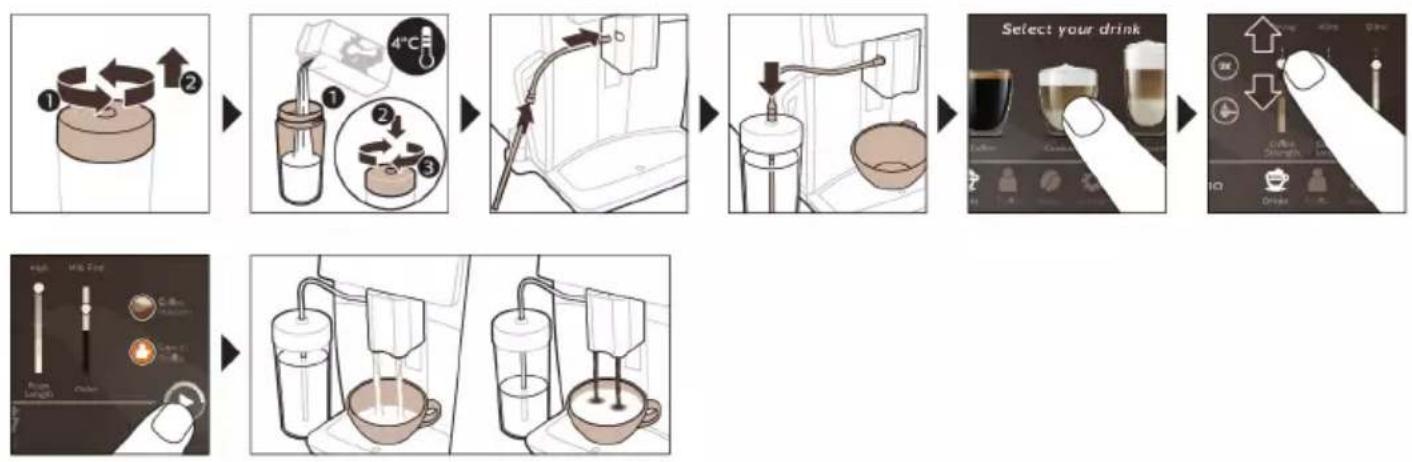
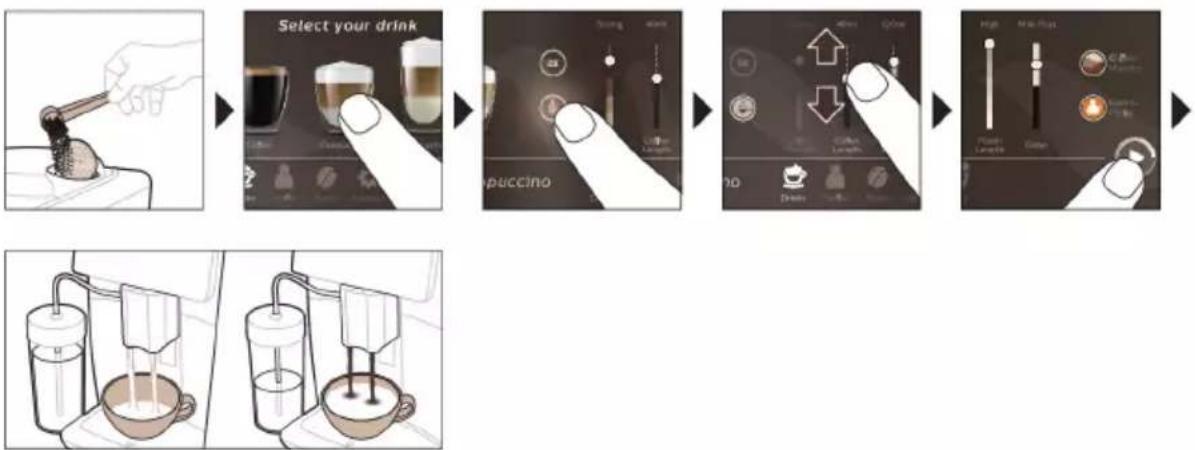
1 Fill the water tank with tap water and fill the bean hopper with beans. Tip: When the flexible milk tube is connected to the cappuccinatore, slide the dispensing spout to the uppermost position for easy access to the water tank. 2 Unscrew the lid of the milk container and fill the milk container with milk. Always use milk coming directly from the fridge for optimal results. 3 Connect the flexible milk tube to the cappuccinatore. 4 Place the metal milk tube in the container. 5 Tap the Drinks icon, scroll and select the milk-based drink icon of your choice. 6 You can adjust the settings to your preference by swiping the adjustable bars up and down. 7 Press the start/stop icon at any time to start brewing the selected drink.
- For specific drinks, the machine first dispenses milk and then coffee. For a number of other drinks this is the other way around, the machine will first dispense coffee and then milk.
- To stop dispensing milk before the machine has dispensed the preset amount, press the start/stop icon (SM8780, SM8782, SM8785 only) or press the stop icon (SM8885, SM8889 only).
- To stop dispensing the complete drink (milk and coffee) before the machine is finished, press and hold the start/stop icon (SM8780, SM8782, SM8785 only) or press the stop icon (SM8885, SM8889 only).
Directly after dispensing the milk, the 'HygieSteam Shot' is performed. The machine shoots steam through the internal milk system to rinse it quickly. The metal part of the milk tube may become hot. To avoid the risk of burns, let it cool down first.
Tip: You can also use a regular milk carton to brew your milk-based drinks. Place the metal milk tube directly into the milk carton.
Brewing coffee with pre-ground coffee
To brew coffee with pre-ground coffee, you need to follow a few simple steps.
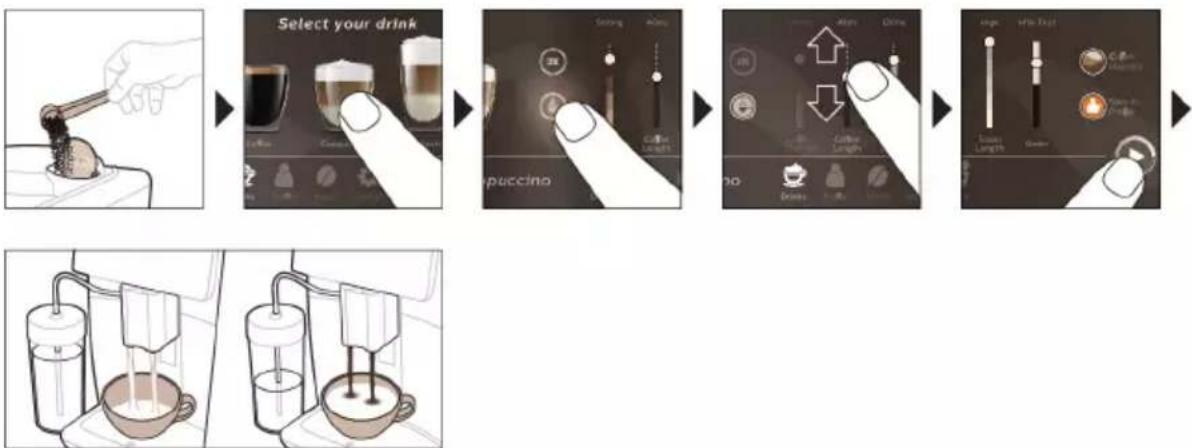
1. Open the lid of the pre-ground coffee compartment and pour one measuring spoon of pre-ground coffee into it. Then close the lid. 2. Tap the Drinks icon, scroll from left to right and select your drink. 3. Tap the pre-ground coffee icon. 4. You can adjust the settings to your preference by swiping the adjustable bars up and down. 5. Press the start/stop icon to start brewing the selected drink.
Note: If you select pre-ground coffee, you cannot adjust the coffee strength or brew more than one drink at the same time.
Dispensing hot water
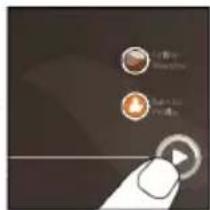
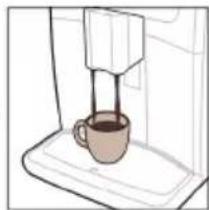
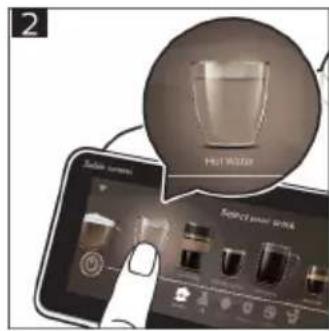
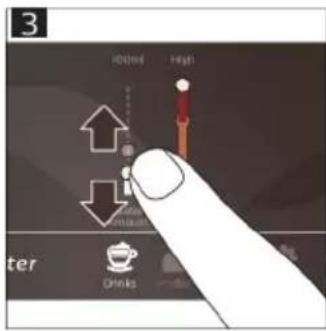
1. Make sure that the internal cappuccinatore is correctly attached to the machine (Fig. 1). 2. Place a cup under the spout. 3. Tap 'Hot Water' (Fig. 2). 4. Slide the adjustable bars up and down to adjust the hot water quantity or temperature to your preference (Fig. 3). 5. Press the start/stop icon. 6. To stop dispensing hot water before the machine is finished, press the start/stop icon again (SM8780, SM8782, SM8785 only) or press the stop icon again (SM8885, SM8889 only).
Personalization
The machine allows you to adjust the settings of a drink to your own preference and to store the adjusted drink in a personal profile. You can choose your own icon and your own profile name.
Get the best out of your beans with the BeanMaestro function
With BeanMaestro you are able to select the type and roast of your beans. It then optimizes the brewing settings automatically, to get the best out of your coffee beans.
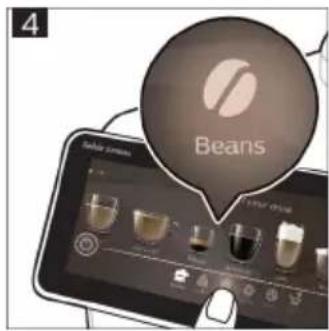
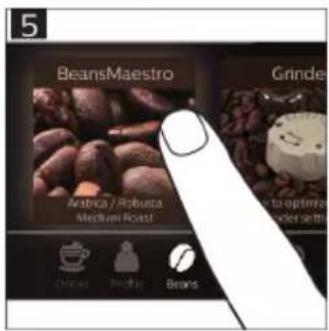
1. Tap on the Beans icon in the main menu (Fig. 4). 2. Tap the BeanMaestro function (Fig. 5). 3. Select the type of beans. You can choose between Arabica and Robusta blend. 4. Select the roasting level of your beans. 5. The brewing settings are optimized automatically. 6. Enjoy your next coffee.
Speed up with CoffeeMaestro
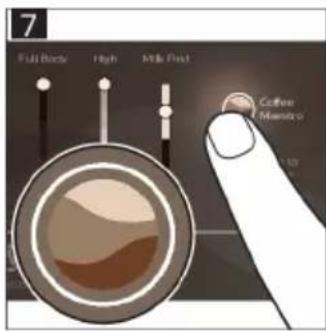
Your machine offers the possibility to select taste profiles instead of adjusting all settings separately with the CoffeeMaestro function. You can choose between Delicato, Intenso and Forte. To select a
CoffeeMaestro taste profile:
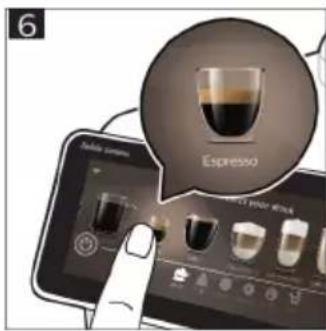
1. Tap the drink icon of your choice (Fig. 6). 2. Tap the CoffeeMaestro icon repeatedly (Fig. 7).
- The main settings of the drink are now adjusted accordingly.
3 Press the start/stop icon to start brewing the drink.
Personalize your drink with the CoffeeEqualizer Touch+ function
After selecting a drink, the CoffeeEqualizer Touch+ function is activated automatically, allowing you to adjust the drink settings. Long press on each of the items on the display to activate the help function and receive further information.
With the CoffeeEqualizer Touch+ function you can adjust the following settings:
1 Aroma strength 6 Foam amount 2 Coffee quantity 7 Coffee flavor 3 Milk quantity 8 You can also decide to prepare 1 or 2 cups 4 Water quantity 9 The order of first dispensing coffee or milk
5 Drink temperature
Note: It depends on the drink you choose which settings you can adjust.
Save your favorite drinks in a profile
The machine allows you to adjust the settings of a drink to your own preference and to store the adjusted drink in a personal profile. You can select a profile and store a recipe using the profiles.
You can create a profile and add a drink using the profile icon.
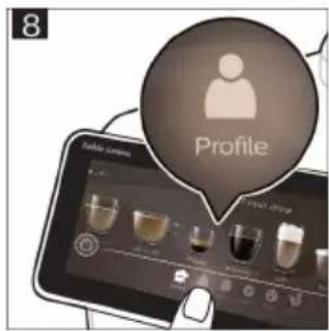
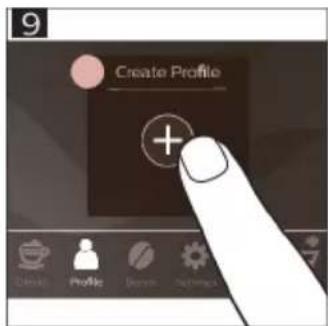
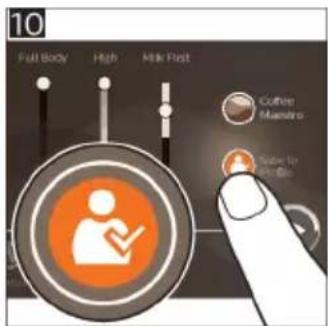
1 Tap the profile icon on the main menu (Fig. 8). 2 Tap the Plus icon (Fig. 9). 3 Type your name and select your favorite icon. 4 You are ready to add a drink. Tap the drink icon of your choice. 5 Personalize the drink via the CoffeeEqualizer Touch+ or the CoffeeMaestro function. 6 Tap on the 'Safe to profile' icon to store it in your personal profile (Fig. 10).
Extra shot (ExtraShot)
Your machine offers you the possibility to add an extra shot of Ristretto to your coffee and milk drinks, for example if you want to have a stronger coffee.
1 Place a cup under the spout. 2 Tap one of the one-touch drinks icons to select a drink (Fig. 6).
3 Slide the adjustable bar up to set the strength to the top level and select the ExtraShot function (Fig. 11).
4 Then press the start/stop ▶■ icon (SM8780, SM8782, SM8785 only) or press the start icon (SM8885, SM8889 only) to start brewing the drink.
5 To stop dispensing the drink before the machine has finished, press the start/stop ▶■ icon again (SM8780, SM8782, SM8785 only) or press the stop icon again (SM8885, SM8889 only).
When you have selected the ExtraShot function, you can only brew one coffee at a time.
i The extra shot function is not available for all drinks.
Adjusting machine settings
You can adjust most machine settings by tapping the Settings icon and follow the steps on the screen.
For online support (frequently asked questions, movies etc.), scan the QR code on the cover of this booklet or visit www.saeco.com/care
Setting the water hardness
We advise you to adjust the water hardness setting to the water hardness level in your region for optimal performance and a longer lifetime of the machine. This also prevents you from having to descale the machine too often. The default water hardness setting is 4: hard water.
Use the water hardness test strip supplied in the box to determine the water hardness in your region:
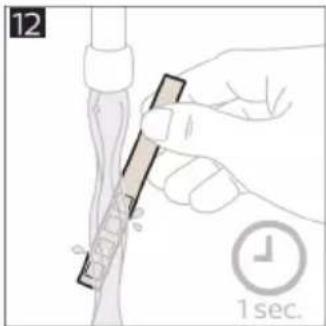
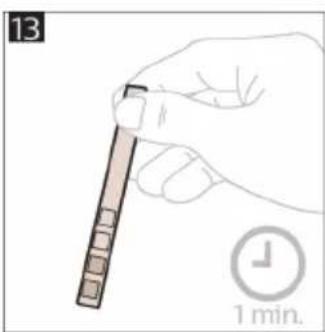
1 Immerse the water hardness test strip in tap water or hold it under the tap for 1 second (Fig. 12). 2 Wait 1 minute. The number of squares on the test strip that turn red indicate the water hardness (Fig. 13).
Set the machine to the correct water hardness:
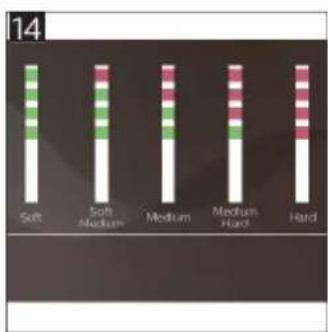
1 Tap the Settings icon and scroll from left to right to select 'Water hardness'. 2 Select the water hardness level. The number of red squares selected on the display should be the same as the number of red squares on the test strip (Fig. 14). 3 When you have set the correct water hardness, tap the confirmation icon to confirm.
Adjusting the grind setting
You can adjust the coffee strength using the grind setting knob located inside the bean container. The lower the grind setting, the finer the coffee beans are ground, resulting in a stronger coffee. There are 12 different grind settings to choose from.
The machine has been pre-set to extract the best flavor from your coffee beans. Therefore, we recommend not adjusting the grind setting until you have brewed 100-150 cups (approximately 1 month of use).
You need to brew 2 to 3 drinks before you can fully taste the difference. Do not turn the grind setting knob more than one notch at a time to prevent damage to the grinder.
1. Tap the Beans icon in the main menu. 2. Tap on "Grinder". 3. Watch the how-to video.
Restoring Factory Settings
The machine allows you to restore the factory settings at any time.
1. Tap the Settings icon. 2. Scroll from left to right to select 'Factory settings'. Confirm by tapping the confirmation √ icon.
- The settings are now restored.
i The following factory settings are restored to default: water hardness, standby time, display brightness, sound, front illumination, profiles, tank light, measure/units, home screen settings, BeanMaestro preferences, Wi-Fi credentials, software update preferences, Saeco credentials, Amazon credentials.
AquaClean Water Filter
Your machine is AquaClean enabled. You can place the AquaClean water filter in the water tank to preserve the taste of your coffee. It also reduces the need for descaling by reducing limescale build-up in your machine. You can purchase an AquaClean water filter from your local or online retailer or from authorized service centers.
AquaClean Filter Status Indication
The status of the AquaClean filter is always visible in the 'Status' menu as a percentage.
- If the status of the AquaClean filter is 10% or less, the screen shows a message for 2 seconds each time you switch on the machine. This message advises you to buy a new filter.
- If the status of the filter is 0%, the machine asks you to replace the AquaClean filter every time you switch on the machine.
Activating the AquaClean water filter (5 min.)
i The machine does not automatically detect that a filter has been placed in the water tank. Therefore you need to activate each new AquaClean water filter that you install in the 'Status' menu. When the machine stops showing the filter activation message, you can still activate an AquaClean water filter, but you will need to descale the machine first. i Your machine has to be completely limescale-free before you start using the AquaClean water filter.
Before activating the AquaClean water filter, it has to be prepared by soaking it in water as described below. If you don't do this, air might be drawn into the machine instead of water, which makes a lot of noise and prevents the machine from being able to brew coffee.
1 Tap the 'Status' icon and scroll from left to right to select 'AquaClean'. 2 Tap the confirmation √ icon again when the activation screen appears. Follow the instructions on the screen.
Replacing the AquaClean water filter (5 min.)
After 95 liters of water have flowed through the filter, the filter will cease to work. The AquaClean status indicator drops to 0% to remind you to replace the filter. If you do not replace the AquaClean water filter in time, you can still replace the filter but you first need to descale the machine.
When the AquaClean status indicator drops to 0% or when the machine reminds you to replace the AquaClean filter:
1 take out the old AquaClean water filter. 2 install a new filter and activate it as described in chapter 'Activating the AquaClean water filter (5 min).' i Replace the AquaClean water filter at least every 3 months, even if the machine does not yet indicate that replacement is required.
Removing and inserting the brew group
Go to the 'Status' menu on the screen and select 'Brew group clean' or visit www.saeco.com/care for detailed video instructions on how to remove, insert and clean the brew group.
Removing the brew group from the machine
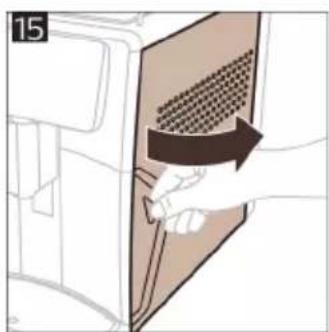
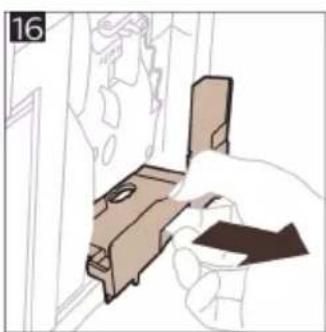
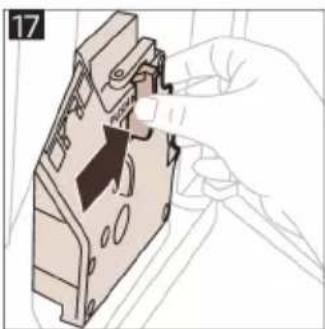
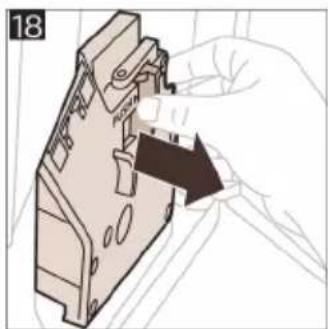
1 Open the service door (Fig. 15). 2 Remove the coffee residues drawer (Fig. 16). 3 Press the PUSH button (Fig. 17) and pull at the grip of the brew group to remove it from the machine (Fig. 18).
Reinserting the brew group
Before you slide the brew group back into the machine, make sure it is in the correct position.
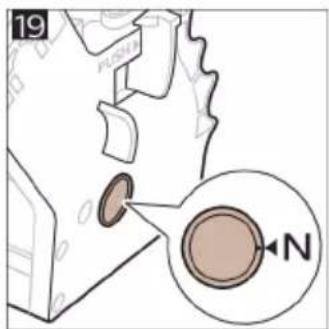
1 Check if the arrow on the yellow cylinder on the side of the brew group is aligned with the black arrow and N (Fig. 19).
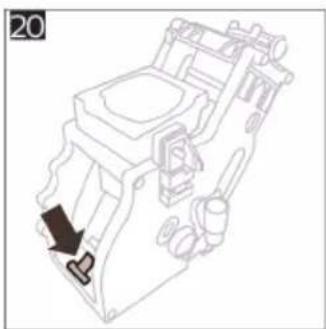
- If they are not aligned, push down the lever until it is in contact with the base of the brew group (Fig. 20).
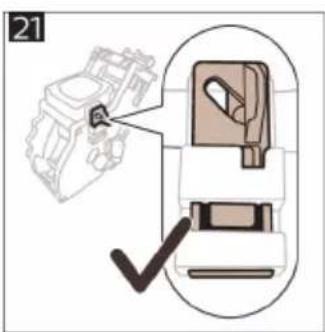
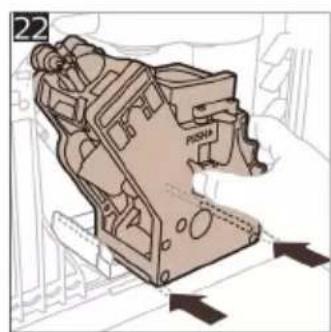
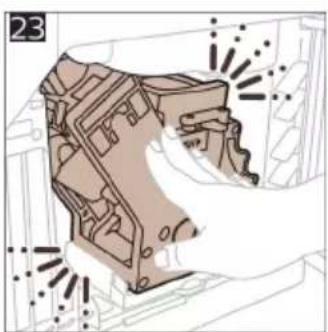
2 Make sure that the yellow locking hook on the other side of the brew group is in the correct position. - To position the hook correctly, push it upwards until it is in uppermost position (Fig. 21). 3 Slide the brew group back into the machine along the guiding rails on the sides (Fig. 22) until it locks into position with a click (Fig. 23). Do not press the PUSH button. 4 Place back the coffee residues drawer and close the service door.
Cleaning and maintenance
Your machine will advise you when to perform cleaning and maintenance.
Regular cleaning and maintenance keeps your machine in top condition and ensures good-tasting coffee for a long time with a steady coffee flow.
Consult the table below for a detailed description of when and how to clean all detachable parts of the machine. You can find more detailed information and video instructions on www.saeco.com/care. See figure C for an overview of which parts can be cleaned in the dishwasher.
Item When to clean How to find in the control panel/
| What to do | |
| AquaClean filter When the machine asks you or every three months. | STATUS->CLEANING->AQUACLEAN. Follow the steps to activate the AquaClean filter. |
| i The machine does not automatically detect that a filter has been placed in the water tank. Therefore you need to activate each new AquaClean filter that you install in the 'Status' menu. | |
| i Your machine has to be completely limescale-free before you start using the AquaClean filter. | |
| i Replace the AquaClean filter at least every 3 months, even if the machine does not yet indicate that replacement is required. | |
| Brew group Weekly STATUS -> PERFORMANCE ->BREW GROUP | |
| Before you slide the brew group back into the machine, make sure it is in the correct position. The arrow on the yellow cylinder on the side of the brew group has to be aligned with the black arrow and N (Fig. 19). | |
| Monthly STATUS -> PERFORMANCE ->COFFEE OIL | |
| Milk system/internal cappuccinatore | After every day of use STATUS -> HYGIESTEAM. Follow the steps of the self-cleaning process to clean the milk system. Wipe the outside of the metal milk tube with a damp cloth before placing it into the milk tube holder. |
| Weekly Remove and disassemble the internal cappuccinatore. Rinse all parts under the tap with some washing-up liquid. | |
Item When to clean How to find in the control panel/
| What to do | ||
| Monthly STATUS -> HYGIESTEAM -> DEEP MILK CLEAN.Follow the steps of the self-cleaning process to clean the milk system. | ||
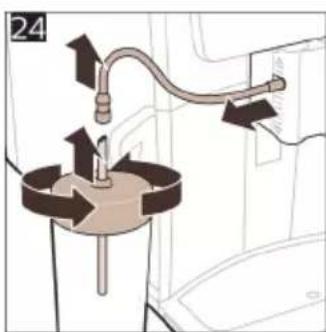
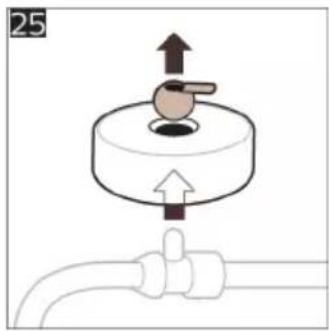
| Milk container Weekly Disassemble the milk container (Fig. 24) and push out the ball using the pin of the milk tube (Fig. 25). Clean all parts of the milk container under the tap or in the dishwasher. | ||
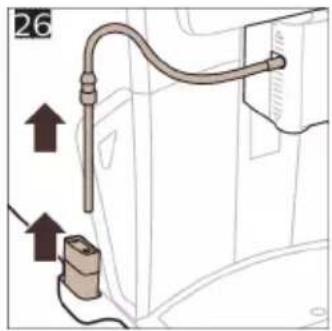
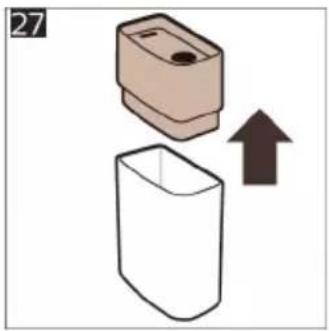
| HygieSteam container (milk tube holder) | Weekly or when the machine reminds you | Remove the HygieSteam container from the machine (Fig. 26) and remove the HygieSteam cover (Fig. 27). Clean the HygieSteam container and cover under the tap. |
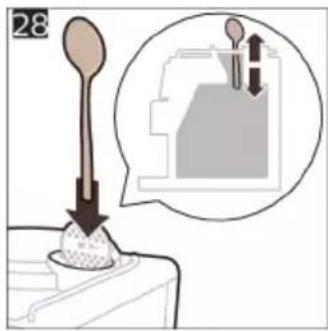
| Pre-ground coffee compartment | Check the pre-ground coffee compartment weekly to see if it is clogged | Unplug the machine and remove the brew group. Open the lid of the pre-ground coffee compartment and insert the spoon handle into it. Move the handle up and down until the clogged ground coffee falls down (Fig. 28). Go to www.saeco.com/care for detailed video instructions. |
| Coffee grounds container | Empty the coffee grounds container when prompted by the machine. Clean it weekly | Remove the coffee grounds container while the machine is switched on. Rinse it under the tap with some washing-up liquid. |
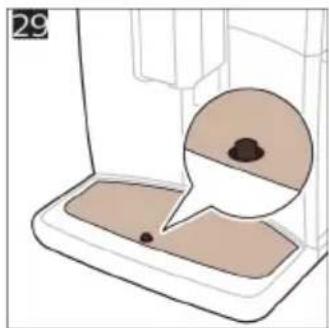
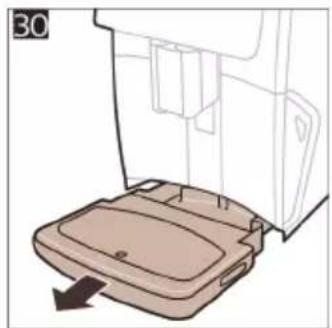
| Drip tray Empty the drip tray daily or as soon as the red 'drip tray full' indicator pops up through the drip tray (Fig. 29). Clean the drip tray weekly | Remove the drip tray (Fig. 30) and rinse it under the tap with some washing-up liquid. | |
| Lubrication of the brew group | Every 2 months Lubricate the brew group with the by-packed grease (see 'Lubricating the brew group'). Go to www.saeco.com/care for detailed video instructions. | |
| Water tank Weekly Rinse the water tank under the tap. | ||
| Machine front Weekly Clean with a non-abrasive cloth. | ||
| Descaling of the machine | When the machine asks you to descale | STATUS -> DESCALING. Follow the steps to descale the machine. When descaling is needed, the machine asks you to descale it, press the OK icon to start and follow the steps. |
Cleaning the brew group
Regular cleaning of the brew group prevents coffee residues from clogging up the internal circuits. Go to the 'Status' menu on the screen and select 'Brew group clean' or visit www.saeco.com/care for support videos on how to remove, insert and clean the brew group.
Cleaning the brew group under the tap
1 Tap the 'Status' icon and scroll to select 'Brew group clean'. 2 Tap the confirmation icon to confirm and then follow the instructions on the screen.
Cleaning the brew group with the coffee oil remover tablets
Only use Philips coffee oil remover tablets.
1 Tap the 'Status' icon and scroll to select 'Brew group clean'. 2 Tap the confirmation icon to confirm and then follow the instructions on the screen.
Lubricating the brew group
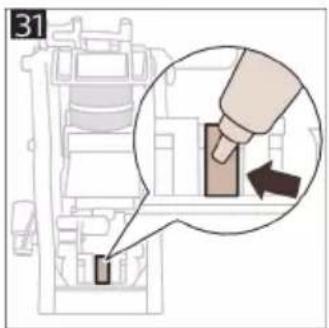
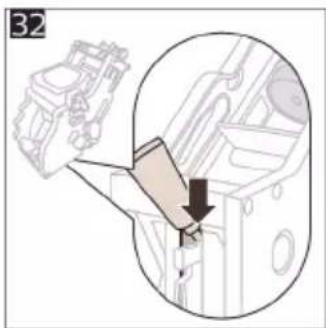
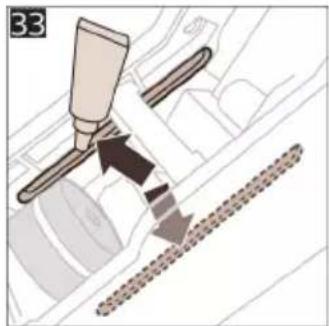
To improve your machine's performance, we suggest that you lubricate the brew group every 2 months, to ensure that the moving parts continue to move smoothly.
1 Apply a thin layer of grease on the piston (grey part) of the brew group (Fig. 31). 2 Apply a thin layer of grease around the shaft (grey part) in the bottom of the brew group (Fig. 32). 3 Apply a thin layer of grease to the guiding rails on both sides (Fig. 33).
Cleaning programs for the internal cappuccinatore
The machine tells you when to clean the internal cappuccinatore.
The machine has three programs to clean the internal cappuccinatore:
- 'HygieSteam Shot': during the preparation of a milk-based drink, the machine automatically shoots steam through the internal cappuccinatore to rinse it quickly.
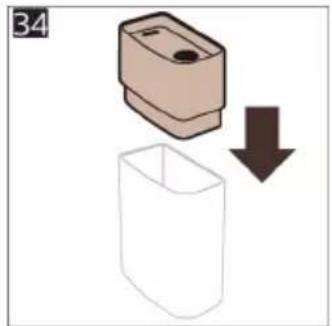
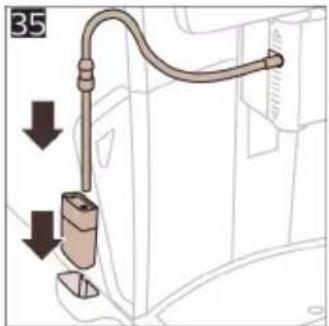
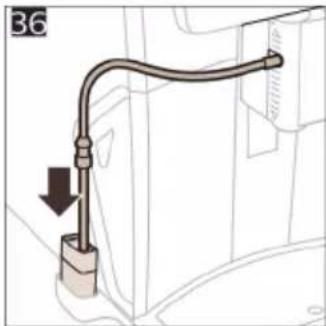
- 'HygieSteam': the machine thoroughly cleans the internal milk system with steam. Make sure that the HygieSteam container is correctly assembled (Fig. 34) and attached to the machine (Fig. 35). Place the milk tube in the milk tube holder (Fig. 36) and follow the instructions on the screen.
- 'Deep Milk Clean': Perform the 'Deep Milk Clean' procedure with the Philips milk circuit cleaner for a thorough cleaning of the internal milk system.
Cleaning the internal cappuccinatore under the tap
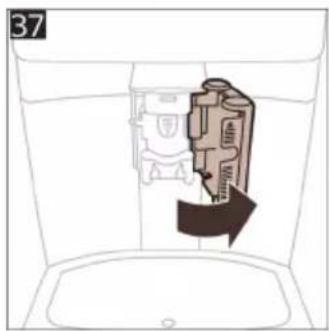
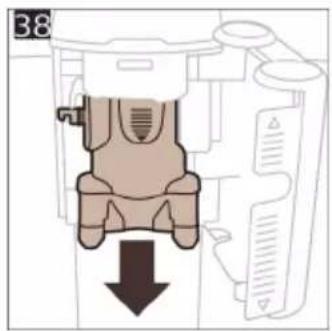
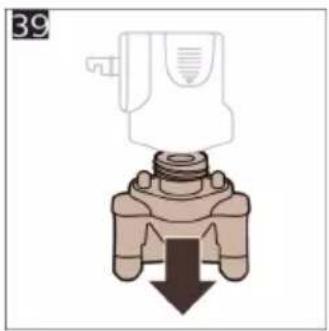
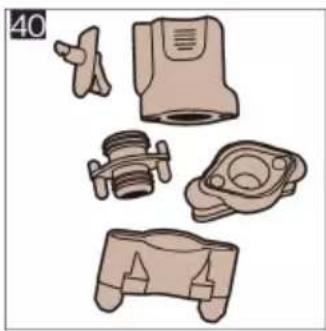
1 Open the door of the internal cappuccinatore (Fig. 37). 2 Remove the internal cappuccinatore by pulling it down (Fig. 38). 3 Disassemble the internal cappuccinatore by pulling the bottom part off the top part (Fig. 39). 4 Disassemble all parts (Fig. 40) and clean them under the tap. 5 Reassemble the internal cappuccinatore. 6 To place back the internal cappuccinatore, put it in upright position and make sure the holes are aligned with the two tubes on the machine. Then move the internal cappuccinatore upwards until it locks into place (Fig. 1). 7 Close the door.
Visit www.saeco.com/care for detailed video instructions.
Descaling procedure
Please use Philips descaler only. Under no circumstances should you use a descaler based on sulfuric acid, hydrochloric acid, sulfamic or acetic acid (vinegar) as this may damage the water circuit in your machine and will not dissolve the limescale properly. Not using the Philips descaler will void your warranty. Failure to descale the appliance will also void your warranty. You can buy Philips descaler from your local or online retailer or from authorized service centers.
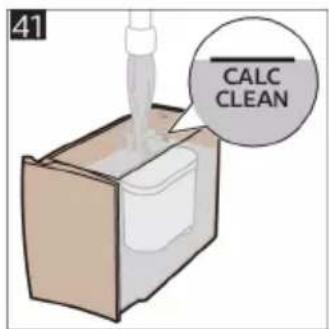
1 When the machine asks you to descale it, tap the confirmation √ icon to start. To start descaling without being prompted by the machine, tap the 'Status' icon and select 'Descale'. 2 Remove the drip tray, the coffee grounds container and the HygieSteam container (Fig. 26), empty them and put them back into place. 3 Remove the water tank and empty it. Then remove the AquaClean filter. 4 Pour the whole bottle of Philips descaler into the water tank and then fill it with water up to the CALC CLEAN level (Fig. 41). Then place the water tank back into the machine. 5 Place a large container (1.5 l) under the coffee dispensing spout. 6 Make sure that the HygieSteam container is correctly assembled (Fig. 34) and attached to the machine (Fig. 35). Place the milk tube in the milk tube holder. 7 Follow the instructions on the screen to start the descaling procedure. The descaling procedure lasts approx. 30 minutes and consists of a descaling cycle and a rinsing cycle. 8 Once the descaling cycle is finished, you need to rinse the water tank and water circuit. Follow the instructions on the screen. 9 Place a new AquaClean filter in the water tank and activate it (see 'Activating the AquaClean water filter (5 min).'
Tip: Using the AquaClean filter reduces the need for descaling!
What to do if the descaling procedure is interrupted
You can exit the descaling procedure by pressing the on/off icon on the control panel. If the descaling procedure is interrupted before it is completely finished, some descaling liquid may remain in the water tank or the water circuit. In that case, do the following:
1 Empty and rinse the water tank thoroughly. 2 Fill the water tank with fresh water up to the CALC CLEAN level indication and switch the machine back on. The machine will heat up and perform an automatic rinsing cycle. 3 Before brewing any drinks, perform a manual rinsing cycle. To perform a manual rinsing cycle, first dispense half a water tank of hot water and then brew 2 cups of pre-ground coffee without adding ground coffee.
Note: If the descaling procedure was not completed, the machine will require another descaling procedure as soon as possible.
Error codes
Below you find a list of the error codes showing problems that you can solve yourself. Video instructions are available on www.saeco.com/care. If another error code appears, please contact the Consumer Care Center in your country. For contact details, see the warranty leaflet.
Error code Problem Possible solution
| 01 The coffee funnel is clogged. | Switch off the machine and unplug it. Remove the brew group. Then open the lid of the pre-ground coffee compartment and insert the spoon handle. Move the handle up and down until the clogged ground coffee falls down (Fig. 28). Visit www.saeco.com/care for detailed video instructions. |
| 03 The brew group is dirty or not well-greased. | Switch off the machine. Rinse the brew group with fresh water, let it air-dry and then lubricate it (see 'Lubricating the brew group'). Consult chapter 'Cleaning the brew group' or visit www.saeco.com/care for detailed video instructions. Then switch the machine on again. |
Error code Problem Possible solution
| 04 The brew group is not positioned correctly. | Switch off the machine. Remove the brew group and reinsert it. Make sure that the brew group is in the correct position before you insert it. Consult chapter 'Handling the brew group' or visit www.saeco.com/care for detailed video instructions. Then switch the machine on again. |
| 05 There is air in the water circuit. | Restart the machine by switching it off and on again. If this works, dispense 2-3 cups of hot water. Descale the machine if you have not done so for a longer period of time. |
| The AquaClean filter was not prepared properly before installation or it is clogged. | Remove the AquaClean filter and try to brew a coffee again. If this works, make sure that the AquaClean filter is prepared properly before you place it back (see 'Activating the AquaClean water filter (5 min.)'). Put the AquaClean filter back into the water tank. If this still does not work, the filter might be clogged and needs to be replaced. |
| 11 The machine needs to adjust to room temperature | Allow some time for the machine to adjust from transport/outdoor temperature to room temperature. Switch off the machine for 30 minutes and switch it on again. If this does not work, contact the Consumer Care Center in your country. For contact details, see the warranty leaflet. |
| 14 The machine is overheated. | Switch off the machine and switch it back on after 30 minutes. |
| 19 The machine is not connected to the wall socket properly. | Make sure that the small plug of the power cord is properly connected to the socket on the back of the machine. |
Ordering accessories
To clean and descale the machine, only use Philips maintenance products. These products can be purchased by enabling Amazon Smart Reorders, from your local or online retailer or from authorized service centers.
To be able to use Amazon Smart Reorders, you first need to activate this service on Amazon. Then follow the steps on the screen of your machine to connect your Amazon account to your Saeco account. After you have completed these steps, you can use the Amazon Smart Reorder service. In the 'Shop' menu on the control panel of the machine you can view the availability of Philips maintenance products and accessories at local retailers.
To find a full list of spare parts online, enter the type number of your machine. You can find the type number on the inside of the service door.
Maintenance products and type numbers:
- Descaling solution CA6700
- AquaClean filter CA6903
- Brew group grease HD5061
- Coffee oil remover tablets CA6704
- Milk circuit cleaner CA6705
- Maintenance kit CA6707
Software updates
Updating is essential to safeguard your privacy and proper functioning of your coffee machine. You can set whether you want to update your machine manually or whether you want it to be done automatically.
When you have selected automatic updates, make sure that the machine is also plugged in at night and Wi-Fi is enabled, so that the machine can receive the software updates overnight. Updates are made available when there are software improvements, new features for the machine and to prevent a possible security issue. Mandatory firmware updates are started automatically when the coffee machine is in stand-by mode. During a firmware update the coffee machine cannot be used.
Troubleshooting
This chapter summarizes the most common problems you could encounter with the machine. Support videos and a complete list of frequently asked questions are available on www.saeco.com/care. If you are unable to solve the problem, contact the Consumer Care Center in your country. For contact details, see the warranty leaflet.
Problem Cause Solution
| There are some coffee residues inside my new coffee machine. | This machine has been tested with coffee. | Although it has been carefully cleaned, there may be some coffee residues left. However, the machine is absolutely new. |
| The machine is in DEMO mode. | You pressed the standby icon for more than 8 seconds. | Switch the machine off and then on again with the main switch on the back of the machine. |
| The drip tray fills up quickly / there is always some water in the drip tray. | This is normal. The machine uses water to rinse the internal circuit and brew group. Some water flows through the internal system directly into the drip tray. | Empty the drip tray daily or as soon as the red 'drip tray full' indicator pops up through the drip tray cover (Fig. 29). Tip: place a cup under the dispensing spout to collect rinsing water that comes out of it. |
| The 'empty coffee grounds container' icon remains on. | You emptied the coffee grounds container while the machine was unplugged from the wall socket, or you placed it back too fast. | Remove the coffee grounds container, wait at least 5 seconds and then insert it again. |
| The machine prompts to empty the coffee grounds container even though the container is not full. | The machine did not reset the counter the last time you emptied the coffee grounds container. | Always wait approx. 5 seconds when you place back the coffee grounds container. In this way, the coffee pucks counter will be reset to zero and the number of coffee pucks is counted correctly. |
| The coffee grounds container is too full and the 'empty coffee grounds container' icon did not appear on the display. | You removed the drip tray without emptying the coffee grounds container. | When you remove the drip tray, also empty the coffee grounds container even if it contains only a few coffee pucks. This ensures that the coffee pucks counter is reset to zero and that the number of coffee pucks is counted correctly. |
Problem Cause Solution
| I cannot remove the brew group. | The brew group is not in the correct position. | Reset the machine in the following way: close the service door. Switch the machine off and back on again and wait until the machine is ready for use. Try to remove the brew group again. See chapter 'Removing and inserting the brew group' for step-by-step instructions. |
| I cannot insert the brew group. | The brew group is not in the correct position. | Reset the machine in the following way: close the service door. Leave the brew group out. Switch off the machine and unplug it. Wait for 30 seconds and then plug the machine back in, switch it on and wait until the machine is ready for use. Then put the brew group in the correct position and reinsert it into the machine. See chapter 'Removing and inserting the brew group' for step- by-step instructions. |
| The coffee is watery. The brew group is dirty or needs to be lubricated. | Remove the brew group, rinse it under the tap and leave it to dry. Then lubricate the moving parts (see 'Lubricating the brew group'). | |
| The machine is performing its self-adjustment procedure. This procedure is started automatically when you use the machine for the first time, when you change to another type of coffee beans or after a long period of non-use. | Brew 5 cups of coffee initially to allow the machine to complete its self-adjustment procedure. | |
| The grinder is set to a too coarse setting. | Set the grinder to a finer (lower) setting. Brew 2 to 3 drinks to be able to taste the full difference. | |
| The coffee is not hot enough. | The temperature is set too low. Set the temperature to the maximum setting (Fig. 42). | |
| A cold cup reduces the temperature of the drink. | Preheat the cups by rinsing them with hot water. | |
| Adding milk reduces the temperature of the drink. | Regardless of whether you add hot or cold milk, adding milk always reduces the temperature of the coffee. Preheat the cups by rinsing them with hot water. | |
| Coffee does not come out or coffee comes out slowly. | The AquaClean water filter was not prepared properly for installation. | Remove the AquaClean filter and dispense some hot water. If this works, the AquaClean filter was not installed properly. Reinstall and activate the AquaClean filter and follow all steps in chapter 'AquaClean water filter'. |
Problem Cause Solution
| After a long period of non-use, you need to prepare the AquaClean water filter for use again and dispense 2-3 cups of hot water. | |
| The AquaClean water filter is clogged. | Replace the AquaClean water filter every 3 months. A filter that is older than 3 months can become clogged. |
| The grinder is set to a too fine setting. | Set the grinder to a coarser (higher) setting. Note that this will impact the coffee taste. |
| The brew group is dirty. Remove the brew group and rinse it under the tap (see 'Cleaning the brew group under the tap'). | |
| The coffee dispensing spout is dirty. | Clean the coffee dispensing spout and its holes with a pipe cleaner or needle. |
| The pre-ground coffee compartment is clogged | Switch off the machine and remove the brew group. Open the lid of the pre-ground coffee compartment and insert the spoon handle into it. Move the handle up and down until the clogged ground coffee falls down (Fig. 28). |
| The machine circuit is blocked by limescale. | Descale the machine with Philips descaler (see 'Descaling procedure'). Always descale when the machine prompts you. |
| The milk does not froth. The internal cappuccinatore is dirty or not inserted correctly. | Clean the internal cappuccinatore and make sure that you position and insert it correctly (see 'Cleaning the internal cappuccinatore under the tap'). |
| The type of milk used is not suitable for frothing. | Different types of milk result in different amounts of froth and different froth qualities. |
| The milk is splashing. The milk you use is not cold enough. | Make sure you use cold milk coming directly from the fridge. |
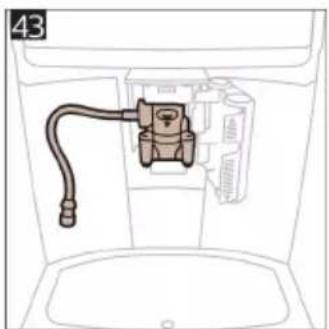
| ' The flexible milk tube is not connected properly. | Open the door of the coffee dispensing spout (Fig. 37) and check if the flexible milk tube is fully connected to the cappuccinatore (Fig. 43). Note that the cappuccinatore and milk tubes may be hot. Let the cappuccinatore and the tubes cool down before you touch them. |
Problem Cause Solution
| The cappuccinatore and milk tubes are not clean. | Remove and disassemble the internal cappuccinatore (see 'Cleaning the internal cappuccinatore under the tap'). Rinse all parts under the tap. For thorough cleaning, use Philips milk circuit cleaner and perform the Deep Milk Clean procedure via the 'Status' and 'Hygiesteam' menu. Note that if the parts have been cleaned in the dishwasher, they may have become clogged by food particles or detergent residues. A visual check that they are not obstructed is also recommended. | |
| We advise you to perform the HygieSteam program every day: 1) Press 'Status' on the control panel. 2) Select 'HygieSteam'. 3) Then confirm all steps on the display. | ||
| The milk tubes are clogged. Always store the milk container without the milk tubes in the refrigerator. Leftover milk could accumulate inside the milk tubes and block the flow of milk through the tubes. Rinse the milk tubes before storage. | ||
| The machine seems to be leaking. | The machine uses water to rinse the internal circuit and brew group. This water flows through the internal system directly into the drip tray. This is normal. | Empty the drip tray every day or as soon as the 'drip tray full' indicator pops up through the drip tray cover (Fig. 29). Tip: Place a cup under the dispensing spout to collect rinsing water and reduce the amount of water in the drip tray. |
| The drip tray is too full and has overflowed which makes it look like the machine is leaking. | Empty the drip tray every day or as soon as the 'drip tray full' indicator pops up through the drip tray cover (Fig. 29). | |
| The water tank is not fully inserted, some water is leaking out of the water tank and air is drawn into the machine. | Make sure the water tank is in the correct position: remove it and reinsert it into the machine as far as possible. | |
| The brew group is dirty/clogged. Rinse the brew group. | ||
| The machine is not placed on a horizontal surface. | Place the machine on a horizontal surface so that the drip tray does not overflow and the 'drip tray full' indicator works properly. | |
| I cannot activate the AquaClean water filter and the machine asks for descaling. | The filter has not been installed or replaced in time after the screen showed the AquaClean reminder. This means your machine is not completely free of limescale anymore. | Descale your machine first and then install the AquaClean water filter. |
Problem Cause Solution
| The new water filter does not fit. | You are trying to install another filter than the AquaClean water filter. | Only the AquaClean water filter fits into the machine. |
| The rubber ring on the AquaClean water filter is not in place. | Place back the rubber ring on the AquaClean water filter. | |
| The machine is making a loud noise. | It is normal that your machine makes some noise during use. | If the machine starts to make a different kind of noise, clean the brew group and lubricate it (see 'Lubricating the brew group'). |
| The AquaClean water filter was not prepared properly and air is now drawn into the machine. | Remove the AquaClean water filter from the water tank and prepare it for use properly before you place it back. See chapter 'AquaClean water filter' for step-by-step instructions. | |
| The water tank is not fully inserted and air is drawn into the machine. | Make sure the water tank is in the correct position: remove it and reinsert it by pushing it into the machine as far as possible. | |
| When I try to connect the machine to Wi-Fi for the first time, the machine cannot connect to the Wi-Fi network. | Your Wi-Fi name and password are not correct. | Check your Wi-Fi name and password. |
| The coffee machine and the Wi-Fi router are not within range of each other. | Ensure that the coffee machine and the Wi-Fi router are within range of each other or use a Wi-Fi repeater. | |
| The machine is not able to find the home Wi-Fi network. | The Wi-Fi router is not working properly. | Please make sure that the Wi-Fi router is working properly and is connected to the internet. |
| The machine is not within range of the router. | Make sure the machine is within range of the router. You can also use a Wi-Fi signal repeater. | |
| The router your coffee machine is trying to connect to is 5 GHz dual-band and your coffee machine is not trying to connect to a 2.4 GHz network. | 5 GHz networks are not supported. Temporarily switch off the 5 GHz band in your router and try to pair your coffee machine again to another band of the same router (2.4 GHz). Switch on your 5 GHz band again after successful pairing |
Problem Cause Solution
| I cannot use Alexa and Amazon Smart Reorders yet. | You have not yet connected to your Amazon to your Saeco account. | Please follow the instructions on the control panel of the machine to connect your Amazon account to your Saeco account to be able to use Alexa voice control and Amazon Smart Reorders.Note: To be able to use these features you need to have an Alexa app or an Alexa device and you need to enable the Smart Reorders service on Amazon. |
| The Wi-Fi connectivity of the machine used to work but is not working anymore. | Your Wi-Fi name and/or password has changed. | Follow the instructions of section 'Connecting to Wi-Fi' and choose the network with the new Wi-Fi name to connect to. |
| The Wi-Fi password has changed. | Follow the instructions of section 'Connecting to Wi-Fi' and enter the new Wi-Fi password. | |
| Your Wi-Fi router is not working properly. | Check the router and make sure it is working. | |
| The Wi-Fi connectivity can be interrupted by electromagnetic or other interferences. | Keep the appliance away from other electronic devices that may cause interferences. | |
| None of the solutions mentioned above work. | Switch the machine off and then on again with the main switch on the back to recheck the Wi-Fi connection. |
Technical specifications
The manufacturer reserves the right to improve the technical specifications of the product. All the preset quantities are approximate.
Description Value
| Size (w x h x d) 287 x 396 x 487 mm |
| Weight 11 - 12.4 kg |
| Power cord length 1200 mm |
| Water tank 1.7 liters, removable |
| Bean hopper capacity 450 g |
| Coffee grounds container capacity 15 pucks |
| Milk container capacity 600 ml |
| Height-adjustable spout height 75-148 mm |
| Nominal voltage - Power rating - Power supply See data plate on the inside of service door |
| Wi-Fi frequency band 2.4 GHz 802.11 b/g/n |
Declaration of Conformity
Hereby, DAP B.V. declares that the fully automatic espresso machines SM8780, SM8782, SM8785, SM8885 and SM8889 are in compliance with Directive 2014/53/EU.
The full text of the EU declaration of conformity is available at the following internet address:
https://www.saeco.com.
The fully automatic espresso machines SM8780, SM8782, SM8785, SM8885 and SM8889 are equipped with a Wi-Fi module, 2.4 GHz 802.11 b/g/n (channels 1..13). Maximum transmitting power <100 mW (20 dBm).
Wi-Fi
The machine is a networked equipment, in compliance with reg. (EU) No 801/2013, and it is intended to be used permanently connected to a 2.4 GHz 802.11 b/g/n network.
Table of contents
B7/C7 Status menu
B2/C2 Drinks
B9/C9 Start/stop icon
B3/C3 Drinks menu
Connect and update the appliance during initial installation and regularly check for manual updates.
1 Tap the Settings icon ⚙ and swipe from left to right to find the "Wi-Fi" icon. 2 Tap the "Wi-Fi" icon. 3 Follow the on-screen steps to connect the appliance to a Wi-Fi network.
You are now ready to start working in a connected environment.
The appliance will perform an automatic rinse cycle when it is turned on and off via voice control and if it has been inactive for some time, it will turn off. Make sure the area around the appliance is safe.
Special functions
The maintenance control panel provides a useful overview and notifications with information about the status of things such as the water level or informs you that the AquaClean level is low.
Brewing drinks
General steps
To brew a drink, you need to follow a few simple steps.
![graph LR A["Start: Breakfast with coffee cup"] --> B["Select: Open cup with Beverage"] B --> C["Add: Edit menu, Add actions, Close menu"] C --> D["Apply: Upgrade icon, Click buttons, Printers, Save icons"] D --> E["End: Packaging with coffee cup"]](/content/2026/03/553324/images/0467109c215adc7d447e1293bdae3187bd941346507e03d6968006d8c0cb44c3.jpg)
1 Fill the water tank with tap water and fill the coffee bean container with coffee beans. 2 Place one or two cups under the dispensing spout which is adjustable in height. Swipe up or down on the dispensing spout to adjust its height to the size of the cup or glass you are using. 3 Tap the Drinks icon 🚙️ to access the "Drinks" menu. Swipe from left to right and select a drink by tapping it.
- Tap the "2x" icon if you want to brew two cups. The machine automatically performs two grinding cycles in a row for the selected drinks.
Brewing milk-based drinks
To make milk-based drinks, you need to follow a few simple steps.
B9/C9 Start/stop icon
Introduction
B6/C6 Machine settings
C1 On/off icon
B9/C9 Start/stop icon
B5/C5 Beans
Icon
Introduction
B9/C9 Start/stop icon
B4/C4 Personal profiles
A6 Main switch
A7 Drip tray
B2/C2 Drinks
B3/C3 Drinks menu
B4/C4 Personal profiles
B5/C5 Grains
B2/C2 Drinks
B7/C7 Status menu
B3/C3 Drinks menu
B8/C8 Store
B4/C4 Personal profiles
B9/C9 Start/stop icon
Introduction
Connect and update the device at first installation and regularly check for manual updates.
1 Tap the Settings icon ⚙️ and swipe from left to right to find the Wi-Fi icon. 2 Tap the Wi-Fi icon. 3 Follow the on-screen steps to connect the device to a Wi-Fi network.
You are ready to start connecting.
Our durable grinder is made entirely of 100% ceramic to be extremely strong and precise. You can adjust it to your taste with 12-step levels.

The maintenance dashboard provides a useful overview and gives you information about the status of individual items, for example, it tells you what water level is remaining and whether the AquaClean filter will soon need to be replaced.
Preparing drinks
General steps
To prepare a drink, you need to follow a few simple steps.
![graph LR A["Start: Breakfast with coffee cup"] --> B["Select: Open cup with Beverage"] B --> C["Add: Edit menu, Add actions, Close menu"] C --> D["Apply: Upgrade icon, Click buttons, Printers, Save icons"] D --> E["End: Packaging with coffee cup"]](/content/2026/03/553324/images/46ffae23dfa0166b7efb3e65a7cbed67bc9157ec5ddb281d3695023e7ac2313f.jpg)
Switch on the machine by pressing the main switch on the back of the machine. Tap the 'on' icon and follow the step-by-step instructions on the control panel.
Preparing milk-based drinks
B3/C3 Drinks menu
B8/C8 Purchase
Extra shot
B3/C3 Drinks menu
B4/C4 Personal profiles
B5/C5 Beans
B6/C6 Machine settings
Machine settings
B7/C7 Status menu
B8/C8 Store
B9/C9 Start/stop icon (icon for B9/C9 ▶■
Start/stop)
Introduction




AquaClean water filter
A When installing for the first time, connect and update the machine, and regularly check for manual updates.
Connecting to a Wi-Fi network
i Connect your coffee machine to a 2.4 GHz 802.11 b/g/n home Wi-Fi network. i Connecting your coffee machine to your home Wi-Fi network provides an improved user experience. i Make sure the coffee machine and the Wi-Fi router are within range of each other.
To connect your coffee machine to a Wi-Fi network, follow the instructions below.
![graph LR A["Device"] --> B["Software UO"] B --> C["Wi-Fi"] C --> D["Current Network"] D --> E["Home Control Button"]](/content/2026/03/553324/images/b1649652e7310302708d8c0da64727bdb210cb0606ff3b03b7980d3e8a21e840.jpg)
1 Press the settings icon and swipe from left to right to find the Wi-Fi icon. 2 Press the Wi-Fi icon. 3 Follow the on-screen instructions to connect your machine to the Wi-Fi network.
The HygieSteam function automatically cleans the milk system by eliminating microorganisms: use it after brewing cappuccino or other milk-based drinks.

Our durable grinder is made of 100% ceramic to be extremely hard and robust. You can adjust it to your taste using 12 levels.
The maintenance panel provides you with useful information and reminds you of situations such as your water level or low AquaClean.
Brewing drinks
General steps
To brew a drink, follow these simple steps.
![graph LR A["Start: Breakfast with coffee cup"] --> B["Select: Beverage in glass"] B --> C["Action: Click, Save, Print, Apply"] C --> D["Add: Edit, Cancel, Paste"] D --> E["End: Packaging with coffee cup"]](/content/2026/03/553324/images/86fff5e2ae26e5ad23d5488a1dd5a671cd3a18e07ebb5c3beb71dee58fd03220.jpg)
1 Fill the water tank with tap water and the bean container with coffee beans. 2 Place one or two cups under the adjustable height dispenser. Slide the dispenser up or down to adjust the height to the size of the cup or glass you are using. 3 Press the Drinks icon to access the Drinks menu. Swipe from left to right to select your drink by tapping it.
- If you want to prepare two cups of coffee, press the "2x" icon. The machine will automatically perform the grinding cycle in the sequence of selected drinks.
Brewing milk-based drinks
To brew milk-based drinks, follow these simple steps.
![graph TD A["1: Feed mixture"] --> B["2: Stabilization"] B --> C["3: Cooling process"] C --> D["4°C mark"] D --> E["5: Process step"] E --> F["6: Water filtration unit"] F --> G["7: Select your drink"] G --> H["8: Hand press with color gradient adjustment"] H --> I["9: Select your drink with color gr…](/content/2026/03/553324/images/66976805d0de5951ff9da921699d2fded2ca6b7615ec3f0e48d43b1cd586c1d4.jpg)
1 Fill the water tank with tap water and the bean container with coffee beans. Tip: When the flexible milk tube is connected to the cappuccinatore, slide the dispensing spout to the highest position for convenient use of the water tank. 2 Unscrew the milk container lid and fill it with milk. For best results, always use milk straight from the refrigerator. 3 Connect the flexible milk tube to the cappuccinatore. 4 Place the metal milk tube into the container. 5 Press the Drinks icon, rotate, and press the milk-based drink icon as desired. 6 You can adjust the settings to your preference by sliding the adjustable panels up and down. 7 Press the start/stop icon at any time to start brewing the selected drink.
- For special drinks, the machine first dispenses milk, then coffee. For other drinks, it's the opposite: the machine first dispenses coffee, then milk.
- If you want to stop the milk dispensing before the machine has dispensed the initially set amount, press the start/stop ▶ icon (only SM8780, SM8782, SM8785) or the stop icon (only SM8885, SM8889).
- To stop dispensing the entire drink (milk or coffee) before the machine finishes, press and hold the start/stop ▶ icon (only SM8780, SM8782, SM8785) or the stop icon (only SM8885, SM8889).
B3/C3 Drinks menu
B4/C4 Personal profiles
B5/C5 Beans
B7/C7 Status menu
B8/C8 Shop
B9/C9 Start/stop icon
A6 Main switch
A9 HygieSteam container
B9/C9 Start/stop icon
start/stop
Introduction
Ordering accessories
A9 HygieSteam container
B9/C9 Start/stop icon
B4/C4 Personal profiles
start/stop
B5/C5 Beans
Introduction
www.saeco.com/MyCoffeeMachine.
B7/C7 Status menu
B2/C2 Drinks
B8/C8 Shop
B3/C3 Drinks menu
B9/C9 Start/stop icon
B4/C4 Personal profiles
start/stop
B5/C5 Beans
Introduction
AquaClean water filter
(OPERATION) -> COFFEE OIL REMOVAL
(REMOVAL OF COFFEE OIL).
B3/C3 Drinks menu
B9/C9 Start/stop icon
B4/C4 Personal profiles
start/stop
B5/C5 Coffee beans
Introduction
www.saeco.com/MyCoffeeMachine.
B7/C7 Status menu
B2/C2 Drinks
B3/C3 Drinks menu
B9/C9 Start/stop icon
B4/C4 Personal profiles
B5/C5 Coffee beans
Introduction
Congratulations on purchasing a fully automatic Saeco coffee machine! To make the best use of the support offered by Saeco, use the control panel to register the machine via the built-in Wi-Fi connection, or go to www.saeco.com/MyCoffeeMachine and register the product there.
Connect and update the machine during initial installation, and regularly check for manual updates.
1 Tap the Settings icon and swipe from left to right to find the Wi-Fi icon. 2 Tap the Wi-Fi icon. 3 Follow the on-screen steps to connect the machine to your Wi-Fi network.
You are now ready to start your connected experience.
The HygieSteam function automatically cleans the milk system, removing microorganisms: use it after making cappuccino or other milk-based drinks.

1 Fill the water tank with tap water and fill the bean container with coffee beans. 2 Place one or two cups under the adjustable-height dispensing spout. To adjust the height of the spout to the size of the cup or glass you are using, slide it up or down. 3 Tap the 'Drinks' icon to open the Drinks menu. Swipe from left to right to select a drink by tapping on it.
- Tap the "2x" icon if you want to brew two cups. The machine automatically performs two grinding cycles in a row for the selected drinks.
B6/C6 Machine settings
C1 On/off icon
B3/C3 Drinks menu
B8/C8 Shop
B4/C4 Personal profiles
B9/C9 Start/stop icon ▶
B5/C5 Beans
Introduction
B4/C4 Personal profiles
When you set up the machine for the first time, connect it and update it, and check for updates regularly.
Our durable grinder is made of 100% ceramic to be exceptionally robust and precise. It can be adjusted to your preferred taste with 12 levels.

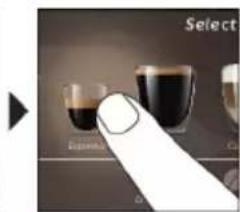
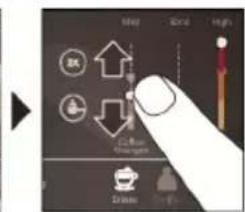
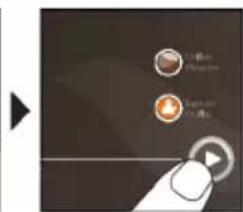
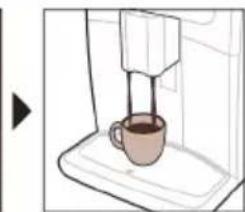

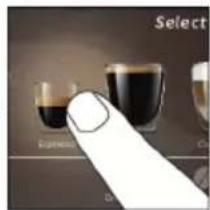

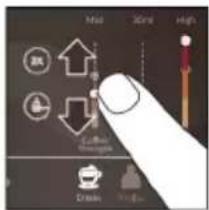

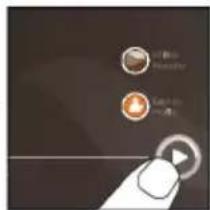

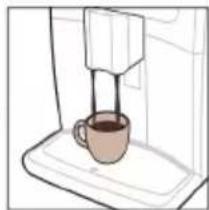
1 Fill the water tank with water and add the coffee beans to the container. 2 Place one or two cups under the dispensing spout with adjustable height. Slide the spout up or down to adjust its height according to the size of the cup or glass you are using. 3 To enter the "Drinks" menu, press the "Drinks" icon. Swipe from left to right, press the drink to select it.
1 Fill the water tank with water and add the coffee beans to the container.
Table of contents 784
Safety instructions 785
Installation and connection 786
Operation and settings 790
AquaClean water filter 791
Cleaning and maintenance 792
Troubleshooting and error messages 793
Technical specifications 796
Warranty 797
Disposal and environmental protection 798
A15 Spare parts list
A16 Wiring diagram
A17 Exploded view
A18 Parts list
__SUPPIMER__
Register your Saeco machine to get the most out of it: connect your Saeco machine to the Wi-Fi network and register it on the website www.saeco.com/MyCoffeeMachine to access all the features and services.
The machine is equipped with a Wi-Fi module and can be connected to your home network to use its smart features.
To connect your Saeco machine to the Wi-Fi network, follow the instructions in the dedicated section of this manual.
The machine's Wi-Fi connection is activated by default.
- To connect the machine to your home network, use the app or the web interface.
- To connect the machine to your home network, use the app or the web interface, and follow the instructions provided.
- If you have any problems, please refer to the troubleshooting section.
- You can also connect the machine to Amazon Alexa or Google Home, if this feature is supported.
- You can also connect the machine to Amazon Alexa or Google Home, if this feature is supported.
The machine is equipped with a Wi-Fi module. It can be connected to your home network to use its smart features. For example, you can start the machine remotely if it is connected to the network.
This manual applies to the following models: Xelsis SUPREMA (also SM8885, SM8889).
Read the instructions in this manual carefully before using the machine. Keep the manual for future reference. If you pass the machine on to another user, please include this manual.
⚠ Do not immerse the machine in water or any other liquid. Do not use the machine if the power cord or plug is damaged.
hùwǒu uḥwǔtǐ útptùwù, tnp ŋnɪp niʊtp Xelsis DELUXE (úhwjù SM8780, SM8782, SM8785)
Utnútp útptúwjh htunluh úwwuniú qunúlnn hnuwúph yhnhuwúguwinhşn u úhwugntp útptúwù: 3wútp «úhwugylwð» wjuinlytnwylhù u htunlútp ywnwuqlwnúwù ywhuówylh ynw gnigwnŋnln pujl wn pwjl hnwhuwiqutnhù:
Uhwqntp uwnpn l pawnúwqntp wnwghù untnwnpnúwù dwúwúwú: Τωπρτηωρων υυνηιστρ nε wülnnúwun pawnúwgniuśutnh wnlywjnμαjniṭūn:
ЧWWWUgniúN Wi-Fi gwùghù
Unātūh útptùwù ywwwugtp 2.4 93g 802.11 b/g/n unwù Wi-Fi gwǔghù:
ЧWWWYLG1NU टन unǎtǔh útptùwù टन unwù Wi-Fi gwùghù` pwntǐwùlúnú 5 oqunwānnδnnh yhnàwīnniŋajnínūn:
Rwúnqutp, nn unǎtǔ h útptùwù l Wi-Fi tŋnénɪŋhún qunùlnuì tǔ úhújwùg nùnqnlynniú: Rtunutp uunnlu ùzúwò pwjltnhù` unǎtǔ h útptùwù àtn Wi-Fi gwùghù lwwquylgtınl huúwn:
1 3wtp qwnqwnnnniutn wwnlytnwlyhù u uwhwhwnylwdtp dwhuhg wg, nnwtuqh qnutip Wi-Fi-h wwnlytnwlyn: 2 Rwtp Wi-Fi wwnlytnwlyhù: 3 3tunltp ʒynwùhù ʊzʊlwêpwjlnhù` unătuh ʊtaptüwù ătn Wi-Fi gwùghù ʊwwuwlgtiŋi hwúwn: Υπιρ ωγδύ Υωωμωγριμό τρ hωύωγωμής:
Zuwuujhu ywnwylwnui wuhwlywnqh uhongny uhwiwnni ywu wugwinutini, huzwtu uwu nnn2 dwuwuiwly nz wynhul jhtiuni wunawwnny wugwinutini ntuwpnui utptiuwu ywwwnwnh wulnnuiwin wwnqwgnuiwu ghyl: 3wunqultp, nn utptiuwu qunuiwui t wwwhnl uhgwllwjnnui:
Rwinnily qnpdwinnijp#tn
Змунніц QNĐШННУР
Luwinnwl
BeanMaestro qnpòwùnnyjāh úhōngnul ħnup lqunnn tīp nǔunnti unipǎh hwnhlyùtnph untiuwln l u pnúluwà wwnhǎwūn: Ujùnihtuni wju wuìnnúwùn lytpwnu l owunhúwìwgùniú l ywwunnwuuunúwù lyuqnqwlŋnniúttnp` unipǎh hwnhlyùtnph wunwultiwaņyùu lwu lqunnjiùp uunuàwlni hwuīwn:

HygieSteam \$niùlghwù wùnnúwùn lṭpnwnu ùwpnniú 5 ywrah huuúwlywnqn` htīnwǔtīnú úhlnnonqwùhqūtānp: oqunwqqnδtāp wjù ywwyniṣhūn ywú ywrah ynw hhuúquwó wjj núwtyhpūtn wwwinnwuuntīng htānn:

Utn nhúwglniù unǎwnwgn wwiinnwuiunluwð 100% ytnwúhlywjhg, nnwbuqh wju lhùh pwgwnzwwbu lyn2n u ǎ2qphn: Ujù lwwnn ห hwnúwntgutl àtn āw2wlyhù 12 ひniwüng úwlywnnwlýutpnú:

This device is intended for use in accordance with the instructions in this manual and with the safety instructions and warnings provided, including those for the AquaClean- series:
Safety instructions
General safety
Read all safety warnings and all instructions. Failure to follow the warnings and instructions may result in electric shock, fire and/or serious injury.




1 Keep the work area clean and well lit. Cluttered or dark areas invite accidents. 2 Do not operate power tools in explosive atmospheres, such as in the presence of flammable liquids, gases or dust. Power tools create sparks which may ignite the dust or fumes. 3 Keep children and bystanders away while operating a power tool. Distractions can cause you to lose control. - 4 Avoid body contact with earthed or grounded surfaces, such as pipes, radiators, ranges and refrigerators. There is an increased risk of electric shock if your body is earthed or grounded.
i The «2x» symbol indicates that the product is double insulated.
4 Do not abuse the cord. Never use the cord for carrying, pulling or unplugging the power tool. Keep cord away from heat, oil, sharp edges or moving parts. Damaged or entangled cords increase the risk of electric shock.
Additional safety warnings for the product
1 Keep the work area clean and well lit. Cluttered or dark areas invite accidents. 2 Do not operate power tools in explosive atmospheres, such as in the presence of flammable liquids, gases or dust. Power tools create sparks which may ignite the dust or fumes. 3 Keep children and bystanders away while operating a power tool. Distractions can cause you to lose control. 4 Avoid body contact with earthed or grounded surfaces, such as pipes, radiators, ranges and refrigerators. There is an increased risk of electric shock if your body is earthed or grounded. 5 Keep the cord away from heat, oil, sharp edges or moving parts. 6 Do not use the tool if the switch does not turn it on and off. Any tool that cannot be controlled with the switch is dangerous and must be repaired. 7 Disconnect the plug from the power source and/or the battery pack from the tool before making any adjustments, changing accessories, or storing power tools. Such preventive safety measures reduce the risk of starting the tool accidentally. - 8 Store idle power tools out of the reach of children and do not allow persons unfamiliar with the power tool or these instructions to operate the power tool. Power tools are dangerous in the hands of untrained users. - 9 Maintain power tools. Check for misalignment or binding of moving parts, breakage of parts and any other condition that may affect the power tool's operation. If damaged, have the power tool repaired before use. Many accidents are caused by poorly maintained power tools. - 10 Use the power tool, accessories and tool bits etc., in accordance with these instructions, taking into account the working conditions and the work to be performed. Use of the power tool for operations different from those intended could result in a hazardous situation. - 11 This appliance is not intended for use by persons (including children) with reduced physical, sensory or mental capabilities, or lack of experience and knowledge, unless they have been given supervision or instruction concerning use of the appliance by a person responsible for their safety. Children should be supervised to ensure that they do not play with the appliance.
The «HygieSteam Shot» function allows you to use the appliance without water. This function is suitable for cleaning delicate surfaces such as fabrics, without the need for steam.
Do not use the appliance without water for more than 5 minutes continuously. Always ensure the water tank is filled before using the steam function.
funnhninn. Tnip lwwnn tip uwu oqunwqnndti unlnnwlywù unnuhnu lwwrə' lwwrəuwjhu núwytihpūtn wwwnnwuuntini hwúwn: Stnwnntip lwwrəh utunwnjw hunnnlwlyn wùuhgwuytu lwwrəh unnuhh útg:
Unwgwδ uninǎhg núwtīhph wwnnpuunnlú
Luwuwu wngw# unnǎ tǔbǐnì hwiúwù nǐp wǔnǚ p ǔh pùuì wùnq qnnònniŋniù yhuànntp:
1 Fwgtp tiwhuwu wnguwd unipah hughyh ywwwnhzn u utly swuh qnwlnu wnwgwd unipa igntp nnw utg: Uww chwltp ywwwnhzn: 2 3wtp Cúwthpútn wwnlytnwuhu, wunbp ðwhhg wg u nünbp átn núwthpn: 3 3wtp wnwgwd uninah-wwwnlytnwlyh: 4 ৬৭৭ πρ Υμησωρτιπί Υμησωμηνηνιζυτην πυν ὁτη ὑωμωμηνηλεμμὶ υωθταξυτινί Υμησωρτινην υμυμηνηγυτην μτη ν λ γων: 5 Utnútp útlúwnyh/ŋwnwnh▶wwwnytwnwn` nùnnuwró núwtjph wwwnnwunnwn ulqutni hawwn:
i Lwhuwytu whwguð uninǎu pùunptāni nāwprnú chnp stp ywnnnwùw ywnqwūnntī núwtyhph wùnnjajniún yhuú úhwduwùwú yú sh zwiuhpwudhg wulti uninǎ uwwinnwuuŋti:
Swp qnh ๕๐๐๐๐๐๐๐๐๐๐๐๐๐๐๐๐๐๐๐๐๐๐๐๐๐๐๐๐๐๐๐๐๐๐๐๐๐๐๐๐๐๐๐๐๐๐๐๐๐๐๑
1 Rwúnqultp, nn utnphù ywwnishùwunnnn ǎh2n ٤ wúnwgulwǒ útptùwjhù (Ly. 1): 2 9wulwep nntp dnnwuh unwyl: 3 3wtp «Swp gni» (Uy. 2): 4 Uwhtgntp ywnqwptnynn uwunnywljuttnn ytn u ywn` unwp qnh puuwlyniajntiun yww gtnuwwunhǎwùn pwn àtn 'uwhuwuhnniəjuwù ywnqwptnttni hwiúwn (Uy. 3): 5 Utnutp dtyuwnyh/ŋwnwnh▶ywnlqnwnyn: 6 Swap 2nh distinguwlywnwnnun nwnwntgutni hwuwn distinguwu ubptuwu ywuwninh wzhwnwnupn' lynyhü utnúbp ubtywnyh/nnwnph ▶wwlnytnwyn (úhwjü SM8780, SM8782, SM8785) ywu lynyhü utnúbp nnwnwnh wwwlnytnwyn (úhwjü SM8885, SM8889):
Utuhwnwlywugniu
Utptuwu janyl t unwihu ywnqwptnti nuiwtjph ywnqwulnnniuttnn atn huy uwwhuhnnujniuttnh hwufawwj u wuhtl hwnuwntgylw# nuiwtjhp wuduwlywu wnn\hniu: Tnip ywnnn tip pünnti atn utchwlywu wwnnytnwyn u atn utchwlywu wnn\hih wuniun:
Unwgtp wnwultwnqnju wnjniup unipahg BeanMaestro \$niulghwjh uhongnu
BeanMaestro qnnòuynnyjh úhongnu lniq ywnnn tiq nùunnti unipah hwnhlúutnh untuwyn u pnyluwuuunhǎwùn: Ujunihtunl wju wujnnúwin ltpwnu lowinhúwluwgūniú 5 wjuinnwauinúwuuqnquylnnniwutnp` unipah hwnhlúutnhg wnwultiwaqniyuu iwi lwnjniup unuwiiwni hwúwn:
1 3wtp hhuuwluyu pwnwgwulh (Uy. 4) 3wnhlwulnn uninǎ wwwlnytnwylhù: 2 3wtp BeanMaestro \$niúlyghwjhù (Uy. 5): 3 Cunntp hwnhlywlnn unipah untuwyn: Tnip lwwnn tip nunntl wnwphlywjh u nnpniunwjh hwnzuninnh uhglu: 4 Cùnntp àtn unipǎh pnúwù wuunhǎwùn: 5 Τωυπωυινίωι ψωηρωυλησιδη ωωηθύωμωχιώ τι ωυληνίων χθηωνι: 6 Чуynnъ тр цьвътлъ лабн hwgnън уипăн:
Unwq nùnnnjuǎnìu CoffeeMaestro \$niùlghwjh úhɒngnu
2tn utptuwu wnwqwnyniú ß hwúh wnn\hiùtn pùnptīnì hùwnwulnnniājnìu CoffeeMaestro \niùyghwjh úhqngnu' pninn ywnqwulnnniūtqn wnwùàhù-wnwùàhù ywnqwptntīnì ynhwunptù: 7nip ywnnn tṛp pùnptī Delicato, Intenso u Forte: CoffeeMaestro hwúh wnn\$hiù pùnptīnì hwúwn.
1 3wtp atn twhununnw# puiwlph wwnlytnwlyh (Uy. 6): 2 Чнлчі huqup CoffeeMaestro wwwunlytpnwlyhù (Uy. 7): - Ľúwṭīhph hhuìuwlywù ywnqwwlnnniǔutnù wjdú ywnqwptnluwǒ tǔ huúwwwwinnwuhuāwūwpwn: 3 Utnútp útyùwnlyh/ŋwnwnh▶wwwnytwnlyn` núwtíhph wwwnnwuuinniún ulyutíni hwúwn:
CoffeeEqualizer Touch+ user manual
The CoffeeEqualizer Touch+ user manual is intended for the user and contains all the necessary information for the correct and safe use of the device. Please read this manual carefully before using the device and keep it for future reference.
The CoffeeEqualizer Touch+ user manual contains all the necessary information for the correct and safe use of the device.
1 Power button 2 Display 3 Control knob 4 Hot water spout 5 Coffee spout 6 Drip tray 7 Water tank 8 Bean container 9 Grinder adjustment
The device is intended for household use only, and any other use is not permitted.
1. Read the user manual carefully before use.
It is important to use the device only for its intended purpose and to follow the instructions in this manual. Do not use the device if it is damaged or malfunctioning.
A5 6mm800n 3s0g0nn0n3nl
A31 6ymnblnbnlghnl gubdbs8m3mgnn fglu-bs8n
∂υπομησι δυμμησι
gubfnglmls sd s3smsglnmhn zgmns smlgdomd. dson dsmznl dmmzn bbzsqsbzbsnmn, nydgs bghgngd on gmbbnns deydsmd. y3gms mnmsgn lssbszgo, nbnrgon hymsngon B cos C. smbgngdnl bsbzs dgandmnom dzgdm.
B1 Power off icon
B5/C5 Grinder settings
AquaClean -by-mn-2-3-4-5-6-7-8
AquaClean grades of the quality of the quality of the quality of the quality of the quality of the quality of the quality of the quality of the quality of the quality of the quality of the quality of the quality of the quality of the quality of the quality of the quality of the quality of the quality of the quality of the quality of the quality of the quality of the quality of the quality of the quality of the quality of the quality of the quality of the quality of the quality of the quality of the quality of the quality
www.saeco.com/MyCoffeeMachine
AquaClean 10% - 7% - 7% - 7% - 7% - 7% - 7% - 7% - 7% - 7% - 7% - 7% - 7% - 7% - 7% - 7% - 7% - 7% - 7% - 7% - 7% - 7% - 7% - 7% - 7% - 7% - 6% - 6% - 6% - 6% - 6% - 6% - 6% - 6% - 6% - 6% - 6% - 6% - 6% - 6% - 6% - 6% - 6% - 6% - 6% - 6% - 6% - 6% - 6% - 6%
- Aqu
2.'(π|π)
| הכלהה-הכלהה-הכלהה-הכלהה-הכלהה-הכלהה-הכלהה-הכלהה-הכלהה-הכלהה-הכלהה-הכלהה-הכלהה-הכלהה-הכלהה-הכלהה-הכלהה-הכלהה-הכלהה-הכלהה-הכלהה -הכלהה-הכלהה-הכלהה-הכלהה-הכלהה-הכלהה-הכלהה-הכלהה-הכלהה-הכלהה-הכלהה-הכלהה-הכלהה-הכלהה-הכלהה-הכלהה-הכלהה-הכ. | הכ. |
| 70 PK 6000, NYON 3700, NYON 2900, NYON 1870, NYON 1500, NYON 1470, NYON 1470 | 9000 PK |
| NYON 3700, NYON < HYGSTEAM < NYON 1870, NYON 1500, NYON 1470, NYON 1470 | 9000 PK |
| NYON 3700, NYON (24 PK), NYON 1870, NYON 1870, NYON (25 PK), NYON 1870, NYON 1870, NYON 1870, NYON 1870, NYON 1870, NYON 1870, NYON 1870, NYON 1870 | 9000 PK, NYON PK |
11
42
![graph TD A["Grid Structure"] --> B["Open Grid"] B --> C["Arrow to Top Right"] C --> D["Arrow to Bottom Left"] D --> E["Arrow to Bottom Right"]](/content/2026/03/553324/images/21ee8ea314aa29409ca4d2b5d3200a57dab89494b42f9e5a07d40ff83786714e.jpg)
4219.450.3076.2 (01/2022) rev.00

421945030762
www.saeco.com/care


75% recycled paper
75% recycled paper
- EN USER MANUAL
- CONTENTS
- MACHINE OVERVIEW (FIG. A)
- ACCESSORIES
- CONTROL PANEL
- INTRODUCTION
- SWITCHING ON THE MACHINE WHEN YOU HAVE A XELSIS SUPREMA (SM8885, SM8889 ONLY)
- SWITCHING ON THE MACHINE WHEN YOU HAVE A XELSIS DELUXE (SM8780, SM8782, SM8785 ONLY)
- CONNECTING TO WI-FI
- SPECIAL FUNCTIONS
- SPECIAL FUNCTION PURPOSE
- BREWING DRINKS
- GENERAL STEPS
- SUPPORT ON DRINK PARAMETERS
- BREWING MILK-BASED DRINKS
- BREWING COFFEE WITH PRE-GROUND COFFEE
- DISPENSING HOT WATER
- PERSONALIZATION
- GET THE BEST OUT OF YOUR BEANS WITH THE BEANMAESTRO FUNCTION
- SPEED UP WITH COFFEEMAESTRO
- PERSONALIZE YOUR DRINK WITH THE COFFEEEQUALIZER TOUCH+ FUNCTION
- SAVE YOUR FAVORITE DRINKS IN A PROFILE
- EXTRA SHOT (EXTRASHOT)
- ADJUSTING MACHINE SETTINGS
- SETTING THE WATER HARDNESS
- USE THE WATER HARDNESS TEST STRIP SUPPLIED IN THE BOX TO DETERMINE THE WATER HARDNESS IN YOUR REGION
- SET THE MACHINE TO THE CORRECT WATER HARDNESS
- ADJUSTING THE GRIND SETTING
- RESTORING FACTORY SETTINGS
- AQUACLEAN WATER FILTER
- AQUACLEAN FILTER STATUS INDICATION
- ACTIVATING THE AQUACLEAN WATER FILTER (5 MIN.)
- REPLACING THE AQUACLEAN WATER FILTER (5 MIN.)
- REMOVING AND INSERTING THE BREW GROUP
- REMOVING THE BREW GROUP FROM THE MACHINE
- REINSERTING THE BREW GROUP
- CLEANING AND MAINTENANCE
- ITEM WHEN TO CLEAN HOW TO FIND IN THE CONTROL PANEL
- CLEANING THE BREW GROUP
- CLEANING THE BREW GROUP UNDER THE TAP
- CLEANING THE BREW GROUP WITH THE COFFEE OIL REMOVER TABLETS
- LUBRICATING THE BREW GROUP
- CLEANING PROGRAMS FOR THE INTERNAL CAPPUCCINATORE
- CLEANING THE INTERNAL CAPPUCCINATORE UNDER THE TAP
- DESCALING PROCEDURE
- WHAT TO DO IF THE DESCALING PROCEDURE IS INTERRUPTED
- ERROR CODES
- ORDERING ACCESSORIES
- SOFTWARE UPDATES
- TROUBLESHOOTING
- TECHNICAL SPECIFICATIONS
- DECLARATION OF CONFORMITY
- WI-FI
- TABLE OF CONTENTS
- PREPARING DRINKS
- PREPARING MILK-BASED DRINKS
- EXTRA SHOT
- CONNECTING TO A WI-FI NETWORK
- WWW.SAECO.COM/MYCOFFEEMACHINE
- SUPPIMER
- THIS MANUAL APPLIES TO THE FOLLOWING MODELS: XELSIS SUPREMA (ALSO SM8885, SM8889)
- HÙWǑU UḤWǓTǏ ÚTPTÙWÙ, TNP ŊNꞮP NIƱTP XELSIS DELUXE (ÚHWJÙ SM8780, SM8782, SM8785)
- ЧWWWUGNIÚN WI-FI GWÙGHÙ
- RWINNILY QNPDWINNIJP#TN
- ЗМУННІЦ QNĐШННУР
- LUWINNWL
- SAFETY INSTRUCTIONS
- GENERAL SAFETY
- ADDITIONAL SAFETY WARNINGS FOR THE PRODUCT
- UNWGWΔ UNINǍHG NÚWTĪHPH WWNNPUUNNLÚ
- SWP QNH
- UTUHWNWLYWUGNIU
- UNWGTP WNWULTWNQNJU WNJNIUP UNIPAHG BEANMAESTRO \$NIULGHWJH UHONGNU
- UNWQ NÙNNNJUǍNÌU COFFEEMAESTRO \$NIÙLGHWJH ÚHⱰNGNU
- COFFEEEQUALIZER TOUCH+ USER MANUAL
- READ THE USER MANUAL CAREFULLY BEFORE USE
- ∂ΥΠΟΜΗΣΙ ΔΥΜΜΗΣΙ
- AQUACLEAN -BY-MN
- AQUACLEAN GRADES OF THE QUALITY OF THE QUALITY OF THE QUALITY OF THE QUALITY OF THE QUALITY OF THE QUALITY OF THE QUALITY OF THE QUALITY OF THE QUALITY OF THE QUALITY OF THE QUALITY OF THE QUALITY OF THE QUALITY OF THE QUALITY OF THE QUALITY OF THE QUALITY OF THE QUALITY OF THE QUALITY OF THE QUALITY OF THE QUALITY OF THE QUALITY OF THE QUALITY OF THE QUALITY OF THE QUALITY OF THE QUALITY OF THE QUALITY OF THE QUALITY OF THE QUALITY OF THE QUALITY OF THE QUALITY OF THE QUALITY OF THE QUALITY OF THE QUALITY OF THE QUALITY
Brand : PHILIPS
Model : Saeco Xelsis Deluxe SM8780
Category : Coffee maker