LMX410EO - Cellphone LG - Free user manual and instructions
Find the device manual for free LMX410EO LG in PDF.



| Product type | Mobile phone |
| Brand | LG |
| Model | LMX410EO |
| Dimensions (approx.) | 146.3 x 73.2 x 8.2 mm |
| Weight (approx.) | 152 g |
| Display | 5.45 inches IPS, resolution 1440 x 720 pixels |
| Operating system | Android 8.1 Oreo |
| Processor | Quad-core 1.4 GHz Cortex-A53 |
| RAM memory | 2 GB |
| Internal storage | 16 GB (expandable via microSD card) |
| Rear camera | 13 MP, autofocus, LED flash |
| Front camera | 5 MP, wide angle, gesture selfie function |
| Battery | 2500 mAh lithium-ion, non-removable |
| Connectivity | Wi-Fi 802.11 b/g/n, Bluetooth 4.2, NFC, GPS, microUSB 2.0, 3.5mm jack |
| Sensors | Fingerprint (rear), accelerometer, proximity, ambient light |
| Power supply | Wall charger 5V/1A, microUSB cable |
| Maintenance and cleaning | Wipe with a soft, dry cloth. Do not use chemical products. |
| Security | Fingerprint recognition, screen lock, SD card encryption |
| Spare parts and repairability | Non-removable battery, screen and other parts available at LG authorized centers |
| General information | Use between 0°C and 35°C. Do not expose to moisture. Compatible with LG Bridge for management and backups. |
Frequently Asked Questions - LMX410EO LG
User questions about LMX410EO LG
0 question about this device. Answer the ones you know or ask your own.
Ask a new question about this device
Download the instructions for your Cellphone in PDF format for free! Find your manual LMX410EO - LG and take your electronic device back in hand. On this page are published all the documents necessary for the use of your device. LMX410EO by LG.
USER MANUAL LMX410EO LG
Efficient device operation
Electronics devices
All devices may receive interference, which could affect performance.
- Do not use your device near medical equipment without requesting permission. Please consult your doctor to determine if operation of your device may interfere with the operation of your medical device.
- Pacemaker manufacturers recommend that you leave at least 15 cm of space between other devices and a pacemaker to avoid potential interference with the pacemaker.
• This device may produce a bright or flashing light.
• Some hearing aids might be disturbed by devices.
• Minor interference may affect TVs, radios, PCs etc. - Use your device in temperatures between 0 °C and 35 °C, if possible. Exposing your device to extremely low or high temperatures may result in damage, malfunction, or even explosion.
Road safety
Check the laws and regulations on the use of devices in the area when you drive.
• Do not use a hand-held device while driving.
• Give full attention to driving.
- Pull off the road and park before making or answering a call if driving conditions so require.
• RF energy may affect some electronic systems in your vehicle such as car stereos and safety equipment.
- When your vehicle is equipped with an air bag, do not obstruct with installed or portable wireless equipment. It can cause the air bag to fail or cause serious injury due to improper performance.
- If you are listening to music whilst out and about, please ensure that the volume is at a reasonable level so that you are aware of your surroundings. This is of particular importance when near roads.
©
©
©
©
©
©
©
©
©
©
©
©
©
©
©
©
©
©
©
©
©
©
©
©
©
©
©

©
©
©
©
©
©

©
©
©
©
©
©
©
©
©
©
©
©
©
©
©
©
©
©
©
©
©
©
©
©
©
©
©
©

©
©
©
©
©
©
©
©

©
©

©
©
©
©
©
©
©
©
©
©
©
©
©
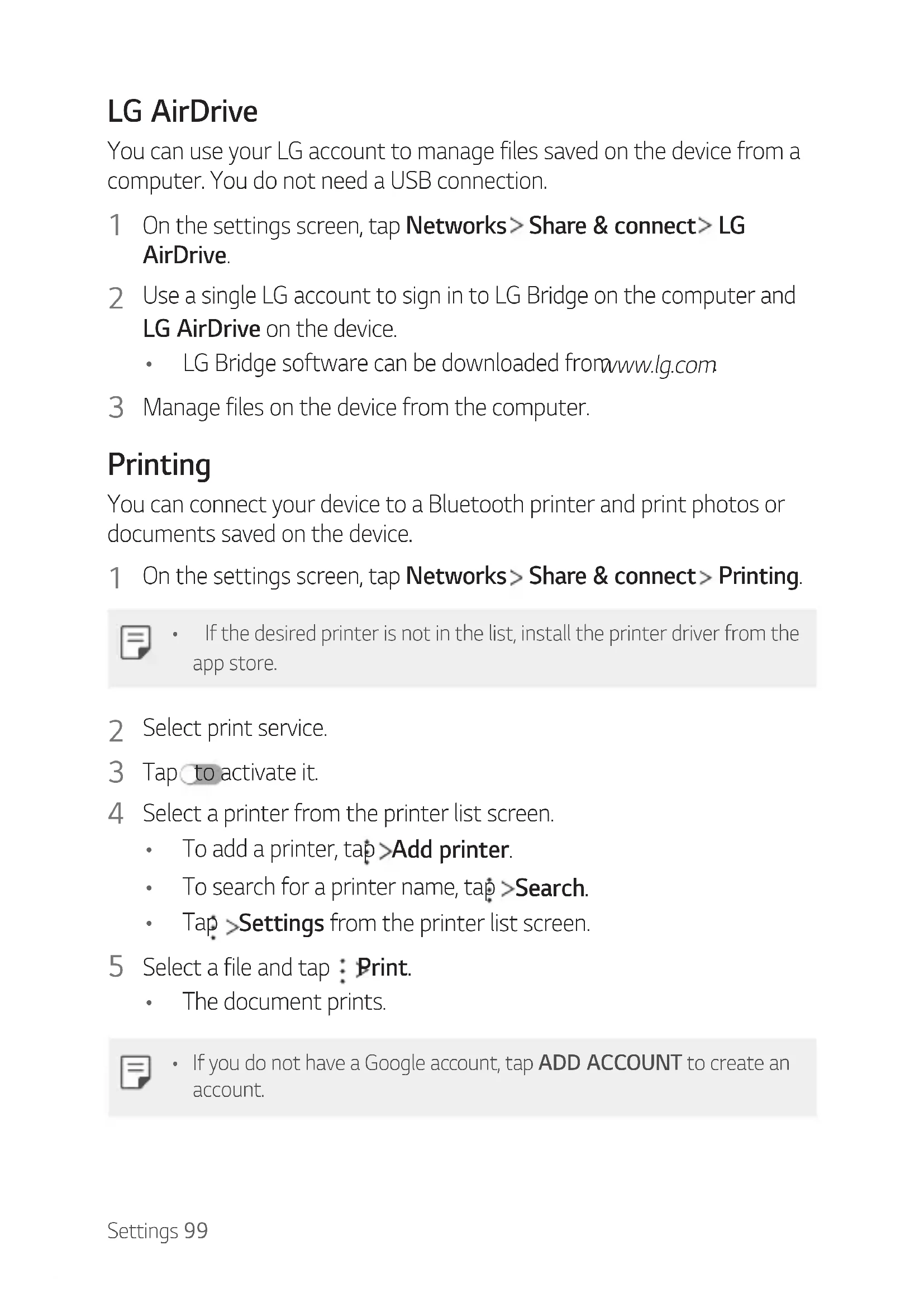
LG AirDrive
You can use your LG account to manage files saved on the device from a computer. You do not need a USB connection.
1 On the settings screen, tap Networks > Share & connect > LG AirDrive.
2 Use a single LG account to sign in to LG Bridge on the computer and LG AirDrive on the device.
• LG Bridge software can be downloaded from www.lg.com
3 Manage files on the device from the computer.
Printing
You can connect your device to a Bluetooth printer and print photos or documents saved on the device.
1 On the settings screen, tap Networks > Share & connect > Printing.

- If the desired printer is not in the list, install the printer driver from the app store.
2 Select print service.
3 Tap to activate it.
4 Select a printer from the printer list screen.
• To add a printer, tap >Add printer.
• To search for a printer name, tap >Search.
- Tap >Settings from the printer list screen.
5 Select a file and tap : Print.
• The document prints.

- If you do not have a Google account, tap ADD ACCOUNT to create an account.
Tethering
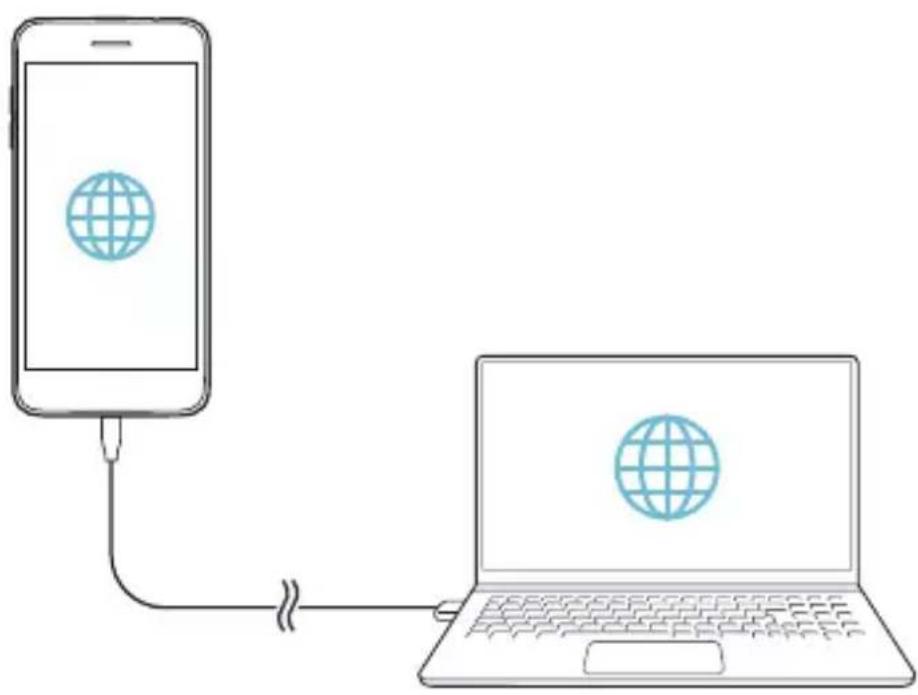
USB tethering
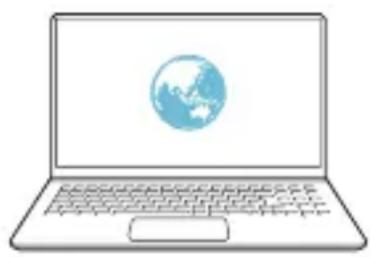
You can connect the device to another device via USB and share mobile data.
1 Connect your device and other devices via USB cable.
2 On the settings screen, tap Networks > Tethering > USB tethering and then tap to activate it.

- This option uses mobile data and may incur data usage fees, depending on your pricing plan. Consult with your service provider for more information.
- When connecting to a computer, download the USB driver from www.lg.com and install it on the computer.
- You cannot send or receive files between your device and a computer while USB tethering is turned on. Turn off USB tethering to send or receive files.
- Operating systems that support tethering are Window XP or higher, or Linux.
natural_image
Illustration of a smartphone connected to a laptop via cable, showing global network icons (no text or symbols)Wi-Fi hotspot
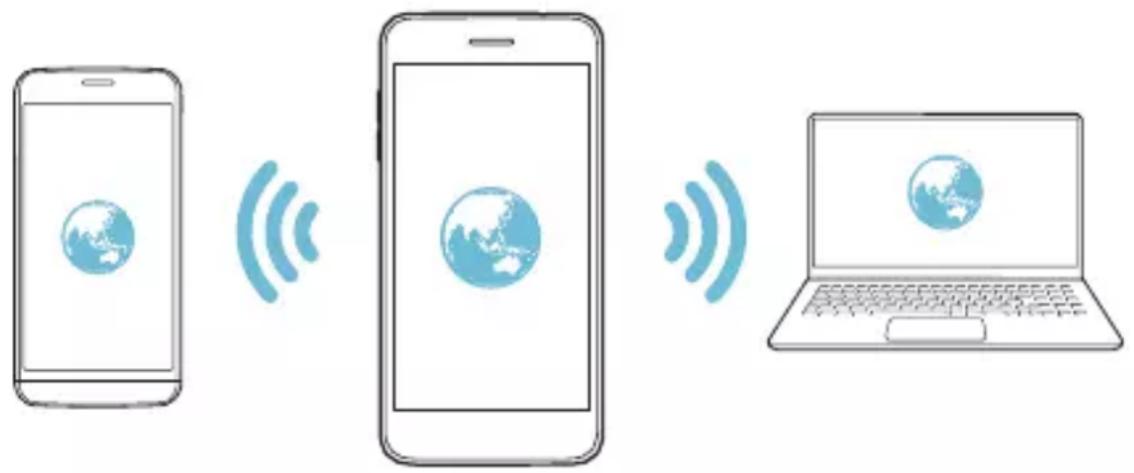
You can set the device as a wireless router so that other devices can connect to the Internet by using your device's mobile data.
1 On the settings screen, tap Networks > Tethering > Wi-Fi hotspot and then tap to activate it.
2 Tap Set up Wi-Fi hotspot, and enter the Wi-Fi name (SSID) and password.
3 Turn on Wi-Fi on the other device, and select the name of the device network on the Wi-Fi list.
4 Enter the network password.

- This option uses mobile data and may incur data usage fees, depending on your pricing plan. Consult with your service provider for more information.
• More information is available at this web site: http://www.android.com/tether#wifi
text_image
Diagram showing three smartphone devices: a mobile phone, a globe with signal waves, and a laptop with wireless icons.Wi-Fi hotspot turn off timer
When the Wi-Fi hotspot has not been used for a specific period of time, it is automatically disconnected. You can set the time for automatic disconnection.
©

©
©
©
©

©
©
©
©
©
©
©
©
©
©
©
©
©
©
©
©
©
©
©
©
©
©
©
©
©

©
©
©
©
©
©
©
©
©
©
©
©
©
©
©
©
©
©

©
©

©
©
©
©
©
©
©
©
©
©
©
©
©
©
©
©
©
©
©
©
©
©

©
©
©
©
©
©
©
©
©
©
©
©
©
©

©
©
©
©
©
©
©
©
©
©
©
©
©
©
©
©
©
©
©
©
©
©
©
©
©
©
©
©
©
©
©
©
©
©
©
©
©
©
©
©

©
©
©
©
©
©
©
©
©
©
©
©
©
©
©
©
©
©
©
©
©
©
©
©
©
©
©
©
©
©

©

©
©
©
©
©
©
©
©
©
©
©
©
©

©
©
©
©
©
©

©
©
©
©
©
©
©
©
©
©
©
©
©

©
©
©
©
©
©
©
©
©
©
©
©
©
©
©
©
©
©
©
©
©
©
©
©
©
©
©
©
©
©
©
©
©
©
©
©

©
©
©
©
©
©
©
©
©
©
©
©
©
©
©
©
©
©
©
©

©
©
©
©
©
©
©
©
©
©
©
©

©
©
©
©
©
©

©
©
©
©
©
©
©
©
©
©
©
©
©

©
©

©
©
©
©
©
©
©
©
©
©
©
©
©
©
©

©


©
©

©
©
©
©
©

©
©

©
©
©
©
©
©

©
©
©
©
©
©

©
©
©
©
©

©
©

©
©

©
©
©
©
©
©

©
©
©
©
©
©

©
©
©


©

©
©

©

©
©
©

©
©
©
©
©

©

©
©
©
©
©
©
©
©
©
©
©
©
©
©
©
©

©
©
©


©
©
©
©

©
©

©
©

©
©
©
©
©
©
©

©
©
©

©
©

©

©
©

©
©
©
©
©
©


©
©
©
©

©
©
©
©
©

©
©

©
©
©
©
©
©
©
©
©
©
©
©
©
©
©
©
©
©
©
©
©
©
©
©
©
©
©
©
©
©

©
©

©

©
©
©


©
©
©
©
©

©
©
©
©
©
©
©
©
©
©
©
©
©
©
©

©
©

©
©
©
©
©

©
©
©
©
©

©
©

©
©

©
©
©
©
©
©
©
©


©
©
©


©

©
©

©
©
©
©
©
©

©
©
©

©
©
©
©
©
©
©
©
©
©
©
©
©
©
©
©
©
©
©
©
©
©
©
©
©


©
©

©
©
Skróty do aplikacji
natural_image
Scenic mountain landscape with snow-capped peaks and evergreen trees under a blue sky (no text or symbols visible)Uruchamianie Galeria.
Nagrywanie filmów.
Wykonywanie zdjęć.
natural_image
Scenic mountain landscape with evergreen trees and snow-capped peaks under a blue sky (no text or symbols visible)
natural_image
Composite image showing a hand pointing at sunflowers and a couple smiling, with no visible text or symbols.
text_image
Illustration showing a hand holding a smartphone displaying a fingerprint, and a hand demonstrating the right-hand rule for index finger manipulation.
natural_image
Close-up portrait of a smiling man with curly hair, wearing a pink jacket (no visible text or symbols)
text_image
Illustration showing a person taking a phone while holding a device, with a red arrow indicating the process.
natural_image
Scenic mountain landscape with dense evergreen trees and rocky peaks under a cloudy sky (no text or symbols visible)natural_image
Illustration of a smartphone connected to a laptop via cable, showing global network icons (no text or symbols)natural_image
Simple line drawing of a smartphone with a globe icon on the screen (no text or symbols)
natural_image
Illustration of a smartphone displaying a globe icon (no text or symbols)