ManualGo.com
SmartOnline SU10000RT3UG - Uninterruptible power supply Tripp Lite - Free user manual and instructions
Find the device manual for free SmartOnline SU10000RT3UG Tripp Lite in PDF.



Download the instructions for your Uninterruptible power supply in PDF format for free! Find your manual SmartOnline SU10000RT3UG - Tripp Lite and take your electronic device back in hand. On this page are published all the documents necessary for the use of your device. SmartOnline SU10000RT3UG by Tripp Lite.
USER MANUAL SmartOnline SU10000RT3UG Tripp Lite
Owner’s Manual 1111 W. 35th Street, Chicago, IL 60609 USA www.tripplite.com/supportCopyright © 2011 Tripp Lite. All rights reserved. SmartOnline is a trademark of Tripp Lite. SmartOnline
- Detachable PDU features outlets and maintenance bypass switch* • Rackmount and tower adaptable *An optional detachable hardwire PDU is available; contact Tripp Lite for details.Not suitable for mobile applications. Important Safety Warnings 2 Mounting 3 Connection 6 Features 4 Operation 12 Storage and Service 26 Warranty and Warranty Registration 26 Optional Connection 8 Manual Bypass Operation 9 Specifications 11 WARRANTY REGISTRATION:register online today for a chance to win a FREE Tripp Lite product—www.tripplite.com/warranty Español 27 Français 53 Ðóññêèé 79 201102160 93-2897.indb 1 3/30/2011 9:30:37 AM2 Important Safety Warnings SAVE THESE INSTRUCTIONS. This manual contains important instructions and warnings that should be followed during the installation and maintenance of all Tripp Lite SmartOnline Rackmount/Tower UPS Systems and their batteries. Failure to heed these warnings may affect your warranty. UPS Location Warnings
- Install your UPS indoors, away from excess moisture or heat, direct sunlight, dust and conductive contaminants.
- Install your UPS in a structurally sound area. Your UPS is extremely heavy; take care when moving and lifting the unit.
- Only operate your UPS at indoor temperatures between 32° F and 104° F (between 0° C and 40° C). For best results, keep indoor temperatures between 62° F and 84° F (between 17° C and 29° C).
- Leave adequate space around all sides of the UPS for proper ventilation.
- Do not install the UPS near magnetic storage media, as this may result in data corruption.
- Do not mount unit with its front or rear panel facing down (at any angle). Mounting in this manner will seriously inhibit the unit's internal cooling, eventually causing product damage not covered under warranty. UPS Connection Warnings
- Isolate the UPS before working on this circuit.
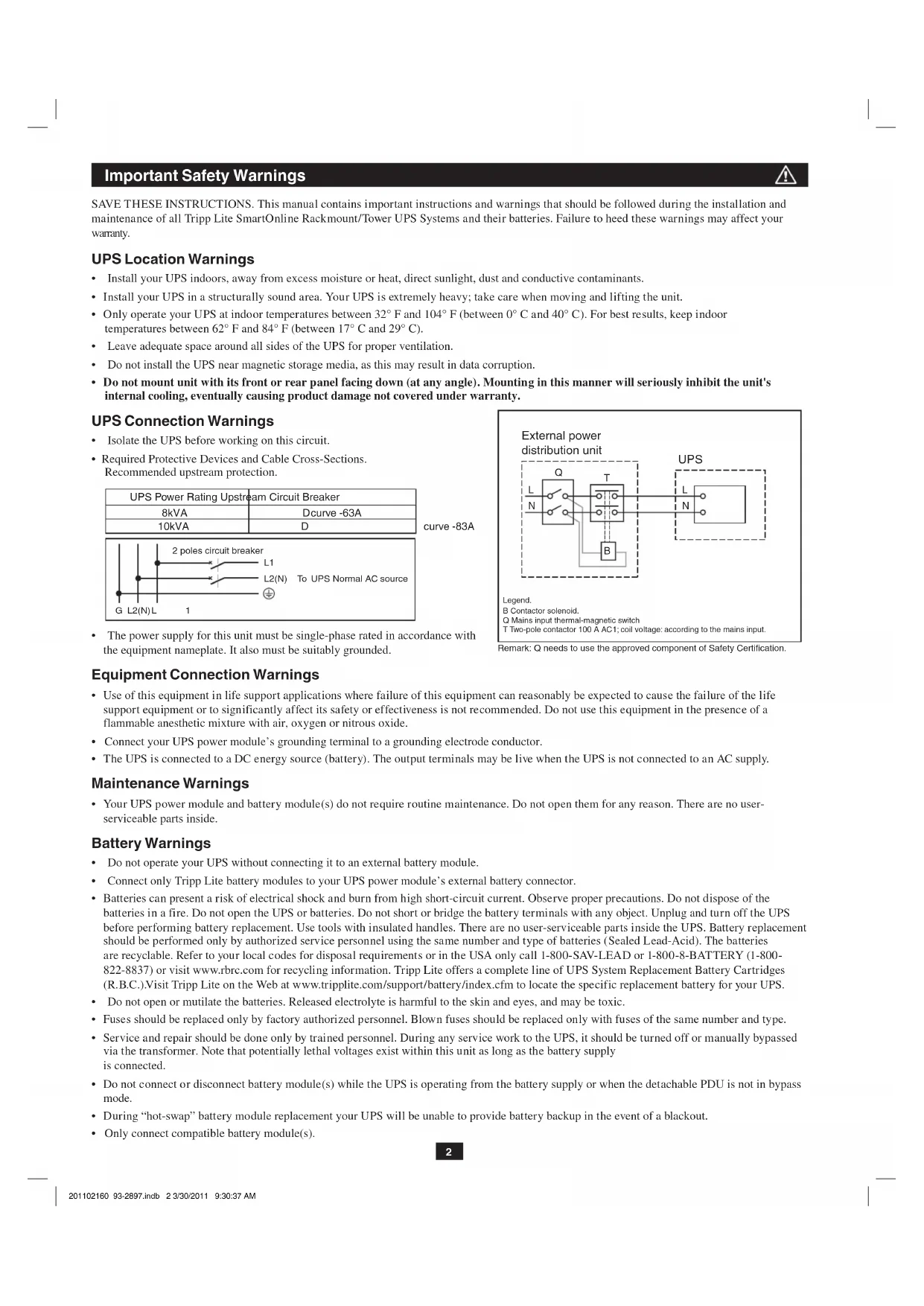
- Required Protective Devices and Cable Cross-Sections. Recommended upstream protection. UPS Power Rating Upstream Circuit Breaker 8kV
curve -63A 10kVAD curve -83A GL1 2 poles circuit breakerTo UPS Normal AC sourceL2(N)L2(N)
- The power supply for this unit must be single-phase rated in accordance with the equipment nameplate. It also must be suitably grounded. Equipment Connection Warnings
- Use of this equipment in life support applications where failure of this equipment can reasonably be expected to cause the failure of the life support equipment or to significantly affect its safety or effectiveness is not recommended. Do not use this equipment in the presence of a flammable anesthetic mixture with air, oxygen or nitrous oxide.
- Connect your UPS power module’s grounding terminal to a grounding electrode conductor.
- The UPS is connected to a DC energy source (battery). The output terminals may be live when the UPS is not connected to an AC supply. Maintenance Warnings
- Your UPS power module and battery module(s) do not require routine maintenance. Do not open them for any reason. There are no user- serviceable parts inside. Battery Warnings
- Do not operate your UPS without connecting it to an external battery module.
- Connect only Tripp Lite battery modules to your UPS power module’s external battery connector.
- Batteries can present a risk of electrical shock and burn from high short-circuit current. Observe proper precautions. Do not dispose of the batteries in a fire. Do not open the UPS or batteries. Do not short or bridge the battery terminals with any object. Unplug and turn off the UPS before performing battery replacement. Use tools with insulated handles. There are no user-serviceable parts inside the UPS. Battery replacement should be performed only by authorized service personnel using the same number and type of batteries (Sealed Lead-Acid). The batteries are recyclable. Refer to your local codes for disposal requirements or in the USA only call 1-800-SAV-LEAD or 1-800-8-BATTERY (1-800- 822-8837) or visit www.rbrc.com for recycling information. Tripp Lite offers a complete line of UPS System Replacement Battery Cartridges (R.B.C.).Visit Tripp Lite on the Web at www.tripplite.com/support/battery/index.cfm to locate the specific replacement battery for your UPS.
- Do not open or mutilate the batteries. Released electrolyte is harmful to the skin and eyes, and may be toxic.
- Fuses should be replaced only by factory authorized personnel. Blown fuses should be replaced only with fuses of the same number and type.
- Service and repair should be done only by trained personnel. During any service work to the UPS, it should be turned off or manually bypassed via the transformer. Note that potentially lethal voltages exist within this unit as long as the battery supply is connected.
- Do not connect or disconnect battery module(s) while the UPS is operating from the battery supply or when the detachable PDU is not in bypass mode.
- During “hot-swap” battery module replacement your UPS will be unable to provide battery backup in the event of a blackout.
- Only connect compatible battery module(s). Legend.B Contactor solenoid.Q Mains input thermal-magnetic switch T Two-pole contactor 100 A AC1; coil voltage: according to the mains input. Remark: Q needs to use the approved component of Safety Certification. External power distribution unit UPS
The included plastic pegs
will temporarily support the empty rackmount shelves
while you install the permanent mounting hardware. Insert a peg near the center of the front and rear bracket of each shelf as shown. (Each front bracket has 6 holes and each rear bracket has 3 holes.) The pegs will snap into place. After installing the pegs, expand each shelf to match the depth of your rack rails. The pegs will fit through the square holes in the rack rails to support the shelves. Refer to the rack unit labels to confirm that the shelves are level in all directions. Note: The support ledge of each shelf must face inward.
to the mounting rails permanently using the included screws and cup washers
- For 2U equipment mounting, place 4 screws total at the front and 4 screws total at the back.
- For 3U equipment mounting, place 6 screws total at the front and 4 screws total at the back. Tighten all screws before proceeding.
Warning: Do not attempt to install your equipment until you have inserted and tightened
the required screws. The plastic pegs will not support the weight of your equipment.
Attach mounting ears
to the front mounting holes of your equipment
. The ears should face forward.
Using an assistant, lift your equipment and slide it onto the mounting shelves. Attach your equipment to the rack by passing the screws, nuts and washers (user-provided)
through its mounting ears and into the rack rails.
(Optional) Attach 2 PDU hanger brackets to the right-side, rear mounting rail using included screws and cage nuts. Important: determining where to attach your PDU hanger brackets will depend on your rack configuration. Generally it is recommended to mount the top bracket in the bottom two square holes of the U space that the UPS and PDU are mounted in. The second bracket should be installed 3U measures down and placed in the top two square holes of the U. (For example: If the PDU and UPS are mounted in 7U, the first bracket will be installed in the bottom two square holes of 7U. The second bracket would be installed in the top two square holes of 4U. Mount your equipment in either a 4-post or 2-post rack or rack enclosure. The user must determine the fitness of hardware and procedures before mounting. If hardware and procedures are not suitable for your application, contact the manufacturer of your rack or rack enclosure. The procedures described in this manual are for common rack and rack enclosure types and may not be appropriate for all applications. Note: The power module and battery module must be installed in separate shelves. 2-Post Mounting (Optional) To mount your equipment in a 2-post rack, you must purchase a Tripp Lite 2-Post Rackmount Installation Kit (model: 2POSTRMKITWM, sold separately) for each module installed. See the Installation Kit’s owner’s manual for complete mounting instructions.
The UPS system is shipped with two sets of plastic feet
that can be used to tower mount the UPS’s power module, a battery module and a second battery module (9U total). Adjust the feet to a width of 10.25 inches (26 cm) for a UPS power module and battery module, or to a width of 15.375 inches (39 cm) for three units. Align the feet in your installation area, approximately 10 inches (26 cm) apart. Have one or more assistants help you place the units on their sides in the feet. The control panel of the UPS should be the UPS’s upper corner and face outward.
Rotate the power module’s Control Panel to view it easier while the UPS is tower mounted. Insert a small screwdriver, or other tool, in the slots on either side of the Control Panel. Pop the panel out; rotate it; and pop the panel back into place. Mount all modules in an upright, tower position using included base stands. The user must determine the fitness of hardware and procedures before mounting. Features Before installing and operating your UPS, familiarize yourself with the location and function of the features of each component. Power Module Front Panel Controls
LCD DISPLAY: This backlit (16 × 2 character) dot matrix display indicates a wide range of UPS operating conditions and diagnostic data. It also displays UPS settings and options when the UPS is in setup mode.
ON/MUTE BUTTON: Press this button and hold it until you hear a beep to turn the UPS system’s inverter ON. If the UPS’s battery alarm is sounding, press this button to silence it.
SCROLL DOWN/EXIT SETUP BUTTON: This button allows you to browse through different options and power readings on the LCD display. Momentarily pressing it causes the LCD screen to display a different power reading (see “Operation”, pg. 12). Pressing it and the SCROLL UP Button together puts the UPS in setup mode, where this button is used to scroll through setup options and to exit setup mode.
SCROLL UP/SELECT BUTTON: This button allows you to browse through different options and power readings on the LCD display. Momentarily pressing it causes the LCD screen to display a different power reading (see “Operation Section”, pg. 17). Pressing it and the SCROLL DOWN Button together puts the UPS in setup mode, where this button is used to select setup options.
OFF BUTTON: Press this button until you hear a beep to turn the UPS system’s inverter OFF.
O/P (OUTPUT) LED: This green light will illuminate to indicate your UPS is supplying AC power to connected equipment.
DC/AC (INVERTER) LED: This green light will illuminate to indicate the UPS’s DC/AC inverter is activated.
BYPASS LED: This green light will illuminate when the UPS is providing filtered mains power without engaging its converter or inverter. If this LED is lit, connected equipment will not receive battery power in the event of a blackout, unless the Economy Mode feature is enabled.
AC/DC (Converter) LED: This green light will illuminate to indicate the UPS’s AC/DC converter is charging the connected battery pack(s).
BATTERY LED: This green light will illuminate when the UPS is discharging the battery to provide connected equipment with AC power. An alarm will sound which can be silenced by pressing the ON/MUTE Button. This LED will remain lit after the alarm is silenced.
I/P (INPUT) LED: This green light will illuminate to indicate an AC input supply is present.
ACCESS SLOTS: To rotate the controls, insert a flathead screwdriver into these slots and gently lever the panel out. Taking care not to excessively twist or yank the cables connecting the controls to the rest of the UPS, turn the controls to the desired orientation and reinsert them.
Accessory Slot: Remove the small cover panel to install optional accessories to remotely control and monitor your UPS system. Visit Tripp Lite on the Web (www.tripplite.com) to learn about available SNMP, network management and connectivity products that may be installed in this slot.
RS-232 Communication Port: This female DB9 serial port may be used to connect your UPS to a workstation or server. It uses RS-232 protocol to communicate with a connected computer. It is used with Tripp Lite software and the included serial cable to monitor and manage the UPS remotely over a network and to automatically save open files and shut down equipment during a blackout. See “Optional Connection” for details. An optional Contact-Closure card is available if needed (Tripp Lite part # RELAYIOCARD).
Parallel Connector: For UPS communication in parallel.
USB Communication Port: The USB port may be used to connect your UPS to a workstation or server. It is used with Tripp Lite software and the included USB cable to monitor and manage the UPS remotely over a network and to automatically save open files and shut down equipment during a blackout. See “Optional Connection” for details. For USB communications, both DIP switches must be in the ON position. This will disable the RS-232 port.
EPO (Emergency Power Off) Port: Used to connect the power module to a contact closure switch to enable emergency power off. See “Optional Connection” section for details.
Exhaust Fan: This cools and ventilates the inside of the power module.
External Battery Connector: Use this to connect one or more Tripp Lite battery modules to the power module. Remove the cover for access. The power module will not start without a connection to a charged battery module. Refer to the battery module owner’s manual for connection instructions and safety warnings.
AC Output Receptacles: Accept direct plug-in connection of NEMA L6-30P or NEMA L6-20P equipment plugs.
Maintenance Bypass Switch: Permits qualified service personnel to remove the PDU from the power module for routine maintenance without disrupting power to the load. When this switch is set to BYPASS the load will receive unfiltered AC utility power and no battery backup power will be available in the event of a blackout. See the “Manual Bypass Operation” section for detailed manual bypass procedures. WARNING! For qualified service personnel only. If the complete bypass procedure (see “Manual Bypass Operation,” p. 10) is not followed, the UPS will not be adequately powered down, presenting a risk of death or serious injury from contact with high voltage.
Utility Input Terminal Block: Use these terminals to connect the PDU to utility power. To access the terminals, unscrew and remove the terminal block cover.
Sliding Cover for Power Module Input Terminals: Slide this cover over the terminals after detaching the PDU from the Power Module during Manual Bypass Operation (p. 10).
Input Terminal Block Cable Access: Located on the left side of the PDU. Battery Module Feature Description
Input Connector: Use this connector to daisy chain additional battery modules onto the first. Remove the cover panel for access. Refer to the battery module owner’s manual for connection instructions and safety warnings.
Output Cable: Use this cable to connect the battery module to the power module or to another battery module. The power module will not start without a connection to a charged battery module. Refer to the battery module owner’s manual for connection instructions and safety warnings. Connection (continued) Hardwiring Cautions
- Wiring must be done by a qualified electrician.
- When making wiring connections, observe the cable connection regulations appropriate to your area [e.g. National Electrical Code (NEC) in the U.S.] at all times. Be sure to install an easily accessible disconnect switch in your installation wiring so you may cut off the UPS’s AC input dur- ing fires and other emergencies. Ensure that cables are fitted with cable sleeves and are secured by connector clamps. Tighten connections with a torque of not less than 24-28 inch-pounds (2.7-3.2 NM).
- Make sure that your equipment is properly grounded.
- Using cables of improper size may damage your equipment and cause fire hazards. Choose appropriate cabling and protection circuits to make wiring connections. Ground conductors must be the same size and type as the power conductors used.
- Refer to National Electrical Code (NEC) guidelines for proper wire gauge and output protection circuit requirements. 46 A 56 A 40 A 50 A 201102160 93-2897.indb 6 3/30/2011 9:30:42 AM7 Connection (continued) Contacts on Power/Battery Module WARNING! High Voltage! Risk of electrical shock! Due to the presence of high voltage internal batteries, even without AC present, these contacts are live!Do not let these contacts touch any surface! Contacts on Detachable PDU WARNING! High voltage! Risk of electrical shock! If AC is present and Bypass Switch is set to "Bypass", these contacts are live!Do not let these contacts touch any surface!
Turn UPS ON Note: UPS system will function properly upon initial startup; however, maximum runtime for the unit’s battery will only be accessible after it has been charged for 24 hours.
1. Turn on the breaker for the UPS system’s utility power source. This will energize the UPS
is in the “NORMAL” position.
4. Configure the UPS system in SETUP MODE. Enter SETUP MODE by holding down both
5. Scroll through the setup options (using the scroll buttons
to select the appropriate settings: Input & Output Voltage: Select 200, 208, 220, 230, or 240V AC. Output Frequency: The UPS system will auto-select 50 or 60 Hz to match the input. Economy Mode: The UPS system can provide on-line operation with zero transfer time. It can also operate in a more energy-efficient, line-interactive mode. Select “ECONOMY ON” for line-interactive mode. Select “ECONOMY OFF” for on-line mode.
6. After configuring the options, exit SETUP MODE with the scroll buttons
until the UPS system beeps, then release the button.
8. The UPS system will perform a brief self-test and show the results on the control panel
. See “Startup Self-Test” in the “Operation” section for the display sequence.
9. After the self-test is complete, the LCD screen
should display “ONLINE MODE” or “ECONOMY MODE”, depending on which option was selected. The UPS system is now turned on.
Attach the PDU to the Power Module and Battery Module. Align and connect the PDU’s power module input terminals with the terminals on the back of the Power Module. Secure the PDU to the Power Module with four screws
. Before proceed- ing further, ensure that the Bypass Switch is set to NORMAL. Remove the utility input terminal block cover
Hardwire the PDU to a Utility Power Source. Pass a user-supplied cable through the knockout on the left side of the PDU
and connect it to the PDU’s input terminals
. Replace the terminal block cover. Connect the other end of the cable to a utility power source.
Connect the battery module to the power module. Consult the owner’s manual that came with your battery module. Fully insert the connector on the end of the battery module’s cable
into the connector on the rear panel of the power module
. Small sparks may occur; this is normal. NOTE: the power module does not contain internal batteries and will not start until a battery module is connected. The battery modules are fully charged prior to shipping. However, before expecting full backup capability (particularly if the battery module has been stored for an extended period) after the UPS system is connected to a utility power source, allow the battery module to recharge for 12 hours. Once the UPS system is in use, it will charge the batteries and maintain the charge level automatically. If needed, connect additional battery modules in a daisy-chain with each module’s cable inserted into the previous module’s connector
Connecting Modules to Each Other and to Utility Power and Equipment
Plug Your Equipment into the PDU’s Outlets Your UPS is designed to support electronic equipment only. You will overload your UPS if the total VA rating for all the equipment you connect exceeds the UPS’s output capacity. Do not connect household appliances or laser printers to the UPS’s outlets. To find your equipment’s VA ratings, look on their nameplates. If the equipment is listed in amps, multiply the number of amps by the input voltage (240V or 208V) to determine VA. (Example: 1 amp × 120 = 120 VA).
Turn UPS OFF (Optional)
until you hear a beep, then release the button. The LCD screen
will display “BYPASS MODE”. The inverter is now turned off, but the UPS system is not fully deactivated and the load is still energized.
located on the detachable PDU. The load will no longer be energized and the LCD screen
3. Turn off the breaker for the UPS system’s utility power source. The UPS system is now turned
off and the LCD screen
UPS Cold Start (Optional) During a blackout or other input power failure, the UPS system can be “cold started” from battery. (The battery must be at least partially charged.) Note: The UPS system’s output settings cannot be configured while operating from battery. It will use the previously configured output settings.
is set to the “NORMAL” position.
until the UPS system beeps, then release the button. The UPS system’s inverter will begin to operate. Note: Some electronic equipment draws more current at startup. When starting from battery, consider reducing the initial load.
4. The UPS system will perform a brief self-test and show the results on the control panel
. See “Startup Self-Test” in the “Operation” section for the display sequence.
5. After the self-test is complete, the LCD screen
should display “ON BATTERY MODE” and an alarm should sound.
6. The UPS system will now provide power to connected equipment until the battery is
discharged. Optional Connection The following connections are optional. Your UPS system will function properly without these connections.
USB and RS-232 Serial Communication Connection Use the included USB cable
to connect the communication port of your computer to the communication port of your UPS. Install on your computer the Tripp Lite PowerAlert Software appropriate to your computer’s operating system. Consult your PowerAlert manual for more information. USB Communication Port Note: The USB port may be used to connect your UPS to a workstation or server. It is used with TrippLite software and the included USB cable to monitor and manage the UPS remotely over a network and to automatically save open files and shut down equipment during a blackout. See “Optional Connection” for details. For USB communications, both DIP switches must be in the ON position. This will disable the RS-232 port.
201102160 93-2897.indb 8 3/30/2011 9:30:45 AM9 Manual Bypass Operation (for power module maintenance or replacement) The UPS system includes a self-contained power/battery module along with an independent, detachable PDU with a bypass switch. This switch allows qualified service personnel to remove the detachable PDU from the power/battery module for routine maintenance without disrupting power to connected loads. While this switch is set to “BYPASS”, connected equipment will receive unfiltered AC utility power, but the equipment will not receive battery power in the event of a blackout. Note: If desired, an optional hardwire detachable PDU is also available separately from Tripp Lite. Contact Tripp Lite for details. (Optional: During a hot-swap, the PDU can be housed in the back of the rack configuration using supplied PDU hanger brackets and hardware. See STEP 5 on page 3 for mounting instructions.) WARNING! For qualified service personnel only. Failure to follow the bypass procedure completely will not adequately power down the UPS power/battery module, resulting in the continued risk of death or injury from potential contact with high voltage. The UPS's power/ battery module and detachable PDU are extremely heavy. This procedure requires several people to perform.
EPO Port Connection This optional feature is only for those applications that require connection to a facility’s Emergency Power Off (EPO) circuit. When the UPS is connected to this circuit, it enables emergency shutdown of the UPS’s inverter and inhibits transfer to internal bypass. Using the cable provided, connect the EPO port of your UPS (see
) to a user-supplied normally closed or normally open switch according to the circuit diagram (see
1. If using a cable other than what is supplied, the cable should not exceed 350 feet or
have a resistance of greater than 10 ohms.
2. If a non-latching EPO switch is used, the EPO must be held for a minimum of 1
second. This does not apply to a latching EPO switch. CAUTION: The EPO port is not a phone line surge suppressor; do not connect a phone line to this port. UPS Unit State when asserting EPO with AC line present: LEDs Output Fans Serial SNMP USB LCD Screen OFF OFF OFF OFF OFF OFF “Emergency Stop” To restart the UPS unit after asserting EPO with AC line present:
1. Verify that the EPO assertion has been removed or cleared.
2. Remove AC line power to the UPS unit.
3. Reapply AC line power. Now the UPS will start back up in Bypass mode and the LCD will
display “BYPASS MODE”. UPS Unit State when asserting EPO without AC line power: LEDs Output Fans Serial SNMP USB LCD Screen OFF OFF OFF OFF OFF OFF “Emergency Stop” To restart the UPS unit after asserting EPO without AC line power:
1. Verify that the EPO assertion has been removed or cleared.
2. Reapply AC line power to the UPS unit. Now the UPS will start back up in Bypass mode and
Internal SNMP/WEB Card Insertion Remove the small cover panel from the accessory slot to use optional accessories to remotely monitor and control your UPS. Visit www.tripplite.com/support for more information, including a list of available SNMP, network management and connectivity products. Optional Connection (continued)
201102160 93-2897.indb 9 3/30/2011 9:30:47 AM10 Manual Bypass Operation (for power module maintenance or replacement) (continued) UPS Power/Battery Module Removal STEP 1. Disable PowerAlert Software and disconnect communication cables from the communication ports
on the UPS power/battery module. STEP 2. Press UPS's “OFF” Button
, if the UPS is powered, until you hear a beep and see a “BYPASS MODE” message shown in the LCD Display STEP 3. Turn the detachable PDU's Bypass Switch
to “BYPASS”. STEP 4. If an external battery module is connected to the UPS
, disconnect it from the UPS. The UPS power/battery module is now safely powered down and it can be detached from the PDU to perform maintenance/replacement. STEP 5: Remove the four screws that hold the detachable PDU to the power/battery module. STEP 6: Using several assistants at each end, carefully pull the detachable PDU away from the power/battery module. During this process, ensure that each section is properly supported after they are separated. If the sections are detached in a rackmount application, ensure that each section remains adequately supported by the UPS’s rackmount rails. Remove the rackmounting hardware from the front panel of the UPS; slide the power and battery modules forward, and remove. If it is desired to leave the detached PDU in the rack, hang the unit in the back of the rack on the installed PDU hangers by the screws used to attach the PDU to the UPS system. (Refer back to page 3 for PDU hanger bracket installation). If the sections are detached in a tower application, ensure that the PDU is supported by the UPS’s tower feet. Adjust the tower feet so they are as close together as possible. WARNING! High Voltage! Risk of electrical shock! SEE BELOW. STEP 7: Loosen the screws
in the contact cover
. Slide the cover over the contacts
to secure the cover. Warning: Use extreme caution when handling the PDU. Do not allow the contacts to touch any surface. To reattach the PDU, reverse the process listed above. Step 1, 3, 4 Step 2
are live! Do not let these contacts touch any surface! Contacts on Detachable PDU WARNING! High voltage! Risk of electrical shock! If AC is present and Bypass Switch is set to “Bypass”, these contacts
are live! Do not let these contacts touch any surface!
201102160 93-2897.indb 11 3/30/2011 9:30:50 AM12 Operation LED Display Information AC Mode: AC input voltage in normal range: 156 -280V. Bypass Mode: AC input voltage in a range of: -20 to +15% of the rating voltage; Bypass Mode is enabled. Economy Mode: AC input voltage in a range between -10 and +10% of rating voltage; Economy Mode is enabled. Cold Start/Battery Mode: With a cold start in Battery Mode, you will see the following LED display: AC Power Start Up: With an AC power start up, you will see the following LED sequence: Cold Start: With a cold start, you will see the following LED sequence. AC/DC DC/AC O/P AC/DC DC/ACBATTERY O/PAC/DC O/PIP BYPASSIP BYPASSIP BYPASSAC/DCBATTERYBATTERYAC/DC DC/AC O/PAC/DCIP BYPASS Flashing 201102160 93-2897.indb 12 3/30/2011 9:30:52 AM13 Operation (continued) Startup Self-Test When you turn the UPS ON, it will enter Diagnostic Mode and perform a brief self-test lasting about 15 seconds. The results of the self-test are shown on the LCD screen in the sequence below. Failed Self-Test If a problem is detected during the self-test, the LCD will display a error message. If your UPS displays any of the following messages in its LCD, call Tripp Lite Technical Support at (773) 869-1234 for service. *Note: If the UPS is cold started, its BATTERY LED will be lit. STARTED WITH AC INPUT COLD START* BAD BATTERY!CALL FOR SERVICECHARGE BATT FAIL!CALL FOR SERVICEAC/DC FAILURE!CALL FOR SERVICEINVERTER FAILURE!CALL FOR SERVICEOUTPUT FAILURE!CALL FOR SERVICEFAN FAILURE!CALL FOR SERVICEDIAGNOSTIC MODE FREQ OUT = 50HzDIAGNOSTIC MODE FREQ OUT = 50HzDIAGNOSTIC MODE INPUT 000V / 00HzDIAGNOSTIC MODE INPUT 000V / 00HzDIAGNOSTIC MODE RECTIFIER OKDIAGNOSTIC MODE RECTIFIER OKDIAGNOSTIC MODE CHARGER OKDIAGNOSTIC MODE BATTERY OKDIAGNOSTIC MODE BATTERY OKDIAGNOSTIC MODE DC BUS OKDIAGNOSTIC MODE DC BUS OKDIAGNOSTIC MODE INVERTER TESTDIAGNOSTIC MODE INVERTER TESTDIAGNOSTIC MODE INVERTER OKDIAGNOSTIC MODE INVERTER OKLOAD LEVEL 00.00KW / 000%LOAD LEVEL 00.00V / 000%
201102160 93-2897.indb 13 3/30/2011 9:30:52 AM14 Operation (continued) Normal Operation During normal operation, the first line of your LCD Display shows which operating mode your UPS is in: Online, Economy, On Battery, or Bypass. Online mode: The UPS provides AC power while utility power is available and switches to On Battery mode instantly (zero transfer time) if AC power is interrupted. Economy mode: The UPS provides AC power at high efficiency while utility power is within +/- 10% rated AC input voltage and switches to On Battery mode (zero transfer time) if AC power is interrupted. Industrial mode: If the UPS detects an output voltage fluctuation more than 5 ms, the UPS will transfer to Bypass mode, returning to Online mode when the output is back to normal. On Battery mode: The UPS provides AC power from battery backup so long as battery power lasts. It switches back to Online or Economy mode if utility power is available and shuts down if it runs out of battery power. Bypass mode: The UPS provides AC power while utility power is available. The UPS shuts down if AC power is interrupted. Parallel mode: The UPS can provide redundancy up to 10K or power up to 20K. Refer to your Paralleling Kit manual for more information. The second line of the LCD Display shows basic power conditions. Push the SCROLL buttons to browse through these basic power conditions in the sequence shown below. UPS Setup Menu Press the UPh and DOWNi buttons simultaneously for 3 seconds until the SETUP MENU screen appears as seen below: Press the UPh button to enter Set Up Mode. To enter Set Up Mode, you will be required to enter a password. Numbers increase or decrease by 1 when pressing the UPh and DOWNi buttons (0-9). Scroll to select the first number, then press the ON button. This saves the first number and moves on to the next in the sequence. The password range is 0000-9999 and should be changed by the administrator. The DEFAULT password is 1234. UPS SETUP EXIT ENTER PASSWORD : 0000
201102160 93-2897.indb 14 3/30/2011 9:30:52 AM15 Operation (continued) Changing the Password To change the password, scroll DOWNi from the SETUP MENU screen to the BASIS SETTING screen. From here, press ON for the CHANGE PASSWORD screen. From this screen press ON and follow the previously described actions to set your password. When set, press ON to move to the SAVING screen. Scroll DOWNi to the SAVING:YES screen and press ON to save. Scrolling back UPh will return you to the SETUP MENU. Selecting Screen Language To select a screen language, scroll DOWNi to the BASIS SETTING screen. Press ON to get to the CHANGE PASSWORD screen and DOWNi to get to the LANGUAGE screen. From here, press ON. You can then scroll DOWNi or UPh through languages until you find your desired language. Press ON to save your selection. SETUP MENU
SCROLL DOWN or UP THROUGH LANGUAGES 201102160 93-2897.indb 15 3/30/2011 9:30:52 AM16 Operation (continued) Start Settings The UPS can start up through the battery without AC power. The DEFAULT is ENABLE. When the UPS switches to battery it can AUTO RESTART to work in an On-Line Mode when AC power is restored. DEFAULT is ENABLE. From the SETUP MENU screen, scroll DOWNi to the START SETTING screen. From here, press the ON button for the BATTERY START screen. From this screen, pressing ON moves you to a ENABLE screen. Pressing ON will enable, while scrolling DOWNi takes you to a DISABLE screen. From here, press ON to DISABLE this function. From the BATTERY START screen, pressing DOWNi will take you to an AUTO RESTART screen. Pressing ON takes you to an ENABLE screen; press ON to ENABLE. Pressing DOWNi takes you to a DISBALE screen. Press ON to DISBALE this function. Charger Settings From the SETUP MENU screen, scroll DOWNi until you reach the CHARGER SETTING screen. From here, press ON to get to the CHARGER CURRENT screen. Press ON again. From here, you can scroll DOWNi or UPh to select current values between 1.5 and 4.0A. Press ON to save your desired value. START SETTING
To ENTER To ENTER 201102160 93-2897.indb 16 3/30/2011 9:30:52 AM17 Operation (continued) Battery Settings Deep Discharge Test: used to set the time period for deep discharge tests. From the SETUP MENU screen, scroll DOWNi until you reach the BATTERY SETTING screen. Press ON for the BATTERY LOW ALARM screen and scroll DOWNi until you reach the DEEP DISCH TEST screen. Here, press ON. Now you can scroll DOWNi or UPh between NO TEST, 30, 60, 90 days and QUICK TEST. When you reach your desired time length, press ON to save. The DEFAULT is NO TEST. BATTERY SETTING
To ENTER 201102160 93-2897.indb 17 3/30/2011 9:30:52 AM18 Operation (continued) Output Settings Note: Any Output Setting changes require a UPS power cycle. Output Voltage: used to set the UPS’ output voltage rating. From the SETUP MENU screen, scroll DOWNi until you reach the OUTPUT SETTING screen. Press ON to reach an OUTPUT VOLTAGE screen and ON again. You can now scroll DOWNi or UPh between 5 voltage values: 200/208/220/230/240V. Press ON to save your desired voltage. DEFAULT: 208V Frequency Converter: used to set the Frequency Converter Mode. From the SETUP MENU screen, scroll DOWNi until you reach the OUTPUT SETTING screen. Press ENTER for the OUTPUT VOLTAGE screen and DOWNi to access the FREQ CONVERTER screen. Here, press ON. Now you can scroll DOWNi or UPh between DISABLE, 50 and 60 Hz. Press ON to save your selection. When on DISABLE, the UPS will automatically detect input frequency and select 50 or 60 Hz accordingly. The DEFAULT selection is DISABLE. OUTPUT SETTING
201102160 93-2897.indb 18 3/30/2011 9:30:52 AM19 Operation (continued) Output Settings ECO Mode: used to set the UPS’ ability to work in the energy saving Economy Mode. When input voltage is in a + or - range of 10% of the overall voltage rating, the UPS will transfer into an Economy Mode to improve the efficiency of the UPS. From the SETUP MENU screen, scroll DOWNi until you reach the OUTPUT SETTING screen. From here, press ON for the OUTPUT VOLTAGE screen, and DOWNi through the FREQ CONVERTER screen until you reach the ECO MODE screen. From here, press ON and now you can scroll DOWNi or UPh between DISABLE and ENABLE. Press ON to save your selection. The DEFAULT setting is DISABLE. Industrial: used to set the UPS’ voltage protection. If enabled, and receiving AC power with input voltage and frequency within a normal range the UPS will work in an On-Line mode. If the UPS detects an output voltage fluctuation more than 5 ms, the UPS will transfer to Bypass Mode, returning to On-Line Mode when the output is back to normal. From the STARTUP MENU screen, scroll DOWNi until you reach the OUTPUT SETTING screen. From here, press ON to reach the OUTPUT VOLTAGE screen, and DOWNi until you reach the INDUSTRIAL screen. From here, press ON and you can now scroll DOWNi or UPh for ENABLE or DISABLE. Press ON to save your selection. The DEFAULT is DISABLE. Scrolling DOWN from the INDUSTRIAL screen will take you to a REDUNDANCY screen. From here, press ON and you can now scroll DOWN or UP for ENABLE or DISABLE. The DEFAULT setting is DISABLE. OUTPUT SETTING
From the SETUP MENU screen, scroll DOWNi until you reach the UPS ALARM LOG screen. Press ON to enter the READ FROM MEMORY screen and ON again. Here, you can scroll DOWNi or UPh to read the last 5 fault events. Press ON to exit this menu. Erase All: used to clear the Fault Event Log. From the STARTUP MENU, scroll DOWNi until you reach the UPS ALARM LOG screen. From here, press ON to reach the READ FROM MEMORY screen and press DOWNi for the ERASE ALL screen. From here you can scroll DOWNi or UPh between Yes and No. Press ON to save your selection. You will now be presented with a SURE? screen. Press ON to save or scroll for more options.
201102160 93-2897.indb 20 3/30/2011 9:30:52 AM21 Operation (continued) Self Diagnosis Information When starting with AC power, you will see the following sequence display: When starting on battery power, you will see the following sequence display: DIAGNOSTIC MODE FREQ OUT = 50Hz DIAGNOSTIC MODE FREQ OUT = 50Hz DIAGNOSTIC MODE INPUT 000V / 00Hz DIAGNOSTIC MODE INPUT 000V / 00Hz DIAGNOSTIC MODE RECTIFIER OK DIAGNOSTIC MODE RECTIFIER OK DIAGNOSTIC MODE CHARGER OK DIAGNOSTIC MODE BATTERY OK DIAGNOSTIC MODE BATTERY OK DIAGNOSTIC MODE
201102160 93-2897.indb 22 3/30/2011 9:30:52 AM23 Operation (continued) Display Information-Bypass Mode When operating in Bypass Mode, you will see the following sequence display: UPS Fault Shutdown Messages
CONDITION LCD DISPLAY MESSAGES
+ DC BUS LOW SHUTDOWN
-BUS >450V - DC BUS HIGH SHUTDOWN Load <100%: -BUS <320V Load >100%: -BUS <290V
- DC BUS LOW SHUTDOWN
201102160 93-2897.indb 23 3/30/2011 9:30:52 AM24 Operation (continued) On Battery Alarm When in the On Battery mode, the UPS power module will beep to inform you that it is using battery power to support connected equipment. If its connected batteries are at more than half capacity, it will beep every two seconds. If its connected batteries are below half capacity, it will beep twice a second. If its connected batteries are nearly depleted, the UPS power module will beep continuously. To silence the On Battery Alarm, press the “ON/MUTE” button. Overload Messages When the UPS detects an output overload, its LCD will switch to the following display: Bypass Messages While in Bypass Mode, the UPS monitors its input voltage and passes that input power along to connected equipment. The UPS will not provide battery backup in Bypass Mode. If the output voltage deviates from an acceptable range (between 15% higher and 20% lower than nominal), the UPS displays the condition on its LCD and stops supplying output power to its load. If power levels return to an acceptable level, the UPS resumes supplying power to the load, and its LCD reports that output voltage was too high or too low at one time, but has returned to nominal. The UPS will then begin a countdown. If the UPS is still overloaded at the end of the countdown, the UPS will automatically go to Bypass Mode to protect its inverter. The duration of the countdown varies with the severity of the overload, as follows: Overload Condition Countdown Duration 106% - 125% 1 minute 126% - 150% 30 seconds >150% Immediate >15% Higher Than Nominal >20% Lower Than Nominal BYPASS VOLTAGE CONDITIONS LCD DISPLAY MESSAGES
201102160 93-2897.indb 24 3/30/2011 9:30:52 AM25 Operation (continued) Shutdown Messages Your UPS will shut down and the LCD will display a message if it detects one of the following conditions. Note: During all these conditions, the “Input,” “Output” and “Bypass” LEDs will be illuminated. Extended Overload Output Short Circuit Remote Shutdown Command (Via DB9) Remote Shutdown Command (Via EPO) SHUTDOWN CONDITIONS LCD DISPLAY MESSAGES Internal Faults SHUT DOWN OVERLOAD XXX% SHUT DOWN
SHUT DOWN OVERTEMPERATURE 201102160 93-2897.indb 25 3/30/2011 9:30:52 AM26 Storage and Service Warranty and Warranty Registration Storage Before storing your UPS, turn it completely OFF. If you store your UPS for an extended period of time, recharge the UPS batteries for 4 to 6 hours once every three months. Note: after you connect the UPS to utility power, it will automatically begin charging its batteries. If you leave your UPS batteries discharged for an extended period of time, they will suffer a permanent loss of capacity. Service Your SmartOnline UPS is covered by the 2-year limited warranty period described below. A variety of Extended Warranty and On-Site Service Programs are also available from Tripp Lite. For more information on service, visit www.tripplite.com/support. Before returning your UPS for service, follow these steps: 1. Review the installation and operation procedures in this manual to insure that the service problem does not originate from a misreading of the instructions.
2. If the problem continues, do not contact or return the UPS to the dealer. Instead, visit www.tripplite.com/support
3. If the problem requires service, visit www.tripplite.com/support and click the Product Returns link. From here you can request a Returned Material Authorization (RMA) number, which is required for service. This simple on-line form will ask for your unit’s model and serial numbers, along with other general purchaser information. The RMA number, along with shipping instructions will be emailed to you. Any damages (direct, indirect, special or consequential) to the UPS incurred during shipment to Tripp Lite or an authorized Tripp Lite service center is not covered under warranty. UPS systems shipped to Tripp Lite or an authorized Tripp Lite service center must have transportation charges prepaid. Mark the RMA number on the outside of the package. If the UPS system is within the 2-year warranty period, enclose a copy of your sales receipt. Return the UPS for service using an insured carrier to the address given to you when you request the RMA. 2-Year Limited Warranty TRIPP LITE warrants its products including batteries to be free from defects in materials and workmanship for a period of two years from the date of initial purchase. After 90 days from the date of purchase, TRIPP LITE’s obligation under this warranty is limited to replacing parts on such defective products. To obtain service under this warranty, you must call TRIPP LITE or an authorized TRIPP LITE service center. Products must be returned to TRIPP LITE or an authorized TRIPP LITE service center with transportation charges prepaid and must be accompanied by a brief description of the problem encountered and proof of date and place of purchase. This warranty does not apply to equipment which has been damaged by accident, negligence or misapplication or has been altered or modified in any way. This warranty applies only to the original purchaser who must have properly registered the product within 10 days of purchase. The warranties of all TRIPP LITE surge suppressors are null and void if they have been connected to the output of any UPS system. The warranties of all TRIPP LITE UPS Systems are null and void if a surge suppressor has been connected to its output receptacles. EXCEPT AS PROVIDED HEREIN, TRIPP LITE MAKES NO WARRANTIES, EXPRESS OR IMPLIED, INCLUDING WARRANTIES OF MERCHANTABILITY AND FITNESS FOR A PARTICULAR PURPOSE. Some states do not permit limitation or exclusion of implied warranties; therefore, the aforesaid limitation(s) or exclusion(s) may not apply to the purchaser. EXCEPT AS PROVIDED ABOVE, IN NO EVENT WILL TRIPP LITE BE LIABLE FOR DIRECT, INDIRECT, SPECIAL, INCIDENTAL OR CONSEQUENTIAL DAMAGES ARISING OUT OF THE USE OF THIS PRODUCT, EVEN IF ADVISED OF THE POSSIBILITY OF SUCH DAMAGE. Specifically, TRIPP LITE is not liable for any costs, such as lost profits or revenue, loss of equipment, loss of use of equipment, loss of software, loss of data, costs of substitutes, claims by third parties, or otherwise. WARRANTY REGISTRATION Visit www.tripplite.com/warranty today to register the warranty for your new Tripp Lite product. You’ll be automatically entered into a drawing for a chance to win a FREE Tripp Lite product!* * No purchase necessary. Void where prohibited. Some restrictions apply. See website for details. FCC Part 68 Notice (United States Only) If your Modem/Fax Protection causes harm to the telephone network, the telephone company may temporarily discontinue your service. If possible, they will notify you in advance. If advance notice isn’t practical, you will be notified as soon as possible. You will be advised of your right to file a complaint with the FCC. Your telephone company may make changes in its facilities, equipment, operations or procedures that could affect the proper operation of your equipment. If it does, you will be given advance notice to give you an opportunity to maintain uninterrupted service. If you experience trouble with this equipment’s Modem/Fax Protection, please visit www.tripplite.com/support for repair/warranty information. The telephone company may ask you to disconnect this equipment from the network until the problem has been corrected or you are sure the equipment is not malfunctioning. There are no repairs that can be made by the customer to the Modem/Fax Protection. This equipment may not be used on coin service provided by the telephone company. Connection to party lines is subject to state tariffs. (Contact your state public utility commission or corporation commission for information.) Regulatory Compliance Identification Numbers For the purpose of regulatory compliance certifications and identification, your Tripp Lite product has been assigned a unique series number. The series number can be found on the product nameplate label, along with all required approval markings and information. When requesting compliance information for this product, always refer to the series number. The series number should not be confused with the marking name or model number of the product. WEEE Compliance Information for Tripp Lite Customers and Recyclers (European Union) Under the Waste Electrical and Electronic Equipment (WEEE) Directive and implementing regulations, when customers buy new electrical and electronic equipment from Tripp Lite they are entitled to:
- Send old equipment for recycling on a one-for-one, like-for-like basis (this varies depending on the country)
BYPASS SCR SHORT FAIL
+ DC BUS LOW SHUTDOWN
(выключение из-за низкого напряжения на шине постоянного тока) -BUS >450V - DC BUS HIGH SHUTDOWN (выключение из-за высокого напряжения на шине постоянного тока) Нагрузка <100%: -BUS <320V Нагрузка >100%: -BUS <290V