
RR-XS400E-S, RR XS400 - Dictaphone PANASONIC - Free user manual and instructions
Find the device manual for free RR-XS400E-S, RR XS400 PANASONIC in PDF.


| Product Type | Digital Dictaphone |
| Brand | Panasonic |
| Model | RR-XS400 / RR-XS400E-S |
| Internal Memory | 2 GB (actual capacity less) |
| Removable Storage | microSD/microSDHC card up to 16 GB |
| Power Supply | AAA Ni-MH rechargeable battery (supplied) or AAA alkaline battery |
| Recording Formats | PCM (48 kHz, 44.1 kHz), MP3 (32-320 kbps) |
| Main Functions | Microphone and line recording, playback, search by date, trash, equalizer, VAS, pre-recording, repeat, index, timer |
| Display | Display with adjustable backlight |
| Connectivity | USB 2.0, 3.5 mm stereo headphone jack, microphone/line input (mini-jack) |
| Supplied Accessories | AAA Ni-MH rechargeable battery, battery case, USB cable |
| Maintenance and Cleaning | Clean with a soft dry cloth; avoid solvents |
| Safety | Use only recommended batteries; do not expose to heat; limited headphone volume |
| Spare Parts and Repairability | Replacement rechargeable battery: HHR-4MVE (Europe) or HHR-4MRT (Asia/Latin America) |
| General Information | Compatible operating system: Windows XP/Vista/7, Mac OS X 10.2.8 to 10.6 |
Frequently Asked Questions - RR-XS400E-S, RR XS400 PANASONIC
User questions about RR-XS400E-S, RR XS400 PANASONIC
0 question about this device. Answer the ones you know or ask your own.
Ask a new question about this device
Download the instructions for your Dictaphone in PDF format for free! Find your manual RR-XS400E-S, RR XS400 - PANASONIC and take your electronic device back in hand. On this page are published all the documents necessary for the use of your device. RR-XS400E-S, RR XS400 by PANASONIC.
USER MANUAL RR-XS400E-S, RR XS400 PANASONIC

Operating Instructions
Bedienungsanleitung
Thank you for purchasing this product.
For optimum performance and safety, please read these instructions carefully.
Before connecting, operating or adjusting this product, please read the instructions completely. Please keep this manual for future reference.
Supplied accessories

Please check and identify the supplied accessories.
Use numbers indicated in parentheses when asking for replacement parts. (Product numbers correct as of June 2011. These may be subject to change.)
☐ 1 AAA rechargeable Ni-MH battery* [HHR-4AGE] - Indicated as rechargeable battery in the text. □ 1 Battery Case [RFA3332] ☐ 1 USB extension cable [K2ZZ04Y00005] * Make sure to buy [HHR-4MVE] for Europe or [HHR-4MRT] for Asia and Latin America and use one of the pair when replacing the rechargeable battery.
■ For the United Kingdom and Republic of Ireland customers
(Sales and Support Information)
Customer Care Centre
• For customers within the UK: 0844 844 3852 • For customers within the Ireland: 01 289 8333 - Visit our website for product information www.panasonic.co.uk
• E-mail: customer.care@panasonic.co.uk
Direct Sales at Panasonic UK
• For customers: 0844 844 3856 - Order accessory and consumable items for your product with ease and confidence by phoning our Customer Care Centre. Monday-Thursday 9:00 a.m.-5:30 p.m., Friday 9:30 a.m.-5:30 p.m. (Excluding public holidays)
- Or go online through our Internet Accessory ordering application at www.pas-europe.com.
- Most major credit and debit cards accepted.
- All enquiries, transactions and distribution facilities are provided directly by Panasonic UK.
- It couldn't be simpler!
- Also available through our Internet is direct shopping for a wide range of finished products, take a browse on our website for further details.
Features
Recording
This unit supports Linear PCM (hereinafter referred to as “PCM”) recording. Data is not compressed in PCM recording. Therefore, high-quality recording is enabled, comparable to the sound quality of CD.
Playing back to listen
- Recorded file
- WMA/MP3 music file
Connecting this unit to a computer
- Recharge/Use USB power
- Move and organize recording/music/data files
Recording/Playback using the Timer
You can record at a specified time. You can also set an alarm to sound or a file to play back at a specified time.
Table of contents
Preparation
Supplied accessories....2 Part names....5 Screen display 6 Inserting the battery/Charging 7 Turning the Power ON/OFF/Hold function....9 Setting the clock....10 File and Folder....11 Selecting the folder....11 Selecting the folder or file in the list screen 12
Basic Operations
Recording 13 Playing....15 Listening to the audio using earphones....16 Deleting files....17
Table of contents
Advanced Operations
Selecting the recording scene 18
Selecting recording mode....20
Switching microphone sensitivity....21
Reducing noise (LOW CUT FILTER)....21
Setting the recording level manually....22
Setting the recording EQ 24
Self timer 25
Preventing unnecessary recording (VAS)......26
Past recording function (PRE-RECORD) 27
Recording by connecting an external microphone .....28
Copying to other devices 29
Recording from other devices....30
Index function 33
Changing the playback speed 34
A-B Repeat play 34
Playback from a specified position (TIME SEARCH) ..... 35
Slight return playback 35
Repeat play (REPEAT) 36
Skip at regular intervals (TIME SKIP)....37
Setting the playback EQ (SOUND EQ)....38
Using an SD Card....39
Using the file search function 40
Listening to music on this unit (WMA/MP3 music files).....41
Using the playlist function....42
Editing: Dividing files....44
Editing: Combining files 45
Editing: Copying or moving files....46
Recycle bin function 47
Using the timer 48
Common menu....51
Using with a computer
System requirements....55
Connecting this unit to a computer....56
Using USB power 58
Opening folders of this unit....59
Importing files to a computer/Organizing files 60
File name....61
Folder structure on this unit....63
Transferring music files to this unit....65
Other
Q & A (Frequently Asked Questions)......66
Error messages 66
Troubleshooting guide 71
Specifications 78
Care and use....80
Maintenance....82
Useful Information 85
Part names
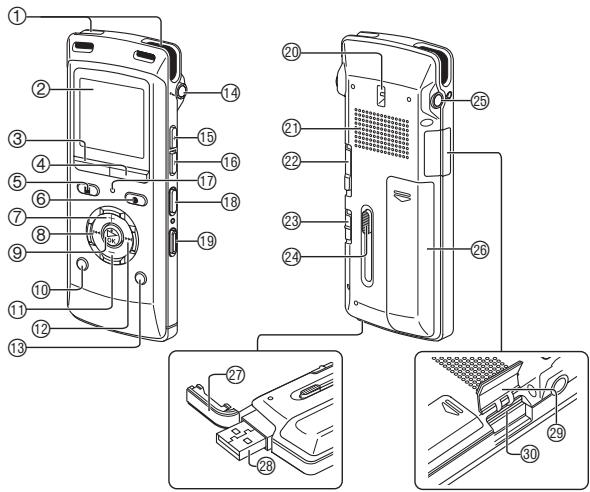
⑫▶▶I (Fast forward) ⑬ MENU ⑭ External microphone/Line-in jack (i) ⑮ FAST (Fast playback) ⑯ SLOW (Slow playback) ⑰ Recording indicator (Status indicator) ⑱ A-B ⑲ERASE ⑳ Strap eyelet ②1 Built-in speaker ②2 OPR/HOLD switch (OPR: Operation) ②3 Line/Mic switch ②4 USB plug lever ⑲ Headphone/earphone jack (Q) ②6 Battery cover ⑳USB plug cover ⑳USB plug ⑲ SD card slot cover ③0 SD card slot
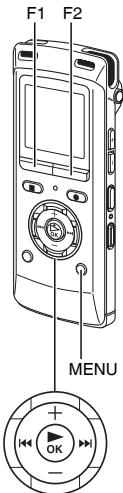
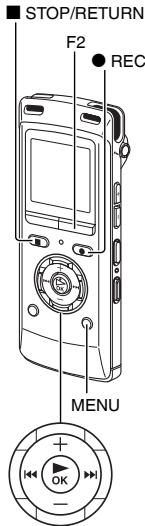
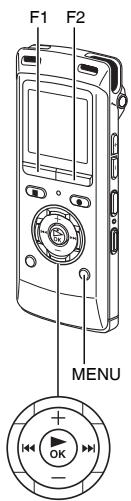
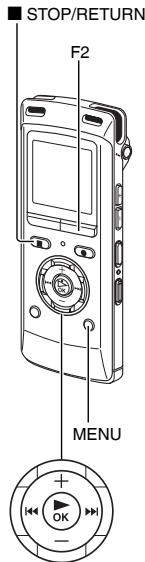
① Built-in microphone ② LCD display ③F1 ④F2 The F1 and F2 buttons operate the function shown in the display. ⑤ ■ STOP/RETURN ⑥ ● REC ⑦ + (Volume up) ⑧◀◀ (Fast backward) ⑨▶ OK ⑩LIST ⑪ – (Volume down)
Screen display
- The following screen examples explain each item. Some items may not be displayed simultaneously.
Screen display during recording: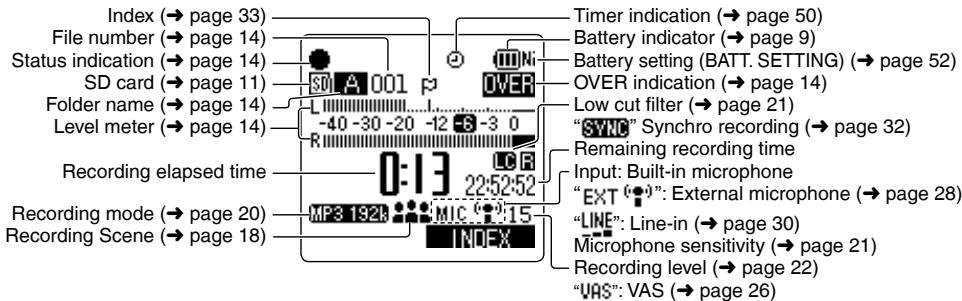
Screen display during playback: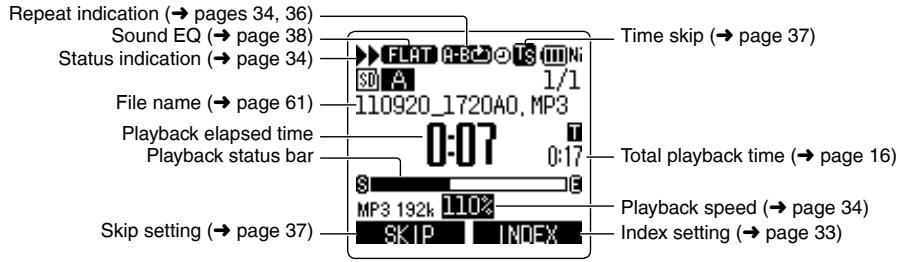
Inserting the battery/Charging
Upon purchasing, charge once before initial use.
Use your computer for charging. If the battery has completely run out, it takes approx. 2 hours for a full recharge.
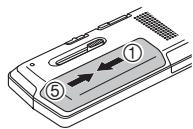
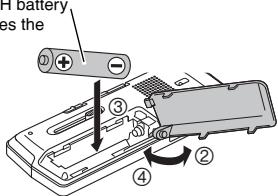
Inserting the rechargeable battery (supplied)
1 AAA rechargeable Ni-MH battery. Make sure the battery faces the right direction.
Charging the battery
- Start the computer beforehand.
- Turn the unit off beforehand. (→ page 9)
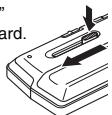
1 Take out the USB plug.
Push and slide until a "click" sound is heard.
Storing the USB plug: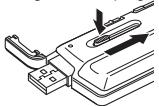
② Insert the unit's USB plug into the computer.
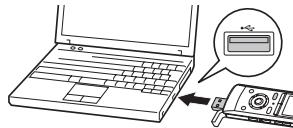
Insert the USB plug straight in the same direction as that of the terminal.
If the unit cannot be connected to the computer directly, use the USB extension cable (supplied).
The first time you connect the unit to your PC
Because multiple “Found New Hardware” messages will appear, do not disconnect the unit from your PC until all messages disappear.
- Never disconnect the unit or remove the SD card while “ACCESS...” is displayed, otherwise this unit may be damaged.
③ Slide the OPR/HOLD switch to the [HOLD] side.
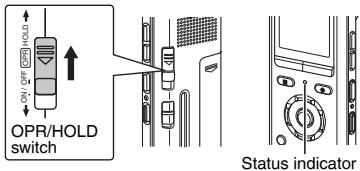
Inserting the battery/Charging
The status indicator lights and recharging starts. Also, “CHARGING” is shown in the unit’s display and the battery indicator changes as shown below.
![graph TD A["CHARGING"] --> B["PC"] B --> C["Data Flow"] C --> D["Water Supply"] D --> E["Water Supply"] E --> F["Water Supply"] F --> G["Water Supply"]](/content/2019/09/52913/images/151c7475389a1cc8b93767ed541af69a7dabd711f8be51e41f281b73093196ec.jpg)
● While charging, sliding the OPR/HOLD switch to the original position can cancel charging halfway. - When the status indicator goes out, charging is complete.
■ Disconnecting the unit
Double-click the icon (Windows XP: [ ] , Windows Vista/ Windows 7: [ ] ) on the task tray at the bottom of the computer screen and follow the on-screen instructions to remove the unit. (The icon may not be displayed depending on the OS settings.)
After the unit is removed, this unit turns off.
- If BATT. SETTING in the common menu is set to "ALKALINE", the battery cannot be charged.
- When using a rechargeable battery, use the supplied rechargeable battery or the optional rechargeable battery ( → page 2). If commercially sold batteries other than the above are used, operation is not guaranteed. Do not charge a dry cell battery.
- If charging does not start, switch Hold off once and switch Hold on again.
- If the temperature of this unit has risen or an undesignated rechargeable battery has been inserted, “☒” is displayed. (→ page 71)
- When the computer is in sleep mode or is restarted, recharging may be impossible. ● Charging is possible even during data transfer.
- The rechargeable battery does not need to be fully depleted before recharging.
- The rechargeable battery or this unit may become hot while charging, but this is not a malfunction.
- If the usage time becomes remarkably short even though the battery is fully recharged, the battery has reached the end of its lifespan. Purchase a new rechargeable battery (→ page 2).
- An AAA, LR03 alkaline battery (not supplied) can also be used.
- If you use an alkaline battery, set the BATT. SETTING in the common menu to "ALKALINE". (→ page 52)
- Remove the battery from the unit if you will not use it for a long period of time.
- Make sure to turn the power off before removing the battery.
- If the battery is removed while the unit is on, data may be lost or this unit may be damaged.
Turning the Power ON/OFF/Hold function
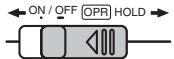
OPR/HOLD switch
Turning the power ON:
Slide the OPR/HOLD switch to the [ON/OFF] side to turn the power on. Then, the display lights up.
Set the current date and time when turning this unit on for the first time. (→ page 10)
Turning the power OFF:
Slide and hold the OPR/HOLD switch to the [ON/OFF] side for 1 second or more.
■ About the battery indicator
The remaining battery level is displayed as below while this unit is operating.
![graph LR A["Battery State"] --> B["State State"] B --> C["State State"] C --> D["Blinking"]](/content/2019/09/52913/images/ac6d740097d0fb583633e34c9ea538bf0bf0efe516d1b35239266e6f943ce18a.jpg)
- If the battery runs out, “☐” blinks. Replace the battery or charge the rechargeable battery as soon as possible.
- Please replace the battery within approx. 1 minute for preservation of the clock data.
- Depending on the battery status or the operation content, even if the power turns off due to battery exhaustion, this unit may be used for a while if turned on again. However, the unit may suddenly turn off during operation due to the low battery level.
Some level of battery is required when recording, or performing deleting files (→ page 17), dividing files (→ page 44), deleting index (→ page 33), or FORMAT (→ page 53). If the battery indicator shows “☐” (blinking) and these operations are performed, the power turns OFF due to battery exhaustion.
■ Auto power off
The power automatically turns off after a preset time (the factory setting is 15 minutes) elapses while recording is paused or stopped. (→ page 52)
■ Using the Hold function
Button operations are ignored when you set Hold on. Slide the OPR/HOLD switch to the [HOLD] side during recording or playback.
- When the Hold function is on, button operation is ignored even if the unit is on ("HOLD ON" is displayed). Accordingly, operation mistakes (i.e. recording or playback stopping midway) can be prevented.
Setting the clock
The clock has not been set at the time of purchase.
The clock is used as a file name (→ page 61) or to preserve recording date and time information. Set the correct date and time.
- Turn the power on. (→ page 9)
① Press [MENU].
② Press +, – to select “COMMON MENU” and press [▶ OK] to enter.
③ Press +, – to select “DATE & TIME” and press [▶ OK] to enter.
④ Press +, – to set the year and press ▶▶.
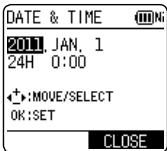
The above illustration is a display example.
⑤ Press +, – to set the month and press ▶▶. ⑥ Press +, – to set the date and press ▶▶.
⑦ Press +, – to set the clock indication method and press ▶▶.
“24H” and “AM/PM” are displayed for the 24-hour display and the 12-hour display respectively.
⑧ Press +, – to set the hour and press ▶▶▶. ⑨ Press +, – to set the minute.
To change the setting, press ◀◀◀, ▶▶▶ to move between the items, and then press +, – again to make the setting.
⑩ Press [▶ OK] to enter.
The date and time are set and the clock starts to operate.
To exit the setting screen, press [F2 (CLOSE)].
File and Folder
File
Recorded audio data from the starting point to the ending point is saved as a file.
The saved data is called a file.
Folder
This is where files are stored. This unit has the following folders.
- “A”, “B”, “C” and “D” folders for microphone recording (→ page 13).
- “L” folder for files recorded from other devices connected to this unit (→ page 30).
- “” folder (Recycle) where deleted files are placed (→ page 47).
- “M” folder for music (→ page 41).
Using each folder according to the purposes of recording enables you to search files easily later. Up to 199 files can be recorded in each folder.
Folders are created in the internal memory. When an SD card* ( → page 39) is inserted, folders are created in the same way on the SD card.
* In this manual, microSD/microSDHC card is written as "SD card".
Selecting the folder
- Press [■ STOP/RETURN] to stop the unit.
1 Press [F2 (FOLDER)]. ② Press +, -, |◀◀, ▶▶| to select the folder and press [▶ OK] to enter.
"P1 to P5" present playlist files (→ page 42).
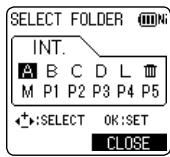
If the SD card is inserted, the items for SD card are displayed on the screen in step ②. Press [F1 (MEMORY)] to select the memory.
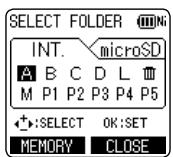
When the internal memory is selected

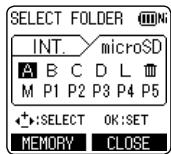
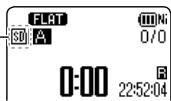
When the SD card is selected
When the SD card is selected, "SD" is displayed on the screen.
Selecting the folder or file in the list screen
You can select recorded files by displaying them on the list.
- Press [■ STOP/RETURN] to stop the unit.
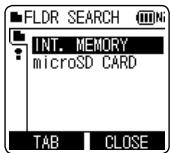
1 Press [LIST ♂]. ② Press +, – to select “FLDR SEARCH” and press [▶ OK] to enter. ③ Press +, – to select “INT. MEMORY” (internal memory) and press [▶ OK] to enter.
When the SD card is inserted, "microSD CARD" is displayed. Either one can be selected.
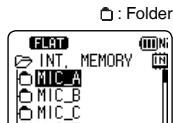
4 Press +, - to select the folder and press [▶ OK] to enter.
If folders have been created in the MUSIC folder, repeat step 4 to select the target folder.
⑤ Press +, – to select the file and press [▶ OK] to enter.
File playback starts.

12
When “MUSIC” is selected in step 4, folders or files transferred from the PLAYLIST folder or computer are displayed (For details of PLAYLIST, see page 42.) If a folder exists (on the second hierarchy) under the folder
(e.g. Artist A), select “Artist A” and press [▶ OK]. Then, the folder under “Artist A” is displayed. (For details of folder hierarchy, see page 63.)
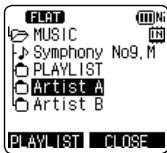
Pressing ◀◀ several times on the screen in step ⑤ will switch the screen to screens in steps ③ or ④. Also, it is possible to move among folder hierarchies to select folders and files.
- When there is no file in the selected folder, "No File" is displayed. The “A”, “B”, “C”, “D”, “L”, “M”, and “(recycle bin)” folders are displayed as “MIC_A (MIC_A_SD), MIC_B (MIC_B_SD), MIC_C (MIC_C_SD), MIC_D (MIC_D_SD), LINE (LINE_SD), MUSIC and RECYCLE” respectively on the list screen. (The indications in the brackets are displayed when using the SD card.)
- Press [F1 (TAB)] on the screen in step ③ to switch between “FLDR SEARCH” and “R. FILE SRCH”. (→ page 40)
- Pressing [LIST ♂] for approx. 1 second or more while the unit is stopped or during playback will directly display the screen shown in step ⑤ at left.
Recording
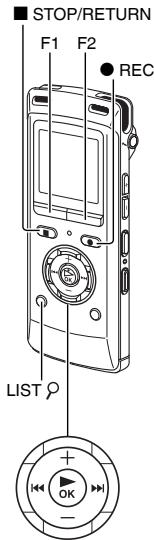
- Turn the power on. (→ page 9)
- Press [■ STOP/RETURN] to stop the unit.
① Press [F2 (FOLDER)].
② Press |◀◀, ▶▶▶ to select the recording destination folder and press [▶ OK] to enter.
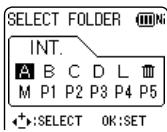
For microphone recording, select a folder among folders "A", "B", "C" and "D". (The factory setting is "A")
When you select a folder other than “A”, “B”, “C”, or “D”, the recording is automatically saved in “A”.
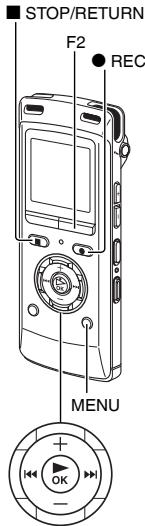
![3 Press [● REC] (Recording starts). STOP RETURN REC The recording indicator lights on.](/content/2019/09/52913/images/ff9985cbc650e3556e2bc77f7e93d88e8230e572148b7495cda4f26fda0631b5.jpg)
4 Press [■ STOP/RETURN] to stop recording.
To pause recording:
① Press [● REC] during recording. The recording indicator blinks. ② Press [● REC] again to resume recording.
- You can select preset recording settings registered in advance according to the recording target. (→ page 18) Change the recording mode or microphone sensitivity as necessary. (→ pages 20, 21)
- If the file size exceeds 2 GB during recording, the recording stops tentatively at the point when the data reaches 2 GB. Then, the recording resumes with a new file. Recording is not available during the interval (approx. 2 seconds) from when the recording stops to when the recording resumes. Note that if your finger or an object touches this unit during recording, the noise will be recorded through the microphone.
Recording
Screen display during recording:
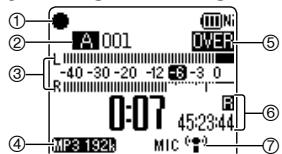
① Status indication
● : During recording
■: During recording pause, recording standby, past recording standby
② Folder name (→ page 11), File number ③ Level meter
Displays the volume input into this unit. (Stereo (L/R))
L and R volumes are displayed respectively during monaural recording (→ page 20) as well. Note that the monaural recording data are synthesized from L and R.
④ Recording mode (→ page 20) ⑤ OVER indication
If the input volume is excessive and the level meter swings, "OVER" is displayed.
⑥ Possible remaining recording time
Displays the remaining recording time (possible recording time) in the selected recording mode.
⑦ Microphone sensitivity (→ page 21)
See page 6 for other screen displays.
Note when recording
This unit is equipped with a high-sensitivity microphone. Accordingly, if a breath or wind directly hits the microphone during recording, the wind-cutting sound may be recorded or voice may be difficult to hear.
- This can be prevented by blocking the wind with your body so that the wind does not directly hit the unit.
- During dictation recording, slightly move this unit from front of your mouth or keep distance.
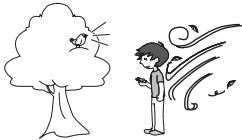
Keep distance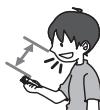
* Turning the "LOW CUT FILTER" (→ page 21) to "ON" reduces the sound of low frequency range. This may help the reduction of the wind-cutting sound.
Playing
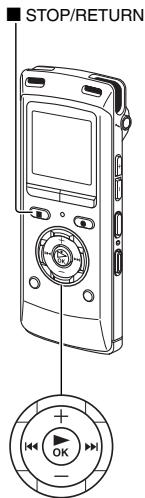
- Press [■ STOP/RETURN] to stop the unit.
- Select a folder. (→ page 11)
- Select a file. (→ right)
1 Press [▶ OK] (Playback starts).
Adjusting the volume
Turn up the volume: Press +.
Turn down the volume: Press –.
Volume range is 0 to 20.
(The factory setting is "10".)
If you turn the unit off with the volume set to 17 or more, the volume will be set to 16 next time the unit is turned on.
Operations during playback
Jump (Skip): Press |◀◀, ▶▶.
Press ◀◀◀ midway while playing a file and the playback jumps to the beginning of the file. To return to the previous file, press ◀◀◀ within approx. 1 second from the beginning of the file.
Fast backward/Fast forward (Search):
Press and hold ◀◀, ▶▶.
To stop: Press [■ STOP/RETURN].
Select a file
Press |◀◀, ▶▶| to select.
Each time you press, the file number changes.
File number/Total number of files in the folder
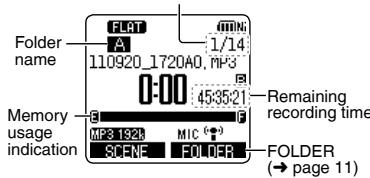
Screen display example while stopped
You can also select the file on the list screen (→ page 12)
Playing
Checking information.
You can check the file information or current time.
- Press [■ STOP/RETURN] to stop the unit.
1 Press [■ STOP/RETURN]. The information screen appears
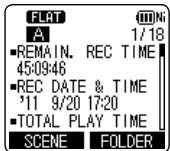
② Move the information screen up or down using + or −.
The following contents can be confirmed on the information screen.
Remaining recording time: Possible remaining (Possible recording time) recording time in the recording mode currently being set
Recording date and time*: Date and time when the selected file was recorded
Total playback time: Length of the selected file
File format: Format of the selected file
Current time: Current time
* This is not displayed for the M (MUSIC) folder.
To exit the information screen:
Press [■ STOP/RETURN].
Listening to the audio using earphones
Connect stereo earphones (not supplied).
Recommended additional earphones:
Panasonic RP-HV154, RP-HJE120
(The product number is correct as of June 2011.)
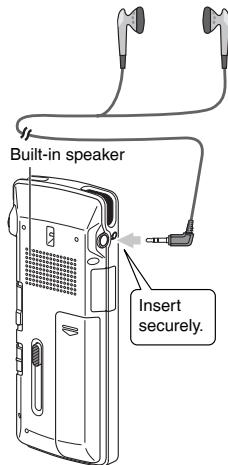
Monitoring the recording in progress
Adjusting the volume:
You can adjust the volume by pressing +, -, but the recording level (→ page 22) is not affected.
Listening to the audio during playback
The audio during playback comes from the speaker.
Listening may be difficult in noisy places due to the speaker output. In that case, connect stereo earphones (not supplied).
● The built-in speaker is turned off when earphones are connected.
Deleting files
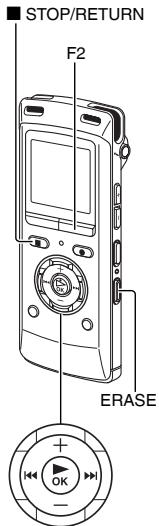
- Select a file to delete beforehand. (→ page 15)
- Press [■ STOP/RETURN] to stop the unit.
① Press [ERASE].
② Press +, – to select "FILE" and press [▶ OK] to enter.
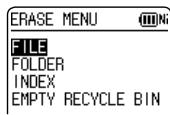
③ Press +, – to select “YES” and press [▶ OK] to enter.
While deleting, the status indicator blinks and "ERASING" is displayed. It may take several minutes until the deletion is complete.
When "FILE WAS MOVED TO RECYCLE BIN [▶ OK].
Selecting "FOLDER" in step 2 will move to the screen to delete all files in the selected folder.
To exit the deletion screen, press [F2 (CLOSE)].
Deleting files from the list screen.
Select files on the list screen (→ page 12) and press [ERASE]. Then, the screen to delete the file appears. Select the folder and press [ERASE]. Then, the screen to delete all files in the folder appears.
- When the recycle bin function is ON, files are moved to the recycle bin (☐) folder. When the recycle bin function is OFF, files are deleted immediately without being moved to the recycle bin (☐) folder. (→ page 47)
- Files in the MUSIC (M) folder are deleted immediately irrespective of the recycle bin settings. The file numbers displayed on this unit are moved forward after deleting files. (→ page 61)
- Read-only MP3 music files transferred from the computer or subfolders (→ pages 63, 65) in the MUSIC folder created on the computer cannot be deleted using this unit. Delete them on the computer. (→ page 60)
Selecting the recording scene
This unit offers recommended recording settings for each recording scene. Selecting the recording scene enables easy recording with the most appropriate settings.
- Press [■ STOP/RETURN] to stop the unit.
1 Press [F1 (SCENE)]. ② Press |◀◀, ▶▶▶| to select the scene and press [▶ OK] to enter.
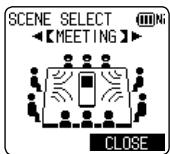
③ Press +, – to select “LOAD” and press [▶ OK] to enter.
The selected recording scene is displayed.
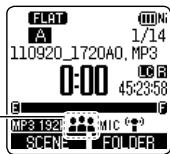
When [● REC] is pressed, recording is performed with the selected recording scene setting
■ The factory setting of recording scenes
| Setting Item (page) \Recording Scene Application | LANG. STUDY | KARAOKE | MUSIC PERF. | CONVERSATION | MEETING | LECTURE | FAVORITE |
| Recording your own voice for pronunciation practice etc. | Loud volume recording such as karaoke | High quality recording such as musical performances | Recording other people's voices for interviews or meetings etc. | Records a broad sound band. For recording meetings etc. | Records sounds from a specific direction, such as in classroom lectures etc. | You can register your own settings | |
| Recording mode (20) | MP3: 192 kbps | MP3: 320 kbps | PCM: 48 kHz | MP3: 64 kbps | MP3: 192 kbps | MP3: 192 kbps | MP3: 192 kbps |
| Microphone sensitivity (21) | HIGH | HIGH | HIGH | HIGH | HIGH | HIGH | HIGH |
| Recording level (22) | AUTO | MANUAL | MANUAL | AUTO | AUTO | AUTO | AUTO |
| Low cut filter (21) | ON | OFF | OFF | ON | ON | ON | OFF |
| Recording peak limiter (23) | OFF | ON | OFF | OFF | OFF | OFF | OFF |
| Self timer recording (25) | OFF | OFF | OFF | OFF | OFF | OFF | OFF |
| VAS setting (26) | OFF | OFF | OFF | OFF | OFF | OFF | OFF |
| Past Recording Settings (27) | OFF | OFF | OFF | OFF | OFF | OFF | OFF |
Changing recording scene settings
The setting details of each recording scene can be changed according to preference.
- Press [■ STOP/RETURN] to stop the unit.
1 Press [F1 (SCENE)].
② Press |◀◀, ▶▶| to select the recording scene and press [▶ OK] to enter.
③ Press +, – to select "CHANGE SETTING" and press [▶ OK] to enter.
④ Press +, – to select the item you want to change and press [▶ OK] to enter.
⑤ Press +, – to select the setting and press [▶ OK] to enter.
Repeat steps ④ and ⑤ to change other items.
⑥ When you have completed the settings, press +, – to select "OK" and press [▶ OK] to enter.
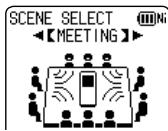
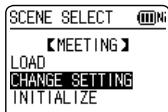
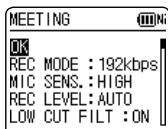
To select the changed recording scene, select "LOAD" (→ page 18).
To exit the setting screen, press [F2 (CLOSE)]. Initializing recording scene settings
Returns individual recording scenes whose settings have been changed to the factory settings.
Press [■ STOP/RETURN] to stop the unit.
① Press [F1 (SCENE)]. ② Press ◀◀, ▶▶ to select the recording scene you want to initialize and press [▶ OK] to enter. ③ Press +, – to select "INITIALIZE" and press [▶ OK] to enter. ④ Press +, – to select "YES" and press [▶ OK] to enter.
The selected recording scene setting is returned to the factory setting.
To select the initialized recording scene, select "LOAD" (→ page 18).
To exit the setting screen, press [F2 (CLOSE)].
Selecting recording mode
You can change the sound quality. This allows you to provide the best sound quality for the particular purpose.
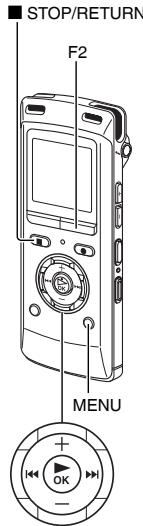
- Press [■ STOP/RETURN] to stop the unit.
① Press [MENU]. ② Press +, – to select "MIC REC MENU" and press [▶ OK] to enter.
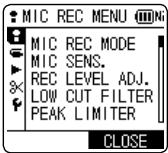
③ Press +, - to select "MIC REC MODE" and press [▶ OK] to enter.
④ Press +, – to select the setting (PCM sampling frequency/MP3 bitrate) and press [▶ OK] to enter.
(The factory setting is "MP3 192kbps".)
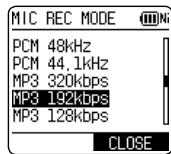
To exit the setting screen, press [F2 (CLOSE)].
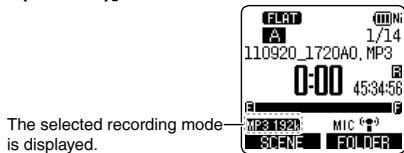
- Depending on the recording mode setting, the sound quality and remaining recording time (→ page 79) will differ.

- When the recording mode is set to "MP3 32kbps", the recording becomes monaural.
Switching microphone sensitivity
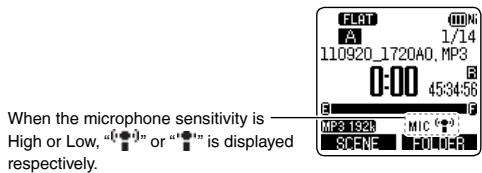
Switch the microphone sensitivity according to the volume of the sound source. When the sound source volume is loud, set the sensitivity to "LOW". When it is low, set the sensitivity to "HIGH".
- Press [■ STOP/RETURN] to stop the unit.
① Press [MENU]. ② Press +, – to select "MIC REC MENU" and press [▶ OK] to enter. ③ Press +, – to select "MIC SENS." and press [▶ OK] to enter. ④ Press +, - to select "HIGH" or "LOW" and press [▶ OK] to enter.
(The factory setting is "HIGH".)
To exit the setting screen, press [F2 (CLOSE)].
Reducing noise (LOW CUT FILTER)
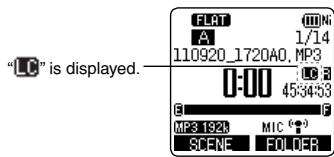
Sound of low frequency range is reduced during microphone recording. This is effective when reducing noise of air conditioning equipment, etc. while recording at a meeting, etc.
- Press [■ STOP/RETURN] to stop the unit.
1 Press [MENU]. ② Press +, - to select "MIC REC MENU" and press [▶ OK] to enter. ③ Press +, - to select "LOW CUT FILTER" and press [▶ OK] to enter. 4 Press +, - to select "ON" and press [▶ OK] to enter.
(The factory setting is "OFF".)
To exit the setting screen, press [F2 (CLOSE)].
Setting the recording level manually
The recording level can be adjusted automatically or manually on this unit. When the recording level adjustment is AUTO, the sound distortion is reduced by adjusting the recording level automatically. To record the original sound volume level faithfully such as an instrument playing and nature sound, set the recording level adjustment to MANUAL. (The factory setting is “AUTO”.)
Setting the recording level adjustment to MANUAL
- Press [■ STOP/RETURN] to stop the unit.
1 Press [MENU]. ② Press +, - to select "MIC REC MENU" and press [▶ OK] to enter. ③ Press +, – to select “REC LEVEL ADJ.” and press [▶ OK] to enter. 4 Press +, - to select "MANUAL" and press [▶ OK] to enter.
To exit the setting screen, press [F2 (CLOSE)].
The recording level is displayed.
Adjusting the recording level manually
- Set the recording level adjustment to MANUAL beforehand. (When the recording level adjustment is AUTO, the unit does not enter the recording standby.)
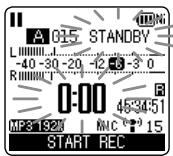
① Press and hold [● REC] for 1 second or more.
The unit enters the recording standby.
② Aim the microphone at the sound source to record. ③ Press ◀◀, ▶▶ to adjust the recording level (→ page 23).
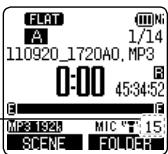
Adjustment range is 0 to 30. (The factory setting is "15".)
Pressing [● REC] starts recording.
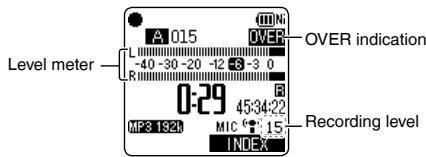
- If the level meter swings and “LVER” is displayed, this means the recording level is too high. Adjust the level within the “-6” range even if the recording sound reaches the highest level. - The input level (volume input to this unit) for recording is combination of the recording level and microphone sensitivity.
The input level image is as below.
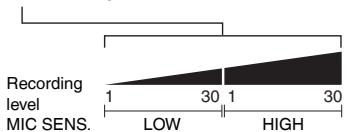
- No sound is recorded at the recording level 0.
- The recording level can also be adjusted during recording or while recording is paused.
- When [MENU] is pressed during recording standby, the microphone sensitivity (→ page 21), “LOW CUT FILTER” (→ page 21) and recording EQ (→ page 24) can be set.
Setting the recording peak limiter to ON
Even if the recording level adjustment is MANUAL, when the excessive volume is input, the recording level is automatically adjusted and the sound distortion is reduced.
- Press [■ STOP/RETURN] to stop the unit.
1 Press [MENU]. ② Press +, – to select “MIC REC MENU” and press [▶ OK] to enter. ③ Press +, - to select "PEAK LIMITER" and press [▶ OK] to enter. 4 Press +, - to select "ON" and press [▶ OK] to enter. (The factory setting is "OFF".)
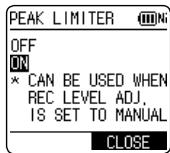
To exit the setting screen, press [F2 (CLOSE)].
- When the recording level adjustment is set to AUTO, the recording peak limiter function will be activated regardless of the above setting.
- If the level meter swings, "OVER" is displayed regardless of the recording peak limiter setting.
Setting the recording EQ
Using the recording EQ enables you to set the bass, middle, and treble ranges of the recording level according to your preferred settings for recording.
The recording EQ includes 7 types of fixed modes and the "USER" mode, with which you can set the recording level according to each frequency band.
- Set the recording level adjustment to MANUAL beforehand. (→ page 22) (When the recording level adjustment is AUTO, the unit does not enter the recording standby.)
1 Press and hold [● REC] for 1 second or more. The unit enters the recording standby.
② Press [MENU].
③ Press +, – to select "REC EQ" and press [▶ OK] to enter.
4 Press +, - to select the recording EQ mode. Press [F1 (CONFIRM)] to confirm the details. Press [F1] again to return to the previous screen.
When you select modes other than "USER", go to step 5.
Setting when selecting "USER":
① After step 4, press [F1 (EDIT)]
150 Hz band is selected.
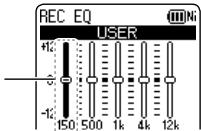
② Press ◀◀, ▶▶▶ to select the frequency band to change, and press +, − to adjust the recording level (±12 dB).
③ When the settings for the frequency band to change are all complete, go to step 5.
⑤ Press [▶ OK] to enter.
To exit the setting screen, press [F2 (CLOSE)].
The EQ mode name is not displayed after exiting the setting screen.
Pressing [● REC] starts recording.
| EQ mode | Effect and application |
| FLAT | This (basic) mode does not emphasise a specific sound range. |
| EXTRA BASS | Emphasise the bass range strongly. |
| BASS | Emphasise the bass range slightly. |
| MIDDLE | Emphasise the middle range. |
| BASS&TREBLE | Emphasise the bass and treble ranges slightly. |
| TREBLE | Emphasise the treble range slightly. |
| EXTRA TREBLE | Emphasise the treble range strongly. |
| USER | This mode enables adjustment of frequency bands of 150 Hz, 500 Hz, 1 kHz, 4 kHz and 12 kHz. |
(The factory setting is "FLAT".)
- When the recording level adjustment is AUTO, the recording EQ does not function.
Self timer
You can select your preferred time period from when [● REC] is pressed until when the recording starts. This function is very useful where you need time for preparation before recording should start – for example in musical instrument practice.
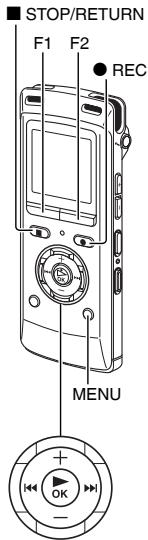
- Press [■ STOP/RETURN] to stop the unit.
① Press [MENU]. ② Press +, - to select "MIC REC MENU" and press [▶ OK] to enter. ③ Press +, - to select "SELF TIMER" and press [▶ OK] to enter. ④ Press +, - to select the time and press [▶ OK] to enter.
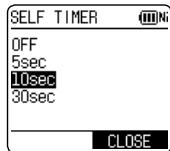
(The factory setting is "OFF".)
To exit the setting screen, press [F2 (CLOSE)].
- When [● REC] is pressed, countdown starts. Then, recording starts after the set time. The recording indicator blinks during countdown. Once the self timer is set, the setting is preserved until the self timer setting is set to OFF or the settings of this unit are initialized. (→ page 54)
- Pressing [● REC] during countdown starts recording immediately.
- If you press [■ STOP/RETURN] during countdown, the self-timer recording can be stopped.
Preventing unnecessary recording (VAS)
When VAS (Voice Activated System) is set, if silence continues for approximately 2 seconds during microphone recording, the recording is paused automatically. If the unit detects sound, the recording resumes.
- Set the recording level adjustment to AUTO beforehand. (→ page 22)
- Press [■ STOP/RETURN] to stop the unit.
① Press [MENU]. ② Press +, – to select “MIC REC MENU” and press [▶ OK] to enter. ③ Press +, - to select "VAS" and press [▶ OK] to enter. ④ Press +, - to select "ON" and press [▶ OK] to enter. (The factory setting is "OFF".)
To exit the setting screen, press [F2 (CLOSE)].
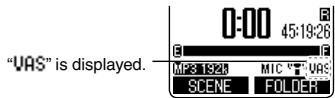
To start VAS recording, press [● REC]. Adjusting the VAS operation level:
Press ◀◀, ▶▶ during VAS recording.
(The factory setting is "3".)
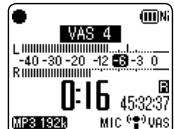
- You can adjust the sound detection level from 1 to 5.
- If the audio to record is low, increase the VAS value (sensitivity level). If the sound is loud, decrease the VAS value.
- When the recording level adjustment is MANUAL (→ page 22), even if the VAS setting is set to ON, the setting does not change to the VAS recording. For important recording, set the VAS setting to OFF.
- If the “LOW CUT FILTER” setting is “ON”, low frequency sound may be cut out and VAS recording may not activate. In this case, change the “LOW CUT FILTER” setting to “OFF”. (→ page 21)
- If the recording is paused with no sound state, “VAS” blinks. When [● REC] is pressed from this recording pause state, the status is changed to normal recording pause state and “VAS” lights up. While “VAS” is blinking, the “AUTO POWER OFF” (→ page 52) function does not operate.
Past recording function (PRE-RECORD)
If you start recording from the standby state of the past recording function, recording can be started with the audio approx. 5 seconds before the recording operation.
To set the past recording to ON:
- Press [■ STOP/RETURN] to stop the unit.
① Press [MENU]. ② Press +, - to select "MIC REC MENU" and press [▶ OK] to enter.
③ Press +, – to select "PRE-RECORD" and press [▶ OK] to enter.
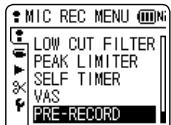
④ Press +, – to select "ON" and press [▶ OK] to enter. (The factory setting is "OFF".)
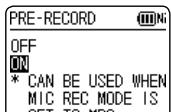
To exit the setting screen, press [F2 (CLOSE)].
To record using the past recording function: When recording mode is PCM, the past recording function does not operate.
- Set the recording mode to MP3. (→ page 20)
- Press [■ STOP/RETURN] to stop the unit.
① Press and hold [● REC] for 1 second or more.
The unit enters the past recording standby mode. Changes to 1 sec, 2 sec, 3 sec, 4 sec, 5 sec and stops at 5 sec. The microphone audio data approx. 5 seconds before recording are always updated and the unit is on standby.
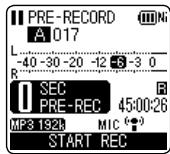
② Press [● REC].
The recording indicator lights, and recording is started continuing directly after the preserved audio data.
To stop: Press [■ STOP/RETURN]
- The sound that occurs when the recording button is pressed is also recorded. (When the built-in microphone is used, etc.)
- When the recording level adjustment (→ page 22) is set to MANUAL, the unit enters the past recording standby and recording standby at the same time.
- When the unit enters the standby state again after the past recording standby screen is cancelled on the menu or by stop operation, audio data is freshly-stored from that point.
- When recording is paused, the past recording function does not operate.
- If the recording remaining time is less than 10 seconds, the past recording function does not operate.
Recording by connecting an external microphone
Use this setting when recording by connecting an external microphone to the external microphone/Line-in jack of this unit.
- Press [■ STOP/RETURN] to stop the unit.
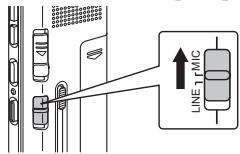
① Slide the Line/Mic switch to [MIC].
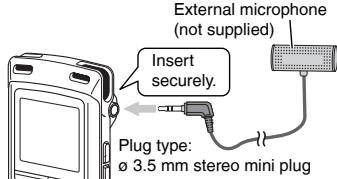
② Connect the external microphone.
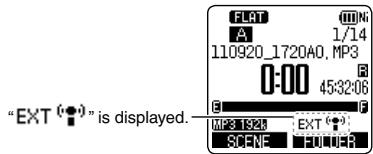
③ Press [● REC] to start recording.
See page 13 for recording operations.
- Read the operating instructions for the connected device.
- If the recording level is too low or high, adjust the microphone sensitivity. (→ page 21)
- The built-in microphone of this unit does not work if another device is connected to the external microphone/Line-in jack.
- If the connected external microphone is monaural, the sound for one channel may only be recorded.
Copying to other devices
1. Connect the headphone/earphone jack (Ω) of this unit with the audio input (mic) terminal of the external device using an audio cable.
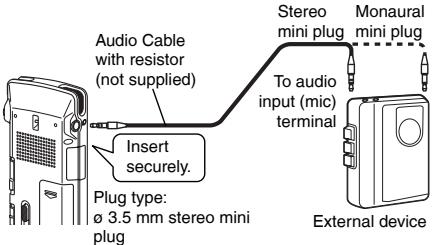
2. Start recording on the external device. 3. Play the file that you want to copy on this unit.
- Read the operating instructions for the connected device.
- Use the connection cable that matches the monaural/stereo of the connected device. Wrong connection may cause recording trouble (i.e., only 1 channel is copied). ● The copied sound quality may differ from the sound quality of this unit.
- Adjust the volume on this unit to copy with a proper volume.
Recording from other devices
This is the method to record to the “L” folder by connecting an external device to the external microphone/Line-in jack of this unit.
- Press [■ STOP/RETURN] to stop the unit.
1. Slide the Line/Mic switch to [LINE].
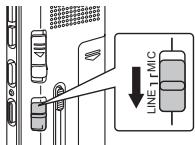
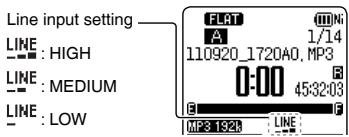
2. Press [MENU]. 3. Press +, - to select "LINE REC" and press [▶ OK] to enter. 4. Press +, - to select "LINE INPUT" and press [▶ OK] to enter. 5. Press +, - to select the setting and press [▶ OK] to enter.
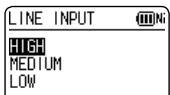
When connecting to the headphone terminal of an external device, the line output terminal of a portable device, or the line output terminal of a component stereo, select "HIGH", "MEDIUM", or "LOW" respectively. (The factory setting is "HIGH".)
6. Press [F2 (CLOSE)].
7 Connect the external device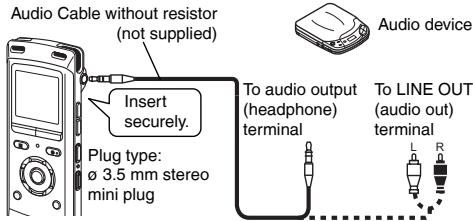
Connect the external device and slide the Line/Mic switch to "LINE". Then, the selected line input setting and the line recording mode will appear.
(→ page 32)
⑧ Press and hold [● REC] for 1 second or more.
The unit enters the recording standby.
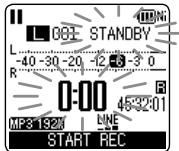
9 Play back the external device and adjust the input/output level.
① To reconfigure the line input settings, press [MENU] and follow steps 4 to 6. ② If the level meter swings and “OVER” is displayed, the volume of the external device is too high. Adjust the volume of the external device to the “-6” range, even if the volume is turned to the maximum. ③ Stop the external device by cue operation for the sound source.
10 Press [● REC] to start recording.
11 Play the external device.
- Read the operating instructions for the connected device.
- Disconnecting the audio cord during recording will stop recording.
- Change the line recording mode as necessary. (→ page 32)
- Recorded files by the line input are saved to the L folder.
This unit has the following synchro recording function.
This function detects the silence between tracks, etc. and then records each track into different files, such as a first track, second track, etc. If detecting sound from the external device, recording starts automatically. If detecting silence for approx. 2 seconds or more, recording is paused. Detecting sound again will resume recording.
Synchro recording setting
- Press [■ STOP/RETURN] to stop the unit.
① Press [MENU]. ② Press +, – to select “LINE REC” and press [▶ OK] to enter. ③ Press +, – to select “SYNCHRO REC” and press [▶ OK] to enter.
④ Press +, – to select “ON (Auto Stop)” or “ON (Manual Stop)” and press [▶ OK] to enter.
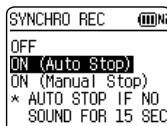
Auto: If silence continues for approx. 15 seconds, the recording stops.
Manual: Even if silence continues, the recording continues to be paused (standby) until [■ STOP/RETURN] is pressed.
Recording from other devices
To exit the setting screen, press [F2 (CLOSE)].
Connect the device, slide the Line/Mic switch to [LINE] and "SYNC" is shown on the display.
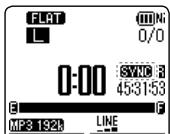
● Automatic stop is useful when recording CDs etc. that have more than approx. 2 seconds of silence between tracks using line recording. - Manual stop is useful when recording onto cassette tapes etc. that need switching from side A to side B causing silence of more than 15 seconds. - When [MENU] is pressed during recording standby in step ⑧ on page 31, the synchro recording setting can be made. - If the start of a track is cut from the recording, turn synchro recording "OFF". - Synchro recording cannot be used when using timer recording for line recording.
Synchro recording:
- Make the synchro recording setting beforehand. 1 Perform steps 1 to 11 on pages 30 and 31.
- When connecting to the headphone output terminal of the external device, the synchro recording may not function properly.
- When approx. two seconds or more of silence cannot be detected, or depending on the combination of external devices, the synchro recording may not function.
Selecting line recording mode
The sound quality can be changed when recording with line recording. See page 20 for information about recording modes.
- Press [■ STOP/RETURN] to stop the unit.
① Press [MENU]. ② Press +, - to select "LINE REC" and press [▶ OK] to enter. ③ Press +, – to select "LINE REC MODE" and press [▶ OK] to enter. ④ Press +, – to select the setting (PCM sampling frequency/MP3 bitrate) and press [▶ OK] to enter.
(The factory setting is "MP3 192kbps".)
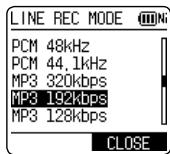
To exit the setting screen, press [F2 (CLOSE)].
Index function
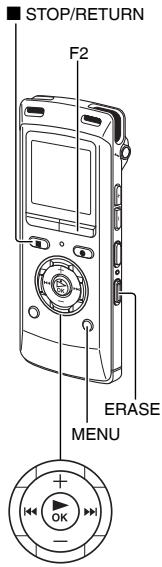
By adding Index (position information on the file) to the file, playback position jumps to the specified position by skip operation (→ page 15) during playback.
Files within the MUSIC (M) folder and recycle bin (☐) folder cannot be indexed. Also, indexes cannot be added during timer recording or playback.
Adding index
1 During recording or playback or while recording is paused, press [F2 (INDEX)] at the position where you want to add an index.
"F" (blinking) and "ADDING INDEX" are displayed.
"F" (lighting) is displayed for the file to which indexes are added.
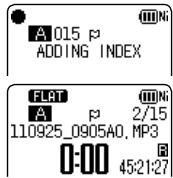
- Up to 36 indexes per 1 file can be added.
- Indexes are deleted when the file is deleted or divided.
- When the battery indicator shows “☐” (blinking), indexes cannot be added. Also, adding the index may be impossible on the border of “☐” and “☐” (blinking). During playback, even if you press ◀◀ at the position within approx. 2 seconds after the index point, playback does not stop at the point.
Deleting index
- Select a file which has Index to be deleted. (→ page 15)
- Press [■ STOP/RETURN] to stop the unit.
① Press [ERASE]. ② Press +, – to select “INDEX” and press [▶ OK] to enter. ③ Press +, – to select "YES" and press [▶ OK] to enter.
Indexes are deleted.
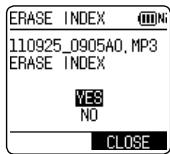
- Deleting index marks from a file does not delete the audio part of the file.
- When more than 1 index are added in 1 file, they cannot be deleted one by one.
Changing the playback speed
The playback speed of MP3 files can be adjusted with 21 stages between slow playback (50%) and fast playback (200%). (For WMA files: 13 stages between 50% and 120%)
The speed cannot be adjusted when PCM files are being played back. Playback is at 1x speed (100%).
1 Press [FAST] or [SLOW] during playback or while the unit is stopped.
Each time you press the button, the playback speed becomes faster (FAST) or slower (SLOW).
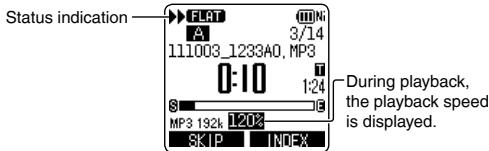
Playback speed:
Playback speed can be adjusted by 10%-step for speed faster than 100% and by 5%-step for speed slower than 100%.
Status indication during playback:
100% playback, playback faster than 100%, and playback slower than 100% are displayed as “▶”, “▶”, and “|▶” respectively.
The speed cannot be adjusted for playback using folder cue (→ page 42) or timer playback (→ page 48).
A-B Repeat play
Playback repeats between the start point (A) and finish point (B) if those points are set.
1 Press [A-B] while playing. The start point (A) is set and “☐” (blinking) and “☐” are displayed.
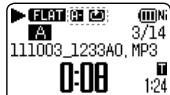
2 Press [A-B] at the finish point (B). The display changes to “A-B” (lighting) and repeat play starts.
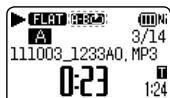
Cancelling A-B Repeat:
Press [A-B], |◀◀, ▶▶| or [■ STOP/RETURN].
- You cannot set A-B Repeat when the time between the start point (A) and finish point (B) is approx. 2 seconds or less.
- When only the start point (A) is set and playback continues until the end of the file, the end becomes the finish point (B) and A-B Repeat begins. ● A-B Repeat by setting the range using 2 files is not possible.
Playback from a specified position (TIME SEARCH)
Playback is possible from the time-specified position.
- Put the unit into the stopped state or playback state.
1 Press [MENU].
(When playback is in progress, go to step 3.)
② Press +, – to select “PLAY MENU” and press
[▶ OK] to enter.
③ Press +, – to select “TIME SEARCH” and
press [▶ OK] to enter.
4 Set the playback start position.
(Change the value for "TIME" to set the start position.)
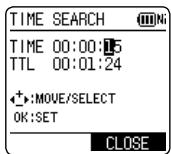
Press ◀◀, ▶▶ to select "00:00:00" (hour:minute:second) and press +, - to change the values.
5 Press [▶ OK].
Playback starts from the specified position.
Press [F2 (CLOSE)] to stop the setting process midway.
- Time search playback applies only to the currently selected file.
Slight return playback
This function returns a short amount of time during playback to enable you to listen again. It is a useful function for language learning, or if you miss hearing something.
① Press [▶ OK] during playback.
Each time the button is pressed, playback rewinds by approx. 3 seconds (factory setting).
Setting the return time:
- Put the unit into the stopped state or playback state.
1 Press [MENU].
(When playback is in progress, go to step 3.)
② Press +, - to select "PLAY MENU" and press [▶ OK] to enter.
③ Press +, - to select "SLIGHT RETURN" and press [▶ OK] to enter.
4 Press +, – to select the number of seconds (1 to 5) and press [▶ OK] to enter.
(The factory setting is "3".)
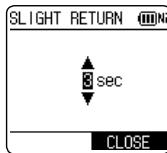
To exit the setting screen, press [F2 (CLOSE)].
Repeat play (REPEAT)
- Put the unit into the stopped state or playback state.
① Press [MENU].
(When playback is in progress, go to step 3.)
② Press +, – to select "PLAY MENU" and press
[▶ OK] to enter.
③ Press +, – to select “REPEAT” and press
[▶ OK] to enter.
4 Press +, – to select type of Repeat play and press
[▶ OK] to enter.
(The factory setting is "OFF".)
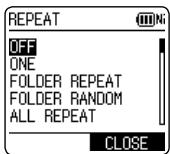
To exit the setting screen, press [F2 (CLOSE)].
“1”: “ONE”
“FOLDER REPEAT”
“☐”: “FOLDER RANDOM”
"ALL REPEAT": "ALL REPEAT"
"ALL": "ALL RANDOM"
Nothing is displayed for "OFF".
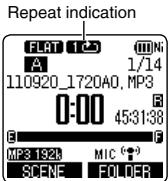
OFF: Playback is performed in succession from the selected file to the last file in one folder. The unit is stopped when the playback finishes.
ONE: Plays one file repeatedly.
FOLDER REPEAT: Plays all files in the folder repeatedly.
FOLDER RANDOM: Plays all files within the folder repeatedly, in random order.
ALL REPEAT: For the MUSIC (M) folder, all files* within the folder are played repeatedly. For other folders, the operation is the same as that for "FOLDER".
ALL RANDOM: For the MUSIC (M) folder, all files* within the folder are played repeatedly, in random order. For other folders, the operation is the same as that for "FOLDER RANDOM".
* The maximum number of recognised files is 3,000.
Skip at regular intervals (TIME SKIP)
This function skips the set time using skip operation (→ page 15) during playback. This allows you to quickly move to a position for playback, or repeat playback of the same portion in a file.
Skip at regular intervals
1 Press [F1 (SKIP)] during playback.
The mode switches to time skip mode and "TS" is displayed.
The skip mode switches each time the button is pressed.
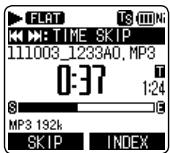
② Press ◀◀, ▶▶.
Each time the button is pressed, 5 seconds are skipped (factory setting).
When playback is stopped, the mode returns to the file skip mode.
To change the skip interval
- Put the unit into the stopped state or playback state.
1 Press [MENU].
(When playback is in progress, go to step 3.)
2 Press +, – to select “PLAY MENU” and press [▶ OK] to enter.
3 Press +, - to select "TIME SKIP" and press [▶ OK] to enter.
4 Press +, - to select the time and press [▶ OK] to enter.
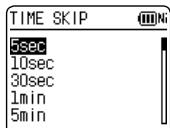
You can set the skip interval to 5 sec, 10 sec, 30 sec, 1 min, 5 min, 10 min, or 15 min.
(The factory setting is "5 sec".)
To exit the setting screen, press [F2 (CLOSE)].
- If the beginning of a file or the index point is present at the position closer than the set skip interval, the playback skips to such a position.
- Press ◀◀◀, ▶▶▶ at the start or end of a file to skip the file.
Setting the playback EQ (SOUND EQ)
Using the sound EQ enables you to set bass, middle and treble range of volume level according to your preferred settings for playback.
The sound EQ includes 6 types of fixed mode and the “USER” mode with which you can set the volume level according to each frequency band.
The sound EQ is effective only when listening with the earphones.
- Put the unit into the stopped state or playback state.
1 Press [MENU]. (When playback is in progress, go to step ③.) ② Press +, – to select “PLAY MENU” and press [▶ OK] to enter. ③ Press +, – to select “SOUND EQ” and press [▶ OK] to enter. 4 Press +, – to select the sound EQ mode.
Press [F1 (CONFIRM)] to confirm the details. Press [F1] again to return to the previous screen.
When you select modes other than "USER", go to step 5.
Setting when selecting "USER":
① After step 4, press [F1 (EDIT)].
150 Hz band is selected.
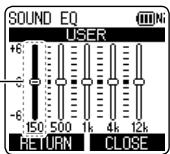
② Press ◀◀, ▶▶I to select the frequency band to change, and press +, - to adjust the volume level (±6 dB).
③ When the settings for the frequency band to change are all complete, go to step 5.
⑤ Press [▶ OK] to enter.
To exit the setting screen, press [F2 (CLOSE)].
The selected sound EQ mode is displayed.
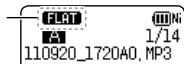
| EQ mode | Effect and application |
| FLAT | The sound equalizer function is not used. You hear the original sound without any change. |
| BASS | Emphasise the bass range strongly. |
| CLEAR | Emphasise the treble range strongly. |
| HEAVY | Emphasise the bass and treble ranges slightly. |
| SOFT | Emphasise the middle range. |
| VOICE | Reduce noise to make human voice easily heard. |
| USER | This mode enables adjustment of frequency bands of 150 Hz, 500 Hz, 1 kHz, 4 kHz and 12 kHz. |
(The factory setting is "FLAT".)
Using an SD Card
You can use a microSD/microSDHC card in addition to the internal memory.
Use this unit to format a new SD card (→ page 53) before use.
Inserting the SD card
① Turn off the power and open the SD card slot cover.
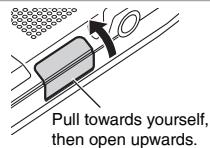
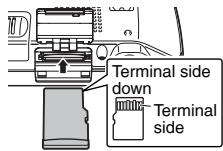
② Insert the SD card and close the SD card slot cover.
Align the SD card in the correct direction (▲) and insert it fully until a “click” sound is heard.
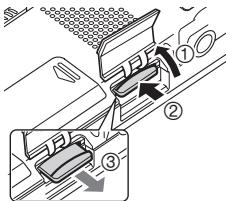
To remove the SD card:
① Turn off the unit power and open the SD card slot cover. ② Gently push the SD card. ③ When the SD card protrudes slightly, slowly pull the card out.
● This unit is compatible with 2 GB microSD cards, and 4 GB to 16 GB microSDHC cards. (As of June 2011) - This unit may not operate correctly depending on the manufacturer or type of SD card. For details on SD cards that are confirmed to operate correctly according to our manufacturing standards, see the support site below. http://panasonic.net/support/ - If an SD card is inserted but “microSD” is not displayed on the SELECT FOLDER screen, etc., this unit does not recognise the SD card. Turn off the power and reinsert the SD card. - You can switch between the internal memory and SD card by pressing [F2 (FOLDER)] for more than 1 second when the stopped screen is displayed. - Keep the Memory Card out of reach of children to prevent swallowing.
Using the file search function
Folders and files are displayed in a list to enable you to quickly and easily choose the desired file.
■ Types of file search
| CALENDAR SRCH | Recorded files are refined by date and displayed in a list. |
| MIC REC FILE | Microphone recording files recorded are displayed in a list in date order, starting from the most recent date. |
| LINE REC FILE | Line recording files recorded are displayed in a list in date order, starting from the most recent date. |
| RECENT R. FILE | Files recorded are displayed in date order, starting from the most recent. (20 files) |
| RECYCLE SEARCH | Only files in the recycle bin (III) folder are displayed in a list. |
File search
① Press [LIST ♂] while the unit is stopped.
- “microSD CARD” is only displayed when an SD card is inserted.
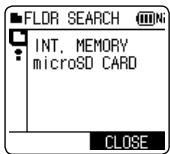
② Press +, - to select "R. FILE SRCH" and press [▶ OK] to enter.
③ Press +, - to select the type of file search and press [▶ OK] to enter.
When "CALENDAR SRCH" is selected:
Press +, -, |◀◀, ▶▶▶ to select the recorded date and press [▶ OK] to enter.
- The cursor only moves to dates on which files were recorded.
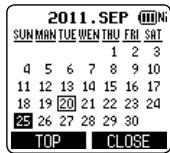
When "RECYCLE SEARCH" is selected:
Press +, - to select the search method and press [▶ OK] to enter.
To search files recently deleted from the internal memory, select "LAST_DLT_MEM".
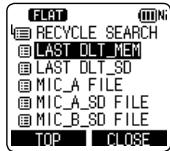
4 Press +, - to select the file and press [▶ OK] to enter.
Listening to music on this unit (WMA/MP3 music files)
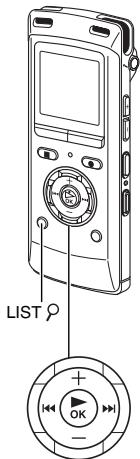
- Transfer music files to this unit from the computer. (→ page 65)
Selecting a file from folder "M":
See page 11 for selecting a folder and page 12 for selecting a file.
1 Select the file and press [▶ OK].
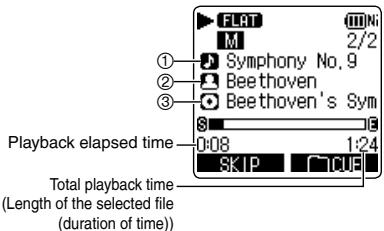
If the file contains track information (ID3 tag, etc.), ① track name, ② artist name and ③ album name are displayed. (If there is no track name, the file name is displayed. If there is no artist name or album name, "UNKNOWN" is displayed.) If they are not fitted in the screen, the scroll display will appear.
See page 15 for playback operations.
About the selected file:
If this unit is connected to the computer, the selected file on this unit is changed. The selected file is changed to the file immediately under the MUSIC folder.
- In the MUSIC folder, up to 199 files per folder can be recognized and played back. If subfolders are created, the number of playable files is reduced by the equivalent number of subfolders created.
- Only WMA/MP3 files and PCM (WAV) files recorded on this unit can be played. ● Copyright-protected MP3 music files cannot be played.
- WMA/MP3 music files with variable bit rate may be played, but the playback elapsed time display or bit rate display may differ from the actuality, or the repeat positions during A-B repeat may differ from the set positions.
- If the ID3 tag* of the file contains data that this unit cannot read, the track name, artist name, etc. may not be displayed properly.
- A file of 2 GB or more in size cannot be played back.
- If the playback elapsed time is 100 hours or more, the “hour” indication in “hour: minute: second” blinks. * ID3 tag: track name and other information stored in MP3 files.
Listening to music on this unit (WMA/MP3 music files)
Folder cue function
This function enables you to switch subfolders within the MUSIC (M) folder easily while playing back files in the MUSIC folder.
Folder cue cannot be performed while playing a PLAYLIST.
1 Press [F2 (☐ CUE)] during playback.
"FOLDER SKIP" is displayed, which changes to the folder cue display "播放".
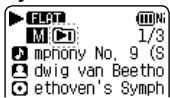
② Press |◀◀, ▶▶| when “☐” is displayed.
- The first track in the previous or following folder is cued.
- While folder cue is being displayed, the playback speed cannot be changed. Also, Fast forward/Fast backward operations are not available. Also, the MENU or LIST ⏻ button cannot be operated.
Cancelling folder cue:
The setting can be cancelled using any of the following methods.
Press [F2 (☐ CUE)] again.
Press [▶ OK].
Press [■ STOP/RETURN]. (Playback is completed.)
Using the playlist function
You can register tracks in the MUSIC (M) folder to a playlist and play them in the desired order.
Registering your favourite tracks to a playlist
1 Select the MUSIC (M) folder (→ page 11). ② Press +, – to select the file or the folder and press [F1 (PLAYLIST)] to enter.
When selecting folders or selecting files by switching folders, press ◀◀ and you can move within hierarchies. (For details of file and folder selection methods, see page 12.)
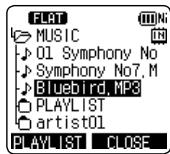
③ Press |◀◀, ▶▶▶ to select the playlist and press [▶ OK] to enter. (Select from PLAYLIST 1 to 5.)
The file or all files within the folder are registered to the selected playlist.
- Playlist files are displayed as “PLAYLIST1.M3U to PLAYLIST5.M3U” in “PLAYLIST” folder within “MUSIC” folder.
- Do not edit PLAYLIST 1 to 5.M3U on a computer. ● A maximum of 99 files can be registered to 1 playlist.
Playing tracks registered to the playlist
1 Select the playlist (from P1 to P5) (→ page 11). 2 Press +, – to select the file to play and press [▶ OK].
Changing the order of playlist tracks
1 Select the playlist (from P1 to P5) (→ page 11). 2 Press +, – to select the file that you want to change and press [F1 (EDIT)].
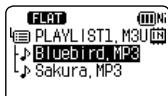
3 Press +, – to select “CHANGE ORDER” and press [▶ OK] to enter. “■” is added to the left side of the selected file name.
4 Press +, - to move the selected file to the desired position and press [▶ OK] to enter.
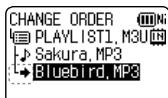
The track order is changed.
Cancelling tracks registered to the playlist
1 Select the playlist (from P1 to P5) (→ page 11). 2 Press +, – to select the file that you want to erase and press [F1 (EDIT)]. 3 Press +, – to select “ERASE FILE” and press [▶ OK] to enter.
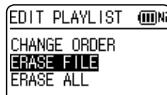
When cancelling all registered tracks:
1 Press +, - to select "ERASE ALL" and press [▶ OK] to enter.
4 Press +, – to select “YES” and press [▶ OK] to enter.
Even if files are erased from the playlist, the original file is not deleted from the unit. - If the original file is deleted, the playback elapsed time and file total playback time are displayed as “-:-”. If this file is played, playback skips to the next file after approx. 2 seconds. - If you have deleted an original file, also delete the registered file from the playlist.
Editing: Dividing files
Using the editing settings, you can edit files recorded on this unit in a variety of ways.
Displaying the editing setting screen
- Press [■ STOP/RETURN] to stop the unit.
1 Press [MENU]. 2 Press +, – to select “EDIT MENU” and press [▶ OK] to enter. 3 Press +, – to select the item to edit and press [▶ OK].
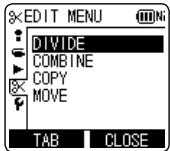
- Press [F1 (TAB)] to switch to other setting screens.
- The setting details and change methods differ according to the item. For details, see the corresponding page.
To exit the setting screen, press [F2 (CLOSE)].
Dividing files
You can divide 1 file into 2 files at a specified position.
1 While playing, press [■ STOP/RETURN] at the point where you wish to divide the file.
2 Select “DIVIDE” in the editing setting screen (→ left). 3 Press +, – to select “YES” and press [▶ OK] to enter.
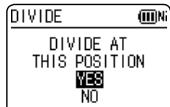
While the file is being divided, the status indicator flashes.
- Files within the MUSIC (M) folder and recycle bin (☐) folder cannot be divided.
- A file length of approx. 2 seconds or more is necessary for dividing a file.
- You cannot divide a file at the beginning of the file.
- Divided files cannot be recovered. It is recommended that you make a backup copy of the file in advance.
- After the file is divided, the number of files in the folder increases by one. (→ page 61)
- If a file containing index marks is divided, the index marks will disappear after the file is divided. (→ page 33)
- If there is no empty space in the internal memory or SD card or if there is already a total of 199 files in the folder, you cannot use this function to divide a file.
Editing: Combining files
2 files recorded on this unit can be combined into 1 file.
1 Select “COMBINE” in the editing setting screen (→ “Displaying the editing setting screen”, page 44). 2 Press +, – to select “PREVIOUS FILE” and press [▶ OK] to enter. 3 Press +, – to select the files to be combined and press [▶ OK] to enter.
When selecting files by switching folders, press ◀◀, and you can move within hierarchies. (For details of file and folder selection methods, see page 12.)
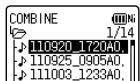
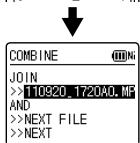
4 Press +, – to select “NEXT FILE” and press [▶ OK] to enter. 5 Press +, – to select the file to be combined at the back of the previous file and press [▶ OK] to enter.
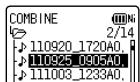
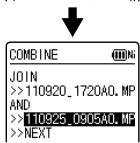
6 Press +, - to select "NEXT" and press [▶ OK] to enter. 7 Press +, - to select "YES" and press [▶ OK] to enter.
While the files are being combined, the status indicator flashes.
- If you press [F2 (CLOSE)] before combining is complete, the combine process is cancelled.
- Combined files cannot be returned to their original state. It is recommended that you make backup copies of the files in advance.
- If indexed files are combined, the indexing is erased.
- The combined file is saved in the same folder as the previous files.
Files cannot be combined in the following cases.
- Files in the MUSIC (M) folder or recycle bin (☐) folder.
- When the battery indicator displays “☐” (blinking) or “☐”.
- Combining files from the internal memory with files from the SD card.
- If the total file size after combining will exceed 2 GB.
- If there is less free memory space than the size of the "NEXT FILE".
- If the recording mode of the two files is different.
Editing: Copying or moving files
Recorded files can be copied or moved between the internal memory and SD card. Microphone recording files can be copied or moved among folders A, B, C, and D.
Copying file
1. Select "COPY" in the editing setting screen (→ "Displaying the editing setting screen", page 44).
2. Press +, – to select the files to be copied and press [▶ OK] to enter.
- When selecting files by switching folders, press ◀◀, and you can move within hierarchies. (For details of file and folder selection methods, see page 12.)
- When copying files in the LINE (LINE_SD) folder, go to step 5.
3. Press +, – to select the copy destination (“INTERNAL MEMORY” or “microSD CARD”) and press [▶ OK] to enter.
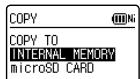
Press +, - to select the copy destination folder and press [▶ OK] to enter.
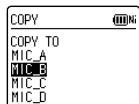
Press +, – to select “YES” and press [▶ OK] to enter.
While the file is being copied, the status indicator flashes.
Moving files
Select "MOVE" in step 1 on the left to move files. The operation is the same as that for file copy.
- If you press [F2 (CLOSE)] before copying or moving is complete, the process is cancelled.
- Files in the MUSIC (M) folder or recycle bin (III) folder cannot be copied or moved.
- When the battery indicator displays “☐” (blinking) or “☐”, files cannot be copied or moved.
- If the size of the file to be copied or moved exceeds the amount of free space in the destination, the file cannot be copied or moved.
Recycle bin function
When deleting files with the recycle bin function set to ON, deleted files are moved to the recycle bin (☑) folder (excluding MUSIC (M) folder). Files moved to the recycle bin can be returned to the original folders, so you do not have to worry about deleting files by mistake.
If files are deleted with the recycle bin function set to OFF, deleted files are completely erased without being moved to the recycle bin (The factory setting is "ON".).
Returning files in the recycle bin to the original folder
Press [■ STOP/RETURN] to stop the unit.
Press [F2 (FOLDER)]. Then press +, -, |◀◀, ▶▶| to select “☐” and press [▶ OK] to enter.
The recycle bin folders exist in the internal memory and SD card respectively.
③ Use |◀◀, ▶▶▶| to select the file you want to return, and press [ERASE] to enter.
① Stored folder before deletion ② File number before deletion
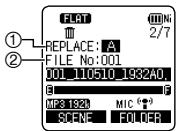
④ Press +, - to select "RESTORE FILE" and press [▶ OK] to enter. ⑤ Press +, – to select “YES” and press [▶ OK] to enter.
The status indicator flashes, and the selected file is returned to the end of the original folder.
Press [▶ OK] to return to the screen in step ③.
- If “* FOLDER FULL. CAN'T RESTORE” is displayed, * folder has reached the maximum recordable number (199). Delete files in the folder, and then try the procedure again from the beginning.
Emptying the recycle bin folder
When the recycle bin folder is emptied, all of the files in the recycle bin are completely deleted. Be sure to save all required data onto a computer or other external device before emptying the recycle bin folder.
- Press [■ STOP/RETURN] to stop the unit.
① Press [ERASE]. ② Press +, – to select “EMPTY RECYCLE BIN” and press [▶ OK] to enter.
When the recycle bin folder is selected, select "EMPTY" in step 2 and press [▶ OK].
③ Press +, – to select “YES” and press [▶ OK] to enter.
The status indicator flashes, and the recycle bin folder is emptied.
- When the recycle bin function is “ON”, possible remaining recording time (free space) does not increase even if files are deleted. To increase the remaining recording time, empty the recycle bin (III) folder and erase the files completely.
Using the timer
Audio can be recorded at the set date and time. The timer can also be used as an alarm by playing back files or sounds. Set the clock correctly beforehand. (→ page 10)
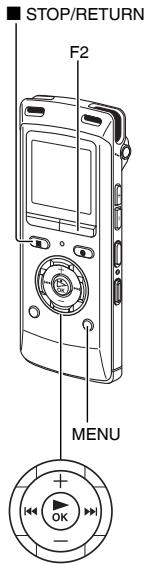
- Press [■ STOP/RETURN] to stop the unit.
1 Press [MENU]. ② Press +, – to select “COMMON MENU” and press [▶ OK] to enter. ③ Press +, – to select “TIMER & ALARM” and press [▶ OK] to enter.
4 Set items such as the date and time, and sound source.
For details on the items, see page 49.
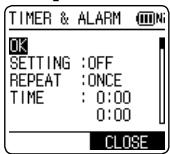
① Press +, - to select the item and press [▶ OK] to enter. ② Press +, -, |◀◀, ▶▶| to select the setting and press [▶ OK] to enter. Repeat steps ① and ② to complete the settings.
⑤ Press +, – to select “OK” and press [▶ OK] to enter.
To exit the setting screen, press [F2 (CLOSE)].
- Be sure to perform the "OK" operation in step ⑤. If this operation is not performed, the timer will not operate correctly. If a button such as [F2 (CLOSE)] is pressed while setting the timer, "REGISTER SETTING?" may be displayed. Select "YES" or "NO" and press [▶ OK] to enter.
- The sound volume at the timer playback is the same volume as when the timer was set. Set the appropriate sound volume before setting the timer.
| Setting Item | Details |
| SETTING | OFF: Timer does not operate.ON: Timer operates. |
| REPEAT | ONCE: Recording or playback is performed just once.DAILY: Recording or playback is performed daily.SELECT: Recording or playback is performed every week on the selected day.1 Press +, – to select the day and use [▶ OK] to add a check mark. (Press [▶ OK] again to clear the selection.)2 When the day is selected, select “OK” and press [▶ OK]. |
| TIME*1 | Set the start time and end timeSelect the item (select the start hour, minutes, end hour, minutes) using [◀◀, ▶▶] and set using +, –.● Up to 12 hours can be set for the period from start time until end time. |
| REC/PLAY | PLAY: Plays a set file, or plays the alarm sound.REC: Records the set sound source. |
| Setting Item | Details |
| PLAY*2 | BEEP: Plays the alarm sound.FILE: Plays a file.The file list of the folder being selected is displayed.Press +, – to select the file and press [▶ OK]. When selecting files by switching folders, press ◀◀ and you can move within hierarchies. (For details of file and folder selection methods, see page 12.) |
| SOURCE*3 | MIC: Microphone recording.LINE: Records sound from an external device. |
| MODE*3 | PCM 48kHz, PCM 44.1kHz, MP3 320kbps, MP3 192kbps, MP3 128kbps, MP3 64kbps, MP3 32kbps |
| REC TO*3 | Select the folder in which to save the recorded file.● If an SD card folder is selected, insert the SD card. |
*1 When setting the start time and end time, do not mix up a.m. and p.m. AM12:00 and PM12:00 represent 0:00 a.m. and noon respectively. When performing timer recording at 0:00 a.m., set the start time to “AM12:00”. *2 Displayed when "PLAY" is selected for "REC/PLAY". *3 Displayed when "REC" is selected for "REC/PLAY".
Using the timer
- Checking the timer condition or execution state
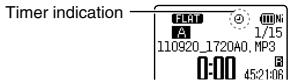
☐: Timer is set. The display flashes when the timer is executed. When the repeat settings are “ONCE”, this is displayed if the timer recording fails. To clear the display, change the settings to “OFF”, or set the timer again. When the repeat setting is “DAILY” or “SELECT”, this is displayed if the timer recording (playback) fails. If the next timer operates normally, this display disappears. - When the timer scheduled time comes, the scheduled operation is performed. If the unit has been off before the scheduled operation, the power is turned on and the timer operation is performed. The power is turned off at the timer end time. When the power is off at timer playback time, the file playback starts a little behind the scheduled time. - When the scheduled time arrives while the unit is on
- Timer playback will not be performed. (excluding the case when the unit is stopped)
- Timer recording will be performed. However, if recording is in progress at the scheduled time, the recording takes priority and the timer recording is not performed.
- During timer recording (playback), operations other than stop operation, power operation and volume adjustment cannot be performed.
● After setting the file to be played for timer playback, if the set file is deleted, the alarm sounds for approx. 30 seconds at the timer start time. - When the file length of the specified file is shorter than the period from timer start time until timer end time, the timer playback is stopped before the timer end time set for the timer playback. (If the repeat setting is set to items other than "OFF", the selected file is repeatedly played back with 1 track repeat until the end time. - When the file playback is assigned as playback source, the files are played back at the scheduled time with the playback settings (SOUND EQ (→ page 38) etc.) which have already been set when the timer playback setting was made. Repeat play (→ page 36) at the timer playback is 1 track repeat playback regardless of the setting contents. (excluding the case when the repeat setting is OFF) - When MIC or LINE is assigned as recording source, the recording is made at the scheduled time with the recording settings (microphone sensitivity (→ page 21), the line input setting (→ page 30), etc.) which have already been set when the timer recording setting was made. (excluding the recording mode (→ page 20)) - If the clock setting (DATE & TIME) is returned to the factory setting, the timer operation setting (SETTING) is automatically turned OFF. - 1 minute before the timer recording start time, the recording indicator blinks, and the mode switches to recording standby.
Common menu
The following are the settings used for both recording and playback.
Common settings operation
- Press [■ STOP/RETURN] to stop the unit.
1 Press [MENU]. ② Press +, – to select “COMMON MENU” and press [▶ OK] to enter. ③ Press +, – to select the setting item and press [▶ OK] to enter.
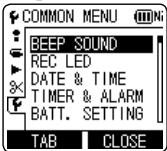
4 Press +, - to change the setting and press [▶ OK] to enter.
To exit the setting screen, press [F2 (CLOSE)].
For details on “DATE & TIME” (→ page 10) and “TIMER & ALARM” (→ page 48), see the respective pages.
BEEP SOUND
The button operation sound can be set.
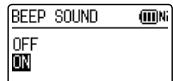
OFF: No operation beep.
ON: Operation beep is ON.
(The factory setting is "ON".)
- When “ON” is selected, press +, – to select your preferred volume and press [▶ OK] to enter. (The factory setting is “MIDDLE”.)
REC LED (Recording indicator)
You can choose whether to set the recording indication light ON or OFF.
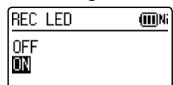
OFF: Not lit ON: Lit
(The factory setting is "ON".)
● Even if it is set to OFF, REC LED lights on (blinks) as a status indicator while charging or editing files.
Common menu
BATT. SETTING
Set the type of batteries used (rechargeable nickel metal-hydride batteries or alkaline batteries).
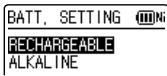
Type of battery
Hi : Rechargeable battery
AI : Alkaline battery
Type of battery: RECHARGEABLE, ALKALINE (The factory setting is "RECHARGEABLE".)
- If the type of battery and setting do not match, the battery indicator is not displayed correctly.
- If BATT. SETTING is set to "ALKALINE", the rechargeable battery cannot be charged.
AUTO POWER OFF
This function automatically turns the power off if there is no operation for a certain period of time such as when recording is paused or stopped. This function helps you save battery when you forget to turn off the power.
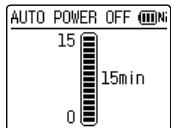
BACKLIGHT
Set the backlight lighting time when the button is pressed.
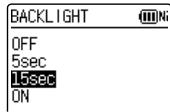
Lighting time: OFF (does not light), 5 sec, 15 sec, always ON
(The factory setting is "15 sec".)
- The backlight may not light when the remaining battery power is low.
- The backlight does not light in the following conditions.
- While a file is being moved, copied or combined.
CONTRAST
Use this function to adjust the contrast of the screen. You can choose from 10 levels for the adjustment.
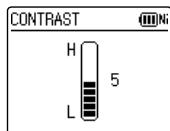
Contrast adjustment: 1 (L) to 10 (H)
(The factory setting is "5".)
When the recycle bin function is used, deleted files are moved to the recycle bin. Before the recycle bin is emptied, deleted files can be restored so you do not have to worry about deleting files by mistake.
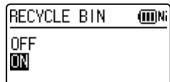
OFF: Do not use the recycle bin function
ON: Use the recycle bin function
(The factory setting is "ON".)
- When the recycle bin function is "OFF", files that are deleted cannot be restored.
FORMAT
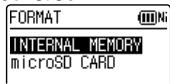
All files on the internal memory or SD card are deleted. Deleted files cannot be recovered.
① Select "INTERNAL MEMORY" or "microSD CARD" and press [▶ OK] to enter. ② Select "YES" and press [▶ OK] to enter. - Save necessary files to the computer or external devices before formatting. - When formatted, files in the recycle bin are also deleted and cannot be restored. - Cancelling is not possible while formatting. - Do not remove the battery or SD card while formatting. - Use this unit to format a new SD card before use.
Common menu
INIT MENU
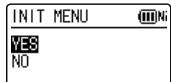
If the settings of this unit are initialized, settings except for the “DATE & TIME” setting are restored to the default state.
Select "YES", press [▶ OK] to enter and the settings are initialized.
VERSION
You can check the firmware version of this unit.
System requirements
(As of June 2011)
| Computer | IBM PC/AT compatible machines, Macintosh | |
| OS | • Windows® XP Home Edition/Professional and SP2, SP3• Windows Vista® Home Basic/Home Premium/Business/Ultimate and SP1, SP2• Windows® 7 Starter/Home Basic/Home Premium/Professional/Ultimate and SP1 | • Pre-installed version |
| • Mac OS X 10.2.8 - 10.6 | ||
| Interface | USB port (Operation cannot be guaranteed if you use a USB hub.) | |
| * Even if the system requirements mentioned in this document are fulfilled, some personal computers cannot be used.* (Macintosh) This software operates on the standard driver of OS.* Operation is guaranteed only on a compliant OS. * Operation is not guaranteed on an upgraded OS.* Operation is not guaranteed on home-made computers.* When using Windows Media® Player, your computer must fulfill the system requirements of Windows Media® Player. Please consult Microsoft Corporation for details of Windows Media® Player.* Microsoft, Windows, Windows Media and Windows Vista are registered trademarks or trademarks of Microsoft Corporation of the U.S. and other countries.* MPEG Layer-3 audio coding technology licensed from Fraunhofer IIS and Thomson.* IBM and PC/AT are registered trademarks of International Business Machines Corporation of the U.S.* Macintosh and Mac OS are trademarks of Apple Inc.* Other system names and product names appearing in this document are in general the registered trademarks or trademarks of the respective developer companies. Note that theTM mark and® mark do not appear in this document.* Depending on the computer environment, malfunctions may occur (e.g. Audio data recorded on this unit cannot be used. etc.). Panasonic and Panasonic dealers cannot be held liable for any lost audio data or other direct or indirect damage except in cases of intentional of gross negligence.* This model is not compatible with TRC/ADPCM format IC recorders made by Panasonic. Also, files recorded on this unit cannot be played on those IC recorders and/or MP3 files recorded on this unit cannot be read using Voice Editing software supplied with those IC recorders.* You can transfer contents recorded on this unit to your PC without using the dedicated software. The computer software (Voice Editing) is not supplied with this unit. | ||
Connecting this unit to a computer
You can copy files recorded on this unit to the computer.
- Start the computer beforehand.
- Turn the unit off beforehand.
① Take out the unit’s USB plug.
Push and slide until a "click" sound is heard.
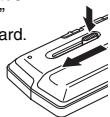
Storing the USB plug: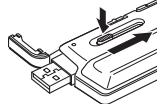
② Connect the unit to a computer using the USB port.
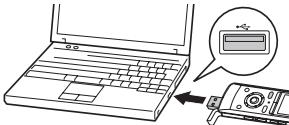
Insert the USB plug straight in the same direction as that of the terminal.
If the unit cannot be connected to the computer directly, use the USB extension cable (supplied).
- Do not use any other USB extension cables except the supplied one.
Do not use the supplied cable with other devices.
Caution: Use only the supplied USB extension cable with a ferrite core when connecting to computer.
- The first time you connect the unit to your PC Because multiple “Found New Hardware” messages will appear, do not disconnect the unit from your PC until all messages disappear. Screen display during connection with PC
During connection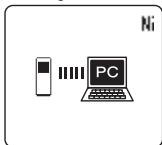
During file transfer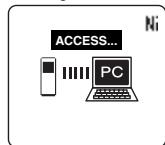
- This unit cannot be operated while connected to the computer.
- When the unit is connected to your PC, it can operate without the battery, because power is supplied by the computer.
- When the unit is connected to the computer, the computer may not start (restart). It is recommended that the unit is removed from the computer when starting (restarting) the computer.
Operation is not guaranteed in the following cases.
- When two or more USB devices are connected to one computer (excluding the mouse and keyboard in normal operation)
- When a USB hub is used
- When a USB extension cable other than the supplied one is used
- When the unit is connected to the computer, if you start (restart) the computer or the computer enters standby mode, the computer may not recognise the unit. Disconnect the unit and reconnect to the computer or reconnect the unit after the computer is restarted.
- Please see the Operating Instructions for the computer.
■ Disconnecting the unit
Double-click the icon (Windows XP: [ ] , Windows Vista/ Windows 7: [ ] ) on the task tray at the bottom of the computer screen and follow the on-screen instructions to remove the unit. (The icon may not be displayed depending on the OS settings.)
After the unit is removed, this unit turns off.
When this unit is turned on after deleting files, etc. on this unit using the computer, "UPDATING FILE NAME" is displayed. It may take several minutes until updating is complete.
■ USB mass storage function
This unit functions as a USB memory and is recognized as a computer's external storage device.
Data files in the computer can be transferred and saved on this unit.
Using USB power
Power can be supplied from the computer's USB terminal to operate this unit.
- Start the computer beforehand.
- Turn the unit off beforehand.
1 Take out the unit's USB plug.
Push and slide until a "click" sound is heard.
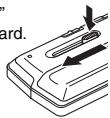
Storing the USB plug: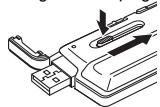
② Press and hold [■ STOP/RETURN] on the unit while connecting the unit to the computer's USB port.
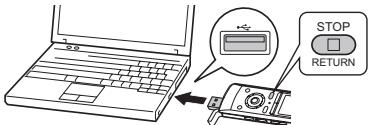
Insert the USB plug straight in the same direction as that of the terminal.
The unit is turned on via USB power source.
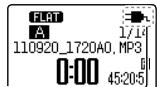
External power source indication
■ Disconnecting the unit
After switching off the unit's power, disconnect the unit.
- When using USB power, the continuous recording time for 1 file is a maximum of 24 hours. However, if the file size exceeds 2 GB during recording, recording is stopped at 2 GB, and recording is then restarted as a new file. Recording is not performed for the approx. 2 seconds between recording stopping and then restarting.
- Do not disconnect the unit while saving the recording data. The data or this unit may be destroyed.
- When using USB power, AUTO POWER OFF function does not work. (→ page 52)
Opening folders of this unit
This example assumes that the inserted SD card was formatted on this unit.
The illustrations show Windows XP (OS). The display may differ depending on the OS.
- Connect this unit to a Computer beforehand. (→ page 56)
1. Click [start] → [My Computer].
The internal memory and SD card of this unit are displayed as the following names.
Internal Memory: IC RECORDER*1
SD card: IC REC SD*2
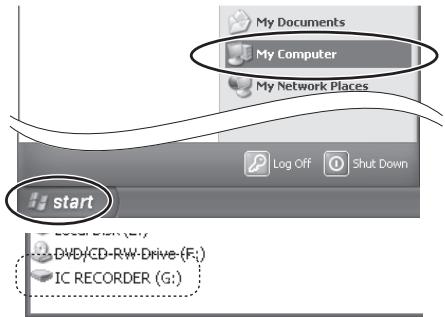
*1 Depending on the computer, [Removable Disk] may be displayed. *2 If an SD card is not inserted or an SD card that was not formatted on this unit is inserted, [Removable Disk] is displayed.
2. Right-click to open the "IC RECORDER (G:) (this unit).
(Folder structure on this unit: page 63)
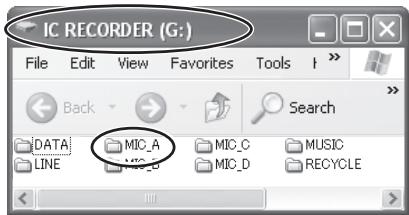
3. Right-click to open the folder.
This unit's files are displayed.
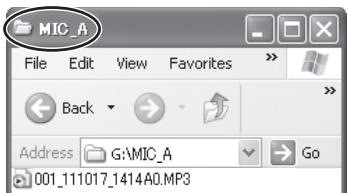
- Depending on the computer settings, a file with the extension ".INX" may be displayed. This file contains index information. If this file is deleted from your computer, the index information will be deleted.
Importing files to a computer/Organizing files
- Connect this unit to a computer beforehand.
(→ page 56)
Importing files recorded on this unit to a computer
- Select the recorded file in this unit, right-click and select [Copy].
- Select a folder in the computer, right-click and select [Paste] to import to the computer.
Folder in this unit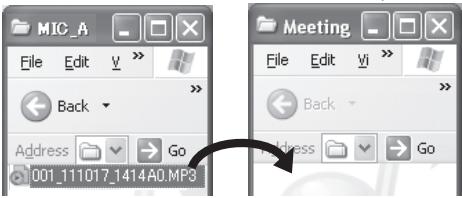
Folder in the computer
Playing recorded files on the computer:
Select the recorded file in this unit, right-click and select [Play].
Delete unnecessary files using the computer:
Select the recorded file in this unit, right-click, select [Delete] and [Yes] to enter.
Do not change the folder names
If you change the names of folders (“MIC_A, MIC_B, MIC_C, MIC_D, LINE, MUSIC”, etc.) of this unit or SD card, new “MIC_A, MIC_B, MIC_C, MIC_D, LINE and MUSIC” folders are generated next time this unit is turned on. The files in the folders with changed names cannot be played on this unit.
- Using [drag and drop], you can import the files to the computer as well.
- Never disconnect the unit or remove the SD card while “ACCESS...” is displayed, otherwise this unit may be damaged.
- Do not format this unit or the SD card using a computer.
- File extensions displayed on the computer are “MP3” for MP3 recording files and “WAV” for PCM recording files.
- The “DATA” folder is used to store data files. You can see this folder on the computer, but this is not displayed on the screen of this unit.
File name
File naming rules when recording on this unit:
Example: Recording information: September 20, 2011, 17:20/folder A/MP3
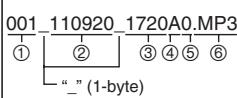
① File number (001 to 199) ② Recording information (1-byte number, 6 characters) ③ Recording time (1-byte number, 4 characters) ④ Folder name (A to D and L) ⑤ Keyword Number (0 in this unit) ⑥ File extension (.MP3/.WAV)
The above file name is displayed on the computer, however, "001_" is not displayed on this unit's screen. "110920_1720A0.MP3" is displayed instead.
Automatic change of file name by file deletion or editing:
Deleting/combining a recorded file on this unit will move subsequent files forward and file numbers are automatically reassigned.
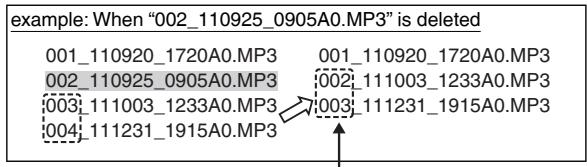
File number parts of all file names following the deleted or combined file are changed.
1 file is newly added by dividing or copying a file, etc. The file numbers of the files followed by the added file are automatically moved backward and file number parts of those file names are changed.
File name
Returning the files imported to the computer to this unit:
By returning the files imported to the computer to this unit, such files can be played back on this unit. (If file names are changed, those files cannot be played.)
However, if the names of files on this unit have been changed by deleting files, etc., the files to be returned may duplicate the file numbers of files on this unit. In this case, the returned files may not be played back on this unit. When playing back after returning files that were once imported to the computer to this unit, playback by transferring those files to the MUSIC folder is recommended. (→ pages 41, 65)
File name in the MUSIC folder and order of playback:
If numbers are added at the beginning of file names in the MUSIC folder, playback is performed from the file with the smallest number in priority. Up to 3 digits of number can be identified. If additional methods differ such as 1, 01, 001, then "001 to 999" takes the first priority, "01 to 99" takes the second and "1 to 9" takes the third priority. You can change the order of playback according to your preference by adding numbers at the beginning of file names, such as 001musicA.MP3, 002musicB.MP3. The displayed order will also be the same as the playback order.
For transferring files to the MUSIC folder, see page 65. For playback of such files, see page 41.
Folder structure on this unit
Folders “A”, “B”, “C”, “D”, “L” and “M” are displayed as “MIC_A”, “MIC_B”, “MIC_C”, “MIC_D”, “LINE” and “MUSIC” (for the internal memory) respectively on the computer or the list screen of this unit. The “DATA” folder is used to store data files. You can see this folder on the computer, but this is not displayed on the screen of this unit.
Folder hierarchy of this unit:![graph TD A["Internal memory (SD card)"] --> B["MIC_A (MIC_A_SD)"] B --> C["001_110920_1720A0.MP3"] B --> D["002_110925_0905A0.MP3"] B --> E["MIC_B (MIC_B_SD)"] E --> F["MIC_C (MIC_C_SD)"] E --> G["MIC_D (MIC_D_SD)"] E --> H["LINE (LINE_SD)"] E --> I["MUSIC *"] I --> J["RECYCLE"] I --> K["DATA"] L["*…](/content/2019/09/52913/images/c4f881bca287d2b0c6f5f12135b90ec5a9240436c52651e1d50b8ff00a648f19.jpg)
Folder structure on this unit
■ RECYCLE folder
This is the recycle bin. When the recycle bin function is “ON”, deleted recording files are moved to the RECYCLE folder (recycle bin).
- Files in the MUSIC (M) folder are not moved to the recycle bin and are completely deleted from the unit irrespective of the recycle bin function settings. Numbers such as "001_" are attached to the start of file names for files moved to the recycle bin to show the order in which they were moved. This number is only displayed on a computer.
Transferring music files to this unit
You can enjoy music by transferring music files stored in the computer to this unit.
This unit can play back MP3, WMA, and PCM (WAV) * music files.
* Only PCM (WAV) files recorded on this unit.
Transferring music files to this unit from the computer
- Open MUSIC folder of this unit beforehand. (→ page 59)
- Select a music file, right-click and select [Copy].
- Select MUSIC folder of this unit, right-click and select [Paste] to transfer to this unit.
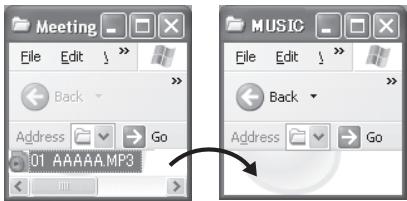
Up to 199 of transferred files can be played on this unit. If subfolders are created, number of files playable is reduced by the equivalent number of subfolders created.
- Using [drag and drop], you can import the files to the computer as well.
- Never disconnect the unit or remove the SD card while "ACCESS..." is displayed, otherwise this unit may be damaged.
- You can create subfolders in the MUSIC folder to transfer and play back files. For folder structure, see page 63.
- Putting music files in folders other than the MUSIC folder means those files cannot be played. (File names are not displayed on this unit.)
- When playing back files in the MUSIC folder, the order of playback will be the same as the order of transfer to this unit. (When transferring multiple files at a time, the computer determines the order of transfer.) However, if numbers are added at the beginning of file names, the order of playback is determined based on the numbers. (→ page 62)
■ Transferring DRM protected WMA files
This unit supports PD-DRM.
Transferring DRM protected WMA files purchased at a music distribution site to portable devices (this unit), etc. may be restricted.
- Use Windows Media Player to transfer music files.
- DRM10 is not supported.
Q & A (Frequently Asked Questions)
| Question | Answer |
| Can I play files recorded on other Panasonic IC recorders? | You can play files recorded on IC recorders using MP3 or PCM format by transferring them to MUSIC folder. (→ page 65) But cannot play files with other formats (i.e. ADPCM and TRC formats) because the recording format is different. |
| Can I use audio editing software (Voice Editing) supplied in other Panasonic IC recorders? | Can be used with WAV files recorded in PCM mode. Cannot be used with MP3 files recorded in MP3 mode. |
| What kind of files can be played? | WMA/MP3 files, and PCM (WAV) files recorded on this unit can be played. AAC and other files cannot be played. |
Error messages
| Error message | Checkpoints |
| NO PLAYABLE FILESNO FILE | This is displayed when there are no files in the folder and you attempt to play back, perform Time Search or delete a file. |
| PLEASE INSERT microSD CARD | This is displayed when you attempt to format without the SD card inserted.This is displayed when copying or moving a file within the LINE folder without the SD card inserted. |
| CAN'T READ microSD CARD. INSERT CARD AGAIN | This is displayed when the SD card fails to be recognised or is broken.(→ page 39) Insert the card again. |
| CAN'T READ INTERNAL MEMORY | Format it on this unit. (→ page 53) If the problem persists, the internal memory may be damaged. Consult your dealer. |
| CAN'T PLAY THIS FILE WITH VARIABLE SPEED | This is displayed when you attempt to change the playback speed during PCM file playback or when the PCM file is played back with the playback speed changed. (→ page 34) |
| CAPACITY FULL | This is displayed when you attempt to record to the internal memory or SD card without free space.This is displayed when you attempt to combine files when the free space is smaller than the size of back file. |
| FILE FULL | This is displayed when you attempt to record with the number of files exceeding maximum recordable number (199) in each folder. (→ page 11) |
| INDEX FULL | This is displayed when you attempt to add the index exceeding the maximum number (36) of indexes that can be added in 1 file. |
| INDEX ERROR | This is displayed when you attempt to add the index at the same position.This is displayed when you attempt to add the index while the battery indicator shows “☐” (blinking). |
| CAN'T CREATE ANY MORE FILES IN THIS FOLDER | The file cannot be divided because the number of files in the folder has reached the limit (199). Delete unnecessary files and divide. (→ page 17) |
| NOT ENOUGH SPACE FOR DIVIDING | This is displayed when you attempt to divide a file when there is not enough free space required to divide a file. Delete unnecessary files and divide. |
ENGLISH
Error messages
| Error message | Checkpoints |
| MEMORY WRITE SPEED IS SLOWmicroSD CARD WRITE SPEED ISSLOW | This may be displayed when recording is performed using a slow write speed SD card, or using the internal memory/SD card whose writing speed is temporarily slow due to fragmentation*. Changing the recording mode to MP3 may remedy the problem. To solve the fragmentation problem, save necessary files to the computer or external device and format the internal memory or SD card on this unit. (→ page 53) |
| CAN'T DIVIDE.REC TIME IS TOO SHORT | This is displayed when you attempt to divide a file of a short recording time (approx. less than 2 seconds). |
| CAN'T DIVIDE FILE AT THIS POSITION | This is displayed when you attempt to divide a file at the position where file division is impossible (around the start or the end of the file). |
| CAN'T COMBINE.TOTAL SIZE EXCEEDS 2GB | This is displayed when the total size of files to be combined exceeds 2 GB. |
| CAN'T COMBINE.DIFFERENT FILE FORMATS (REC QUALITY) | This is displayed when you attempt to combine files whose recording modes differ from each other. |
| LOW BATTERY. CHARGE BATTERY BEFORE *** FILESLOW BATTERY. REPLACE BATTERY BEFORE *** FILES | This is displayed when you attempt to copy, combine or move files while the battery indicator shows “☐” (blinking) or “☐”. (→ page 9). |
| COPY/MOVE DESTINATION FOLDER FULL | The file cannot be copied (moved) because the number of files in the copy (move) destination folder has reached the limit (199). Delete files in the copy (move) destination folder or specify another folder as copy (move) destination. |
* If you repeat writing or deleting files, the file alignment becomes discontinuous in the internal memory, and continuous space area may be reduced (called fragmentation). If the fragmentation advances, file-writing speed becomes slow and writing may not be performed properly.
| Error message | Checkpoints |
| EMPTY RECYCLE BIN | This is displayed when you attempt to delete files or folders with the maximum number of files (199) present in the recycle bin folder and no more files can be moved to the recycle bin (III). (→ page 47) |
| * FOLDER FULLCAN'T RESTORE | This is displayed when you attempt to restore files from the recycle bin (III) to the original folder and the maximum number of recordable files are present in the original folder. (* means the folder name for the original folder.) (→ page 47) |
| CAN'T MOVE FILE. EMPTY RECYCLE BIN | This may be displayed when there is no free space on the SD card. (→ page 47) |
| CAN'T FORMAT | The internal memory (SD card) may be damaged. Consult your dealer. |
| CAN'T ADD FILES.PLAYLIST FULL | This is displayed when you attempt to register files with the playlist with the number exceeding maximum number (99) of files that can be registered with each playlist. (→ page 42) |
| CAN'T ADD ALL FILES TO PLAYLIST | This is displayed when not all files can be registered because the number of files exceeds the maximum number (99) of files that can be registered while registering the files with playlist. (→ page 42) |
| CAN'T EDIT PLAYLIST.NO FILE | The editing operation for the playlist is impossible because there are no files registered in the selected playlist (PLAYLIST1 to 5.M3U). (→ page 42) |
| *** USE ONLY ALPHANUMERICS | Some of the character strings in the file name or folder name are not supported (characters other than Japanese and English). Such files and folders cannot be added to the playlist. |
| INSERT microSD CARD FOR TIMER RECORDING | This is displayed when the SD card is not inserted at the completion of the timer recording setting. |
| CAN'T START TIMER OPERATION | This is displayed when the timer has failed such as when the SD card is not inserted or the recording is in progress during timer recording setting. |
Error messages
| Error message | Checkpoints |
| CAN'T ***. FILE IS OUTSIDE PLAY RANGE OF ALL SONG MODE (MAX 3,000 SONGS) | This is displayed when you attempt to select files beyond the playback range (max. 3,000 files) for all repeat (random) of MUSIC file, or when you attempt to set all repeat (random) while selecting files beyond the playback range (max. 3,000 files). (→ page 36) |
“***” indication differs depending on the operations.
Troubleshooting guide
Before requesting service, make the following checks. If you are in doubt about some of the check points, or if the remedies indicated in the chart do not solve the problem, consult your dealer for instructions.
| Symptom | Checkpoints |
| Battery | |
| Cannot use a battery that can still be used on other equipment. | This unit considers the battery as empty even if there is actually power left in it. This is to preserve the clock setting. |
| Playback does not last long despite recharging. | The rechargeable battery life is over. (Number of recharging times: approx. 300) Replace with a new specified rechargeable battery (optional). |
| “×” is displayed when the battery is rechargedCannot recharge batteries. | The temperature of this unit has risen. Disconnect the unit from the computer and leave it for a while. Then, recharge the battery again.Are you trying to recharge a battery other than the specified rechargeable battery or an alkaline battery? Insert the specified rechargeable battery (supplied) and recharge it.The rechargeable battery is not properly inserted. Remove the battery completely once. Then, insert it again.Is alkaline battery set in the battery switching setting?Switch the setting to the rechargeable battery setting and recharge it.(→ page 52) |
| Operations | |
| The unit does not start. | Make sure the battery is correctly inserted. Remove the battery completely and then insert it back into the unit again.The battery has run down. When using the specified rechargeable battery (supplied), recharge it. When using the AAA (LR03) battery, replace it with a new one. (→ page 7) |
| No operation. | The Hold function is on. Switch Hold off. (→ page 9)You cannot operate on this unit when the unit is connected to a computer. |
Troubleshooting guide
| Symptom | Checkpoints |
| Recording | |
| The memory is used completely earlier than expected. | Remaining recording time largely differs depending on the recording mode. (→ page 79) Select a suitable recording mode according to the purpose for use. (→ page 20)Is much data stored? Delete unnecessary files. |
| Recording is suspended by itself. | VAS is functioning. (→ page 26) |
| Howling occurs when listening to the recording in progress with earphones. | Turn down the volume. (→ page 15)Keep earphones and this unit separate. (→ page 16)When you are using an external microphone, keep earphones and external microphone separate. |
| Recording ended halfway. | If the unit receives a shock (e.g. it is dropped), if the battery comes off or the battery runs out during recording, recording data may not be updated.There may be no space left in the memory. |
| Sound skipping on the recorded file. | You formatted the internal memory of this unit or the SD card using the computer. If they are formatted using the computer, the optimum performance of this unit may not be achieved. Format it on this unit. (→ page 53)This unit may not operate correctly depending on the SD card manufacturer or type of SD card.For details on cards that are confirmed to operate correctly according to our manufacturing standards, see the support site below.http://panasonic.net/support/VAS is functioning. (→ page 26) |
| Noise is heard from the recorded voice. | If you brush this unit with your hand or an object touches this unit during recording, noise will be recorded through the microphone. Avoid contact of object during recording. |
| Recorded sound is distorted.There is a noise at the beginning of sound. | Set the microphone sensitivity to “LOW” or keep the microphone distance farther away from the recording source. (→ page 21)If the sound is still distorted, set the Low Cut filter setting to ON (→ page 21), set the recording level adjustment to Manual and adjust the recording level before recording. (→ page 22) |
| Recorded sounds contain noise that make it difficult to hear sounds. | Move a mobile telephone away from this unit when you use the two in the same area.Set the “LOW CUT FILTER” to “ON”. Noise is reduced and listening may become easier. (→ page 21)Perform test recording switching the recording mode (→ page 20) or microphone sensitivity (→ page 21) and set the most appropriate recording environment. |
| Recorded sound differs from the actual sound. | Is Recording EQ (→ page 24) or “LOW CUT FILTER” (→ page 21) set? |
| Recorded sound is too loud or too low. | Is the recording level adjustment set to manual? (→ page 22) If so, set the proper recording level (→ page 23) or set the recording level adjustment setting to AUTO.Switch the microphone sensitivity. (→ page 21) |
| The level meter does not move during recording. The recorded file produces no sound. | Is the recording level adjustment set to “MANUAL” and is the recording level set to “0”? Adjust the recording level. (→ page 23) |
| Playing | |
| No sound from the speaker. | There is no sound when you have connected earphones. (→ page 16) |
| Cannot hear any sound. | Adjust the sound volume. (→ page 15) |
Troubleshooting guide
| Symptom | Checkpoints |
| Playing | |
| A file in the MIC_A to MIC_D, LINE or RECYCLE folder cannot be played. | The file name was changed. Only files named according to the file naming rules can be played in folder MIC_A through MIC_D, LINE or RECYCLE. Even if file names are not changed, if some file numbers overlaps in the folder, those files cannot be played. (→ page 62) Playback is possible if they are transferred to the MUSIC (M) folder. (→ page 65)The transfer destination is wrong. If the file transferred from the computer is stored in the recording folder, it cannot be played back on this unit. Transfer the file to the MUSIC (M) folder. (→ page 65) |
| Cannot play a file in the MUSIC (M) folder, or the playback is not correct. | PCM (WAV) files recorded on this unit and WMA/MP3 files can be played on this unit. Other file formats such as AAC cannot be played.In MUSIC folder, up to 199 files per one folder can be recognised and played back. (If subfolders are created, number of files playable is reduced by the equivalent number of subfolders created.) Transferred files exceeding the maximum number cannot be played.Copyright-protected files cannot be played even if they are transferred via Explorer. Transfer them via Windows Media Player. (→ page 65)Was the file erased after registered with the playlist? Transfer the file to the MUSIC (M) folder or delete the file name from the playlist. (→ page 43) |
| Playback speed is too fast or slow. | You changed the playback speed. (→ page 34) |
| I set the playback speed, however, the file is played with 100% speed. | The speed cannot be adjusted when PCM files are being played back. Even if the speed is adjusted when the MP3 file is played back, the speed returns to 1x speed when the PCM file is played back. (→ page 34) |
| There is no sound from the earphones or it is difficult to hear or noisy. | Ensure the plug is inserted firmly.Wipe the plug clean. |
| The selected file changes on its own.“NO PLAYABLE FILES” is displayed. | ·If this unit is connected to the computer, the selected file on this unit is changed. For the MUSIC folder, the file immediately under the MUSIC folder is selected. If there are no files, “NO PLAYABLE FILES” is displayed. Reselect the file. |
| Timer | |
| Timer recording does not operate properly.(Timer Recording failed.) | ·Set the clock with correct date and time. (→ page 10)·The folder at the recording destination is full. Delete unneeded files. (→ page 17)·The battery has run down. Replace with a new battery. (→ page 7)When using the rechargeable battery, recharge it. (→ page 7)·Is there sufficient space in the internal memory? Delete unneeded files. (→ page 17)·Is the unit connected to the computer, etc.? Disconnect it from the computer.·If the unit is still used even if the timer playback time comes, the current operation is prioritized. Stop operations (except when the unit is stopped).·If another recording is in progress even if the timer recording start time comes, the current recording is prioritized. Stop the recording. However, if you are using the unit for operations other than recording, the timer recording is prioritized. |
| Others | |
| The power cannot be turned on. | ·The battery may have run out. Replace the battery with the new one or charge the rechargeable battery. (→ page 7) |
Troubleshooting guide
| Symptom | Checkpoints |
| Others | |
| The power automatically turns off. | Did you set the “AUTO POWER OFF” function? (This function turns the power off if there is no operation for a certain period of time* such as when the unit is stopped or recording is paused.) (→ page 52)* The factory setting is 15 minutes. |
| SD card cannot be recognised. | The SD card is not properly inserted. Turn off the unit and reinsert the SD card. (→ page 39)Was the SD card formatted using the computer, etc.? Format it on this unit. (→ page 53) |
| Cannot delete a file or folder. | If WMA/MP3 music files transferred from the computer are Read-only or subfolders are created in the MUSIC folder, they cannot be deleted on this unit. Delete them on the computer. (→ page 60) |
| Free space does not increase even after files were deleted. | Empty the recycle bin folder. (→ page 47) |
| Cannot divide a file. | Is there sufficient space in the internal memory?199 recorded files (maximum recordable number) may be present in the folder. If the folder contains 199 recorded files, dividing a file is not possible.Is the recording time for the file too short? Use a file with longer recording length. A file length of approx. 2 seconds or more is necessary for dividing a file. |
| This unit is not recognised by a computer. | The OS on the computer may not be compliant with this unit. (→ page 55)Connect this unit with the computer properly. (→ page 56)Disconnect this unit from the computer and connect it again.Disconnect all USB devices (excluding the mouse and keyboard in normal operation) and connect this unit alone. If the computer is equipped with multiple USB terminals, connect this unit to a different USB terminal.Is the unit connected via the USB hub? Disconnect the hub once and directly connect this unit to the USB terminal.Is the network drive assigned?If the network drive is assigned, the drive letters (alphabet letters in the drive name) conflict and this unit's drive name may become invisible. Change the assignment of the network drive before connection. |
| The file name of the recorded file or recording date and time information differ from the real date and time. | Set the clock. (→ page 10) |
| Date and time are not displayed correctly. | Has the unit been left for a long period of time after the battery was removed or the battery was exhausted?Set the clock (DATE & TIME) again. (→ page 10) |
Specifications
Power
| Rechargeable battery | DC 1.2 V (1 AAA rechargeable Ni-MH (nickel-metal hydride) battery, HHR-4AGE)USB charging (charging time: approx. 2 hours) |
| Dry-cell battery | DC 1.5 V (1 AAA LR03 battery (alkaline battery)) |
Audio
| Sampling frequency(The bracket [ ] shows the recording mode.) | 48 kHz [PCM 48kHz]44.1 kHz [PCM 44.1kHz]44.1 kHz [MP3 320kbps]44.1 kHz [MP3 192kbps]44.1 kHz [MP3 128kbps]22.05 kHz [MP3 64kbps]16 kHz [MP3 32kbps] |
| Recording format | Linear PCM (16 bit)/ MP3 |
| Playable bit rate(MUSIC (M) Folder) | 16 kbps to 320 kbps (MP3)32 kbps to 192 kbps (WMA) |
| Playable sampling frequency(MUSIC (M) Folder) | 8 kHz to 48 kHz (MP3)22.05 kHz to 48 kHz (WMA) |
| Frequency characteristic(-10 dB, during recording/playback)The bracket [ ] shows the recording mode.) | 40 Hz to 23,000 Hz [PCM 48kHz]40 Hz to 21,000 Hz [PCM 44.1kHz]40 Hz to 21,000 Hz [MP3 320kbps]40 Hz to 20,000 Hz [MP3 192kbps]40 Hz to 17,000 Hz [MP3 128kbps]40 Hz to 7,500 Hz [MP3 64kbps]40 Hz to 6,500 Hz [MP3 32kbps] |
| Built-in microphone S/N | 45 dB (PCM 44.1 kHz) Filter (JIS A) | |
| USB | USB2.0 (Hi-Speed) DC 5 V / 500 mA | |
| Audio Output | Earphone | 3.5 mm, 16 Ω , Max. 12 + 12 mW |
| Speaker Output | 16 mm, 8 Ω , 80 mW (RMS) | |
| Audio Input | External Microphone/ Line-in | 3.5 mm, 1.00 mV plug in power |
| Max. Dimensions (W × H × D) | |
| 40.9 mm × 99.1 mm × 16 mm | |
| Cabinet Dimensions (W × H × D) | |
| 39.9 mm × 99.1 mm × 14.2 mm | |
| Mass | Approx. 55 g with battery |
| Approx. 43 g without battery | |
| Operating Temperature | 0 °C to 40 °C |
| Operating Humidity | 20% to 80% RH(No condensation) |
| Rechargeable temperature range | 5 °C to 35 °C |
| Internal Memory | 4 GB* (RR-XS410)2 GB* (RR-XS400) |
* Usable capacity will be less.
Battery life (may be less depending on the operating conditions.)
When the supplied rechargeable battery (HHR-4AGE) is used
| Recording mode | Rec*1 | Play*2 |
| PCM 48kHz (Stereo) | approx.7 h. | approx.6 h. |
| PCM 44.1kHz (Stereo) | approx.7 h. | approx.6 h.30 min. |
| MP3 320kbps (Stereo) | approx.9 h. | approx.7 h.30 min. |
| MP3 192kbps (Stereo) | approx.9 h. | approx.7 h.30 min. |
| MP3 128kbps (Stereo) | approx.9 h.30 min. | approx.7 h.30 min. |
| MP3 64kbps (Stereo) | approx.13 h. | approx.8 h.30 min. |
| MP3 32kbps (Monaural) | approx.14 h.30 min. | approx.9. h. |
When the Panasonic alkaline (AAA LR03) battery is used
| Recording mode | Rec*1 | Play*2 |
| PCM 48kHz (Stereo) | approx.9 h.30 min. | approx.8 h.30 min. |
| PCM 44.1kHz (Stereo) | approx.10 h. | approx.9 h. |
| MP3 320kbps (Stereo) | approx.13 h. | approx.10 h.30 min. |
| MP3 192kbps (Stereo) | approx.13 h. | approx.11 h. |
| MP3 128kbps (Stereo) | approx.13 h.30 min. | approx.11 h. |
| MP3 64kbps (Stereo) | approx.18 h.30 min. | approx.12 h. |
| MP3 32kbps (Monaural) | approx.21 h. | approx.13 h. |
*1 Without recording monitor, Recording indicator: OFF, recording level adjustment setting: AUTO *2 When audio is output from speaker (Volume: 9, Playback speed control: 100%)
Standard recordable time (may be less depending on the operating conditions.)
RR-XS410: When using the internal memory (4 GB)
| Recording mode | Recording time | Bit rate |
| PCM 48kHz (Stereo) | approx. 5 h. 30 min. | 1536 kbps |
| PCM 44.1kHz (Stereo) | approx. 6 h. | 1411 kbps |
| MP3 320kbps (Stereo) | approx. 27 h. | 320 kbps |
| MP3 192kbps (Stereo) | approx. 45 h. | 192 kbps |
| MP3 128kbps (Stereo) | approx. 68 h. | 128 kbps |
| MP3 64kbps (Stereo) | approx. 136 h. 30 min. | 64 kbps |
| MP3 32kbps (Monaural) | approx. 273 h. | 32 kbps |
RR-XS400: When using the internal memory (2 GB)
| Recording mode | Recording time | Bit rate |
| PCM 48kHz (Stereo) | approx. 2 h. 30 min. | 1536 kbps |
| PCM 44.1kHz (Stereo) | approx. 3 h. | 1411 kbps |
| MP3 320kbps (Stereo) | approx. 13 h. 30 min. | 320 kbps |
| MP3 192kbps (Stereo) | approx. 22 h. 30 min. | 192 kbps |
| MP3 128kbps (Stereo) | approx. 33 h. 30 min. | 128 kbps |
| MP3 64kbps (Stereo) | approx. 67 h. 30 min. | 64 kbps |
| MP3 32kbps (Monaural) | approx. 135 h. 30 min. | 32 kbps |
- Specifications are subject to change without notice.
Care and use
To reduce risk of radio interference caused by headphone-, earphone- or microphone cables, only use adequate accessories with a cable length of less than 3 m.
Unit
- Avoid using or placing this unit near sources of heat.
- To avoid product damage, do not expose this product to rain, water or other liquids.
- The unit's speaker does not have magnetic shielding. Do not place the unit near televisions, personal computers, magnetized cards (bank cards, commuter passes) or other devices easily influenced by a magnet.
Batteries
- Do not peel off the covering on batteries and do not use the batteries if the covering has been peeled off.
- Align the poles ⊕ and ⊖ correctly when inserting the battery.
- Remove the battery if you do not intend to use the unit for a long time.
- Do not heat or expose to flame.
- Do not leave the batteries in an automobile exposed to direct sunlight for a long period of time with doors and windows closed.
- Do not attempt to recharge dry cell batteries.
- Battery mishandling can cause electrolyte leakage which can damage items the fluid contacts and may cause a fire. If electrolyte leaks from the batteries, consult your dealer. Wash thoroughly with water if electrolyte comes in contact with any part of your body.
- Keep the AAA, LR03 batteries and the rechargeable batteries out of reach of children to prevent swallowing. Accidental swallowing of batteries can result in stomach and intestinal damage.
- When carrying batteries in a pocket or bag, ensure no metal objects such as necklaces are placed together with them. Contact with metal may cause short-circuiting which can cause a fire. For safety, carry the batteries in the battery carrying case.
■ Rechargeable battery
- To store or carry the rechargeable battery, put the removed battery into the battery case (supplied), avoiding metallic objects (clip, etc.).
■ SD card compatibility
microSD card and microSDHC card can be used on devices that support each card. (microSD card can also be used on devices that support microSDHC card.) Using on devices that do not support those cards may format the SD cards or erase the recorded contents. Also, computers or devices that do not support microSDHC card may display a message that encourages you to format the SD card. If you format the SD card, the data will be erased. Erased data cannot be recovered. Do not format the SD card.
■ Notice for when transferring to another party, or disposing of the SD card or the unit
If the internal memory and SD card are formatted or the data on them are deleted, such data cannot be played back, however, the data are not erased completely.
If you want to erase the data completely for security, use a commercially sold data erasing software for PC, or format the internal memory or SD card and then perform recording in soundless state to overwrite them.
Allergies
- Discontinue use if you experience discomfort with the earphones or any other parts that directly contact your skin.
- Continued use may cause rashes or other allergic reactions.
- microSDHC Logo is a trademark of SD-3C, LLC.
This product is protected by certain intellectual property rights of Microsoft Corporation and third parties. Use or distribution of such technology outside of this product is prohibited without a license from Microsoft or an authorized Microsoft subsidiary and third parties.
Care and use
Precautions for listening with the Headphones or Earphones
- Do not play your headphones or earphones at a high volume. Hearing experts advise against continuous extended play.
- If you experience a ringing in your ears, reduce volume or discontinue use.
- Do not use while operating a motorized vehicle. It may create a traffic hazard and is illegal in many areas.
- You should use extreme caution or temporarily discontinue use in potentially hazardous situations.
- Even if your headphones or earphones are the open-air type designed to let you hear outside sounds, don't turn up the volume so high that you can't hear what's around you.
This product may receive radio interference caused by mobile telephones during use. If such interference is apparent, please increase separation between the product and the mobile telephone.
CAUTION
Danger of explosion if battery is incorrectly replaced. Replace only with the same or equivalent type recommended by the manufacturer. Dispose of used batteries according to the manufacturer's instructions.
- Excessive sound pressure from earphones and headphones can cause hearing loss.
- Listening at full volume for long periods may damage the user's ears. Be sure to use the supplied or recommended headphones or earphones.
Based on EN 50332-2:2003
1) Maximum output voltage (earphone output): ≤ 150 mV 2) Wide band characteristic voltage (earphones): ≥ 75 mV
Maintenance
Clean this unit with a dry and soft cloth.
- If the unit becomes too dirty, wring a cloth moistened in water, wipe the dirt with it and clean with a dry cloth.
- Do not use solvents including benzine, thinner, alcohol, kitchen detergent, a chemical wiper, etc. This might cause the exterior case to be deformed or the coating to come off.
Information for Users on Collection and Disposal of Old Equipment and used Batteries

These symbols on the products, packaging, and/or accompanying documents mean that used electrical and electronic products and batteries should not be mixed with general household waste.
For proper treatment, recovery and recycling of old products and used batteries, please take them to applicable collection points, in accordance with your national legislation and the Directives 2002/96/EC and 2006/66/EC.

By disposing of these products and batteries correctly, you will help to save valuable resources and prevent any potential negative effects on human health and the environment which could otherwise arise from inappropriate waste handling.
For more information about collection and recycling of old products and batteries, please contact your local municipality, your waste disposal service or the point of sale where you purchased the items.
Penalties may be applicable for incorrect disposal of this waste, in accordance with national legislation.

For business users in the European Union
If you wish to discard electrical and electronic equipment, please contact your dealer or supplier for further information.
[Information on Disposal in other Countries outside the European Union]
These symbols are only valid in the European Union. If you wish to discard these items, please contact your local authorities or dealer and ask for the correct method of disposal.

Note for the battery symbol (bottom two symbol examples):
This symbol might be used in combination with a chemical symbol. In this case it complies with the requirement set by the Directive for the chemical involved.
Cd
Panasonic Warranty
- The product is warranted for 12 months from the date of purchase. Subject to the conditions of this warranty, Panasonic or its Authorised Service Centre will perform necessary service on the product without charge for parts or labour, if in the opinion of Panasonic, the product is found to be faulty within the warranty period.
- This warranty only applies to Panasonic products purchased in Australia and sold by Panasonic Australia or its Authorised Distributors or Dealers, and only where the products are used and serviced within Australia or its territories. Warranty cover only applies to service carried out by a Panasonic Authorised Service Centre and only if valid proof of purchase is presented when warranty service is requested.
- This warranty does not cover the following items unless the fault or defect existed at the time of purchase: (a) Cabinet Part(s) (b) Video or Audio Tapes (c) SD cards or USB devices (d) User replaceable Batteries (e) DVD, Blu-ray or Recordable Discs (f) Video / Audio Heads from wear and tear in normal use (g) Information stored on Hard Disk Drive, USB stick or SD card (h) DTV reception issues caused by TV Aerial / Cabling / Wall socket(s), etc.
- Some products may be supplied with Ethernet connection hardware. The warranty is limited on such products and will not cover: (a) Internet and/or DLNA connection/setup related problems (b) Access fees and/or charges incurred for internet connection (c) The use of incompatible software or software not specifically stipulated in the product operations manual; and (d) Any indirect or consequential costs associated with the incorrect use or misuse of the hardware, its connection to the internet or any other device.
- To claim warranty service, when required, you should:
- Telephone Panasonic's Customer Care Centre on 132600 or visit our website referred to below and use the Service Centre Locator for the name/address of the nearest Authorised Service Centre. - Send or take the product to a Panasonic Authorised Service Centre together with your proof of purchase receipt as proof of purchase date. Please note that freight and insurance to and/or from your nearest Authorised Service Centre must be arranged by you. - Note that home or pick-up/delivery service is available for the following products in the major metropolitan areas of Australia or the normal operating areas of the nearest Authorised Service Centres: - Plasma/LCD televisions / displays (screen size greater than 103 cm)
- The warranties hereby conferred do not extend to, and exclude, any costs associated with the installation, de-installation or re-installation of a product, including costs related to the mounting, de-mounting or remounting of any screen, (and any other ancillary activities), delivery, handling, freighting, transportation or insurance of the product or any part thereof or replacement of and do not extend to, and exclude, any damage or loss occurring by reason of, during, associated with, or related to such installation, de-installation, re-installation or transit. Panasonic Authorised Service Centres are located in major metropolitan areas and most regional centres of Australia, however, coverage will vary dependant on product. For advice on exact Authorised Service Centre locations for your product, please telephone our Customer Care Centre on 132600 or visit our website and use the Service Centre Locator. In addition to your rights under this warranty, Panasonic products come with consumer guarantees that cannot be excluded under the Australian Consumer Law. If there is a major failure with the product, you can reject the product to lead elect to have a refund or to have the product replaced or if you wish you may elect to keep the goods and be compensated for the drop in value of the goods. You are also entitled to have the product repaired or replaced if the product fails to be of acceptable quality and the failure does not amount to a major failure. If there is a major failure in regard to the product which cannot be remedied then you must notify us within a reasonable period by contacting the Panasonic Customer Care Centre. If the failure in the product is not a major failure then Panasonic may choose to repair or replace the product and will do so in a reasonable period of time from receiving notice from you.
THIS WARRANTY CARD AND THE PURCHASE DOCKET (OR SIMILAR PROOF OF PURCHASE) SHOULD BE RETAINED BY THE CUSTOMER AT ALL TIMES
If you require assistance regarding warranty conditions or any other enquiries, please visit the Panasonic Australia website www.panasonic.com.au or contact by phone on 132 600. If phoning in, please ensure you have your operating instructions available.
Panasonic Australia Pty. Limited
ACN 001 592 187 ABN 83 001 592 187
1 Innovation Road, Macquarie Park NSW 2113
PRO-031-F11 Issue: 4.0
For Latin American Countries Only Useful Information
Customer Service
Customer Service Directory
Obtain products information and operative assistant; localize the closer distributor or Service Center; buy spare parts and accessories by our web site to Latin American:
http://www.lar.panasonic.com
Also you may contact us directly by our Contact Center:
Panama 800-PANA (800-7262) Colombia 01-8000-94PANA (01-8000-947262) Ecuador 1800-PANASONIC (1800-726276) Costa Rica 800-PANA737 (800-7262737) El Salvador 800-PANA (800-7262) Guatemala 1-801-811-PANA (1-801-811-7262) Chile 800-390-602 From a cell phone: 797-5000 Venezuela 800-PANA-800 (800-7262-800) Uruguay 0-800-PANA (0-800-7262) Peru 0800-00726 Argentina 0800-333-PANA (0800-333-7262) Argentina 0810-321-PANA (0810-321-7262)
Mexico Service
To obtain information in the Republic of Mexico contact us at:
Or you may contact us at the following phone numbers:
01800-VIP-PANA (01800-847-7262) - Interior
(55) 5000-1200 - Mexico D.F. and Metropolitan Area
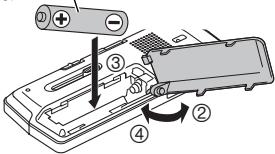

Charging the battery

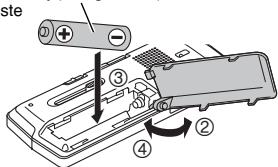
Charging the battery
(The factory setting is "HIGH".)
(The factory setting is "OFF".)
(The factory setting is "FLAT".)
Self-timer
(The factory setting is "OFF".)
(The factory setting is "OFF".)
(The factory setting is "OFF".)
(The factory setting is "5 sec".)
(The factory setting is "FLAT".)
(The factory setting is "ON".)
REC LED (recording indicator)
(The factory setting is "ON".)
General menu
BATT. SETTING
(The factory setting is "5".)
RECYCLE BIN
(The factory setting is "ON".)
FORMAT

Cd
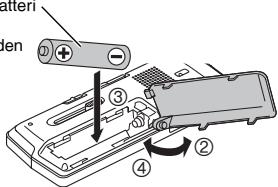

Cd
Information about the battery symbol (two examples below):
Pursuant to Directive 2004/108/EC, Article 9(2)
Panasonic Testing Centre
Panasonic Marketing Europe GmbH
Winsbergring 15, 22525 Hamburg, Germany
Panasonic Corporation
Web Site: http://panasonic.net
© Panasonic Corporation 2011

VQT3T14
M0611KZ0

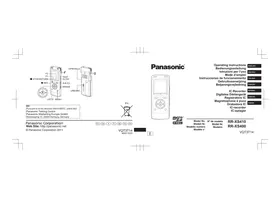
- SUPPLIED ACCESSORIES
- FOR THE UNITED KINGDOM AND REPUBLIC OF IRELAND CUSTOMERS
- FEATURES
- RECORDING
- PLAYING BACK TO LISTEN
- CONNECTING THIS UNIT TO A COMPUTER
- RECORDING/PLAYBACK USING THE TIMER
- TABLE OF CONTENTS
- PREPARATION
- BASIC OPERATIONS
- ADVANCED OPERATIONS
- USING WITH A COMPUTER
- OTHER
- PART NAMES
- SCREEN DISPLAY
- INSERTING THE BATTERY/CHARGING
- INSERTING THE RECHARGEABLE BATTERY (SUPPLIED)
- CHARGING THE BATTERY
- TAKE OUT THE USB PLUG
- ② INSERT THE UNIT'S USB PLUG INTO THE COMPUTER
- THE FIRST TIME YOU CONNECT THE UNIT TO YOUR PC
- ③ SLIDE THE OPR/HOLD SWITCH TO THE [HOLD] SIDE
- DISCONNECTING THE UNIT
- TURNING THE POWER ON/OFF/HOLD FUNCTION
- TURNING THE POWER ON
- TURNING THE POWER OFF
- ABOUT THE BATTERY INDICATOR
- AUTO POWER OFF
- USING THE HOLD FUNCTION
- SETTING THE CLOCK
- FILE AND FOLDER
- FILE
- FOLDER
- SELECTING THE FOLDER
- SELECTING THE FOLDER OR FILE IN THE LIST SCREEN
- ① PRESS [F2 (FOLDER)]
- PRESS [■ STOP/RETURN] TO STOP RECORDING
- TO PAUSE RECORDING
- SCREEN DISPLAY DURING RECORDING
- NOTE WHEN RECORDING
- PLAYING
- PRESS [▶ OK] (PLAYBACK STARTS)
- ADJUSTING THE VOLUME
- TURN UP THE VOLUME: PRESS
- TURN DOWN THE VOLUME: PRESS
- OPERATIONS DURING PLAYBACK
- JUMP (SKIP): PRESS |◀◀
- FAST BACKWARD/FAST FORWARD (SEARCH)
- PRESS AND HOLD ◀◀
- TO STOP: PRESS [■ STOP/RETURN]
- SELECT A FILE
- CHECKING INFORMATION
- LISTENING TO THE AUDIO USING EARPHONES
- MONITORING THE RECORDING IN PROGRESS
- LISTENING TO THE AUDIO DURING PLAYBACK
- DELETING FILES
- DELETING FILES FROM THE LIST SCREEN
- SELECTING THE RECORDING SCENE
- CHANGING RECORDING SCENE SETTINGS
- TO EXIT THE SETTING SCREEN, PRESS [F2 (CLOSE)]. INITIALIZING RECORDING SCENE SETTINGS
- SELECTING RECORDING MODE
- SWITCHING MICROPHONE SENSITIVITY
- REDUCING NOISE (LOW CUT FILTER)
- SETTING THE RECORDING LEVEL MANUALLY
- SETTING THE RECORDING LEVEL ADJUSTMENT TO MANUAL
- ADJUSTING THE RECORDING LEVEL MANUALLY
- SETTING THE RECORDING PEAK LIMITER TO ON
- TO EXIT THE SETTING SCREEN, PRESS [F2 (CLOSE)]
- SETTING THE RECORDING EQ
- SETTING WHEN SELECTING "USER
- ⑤ PRESS [▶ OK] TO ENTER
- SELF TIMER
- PREVENTING UNNECESSARY RECORDING (VAS)
- PAST RECORDING FUNCTION (PRE-RECORD)
- TO SET THE PAST RECORDING TO ON
- TO RECORD USING THE PAST RECORDING FUNCTION: WHEN RECORDING MODE IS PCM, THE PAST RECORDING FUNCTION DOES NOT OPERATE
- ① PRESS AND HOLD [● REC] FOR 1 SECOND OR MORE
- ② PRESS [● REC]
- RECORDING BY CONNECTING AN EXTERNAL MICROPHONE
- COPYING TO OTHER DEVICES
- RECORDING FROM OTHER DEVICES
- ⑧ PRESS AND HOLD [● REC] FOR 1 SECOND OR MORE
- PLAY BACK THE EXTERNAL DEVICE AND ADJUST THE INPUT/OUTPUT LEVEL
- PRESS [● REC] TO START RECORDING
- PLAY THE EXTERNAL DEVICE
- SYNCHRO RECORDING SETTING
- SYNCHRO RECORDING
- SELECTING LINE RECORDING MODE
- INDEX FUNCTION
- ADDING INDEX
- DELETING INDEX
- CHANGING THE PLAYBACK SPEED
- PLAYBACK SPEED
- STATUS INDICATION DURING PLAYBACK
- A-B REPEAT PLAY
- CANCELLING A-B REPEAT
- PLAYBACK FROM A SPECIFIED POSITION (TIME SEARCH)
- SLIGHT RETURN PLAYBACK
- SETTING THE RETURN TIME
- REPEAT PLAY (REPEAT)
- SKIP AT REGULAR INTERVALS (TIME SKIP)
- SKIP AT REGULAR INTERVALS
- PRESS [F1 (SKIP)] DURING PLAYBACK
- ② PRESS ◀◀
- TO CHANGE THE SKIP INTERVAL
- PRESS [MENU]
- PRESS +, – TO SELECT “PLAY MENU” AND PRESS [▶ OK] TO ENTER
- PRESS +, - TO SELECT "TIME SKIP" AND PRESS [▶ OK] TO ENTER
- PRESS +, - TO SELECT THE TIME AND PRESS [▶ OK] TO ENTER
- SETTING THE PLAYBACK EQ (SOUND EQ)
- THE SOUND EQ IS EFFECTIVE ONLY WHEN LISTENING WITH THE EARPHONES
- USING AN SD CARD
- INSERTING THE SD CARD
- TO REMOVE THE SD CARD
- USING THE FILE SEARCH FUNCTION
- FILE SEARCH
- LISTENING TO MUSIC ON THIS UNIT (WMA/MP3 MUSIC FILES)
- SELECTING A FILE FROM FOLDER "M
- SELECT THE FILE AND PRESS [▶ OK]
- FOLDER CUE FUNCTION
- PRESS [F2 (☐ CUE)] DURING PLAYBACK
- ② PRESS |◀◀, ▶▶| WHEN “☐” IS DISPLAYED
- CANCELLING FOLDER CUE
- USING THE PLAYLIST FUNCTION
- REGISTERING YOUR FAVOURITE TRACKS TO A PLAYLIST
- PLAYING TRACKS REGISTERED TO THE PLAYLIST
- CHANGING THE ORDER OF PLAYLIST TRACKS
- CANCELLING TRACKS REGISTERED TO THE PLAYLIST
- WHEN CANCELLING ALL REGISTERED TRACKS
- EDITING: DIVIDING FILES
- DISPLAYING THE EDITING SETTING SCREEN
- DIVIDING FILES
- EDITING: COMBINING FILES
- FILES CANNOT BE COMBINED IN THE FOLLOWING CASES
- EDITING: COPYING OR MOVING FILES
- COPYING FILE
- MOVING FILES
- RECYCLE BIN FUNCTION
- RETURNING FILES IN THE RECYCLE BIN TO THE ORIGINAL FOLDER
- EMPTYING THE RECYCLE BIN FOLDER
- USING THE TIMER
- CHECKING THE TIMER CONDITION OR EXECUTION STATE
- COMMON MENU
- COMMON SETTINGS OPERATION
- BEEP SOUND
- REC LED (RECORDING INDICATOR)
- BATT. SETTING
- BACKLIGHT
- CONTRAST
- FORMAT
- INIT MENU
- VERSION
- SYSTEM REQUIREMENTS
- ① TAKE OUT THE UNIT’S USB PLUG
- ② CONNECT THE UNIT TO A COMPUTER USING THE USB PORT
- USB MASS STORAGE FUNCTION
- USING USB POWER
- TAKE OUT THE UNIT'S USB PLUG
- ② PRESS AND HOLD [■ STOP/RETURN] ON THE UNIT WHILE CONNECTING THE UNIT TO THE COMPUTER'S USB PORT
- OPENING FOLDERS OF THIS UNIT
- CLICK [START] → [MY COMPUTER]
- RIGHT-CLICK TO OPEN THE "IC RECORDER (G:) (THIS UNIT)
- RIGHT-CLICK TO OPEN THE FOLDER
- IMPORTING FILES TO A COMPUTER/ORGANIZING FILES
- IMPORTING FILES RECORDED ON THIS UNIT TO A COMPUTER
- PLAYING RECORDED FILES ON THE COMPUTER
- DELETE UNNECESSARY FILES USING THE COMPUTER
- DO NOT CHANGE THE FOLDER NAMES
- FILE NAME
- FILE NAMING RULES WHEN RECORDING ON THIS UNIT
- AUTOMATIC CHANGE OF FILE NAME BY FILE DELETION OR EDITING
- RETURNING THE FILES IMPORTED TO THE COMPUTER TO THIS UNIT
- FILE NAME IN THE MUSIC FOLDER AND ORDER OF PLAYBACK
- FOLDER STRUCTURE ON THIS UNIT
- RECYCLE FOLDER
- TRANSFERRING MUSIC FILES TO THIS UNIT
- TRANSFERRING MUSIC FILES TO THIS UNIT FROM THE COMPUTER
- TRANSFERRING DRM PROTECTED WMA FILES
- Q & A (FREQUENTLY ASKED QUESTIONS)
- ERROR MESSAGES
- TROUBLESHOOTING GUIDE
- SPECIFICATIONS
- CARE AND USE
- UNIT
- BATTERIES
- RECHARGEABLE BATTERY
- SD CARD COMPATIBILITY
- NOTICE FOR WHEN TRANSFERRING TO ANOTHER PARTY, OR DISPOSING OF THE SD CARD OR THE UNIT
- ALLERGIES
- PRECAUTIONS FOR LISTENING WITH THE HEADPHONES OR EARPHONES
- CAUTION
- BASED ON EN
- MAINTENANCE
- CLEAN THIS UNIT WITH A DRY AND SOFT CLOTH
- INFORMATION FOR USERS ON COLLECTION AND DISPOSAL OF OLD EQUIPMENT AND USED BATTERIES
- FOR BUSINESS USERS IN THE EUROPEAN UNION
- [INFORMATION ON DISPOSAL IN OTHER COUNTRIES OUTSIDE THE EUROPEAN UNION]
- NOTE FOR THE BATTERY SYMBOL (BOTTOM TWO SYMBOL EXAMPLES)
- PANASONIC WARRANTY
- THIS WARRANTY CARD AND THE PURCHASE DOCKET (OR SIMILAR PROOF OF PURCHASE) SHOULD BE RETAINED BY THE CUSTOMER AT ALL TIMES
- PANASONIC AUSTRALIA PTY. LIMITED
- FOR LATIN AMERICAN COUNTRIES ONLY USEFUL INFORMATION
- CUSTOMER SERVICE
- CUSTOMER SERVICE DIRECTORY
- HTTP://WWW.LAR.PANASONIC.COM
- MEXICO SERVICE
- SELF-TIMER
- GENERAL MENU
- RECYCLE BIN
- INFORMATION ABOUT THE BATTERY SYMBOL (TWO EXAMPLES BELOW)
- PANASONIC CORPORATION
Brand : PANASONIC
Model : RR-XS400E-S, RR XS400
Category : Dictaphone