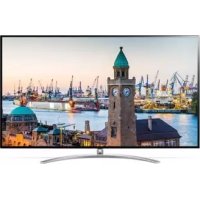
65SM98007LA - Television LG - Free user manual and instructions
Find the device manual for free 65SM98007LA LG in PDF.


| Product type | LED TV |
| Brand | LG |
| Model | 65SM98007LA |
| Screen size (diagonal) | 65 inches (165 cm) |
| Screen resolution | 4K Ultra HD (3840 x 2160 pixels) |
| Backlight | LED |
| Operating system | webOS |
| TV reception | DVB-T2/C/S2 (digital), PAL/SECAM (analog) |
| Wireless connectivity | Wi-Fi 802.11a/b/g/n/ac, Bluetooth |
| Wired connectivity | Ethernet (LAN), HDMI, USB, RF antenna, CI+ |
| Number of HDMI ports | 4 (estimated based on similar models) |
| Number of USB ports | 2 (estimated based on similar models) |
| Remote control included | Magic Remote AN-MR19BA (with Bluetooth and voice recognition) |
| VESA standard (wall mount) | 300 x 300 mm (M6 screws, 4 screws) |
| Power supply | 100-240 V ~ 50/60 Hz |
| Power consumption (typical) | Approximately 150-200 W (estimated) |
| Operating temperature | 0 °C to 40 °C |
| Operating humidity | Less than 80% |
| Storage temperature | -20 °C to 60 °C |
| Storage humidity | Less than 85% |
| Maintenance and cleaning | Unplug the TV, gently wipe with a soft, dry cloth. Do not use liquids, chemicals, or abrasives. |
| Safety | Do not expose to humidity, open flames, or impact. Use only accessories approved by LG. Unplug during storms or long periods of non-use. |
| Weight (without stand) | Approximately 25 kg (estimated) |
| Dimensions (without stand) | Approximately 1450 x 830 x 60 mm (estimated) |
Frequently Asked Questions - 65SM98007LA LG
User questions about 65SM98007LA LG
0 question about this device. Answer the ones you know or ask your own.
Ask a new question about this device
Download the instructions for your Television in PDF format for free! Find your manual 65SM98007LA - LG and take your electronic device back in hand. On this page are published all the documents necessary for the use of your device. 65SM98007LA by LG.
USER MANUAL 65SM98007LA LG
MANUEL D'UTILISATION
Sécurité et ↔
Téléviseur LED*
- Image shown may differ from your TV.
- Image shown on a PC or mobile phone may vary depending on the OS(Operating System).
- App icon positions may vary on the platform, depending on the software version.
Network Settings
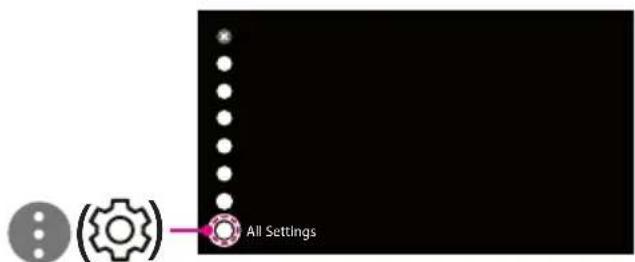
1 Press the Settings) on the remote to access the settings menu. Point the 1 Settings] icon and select by pressing the Wheel (OK) button on the remote.
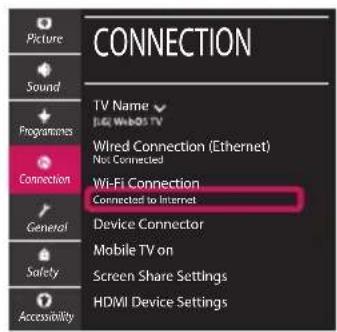
4 If the connection is successful, the "[Connected to Internet]" is displayed.
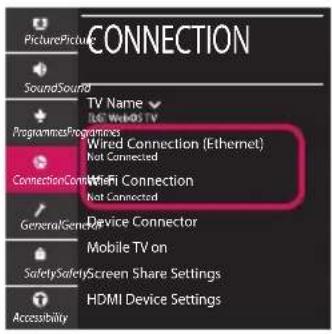
2 Select the [Connection] [Wired Connection(Ethernet)] or [Wi-Fi Connection].
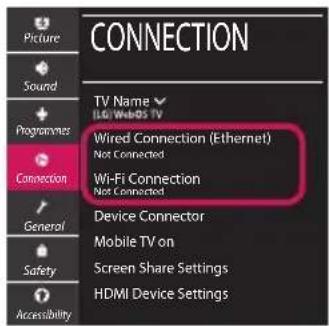
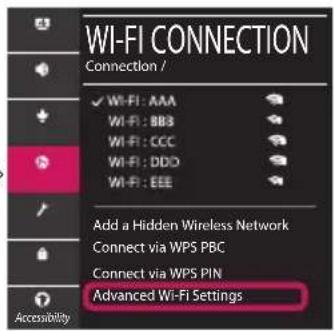
You can check the status of connection in [Advanced Wi-Fi settings].
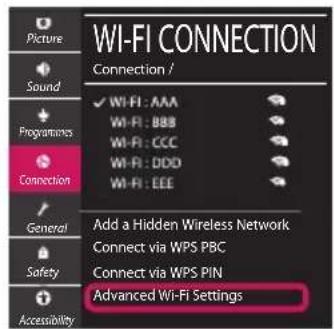
3 The device automatically tries to connect to the network available (wired network first). When you select the [Wi-Fi Connection], the network list available is displayed. Choose the network you wish to use.
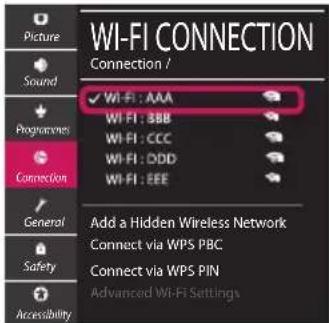

For wireless AP (Router) that have the symbol, you need to enter the security key.
Troubleshooting Network Problems
1 Press the Settings) on the remote to access the settings menu. Point the [A] Settings] icon and select by pressing the Wheel (OK) button on the remote.
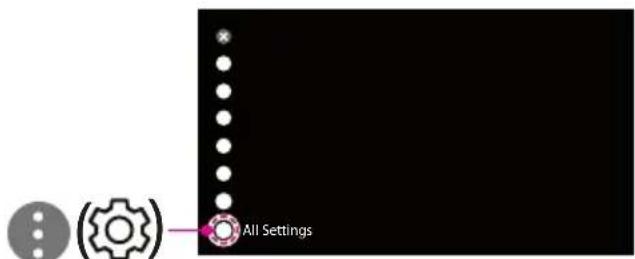
2 Select the [Connection] [Wired Connection (Ethernet)] or [Wi-Fi Connection] [Advanced Wi-Fi Settings].
→
Follow the instructions below that correlate to your network status.
Check the TV or the AP (Router).

When X appears next to TV:
1 Check the connection status of the TV, AP (Router).
Power off and power on the TV, AP (Router).
If you are using a static IP, enter the IP directly.
Contact internet service provider or AP (Router) company.
Check the AP (Router) or consult your Internet service provider.

When X appears next to Gateway:
Unplug the power cord of the AP (Router) and try to connect after 5 seconds.
2 Initialize (Reset) the AP (Router).
Contact internet service provider or AP (Router) company.

When X appears next to DNS:
Unplug the power cord of the AP (Router) and try to connect after 5 seconds.
Initialize (Reset) the AP (Router).
Check that the MAC address of the TV/AP (Router) is registered with your Internet service provider. (The MAC address displayed on the right pane of the network status window should be registered with your Internet service provider.)
Check the AP (Router) manufacturer's website to make sure your router has the latest firmware version installed.
SmartShare Connection to Smartphone
1 Check that Wi-Fi is enabled on your smartphone. To use SmartShare, both devices must on the same local network.
2 Install/run the app for sharing content on your smartphone (It's called LG TV Plus on LG phones).
3 Enable your smartphone to share content files with other devices.
4 Select the file type you want to play (movie, audio or photo).
5 Select a movie, music or photo file to play on the TV.
6 Play the media file to view and enjoy it on your TV.
Updating the TV Firmware
- If the TV is turned on for the first time after it was shipped from the factory, initialization of the TV may take a few minutes.
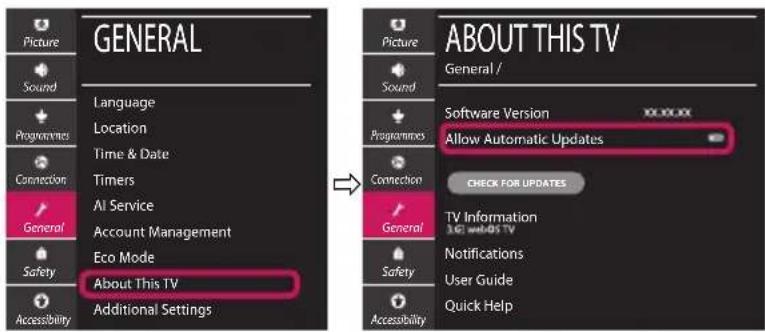
1 (Settings) [All Settings] [General] [About This TV] [CHECK FOR UPDATES]
2 After checking the version of the software, update it. If you check the "[Allow Automatic Updates]", you can update the software automatically.
Cand X aparé in dreptul Gateway:
Cand X aparé in dreptul DNS: