SW1348H - Smartwatch SMARTY 2.0 - Free user manual and instructions
Find the device manual for free SW1348H SMARTY 2.0 in PDF.


| Product type | Connected watch (Smartwatch) |
| Brand | SMARTY 2.0 |
| Model | SW1348H |
| Case dimensions | Approximately 45 x 45 x 11 mm |
| Weight | Approximately 50 g |
| Display type | LCD touch screen |
| Screen resolution | 240 x 240 pixels |
| Battery capacity | 300 mAh |
| Battery life | 3 to 5 days in normal use |
| Charging time | Approximately 3 hours |
| Connectivity | Bluetooth 3.0 for calls, Bluetooth BLE for data |
| Sensors | Accelerometer, heart rate monitor, pulse oximeter |
| Main functions | Calls, notifications, music control, health tracking (heart rate, SpO2, stress, sleep), remote shutter, weather, calculator |
| Water resistance | Splash resistant (IP67 estimated) |
| Compatibility | iOS and Android via Oplayer Smart Life app |
| Box contents | 1 watch, 1 charging cable, 1 user manual |
| Power source | Built-in rechargeable lithium-ion battery |
| Care and cleaning | Clean with a soft, dry cloth, avoid contact with chemicals |
| Safety | Do not expose to extreme temperatures or violent shocks |
| Spare parts and repairability | Not available, device not user-repairable |
Frequently Asked Questions - SW1348H SMARTY 2.0
User questions about SW1348H SMARTY 2.0
0 question about this device. Answer the ones you know or ask your own.
Ask a new question about this device
Download the instructions for your Smartwatch in PDF format for free! Find your manual SW1348H - SMARTY 2.0 and take your electronic device back in hand. On this page are published all the documents necessary for the use of your device. SW1348H by SMARTY 2.0.
USER MANUAL SW1348H SMARTY 2.0
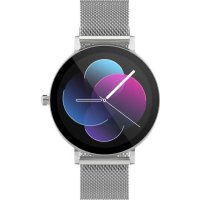
- Touch screen: shows watch data, swipe or touch the screen to select the functions.
- Side button: press and hold the side button to power on and power off, and short press the side button to return to watch interface or let display off/on
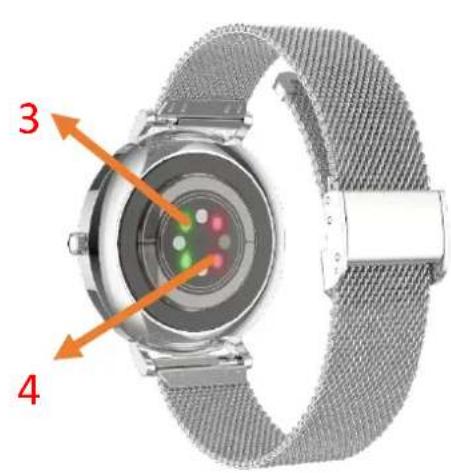
- Heart rate sensor
- Blood Oxygen sensor

3 Charging your Smart Watch
-
Before using your Smartwatch for the first time, make sure it is fully charged.
-
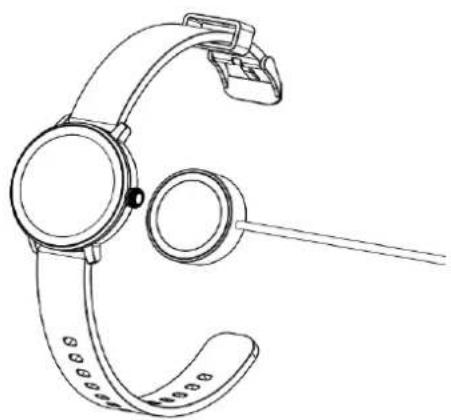
The Smartwatch will take approximately 3 hours to fully charge. Once a power charger is plugged in, the Smartwatch will charge automatically.
-
Place the bracelet on the charging base tray and plug the other end of the user cable into a power source.
4. Install the App
- Search for the Oplayer smart life app in the App Store /Play Store to download or scan the QR code below for installation.

5. Connect the APP
a. Open the Oplayer smart life app on your smart phone.
b. Tap on the "setting" page and select "Connect Smart Device."
c. Select the "SW079" to connect. If this prompts a pairing window, tap "Pair" and if a pop-up window asking for notification access appears, select "allow". After connecting, the App will automatically synchronize the watch data. You can now use the app.
6. Disconnect the APP
Open the Oplayer smart life app. On the app "Setting" tab, select "Forget this Smart Device" to disconnect.
Note: If using an iPhone and on some Android devices, the watch will still be in paired mode after disconnecting. You will need to enter the phone's Bluetooth settings menus to un-pair the watch.
7. How to Use
- Hold the side button for 3 seconds to turn on /off, swipe up/down or left/right to see more options.
8. Main Menu
Shortcuts
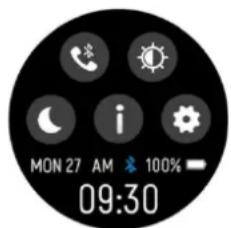
: This icon is the call 3.0 Bluetooth connection switch, click this icon to connect the watch 3.0 Bluetooth on your phone system Bluetooth. Then, the watch can answer calls and play music.
Screen brightness, you can tap the brightness icon to adjust the screen brightness.
: Sleep mode.
i: About, to find the MAC address and software version of your Smartwatch.
: Settings.
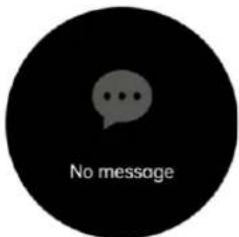
8.1 Notifications: Swipe up on the dial interface to view notifications such as incoming calls, text messages, QQ, WeChat, WhatsApp, Facebook, Twitter, etc.,
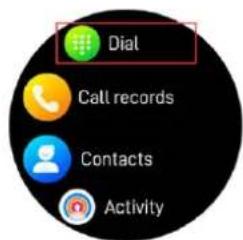
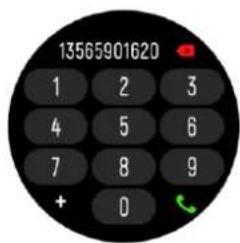
8.2 Dial: After pairing the phone with the watch's call Bluetooth, tap this icon to make a call.
8.3 Call history: records of calls made and answers received.
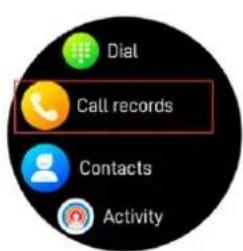
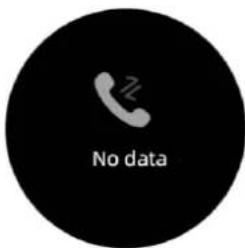
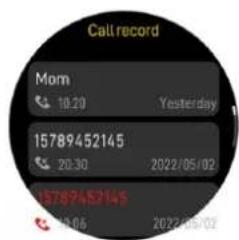
8.4 Contacts: connected the "Oplayer smart life" and open the App, then go to "Sync Contacts" in Settings. and add contact information in your contacts, which will be displayed on the watch after saving.
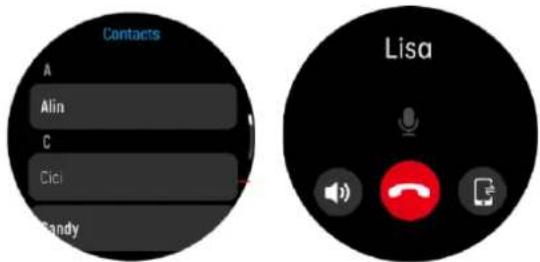
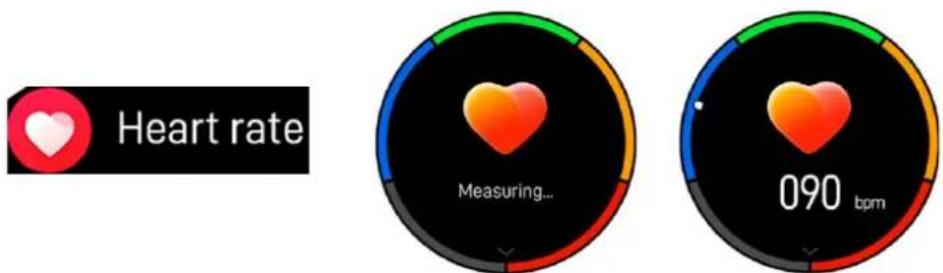
8.5 Heart Rate Monitor: Tap this icon to monitor your current heart rate. To exit the heart rate monitor, slide from left to right on the screen.
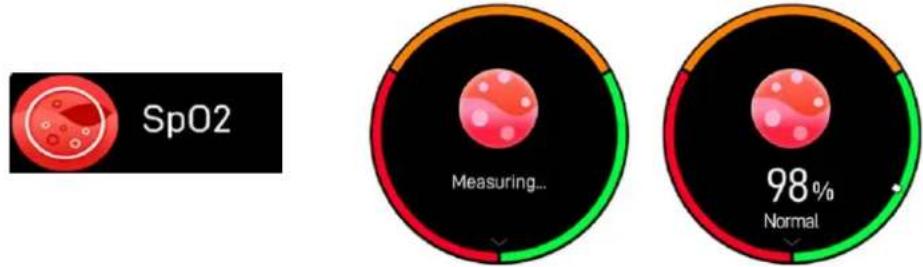
8.6 Blood Oxygen Monitor: Tap this icon to monitor your current Blood Oxygen monitor. To exit it, slide from left to right on the screen.
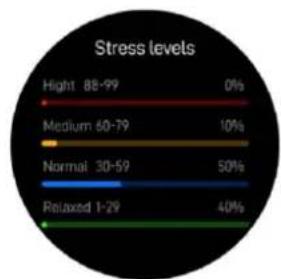
8.7 Stress Monitor: Click this icon to monitor your current pressure, to exit it, swipe from left to right on the screen.
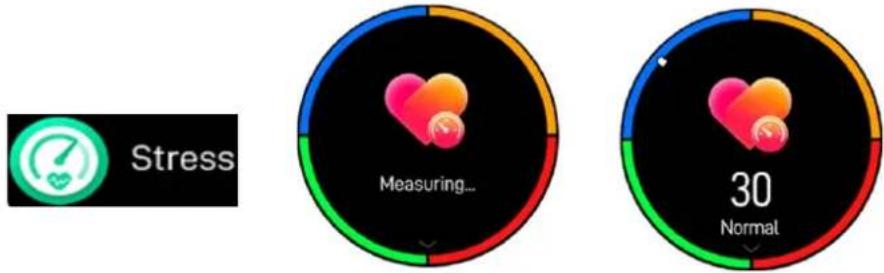
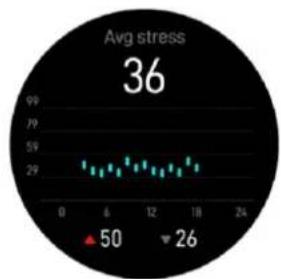
Swipe from down to up, you can see the standard of value.
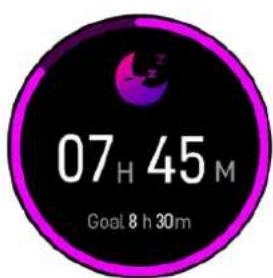
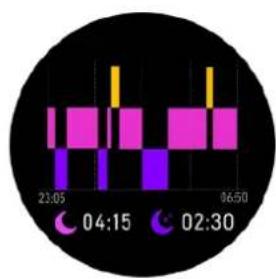
8.8 Sleep monitor: Monitor your sleep between 9:00 p.m. and 9:00 a.m. automatically.
8.9 Weather: Display the weather when the smartwatch connected to Oplayer smart life APP.
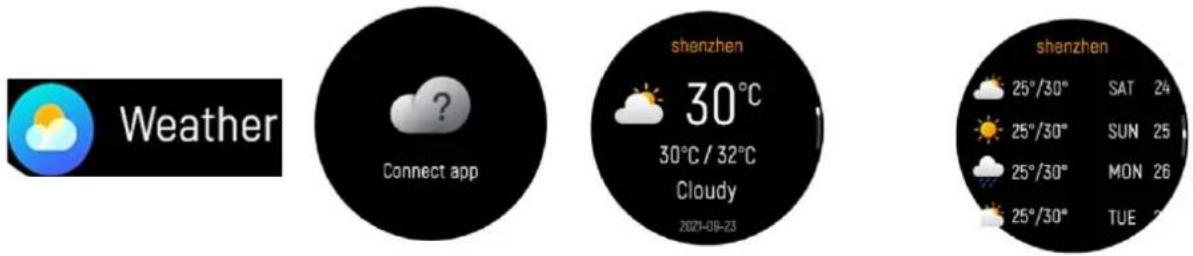
8.10 Shutter: take pictures remotely from your smart watch.

8.11 Music control: Click the music icon to enter the music playback control interface. You can select previous/next song, and play/pause music. You can control to increase and decrease the volume, and you can tap the icon to switch the output sound on the watch or on the phone. To exit the music playback controls, swipe left to right on the screen.

8.12 Settings

Setting

Find phone, find your smartphone.

Brightness, you can tap the brightness icon to adjust the screen brightness.

Screen on, you can choose the display duration of different time, the longest is 200s.

Watch face, swipe from right to left to select the corresponding watch face.

Menu style.

Do not disturb mode.

Power Saving: Enable power saving mode will reduce screen brightness, and BTCalling will be switched off.

Notification Banner.

Language switching

Call reset, click OK to clear contacts and call history.

Vibration Intensity (you can adjust the vibration size of the watch)


Watch calculator function.
Restart the device.
Reset the device. After clicking Reset, all data on the watch will be cleared.


Switch off your Smartwatch.
System, to find the MAC address and software version of your Smartwatch.
Audio Setup.
Notifications: Multiple types of message push switch buttons can be controlled.
Monitor heart rate, blood oxygen level for 24 hours.
Sedentary reminder switch. Raise the hand wake switch. Drink reminder switch.
SMARTY2G
Modello: SW079
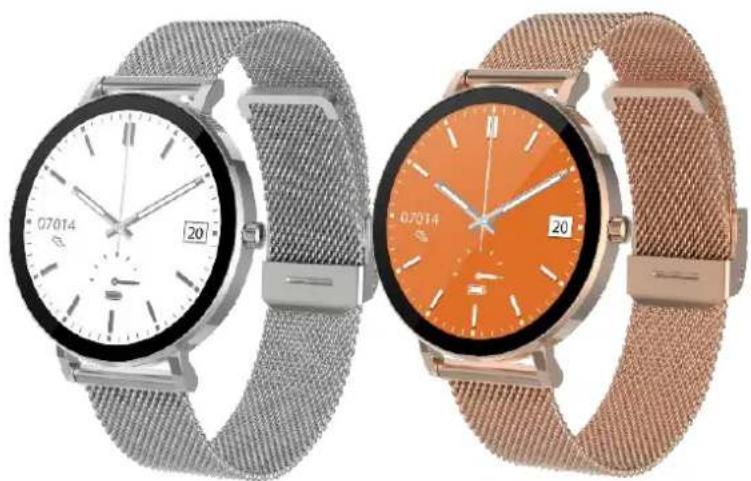
MANUALE D'USO
(ITALIANO)