PowerTel M6750 - Smartphone Amplicomms - Free user manual and instructions
Find the device manual for free PowerTel M6750 Amplicomms in PDF.


| Brand | Amplicomms |
| Model | PowerTel M6750 |
| Product type | Smartphone (mobile phone) |
| Network | Quad-band 850/900/1800/1900 MHz |
| Battery | Lithium, model BL-5K, 3.7 V, 800 mAh |
| Talk time | Approximately 6 hours |
| Standby time | Approximately 200 hours |
| Dimensions | 104 x 50 x 20 mm |
| Net weight | 95 g |
| Power supply | AC adapter SA/6PA/05Fbyzx, input 100-240 V AC, output 5 V / 800 mA via micro USB |
| Camera | Built-in (rear) |
| SOS function | Yes, up to 5 programmable emergency numbers |
| Audio amplification | Yes, dedicated key |
| Flashlight | Built-in (activate by long press on amplification key) |
| FM radio | Yes |
| Bluetooth | Yes |
| Audio jack | 3.5 mm |
| Connectivity | Micro USB (charging and data transfer) |
| SIM card type | Standard (mini-SIM) |
| Memory card | Micro SD (not included) |
| SAR values | Head: 0.279 W/kg, Body: 0.694 W/kg |
| Warranty | 24 months |
| Package contents | Phone, battery, USB cable, desktop charger, user manual |
Frequently Asked Questions - PowerTel M6750 Amplicomms
User questions about PowerTel M6750 Amplicomms
0 question about this device. Answer the ones you know or ask your own.
Ask a new question about this device
Download the instructions for your Smartphone in PDF format for free! Find your manual PowerTel M6750 - Amplicomms and take your electronic device back in hand. On this page are published all the documents necessary for the use of your device. PowerTel M6750 by Amplicomms.
USER MANUAL PowerTel M6750 Amplicomms
text_image
Phonebook OK Back amplicomms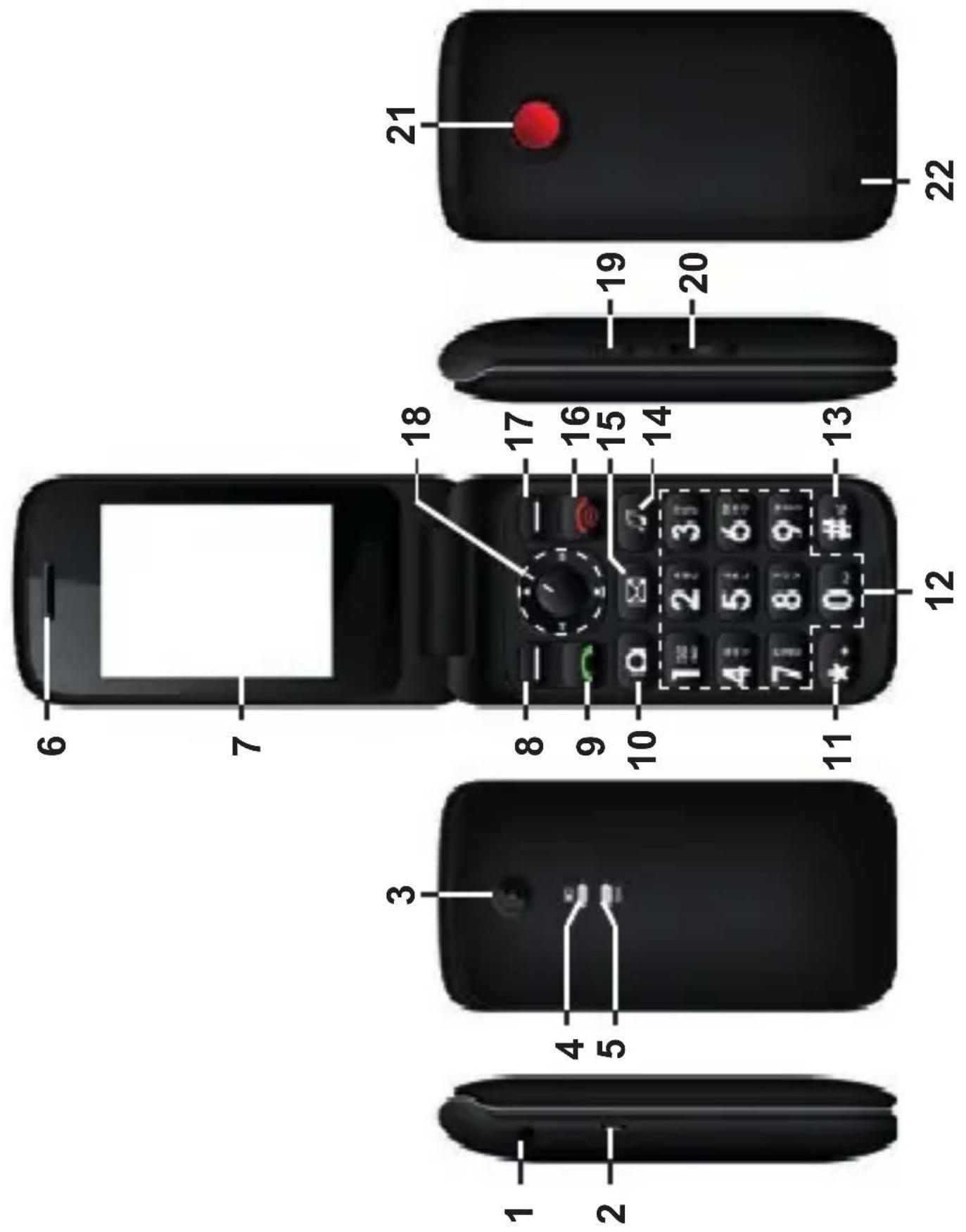
text_image
Exploded view diagram of a mobile phone showing internal components with numbered labelsAuf einen Blick
natural_image
Simple line drawing of a smartphone with a circular button and a curved arrow indicating rotation (no text or symbols)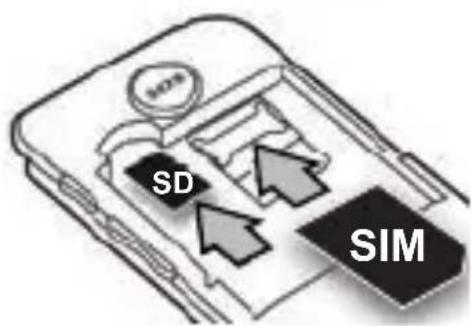
text_image
SD SIM1 Headset jack (3.5 mm)
2 Micro USB port (Charging/data transfer)
3 Camera
4 LED: missed calls/SMS
5 LED: torch / camera flash / battery fully charged / low battery
6 Earpiece
7 Display
8 Multifunction button, the display shows each time its function
9 Call button
10 Quick start Camera function
11 *-key
- longpress to enter + or P / W (may be necessary for call-through numbers or remote accessing an answering machine)
- when writing SMS: enter symbol
12 Numeric/letters keys
13 #-key
- in standby mode: change silent mode/normal mode (long press)
- when writing SMS: change input method
14 Quick start Audio player
15 Quick start SMS function
16 End call button / On/Off button (long press)
17 Multifunction button, the display shows each time its function
18 Navigation key / confirm button OK (center)
19 Amplificaton key / torch button (long press)
20 Volume control
21 SOS button
22 Loudspeaker
Scope of delivery
1 mobile phone 1 rechargeable battery
1 USB cable 1 desktop charger
1 user guide
Installation
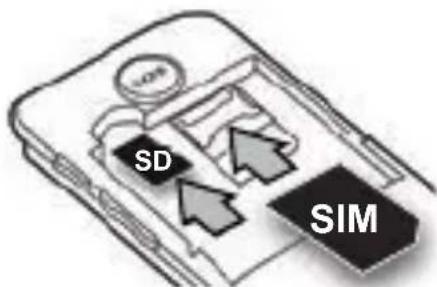
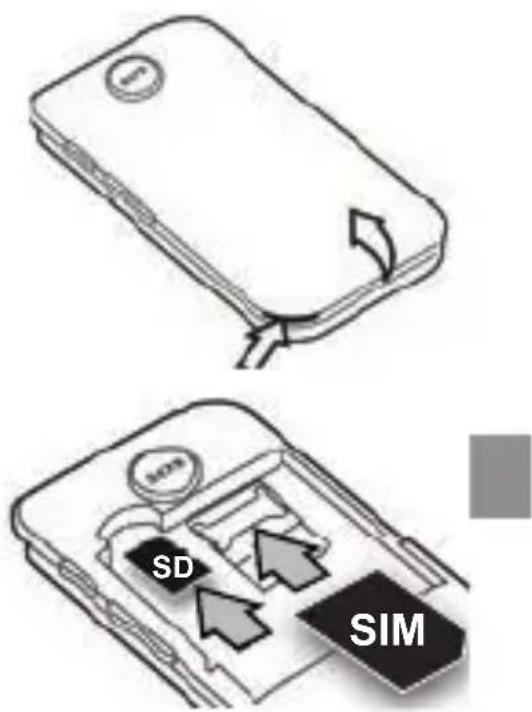
Installing SIM card, memory card and battery
To store photos, videos, etc., you should use a microSD card. If the microSD card is not FAT formatted, you can format it as you insert it.
1 Remove the battery cover.
2 Insert a micro SD card with contacts downwards into the slot.
3 Slide the SIM card with the contacts downwards under the holder. Note the bevelled corner!
4 Insert the battery (contacts down on the right).
5 Replace the battery cover and press it all the way round.
Making a call/taking a call
Making a call
1 In standby mode, input phone number including the area code
text_image
2 Press . 3 Press tTaking a call
1 Press .
Phonebook
Add new contact
1 In standby: press Menu, select Phonebook and press OK.
2 Select Add new contact and press OK.
3 Select the location (phone or SIM) and press OK.
4 Enter name and telephone number (if you store the contact in the telephone, you can also select a caller picture and a caller ring tone).
5 Press Options, select Save and press Select.
6 Press to return to standby.
Note: Always add + (longpress * key) in front of the country code for making international calls.
Calling from the phonebook
1 In standby: press Names.
2 Use the navigation key to select an entry.
3 Press .
Messages
Writing and sending SMS
1 In standby: press Menu, select Messages and press OK.
2 Select Write message and press OK.
3 Enter the text.
Press the *-key to display symbols, use the navigation key to select a symbol and press OK.
Press the #-key to change the input method.
4 Press Options, select Send to, enter the telephone number or select an entry from the phonebook or the calls list and press OK.
5 Press Options, select Send and press Select.
Viewing a SMS
1 In standby: press Menu, select Messages and press OK.
2 Select Inbox and press OK.
3 Select an entry and press Options -> View -> Select.
Further options:
- Reply: enter your message and send to the sender.
- Call sender: to call the sender.
- Forward: to forward message to other recipients.
- Delete: delete the message.
-
Erweitert:
-
Use number: dial the number, save it in the phonebook or send a SMS to this number.
- Use USSD: if the SMS contains a USSD code (provider-dependent), you can reuse it.
Message settings
1 In standby: press Menu, select Messages and press OK.
2 Select Message settings and press OK.
- SIM: settings for SMS as well as change / enter the phone number for the voicemail server.
- Memory status
- SMS counter
- Save sent SMS: turn the function on / off.
- Preferred storage: select the location for storing SMS.
Call history
1 In standby: press Menu, select Call history and press OK.
2 Select the desired list and press OK to check the calls (missed, dialled, received, all) or Select Delete call history to delete all entries.
Multimedia
1 In standby: press Menu, select Multimedia and press OK.
2 To choose from:
- Camera: with Options you can, for example, view fotos, change settings for camera, image and effects, select the storage medium, or restore the default settings.
- Image viewer: with Options you can, for example, view photos, select list or matrix style, transfer an image via Bluetooth, use as a background image, rename, delete, delete all, or view image information.
- Video recorder: with Options you can, for
example, switch to the camera function, change camcorder and video settings or select the storage medium.
- Video player: for watching recorded videos.
- Audio player: playback of audio files.
For operation use the navigation button, volume adjustment with the side buttons.
- FM radio: with Options you can, for example, start an auto channel search, enter station frequencies manually, etc. Adjust the volume with the side keys.
SOS setting
1 In standby: press Menu, select SOS setting and press OK.
2 To choose from:
- Status: turn the function on / off.
- SOS number: enter up to 5 emergency call numbers.
- SOS SMS: enter an emergency SMS.
- Warning Tone: activate / deactivate the warning tone when an emergency call is triggered.
Settings
1 In standby: press Menu, select Settings and press OK.
2 To choose from:
- Phone settings: settings for time and date, language, display, preferred input method and flight mode.
- Call settings: settings for call waiting, call divert, call barring, blacklist, auto redial, call time display, call time reminder (signal), answer mode.
- Profiles: settings for call signaling (General / Silent / Meeting / Outdoor).
- Speed dial: assignment of digit keys 2 ... 9 with entries from the telephone book. Key 1 is pre-assigned with the speed dialing to the voice mailbox. To dial with speed dialing, press and hold the respective button in idle status.
- Navigation key: you can use the navigation key to quickly access specific menus (in delivery state: Up key = Messages / Left = Profiles / Down key = Alarm / Right = Audio player).
- Network settings: network selection automatically or manually.
- Security settings: settings for SIM security (PIN lock / PIN change), phone security
(phone lock / lock code available on request from your network operator).
- Restore factory settings: reset the device to factory settings (lock code 1122).
File manager
1 In standby: press Menu, select File manager and press OK.
2 Select the desired storage medium and manage files in the phone / memory card.
Organizer
1 In standby: press Menu, select Organizer and press OK.
2 To choose from:
- Calendar: today is marked. Use the navigation key to select a day (or use "Jump to Date") and enter an event to which you want to be reminded.
- Calculator: enter the first number (decimal point with the # key), select the calculation operation with the navigation key and enter the next number. To display the result, press OK.
- Alarm: you can enter up to 5 different alarm times.
- Bluetooth: switch on or off the Bluetooth function and use the search function for pairing other Bluetooth devices.
- File manager: manage files in the phone / memory card.
- Connectivity: SIM toolkit: scope and offer depending on the SIM card used (provider / network operator).
Safety Information
- Prevent exposure to smoke, dust, vibration, chemicals, moisture, heat and direct sunlight. The phone is not waterproof; therefore, keep it dry.
- Only use original accessories and batteries. Never attempt to connect other products.
- If you want to connect the phone to another device, read the manual supplied with that device with regard to any detailed safety information.
- Never attempt to connect incompatible products.
- Repairs to this device may only be completed by qualified service personnel.
- All mobile communication equipment is subject to interference which may impair its performance.
- Keep the phone and accessories out of the reach of children.
- The SIM card can be removed. Caution! Small children can swallow them.
- The ringing tone is issued via the loudspeaker. Take an incoming call first and then hold the phone to your ear. This prevents any possible hearing damage.
- Only use the phone while driving or riding a transport vehicle in road traffic when using the approved handsfree equipment and appropriately positioned holders. Ensure that no safety-related functions are interfered with when operating the phone. It is essential to observe the applicable national laws and regulations.
- Always maintain a distance of at least 15 cm to implanted heart pacemakers to prevent any possible interference. If you have had a pacemaker implanted, do not carry the phone in a breast pocket when switched on. Always hold the phone to the ear furthest away from the pacemaker during calls.
Switch the phone off immediately if you notice or suspect any adverse effects.
- Do not rely on the mobile phone as a safeguard for emergencies. For a variety of technical reasons, it is not possible to guarantee a reliable connection under all circumstances.
- Ensure access to the power adapter plug is not obstructed by furniture or such.
Intended use
This mobile phone is designed for use when connected to a mobile phone network. Any other use is considered unintended use. Unauthorised modification or reconstruction is not permitted. Under no circumstances open the device or complete any repair work yourself.
Areas of use
- Do not use the phone in prohibited areas.
- Switch the phone off in the vicinity of medical equipment (e.g. in hospitals).
- Do not use the phone in petrol stations or near fuels and chemicals.
- Check with the airline whether mobile phones may be used on board.
Tips on the battery
- Only use batteries, cables and charging unit approved by the manufacturer, otherwise the battery could be damaged.
- Never throw batteries into the fire or water.
- Do not short circuit the battery
• Always leave the battery in the phone to avoid accidentally short circuiting the battery contacts. - Keep the battery contacts clean and free of dirt.
- The battery can be charged/discharged hundreds of times but its service life is limited.
- Replace the battery when the battery power has decreased noticeably.
Disposal
In order to dispose of your device, take it to a collection point provided by your local public waste authorities (e.g. recycling centre). According to laws on the disposal of electronic and electrical devices, owners are obliged to dispose of old electronic and electrical devices in a separate waste container. The symbol indicates that the device must not be disposed of in normal domestic waste!
Batteries represent a hazard to health and the environment!
Never open, damage or swallow batteries or allow them to pollute the environment. They may contain toxic, ecologically hazardous heavy metals. You are legally obliged to dispose of
power packs and batteries at the point of sale or in the corresponding containers provided at collection points by local public waste authorities.
Disposal is free of charge. The symbols indicate that the batteries must not be disposed of in normal domestic waste and that they must be brought to collection points provided by local public waste authorities.
Packaging materials must be disposed of according to local regulations.
Declaration of Conformity

This device fulfils the requirements stipulated in the EU directive: 2014/53/EU. Conformity with the above mentioned directive is confirmed by the CE mark on the device. To view the complete Declaration of Conformity, please refer to the free download available on our web site www.amplicomms.com
Technical data
Quad-Band 850/900/1800/1900 MHz
Additional functions emergency call function
Battery Li-Ion, BL-5K, 3.7 V, 800 mAh
Talk time up to 6 hours
Standby time up to 200 hours
Dimensions 104 x 50 x 20 mm
Weight 95 g
Power supply Shenzen Samson Power Technology
Co. Ltd., Modell SA/6PA/05Fbyzx,
USB connection Micro USB, EU Standard
SAR values Head 0.279 W/kg / Body 0.694 W/kg
Guarantee
AMPLICOMMS equipment is produced and tested according to the latest production methods. The implementation of carefully chosen materials and highly developed technologies ensure trouble-free functioning and a long service life. The terms of guarantee do not apply when a device malfunction was caused by the mobile telecommunications network operator/provider.
The terms of guarantee do not apply to the batteries or power packs used in the products. The period of guarantee is 24 months from the date of purchase. All deficiencies related to material or manufacturing errors within the period of guarantee will be redressed free of charge.
Rights to claims under the terms of guarantee are annulled 30
following tampering by the purchaser or third parties. Damage caused as a result of improper handling or operation, normal wear and tear, incorrect positioning or storage, improper connection or installation or Acts of Gods and other external influences are excluded from the terms of guarantee. In the case of complaints, we reserve the right to repair defective parts, replace them or replace the entire device. Replaced parts or devices become our property. Rights to compensation in the case of damage are excluded where there is no evidence of intent or gross negligence by the manufacturer. If your device shows signs of defect during the period of guarantee, please return it to the sales outlet in which you purchased the AMPLICOMMS device together with the purchase receipt.
All claims under the terms of guarantee in accordance with this agreement can only be asserted at the sales outlet. No claims under the terms of guarantee can be asserted after a period of two years from the date of purchase and hand-over of the product.
Service hotline
In the event of technical problems, please contact our service hotline under tel. 0844 800 6503 (Using a UK landline, at the time of going to print: calls cost 6p for connection charge and then 5p a minute. Mobile costs may vary.) In the case of claims under the terms of guarantee, contact your sales outlet. There is a 2 year period of guarantee.
Notice succincte
natural_image
Simple line drawing of a closed notebook with a scroll and arrow indicating fold (no text or symbols)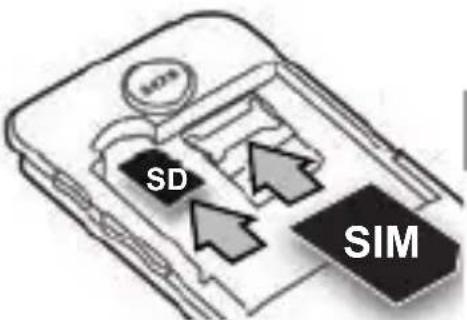
text_image
SD SIMnatural_image
Simple line drawing of a smartphone with a circular button and a curved arrow on the cover (no text or symbols)