 ManualGo.com
 CDX-M620FP - Car stereo SONY - Free user manual and instructions
Find the device manual for free CDX-M620FP SONY in PDF.


Download the instructions for your Car stereo in PDF format for free! Find your manual CDX-M620FP - SONY and take your electronic device back in hand. On this page are published all the documents necessary for the use of your device. CDX-M620FP by SONY.
USER MANUAL CDX-M620FP SONY
FM/AM Compact Disc Player Operating Instructions
The model and serial numbers are located on the bottom of the unit. Record these numbers in the space provided below. Refer to these numbers whenever you call upon your Sony dealer regarding this product. Model No. CDX-M770/M670/M620 Serial No. For installation and connections, see the supplied installation/connections manual. En ce qui concerne l’installation et les connexions, consulter le manuel d’installation/raccordement fourni. Para obtener información sobre la instalación y las conexiones, consulte el manual de instalación/conexiones suministrado.
CDX-M620 © 2001 Sony Corporation
This equipment has been tested and found to comply with the limits for a Class B digital device, pursuant to Part 15 of the FCC Rules.
These limits are designed to provide reasonable protection against harmful interference in a residential installation. This equipment generates, uses, and can radiate radio frequency energy and, if not installed and used in accordance with the instructions, may cause harmful interference to radio communications. However, there is no guarantee that interference will not occur in a particular installation. If this equipment does cause harmful interference to radio or television reception, which can be determined by turning the equipment off and on, the user is encouraged to try to correct the interference by one or more of the following measures: – Reorient or relocate the receiving antenna. – Increase the separation between the equipment and receiver. – Connect the equipment into an outlet on a circuit different from that to which the receiver is connected. – Consult the dealer or an experienced radio/TV technician for help.
Thank you for purchasing this Sony Compact
Disc Player. You can enjoy its various features even more with: • Display language*1 choice from English, French, Spanish. • Optional CD/MD units (both changers and players)*2. • CD TEXT information (displayed when a CD TEXT disc*3 is played). • Supplied controller accessory Card remote commander RM-X110 Wireless rotary commander RM-X5S (CDXM770) • Optional controller accessories Wireless rotary commander RM-X5S (CDXM670/M620)
You are cautioned that any changes or modifications not expressly approved in this manual could void your authority to operate this equipment.
THIS DEVICE COMPLIES WITH PART 15 OF THE FCC RULES. OPERATION IS SUBJECT TO THE FOLLOWING TWO CONDITIONS; (1) THIS DEVICE MAY NOT CAUSE HARMFUL INTERFERENCE, AND (2) THIS DEVICE MUST ACCEPT ANY INTERFERENCE RECEIVED, INCLUDING INTERFERENCE THAT MAY CAUSE UNDESIRED OPERATION.
CAUTION The use of optical instruments with this product will increase eye hazard.
*1 Some display indications do not appear in the language you select.
*2 This unit works with Sony products only. *3 A CD TEXT disc is an audio CD that includes information such as the disc name, artist name, and track names. This information is recorded on the disc.
Storing stations automatically — Best Tuning Memory (BTM). . . . . . . 14 Receiving the stored stations . . . . . . . . . . . . 14 Storing only the desired stations . . . . . . . . . 15 Storing station names — Station Memo. . . . . . . . . . . . . . . . . . . 15 Tuning in a station through a list — List-up . . . . . . . . . . . . . . . . . . . . . . . . 16
Tuning up for your best sound
Setting the equalizer (EQ7). . . . . . . . . . . . . Setting the soundstage menu — Dynamic Soundstage Organizer (DSO) . . . . . . . . . . . . . . . . . . . . . . . . Listening to each programme source in its registered DSO — Source Sound Memory (SSM) . . . . . Adjusting the sound characteristics . . . . . . Selecting the listening position (CDX-M770 only) . . . . . . . . . . . . . . . . . Adjusting the balance (BAL) . . . . . . . . . . . Adjusting the bass (CDX-M670/M620 only) . . . . . . . . . . . . Adjusting the treble (CDX-M670/M620 only) . . . . . . . . . . . . Adjusting the balance (FAD) (CDX-M670/M620 only) . . . . . . . . . . . . Adjusting the front and rear volume (CDX-M770 only) . . . . . . . . . . . . . . . . . Adjusting the volume of the subwoofer(s) . . . . . . . . . . . . . . . . . . . . . . . . Other adjustable items (CDX-M670/M620 only) . . . . . . . . . . . .
19 20 20 20 21 21 21 22 23
Location of controls
Card remote commander RM-X110 Refer to the pages listed for details. CD/MD : During Playback RADIO : During radio reception
MENU : During menu mode
M (DISC) (+): to select upwards
(–): to select leftwards/ .
MODE DSO MENU DISC +
SOUN D OFF SOURCE DISC –
(–): to select downwards
(+): to select rightwards/ >
In menu mode, the currently selectable button(s) of these four are indicated with a “ v” in the display.
Note If the unit is turned off by pressing (OFF) for 2 seconds, the unit cannot be operated with the card remote commander unless (SOURCE) on the unit is pressed, or a disc is inserted to activate the unit first. Tip Refer to “Replacing the lithium battery” for details on how to replace the batteries (page 31).
RESET DISC M ST EN U DSPL LI SCRL DSO SOURCE EQ7
TA D UN SO CLOSE REP DISC R TE EN CDX-M770/CDX-M670
The corresponding buttons of the unit control the same functions as those on the card remote commander. a OPEN button 8, 10, 32 b Main display window c qf Receptor for the card remote commander d qs Reset button 8 e Volume adjust buttons f SCRL (scroll) button g SOURCE button h DSPL (display mode change) button i Sub display window
j DISC +/– (cursor up/down) buttons
SEEK –/+ (cursor left/right) buttons k MENU button m LIST button o CLOSE (front panel close) button 8, 10 p OFF (Stop/Power off) button* q MODE button r Number buttons s SOUND button t EQ7 button u ENTER button v DSO button w Z (eject) button 10, 30 continue to next page t
* Warning when installing in a car without
an ACC (accessory) position on the ignition switch
After turning off the ignition, be sure to press the power on/off button on the unit for 2 seconds to turn off the clock display.
Otherwise, the clock display does not turn off and this causes battery drain.
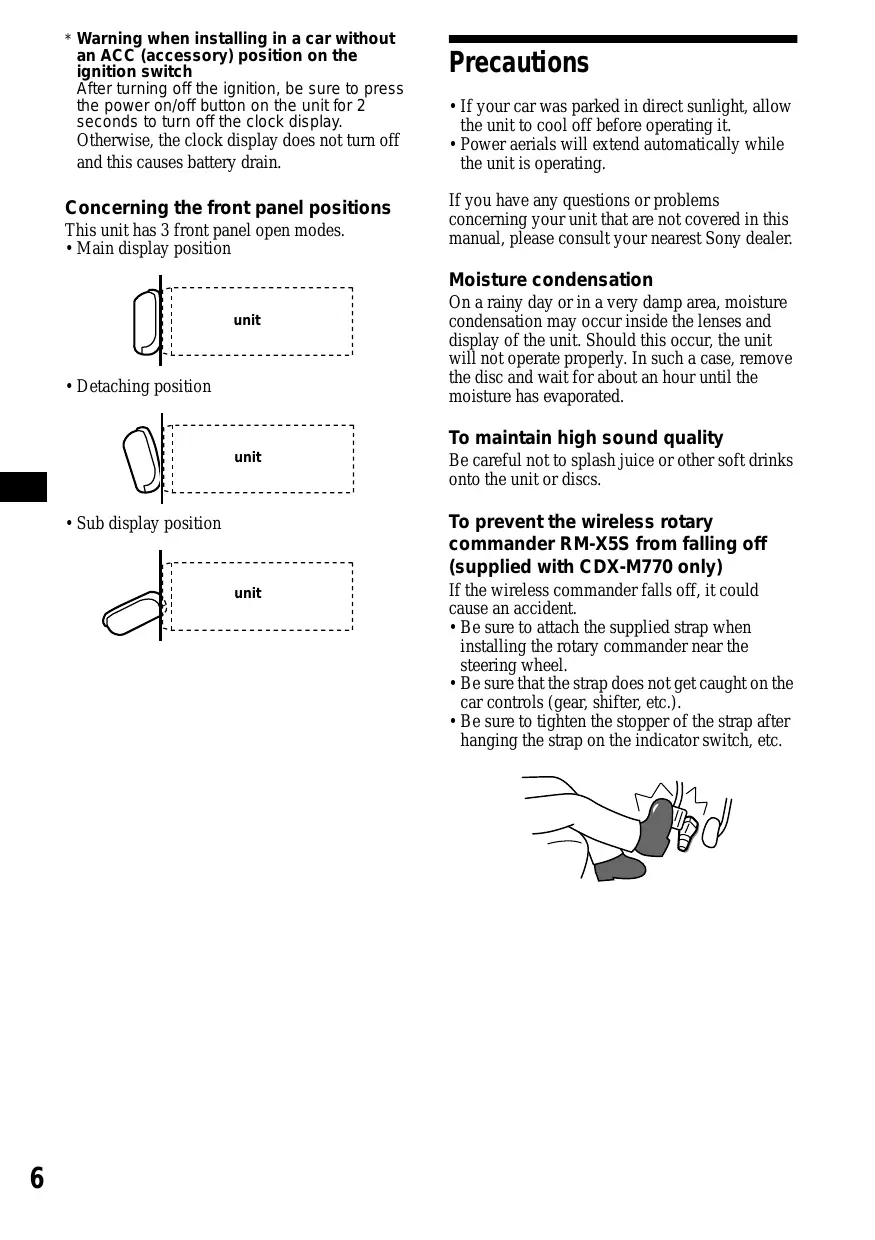
Concerning the front panel positions
This unit has 3 front panel open modes. • Main display position
• If your car was parked in direct sunlight, allow the unit to cool off before operating it. • Power aerials will extend automatically while the unit is operating. If you have any questions or problems concerning your unit that are not covered in this manual, please consult your nearest Sony dealer.
Moisture condensation unit
• Detaching position
On a rainy day or in a very damp area, moisture condensation may occur inside the lenses and display of the unit. Should this occur, the unit will not operate properly. In such a case, remove the disc and wait for about an hour until the moisture has evaporated.
To maintain high sound quality unit
To prevent the wireless rotary commander RM-X5S from falling off
(supplied with CDX-M770 only)
Be careful not to splash juice or other soft drinks onto the unit or discs.
If the wireless commander falls off, it could cause an accident.
• Be sure to attach the supplied strap when installing the rotary commander near the steering wheel. • Be sure that the strap does not get caught on the car controls (gear, shifter, etc.). • Be sure to tighten the stopper of the strap after hanging the strap on the indicator switch, etc.
• To keep the disc clean, do not touch the surface. Handle the disc by its edge. • Keep your discs in their cases or disc magazines when not in use. Do not subject the discs to heat/high temperature. Avoid leaving them in parked cars or on dashboards/rear trays.
Notes on CD-R/CD-RW discs
• You can play CD-Rs (recordable CDs) designed for audio use on this unit. Look for this mark to distinguish CD-Rs for audio use.
This mark denotes that a disc is not for audio use.
• Do not attach labels, or use discs with sticky ink/residue. Such discs may stop spinning when used, causing a malfunction, or may ruin the disc.
• Some CD-Rs (depending on the equipment used for its recording or the condition of the disc) may not play on this unit.
• You cannot play a CD-R that is not finalized*. * A process necessary for a recorded CD-R disc to be played on the audio CD player.
• You cannot play CD-RWs (rewritable CDs) on this unit.
• Discs with non-standard shapes (e.g., heart, square, star) cannot be played on this unit.
Attempting to do so may damage the unit. Do not use such discs. • You cannot play 8 cm (3in.) CDs. • Before playing, clean the discs with a commercially available cleaning cloth. Wipe each disc from the centre out. Do not use solvents such as benzine, thinner, commercially available cleaners, or antistatic spray intended for analog discs.
Detaching the main display window
You can detach the main display window of this unit to protect the unit from being stolen.
Before operating the unit for the first time, or after replacing the car battery or changing the connections, you must reset the unit. Press the reset button with a pointed object, such as a ball-point pen. Reset button
If you turn the ignition switch to the OFF position without removing the front panel, the caution alarm will beep for a few seconds.
Press (OPEN) on the unit for 2 seconds.
CD/MD playback or radio reception stops, and the front panel automatically tilts at an angle of 30°. (OPEN)
• After resetting the unit in the closed position, be sure to press (OPEN) once before operating further. If a disc is in the unit, the disc will be ejected automatically. Insert the disc again. • Pressing the reset button will erase the clock setting and some stored contents.
Resetting the unit during use in sub display-position
Reset button by the disc-slot with a pointed object, such as a ball-point pen.
Detach the main display window as illustrated.
After the main display window detaching is complete, the front panel closes automatical.
• If you detach the main display window while the unit is still turned on, the power will turn off automatically to prevent the speakers from being damaged. • Do not drop or put excessive pressure on the display window. • Do not subject the main display window to heat/high temperature or moisture. Avoid leaving it in parked cars or on dashboards/rear trays. Tips • If you want to detach the main display window, when the front panel is in the sub-display position, press (CLOSE) for 2 seconds.If a disc is partially inserted, load the disc correcty or remove the disc from the unit. • When carrying the main display window with you, use the supplied front panel case.
Attaching the main display window panel
Place the main display window on the front side of the unit as illustrated, then lightly push the front panel into position until it clicks. Press (SOURCE) (or insert a disc) to operate the unit.
The clock uses a 12-hour digital indication. Example: To set the clock to 10:08
Do not put anything on the inner surface of the main display window.
Press (MENU), then press M or m (the either (+/–) side of (DISC)) repeatedly until “Clock” appears.
The hour indication flashes. 2 Press M or m to set the hour. 3 Press , (the (+) side of (SEEK)). The minute indication flashes. 4 Press M or m to set the minute.
The clock starts. After the clock setting is completed, the display returns to normal play mode.
Tip When D.Info mode is set to on, the time is always displayed (page 26).
CD/MD Unit (optional)
Press (SOURCE) repeatedly to select
Press (MODE) repeatedly until the desired unit appears.
If you connect an optional CD unit with the CD TEXT function, the CD TEXT information will appear in the display when you play a CD TEXT disc.
When the disc/track changes, any prerecorded title*1 of the new disc/track is automatically displayed (if the Auto Scroll function is set to
“on,” names exceeding 9 characters will be scrolled (page 26)).
In addition to playing a CD with this unit, you can also control external CD/MD units.
Press (OPEN/CLOSE) or (OPEN) on the unit and insert the disc (labeled side up).
Playback starts automatically.
• Music source • Clock Elapsed Track Disc number number playing time
Press (OPEN/CLOSE) or (CLOSE) on the unit to close the front panel.
Displayable items • Disc name*1/artist name*2 • Track title*1
If a disc is already inserted, press (SOURCE) repeatedly until “CD” appears to start playback.
(OPEN) then Z Skip tracks
– Automatic Music Sensor
[once for each track]
Fast-forward/ reverse
[hold to desired point]
• When the last track on the disc is over, playback restarts from the first track of the disc. • With optional unit connected, playback of the same source will continue on to the optional CD/MD unit.
*1 When pressing (DSPL), “NO D.Name” or “NO T.Name” indicates that there is no Disc Memo
(page 11) or prerecorded name to display. *2 Only for CD TEXT discs with the artist name. Notes • Some characters cannot be displayed. • For some CD TEXT discs with very many characters, information may not scroll. • This unit cannot display the artist name for each track of a CD TEXT disc. Tip When Auto scroll is set to off, and the disc/track is changed, the disc/track name does not scroll.
Playing tracks repeatedly
— Disc Memo (For a CD unit with the
CUSTOM FILE function)
The disc in the main unit will repeat a track or the entire disc when it reaches the end. For repeat play, you can select:
• Repeat 1 — to repeat a track. • Repeat 2* — to repeat a disc. * Available only when one or more optional CD/MD units are connected.
During playback, press (1) (REP) repeatedly until the desired setting appears in the display.
Repeat Play starts. To return to normal play mode, select “Repeat off.”
You can label each disc with a custom name
(Disc Memo). You can enter up to 8 characters for a disc. If you label a CD, you can locate the disc by name (page 12).
Start playing the disc you want to label in a CD unit with the CUSTOM FILE function.
Press (MENU), then press M or m repeatedly until “Name Edit” appears.
Playing tracks in random order
The unit will repeat the disc during the labeling procedure.
Enter the characters.
• Shuf 1 — to play the tracks on the current disc in random order. • Shuf 2*1 — to play the tracks in the current optional CD (MD) unit in random order. • Shuf All*2 — to play all the tracks in all the connected CD (MD) units (including this unit) in random order.
1 Press M*1 repeatedly to select the desired character.
*1 Available only when one or more optional CD (MD) units are connected.
*2 Available only when one or more optional CD units, or two or more optional MD units are connected.
2 Press , after locating the desired character.
During playback, press (2) (SHUF) repeatedly until the desired setting appears in the display.
Shuffle Play starts. If you press < (the (–) side of (SEEK)), you can move back to the left.
To return to normal play mode, select “Shuf off.”
Note “Shuf All” will not shuffle tracks between CD units and MD units.
3 Repeat steps 1 and 2 to enter the entire name.
To return to normal CD play mode, press (ENTER). continue to next page t
• Simply overwrite or enter “ ” to correct or erase a name. • There is another way to start labeling a CD: Press (LIST) for 2 seconds instead of performing steps 2 and 3. You can also complete the operation by pressing (LIST) for 2 seconds instead of step 5. • You can label CDs on a unit without the CUSTOM FILE function if that unit is connected along with a CD unit that has the function. The Disc Memo will be stored in the memory of the CD unit with the CUSTOM FILE function.
Locating a disc by name
— List-up (For a CD unit with the CD TEXT/ CUSTOM FILE function, or an MD unit) You can use this function for discs that have been assigned custom names*1 or for CD TEXT discs*2.
Repeat/shuffle play is suspended until the Name Edit is complete.
*1 Locating a disc by its custom name: when you assign a name for a CD (page 11) or an MD.
*2 Locating discs by the CD TEXT information: when you play a CD TEXT disc on a CD unit with the CD TEXT function.
Viewing the Disc Memo
The name assigned to the current disc appears in the display.
Press M or m repeatedly until you find the desired disc.
Press (ENTER) to play the disc.
As a display item, the Disc Memo always takes priority over any original CD TEXT information.
(DSPL) during CD/CD TEXT disc playback
To find out about other items that can be displayed, see page 10.
Erasing the Disc Memo
Press (SOURCE) repeatedly to select
Press (MODE) repeatedly to select the
CD unit storing the Disc Memo.
Press (MENU), then press M or m repeatedly until “Name Del” appears.
The stored names will appear.
Press M or m repeatedly to select the disc name you want to erase.
The stored names will appear.
Press (ENTER) for 2 seconds.
The name is erased. Repeat steps 5 and 6 if you want to erase other names.
The unit returns to normal CD play mode.
• When the Disc Memo for a CD TEXT disc is erased, the original CD TEXT information is displayed. • If you cannot find the Disc Memo you want to erase, try selecting a different CD unit in step 2.
• Some letters cannot be displayed (exception: Disc Memo). • If the optional TV monitor is connected, the list appears on the TV monitor instead of the display on the unit.
Selecting specific tracks for playback
— Bank (For a CD unit with the CUSTOM FILE function) If you label the disc, you can set the unit to skip or play the tracks of your choice.
Start playing the disc you want to label.
Press (MENU), then press M or m repeatedly until “Bank Sel” appears.
Playing specific tracks only
You can select: • Bank on — to play the tracks with the “Play” setting. • Bank inv (Inverse) — to play the tracks with the “Skip” setting.
During playback, press (MENU), then press M or m repeatedly until “Bank on,” “Bank inv,” or “Bank off” appears.
Press , repeatedly until the desired setting appears.
Playback starts from the track following the current one.
1 Press < or , repeatedly to select the track you want to label.
To return to normal play mode, select “Bank off” in step 2.
2 Press (ENTER) repeatedly to select
Repeat step 4 to set “Play” or “Skip” for all the tracks.
The unit returns to normal CD play mode.
• You can set “Play” and “Skip” for up to 24 tracks. • You cannot set “Skip” for all the tracks on a CD.
The unit can store up to 6 stations per band (FM1, FM2, FM3, AM1, and AM2).
Receiving the stored stations
Press (SOURCE) repeatedly to select the radio.
Press (MODE) repeatedly to select the band.
Press the number button ((1) to (6)) on which the desired station is stored.
When tuning in stations while driving, use Best
Tuning Memory to prevent accidents.
Storing stations automatically
— Best Tuning Memory (BTM) The unit selects the stations with the strongest signals within the selected band, and stores them in the order of their frequency.
Press (SOURCE) repeatedly to select the radio.
Press (MODE) repeatedly to select the band.
Press (MENU), then press M or m repeatedly until “BTM” appears.
A beep sounds when the setting is stored.
• If only a few stations can be received due to weak signals, some number buttons will retain their former settings. • When a number is indicated in the display, the unit starts storing stations from the one currently displayed.
Press M or m to receive the stations in the order they are stored in the memory (Preset Search function).
If preset tuning does not work
Press either side of (SEEK) to search for the station (automatic tuning). Scanning stops when the unit receives a station. Repeat until the desired station is received. Tips • If automatic tuning stops too frequently, turn on the Local Seek to limit seek to stations with stronger signals (see “Changing the sound and display settings” on page 26). • If you know the frequency of the station you want to listen to, press and hold either side of (SEEK) to locate the approximate frequency, then press (SEEK) repeatedly to fine adjust to the desired frequency (manual tuning).
If FM stereo reception is poor
Select monaural reception mode (see “Changing the sound and display settings” on page 26). The sound improves, but becomes monaural (“ST” disappears). Note If interference occurs, this unit will automatically narrow the reception frequency to eliminate noise (IF Auto function). In such cases, some FM stereo broadcasts may become monaural while in the stereo reception mode. Tip To always hear FM stereo broadcasts in stereo, you can change the IF Auto setting and widen the frequency signal reception (see “Changing the sound and display settings” on page 26). Note that some interference may occur in this setting.
Storing only the desired stations
You can manually preset the desired stations on any chosen number button.
Press (SOURCE) repeatedly to select the radio.
Press (MODE) repeatedly to select the band.
Press either side of (SEEK) to tune in the station that you want to store.
Press the desired number button ((1) to (6)) for 2 seconds until “MEM” appears.
The number button indication appears in the display.
Storing station names
— Station Memo You can assign a name to each radio station and store it in memory. The name of the station currently tuned in appears in the display. You can assign a name using up to 8 characters for a station.
Storing the station names
Tune in a station whose name you want to store.
Press (MENU), then press M or m repeatedly until “Name Edit” appears.
Enter the characters.
If you try to store another station on the same number button, the previously stored station will be erased.
1 Press M*1 repeatedly to select the desired character.
2 Press , after locating the desired character.
If you press <, you can move back to the left.
3 Repeat steps 1 and 2 to enter the entire name.
Press (ENTER). continue to next page t
• Simply overwrite or enter “ ” to correct or erase a name. • There is another way to start storing station names: Press (LIST) for 2 seconds instead of performing steps 2 and 3. You can also complete the operation by pressing (LIST) for 2 seconds instead of step 5.
Erasing the station name
During radio reception, press (MENU), then press M or m repeatedly until
Press M or m repeatedly to select the station whose name you want to erase.
Press (ENTER) for 2 seconds.
The name is erased. Repeat steps 3 to 4 if you want to erase other names.
The unit returns to normal radio reception mode.
If you have already erased all of the station names, “NO Data” appears in step 4.
Tuning in a station through a list
During radio reception, press (LIST) momentarily.
The frequency or the name assigned to the current station appears in the display.
Press M or m repeatedly until you find the desired station.
If no name is assigned to the selected station, the frequency appears in the display.
Press (ENTER) to tune in the desired station.
If the optional TV monitor is connected, and if the monitor responds to this function, the list appears on the TV monitor instead of the display on the unit.
Adjusting the equalizer curve
Tuning up for your best sound
The unit provides the various functions to adjust the sound so that you can enjoy the best sounding music.
Press < or , to select the desired equalizer curve, then press (ENTER).
Each time you press (SEEK), the item changes.
Select the desired frequency and level.
Setting the equalizer (EQ7)
Press M or m repeatedly until “EQ7
Tune” appears, then press (ENTER).
1 Press < or , to select the desired frequency.
Each time you press < or ,, the frequency changes as follows:
You can select an equalizer curve for 7 music types (Vocal, Club, Jazz, New Age, Rock,
Custom, and Xplod). You can store and adjust the equalizer settings for frequency and level.
Selecting the equalizer curve
Press (SOURCE) to select a source
Press (EQ7) repeatedly until the desired equalizer curve.
Each time you press (EQ7), the item changes.
2 Press M or m to adjust the desired volume level.
(CDX-M770) The volume level is adjustable by 1 dB steps from –12 dB to +12 dB. (CDX-M670/M620) The volume level is adjustable by 1 dB steps from –10 dB to +10 dB.
To cancel the equalizing effect, select “off.”
After 3 seconds, the display returns to the normal playback mode. To restore the factory-set equalizer curve, press (ENTER) for 2 seconds.
After the effect setting is complete, the display returns to the normal playback mode.
Setting the soundstage menu
— Dynamic Soundstage Organizer (DSO) If your speakers are installed into the lower part of the doors, the sound will come from below and may not be clear. The DSO (Dynamic Soundstage Organizer) function creates a more ambient sound as if there were speakers in the dashboard (virtual speakers).
Selecting the DSO mode (CDX-M770)
• The DSO effect may be hard to discern depending on the type of car you are driving and the music you are listening to. • When DSO setting is "WIDE," the FM reception is inaudible. In this case, reset the DSO setting to "STD."
Turning the DSO mode on (off) (CDXM670/M620)
DSO mode of CDX-M670/M620 Memory presets
DSO mode of CDX-M770
STD Press (SOURCE) to select a source
WIDE Press (DSO) to select “on” or “off”.
Image of virtual speakers
To cancel the DSO mode, select “DSO off.”
After 3 seconds, the display returns to the normal playback mode.
STD+depth Wide+depth Actual speakers position (lower part of the front doors)
Press (SOURCE) to select a source
Press (DSO) repeatedly to select the desired DSO mode.
To cancel the DSO mode, select “off.”
After 3 seconds, the display returns to the normal playback mode.
Adjusting the DSO mode (CDX-M770)
Press (SOURCE) to select a source
Press < or , to select the desired
DSO mode. then press (ENTER).
Select the effect level.
You can select the desired effect from 3 effect lebels for each DSO mode.
Press M or m repeatedly until “DSO tune” appears, then press (ENTER).
Press M or m repeatedly to select desired effect.
To restore the effect, press (ENTER) for 2 seconds.
If the sound from the tweeter is too shrill (CDX-M770)
While the unit is operating, press
Press M or m repeatedly until “DSO norm” appears.
Press , to select “DSO soft.”
Adjusting the sound characteristics
You can adjust the sound characteristics. The bass and treble levels and subwoofer volume can be stored independently for each source.
POS (position) t BAL (left-right) t F (front volume) t R (rear volume) t SUB (subwoofer volume)
To restore the sound, select “DSO norm.”
Listening to each programme source in its registered DSO
— Source Sound Memory (SSM) Each time you return to the same source, you can hear the same DSO menu and equalizer curve registered for that source, even after changing the programme source or turning the unit off and then on again.
Select the item you want to adjust by pressing (SOUND) repeatedly.
Each time you press (SOUND), the item changes as follows:
BAS (bass) t TRE (treble) t BAL (left-right) t FAD (front-rear) t SUB (subwoofer volume)
Adjust the selected item by pressing
< or ,. When adjusting with the rotary commander, press (SOUND) and rotate the VOL control.
Adjust within 3 seconds after selecting the item.
Selecting the listening position (CDX-M770 only)
You can set a delayed time for the sound to reach the listeners from the speakers. In this way, the unit can simulate a natural sound field so that you feel as if you are in the center of the sound field no matter where you sit in the car.
Centre of sound field
POS ALL Normal setting
(1 + 2 + 3) Front part (1 + 2)
POS Front-R Right front (2)
POS Front-L Left front (1)
Adjusting the balance (BAL)
You can adjust the sound balance from the left and right speakers.
Press (SOURCE) to select a source
Press (SOUND) repeatedly until “BAL” appears.
Press < or , to adjust the balance.
After 3 seconds, the display returns to the normal playback mode.
Adjusting the bass (CDXM670/M620 only)
You can adjust the bass from the speakers.
Press (SOURCE) to select a source
Press (SOURCE) to select a source
Press (SOUND) repeatedly until “POS” appears.
Press (SOUND) repeatedly until “BAS” appears.
Press < or , to select the desired listening position.
Press < or , to adjust the balance.
After 3 seconds, the display returns to the normal playback mode.
All y Front y Front-R y
Front-L y Rear y off y All The listening positions appear in the order shown above. To cancel the POS mode, select “off.” After three seconds, the display returns to the normal playback mode.
Adjusting the treble (CDXM670/M620 only)
Adjusting the front and rear volume (CDX-M770 only)
You can adjust the treble from the speakers.
Press (SOURCE) to select a source
Press (SOUND) repeatedly to select the “F” for the front speakers or “R” for the rear speakers.
Press < or , to adjust the volume of front/rear speakers.
After 3 seconds, the display returns to the normal playback mode.
Press (SOURCE) to select a source
Press (SOUND) repeatedly until “TRE” appears.
Press < or , to adjust the balance.
After 3 seconds, the display returns to the normal playback mode.
Adjusting the cut-off frequency and the output volume level for the front/rear speakers
You can adjust the sound balance from the front and rear speakers.
To match the characteristics of the installed speaker system, you can adjust the output volume level and select the cut-off frequency of the speakers.
Press (SOURCE) to select a source
Press (SOUND) repeatedly until “FAD” appears.
Press < or , to adjust the balance.
After 3 seconds, the display returns to the normal playback mode.
Adjusting the balance (FAD)
(CDX-M670/M620 only)
Press M or m repeatedly to select
“Front HPF” or “Rear HPF.”
continue to next page t
Press < or , to select the cut-off frequency.
Each time you press < or ,, the frequency changes as follows: off y 78 Hz y 99 Hz y 125 Hz y 157 Hz y 198 Hz
Press M or m to adjust the volume level.
The volume level is adjustable by 1 dB steps from –12 dB to +12 dB.
Adjusting the frequency of the subwoofer(s) (CDX-M770 only)
To match the characteristics of the connected subwoofer(s), you can cut out the unwanted high and middle frequency signals entering the subwoofer(s). By setting the cut-off frequency (see the diagram below), the subwoofer(s) will output only low frequency signals so you can get a clearer sound image. Level
When you lower the volume all the way down, “– ∞dB” appears and the cut-off frequency is disabled.
After the effect is complete, the display returns to the normal playback mode. Frequency (Hz)
Adjusting the volume of the subwoofer(s)
Press (SOURCE) to select a source
Press (SOUND) repeatedly until “SUB” appears.
Press < or , to select the desired cut-off frequency.
Each time you press < or ,, the frequency changes as follows:
Press < or , to adjust the volume.
After 3 seconds, the display returns to the normal playback mode.
When you press < repeatedly to adjust the volume all the way down, “– ∞dB” appears and the cutout frequency of the subwoofer is disabled.
Press M or m repeatedly until “SUB LPF” appears.
Press M or m to adjust the volume.
The volume level is adjustable by 1 dB steps from –12 dB to +12 dB. Tip When you lower the volume all the way down, “– ∞dB” appears and the cut-off frequency is disabled.
After the frequency setting is complete, the display returns to the normal playback mode.
Other adjustable items (CDXM670/M620 only)
The following items can be adjusted: • HPF (High pass filter) — to select the cut-off frequency to “off,” “78 Hz,” or “125 Hz.” • LPF (Low pass filter) — to select the cut-off frequency to “78 Hz,” “125 Hz,” or “off.” • Loud (Loudness) — to enjoy bass and treble even at low volumes. The bass and treble will be reinforced.
To set A.Scrl, press (MENU) during CD/MD playback.
Press M or m repeatedly until the desired item appears.
Press , to select the desired setting
(Example: “on” or “off”).
After the mode setting is completed, the display returns to normal play mode.
The displayed item will differ depending on the source.
You can also control the unit (and optional CD/ MD units) with a optional rotary commander. RM-X5S (supplied with CDX-M770 only)
Using the rotary commander
First, attach the appropriate label depending on how you want to mount the rotary commander. The rotary commander works by pressing buttons and/or rotating controls.
SOUND MODE DSPL MODE SOUND DSPL Inserting the supplied lithium battery
You can easily switch among categories by pressing M or m for 2 seconds.
For information on lithium battery, refer to “Notes on lithium battery” (page 31).
continue to next page t
By pushing in and rotating the control
Turn the dial to change the direction of infrared rays.
(RM-X5 only) (ATT) SOURCE
(OFF) Rotate the VOL control to adjust the volume.
(radio/CD/MD*1/TV*1)
(radio band/CD unit/MD*1 unit/TV band*1)
Stop playback or radio reception
Adjust the sound menu
*1 Only if the corresponding optional equipment is connected.
*2 If your car has no ACC (accessory) position on the ignition key switch, be sure to press (OFF) for 2 seconds to turn off the clock indication after turning off the ignition.
Push in and rotate the control to:
– Receive preset stations.
– Change the disc*. * When an optional CD/MD unit is connected. Tip You need to push in and rotate the control each time you select a preset station and a disc.
Changing the operative direction
The operative direction of controls is factory-set as shown below. To increase
If you need to mount the rotary commander on the right hand side of the steering column, you can reverse the operative direction.
By rotating the control
Set the Rev/Nor-select switch to “Rev.”
Rotate and release to:
– Tune in stations automatically. Rotate, hold, and release to:
– Fast-forward/reverse a track.
– Find a station manually.
Quickly attenuating the sound
Selecting the spectrum analyzer
(With the rotary commander or the card remote commander)
The sound signal level is displayed on a spectrum analyzer. You can select a display for 5 patterns
(A-1, A-2, B-1 to B-3), or the automatic display mode and “off” where all the patterns appear.
Press (ATT) on the rotary commander or card remote commander.
“ATT on” appears in the display momentarily. To restore the previous volume level, press (ATT) again. Tip When the interface cable of a car telephone is connected to the ATT lead, the unit decreases the volume automatically when a telephone call comes in (Telephone ATT function).
Press (SOURCE) to select a source
Press < or , repeatedly to select the desired setting.
Press M or m repeatedly until “SA” appears.
Changing the sound and display settings
— Menu The following items can be set:
• Clock (page 9) • Beep — to turn the beeps on or off. • Multi language (language selection) — to change the display language to English, French, Spanish. • P.Out 4.0V/5.5V— to change the pre-out of the power amplifier to 4.0V or 5.5V. Selectable only when the unit is turned off. (CDX-M770 only)
• D.Info (Dual Information) — to display the clock and the play mode at the same time (on). Functions only when SA is not set to B-1 – B-3. • SA (Spectrum Analyzer) (page 25) — to change the display pattern of the equalizer display. • M.Dspl (Motion Display) — to turn the Motion Display mode on or off. – Select “on” to show decoration lines in the display and activate Demo display. – Select “off” to deactivate the Motion Display. • Dimmer — to change the brightness of the display. – Select “Auto” to dim the display only when you turn the lights on. – Select “on” to dim the display. – Select “off” to deactivate the Dimmer. • Contrast — to adjust the contrast if the indications on the display are not recognisable because of the unit’s installation position. • A.Scrl (Auto Scroll) – Select “on” to scroll all automatically displayed names exceeding 8 characters. – When Auto scroll is set to off and the disc/ track name is changed, the disc/track name does not scroll.
Sound (CDX-M670/M620 only)
• HPF (High pass filter) (page 23) • LPF (Low pass filter) (page 23) • Loud (Loudness) (page 23)
• Local on/off (Local seek mode) (page 14) – Select “on” to only tune into stations with stronger signals. • Mono on/off* (Monaural mode) (page 14) – Select “on” to hear FM stereo broadcast in monaural. Select “off” to return to normal mode. * This function cannot change the TV sound setting if the optional TV tuner is connected.
To set A.Scrl, press (MENU) during CD/MD playback.
Press M or m repeatedly until the desired item appears.
Press , to select the desired setting
(Example: “on” or “off”).
After the mode setting is completed, the display returns to normal play mode.
The displayed item will differ depending on the source. Tip You can easily switch among categories by pressing M or m for 2 seconds.
Labeling a Motion Display
You can label a Motion Display with up to 64 characters to appear when the unit is turned off. Labels will scroll in the display in the M.Dspl 1 mode (the display remains lit even when the power is off).
Connecting auxiliary audio equipment (CDX-M770 only)
You can connect auxiliary audio equipment to this unit with the AUX IN connector.
Selecting auxiliary equipment
CD/MD playback or radio reception stops (the key illumination and display remain on).
Press (MENU), then press M or m repeatedly until “Name Input” appears.
Press (SOURCE) repeatedly to select
Adjusting the volume level
You can adjust the volume for each connected audio equipment.
Enter the characters.
1 Press (DSPL) to select the character type.
Press M or m to select the desired volume level, then press (ENTER).
The volume level is adjustable in 1 dB steps from –6 dB to +6 dB.
2 Press M*1 repeatedly to select the desired character.
3 Press , after locating the desired character.
If you press <, you can move back to the left.
Press M or m repeatedly until “AUX Lebel” appears, then press (ENTER).
To deactivate “AUX-A” in the music source display
CD/MD playback or radio reception stops (the key illumination and display remain on).
Press < or , to select “AUX-A off.”
Press M or m repeatedly until “AUX-A on” appears.
To restore the indication, select “AUX-A on.”
4 Repeat steps 1 to 3 to enter the entire sentence.
• Simply overwrite or enter “ ” to correct or erase a sentence. • To erase all sentences, press (ENTER) for 2 seconds after step 4-2.
You can control an optional TV tuner and TV monitor with this unit.
Watching the TV Storing only the desired TV channels
Press (SOURCE) repeatedly until “TV” or “AUX” appears.
Press (MODE) repeatedly to select the desired TV band.
You can assign up to 12 channels (6 each for
TV1 and TV2) to the number buttons in the order of your choice.
Select “TV” (see “Watching the TV” on page 28).
Press either side of (SEEK) to tune in the TV channel you want to assign to each number button.
Press (SOURCE) repeatedly until “TV” or “AUX” appears.
Press (MODE) repeatedly to select
“AUX.” Play the video.
Press and hold the desired number button ((1) to (6)) until you hear a small beep.
The number button indication and “MEM” appear in the display.
Storing TV channels automatically
The unit selects the TV channels with the strongest signals and assigns them to number buttons in order of their frequency.
If tuning in a station while driving, use “A.Memory” (Automatic Memory) to prevent accidents.
• The unit does not assign TV channels with weak signals. If only a few TV channels with strong signals can be received, some number buttons will remain empty. • When a preset number is indicated on the display, the unit starts assigning TV channels to buttons from the one currently displayed.
Select “TV” (see “Watching the TV” on page 28).
Press (MENU), then press M or m repeatedly until “A.Memory” appears.
The unit assigns TV channels to the number buttons in order of their frequency. A beep sounds when the setting is stored.
If you try to assign another channel to the same number button, the previously assigned channel will be erased.
Storing the TV channel names
Displaying the information stored on a disc
Press (LIST) during CD/MD playback.
Follow the steps in “Storing station names” (page 15).
Example: When CD unit 1 is selected
Displaying the TV or radio station names
1 SCHUBERT 2 MO Z A R T 3 BACH 4 L I SZT 5 CHOP I N 6 7 8 9 ? 10 ?
Press (LIST) during TV or radio reception.
Example: When receiving the FM1 band FM 1 1 WC B S 2 WB L S 3 WK T U 4 WR K I S S 5 1 0 1 . 9 6 1 0 2 . 7
2 Stored station names 3 Frequencies* * If the name of a station is not assigned to number buttons, the frequency of that station will be displayed instead.
To turn off the list display on the TV monitor, press (LIST).
Notes • It may take a few moments before all indications appear in the display. • The current TV channel does not appear during list display. • The contents of preset memory cannot be listed when the unit is in Simultaneous Play mode (page 30).
Stored titles No disc is loaded*1 No stored titles*2 TOC information has not yet been identified*3
*1 A blank space displayed next to a disc number represents an empty slot in the disc magazine.
*2 If a title is not registered, “******” is displayed. *3 If the disc information has not yet been read by the unit, “?” is displayed.
To turn off the list display on the TV monitor, press (LIST).
Notes • It may take a few moments before all indications appear in the display. • The contents of preset memory cannot be listed when the unit is in the Simultaneous Play mode (page 30). • If the source is an MD, the stored track names will also be displayed.
Watching the TV or video while listening to a CD or MD
— Simultaneous Play The simultaneous play function does not work while you are listening to the radio.
Press (MENU), then press M or m repeatedly until “Simul Sel” appears.
Press the (–) side of (SEEK).
Press (SOURCE) repeatedly to select
Press the (+) side of (SEEK).
Press (SOURCE) repeatedly to select a
“TV” or “AUX (video).”
Simultaneous Play starts.
If you are already watching the TV or video and want to listen to a CD or MD as well, follow the same steps.
Returning to normal mode
To cancel the CD or MD, select “– – –” in step 4. To cancel the TV or video, select “– – –” in step 6. Note If you press (OFF) or Z (eject) on a CD/MD unit while the unit is in Simultaneous Play mode, Simultaneous Play is canceled.
Additional Information
• For safety, turn off the ignition before cleaning the connectors, and remove the key from the ignition switch. • Never touch the connectors directly with your fingers or with any metal device.
Replacing the lithium battery
When replacing the fuse, be sure to use one matching the amperage rating stated on the original fuse. If the fuse blows, check the power connection and replace the fuse. If the fuse blows again after replacement, there may be an internal malfunction. In such a case, consult your nearest Sony dealer.
Under normal conditions, batteries will last approximately 1 year. (The service life may be shorter, depending on the conditions of use.)
When the battery becomes weak, the range of the card remote commander becomes shorter. Replace the battery with a new CR2025 lithium battery.
Never use a fuse with an amperage rating exceeding the one supplied with the unit as this could damage the unit.
Cleaning the connectors
The unit may not function properly if the connectors between the unit and the front panel are not clean. In order to prevent this, detach the front panel (page 8) and clean the connectors with a cotton swab dipped in alcohol. Do not apply too much force. Otherwise, the connectors may be damaged.
Notes on lithium battery
• Keep the lithium battery out of the reach of children. Should the battery be swallowed, immediately consult a doctor. • Wipe the battery with a dry cloth to assure a good contact. • Be sure to observe the correct polarity when installing the battery. • Do not hold the battery with metallic tweezers, otherwise a short-circuit may occur. WARNING Battery may explode if mistreated. Do not recharge, disassemble, or dispose of in fire.
Back of the front panel
With the front panel open
If the front panel does not open because of a blown fuse
Remove the front cover
1 Press the clip inside the front cover with a release key (supplied), and pry the front cover free.
Remove the front cover
1 Press (OPEN/CLOSE) or (OPEN) of the unit, then press the clip inside the front cover with a thin screwdriver, and gently pry the front cover free.
Release key (supplied)
Note To protect the surface of the unit, put thin cloth between release key and the unit by inserting the release key.
2 Repeat step 1 on the left side.
The front cover is removed.
2 Repeat step 1 on the left side.
The front cover is removed.
1 Use a thin screwdriver to push in the clip on the left side of the unit, then pull out the left side of the unit until the catch clears the mounting.
1 Use a release key to push in the clip on the left side of the unit, then pull out the left side of the unit until the catch clears the mounting.
2 Repeat step 1 on the right side.
3 Slide the unit out of the mounting.
2 Repeat step 1 on the right side.
3 Slide the unit out of the mounting.
POWER OUTPUT AND TOTAL HARMONIC DISTORTION
23.2 watts per channel minimum continuous average power into 4 ohms, 4 channels driven from 20 Hz to 20 kHz with no more than 5% total harmonic distortion. General
Signal-to-noise ratio Frequency response Wow and flutter Laser Diode Properties Material Wavelength Emission Duration Laser output power
10 – 20,000 Hz Below measurable limit GaAlAs 780 nm Continuous Less than 44.6 µW*
* This output is the value measured at a distance of
200 mm from the objective lens surface on the Optical Pick-up Block.
FM Tuning range Antenna terminal Intermediate frequency Usable sensitivity Selectivity Signal-to-noise ratio
External antenna connector 10.7 MHz/450 kHz 8 dBf 75 dB at 400 kHz 66 dB (stereo), 72 dB (mono) Harmonic distortion at 1 kHz 0.6 % (stereo), 0.3 % (mono) Separation 35 dB at 1 kHz Frequency response 30 – 15,000 Hz
Antenna terminal Intermediate frequency Sensitivity
External antenna connector 10.7 MHz/450 kHz
30 µV Power amplifier section
Outputs Speaker impedance Maximum power output
(sure seal connectors) 4 – 8 ohms 52 W × 4 (at 4 ohms)
Audio outputs (front/rear)
Subwoofer output (mono) Power aerial relay control lead Power amplifier control lead Inputs Telephone ATT control lead Illumination control lead BUS control input connector BUS audio input connector Antenna input connector AUX INconnector (CDXM770 only) Tone controls (CDX-M670/M620 only) Bass ±8 dB at 100 Hz Treble ±8 dB at 10 kHz Loudness (CDX-M670/M620 only) +8 dB at 100 Hz +2 dB at 10 kHz Power requirements 12 V DC car battery (negative ground) Dimensions Approx. 178 × 50 × 182 mm (71/8 × 2 × 71/4 in.) (w/h/d) Mounting dimensions Approx. 182 × 53 × 160 mm (71/4 × 21/8 × 63/8 in.) (w/h/d) Mass Approx. 1.5 kg (2 lb. 10 oz.) Supplied accessories Parts for installation and connections (1 set) Front panel case (1) Card remote commander RM-X110 Rotary commander RM-X5S(CDX-M770) Optional accessories Rotary commander RM-X5S (CDX-M670/ M620) BUS cable (supplied with an RCA pin cord) RC-61 (1 m), RC-62 (2 m) Optional equipment CD changer (10 discs) CDX-848X, CDX-646 CD changer (6 discs) CDX-T68X, CDX-T67 MD changer (6 discs) MDX-65 Source selector XA-C30 Note This unit cannot be connected to a digital preamplifier or an equalizer. Design and specifications are subject to change without notice.
The following checklist will help you remedy problems you may encounter with your unit. Before going through the checklist below, check the connection and operating procedures.
• Press the (+) side of (VOL) to adjust the volume.
• Cancel the ATT function. • Set the fader control to the centre position for a 2-speaker system. The contents of the memory have been erased.
• The reset button has been pressed.
• Store again into the memory. • The power cord or battery has been disconnected. • The power connecting cord is not connected properly. No beep sound.
The beep sound is canceled (page 26).
Indications disappear from/do not appear in the display.
• The clock display disappears if you press
(OFF) for 2 seconds. t Press (OFF) again for 2 seconds to display the clock. • Remove the front panel and clean the connectors. See “Cleaning the connectors” (page 31) for details. Stored stations and correct time are erased. The fuse has blown. Makes noise when the ignition key is in the ON, ACC, or OFF position.
The leads are not matched correctly with the car’s accessory power connector.
No power is being supplied to the unit.
• Check the connection. If everything is in order, check the fuse.
• The car does not have an ACC position. t Press (SOURCE) (or insert a disc) to turn on the unit. The power is continuously supplied to the unit.
The car does not have an ACC position.
The power antenna does not extend.
The power antenna does not have a relay box.
The rotary commander RM-X5S cannot be operated.
Rotate the dial at the bottom of the rotary commander until it can be operated.
A disc cannot be loaded.
• Another CD/MD is already loaded.
• The CD/MD is forcibly inserted upside down or in the wrong way. Playback does not begin.
• Dirty or defective disc.
• CD-R that is not finalized, or a CD-RW. • You tried to playback a CD-R not designed for audio use. • Some CD-Rs may not play due to its recording equipment or the disc condition. A disc is automatically ejected.
The ambient temperature exceeds 50°C
(122°F). CD will not be ejected. The operation buttons do not function.
Press the reset button.
The sound skips from vibration.
• The unit is installed at an angle of more than
60°. • The unit is not installed in a sturdy part of the car. The sound skips.
Dirty or defective disc.
Cannot turn off the “--------” indication.
You entered the name edit mode. t Press (LIST) for 2 seconds.
Preset tuning is not possible.
• Store the correct frequency in the memory.
• The broadcast signal is too weak. The stations cannot be received. The sound is hampered by noises.
• Connect a power antenna control lead (blue) or accessory power supply lead (red) to the power supply lead of a car’s antenna booster.
(Only when your car has built-in FM/AM antenna in the rear/side glass.) • Check the connection of the car antenna. • The auto antenna will not go up. t Check the connection of the power antenna control lead. • Check the frequency. • When the DSO mode is on, the sound is sometimes hampered by noises. t Set the DSO mode to off (page 18) (CDX-M770), (page 18) (CDX-M670/ M620).
Automatic tuning is not possible.
• The local seek mode is set to “on.” t Set the local seek mode to “off” (page
26). • The broadcast signal is too weak. t Perform manual tuning. The “ST” indication flashes.
• Tune in the frequency accurately.
• The broadcast signal is too weak. t Set to the monaural reception mode (page 26). A program broadcast in stereo is heard in monaural.
The following indications will flash for about 5 seconds, and an alarm sound will be heard.
No tracks have been recorded on an MD*2. t Play an MD with recorded tracks on it.
• A CD is dirty or inserted upside down*2. t Clean or insert the CD correctly.
• A CD/MD cannot play because of some problem*2. t Insert another CD/MD.
• The unit is in monaural reception mode. t Cancel monaural reception mode (page
26). Interference occurs during FM reception.
The wide mode is selected. t Set the IF mode to “IF Auto” (page 26).
The ambient temperature is more than 50°C
(122°F). t Wait until the temperature goes down below 50°C (122°F).
DSP functions (CDX-M770 only)
No sound, or sound is too low.
The volume of the speakers may have been automatically lowered in order to maximize the effect of the listening position adjustment. t Press < or , to adjust the balance. The speaker balance can be set separately for
DSP on mode and DSP off mode (page 20).
No disc is inserted in the CD/MD unit. t Insert discs in the CD/MD unit.
The disc magazine is not inserted in the CD/
MD unit. t Insert the magazine in the CD/MD unit. Not Ready
The lid of the MD unit is open or the MDs are not inserted properly. t Close the lid or insert the MDs properly.
The CD/MD unit cannot be operated because of some problem. t Press the reset button on the unit.
*1 When the CD/MD changer is connected to the unit, the disc number of the CD or MD appears in the display. *2 The disc number of the disc causing the error appears in the display.
If these solutions do not help improve the situation, consult your nearest Sony dealer.
The Local Seek mode is on during automatic tuning (page 14).
You have reached the beginning or the end of the disc and you cannot go any further.
WIDE STD-SP WIDE-SP off
POS Front-R POS Front-L POS Rear POS off
DSPL MODE SOUND DSPL
(radio/CD/MD*1/TV*1)
1 SCHUBERT 2 MO Z A R T 3 BACH 4 L I SZT 5 CHOP I N 6 7 8 9 ? 10 ?
POS Front-R POS Front-L POS Rear POS off