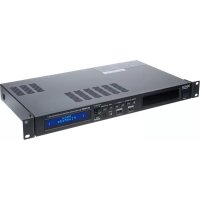
DN350MP - DJ Equipment DENON - Free user manual and instructions
Find the device manual for free DN350MP DENON in PDF.



| Product type | Media player/amplifier for DJ installation |
| Brand | Denon |
| Model | DN-350MP |
| Category | DJ Equipment |
| Dimensions (W x H x D) | 482 x 44 x 240 mm (19" rack, 1U) |
| Weight | 3.5 kg |
| Power supply | 100-240 V AC, 50/60 Hz |
| Power consumption | 35 W |
| Inputs | Auxiliary (3.5 mm jack), USB (2.1 A charging), Bluetooth |
| Outputs | Stereo RCA, Balanced XLR, Euroblock Amplifier (4 Ω, 70 V, 100 V) |
| Supported audio formats | MP3, WAV, WMA |
| Main functions | USB playback, Bluetooth, Aux; Repeat One/All/Random modes; forward/backward search; options menu |
| Display type | LCD screen (track, time, mode, icons) |
| Bluetooth antenna | Included, BNC connector |
| Remote control | Included |
| Rack mounting | Yes (brackets supplied) |
| Maintenance and cleaning | Use a dry, soft cloth. Do not use liquids. |
| Safety | Do not expose to moisture, disconnect before cleaning. |
| Spare parts and repairability | Consult denonpro.com/support |
| General information | Manual available in multiple languages at denonpro.com |
Frequently Asked Questions - DN350MP DENON
User questions about DN350MP DENON
0 question about this device. Answer the ones you know or ask your own.
Ask a new question about this device
Download the instructions for your DJ Equipment in PDF format for free! Find your manual DN350MP - DENON and take your electronic device back in hand. On this page are published all the documents necessary for the use of your device. DN350MP by DENON.
USER MANUAL DN350MP DENON
User Guide (English)
Introduction
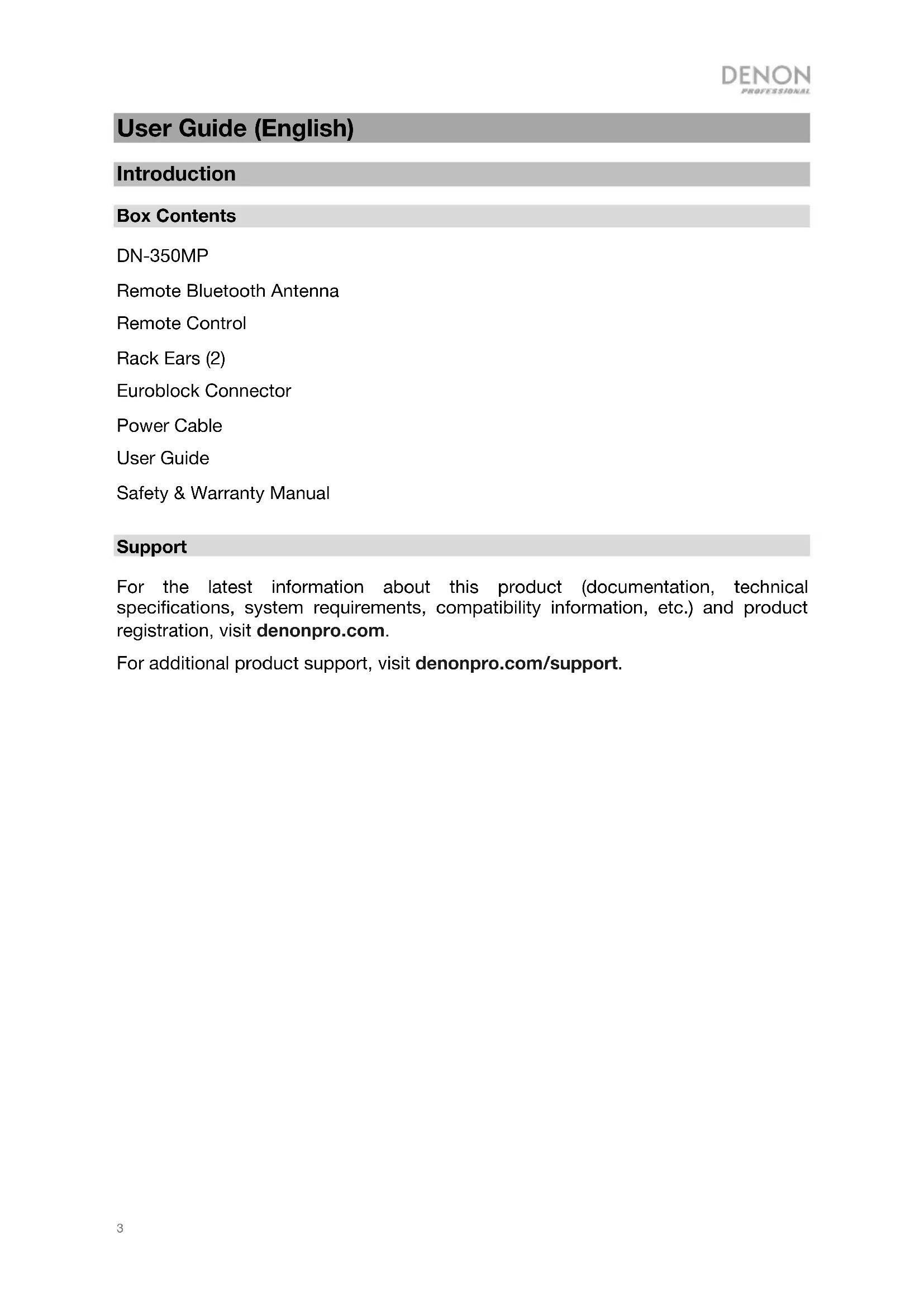
Box Contents
DN-350MP
Remote Bluetooth Antenna
Remote Control
Rack Ears (2)
Euroblock Connector
Power Cable
User Guide
Safety & Warranty Manual
Support
For the latest information about this product (documentation, technical specifications, system requirements, compatibility information, etc.) and product registration, visit denonpro.com.
For additional product support, visit denonpro.com/support.
Features
Front Panel

- Power Button: Push to turn the power on and off.
- Smartphone Shelf: Store your smartphone here.
- Aux In: Connect an optional device to this input using a 1/8" (3.5mm) TRS cable. See Operation > Playing Audio from an External Device for more information.
- USB Flash Drive Port: Connect a USB flash drive to this port. Also, connect a smartphone or tablet here to charge it.
- USB Charging Port: Connect a smartphone or tablet here to charge it (5V, 2.1A).
- Display: This screen indicates the unit's current operation. See Display for more information.
- Bluetooth Pairing: Press and hold this button for 3 seconds to put the unit in pairing mode. Press and hold this button to disconnect from a paired Bluetooth device.
- Media: Press this button to change between USB, Bluetooth, and Aux input modes.
- Previous Track/Search Backward: In USB mode, press and release this button to go to the previous track. Hold this button to quickly rewind through a track. After holding the button over 200ms, the search speed increases to 16x normal speed.
- Track Advance/Search Forward: In USB mode, press and release this button to go to the next track. Hold this button to quickly fast-forward through a track. After holding the button over 200ms, the search speed increases to 16x normal speed.
- Stop: In USB mode, press this button to stop playback.
- Play/Pause: In USB and Bluetooth modes, press this button to play or pause.
- Select Knob: Rotate this knob to select between options in the menu or the tracks stored on the USB flash drive. Press the knob to select the current highlighted option.
- Menu: Press this button to go into the menu on the display.
Rear Panel

- Bluetooth BNC Connector: Connect the detachable remote antenna here for Bluetooth signal reception.
- RCA Output: These outputs send the audio signals from a paired Bluetooth device, CD, USB flash drive, and a device connected to the Aux In. Use RCA cables to connect these outputs to a sound system, external speakers, etc.
- XLR Balanced Output: These outputs send the audio signals from a Bluetooth-paired device, USB flash drive, and device connected to the Aux In. Use XLR cables to connect these outputs to a sound system, external speakers, etc.
- Amp Level: Adjust this knob to control the output level of the amplifier.
- Amplifier On/Off: Adjust this switch to turn the amplifier on or off.
- Amplifier Output: Connect the included Euroblock to the applicable amp output: 4 Ohm, 70V, and 100V.
- AC Input: Connect the included power cable here.
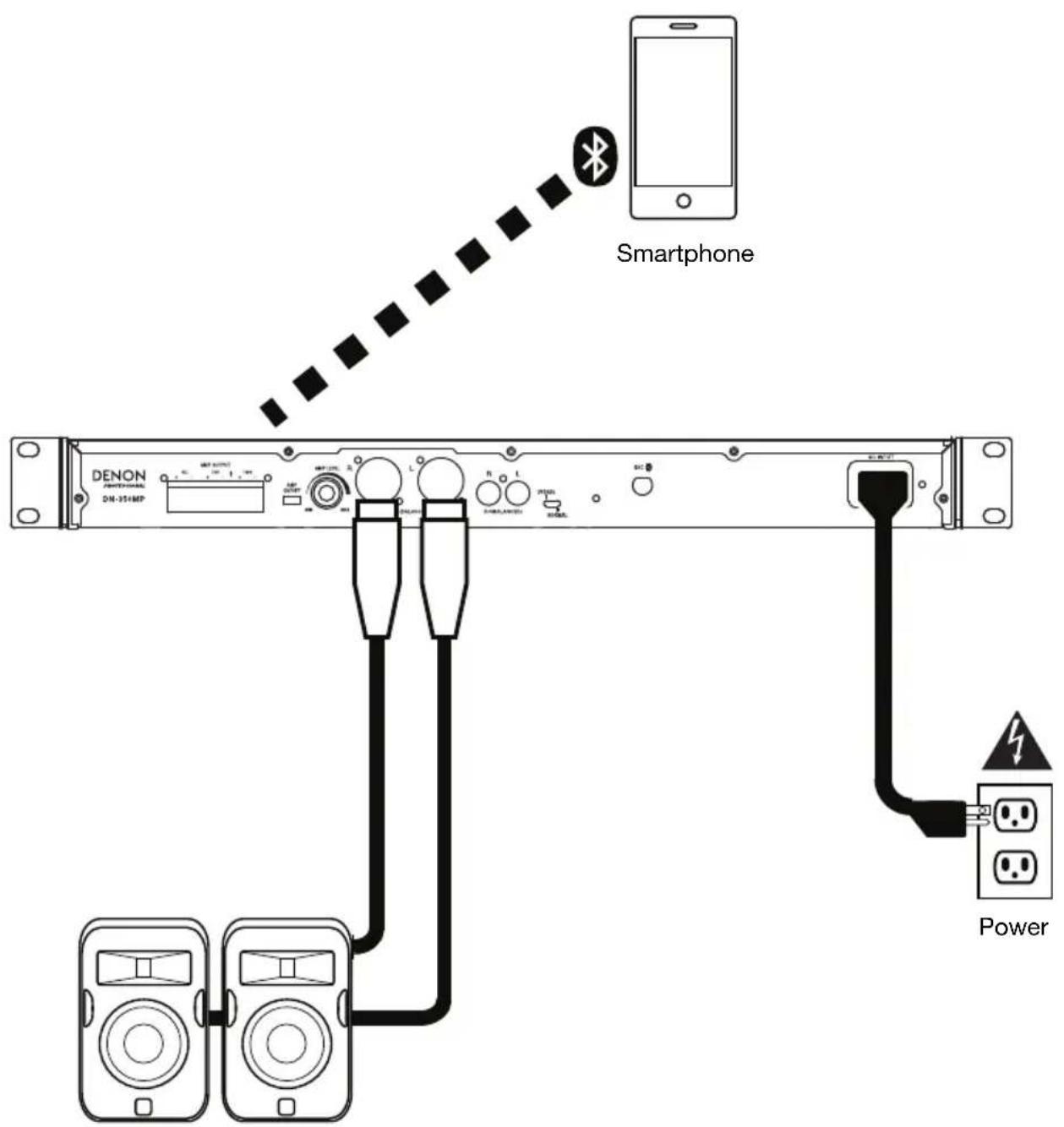
Connection Diagram
Items not listed under Introduction > Box Contents are sold separately.
Main Menu Options
Play Mode
When the Play mode option is selected from the Main menu, select from the following options:
Normal Mode: The USB flash drive will play the selected song and then continue to the next song.
Single Play: The USB flash drive will play the selected song once and then stop playing.
Repeat One: The USB flash drive will play the selected song and then repeat it once.
Repeat All: The USB flash drive will play through all of the songs on the USB device and will continue repeating the process until it is stopped.
Random: The USB flash drive will play random songs continuously until stopped.
Folder
When the Folder option is selected from the Main menu, the unit will display the list of folders on the USB flash drive. The following options are available in this sub menu:
Main: The unit will first play songs from the root directory and then from folders.
Folder one: The unit will play music from the selected folder.
Time
When the Time option is selected from the Main menu, select either the remaining time of the track or the elapsed time:
Elapsed: The unit will display the elapsed time of the track and will display “E” in the lower right corner of the display when in the USB mode.
Remaining: The unit will display the remaining time of the track and will display "R" in the lower right corner of the display in USB mode.
Power-On Play
When the Power-On Play option is selected from the Main menu, you can turn Power-On Play on or off. When Power-On Play is on, a connected USB flash drive will start playing music when the power is turned on.
To activate or deactivate Power-On Play, select and turn on the Pwr On Play option from the menu settings.
- When activated, P-OnPlay On ▶ will appear on the display.
- When deactivated, P-OnPlay Off will disappear on the display.
Bluetooth Device Select
When the Bluetooth Device Select option is selected from the Main menu, you can select to pair the unit to a device from a list of prior paired Bluetooth devices.
Bluetooth Device Clear
When the Bluetooth Device Clear option is selected from the Main menu, you can clear the list of the previously paired devices.
Display
Media Type: This is the currently selected media: AUX, USB or Bluetooth. See Operation > Selecting Media Playback Mode for more information.
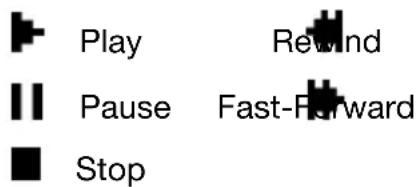
Playback Operation Icon: This shows various symbols to indicate the current playback status:
Information: This shows extra information about the media being played.
Time Counter (HH:MM:SS). The unit will display "R" or "E" to indicate if the displayed time is the elapsed time or the remaining time.
Track/File Number: This is the number of the track or file.
Function Icons: This shows various symbols to indicate these current functions:
| + | Random Playback (see Operation > Playing Audio Files on a USB Flash Drive for more information) |
| 5 | Single Play Mode (see Operation > Playing Audio Files on a USB Flash Drive for more information) |
| Folder (see Main Menu Options > Folder for more information) | |
| 2 | Repeat One (see Operation > Playing Audio Files on a USB Flash Drive for more information) |
| 3 | Repeat All (see Operation > Playing Audio Files on a USB Flash Drive for more information) |
| Power-On Play (see Main Menu Options > Power-On Play for more information) |
Time: In USB mode, this displays how much time has elapsed, the remaining time, total elapsed time, or the total remaining time shown as hh:mm:ss (hours, minutes, and seconds).
Operation
Selecting the Media Playback Mode
To select what kind of media you want to play:
To cycle through the available options, press the BT/USB/AUX button.
Aux: device connected to Aux In (see Playing Audio from an External Device)
USB: USB device (mass storage class) (see Playing Audio Files on a USB Flash Drive)
Bluetooth: Bluetooth device (see Playing Audio from a Bluetooth Device)
Playing Audio Files on a USB Flash Drive
To play audio files on a USB flash drive:
- If the unit is off, press the Power button to power it on.
- Connect your USB Flash Drive to the USB Flash Drive Port.
- Press the BT/USB/AUX button to cycle through to select USB.
- Select an audio file:
- When a USB flash drive is first connected, files on the root directory will be shown.
• To move through audio files, turn the Select knob on the unit.
In USB mode, you can perform any of the following operations:
• To start, resume, or pause playback, press the Play/Pause button.
• To stop playback, press the Stop button.
- To rewind or fast-forward through the track, press and hold one of the Search buttons. To resume playback, release the button.
- To select another folder or audio file, follow the steps described in Step 4 above.
- To select a Play mode, press the Menu button and scroll to select Repeat One (the same track will repeat indefinitely), Repeat All (the list of all tracks will repeat indefinitely), and Repeat Off (no tracks will repeat).
- To change the Time mode in the display, press the Menu button and scroll to select Elapsed (how much time has elapsed of the current track) or Remaining (how much time remains of the current track).
- To remove a USB device, gently remove it from the USB Flash Drive Port when it is not playing. (Removing a USB device while it is playing can damage it.)
Playing Audio from a Bluetooth Device
To play Bluetooth Tracks:
- If the unit is off, press the Power button to power it on.
- Connect the Bluetooth remote antenna to the BNC connector.
- Press the BT/USB/AUX button to cycle through to select Bluetooth.
- Navigate to your Bluetooth device's setup screen, find "DN-350MP" and connect.
Note: If your Bluetooth device prompts for a pairing code, enter 0000.
In Bluetooth mode, you can perform any of the following operations:
- To start, resume, or pause playback, press the Play/Pause button.
• To pause playback, press the Stop button. - To remove the list of paired devices and disconnect from any currently paired device, press the Menu button use the Select knob to scroll and select Bluetooth Device Clear to remove all paired devices from the unit's memory (and also unpair from a currently paired device). After the devices have been cleared from the unit's memory, to connect again to the same device, go to your Bluetooth device and select "Unpair" or "Forget the Device", depending on the type of device that you have. You can then select DN-350MP from your list of Bluetooth devices and connect.
Playing Audio from an External Device
To play audio on an external device (e.g., smartphone, computer, portable music player, etc.) connected to the Aux In:
- If the unit is off, press the Power button to power it on.
- Connect the 1/8" (3.5 mm) stereo/headphone output of your external device to the Aux In.
- Press the BT/USB/AUX button and select Aux as the media type. If your external device is connected, Aux Connected will appear in the display. If your external device is not connected, Aux Disconnect will appear in the display.
- To start playback, press the Play button on your external device.
Assistance technique
Euroblock-Anschlüsse
Stromkabel
Benutzerhandbuch
Technical Specifications
| Frequency Response | 10 – 20,000 Hz |
| Power Consumption | <5W |
| Signal-to-noise ratio | 1 kHz, 0 dB, A-weighted |
| Operating Temperature | 5 °C – 35 °C |
| Operating Humidity | 25 – 85% (non-condensing) |
| Connectors | RCA outputs (unbalanced)XLR outputs (balanced)Amplifier output |
| Supported File Formats | WMA (44.1 to 48 kHz, up to 192 kbps), M4A, AIFF, WAV (up to 48 kHz, 16 bit), MP3 (up to 44 kHz, 320 kbps) |
| Power | Connection: IECInput Voltage: 100-240V 50/60 HzConsumption: 120 W |
| Dimensions(width x depth x height) | 19.00" x 13.66" x 1.73"483 x 347 x 44 mm (with rack ears attached) |
| Weight | 9.0 lbs.4.1 kg |
Specifications are subject to change without notice.
Trademarks & Licenses
Denon is a trademark of D&M Holdings Inc., registered in the U.S. and other countries. Denon Professional products are produced by inMusic Brands, Inc., Cumberland, RI 02864 USA.
All other product names, company names, trademarks, or trade names are those of their respective owners.
denonpro.com

- User Guide (English)
- Introduction
- Box Contents
- Support
- Features
- Front Panel
- Rear Panel
- Connection Diagram
- Main Menu Options
- Play Mode
- Folder
- Time
- Power-On Play
- Bluetooth Device Select
- Bluetooth Device Clear
- Display
- Operation
- Selecting the Media Playback Mode
- Playing Audio Files on a USB Flash Drive
- To play audio files on a USB flash drive:
- Playing Audio from a Bluetooth Device
- To play Bluetooth Tracks:
- Playing Audio from an External Device
- Assistance technique
- Trademarks & Licenses
- denonpro.com
Brand : DENON
Model : DN350MP
Category : DJ Equipment