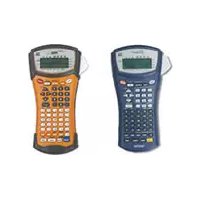
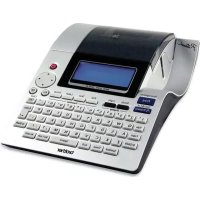
Pick your language and provide your email: we'll send you a specifically translated version.
This manual is not available in your language
User questions about Ptouch PT2700 BROTHER
0 question about this device. Answer the ones you know or ask your own.
Ask a new question about this device
No questions yet. Be the first to ask one.
Download the instructions for your Label printer in PDF format for free! Find your manual Ptouch PT2700 -
BROTHER and take your electronic device back in hand. On this page are published all the documents necessary for the use of your device. Ptouch PT2700 by BROTHER.
USER MANUAL Ptouch PT2700 BROTHER
Read this User's Guide before you start using your P-touch. Keep this User's Guide in a handy place for future reference.
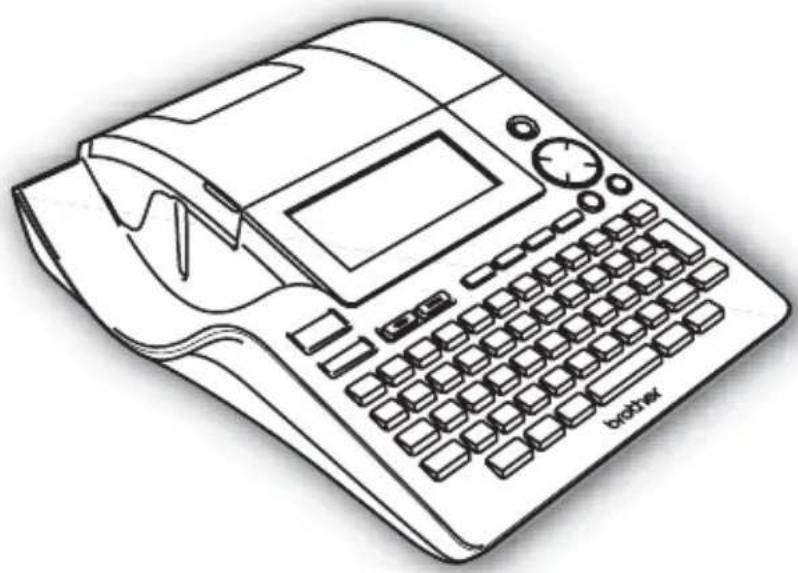
natural_image
Line drawing of a broadband telephone with keypad and control panel (no text or symbols)
1 INTRODUCTION
② GETTING STARTED
3 EDITING A LABEL
4 LABEL PRINTING
⑤ USING THE MEMORY
6 MAINTAINING YOUR P-TOUCH LABELER
7 TROUBLESHOOTING
8 APPENDIX
⑨ INDEX
• IBM is a trademark of International Business Machines, Inc.
- Microsoft and Windows are registered trademarks of Microsoft Corporation, USA.
• Macintosh and Mac OS are registered trademarks of Apple Computer, Inc.
- The names of other software or products used in this document are trademarks or registered trademarks of the respective companies that developed them.
Contents
INTRODUCTION 4
What You Can Do .... 4
Safety Precautions 6
General Precautions....9
Symbols Used in this Guide 9
Quick Index 10
GETTING STARTED 11
Unpacking Your P-touch 11
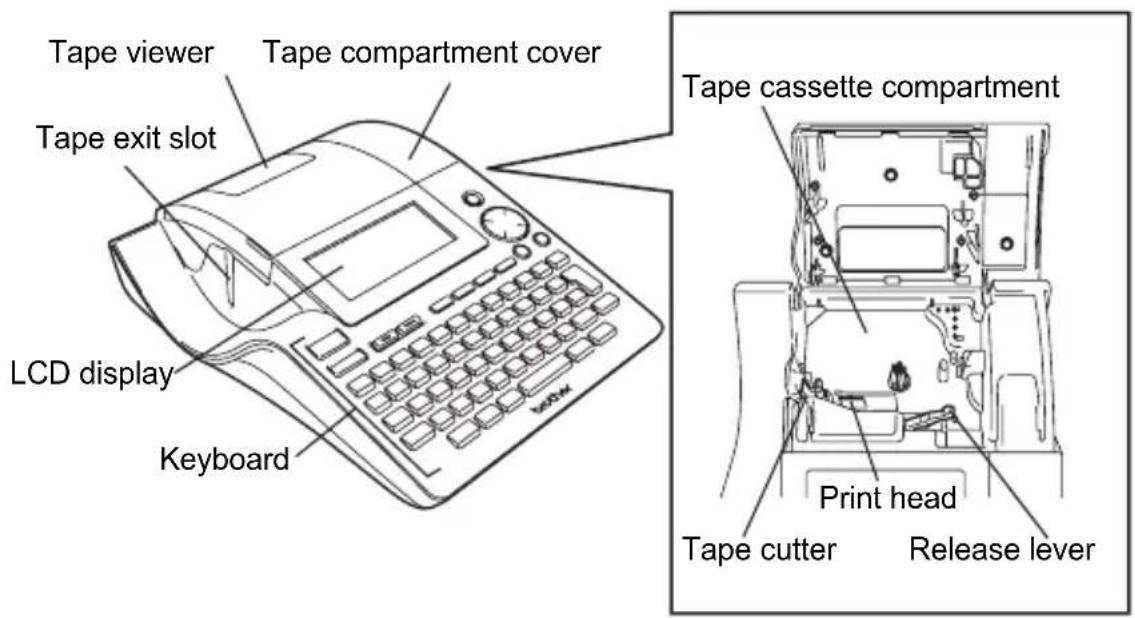
General Description.... 12
LCD Display & Keyboard.... 13
LCD Display.... 13
Key Names and Functions.... 14
Power Supply 16
Battery....16
AC Adapter 17
Inserting a Tape Cassette 18
Turning Power On/Off 20
Feeding Tape 21
LCD Display 21
LCD Contrast 21
Display Mode 22
Back Light 22
Setting Language and Unit.... 23
Language 23
Unit 23
EDITING A LABEL.... 24
Entering and Editing Text.... 24
Entering Text from the Keyboard 24
Adding a New Line....24
Adding a New Block.... 24
Moving the Cursor....24
Inserting Text 25
Inserting a Tab 25
Deleting Text....25
Entering Symbols 26
Entering Symbols Using Key 26
Entering Symbols Using the Symbol Function.... 26
Using Symbol Update Function 27
INTRODUCTION
Entering Accented Characters 29
Setting Character Attributes ....31
Setting Character Attributes by Label ....31
Setting Character Attributes by Each Line....31
Setting Auto Fit Style 35
Setting Label Attributes 36
Using Auto-Format Layouts 38
Using Templates - Example creating an Asset Tag....38
Using Block Layouts 43
Using Time & Date Function 48
Clock Setting....48
Time & Date Format Setting 49
Time Stamp Setting 51
[Timing] 51
[Time Stamp Format] 52
[Forward] 53
Creating a Bar Code Label....54
Setting Bar Code Parameters....54
Entering Bar Code Data....55
Editing and Deleting a Bar Code 57
LABEL PRINTING 58
Label Preview....58
Printing a Label 58
Printing a Single Copy 59
Printing Multiple Copies 59
Auto-numbering Labels....60
Mirror Printing 61
Tape Cutting Options 62
Manual Cutting....64
Adjusting the Label Length....64
Attaching Labels....65
USING THE FILE MEMORY 66
Storing a Label into Memory 66
Opening a Stored Label File 67
Printing a Stored Label File....68
Deleting a Stored Label File....69
MAINTAINING YOUR P-touch 70
Resetting the P-touch....70
Maintenance....70
Cleaning the Main Unit ....70
Cleaning the Print Head....70
Cleaning the Tape Cutter....71
TROUBLESHOOTING....72
What to do when.... 72
Error Messages....75
APPENDIX....79
Specifications 79
Accessories 82
INDEX......86
INTRODUCTION
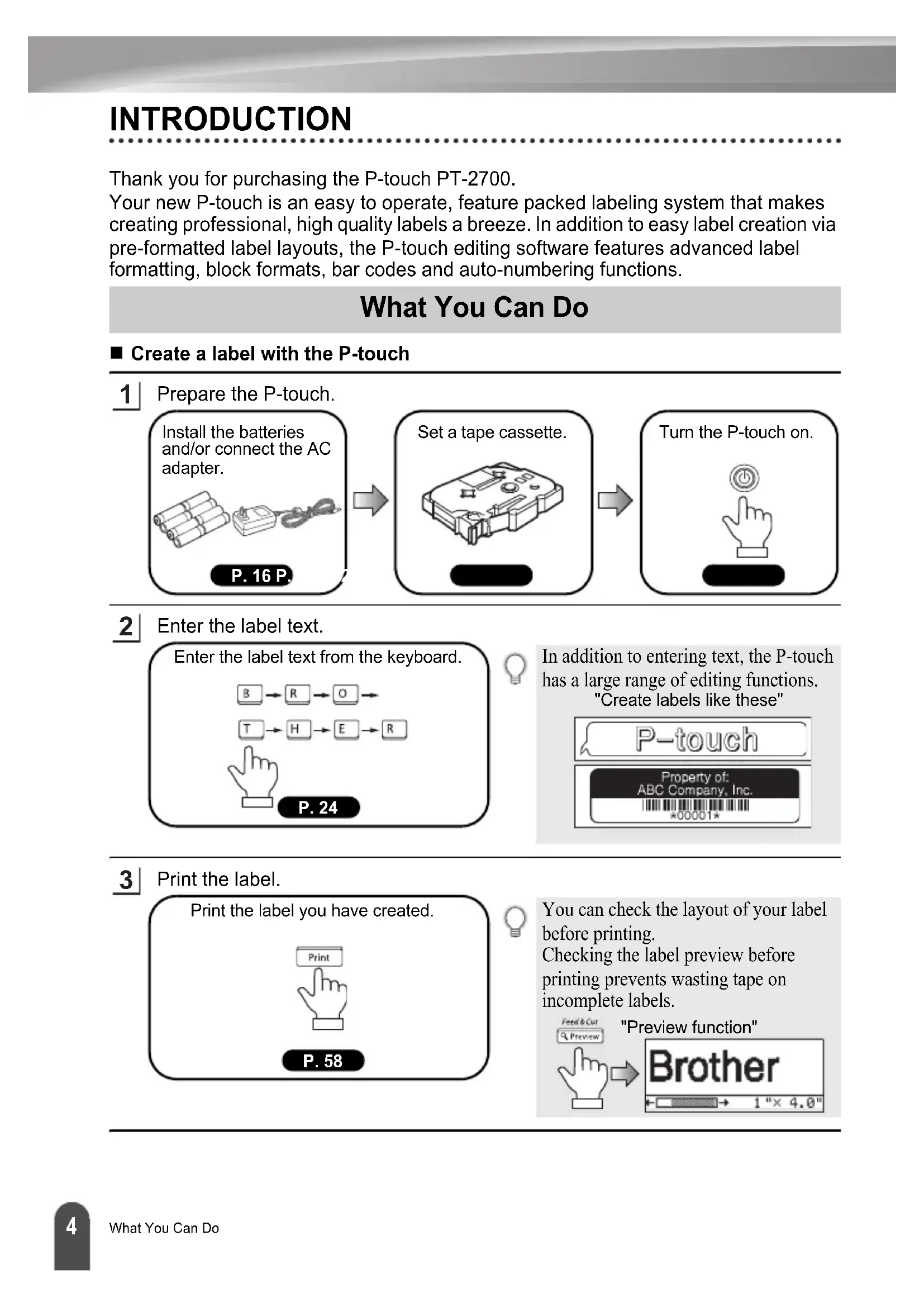
Thank you for purchasing the P-touch PT-2700.
Your new P-touch is an easy to operate, feature packed labeling system that makes creating professional, high quality labels a breeze. In addition to easy label creation via pre-formatted label layouts, the P-touch editing software features advanced label formatting, block formats, bar codes and auto-numbering functions.
What You Can Do
■ Create a label with the P-touch
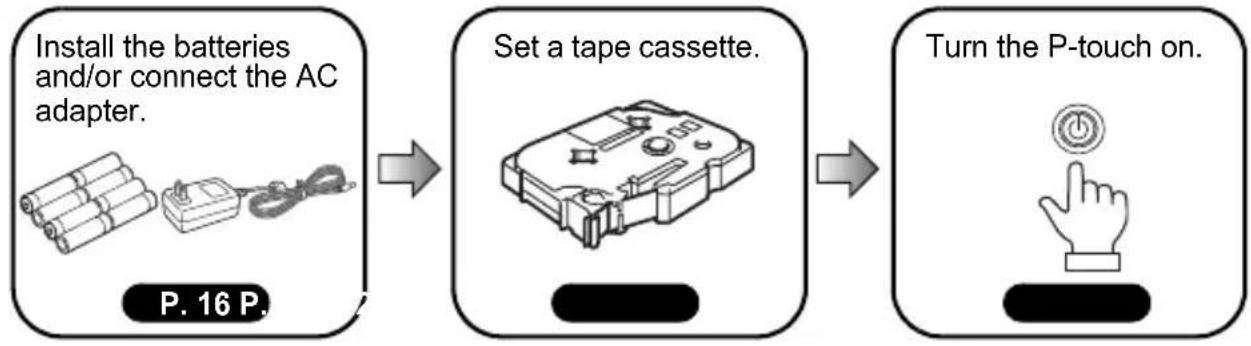
1 | Prepare the P-touch.
flowchart
graph LR
    A["Install the batteries and/or connect the AC adapter."] --> B["Set a tape cassette."]
    B --> C["Turn the P-touch on."]
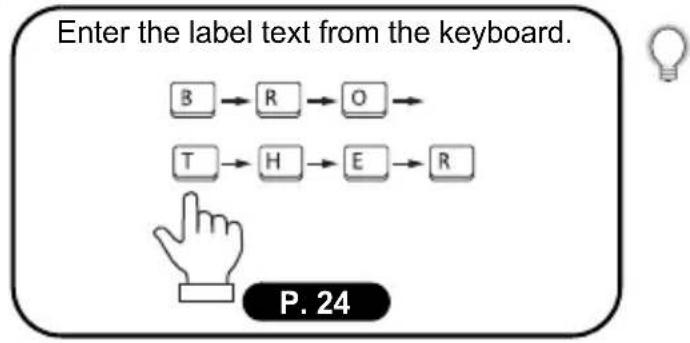
2| Enter the label text.
flowchart
graph TD
    B["B"] --> R["R"]
    R --> O["O"]
    T["T"] --> H["H"]
    H --> E["E"]
    E --> R["R"]
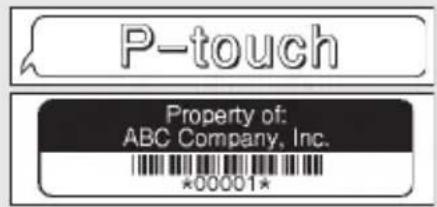
In addition to entering text, the P-touch has a large range of editing functions. "Create labels like these"
text_image
P-touch
Property of:
ABC Company, Inc.
*00001*
3 | Print the label.
text_image
Print the label you have created.
Print
P. 58
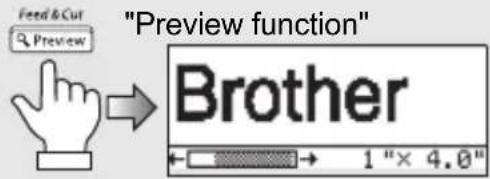
You can check the layout of your label before printing.
Checking the label preview before printing prevents wasting tape on incomplete labels.
text_image
"Preview function"
Brother
1" x 4.0"
■ Create a label with your personal computer
1 Prepare the P-touch. (Refer to step 1 in the previous section.)
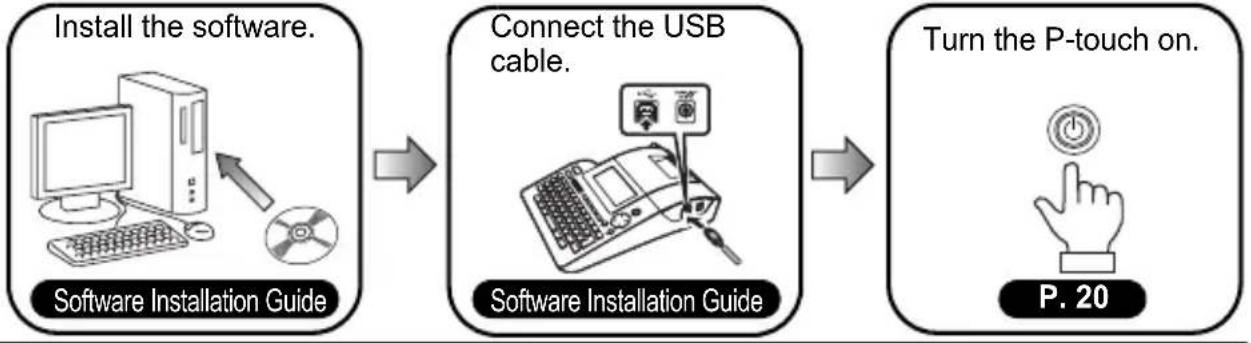
2 Prepare the personal computer.
flowchart
graph LR
    A["Install the software."] --> B["Connect the USB cable."]
    B --> C["Turn the P-touch on."]
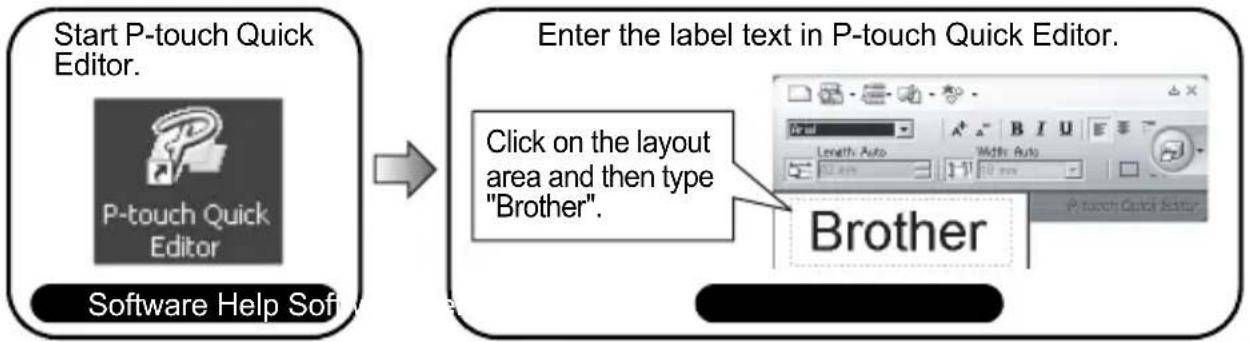
3| Enter the label text using P-touch Quick Editor.
flowchart
graph LR
A["Start P-touch Quick Editor.<br>P-touch Quick Editor<br>Software Help Software"] --> B["Enter the label text in P-touch Quick Editor.<br>Click on the layout area and then type "Brother".<br>Brother"]
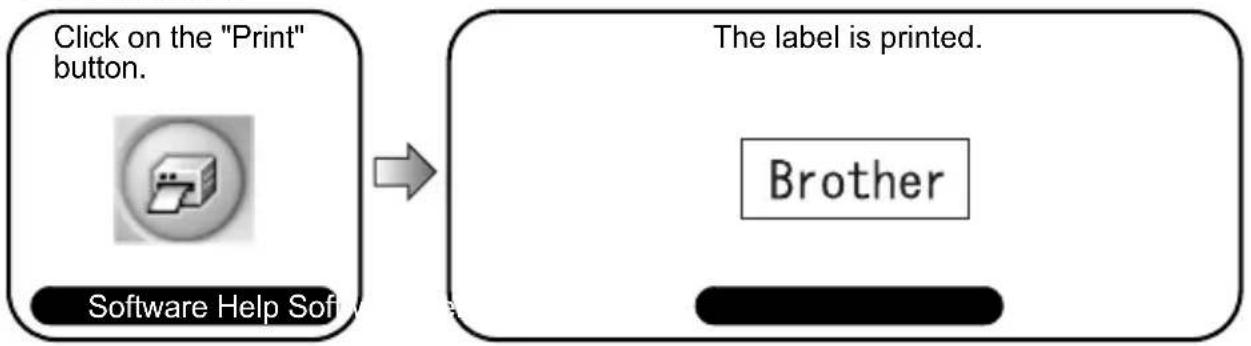
4 | Print the label.
flowchart
graph LR
    A["Click on the "Print" button."] --> B["Software Help Software"]
    B --> C["The label is printed."]
    C --> D["Brother"]
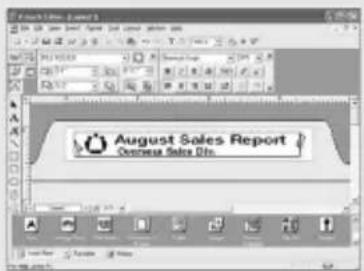
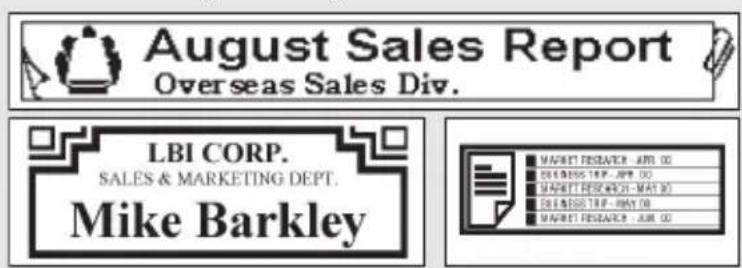
P-touch Quick Editor (simple label editing software) is ideal for creating simple labels. To create labels with more complex designs, use P-touch Editor (fully featured label editing software).
"P-touch Editor" "Create labels with complex designs like these"
text_image
August Sales Report
Overseas Sales Dis.
text_image
August Sales Report
Overseas Sales Div.
LBI CORP.
SALES & MARKETING DEPT.
Mike Barkley
MARKET RESEARCH - APR 00
DEGREESE TIP - APR 00
MARKET RESEARCH - MAY 00
DEGREESE TIP - MAY 00
MARKET RESEARCH - JUL 00
Safety Precautions
To prevent injury and damage, important notes are explained using various symbols. The symbols and their meanings are as follows:
WARNING
This indicates the possibility of death or serious injury if instructions are ignored.
CAUTION
This indicates the possibility of personal injury or property damage if instructions are ignored.
The symbols used in this manual are as follows:
symbol indicates prohibition. Detailed prohibited matters are shown in the figure (e.g. the left figure shows the prohibition against disassembly).
symbol indicates special instructions. Detailed instructions are shown in the figure (e.g. the left figure shows the method for pulling the power plug out of the outlet).
WARNING
P-touch
Please note the following to avoid fire, damage, electric shock and choking.
Do not disassemble the P-touch. For inspection, adjustment, and repair of the P-touch, contact the retail outlet where the P-touch was purchased or your local authorized service center. (If the damage is caused by disassembly or modification of the P-touch by the customer, it may void the customer's warranty and servicing (parts and labor) may be charged to the customer.)
Do not drop, hit or otherwise strike the P-touch.
Do not touch any metal parts near the print head. The print head becomes very hot during use and remains very hot immediately after use. Do not touch it directly with your hands.
Do not wet the P-touch by touching with wet hands, spilling drinks such as coffee, juice or water onto the P-touch. Do not use the P-touch with a foreign object in it. If water, metallic substance or any foreign object enters the P-touch, disconnect the AC adapter and remove batteries, and contact the retail outlet where the P-touch was purchased or your local authorized service center.
Do not put the plastic packing bag near face, mouth or nose as bag may become a choking hazard. Dispose of the plastic bag immediately and keep it out of the reach of children. The plastic packing bag is not a toy.
Disconnect the AC adapter and remove batteries immediately and stop using when you notice abnormal odor, heat, discoloration, deformation or anything unusual while using or storing it.
WARNING
Battery
Please note the following to avoid liquid leakage, heat, rupture of the battery.
Do not throw into fire, heat up, or disassemble the battery.
AC adapter
Please note the following to avoid fire, electric shock, or failure.
Always use the specified voltage (120V) and the suggested AC adapter (AD-24).
Do not overload the power outlet.
Do not drop, hit or otherwise damage the AC adapter.
Do not place heavy objects on, damage or modify the power cord or plug. Do not forcibly bend or pull the power cord.
Do not use a damaged power cord.
Do not touch the AC adapter or power plug with wet hands.
Do not use the AC adapter in places of high humidity such as bathrooms.
Make sure that the plug is fully inserted to the power outlet. Do not use an outlet that is loose.
CAUTION
Battery
Please note the following to avoid liquid leakage, heat, rupture of the battery.
Do not use old and new batteries together.
Do not mix alkaline batteries with other type batteries.
Do not set the positive and negative end in the wrong position.
Remove the batteries if you do not intend to use the P-touch for an extended period of time.
AC adapter
Be sure to disconnect the AC adapter from the power outlet and the P-touch when not using the P-touch for any extended period of time.
Always hold the plug when disconnecting the power cord from the power outlet.
Tape Cutter
Please note the following to avoid personal injury and damage of the P-touch.
Do not touch the blade of the cutter unit.
Do not open the tape compartment cover when operating the cutter unit.
Do not apply excessive pressure to the cutter unit.
CAUTION
Usage/Storage
Please note the following to avoid personal injury and damage of the P-touch.
When using the P-touch, do not place it on a unstable environment, such as dilapidated table or top of the shelf.
Do not place any heavy objects on top of the P-touch.
Memory
Any data stored in memory will be lost due to failure or repair of the P-touch, or if the battery expires.
When power is disconnected for more than two minutes, all text and format settings will be cleared. Any text files stored in the memory and clock settings will also be cleared.
Tape
Depending on the environmental conditions and the material and condition of the affixing surface, the label may peel off or the color of the tape may change. When removing labels, adhesive may remain, the tape's color may be transferred to the surface, or the surface beneath the label may otherwise be damaged. Be sure to test the label on the intended surface and material before affixing the label.
General Precautions
- Do not use the P-touch in any way or for any purpose not described in this guide. Doing so may result in accidents or damage the machine.
- Use only Brother TZ tapes with this machine. Do not use tapes that do not have the mark.
- Do not pull or press on the tape in the cassette.
- Do not put any foreign objects into the tape exit slot, AC adapter connector, or USB port, etc.
- Do not try to print labels using an empty tape cassette or without a tape cassette set in the P-touch. Doing so will damage the print head.
- Do not touch the print head with your fingers.
- Do not clean the machine with alcohol or other organic solvents. Only use a soft, dry cloth.
- Do not place the P-touch in direct sunlight, near heaters or other hot appliances, in any location exposed to extremely high or low temperatures, high humidity, or dusty locations. Standard operating temperature range: 10^ to 35^ (50°F to 95°F).
- It is recommended that you use the USB cable supplied with the P-touch. Should another USB cable need to be used, ensure it is of high quality construction.
- Be careful not to scratch the CD-ROM. Do not place the CD-ROM in any location exposed to high or low temperatures. Do not place heavy objects on the CD-ROM or bend it.
- The software on the CD-ROM is intended for use with the P-touch and may be installed on more than one PC.
- We strongly recommend that you read this User's Guide carefully before using your P-touch, and then keep it nearby for future reference.
Symbols Used in this Guide
The following symbols are used throughout this guide to indicate additional information.
This symbol indicates information or directions that may result in damage or injury if ignored, or operations that will result in errors.
This symbol indicates information or directions that may help you understand and use the P-touch more efficiently.
text_image
Quick
Index
This section provides quick and easy access to information on tasks often needed by users.
Simply look for your task below and then go to the page indicated.
If the task you are looking for is not shown here, try the Contents or Index pages.
text_image
ABC
To enter text, symbols
and accent characters...
Entering
text/symbols/accent
characters
P. 24
text_image
ABC auto-format
function
To format the label...
Text/Label format
functions
P. 31
text_image
To change the cutting
and margin settings
Tape cutting options
P. 62
text_image
10:25
01/01/2006
To add time and
date to your labels...
Time&Date function
P. 54
text_image
To print multiple copies (with auto-numbering)...
Multiple copy/auto-numbering functions
P. 59
text_image
ABC
To save a label
layout...
File memory function
P. 66
GETTING STARTED
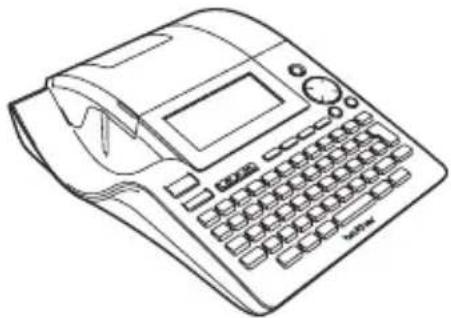
Unpacking Your P-touch
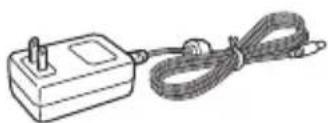
Check that the package contains the following before using your P-touch.
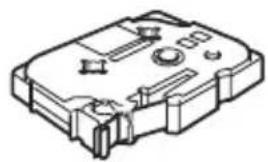
P-touch PT-2700 TZ tape cassette
natural_image
Line drawing of a vintage telephone receiver with keyboard, dials, and display (no text or symbols)
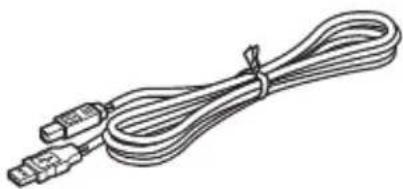
CD-ROM USB cable
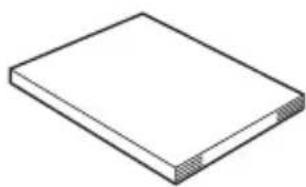
AC adapter User's Guide
natural_image
Simple line drawing of a rectangular device connected to a coiled cable (no text or symbols)
Software Installation Guide
natural_image
Isometric line drawing of a rectangular block with a flat top and side grooves (no text or symbols)
natural_image
Isometric line drawing of a mechanical device casing (no text or symbols)
natural_image
Line drawing of a coiled cable with two connectors (no text or symbols)
natural_image
Isometric line drawing of a rectangular block with a textured top and bottom edge (no text or symbols)
When shipped from the factory, the LCD display is covered with a protective sheet to prevent damage. Remove this sheet before using the P-touch.
text_image
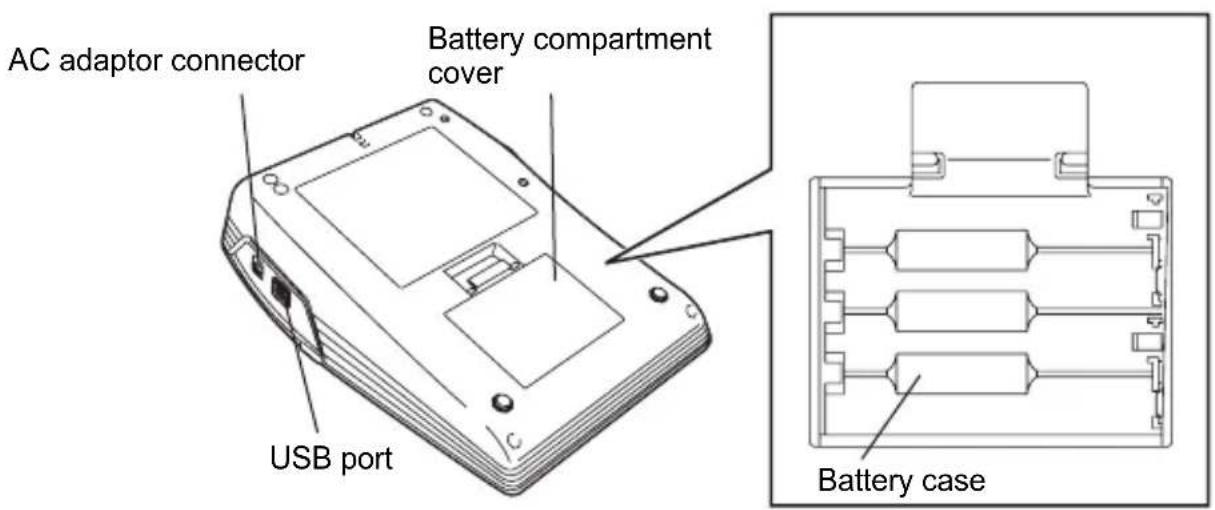
AC adaptor connector
Battery compartment cover
USB port
Battery case
LCD Display & Keyboard
LCD Display
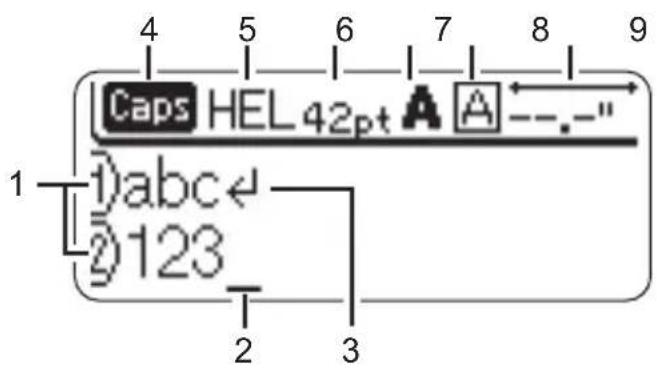
text_image
Caps HEL42pt A A
1 abc
2 123
2 3
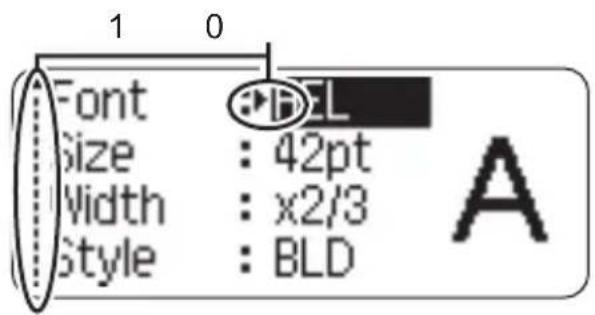
text_image
Font
Size : 42pt
Width : x2/3
Style : BLD
A
1. Line number
Displayed at the beginning of each line, this mark indicates the line number within the label layout.
2. Cursor
Indicates the current position of the cursor. New characters are entered to the left of the cursor, and the character to the left of the cursor is deleted when the key is pressed.
3. Return mark
Indicates the end of a line of text.
4. Caps mode
Indicates that the Caps mode is on.
5.\~8. Style guidance
Indicates the current font (5), character size (6), character style (7) and frame (8) settings.
9. Tape length
Indicates the tape length for the text entered.
10.Cursor selection
Indicates that you can use the cursor keys to select the items on the screen. Use the and keys to select a menu item, and the and keys to change the setting.
Refer to “LCD Display” on page 21 for changing the contrast and display mode, and for turning the back light on/off.
Key Names and Functions
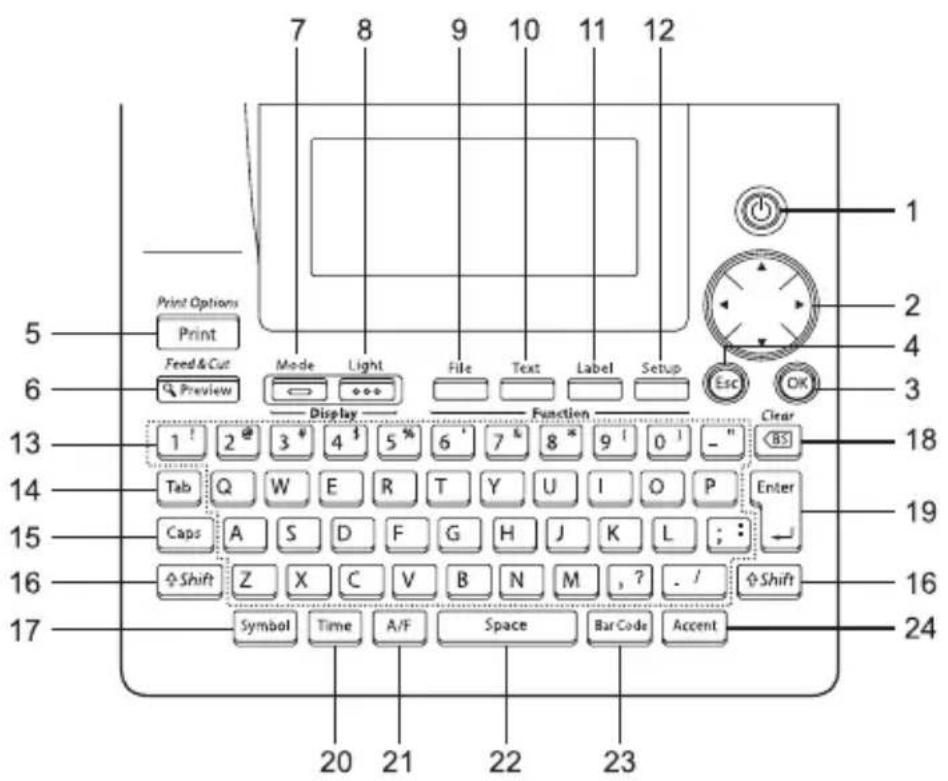
text_image
7 8 9 10 11 12
Print Options
Print
Feed & Cut
Preview
Mode
Light
File
Text
Label
Setup
Esc
OK
Display
Function
Clear
1 2 3 4 5 % 6 ' 7 & 8 * 9 ' 0 ' - "
1. (Power):
Turns the P-touch on and off.
2. (▲ ▼ ◀ ▶):
- Moves the cursor in the direction of the arrow when entering or editing characters, entering symbols or accented characters, and when setting label attributes in the function menus.
- When setting the date and time for the clock setting, use ▲ and ▲ key to increase/decrease the numbers.
3. OK:
Selects the option displayed when setting label attributes in the function menus, or when entering symbols or accented characters.
4. (Escape):
Cancels the current command and returns the display to the data entry screen or the previous step.
5. Print Options: Print
- Prints the current label design onto the tape.
- Opens the Print Options menu when used in combination with the key.
6. Feed & Cut Preview :
• Displays a preview of the label.
- Feeds 0.92" (23 mm) of blank tape and then automatically cuts the tape when used in combination with the key.
7. Mode :
Use this to change the display patterns of text entry screen and clock display.
8. Light :
Turns the back light of the LCD display on and off.
9. File :
Opens the File menu, where you can print, open, save, or delete the frequently used labels in the file memory.
10. Text :
- Opens the Text menu, where you can set character attributes for the label.
- Character attributes can be set to each line of the label when the Text menu is opened in combination with the key.
11. Label :
Opens the Label menu, where you can set label attributes for the label.
12. Setup :
Opens the Setup menu, where you can set operating preferences for the P-touch.
13. 1' \~ . / :
- Use these keys to type letters or numbers.
- Uppercase letters and symbols can be entered using these keys in combination with the OR keys. Shift
14. Tab :
Inserts a tab to the position of the cursor in the text entry screen.
15. Caps :
Turns the Caps mode on and off. When the Caps mode is on, uppercase letters can be entered by simply pressing a character key.
16. Shift :
Use this key in combination with the letter and number keys to type uppercase letters or the symbols indicated on the number keys.
17. Symbol :
Use this to select and enter a symbol from a list of available symbols.
18. (Backspace):
- Deletes the character to the left of the cursor.
- Clears all text entered, or all text and current label settings when used in combination with the key.
19.
- Enters a new line when entering text.
- Enters a new block when used in combination with the key.
20. Time :
- Enters the selected date / time to the position of the cursor in the text entry screen.
- Clock display appears when used in combination with the key.
21. A/F (Auto-Format):
Opens the Auto-Format menu, where you can create labels using pre-defined templates or block formats.
22. Space :
- Enters a blank space.
- Returns a setting to the default value.
23. BarCode :
\- Opens the Barcode Input screen for entering the bar code data.
\- Opens the Bar code Setup screen for setting bar code parameters when used in combination with the key.
24. Accent :
Use this to select and enter an accented character.
Power Supply
Battery
1 After making sure that the power is off, remove the battery compartment cover on the back of the machine. If the batteries are already in the machine, remove them.
Make sure that the power is turned off when replacing batteries.

natural_image
Technical line drawing of a device casing with internal components and mounting holes (no text or symbols)
2 Insert eight new AA-size alkaline batteries (LR6), making sure that the positive (+) and negative (-) ends of the batteries match the positive (+) and negative (-) marks inside the battery compartment.
Always replace all eight batteries at the same time using brand new ones.

natural_image
Technical line drawing of a device with internal components and mounting holes (no text or symbols)
3 Attach the battery compartment cover by inserting the three hooks at the bottom into the slots on the machine, then pushing down firmly until it snaps into place.

natural_image
Isometric line drawing of a device casing with internal components (no text or symbols)
\- Remove the batteries if you do not intend to use the P-touch for an extended period of time.
- When power is disconnected for more than two minutes, all text and format settings will be cleared. Any text files stored in the memory and clock settings will also be cleared.
AC Adapter
Connect the AC adapter directly to the P-touch.

text_image
DC N1-3.5V
+ - + -
1 Insert the plug on the AC adapter cord into the connector marked DC IN 9-9.5V on the P-touch.
2 Insert the AC adapter plug into a standard electrical outlet.

- Turn the P-touch off before disconnecting the AC adapter.
- Disconnect the AC adapter from the P-touch and electrical outlet when you do not intend to use the P-touch for an extended period.
- Do not pull or bend the AC adapter cord.
- Use only the AC adapter (AD-24) designed exclusively for your P-touch. Failure to observe this may result in an accident or damage. Brother shall not assume any responsibility for any accident or damage resulting from not using the specified AC adapter.
- Do not connect the AC adapter to a non-standard electrical outlet. Failure to observe this may result in an accident or damage. Brother shall not assume any responsibility for any accident or damage resulting from not using a standard electrical outlet.
- When power is disconnected for more than two minutes, all text and format settings will be cleared. Any text files stored in the memory and clock settings will also be cleared.

For backup of memory and clock setting, when the AC adapter is unplugged, please use AA-size alkaline batteries (LR6).
Inserting a Tape Cassette
Tape cassettes of 9/64", 1/4", 3/8", 1/2", 3/4", or 1" (3.5mm, 6mm, 9mm, 12mm, 18mm, or 24mm) width can be used in your P-touch. Use only Brother tape cassettes with the TE mark.
If the new tape cassette has a cardboard stopper, be sure to remove the stopper before inserting the cassette.

natural_image
Diagram of a device's internal components with an arrow indicating a specific part (no text or symbols present)
1 Check that the end of the tape is not bent and that it passes through the tape guide.
End of tape

natural_image
Technical diagram of a mechanical component with an inset view showing internal structure (no text or symbols)
Tape guide
2 After making sure that the power is off, lift open the tape compartment cover. If there is already a tape cassette in the machine, remove it by pulling it straight up.

natural_image
Line drawing of a vintage computer with keyboard, monitor, and keyboard tower (no text or symbols)
3 Insert the tape cassette into the tape compartment, with the end of the tape facing the machine's tape exit slot, and press firmly until you hear a click.
When inserting the tape cassette, make sure that the tape and ink ribbon do not catch on the print head.

natural_image
Line drawing of a computer setup with monitor, keyboard, and accessories (no text or symbols)
Tape exit slot
4 Close the tape compartment cover.

natural_image
Line drawing of a computer control panel with an open door and internal components (no text or symbols)

- Make sure that the release lever is up when closing the tape compartment cover. The tape compartment cover cannot be closed if the release lever is pressed down.
- Be sure to feed tape to remove any slack in the tape and ink ribbon after inserting the tape cassette. Refer to “Feeding Tape” on page 21.
- Do not pull the label coming out of the tape exit slot. Doing so will cause the ink ribbon to be discharged with the tape.
- Store tape cassettes in a cool dark location, away from direct sunlight and high temperature, high humidity, or dusty locations. Use the tape cassette as quickly as possible after opening the sealed package.
Turning Power On/Off
Press the Ⓞkey to turn the P-touch on.
Press the key again to turn the P-touch off.

text_image
HEL
1_

- Your P-touch has a power saving function that automatically turns itself off if no key is pressed within a certain time under certain operating conditions. Refer to the Auto Power-Off Time table below for details.
- If the batteries are installed or the P-touch is connected to an electrical outlet by the AC adapter, the previous session's information is displayed when the power is turned on.
Auto Power-Off Time
P-touch only Connected to PC
With AC adapter
8 hours 8 hours
With battery
5 minutes
5 minutes with no operation.1 hour after printing from PC.
Feeding Tape
The Feed & Cut function feeds 0.92" (23mm) of blank tape then cuts the tape.

- Be sure to feed tape to remove any slack in the tape and ink ribbon after inserting the tape cassette.
- Do not pull the label coming out of the tape exit slot. Doing so will cause the ink ribbon to be discharged with the tape.
- Do not block the tape exit slot during printing or when feeding tape. Doing so will cause the tape to jam.
1 Hold down the key and press the key "Feed & Cut?" appears on the display.
2 | Press the or key to feed tape.
The message “Feeding Tape... Please Wait” appears while the tape is fed, and then the tape is cut.

Press ☑ while “Feed & Cut?” is displayed to cancel tape feeding.
LCD Display
LCD Contrast
You can change the contrast setting of the LCD display to one of five levels (+2, +1, 0, -1, -2) to make the screen easier to read. The default setting is "0".
1 Press the key to display the Mode menu, select "LCD Contrast" using the or key, and then press the OK or key.

text_image
Set Clock
Tab
LCD Contrast
Symbol Update
2| Select a contrast level using the ▲ or ▼ key. The screen contrast changes each time you press the ▲ or ▼ key, allowing you to set the most suitable contrast.

text_image
+2
+1
0
-1
-2
〈LCD Contrast〉
[ABCDE]
[abcde]
3 Press the or key.

- Press the key to return to the previous step.
- Pressing the key on the contrast setting screen sets the contrast to the default value "0".
GETTING STARTED
Display Mode
You can change the display mode to your preferable style by pressing the key repeatedly. You can select from three text entry screens (guidance + 2 text lines, 3 text lines, guidance + 1 line) and clock display.

flowchart
graph LR
    A["HEL AA 2.5" 2ghijkl3mnopqr"] --> B["1) abcdef4 2ghijkl3mnopqr"]
    B --> C["HEL AA 2.5" 3mnopqr"]
    C --> D["12:00 AM 01/01/2006"]
guidance + 2 lines 3 lines guidance + 1 line

- You can also change the clock display to the text entry screen (guidance + 2 text lines) by pressing any other key on the keyboard besides and key.
- For adjusting the clock to current date and time, refer to "Clock Setting" on page XX.
- For selecting a desired format for displaying the date and time, refer to “Time & Date Format Setting” on page 49.
Back Light
You can turn the back light on / off by pressing the key. The back light can be used when you wish to see the display more clearly. The default setting is ON.

flowchart
Back Light ON Back Light OFF

Power can be saved when the back light is turned off.
Setting Language and Unit
Language
Select the language("English", "Español", "Dansk", "Deutsch", "Français", "Italiano", "Nederlands", "Norsk", "Português", "Suomi", or "Svenska") for menu commands and messages shown on the LCD display.
The default setting is "English".
1 Press the key to display the Setup menu, select "Language" using the or key, and then press the OK or key.

text_image
Auto Fit Style
Manual Cutting
Language
Unit
2 Select a language using the ▲ or key.

text_image
〈Language〉
Dansk
Deutsch
English
3 Press the or key.

Press the key to return to the previous step.
Unit
Select the units ("inch" or "mm") for dimensions shown on the LCD display. The default setting is "inch".
1 Press the key to display the Setup menu, select "Unit" using the or key, and then press the or key.

text_image
Auto Fit Style
Manual Cutting
Language
Unit
2 Select a unit using the ▲ or ▼▼.

text_image
inch
mm
⟨Unit⟩
3 Press the or key.

Press the key to return to the previous step.
Entering and Editing Text
Using the keyboard of your P-touch is very similar to using a typewriter, word processor, or personal computer.
Entering Text from the Keyboard
- To enter a lowercase letter or a number, simply press the desired key.
- To enter a blank space in the text, press the key:
- To enter an uppercase letter or one of the symbols on the number keys, hold down the key and then press the desired key.
- To enter uppercase letters continuously, press the key to enter Caps mode, and then press the desired keys.

\- To exit Caps mode, press the key again.
\- To enter a lowercase letter while in Caps mode, hold down the key and then press the desired key.
Adding a New Line
\- To end the current line of text and start a new line, press the key. A return mark appears at the end of the line and the cursor moves to the start of the new line.

\- There is a maximum number of lines of text that can be entered for each tape width. A maximum of 7 lines can be entered for 1" (24mm) tape, 5 lines for 3/4" (18mm) tape, 3 lines for 1/2" (12mm) tape, 2 lines for 3/8" (9mm) and 1/4" (6 mm) tape, and 1 line for 9/64" (3.5mm) tape.
\- If you press the 'key when seven lines already exist, an error message is displayed.
\- To change the character attribute of each line, refer to “Setting Character Attributes by Each Line” on page 31.
Adding a New Block
\- To create a new block of text/lines to the right of your current text, press the key while holding down the key. A mark will appear at the end of the block and the cursor moves to the start of the new block.

A maximum of 5 blocks can be entered in one label.
Moving the Cursor
\- To move the cursor left, right, up or down, press the <, or keys. Each press of the key moves the cursor one space or line.
\- To move the cursor to the beginning or end of the current line, hold down the key and then press the or keys.
\- To move the cursor to the very beginning or end of the text, hold down the key and then press the ▲or keys.
Inserting Text
• To insert additional text into an existing line of text, move the cursor to the character to the right of the position where you want to start inserting text and then enter the additional text. The new text is inserted to the left of the cursor.
Inserting a Tab
\- To insert a tab space between the existing line of text, move the cursor where you wish to add a tab and press the key. A mark appears to indicate the position which the tab space will be entered.

- To change the length setting of the tab, refer to "Setting Label Attributes" on page 36.
- The tab space can also be entered by pressing the key to open the Setup menu and selecting "Tab" by using or keys, and then pressing the or key.
Deleting Text
■ Deleting one character at a time
\- To delete a character from an existing line of text, move the cursor to the character to the right of the position you want to start deleting text and then press the key. The character to the left of the cursor is deleted each time the key is pressed.

If you hold down the key, the characters left to the cursor are deleted continuously.
■ Deleting all text at once
\- Use the and key to delete all text at once.
1 Press the key while holding down key.
The Clear options are displayed.

text_image
Clear?
Text&Format
Text Only
2 Using the ▲ or keys, select "Text Only" to delete all text while retaining the current format settings, or select "Text & Format" to delete all text and format settings.

Press the Ⓞkey to return to the text entry screen, without erasing (or clearing) text or format.

text_image
Clear?
Text&Format
Text Only
3 Press the or key.
All text is deleted. All format settings are also deleted if Text & Format was selected.

text_image
HEL AAA
--
1_
Entering Symbols
In addition to the symbols available on the keyboard, there are various symbols (including international and extended ASCII characters) available with the symbol function.
There are two methods of entering symbols:
- Using the key.
• Using the Symbol function.
Entering Symbols Using Key
Symbols printed in upper-right corner of the keys on the keyboard can be entered using the Shift key.
\- To enter one of these symbols, hold down the key and then press the desired key.
Entering Symbols Using the Symbol Function
1
Press thekey.A list of symbol categories and symbols in that category is displayed.The last symbol entered is selected in the list displayed.
2
Select a symbol category (Punctuation, Business, Mathematics, etc.) using theorkeyor by pressing thekeyrepeatedly, and then select a symbol using theorkeys.
3
Press theorkey.The selected symbol is inserted into the line of text.

- Press the key to return to the previous step.
- Refer to the Symbol List table on page 28 for a complete list of symbols and symbol categories.
Using Symbol Update Function
You can create your personal category of symbols by using the Symbol Update Function. The "Personal category" will appear first when selecting the symbols to help you locate the desired symbols quickly.
1
Press thekey to display the Setup menu, and then select "Symbol Update" using the▲or keys.
Set ClockTabLCD ContrastSymbol Update
2
Press theorkey to display the Symbol Update screen, and then select "On" to create your personal category by using the▲or keys.
(Symbol Update)OnOff
3
Press theorkey to apply the setting.The screen returns to the text entry screen.
HELAAA--.-"i)_
4
Enter the symbol you wish to add to your personal Category.Refer to “Entering Symbols Using the Symbol Function” on page 26 for detail.
Mathematics+ - x ,
5
Press thekey.The "Personal category" appears, including the symbol entered in step 4.
Personal Category+ ,

- Up to 20 symbols can be added to the "Personal category". The oldest symbol will be deleted from the category when the symbols added to the "Personal category" exceed 20 symbols.
- To stop using the Symbol Update Function, select "Off" in the Symbol Update screen.
Symbol List
Category Symbols
Personal Category
Refer to “Using Symbol Update Function” on page 27 for detail.

The use of the CE mark is strictly governed by one or more European Council directives. Ensure that any labels you produce which use this mark conform with the relevant directives.
Entering Accented Characters
The P-touch can display and print a set of accented characters such as other language specific characters.
1 Enter the character you wish to change to composite character.

Caps mode can be used with the Accent function.

text_image
CEPS HEL AAA 2.6"
DU_
2 | Press the key.
The character you entered will change to an accented character.

text_image
Caps HEL AAA 2.6"
Dù
3 Press the key repeatedly until the desired accented character is selected, or select it by using the or keys.

The order of composite characters which appear on display differ by the selected LCD language.

text_image
CAPS HEL AAA 2.6"
DU
4 Press the or key.
The selected composite character is inserted into the line of text.

text_image
Gaps HEL AAA 2.6"
10U_

- Press the key to return to the previous step.
- Refer to the Accented Character List table for a complete list of all accented characters available.
- Accented Character List
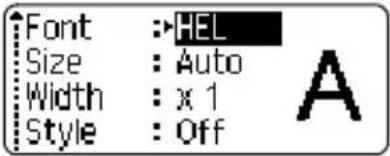
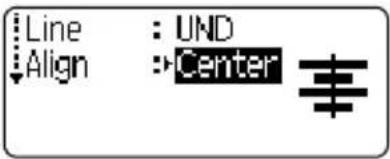
Using the key, you can select a font and apply size, width, style, line, and alignment attributes.
1
Press the key.The current settings are displayed.
2
Select an attribute using the or keys, and then set a value for that attribute using the or keys.
3
Press the or key to apply the settings.New settings are NOT applied if you do not press the or key.

- Press the key to return to the previous step.
- Press the key to set the selected attribute to the default value.
• Refer to the Setting Options table for a list of all available settings.
- Small characters may be difficult to read when certain styles are applied (e.g. Shadow + Italic).
Setting Character Attributes by Each Line
When a label consists two or more lines of text, you can set different value of character attributes (font, size, width, style, line and alignment) for each line.
Move the cursor to the line you wish to change the character attribute by using the ▲ or keys. Next, press the key while holding down key to display the attributes. ( On the screen indicates that you are now applying the attribute for that specific line only.)

text_image
Font :→HEL
Size : Auto
Width : x 1
Style : Off
When different value of attribute is set for each line, the value will be displayed as \*\*\*\* when you press the key. When you change this setting (\*\*\*\*) by using the ◀ or keys, the new setting will be applied to all lines of the label.

text_image
Font :* * * * *
Size : 36pt
Width : x 1
Style : Off
Setting Options
Attribute Value Result
Font
HEL (Helsinki)
ABCabc
BRU (Brussels)
ABCabc
US (USA)
ABCabc
FLO (Florida)
ABCabc
BEL (Belgium)
ABCabc
SGO (San Diego)
ABCabc
LA (Los Angeles)
ABCabc
CAL (Calgary)
ABCabc
Size
Auto
When Auto is selected, the text is automatically adjusted to print in the largest size available for each tape width.
48pt
ABCabc
42pt
ABCabc
36pt
ABCabc
24pt
ABCabc
18pt
ABCabc
12pt
ABCabc
9pt
ABCabc
6pt
ABCabc
Width
x2
ABCabc
x3/2
ABCabc
x1
ABCabc
x2/3
ABCabc
x1/2
ABCabc
Style
Off
ABCabc
BLD (Bold)
ABCabc
OUT (Outline)
ABCabc
SHD (Shadow)
ABCabc
SLD (Solid)
ABCabc
ITL (Italic)
ABCabc
I+BLD (Italic Bold)
ABCabc
I+OUT (Italic Outline)
ABCabc
I+SHD (Italic Shadow)
ABCabc
I+SLD (Italic Solid)
ABCabc
VRT (Vertical)
A m o o o
Line
Off
ABCabc
UND (Underline)
ABCabc
STR (Strikeout)
ABCabc
Align(Alignment)
Left
ABCabc
Center
ABCabc
Right
ABCabc
Just(Justify)
A B C a b c
Setting Auto Fit Style
When "Size" is set to "Auto" and "Length" is set to a specific length, you can select the way of reducing the text size to fit within the label length. When "Text Size" is selected, the total text size is modified to fit within the label. When "Text Width" is selected, the text width will be reduced to the size of x1/2 setting. (If further size reduction is required to fit the text into the selected label length, the total text size will be modified after reducing the text width to x1/2 setting.)
1 Press the key to display the Setup menu, Select "Auto Fit Style" using the or keys, and then press the or key.
The Auto Fit Style screen is displayed.
Auto Fit Style
Manual Cutting
Language
Unit
2| Select the style using the ▲ or keys.
(Auto Fit Style)
Text Size
Text Width
3 Press the or key to apply the setting.

- Press the key to return to the previous step.
- Press the key to set the style to the default setting ("Text Size").
Setting Label Attributes
Using the key, you can create a label with a frame around the text and specify the label length and tab length. (Cut Options and Length Adjust setting which may be needed when printing a label can also be set by using the key. Refer to "Tape Cutting Options" and "Adjusting the Label Length" on page 62 and 64.)
1 Press the key.
The current settings are displayed.

text_image
Frame : Off
Length : Auto
Cut : Large
Option Margin
2 Select an attribute using the ▲ or keys, and then set a value for that attribute using the ◀ or keys.
When setting the label length or tab length, hold down the ◀ or keys to change the value faster.

text_image
Tab : 2.0"
Length
Adjust :+2
Length
3 Press the or key to apply the settings.
New settings are NOT applied if you do not press the OK or key.

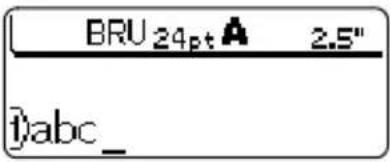
text_image
HEL
1.3"
abc_

- Press the key to return to the previous step.
- Press the key to set the selected attribute to the default value.
- Refer to the Setting Options table for a list of all available settings.
Setting Options
Attribute Value Result
Frame
Off
ABCabc
1
ABCabc
2
ABCabc
3
ABCabc
4
ABCabc
5
6
7
8
9
10
11
12
13
14
15
Frame
16
ABCabc
17
ABCabc
18
ABCabc
19
ABCabc
20
ABCabc
Length
The length of the label can be set within the range 1.2" (30mm) - 12.0" (300mm). When Auto is selected, the length of the label is automatically adjusted based on the amount of text entered.
Tab Length
The length of the tab can be set within the range 0.0" (0mm) - 4.0"(100mm). The default setting is 2.0" (50mm).
Using Auto-Format Layouts
Using the Auto-Format function you can quickly and easily create labels for a variety of purposes, such as file tabs, equipment labels, name badges, etc. Simply select a layout from the templates or block layouts, enter the text and apply formatting as desired.

Symbols and accented characters can also be used in auto-format layouts.
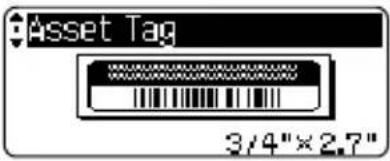
Using Templates - Example creating an Asset Tag
1 Press the key to display the Auto-Format screen, and then select "Templates" using the or keys.

text_image
Templates
Block Layouts
2 Press the ☐ or ☐ key.
The last template used is displayed.

text_image
Binder Spine 1
1"×8.6"
3
Select a template using the ▲ or keys.
4
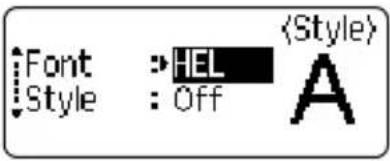
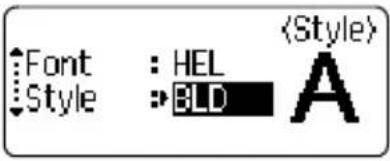
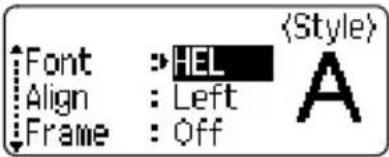
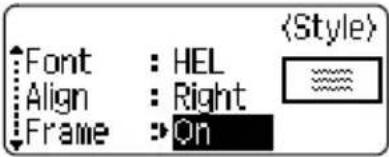
Press the 📊 or 📞 key.The Style screen is displayed.
5
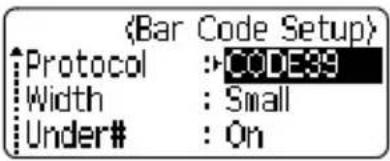
Select an attribute using the ▲ or keys, and then set a value for that attribute using the ◄ or keys.
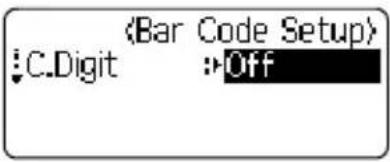
6
Press the 🔒 or 🔔 key .The Bar Code Setup screen is displayed.
7
Select an attribute using the ▲ or keys, and then set a value for that attribute using the ◄ or keys.The "C-Digit" (Check Digit) attribute is only available for the CODE39, I-2/5 and CODABAR protocols.
8
Press the 📊 or 📞 key.The template text entry screen is displayed.Caps mode can be used when entering text.
9
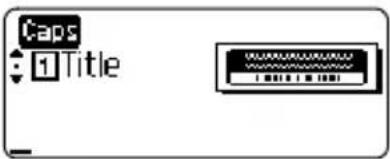
Enter the text and then press the 🔒 or 🔔 key .Repeat this for each text field.After all text fields are entered, the print menu is displayed when the 📊 or 🔔 key is pressed.
10
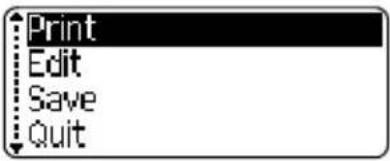
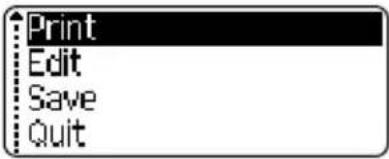
Select "Print" using the ▲ or keys and then press the 🔒 or key to print the label.Select "Edit" to change the text data or style settings.Select "Save" to store the label in a file memory.Select "Quit" to exit the Auto-Format function.

- Press the key to return to the previous step.
- On the Style and Bar Code Setup screens, press the key to change the selected attribute to the default value.
- Refer to the Templates table for a list of available templates.
\- The "Clear All Text?" message is displayed when the key is pressed while holding down the key. Press the OK or ☐ key to delete all text, or press the key to not delete the file.
\- To print multiple copies, sequentially numbered copies, or a mirror image of the label, with the print menu displayed hold down the key and press the key to display the Print Options menu.

- If the width of the current tape cassette does not match the set width for the selected layout, an error message is displayed when you try to print the label. Press the key or any other key to clear the error message, and insert a tape cassette of the correct width.
- If the number of characters entered exceeds the limit, an error message is displayed when the OK or 📋 key is pressed. Press the ⏻key or any other key to clear the error message, and edit the text using fewer characters.
- When using the Auto-Format function the label is cut with a margin on the left and right ends regardless of the current Tape Cutting Option setting (refer to page 47).
Templates
Attribute Value Details
Template Name
Binder Spine 1
PRESENTATION MATERIAL(1" x 8.6" [24 mm x 219 mm])
Binder Spine 2
PRESENTATION MATERIAL(3/4" x 8.6" [18mm x 219mm])
File Folder Tab
PAYABLES(1/2" x 3.2" [12 mm x 82 mm])
Divider Tab(Hanging Folder)
AUGUST(1/2" x 1.6" [12 mm x 42 mm])
Asset Tag
Property of:ABC Company, Inc.*00001*(3/4" x 2.7" [18 mm x 70 mm])
Bin Box
Lock Washer1/4-20 NF Thread Size012502 05400 9(3/4" x 3.0" [18 mm x 76 mm])
Equipment Label
ABC Company, Inc.Control SalesEquipment No. 123456789(1" x 2.2" [24 mm x 58 mm])
Faceplate (VRT)
(1/2" x 2.7" [12 mm x 70 mm])
Cable Wrap 1
(1" x 1.5" [24 mm x 39 mm])
Cable Wrap 2
(3/4" x 1.5" [18 mm x 39 mm])
Template Name
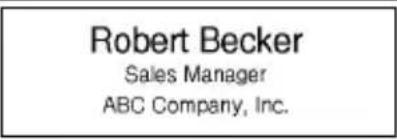
Name Badge 1
(1" x 2.8" [24 mm x 72 mm])
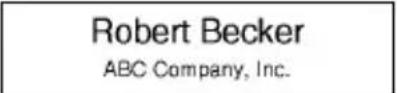
Name Badge 2
(3/4" x 2.8" [18 mm x 72 mm])
Name Badge 3
(1/2" x 2.8" [12 mm x 72 mm])
CD Case Spine 1
(1/4" x 4.4" [6 mm x 113 mm])
CD Case Spine 2
(9/64" x 4.4" [3.5 mm x 113 mm])
VHS Spine
(3/4" x 5.5" [18 mm x 140 mm])
MiniDV Spine
(3/8" x 1.7" [9 mm x 42 mm])
Using Block Layouts
1
Press thekey to display the Auto-Format screen, and then select “Block Layouts” using the ▲or▼ keys.
2
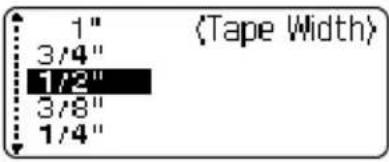
Press theOK or▼ key to display the Tape Width screen, and then select a tape width using the▲or▼ keys.
3
Press theOK or▼ key.When the tape width has not changed, the last block layout selected is displayed. When the tape width has changed, the default layout for the new tape width is displayed.
4
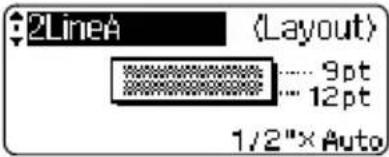
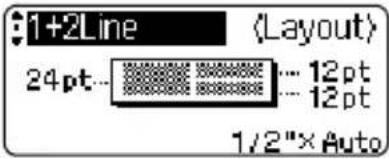
Select a block layout using the▲orkeys.
5
Press theOK or▼ key.The Style screen is displayed.
6
Select an attribute using the▲orkeys, and then set a value for that attribute using the◄orkeys.Press thekey to setthe selected attribute to the default value.
7
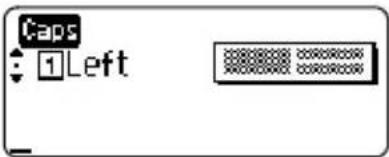
Press theOK or▼ key.The block layout text entry screen is displayed.Caps mode can be used when entering text.
8
Enter text and then press theOK or▼ key.Repeat for each text field.After all text fields are completed, press theOK or▼ key to display the print menu.
9
Select "Print" using the ▲ or keys and then press the label.


to print the

- Select "Edit" to change the text data or style settings.
- Select "Save" to store the label in a file memory.
- Select "Quit" to exit the Auto-Format function.
- Select "Change Layout" to use a different layout.

- Press the key to return to the previous step.
- Refer to the Block Layouts table for a list of available block layouts.
- The “Clear All Text?” message is displayed when the key is pressed while holding down key. Press the or key to delete all text, or press the key to not delete the text.
- To print multiple copies, sequentially numbered copies, or a mirror image of the label, with the print menu displayed hold down the key and press the key to display the Print Options menu.

- If the width of the current tape cassette does not match the set width for the selected layout, an error message is displayed when you try to print the label. Press the key or any other key to clear the error message, and insert a tape cassette of the correct width.
- If the number of characters entered exceeds the limit, an error message is displayed when the OK or Key is pressed. Press the Key or any other key to clear the error message, and edit the text using fewer characters.
- When using the Auto-Format function the label is cut with a margin on the left and right ends regardless of the current Tape Cutting Option setting (refer to page 47).
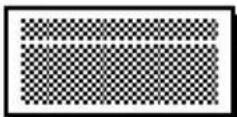
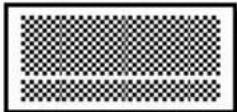
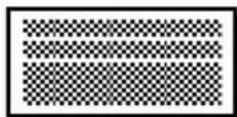
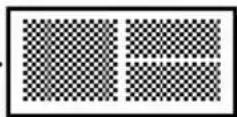
Block Layouts
Attribute Value Details
Block layout(1" [24mm] tape)
2LineA
... 12pt... 36pt
2LineB
... 36pt... 12pt
3 Line
... 12pt... 12pt... 24pt
1+2Line A
48pt...
... 24pt... 24pt
1+2Line B
48pt...
... 12pt... 36pt
1+3Line
48pt...
... 12pt... 12pt... 24pt
1+4Line
48pt...
]... 12pt
1+5Line
48pt...
]... 9pt
Attribute Value Details
Block layout (3/4" [18 mm] tape)
2LineA
.... 12pt .... 24pt
2LineB
.... 24pt .... 12pt
3Line
.... 9pt .... 9pt .... 24pt
1+2LineA
42pt.. .... 18pt .... 18pt
1+2LineB
42pt.. .... 12pt .... 24pt
1+3Line
42pt.. ].... 12pt
1+4Line
42pt.. ].... 9pt
1+5Line
42pt.. ].... 9pt
Block layout (1/2" [12 mm] tape)
2LineA
.... 9pt .... 12pt
2LineB
.... 12pt .... 9pt
3Line
.... 6pt .... 6pt .... 12pt
1+2Line
24pt.. .... 12pt .... 12pt
Block layout (3/8" [9 mm] tape)
2LineA
2LineB
1+2Line
Block layout (1/4" [6 mm] tape)
1+2Line
Using Time & Date Function
You can add time and date to your label by positioning the cursor on the text screen to the position you wish to add time/date and then pressing the key.
Clock Setting
The time and date set in the clock setting can be used for the display on the screen, and also for using the Time & Date function which you can add time/date to your label in desired format.
1 Press the key to display the Setup menu, select "Set Clock" using the or keys, and then press the OK or key.
Set Clock
Tab
LCD Contrast
Symbol Update
2 The Set Clock screen is displayed.
Set the year, month, date, hour and minute to the current figure using the ▲ or keys. For moving to the next parameter, use the ◄ or keys.
〈Set Clock〉
YYYY/MM/DD hh:mm
2008/01/01 12:00 AM

You can also use the Num keys to type in the figure.
3 Press the or key to apply the settings.

- Press the key to return to the previous step.
- Press the key to set the format to default setting.
- The clock will activate from when the clock setting is applied.
- For the backup of clock setting, when the AC adapter is unplugged, please use AA-size alkaline batteries.
Time & Date Format Setting
You can select from various formats of date and time to add to your label. Also, the indication of time can be selected between analog and digital style. The format applied in this setting will also be applied for the clock display which appear on the screen when you press the key. (Refer to "Display Mode" on page 22 for detail.)
1
Press thekey to display the Setup menu, select "Time & Date Format" using theorkeys, and then press theorkey.
Bar Code SetupBar Code InputTime & Date FormatTime Stamp Setting
2
The Time & Date Format screen is displayed.Select date or time using theorkeys, and then set the format using theorkeys.
<Time & Date Format>D:12/31/2099T:11:59 PM
3 Press the or key to apply the settings.

New settings are not applied if you do not press the or key.

- Press the key to return to the previous step.
- Press the key to set the format to default setting.
- Refer to the Format Options for a list of all available format.
• Time & Date Format Options
Attribute Value Description
D(Date)
12/31/2099
Month / Date / Year
12.31.2099 Month . Date . Year
12 - 31 - 2099 Month - Date - Year
December 31, 2099 Month Date, Year
Dec. 31, 2099 Month. Date, Year
2099/12/31 Year / Month / Date
2099 - 12 - 31 Year - Month - Date
31/12/2099 Date / Month / Year
31. 12. 2099 Date. Month. Year
31 - 12 - 2099 Date - Month - Year
31. December 2099 Date. Month Year
31. Dec. 2099 Date. Month. Year
T(Time)
11:59 PM
analog
23:59 digital

The date and time used for the value is a sample setting. When a format is selected, the date and time set in the clock setting will appear in the selected format style.
Time Stamp Setting
[Timing]
You can select whether to print the date/time of when you press the key or the date/time of when you press the key to add to your label.
1 Press the key to display the Setup menu, select "Time Stamp Setting" using the or keys, and then press the or key.
Bar Code Setup
Bar Code Input
Time & Date Format
Time Stamp Setting
2 Select "Timing" using the or keys, and then select the value for the setting using the or key.
Other manuals BROTHER
Discover other manuals and user guides for the brand BROTHER
💬 Hi! I'm your manual assistant.I know your BROTHER Ptouch PT2700.
How can I help you? (use, settings, error codes, maintenance, explaining a step from the manual, etc.)💡 Examples :
• How do I use it ?
• Error code E3 ?
• How do I clean it ?









 (1" x 2.8" [24 mm x 72 mm])
 (3/4" x 2.8" [18 mm x 72 mm])
 (1/2" x 2.8" [12 mm x 72 mm])
 (1/4" x 4.4" [6 mm x 113 mm])
 (9/64" x 4.4" [3.5 mm x 113 mm])
 (3/4" x 5.5" [18 mm x 140 mm])
 (3/8" x 1.7" [9 mm x 42 mm])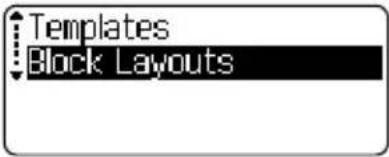
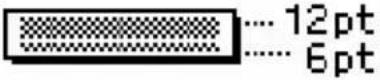
 ... 24pt... 24pt
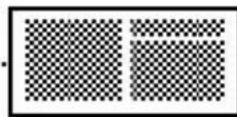 ... 12pt... 36pt
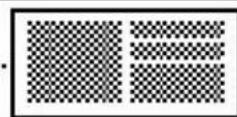 ... 12pt... 12pt... 24pt
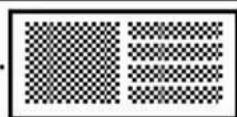 ]... 12pt
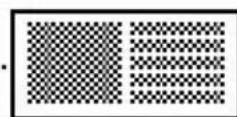 ]... 9pt
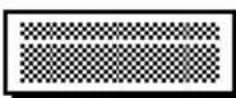 .... 12pt .... 24pt
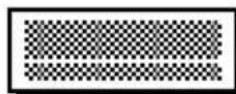 .... 24pt .... 12pt
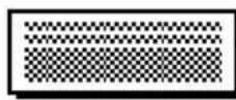 .... 9pt .... 9pt .... 24pt
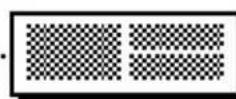 .... 18pt .... 18pt
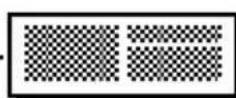 .... 12pt .... 24pt
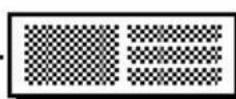 ].... 12pt
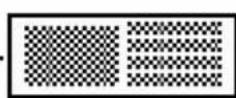 ].... 9pt
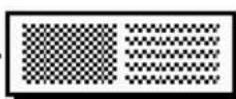 ].... 9pt
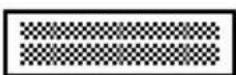 .... 9pt .... 12pt
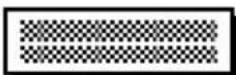 .... 12pt .... 9pt
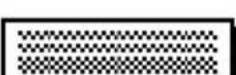 .... 6pt .... 6pt .... 12pt
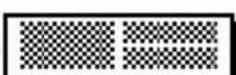 .... 12pt .... 12pt