 ManualGo.com
imageCLASS MF644Cdw - Printer CANON - Free user manual and instructions
Find the device manual for free imageCLASS MF644Cdw CANON in PDF.



Download the instructions for your Printer in PDF format for free! Find your manual imageCLASS MF644Cdw - CANON and take your electronic device back in hand. On this page are published all the documents necessary for the use of your device. imageCLASS MF644Cdw by CANON.
USER MANUAL imageCLASS MF644Cdw CANON
Getting Started FT6-2304 (000) XXXXXXXXXX Copyright CANON INC. 2019 PRINTED IN XXXXX Imprimé XXX XXXXX Quick Operation P.27 Quick Setup NEXT PAGE Please read "Important Safety Instructions" before operating this product. After you finish reading this guide, store it in a safe place for future reference.The information in this document is subject to change without notice. Getting Started Mise en route Introducción Introdução canon.com/oip-manual× 4
Installation of the Machine Items Included with the Machine Quick SetupBefore starting the installation
Installation of the Machine Quick Setup2
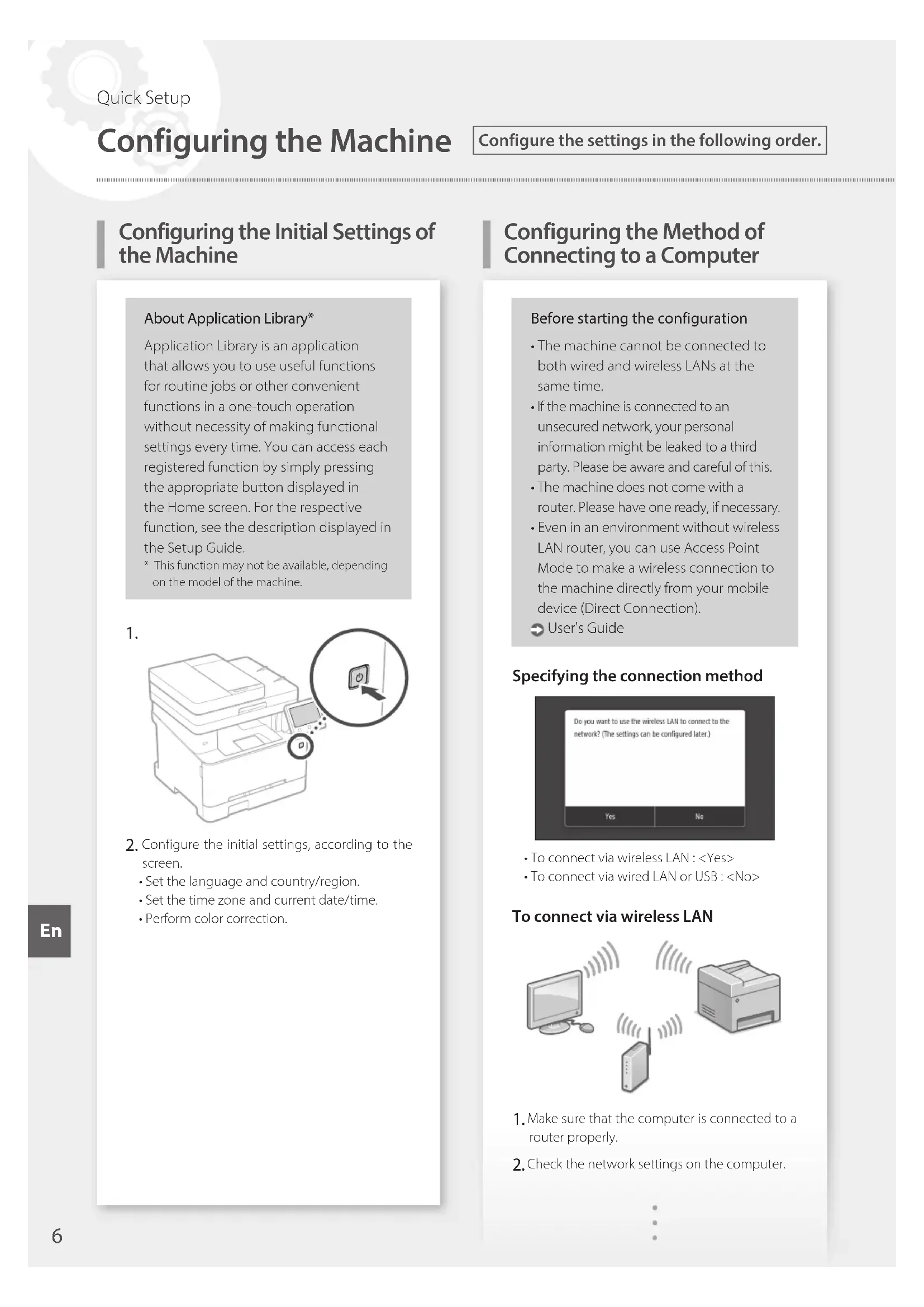
Quick SetupConfiguring the Method of Connecting to a Computer About Application Library*Application Library is an application that allows you to use useful functions for routine jobs or other convenient functions in a one-touch operation without necessity of making functional settings every time. You can access each registered function by simply pressing the appropriate button displayed in the Home screen. For the respective function, see the description displayed in the Setup Guide.* This function may not be available, depending on the model of the machine.
Configure the initial settings, according to the screen.• Set the language and country/region.• Set the time zone and current date/time.• Perform color correction.Before starting the configuration• The machine cannot be connected to both wired and wireless LANs at the same time.• If the machine is connected to an unsecured network, your personal information might be leaked to a third party. Please be aware and careful of this.• The machine does not come with a router. Please have one ready, if necessary.• Even in an environment without wireless LAN router, you can use Access Point Mode to make a wireless connection to the machine directly from your mobile device (Direct Connection). User's Guide Specifying the connection method
- To connect via wireless LAN : <Yes>• To connect via wired LAN or USB : <No> To connect via wireless LAN
Make sure that the computer is connected to a router properly. Check the network settings on the computer.
Configuring the Machine Configuring the Initial Settings of the Machine Configure the settings in the following order. Quick Setup En3. Take note of the SSID and network key.• Check the label on the router. User's Guide• The setting operation is easier if the router is provided with a WPS mark. User's Guide Set the access point and network key according to the screen below.1. Select <OK>.2. Select <SSID Settings>.3. Select <Select Access Point>.4. Select the access point (SSID), and select <Next>.5. Enter a WEP key (network key), and select <Apply>.6. Select <Yes>.• Wait until message <Connected.> is displayed.7. Select <Close>.• The IP address will be automatically configured in a few minutes. To view a video guide on the process You can find a video and guide to assist the process for the Wireless Network connection from the URL below. Viewing these guides will ensure a smooth setup of the device into your existing wireless environment. http://www.usa.canon.com/WirelessHelp "Toner replenishment service" settings Precautions• Use of the toner replenishment service requires prior registration with select retailers. This service is only available in certain countries.Through the toner replenishment service, new toner cartridges are automatically delivered to you before your existing toner cartridge is used up.• This service can be set up through "Toner Delivery Settings" displayed on the Home screen. Select <Next>. Select <Accept>.• To skip "Toner replenishment service" (or set it later), select <Do Not Accept> and proceed to Step 4. Select <OK>.• If an error message appears, follow the on-screen instructions to resolve it. Install the driver and software. P.9 "Installing the software"Now you are nished with theconguration of the initial settings.If your machine is provided with the fax function, proceed to conguring the fax settings. P.10For details "Setting Up Using the Setup Guide" in the User's Guide
Quick Setup EnTo connect via wired LANThe machine does not come with a LAN cable.Please have one ready, if necessary. Make sure that the computer is connected to a router properly. Check the network settings on the computer. Connect the LAN cable.• After connecting the cable, wait a few minutes (until the IP address is set automatically).• If a static IP address has been set on the computer, set the machine's IP address manually. Install the driver and software. P.9 "Installing the software"Now you are finished with the configuration of the initial settings.If your machine is provided with the fax function, proceed to configuring the fax settings. P.10To connect via USB• The machine does not come with a USB cable. Please have one ready, if necessary.• Make sure that the USB cable you use has the following mark.• Do not connect the USB cable before installing the driver. If you did, disconnect the USB cable from the computer, close the dialog box, and then perform the following procedure from step 1. Install the driver and software. P.9 "Installing the software"• When a screen with instructions for connecting the USB cable to the machine is displayed, remove the sticker that covers the USB port.Now you are finished with the configuration of the initial settings.If your machine is provided with the fax function, proceed to configuring the fax settings. P.10
Configuring the Machine Quick Setup EnInstalling the software
- The procedure described here is only applicable when your computer runs on the Windows OS. For more details on the software installation procedure, see the driver's manual.• For the installation when your computer runs on the macOS, see the driver's manual.• Your machine may not come with the driver for the macOS, depending on the time of purchase. New drivers are uploaded to the Canon website, and you can download and use the latest one.
If the screen is not displayed properly, re-insert the CD-ROM/DVD-ROM or search for "D:\MInst.exe" on the Windows platform (This description assumes that "D:" is the CD-ROM/DVD-ROM drive name). Using the scanner conveniently Configuring the network settings with "Send Function Setting Tool" allows you to directly send scanned originals with e-mail or I-Fax or store them in a shared folder or on the FTP server.In the screen displayed in step 2, select [Start Software Programs] [Send Function Setting Tool] to start the Send Function Setting Tool. Next, proceed to congure fax settings.
Quick Setup En10 Before starting the configuration: If your machine does not come with a telephone cable, have one ready, as necessary.Configure the fax settings, according to the screen below. Select <Fax>. Select <Set Up Now>. Register the machine's telephone number (fax number) and abbreviated user name.• The information below will be printed at the top part of the paper output from the destination machine as sender information.02/02 2019 10:00AM CANON123XXXXXXXFAX 0001Sent Time Unit Name Page NumberNumber's TypeFax Number Set the reception mode.• Make the setting by answering the questions on your purposes of using the fax function. Connect to a telephone line.
Telephone line jackTelephone Select <End>. Select <Yes>. Now you are finished with the configuration. For details "Configuring Initial Settings for Fax Functions" in the User's Guide
EsRemember before You Start Operation Place your original on the platen glass Place the original with the scan side face down.Place to fit inside the corner.Suitable for scanning book pages, magazine pages and newspaper clips. Place your originals into the feeder*
- This function may not be included depending on the model of the machine.Place the originals with the scan side face up.Adjust the slide guides.Suitable for continuously scanning many pages of literature, quotation, etc.
Quick Operation Place the Original Properly Start the Operation from the Operation Panel Scanning Machine (MF644Cdw)1. Place the original.2. Press , and select <Scan>.3. Select the type of scan, and enter the necessary information.4. Select <Start>, <B&W Start> or <Color Start>. Types of scan
Store in USB memory device Send e-mail Send to file server To scan from a computer
MF Scan UtilityFor details "Scanning" in the User's GuideOperation PanelDisplay (screen) ([Energy Saver] key) ([Home] key) En1. Place the original.2. Press , and then select <Copy>.3. Specify the copy settings, as necessary.4. Enter the desired number of copies.5. Select <B&W Start> or <Color Start>. Useful copy settings
N on 1 2-Sided or 1-Sided* Enlarging or reducing Copying ID cards Passport Copy* This function may not be available, depending on the model of the machine.1. Place the original.2. Press , and select <Fax>.3. Enter the destination information.4. Specify the fax settings, as necessary.5. Select <Start>. Useful fax functions
Sequential Broadcast Memory Reception PC Fax1. Open the document to print, and select the print function of the application.2. Select the printer driver for the machine, and select [Preferences] or [Properties].3. Specify the paper size.4. Specify the paper source and paper type.5. Specify the print settings, as necessary.6. Select [OK].7. Select [Print] or [OK]. Useful print settings
2-sided* N on 1 Booklet Printing** This function may not be available, depending on the model of the machine.For details "Copying" in the User's Guide Faxing*
- This function may not be available, depending on the model of the machine.For details "Faxing" in the User's Guide Printing For details "Printing" in the User's Guide
Quick Operation Copying EnPull out the paper drawer.Up to hereInsert the paper drawer into the machine.If you load a different size or type of paper from the one before, make sure to change the settings.Press , and select <Paper Settings>.Specify the size and type of paper, according to the screen.
Insert the paper slowly into the manual feed slot until it reaches the back of the slot.Specify the size and type of paper, according to the screen.
For details "Loading Paper" in the User's Guide
Loading Paper Loading in the Manual Feed SlotLoading in the Paper Drawer Quick Operation EnClear the paper jams, according to the on-screen instructions.Check the following.• Is the power turned ON?• Is the machine out of sleep mode?If both the display and are not lit, press the power switch.• Is the power cord connected correctly ?If the problem persists, see the User's Guide. If a Problem Has Occurred For details "Troubleshooting" in the User's Guide
The Machine Does Not Seem to Work Paper Jams Have Occurred Replacing the Toner Cartridge Replace the toner cartridge, according to the on-screen instructions.Model number of replacement toner cartridge• Canon Cartridge 054 Black• Canon Cartridge 054 Cyan• Canon Cartridge 054 Magenta• Canon Cartridge 054 Yellow• Canon Cartridge 054 H Black• Canon Cartridge 054 H Cyan• Canon Cartridge 054 H Magenta• Canon Cartridge 054 H Yellow Quick Operation EnWhen using wireless LAN Install the machine at a distance of 50 meters or less from the wireless LAN router. As far as possible, install in a location where communication is not blocked by intervening objects. The signal may be degraded when passing through walls or floors. Keep the machine as far as possible from digital cordless phones, microwave ovens, or other equipment that emits radio waves. Do not use near medical equipment. Radio waves emitted from this machine may interfere with medical equipment, which may result in malfunctions and accidents.If the operating noise concerns youDepending on the use environment and operating mode, if the operating noise is of concern, it is recommended that the machine be installed in a place other than the office. Power Supply WARNING
Use only a power supply that meets the specified voltage requirements. Failure to do so may result in a fire or electrical shock. The machine must be connected to a socket-outlet with grounding connection by the provided power cord. Do not use power cords other than the one provided, as this may result in a fire or electrical shock. The provided power cord is intended for use with this machine. Do not connect the power cord to other devices. Do not modify, pull, forcibly bend, or perform any other act that may damage the power cord. Do not place heavy objects on the power cord. Damaging the power cord may result in a fire or electrical shock. Do not plug in or unplug the power plug with wet hands, as this may result in an electrical shock. Do not use extension cords or multi-plug power strips with the machine. Doing so may result in a fire or electrical shock. Do not wrap the power cord or tie it in a knot, as this may result in a fire or electrical shock. Insert the power plug completely into the AC power outlet. Failure to do so may result in a fire or electrical shock. Remove the power plug completely from the AC power outlet during a thunder storm. Failure to do so may result in a fire, electrical shock, or damage to the machine. Make sure that the power supply for the machine is safe, and has a steady voltage. Keep the power cord away from a heat source; failure to do this may cause the power cord coating to melt, resulting in a fire or electrical shock.Avoid the following situations:If excessive stress is applied to the connection part of the power cord, it may damage the power cord or the wires inside the machine may disconnect. This could result in a fire. – Connecting and disconnecting the power cord frequently. – Tripping over the power cord. – The power cord is bent near the connection part, and continuous stress is being applied to the power outlet or the connection part. – Applying excessive force on the power plug. CAUTION
Install this machine near the power outlet and leave sufficient space around the power plug so that it can be unplugged easily in an emergency. CAUTION Do not install in the following locationsThe machine may drop or fall, resulting in injury. An unstable location A location exposed to vibrationsOther cautions When carrying this machine, follow the instructions in this manual. If carried improperly, it may fall, resulting in injury. When installing this machine, be careful not to get your hands caught between the machine and the floor or walls. Doing so may result in injury. IMPORTANT Do not install in the following locationsDoing so may result in damage to the machine. A location subject to temperature and humidity extremes, whether low or high A location subject to dramatic changes in temperature or humidity A location near equipment that generates magnetic or electromagnetic waves A laboratory or location where chemical reactions occur A location exposed to corrosive or toxic gases A location that may warp from the weight of the machine or where the machine is liable to sink (a carpet, etc.)Avoid poorly ventilated locationsThis machine generates a slight amount of ozone and other emissions during normal use. These emissions are not harmful to health. However, they may be noticeable during extended use or long production runs in poorly ventilated rooms. To maintain a comfortable working environment, it is recommended that the room where the machine operates be appropriately ventilated. Also avoid locations where people would be exposed to emissions from the machine. Do not install in a location where condensation occursWater droplets (condensation) may form inside the machine when the room where the machine is installed is heated rapidly, and when the machine is moved from a cool or dry location to a hot or humid location. Using the machine under these conditions may result in paper jams, poor print quality, or damage to the machine. Let the machine adjust to the ambient temperature and humidity for at least 2 hours before use.In altitudes of above sea level 3,000 m or higherMachines with a hard disk may not operate properly when used at high altitudes of about 3,000 meters above sea level, or higher.Connecting the Telephone LineThis machine conforms to a analog telephone line standard. The machine can be connected to the public switched telephone network (PSTN) only. If you connect the machine to a digital telephone line or a dedicated telephone line, it might impede proper operation of the machine and could be the cause of damage. Make sure to confirm a type of telephone line before connecting the machine. Contact your optical fiber line or IP telephone line service providers if you want to connect the machine to those telephone lines. Important Safety Instructions This chapter describes important safety instructions for the prevention of injury to users of this machine and others, and damage to property. Read this chapter before using the machine, and follow the instructions to use the machine properly. Do not perform any operations not described in this manual. Canon will not be responsible for any damages resulting from operations not described in this manual, improper use, or repair or changes not performed by Canon or a third party authorized by Canon. Improper operation or use of this machine could result in personal injury and/or damage requiring extensive repair that may not be covered under your Limited Warranty. Installation To use this machine safely and comfortably, carefully read the following precautions and install the machine in an appropriate location. WARNING Do not install in a location that may result in a fire or electrical shock A location where the ventilation slots are blocked (too close to walls, beds, sofas, rugs, or similar objects) A damp or dusty location A location exposed to direct sunlight or outdoors A location subject to high temperatures A location exposed to open flames Near alcohol, paint thinners or other flammable substancesOther warnings Do not connect unapproved cables to this machine. Doing so may result in a fire or electrical shock. Do not place necklaces and other metal objects or containers filled with liquid on the machine. If foreign substances come in contact with electrical parts inside the machine, it may result in a fire or electrical shock. When installing and removing the optional accessories, be sure to turn OFF the power, unplug the power plug, and then disconnect all the interface cables and power cord from the machine. Otherwise, the power cord or interface cables may be damaged, resulting in a fire or electrical shock. If any foreign substance falls into this machine, unplug the power plug from the AC power outlet and contact your local authorized Canon dealer. WARNING Indicates a warning concerning operations that may lead to death or injury to persons if not performed correctly. To use the machine safely, always pay attention to these warnings. CAUTION Indicates a caution concerning operations that may lead to injury to persons if not performed correctly. To use the machine safely, always pay attention to these cautions. IMPORTANT Indicates operational requirements and restrictions. Be sure to read these items carefully to operate the machine correctly and avoid damage to the machine or property. Appendix
EnThe laser beam can be harmful to human bodies. Since radiation emitted inside the product is completely confined within protective housings and external covers, the laser beam cannot escape from the machine during any phase of user operation. Read the following remarks and instructions for safety. Never open covers other than those instructed in the manuals for this machine. If the laser beam should escape and enter your eyes, exposure may cause damage to your eyes. Use of controls, adjustments, or performance of procedures other than those specified in this manual may result in hazardous radiation exposure.Laser Safety Caution IMPORTANT
Follow the instructions on the caution label attached to this machine. Do not subject the machine to strong shocks or vibration. Do not forcibly open and close doors, covers, and other parts. Doing so may result in damage to the machine. Do not turn the main power switch OFF or open the covers while the machine is in operation. This may result in paper jams. Use a modular cable that is shorter than 3 meters. Use a USB cable that is shorter than 3 meters. Do not touch the contacts ( ) inside the machine. Doing so may result in damage to the machine.
Be careful not to drop a heavy object, such as a dictionary, on the platen glass. Doing so may damage the platen glass and result in injury.Feeder Do not press down hard on the feeder when using the platen glass to make copies of thick books. Doing so may damage the platen glass and result in personal injury. Close the feeder gently to avoid catching your hands, as this may result in personal injury. Be careful not to put your hands or fingers into the feeder. Otherwise, you may be injured.Paper drawer Do not insert your hand into the machine while the paper drawer is removed, as this may result in personal injury.Energy Saver key Press (Energy Saver) for safety when the machine will not be used for a long period of time, such as overnight. Also, turn OFF the main power switch, and disconnect the power cord for safety when the machine will not be used for an extended period of time, such as during consecutive holidays.Laser SafetyThis product is confirmed as a Class 1 laser product in IEC60825-1:2014 and EN60825-1:2014.CLASS 1 LASER PRODUCTLASER KLASSE 1APPAREIL À LASER DE CLASSE 1APPARECCHIO LASER DI CLASSE 1PRODUCTO LÁSER DE CLASE 1APARELHO A LASER DE CLASSE 1LUOKAN 1 LASER-TUOTELASERPRODUKT KLASS 1 IMPORTANT When connecting power Do not connect the power cord to an uninterruptible power source. Doing so may result in malfunction of or damage to the machine at power failure. If you plug this machine into an AC power outlet with multiple sockets, do not use the remaining sockets to connect other devices. Do not connect the power cord to the auxiliary AC power outlet on a computer.Other precautionsElectrical noise may cause this machine to malfunction or lose data. Handling WARNING
Immediately unplug the power plug from the AC power outlet and contact an authorized Canon dealer if the machine makes an unusual noise, emits an unusual smell, or emits smoke or excessive heat. Continued use may result in a fire or electrical shock. Do not disassemble or modify this machine. There are high-voltage and high-temperature components inside the machine. Disassembly or modification may result in a fire or electrical shock. Place the machine where children will not come in contact with the power cord and other cables or gears and electrical parts inside the machine. Failure to do so may result in unexpected accidents. Do not use flammable sprays near this machine. If flammable substances come into contact with electrical parts inside this machine, it may result in a fire or electrical shock. When moving this machine, be sure to turn OFF the power of this machine, and then unplug the power plug and interface cables. Failure to do so may damage the power cord or interface cables, resulting in a fire or electrical shock. When plugging or unplugging a USB cable when the power plug is plugged into an AC power outlet, do not touch the metal part of the connector, as this may result in an electrical shock.If you are using a cardiac pacemakerThis machine generates a low level magnetic flux and ultrasonic waves. If you use a cardiac pacemaker and feel abnormalities, please move away from this machine and consult your physician immediately. CAUTION
Do not place heavy objects on this machine as they may fall, resulting in injury. For your safety, please unplug the power cord if the machine will not be used for a long period of time. Use caution when opening and closing covers to avoid injury to your hands. Keep hands and clothing away from the rollers in the output area. If the rollers catch your hands or clothing, this may result in personal injury. The inside of the machine and the output slot are very hot during and immediately after use. Avoid contact with these areas to prevent burns. Also, printed paper may be hot immediately after being output, so use caution when handling it. Failure to do so may result in burns.
EnWhen transporting the machine To prevent damage to the machine during transport, perform the following. Remove the toner cartridges. Securely pack the machine in the original box with packing materials. Safety-Related Symbols Power switch: “ON” positionPower switch: “OFF” positionPower switch: “STAND-BY” positionPush-push switch “ON” “OFF”Protective earthing terminalDangerous voltage inside. Do not open covers other than instructed.CAUTION: Hot surface. Do not touch.Class II equipmentMoving parts: Keep body parts away from moving partsCAUTION: An electrical shock may occur.Remove all the power plugs from the poweroutlet.There are sharp edges. Keep body partsaway from sharp edges.[NOTE]Some of symbols shown above may not be affixed depending on the product. Maintenance and Inspections Clean this machine periodically. If dust accumulates, the machine may not operate properly. When cleaning, be sure to observe the following. If a problem occurs during operation, see "Troubleshooting" in the User's Guide. If the problem cannot be resolved or you feel the machine requires an inspection, see "When a Problem Cannot Be Solved" in the User's Guide. WARNING
Before cleaning, turn OFF the power and unplug the power plug from the AC power outlet. Failure to do so may result in a fire or electrical shock. Unplug the power plug periodically and clean with a dry cloth to remove dust and grime. Accumulated dust may absorb humidity in the air and may result in a fire if it comes into contact with electricity. Use a damp, well wrung-out cloth to clean the machine. Dampen cleaning cloths with water only. Do not use alcohol, benzine, paint thinner, or other flammable substances. Do not use tissue paper or paper towels. If these substances come into contact with electrical parts inside the machine, they may generate static electricity or result in a fire or electrical shock. Check the power cord and plug periodically for damage. Check the machine for rust, dents, scratches, cracks, or excessive heat generation. Use of poorly-maintained equipment may result in a fire or electrical shock. CAUTION
The inside of the machine has high-temperature and high-voltage components. Touching these components may result in burns. Do not touch any part of the machine that is not indicated in the manual. When loading paper or removing jammed paper, be careful not to cut your hands with the edges of the paper. Consumables WARNING
Do not dispose of used toner cartridges or the like in open flames. Also, do not store toner cartridges or paper in a location exposed to open flames. This may cause the toner to ignite, and result in burns or fire. If you accidentally spill or scatter toner, carefully gather the toner particles together or wipe them up with a soft, damp cloth in a way that prevents inhalation. Never use a vacuum cleaner that does not have safeguards against dust explosions to clean up spilled toner. Doing so may cause a malfunction in the vacuum cleaner, or result in a dust explosion due to static discharge. CAUTION
Use caution not to inhale any toner. If you should inhale toner, consult a physician immediately. Use caution so that toner does not get into your eyes or mouth. If toner should get into your eyes or mouth, immediately wash with cold water and consult a physician. Use caution so that toner does not come into contact with your skin. If it should, wash with soap and cold water. If there is any irritation on your skin, consult a physician immediately. Keep the toner cartridges and other consumables out of the reach of small children. If toner is ingested, consult a physician or poison control center immediately. Do not disassemble or modify the toner cartridge or the like. Doing so may cause the toner to scatter. When removing the sealing tape from the toner cartridge, pull it out completely but without using excessive force. Doing otherwise may cause the toner to scatter. IMPORTANT Handling the toner cartridge Be sure to hold the toner cartridge using the handle. Do not touch the toner cartridge memory
) or the electrical contacts ( ). To avoid scratching the surface of the drum inside the machine or exposing it to light, do not open the drum protective shutter (
Bottom View Except when necessary, do not take out the toner cartridge from the packing material or from this machine. The toner cartridge is a magnetic product. Do not move it close to products susceptible to magnetism including floppy disks and disk drives. Doing so may result in data corruption.Storing the toner cartridge Store in the following environment to ensure safe and satisfactory use. Storage temperature range: 32 to 95°F (0 to 35°C) Storage humidity range: 35 to 85% RH (relative humidity/no condensation)* Store without opening until the toner cartridge is to be used. When removing the toner cartridge from this machine for storage, place the removed toner cartridge in the original packing material. When storing the toner cartridge, do not store it upright or upside down. The toner will solidify and may not return to its original condition even if it is shaken.* Even within the storable humidity range, water droplets (condensation) may develop inside the toner cartridge if there is a difference of temperature inside and outside the toner cartridge. Condensation will adversely affect the print quality of toner cartridges.Do not store the toner cartridge in the following locations Locations exposed to open flames Locations exposed to direct sunlight or bright light for five minutes or more Locations exposed to excessive salty air Locations where there are corrosive gases (i.e. aerosol sprays and ammonia) Locations subject to high temperature and high humidity Locations subject to dramatic changes in temperature and humidity where condensation may easily occur Locations with a large amount of dust Locations within the reach of childrenBe careful of counterfeit toner cartridges Please be aware that there are counterfeit Canon toner cartridges in the marketplace. Use of counterfeit toner cartridge may result in poor print quality or machine performance. Canon is not responsible for any malfunction, accident or damage caused by the use of counterfeit toner cartridge. For more information, see global.canon/ctc.Availability period of repairing parts and toner cartridges and the like The repairing parts and toner cartridges and the like for the machine will be available for at least seven (7) years after production of this machine model has been discontinued.Toner cartridge packing materials Save the packing materials for the toner cartridge. They are required when transporting this machine. The packing materials may be changed in form or placement, or may be added or removed without notice. After you pull out the sealing tape from the toner cartridge, dispose of it in accordance with the applicable local regulations.When disposing of a used toner cartridge or the like When discarding a toner cartridge or the like, place it in the original packing material to prevent toner from scattering from inside, and dispose of it in accordance with the applicable local regulations. Append ix
EnTelephone Equipment WARNING When using your telephone equipment, basic safety precautions should always be followed to reduce the risk of fire, electric shock and injury to persons, including the following:
1. Do not use this product near water, for
example, near a bath tub, wash bowl, kitchen sink, or laundry tub, in a wet basement or near swimming pool.
2. Avoid using a telephone during an electrical
storm. There may be remote risk of electric shock form lightning.
3. Do not use the telephone to report a gas leak
in the vicinity of the leak. Notice Product Name Safety regulations require the product's name to be registered. In some regions where this product is sold, the following name(s) in parentheses ( ) may be registered instead. Color imageCLASS MF644Cdw (F175002) Color imageCLASS MF642Cdw / MF641Cw (F175000) FCC (Federal Communications Commission) Users in the U.S.A. Multi Function Printer, Model F175002, F175000 Contains Transmitter Module FCC ID: VPYLB1KA This device complies with part 15 of the FCC Rules. Operation is subject to the following two conditions: (1) This device may not cause harmful interference, and (2) this device must accept any interference received, including interference that may cause undesired operation. FCC CAUTION Changes or modifications not expressly approved by the party responsible for compliance could void the user's authority to operate the equipment. [NOTE] This equipment has been tested and found to comply with the limits for a Class B digital device, pursuant to part 15 of the FCC Rules. These limits are designed to provide reasonable protection against harmful interference in a residential installation. This equipment generates, uses and can radiate radio frequency energy and, if not installed and used in accordance with the instructions, may cause harmful interference to radio communications. However, there is no guarantee that interference will not occur in a particular installation. If this equipment does cause harmful interference to radio or television reception, which can be determined by turning the equipment off and on, the user is encouraged to try to correct the interference by one or more of the following measures:
Reorient or relocate the receiving antenna.
Increase the separation between the equipment and receiver.
Connect the equipment into an outlet on a circuit different from that to which the receiver is connected.
Consult the dealer or an experienced radio/TV technician for help. This transmitter must not be co-located or operated in conjunction with any other antenna or transmitter. This equipment complies with FCC radiation exposure limits set forth for an uncontrolled environment and meets the FCC radio frequency (RF) Exposure Guidelines. This equipment should be installed and operated keeping the radiator at least 20cm or more away from person’s body. Use of shielded cable is required to comply with class B limits in Subpart B of Part 15 of FCC Rules. Do not make any changes or modifications to the equipment unless otherwise specified in this manual. If you make such changes or modifications, you could be required to stop operation of the equipment.
Certificates of Deposit
Postage Stamps (canceled or uncanceled)
Identifying Badges or Insignias
Internal Revenue Stamps (canceled or uncanceled)
Selective Service or Draft Papers
Checks or Drafts Issued by Governmental Agencies
Motor Vehicle Licenses and Certificates of Title
Copyrighted Works/Works of Art without Permission of Copyright Owner Disclaimers
The information in this document is subject to change without notice.
PROVIDED HEREIN, INCLUDING WITHOUT
LIMITATION, THEREOF, WARRANTIES AS TO
OR LOSSES OR EXPENSES RESULTING FROM
The following applies in California, USA only: The battery included with your product contains Perchlorate Material and may require special handling. See http://www.dtsc.ca.gov/hazardouswaste/ perchlorate/ for details.
EnUsers in the U.S.A. Pre-Installation Requirements for Canon Facsimile Equipment A. Location Supply a suitable table, cabinet, or desk for the machine. See the User's Guide for specific dimensions and weight. B. Order Information
1. A single telephone line (touch-tone or rotary)
2. Order an RJ11-C telephone wall jack (USOC),
which should be installed by the telephone company. If the RJ11-C wall jack is not present, telephone/facsimile operation is not possible.
3. Order a normal business line from your
telephone company’s business representative. The line should be a regular voice grade line or an equivalent one. Use one line per unit. DDD (Direct Distance Dial) line -or- IDDD (International Direct Distance Dial) line if you communicate overseas [NOTE] Canon recommends an individual line following industry standards, i.e.,2,500 (touch-tone) or 500 (rotary/pulse dial) telephones. A dedicated extension off a PBX (Private Branch eXchange) unit without “Call Waiting” can be used with your facsimile unit. Key telephone systems are not recommended because they send nonstandard signals to individual telephones for ringing and special codes, which may cause a facsimile error. C. Power Requirements The machine should be connected to a standard 120 volt AC, threewire grounded outlet only. Do not connect this machine to an outlet or power line shared with other appliances that cause “electrical noise.” Air conditioners, electric typewriters, copiers, and machines of this sort generate electrical noise that often interferes with communications equipment and the sending and receiving of documents. Connection of the Equipment This equipment complies with Part 68 of the FCC rules and the requirements adopted by the ACTA. On the rear panel of this equipment is a label that contains, among other information, a product identifier in the format US:AAAEQ##TXXXX. If requested, this number must be provided to the telephone company. The REN is used to determine the number of devices that may be connected to a telephone line. Excessive RENs on a telephone line may result in the devices not ringing in response to an incoming call. In most, but not all areas, the sum of RENs should not exceed five (5.0). To be certain of the number of devices that may be connected to a line, as determined by the total RENs, contact the local telephone company. For products approved after July 23, 2001, the REN for this product is part of the product identifier that has the format US: AAAEQ##TXXXX. The digits represented by ## are the REN without a decimal point (e.g., 03 is a REN of 0.3). An FCC compliant telephone line cable and modular plug is provided with this equipment. This equipment is designed to be connected to the telephone network or premise wiring using a compatible modular jack that is Part 68 compliant. This equipment may not be used on coin service provided by the telephone company. Connection to party lines is subjected to state tariffs. In Case of Equipment Malfunction Should any malfunction occur which cannot be corrected by the procedures described in this guide or the User's Guide, disconnect the equipment from the telephone line cable and disconnect the power cord. The telephone line cable should not be reconnected or the power switch turned ON until the problem is completely resolved. Users should contact Canon Authorized Service Facilities for servicing of equipment, Information regarding Authorized Service Facility locations can be obtained by calling Canon Customer Care Center (1-800-OK-CANON). Rights of the Telephone Company If this equipment (Color imageCLASS MF644Cdw) causes harm to the telephone network, the telephone company may temporarily disconnect service. The telephone company also retains the right to make changes in facilities and services that may affect the operation of this equipment. When such changes are necessary, the telephone company is required to give adequate prior notice to the user. However, if advance notice is not possible, the telephone company will notify the customer as soon as possible. Also, the customer will be advised of his/her right to file a complaint with the FCC if he/she believes it is necessary. WARNING The Telephone Consumer Protection Act of 1991 makes it unlawful for any person to use a computer or other electronic device, including FAX machines, to send any message unless such message clearly contains in a margin at the top or bottom of each transmitted page or on the first page of the transmission, the date and time it is sent and an identification of the business or other entity, or other individual sending the message and the telephone number of the sending machine or such business, other entity, or individual. (The telephone number provided may not be a 900 number or any other number for which charges exceed local or long-distance transmission charges.) [NOTE] In order to program this information into your machine, you should complete the procedure for registering your name, unit’s telephone number, time, and date in the Getting Started. Users in Canada Pre-Installation Requirements for Canon Facsimile Equipment A. Location Supply a suitable table, cabinet, or desk for the machine. See the User's Guide for specific dimensions and weight. B. Order Information
1. A single telephone line (touch-tone or rotary)
2. Order a CA11A modular jack, which should be
installed by the telephone company. If the CA11A jack is not present, installation cannot occur.
3. Order a normal business line from your
telephone company’s business representative. The line should be a regular voice grade line or an equivalent one. Use one line per unit. DDD (Direct Distance Dial) line -or- IDDD (International Direct Distance Dial) line if you communicate overseas [NOTE] Canon recommends an individual line following industry standards, i.e., 2,500 (touch-tone) or 500 (rotary/pulse dial) telephones. A dedicated extension off a PBX (Private Branch eXchange) unit without “Call Waiting” can be used with your facsimile unit. Key telephone systems are not recommended because they send nonstandard signals to individual telephones for ringing and special codes, which may cause a facsimile error. C. Power Requirements The power outlet should be a three-prong grounded receptacle (Single or Duplex). It should be independent from copiers, heaters, air conditioners, or any electric equipment that is thermostatically controlled. The rated value is 115 volts and 15 amperes. The CA11A modular jack should be relatively close to the power outlet to facilitate installation. [Notice]
The REN of this product is 1.0.
Before installing this equipment, users should ensure that it is permissible to be connected to the facilities of the local telecommunications company. The equipment must also be installed using an acceptable method of connection. In some cases, the company’s inside wiring associated with a single line individual service may be extended by means of a certified connector assembly (telephone extension cord). The customer should be aware that compliance with the above conditions may not prevent deterioration of service in some situations.
Repairs to certified equipment should be made by an authorized Canadian maintenance facility designated by the supplier. Any repairs or alterations made by the user to this equipment, or equipment malfunctions, may give the telecommunications company cause to request the user to disconnect the equipment.
EnNotwithstanding (1) through (9) above, the PRODUCT includes third-party software modules accompanying the other license conditions, and these software modules are subject to the other license conditions.Please refer to the other license conditions of third-party software modules described in Appendix of Manual for the corresponding the PRODUCT. This Manual is available at http://canon.com/oip-manual. By using the PRODUCT, you shall be deemed to have agreed to all applicable license conditions. If you do not agree to these license conditions, please contact your service representative. ACCEPTANCE THE TERMS OF THIS THIRD PARTY SOFTWARE
STATED HERE OR IN RELATED WARRANTY
PROVISIONS SHALL BE DEEMED ACCEPTED UPON
DELIVERED WITH THE PRODUCT AND ALL
AGREEMENTS OR OTHER SERVICE
ARRANGEMENTS FOR THE PRODUCT WITH
ORGANIZATIONS. V_180517 About This Manual Keys and Buttons Used in This Manual The following symbols and key names are a few examples of how keys to be pressed are expressed in this manual.
Operation panel keys: [Key icon] Example:
Buttons and items on the computer display: [Preferences] Illustrations and Displays Used in This Manual Illustrations and displays used in this manual are which of Color imageCLASS MF644Cdw. Trademarks Mac is a trademark of Apple Inc. Microsoft, Windows, Windows Vista, Windows Server, Internet Explorer, Excel, and PowerPoint are either registered trademarks or trademarks of Microsoft Corporation in the United States and/ or other countries. Other product and company names herein may be the trademarks of their respective owners. Third Party Software This Canon product (the “PRODUCT”) includes third-party software modules. Use and distribution of these software modules, including any updates of such software modules (collectively,the “SOFTWARE”) are subject to license conditions below. (1) You agree that you will comply with any applicable export control laws, restrictions or regulations of the countries involved in the event that the PRODUCT including the SOFTWARE is shipped, transferred or exported into any country. (2) Rights holders of the SOFTWARE retain in all respects the title, ownership and intellectual property rights in and to the SOFTWARE. Except as expressly provided herein, no license or right, expressed or implied, is hereby conveyed or granted by rights holders of the SOFTWARE to you for any intellectual property of rights holders of the SOFTWARE. (3) You may use the SOFTWARE solely for use with the PRODUCT. (4) You may not assign, sublicense, market, distribute, or transfer the SOFTWARE to any third party without prior written consent of rights holders of the SOFTWARE. (5) Notwithstanding the foregoing, you may transfer the SOFTWARE only when (a) you assign to a transferee all of your rights to the PRODUCT and all rights and obligations under the conditions governing the SOFTWARE and PRODUCT and (b) such transferee agrees in writing to be bound by all these conditions. (6) You may not decrypt, decompile, reverse engineer, disassemble or otherwise reduce the code of the SOFTWARE to human readable form. (7) You may not modify, adapt, translate, rent, lease or loan the SOFTWARE or create derivative works based on the SOFTWARE. (8) You are not entitled to remove or make separate copies of the SOFTWARE from the PRODUCT. (9) The human-readable portion (the source code) of the SOFTWARE is not licensed to you.
CANON AUSTRALIA PTY LTD
Building A, The Park Estate, 5 Talavera Road, Macquarie Park, NSW 2113, Australia