
MXFS8000 - Hi-Fi System SAMSUNG - Free user manual and instructions
Find the device manual for free MXFS8000 SAMSUNG in PDF.
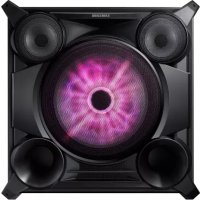


| Product Type | Hi-Fi System |
| Brand | Samsung |
| Model | MXFS8000 |
| Main unit dimensions | 550 x 212 x 367 mm |
| Speaker dimensions | 648 x 652 x 440 mm |
| Main unit weight | 6.1 kg |
| Speaker weight (per speaker) | 5.5 kg |
| Power supply | Mains (power cable included) |
| Output power (front speaker) | 575 W/CH (4 Ω) |
| Output power (subwoofer) | 575 W/CH (4 Ω) |
| Frequency range | 22 Hz – 20 kHz |
| Signal-to-noise ratio | 65 dB |
| Supported audio formats | CD, CD-R, CD-RW, MP3, WMA |
| Main functions | CD player, USB, Bluetooth, FM radio, Karaoke, Sound effects (EQ, DJ Beat, GIGA SOUND, Beat Waving), Timer, USB recording |
| Connectivity | AUX input (front and rear), USB (2 ports), Microphone, FM antenna |
| Care and cleaning | Clean with a soft cloth; do not use abrasive products |
| Safety | Do not expose to moisture, unplug during storms, do not open the casing |
| Operating temperature | +5°C to +35°C |
| Operating humidity | 10% to 75% |
| Included accessories | Remote control, batteries, FM antenna, power cable |
Frequently Asked Questions - MXFS8000 SAMSUNG
User questions about MXFS8000 SAMSUNG
0 question about this device. Answer the ones you know or ask your own.
Ask a new question about this device
Download the instructions for your Hi-Fi System in PDF format for free! Find your manual MXFS8000 - SAMSUNG and take your electronic device back in hand. On this page are published all the documents necessary for the use of your device. MXFS8000 by SAMSUNG.
USER MANUAL MXFS8000 SAMSUNG
PREMIUM HI-FI Component System
MP3/WMA/CD-DA Playback with CD/USB
User's Manual
Imagine the possibilities
Thank you for purchasing this Samsung product.
To receive more complete service,
please register your product at
www.samsung.com/register
TO REDUCE THE RISK OF ELECTRIC SHOCK, DO NOT REMOVE THE COVER (OR BACK). NO USER-SERVICEABLE PARTS ARE INSIDE. REFER SERVICING TO QUALIFIED SERVICE PERSONNEL.
| 3 | CAUTION RISK OF ELECTRIC SHOCK DO NOT OPEN | |
| This symbol indicates “dangerous voltage” inside the product that presents a risk of electric shock or personal injury. | CAUTION : TO PREVENT ELECTRIC SHOCK, MATCH WIDE BLADE OF PLUG TO WIDE SLOT, FULL INSERT. | This symbol indicates important instructions accompanying the product. |
WARNING
- To reduce the risk of fire or electric shock, do not expose this appliance to rain or moisture.
CAUTION
- Apparatus shall not be exposed to dripping or splashing and no objects filled with liquids, such as vases, shall be placed on the apparatus.
- The Mains plug is used as a disconnect device and shall stay readily operable at any time.
- Use only a properly grounded plug and receptacle.
- An improper ground may cause electric shock or equipment damage. (Class I Equipment only.) CLASS 3B VISIBLE AND INVISIBLE LASER RADIATION WHEN OPEN. AVOID EXPOSURE TO THE BEAM (IEC 60825-1)
- THIS PRODUCT UTILIZES A LASER. USE OF CONTROLS OR ADJUSTMENTS OR PERFORMANCE OF PROCEDURES OTHER THAN THOSE SPECIFIED HEREIN MAY RESULT IN HAZARDOUS RADIATION EXPOSURE. DO NOT OPEN COVER AND DO NOT REPAIR YOURSELF. REFER SERVICING TO QUALIFIED PERSONNEL.
CLASS 1 LASER PRODUCT KLASSE 1 LASER PRODUKT LUOKAN 1 LASER LAITE KCLASS 1 LASER APPARAT PRODUCTO LÁSER CLASE 1
CLASS 1 LASER PRODUCT
This Compact Disc player is classified as a CLASS 1 LASER product. Use of controls, adjustments or performance of procedures other than those specified herein may result in hazardous radiation exposure.
DANGER:
- Complies with 21CFR 1040.10 except for deviations pursuant to Laser Notice No. 50, dated June 24, 2007 VISIBLE AND INVISIBLE LASER RADIATION WHEN OPEN. AVOID DIRECT EXPOSURE TO BEAM. (FDA 21 CFR)
- An administration fee may be charged if either
- an engineer is called out at your request and there is no defect in the product (i.e. where you have failed to read this user's manual).
- you bring the unit to a repair centre and there is no defect in the product (i.e. where you have failed to read this user's manual). The amount of such administration charge will be advised to you before any work or home visit is carried out.
Precautions
- Ensure that the AC power supply in your house complies with the identification sticker located on the back of your product.
- Install your product horizontally, on a suitable base (furniture), with enough space around it for ventilation (7.5~10 cm)
- Do not place the product on amplifiers or other equipment which may become hot. Make sure the ventilation slots are not covered.
- Do not stack anything on top of the product.
- Before moving the product, ensure the Disc Insert Slot is empty.
- To turn off the product completely, disconnect the AC plug from the wall outlet. Disconnect the AC plug from the wall outlet if you will leave the device unused for a long period of time.
- During thunderstorms, disconnect the AC plug from the wall outlet. Voltage peaks due to lightning could damage the product.
- Do not expose the product to direct sunlight or other heat sources. This could cause the product to overheat and malfunction.
- Protect the product from moisture, and excess heat or equipment creating strong magnetic or electric fields (i.e. speakers.).
- Disconnect the power cable from the AC supply if the product malfunctions.
- Your product is not intended for industrial use. It is for personal use only.
- Condensation may occur if your product or disc has been stored in cold temperatures. If transporting the product during the winter, wait approximately 2 hours until the product has reached room temperature before using.
- The batteries used with this product contain chemicals that are harmful to the environment. Do not dispose of batteries in the general household trash.
- Maintain an open space of approximately 6 inches (15 cm) on the sides and rear of the system, for ventilation purposes.
- Place the loudspeakers at a reasonable distance on either side of the system to ensure good stereo sound.
- Direct the loudspeakers towards the listening area.
Cautions on Handling and Storing Discs
Small scratches on the disc may reduce sound and picture quality or cause skipping.
Be especially careful not to scratch discs when handling them.
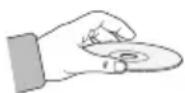
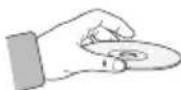
Holding Discs
- Do not touch the playback side of the disc.
- Hold the disc by the edges so that fingerprints will not get on the surface.
- Do not stick paper or tape on the disc.
Disc Storage
- Do not keep in direct sunlight.
- Keep in a cool ventilated area.
- Keep in a clean protective jacket. Store vertically.
- Do not allow the discs to become contaminated with dirt.
- Do not load cracked or scratched discs.
Handling and Storing Discs
If you get fingerprints or dirt on a disc, clean it with a mild detergent diluted in water and wipe with a soft cloth.
- When cleaning, wipe gently from the inside to the outside of the disc
- Condensation may form if warm air comes into contact with cold parts inside the product. When condensation forms inside the product, it may not operate correctly. If this occurs, remove the disc and let the product stand for 1 or 2 hours with the power on.
Disc Types And Disc Format
This product does not support Secure (DRM) Media files.
CD-R Discs
- Some CD-R discs may not be playable depending on the disc recording device (CD-Recorder or PC) and the condition of the disc. Use 650MB/74 minute CD-R discs. Do not use CD-R discs over 700MB/80 minutes as they may not be played back.
- Some CD-RW (Rewritable) media may not be playable. Only CD-Rs that are properly "closed" can be fully played. If the session is closed, but the disc is left open, you may not be able to fully play the disc.
CD-R MP3/WMA Discs
Only CD-R discs with MP3 files in ISO 9660 or Joliet format can be played. - MP3 file names should contain no blank spaces or special characters (. / = +) . - Use discs recorded with a compression/decompression data rate greater than 128Kbps. - Only files with the ".mp3" and ".wma" extensions can be played. Only a consecutively written multisession disc can be played. If there is a blank segment in the Multisession disc, the disc can be played only up to the blank segment. - If the disc is not closed, it will take longer to begin playback and not all of the recorded files may play. - For files encoded in Variable Bit Rate (VBR) format, i.e. files encoded in both low bit rate and high bit rate (e.g., 32Kbps 320Kbps), the sound may skip during playback. - A maximum of 999 files can be played per CD. Supported Audio Formats(Bit Rate):WMA 56~128kbps, MP3 80~320kbps.
Contents
Thank you for buying this SAMSUNG Hi-Fi Component system.
Please take time to read these instructions.
They will allow you to operate your system with ease and take full advantage of its features.
Safety Warnings 2
Important Information on Use 3
Precautions. 3
Cautions on Handling and Storing Discs.3
Disc Types And Disc Format. 3
Accessories. 4
Description 5
Front Panel 5
Rear Panel 6
Remote Control 7
Installing Batteries In The Remote Control 7
Connecting the Speakers 7
Basic Functions 8
The Display function. 8
Playing CD. 8
Loading Compact Disc. 8
CD/MP3/WMA-CD Playback 8
Selecting a Track 9
Searching for a Track/Folder Quickly .... 9
Searching for a Specific Music Passage on a CD. 9
Repeat One or All Tracks on a CD. 9
A-B Repeat Playback 9
CD Programming 9
Viewing or Editing the Programmed Track 10
Playing USB Devices 10
Before you begin! 10
To Select a File from a USB Device.....10
To Use High Speed Search 10
To Delete a File 10
To skip next 10 files. 11
Move FOLDER 11
How to safely remove the USB device.....11
Read Before Using the USB Storage Devices. 11
Bluetooth 11
What is Bluetooth? 11
To connect the Hi-Fi Component to a Bluetooth device. 11
To disconnect the Bluetooth device from the Hi-Fi Component. 12
To disconnect the Hi-Fi Component from the Bluetooth device. 12
Using My Karaoke 12
10 Skip Function. 13
Auto Change Function 13
Listening to the Radio 13
To Store the Stations You Want 13
Selecting a Stored Station 13
Advanced Functions. 14
Timer Function 14
Setting the Clock. 14
Setting the Timer 14
Cancelling the Timer. 15
The Recording Function. 15
Basic Recording. 15
Recording Speed 16
Special Sound Effect. 16
Selecting EQ Mode 16
Using the FOOTBALL Mode. 16
GIGA SOUND Function 17
BEAT WAVING Function. 17
DJ BEAT Function 17
Booting Sound Function. 17
Troubleshooting 18
Specifications 19
Symbols
Important


Accessories
Check for the supplied accessories below.
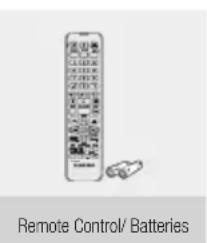
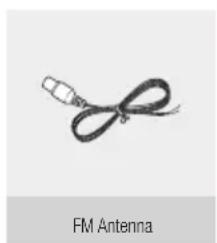
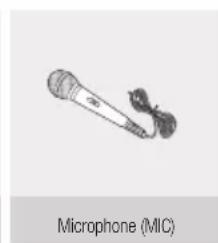
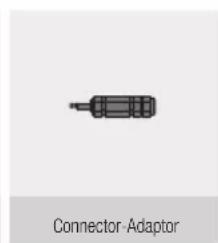
- Figures and illustrations in this user's manual are provided for reference only and may differ from actual product appearance.
4 English
Front Panel
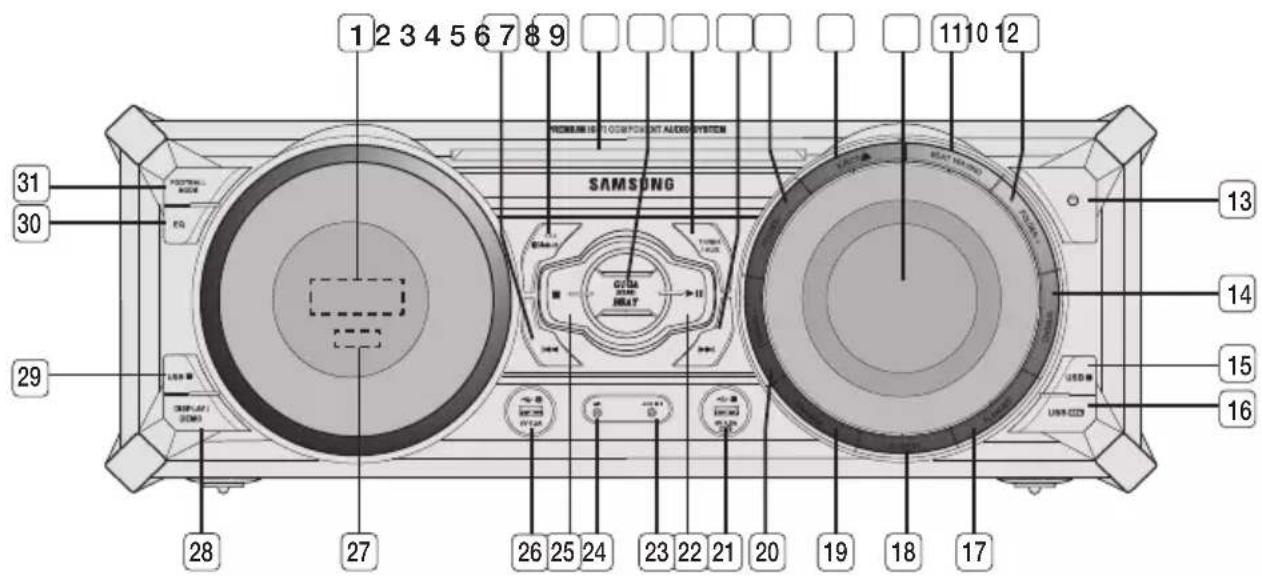
- Display Panel
- BACKWARD SEARCH/SKIP button
- CD/Bluetooth button
- DISC slot
- GIGA SOUND BEAT button
- TUNER/AUX button
- FORWARD SEARCH/SKIP button
- FOLDER- button
- Eject button for Disc
- MASTER VOLUME
- BEAT WAVING button
- FOLDER+ button
- POWER button
- Press this button to switch your product on or off.
- CHORUS button for DJ BEAT sound effect
- USB 2 button
- USB REC button
- FLANGER button for DJ BEAT sound effect
- DJ BEAT button
- WAHWAH button for DJ BEAT sound effect
- +PANNING button for DJ BEAT sound effect
- USB 2 jack for Playing and USB Recording
- PLAY/PAUSE button
- AUX IN 1 jack: Connecting an external device such as an MP3 player.
- Connect AUX IN 1 on the front panel of the product to the Audio Out of the external device/MP3 player.
- Press the TUNER/AUX button to select AUX1.
- MIC jack
- STOP button
- USB 1 jack for playback only
- REMOTE CONTROL SENSOR
- DISPLAY/DEMO button
- USB 1 button
- EQ button
- FOOTBALL MODE button
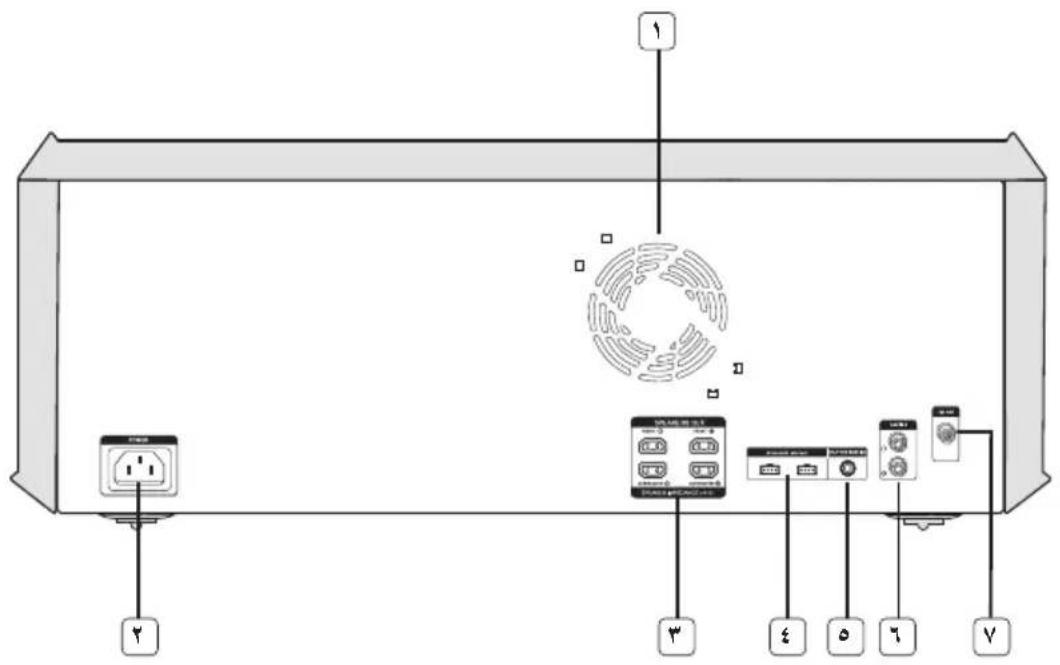
Rear Panel
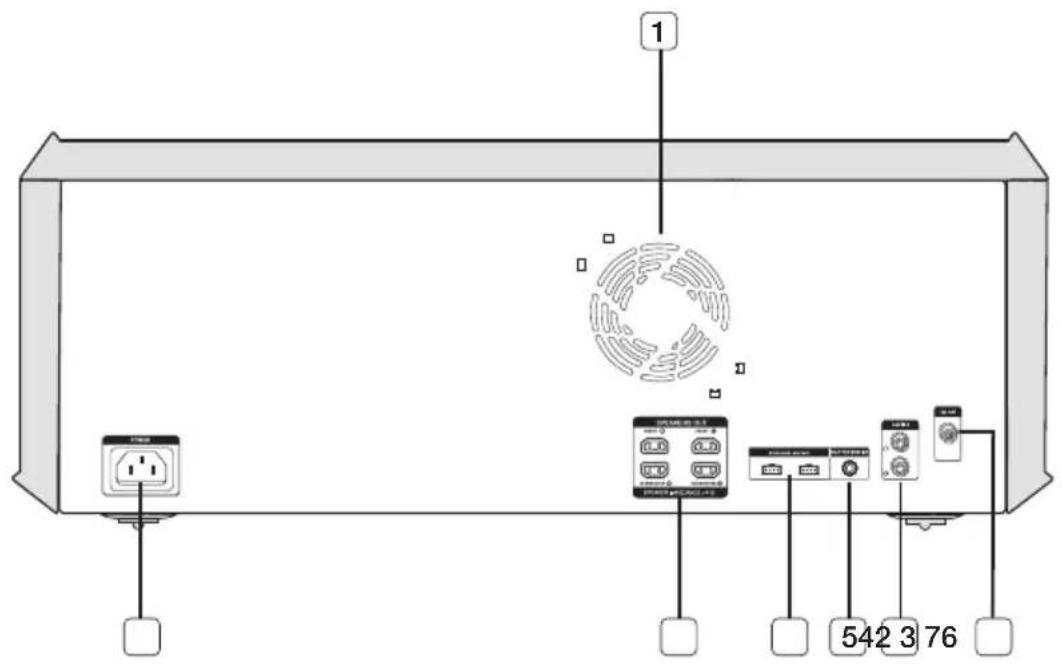
1. Cooling fan
- The fan operates while the unit is powered on. If you set the unit to the minimum volume, the fan won't operate.
Secure a minimum of 10 cm of clear space from all sides of the fan when installing the product.
2. POWER
- Insert only the provided power cable.
3. 2.2 CH Speaker Terminals
- To achieve the correct sound quality, when you connect the speakers, match the color of the speaker plugs to the color of the speaker jacks. See below.
- LEFT channel (marked L, White/Purple). RIGHT channel (marked R, Red/Purple).
- Don't force the Purple SUBWOOFER connector into the White or Red speaker jack.
4. LED Terminals for Speaker Beat Waving, which do not distinguish between left and right channel.
5. ONLY FOR SERVICE
This jack is just for testing, please don't use it.
6. AUX IN 2 Terminals
- Use an Audio Cable (not supplied) to connect AUX IN 2 on the product to Audio Out on the external analog output device.
- Be sure to match connector colors.
- If the external analog output device has only one Audio Out jack, connect either left or right.
- Press the TUNER/AUX button to select the AUX 2.
- If no button actions for more than 8 hours in AUX mode, the power will automatically turn off.
7. FM Antenna Terminals
- Connect the FM antenna to the FM antenna connector terminal.
- Slowly move the antenna wire until you find a location where reception is good, then fasten it to a wall or other rigid surface.
- If reception is poor, you may need to install an outdoor antenna. To do so, connect an outdoor FM antenna to the FM socket on the rear of the system using a 75Ω coaxial cable (not supplied).
Remote Control
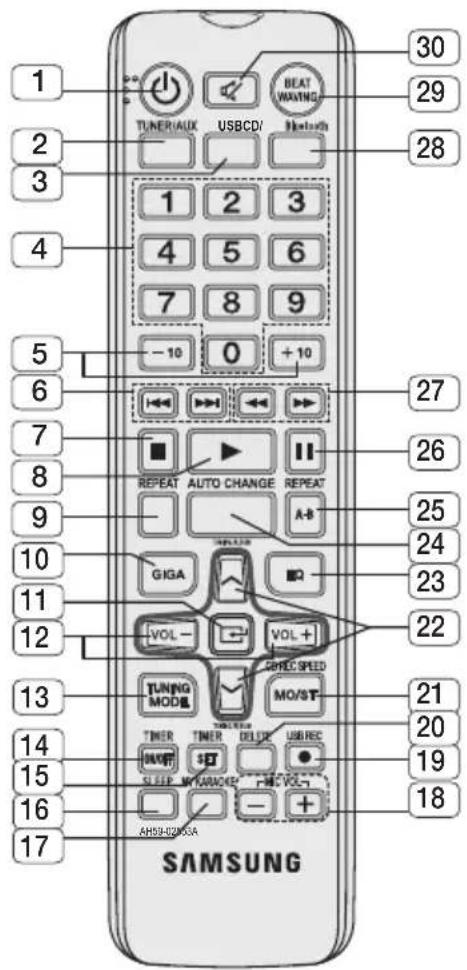
- POWER
- TUNER/AUX
- USB
- Number (0-9) button: During playback, press the desired track number. The selected track is played.
- SKIP (-10, +10)
- SKIP
- STOP
- PLAY
- REPEAT
- GIGA
- ENTER
- VOLUME (-, +)
- TUNING MODE
- TIMER ON/OFF
- TIMER SET
- SLEEP Set a sleep time to shut off the product.
- MY KARAOKE
- MIC VOLUME-, +
- USB REC
- DELETE
- Mono/Stereo for FM, CD REC SPEED for CD Ripping
- TUNING/ ALBUM A,V
- EQ
- AUTO CHANGE
- REPEAT A-B
- PAUSE 27.SEARCH
- CD/Bluetooth
- BEAT WAVING
- MUTE
Temporarily turns the sound on or off.
Installing Batteries In The Remote Control
- Place batteries in the remote control so they match the polarity: (+) to (+) and (-) to (-).
- Do not dispose of batteries in a fire.
- Do not short circuit, disassemble, or overheat the batteries. Danger of explosion if battery is incorrectly replaced. Replace only with the same or equivalent type.
* Battery size: AAA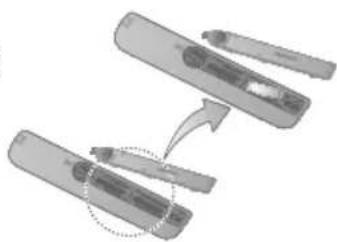
- The remote control can be used up to approximately 23 feet (7 meters) in a straight line from the system.
Connecting the Speakers
Recommended speaker setup.
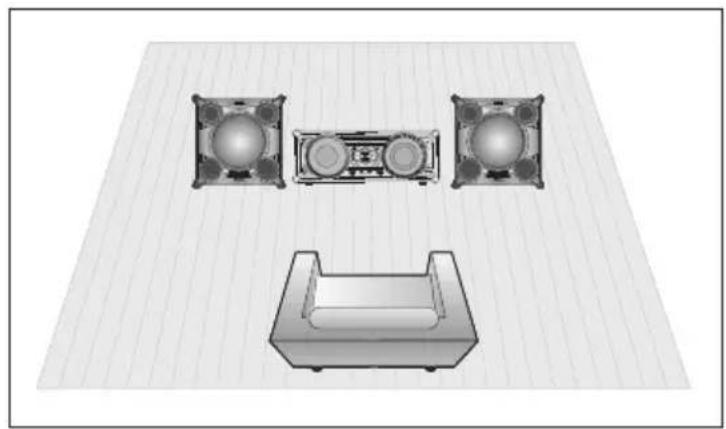
The product may not operate properly if not installed in accordance with recommended speaker setup, or exposed to shaking or external shocks. Do not stretch the speaker wires or place a heavy object on them.
The Display function
You can view all functions available on the display, adjust the brightness of the display, and set the Display/LED either on or off.
Each time you press the DISPLAY/DEMO button, the display mode will change as follows:
The Dimmer function
The Dimmer function is selected and the display darkens.
LED OFF
The LED is turned off while the dimmer function is working.
Clock ON
The Clock you set is displayed.
Display/LED ON
All displays and the LED are turned on.

DEMO Music function
Press DISPLAY/DEMO button for 5 seconds to operate the demo mode.
When you press the DISPLAY/DEMO button while displaying the demo, the function operates as follows:
DIMMER -> LED Off (unit/speaker) -> ------[time display] -> LED On (unit/speaker)
- To cancel the Demo Music mode
- Press the DISPLAY/DEMO button for 5 seconds. The current mode is canceled and the product is turned off.
- Press TUNER/AUX, CD/Bluetooth or USB button. The current mode is canceled and the mode is changed to the mode you selected.
- While displaying DEMO Music, only the [Power], VOL, [MUTE] buttons and the buttons mentioned above work.
- If you connect speaker to AUX1 while displaying DEMO, sound is produced through AUX1 and you can use the VOL buttons and [MUTE].
Playing CD
Loading Compact Disc
You can play 12 cm compact disc that requires no adapter.
- Insert a disc gently into the disc slot with the disc's label facing up. The disc will be played automatically.
- You can load or unload compact discs when the radio, USB or auxiliary source function is selected. When you press the EJECT button, all of the other functions will change to the CD mode.
- If no buttons are pressed on the product or remote control for more than 3 minutes when the product is in Pause mode, it will change to Stop mode.
- If no buttons are pressed on the product or remote control for more than 25 minutes when the product is in Stop mode, the product will turn off.
CD/MP3/WMA-CD Playback

This product is designed to play the following audio disc types: CD, CD-R, CD-RW, MP3/WMA-CD.
- Insert a disc gently into the disc slot with the disc's label facing up.
- The disc will be played automatically.
- For MP3/WMA-CD audio, it may take several minutes for the product to finish scanning the disc tracks. If you play a file with an English name or a MP3/WMA-CD file with an English title, the song title will be shown in the display. (Titles in other languages will not be displayed.)
- An English-titled track containing a special character will not be displayed.

- Adjust the volume according to needs with the following procedures.
- Turn the VOLUME control on the product.
- Press the VOL+ or VOL- button of the remote control. The volume level can be adjusted in 31 steps (VOLUME MIN, VOLUME 01 ~ VOLUME 29, and VOLUME MAX).
- Main Unit
To pause playback temporarily, press the ▶ button. Press again to continue playing the disc.
Remote control
To pause playback temporarily, press the PAUSE (II) button.
Press the PLAY (▶) button to continue playing the disc.
- To end playing, press the STOP (■) button.
- If no CD is in the disc slot, "NO DISC" appears on the display. The quality of MP3/WMA-CD playback may vary depending on the condition of the disc or the condition of the recorder with which the disc was created.
- If a disc contains different types of files or unnecessary folders, you will have problems with playback.
Gently insert a CD into the disc slot. Do not apply excessive force.
- Do not apply force to the product or place a heavy object on the product.
- Do not insert an out-of-spec or oddly shaped CD (heart shaped, octangular, etc.). You can damage the product.
- Carefully maintain your CDs.
Selecting a Track
You can select a desired track while the disc is being played.
To play the previous track
Press the K button within 3 seconds after the current track has started playing.
Press the K button twice at least 3 seconds after the current track has started playing.
To play the next track
Press the ▶ button.
To play the current track from the beginning
Press the K button 3 seconds after the current track started playing.
To play the track of your choice
Press the ◀ or ▶ button to move to a desired track.
- You can also use the number (0-9) button on the remote control to select a track.
Searching for a Track/Folder Quickly
You can select a track/folder directly without the ◀ button.
CDDA/MP3-CD/WMA-CD
- When searching is done, the track will automatically start playing.
Searching for a Specific Music Passage on a CD
When listening to a CD, you can quickly search for a specific music passage on a track.
Forward Search. Backward Search
You can also press and hold the , buttons on the product to automatically scan for a track.
Repeat One or All Tracks on a CD
You can repeat playing CD unlimitedly:
- CD containing a specific track. Whole tracks of a CD.
- Press the REPEAT button on the remote control.
Each time you press the REPEAT button, the repeat mode will change as follows:
MP3: OFF → TRACK → DIR → ALL → RANDOM CD: OFF → TRACK → ALL → RANDOM
- When you want to stop the repeat function, press the REPEAT button until "OFF" is displayed.
OFF: Cancels repeat playback. - TRACK: Repeatedly plays the selected track. DIR (DIRECTORY): Repeatedly plays all tracks in the selected folder. ALL: Repeatedly plays the entire disc. - RANDOM: Plays tracks in random order.
A-B Repeat Playback
You can repeatedly play back a designated section of a CD.
- Press the REPEAT A-B button at the beginning of the desired part.
RPT A' will be displayed.
- Press the REPEAT A-B button at the ending of the desired part.
RPT AB' will be displayed.
- To cancel the REPEAT A-B function, press the REPEAT A-B button again.
OFF' will be displayed.
The REPEAT A-B function is available within a track.
CD Programming
This function is not available during playback of an MP3/WMA-CD.
- You can program the playback order of up to 24 tracks of your choice. However, you must stop playing the CD before selecting tracks.
- While in CD playback mode, press the STOP(■) button to stop playing the CD.
- Press the ENTER (C) button to display the message below:
PROG OIT RACK---
(01=program number,---=track number)
- Use the ◀ or ▶ button to move to a desired track.
- Press ◀ to move to the previous track.
- Press ▶ to move to the next track.
- Press the ENTER (C) button to confirm your selection, the selection is stored and PROG02TRACK---is displayed.
- To select another track, follow Steps 3 and 4 above.
- Press the PLAY (▶) button to play the programmed tracks.
- Press the STOP (■) button to stop playing the programmed tracks. Press the STOP (■) button again to cancel playing the programmed tracks.
If you eject the disc, turn off the product, or change to another function mode, your programming will be canceled.
Viewing or Editing the Programmed Track
You can view a list of programmed tracks and edit them as you want.
- If a programmed track is being played, press the STOP (■) button once.
- Press the ENTER (C) button twice to display the message below:
SAVEDOITRACK002
(01 = program number, 002 = track number)
- Repeatedly press the ENTER button until the desired track is displayed.
- Press the ◀ or ▶ button to select a different track.
- Press the ENTER (C) button to confirm your selection.
- To play the programmed tracks, press the Play (▶) button.
Playing USB Devices
Connect an external storage device such as a USB flash memory or external HDD (Hard Disk Drive) to the product. You can play files in MP3/WMA format.
Before you begin!
- Connect the external USB storage device to your product.
- Select the USB mode by pressing the USB 1 or USB 2 button on the product or the USB button on the remote control.
- The first file of the first directory plays automatically.
- To stop playing, press the STOP (■) button.
Remove the USB device.
If you press the STOP (■) button once again, you can remove the USB device safely.
Do not connect a USB recharger to the USB port of this product. You can damage the product.
To Select a File from a USB Device
You can select an MP3 file while the product is playing.
If you want to move to the previous/next track, press the ◄◄ or ►► buttons briefly.
- The unit moves to the previous/next file within the directory.
- If you press the ◄◄ or ►► buttons more times than the number of files in the directory, the unit moves to the next directory.
To repeat
- Press the REPEAT button.
Each time you press the REPEAT button, the repeat mode changes as follows:
OFF → TRACK → DIR → ALL → RANDOM
- When you want to stop the repeat function, press the REPEAT button until "OFF" is displayed.
OFF: Cancels repeat playback. - TRACK: Repeatedly plays the selected file. - DIR (DIRECTORY): Repeatedly plays all files in the selected folder. - ALL: Repeatedly plays all files. - RANDOM: Plays files in random order.
To Use High Speed Search
You can search the desired section quickly while the product is playing.
- Press the ◁, ▷ button.
Each time you press the button, you will move forward/backward fast.
Sound does not output during a high speed search.
To Delete a File
You can delete a file from your USB device.
- Select a file you want to delete.
- Press the DELETE button on the remote control.
- Press the ⊢, ⊢ buttons on the product or remote control to select YES/NO.
- Press the ENTER button on the remote control.
The selected file will be deleted.
The NTFS file system is not supported.
To skip next 10 files
- Press the +10 or -10 button while in playback mode.
The unit will skip as many as 10 tracks forward or 10
tracks back from the current track.
Move FOLDER
Press the remote control's TUNING/ALBUM , button or the product's FOLDER-, ^+ button to move to the previous/ next folder
How to safely remove the USB device
- Press the (■) button twice while the USB is playing or press the (■) button once when play is stopped.
- When the REMOVE message appears on the display, remove the USB device.
Read Before Using the USB Storage Devices
- Some USB devices may not work properly with this product.
- This product only supports external HDD's that are formatted in FAT file system.
- USB 2.0 HDDs should be connected to a separate power source. Otherwise, the USB 2.0 HDDs will not work.
- If multiple USB external storage devices are connected together, only the MP3 files in the first HDD will be played.
- Files with DRM are not supported. Digital Rights Management (DRM) restricts unauthorized access to a DRM file so that the copyright of the file is protected from piracy.
- Even if a file has an .mp3 extension, the file cannot be played if it is formatted in MPEG layer 1 or 2.
- Do not use an unrecognized USB hub.
- Only the first 15 characters of a MP3/WMA file are displayed.
- Only removable HDDs with less than 160GB are supported. Depending on the device, a 160GB- or more removable HDD may not be supported. It can take several minutes for the product to recognize the files on some USB devices.
- Some USB devices (USB HDDs, in particular) may cause a delay when moving from track to track.
- With USB storage devices supporting USB VER1.1 only, the product may access files slowly or may not recognize the file properties.
- The maximum electrical current supported by an external USB device via each USB port is 0.5A (based on DC 5V).
- If there is no USB connection or STOP mode lasts for more than 25 minutes, the product will automatically turn off.
- A certain USB, digital camera device, USB card reader, iPod, iPhone or Smart Phone may not be supported.
Bluetooth
You can use a Bluetooth device to enjoy music with high quality stereo sound, all without wires!
What is Bluetooth?
Bluetooth is a technology that enables Bluetooth compliant devices to interconnect easily with each other using a short wireless connection.
- A Bluetooth device may cause noise or malfunction, depending on usage, when:
- A part of your body is in contact with the receiving/transmitting system of the Bluetooth device or the Hi-Fi Component.
- It is subject to electrical variation from obstructions caused by a wall, corner, or office partitioning.
- It is exposed to electrical interference from same frequency-band devices including medical equipment, microwave ovens, and wireless LANs.
- Pair the Hi-Fi Component with the Bluetooth device while they are close together.
- The greater the distance between the Hi-Fi Component and the Bluetooth device, the worse the quality. If the distance exceeds the Bluetooth operational range, the connection is lost.
- In poor reception-sensitivity areas, the Bluetooth connection may not work properly.
- The Bluetooth connection only works when it is close to the set. The connection will be automatically cut off if the Bluetooth device is out of range. Even within range the sound quality may be degraded by obstacles such as walls or doors.
- This wireless device may cause electric interference during its operation.
To connect the Hi-Fi Component to a Bluetooth device
Before you begin, confirm that your Bluetooth device supports the Bluetooth-compliant stereo headset function.
- Press the CD/Bluetooth button of the Hi-Fi Component to display the BLUETOOTH message.
- You will see WAIT for a while and then READY on the front display of the Hi-Fi Component.
- Select the Bluetooth menu on the Bluetooth device you want to connect. (Refer to the Bluetooth device's user manual.)
- Select the Stereo headset menu on the Bluetooth device.
- You will see a list of scanned devices.
- Select "[Samsung] HI-FIXXXXXX" from the list.
- When the product is connected to the Bluetooth device, it will display CONNECTED -> BLUETOOTH on the front display.
- If the Bluetooth device has failed to pair with the product, delete the previous "[Samsung] HI-FI XXXXX" found by the Bluetooth device and have it search for the product again.
- Play music on the connected device.
- You can listen to the music playing on the connected Bluetooth device over the Hi-Fi Component system.
- In Bluetooth mode, some models' Play/Repeat/Stop/Next/Back functions are not available.
The product only supports Middle Quality SBC data (up to 237kbps@48kHz), and does not support High Quality SBC data (328kbps@44.1kHz).
The AVRCP feature is not supported. - Connect only to a Bluetooth device that supports the A2DP (AV) function. - You cannot connect to a Bluetooth device that supports only the HF (Hands Free) function. - Only one Bluetooth device can be paired at a time. - Once you have turned off the Hi-Fi Component and the pairing is disconnected, the pairing will not be restored automatically. To reconnect, you must pair the device again. - The Hi-Fi Component system may not search or connect properly in the following cases:
- If there is a strong electrical field around the Hi-Fi Component.
- If several Bluetooth devices are simultaneously paired with the Hi-Fi Component.
- If the Bluetooth device is turned off, not in place, or malfunctions.
- Note that such devices as microwave ovens, wireless LAN adaptors, fluorescent lights, and gas stoves use the same frequency range as the Bluetooth device, which can cause electric interference.
To disconnect the Bluetooth device from the Hi-Fi Component
You can disconnect the Bluetooth device from the Hi-Fi Component. For instructions, see the Bluetooth device's user manual.
- The Hi-Fi Component will be disconnected.
- When the Hi-Fi Component is disconnected from the Bluetooth device, the Hi-Fi Component will display DISCONNECTED → READY on its display.
To disconnect the Hi-Fi Component from the Bluetooth device
Press the CD/Bluetooth button on the front panel of the Hi-Fi Component to switch from Bluetooth mode to another mode or turn off the Hi-Fi Component.
- The connected Bluetooth device will wait a certain amount of time for a response from the Hi-Fi Component before terminating the connection. (Disconnection time may differ, depending on the Bluetooth device)
- The currently connected device will be disconnected. In Bluetooth connection mode, the Bluetooth connection will be lost if the distance between the Hi-Fi Component and the Bluetooth device exceeds 16.25 feet (5 meters).
- If the Bluetooth device comes back into the effective range after disconnecting, you can restart the Hi-Fi Component to restore the pairing with the Bluetooth device.
- The Hi-Fi Component automatically turns off after 25 minutes in the Ready mode.
Using My Karaoke
You can use the MY Karaoke function to sing along with your favorite CDs and USB tracks.
- Connect the microphone to the MIC jack on the front of the product.
If your microphone plug is larger than the 3.5 mm MIC jack, you need a Connector-Adaptor to complete the connection.
- First, connect the Connector-Adaptor to the MIC jack on the front of the product.
- Second, connect the microphone (with larger jack) to the Connector-Adaptor.
- Press the MIC VOL-, + button on the remote control to adjust the volume of the microphone.
- Press the MY KARAOKE button on the remote control to suppress the vocal if you need. Each time the button is pressed, the selection is changed as follows:
MY KARAOKE ON → MY KARAOKE OFF
If you hear strange noises (squealing or howling) while using the Karaoke feature, move the microphone away from the speakers. Turning down the microphone's volume or the speaker volume is also effective. Do not point the microphone towards the speaker. The microphone does not operate in AUX and TUNER mode. If you connect a microphone, GIGA SOUND automatically turns off. To turn Giga Sound back on, you must remove the microphone and then press the Giga Sound button.
- When My Karaoke is on, EQ/GIGA SOUND and FOOTBALL MODE do not work. After the stop operation, the My Karaoke setting will disappear. The My Karaoke function is available only when a microphone is connected.
10 Skip Function
Press the +10 or -10 button while the unit is in playback mode. The unit will skip as many as 10 tracks forward or 10 tracks back from the current track.
Auto Change Function
You can circularly play between the disc and the USB.
- Press the AUTO CHANGE button on the remote. Each time you press this button, the mode will switch as follows:
AUTO CHANGE OFF → AUTO CHANGE ON
- When the AUTO CHANGE mode is "ON",
- the music will be played on DISC → USB1 → USB2 continuously.
- if you press the POWER button, function change button, or the EJECT button, the AUTO CHANGE function automatically switches to "OFF" mode.
- the recording can't work.
- the REPEAT, SLEEP function can't work and automatically changes to OFF.
- the CD REC SPEED, USB REC, NUMBER KEY and DELETE function can't work.
- When USB is playing, if you disconnected the USB, the AUTO CHANGE function automatically switches to "OFF" mode. If there's no USB1, it will jump to USB2.
Listening to the Radio
To Store the Stations You Want
You can store up to:
15 FM stations.
- Select FM by pressing the TUNER/AUX button.
- To search for a station, press the TUNNING MODE button on the remote control or the STOP button on the product one or more times until MANUAL is displayed.
- Press the button once or more times until PRESET is displayed. You can search the stored frequencies in the preset mode.
- Press the button once or more times until MANUAL is displayed. You can search the frequencies one by one in the Manual mode.
- Select a station by:
- Pressing the TUNING/ALBUM ∧ or ∨ button on the remote control to find a station.
- Press the MO/ST button to switch between stereo and mono.
- In a poor reception area, select MONO for a clear, interference-free broadcast. This applies only when listening to an FM station.
- If you do not want to store the radio station found, go back to Step 3 and search for another station. Otherwise:
a. Press the ENTER button. b. Or, press the TUNING/ALBUM button on the remote control to select a program number. c. Press the ENTER button to save the preset.
- To store other radio frequencies, repeat Steps 3, 4, and 5.
Selecting a Stored Station
To listen to a stored station, follow these steps:
- Select FM by pressing the TUNER/AUX button on the product or remote control.
- Press the TUNING MODE button on the remote control until "PRESET" is displayed.
- Press the TUNING/ALBUM A, V button on the main unit or TUNING/ALBUM A, V on the remote control to select a preset number.
Timer Function
Setting the Clock
For each step, you have a few seconds to set the required options. If you exceed this time, you must start again.
- Press the TIMER SET button on the remote control twice. "CLOCK SET" is displayed.
- Press the ENTER (O') button on the remote control. The hour flashes.
- Increase the hours: TUNING/ALBUM A. Decrease the hours: TUNING/ALBUM V.
- When the correct hour is displayed, press the ENTER (G) button, and then the minutes flash.
- Increase the minutes: TUNING/ALBUM A. Decrease the minutes: TUNING/ALBUM V.
- When the correct minute is displayed, press the ENTER (G) button, and then "TIMER PLAY SET" appears in the display.
Setting the Timer
The timer enables you to switch the product on or off at specific times automatically.
- Before setting the timer, check that the current time is correct.
- For each step, you have a few seconds to set the required options. If you exceed this time, you must start again.
- If you no longer want the product to be switched on or off automatically, you must cancel the timer by pressing the TIMER ON/OFF button.
Example: You want to wake up to music every morning.
- Press the TIMER SET button until TIMER PLAY SET is displayed.
- Press the ENTER (G) button. Result: ON TIME is displayed for a few seconds. You can set the timer switch-on time.
- Set the timer switch-on time.
a Press the TUNING/ALBUM ∧ or ∨ button to set the hours. b Press the ENTER button. Result: The minutes flash. c Press the TUNING/ALBUM ∧ or ∨ button to set the minutes. d Press the ENTER (C) button. Result: OFF TIME is displayed for a few seconds. You can now set the timer switch-off time.
- Set the timer switch-off time.
a Press the TUNING/ALBUM ∧ or ∨ button to set the hours. b Press the ENTER (3) button. Result: The minutes flash. c Press the TUNING/ALBUM ∧ or ∨ button to set the minutes. d Press the ENTER (□ 3) button. Result: VOLUME XX is displayed, where XX corresponds to the volume already set.
- Press the TUNING/ALBUM ∧ or ∨ button to adjust the volume level and press the ENTER (O) button. Result: The source to be selected is displayed.
- Press the TUNING/ALBUM ∧ or ∨ button to select the source the Hi-Fi Component will play when it switches on.
If you select... You must also...
FM (radio) Press the ENTER button. b Select a preset station by pressing the TUNING/ALBUM ∧ or ∨ button.
CD (compact disc) ....Load a compact disc. USB ....Connect the USB device.
- Press the ENTER (B) button.
Result: TIMER REC SET (Do you want to record?) is displayed.
- Press the ENTER (B) button.
Result: REC SET YES/NO is displayed. You can press the TUNING/ALBUM ∧ or ∨ button to select REC YES or REC NO, and then press ENTER button.
1) If you select REC NO, it will cancel timer recording even if you have already set the timer recording on and off times. 2) If you select REC YES, you can set the tuner timer recording.
a. Press the ENTER (G) button. Result: ON TIME is displayed for a few seconds. You can set the timer recording switch-on time. b. Press the ENTER (C) button. Result: OFF TIME is displayed for a few seconds. You can set the timer recording switch-off time.
The maximum length of time for tuner timer recording is 5 hours.
- If the timer switch on and off times are identical, the word ERROR is displayed.
- You can use the , buttons on the product instead of the TUNING/ALBUM or button to make adjustments in Steps 3 through 8.
- If the switch-on or -off time is the same as the timer recording time, only the switch-on or -off time is effective, and the timer recording is not applied.
- When you use the auto timer, you may need an additional step to use a CD or USB device with it, depending on the disc (or device). Consequently, it is easier to use the tuner instead.
- If you select CD or USB mode when there is no disc or no USB in the product, it will automatically change to TUNER.
Cancelling the Timer
After having set the timer, it will start automatically as shown by the TIMER ON message on the display. If you no longer want to use the timer, you must cancel it.
To cancel the timer, Press the TIMER ON/OFF button once.
To restart the timer, Press the TIMER ON/OFF button once again.
- When you select the TIMER OFF mode, the TIMER RECORDING and TIME function are not available.
The Recording Function
Basic Recording
You can record from a CD, a USB device, a radio broadcast, or an external source to a USB storage device.
- Connect the external USB storage device to a USB (TACREC your product.
- Play a disc or USB, turn on the radio and select a station, or connect the external source to your product as described below.
CD
- Press the CD button on the product to select the CD function.
- Insert a CD gently into the disc slot.
- Use the CD selection (▶ or ▶) buttons to select the desired song.
TUNER
- Select FM by pressing the TUNER/AUX button.
- Select the radio frequency you want to record.
USB1
- Connect the USB device with the files you want to record to USB 1 jack.
- Press the USB button to select USB 1.
- Play a song from the USB 1.
External Source
- Connect an External device/MP3 player to the product.
- Press the TUNER/AUX button to select .
- Play a song from the external device.
- Press the USB REC button on the remote control to start recording.
CD
- "TRACK RECORD" is displayed and CD recording starts.
- If you want to record all the tracks on the disc, press and hold the USB REC button. Then, "FULL CD RECORD" will be displayed.
RADIO
"TUNER RECORD" is displayed and recording starts.
CD-ROM/USB
- "FILE COPY" is displayed and recording starts.
- You can also copy a folder including MP3/WMA files to USB 2 device. If you press and hold the USB REC button while the system plays an MP3 or WMA file in the folder, your system may show "FOLDER COPY".
- If you play the MP3 or WMA file, the file will be copied into the USB device. Your system may show "FILE COPY".
When the recording is done, "STOP" will be displayed.
- If there is the same file name when you copy, "EXIST FILE" is displayed, and the function is canceled.
- When a microphone is connected to the product, pressing the USB REC button activates the MP Recording function, not the Copy function.
- A short press of the USB REC button starts the file copy, while a long press (for a few seconds) starts the folder copy.
External Source
"AUX RECORD" is displayed and recording starts.
CD/USB1(MP3) & MIC
- "MP3 RECORD" is displayed and recording starts.
- To stop recording, press the STOP (■) button. The recording is automatically saved as an MP3 file.
- After the recording is finished, a directory named "RECORDING" (for CD-DA), "CD COPY" (for CD-ROM/USB with WMA/MP3), "TUNER RECORDING", "AUX RECORDING", or "MP3 RECORDING" is created on your device.

The WMA/MP2 file can only be copied, not recorded. - Do not disconnect the USB device or the AC cord during recording, as this may cause file damage. - If you disconnect the USB device during recording, the product will turn off and you will not be able to delete the recorded file. If this occurs, connect the USB device to a PC, back up the USB data to the PC, and then reformat the USB device. - If the USB device does not have enough memory, "NOT ENOUGH MEMORY" will appear on the display. - The recording function supports only FAT file systems; the NTFS file system is not supported. - When using the CD high-speed search function, the CD recording function is unavailable. - With some USB devices, recording time may be longer. - In Program mode, you cannot use the CD recording function. - When the recording function is active, the EQ and GIGA SOUND functions automatically turn off and are unavailable. During a CD recording, the REPEAT function automatically turns off and is unavailable. - If you use the MIC function during a CD recording, the voice from the microphone will be recorded. - You cannot record audio from the radio when searching for a station or if there are no frequencies available when the product is set to Tuner mode. Note that setting the input level too loud when recording music from an external device through the AUX or USB channel may introduce noise into the recording. In this case, lower the external device's volume level.
Recording Speed
Each time you press the CD REC SPEED button on the remote control, the recording speed changes as follows:
- While the tuner or external source is recording, the recording speed is not supported.
- When you select RECORD SPEED x4, the audio sound will not be output.
- If you connected the microphone, you just have one recording speed mode: RECORD SPEED x 1.
- During recording, if you disconnect the microphone, the recording will stop, even if you reconnect the microphone, it will still stop.
Special Sound Effect
Selecting EQ Mode
Your Hi-Fi Component system provides predefined equalizer settings that are optimized for particular music genre. You can also adjust the bass, middle and treble levels manually.
- Press the EQ button.
Each time you press this button, the sound mode will switch as follows:
OFF → FLAT → GENG → BONGO → RHUMBA → ESKI- STA → AFROPOP1 → AFROPOP2 → PARTY → POP → H IP HOP → ROCK → JAZZ → CLASSIC → ELECTRONIC → MP3 ENHANCER → VIRTUAL SOUND → USER EQ
OFF → FLAT → ARABIC MUSIC → PERSIAN MUSIC → PARTY → POP → HIP HOP → ROCK → JAZZ → CLASSIC → ELECTRONIC → MP3 ENHANCER → VIRTUAL SOUND → USER EQ
- May appear differently according to your region.
- To set the BASS, MID (Middle) and TREB (Treble) levels manually, select USER EQ, and then press the ENTER button.
Result: The BASS level (left numeric) flashes.
Press the TUNING/ALBUM ∧ or ∨ button to select a level from -06 to 06.
Then, press the ENTER button.
Result: The MIDDLE level (middle numeric) flashes. Press the TUNING/ALBUM or button to select a level from -06 to 06.
Then, press the ENTER button.
Result: The TREBLE level (right numeric) flashes.
Press the TUNING/ALBUM or button to select a level from -06 to 06.
Then, press the ENTER button.
Result: Setting is complete.
- When the Hi-Fi Component is recording, the EQ function is turned off automatically and is unavailable.
- If no buttons are pressed within 8 seconds, your settings will automatically be cancelled and the previous settings will be saved.
- The EQ mode may be different depending on your region.
Using the FOOTBALL Mode
The football mode brings greater realism to sports broadcasts.
- Press the FOOTBALL MODE button on the product. Each time you press the button, the sound mode will switch as follows:
FOOTBALL OFF → FOOTBALL MODE 1 → FOOTBALL MODE 2
- The FOOTBALL mode may be different depending on your region.
GIGA SOUND Function
The GIGA SOUND function amplifies the bass sound and provides twice the bass for powerful, realistic sound.
- Press the GIGA SOUND BEAT button on the main unit or the GIGA button on the remote control. Each time you press the button, the sound mode switches as follows:
- To cancel this function, press the GIGA SOUND BEAT button until the "OFF" is displayed.
- The GIGA SOUND mode may be different depending on your region.
BEAT WAVING Function
The Beat Waving function lets you change the Speaker LED display mode.
- Each time you press the BEAT WAVING button on the product, the Speaker LED display mode changes as follows: PARTY 1 → PARTY 2 → FUN 1 → FUN 2 → PURE → FRESH → LOVE → JOY → SUNSET → SUNRISE → NATURE 1 → NATURE 2 → WAVE 1 → WAVE 2 → AURORA → OFF
If you select the BEAT WAVING OFF, all of the speaker LED displays are turned off.
DJ BEAT Function
The DJ Beat function lets you turn on the FLANGER, PANNING, CHORUS, and WAHWAH sound effect functions. The level of each effect is adjustable.
The set scope is [-15 to +15] and the initial set up value are all 0.
FLANGER: Creates a vibration similar to the sound of a jet engine revving up and down.
PANNING: Increases the left and right speaker's output in turn and makes it seem as if the sound is moving from side to side.
WAHWAH: Creates a 'Wah~ Wah~' effect.
CHORUS: Creates a vibration that sounds like a singing chorus.
- To set the desired effect, press the FLANGER, PANNING, CHORUS, or WAHWAH button on the product.
- The red LED turns on around the button you pushed and around the DJ BEAT button.
- You can control the intensity of the effect with the Volume Jog. To control the volume, press the product's DJ BEAT button.
- To cancel an effect, press the effect's button again.
- To change to a different effect, press another effect button.
- You can apply the PANNING effect to the FLANGER, CHORUS, or WAHWAH effects.
- To apply the PANNING effect to another effect, press the PANNING button when the other effect is active or press another effect button when the PANNING effect is active.
- Use the Volume JOG to control the intensity of the effect that was activated last. For example, if you activated the WahWah effect and then the Panning effect, the Volume Jog will control the Panning effect.
- To control the intensity of the effect you applied first, press the button of the effect that you applied last to turn it off. Then, you can use the Volume Jog to control the intensity of the first effect.
Booting Sound Function
When the Booting Sound Function is on, your Hi-fi Component demonstrates its audio prowess as it boots up.
- Press the product's GIGA SOUND BEAT button or the remote control's GIGA button for ten seconds. The BOOTING SOUND menu appears on the display panel.
- Press the product's GIGA SOUND BEAT button or the remote control's GIGA button for ten seconds to turn the BOOTING SOUND function On or Off.
Troubleshooting
Refer to the chart below when this product does not function properly. If the problem you are experiencing is not listed below or if the instruction below does not help, turn off the product, disconnect the power cord, and contact the nearest authorized dealer or Samsung Electronics Service Center.
| Symptom Check/Remedy | |
| I cannot eject the disc. • Is the power cord plugged securely into the outlet? • Turn off the power and then turn it back on. | |
| Playback does not start immediately when the Play/Pause button is pressed. | • Are you using a deformed disc or a disc with scratches on the surface? • Wipe the disc clean. |
| Sound is not produced. • No sound | Is heard during fast playback, slow playback, and step motion playback. • Are the speakers connected properly? Is the speaker setup correctly customized? • Is the disc severely damaged? |
| The remote control does not work. | • Is the remote control being operated within its operational angle and distance range? • Are the batteries drained? |
| • The product is not working. (Example: The power goes out or the front panel key doesn't work or ou hear a strange nois.) • The product is not working normally. | • Run the reset function. With the “NO DISC” message on the display of the product and no disc in the disc slot, press and hold the STOP (■) button on the product for more than 5 seconds. Using the RESET function will erase all stored settings. Do not use this unless necessary. |
| Can't receive radio broadcast. • Is the antenna connected properly? • If the antenna's input signal is weak, install an external FM antenna in an area with good reception. | |
| Turn off automatically after displaying "PROTECT" | • Check the power in use is within the range of the power which specified on the rear label of the product. • If “Voltage Selector” is on the rear panel, check the power is same with the voltage that you set manually. |
Specifications
| General | Weight | Main unit | 6.1 Kg |
| Speaker | 55 Kg | ||
| Dimensions | Main unit | 550 (W) x 212 (H) x 367 (D) mm | |
| Speaker | 648 (W) x 652 (H) x 440 (D) mm | ||
| Operating Temperature Range | +5°C~+35°C | ||
| Operating Humidity Range | 10 % to 75 % | ||
| FM Tuner | Signal/Noise ratio | 55 dB | |
| Usable sensitivity | 10 dB | ||
| Total harmonic distortion | 1 % | ||
| CD Disc CD : 12 cm (COMPACT DISC) | Reading Speed : 4.8 ~ 5.6 m/sec. | ||
| Maximum Play Time : 74 min. | |||
| Amplifier | Front speaker output | 575W/CH (4Ω) | |
| Subwoofer output | 575W/CH (4Ω) | ||
| Frequency range | 22Hz~20KHz | ||
| S/N Ratio 65 dB | |||
| Channel separation 60 dB | |||
| Input sensitivity (AUX)800mV | |||
*: Nominal specification. Samsung Electronics Co., Ltd reserves the right to change the specifications without notice. - Weight and dimensions are approximate. - Design and specifications are subject to change without prior notice. - For information on the power supply and power consumption, refer to the label attached to the product.
Contact SAMSUNG WORLD WIDE
If you have any questions or comments relating to Samsung products, please contact the SAMSUNG customer care center.
| Area Contact Centre | Web Site | |
| ■ Asia Pacific | ||
| AUSTRALIA 1300 362 603 www.samsung.com/au/support | ||
| NEW ZEALAND 0800 SAMSUNG (0800 726 786) www.samsung.com/nz/support | ||
| CHINA 400-810-5858 www.samsung.com/cn/support | ||
| HONG KONG (852) 3698 4698 | www.samsung.com/hk/support (Chinese) www.samsung.com/hk_en/support (English) | |
| INDIA | 1800 3000 8282 - Toll Free 1800 266 8282 - Toll Free 30306282 - Non Toll Free | www.samsung.com/in/support |
| INDONESIA | 0800112888 021-56997777 | www.samsung.com/id/support |
| JAPAN 0120-327-527 www.samsung.com/jp/support | ||
| MALAYSIA 1800-88-9999 www.samsung.com/my/support | ||
| PHILIPPINES | 1-800-10-7267864 [PLDT] 1-800-8-7267864 [Globe landline and Mobile] 02-4222111 [Other landline] | www.samsung.com/ph/support |
| SINGAPORE 1800-SAMSUNG (726)-7864 | www.samsung.com/sg/support | |
| THAILAND | 0-2689-3232, 1800-29-3232 | www.samsung.com/th/support |
| TAIWAN 0800-32-9999 www.samsung.com/tw/support | ||
| VIETNAM 1800 588 889 | www.samsung.com/vn/support | |
| ■ MENA | ||
| U.A.E | 800-SAMSUNG (726-7864) | www.samsung.com/ae/support (English) www.samsung.com/ae_ar/support (Arabic) |
| OMAN 800-SAMSUNG (726-7864) | ||
| KUWAIT 183-2255 (183-CALL) | ||
| BAHRAIN 8000-4726 | ||
| QATAR | 800-2255 (800-CALL) | |
| EGYPT | 08000-726786 16580 | www.samsung.com/eg/support |
| ALGERIA | 021 36 11 00 | www.samsung.com/n_africa/support |
| PAKISTAN | 0800-Samsung (72678) | www.samsung.com/pk/support |
| TUNISIA 80-1000-12 | www.samsung.com/n_afrika/support | |
| JORDAN | 0800-22273 06 5777444 | www.samsung.com/Levant/support (English) |
| SYRIA | 18252273 | www.samsung.com/Levant/support (English) |
| IRAN | 021-8255 | www.samsung.com/Iran/support |
| MOROCCO | 080 100 2255 | www.samsung.com/n_africa/support |
| SAUDI ARABIA | 920021230 | www.samsung.com/sa/support www.samsung.com/sa_en/support (English) |
| TURKEY 444 77 11 | www.samsung.com/tr/support | |
| ■ Africa | ||
| NIGERIA 0800-726-7864 | www.samsung.com/africa_en/support | |
| Ghana | 0800-10077 0302-200077 | |
| Cote D' Ivoire | 8000 0077 | www.samsung.com/africa_fr/support |
| SENegal | 800-00-0077 | |
| CAMEROON | 7095-0077 | |
| KENYA | 0800 545 545 | www.samsung.com/support |
| UGANDA | 0800 300 300 | |
| TANZANIA | 0685 88 99 00 | |
| RWANDA | 9999 | |
| BURUNDI 200 | ||
| DRC | 499999 | |
| SUDAN | 1969 | |
| SOUTH AFRICA 0800 SAMSUNG (726 7864) | www.samsung.com/support | |
| BOTSWANA 8007260000 | ||
| NAMIBIA | 08 197 267 864 | |
| ZAMBIA 0211 350370 | ||
| MOZAMBIOUE | 847267864 / 827267864 | |
PREMIUM Hi-Fi Component
CD/USB MP3/WMA/CD-DA
Samsung
alollll alolll 10000 Jgannll
e 1y jaii
www.samsung.com/register
(ajll jai j) aaii ai 2 ayss aeai jai jai jai
aaiy aie y jy ay y aay aay aay aay aay aay aay aay aay aay aay aay
1
KLASSE 1 LASER PRODUKT
LUOKAN 1 LASER LAITE
KCLASS 1 LASER APPARAT
PRODUCTO LASER CLASE 1
1 1
1 1 1 1 1 1 1 1 1 1 1 1 1 1 1 1 1 1 1 1 1 1 1 1 1 1 1 1 1 1 1 1 1
:
21CFR 1040.10 2007,24 50
(FDA 21 CFR)

Hi-Fi-Component
11 USB
USB
11
11 9
Hi-Fi Component
11
Hi-Fi Component
Hi-Fi Component
1
1 My Karaoke
15 10
15
15
11
17.
1.
- 5
1.
- 3.
10
10
17
17
17... (EQ)
- (aill s) Football
V. (g) GIGA SOUND
V. .BEAT WAVING
Y... (y) DJB EAT
1V
17
19
.
1
a1x = 2 - 1/2 + x = - 1
1.
1
.
.
- a - b/a + b = c - d/c + d
V
V.
V.
A.
1
A. 1
A. 1234567890
CD/MP3/WMA-CD
9
- y 1 , y 2 , y 3 , y 4 ,(or equivalently
9...12
9 1
- _____A-B BRIE
9
1.
USB
1
USB
- 1
1.
- 100ml
11


jg 1
C
olai 0j joll

aolal

DJ jai jai jai jai jai jai jai jai jai jai jai jai jai jai jai jai jai jai jai jai jai jai jai jai jai jai jai jai jai jai jai jai jai jai jai jai jai jai jai jai jai jai jai jai jai jai jai jai jai jai jali jali jali jali jali jali jali jali jali jali jali jali
()BEAT
jall (+)PANNING+ .20
()DJBEAT
USB 2.21
PLAY/PAUSE 22
AUX IN 1.23
.MP3
AUX IN 1
.MP3
TUNER/AUX (sul/ailgo) jilge lai
.AUX1
MIC.24
STOP.25
USB 1.26
27.
DISPLAY/DEMO 28
USB1.29
EQ.30
(FOOTBALL MODE 31)
CD/Bluetooth
1 2
TUNER/AUX
3 4 5 GIGAS
7 1 8 (1) 9.
10.
(2017) BEAT WAVING 11
+FOLDER 12
13.
A
DJ jssll (s) CHORUS 14
BEAT
USB2 15
(USB) USB REC .16
DJJGLI JFLANGER.17
(~ ~ ~ ~ ~ ~ ~ ~ ~ ~ ~ ~ ~ ~ ~ ~ ~ ~ ~ ~ ~ ~ BEAT
() DJBEAT.18
a
AUX IN 2
aegdellssll (saa) cseal lsspsstl .1
a aai jia jie ydi dall gicgaae baae p
aagall 10g aeg 10 g aeg 10
1.
.
2.
·
2.2 slal al aelwai jll sgl .3
aallll lall lall aaii jll
L
Therefore, (5)^2 = 25
SUBWOOFER
(c) Speaker Beat Waving 4
TUNING/ALBUM .22
EQ .23
AUTO CHANGE .24
REPEAT A-B .25
(A-B)
PAUSE .26
27
CD/Bluetooth .28
1gai (aill)
()
BEAT WAVING .29
(1)
yall 30
TIMER ON/OFF .14
()
TIMER SET .15
(a)
SLEEP .16
J 1
(1)
MY KARAOKE .17
()
+,-MICVOLUME .18
()
()
USBREC.19
(USB)
()DELETE .20
()
()
()
()
TUNER/AUX
(90)
(+103-10)
(1) REPEAT .9
GIGA .10
J11
(+, - )VOLUME .12
TUNING MODE .13
AAA: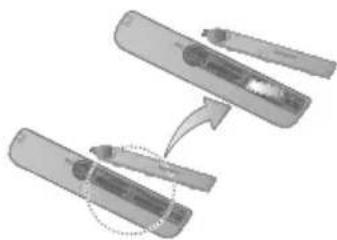
y
Therefore, m = 3/11
3
.4
C A
C
C
C
H
[
Therefore, m = 3/11
(1+u)/1 - u/1 = ((1+u)u)/1 < u/1 = u
(1+u)/1 - u/1 = ((1+u)u)/1 < u/1 = u
(1+u)/1 - u/1 = ((1+u)u)/1 < u/1 = u
(1+u)/1 - u/1 = ((1+u)u)/1 < u/1 = u
a 1
e jgale bainally 2, cale laid dduy
1
CD/MP3/WMA-CD
CD-R, abssaaal aagaaal saaai jaaai jaaai 12
.MP3/WMA-CD, CD-RW
J 1
∴ S ΔOBC = S ΔCOD + SΔBOC
.2
MP3/WMA-CD
Jaljol jol jol jol jol jol jol
MP3/ 1
wWMA-CD
aaii i aaii
(
a 1
C0 T01 00:00:37
Aulll Ccljy Dla jao caiyduu, cioua 5gauu pa .3
yally (sall s)VOLUME 5
-VOL (Cssus) +VOL 1
Sall 8y (gull s gnaa
VOLUME MIN) 31
(1) VOLUME01~VOLUME 29. (2)
)VOLUME MAX, (29 1
()
4
11 jilie biai lai
(a.o.o.11/6.a.s.11) (a.o.o.11
()Demo Music
DISPLAY/DEMO
CD/(()TUNER/AUX
USB and Bluetooth
DEMO Music
VOL, [i]
DEMO AUX1
VOL 23, p. 104, AUX1
A (A-B) REPEAT A-B
- 2. JLL
(A) "RPTA"
A-B REPEAT A-B 2
(ABJ) "RPT AB
8.1.1.1. (A-B) REPEAT A-B 3
(A-B) REPEAT A-B
(1) "OFF"
(A-B) REPEAT A-B
MP3/WMA-CD
J 1
b
allj()ENTER j
:
PROG01TRACK
(jll)=…01)
Method 1:
3 3
Jlll Julll
i j k l n o p q r s t
jolbal jwalal jaiuui 1
(90j)aJrjai
Jue 2018-03-04 17:00 PM
a yj 1 j 0
1
CDDA/MP3-CD/WMA-CD
1
a a
aagaae aee
Ae muy Juaa a
i 1
y
a
:gllls 2a
. 1. y/x = 1 ; 2.
J 1
USB
Sia kaiy cial all j (sll) ALL
gac bjj jlll (g) RANDOM
∴ ( x - 1) ( x + 3) = 0
.USB
(2 / ρa) YES/NO
USB
jck (HDD)
.MP3/WMA
Hi-Fi Component
Hi-Fi Component
L
Hi-Fi Component
Samsung] HI-Fl XXXXX"
e (b) BLUETOOTH ← CONNECTED
4.1.2.1
jE jE (J) ENTER JJI 4
NTFS
10
-10j+10j
10 10
jai
e j 1
sill sijV. A (yj/1) TUNING/ALBUM jg
F F F F F F F F F F F F F F F F F F F F F F F F F F F F F F F F F F F F F F F F F F F F F F F F F F F F F F F F F F F F F F F F F F F F F F F F F F F F F F F F F F F F F F F
a 1
1
a
jai jia aai (a) iRMOVE 2
.USB
USB
i 1
HDDs)
FATdall puiy
USB 2.0
USB 2.0
PMP3
yDRM aalal
DRM 1
Still (s) MY KARAOKE 3 Lgds y ds g. dgs aeg jll sie cagall kj Lgds Lgds dill p, jll bcaill (ys) MY KARAOKE ON (s) My KARAOKE OFF
(USB JUB) USBREC (Jg
DELETEg (p) NUMBER KEY
()
AUTO 1JUBI JUUI IIE USB
"OFF" 150 CHANGES
()
USB2 1 USB1
A (p) / (j) TUNING/ALBUM j bai
.()(JENTERjie biai
A (p) TUNING/ALBUM 2j bai C
.()()ENTER jie biai
()VOLUME XX
sXx(XX
V A (g/1) TUNING/ALBUM 5
ENTER 1j baii jai jai jai
TUNING/ALBUM
Jll Jieie 1y y jall 1aal V
1
ENTER jzj 1 .FM
Therefore (a-1)(b-1) = 0
je biala aea 1
TUN- jj baiiall
(1)ING/ALBUM
VJ
Bgjuaa Jaa a... (bgaiaal) CD
.USB j.. USB
gall clal yilai alil 1 gail jll J
JITIMERON/OFF
()
J 1
jbi (aagal b) TIMER SET jgl biol .1
(1) TIMER PLAY SET
.()()ENTERjgebai 2
()ONTIME
gall 1
i 3
TUNING/ALBUM jie biai
.()(ENTER 1
()TUNING/ALBUM
Jalal Jwal V,
(4) (12) ENTER 23
J (j) OFF TIME
USB1
USB jack
.USB1
.USB1 USBj
(2) ,
AUX> (j) TUNER/AUX
<2jAUXIN2(1)IN1
jscill (USB) USBREC jgale bial
CD
5 10
a 1 = 2/3,a 2 = - 4/3,b 1 = 5/8,b 2 = - 7/8
(Lai)ERROR
TUNING/ jzjdyj 144
.USB1 20000000000000000000000000000000000000000000000000000000000
.83
gall
USB 1
- (Jall) "TRACK RECORD" aI, (jll) TUNER
jus (USB) USB REC
"FULL CD RECORD"
(2) RADIO
125 (all gll
CD-ROM/USB
Ji (10) "FILE COPY" all
MP3/WMA 1
USB 2
TIMER ON/OFF jie baiol gaiy
j()TIMER OFF
TIME, (c)jTIMER RECORDING
()
#
UBg 1
.USB jjll jg jll
1
08B
(REC) USB
JUUB 2
CD
b
a
(1)
a. glllal yiey
TUNER
TUNER/AUX jzjFMM
RHUMBA <- BONGO <- GENG <- FLAT <- OFF AFROPOP2 <- AFROPOP1 <- ESKISTA <- ROCK <- HIP HOP <- POP <- PARTY <- ELECTRONIC <- CLASSIC <- JAZZ USER EQ <- VIRTUAL SOUND <- MP3 ENHANCER
<- ARABIC MUSIC <- FLAT <- OFF HIP HOP <- POP <- PARTY <- PERSIAN MUSIC <- ELECTRONIC <- CLASSIC <- JAZZ <- ROCK <- USER EQ <- VIRTUAL SOUND <- MP3 ENHANCER
J (a) FOOTBALL MODE 1
←()FOOTBALL OFF
jlll jlll jlll USB jie Jae ie
ailll oia aaii i aiil lll 1
aabla aee aee aee aee aee aee aee aee
.USB j 100000000000000000000000000000000000000000000000000000000000000000000
(A) "ENOUGH MEMORY
J 1 USB jai a J
NTFS FAT 100000000000000000000000000000000000000
B
Jg Jgbl jgl 1j g j 1j .USB
aill aai g piaiul dikay 2 cali jilg q
GIGA,()EQLiJ,JJI.
(1) OFF (2) LATT (3) SOUND
REPEAT a 1
OFF
aill 1 (jg y)MIC aag
J 1
Tuner
ie ayell gaiy gl Jnu y s gua hua aie ay bany
USBAUX 1 jj j j j j j j j j j j j j j j j j j j j j j j j j j j j j j j j j j j j j j j j j
j 1
Jusuill 1
CD REC SPEED
jai (a)
:1y las Jus will 4y
← (1 × i=1n aij) RECORD SPEED x 1
(4×RECORD SPEED x 4
(x4 1JwRECORD SPEED × 4 1
aJgJgJgJgJgJgJgJgJgJg
(1×jRECORD SPEEDx1:
a 1
a
()EQ
aalllll lllllllllllllllllllllllllllllllll
aalgag gga aaleiua oos saaiaiall
.1
Jzj 1 Jzjj 1 1
∴ SΔ = 1/2 · AC · PD
A
Volume Jog DJ BEAT jj 100
Jus la (aocll) Speaker LED
BEAT WAVING.
Speaker LED (a) (a) (a) (a) (a) (a) (a) (a) (a) (a) (a) (a) (a) (a) (a) (a) (a) (a) (a) (a) (a) (a) (a)
FUN ← (2) PARTY 2 ← (1) PARTY 1
(1) PURE ← (2) FUN 2 ← (1)
(JOY ← (LOVE ← (FRESH ← (SUNRISE ← (SUNSET ←
(2) NATURE 2 ← (1) NATURE 1
← (2) WAVE 2 ← (1) WAVE 1 ← (1) OFF ← (1) AURORA
BEAT WAVING OFF
aLalal yal y
DJ BEAT
(1) FLANGER (2) WAHWAH (3) CHORUS (4) PANNING
015 15-15
/21y jj 10: (j) FLANGER
/(aclawjzj:()PANNING
1
~ Wah~Wah — — 0g WAHWAH
jz wlll jll LED cag . DJ BEAT
LgDlaI g bai 1 Lcicui
Samsung 45
Electronics
| § 6.1 | العربية الحرفية | العربيacles | العربية |
| § 55 | العربية | العربيacles | العربية |
| (العربية) 367 × (العربية) 212 × (عربية) 550 | (العربية) | (العربية) | (العربية) |
| (العربية) 440 × (العربية) 652 × (ع Elem) 648 | (العربية) | (العربية) | (العربية) |
| %.75%10%10%10%10%10%10%10%10%10%10%10%10%10%10%10%10%10%10%10%10%10%10%10%10%10%10%10%10%10%10%10%10%10%10% %.75%10%10%10%10%10%10%10%10%10%10%10%10%10%10%10%10%10%10%10%10%10%10%10%10%10%10%10%10%10%10%10%10% . . . . . . . . . . . . . . . . . . . . . . . . . . . . . . . . . . . . . . . . . . . . . . . . . . . . . . . . . . . . . . . . . . . . . . . . . . . . . . . . . . . . . . . . . . . . . . . . . . . . - . . . . . . . . . . . . . . . . . . . . . . . . . . . . . . . . . . . . . . . . . . . . . . . . . . . . . . . . . . . . . . . . . . . . . . . . . . . . . . . . . . . . . . . . . . . . . . . . . . . ? . . . . . . . . . . . . . . . . . . . . . . . . . . . . . . . . . . . . . . . . . . . . . . . . . . . . . . . . . . . . . . . . . . . . . . . . . . . . . . . . . . . . . . . . . . . . . . . . . . . -5 %75%10%10%10%10%10%10%10%10%10%10%10%10%10%10%10%10%10%10%10%10%10%10%10%10%10%10%10%10%10%10%10%10% 10%10%10%10%10%10%10%10%10%10%10%10%10%10%10%10%10%10%10%10%10%10%10%10%10%10%10%10%10%10%10%10%10% 1 . . . . . . . . . . . . . . . . . . . . . . . . . . . . . . . . . . . . . . . . . . . . . . . . . . . . . . . . . . . . . . . . . . . . . . . . . . . . . . . . . . . . . . . . . . . . . . . . . . . \% . . . . . . . . . . . . . . . . . . . . . . . . . . . . . . . . . . . . . . . . . . . . . . . . . . . . . . . . . . . . . . . . . . . . . . . . . . . . . . . . . . . . . . . . . . . . . . . . . . - - . . . . . . . . . . . . . . . . . . . . . . . . . . . . . . . . . . . . . . . . . . . . . . . . . . . . . . . . . . . . . . . . . . . . . . . . . . . . . . . . . . . . . . . . . . . . . . . . . . - -5 %75%10%10%10%10%10%10%10%10%10%10%10%10%10%10%10%10%10%10%10%10%10%10%10%10%10%10%10%10%10%10%10% . . . . . - . . . . . . . . . . . . . . . . . . . . . . . . . . . . . . . . . . . . . . . . . . . . . . . . . . . . . . . . . . . . . . . . . . . . . . . . . . . . . . . . . . . . . . . . . . . . . - . . . . . - . . . . . . . . . . . . . . . . . . . . . . . . . . . . . . . . . . . . . . . . . . . . . . . . . . . . . . . . . . . . . . . . . . . . . . . . . . . . . . . . . . . . . . . . . . . . . ? . . . . . - . . . . . . . . . . . . . . . . . . . . . . . . . . . . . . . . . . . . . . . . . . . . . . . . . . . . . . . . . . . . . . . . . . . . . . . . . . . . . . . . . . . . . . . . . . . . . -5 %75% 10%10%10%10%10%10%10%10%10%10%10%10%10%10%10%10%10%10%10%10%10%10%10%10%10%10%10%10%10%10%10%10%10% |
Samsung Electronics Co., Ltd
CLASS 1 LASER PRODUCT
KLASSE 1 LASER PRODUKT
LUOKAN 1 LASER LAITE
KCLASS 1 LASER APPARAT
PRODUCTO LASER CLASE 1
PRODUIT LASER DE CLASSE 1
Display/LED ON (Affichage/DEL ACTIVEE)


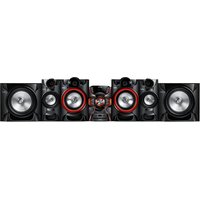
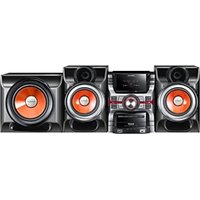
- PREMIUM HI-FI COMPONENT SYSTEM
- MP3/WMA/CD-DA PLAYBACK WITH CD/USB
- USER'S MANUAL
- IMAGINE THE POSSIBILITIES
- WARNING
- CAUTION
- CLASS 1 LASER PRODUCT
- DANGER
- PRECAUTIONS
- CAUTIONS ON HANDLING AND STORING DISCS
- HOLDING DISCS
- DISC STORAGE
- HANDLING AND STORING DISCS
- DISC TYPES AND DISC FORMAT
- CD-R DISCS
- CD-R MP3/WMA DISCS
- CONTENTS
- ACCESSORIES
- ENGLISH
- FRONT PANEL
- REAR PANEL
- COOLING FAN
- POWER
- CH SPEAKER TERMINALS
- LED TERMINALS FOR SPEAKER BEAT WAVING, WHICH DO NOT DISTINGUISH BETWEEN LEFT AND RIGHT CHANNEL
- ONLY FOR SERVICE
- AUX IN 2 TERMINALS
- FM ANTENNA TERMINALS
- REMOTE CONTROL
- INSTALLING BATTERIES IN THE REMOTE CONTROL
- CONNECTING THE SPEAKERS
- THE DISPLAY FUNCTION
- THE DIMMER FUNCTION
- LED OFF
- CLOCK ON
- DISPLAY/LED ON
- DEMO MUSIC FUNCTION
- PLAYING CD
- LOADING COMPACT DISC
- CD/MP3/WMA-CD PLAYBACK
- SELECTING A TRACK
- SEARCHING FOR A TRACK/FOLDER QUICKLY
- REPEAT ONE OR ALL TRACKS ON A CD
- A-B REPEAT PLAYBACK
- CD PROGRAMMING
- VIEWING OR EDITING THE PROGRAMMED TRACK
- PLAYING USB DEVICES
- BEFORE YOU BEGIN
- TO SELECT A FILE FROM A USB DEVICE
- TO REPEAT
- TO USE HIGH SPEED SEARCH
- TO DELETE A FILE
- TO SKIP NEXT 10 FILES
- MOVE FOLDER
- HOW TO SAFELY REMOVE THE USB DEVICE
- READ BEFORE USING THE USB STORAGE DEVICES
- BLUETOOTH
- YOU CAN USE A BLUETOOTH DEVICE TO ENJOY MUSIC WITH HIGH QUALITY STEREO SOUND, ALL WITHOUT WIRES
- WHAT IS BLUETOOTH
- TO CONNECT THE HI-FI COMPONENT TO A BLUETOOTH DEVICE
- TO DISCONNECT THE BLUETOOTH DEVICE FROM THE HI-FI COMPONENT
- TO DISCONNECT THE HI-FI COMPONENT FROM THE BLUETOOTH DEVICE
- USING MY KARAOKE
- YOU CAN USE THE MY KARAOKE FUNCTION TO SING ALONG WITH YOUR FAVORITE CDS AND USB TRACKS
- MY KARAOKE ON → MY KARAOKE OFF
- SKIP FUNCTION
- AUTO CHANGE FUNCTION
- AUTO CHANGE OFF → AUTO CHANGE ON
- LISTENING TO THE RADIO
- TO STORE THE STATIONS YOU WANT
- SELECTING A STORED STATION
- TIMER FUNCTION
- SETTING THE CLOCK
- SETTING THE TIMER
- THE TIMER ENABLES YOU TO SWITCH THE PRODUCT ON OR OFF AT SPECIFIC TIMES AUTOMATICALLY
- IF YOU SELECT... YOU MUST ALSO
- CANCELLING THE TIMER
- THE RECORDING FUNCTION
- BASIC RECORDING
- CD
- TUNER
- USB
- EXTERNAL SOURCE
- RADIO
- CD-ROM/USB
- CD/USB1(MP3) & MIC
- RECORDING SPEED
- EACH TIME YOU PRESS THE CD REC SPEED BUTTON ON THE REMOTE CONTROL, THE RECORDING SPEED CHANGES AS FOLLOWS
- SPECIAL SOUND EFFECT
- SELECTING EQ MODE
- USING THE FOOTBALL MODE
- THE FOOTBALL MODE BRINGS GREATER REALISM TO SPORTS BROADCASTS
- FOOTBALL OFF → FOOTBALL MODE 1 → FOOTBALL MODE
- GIGA SOUND FUNCTION
- BEAT WAVING FUNCTION
- DJ BEAT FUNCTION
- BOOTING SOUND FUNCTION
- TROUBLESHOOTING
- CONTACT SAMSUNG WORLD WIDE
- PREMIUM HI-FI COMPONENT
- CD/USB MP3/WMA/CD-DA
- C
- AOLAL
- A
- AUX IN
- SLAL AL AELWAI JLL SGL
- CD/MP3/WMA-CD
- (LAI)ERROR
- LGDLAI G BAI 1 LCICUI
- PRODUIT LASER DE CLASSE
- DISPLAY/LED ON (AFFICHAGE/DEL ACTIVEE)
Brand : SAMSUNG
Model : MXFS8000
Category : Hi-Fi System