MSACFD1A - Computer accessory SONY - Free user manual and instructions
Find the device manual for free MSACFD1A SONY in PDF.


User questions about MSACFD1A SONY
0 question about this device. Answer the ones you know or ask your own.
Ask a new question about this device
Download the instructions for your Computer accessory in PDF format for free! Find your manual MSACFD1A - SONY and take your electronic device back in hand. On this page are published all the documents necessary for the use of your device. MSACFD1A by SONY.
USER MANUAL MSACFD1A SONY
Floppy Disk Adaptor for Memory Stick
Operating Instructions US
Before operating the unit, please read this instructions thoroughly, and retain it for future reference.
For the customers in U.S.A.
This device complies with Part 15 of the FCC Rules. Operation is subject to the following two conditions:
(1) This device may not cause harmful interference, and
(2) this device must accept any interference received, including interference that may cause undesired operation.
CAUTION
You are cautioned that any changes or modifications not expressly approved in this manual could void your authority to operate this equipment.
Note:
This equipment has been tested and found to comply with the limits for a Class B digital device, pursuant to Part 15 of the FCC Rules. These limits are designed to provide reasonable protection against harmful interference in a residential installation. This equipment generates, uses, and can radiate radio frequency energy and, if not installed and used in accordance with the instructions, may cause harmful interference to radio communications. However, there is no guarantee that interference will not occur in a particular installation. If this equipment does cause harmful interference to radio or television reception, which can be determined by turning the equipment off and on, the user is encouraged to try to correct the interference by one or more of the following measures:
- Reorient or relocate the receiving antenna.
- Increase the separation between the equipment and receiver.
- Connect the equipment into an outlet on a circuit different from that to which the receiver is connected.
- Consult the dealer or an experienced radio/TV technician for help.
For the customers in Canada
This Class B digital apparatus complies with Canadian ICES-003.
For the customers in Germany
Directive: EMC Directive 89/336/EEC.
92/31/EEC
This equipment complies with the EMC regulations when used under the following circumstances:
- Residential area
-
Business district
• Light-industry district
(This equipment complies with the EMC standard regulations EN55022 Class B.) -
IBM PC/AT compatible desktop computer is required. A 3.5 inch 1.44 MB floppy disk drive must be provided as standard.
- We recommend that you use the optional PC card adaptor for Memory Stick, MSAC-PC1/PC2, when you use a notebook computer.
- You can not use this floppy disk adaptor with Digital Mavica or Mavicap.
- MSAC-FD1A may not work with certain models of personal computers or floppy disk drives.
- MSAC-FD1A works only with Windows, it will not work with Macintosh.
Table of Contents
Before You Begin
Check the items supplied 4
Setting Up
Installing lithium batteries .... 5
Installing driver 7
Uninstalling driver 9
Operation
Inserting "Memory Stick" 10
Using MSAC-FD1 12
Icons on task bar 13
Formatting "Memory Stick" 13
On-line help 13
Additional Information
Precautions 14
Troubleshooting....16
Specifications 17
Notes
- Menus shown in the instructions may differ slightly from the actual software menus.
- The explanations in the instructions are based on an assumption of a good grounding in the operations of Windows 95/98. For information on the operation of your computer and operating system, see the respective manuals.
- Dialog box illustrations in the instructions are for Windows 98.
Trademarks
- "Memory Stick" and are trademarks of Sony Corporation.
- Microsoft and Windows are either registered trademarks or trademarks of Microsoft Corporation in the United States and other countries.
- IBM PC/AT is a registered trademark of International Business Machines Corporation of the U.S.A.
- All other company and product names are registered trademarks or trademarks of their respective companies. The symbols for “trademark” and “registered,” ^TM and ^® , are omitted in these instructions.
Check the items supplied
Check to make sure the package contains all of the following items. If any item is missing, get in touch with your Sony dealer or local authorized Sony service facility.
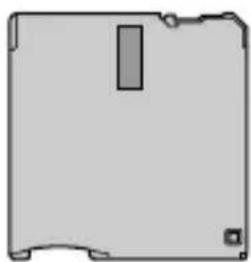
MSAC-FD1
Floppy Disk Adaptor for Memory Stick
natural_image
Simple gray rectangular shape with a vertical slot and corner notches, no text or symbols present.Driver software (CD-ROM) (1)
natural_image
Illustration of a CD or DVD disc with no visible text or symbolsCR2016 lithium battery (2)
Operating Instructions for MSAC-FD1A (1)
Registration card (1)
Installing lithium batteries
The power source for the MSAC-FD1 consists of two lithium button batteries (CR2016).
( The CR2016 lithium battery will be indicated below simply as "battery.")
Before beginning operation, follow the steps shown below to install the batteries.
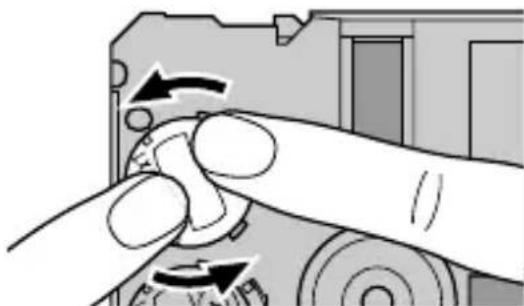
1 Remove battery covers
Place the MSAC-FD1 on a flat surface. With your finger, press and hold the upper groove on the battery cover. Turn the battery cover counterclockwise until it clicks and then remove the battery cover.
natural_image
Illustration of hands operating a mechanical device with directional arrows indicating rotation (no text or symbols)2 Insert batteries
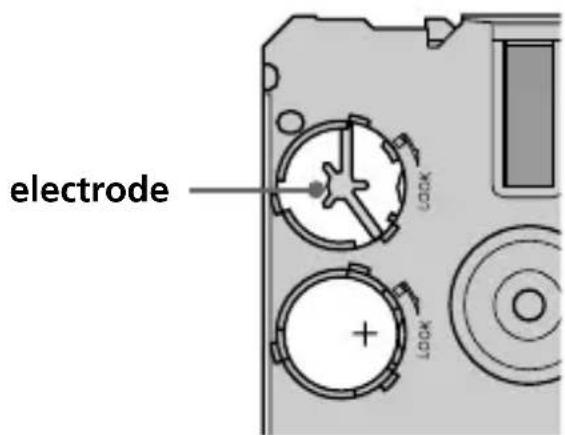
Insert two new batteries into the battery wells, making sure that the plus sign faces upward.
Continued
5-US
Installing lithium batteries (continued)
3 Replace the battery covers
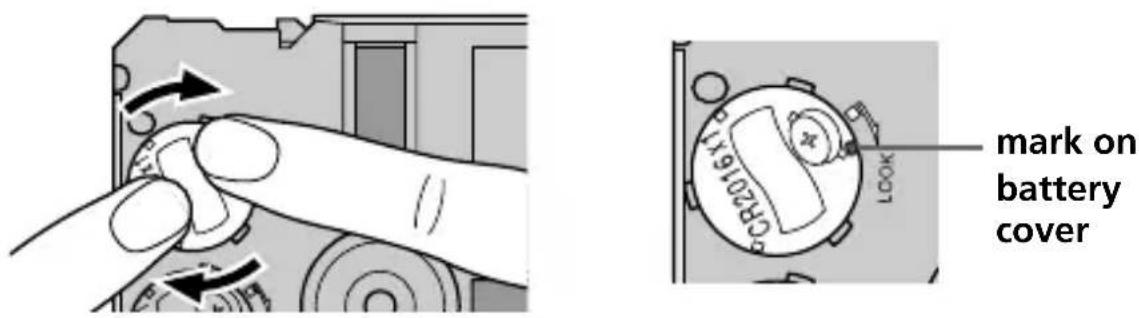
After replacing the battery cover, press down and hold the upper groove with your finger and turn it clockwise until the mark is aligned with the arrow LOCK mark.
Notes
• Always replace both batteries at the same time.
- When attaching the battery cover, make sure you do not apply too much force in pressing on the cover. Too much force could break the cover.
WARNING
The battery may explode if mistreated. Do not recharge, disassemble, nor dispose of it in fire.
Lithium Battery
- Use lithium button battery CR2016. Use of any other battery may present a risk of fire or explosion. Discord used batteries according to the manufacturer's instructions.
- Keep the lithium battery out of the reach of children.
- Should the battery be swallowed, immediately consult a doctor.
- Wipe the battery with a dry cloth to ensure good contact.
Installing driver
Install the software needed to use the adaptor.
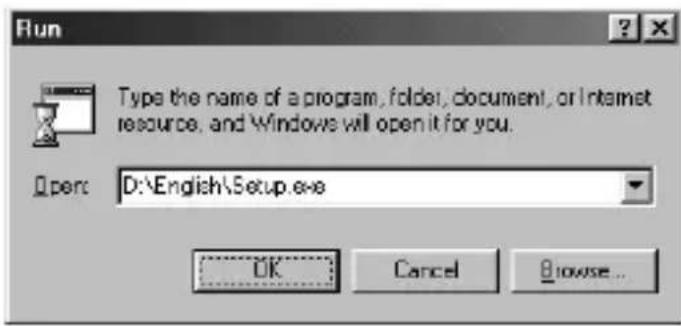
1 Insert the CD-ROM supplied with the adaptor into the CD-ROM drive (in this example, the drive is "D").
2 Go to the [Start] menu and select [Run...].
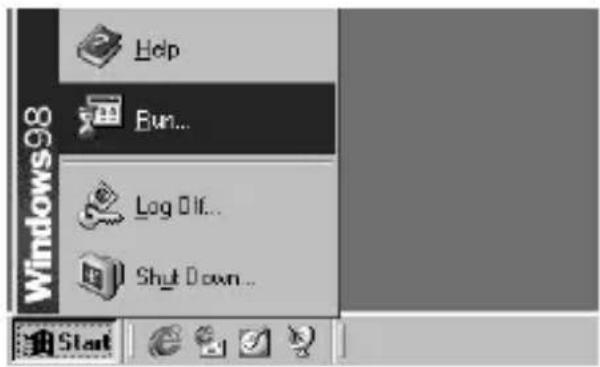
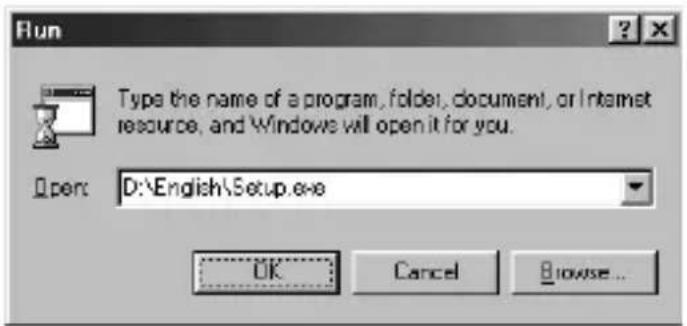
3 Type in "D:\English\Setup.exe" and click [OK].
Installing driver (continued)
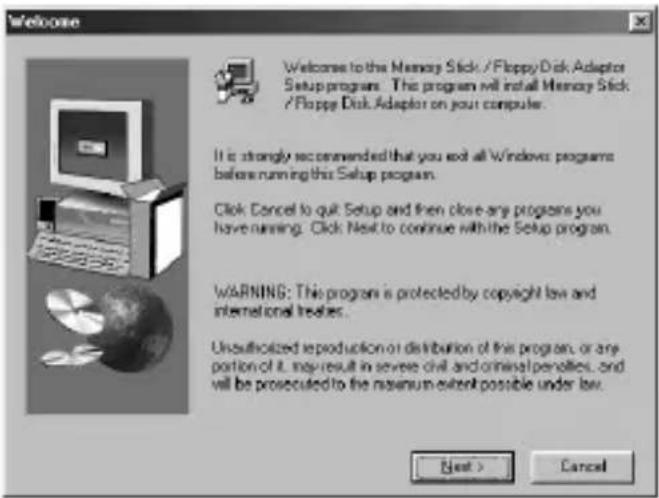
4 That starts up the installation program.
Follow the on-screen instructions to complete the installation of the program file.
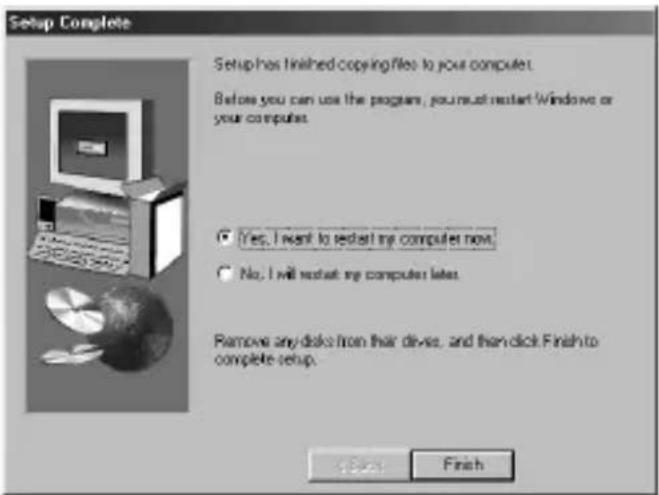
5 When the installation is complete, a message appears telling you to restart the computer. Follow the instructions and restart.
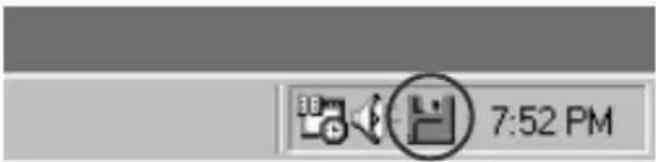
6 After the restart, a floppy disk icon will appear in the task bar.
The installation has been successfully completed.
Uninstalling driver
1 Click on [Start], set the cursor on [Settings] and click on [ControlPanel].
[Control Panel] window appears.
2 Double-click on [Add/Remove Programs].
[Add/Remove Programs Properties] appears.
3 If "Install/Uninstall" does not appear, click on the "Install/Uninstall" tab.
The "Install/Uninstall" window then appears.
4 Select "Memory Stick/Floppy Disk Adaptor" and click on "Add/Remove...".
The "Confirm File Deletion" dialog box appears.
5 Clickon[Yes].
* For more detailed information on “Add/Remove Programs,” see Windows on-line help.
If there is no icon in the task bar, the uninstallation is successful.
Note
The adaptor can no longer be used after uninstall the software.
Inserting "Memory Stick"
Insert the "Memory Stick" as shown in the diagram all the way until it clicks.
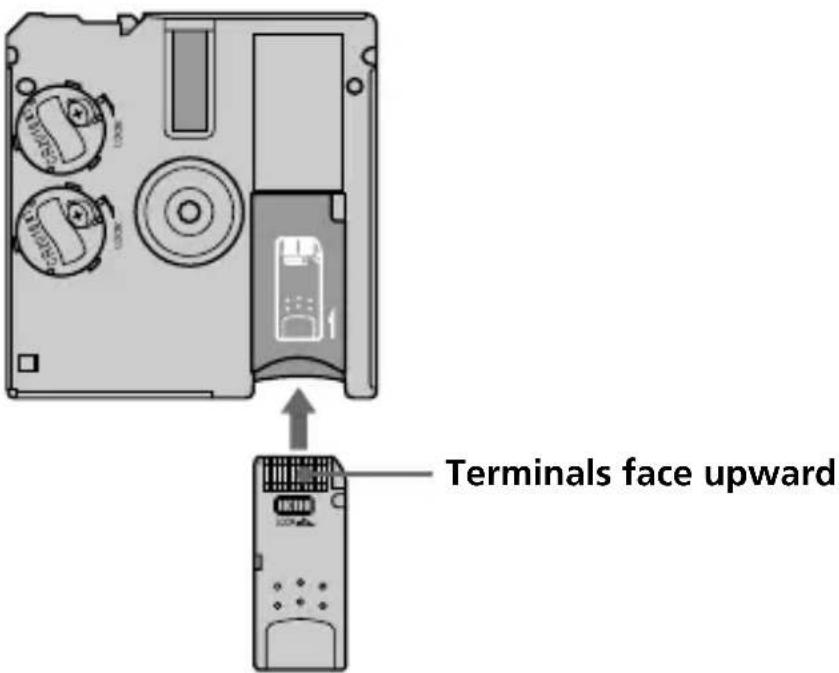
Make sure that "Memory Stick" is seated securely in the floppy disk adaptor. Otherwise, it will not work correctly.
Note
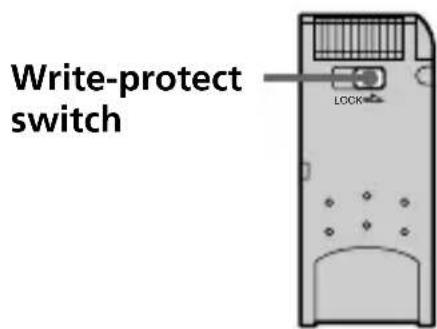
Setting the write-protect switch to "LOCK" position, prevents the writing or deleting of data into "Memory Stick" and formatting the "Memory Stick."
Removing "Memory Stick"
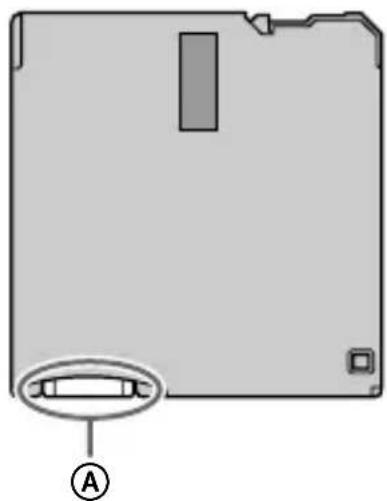
Grasp the "Memory Stick" that protrudes from part Ⓐ of the floppy disk adaptor and pull out gently.
natural_image
Diagram of a floppy disk with a labeled component (A) and a circular inset showing internal structure (no text or symbols beyond labels)Using MSAC-FD1
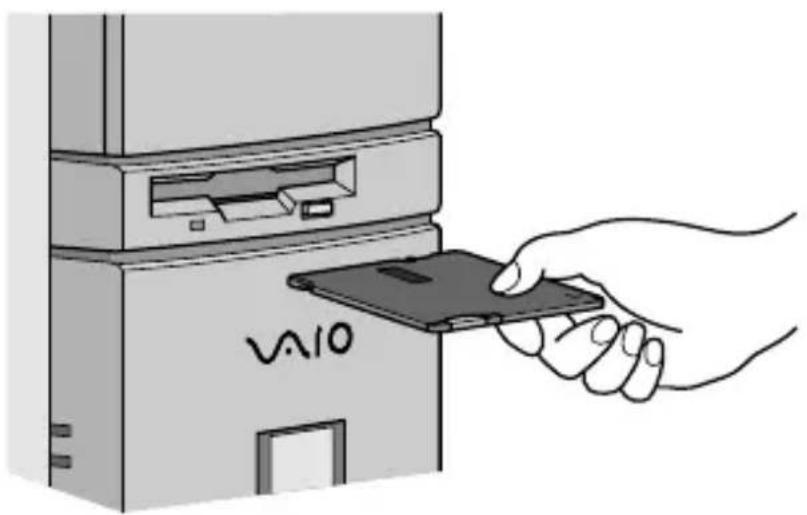
Insert MSAC-FD1 into the floppy disk drive and double-click on "3.5 inch FD" that appears in the "My Computer" window.
* Procedures for use are the same as with a floppy disk.
natural_image
Illustration of a hand inserting a card into a device labeled 'VAIO' (no text or symbols beyond the label)Notes
- When copying a file onto the "Memory Stick" with the adaptor, the computer's "time-remaining" indication may not be correct.
- Do not compress the drive with adaptor inserted.
- Use the "Memory Stick Format" program to format a new "Memory Stick" (see p. 13).
- To conserve battery power, always remove the floppy disk adaptor from the drive when the adaptor is not in use.
Icons on task bar
For more detailed information on icons, see on-line help.
Icons on the task bar display adaptor and battery status.
* The status shown is that when the adaptor was most recently accessed.

Memos
- The icon does not change immediately after inserting the adaptor into the floppy disk drive. The icon changes when the adaptor is accessed.
- To show drive number and remaining battery charge, place the cursor on the Status Monitor icon.
Formatting "Memory Stick"
The “Memory Stick Format” program must always be used when the adaptor is used to format a “Memory Stick.”
For instructions on how to use the "Memory Stick Format" program, see on-line help.
On-line help
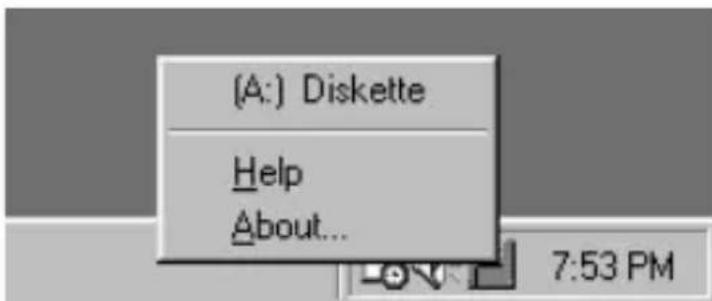
To get on-line help, right-click on the icon in the task bar and then click on [Help]. The on-line help window appears.

Memo
Use on-line help for a detailed description of error messages.
Precautions
MSAC-FD1 General precautions
- Do not carry the adaptor in your pocket or the like. It could be damaged when you sit down.
- Do not use or store the adaptor in any area where it could be subject to strong static electricity or electrical emissions.
• Always backup valuable data. - To protect the floppy disk drive, remove the adaptor from the drive when it is not in use.
- Do not stick any label other than those specially provided onto the "Memory Stick."
- While the adaptor is being accessed, never remove the adaptor from the floppy disk drive, never turn off computer power, and never bump or apply shock to the computer. Any of these moves could destroy data on the “Memory Stick.” (The “Memory Stick” can be used if reformatted but all the data on it will be lost.)
- Do not touch the “Memory Stick” terminals with hands or with metal objects.
- Do not allow foreign objects, dirt or dust to enter the “Memory Stick” insertion slot of the adaptor.
Cleaning
- If there is any dirt on the outside surface of the adaptor, wipe it off with a clean, soft, dry cloth.
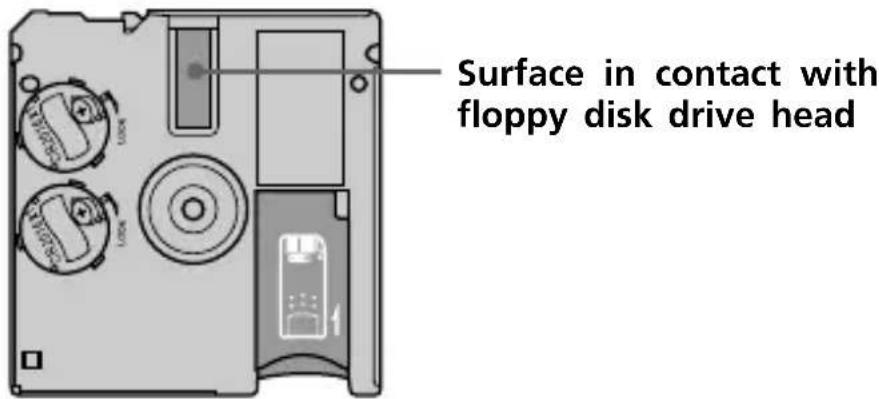
- Keep the surface of the adaptor that contact the floppy disk drive head clean at all times. Wipe any dirt away with a clean, soft, dry cloth. If the contact surface gets dirty, floppy disk drive performance may deteriorate, or when a floppy disk is operated in the drive, the floppy disk will be scratched and its data will be lost.
Troubleshooting
Check the items listed below before calling for service. If there is still a problem after making these checks, call your Sony dealer or local authorized Sony Service facility.
| Symptom | Remedy |
| Cannot install | CD-ROM not inserted in drive.→ Insert CD-ROM provided into the drive.Installation file name is wrong.→ See Operating Instructions. (p. 7) |
| Cannot access “Memory Stick” | Battery charge is low or batteries have not been inserted into unit.→ Replace the two batteries with new ones. (Replace both batteries at the same time.)Batteries inserted incorrectly.→ See Operating Instructions and install batteries correctly. (p. 5) |
| Power shuts off automatically | If the adaptor is not used for approx. five minutes, it goes automatically into sleep mode to conserve battery power. The adaptor cannot be accessed when it is in sleep mode. To use the adaptor again, remove it and then reinsert. If the adaptor is still in sleep mode, leave the adaptor for a while before reinserting it. |
Specifications
os
Windows 95/98
Computer
IBM PC/AT compatible desktop computers
A 3.5 inch 1.44 MB floppy disk drive must be provided as standard.
Operating voltage
3.8 V - 6.6 V
Power consumption
85 mA (at 6V input)
Maximum outside dimensions
3.7 in. (length) · 0.14 in. (wide) · 3.54 in. (height) (94 · 3.45 · 90 mm)
Weight (approx.)
1.6 oz (45 g) (with batteries and without "Memory Stick")
Operating conditions
Temperature: 41 °F to 131 °F (5 °C to 55 °C)
Humidity: 20 % to 80 % (no condensation)
Battery operating time (at room temperature)
Continuos read ..... 16 hours (approx.)
Continuous write ..... 12 hours (approx.)
(when Sony CR2016 batteries are used)
File access speeds (during use of 4MB "Memory Stick" and 500KB files)
File access speed (reading) ..... 15 seconds (approx.)
File access speed (writing) ..... 20 seconds (approx.)
The personal computer environment, size and number of files
performing transfer and state of data recorded on the "Memory Stick"
will cause slight changes in speed.
Notes
- We recommend that you use the optional PC card adaptor for Memory Stick, MSAC-PC1/PC2, when you use a notebook computer.
- You can not use this floppy disk adaptor with Digital Mavica or Mavicap.
Design and specifications are subject to change without notice.
Operations cannot be guaranteed for all computers running in the recommended environment.
Français
natural_image
Simple gray rectangular shape with a vertical slot and corner notches, no text or symbols present.natural_image
Illustration of a CD or DVD disc with no visible text or symbolsnatural_image
Close-up of hands operating a mechanical device with directional arrows indicating rotation (no text or symbols)2 Insérezles piles.
natural_image
Illustration of hands operating a mechanical device with rotating buttons (no text or symbols)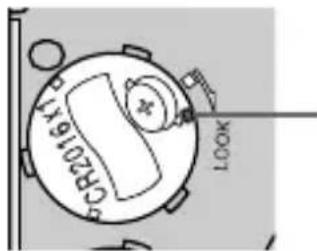
3 Tapez«_D:\English\Setup.exe_»etcliquezsur[OK].
natural_image
Diagram of a floppy disk with labeled component A, showing front and side views (no text or symbols beyond labels)natural_image
Illustration of a hand inserting a card into a device labeled 'VAIO' (no text beyond label)Remarques
Lecture continue ..... 16 heures (approx.)
Ecriture continue ..... 12 heures (approx.)
If you have any questions/comments related to this product, please visit our Customer Support website at
http://www.sony.com/service
(If you do not have internet access, please call 1-800-222 SONY.)
Sony on line
http://www.world.sony.com/