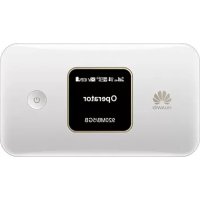
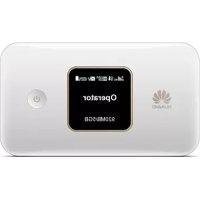
4G+ Mobile WiFi - Wi-Fi hotspot HUAWEI - Free user manual and instructions
Find the device manual for free 4G+ Mobile WiFi HUAWEI in PDF.



| Brand | HUAWEI |
| Model | 4G+ Mobile WiFi (E5785-320) |
| Product type | Hotspot Wi-Fi 4G+ |
| Power supply | Rechargeable built-in battery via USB port; optional power adapter (model HW-050200X02) |
| Main functions | 4G+ (LTE) Internet access, dual-band Wi-Fi hotspot (2.4 GHz and 5 GHz), LCD screen, management via HUAWEI AI Life app or web browser |
| Maintenance and cleaning | Use a clean, soft, dry cloth; do not use chemical detergents, alcohol or benzene |
| Safety | Do not use in prohibited areas (hospitals, airplanes, gas stations); maintain a minimum distance of 0.5 cm from the body; SAR trunk: 1.04 W/kg, limbs: 2.20 W/kg |
| Spare parts and repairability | Battery and adapter must be original Huawei; do not disassemble the device; contact an authorized service center for any repairs |
| General information | Operating temperature: 0°C to 35°C; storage temperature: -20°C to 60°C; automatic software update; compliant with Directive 2014/53/EU |
Frequently Asked Questions - 4G+ Mobile WiFi HUAWEI
User questions about 4G+ Mobile WiFi HUAWEI
0 question about this device. Answer the ones you know or ask your own.
Ask a new question about this device
Download the instructions for your Wi-Fi hotspot in PDF format for free! Find your manual 4G+ Mobile WiFi - HUAWEI and take your electronic device back in hand. On this page are published all the documents necessary for the use of your device. 4G+ Mobile WiFi by HUAWEI.
USER MANUAL 4G+ Mobile WiFi HUAWEI
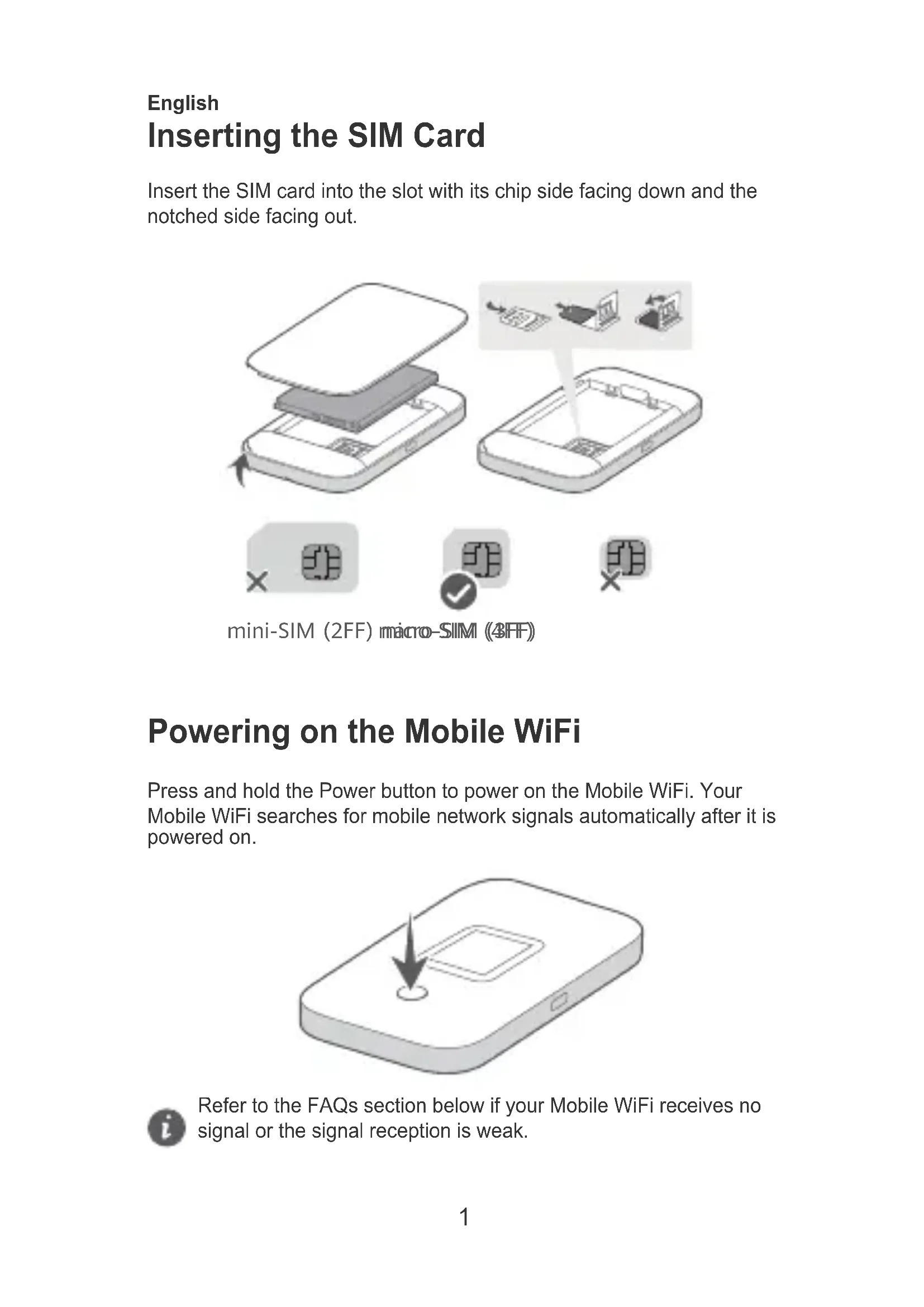
Inserting the SIM Card
Insert the SIM card into the slot with its chip side facing down and the notched side facing out.
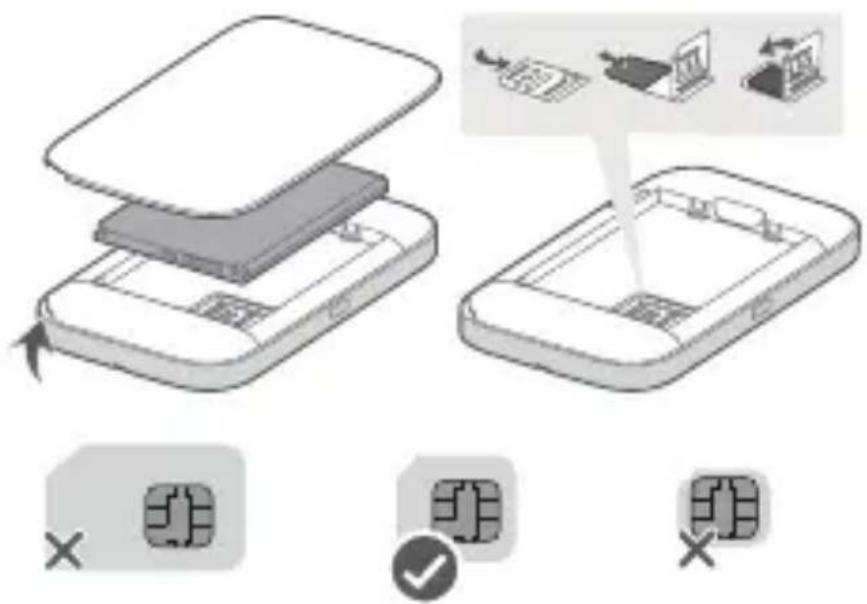
mini-SIM (2FF) micro-SIM (3FF)
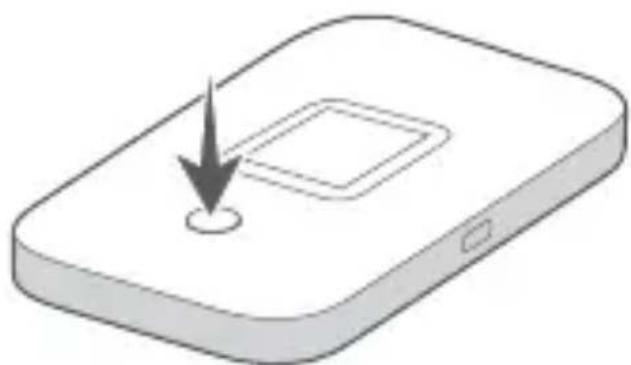
Powering on the Mobile WiFi
Press and hold the Power button to power on the Mobile WiFi. Your Mobile WiFi searches for mobile network signals automatically after it is powered on.

Refer to the FAQs section below if your Mobile WiFi receives no signal or the signal reception is weak.
Accessing the Internet
Connect your device to the Mobile WiFi to access the Internet. Press the MENU button on your Mobile WiFi to enter the menu screen and check the Wi-Fi® network name (SSID) and password (PWD).
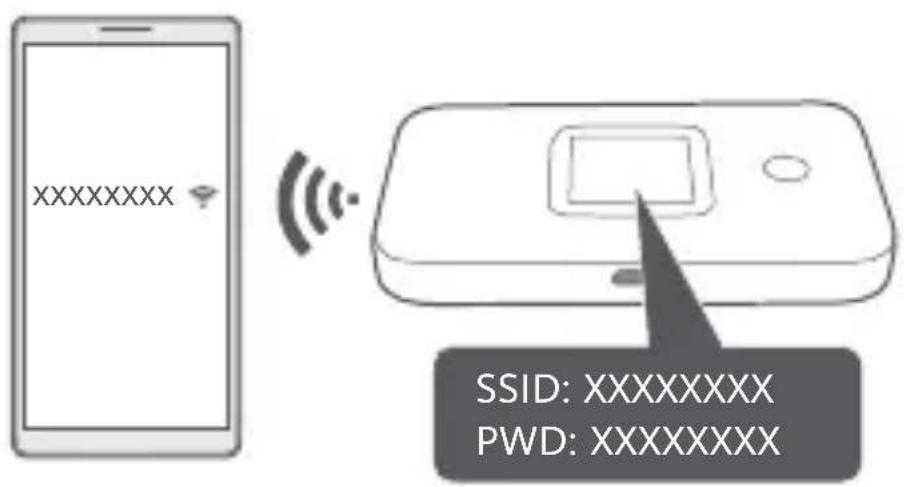

Refer to the FAQs section below if you cannot access the Internet after you have connected to your Mobile WiFi.
Device Management
Using app: You may scan the QR code below to download HUAWEI AI Life app to manage your Mobile WiFi, for example, changing your Wi-Fi name or password, or checking data usage.


If you cannot add device in the app, please check if you are using the latest version.
Using browser: You can manage the Mobile WiFi using the web-based management page. Press the Menu button on your Mobile WiFi to enter the menu screen, and view the default IP address, password and so on.

- If you cannot visit the web-based management page, check whether your mobile phone or computer is connected to your Mobile WiFi.
• We suggest that you modify the default Wi-Fi name and password, and the default login password to ensure that your data is secure.
Charging
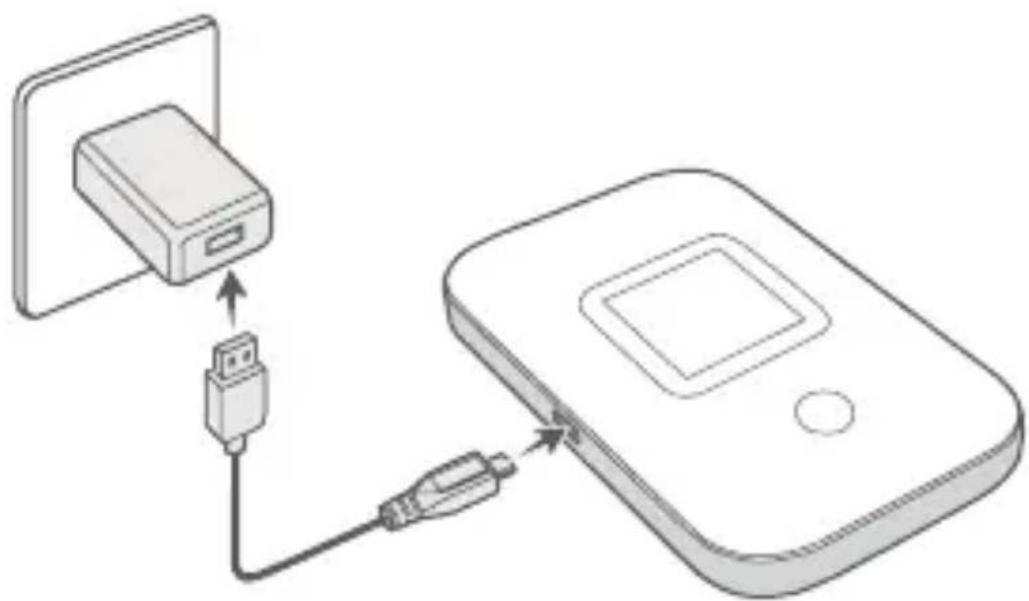
Please use the original Huawei charging cable and power adapter.

The power adapter is an optional accessory. If it is not included in the package, you can purchase it separately from a retailer.
Appearance
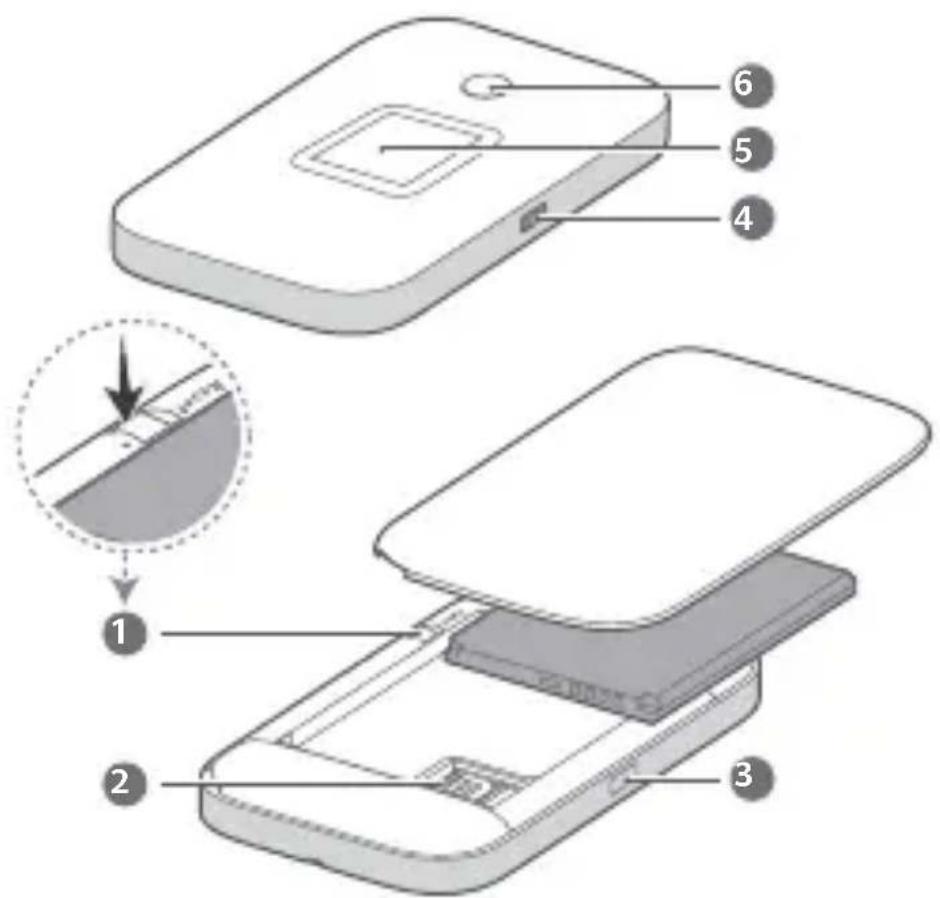
| 1 | Reset button | 2 | SIM card slot |
| 3 | MENU button | 4 | USB port |
| 5 | LCD screen | 6 | Power button |
To power off the Mobile WiFi: Press and hold the Power button until the LCD screen turns off. To restore the Mobile WiFi to its factory settings: Use a pin to press and hold the Reset button while your Mobile WiFi is powered on.
FAQs
What should I do if my Mobile WiFi cannot receive any signal or cannot connect to the Internet?
• Make sure that the SIM card is the right size and inserted correctly into the slot.
- Confirm that your SIM card has sufficient balance. If your SIM card is new, ensure that it has Internet access.
- The PIN verification feature may have been enabled. 1) Open the HUAWEI AI Life app, and go to Advanced Settings > PIN
Management to enter the correct PIN code. 2) Disable this feature if you don't want to enter your PIN on a regular basis.
- If the issue persists, restore your Mobile WiFi to its factory settings and try again.
What should I do if my Mobile WiFi's signal reception is weak or the Internet speed is slow?
- Move your Mobile WiFi closer to a window or use it in an open area to receive better signal.
- However, if your mobile phone receives good signal strength at the same spot where your Mobile WiFi is placed, restore your Mobile WiFi to its factory settings and try again.

Refer to the Appearance section above to restore your Mobile WiFi to its factory settings.
What should I do if I can't connect to my Mobile WiFi after a period of inactivity?
Your Mobile WiFi may be in sleep mode or powered off.
- Press the Power button on your Mobile WiFi. If the LCD screen turns on, your Mobile WiFi was in sleep mode. In this mode, your Mobile WiFi automatically disables Wi-Fi to save power. You can disable the sleep mode through the HUAWEI AI Life app.
- If there is no response after you press the Power button, your Mobile WiFi is powered off. Press and hold the Power button to power it back on.

Avoid using your Mobile WiFi where active wireless devices are prohibited (such as during flights), and ensure that it is powered off.
Legal Notice
Copyright © Huawei 2021. All rights reserved.
No part of this manual may be reproduced or transmitted in any form or by any means without prior written consent of Huawei Technologies Co., Ltd. and its affiliates ("Huawei").
The product described in this manual may include copyrighted software of Huawei and possible licensors. Customers shall not in any manner reproduce, distribute, modify, decompile, disassemble, decrypt, extract, reverse engineer, lease, assign, or sublicense the said software, unless such restrictions are prohibited by applicable laws or such actions are approved by respective copyright holders.
Trademarks and Permissions


HUAWEI, HUAWEI are trademarks or registered
trademarks of Huawei Technologies Co., Ltd.
LTE is a trademark of ETSI.
Wi-Fi ® , the Wi-Fi CERTIFIED logo, and the Wi-Fi logo are trademarks of Wi-Fi Alliance.
Other trademarks, product, service and company names mentioned may be the property of their respective owners.
Notice
Some features of the product and its accessories described herein rely on the software installed, capacities and settings of local network, and therefore may not be activated or may be limited by local network operators or network service providers.
Thus, the descriptions herein may not exactly match the product or its accessories which you purchase.
Huawei reserves the right to change or modify any information or specifications contained in this manual without prior notice and without any liability.
DISCLAIMER
ALL CONTENTS OF THIS MANUAL ARE PROVIDED "AS IS". EXCEPT AS REQUIRED BY APPLICABLE LAWS, NO WARRANTIES OF ANY KIND, EITHER EXPRESS OR IMPLIED, INCLUDING BUT NOT LIMITED TO, THE IMPLIED WARRANTIES OF MERCHANTABILITY AND FITNESS FOR A PARTICULAR PURPOSE, ARE MADE IN RELATION TO THE ACCURACY, RELIABILITY OR CONTENTS OF THIS MANUAL.
TO THE MAXIMUM EXTENT PERMITTED BY APPLICABLE LAW, IN NO EVENT SHALL HUAWEI BE LIABLE FOR ANY SPECIAL, INCIDENTAL, INDIRECT, OR CONSEQUENTIAL DAMAGES, OR LOSS OF PROFITS, BUSINESS, REVENUE, DATA, GOODWILL SAVINGS OR ANTICIPATED SAVINGS REGARDLESS OF WHETHER SUCH LOSSES ARE FORSEEABLE OR NOT.
THE MAXIMUM LIABILITY (THIS LIMITATION SHALL NOT APPLY TO LIABILITY FOR PERSONAL INJURY TO THE EXTENT APPLICABLE LAW PROHIBITS SUCH A LIMITATION) OF HUAWEI ARISING FROM THE USE OF THE PRODUCT DESCRIBED IN THIS MANUAL SHALL BE LIMITED TO THE AMOUNT PAID BY CUSTOMERS FOR THE PURCHASE OF THIS PRODUCT.
Import and Export Regulations
Customers shall comply with all applicable export or import laws and regulations and be responsible to obtain all necessary governmental permits and licenses in order to export, re-export or import the product
mentioned in this manual including the software and technical data therein.
Privacy Policy
To better understand how we use and protect your personal information, please read the Privacy Policy at https://consumer.huawei.com/privacy-policy.
To understand how we use and protect your personal information on this device, open the web-based management page or HUAWEI AI Life app, access Statement about Huawei Mobile Broadband Devices and Privacy, and read our privacy policy.
Software Update
By continuing to use this device, you indicate that you have read and agree to the following content:
In order to provide better service, this device will automatically obtain software update information from Huawei or your carrier after connecting to the Internet. This process will use mobile data, and require access to your device's unique identifier (IMEI/SN) and the service provider network ID (PLMN) to check whether your device needs to be updated.
This device supports the automatic update feature. Once enabled, the device will automatically download and install critical updates from Huawei or your carrier. This feature is enabled by default, and can be configured from the settings menu on the web-based management page.
Safety information
This section contains important information about the operation of your device. It also contains information about how to use the device safely. Read this information carefully before using your device.
Electronic device
Do not use your device if using the device is prohibited. Do not use the device if doing so causes danger or interference with other electronic devices.
Interference with medical equipment
- Follow rules and regulations set forth by hospitals and health care facilities. Do not use your device where prohibited.
- Some wireless devices may affect the performance of hearing aids or pacemakers. Consult your service provider for more information.
- Pacemaker manufacturers recommend that a minimum distance of 15 cm be maintained between a device and a pacemaker to prevent potential interference with the pacemaker. If using a pacemaker, hold the device on the side opposite the pacemaker and do not carry the device in your front pocket.
Areas with flammables and explosives
- Do not use the device where flammables or explosives are stored (in a gas station, oil depot, or chemical plant, for example). Using your device in these environments increases the risk of explosion or fire. In addition, follow the instructions indicated in text or symbols.
- Do not store or transport the device in containers with flammable liquids, gases, or explosives.
Traffic security
- Observe local laws and regulations while using the device. To reduce the risk of accidents, do not use your wireless device while driving.
- Concentrate on driving. Your first responsibility is to drive safely.
- RF signals may affect the electronic systems of motor vehicles. For more information, consult the vehicle manufacturer.
- Do not place the device over the air bag or in the air bag deployment area in a motor vehicle. Doing so may hurt you because of the strong force when the air bag inflates.
- Wireless devices may interfere with the airplane's flight system. Do not use your device where wireless devices are not allowed according to the airplane company's regulations.
Operating environment
- Avoid dusty, damp, or dirty environments. Avoid magnetic fields. Using the device in these environments may result in circuit malfunctions.
- Do not use your device during thunderstorms to protect your device against any danger caused by lightning.
- Ideal operating temperatures are 0 °C to 35 °C. Ideal storage temperatures are -20 °C to +60 °C. Extreme heat or cold may damage your device or accessories.
- Keep the device and accessories in a well-ventilated and cool area away from direct sunlight. Do not enclose or cover your device with towels or other objects. Do not place the device in a container with poor heat dissipation, such as a box or bag.
- Do not expose your device to direct sunlight (such as on a car dashboard) for prolonged periods.
- To protect your device or accessories from fire or electrical shock hazards, avoid rain and moisture.
- Keep the device away from sources of heat and fire, such as a heater, microwave oven, stove, water heater, radiator, or candle.
- Stop using your device or applications for a while if the device is overheated. If skin is exposed to an overheated device for an extended period, low temperature burn symptoms, such as red spots and darker pigmentation, may occur.
- Do not touch the device's antenna. Otherwise, communication quality may be reduced.
- Do not allow children or pets to bite or suck the device or accessories. Doing so may result in damage or explosion.
- Observe local laws and regulations, and respect the privacy and legal rights of others.
Child's safety
- Comply with all precautions with regard to child's safety. Letting children play with the device or its accessories may be dangerous. The device includes detachable parts that may present a choking hazard. Keep away from children.
- The device and its accessories are not intended for use by children. Children should only use the device with adult supervision.
Accessories
- Using an unapproved or incompatible power adapter, charger or battery may cause fire, explosion or other hazards.
- Choose only accessories approved for use with this model by the device manufacturer. The use of any other types of accessories may void the warranty, may violate local regulations and laws, and may be dangerous. Please contact your retailer for information about the availability of approved accessories in your area.
Charger safety
- For pluggable devices, the socket-outlet shall be installed near the devices and shall be easily accessible.
- Unplug the charger from electrical outlets and the device when not in use.
- Do not drop or cause an impact to the charger.
- If the power cable is damaged (for example, the cord is exposed or broken), or the plug loosens, stop using it at once. Continued use may lead to electric shocks, short circuits, or fire.
- Do not touch the device or the charger with wet hands. Doing so may lead to short circuits, malfunctions, or electric shocks.
- If your charger has been exposed to water, other liquids, or excessive moisture, take it to a Huawei authorized service center for inspection.
- Ensure that the charger meets the requirements of Clause 2.5 in IEC60950-1/EN60950-1/UL60950-1 and has been tested and approved according to national or local standards.
- Connect the device only to products with the USB-IF logo or with USB-IF compliance program completion.
Battery safety
- Do not connect battery poles with conductors, such as keys, jewelry, or other metal materials. Doing so may short-circuit the battery and cause injuries or burns.
-
Keep the battery away from excessive heat and direct sunlight. Do not place it on or in heating devices, such as microwave ovens, stoves, or radiators. Batteries may explode if overheated.
-
Do not attempt to modify or remanufacture the battery, insert foreign objects into it, or immerse or expose it to water or other liquids. Doing so may lead to fire, explosion, or other hazards.
- If the battery leaks, ensure that the electrolyte does not make direct contact with your skins or eyes. If the electrolyte touches your skins or splashes into your eyes, immediately flush with clean water and consult a doctor.
- In case of battery deformation, color change, or overheating while charging or storing, immediately stop using the device and remove the battery. Continued use may lead to battery leakage, fire, or explosion.
- Do not put batteries in fire as they may explode. Damaged batteries may also explode.
- Dispose of used batteries in accordance with local regulations. Improper battery use may lead to fire, explosion, or other hazards.
- Do not allow children or pets to bite or suck the battery. Doing so may result in damage or explosion.
- Do not smash or pierce the battery, or expose it to high external pressure. Doing so may lead to a short circuit or overheating.
- Do not drop the device or battery. If the device or battery is dropped, especially on a hard surface, it may be damaged.
- If the device standby time shortens significantly, replace the battery.
- When the device has a built-in, non-removable battery, do not attempt to remove the battery, otherwise the device may be damaged. To replace the battery, take the device to a Huawei authorized service center.
Cleaning and maintenance
- Keep the device and accessories dry. Do not attempt to dry it with an external heat source, such as a microwave oven or hair dryer.
- Do not expose your device or accessories to extreme heat or cold. These environments may interfere with proper function and may lead to fire or explosion.
- Avoid collision, which may lead to device malfunctions, overheating, fire, or explosion.
- Before you clean or maintain the device, stop using it, stop all applications, and disconnect all cables connected to it.
- Do not use any chemical detergent, powder, or other chemical agents (such as alcohol and benzene) to clean the device or accessories. These substances may cause damage to parts or present a fire hazard. Use a clean, soft, and dry cloth to clean the device and accessories.
- Do not place magnetic stripe cards, such as credit cards and phone cards, near the device for extended periods of time. Otherwise the magnetic stripe cards may be damaged.
- Do not dismantle or remanufacture the device and its accessories. This voids the warranty and releases the manufacturer from liability
for damage. In case of damage, contact a Huawei authorized service center for assistance or repair.
Disposal and recycling information
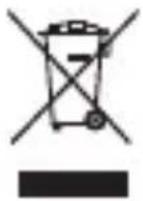
The crossed-out wheeled-bin symbol on your product, battery, literature or packaging reminds you that all electronic products and batteries must be taken to separate waste collection points at the end of their working lives; they must not be disposed of in the normal waste stream with household garbage. It is the responsibility of the user to dispose of the equipment using a designated collection point or service for separate recycling of waste electrical and electronic equipment (WEEE) and batteries according to local laws.
Proper collection and recycling of your equipment helps ensure electrical and electronic equipment (EEE) waste is recycled in a manner that conserves valuable materials and protects human health and the environment, improper handling, accidental breakage, damage, and/or improper recycling at the end of its life may be harmful for health and environment. For more information about where and how to drop off your EEE waste, please contact your local authorities, retailer or household waste disposal service or visit the website https://consumer.huawei.com/en/.
Reduction of hazardous substances
This device and its electrical accessories are compliant with local applicable rules on the restriction of the use of certain hazardous substances in electrical and electronic equipment, such as EU REACH, RoHS and Batteries (where included) regulations. For declarations of conformity about REACH and RoHS, please visit our web site https://consumer.huawei.com/certification.
EU regulatory conformance
RF exposure requirements
Important safety information regarding radio frequency (RF) radiation exposure:
RF exposure guidelines require that the device be used at a minimum of 0.5 cm from the human body. Failure to observe this guideline may result in RF exposure exceeding limits.
Certification information (SAR)
This device meets guidelines for exposure to radio waves.
Your device is a low-power radio transmitter and receiver. As recommended by international guidelines, the device is designed not to exceed the limits for exposure to radio waves. These guidelines were developed by the International Commission on Non-Ionizing Radiation
Protection (ICNIRP), an independent scientific organization, and include safety measures designed to ensure the safety of all users, regardless of age and health.
The Specific Absorption Rate (SAR) is the unit of measurement for the amount of radio frequency energy absorbed by the body when using a device. The SAR value is determined at the highest certified power level in laboratory conditions, but the actual SAR level during operation can be well below the value. This is because the device is designed to use the minimum power required to reach the network.
The SAR limit adopted by Europe is 2.0 W/kg averaged over 10 grams of tissue, and the highest SAR value for this device complies with this limit.
Statement
Hereby, Huawei Technologies Co., Ltd. declares that this device E5785-320 is in compliance with the essential requirements and other relevant provisions of Directive 2014/53/EU.
The most recent and valid version of the DoC (Declaration of Conformity) can be viewed at https://consumer.huawei.com/certification.
This device may be operated in all member states of the EU.
Observe national and local regulations where the device is used.
This device may be restricted for use, depending on the local network.
Restrictions in the 5 GHz band:
The 5150 to 5350 MHz frequency range is restricted to indoor use in: AT, BE, BG, CH, CY, CZ, DE, DK, EE, EL, ES, FI, FR, HR, HU, IE, IS, IT, LI, LT, LU, LV, MT, NL, NO, PL, PT, RO, SE, SI, SK, TRUK(NI).
In accordance with the relevant statutory requirements in the UK, the 5150 to 5350 MHz frequency range is restricted to indoor use in the United Kingdom.
Frequency Bands and Power
(a) Frequency bands in which the radio equipment operates: Some bands may not be available in all countries or all areas. Please contact the local carrier for more details.
(b) Maximum radio-frequency power transmitted in the frequency bands in which the radio equipment operates: The maximum power for all bands is less than the highest limit value specified in the related Harmonized Standard.
The frequency bands and transmitting power (radiated and/or conducted) nominal limits applicable to this radio equipment are as follows: GSM900:35.5dBm, GSM1800:32.5dBm,
WCDMA900/2100:25.7dBm, LTE Band 1/3/7/8/20/28/38: 25.7dBm, LTE Band42: 26dBm, Wi-Fi 2.4G:20dBm, Wi-Fi 5G: 5150-5350MHz: 23dBm, 5470-5725MHz: 30dBm.
Accessories and Software Information
Some accessories are optional in certain countries or regions. Optional accessories can be purchased from a licensed vendor as required. The following accessories are recommended:
Adapters: HW-050200X02 (X represents the different plug types used, which can be either C, U, J, E, B, A, I, R, Z or K, depending on your region)
Batteries: HB824666RBC
The product software version is 10.0.5.1(H170SP7C00). Software updates will be released by the manufacturer to fix bugs or enhance functions after the product has been released. All software versions released by the manufacturer have been verified and are still compliant with the related rules.
All RF parameters (for example, frequency range and output power) are not accessible to the user, and cannot be changed by the user.
For the most recent information about accessories and software, please see the DoC (Declaration of Conformity) at https://consumer.huawei.com/certification.
Please visit https://consumer.huawei.com/en/support/hotline for recently updated hotline and email address in your country or region.
Français
mini-SIM (2FF) micro-SIM (3FF)


mini-SIM (2FF) micro-SIM (3FF)


mini-SIM (2FF) micro-SIM (3FF)


mini-SIM (2FF) micro-SIM (3FF)
De Mobile WiFi inschakelen


Gebruik de originele Huawei-oplaadkabel en -stroomadapter.

mini-SIM (2FF) micro-SIM (3FF)
Ligar o Mobile WiFi


mini-SIM (2FF) micro-SIM (3FF)


- INSERTING THE SIM CARD
- POWERING ON THE MOBILE WIFI
- ACCESSING THE INTERNET
- DEVICE MANAGEMENT
- CHARGING
- APPEARANCE
- FAQS
- WHAT SHOULD I DO IF MY MOBILE WIFI CANNOT RECEIVE ANY SIGNAL OR CANNOT CONNECT TO THE INTERNET
- WHAT SHOULD I DO IF MY MOBILE WIFI'S SIGNAL RECEPTION IS WEAK OR THE INTERNET SPEED IS SLOW
- WHAT SHOULD I DO IF I CAN'T CONNECT TO MY MOBILE WIFI AFTER A PERIOD OF INACTIVITY
- LEGAL NOTICE
- COPYRIGHT © HUAWEI 2021. ALL RIGHTS RESERVED
- TRADEMARKS AND PERMISSIONS
- NOTICE
- DISCLAIMER
- IMPORT AND EXPORT REGULATIONS
- PRIVACY POLICY
- SOFTWARE UPDATE
- SAFETY INFORMATION
- ELECTRONIC DEVICE
- INTERFERENCE WITH MEDICAL EQUIPMENT
- AREAS WITH FLAMMABLES AND EXPLOSIVES
- TRAFFIC SECURITY
- OPERATING ENVIRONMENT
- CHILD'S SAFETY
- ACCESSORIES
- CHARGER SAFETY
- BATTERY SAFETY
- CLEANING AND MAINTENANCE
- DISPOSAL AND RECYCLING INFORMATION
- REDUCTION OF HAZARDOUS SUBSTANCES
- EU REGULATORY CONFORMANCE
- RF EXPOSURE REQUIREMENTS
- CERTIFICATION INFORMATION (SAR)
- STATEMENT
- RESTRICTIONS IN THE 5 GHZ BAND
- FREQUENCY BANDS AND POWER
- ACCESSORIES AND SOFTWARE INFORMATION
- FRANÇAIS
- DE MOBILE WIFI INSCHAKELEN
- LIGAR O MOBILE WIFI
Brand : HUAWEI
Model : 4G+ Mobile WiFi
Category : Wi-Fi hotspot