
RM-VL1000T - Universal remote SONY - Free user manual and instructions
Find the device manual for free RM-VL1000T SONY in PDF.


| Product type | Universal remote control |
| Brand | Sony |
| Model | RM-VL1000T |
| Category | Universal remote control |
| Dimensions (L × H × D) | 69 × 217 × 30 mm |
| Weight (without batteries) | 154 g |
| Power supply | 2 AA (LR6) alkaline batteries |
| Battery life | Approximately 5 months (depending on usage) |
| Infrared range | Approximately 10 meters |
| Display | Backlit LCD dot matrix display |
| Component control | Up to 12 components (TV, SAT, VCR, DVD, CD, AMP, etc.) |
| Learning function | Yes, infrared signals up to 300 bits |
| Programmable macros | 36 macros (12 system, 12 component, 12 timer) up to 32 steps each |
| Timer | Up to 12 timer programs |
| Backlight | Yes, adjustable (auto-off 5-60 seconds) |
| Label customization | 180 customizable LCD labels (up to 8 characters) |
| Preprogrammed codes | Sony and major brands (non-Sony) |
| Lock function | Yes (Hold) |
| Key beep | On/Off |
| LCD contrast | Adjustable |
| Operating temperature | 0°C to 40°C |
| Housing material | ABS plastic |
Frequently Asked Questions - RM-VL1000T SONY
User questions about RM-VL1000T SONY
0 question about this device. Answer the ones you know or ask your own.
Ask a new question about this device
Download the instructions for your Universal remote in PDF format for free! Find your manual RM-VL1000T - SONY and take your electronic device back in hand. On this page are published all the documents necessary for the use of your device. RM-VL1000T by SONY.
USER MANUAL RM-VL1000T SONY
Integrated Remote Commander
Operating Instructions
RM-VL1000T
Features
The RM-VL1000T Remote Commander provides centralized control of all your AV components from a single remote commander and saves the trouble of operating different AV components with different remote control devices. The following are its main features.
Customizing 180 labels of control keys in the dot matrix LCD with dot matrix makes label customizing possible. A total of 180 labels on the LCD, such as component labels, macro labels, etc., can be customized. A label of up to 8 letters with digits, characters or symbols can be selected and displayed.
Control of 12 components Control of a maximum of 12 components (TV, SAT, VCR, DVD, CD, AMP, etc.) is possible. Components are selectable with 12 keys on the LCD display by pressing the Label Select buttons. This Commander has an LCD display that changes the label display according to the selected component.
Setting a maximum of 36 macro commands of a maximum of 32 successive steps
A maximum of 36 macro commands which provide a maximum of 32 successive steps by pressing a single button can be set (12 system control macros, 12 component macros and 12 timer macros). Macro execution speed is changeable.
All power off macro commands for Sony components are preset at the factory to the SONY OFF label.
Clock display and timer function
A maximum of 12 timer macros, timer control of automatic on/off and other controls (such as recording, stopping, etc.) of each component is possible.
Centralized control of Sony AV components with this one remote commander This Commander is preset at the factory to operate Sony brand components, so you can use it out of the box as a control centre for your Sony AV components.
Remote control signals for non- Sony components are also preset This Commander is preset for most major brands components other than Sony. You can control your components remotely by setting their code numbers (page 13).
Learning function for programming other remote control signals you need This Commander has a learning function to learn remote control signals to operate non-preset components or functions (page 23).
In addition, the Commander can learn remote control signals (infrared signals only) of non Audio Visual components such as air-conditioners, lights, etc. (Certain appliances or functions may not be available) (page 28).
Channel macro function allows you to select a programme with a single button. Up to 4 key steps can be programmed on macro labels. If you set the key operations for entering a programme number on a macro label, you can select the programme by selecting that macro label (page 48).
LCD display with backlight. The display backlight allows operation even in the dark.
Table of Contents
Getting Started
Location and Function of Controls 6
Installing the Batteries 7
When to replace the batteries .... 7
Setting the Clock 8
Setting the clock for the first time after installing batteries 8
Adjusting the clock after setting the clock 11
Basic Operations
Setting the Code for Preset Audio and Visual Components .... 13
Setting a component code 13
Checking if the code number works 16
Finding a component code with the Search function 17
To clear the contents programmed for a specific component label ...... 19
Operating Your Components with the Remote Commander 21
To control the volume 23
Using Non-Preset Remote Control Operations — Learning Function ..... 23
Notes on learning the signals of an air-conditioner 28
For accurate learning 29
Changing or erasing the function of a taught label or button 29
Advanced Features
Controlling the Volume of Visual Components Connected to an Audio System 30
Executing a Series of Commands — System Control Functions .... 34
Programming a series of commands for the System Macro labels ...... 34
Notes on System Control Operations 38
To clear programmed commands for a specific System Macro number label 39
Programming a series of commands for the component labels ...... 40
Changing the interval between operation steps 42
Changing the component macro executing time 43
Adding an Extra Function to the Component Labels 44
Programming the Power-On command of a selected component (for Sony components only) 44
Assigning Other Components to the Component Labels 46
Copying the settings of a component label to another label 46
Selecting a Programme with a Single Label — Channel Macro Function . 48
Setting the Timer 51
Setting the new timer programme 51
Changing the programme already set or changing another programme that you select 56
To clear timer settings programmed for a specific programme number label 60
Using Other Functions
Locking the Controls — Hold Function 62
Adjusting the Automatic-Off Time of the Backlight of the Display Window 63
Setting the Key-Touch Beep 64
Adjusting the Contrast of the Display Window 65
Changing the Names of the Labels on the Display 65
Erasing All the Settings 68
Additional Information
Precautions 70
Maintenance 70
Specifications....70
Troubleshooting 71
Appendices
Table of Preset Functions 74
TV 74
SAT1, SAT2 (Satellite) 74
DVD 75
VCR1, VCR2, VCR3 76
CD 77
AMP 77
MD 78
DAT 79
TAPE A, TAPE B 79
Index ...... Back cover
Location and Function of Controls
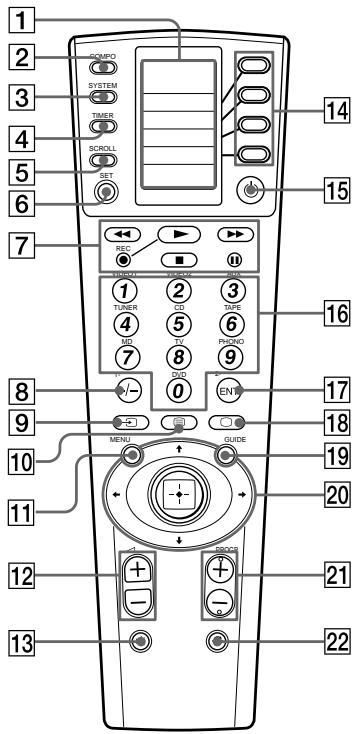
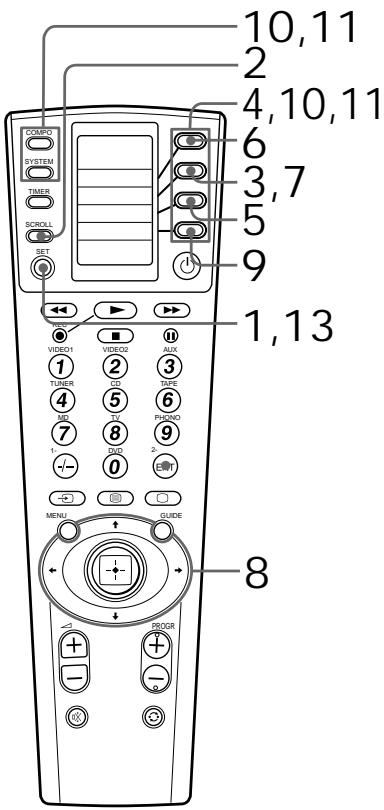
① LCD display window 2 COMPO (component) button 3 SYSTEM button 4 TIMER button 5 SCROLL button 6 SET button 7 Player Control buttons 8 1-/-/-- button 9 → button 10 button 11 MENU button 12 △ (volume) +/- buttons 13 ☑ button 14 Label Select button 15 ⏻ button 16 Number buttons 17 2-/ENT (enter) button 18 □ button 19 GUIDE button 20 Joystick and Cursors 21 PROGR (programme) +/- buttons 22 button
* Note on the △ and ☑️ buttons
The Commander controls or mutes the TV's volume when you select a visual component. The Commander controls or mutes the amplifier's volume when you select an audio component.
You can also change this setting (page 30).
Installing the Batteries
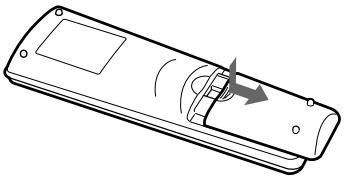
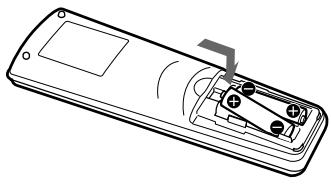
Slide open the battery compartment lid and insert two size AA (R6) alkaline batteries (not supplied). Be sure to line up the + and - on the batteries with the + and - on the battery compartment.
When to replace the batteries
Batteries for remote control operation and backlight (two size AA (R6) batteries)
Under normal conditions, alkaline batteries will last up to 5 months. The battery life varies depending on frequency of use.
If the Commander does not operate properly, the alkaline batteries might be worn out and "BATT" appears on the LCD display when you try to operate the Commander.
When the display dims, replace the alkaline batteries with new ones.
Notes on batteries
- Do not mix old battery with new one or mix different types of batteries together.
- If the electrolyte inside the battery leaks, wipe the contaminated area of the battery compartment with a cloth and replace the old batteries with new ones. To prevent electrolyte from leaking, remove the batteries when you plan not to use the Commander for a long period of time. • After replacing batteries, set the clock (page 8).
Setting the Clock
Setting the clock for the first time after installing batteries
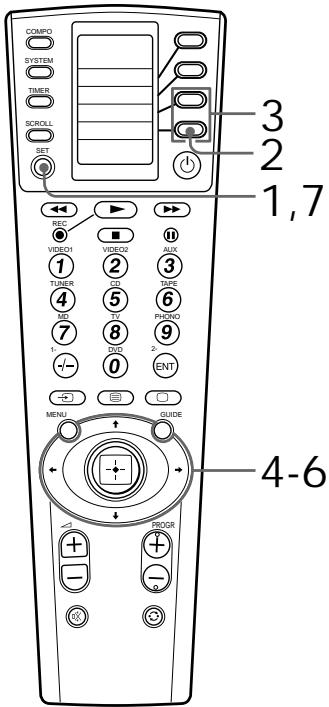
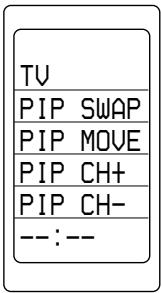
For the first time after installing batteries, the display for component operation appears.
1 Keep the SET button pressed for more than a second.

“SET” appears on the LCD display.
2 Select "CLOCK" by pressing the Label Select button.
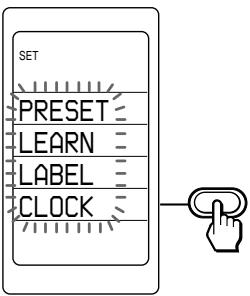
The Commander enters clock setting mode.
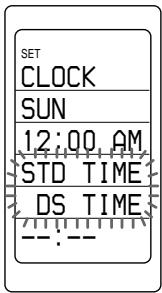
3 Select “STD TIME” (standard time) or “DS TIME” (daylight saving time) by pressing the Label Select button.
If the summer time (daylight saving time) is used in your area, select “DS TIME” when it is in the summer time.
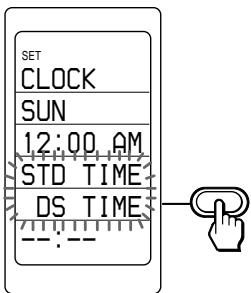
If the summer time is not used in your area, select “STD TIME.”
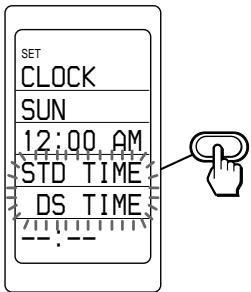
The selected “STD TIME” or “DS TIME” stays lit.
For example, when "STD TIME" is selected
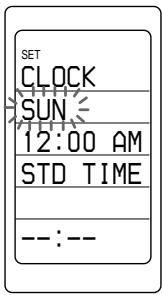
4 Select the day of the week by pressing the Joystick toward ◀ or ▼.
The selected day of the week flashes.
![graph TD A["SUN"] --> B["MON"] B --> C["TUE"] C --> D["WED"] D --> E["THU"] E --> F["FRI"] F --> G["SAT"] G --> H["Sun"] H --> I["Mon"] I --> J["TUE"] J --> K["WED"] K --> L["THU"] L --> M["FRI"] M --> N["SAT"]](/content/2019/09/50670/images/3203da39aaa68ffa5bde51a00b98432d0f6b4dc8df5200aae32d9dd1191a7d37.jpg)
SUN : Sunday
MON : Monday
TUE : Tuesday
WED : Wednesday
THU : Thursday
FRI : Friday
SAT : Saturday
Then press the Joystick toward ▶. The day of the week is set. “12” and “AM” flash.
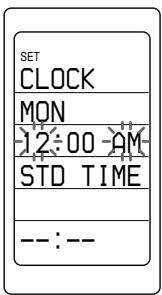
Note
If you press the Joystick toward ◆, the day of the week is set and setting mode skips to Step 6.
5 Set the hour (AM or PM) by pressing the Joystick toward ◀ or ▼.
Each time the Joystick is pressed toward ◀ or ▾, the hour changes by one. The selected hour (AM or PM) flashes.
![graph TD A["100-PM"] --> B["100-PM"] B --> C["1200-AM"] C --> D["100-AM"] D --> E["100-AM"] E --> F["1200-PM"] style A fill:#f9f,stroke:#333 style B fill:#f9f,stroke:#333 style C fill:#f9f,stroke:#333 style D fill:#f9f,stroke:#333 style E fill:#f9f,stroke:#333 style F fill:#f9f,stroke:#333](/content/2019/09/50670/images/8396266a274d5aeba086edaff1eabcfda67895e5d2599a96e755b0b35e78f82b.jpg)
Then press the Joystick toward ▶. The hour is set. “00” (minute) flashes.
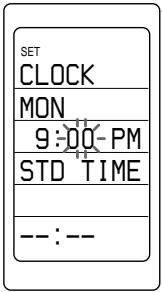
Note: If you press the Joystick toward ◀, the hour and AM (or PM) are set and the setting mode returns to Step 4.
6 Set the minute by pressing the Joystick toward ◀ or ▾. Each time the Joystick is pressed toward ◀ or ▾, the minute changes by one. The selected minute flashes.
![graph TD A["59"] --> B["60"] B --> C["61"] C --> D["..."] D --> E["57"] E --> F["58"] style A fill:#f9f,stroke:#333 style B fill:#f9f,stroke:#333 style C fill:#f9f,stroke:#333 style D fill:#f9f,stroke:#333 style E fill:#f9f,stroke:#333 style F fill:#f9f,stroke:#333](/content/2019/09/50670/images/6ce439fd524765a3e9646a3a9f95b7a231a52a4875410f34e4d4a67527350e41.jpg)
Notes
- If you press the Joystick toward ▶, the minute is set and the setting mode returns to Step 4.
- If you press the Joystick toward ◀, the minute is set and the setting mode returns to Step 5.
- If you want to finish the clock setting, go to Step 7.
7 Press the SET button.

With a beep sound, the day of the week, the hour, and the minute are set, and the clock starts from 0 seconds.
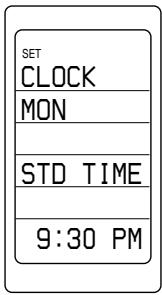
The Commander enters the setting mode.
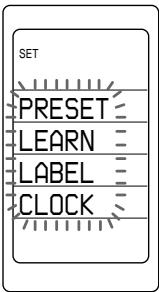
If you press the SET button again
The display for component operation appears.
Note
If you press the SET button in steps 4-6, the clock setting is confirmed and starts from 0 seconds.
Adjusting the clock after setting the clock
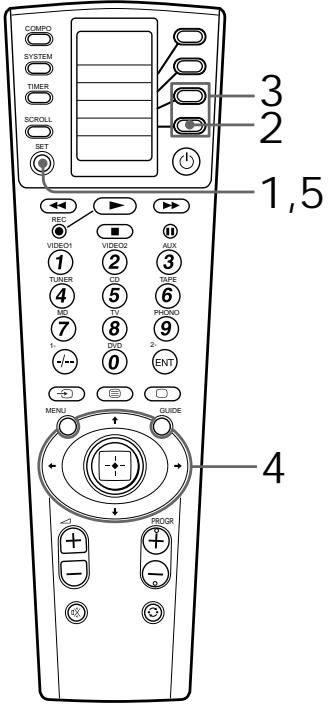
1 Keep the SET button pressed for more than a second.

“SET” appears on the LCD display.
2 Select "CLOCK" by pressing the Label Select button.
![graph TD A["SET"] --> B["PRESET"] B --> C["LEARN"] C --> D["LABEL"] D --> E["CLOCK"] E --> F["Hand icon"]](/content/2019/09/50670/images/69f7df68a88172da950eef26d6b15e2a54ea6b25f7af3f883748bc2dd35309af.jpg)
The Commander enters clock setting mode.
“CLOCK” and the current time setting is displayed on the LCD display.
The time mode (STD TIME or DS TIME) currently set stays lit, and the other flashes.
3 To change the time mode, select the time mode which flashes (STD TIME or DS TIME) by pressing the Label Select button.
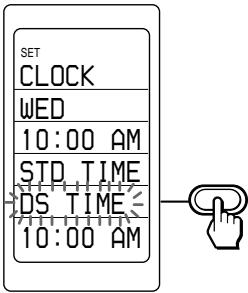
If it is not necessary to change the time mode, press the Joystick toward ◆ or ➤, and go to Step 4.
4 Set the clock by pressing the Joystick toward ◆, ↓, ◆ or ↗. Follow Steps 4 - 6 on pages 9-10.
5 Press the SET button.
Setting the Code for Preset Audio and Visual Components
The Commander is preset at the factory to operate Sony brand AV components (see the table below). If you are using the Commander with a factory-set Sony components, skip the following procedures.
You can use the Commander with other preset AV components also. To use with other AV components, you need to follow the following procedures to set the correct codes for each component.
| Component name on the display | Preset component | Factory setting |
| TV | TV | Sony TV |
| SAT1 | Digital satellite | Sony digital satellite box |
| SAT2 | Analogue satellite | Sony analogue satellite box |
| DVD | DVD player | Sony DVD player |
| VCR1 | VCR | Sony VHS VCR (VTR3) |
| VCR2 | VCR | Sony 8mm VCR (VTR2) |
| VCR3 | VCR | Sony Betamax VCR |
| CD | CD player | Sony CD player |
| AMP | Amplifier | Sony amplifier |
| MD/DAT | MD deck/ DAT deck | Sony MD deck |
| TAPE A | Cassette deck* | Sony cassette deck |
| TAPE B | Cassette deck* | Sony cassette deck |
* Analogue audio compact cassette deck
See “Table of Preset Functions” (page 74) for the functions of keys and buttons for each component.
Setting a component code
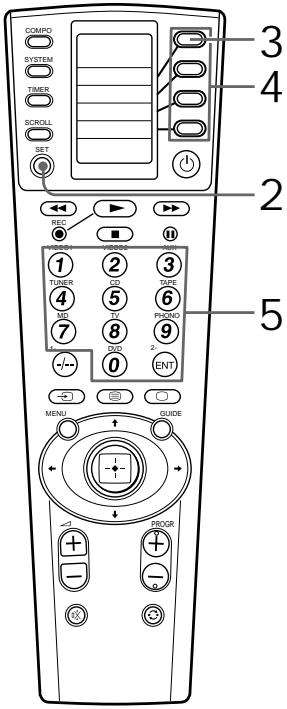
Example: To set up a Philips TV
1. See the tables in the supplied “Component Code Numbers,” and find the four-digit code number for the desired component. If more than one code number is listed, use the number that is listed first. For example, to set up a Philips TV, you would use the code number 8056. The first digit of the component code number means the component category (TV, VCR, etc.). For further details, see the tables in the supplied “Component Code Numbers.”
Setting the Code for Preset Audio and Visual Components (continued)
2. Keep the SET button pressed for more than a second.

“SET” appears on the LCD display.
3. Select "PRESET" by pressing the Label Select button.
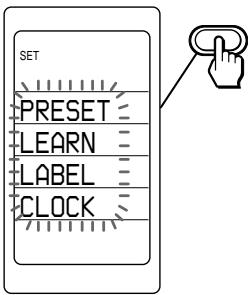
“PRESET” appears on the LCD display, and component names are displayed on the labels.
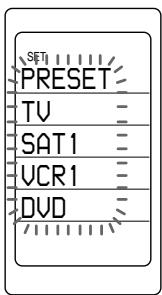
4. Select the desired component by pressing the Label Select button.
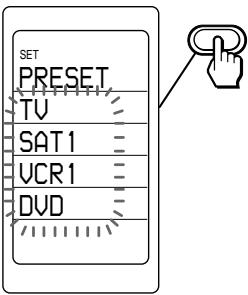
To change the labels, press the SCROLL button repeatedly.

Each time the SCROLL button is pressed, the labels change as follows.
![graph TD A["TV"] --> B["SAT1"] B --> C["VCR1"] C --> D["DVD"] D --> E["↓"] E --> F["SAT2"] F --> G["VCR2"] G --> H["CD"] H --> I["AMP"] I --> J["↓"] J --> K["MD/DAT"] K --> L["VCR3"] L --> M["TAPE A"] M --> N["TAPE B"]](/content/2019/09/50670/images/88dc535e7109cea3706ef6c20f674e529708f9a6bb9da8f8d35eafffc99fbf13.jpg)
When the desired component is selected, the component name (in this case, TV), and the four-digit component code number previously set for the component are displayed.
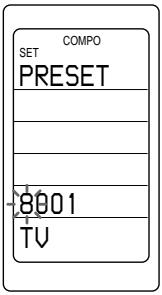
5. Press the four-digit component code number by pressing the number buttons followed by the ENT button.
Example: To enter "8086" Input "8," "0," "8," "6," and press the ENT button.
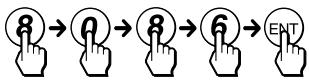
If the setting of the code is successful
With a beep sound, “OK” and input digits are displayed.
The digits are decided and the display returns to the presetting mode.
If you press the SET button, the display returns to the setting mode.
If you press the SET button again
The display for component operation appears.
6 If you want to set a code for another component, repeat Steps 4 and 5.
If you press the SET button, the display returns to the previous one.
Notes
- If you press a component code number that is not on the table in the supplied “Component Code Numbers,” the Commander beeps five times and “NG” flashes after you press the ENT button. The setting returns to the previous one. If this happens, check the component code number, and try setting again.
- If you don't input anything into the Commander for over two minutes between each step, the setup procedure will be cancelled. In this case, preset again.
- The first digit of the component code number means the component category (TV, VCR, etc.). The component corresponding to the four-digit component code number is preset in Step 5. If you preset the component of which the category is different from that preset previously, you can, if necessary, change the component names (see page 65).
- If you preset a component code after you input character contents to the labels on the LCD display (page 65), they are cleared and the original display is shown. Edit the characters after you decide the component to be used by presetting a code.
Setting the Code for Preset Audio and Visual Components (continued)
Checking if the code number works
1 When the display for component operation appears (if not, press the SET button repeatedly), press the COMPO button.

"COMPO" appears on the LCD display, and component names are displayed on the labels.
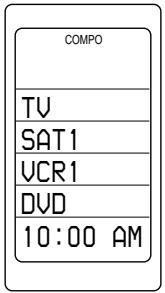
To change the labels, press the SCROLL button repeatedly.

Each time the SCROLL button is pressed, the labels change as follows.
| TV |
| SAT1 |
| VCR1 |
| DVD |
| ↓ |
| SAT2 |
| VCR2 |
| CD |
| AMP |
| ↓ |
| MD/DAT |
| VCR3 |
| TAPE A |
| TAPE B |
2 Select the component you have set up by pressing the Label Select button.
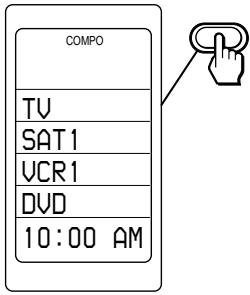
3 Turn on the component by its power switch.
4 Aim the Commander at the component and press the ⏻ button.

When the remote control signal is sent, is shown on the display.
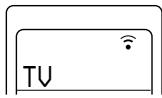
The component should turn off.
5 If you have succeeded, check that the Commander is operating the other functions of your component, such as programme and volume control. See page 23 for details.
If the Commander does not seem to be working Try repeating these setup procedures using the other codes listed for your components (see page 13).
Notes on labels on the LCD display which have "learned" a remote control signal already If another signal has already been programmed on that label by the learning function (page 23), you cannot preset the component code number. To use it as a preset component label, first erase its learned signal (page 29).
Finding a component code with the Search function
You can find a code number available for a component that doesn't have one in the supplied "Component Code Numbers."
Before starting the Search function
Set each component to the following status to enable the Search function. TV, AMP: Power-on CD, MD, TAPE, DAT: Power-on with a playback source (disc, cassette tape, etc.) Other components: Power-off
Setting the Code for Preset Audio and Visual Components (continued)
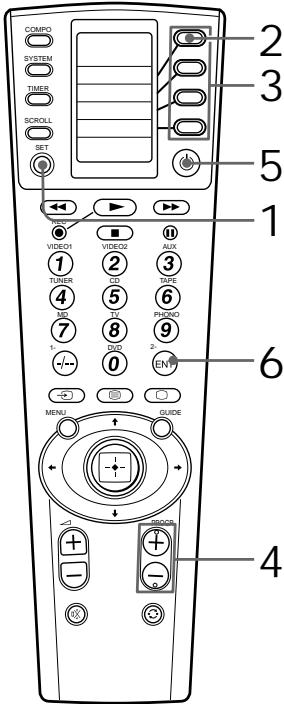
1 Keep the SET button pressed for more than a second.

"SET" appears on the LCD display.
2 Select "PRESET" by pressing the Label Select button.
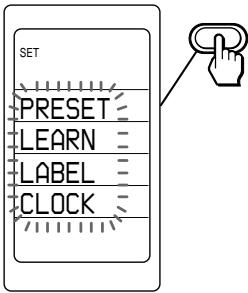
"PRESET" appears on the LCD display, and component names are displayed on the labels.
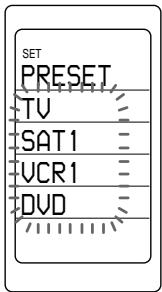
3 Select the desired component by pressing the Label Select button.
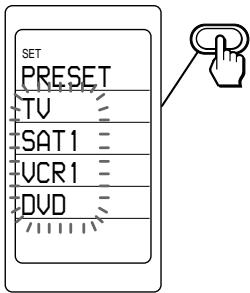
To change the labels, press the SCROLL button repeatedly. Each time the SCROLL button is pressed, the labels change as in Step 4 on page 14. When the desired component is selected, the component name (in this case, TV) and the four-digit component code number previously set to the component is displayed.
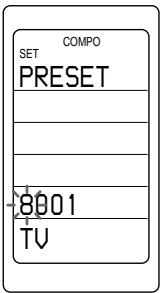
4 Press the PROGR + or PROGR - button to search for component code numbers in the same category (in this case, code numbers which begin with "8").
Press PROGR + to go to the next code number. Press PROGR - to go back to the previous code number.
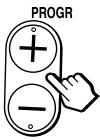
Note
To search for component code numbers in another category, return to Step 3, or input a four-digit component code number of another category (for example, a code number which begins with "3", "4", etc.) before Step 4.
5 Aim the Commander at the component and press the ⏻ button.

When the remote control signal is sent, ° is shown on the display.
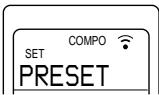
If it works (power-off for TV, AMP, playback for CD, MD, DAT, TAPE, and power-on for other components), go to Step 6.
If it does not, repeat Steps 4 to 5.
6 Press the ENT button.

With a beep sound, "OK" and input digits are displayed.
The component code number is decided and the display returns to the presetting mode.
If you press the SET button, the display returns to the setting mode.
If you press the SET button again,
the display for component operation appears.
Note:
It is recommended to write down the code number.
To clear the contents programmed for a specific component label:
You can clear all data you have set (preset data, learned contents, channel macro, character contents of the labels, programmed data of system macro for the component label).
1 Keep the SET button pressed for more than a second.

"SET" appears on the LCD display.
2 Press the SCROLL button twice to display "CLEAR" on one of the labels.

Each time the SCROLL button is pressed, the label changes as follows.
![graph TD A["PRESET"] --> B["SYSTEM"] C["LEARN"] --> B D["LABEL"] --> B E["CLOCK"] --> B B --> F["POWER ON"] F --> G["COPY"] F --> H["CLEAR"] F --> I["SYSDELAY"]](/content/2019/09/50670/images/bf865a5df11d351e8007cab6350f35212eea9506ed607a5bd5ac8fcb93ca1a05.jpg)
Setting the Code for Preset Audio and Visual Components (continued)
3 Select "CLEAR" by pressing the Label Select button.
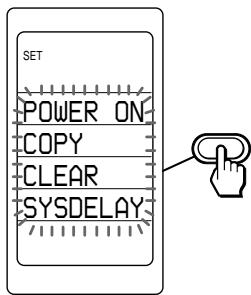
4 Select "COMPO" by pressing the Label Select button.
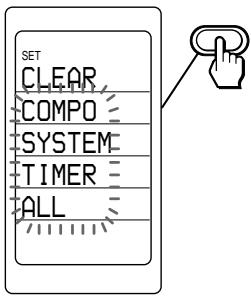
Component names are displayed on the labels. To change the labels, press the SCROLL button repeatedly. Each time the SCROLL button is pressed, the labels change as in Step 4 on page 14.
5 Select the component of which the settings you want to erase by pressing the Label Select button.
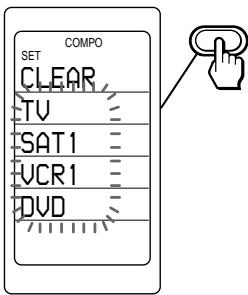
While erasing
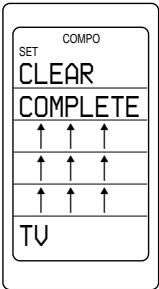
When erasing finishes, "COMPLETE" is displayed with a beep sound.
If you want to erase the settings of other Components, repeat Step 5.
If you press the SET button, the display returns to the previous one.
Operating Your Components with the Remote Commander
If you operate a non-Sony component, make sure you set the component code first (page 13).
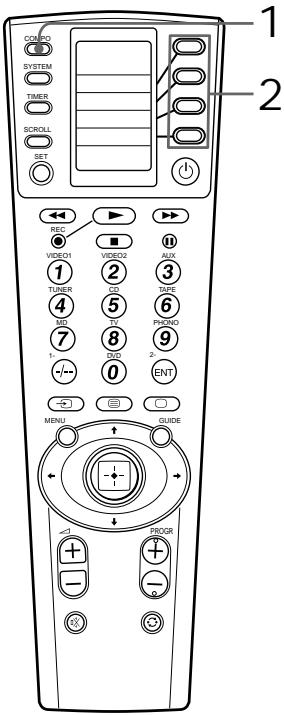
Example: To play VCR1
1 When the display for component operation appears (if not, press the SET button repeatedly), press the COMPO button.

"COMPO" appears on the LCD display, and component names are displayed on the labels.
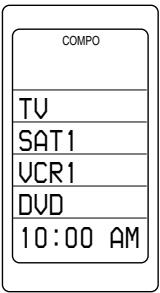
To change the labels, press the SCROLL button repeatedly.
SCROLL

Each time the SCROLL button is pressed, the labels change as follows.
| TV |
| SAT1 |
| VCR1 |
| DVD |

| SAT2 |
| VCR2 |
| CD |
| AMP |

| MD/DAT |
| VCR3 |
| TAPE A |
| TAPE B |
Operating Your Components with the Remote Commander (continued)
2 Select the component (in this case, VCR1) to be operated by pressing the Label Select button.
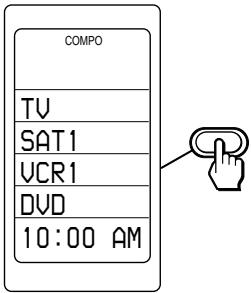
The labels for operating the selected component are displayed.
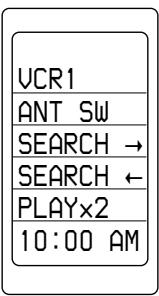
To change the labels, press the SCROLL button repeatedly. Each time the SCROLL button is pressed, the labels change as follows.
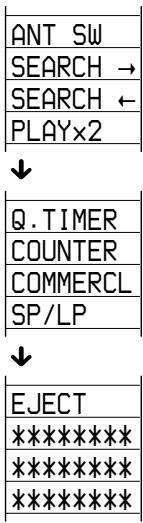
3 Press the desired button on the Commander or select the label on the LCD display by pressing the Label Select button.

When the remote control signal is sent, a bullet symbol is shown in the display.
See “Table of Preset Functions” (page 74) for the functions of keys and buttons for each component.
Note
The remote control signals may be different for some components or functions. In this case, program the remote control signals with the learning function (see page 23). Note, however, that components and functions that do not support the remote control of infrared signals will not work with this Commander.
To control the volume
Press the VOL △+/- buttons to control the volume, and the mute button to mute. When you select a visual component, the TV's volume will be controlled, and when you select an audio component, the amplifier's volume will be controlled. You can change this setting also (page 30).
Notes
- If you have programmed any signal for the left arrow or the or button for any component using the learning function, that signal will be transmitted instead of controlling the volume of the TV or amplifier.
- If you have programmed any signal for the or × button of TV or AMP using the learning function, that signal will be also transmitted when you select another component. However, if you have programmed any signal for the or × button of another component, that signal will be transmitted only after you select that component.
- If you have assigned another component to the TV or AMP button, the volume of the TV or amplifier cannot be controlled even when you select other components.
Using Non-Preset Remote Control Operations
— Learning Function
To operate non-preset components or functions, use the following “learning” procedure to “teach” any of the programmable buttons on the Commander and labels on the display to operate the functions of another remote control. You can also use the learning function to change the signal of individual labels and buttons after setting the component code number (page 13).
Note
Some specific remote control signals may not be learned.
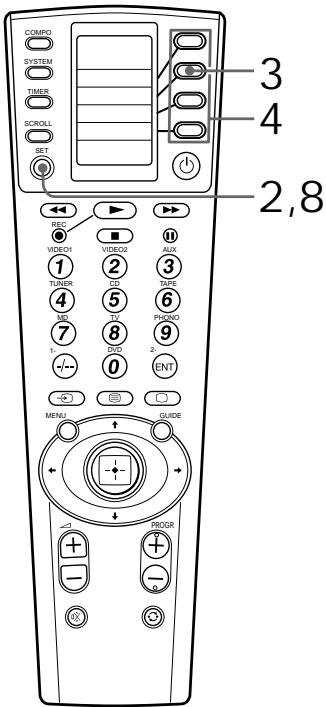
Using Non-Preset Remote Control Operations — Learning Function (continued)
Example: To programme the ▶ (Play) signal of your component to the VCR1 ▶ (Play) button of the Commander
1 Place the RM-VL1000T head to head with your component's remote control.
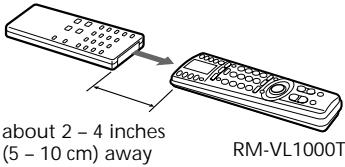
2 Keep the SET button pressed for more than a second.

“SET” appears on the LCD display.
3 Select "LEARN" by pressing the Label Select button.
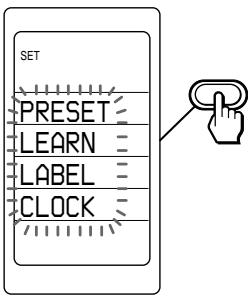
“LEARN” appears on the LCD display, and component names are displayed on the labels.
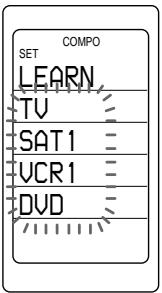
4 Select the desired component of which signals are to be learned by pressing the Label Select button.
(To change the labels, press the SCROLL button repeatedly.)
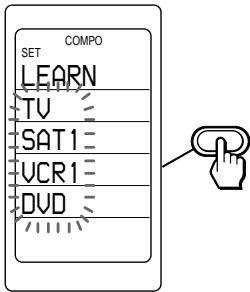
All the learnable labels flash.
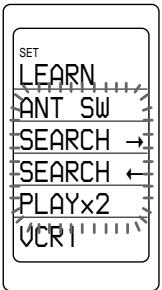
To change the labels, press the SCROLL button repeatedly.

Each time the SCROLL button is pressed, the labels change as follows.
![graph TD A["ANT SW"] --> B["SEARCH →"] B --> C["SEARCH ←"] C --> D["PLAY×2"] D --> E["Q.TIMER"] E --> F["COUNTER"] F --> G["COMMERCL"] G --> H["SP/LP"] H --> I["EJECT"] I --> J["*************************"] I --> K["*************************"] I --> L["*************************"]](/content/2019/09/50670/images/174720624c3bc7e64f93f39942c0cdaed34d6cb1fda9e78cdc30f8fb2552ec42.jpg)
Note on the flashing display: The labels that are already preset for that component flash twice while those that are not preset flash once.
To change the name of the Labels
Follow the procedure on page 27.
If you press the SET button, the display returns to the setting learning mode.
5 Select the label on the LCD display by pressing the Label Select button or press the button on the Commander you want to "teach."

"LEARN" flashes for 10 seconds, and the Commander enters receiving mode.
When teaching to a label on the LCD
The selected label stays lit. Other labels disappear.
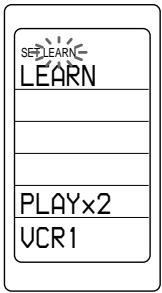
When teaching to a button on the Commander, the labels disappear.
6 Press and hold down the button on the other remote control until you hear a beep.
(If you release the button before you hear a beep, the signal may not be learned correctly.)

Using Non-Preset Remote Control Operations — Learning Function (continued)
When the command has been learned successfully, the learned labels stay lit and the other learnable labels flash.
If "NG" flashes on the display
Learning did not succeed. Try Steps 5 and 6 again.
7 Repeat Steps 5 and 6 to teach functions to other labels or buttons.
To learn another component's remote control signal
Select the component in Step 4, and then follow Steps 5 and 6 to perform learning.
8 Press the SET button.
The display returns to the setting learning mode.
If you press the SET button again
The display returns to the setting mode.
If you press the SET button once again
The display for component operation appears.
Notes
- If you do not perform learning steps within two minutes, learning mode ends.
- If you do not perform Step 6 within 10 seconds after Step 5, the display reverts to the display in Step 4. (All the learnable labels flash.) In this case, perform Step 5 again while the display is flashing.
If the Commander does not seem to be working If the learned label or button does not operate properly, teach once again. (For example, if the volume becomes very loud after pressing the + button only once, noise may have interfered during the learning procedure.)
If you want to set a component code to a label after learning a signal
You cannot preset the component code number to a label which has “learned signal”. To use it as a preset component label, first erase its learned signal (page 29).
When you teach the REC (record) signal
If you have to press two buttons at the same time (for example, ● and ▶) to start recording on your cassette deck or VCR, teach the REC signal as below.
In Step 5 (page 25), press only the REC button. Then press the two buttons on your component's remote control in Step 6.
You cannot teach the REC signal to the two buttons pressed at the same time (for example, ● and ▶) on the Commander. Teach the REC signal to a single button.
When you teach signals to the △ +/ - or ☐× buttons
- If you have programmed any signal on the + / - or button for components other than TV and AMP using the learning function, the signal will be transmitted only when you select that component.
- If you have programmed any signal on the △ or ☑ button for TV or AMP using the learning function, the signal will be also transmitted when you select another component.
However, if you have programmed any signal on the △+/- or ☐× button for another component, the signal will be transmitted only after you select that component.
When you teach the signals of an air-conditioner
See the “Notes on learning the signals of an air-conditioner” on page 28.
To change the function name of the labels on the display
You can change the display of the labels on the display to a suitable name using up to 8 characters or digits.
1 In Step 4 (page 24), select the component label (for example, VCR1) by pressing the Label Select button.
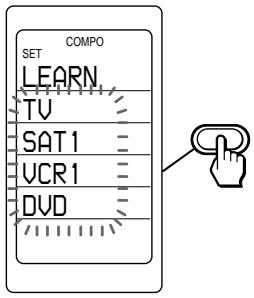
2 Select the function name you want to change by keeping the Label Select button pressed for more than 2 seconds.
![graph TD A["SET"] --> B["LEARN"] B --> C["ANT SW"] C --> D["SEARCH"] D --> E["SEARCH"] E --> F["PLAY×2"] F --> G["VCR1"]](/content/2019/09/50670/images/94fafcd24ccee7e90acac54e779f51c28cf6523d3a8cc5ae0423d6fd0d73e368.jpg)
The Commander enters the Label Input mode.
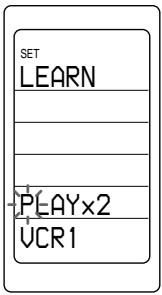
3 Input digits or characters on the label by pressing the Joystick toward ◀, ▶, ▲, and ▼.
The cursor flashes at the left end of the label.
Begin inputting digits or characters from the left. Press the Joystick toward ▼ or ▲ repeatedly until you obtain the desired digit or character.
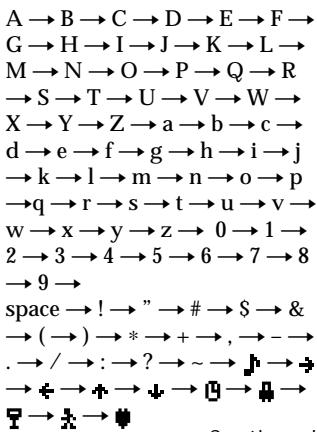
Each time the Joystick is pressed toward ▼, the digit or character changes in the order as below.
Each time the Joystick is pressed toward ▲, the digit or character changes conversely. If you keep the Joystick pressed toward ▶ or ◀, the digit or character changes continuously.
Using Non-Preset Remote Control Operations — Learning Function (continued)
If you make a mistake, move the cursor to the digit or character you want to correct by pressing the ◀ or ▶ button, and input again.
4 Decide the digit or the character you input by pressing the Joystick toward ▶.
The cursor moves to the right. When the Joystick is pressed toward ◀, the cursor moves to the left. You can input a digit or character to the place where the cursor flashes.
5 Repeat Steps 3 and 4 until you input a suitable name to the label.
When the cursor reaches to the right end, if the Joystick is pressed toward ▶, the cursor returns back to the left end.
6 Press the SET button. The commander enters the learning standby mode.
Notes on learning the signals of an air-conditioner
About seasonal adjustments If you change the settings of the air-conditioner for the season, you have to programme the remote control signals of the new settings on the Commander.
If the power-on/off operation does not work correctly
The air-conditioner may not be turned on or off properly with the button or key of this Commander, for which you have programmed its power-on/off signal. If the Commander can operate only “ON” with one button or label and “OFF” with another, while your air-conditioner’s remote control can operate “ON/OFF” with a single button or label, programme the signal on two buttons or labels of the Commander as follows.
1 Clear the learned power-on/off signal from the button or label (page 29). 2 Programme the signal (transmitted from the power-on/off button of the air-conditioner's remote control) for the button or label again. 3 Programme the signal from the same button of the remote control for another button or label.
The two buttons or labels of the Commander have been programmed with the power-on signal and the power-off signal of the air-conditioner, respectively so that you can operate the air-conditioner with the Commander.
For accurate learning
- Do not move the remote units during the learning procedure.
- Be sure to keep holding down the button of the other remote control until you hear the confirmation beep.
- Use fresh batteries in both remote control units.
- Avoid learning in places under direct sunlight or strong fluorescent light.
- The remote control detector area may differ depending on each remote unit. If learning does not work, try changing the positions of the two remote control units.
- When you teach signals of an interactive signal exchange system remote control unit (supplied with some of Sony's receivers and amplifiers) to the Commander, the response signal of the main unit may interfere with the learning of the Commander. In such a case, move to a place where the signals will not reach the main unit (e.g. other rooms, etc.).
IMPORTANT
Be sure to place the Commander out of the reach of small children or pets. Also set the Hold function to lock all the buttons on the Commander (page 62) when it is not used. Components such as air conditioners, heaters, electric appliances, and electric shutters or curtains receiving an infrared signal can be dangerous if misused.
Changing or erasing the function of a taught label or button
To change the learned function, clear it first and perform learning again.
To clear the learned function of a label or button
After Step 4 (page 24), while pressing the button or the Label Select button corresponding to the label that you want to erase, press the SCROLL button.
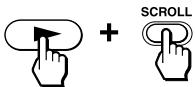
“CLEAR OK” appears and the learned function is cleared with a beep sound.
The cleared label flashes together with other learnable labels.
If the character contents of the label have been changed To clear the character contents of that label, perform the same procedure above again. The input contents are cleared and the label display returns to the original setting.
Controlling the Volume of Visual Components Connected to an Audio System
The Commander is factory preset based on the assumption that you hear the sound of your visual components from your TV speakers, and that you hear sound of your audio components from the loudspeakers connected to your amplifier.
This feature enables you to control the volume of your TV or amplifier without having to select TV or AMP each time you want to control the volume.
For example, to control the volume while using a VCR, you don't need to press the TV button to control the TV volume.
You can switch the volume of all the visual components to the amplifier at the same time.
The following table shows the factory setting of which volume would be controlled for each component.
| Component name on the display | Controls the volume of |
| TV | TV |
| VCR1 | TV |
| VCR2 | TV |
| VCR3 | TV |
| SAT1 | TV |
| SAT2 | TV |
| DVD | TV |
| CD | amplifier |
| AMP | amplifier |
| MD/DAT | amplifier |
| TAPE A | amplifier |
| TAPE B | amplifier |
However, if your visual components are connected to an audio system, you probably hear TV or VCR sound from the loudspeakers via your amplifier, not from your TV speakers. In this case, you need to change the factory preset so that you can control the volume of your visual components without first having to switch to the amplifier.
To change the Factory Preset of the Volume Control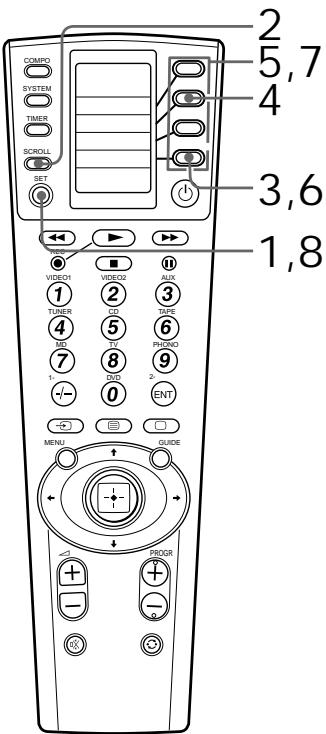
1 Keep the SET button pressed for more than a second.

"SET" appears on the LCD display.
2 Press the SCROLL button once to display "VOLUME" on one of the labels.

3 Select "VOLUME" by pressing the Label Select button.
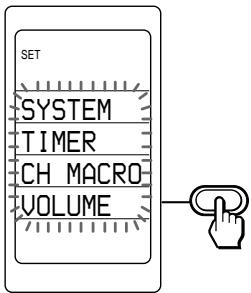
4 To change the volume control setting of visual components (TV, SAT1, SAT2, DVD, VCR1, VCR2 and VCR3), select the component set to visual (in this case, TV) by pressing the Label Select button.
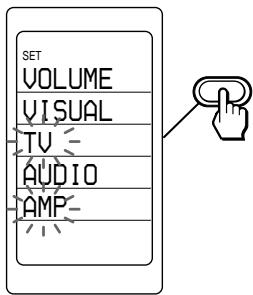
The component names are displayed on the labels. To change the labels, press the SCROLL button. Each time the SCROLL button is pressed, the labels change as in Step 4 on page 14.
The components with a preset code number beginning with "8" (TV) or "4" (amplifier) flash.
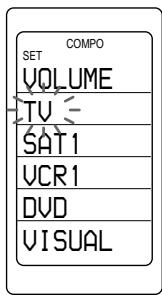
Controlling the Volume of Visual Components Connected to an Audio System (continued)
5 Select the component of which the volume setting you want to change (in this case, AMP) by pressing the Label Select button. (To change the labels, press the SCROLL button.)
With a beep sound, the volume control setting of visual components is switched to the amplifier.
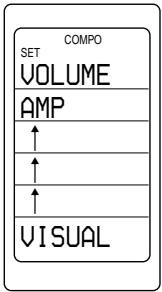
If you want to change the volume setting of other components, repeat Steps 4 and 5.
6 To change the volume control setting of audio components (AMP, CD, MD/DAT, TAPE A and TAPE B), select the component set to audio (in this case, AMP) by pressing the Label Select button.
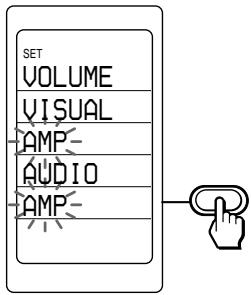
The component names are displayed on the labels. To change the labels, press the SCROLL button.
The components with a preset code number beginning with "4" (amplifier) flash.
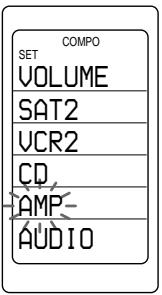
7 Select the component of which volume setting you want to change (in this case, AMP) by pressing the Label Select button. (To change the labels, press the SCROLL button.)
With a beep sound, the volume control setting of audio components is switched to the amplifier.
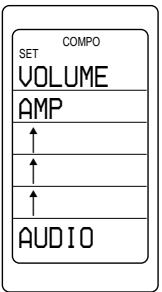
If you want to change the volume setting of other components, repeat Steps 6 and 7.
8 Press the SET button.
The display returns to the previous one.
Notes
- If you set a TV or an amplifier for volume control setting to the TV or AMP label displayed by default, the signal of the preset component will be transmitted. If you programme any signal for the △ or ☑× button of each component by “learning”, the learned signal programmed for each component will be transmitted.
- Even if you preset another TV or amplifier to a component label, when the preset data of the TV or amplifier for volume control setting to the TV or AMP label displayed by default will be not cleared, the signal of the component preset by default will be transmitted. But if you set another TV or amplifier for volume control setting, its signal will be transmitted. In this case, its learned signal will be transmitted if you programme any signal for the △ or e× button.
- If a TV or an amplifier set for volume control setting has no preset data for the △ or ※ button, the signal cannot be transmitted.
- If you preset another category of component than a TV or an amplifier to the component label for which the volume control setting has been programmed, the signal of the △ or ☑ button cannot be transmitted.
- When operating a component which has no volume data, if you have programmed any signal for its △ or ☑ button of each component by “learning”, the learned signal programmed for the component is transmitted even if you try to control the volume using the volume control function.
- When controlling the volume of the audio components, the signal of the △ or ※ button or the learned signal of the △ or ※ button for the amplifier is transmitted.
- When controlling the volume of the visual components, if a TV is set for volume control setting, the signal of the △ or ※ button or the learned signal of the △ or ※ button for the TV is transmitted.
- When controlling the volume of the visual components, if an amplifier is set for volume control setting, the signal of the △ or or button for the amplifier is transmitted for the TV. But if you programme any signal for the △ or or button of the TV, its learned signal is transmitted for the TV.
Executing a Series of Commands
— System Control Functions
With the System Control function, you can program a series of operating commands and execute them simply as follows.
1. When the display for component operation appears (if not, press the SET button repeatedly), press the SYSTEM button. 2. Select the System Macro number label by pressing the Label Select button.
For example, when you watch a video, a series of operations like the ones below are necessary.
Example:
1. Turn on the TV. 2. Turn on the video (VCR1). 3. Turn on the amplifier. 4. Set the input selector of the amplifier to VIDEO 1. 5. Set the input mode of the TV to VIDEO. 6. Start video playback.
You can program up to 32 consecutive operation steps to each of the System Macro labels (SONY OFF, SYSTEM 2-12).
At the factory, the SONY OFF label is preset with a series of the system power-off commands for Sony components. You can overwrite a system macro over this label.
If you have set the System Control function for a component label (page 40), the execution of the programmed commands begins when you press the Label Select button corresponding to the label for more than 2 seconds.
The component macro executing time is variable by changing the setting (page 43).
While executing the programmed commands, at the same time that each remote control signal is transmitted, the corresponding label is displayed.
Programming a series of commands for the System Macro labels
Example: To program the procedure above for the SYSTEM2 label
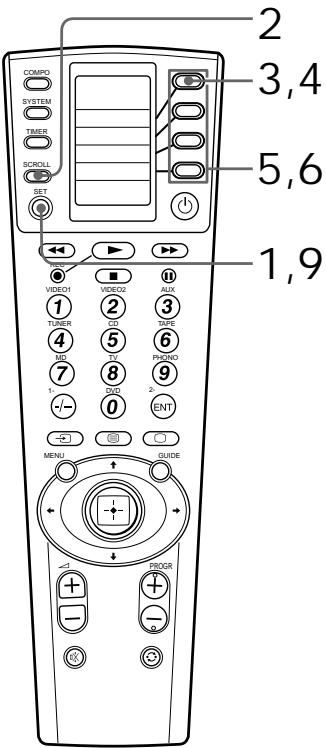
1. Keep the SET button pressed for more than a second.

"SET" appears on the LCD display.
2 Press the SCROLL button once to display "SYSTEM" on one of the labels.
3 Select "SYSTEM" by pressing the Label Select button.
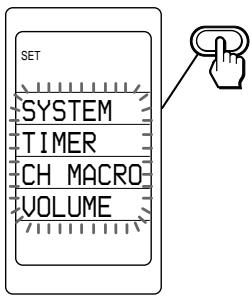
"SYSTEM" and "COMPO" flash.
4 Select "SYSTEM" by pressing the Label Select button.
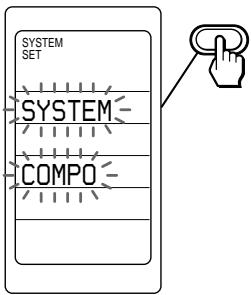
The macro numbers are displayed on the labels. To change the labels (SONY OFF, SYSTEM2-12), press the SCROLL button repeatedly. The macro numbers for which the system macro is programmed stay lit, and others flash.
5 Select the macro number by pressing the Label Select button.
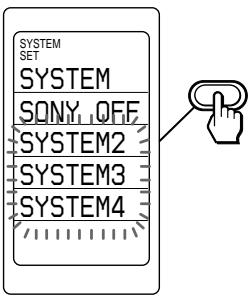
The selected macro number is displayed, and component names are displayed on the labels.
If a series of commands is already programmed for that label
To programme a new series of operations, clear the programme first (see page 39).
Executing a Series of Commands — System Control Functions (continued)
6 Select the component to operate by pressing the Label Select button (in this case, TV).
To change the labels, press the SCROLL button repeatedly.
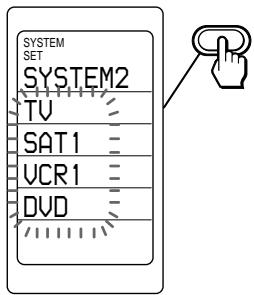
The selected component name is displayed on the bottom of the LCD display, and the labels for the operation of the component are displayed. To change the labels, press the SCROLL button repeatedly.
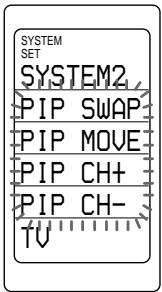
To select another component, press the COMPO button.
7 Press the Label select button(s) or other button(s) on the Commander for the desired operation.

If you want to turn on the TV, press the ⏻ button.
8 Repeat Steps 6 and 7 and programme the buttons for the series of operations. In this example, press the following buttons.
![graph LR A["COMPO"] --> B["SCROLL"] C["UCR1"] --> D["Switch"] E["AMP"] --> F["Switch"] G["VIDEO1"] --> H["Switch"] I["COMPO"] --> J["SCROLL"] K["TU"] --> L["Switch"] M["UCR1"] --> N["Switch"] O["COMPO"] --> P["SCROLL"]](/content/2019/09/50670/images/c0fdaaec6333986a265e04dccb1f2162337d9f24f3cc0d9ee9eb0cf9a6ac26ec.jpg)
9 When you have programmed all the keys and buttons, press the SET button.
With a beep sound, a series of operating commands is registered.
The display returns to Step 5.
If you press the SET button, the display returns to the previous one.
Notes
- If you interrupt the procedure at any point for over two minutes, the setup procedure will be cancelled. In this case, set the entire programme from the beginning.
- If you change the component code number (page 13) or programme a new signal by learning (page 23) on a label that has been programmed in the series of commands of the System Control function, the new signal is transmitted when you press the Label Select button corresponding to the system number label.
- While programming a series of operating commands, you cannot clear any operation step you have programmed. If you have programmed an incorrect operation by mistake, start again from Step 1.
- If you try to programme more than 32 steps, the System Control setting finishes, and the 32 steps you have programmed are registered. If you want to programme again, clear the programme (page 39) and start again from Step 1.
- The SCROLL button is not counted as a step.
- When programming a power-on command for the System Control function, if you select the component label for which you programmed the Power-On setting (page 44), the Power-On setting is also available. So, the power of the selected component turns off if the POWER key of the component is programmed. In this case, clear the Power-on setting, or do not programme the POWER key of the component.
About the interval between operation steps
- You can change the interval between operation steps (page 42).
- If you cannot receive signals successfully during consecutive operation steps, programme an interval of 250 ms between steps by pressing the TIMER button between operation steps in Step 8 on page 36. This operation of programming an interval is counted also as a step.
About the order of operation steps
Some of the components may not accept consecutive remote control signals. For example, a TV generally does not react to next signal right after the Power-on signal. So, a series of commands such as TV Power-on and input select may not work properly. In this case, insert other signals like the example below;
TV Power-on → VCR Power-on → VCR play back → TV input select
To change the name of a System Macro label on the display
You can change the display of the labels on the display to the most suitable name using up to 8 characters or digits.
1 In Step 5 (page 35), select the System Macro label of which name you want to change (for example, SYSTEM4) by keeping the Label Select button pressed for more than 2 seconds. The Commander enters the Label Input mode.
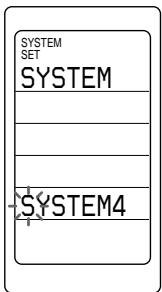
2 Input the name of the label. Follow Steps 3 - 5, on pages 27-28. 3 Press the SET button. The commander goes to Step 6 on page 36.
Executing a Series of Commands — System Control Functions (continued)
To clear the System Macro of a label
In Step 5 (page 35), while pressing the Label Select button corresponding to the label that you want to erase, press the SCROLL button. (The labels for which the System Macro is programmed stay lit.)
“CLEAR OK” appears and the System Macro is cleared with a beep sound.
The cleared label flashes together with other labels which have no System Macro data.
If the character contents of the label have been changed To clear the character contents of that label, perform the same procedure above again. The input contents are cleared and the label display returns to the original setting.
When you clear the System Macro overwritten over the SONY OFF label The overwritten System Macro is cleared when you perform the procedure above and the factory presetting returns to the SONY OFF label. If the character contents of the SONY OFF label have been changed, the character contents are cleared when you perform the procedure above again. The input contents are cleared and the label display returns to “SONY OFF.”
Note
When you select the label for which the System Macro is programmed, the 'NG' sound is heard. If you release the Label Select button then, data is not cleared and the System Macro signal is transmitted.
Notes on System Control Operations
- If the remote control detectors of the components are too far apart, or if something is blocking them, some of the components may not operate consecutively even after you select the System Macro number label.
- If some of the components did not operate correctly because of the above or for any other reason, always set all the components back to the states they were in before you select the System Macro number label. Failure to do this can result in incorrect operation when you select the System Macro number label again.
- Some components may not always be powered on by the System Control function. This is because the power of the component goes on and off alternatively when receiving the power on/off signal. In this case, check the operating component's power on/off state before using the system control function.
To clear programmed commands for a specific System Macro number label
You can clear the System Macro and the character contents you have programmed for a label.
1 Keep the SET button pressed for more than a second.

"SET" appears on the LCD display.
2 Press the SCROLL button twice to display "CLEAR" on one of the labels.

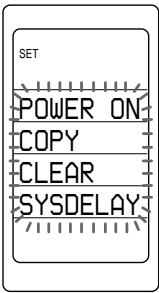
3 Select "CLEAR" by pressing the Label Select button.
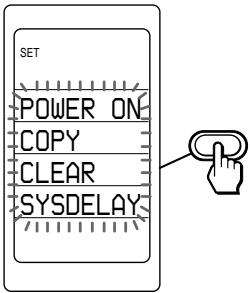
4 Select "SYSTEM" by pressing the Label Select button.
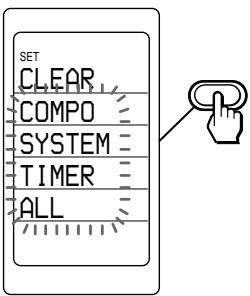
"SYSTEM" appears on the LCD display, and the system macro numbers are displayed on the labels. To change the labels (SONY OFF, SYSTEM2-12), press the SCROLL button repeatedly.
Executing a Series of Commands — System Control Functions (continued)
5 Select the macro number of which System Control function you want to erase by pressing the Label Select button.
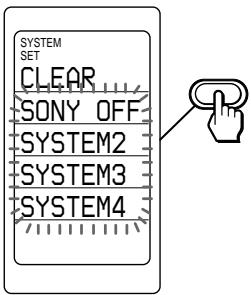
While erasing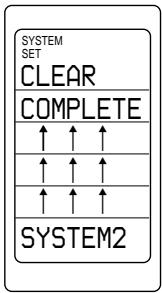
When erasing finishes, "COMPLETE" is displayed with a beep sound.
If you want to erase the settings of other macro numbers Repeat Step 5.
6 Press the SET button.
The display returns to the previous one.
Programming a series of commands for the component labels
You can also programme a series of operating commands (component macro) for the component labels (up to 32 steps). To execute a series of operating commands for a component label, proceed as follows.
1 When the display for component operation appears (if not, press the SET button repeatedly), press the COMPO button. 2 Select the component label by pressing the Label Select button for more than a second.
Notes
- The programmed commands are executed when you select a component label by pressing the Label Select button for more than a second. When you press the Label Select button for less than a second, the selected label works as the normal component label, and the corresponding function labels are displayed.
- The component macro executing time is variable by changing the setting (page 43).
- See also “About the interval between operation steps” on page 37 and “Notes on System Control Operations” on page 38.
1 In Step 4 (page 35), select "COMPO" by pressing the Label Select button.
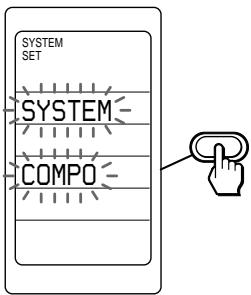
Component names are displayed. The labels for which a series of commands is programmed stay lit and others flash.
2 Select the component for which you want to programme a series of commands by pressing the Label Select button (for example, DVD).
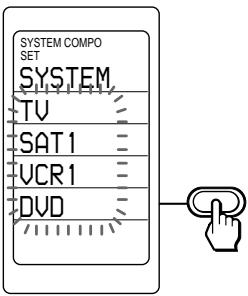
3 Programme a series of commands for the component label by following the same procedure of Step 6-8 on page 36.
4 Press the SET button.
With a beep sound, a series of operating commands is registered.
The display returns to Step 2 above.
To clear the component macro of a label
In Step 2 (page 41), while pressing the Label Select button corresponding to the label that you want to erase, press the SCROLL button. (The labels for which a series of commands is programmed stay lit.)
"CLEAR OK" appears and the component macro is cleared with a beep sound.
The cleared label flashes together with other labels for which a series of commands is not programmed.
Note
When you select the label for which a series of commands is programmed, the 'NG' sound is heard. If you release the Label Select button then, data is not cleared and the component macro signal is transmitted.
Executing a Series of Commands — System Control Functions (continued)
Changing the interval between operation steps
You can control the interval from 150-900 ms.
1 Keep the SET button pressed for more than a second. 2 Press the SCROLL button twice to display "SYSDELAY" on one of the labels. 3 Select "SYSDELAY" by pressing the Label Select button.
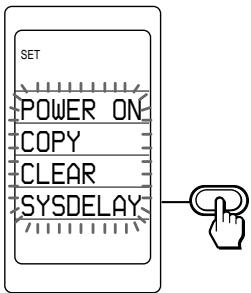
4 Select "INTERVAL" by pressing the Label Select button.
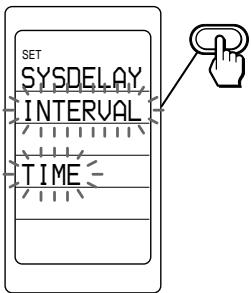
The current interval setting stays lit. The factory setting is 150 ms. (ms: 1/1000 second)
5 Select the interval by pressing the Label Select button.
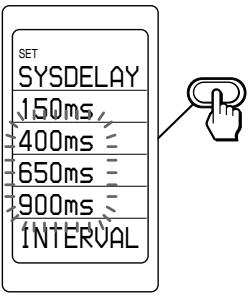
With a beep sound, the setting is changed.
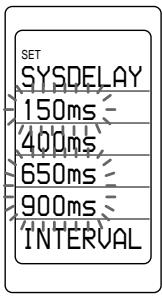
6 Press the SET button. The display returns to Step 4.
Changing the component macro executing time
1 Follow the procedure of Steps 1-3 on page 42.
2 Select "TIME" by pressing the Label Select button.
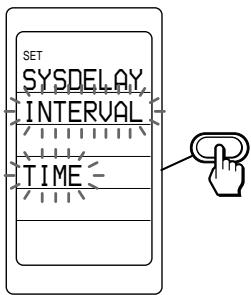
The current component macro executing time stays lit. The factory setting is 1 sec.
3 Select the component macro executing time by pressing the Label Select button.
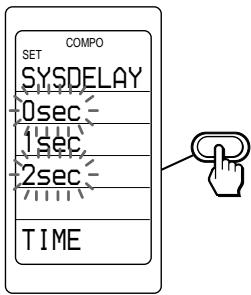
With a beep sound, the setting is changed.
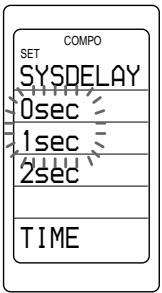
4 Press the SET button. The display returns to Step 2.
Adding an Extra Function to the Component Labels
Programming the Power-On command of a selected component (for Sony components only)
When using Sony components, you can programme the Power-On signal for each component on a component label. You can select the desired component and turn it on by just selecting that label after pressing the COMPO button.
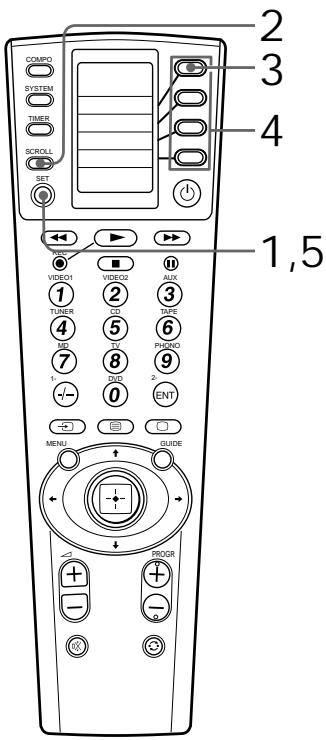
Example: To programme the TV label
1 Keep the SET button pressed for more than a second.

“SET” appears on the LCD display.
2 Press the SCROLL button twice to display "POWER ON" on one of the labels.

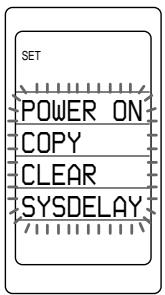
3 Select "POWER ON" by pressing the Label Select button.
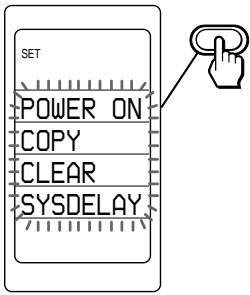
"POWER ON" appears on the LCD display, and component names are displayed on the labels.
The display of the component names (preset by Sony) for which you can programme the Power-on signal flashes. The display of the other components stays lit.
4 Select the desired component by pressing the Label Select button.
(To change the labels, press the SCROLL button repeatedly.)
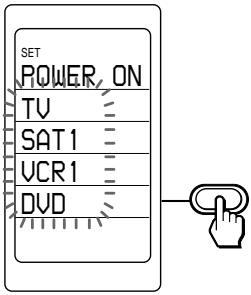
The selected component name appears at the bottom of the LCD display.
A beep sound is heard, and "ON" lights.
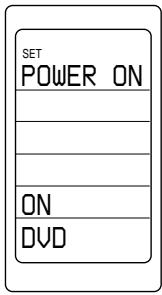
The display returns to Step 4.
If you select a component for which the Power-on signal cannot be programmed, "NG" appears and the 'NG' sound is heard twice. And the display returns to Step 4.
5 Press the SET button. The display returns to the previous one.
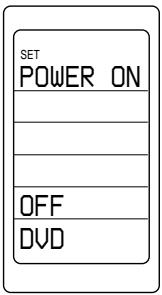
To clear the Power-On command Follow the same procedure as Steps 1-5 on pages 44-45.
The selected component name appears on the bottom of the LCD display. A beep sound is heard, and “OFF” lights.
Note
If the component code of a non-Sony product has been set for a component label, you cannot programme the Power-On function for it.
Assigning Other Components to the Component Labels
Copying the settings of a component label to another label
You can copy the entire settings of a component label. The settings of the component code (page 13), the channel macro function (page 48), the learned functions (page 23), component macro function (page 40), Power-On command (page 44) and character contents are copied to a new label.
Notes
- You cannot copy the settings to a component label for which any learned function, channel macro function or component macro function has been programmed. ("NG" appears.)
- The character contents are overwritten over a new label.
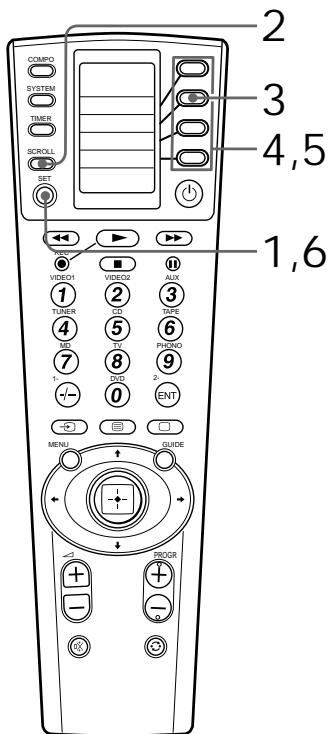
Example: To copy the settings of the DVD label to the VCR1 label
1 Keep the SET button pressed for more than a second.

“SET” appears on the LCD display.
2 Press the SCROLL button twice to display "COPY" on one of the labels.

3 Select "COPY" by pressing the Label Select button.
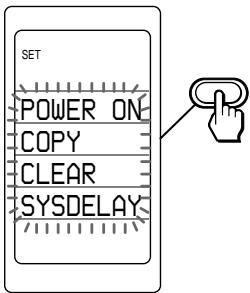
“COPY” appears on the LCD display, and component names are displayed on the labels.
4 Select the Component of which the contents are to be moved by pressing the Label Select button.
(To change the Label buttons, press the SCROLL button repeatedly.)
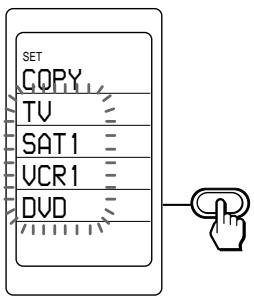
The selected component name appears at the bottom of the LCD display.
5 Select the component to which the contents are to be moved by pressing the Label Select button.
(To change the labels, press the SCROLL button repeatedly.)
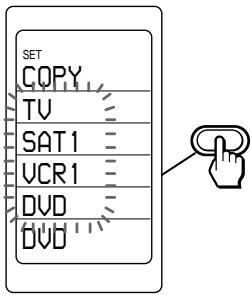
The selected component name appears on the first label of the LCD display.
The copying begins.
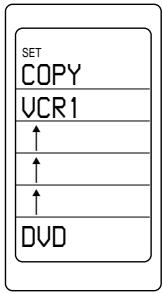
With a beep sound, the copying finishes.
If you select a Component label for which any channel macro, learning, component macro function has been programmed "NG" appears and the 'NG' sound is heard twice. And the display returns to Step 5.
6 Press the SET button.
The display returns to the previous one.
To return to the original setting Follow the steps in “To clear the contents programmed for a specific component label”, page 19.
Selecting a Programme with a Single Label
— Channel Macro Function
You can programme the Channel Macro function of the components of which the first digit of the four-digit preset component code number is 3 (SAT1 and SAT2) or 8 (TV).
You can also program the
Channel Macro function for the macro labels of a component to send data.
If you program the operation of entering the 1, 2, 3, and ENT buttons for a macro label, you can select program 123 by selecting that single label.
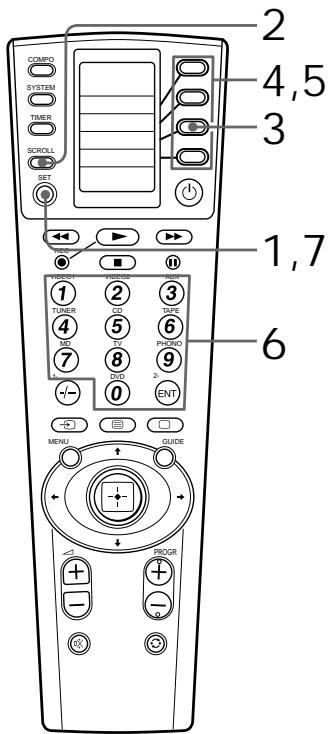
Example: To program TV program 123 for the PIP CH+ key
1. Keep the SET button pressed for more than a second.

“SET” appears on the LCD display.
2. Press the SCROLL button once to display “CH MACRO” on one of the labels.

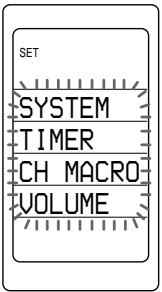
3. Select "CH MACRO" by pressing the Label Select button.
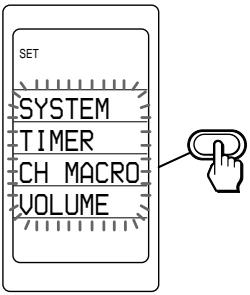
“CH MACRO” appears on the LCD display, and component names are displayed on the labels.
The component names on the labels for which the Channel Macro function can be programmed flash, and the others stay lit. To change the labels, press the SCROLL button repeatedly.
4. Select the Component by pressing the Label Select button.
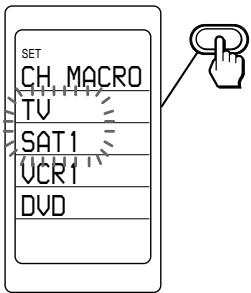
The selected component name appears. The macro labels flash. (To change the labels, press the SCROLL button repeatedly.)
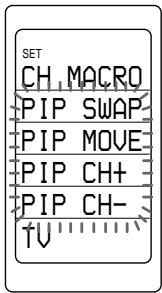
If you select the component name for which the Channel Macro function cannot be programmed, the 'NG' sound is heard.
5. Select the macro label by pressing the Label Select button.
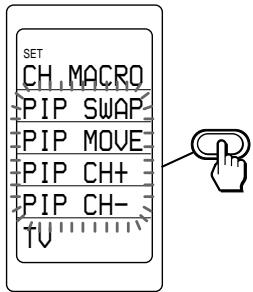
The selected label stays lit. Other labels disappear.
If you select the label for which the Channel Macro function cannot be programmed, the 'NG' sound is heard.
6 Press the number buttons for the operation and the ENT button in order (1→2 → 3 → ENT).
“1,” “2,” “3,” and “ENTER” appear twice. The numbers are decided.
Notes
- If you enter three or less numbers, press the number buttons and the SET button in order. The numbers are decided for the macro label.
- If you enter four numbers, the four numbers are decided for the macro label.
Selecting a Programme with a Single Label — Channel Macro Function (continued)
7 Press the SET button.
The display returns to the previous one.
Note
You cannot programme the Channel Macro function for a macro label that has “learned” a signal. Try again with another macro label, or clear the “learned” signal (page 29) and programme the Channel Macro function on it.
To change the name of the Channel Macro labels on the display
You can change the display of the labels on the display to the most suitable name using up to 8 characters or digits.
1 In Step 5 (page 49), select the Channel Macro label of which name you want to change (for example, PIP CH+) by keeping the Label Select button pressed for more than 2 seconds. The Commander enters the Label Input mode.
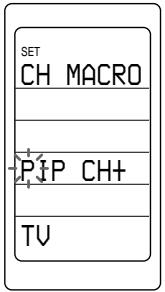
2 Input the name of the label. Follow Steps 3 - 5, on page 27-28. 3 Press the SET button. The Commander goes to Step 6 on page 49.
To clear the Channel Macro of a label
In Step 5 (page 49), while pressing the Label Select button corresponding to the label that you want to erase, press the SCROLL button. (The labels for which the Channel Macro is programmed stay lit.)
“CLEAR OK” appears and the Channel Macro is cleared with a beep sound.
The cleared label flashes together with other labels which have no Channel Macro data. The display returns to the Channel Macro label selecting mode.
If the character contents of the label have been changed
To clear the character contents of that label, perform the same procedure above again. The input contents are cleared and the label display returns to the original setting.
Note
When you select the label for which the Channel Macro is programmed, the 'NG' sound is heard. If you release the Label Select button then, data is not cleared and the System Macro signal is transmitted.
Setting the Timer
Up to 12 timer setting programmes can be set on this commander. You can programme the timer setting of the day of the week, the hour, the minute and the contents of the programme (Timer Macro) weekly or daily. You can set each programme of the timer to be executed or not.
There are two ways to set the timer, as shown.
- Setting the new timer programme
- Changing the programme already set or changing another programme that you select (page 56)
Setting the new timer programme
Example: To set the timer programme at 7:30 AM on Saturday to the PROG4 label
1 Keep the SET button pressed for more than a second.

“SET” appears on the LCD display.
2 Press the SCROLL button once to display "TIMER" on one of the labels. 3 Select "TIMER" by pressing the Label Select button.
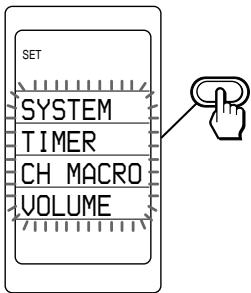
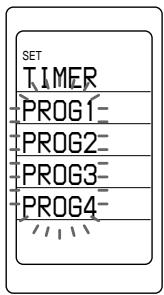
“TIMER” appears on the LCD display, and the timer programme numbers are displayed on the labels. To change the labels (PROG 1-12), press the SCROLL button repeatedly.
Setting the Timer (continued)
The programme numbers having timer setting programmes which are set to be executed (standby mode) stay lit. The programme numbers having timer setting programmes which are set not to be executed flash. The programme numbers without timer setting programmes flash.
4 Select the programme number to which you want to set the timer by pressing the Label Select button.
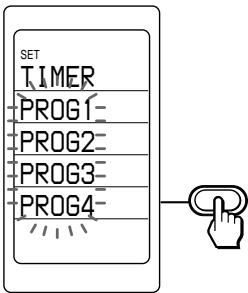
The selected programme number appears. (If the selected label has character contents you input, the character contents appear.)
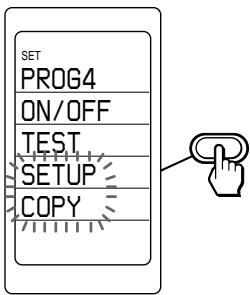
“ON/OFF,” “TEST,” “SETUP,” and “COPY” appear on the labels.
When the timer programme of the selected number is set to be executed (standby mode),
"ON/OFF" and "TEST" flash.
When the timer programme of the selected number is set not to be executed, "ON/OFF,"
“TEST,” “SETUP” and “COPY” flash.
When the selected number has no timer programme data, "SETUP" and "COPY" flash.
5 Select "SETUP" by pressing the Label Select button.
“SUN,” “12:00 AM,” and “MACRO” are displayed. If the day of the week and the time for the timer programme are set in this setting mode, or if you try changing the programme already set (page 56), the set contents are displayed.
6 Select the first label (the day of the week) by pressing the Label Select button, and set the timer-on day(s) of the week by pressing the Joystick toward or .
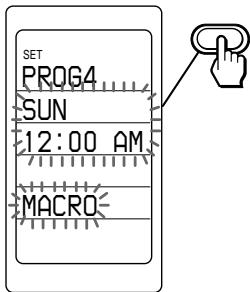
Each time the Joystick is pressed toward or , the display of day(s) of the week changes as follows.
![graph TD A["SAT"] --> B["FRI"] B --> C["THU"] C --> D["WED"] D --> E["TUE"] E --> F["MON"] F --> G["SUN"] G --> H["SUN"] H --> I["SUN"] I --> J["MON-SAT"] J --> K["EVERYDAY"] style A fill:#f9f,stroke:#333 style K fill:#f9f,stroke:#333](/content/2019/09/50670/images/7f456614f6e27737acf60efc9f518b11364bf41bd782819fa06507e88a4bbf93.jpg)
SUN : Sunday
MON : Monday
TUE : Tuesday
WED : Wednesday
THU : Thursday
FRI : Friday
SAT : Saturday
MON-SAT: from Monday to Saturday
MON-FRI: from Monday to Friday
SUN SAT: Sunday and Saturday
EVERYDAY: daily timer
Then press down the Joystick to decide the day(s).
7 Select the second label (time) by pressing the Label Select button.
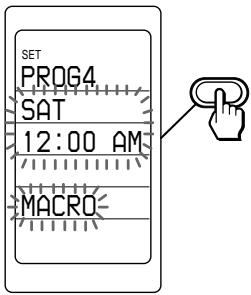
8 Set the hour by pressing the
or (page 10). Then press the Joystick toward so that the minute flashes.
(You can switch the mode between the hour setting and the minute setting by pressing the Joystick toward or .)
Set the minute by pressing the Joystick toward or (page 10).
Then press down the Joystick.
The time of the timer setting is decided.
9 Select "MACRO" by pressing the Label Select button.
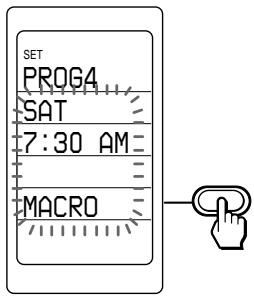
The Commander enters the Timer Macro setting mode.
10Programme the information of the corresponding labels as a procedure to be executed by the timer.
If you want to programme the component function for the timer Select the component name. Functions for the component are displayed on the labels. (To change the labels, press the SCROLL button repeatedly.) Go to step 11.
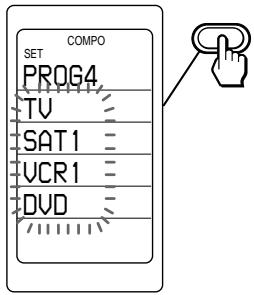
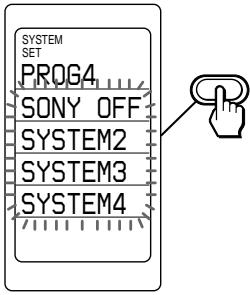
If you want to programme the System Macro data for the timer Press the SYSTEM button. System macro numbers are displayed on the labels. Select the system label of which information you want to programme for the timer. Go to Step 12.
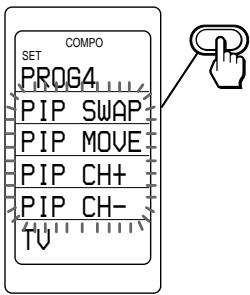
11 Press the Label Select button or other button on the Commander of which the function you want to programme as a step. (To change the labels, press the SCROLL button repeatedly.)
If you want to programme the function of another component Press the COMPO button, and return to Step 10.
12 Repeat Steps 10 and 11. When 32 steps are input, the Macro step programming registered with a beep sound. Then the display returns to step 6.
Notes
- You can input up to 32 steps for one timer programme number.
- A System Macro can be input as a step.
- You can change the interval between operation steps (page 42).
- The step of the TIMER button has an interval of 250ms. This operation of programming an interval is counted also as a step.
- The SCROLL button is not counted as a step.
13 When you have programmed a series of Timer Macro setting, press the SET button.
With a beep sound, a series of Timer Macro settings are registered.
The display returns to Step 6.
Each time you press the SET button, the display returns to the previous one.
If you want to check the execution of the timer setting or set the timer programme to the standby mode
See page 58.
Notes
- When using the timer setting on this Commander, only one setting can be assigned to one programme. If you want to set the timer to turn on at a programmed time, and to set the timer to turn off at another time, programme the two settings separately.
- If there are some programmes set to be executed at the same time, they start in order from the lowest programme number.
- According to the status of the component operated by the timer programme, the next programme might not function successfully. When setting a timer programme, check carefully the setting of other programmes.
- Some programmes cannot be executed at the set time because the execution time of the remote control output is different depending on the contents of the timer execution. Or, if the execution time arrives while the previous timer programme is outputted, the timer programme begins after the execution of the previous one. In this case also, the programme cannot be executed at the set time. So, set the timer regarding the contents and the duration of the timer execution.
Setting the Timer (continued)
To change the name of the Timer Macro labels on the display
You can change the display of the labels on the display to the most suitable name using up to 8 characters or digits.
1 In Step 4 (page 52), select the Timer Macro label of which name you want to change (for example, PROG4) by keeping the Label Select button pressed for more than 2 seconds. The Commander enters the Label Input mode.
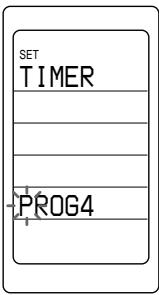
2 Input the name of the label. Follow Steps 3 - 5, on page 27 - 28. 3 Press the SET button. The display goes to Step 5 on page 52.
Changing the programme already set or changing another programme that you select
1 Follow Steps 1 - 4 on page 51-52. 2 Select "COPY" by pressing the Label Select button. If you want to change the programme already set, go to Step 5 without pressing the COPY key.
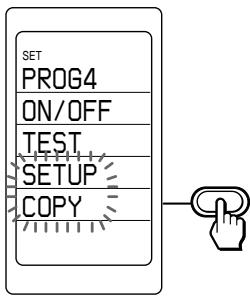
The programme numbers appear. Numbers which have the timer setting information flashes. The others stay lit.
3 Press the SCROLL button repeatedly until the programme number (PROG 1-12) of which the contents you want to change appears.
4 Press the Label Select button of the programme number of which the contents you want to change.
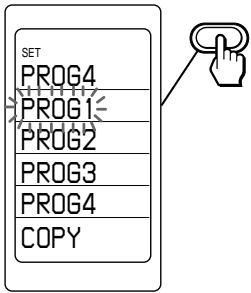
With a beep sound, the contents of the selected programme (in this case, PROG1) are copied to the programme number displayed on the top of the display (in this case, PROG4).
5 Select "SETUP" by pressing the Label Select button.
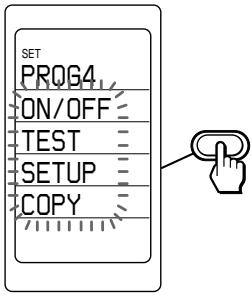
The display turns to the setting up mode of the timer.
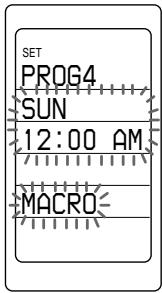
6 Press the Label Select button of the label whose contents you want to change.
Day: See Step 6 on page 52. Time: See Step 7 on page 53. MACRO: The display appears as below.
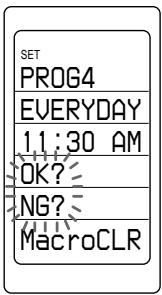
7 Select "OK?" by pressing the Label Select button.
With a beep sound, the Timer Macro setting is cleared, and the Commander enters the Timer Macro setting mode (Step 10 on page 54).
If you select "NG?" The display returns to the setting up mode.
Note
You cannot change the Timer Macro setting partially. If you want to change the programme without clearing the frequently used procedure, use the System Control function (page 34). For example, if Steps A to D are frequently used when you want to programme Steps A, B, C, D and E, programme Steps A to D using the system macro. Then programme Step E in the Timer Macro, combining it with that System Macro.
Setting the Timer (continued)
To check the execution of the timer programme
1 Follow Steps 1 - 4 on page 51 - 52. 2 Select "TEST" by pressing the Label Select button.
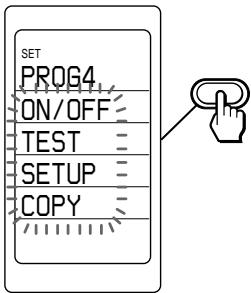
You can check the timer programme setting by transmitting the Timer Macro signals.
3 Press the SET button. The display returns to the previous one.
To switch the timer standby mode to on or off
1 In Step 4 (page 52), select the programme number having a timer setting programme by pressing the Label Select button. 2 Select "ON/OFF" by pressing the Label Select button.
The timer standby mode will be switched as follows.
When the selected programme number has the standby mode set to on
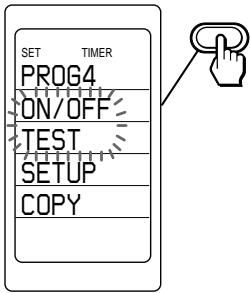
The timer standby mode will be set to off.
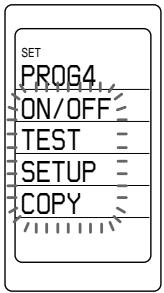
When the selected programme number has the standby mode set to off
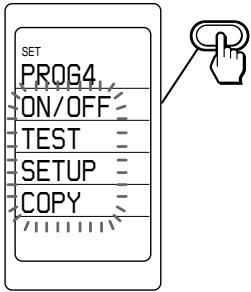
The timer standby mode will be set to on.
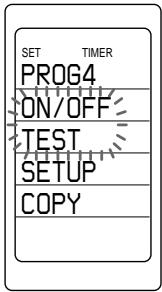
3 Press the SET button. The display returns to the previous one.
To quickly switch the timer standby mode to on or off using the TIMER button
1 When the display for component operation appears (if not, press the SET button repeatedly), press the TIMER button.

“TIMER” and the programme numbers appear. (To change the labels, press the SCROLL button repeatedly.)
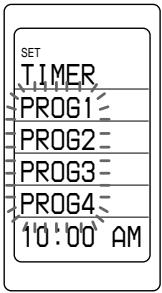
The programme number with the standby mode set to on stays lit.
The programme number with the standby mode set to off flashes.
The number that has no timer programme data flashes.
2 Select the programme number whose standby mode you want to switch by pressing the Label Select button.
Each time the Label Select button is pressed, the standby mode is switched between on and off.
Setting the Timer (continued)
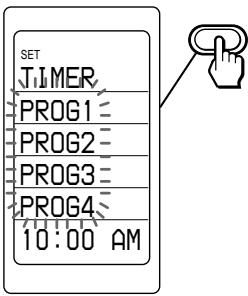
If you select the programme number that has no timer programme data The ‘NG’ sound is heard.
3 When you finish setting the timer standby mode, press any button other than the SCROLL and Label Select buttons.
The display turns to the component operating mode.
The “TIMER” mark stays lit on the display. This means that one or more timer programmes are set to the timer standby mode.
Notes
- If the TEST or ON/OFF label is selected when the timer programme is not set, the 'NG' sound is heard twice.
- The timer programme contents you have set on this Commander repeat daily or weekly until you set the timer standby mode to off. If you want to execute the timer programme once, set the timer standby mode to off after the execution of the timer programme.
IMPORTANT
The timer function of this Commander is designed for the timer operation of AV components. Do not use the timer function to operate an air-conditioner or electrical appliances. It may cause a fire or a serious injury.
To clear timer settings programmed for a specific programme number label
1 Keep the SET button pressed for more than a second.

“SET” appears on the LCD display.
2 Press the SCROLL button twice to display "CLEAR" on one of the labels.

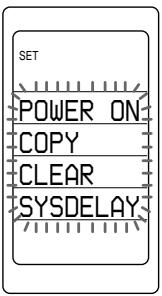
3 Select "CLEAR" by pressing the Label Select button.
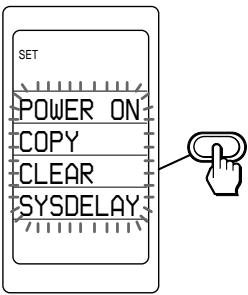
4 Select "TIMER" by pressing the Label Select button.
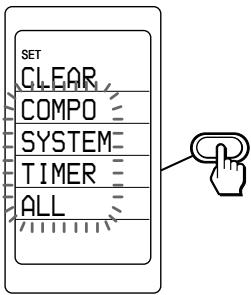
The timer programme numbers are displayed on the labels. To change the labels (PROG 1-12), press the SCROLL button repeatedly.
5 Select the programme number of which timer contents you want to erase by pressing the Label Select button.
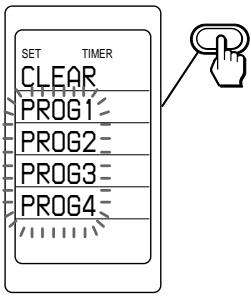
While erasing
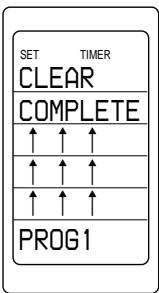
When erasing finishes, "COMPLETE" is displayed with a beep sound.
If you want to erase the settings of other timer programme numbers Repeat Step 5.
6 Press the SET button.
The display returns to the previous one.
Locking the Controls
— Hold Function
To prevent accidental operation, you can lock all the buttons with the Hold function. However, the timer functions while the controls are locked.
While pressing the ⏻ button, press the SCROLL button.

With a beep sound, “LOCK” appears, and every LCD display disappears except the clock and “LOCK.”
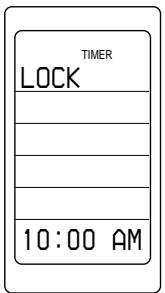
When the controls are locked
Even if you press a button (except when the ⏻ button and the
SCROLL button are pressed at the same time), the Commander does not operate. When the timer is set to be executed, "TIMER" stays lit.
To unlock the controls
While pressing the ⏻ button, press the SCROLL button.
With a key-touch beep, the display returns to the status before setting of the Hold function.
Adjusting the Automatic-Off Time of the Backlight of the Display Window
The Commander is preset at the factory to brighten the backlight, and to switch off the backlight automatically if you do not operate for more than 5 seconds. To change this setting, perform the following procedure. You can adjust the backlight Automatic-Off time (from 0-60 seconds).
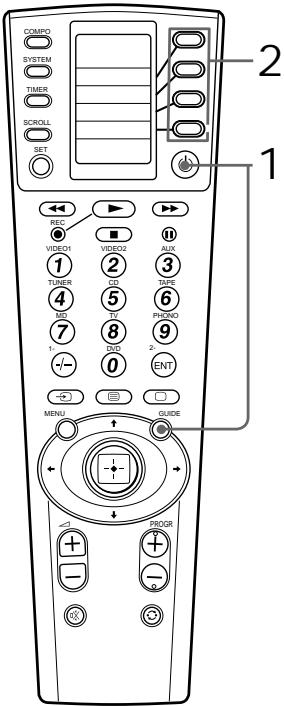
1 While pressing the ⏻ button, press the GUIDE button.
+

“LIGHT” appears on the LCD display, and the list of Automatic-Off time of the backlight is displayed on the labels.
The Automatic-Off time of the backlight actually set stays lit, and the others flash.
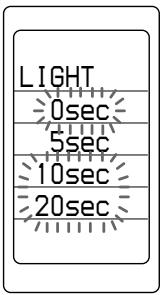
To change the labels, press the SCROLL button repeatedly. Each time the SCROLL button is pressed, the labels change as follows.
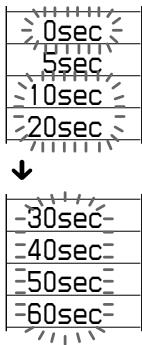
2 Select the desired Automatic-Off time of the backlight by pressing the Label Select button.
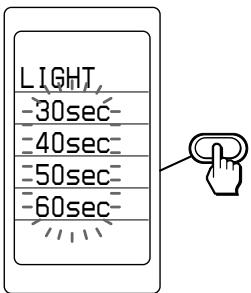
The set Automatic-Off time of the backlight appears.
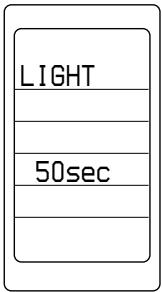
With a beep sound, the Automatic-Off time of the backlight is decided and the setting finishes.
Setting the Key- Touch Beep
The Commander is preset at the factory to turn on the key-touch confirmation beep. You can turn on or off the key-touch confirmation beep.
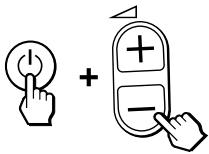
1 While pressing the ⏻ button, press the △ + button to turn on the key touch beep.
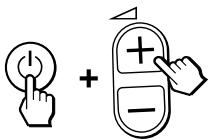
2 While pressing the ⏻ button, press the △ - button to turn off the key touch beep.
Adjusting the Contrast of the Display Window
You can adjust the contrast of the display window.
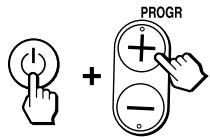
1 While pressing the ⏻ button, press the PROGR + button to increase the contrast of the display window.
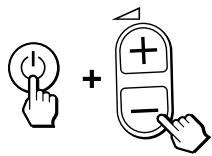
2 While pressing the ⏻ button, press the PROGR - button to decrease the contrast of the display window.
Changing the Names of the Labels on the Display
You can change the display of the component names, the function displays of components, the system macro numbers (SONY OFF, SYSTEM2 - 12) and timer programme numbers (PROG1 - 12) on the labels to the most suitable name using up to 8 characters or digits.
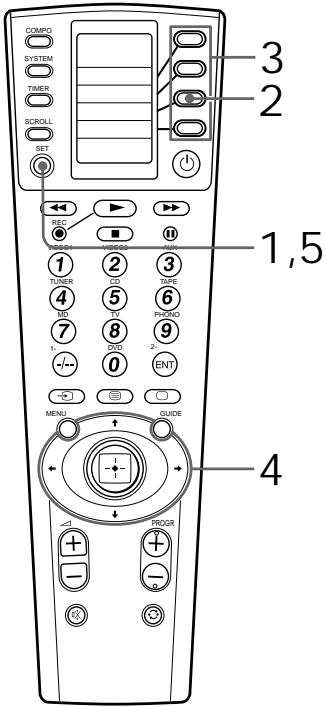
Changing the Names of the Labels on the Display (continued)
1 Keep the SET button pressed for more than a second.

“SET” appears on the LCD display.
2 Select "LABEL" by pressing the Label Select button.
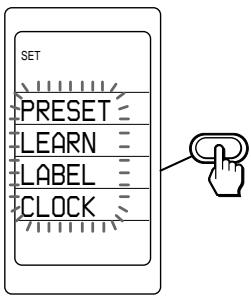
The Commander enters the Label Input mode.
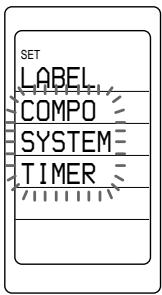
3 Select the label (COMPO, SYSTEM or TIMER) by pressing the Label Select button.
COMPO:
Displays component names. To change the labels, press the SCROLL button.
Select the component whose name you want to change (for example, TV) by pressing the Label Select button.
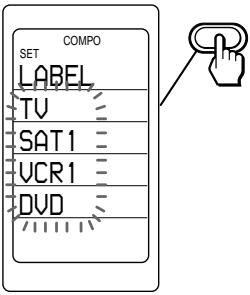
The Commander enters the Label Input mode for the component name. Go to Step 4.
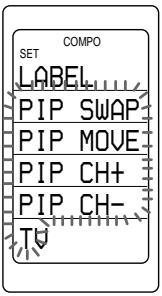
If you want to change the name of the function label of each component: After selecting the component (for example, TV), select the component function whose name you want to change by pressing the Label Select button (for example, PIP CH+). (To change the labels, press the SCROLL button.)
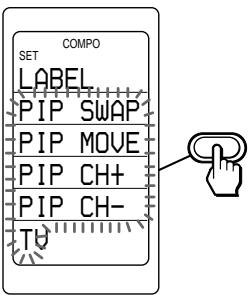
The Commander enters the Label Input mode for the component function name. Go to Step 4.
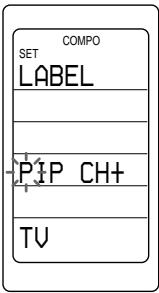
SYSTEM:
Displays the system macro numbers.
To change the labels (SONY OFF, SYSTEM2 - 12), press the SCROLL button.
Select the system macro number (for example, SYSTEM4) whose name you want to change by pressing the Label Select button.
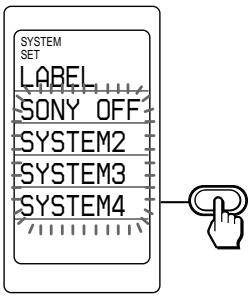
The Commander enters the Label Input mode for the system macro name. Go to Step 4.
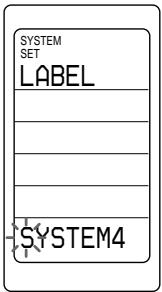
TIMER:
Displays timer programme numbers.
To change the labels (PROG1 - 12), press the SCROLL button. Select the timer programme number (for example, PROG4) whose name you want to change by pressing the Label Select button.
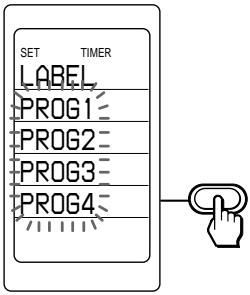
Changing the Names of the Labels on the Display (continued)
The Commander enters the Label Input mode for the timer programme name. Go to Step 4.
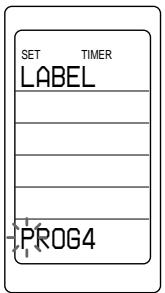
4 Input the name of the label by pressing the Joystick toward ◀, ◀, ◀ or ▶.
Follow Steps 3 - 5, on pages 27 - 28.
5 Press the SET button. The name of the label is decided, and the display returns to the previous one.
Erasing All the Settings
You can erase all the settings to reset the Commander to its factory settings.
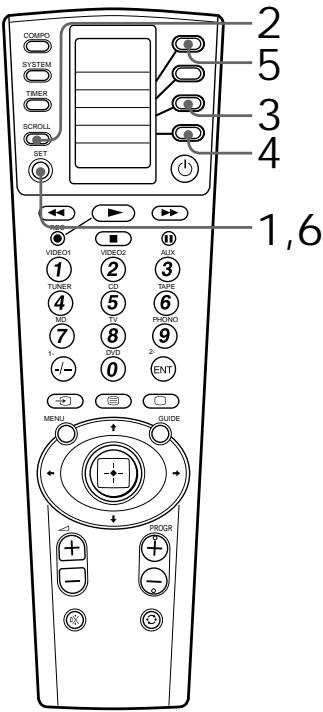
1 Keep the SET button pressed for more than a second.

"SET" appears on the LCD display.
2 Press the SCROLL button twice to display "CLEAR" on one of the labels.

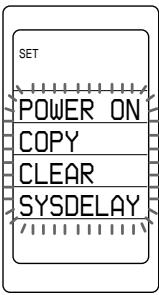
3 Select "CLEAR" by pressing the Label Select button.
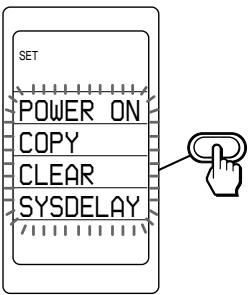
4 Select "ALL" by pressing the Label Select button.
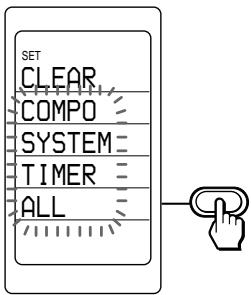
5 Select "YES?" by pressing the Label Select button.
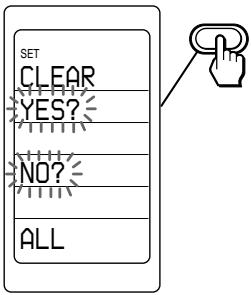
While erasing
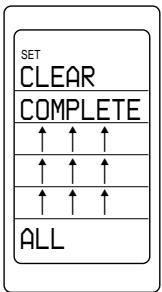
When erasing finishes, "COMPLETE" is displayed with a beep sound. The Commander is reset to its factory settings. The display returns to Step 4. If you select "NO?", the display returns to Step 4.
6 Press the SET button.
The display returns to the previous one.
Precautions
- Do not drop the unit or subject the unit to shock as malfunction may result.
- Do not leave the unit in a location near heat sources, or in a place subject to direct sunlight, excessive dust or sand, moisture, rain or mechanical shock.
- Do not put foreign objects into the unit. Should any liquid or solid object fall into the unit, have it checked by qualified personnel before operating the unit any further.
- Do not expose the remote control detectors of your components to direct sunlight or other strong illumination. Too much light in such places can interfere with remote control operations.
- Be sure to place the Commander out of the reach of small children or pets. Components such as air conditioners, heaters, electric appliances, and electric shutters or curtains receiving an infrared signal can be dangerous if misused.
Maintenance
Clean the surface with a soft cloth slightly moistened with water or a mild detergent solution. Do not use any type of solvent such as alcohol, benzine or thinner as it may damage the finish of the surface.
Specifications
Operating distance Approx. 32.8 ft. (10 meters) (varies depending on components of different manufacturers)
Power requirements Remote control and backlight: Two size AA (R6) batteries
Battery life Approx. 5 months (varies depending on frequency of use)
Dimensions Approx. 2 3/4 × 8 5/8 × 1 3/16 in. (w × h × d) (69 × 217 × 30 mm)
Mass 5.3 oz. (154 g) (not including batteries)
Learnable signals * Capacity per signal: up to 300 bit Signal frequency range: up to 156 kHz Signal interval: up to 1 second
* Some signals cannot be learned by the Commander, even though the signals comply with these specifications.
Design and specifications are subject to change without notice.
CE
The CE mark on the unit is valid only for products marketed in the European Union.
Troubleshooting
If you have problems setting up or using the Remote Commander, first check the batteries (page 7), then check the items below.
| Symptom | Remedy |
| You cannot operate the components. | Go closer to the component. The maximum operating distance is approximately 32.8 ft. (10 m).Check that you are aiming the Commander directly at the component, and that there are no obstructions between the Commander and the component.Turn on the components first, if necessary.Check that the component has infrared remote capability. For example, if your component didn’t come with a remote commander, it probably isn’t capable of being controlled by a remote commander.You have assigned a different component to the component label. A corresponding component is fixed by presetting a component code number. Therefore, the name of component you have preset may be different from that of the component label. In this case, it is recommended to preset again (page 13) and change the component name on the label (page 27, 65). |
| You cannot operate the components even after setting the component code numbers. | Set the component code correctly. If the code that is listed first for your component doesn’t work, try all the codes for your component in the order in which they are listed in the supplied “Component Code Numbers.”Some features may not be preset. If some or all of the buttons do not function correctly even after you have set the component codes, then use the learning function to programme the remote control signals for the component (page 23). |
| You cannot control the volume. | If your visual components are connected to an audio system, make sure you’ve set up the Commander as described in “Controlling the Volume of Visual Components Connected to an Audio System” (page 30).You have assigned another component to the TV or AMP label (page 46). In this case, the volume cannot be controlled when you select a component other than TV or AMP. |
| The Commander fails to learn the remote control signals. | When you teach signals of an interactive signal exchange system remote control unit (supplied with some of Sony’s receivers and amplifiers) to the Commander, the response signal of the main unit may interfere with the learning of the Commander. In such a case, move to a place where the signals will not reach the main unit (e.g. other rooms, etc.). |
| You cannot operate a component even after you programmed the remote control signals with the “learning” function. | Make sure that the Remote Commander has learned the correct signals. If not, see “For accurate learning” (page 29) and try the learning procedure again (page 23). |
| “NG” flashes five times. | Learning has not succeeded. After checking the following, try learning procedure again (page 23).- Change the distance between remote commanders.- See “For accurate learning” (page 29).The component codes cannot be set. See the supplied “Component Code Numbers” and try setting the component codes again (page 13). |
| “NG” flashes twice. | Learned signals or the Channel Macro function have been programmed for the component label to which you want to copy the settings of another component label using the copying function (page 46). Clear the contents (page 19, 29) and try the copying procedure again.You may try to programme the Power-On function (page 44) for a component label to which the component code of a non-Sony product has been set. This function is only for Sony components. |
| The ‘NG’ sound is heard twice. | Learned signals have been programmed for the label to which you want to set the learning, Channel Macro or component macro function. Clear the learned signals (page 19, 29) and try setting again.You may select the component name for which the Channel Macro function cannot be programmed. You can programme the Channel Macro function of the components of which the first digit of the four-digit preset component code number is 3, 8 or 9 (page 48).You may select the component function label for which the Channel Macro function cannot be programmed. The learned signal or the Channel Macro function have been programmed for that label. Clear the learned signal (page 29) or the Channel Macro function (page 50).The programme contents you want to change are set to be executed by the timer. Set the timer setting in which that programme is included not to be executed (page 58), and edit the programme contents.You may try to operate the preset function (page 13) after operating the learning function (page 23). You cannot operate the preset function after operating the learning function. Preset after clearing the learned signals (page 29), or preset to another component label key that is not used. |
| “NG” appears during learning. | The memory is full. Clear infrequently used learned labels (page 29), then carry out learning operations. |
| “NG” appears if you try to copy the settings of the component label to another component label. | There are some function labels for the component for which learned signals have been programmed. Copy the settings to another component label, or clear the learned signals (page 29). |
| A system control programme does not function correctly. | Make sure that you have programmed the commands in the correct order (page 34).Try changing the orientation of the Commander. If that does not help, try placing the components as close to each other as possible.Check the status of the components and make sure that you have set the components properly to receive commands (page 38).The component codes are changed or new signals have been learned for a label that has been programmed with a series of commands. In this case, the new signals are transmitted when the series of commands is executed.The interval may be too short. See “Changing the interval between operation steps” (page 42) and set a longer interval, or adjust the series of commands by changing the order of buttons and labels. (When programming the system control function, you can make an interval by pressing the TIMER button.) |
| The component set to be operated by the timer of the Commander does not function as expected. | · The component could not receive the signal from the Commander successfully. When using the timer, check the following.- Check that the timer macro programme functions correctly by pressing the TEST key, after programming the timer (page 58).- Check the location of the Commander.· The status of each component is not suitable for operation. (For example, you programme the power-on setting, assuming that power of the component is off when the timer turns on. However, if power of the component is on when the component receives the timer signal from the Commander, the component will turn off.) |
| The timer programme is executed in the next week or on the next day though that programme has been already executed. | · The timer programme contents you have set on this Commander repeat weekly or daily. If you want to execute the timer programme once, set the timer standby mode to off after the execution of the timer programme (page 58). |
| “BATT” is displayed for a second when you try to use the Commander. | · The batteries begin to be exhausted. Replace the batteries as early as possible (page 7). |
| The clock is displayed as “--:--”. | · The batteries might have been replaced. Replace the batteries with new ones (page 7). After replacing the batteries, the set contents remain. So, to use the Commander with the previous set contents, you should only set the clock (page 8). |
| “LOCK” is displayed on the LCD and the display for operation does not appear when you press a button. | · The Hold function is on. Unlock the Hold function (page 62). |
Table of Preset Functions
Note
There may be some components or functions that cannot be operated with this Commander.
TV
| KEY DISPLAY | FUNCTION |
| ⏻ | To turn the power on/off |
| 1 - 9, 0 | To change programmesTo turn on the power |
| To change the input mode | |
| To switch to Teletext | |
| To turn onTo return from Teletext to TV | |
| MENU | To call up the MENU display |
| 1- (-/--) | To select double-digit numbersWorks in the same way as your TV's commander |
| 2- | To select a number between 20 and 29 |
| RED (◀◀), GREEN (▶), YELLOW (▶▶), BLUE (■) | Fasttext buttons |
| To move the cursor upward | |
| To move the cursor downward | |
| To move the cursor to the right | |
| To move the cursor to the left | |
| OK (Joystick) | To enter the selection of the MENU display |
| GUIDE | To exit the setting menu |
| PIP | To turn on/off the “window” picture |
| PROGR +/- | Programme up: +Programme down: - |
| To operate JUMP, FLASHBACK or the CHANNEL RETURN function on the TV depending on the setting of the TV’s manufacturer | |
| +/ - | Volume up: +Volume down: - |
| KEY DISPLAY | FUNCTION |
| 呎 | To mute the volume on the TVPress again to turn muting off. |
| PIP SWAP | To swap the “window” picture |
| PIP MOVE | To move the location of the “window” picture |
| PIP CH + | To change the TV programme in the “window” picture upwards |
| PIP CH - | To change the TV programme in the “window” picture downwards |
| PIP TEXT | To switch to Teletext in the “window” picture |
| PIPSTILL | To freeze the “window” picture |
| PIP OFF | To turn off the “window” picture |
| ZOOM | To zoom a picture |
| ZOOM+ | To scroll upward the picture enlarged by zoom function |
| CENTER | To centre the picture enlarged by zoom function |
| ZOOM- | To scroll downward the picture enlarged by zoom function |
SAT1, SAT2 (Satellite)
| KEY DISPLAY | FUNCTION |
| ➊ | To turn the power on/off |
| 1 - 9, 0 | To change programmes |
| To switch the output of the satellite receiver to the TV (When you connect a TV cable or aerial to the receiver, the output switches between a TV and SAT programme.) | |
| ➌ | To switch to Teletext |
| GUIDE | To bring up the Master Guide |
| 1- (-/-) | To select double-digit numbersWorks in same way as your Satellite tuner's commander. |
| RED (◀◀), GREEN (▶), YELLOW (▶▶), BLUE (■) | Fastext buttons |
| MENU | To call up the MENU display |
| ↑ | To move the cursor upward |
| ↓ | To move the cursor downward |
| → | To move the cursor to the right |
| ← | To move the cursor to the left |
| OK (Joystick) | To bring up the Station Index when a programme guide is not displayed |
| To select the programme that is highlighted | |
| PROGR +/- | Programme up: + |
| Programme down: - | |
| EXIT | To exit the mode |
| FAVORITE | To switch up/down among the favourite programmes only |
| INFO | To turn on/off the detailed information of the GUI (Graphic User Interface) display related to the EPG modeTo turn on/off the language switching function for a normal broadcast display |
| ○ | To operate JUMP, FLASHBACK or CHANNEL RETURN function on the satellite tuner, depending on the manufacturer's setting |
| EPG | To show or hide the EPG display |
| SERVICE | To perform the “PLAYER VIEW” or the “programme download” service function. |
| PILOT | To turn on/off the EPG display |
| PERSONAL | To display the setting modes |
DVD
| KEY DISPLAY | FUNCTION |
| ➊ | To turn the power on/off |
| 1 - 9, 0 | Number buttons: To set items selected from the screen |
| 1- (-/--) | To select numbers 10 and above |
| ENT | To enter a setting or to set items selected from the screen |
| ➌ | To show the current play status on the screen |
| ➎ | To return to the last previous screen |
| MENU | To display the DVD menu |
| ♠ | To move the cursor upward |
| ♣ | To move the cursor downward |
| ⇨ | To move the cursor to the right |
| ♦ | To move the cursor to the left |
| OK (Joystick) | To execute items selected from the screen |
| ◀◀ | To rewind |
| ▶ | To play |
| ▶▶ | To fast-forward |
| ■ | To stop |
| ■■ | To pause |
| PROGR + | To proceed to the next location or song |
| PROGR - | To proceed to the previous location or song |
| TITLE | To display the title menu |
| SUB TITLE | To switch the subtitle |
| AUDIO | To change the sound |
| CLEAR | To clear the selected characters from the screen |
| SEARCH→ | To search in the forward direction |
| SEARCH← | To search in the reverse direction |
| FWD SLOW | Slow playback in the forward direction |
| REV SLOW | Slow playback in the reverse direction |
| EJECT | To open or close the tray |
| ANGLE | To switch angle |
| TIME | To change the time display |
| PLAYMODE | To change the playback mode |
VCR1, VCR2, VCR3
| KEY DISPLAY | FUNCTION |
| ➊ | To turn the power on/off |
| 1 – 9, 0 | To change programmesTo turn on the power |
| To change the input mode | |
| To expose the on-screen display | |
| MENU | To call up the MENU display |
| ↑ | To move the cursor upward |
| To move the cursor downward | |
| To move the cursor to the right | |
| To move the cursor to the left | |
| OK (Joystick) | To enter the selection of the MENU display |
| GUIDE | To exit the setting menu |
| To rewind | |
| To play | |
| To fast-forward | |
| 1- (-/--) | To select double-digit numbersWorks in the same way as your VCR’s commander. |
| 2- | To select a number between 20 and 29 |
| KEY DISPLAY | FUNCTION |
| REC | To record, press ▶ while pressing REC.*1 First release ▶, then release REC. |
| ■ | To stop |
| ■■ | To pause |
| EJECT | To eject a cassette |
| PROGR +/- | Programme up : + |
| Programme down : - | |
| ANT SW | To switch the aerial output |
| SEARCH→ | CUE locked picture search |
| SEARCH← | REVIEW locked picture search |
| PLAY × 2 | To play at double speed |
| COUNTER | To change the counter display |
| Q.TIMER | To select the recording time by 30 minutes and begin recording |
| COMMERCL | To skip over commercials |
| SP/LP | To switch the tape speed |
*1 In order to avoid recording by mistake, the REC key does not work by itself. You can assign this operation (record) to a single key using the learning function (page 23).
CD
| KEY DISPLAY | FUNCTION |
| ⏻ | To turn the power on/off |
| 1 - 9, 0 | To select the track number (0 selects track 10).To select track numbers above 10, see the descriptions on the PIP button below |
| 1- (-/--) | To select numbers 10 and above |
| ENT | To enter the setting |
| To select next disc | |
| To switch the display of the CD player to on/off | |
| To clear the setting | |
| To rewind | |
| To play | |
| To fast-forward | |
| To stop | |
| To pause | |
| PROGR + | To select the next track |
| PROGR - | To select the previous track |
| CONTINUE | To select continuous play mode |
| SHUFFLE | To play in random order |
| PROGRAM | To use for programme play |
| REPEAT | To select repeat play mode |
| DISC | To decide the numeric key operation |
| TRACK | To decide the numeric key operation |
| GROUP | To decide the numeric key operation |
| EDIT | To go into the setting mode of automatic programme and time fade |
| EJECT | To open/close |
| DSP MODE | To toggle the mode of DSP added to the CD |
| DSP OFF | To turn the DSP off |
| FADER | To toggle the fade-in/fade-out operation |
AMP
| KEY DISPLAY | FUNCTION |
| ➊ | To turn the power on/off |
| 1 | To select the input source:VIDEO 1 |
| 2 | To select the input source:VIDEO 2 |
| 3 | To select the input source:AUX |
| 4 | To select the input source:TUNER |
| 5 | To select the input source:CD |
| 6 | To select the input source:TAPE |
| 7 | To select the input source:MD |
| 8 | To select the input source:TV |
| 9 | To select the input source:PHONO |
| 0 | To select the input source:DVD |
| ➌ | To change the multi-channel of 5.1ch and above |
| MENU | To call up the MENU display, or return to the previous MENU |
| ➎ | To shift band or preset select |
| ➐ | To select FM/AM |
| GUIDE | To return to the basic MENU |
| PROGR +/- | Presetting or tuning frequency to a higher: + |
| Presetting or tuning frequency to a lower: - | |
| Δ+/- | Volume up: + |
| Volume down: - | |
| To mute the volume on the AMPPress again to turn muting off. | |
| S.FIELD | To turn on/off the sound field |
| GENRE | To select a sound field genre |
| MODE | To select a sound field mode |
| T.TONE | To output a test tone |
| CENTER+ | To adjust the center speaker level: + |
| CENTER- | To adjust the center speaker level: - |
| REAR+ | To adjust the rear speaker level: + |
| REAR- | To adjust the rear speaker level: - |
| SUB+ | To adjust the subwoofer level: + |
| SUB- | To adjust the subwoofer level: - |
| D.INPUT→ | To switch the digital input: → |
| D.INPUT← | To switch the digital input: ← |
MD
| KEY DISPLAY | FUNCTION |
| ➊ | To turn the power on/off |
| 1 - 9, 0 | To select the track number (0 selects track 10)To select track numbers above 10, see the descriptions on the PIP button below. |
| 1- (-/--) | To select numbers 10 and above |
| ENT | To enter the setting |
| To select the next disc | |
| To change the display mode or turn the display on/off | |
| To clear the setting | |
| To rewind | |
| To play | |
| To fast-forward | |
| REC | To record, press ▶while pressing REC First release ▶, then release REC. |
| To stop | |
| To pause | |
| PROGR + | To select the next track |
| PROGR - | To select the previous track |
| CONTINUE | To select continuous play mode |
| SHUFFLE | To play in random order |
| PROGRAM | To use for programme play |
| REPEAT | To switch the repeat play of a single or all track(s) to on/off |
| DECK A | To select a deck of the dual MD deck: A |
| DECK B | To select a deck of the dual MD deck: B |
| REC MODE | To toggle the recording mode |
| CD SYNC | To start synchronizing with the CD |
| EJECT | To open/close |
| FADER | To select the fade-in/fade-out |
| SCROLL | To scroll disc names or track names |
DAT
| KEY DISPLAY | FUNCTION |
| ➊ | To turn the power on/off |
| 1 - 9, 0 | To select the track number (0 selects track 10) |
| ➌ | To change the display mode or turn the display on/off |
| ◀◀ | To rewind |
| ▶ | To play |
| ▶▶ | To fast-forward |
| REC | To record, press ▶ while pressing REC. First release ▶, then release REC. |
| ■ | To stop |
| ■■ | To pause |
| EJECT | To open/close |
| PROGR + | To select the next track |
| PROGR - | To select the previous track |
| HIGH REV | High speed review |
| HIGH CUE | High speed cue |
| FADER | To select the fade-in/fade out |
| REC MUTE | Record muting |
TAPE A, TAPE B
| KEY DISPLAY | FUNCTION |
| ➊ | To turn the power on/off |
| ◀◀ | To rewind |
| ▶ | To play |
| ▶▶ | To fast-forward |
| REC | To record, press ▶while pressing REC.First release ▶, then release REC. |
| ■ | To stop |
| ■■ | To pause |
| → | To reverse |
| ≡ | To change the display mode |
| 💡 | To select a tape deck:Deck A or B (dual cassette deck only) |
| PROGR + | To search the beginning of a track in the fast forward direction |
| PROGR - | To search the beginning of a track in the rewind direction |
| DOLBY NR | To toggle the Dolby Noise Reduction |
| REC LEV+ | To make the recording level higher |
| REC LEV- | To make the recording level lower |
| REC MUTE | Record muting |
| CD SYNC | To start synchronizing with the CD |
| FADER | To stop after fading out and fade in after starting |
| C.RESET | To reset the tape counter |
Index
A
Automatic-Off of the backlight 63
B
Backlight Automatic-Off 63
Batteries 7
C, D
Changing name of the label 27, 37, 50, 56, 67 changing interval 42
Channel Macro function 48
Clearing/Changing contents programmed for a component label 19 Channel Macro function 50 learned signal 29 Power-On command 45 System Control function 37, 39 component macro 41 timer setting 60
Clock setting 8 DS time 9, 12 STD time 9, 12
Code number 13
Component Select label assigning other components 46 copying settings 46 programming a series of commands 40 setting Power-On function 44
Copying settings of a component label 46
E
Erasing all the settings 68
F, G
Factory setting 13, 30, 34, 42, 43, 63, 64
H
Hold Function 62
K
Key touch beep 64
L
LCD 6 backlight 63 Learning Function 23 Locking Hold function 62
M, N, O
※ button 6, 23, 26
P, Q
Power-On function setting 44 Preset components 13 PROGR (programme) +/- button 6
S
System Control function 34 programming a series of commands 34 interval of the System Control function 42 System Power-Off function SONY OFF label 34
T, U
Timer setting 51 Troubleshooting 71
V, W, X, Y, Z
△ (volume) +/- buttons 6, 26 Volume Control 23, 30
- INTEGRATED REMOTE COMMANDER
- FEATURES
- TABLE OF CONTENTS
- GETTING STARTED
- BASIC OPERATIONS
- ADVANCED FEATURES
- USING OTHER FUNCTIONS
- ADDITIONAL INFORMATION
- APPENDICES
- LOCATION AND FUNCTION OF CONTROLS
- INSTALLING THE BATTERIES
- WHEN TO REPLACE THE BATTERIES
- BATTERIES FOR REMOTE CONTROL OPERATION AND BACKLIGHT (TWO SIZE AA (R6) BATTERIES)
- NOTES ON BATTERIES
- SETTING THE CLOCK
- NOTES
- PRESS THE SET BUTTON
- NOTE
- ADJUSTING THE CLOCK AFTER SETTING THE CLOCK
- KEEP THE SET BUTTON PRESSED FOR MORE THAN A SECOND
- SETTING THE CODE FOR PRESET AUDIO AND VISUAL COMPONENTS
- SETTING A COMPONENT CODE
- EXAMPLE: TO SET UP A PHILIPS TV
- CHECKING IF THE CODE NUMBER WORKS
- FINDING A COMPONENT CODE WITH THE SEARCH FUNCTION
- BEFORE STARTING THE SEARCH FUNCTION
- AIM THE COMMANDER AT THE COMPONENT AND PRESS THE ⏻ BUTTON
- PRESS THE ENT BUTTON
- TO CLEAR THE CONTENTS PROGRAMMED FOR A SPECIFIC COMPONENT LABEL
- PRESS THE SCROLL BUTTON TWICE TO DISPLAY "CLEAR" ON ONE OF THE LABELS
- OPERATING YOUR COMPONENTS WITH THE REMOTE COMMANDER
- TO CONTROL THE VOLUME
- USING NON-PRESET REMOTE CONTROL OPERATIONS
- REPEAT STEPS 5 AND 6 TO TEACH FUNCTIONS TO OTHER LABELS OR BUTTONS
- WHEN YOU TEACH THE REC (RECORD) SIGNAL
- WHEN YOU TEACH SIGNALS TO THE △ +/ - OR ☐× BUTTONS
- WHEN YOU TEACH THE SIGNALS OF AN AIR-CONDITIONER
- TO CHANGE THE FUNCTION NAME OF THE LABELS ON THE DISPLAY
- NOTES ON LEARNING THE SIGNALS OF AN AIR-CONDITIONER
- IF THE POWER-ON/OFF OPERATION DOES NOT WORK CORRECTLY
- FOR ACCURATE LEARNING
- IMPORTANT
- CHANGING OR ERASING THE FUNCTION OF A TAUGHT LABEL OR BUTTON
- TO CLEAR THE LEARNED FUNCTION OF A LABEL OR BUTTON
- CONTROLLING THE VOLUME OF VISUAL COMPONENTS CONNECTED TO AN AUDIO SYSTEM
- EXECUTING A SERIES OF COMMANDS
- EXAMPLE
- PROGRAMMING A SERIES OF COMMANDS FOR THE SYSTEM MACRO LABELS
- ABOUT THE INTERVAL BETWEEN OPERATION STEPS
- ABOUT THE ORDER OF OPERATION STEPS
- TO CHANGE THE NAME OF A SYSTEM MACRO LABEL ON THE DISPLAY
- TO CLEAR THE SYSTEM MACRO OF A LABEL
- NOTES ON SYSTEM CONTROL OPERATIONS
- TO CLEAR PROGRAMMED COMMANDS FOR A SPECIFIC SYSTEM MACRO NUMBER LABEL
- PROGRAMMING A SERIES OF COMMANDS FOR THE COMPONENT LABELS
- TO CLEAR THE COMPONENT MACRO OF A LABEL
- CHANGING THE INTERVAL BETWEEN OPERATION STEPS
- CHANGING THE COMPONENT MACRO EXECUTING TIME
- ADDING AN EXTRA FUNCTION TO THE COMPONENT LABELS
- PROGRAMMING THE POWER-ON COMMAND OF A SELECTED COMPONENT (FOR SONY COMPONENTS ONLY)
- SELECT THE DESIRED COMPONENT BY PRESSING THE LABEL SELECT BUTTON
- ASSIGNING OTHER COMPONENTS TO THE COMPONENT LABELS
- COPYING THE SETTINGS OF A COMPONENT LABEL TO ANOTHER LABEL
- SELECTING A PROGRAMME WITH A SINGLE LABEL
- SELECT THE COMPONENT BY PRESSING THE LABEL SELECT BUTTON
- SELECT THE MACRO LABEL BY PRESSING THE LABEL SELECT BUTTON
- PRESS THE NUMBER BUTTONS FOR THE OPERATION AND THE ENT BUTTON IN ORDER (1→2 → 3 → ENT)
- TO CHANGE THE NAME OF THE CHANNEL MACRO LABELS ON THE DISPLAY
- TO CLEAR THE CHANNEL MACRO OF A LABEL
- IF THE CHARACTER CONTENTS OF THE LABEL HAVE BEEN CHANGED
- SETTING THE TIMER
- SETTING THE NEW TIMER PROGRAMME
- EXAMPLE: TO SET THE TIMER PROGRAMME AT 7:30 AM ON SATURDAY TO THE PROG4 LABEL
- SETTING THE TIMER (CONTINUED)
- TO CHANGE THE NAME OF THE TIMER MACRO LABELS ON THE DISPLAY
- CHANGING THE PROGRAMME ALREADY SET OR CHANGING ANOTHER PROGRAMME THAT YOU SELECT
- TO CHECK THE EXECUTION OF THE TIMER PROGRAMME
- TO SWITCH THE TIMER STANDBY MODE TO ON OR OFF
- TO QUICKLY SWITCH THE TIMER STANDBY MODE TO ON OR OFF USING THE TIMER BUTTON
- TO CLEAR TIMER SETTINGS PROGRAMMED FOR A SPECIFIC PROGRAMME NUMBER LABEL
- SELECT "TIMER" BY PRESSING THE LABEL SELECT BUTTON
- SELECT THE PROGRAMME NUMBER OF WHICH TIMER CONTENTS YOU WANT TO ERASE BY PRESSING THE LABEL SELECT BUTTON
- LOCKING THE CONTROLS
- WHEN THE CONTROLS ARE LOCKED
- TO UNLOCK THE CONTROLS
- ADJUSTING THE AUTOMATIC-OFF TIME OF THE BACKLIGHT OF THE DISPLAY WINDOW
- SETTING THE KEY- TOUCH BEEP
- ADJUSTING THE CONTRAST OF THE DISPLAY WINDOW
- CHANGING THE NAMES OF THE LABELS ON THE DISPLAY
- COMPO
- SYSTEM
- TIMER
- ERASING ALL THE SETTINGS
- PRECAUTIONS
- MAINTENANCE
- SPECIFICATIONS
- TROUBLESHOOTING
- TABLE OF PRESET FUNCTIONS
- INDEX
- A
- B
- C, D
- E
- F, G
- H
- K
- L
- M, N, O
- P, Q
- S
- T, U
- V, W, X, Y, Z
Brand : SONY
Model : RM-VL1000T
Category : Universal remote