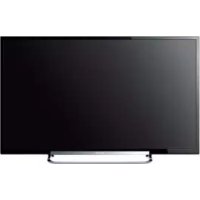
Bravia KDL47R500A - Projector SONY - Free user manual and instructions
Find the device manual for free Bravia KDL47R500A SONY in PDF.



| Product type | LCD TV with LED backlight |
| Brand | Sony |
| Model | Bravia KDL-47R500A |
| Dimensions (with table stand) | 1,085 x 680 x 231 mm (W x H x D) |
| Dimensions (without table stand) | 1,085 x 648 x 76 mm |
| Weight (with table stand) | 16.4 kg |
| Weight (without table stand) | 15.5 kg |
| Power supply | 110-240 V AC, 50/60 Hz |
| Power consumption | See label on back of TV |
| Screen resolution | 1,920 x 1,080 pixels (Full HD) |
| TV standard | Analog B/G, I, D/K, M; Digital DVB-T |
| Audio output | 8 W + 8 W |
| Main functions | Passive 3D, BRAVIA Sync, PIP, MHL, USB Media Player, Photo frame, FM radio, EPG |
| Care and cleaning | Soft, dry cloth; do not use solvents or abrasive products |
| Safety | SU-WL400 wall mount recommended; anti-tip kit available |
| Spare parts / Accessories | RM-ED055 remote control, AAA batteries (2), TDG-500P 3D glasses (4), table stand |
| Repairability | Parts available through Sony network; default parent PIN: 9999 |
Frequently Asked Questions - Bravia KDL47R500A SONY
User questions about Bravia KDL47R500A SONY
0 question about this device. Answer the ones you know or ask your own.
Ask a new question about this device
Download the instructions for your Projector in PDF format for free! Find your manual Bravia KDL47R500A - SONY and take your electronic device back in hand. On this page are published all the documents necessary for the use of your device. Bravia KDL47R500A by SONY.
USER MANUAL Bravia KDL47R500A SONY
Operating Instructions GB
使用说明书 CS
Mode d'emploi FR
HCTpyKnno 3KnnyatauR
AR
PR
Introduction
Thank you for choosing this Sony product. Before operating the TV, please read this manual thoroughly and retain it for future reference.
The illustrations used in this manual are of the KDL-42R500A unless otherwise stated.
Trademark information
- IR3registered trademark of the DVB Project.
- HDMI, the HDMI Logo, and High-Definition Multimedia Interface are trademarks or registered trademarks of HDMI Licensing, LLC in the United States and other countries.
Manufactured under license from Dolby Laboratories.
"BRAVIA" and Remarks of Sony Corporation. - MHL, Mobile High-Definition Link and the MHL Logo are trademarks or registered trademarks of MHL Licensing, LLC.
Manufactured under license from DTS Licensing Limited. For U.S. and worldwide patent and trademark information, see www.dts.com/patents/legacy.aspx. (c) DTS Licensing Limited and DTS, Inc. 2012.

HIGH-DEFINITION MULTIMEDIA INTERFACE

dt
2.0+Digital Out

MHL
Mobile High-Definition Link

Location of the identification label
Labels for Model No. and Power Supply rating (in accordance with applicable safety regulation) are located on the rear of the TV.
Table of Contents
Start-up Guide
Checking the accessories 4
1: Attaching the Table-Top Stand. 4
2: Connecting an antenna/cable/VCR 5
3: Preventing the TV from toppling over.6
4:Performing the initial set-up. 6
Watching TV. 7
Safety information 8
Precautions 10
Operating the TV
Overview of the remote 11
Overview of the TV buttons and indicators.....13
Using Optional Equipment
Connecting optional equipment. 14
Viewing pictures from the connected equipment. 15
Connecting MHL device 16
Viewing PIP (Picture in Picture) 16
Viewing 3D Video 17
Using Menu Functions
Navigating through menus 20
Using the Digital Programme List 21
Using the Digital Electronic Programme Guide
(EPG) 22
Playing back photo/music/video via USB. 23
Basic operation of Photo/Music/Video. 23
Photo Frame 26
Listening to the FM Radio 28
Using BRAVIA Sync with BRAVIA Sync
Control. 29
BRAVIA Sync Control. 29
Settings adjustment. 30
Picture. 30
Sound 31
Screen 32
Channel Set-up 34
Parental Lock 36
Set-up. 37
Eco. 39
Additional Information
Installing the accessories
(Wall-Mount Bracket) 40
SU-WL400. 41
TV installation dimensions table. 41
Hook locations diagram/table. 42
Troubleshooting 43
Specifications 45
DV3: for digital channels only
Before operating the TV, please read "Safety information" (page 8). Retain this manual for future reference.
Checking the accessories
Table-Top Stand (1)
Fixing screws for Table-Top Stand (M5× 16) (2)
Assembling screws for Table-Top Stand (M4 × 10) (4)
Passive 3D Glasses TDG-500P (4)
Remote RM-ED055 (1)
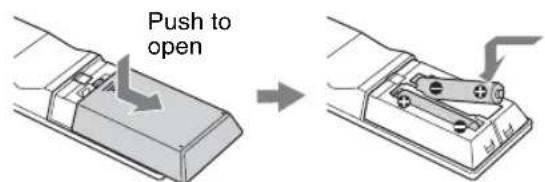
Size AAA batteries (R03 type) (2)
To insert batteries into the remote
1: Attaching the Table-Top Stand
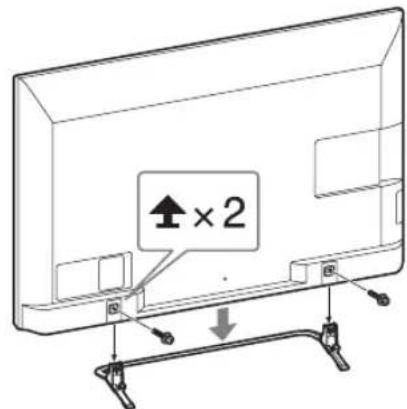
Refer to the supplied Table-Top Stand instruction leaflet for proper attachment.
- Firstly, assemble the Table-Top Stand according to its leaflet.
- For best picture quality, do not expose the screen to direct illumination or sunlight.
- For watching 3D video, make sure you install the TV so that your eyes will be at the same level as the TV screen centre point.
1 Place the TV set on the Table-Top Stand.
Fix the TV to the Table-Top Stand according to the arrow marks that guide the screw holes using the supplied screws.
- Hold the Table-Top Stand with one hand to avoid it dropping when attaching.
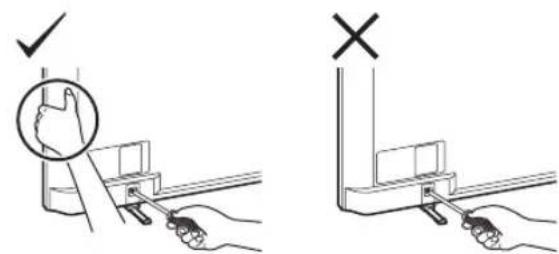

- Be careful to not pinch your hands or the AC power cord when you install the TV set to the Table-Top Stand.
Fix the TV to the Table-Top Stand according to the arrow marks that guide the screw holes using the supplied screws.
This TV is very heavy, so two or more people should place the TV onto the Table-Top Stand.
If using an electric screwdriver, set the tightening torque at approximately 1.5N· m (15 kgf·cm). - Keep the TV in a vertical position while tightening the screws. Be sure to securely tighten the supplied screws, otherwise the TV may fall down.
- Use an appropriate screwdriver to attach the screws tightly without damaging the screw head.
- Please ensure the AC power cord is away from the Table-Top Stand installation location when you attach the Table-Top Stand.
- When detaching the Table-Top Stand, reverse the attaching procedure. Do not remove any screws other than those used when attaching the Table-Top Stand.
2: Connecting an antenna/cable/ VCR

- Connecting cables are not supplied.
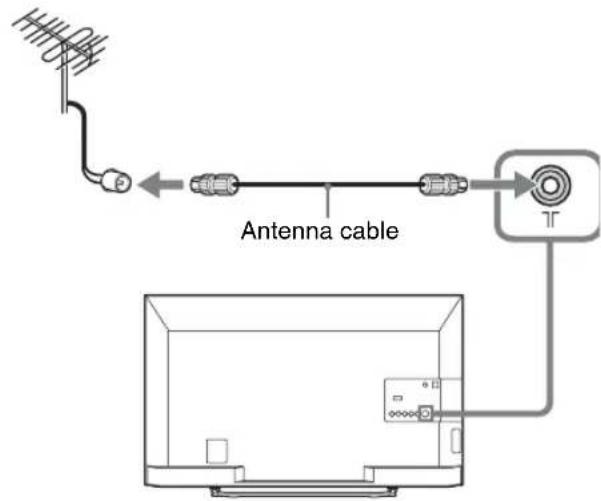
Connecting an antenna/cable
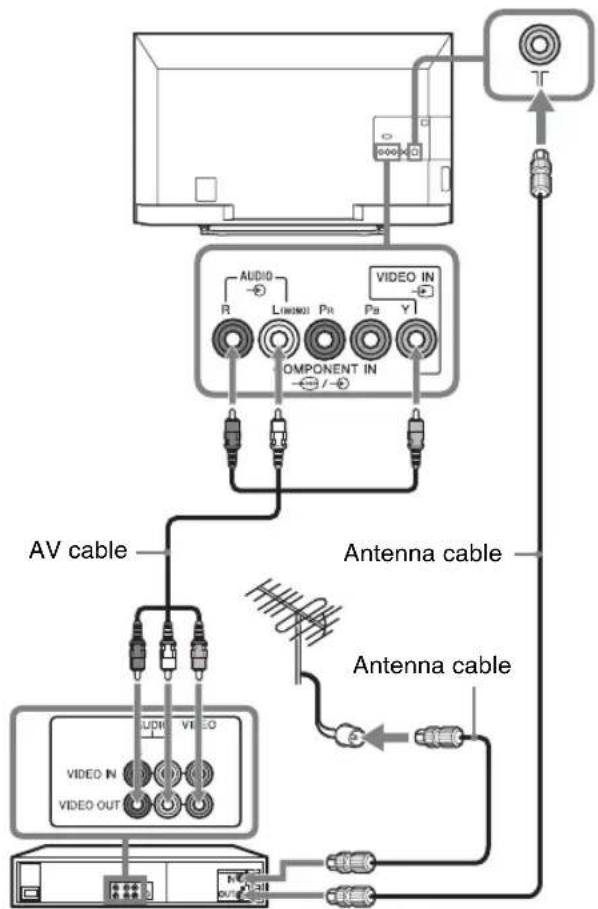
Connecting an antenna/cable and VCR
VCR
3: Preventing the TV from toppling over
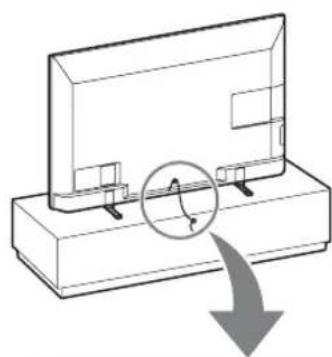
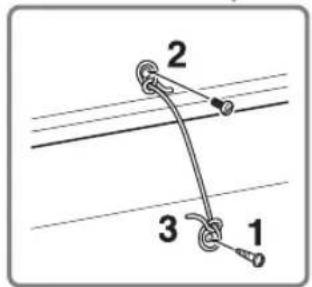
1 Install a wood screw (4 mm in diameter, not supplied) in the TV stand.
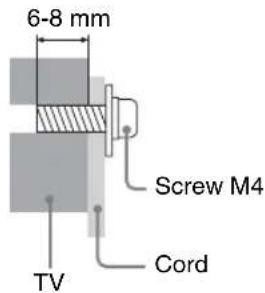
2 Install a machine screw (M4, not supplied) into the screw hole of the TV.
The length of the M4 machine screw differs depending on the cord diameter. Please refer to below illustration.
3 Tie the wood screw and the machine screw with a strong cord (not supplied).
Please place the TV set on a stable, level surface, if place on an unstable place, it may caused TV set to topple over, fall down, and caused injuries to people.
- An optional Sony support belt kit is used to secure the TV. Contact your nearest Sony service centre to purchase a kit. Have your TV model name ready for reference.
4: Performing the initial set-up
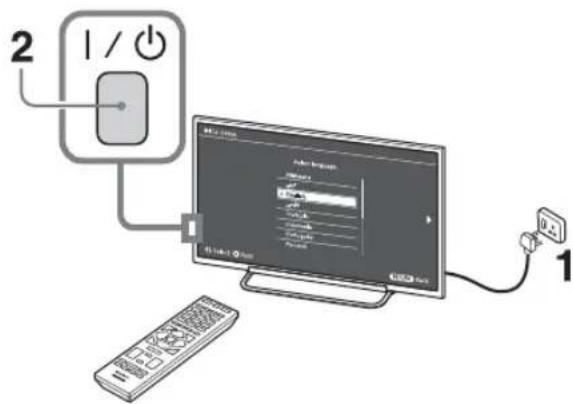
1 The shapes of AC power plug and mains socket differ depending on the region.
2 When the TV is in standby mode (the indicator on the TV front panel is red), press on the remote to turn on the TV.
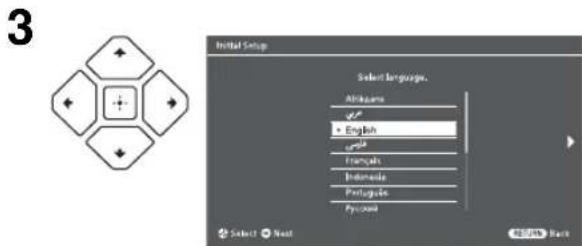
Follow the instructions on the screen:
- Set the language for the On Screen Display (OSD) text
- Select Region and Area
- Select the type of use
- Select "Home" for the best TV settings to use the TV in the home.
- Select broadcast.
- Scan for channels
- Change the order of channels If you want to change the order of channels, follow the steps in "Programme Sorting" (page 35).
Press HOME or RETURN to exit.
You can also tune channels manually (page 34, 35).
- Set the current date and time (page 37).
Watching TV
1 Press / on the TV to turn on the TV.
2 Press DIGITAL/ANALOG to switch between digital and analogue modes.
3 Press the number buttons or PROG + / - to select a TV channel.
4 Press VOLUME + / - to adjust the volume.
Safety information
Installation/Set-up
Install and use the TV set in accordance with the instructions below in order to avoid any risk of fire, electrical shock or damage and/or injuries.
Installation
The TV set should be installed near an easily accessible mains socket.
- Place the TV set on a stable, level surface to avoid it from falling down and cause personal injury or damage to the TV.
- Only qualified service personnel should carry out wall installations.
- For safety reasons, it is strongly recommended that you use Sony accessories, including: Wall-mount bracket SU-WL400
- Be sure to use the screws supplied with the Wall-mount bracket when attaching the mounting hooks to the TV set. The supplied screws are designed as indicated by illustration when measured from the attaching surface of the mounting hook. The diameter and length of the screws differ depending on the Wallmount bracket model. Use of screws other than those supplied may result in internal damage to the TV set or cause it to fall, etc.
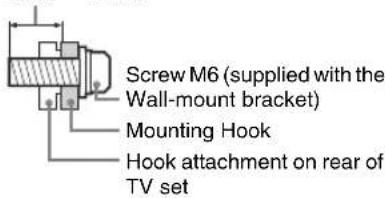
8mm~12mm
Transporting
- Before transporting the TV set, disconnect all cables.
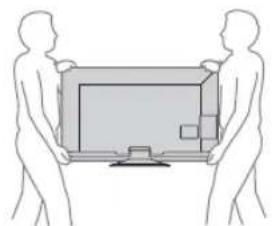
- Two or more people are needed to transport a large TV set.
- When transporting the TV set by hand, hold it as shown below. Do not put stress on the LCD panel and the frame around the screen.
- When lifting or moving the TV set, hold it firmly from the bottom.
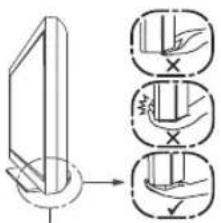
Be sure to hold the bottom of the panel, not the front part.
- When transporting the TV set, do not subject it to jolts or excessive vibration.
- When transporting the TV set for repairs or when moving, pack it using the original carton and packing material.
Ventilation
- Never cover the ventilation holes or insert anything in the cabinet.
- Leave space around the TV set as shown below.
It is strongly recommended that you use a Sony wall-mount bracket in order to provide adequate aircirculation.
Installed on the wall
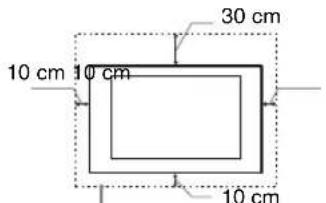
Leave at least this space around the set.
Installed with stand
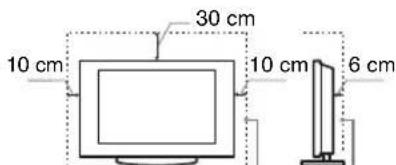
Leave at least this space around the set.
To ensure proper ventilation and prevent the collection of dirt or dust: - Do not lay the TV set flat, install upside down, backwards, or sideways.
- Do not place the TV set on a shelf, rug, bed or in a closet.
- Do not cover the TV set with a cloth, such as curtains, or items such as newspapers, etc.
- Do not install the TV set as shown below.
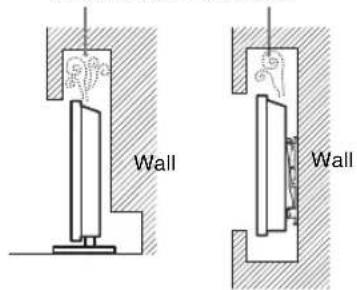
Air circulation is blocked.
AC power cord
Handle the AC power cord and outlet as follows in order to avoid any risk of fire, electrical shock or damage and/or injuries:
The shape of AC power plug, which is supplied with the TV set, varies depending on the regions. Be sure to connect the appropriate supplied AC power cord with the plug that fits into the mains socket.
- Insert the plug fully into the mains socket.
- Operate the TV set on a 110-240 V AC supply only.
- When wiring cables, be sure to unplug the AC power cord for your safety and take care not to catch your feet on the cables.
- Disconnect the AC power cord from the mains socket before working on or moving the TV set.
- Keep the AC power cord away from heat sources.
- Unplug the AC power plug and clean it regularly. If the plug is covered with dust and it picks up moisture, its insulation may deteriorate, which could result in a fire.
Notes
- Do not pinch, bend, or twist the AC power cord excessively. The core conductors may be exposed or broken.
- Do not modify the AC power cord.
- Do not put anything heavy on the AC power cord.
- Do not pull on the AC power cord itself when disconnecting the AC power cord.
- Do not connect too many appliances to the same mains socket.
- Do not use a poor fitting mains socket.
Prohibited Usage
Do not install/use the TV set in locations, environments or situations such as those listed below, or the TV set may malfunction and cause a fire, electrical shock, damage and/or injuries.
Location:
- Outdoors (in direct sunlight), at the seashore, on a ship or other vessel, inside a vehicle, in medical institutions, unstable locations, near water, rain, moisture or smoke.
If the TV is placed in the changing room of a public bath or hot spring, the TV may be damaged by airborne sulfur, etc.
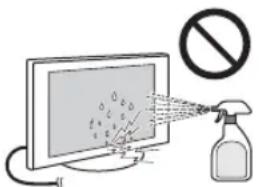
Cleaning:
Do not spray water or detergent directly on the TV set. It may drip to the bottom of the screen or exterior parts and get inside, resulting in a malfunction.
Environment:
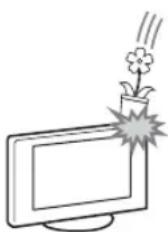
- Places that are hot, humid, or excessively dusty; where insects may enter; where it might be exposed to mechanical vibration, near flammable objects (candles, etc). The TV set shall not be exposed to dripping or splashing and no objects filled with liquids, such as vases, shall be placed on the TV.
- Do not place the TV in a humid or dusty space, or in a room with oily smoke or steam (near cooking tables or humidifiers). Fire, electric shock, or warping may result.
Situation:
- Do not use when your hands are wet, with the cabinet removed, or with attachments not recommended by the manufacturer. Disconnect the TV set from mains socket and antenna during lightning storms.
- Do not install the TV so that it sticks out into an open space. Injury or damage from a person or object bumping into the TV may result.
Broken pieces:
- Do not throw anything at the TV set. The screen glass may break by the impact and cause serious injury.
- If the surface of the TV set cracks, do not touch it until you have unplugged the AC power cord. Otherwise electric shock may result.
- Do not subject the LCD screen to any strong impact or shock. The screen glass may crack or shatter and cause injury.
When not in use
If you will not be using the TV set for several days, the TV set should be disconnected from the AC power for environmental and safety reasons.
- As the TV set is not disconnected from the mains when the TV set is just turned off, pull the plug from the mains to disconnect the TV set completely.
However, some TV sets may have features that require the TV set to be left in standby to work correctly.
For children
- Do not allow children to climb on the TV set.
- Keep small accessories out of the reach of children, so that they are not mistakenly swallowed.
If the following problems occur...
Turn off the TV set and unplug the AC power cord immediately if any of the following problems occur.
Ask your dealer or Sony service centre to have it checked by qualified service personnel.
When:
- AC power cord is damaged.
Poor fitting of mains socket. - TV set is damaged by being dropped, hit or having something thrown at it.
- Any liquid or solid object falls through openings in the cabinet.
About LCD Monitor Temperature
When the LCD Monitor is used for an extended period, the panel surrounds become warm. You may feel hot when touching there by the hand.
Precautions
Viewing the TV
- Some people may experience discomfort (such as eye strain, fatigue, or nausea) when using this product. Sony recommends that all viewers take regular breaks while watching 3D video images or playing stereoscopic 3D games. The length and frequency of necessary breaks will vary from person to person. You must decide what works best. If you experience any discomfort, you should stop using this product and watching the 3D video images until the discomfort ends; consult a doctor if you believe necessary. You should also review (i) the instruction manual of your television, as well as any other device or media used with your television and (ii) Sony website for the latest information. The vision of young children (especially those under six years old) is still under development. Consult your doctor (such as a pediatrician or eye doctor) before allowing young children to watch 3D video images or play stereoscopic 3D games. Adults should supervise young children to ensure they follow the recommendations listed above.
- You should only use this product for watching 3D video images on a compatible Sony television.
- Watch the TV from a distance of more than three times the TV's screen height.
- Avoid eye injury with the tip of the temple arms.
- Be careful not to pinch your fingers in the hinges when bending the temple arms.
View the TV in moderate light, as viewing the TV in poor light or during long period of time, strains your eyes. - When using headphones, adjust the volume so as to avoid excessive levels, as hearing damage may result.
LCD Screen
- Although the LCD screen is made with high-precision technology and 99.99% or more of the pixels are effective, black dots may appear or bright points of light (red, blue, or green) may appear constantly on the LCD screen. This is a structural property of the LCD screen and is not a malfunction.
- Do not push or scratch the front filter, or place objects on top of this TV set. The image may be uneven or the LCD screen may be damaged.
-
If this TV set is used in a cold place, a smear may occur in the picture or the picture may become dark. This does not indicate a failure. These phenomena disappear as the temperature rises.
-
Ghosting may occur when still pictures are displayed continuously. It may disappear after a few moments.
The screen and cabinet get warm when this TV set is in use. This is not a malfunction. - The LCD screen contains a small amount of liquid crystal. Some fluorescent tubes used in this TV set also contain mercury (except for LED backlight LCD TV). Follow your local ordinances and regulations for disposal.
Handling and cleaning the screen surface/cabinet of the TV set
Be sure to unplug the AC power cord connected to the TV set from mains socket before cleaning. To avoid material degradation or screen coating degradation, observe the following precautions.
- To remove dust from the screen surface/cabinet, wipe gently with a soft cloth. If dust is persistent, wipe with a soft cloth slightly moistened with a diluted mild detergent solution.
- Do not spray water or detergent directly on the TV set. It may drip to the bottom of the screen or exterior parts, and may cause a malfunction.
- Never use any type of abrasive pad, alkaline/acid cleaner, scouring powder, or volatile solvent, such as alcohol, benzene, thinner or insecticide. Using such materials or maintaining prolonged contact with rubber or vinyl materials may result in damage to the screen surface and cabinet material.
Periodic vacuuming of the ventilation openings is recommended to ensure to proper ventilation. - When adjusting the angle of the TV set, move it slowly so as to prevent the TV set from moving or slipping off from its table stand.
Optional Equipment
Keep optional components or any equipment emitting electromagnetic radiation away from the TV set.
Otherwise picture distortion and/or noisy sound may occur.
Caution about handling the remote control and batteries
Notes
- Observe the correct polarity when inserting batteries.
- Do not use different types of batteries together or mix old and new batteries.
- Dispose of batteries in an environmentally friendly way. Certain regions may regulate the disposal of batteries. Please consult your local authority.
-
Handle the remote with care. Do not drop or step on it, or spill liquid of any kind onto it.
-
Do not place the remote in a location near a heat source, a place subject to direct sunlight, or a damp room.
WARNING
Batteries must not be exposed to excessive heat such as sunshine, fire or the like.
Maintenance of your Glasses
- Wipe the Glasses gently with a soft cloth.
- Never use strong solvents such as a thinner, alcohol or benzine for cleaning.
Disposal of the TV set
Disposal of Old Electrical & Electronic Equipment (Applicable in the European Union and other
European countries with separate collection systems)
This symbol is on the remote control.
Overview of the remote
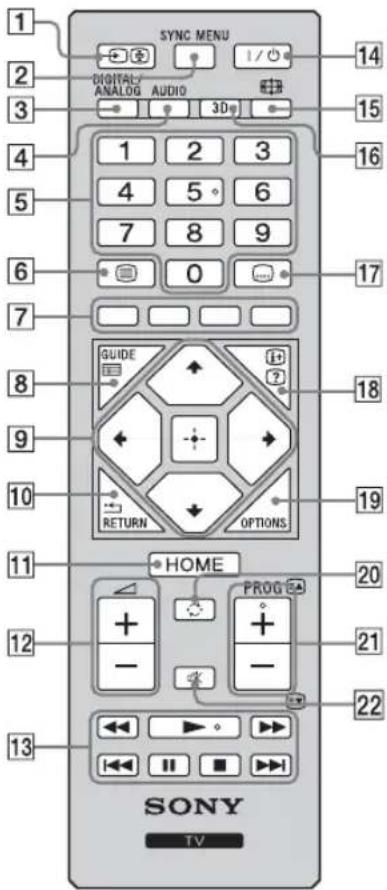

The number 5, PROG + and AUDIO buttons have tactile dots. Use the tactile dots as references when operating the TV.
1/ Input select / Text hold
- Displays the connected equipment list and selects the input source (page 15).
- In Text mode: Holds the current page.
2SYNC MENU
Press to display the BRAVIA Sync Menu and then select connected HDMI/MHL equipment from "Device Selection".
The following options can be selected from BRAVIA Sync Menu:
"Device Control": Use the "Device Control" menu to operate equipment that is compatible with BRAVIA Sync Control. Select options from "Home (Menu)", "Options" and "Content List" to operate the equipment.
"Speakers": Selects "TV Speakers" or "Audio System" to output the TV's sound from the TV speakers or connected audio equipment.
"TV Control": Use the "TV Control" menu to operate the TV from the "HOME (Menu)" or "Options" menu.
"Return to TV": Selects this option to return to TV programme.
3 DIGITAL/ANLOG
Press to switch between digital and analogue channels. Exit Text mode, or switches to a TV display when displaying external input.
4 AUDIO - Dual Sound (page 32)
5Number buttons
- Selects channels. For channel numbers 10 and above, enter the next digit quickly.
- In Text mode: Enters the three digit page number to select the page.
6-Text
In Text mode: Displays Text broadcast.
Each time you press , the display changes cyclically as follows: Text Text over the TV picture (mix mode) No Text (exit the Text service)
7 Coloured buttons
When the coloured buttons are available, an operation guide appears on the screen.
8GUIDE
Press to display the Digital Electronic Programme Guide (EPG) (page 22).
9
- Selects or adjusts items.
- Confirms selected items.
- When playing a photo file: Press to select the previous file. Press to select the next file.
When playing a music/video file: Press to pause/start the playback. Press and hold to fast forward/fast reverse, then release the button at the point where you want to resume playback.
- In digital mode: Press to add channel to the empty Favourite list or display Favourite list.
10 RETURN
- Returns to the previous screen of any displayed menu.
- When playing a photo/music/video file: Press to stop the playback (the display returns to the file or thumbnail view).
HOME
Displays or cancels the menu.
12+/-Volume
Adjusts volume.
13
You can operate the BRAVIA Sync-compatible equipment that is connected to the TV. Some other buttons on the remote control may also operate BRAVIA Sync equipment.
141/ - TV standby
Press to turn the TV on or to switch to standby mode.
15 Wide Mode
Changes the picture size. Press repeatedly to select the desired wide mode (page 12).
163D
Press to display the 3D menu.
17 Subtitle setting
Press to change the subtitle language (page 35) (in digital mode only).
18/ Info / Text reveal
- Displays information. Press once to display information about the programme/Input you are viewing. Press again to remove the display from the screen.
- In Text mode: Reveals hidden information (e.g. answers to a quiz).
19OPTIONS
Press to display a list that contains shortcuts to some setting menus. The listed options vary depending on the current input and content.
20 Previous channel
Returns to the previous channel or input watched (for more than 15 seconds).
PROG +/−/EA
- Selects the next (+) or previous (-) channel.
- In Text mode: Selects the next (or previous) page.
22 - Mute
Press to mute the sound. Press again to restore the sound.
To change the Wide Mode
For TV, Video, Component or HDMI/MHL
| Wide Zoom* En | larges the centre portion of the picture. The left and right edges of the picture are stretched to fill the 16:9 screen. |
| Normal Displays | the 4:3 picture in its original size. Side bars are shown to fill the 16:9 screen. |
| Full Stretches the | the 4:3 picture horizontally to fill the 16:9 screen. |
| Zoom* Displays | cinemascopic (letter box format) broadcasts in the correct proportions. |
| 14:9* | Displays 14:9 broadcasts in the correct proportions. As a result, black border areas are visible on the screen. |
- Parts of the top and bottom of the picture may be cut off.
- You cannot select "Normal" or "14:9" for HD signal source pictures.
HDMI PC Input (PC timing)
| Normal | Displays the picture in its original pixel size. Bars are shown at the top, bottom, and both sides for small picture. |
| Full 1 | Stretches the original picture to fill the screen vertically, keeping its original horizontal-to-vertical aspect ratio. |
| Full 2 | Stretches the Full 1 picture horizontally to fill the 16:9 screen |
Overview of the TV buttons and indicators
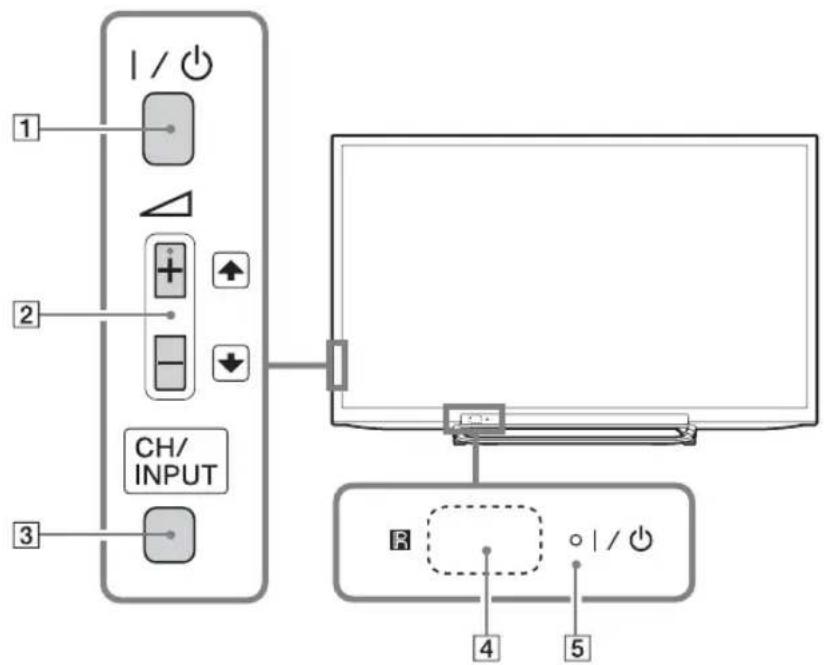
| Item Description | |
| 1 I/O | - Power Press to turn the TV on or to switch to standby mode. To disconnect the TV from the AC power completely, pull the plug from the mains socket. |
| 2 +1 -1 / 0 / 0 | • Increases/decreases the volume, or selects the next (+) or previous (−) channel when the CH Up/Down screen is displayed by pressing the CH/INPUT button. • Moves the selected input source up/down when the input select screen is displayed by pressing the CH/INPUT button. |
| 3 CH/INPUT | Switches between the CH Up/Down screen and input select screen. |
| 4 Remote sensor | Receives IR signals from the remote. Do not put anything over the sensor, doing so may affect its function. |
| 5 I/O | -Picture Off / Timer indicator • Lights up in orange when the “On Timer”/“Sleep Timer” is set, or the TV is in photo frame mode. If you set to “On Timer”, lights up in orange while the TV is also in standby mode (page 37). • Lights up in green when the “Power Saving” is set to “Picture Off” (page 39). - Standby indicator Lights up in red when the TV is in standby mode. - Power indicator • Lights up in green when the TV is turned on. • Flashes while the remote is being operated. |
Make sure that the TV is completely turned off before unplugging the AC power cord. Unplugging the AC power cord while the TV is turned on may cause the indicator to remain lit or may cause the TV to malfunction.
The + button has a tactile dot. Use it as a reference when operating the TV.
Connecting optional equipment
You can connect a wide range of optional equipment to your TV.
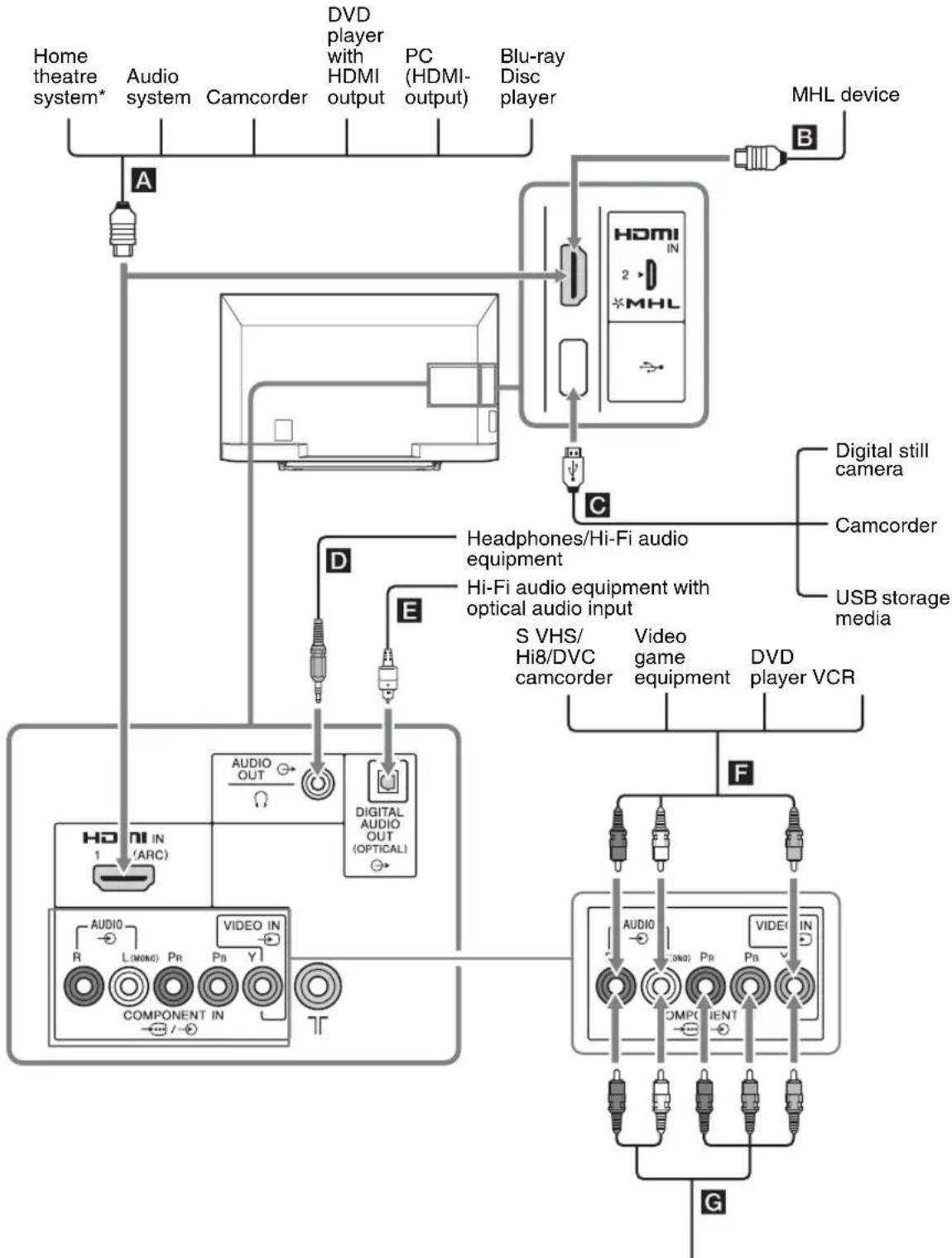
DVD player with component output
- To output the TV's sound from the TV speakers, connect the TV's Audio out with Home theatre system's Line-in using an audio cable.
Viewing pictures from the connected equipment
Turn on the connected equipment, then press to display the connected equipment list. Press / to select the desired input source, then press + . (The highlighted item is selected if 2 seconds pass without any operation after pressing / .)

- You can select A, B, F and G by / . If you want select the other input, please press HOME and select correctly.
| Jacks/ Input symbol on screen | Description |
| A, B HDMI IN 1 (ARC) HDMI IN 2/MHL HDMI 1 or HDMI 2 | Connect to the HDMI IN 1 or 2 jack if the equipment has an HDMI jack. The digital video and audio signals are input from the equipment. In addition, when you connect the equipment that is compatible with BRAVIA Sync Control, communication with the connected equipment is supported. See page 38 to set up this communication. You can also connect your MHL (Mobile High-Definition Link) device to HDMI IN 2/MHL using an MHL cable. In addition, when you connect BRAVIA Sync-compatible equipment, communication with the connected device is supported. If connecting a digital audio system that is compatible with Audio Return Channel (ARC) technology, use HDMI IN 1 (ARC). If not, an additional connection with DIGITAL AUDIO OUT (OPTICAL) is necessary. • The HDMI jacks only support the following video inputs: 480i, 480p, 576i, 576p, 720p, 1080i, 1080p and 1080/24p. • The HDMI jacks can support PC timing in HDMI PC mode. See page 33 for supported PC input signal. • Be sure to use only an authorized HDMI cable bearing the HDMI logo. We recommend that you use a Sony HDMI cable (high speed type). |
| C You can enjoy photo/music/video files stored in a Sony digital still camera or USB storage device (page 23). | |
| D AUDIO OUT or | Connect with an audio cable or headphones. You can listen to TV sound through your stereo system or headphones. You can select "Variable" or "Fixed" in the "Audio Out" menu (page 32). |
| E DIGITAL AUDIO OUT (OPTICAL) | Use an optical audio cable. |
| F, G - / - C O M or -VIDEO IN - Component or - Video | Connect to the component jacks and the audio jacks -Fe better picture quality component connection is recommended if your DVD player has a component video output. When using the component video jack -the video jack -select "Video" in the "Video/Component Input" menu (page 38). • You cannot use the component video jack -the video jack at the same time. • If you connect mono equipment, connect to the L (MONO) jack - |
Connecting MHL device
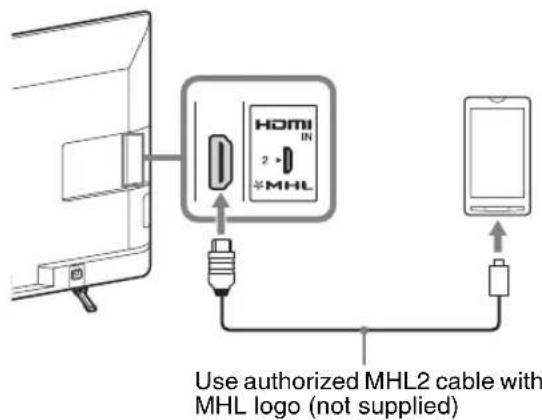
The MHL (Mobile High-Definition Link) enables the TV to communicate with connected MHL-compatible device. When connecting MHL-compatible device, TV simultaneously charges the connected device while playing photo/music/video from it. You can use the TV remote control to control the connected MHL-compatible device.

- You can continue normal usage of the connected MHL-compatible device (such as receiving calls) depending on its capability.
- Some remote control functions may not be available depending on features of the connected MHL-compatible device. Refer to the device manual for details.
- This product is officially MHL-certified for guaranteed operation with other MHL-certified devices. If you encounter any problems when using the MHL function, consult the device manufacturer for support.
- If "Auto Input Change (MHL)" is set to "On" the TV automatically switches to MHL mode when MHL-compatible device is connected to HDMI IN 2/MHL jack. The availability of "Auto Input Change (MHL)" depends on whether the MHL-compatible device can support this feature.
The TV can connect to the MHL-compatible device via its MHL 2 connection.
Viewing PIP (Picture in Picture)
You can view two pictures (in HDMI/MHL input mode) on the screen simultaneously. Connect a PC (page 14), and make sure that images from a PC appear on the screen (page 15).

Press OPTIONS and select "PIP".
Two pictures are displayed simultaneously.
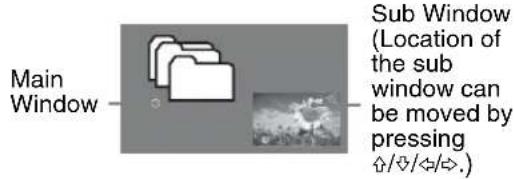
PIP Availability
In main window In sub window
HDMI IN (PC timing)
TVProgrammeVIDEO IN
COMPONENT IN

In sub window, you can select the TV channel or video input by pressing OPTIONS and select "Sub-window".
To return to single picture mode
Press RETURN or select "Single Picture" from Options menu.

-
You cannot display resolutions higher than your TV's display resolution (page 45).
-
In PIP mode, as picture size reduced, this may decrease picture smoothness.

- You can switch the audible picture by selecting "Audio Swap" from the Options menu.
Viewing 3D Video
You can experience powerful 3D (three-dimensional) entertainment, such as stereoscopic 3D video games and 3D Blu-ray discs with this TV and a 3D-enabled device. Use an HDMI/MHL cable or a USB cable to connect your TV to the 3D-enabled device.
To see 3D contents, watch the TV with your eyes at the same level as the TV screen, and wear the supplied 3D glasses.
- The 3D effect will be compromised and screen colour will shift if you watch the TV lying down, or with your head tilted, or view from a wide angle.
Additional viewers with 3D glasses can also enjoy 3D content. - You can buy commercially available Passive Polarized Glasses for 3D TV as replacement glasses or extra glasses. (You cannot use the Active Shutter 3D Glasses. Some theatrical glasses are not suitable for 3D TV.)
The 3D function may not work properly, depending on the signal source or format.
Watching 3D content
The 3D display mode is automatically selected when a 3D signal is detected.
Press 3D and select "3D Display", then press 3D to toggles between 3D display mode and 2D display mode.
The display mode does not change to 3D mode automatically, depending on the signal source or format. In this case, select 3D display mode manually.
- To prevent 3D display mode from being automatically selected when a 3D signal is detected, press HOME, then select "Settings" > "Picture" > "3D Settings" > "Auto 3D" > "Off".
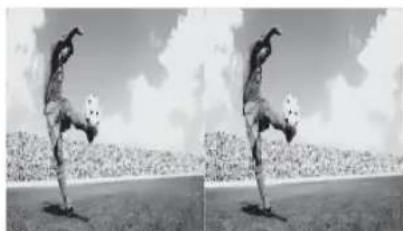
When the following non-3D pictures are displayed
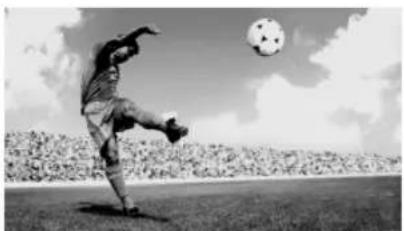
Regular 2D picture Side-by-side picture Over-under picture
1 Press 3D to display the 3D menu.
2 Select "3D Display".
3 Press 3D repeatedly to toggle through "3D Display" modes.
"Simulated 3D":
Displays regular 2D pictures in simulated 3D.
"Side-by-Side":
Displays side-by-side pictures in 3D.
"Over-Under":
Displays over-under pictures in 3D.
"Off":
Displays pictures as they are.
4 Press RETURN to exit the 3D Menu.
Simulated 3D effect may be less pronounced with some picture sources.
- Perceived simulated 3D effect may vary from person to person.
- Simulated 3D display automatically switch back to 2D display mode an hour after its activation.
- "Side-by-Side"/"Over-Under" may not be selected, depending on the signal source or format.
Watching 3D content in 2D
1 Press 3D to display the 3D Menu.
2 Select "3D Display".
3 Press 3D to select "Off".
4 Press RETURN to exit the 3D Menu.
3D Menu
You can adjust the following settings from the 3D Menu.
Press 3D, then select the desired settings > the desired option.
3D Display
When 3D pictures are displayed:
Switches between the 3D and 2D display modes.
When non-3D pictures are displayed:
Simulated 3D
Displays regular 2D pictures in simulated 3D.

- If you are watching 2D content in simulated 3D mode, and then change to other 2D content, 2D display mode will be selected automatically.
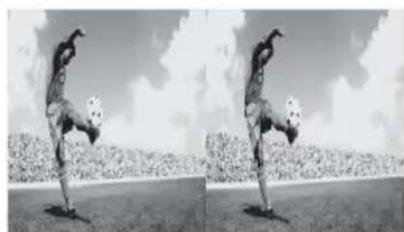
Side-by-Side
Displays side-by-side pictures in 3D.
-Two near-identical pictures for 3D viewing are displayed side-by-side.
Wear the 3D Glasses before setting "3D Format" as the instructions will otherwise be unreadable because of doubly-blurred letters on the screen.
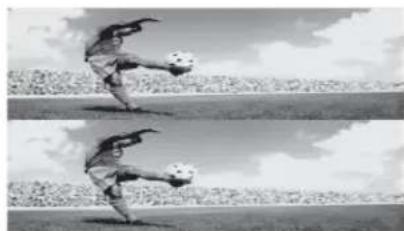
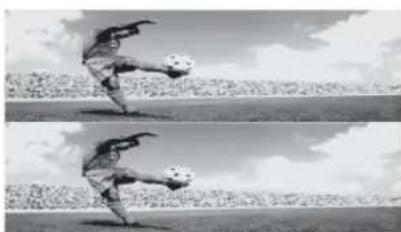
Over-Under
Displays over-under pictures in 3D.
-Two near-identical pictures for 3D viewing are displayed one above the other.
Wear the 3D Glasses before setting "3D Format" as the instructions will otherwise be unreadable because of doubly-blurred letters on the screen.
Off
Displays pictures as they are.
- "Side-by-Side"/"Over-Under" may not be selected, depending on the signal source or format.
3D Depth Adjustment
Adjusts the depth of 3D pictures.
- Selecting [0] is recommended for normal use.
- 3D effect may be less pronounced depending on the settings.
Simulated 3D Effect
Heightens/lessens the 3D effect when you display 2D pictures in simulated 3D.
3D Settings
You can make the following settings from the 3D Settings menu.
Press HOME, then select "Settings" > "Picture" > "3D Settings".
Auto 3D:
Select "On" then 3D picture is automatically displayed when a 3D signal is detected.

- The display mode does not change to 3D mode automatically, depending on the signal source or format. In this case, select 3D display mode manually.
3D Signal Notification:
Select "On" then a message is displayed when a 3D signal is detected.
3D Supported Video Format
| input 3D Format | Signal | ||
| Resolution Vertical Frequency (Hz) | |||
| HDMI | Frame Packing | 1920 × 1080p 24, 30 | |
| 1920 × 1080i 50, 60 | |||
| 1280 × 720p 24, 30, 50, 60 | |||
| Side by Side | 1920 × 1080p 24, 60, 50 | ||
| 1920 × 1080i 50, 60 | |||
| 1280 × 720p 50, 60 | |||
| Over-Under | 1920 × 1080p 24, 30, 50, 60 | ||
| 1920 × 1080i 50, 60 | |||
| 1280 × 720p 50, 60 | |||
| MHL | Side by Side | 1920 × 1080p 24 | |
| 1920 × 1080i 50, 60 | |||
| 1280 × 720p 50, 60 | |||
| Over-Under | 1920 × 1080p 24, 30 | ||
| 1920 × 1080i 50, 60 | |||
| 1280 × 720p 50, 60 | |||
| USB | Side by Side | 1920 × 1080p 24, 25, 30 | |
| 1920 × 1080i 50, 60 | |||
| 1280 × 720p 24, 25, 30, 50, 60 | |||
| Over-Under | 1920 × 1080p 24, 25, 30 | ||
| 1920 × 1080i 50, 60 | |||
| 1280 × 720p 24, 25, 30, 50, 60 | |||

Depends on the MHL device, 3D display might be not displayed.
See page 25 for the supported USB video format.
Navigating through menus
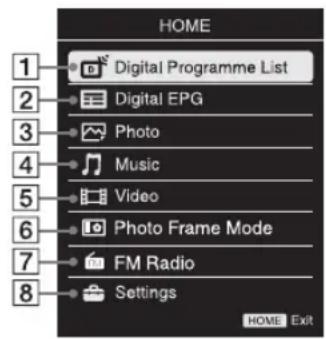
The HOME button allows you to access a variety of TV settings and USB media files.
1 Press HOME on the TV or remote.
2 Press 念 to select an option, then press
3 Follow the instructions on the screen.
4 To exit the menu, press HOME.
Menu Description
1 Digital Programme List You can select the Digital Programme List (page 21).
2 Digital EPG You can select the Digital Electronic Programme Guide (EPG) (page 22).
3 Photo You can enjoy photo files via USB devices (page 23).
4 Music You can enjoy music files via USB devices (page 23).
Video You can enjoy video files via USB devices (page 23).
6 Photo Frame Mode You can select the frame image which enables you to enjoy with photo, music and clock (page 26).
FM Radio Listens to the FM Radio (page 28).
Settings Displays the "Settings" menu where most of the advanced settings and adjustments are performed. For details about settings, see page 30 to 39.
Using the Digital Programme List D3\*
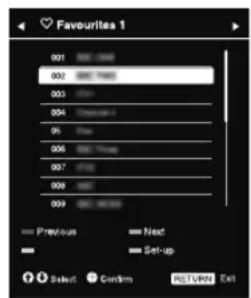
Digital Programme List
The Favourite feature allows you to specify up to four lists of your favourite programmes.
1 In digital mode, press HOME and select "Digital Programme List", then press to select the Favourite list.
If Favourite list is already selected before, just press to access Favourite list.
2 Perform the desired operation as shown in the following table or displayed on the screen.
- This function may not be available in some countries/regions.
| ToDo this | |
| Create your Favourite list for the first time | 1 Press to select “Yes”. 2 Press the yellow button to select the Favourite list. 3 Press to select the channel you want to add, then press +. 4 Press to decide the position and press + to store. 5 Press RETURN to finish setting up. |
| Watch a channel | 1 Press to select the Favourite list. 2 Press to select the channel, then press +. |
| Turn off the Favourite list Press RETURN. | |
| Add channels in the currently edited Favourites list | 1 Press the blue button to see Favourite Set-up. 2 Press the yellow button to select the Favourites list you want to edit. 3 Press to select the channel you want to add, the press +. 4 Press to decide the position and press + to store. |
| Change the order of channels stored in the Favourites list | 1 Press the blue button to see Favourite Set-up. 2 Press the yellow button to select the Favourites list you want to edit. 3 Press + or ⇌ to jump to the Favourite list. 4 Press to select the channel you want to change the position, then press + 5 Press to decide the position and press + to store. |
| Remove channels in the currently edited Favourite list | 1 Press the blue button to see Favourite Set-up. 2 Press the yellow button to select the Favourite list you want to edit. 3 Press ⇌ and ⇌ to select the channel you want to remove, then press +. 4 Press the blue button to remove. |
| Remove all channels from the current Favourite list | 1 Press the blue button to see Favourite Set-up. 2 Press the yellow button to select the Favourite list you want to edit. 3 Press the blue button. 4 Press ⇌ to select “Yes”, then press + to confirm. |
Using the Digital Electronic Programme Guide (EPG)
DVB
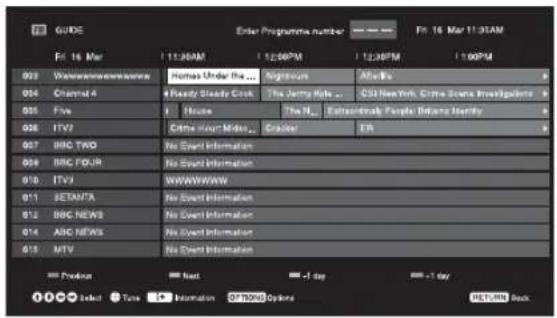
Digital Electronic Programme Guide (EPG)
1 In digital mode, press GUIDE.
2 Perform the desired operation as shown in the following table or displayed on the screen.
- This function may not be available in some countries/regions.
- The contents of the screen depend on the broadcasting station.
ToDo this
Watch a programme
Press 12 / 12 / 12 to select the programme or enter the desired programme number by numeric key, then press
Turn off the EPG Press GUIDE.
- If an age restriction for programmes has been selected, a message asking for a PIN code will appear on the screen. For details, see "Parental Lock" on page 36.
Playing back photo/music/video via USB
You can enjoy photo/music/video files stored in a Sony digital still camera or camcorder through a USB cable or USB storage device on your TV.
1 Connect a supported USB device to the TV.
2 Press HOME.
3 Press to select "Photo", "Music" or "Video".
4 The thumbnail view of file or folder appears.
If more than one USB device is detected, press the red button to select "Playback Options" and then "Device Selection" from the list of available options and press + , then press +/+/+ to select a USB device and press +
5 Press / / to select a file or folder, then press +.
When you select a folder, select a file, then press +
Playback starts.
If you connect the USB device when "USB Auto Start" is set to "On" (page 37), the thumbnail view of the last played Photo/Music/Video appears automatically.
Basic operation of Photo/Music/Video
You can operate the connected USB device by the TV remote.
Item Description
| Fast reverses/fast forwards the file when pressed during playback. |
| / ▶ ▽ | Goes to the beginning of the previous or current/next file. |
Starts playback.
Pauses playback.
Stops playback.
To use playback options
Press the coloured buttons to display a list that contains shortcuts to some setting menus. The listed options vary depending on the current input and content.
Photo
"Slideshow Effect": Selects an effect for a slideshow.
"Slideshow Speed": Selects the slideshow duration.
"Shuffle": Plays files in random order.
"Zoom": Magnifies the picture ("1x", "2x" or "4x")
Music
"Playback Target": Selects to play all files, or one selected file.
"Shuffle": Plays files in random order.
"Speakers": Selects a speaker (page 32).
Video
"Playback Target": Selects to play all files, or one selected file.
"Zoom": Magnifies the picture ("1x", "2x", "4x" or "Full").
"Speakers": Selects a speaker (page 32).
General
"Repeat": Plays a file repeatedly.
"Sort By": Changes file order.
"Device Selection": Selects a USB device.
To set the picture (Video)
You can adjust the picture quality of USB Video.
1 Select a video.
See "Playing back photo/music/video via USB" (page 23).
2 Press OPTIONS during playback, then press 豆 /豆 to select "Picture" and press + .
3 Press 12 / 12 / 12 to select the item, then press + .
4 Press 12 / 32 / 52 to adjust the setting, then press +.
To play a photo as a slideshow (Photo)
You can play a slideshow with photos. "Slideshow Effect" and "Slideshow Speed" can be set.
1 Select a photo.
See "Playing back photo/music/video via USB" (page 23).
2 Press the green button in thumbnail view, or press OPTIONS while a photo is displayed, then press to select "Slideshow" and press
To stop a slideshow
Press RETURN or HOME.
- While the TV is accessing the data on the USB device, observe the following:
- Do not turn off the TV.
- Do not disconnect the USB cable.
- Do not remove the USB device.
The data on the USB device may be damaged. - Sony will not be held liable for any damage to, or loss of, data on the recording media due to a malfunction of any connected devices or the TV.
The file system on the USB device supports FAT16, FAT32 and NTFS. - The file name and folder name may not display correctly in some cases.
- When you connect a Sony digital still camera, set the camera's USB connection mode to Auto or Mass Storage. For more information about USB connection mode, refer to the instructions supplied with your digital camera.
- Check the website below for updated information about compatible USB devices.
http://www.sony-asia.com/bravia/flash.html - Use a USB storage device that is compliant with USB mass storage device class standards.
- If a selected file has incorrect container information, or is incomplete, it cannot be played back.
To watch 3D video in a USB device
You can watch 3D content by connecting the USB device to the TV (page 17). The file format must be supported by this TV. For details about format, see page 25.
USB Video format
| Extension Container Video Codec | Audio Codec | ||
| .avi AVI | Xvid | PCM / MPEG1 Layer1, 2 / MP3 / MPEG2 AAC (2ch) / MPEG4 AAC (2ch) / MPEG4 HE-AAC (2ch) / WMA v8 / Dolby Digital (2ch) / Dolby Digital Plus (2ch) | |
| MPEG1 | |||
| MPEG2 MP | |||
| H.264 BP/MP/HP | |||
| MPEG-4 SP/ASP | |||
| .wmv.asf | ASF | WMV v9 | MP3 / WMA v8 |
| Xvid | |||
| MPEG-4 SP/ASP | |||
| VC-1 | |||
| .mp4.mov.3gp | MP4 | H.264 BP/MP/HP | MPEG1 Layer1, 2 / MP3 / MPEG2 AAC / MPEG4 AAC / MPEG4 HE-AAC |
| MPEG-4 SP/ASP | |||
| H.263 | |||
| .mkv MKV | H.264 BP/MP/HP PCM / MPEG1 Layer1, 2 / MP3 / MPEG2 AAC (2ch) / MPEG4 AAC (2ch) / MPEG4 HE-AAC (2ch) / WMA v8 / Dolby Digital (2ch) / Dolby Digital Plus (2ch) / DTS | ||
| MPEG-4 SP/ASP | |||
| WMV v9 | |||
| VC-1 | |||
| .mpg.mpeg.vro.vob | PS | MPEG1 | MPEG1 Layer1, 2 / MP3 / Dolby Digital (2ch) / Dolby Digital Plus (2ch) / DTS |
| MPEG2 MP | |||
| .ts.m2ts | TS | MPEG2 MP | MPEG1 Layer1, 2 / MP3 / MPEG2 AAC / MPEG4 AAC / MPEG4 HE-AAC / Dolby Digital (2ch) / Dolby Digital Plus (2ch) / DTS |
| VC-1 | |||
| H.264 BP/MP/HP | |||
USB Music format
| Extension Audio Codec | |
| .wav LPCM | |
| .mp3 MPEG1 | |
| .wma WMA v8 | |
USB Photo format
| Extension Image | Codec |
| .jpg, .jpeg JPEG |
DCF2.0 or EXIF2.21 supported.
- Playback of the above file formats is not guaranteed.
Photo Frame
You can enjoy looking at a photo, listening to music or FM radio, or the clock and calendar, at the same time.
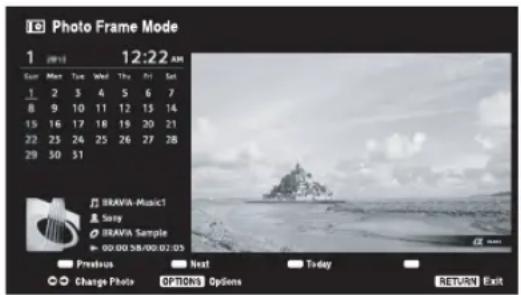
You can enter photo frame mode using any of the following methods:
① Press HOME, and then select "Photo Frame Mode".
② When you are playing back the photo/music files, press OPTIONS and select "Photo Frame Mode".
③ When you are listening to the FM radio, press OPTIONS and select "Photo Frame Mode".
④Select "Image Selection"/"Music Selection" in the "Photo Frame Settings" menu.
You can switch the display mode of the frame from the Options menu, eg. image and clock, full screen image or full screen clock.
To select photo
You can select photos from USB memory, using any of the following methods:
① Press HOME and select "Settings", then "Set-up" > "Photo Frame Settings" > "Image Selection". Press to select the file from thumbnail view.
② In photo frame mode, press OPTIONS > "Image Selection". Press to select the file from thumbnail view.
③ Press HOME, and then select "Photo". When playing back a photo, press OPTIONS > "Photo Frame Mode" to launch "Photo Frame" with the selected photo.
To select music
You can select music from USB memory, using any of the following methods:
① Press HOME and select "Settings", then "Set-up" > "Photo Frame Settings" > "Music Selection". Press to select the file from thumbnail view.
② In photo frame mode, press OPTIONS > "Music Selection". Press to select the file from thumbnail view.
③ Press HOME, and then select "Music". When playing back music, press OPTIONS > "Photo Frame Mode" to launch "Photo Frame" with the selected music.
To select Display mode
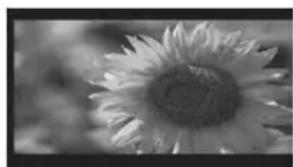
You can change the photo frame display by selecting "Display Mode" (page 37).
- Image and Clock
Full Screen Image
Full Screen Clock
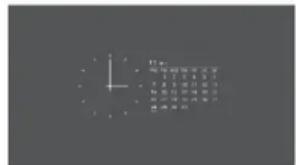
To select Clock Display mode
There are five calendar display modes. When the "Display Mode" setting is set to "Image and Clock", you can set to "Calendar", "Analogue Clock" or "Digital Clock". When the "Display Mode" setting is set to "Full Screen Clock", you can set to "Calendar", "Calendar and Clock" or "Clock".
For more details, see page 37:
- Calendar
- Analogue Clock
- Digital Clock
Calendar and Clock
Clock
This TV does not have a battery powered backup for the clock. Therefore, if there is a power failure or if you disconnect the power cord, be sure to reset the current date and time.
Duration
To save power, in the Photo Frame Mode, the TV can continually playing back for up to 24 hours, after which it will power off automatically. After running photo frame mode for 24 hours, not use this mode for at least one hour, to avoid panel burn-in. You can change the setting of the "Duration" in the "Photo Frame Settings". For details, see page 37.
To avoid panel burn-in, the position of the photo, clock and calendar are switched automatically every hour.
Listening to the FM Radio
You are able to listen to the FM radio stations using your TV by connecting an antenna (page 5). FM Radio tuning range is from 87.5-108.0 MHz.
When you use the FM Radio function for the first time, press HOME and select "FM Radio", then perform "Auto Tuning" in the "FM Radio Set-up" menu (page 36).
To Do this
| Access to FM Radio mode Press HOME and select "FM Radio". | |
| Exit from FM Radio mode | Press RETURN to go back to previous view input. |
| Listen to preset stations | 1 Access to FM Radio mode. 2 Press HOME and select "Settings". Preset the desired FM radio stations and its labels in "FM Radio Set-up" from "Channel Set-up" menu (page 36). You can also access to "FM Radio Presets" by selecting "FM Radio Presets" from the Options menu in FM Radio mode. 3 Exit from "Channel Set-up" menu by pressing HOME. The selected preset FM radio station number and label will appear on the screen. To select the desired preset FM radio station, press PROG +/-. You can also use the 0-9 buttons on the remote to directly select the desired preset FM radio station. |
| Listen to non-preset stations | 1 Access to FM Radio mode. 2 Press / to manually search for the desired FM radio station. It will search and stop when found the next available station. You can also tune FM frequency for the desired FM radio station by pressing /. The available radio frequency is only for temporary listening pleasure and cannot be stored in the memory. If the message "Please set-up FM Radio." appears, display the "Channel Set-up" menu and select "FM Radio Set-up" to preset the desired FM radio stations (page 36). |
| Show photo frame while listening to FM Radio | 1 Press OPTIONS to select "Photo Frame Mode", then press . 2 Refer to "Photo Frame" (page 26) to select photo or "Display Mode". You can also access to a USB device if a USB device is not connected. |
| Reduce power consumption while in FM Radio mode | 1 Press OPTIONS to select "Power Saving". Select the desired options and press . You can also access to "Power Saving" by selecting "Eco" from the setting menu (page 39). 2 Exit from "Picture Off" by pressing any key on the remote except +/- or ✗. |
If the station has a noisy sound, you may be able to improve the sound quality by pressing
- When an FM stereo programme has static noise, press AUDIO until "Mono" appears. There will be no stereo effect, but the noise will be reduced.
- If CATV is connected, FM Radio may not be able to be received.
Using BRAVIA Sync with BRAVIA Sync Control
The BRAVIA Sync Control function enables the TV to communicate with the connected equipment that is compatible with the function, using HDMI CEC (Consumer Electronics Control). For example, by connecting Sony equipment that is compatible with BRAVIA Sync Control (with HDMI/MHL cables), you can control them together.
Be sure to connect the equipment correctly, and make the necessary settings.
BRAVIA Sync Control
- Automatically turns the connected equipment off when you switch the TV to standby mode using the remote.
- Automatically turns the TV on and switches the input to the connected equipment when the equipment starts to play (except in MHL mode).
- If you turn on a connected audio system while the TV is on, the sound output switches from the TV speaker to the audio system.
- Adjusts the volume ( + / - ) or mutes the sound (叹) of a connected audio system.
- You can operate the connected Sony equipment that has the BRAVIA Sync logo by the TV remote. Possible operations with BRAVIA Sync buttons, see page 11.
-Refer to the instruction manual of the equipment for available control.
- If "BRAVIA Sync Control" of the TV is set to "On", "BRAVIA Sync Control" of the connected equipment is also automatically switched to "On".
To make the BRAVIA Sync Control settings
The BRAVIA Sync Control settings must be set on both the TV side and connected equipment side. See "BRAVIA Sync Settings" (page 38) for the TV side settings. For settings on the connected equipment, refer to its operating instructions.
Settings adjustment

- The options you can adjust vary depending on the situation. Unavailable options are greyed out or not displayed.

Picture
| Picture Mode | Sets a picture mode. The options that can be selected differ depending on the "Scene Select" settings. "Vivid": Enhances picture contrast and sharpness. "Standard": For standard pictures. Recommended for home entertainment. "Custom": Allows you to store your preferred settings. "Cinema": For film-based content. Suitable in a theatre-like environment. "Graphics": Optimizes picture quality for viewing graphics. |
| Reset | Scene Select mode Press OPTIONS and select "Scene Select" menu. When you select the desired scene option, the optimum sound and picture quality for selected scene are automatically set. The options you can select may vary. Unavailable options are greyed out. "Auto": Delivers optimum picture and sound quality which is automatically set according to input source. There may not be any effect depending on the connected equipments. "General": Current user settings. "Music": Delivers dynamic and clear sound effects like at a concert. "Cinema": Delivers theatre-like picture and dynamic sound. "Game": Delivers the best picture and sound quality for fullest game playing enjoyment. "Graphics": Delivers clearer detailed pictures to reduce fatigue for prolonged viewing. "Sports": Delivers realistic picture with surround sound like in a stadium. |
| Reset all the "Picture" settings except "Picture Mode", "Intelligent Picture Plus Set-up" and "3D Settings" to the factory settings. | |
| Backlight Adjusts the brightness of the backlight. | |
| Picture Increases or decreases picture contrast. | |
| Brightness Brightens or darkens the picture. | |
| Colour Increases or decreases colour intensity. | |
| Hue Increases or decreases the green tones and red tones. ● When viewing TV programme or video input, "Hue" is only available for NTSC colour system. | |
| Sharpness Sharpens or softens the picture. | |
| Colour Temperature Adjusts the whiteness of the picture. "Cool": Gives the white colours a blue tint. "Neutral": Gives the white colours a neutral tint. "Warm": Gives the white colours a red tint. | |
| Noise Reduction Reduces the picture noise (snowy picture) in a weak broadcast signal. | |
| MPEG Noise Reduction | Reduces the picture noise in MPEG-compressed video. |
| Cinema Drive | Provides improved picture movement when playing BD (Blu-ray Disc), DVD or VCR images taken on film, reducing picture blur and graininess. Select "Auto" to represent original film-based content as is. ● If the image contains irregular signals or too much noise, "Cinema Drive" is automatically turned off even if "Auto" is selected. |
| Advanced Settings | Allows you to set “Picture” settings in more detail. These settings are not available when “Picture Mode” is set to “Vivid”. “Reset”: Resets all the advanced settings to the factory settings. “Adv. Contrast Enhancer”: Automatically adjusts “Backlight” and “Picture” to the most suitable settings judging from the brightness of the screen. This setting is especially effective for dark images scenes, and will increase the contrast distinction of the darker picture scenes. “Black Corrector”: Enhances black areas of the picture for stronger contrast. “Gamma”: Adjusts the balance between bright and dark areas of the picture. “Clear White”: Emphasises white colours. “Live Colour”: Makes colours more vivid. “LED Motion Mode”: Reduces blur in movies by controlling the LED backlight source, but the brightness decreases. |
| Intelligent Picture Plus Set-up | “Intelligent Picture Plus” Allows you to improve the picture when viewing TV programme or video input. The options that can be selected differ depending on the “Scene Select” settings. “Signal Level Indicator” Turns on/off the “Signal Level Indicator” feature. When “On” is selected, the signal level bar will be displayed when you select a channel or video input. “Picture Optimisation” Allows you to enhance the picture to your preferred settings. “Crisp”: For a sharper image with more visible noise. “Smooth”: For a softer image with less visible noise. |
| 3D Settings | “Auto 3D” Select “On” to automatically switch to 3D display mode when a 3D signal is detected. • The display mode does not change to 3D mode automatically, depending on the signal source or format. In this case, select 3D display mode manually. “3D Signal Notification” Select “On” to notify when a 3D signal is detected. |

Sound
Sound Mode Sets a sound mode
"Standard": For standard sound.
"Music": Delivers surround effects that make you feel like you are surrounded by sound as in a music hall.
"Cinema": Delivers surround effects just like the high-grade audio systems found in movie theatres.
"Game": Delivers surround effects that enhance game sound.
"Sports": Delivers surround effects that make you feel like you are watching a live sports contest.
Reset Resets all the "Sound" settings except "Sound Mode", "Dual Sound",
"Speakers", "Audio Out" and "Advanced Settings" to the factory settings.
Equaliser Adjusts sound frequency settings.
Press to select the desired sound frequency, then press to adjust the setting and press The adjusted settings will be received when you select "Sound Mode" options.
Selecting "Reset" will set the "Equaliser" to original settings.
- Adjusting higher frequency will affect higher pitched sound and adjusting lower frequency will affect lower pitched sound.
Sound Booster Produces a fuller sound for more impact, by emphasising the bass/treble sounds.
Clear Voice Makes voice sound clearer.
| Simulated Stereo Adds a surround-like effect to mono programmes. | |
| Intelligent Volume | Minimizes the difference in volume level between all programmes and adverts (e.g. adverts tend to be louder than programmes). |
| Balance Emphasises left or right speaker balance. | |
| Volume Offset Adjusts the volume level of the current input relative to other inputs. | |
| Dual Sound Sets the sound from the speaker for a stereo or bilingual broadcast. “Stereo”/“Mono”: For stereo broadcasts. “Main”/“Sub”/“Mono”: For bilingual broadcasts, select “Main” for sound channel 1, “Sub” for sound channel 2, or “Mono” for mono channel, if available. • If the signal is very weak, the sound becomes monaural automatically. • If the stereo sound is noisy when receiving a NICAM programme, select “Mono”. The sound becomes monaural, but the noise is reduced. • The “Dual Sound” setting is memorized for each programme position. • You cannot listen to stereo broadcast sound when “Mono” is selected. • If you select other equipment connected to the TV, set “Dual Sound” to “Stereo”, “Main” or “Sub”. However, when the external equipment connected to the HDMI jack (except HDMI 1) is selected, this is fixed to “Stereo”. | |
| Speakers “TV Speakers”: Turns on and outputs the TV's sound from the TV speakers. “Audio System”: Turns off the TV speakers and outputs the TV's sound from external audio equipment connected to the audio output jacks on the TV. You can also turn on the connected equipment that is compatible with BRAVIA Sync Control, after making the appropriate settings of BRAVIA Sync Control. | |
| Audio Out “Variable”: When using an external audio system, volume output from audio out can be controlled using the TV's remote. “Fixed”: The audio output of the TV is fixed. Use your audio receiver's volume control to adjust the volume (and other audio settings) through your audio system. | |
| Advanced Settings | “Dynamic Range”: Compensates for differences in the audio level between different channels (only for Dolby Digital audio). • The effect may not function or may vary depending on the programme regardless of the “Dynamic Range” setting. “Digital Audio Out”: Sets the audio signal that is output from the DIGITAL AUDIO OUT (OPTICAL) jack of the TV. Set to “Auto”, when connecting equipment compatible with Dolby Digital. Set to “PCM”, when connecting equipment not compatible with Dolby Digital. “Downmix Mode”: Set the downmix method of multi-channel to two-channel sound. • “Surround”: Select to get best surround performance. • “Stereo”: Select to get a stereo output. |

Screen
Wide Mode For details about wide mode, see page 12.
| Auto Wide Automatically changes the wide mode according to the input signal from an external equipment. To keep your setting, select "Off". • "Auto Wide" is only available when watching programmes from video input, HDMI and component input in format 480i or 576i. • Even if "Auto Wide" is set to "On" or "Off", you can always modify the format of the screen by pressing repeatedly. | |
| 4:3 Default | Selects the default screen mode for use with 4:3 broadcasts. "Wide Zoom": Enlarges the 4:3 picture to fill the 16:9 screen, keeping the original image as much as possible. "Normal": Displays conventional 4:3 broadcasts in the correct proportions. "Off": Keeps the current "Wide Mode" setting when the channel or input is changed. |
| Auto Display Area | "On": Automatically adjusts the display area based upon the content. "Off": Turns off the "Auto Display Area". Choose one from the "Display Area" options. |
Display Area Adjusts the picture display area.
"Full Pixel": Displays the picture for 1080/50i, 1080/60i, 1080/50p and 1080/60p sources (HDMI/MHL or component input only) or 1080/24p sources (HDMI/MHL input only) in the original size. (Available depending on the TV model.)
“+1”: Displays pictures in their original size.
"Normal": Displays pictures in their recommended size.
“-1”: Enlarges the picture so that the edges are outside the visible display area.
Horizontal Shift Adjusts the horizontal position of the picture when "Wide Mode" is set to "Wide Zoom" or "Zoom".
Vertical Shift Adjusts the vertical position of the picture when "Wide Mode" is set to "Wide Zoom" or "Zoom".
PC Settings "Wide Mode"
Selects a screen mode for displaying input from your PC, see page 12.
"Reset"
Resets all the "PC Settings" except "Wide Mode" to the factory settings.
"Horizontal Shift"
Adjusts the horizontal position of the picture.
"Vertical Shift"
Adjusts the vertical position of the picture.
PC input signal reference chart for tDMl IN 1 and 2/MHL
| Signals | Horizontal (Pixel) | Vertical (Line) | Horizontal frequency (kHz) | Vertical frequency (Hz) | Standard |
| VGA 640 480 | 31.5 60 VGA | ||||
| SVGA 800 600 | 37.9 60 VESA Guidelines | ||||
| XGA 1024 | 768 48.4 | 60 VESA Guidelines | |||
| WXGA | 1280 | 768 47.4 60 | VESA | ||
| WXGA | 1280 | 768 47.8 60 | VESA | ||
| WXGA | 1360 | 768 47.7 60 | VESA | ||
| SXGA | 1280 | 1024 | 64 | 60 | VESA |
| HDTV* | 1920 | 1080 | 67.5 60 EIA |
- The 1080p timing when applied to the HDMI/MHL input will be treated as a video timing and not PC timing.
Analogue Set-up "Analogue Auto Tuning"
Tunes in all the available analogue channels. Usually you do not need to do this operation because the channels are already tuned when the TV was first installed. However, this option allows you to repeat the process (e.g., to retune the TV after moving house, or to search for new channels that have been launched by broadcasters).
"Manual Programme Preset"
Before selecting "Label"/"AFT"/"Audio Filter"/"Skip"/"Colour System", press PROG +/- to select the programme number with the channel. You cannot select a programme number that is set to "Skip" (page 34).
"Programme"/"TV System"/"Frequency"
Presets programme channels manually.
1 Select "Programme", then press +
2 Press to select the programme number you want to manually tune (if tuning a VCR, select channel 0), then press RETURN.
3 Press 口 /口 to select "TV System", then press +
4 Press to go to the frequency range indication ("VHF Low", "VHF High" or "UHF"), then press
5 Tune the channels as follows:
Press to search for the next available channel. When a channel has been found, the search will stop. To continue searching, press
Repeat the procedure above to preset other channels manually.
"Label"
Assigns a name of your choice, up to seven letters or numbers, to the selected channel.
To input characters:
1 Press to select the desired letter or number ("_ for a blank space), then press.
If you input a wrong character
Press to select the wrong character. Then, press to select the correct character.
2 Repeat the procedure in step 1 until the name is completed, then press +
"AFT"
Allows you to fine-tune the selected channel manually. When "On" is selected, the fine tuning is performed automatically.
"Audio Filter"
Improves the sound of individual channels when distortion occurs in mono broadcasts in TV system "B/G", "I" and "D/K".
- You cannot receive stereo or dual sound when "Low"/"High" is selected.
"Skip"
Skipping unused channels when you press PROG + / - to select channels. (You can still select a skipped channel using the number buttons.)
"Colour System"
Selects the colour system ("Auto", "PAL", "SECAM", "NTSC3.58", "NTSC4.43" or "PAL60") according to the channel.
"Signal Level"
Displays the signal level for programme currently being watched.
| red (weak) | amber (average) | green (good) |
"Programme Sorting": Changes the order in which the analogue channels are stored on the TV.
1 Press / to select the channel you want to move to a new position, then press.
2 Press / to select the new position for your channel, then press + .
Digital Set-up
"Digital Tuning"
"Digital Auto Tuning":
Tunes in the available digital channels.
This option allows you to retune the TV after moving house, or to search for new channels that have been launched by broadcasters. Press +
- "Auto Tuning Range":
- "Normal": Searches for available channels within your region/country.
-
"Full": Searches for available channels regardless of region/country.
-
You can run "Digital Auto Tuning" after moving to a new residence, changing service providers, or to search for newly launched channels.
- "Programme List Edit":
Removes any unwanted digital channels stored on the TV, and changes the order of the digital channels stored on the TV.
1 Press to select the channel you want to remove or move to a new position.
Press the number buttons to enter the known three-digit programme number of the broadcast you want.
2 Remove or change the order of the digital channels as follows:
To remove the digital channel
Press + After a confirmation message appears, press to select "Yes", then press +.
To change the order of the digital channels
Press , then press to select the new position for the channel and press .
3 Press RETURN.
"Digital Manual Tuning":
Tunes the digital channels manually.
1 Select "Scan Type", then select "Channel" or "Frequency".
2 Set the other items accordingly.
3 Select "Scan Up" or "Scan Down", then start the manual tuning.
4 When available channels are found, select "Yes" or "No".
5 Select "Yes" to store the programme. The message "Would you like to continue scanning?" will appear on the screen. If you select "Yes", the next channel/frequency will be scanned. If you select "No", the previous screen is displayed.
Digital Manual Tuning for Cable is only possible when there are digital cable services available to user, which were found using DVB-C Full Scan.
"Subtitle Set-up"
- "Subtitle Setting": When "For Hard Of Hearing" is selected, some visual aids may also be displayed with the subtitles (if TV channels broadcast such information).
- "Primary Preferred Language": Selects preferred language which subtitles are displayed in.
- "Secondary Preferred Language": Selects secondary preferred language which subtitles are displayed in.
"Audio Set-up"
- "Audio Type": Switches to broadcast for the hearing impaired when "For Hard Of Hearing" is selected.
- "Primary Preferred Language": Selects the preferred language used for a programme. Some digital channels may broadcast several audio languages for a programme.
- "Secondary Preferred Language": Selects the secondary preferred language used for a programme. Some digital channels may broadcast several audio languages for a programme.
- "Audio Description": Provides audio description (narration) of visual information if TV channels broadcast such information.
- "Mixing Level": Adjusts the TV main audio and Audio Description output levels.
This option is only available when "Audio Description" is set to "On". - "MPEG Audio Level": Adjusts the MPEG audio sound level.
"Technical Set-up"
- "Auto Service Update": Enables the TV to detect and store new digital services as they become available.
- "System Information": Displays the current software version and the signal level.
- "Service Replacement": Select "On" to automatically change the channel when broadcaster changes transmission of the viewing programme to a different channel.
FM Radio Set-up Preset up to 30 FM radio stations that can be received in your area.
"Auto Tuning"
Allows you to automatically tune and store all the available channels.
1 Select "Auto Tuning", then press +
2 Select "OK" to automatically tune in all the available channels.
"FM Radio Presets"
Manually tune and store each available channel one at a time.
1 Press to select the desired FM radio station position, then press + .
2 Press to search the FM radio stations. Searching stops automatically when a station is tuned in. If the station has a noisy sound, you may be able to improve the sound quality by pressing . Press to store the FM radio station.
You may edit the FM radio station label. Press / to select alphanumeric characters for the label, then press + Repeat steps 1 to 2 to preset other FM radio stations.
To enable this feature, access to FM Radio mode by using HOME (Menu) (page 20), then preset your desired FM radio stations according to the steps mentioned above.

Parental Lock
PIN Code Allows you to set up TV to block channel or external input. Use 0-9 on the remote to enter a four-digit PIN code.
Change PIN Code Selects to change your PIN code.
Parental Rating Sets an age restriction to viewing. To view any programme rated for ages above the age you specify, enter the correct PIN code.
External Input Lock Locks an external input from being watched.
To view a blocked external input, select "Unblocked".
- Entering the correct PIN code for blocked channel or external input will temporarily deactivate the "Parental Lock" feature. To reactivate the "Parental Lock" settings, turn off and on the TV.
If you lost your PIN code, see page 44.
Photo Frame Settings "Display Mode"
Allows you to select the display mode. Select from "Image and Clock", "Full Screen Image" and "Full Screen Clock". See page 26.
"Clock Display"
Allows you to select the clock display. Select from "Calendar", "Analogue Clock", "Digital Clock", "Calendar and Clock" and "Clock". "Calendar and Clock" and "Clock" can be displayed only when "Display Mode" is "Full Screen Clock".
"Audio Application"
FM Radio: You can enjoy the FM radio with this function.
Music: You can enjoy music with this function.
Off: Turns off the audio.
"Image Selection"
Select image.
"Music Selection"
Select music.
"Slideshow Setting"
Slideshow: You can play a slideshow of photos. Single View: Displays one photo only.
"MusicPlayback Setting"
All Tracks: Listen to all music tracks. Single Track: Set to listen to a single music track.
"Duration"
Selects the time period ("1 h", "2 h", "4 h" or "24 h") after which the TV automatically switches to standby mode.
"First day of the week"
Set "Sunday" or "Monday" as the first day of the week on the calendar.
| USB Auto Start | Automatically enters the thumbnail view of the last played Photo/Music/Video when the TV is turned on and a USB device is connected to the USB port then turned on. |
| Clock/Timers | “Sleep Timer” Set the time in minutes (“Off”, “15”, “30”, “45”, “60”, “90”, or “120”) that you would like the TV to remain on before shutting off automatically. “On Timer” Turns on the TV from standby mode at a time you set, and tuned to a channel or input of your preference or photo frame mode. Before setting this function, make sure you set the correct current Time. “Clock Set” When this is set to “Auto”, the current time is set automatically if the TV receives the time from a digital broadcast signal. If the current time fails to be received from a digital broadcast signal, select to “Manual”, then select “Date” to set the date, then select “Time” to set the time. You can set to “Time Offset” only when “Clock Set” is set to “Auto”. If the time information can be obtained by broadcast signal, you cannot change the time manually. |
| Auto Start-up | Starts the initial set-up procedure (page 6). This option allows you to retune the TV after moving house, or to search for new channels that have been launched by broadcasters. |
| Language Selects the language in which the menus are displayed. | |
| Start-up Logo | Select "On" to display the logo when the TV is turned on. Select "Off" to disable it. |
| AV Setup | "Video Labels" Assigns name to external equipment. Select "Auto" to display names only when the equipment is connected, or "Always" to display regardless of connection status. Label Inputs: Uses one of the preset labels to assign a name to connected equipment. "Edit": Creates your own label. "Video/Component Input" Select "Auto" to have the TV detect and switch between the component video jack -the video jack when component video jack or video jack is connected. You cannot use the component video jack and the video jack at the same time. "Headphone/Audio Out" Sets the sound output to headphones or external audio system connected to the TV. Disconnect headphones from the TV when you select "Audio Out". |
| BRAVIA Sync Settings | Allows the TV to communicate with equipment that is compatible with the BRAVIA Sync Control function, and connected to the HDMI/MHL jacks of the TV. Note that communication settings must also be made on the connected equipment. "BRAVIA Sync Control" Sets whether or not to link the operations of the TV and the connected equipment that is compatible with BRAVIA Sync Control. When set to "On", the following functions are available. If the specific Sony equipment that is compatible with BRAVIA Sync Control is connected, this setting is applied to the connected equipment automatically when the "BRAVIA Sync Control" is set to "On" using the TV. "Auto Devices Off" When this is set to "On", the connected equipment that is compatible with BRAVIA Sync Control turns off when you turn off the TV by remote. "Auto TV On" When this is set to "On", the TV turns on when you turn on the connected equipment that is compatible with BRAVIA Sync Control (except in MHL mode). "Auto Input Change (MHL)" When this is set to "On", an MHL device is switched to MHL input automatically. If the TV is in standby mode, it will not switch automatically. Select "Off" to disable it. "BRAVIA Sync Device List" Displays a list of connected equipment that is compatible with BRAVIA Sync Control. Select "Enable" to update the "BRAVIA Sync Device List". |
"Device Control Keys"
Select button functions of the TV's remote control to operate the connected equipment.
"None": Deactivates the control by the TV's remote.
"Normal": For basic operations, such as navigation buttons (up, down, left or right, etc).
"Tuning Keys": For basic operations and operation of channel-related buttons, such as PROG +/- or (0-9), etc. Useful when you control a tuner or set-top box, etc; via the remote control.
"Menu Keys": For basic operations and operation of the HOME/OPTIONS buttons. Useful when you select menus of a BD player, etc; via the remote control.
"Tuning and Menu Keys": For basic operations and operation of channel-related buttons and HOME/OPTIONS button.

- You cannot use "BRAVIA Sync Control" if the TV operations are linked to the operations of an audio system that is compatible with BRAVIA Sync Control.
- Some equipment with "BRAVIA Sync Control" does not support the "Device Control" feature.
| Automatic Software Download | Select “On” to download the software automatically. Select “Off” to disable it. |
| Product Information Displays your TV's product information. | |
| Factory Settings | Reset all settings to factory settings. After completing this process, the initial set-up screen is displayed. Be sure not to turn the TV off during this period (it takes about 30 seconds) or press any buttons. |

Eco
| Reset Resets the current Eco settings to the default values. | |
| Power Saving Reduces power consumption of the TV by adjusting the backlight. When you select “Picture Off”, the picture is switched off, and the I/O indicator on the TV front panel lights up in green. The sound remains unchanged. | |
| Idle TV Standby | Turns the TV off after it has been kept idle for the preset length of time. |
Installing the accessories (Wall-Mount Bracket)
To Customers:
For product protection and safety reasons, Sony strongly recommends that installing of your TV be performed by Sony dealers or licensed contractors. Do not attempt to install it yourself.
To Sony Dealers and Contractors:
Provide full attention to safety during the installation, periodic maintenance and examination of this product.
Your TV can be installed using the Wall-Mount Bracket SU-WL400 (sold separately).
Refer to the Instructions supplied with the Wall-Mount Bracket to properly carry out the installation.
Note when installing
When using the SU-WL400 Wall-Mount Bracket, the space between the wall and the TV will be 6cm . Use this space to route cables to the TV.
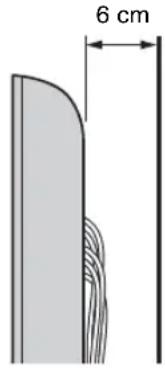
Sufficient expertise is required for installing these products, especially to determine the strength of the wall for withstanding the TV's weight. Be sure to entrust the attachment of these products to the wall to Sony dealers or licensed contractors and pay adequate attention to safety during the installation. Sony is not liable for any damage or injury caused by mishandling or improper installation.

- Place the TV with its screen facing down on a level and stable surface covered with a thick and soft cloth, when securing the Mounting Hook.
SU-WL400
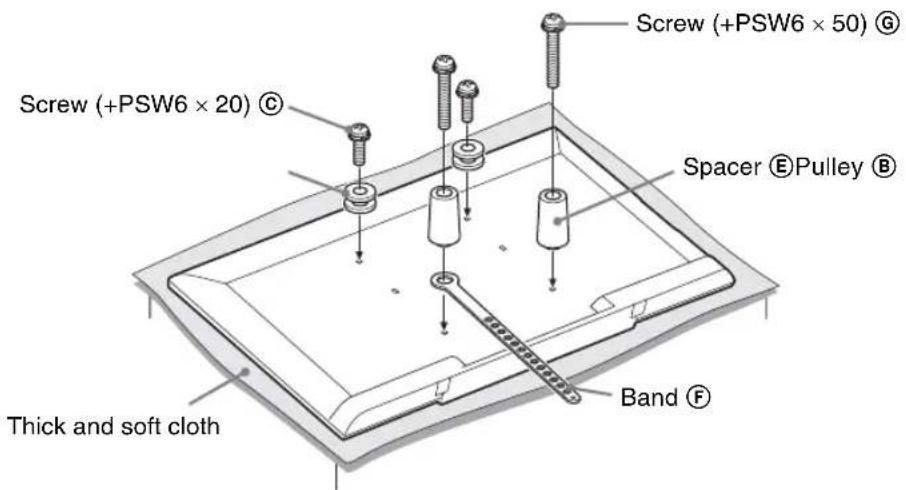
- With the screen of the TV facing down, attach the SU-WL400 accessories. For more details of ⑧ , ⑥ , ⑤ , ④ and ⑥ , refer to Instruction Guide provided with Wall-Mount Bracket.
- Attach the Pulleys ⑧ and Screws ⑥ to the upper rear of the TV.
- Attach the Band F and Spacers E with Screws G to the rear of the TV.
- If using an electric screw driver, set the torque at approximately 1.5N· m {15 kgf·cm}.
- Be sure to store the unused parts in a safe place for future use. Retain this manual for future reference.
TV installation dimensions table
SU-WL400
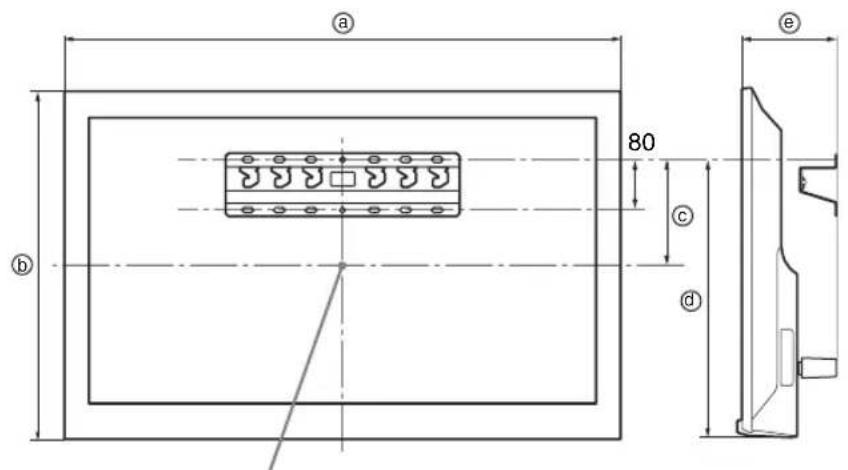
Screen centre point
Unit: mm
| Model name | Display dimensions | Screen centre dimension | Length for mounting | ||
| a | b | c | d | e | |
| KDL-47R500A | 1,085 648 177 | 510 114 | |||
| KDL-42R500A | 972 585 188 | 490 114 | |||
Figures in the above table may differ slightly depending on the installation.
WARNING
The wall that the TV will be installed on should be capable of supporting a weight of at least four times that of the TV. Refer to "Specifications" for its weight.
Hook locations diagram/table
| Model Name Hook location | |
| KDL-47R500A a | |
| KDL-42R500A a |
Hook location
When installing the TV onto the Base.
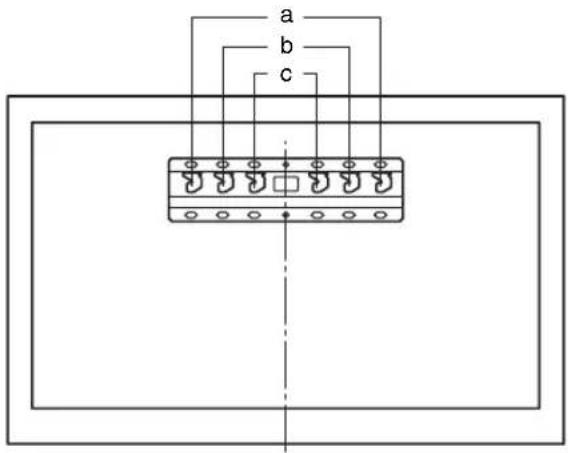
Troubleshooting
Check whether the I/O indicator is flashing in red.
When it is flashing
The self-diagnosis function is activated.
1 Count how many times the I indicator flashes between each three second break. For example, the indicator flashes three times, then there is a three second break, followed by another three flashes, etc.
2 Press I/O on the TV to turn it off, disconnect the AC power cord, and inform your dealer or Sony service centre of how the indicator flashes (number of flashes).
When it is not flashing
1 Check the items listed below.
2 If the problem still persists, have your TV serviced by qualified service personnel.
Picture
No picture (screen is dark) and no sound
- Check the antenna/cable connection.
- Connect the TV to the mains socket, and press I/O on the TV.
If the I indicator lights up in red, press I.
No picture or no menu information from equipment connected to the video input jack appears on the screen
- Press to display the connected equipment list, then select the desired input.
- Check the connection between the optional equipment and the TV.
Double images or ghosting
- Check the antenna/cable connection, location or direction.
Only snow and noise appear on the screen
- Check if the antenna is broken or bent.
- Check if the antenna has reached the end of its serviceable life (three to five years in normal use, one to two years at the seaside).
Distorted picture (dotted lines or stripes)
- Keep the TV away from electrical noise sources such as cars, motorcycles, hair-dryers or optional equipment.
- When installing optional equipment, leave some space between the optional equipment and the TV.
- Check the antenna/cable connection.
- Keep the antenna cable away from other connecting cables.
Picture or sound noise when viewing a TV channel
- Adjust "AFT" (Automatic Fine Tuning) to obtain better picture reception (page 34).
Some tiny black points and/or bright points appear on the screen
The picture of a display unit is composed of pixels. Tiny black points and/or bright points (pixels) on the screen do not indicate a malfunction.
Picture contours are distorted
- Change the current setting of "Cinema Drive" to other settings (page 30).
No colour on programmes
- Select "Reset" (page 30).
No colour or irregular colour when viewing a signal from the Y, P_B / C_B P_R / C_R jacks of
- Check the connection of the Y, P_B / C_B , P_R / C_R jacks of and check if each jacks are firmly seated in their respective jacks.
No picture from the connected equipment appears on the screen
- Turn the connected equipment on.
- Check the cable connection.
- Press to display the connected equipment list, then select the desired input.
- Correctly insert the memory card or other storage device in the digital still camera.
- Use a digital still camera memory card or other storage device that has been formatted according to the instruction manual supplied with the digital still camera.
- Operations are not guaranteed for all USB devices. Also, operations differ depending on the features of the USB device and the video being played.
Cannot select the connected equipment on the menu or cannot switch the input
- Check the cable connection.
Sound
No sound, but good picture
- Press + / - or 叹 ^ 心 (Mute).
- Check if the "Speakers" is set to "TV Speakers" (page 32).
- Check if the headphone plug is connected to the TV.
No sound or noisy sound
- Check if the TV system setting is appropriate (page 34).
Channels
The desired channel cannot be selected
- Switch between digital and analogue mode and select the desired digital/analogue channel.
Some channels are blank
- The channel is for scrambled/subscription service only. Subscribe to a pay TV service.
- Channel is used only for data (no picture or sound).
- Contact the broadcaster for transmission details.
Digital channels are not displayed
- Contact a local installer to find out if digital transmissions are provided in your area.
- Upgrade to a higher gain aerial.
General
The TV turns off automatically (the TV enters standby mode)
- Check if the "Sleep Timer" is activated (page 37).
- Check if the "Duration" is activated by "On Timer" (page 37) or "Photo Frame Settings" (page 37).
- Check if the "Idle TV Standby" is activated (page 39).
Some input sources cannot be selected
- Select "Video Labels" and select "Always" of the input source (page 38).
The remote does not function
- Replace the batteries.
HDMI/MHL equipment does not appear on "BRAVIA Sync Device List"
- Check that your equipment is compatible with BRAVIA Sync Control.
Cannot select "Off" in "BRAVIA Sync Control"
- If you have connected any audio system that is compatible with BRAVIA Sync Control, you cannot select "Off" in this menu. To change the audio output to the TV speaker, select "TV Speakers" in the "Speakers" menu (page 32).
Lost password
- Select the "PIN Code" settings on the "Parental Lock" settings, then enter the following master password: 9999.
TV does not output picture and/or sound from the MHL device
- Disconnect the MHL cable, then reconnect it, or power the MHL device off then on again and release its lock.
| System | |
| Panel system | LCD (Liquid Crystal Display) Panel (LED backlight) |
| TV system | Analogue:B/G, I, D/K, M Digital: DVB-T |
| Colour/video system | Analogue:PAL, PAL60 (only video input), SECAM, NTSC3.58, NTSC4.43 (only video input) Digital: MPEG-2 MP@ML/HL, MPEG-2 MP@ML/HL, H.264/MPEG-4 AVC MP/HP@L4 |
| Channel coverage | Analogue:45.25MHz - 863.25MHz, Depend on country selection Digital: VHF/UHF, Depend on country selection |
| Sound output | 8 W + 8 W |
| Input/Output jacks | |
| Antenna | 75 ohm external terminal for VHF/UHF |
| COMPONENT IN/ VIDEO IN | COMPONENT IN Supported formats: 1080p, 1080i, 720p, 576p, 576i, 480p, 480i Y: 1 Vp-p, 75 ohms, 0.3V negative sync/P B/CB: 0.7 Vp-p, 75 ohms/PR/CR: 0.7 Vp-p, 75 ohms Video input (phono jack) |
| COMPONENT IN/ AUDIO | Audio input (phono jacks) |
| HDMI IN 1 (ARC), HDMI IN 2/MHL | HDMI Video: 1080/24p, 1080p, 1080i, 720p, 576p, 576i, 480p, 480i MHL Video: 1080/24p, 1080/30p, 1080i, 720p, 720/30p, 576p, 576i, 480p, 480i Audio: Two channel linear PCM: 32, 44.1 and 48 kHz, 16, 20 and 24 bits, Dolby Digital ARC (Audio Return Channel) (HDMI IN 1 only) |
| DIGITAL AUDIO OUT (OPTICAL) | Digital optical jack |
| AUDIO OUT, ☑ | Audio output, Headphones (minijack) |
| USB port | |
| Model name KDL-47R500A | KDL-42R500A | ||
| Power and others | |||
| Power requirements | 110-240 V AC, 50/60 Hz | ||
| Screen size (measured diagonally) | inches | 47 42 | |
| cm (Approx.) | 119.3 106.5 | ||
| Display resolution | 1,920 pixels (horizontal) × 1,080 lines (vertical) | ||
| Power consumption | Indicated on the rear of the TV. | ||
| Dimensions (Approx.) (w × h × d) | with Table-Top Stand (mm) | 1,085 × 680 × 231 972 × 617 × 231 | |
| without Table-Top Stand (mm) | 1,085 × 648 × 76 972 × 585 × 75 | ||
| Mass (Approx.) | with Table-Top Stand (kg) | 16.4 13.7 | |
| without Table-Top Stand (kg) | 15.5 12.8 | ||
| Optional accessories | Wall-Mount Bracket | SU-WL400 | |
| Passive 3D Glasses | TDG-500P PASSIVE | ||
| SimulViewTM Passive Glasses | TDG-SV5P SIMULVIEWTM | ||
Optional accessories availability depends on country/region/TV model/stock.
Design and specifications are subject to change without notice.
导言
感谢您选购Sony产品。
Mobile High-Definition Link

识别标签的位置
Mobile High-Definition Link

(c) DTS Licensing Limited n DTS, Inc. 2012.

HIGH-DEFINITION MULTIMEDIA INTERFACE

dt
2.0+Digital Out

MHL
Mobile High-Definition Link

PacnoJoxHeNHe NdeHTnФnCnpyUoSei 3TNKeTKn
3TnKeTcN C HOMepom MoJeN IN XapaKTepeNCTNKaM NCTOChNkA NITaHIN (B COOTBeTCTBmC PnIMeHbIMN IpaBnlaMn NO TexHnke 6e30NaCHocTn) pacNoJoxHeHa 3aDHe NaHeN TeleBn3Opa.
OrlaBneHne
Hauano pa60tbl
PpOBepka npHaJnEeKHOcTei 4
1.C6opKaHaCToJIbHoiNoCTaBKn. 4
2.ПоДКЛIOUeHHe aHTeHHbI/Ka6eJIH/ BnDEOMaHRHTofoHa... .5
3. Меры no пений по надени
Телевизopa... 6
4.Первональнаногострка 7
PpocmoTp TeneBn3opa 8
CbeHnno6e3oNaCHOCTn 9
Mepbl npedoctopoxknoctn 12
3KcnpnyatazaTneBn3opa
O63op npIbTa Dv. 13
O630p KHOJOK INHdNkATOPOB Ha TeJIeBn3ope. 16
UcTaHOBka 6aTapeek B nyIbT dy
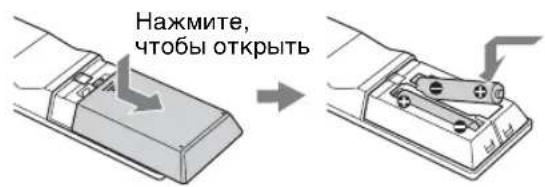
Mepbl npedoctopoXHOCTN B OTHOweHN DeTei
HeNo3B0JIaTe DeTAM B3bIpaTaBCaHa TeNEBu3Op.
XpaHInTe MeKne npHaJaIeXHoCTn BHe DoCraeMoCTn DeTei,HToBbOChi He MoRIN CnyaHNO npOrJIoNTb IX.
Ecnn HmEOT MeCTO cnedyouune HencnpabHOCTN...
HemeIeHNO BbIKIOUHTe TeneBn3Op N BiHbTe BUNKy UHpya NITAHN nepemehoro TOKa N3 3NeKtpopo3ETKn B CneDyUOx CNyuaX.
ObpaTnTecb K CBOeMy DnIepy INN B cepBnCHbI ueHr p Sony dIra TORO, cyo6kBAINnDnnpoBaHHbe cneuHaNCtBc cepBnCHoCnyK6bl BbINOnHHn POBeRPky TepeBn3opa. DaHHb annapat He coepxnt Yactei DnA CaMOCToRtehoro OcbNyXnBaHna.
Bcnyuae,ecm:
-ПовржденшнурпитаннипеменHorToToKa.
-ПлохиЕ контakтbl 3лeКтpopo3etknперемногToKa.
TeBn3Op nOyuHn NOBpeKdEHn B pe3yIbTaTe naDeHnY, ydaPa IINI IonaDaHn6poWeHHbIM B Hero npedMetom.
-BHytpb Kopnyca TeneBn3opa Yepe3 OTBepCTNA nonaja XmIKoCTb Nn KaKo-Nn6o npEpmet.
Temnepatypa KK-3kpaHa
Ecnn KK-3kpan pa6oTaet dInntelbHoe BpEMr,To naHEnI BOKpyr Hero 3HaHTeBHO HarpeBaOTc.3TO MoXHO NOUYBCTBOBaTb B CnYae PNKOCHOBEHN K HMM
Mepbl npedocto- poxhoctn
ПосмOTр Телевзopa
- Pn INCNOB3OBAHIN 3TORO yCTPOICTBA HEKOTOpbIE IIOJMOrYT NCbltBbATb DICKOMΦoPT (Hapmep, HapraKeHne rna3, yctaIOCTb IIN TOuHOy). KomNaHnny SONY peKOMeHNyET, YTObI Bce 3PITeJI N DEaII peryAHPbIe nepepbIBI npn IpocMoTpe BVdeOn36paXeHn 3D IIN BO BPMAI rtp B CTepeOcKOnUeCKOM φopMaTe 3D. IpoJIoJXitBeNbHOCTb I aCTota nepepbIBO 3aBcNIT OT INDbNduAaBbHbIX NTope6HOCTe.H HyxHO BBybPaTB Han6OJeE IOxOJaH bApnAHT. B cIpyae INCKOMΦoPTa Heo6XoDMIO mpeKpATNb NCIOB3OBAHNE yCTPOICTBa n IpocMOTp BVdeOn36paXeHn 3D, noka INCKOMΦoPT HeNCe3HeT; npn Heo6XoDMOCtN CNeDuY e6pTaNTCB K BpaHy. Heo6XoDMIO TAKKe O6pTaNTCbK (i) pyKOBoIDCTBY NO EKcPiyaTaN TReBEu3Opa, a TAKKe IIO6Oro DpyrOro YCTPOICTBa IIN HocInTeI, INCNoB3EyMORO C TEeBu3OpOM, a TAKKe IocETntb (ii) Be6-cainrSON dIra NOnyChEN NocJeHne INHΦopMaun. 3peHne MaIeHbKn X DetEY (OC6eHNO B BO3pacte Do wectn net) eue He CφOpMnPoBOAn. PpeJzYe pa3peWAtb DeTAM CMOTpeTB BVDeOn36paXeHn 3D IIN IRpaTb B Irpbl B CtepeOcKOnUeCKOM φopMaTe 3D, O6pTaNTecb K BpaCy (HanpImep, NeIaTpy IIN oCtAlbMonOry). ManeHkne DetI N OJXHbI HaxOJTbcN IOd KOHTPOJeM B3pocJbIX dIra Co6IOHeHH BblweKa3aHHbIX peKOMeHaDaIin.
3TOI3EJNEMOXHOHCIOB3OBAToIbKOINPPOCMOTpa BnDeoN3O6paxKeHn 3D Ha COBMecTMMOMTeJeBn3ope Sony.
CMOTPnTe TeneBn3Op Ha pacCToRHN, B TpN pa3a npeBbIauIoem BbICOTy 3KpaHa TeneBn3Opa.
BybTeOCTOpOKHbI,He nobpeDnte rna3a KOHNkAMn dykeK.
CobIIOaIte octopoxHocTB,yTO6bl npnCKnaIbIBAHIN dyKeK He npniueMNTb NaIbUbi. - CMOTPnTE TeIeBn3Op npn DOCTATOHOM OCBEUeHn; nPOcMOTp npn IIOXOM OCBeUeHn nIN B TeYeHne Ype3MepHo npoJoJkTeJIbHO BpeMeHn yToMnaT rna3a.
- PnI NOJIb3OBAHm HayuHnKamn He yCTaHaBnBaIte CnIuKOM 6oJIbWyIO rPOMKOCTb, YTO6bl He NoBpeDnTb cnIyX.
KK-3KpaH
XOTK-3KpaHn3rTOBHeH NO BbICOKOTUHOH TEXHOLOrIMn YNCNO 3ΦΦeKTHNBbIX TOeK DOCTNfAeT 99,99% N BblIe,Ha 3KpaHe MOrYT NOCTOARHHo NOBaITbcR cepHbIe INN IAPKHe UBeTHbIe (KpachIbe,CINHe INN 3eNeHle) TockN.3To cTykTyphoe CBOJcTB0 XXK-3KpaHa, KOTOpoe He ABJIeTcPn3HaKOM HENCPaBHOCTM.
He HaximMaIte Ha 3aunTHbIinΦnIbTp, He capanaIte erO n HeCTaBbTe Ha TeJeBn3Op KaNc-JIn6oPnpEdMeTb. 3TO MoKet npBeCTn KHEpaBnHomepHOCTn N3OpaXeHnINn NOpeXJDeHHIO KK-ekpHa.
- Ecni TeBn3op pa6oTaet B XOIOHOM MecTe, n3o6paKeHne MOKET OKa3aTcB PA3MbITbIM NIN CNIJKOM TEMHbIM. 3To He RBAReTCa INP3HAKOM HEICnPABHOCTN. 3TN RAJIeHNA IcYe3HTC NOBIUIHEHEM TEMNEpaTpybl.
- Pn npoDOnkntelbHOB DEMOHCTpaUm HEnOdBnKHO rN3OpaXeHn MOrY TNOBnTbC8 OCTaOHTbHe N3OpaXeHn. Ype3 HeCKoJIbKO CeKHyD OHN MOrY T NCHe3HyTb.
BoBpMaPbTlTeNBeH3Opa3KpaHn KOpNc HArpeBaIOCTr.3To He RBAeTCr np3HaKOM HeCNpPaBHOCTn.
KK -3kpan coepknt He60nbwoe KOINueCTBO KINDKNX KPnCTaIIIOB. HeKOTOpbIe IIOMNHeCSeHTbIe lamNbI, pIMMeHReMbIe B 3TOM TeLEBnOpe, coDPKaT TaKKe pTyb (Kpome lamn CBeToNDHOI NOcCBETKN XX TELEBnOpa).Pnp yTINImaUcN CObNoDAiTe COOTBEcTByIOUme MeCTHbIe NIOJOKEH INHCTpyKUm.
YxOJ 3a NOBepXHOCtBHO 3KpaHa, Kopnycom TeJeBu3Opa n ux OunchKa
IpepeO uOcTko TeneBn3opa NIN BUNKU shypa NTaHnepemEHORo TOKA OTOcoeDHHte WHyp NTaHnO OT 3NeKTPOcETN.
IIra oBeCneueHn COxpaHHocTn KOHCTpyKUOnHHbIX MaTePuaNoB IN NOKpbTnA 3KpaHa TeLeBn3opa co6bIOdaIte CneJeOuIne MePbl npEOCTOPOXHOCTN.
Дя удалени nbinnc nobepxhoctn 3kpana/kopnyca TebeN3opa octopoxno npotnpaite ero mKoTKaHbIO. EcnblbHe ydaJIreTc nOHOCTbIO, npOTPe 3KpaH MKnKTo KTAHbIO, CnerKa CMOeHHOB Cna6om pacTBope mKoro MOUero cpeDCBa.
He pa36pbI3rIbAaTe BoMy IIN MOUe ee cpeCTBO npRAMo Ha TeNEBn3Op. CKoJIeHne XnIKocTb BHN3y 3KpaI Nn HA HapYXhblx NOBepXHOCTx MoKeT npIBeCTn K BbIXOy TNeBn3Opa N3 CTPOR.
HnB KOem Cnyae He NcNOb3yIte HNKaKMe a6pa3INbHbIe MaTePmaJIbI, IeNoCHbIe/KNCIOThBe OChNTeTIe, YNCTaIme NOPoWKn TAKne NTyue pactBopuTEJN, KAK cNpT, 6EH3H,
pa36aBHTeN IIN INHcEKNIbI.
PnIMHeHne 3THX BeSeCTB IIN
IINTeHBn KOHTaKT C N3DeIINAMn
13pe3HN/BHNHa MOrYT NOPeDITb
NOKpbITNe KOpNyCa IIN NOBepxHOCTb
3KpHa.
ДЯ obecneeynaHaIeXaueBHeTUNLIMn peKOMeHnyETcNepnoIDNeCKn npOuHuaTBBeHTUNLIOHOHHbIe OTBepCTNAcNOMoubIOblNEccOca.
- Pnp perynipOBKe yrna haKlnoHa TeneBn3Opa n3MeHnIte erO nIOJoxHe MeIeHNo hOCtPOxHO BO n36ExaHne COCKaJIb3bIBaHnI TeneBn3Opa c noCTabKn.
18/ΦopMauny/BbIBoDCKpbIOTOrTeKCTa
Cnyknt dna otobpaXeHn HOpMaun. HaKmTe oDHOKpTaHO IIN BbIOda INOpMaun O npocMaTpNaBaEMOn nporpaMMe/BxOJHOM CnHaJe. HaxmTe eue pa3, YTO6bl CKpbIt b OTobpaXaEmyio Ha 3KpaHe IHOpMaunIO.
BpeXnme TeIeTeKCTa: BBIOJNT Ha 3KpaH cKpbI TYIO INHΦopMaUIO (HaNPmEp,OTBeTb TEJIeBNUKTOpNHbl).
19OPTIONS
HaXMMTE IIN OTO6paXeHn CnNcKa, CoepXaUero MNHaTOpHbIe N3O6paXeHn HEKOTOpbIX MeHIO napaMeTpOB.
IpeueHcneHHbI npaMeTpbl OTJnuaOTcB 3aBncmOCTN OT TeKyUeBOxOJa n COdePkmoro.
20 -PpebIyun KaHAn
Bo3BpTaHa npdeIbIyIeK KaHAn IIN K npocMaTpPbAeMOMy NCTOHTHKByBXoHOrO CnHana (60onee 15 ceKyHd).
21PROG+/-/
Cnyknt nIy Bb6opa cneDyUoJero (+) IIN npEdbIyUeO (-) KaHaJa.
BpeXnme TeIeTeKCTa: cnyKNT IJIa BbIbopa cIeNyIOUe ()nnnpedbyuie(CTpaHNUbl.
22-OTKJIouHeHne3ByKa
HaXMMTE, yTo6bI OTKJIIOUHTb 3ByK. HaXMMTE eIe pa3, yTo6bI BKJIIOUHTb 3ByK.
UTo6bI N3MeHnTb ⅢnpOKo3KpaHHbI pexm
ДЯ TB, Виебе, KMонhoeTHoro Или HDMI/MHL-cuHANOB
MoxHO BbIbpaT, dna KaKOrO n3o6paXeHnBocnpOn3BOJntb 3Byk, C NOMOuIIO npaMeTpap "CmeHa 3Byka" B MeHIO OnuIN.
Hakmte KhoNky HOME, a 3aTeM BbIbepuTe "YcTaHOBKn" > "I3o6paXeHne" > "3D-HacTpoiKn".
ABTO 3D:
Bb6epnte 3NaueHne "BkI," cyobi npn o6hApxKeHn 3D-cnHaJa aBTOMaTnueckn OTo6paXaNocb 3D-n3o6paXeHne.

- Pexim DnCnpe MoKTe He nepeKIOuA b C B pexim 3D aBtOMaTneCKN B 3aBNCIMoCTN OT nctOHHKa cnHaHa nn fopMaTa. B 3Tom cIyae BbIbepnte peXim 3D-dncnpe BpyHyIO.
YBeDomJIeHne o 3D-cnHaJae:
Bb6epnte 3naehne "Bkn.," UTo6bl npn o6hApxhen 3D-cnHaJa oTo6paKaJIOcb coo6eHne.
BndeoΦopMaT c noDaeppKoJ 3D
| Вхов 3D-формат | Сигнад | |
| Разрешие Вертукалынай частota (Гц) | ||
| HDMI | Улakовka кадров | 1920 × 1080p 24, 30 |
| 1920 × 1080i 50, 60 | ||
| 1280 × 720p 24, 30, 50, 60 | ||
| Радом | 1920 × 1080p 24, 60, 50 | |
| 1920 × 1080i 50, 60 | ||
| 1280 × 720p 50, 60 | ||
| Одna над друтой | 1920 × 1080p 24, 30, 50, 60 | |
| 1920 × 1080i 50, 60 | ||
| 1280 × 720p 50, 60 | ||
| MHL | Радом | 1920 × 1080p 24 |
| 1920 × 1080i 50, 60 | ||
| 1280 × 720p 50, 60 | ||
| Одna над друтой | 1920 × 1080p 24, 30 | |
| 1920 × 1080i 50, 60 | ||
| 1280 × 720p 50, 60 | ||
| USB | Радом | 1920 × 1080p 24, 25, 30 |
| 1920 × 1080i 50, 60 | ||
| 1280 × 720p 24, 25, 30, 50, 60 | ||
| Одna над друтой | 1920 × 1080p 24, 25, 30 | |
| 1920 × 1080i 50, 60 | ||
| 1280 × 720p 24, 25, 30, 50, 60 | ||

B 3aBnCmOCTn OT yctpoiCTBa MHL 3D-dncnne MoKeT He OTo6paKaTaBcA.
- CM. ctp. 31 ДЯ видаоформata, подерхьаною USB.
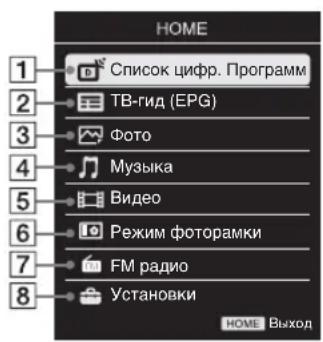
C NOMOJIIO KHOJIKI HOME MOXHO HAcTpaNBaTB TeJIeBUN3Op I OTKpbIBaTb paJIuHbIe paJIbI Ha HocNTeNe USB.
1 HaxmTe KhoNky HOME Ha TeJeBn3ope nnn nyIbTe dY.
2 C nOMOuHO KHOIOK / BbI6epnte npaMeTp, 3aTeM HaxMMte +
3 CneDyTe yKa3aHnM, NOBnIOUIMcHa 3KpaHe.
4 Дя Вьхдаиз MeHIO haxmTe KhoNky HOME.
MeHIO OnncaHne
1 Cnncok cnp. nporpammb Bbl moke Te bblpaTb cnncok ncp. nporpamM (ctp. 26).
TB-rnD (EPG) BbIMoKeTe BbIpaTb cnpoBOn 3JeKtpoHbIn nporpaMMhNrNd (cTp.28).
3ΦoTo BbMOKeTe npocMaTpnaTb foToRpaФn c ycTpOuCTB USB (ctp. 29).
4 My3bika Bbl moKeTe npocnyuBaTb My3bIkaJIbHbIe paJIbIc yCTpoiCTB USB (ctp. 29).
5 Bndeo Bbl moKeTe npocMatpnbT bNdeofoaIbI c yctpoiCTB USB (ctp. 29).
6 PekimФOTopamKn Bbl MoKeTe BbIbpaTb paMKy IINH3OpaXeHN, YTO N03BOJnE T BOCpOn3BOdntb fOTo IN My3bIKy, a TaKke OTo6paXaTb YacBi (Ctp. 32).
7 FM paIIO IpOcIyIuBaHne FM paIIO (ctp. 34).
8 YcTaHOBKn CnyxntIgOTo6paXeHnMeHIO "YcTaHOBKn", B KOTOpOM BbINOJIHReTcA 60JIbUHHCTBO DOnONHtEJIbHbIX HAcTpOeK n peryIINpOBok. DOnONHtEJIbHyIO IHcOpMaunio 6bYcTaHOBkax CM. Ha cTp. 36 - 47.
IcnoIb3OBAHne npaMeTpOB BocnpOn3BeDeHnA
NcnoJIb3yIte cBETbIE KHONIKI dJI N OTObpaXeHNA CnNcKa, CoJepKaaIero MHNHaTIOpHbIE N3O6paXeHNA HEKOTOpbIX MeHIO napaMeTpOB. IpeueNCJIeHHbIE napaMeTpBI OTJIuHaOTcB 3aBUNMOCTN OT TEkyIeRO BXOJa N CODePXMIMO.
ΦOTO
"3ΦΦeKtBcnaI-woy": BbI6Op 3ΦΦeKTA dIra cnaI-woy.
"CKopocTb cnaI-woy": BbI6Op dIINTeJIbHOCTn cnaI-woy.
"Пpon3BoJbHo": BOCPon3BeDeHne phaIIOB BClyuayHOM NOPAДKE.
"YBeJIuHHe": yBeJIuHHeNc I3O6paKeHnR ("×1", "×2" nII "×4")
My3bika
"BapnntbI Bocnp."Bocpon3BeHeHne BCEX paIOB nIN BB6paHHoro paJa.
"PpOn3BolbHo": BocnpOn3BeDeHne faHIOB BClyuHaHOM NOpA,IKe.
"Динhamкн": Bbl6op ДиHamka (cTp. 39).
Bndeo
"BapnntbI Bocnp."Bocpon3BeJeHne BCEX paIOB nIN BB6paHHoro paJa.
“yBelenueHne*: yBelenueHne n306paXeHHN (^n× 1^n,^n× 2^n,^n× 4^n) nIIN "IupokOaKpaHHbI".
"ДинhamNK": Bbl6op ДиHamNKa (cTp. 39).
YHnBepcaJIbHa
"NoBToP": noBToPHOe BocnpOn3BeJeHne faJa.
"CoptnpoBka": n3MeHHeHne nopAДka faIIOB.
"BbI6op yctpOCTBa": BbI6op ycTpoiCTBa USB.
HactpoKa n3o6paXeHHa(BnDeo)
Moxho perynipobatb kaueCTBO n3o6paxeHn, noctynaooero c yctpoiCTba USB.
1 BbIbepe Te Bndeo.
Cm. "Bocnpoun3BeJeHne foTOrpaPn/My3bIKu/BnDeo uepe3 USB" (ctp. 29).
2 Bo BpemBocPOn3BeJeHnHaXMMTe KHOJky OPTIONS, HaxMMTe 日 / 日 , YTO6bI BbIpaTb "N3o6paXeHne", 3aTEM HaXMMTe
3 HaxmTe 日 / 日 /日 ,yTO6bI Bbl6paTb Heo6xOIMbI napameTp, 3aTeM HaxmTe
4 HaXMMTe 12 / 12 / 12 / 12 , YTO6bI BbINOJHnTb HAcTpOy, 3aTeM HaXMMTe +.
Bocnpoun3BeDeneHne FOToRpaHn B BVnde cnaId-woy (Foto)
ΦOTOrpaΦmIMoKHO BOCnPOn3BecTn B BnIe CnaI-D-woy. MoKHO 3aJaTb npaMeTpbl “OΦΦeKTBcNaI-D-woy” n“CKopocTb cnaI-D-woy”.
1 BbIbepuTe foToIpaHIO.
Cm. "Bocnpoun3BeJeHne foToTpaqn/My3bIKn/BnIeO uepe3 USB" (cTp. 29).
2 HaxMMTe 3eJeHyIO KHOKNy BpeXnme npocMOtpa MNHaTIOpHbIX N3O6paXeHN IIN HaXMMTe KHOKNy OPTIONS BO BpEMr OTo6paXeHNr FOToIpaΦN, HaxMMTe 已 /已 , YTObI BBi6paTb "CnaJd- looy", 3aTEM HaxMMTe
OctahOBka cnaId-woy
HaXmTe RETURN HOME.
KordaTeNeBn3Op CunTBiBaet daHbIe c yTpoCtBA USB, co6NoJaTe cneDyUOne npabuna:
-HeOTKJIIOUaIteTeNEBUN3Op.
-HeOTCOeUNHnTeUkab6JIb.
- He oTcoeEinHnIte yCtpoiCTBO USB.
B npotNBOM cnyae daHHbIe Ha yctpoNCTBE USB moryr 6bITb nobpeKdEnbl.
- Kompania Sony He Hecet OTBeTCTBHeHOctb 3a KaKoe-Jn6o NobpeXDeHne nIyTePio DaHHbIX Ha HocnteNe 3aIMCNn N3-3a HeBepHO pa60bI TeNEBn3Opa nI KAKoro-Jn6o N3 NOkNIOUeHHbIX K HEMy yCTpOHTB.
-Фаиловая систemaHaусточыUSB noДдерхиьаertFAT16,FAT32uNTFS.
B HeKOTopbIX cnUyAaX mHeHa paIIOB n IaNOK MOrY T OTo6paKaTbC HekOppeKTHO. - Pn noKnoeHnn K TeBn3opy ufoBoo foToKaepb Sony yCTaHOBe Ha He ABTO nn 3y 60nbou emKocT nIpeXnMa coEHHHeHn USB. Boone noDpOHy IO HOpMauIO o pexnme coeHNHeHn USB cm. B nHcTpyKun, npJIoXeHHo K Baewemy ufoPoBOMy fotoannapaty.
- Дд поуеня послдэн Инфорmaио6 USB-COBmctmbix yctpoiCTbax nocetnte cneyuoiu Be6caiT: http://www.sony-asia.com/bravia/flash.html
- 3aONMHaIOUe yCTpoNCTBO USB IDONXHO COOTBeTCTBOBaTb CTaHApTaM KNaCCa 3aONMHaIOUx yCTpoNCTB USB.
- EcnB BbIbpaHbI pAnI NMeT HeBepHbI eNn HEnoHbI CBeDeHnO KOHTeHHepe, BbINOJHtB BOCpOn3BeDHeHne 6yDet HeBO3MOxHO.
PnocmoTp Bndeo3o6paXeHn 3D c nomoIyctpoiCTBa USB
IopKlIOuHb yctpoiCTBO USB K TeJeBn3opy, MoXHO npocMaTpNBaTB 3D-coepKmOe (cTp. 22). TeJeBn3Op dOnJKeH nOdEepKnbAtb fOpMaT paJa. IJI NaIyueHnI DOnONHHTeJIbHO IHΦopMaun O oopMaTe cm. cTp. 31.
Bndeofoopmat yctpoicTba USB
| Расширеце Контейнер Вида ek АдноюSpec | Xvid | PCM / MPEG1 Layer1, 2 / MP3 / MPEG2 AAC (2ch) / MPEG4 AAC (2ch) / MPEG4 HE-AAC (2ch) / WMA v8 / Dolby Digital (2ch) / Dolby Digital Plus (2ch) | |
| MPEG1 | |||
| MPEG2 MP | |||
| H.264 BP/MP/HP | |||
| MPEG-4 SP/ASP | |||
| .wmv.asf | ASF | WMV v9 | MP3 / WMA v8 |
| Xvid | |||
| MPEG-4 SP/ASP | |||
| VC-1 | |||
| .mp4.mov.3gp | MP4 | H.264 BP/MP/HP | MPEG1 Layer1, 2 / MP3 / MPEG2 AAC / MPEG4 AAC / MPEG4 HE-AAC |
| MPEG-4 SP/ASP | |||
| H.263 | |||
| .mkv MKV | H.264 BP/MP/HP PC/M MPEG1 Layer1, 2 / MP3 / MPEG2 AAC (2ch) / MPEG4 AAC (2ch) / MPEG4 HE-AAC (2ch) / WMA v8 / Dolby Digital (2ch) / Dolby Digital Plus (2ch) / DTS | ||
| MPEG-4 SP/ASP | |||
| WMV v9 | |||
| VC-1 | |||
| .mpg.mpeg.vro.vob | PS | MPEG1 | MPEG1 Layer1, 2 / MP3 / Dolby Digital (2ch) / Dolby Digital Plus (2ch) / DTS |
| MPEG2 MP | |||
| .ts.m2ts | TS | MPEG2 MP | MPEG1 Layer1, 2 / MP3 / MPEG2 AAC / MPEG4 AAC / MPEG4 HE-AAC / Dolby Digital (2ch) / Dolby Digital Plus (2ch) / DTS |
| VC-1 | |||
| H.264 BP/MP/HP | |||
ΦopMaT My3bIKN USB
| Расшиpenе Адноюк | |
| . wav LPCM | |
| .mp3 MPEG1 | |
| .wma WMA v8 | |
Φοτοφορmat yctpoinCTBa USB
KaJIeHdApb N Yacbl
- Yacbl

Ha 3TOM TeNeBn3ope He NoIdepKnBaetcA cyHKnpe3epBnHO nITAHn YacOB OT 6aTaapeek. NToTMy npn npebbAHn 3eKTPoNtAHn INN OTKIOUeHN Ka6eHn nITAHn OB3aTeNBHO CHOBA yCTaHOBNTe KkyuO DaTy n BpMa.
PpOdoJIxxTeJIbHOcTb
TeIeBn3Op MoKeT pa6oTaB Ha npOToJxKeHn 24
YacOB 6e3 nepepbBa B pexKIme fOToPamKn,
NocJIe Yero OH B cEJIaX 3KOHOmN 3Heprn
BbIKJIIOHTcA aBTOMaTHueCKn. CnyCTa 24 yaca
NCNoB3OBAHnR peKIMa fOToPamKn He
HCNoB3yIte 3TOT peKIM IO MeHbWei Mepe
OdINH Yac IJa IpeDoTbPaUeHnR BblropaHnR
NaHeJI.
MoxHNO 3MeHnTb HAcTpOy NapaMeTpa "PpOdoJXkTeIbHoCTb" B MeHIO "HAcTpOKn foTOpAmKn".ДЯ NOnyeHn IOnOJIHnTeIbHOH INΦOpMaqUn CM. pa3dEIn Ctp. 44.
IpyeDToBpaueHn BbIropaHn naHeNnnoXKeHneΦOTOrpaΦn,YacOB nKaJIeHapraabTomatUyeCKn N3MeHReTcKaKdbIyac.
C nOMOuTo TeJeBn3opa MoXHo npocnyuBaTb FM-paIIOcTaHcN, NOKJIIOUvB aHTeHHy (CTp. 5). DnaIa3OH hAcTpoIKn FM paIIO coCTabIeT 87,5-108,0 MfU.
Пппервом Испльбизовин Функци FM-раимо Нахмп Te Khoнky HOME, Вьберп Te "FM pa.dno", 3aTeM BынлнITE npoцу "Автонacтpoиka" B MeHIO "Hactpoиka FM pa.dno" (cTp. 43).
TTo6bHeo6xoAnMo
IpeenBpekm FM paHnHOaKmTe HOMEn BBbEpnte“FMpaHno"
BbInu3peXmAmFMpaHnOHaXmTeKhONkyRETURNIINBO3BpataKnpdeIyUeMyBuNy.
PpocnywaTb
PpeBapntbHo
HaCtPoEHhIe CTaHcIIN
1 PpeenB pejkm FM paanio.
2 Haxmte HOME n BbIepeHte "YcTaHOBKn". HacptpoTe Heo6xoDmble FMpaNoCTaHm n ux MeTKn B MeHIO "HactpoKa KaHaJa" B pa3JeNe "HactpoKa FM paNo" (ctp. 43).
-Дпяпорхда В мени "Hactp. FM-pa.dno" Bbl6epnte nyHKT "Hactp. FMpa.dno"В мени Onцив ржиме FM pa.dno.
3ДЯВыхолаи3MeHIO"HacpoiKa KaHana"HaKMTe KHonky HOME.Homep BbI6paHHo IpeDbapntelHo HAcTpoEHHO FM-paNoocTaHcIMn IMetkn OTo6pa3rTcH aKpaHe.ДЯ BbI6opa Heo6xoOIMoN ppeDbapntelHo HAcTpoEHHO FM-paNoocTaHcIMn HaKMTe PROG +/-
MoxHO TaKHe NcNoB3OBaTb KOnKn 0-9 Ha nyIbTe Dv, YTO6bl HApPMyBO bIbpaTb Heo6xoDmyIO npEeBaPteBHO HAcTpoEHHyO FM-paNIOCTaHIO.
PpocnyaTb He
HacTpoEHhble
PpeBaPnteIbHOCTaHcM
1IpeeInBpexim FMpaanio.
2 C nOMOuBIO KHOJOK 日 /日 BbINOJIHnTe pyHoi nonCK Heo6xoIIMoFMpaIIOCTaHm. ByET BbINOJHeH nonCK, npn ObHapyKeHN cJeDyUoSei DOCTynHO CTAHmNONCK bYdET npnoCTaHOBneH.
-ПОИСК Heo6xOДIMочсToTb FM MoKHO TaKxe BbIOnHnTb BpyHyIO c NOMOsbIO KHOJOK 念 /念 .HaIeHHyIO paINoUacToTy MOKHO npocnyuBaTb JINMb BPemEHNO HReBO3MOxHCOxpaHtB B nAMrTb.
- Пио отобрахени сошцени "Hacpoite FM paДио." OTKpoIte MeHIO "HacpoIka KaHana" n BbIbePnte nyHKT "HacpoIka FM paДио"ДЯпpeBapNTeJbHOn HAcpoIkn Heo6xOДmBIX FM-paДиocTahИн (cTp. 43).
OTo6pa3ntb foToPamky Bo Bpemn npocnyuBaanr FMpaio
1 HaXMMTe OPTIONS Ддя Вьбopa napametpa "PexKIM ФOTopamKn", 3aTeM HaXMMTe +.
2 CM. nyHKT "ΦOTopamKa" (cTp. 32)ДЯн Вьбopa ФOTorpaФИN Ип napaMeТра "РекIM dIcPnE".
CHN3ntb nTope6JHEmyMOuHOCTB BpeXmE FMpaIIO
Ecn yctpoiCTBO USB He NOdknHcHo, 6yJeT OTo6paKaTbCn3o6paXeHne BRAVIA.
1 HaKMTe OPTIONS n BbI6epNTe "3Hepeoc6epxeHne". BbI6epnte Heo6xoIMMbIe npaMeTpbl n HaKMTe
-Дпяпесда в MeHIO "Знecрбсрженье" моЖно TaKKe Bbl6paTb peKM "3ko"ВMeHIO napametpoB (cTp.47).
2 IIa BbIXoJa n3 peXnMa "OTKn. n3Opp." HaxMMTe JIO6yIO KHOJky Ha NyIbTe Dv, 3a NCKJIIOueHHeM + / - nn
-
Ecni npn npocnyuubAHm n CtaHcnn CbIHbI NOMEXN, TO KaueCTBO 3Byka MOXHO yJyUHTb C NOMOUBKHO
-
Ecnn FM-CTepeonporpamme nmeotc aTMoccehphe nomexn, haxmnaTe KhoNky AUDIO, noka Ha 3kpaHe oTo6pa3ntc3haeHne "MoHO". Ctepeo3cffeKT 6ydt OTKnOueH, OHaKO nomexn 6byyt yctpaHebl.
- EcTn aKTHBNO nOdkHoueHne K Ka6eNbHOMy TeJeBnDEHIO, To, BO3MOxHO, He ydaCTc npHrTaFmpaIIO.
Исpenьзоване синхрониЗaци BRAVIA c Функциeуправлени Sync BRAVIA
Функцу упраьеня Sync BRAVIA no3BOLЯТ TeLEВИЗОРу OCUшЕСТВЛТБ CB7ь C NOДКЛЮЧЕНБIMK HeMy yCtpoIcTBaMn (COBmecTUMbIMN c 3ToI Φункциe) C nOMOь CpeuФиkaUNHDMI CEC(Consumer Electronics Control). Hanpimep, NOДКЛЮчИВ OБOPУДOBaHne Sony, COBmecTUMoe CФункциeну ураьеня Sync BRAVIA (c nOMOью Ka6eNeHDMI/MHL), MOKHNo BblONHATbCOBmecTHOE uPpablenHe BCE nCCTeMoI.
O6raTeIbHo npOBepbTe npaBnIbHocTb NOkNIOUeHnO sbOpyIOBaHn N BblONHITe BCE Heo6xoIIMbIe HacTroKn.
UnpaBJIeHne Sync BRAVIA
- ABTOMaTnueckN BbIKIOuHae T NOKIOUeHHO E K TeJIeBUN3Opy yCTpOJCTBO npI erO nepeBoe B peXIM OxNJaHnC NOMOUsb IyNbTa DY.
- ABTomatnueckn BkIIOuaeT TeJIeBn3Op n Bbl6npaET COOTBeTCTByOuIN BXoI npHaJAE BOCIpOn3BeHEn Ha ODNOM N3 NOKJIIOUeHHbIX yCTpOiCTB (3a NCKJIIOUeHEm peKIma MHL).
- Ecnn Bbl BKIOUHTe NOKIOUeHHyIO K TeNEBUN3OPY ayINOCCTEmy npn BKIOUeHHOM TeNEBUN3ope, ABTOMATueckn 6ydt BblNOJIHeHO nepeKIOUeHne, BCNECTBNE KOtOPOrBOCpON3BeDeHne 3ByKa CTaHET BblONJIHTbCS He dINHAMIKAMn TB, a ayINOCCTEmoJ.
- I03BONHET peYIINPObaTb rPOMKocTb ( + / - ) nOTKJIIOUaTb 3ByK (x) IIOJKNIOUeHHoayDIOOCNTembl.
- Bbl moxete ynpabnTb noKIOUeHHbIMy cTpoiCTBaMn SONY, IMeIOUmI IOROTIN BRAVIA Sync, c nOMOuI npIbTa DY TeNEBn3opa. Bo3moXhIe DeIcTBnC KHOKNaMn BRAVIA Sync cm. cTp. 13. -HOpMaunO DOCTyNHOM ynpabNeHN CM. B INCHpyKUnn Ha BHeUHHe yCTPOIcTBO.
- Ecnn napameTp "YnpabBneHne Sync BRAVIA" Ha TeIeBn3ope Imeet 3NaueHne "BKn." To npapameTp "YnpabBneHne Sync BRAVIA" noDknIOueHHoro yCTpOINCTBa aBTOMaTnueCKn MeHReTcHa "BKn."
Hactpoika napametpoB ynpableny Sync BRAVIA
Hactpoikn ynpaBHeHn Sync BRAVIA doJXhbl 6bITb BbIOnHeHb KaK Ha TeJeBn3ope, TaK nHa
noKJIIOueHHbIX K Hemy yCTpoiCTbax. O COOTBeTCTByIOx HActpoIKax TeJeBn3opa cm. "HactpoIKn
Sync BRAVIA" (cTp. 46). O HactpoIKe noKJIIOueHHbIX yCTpOiCTb CM. INX INHCTpyKuIN NO
3KcnnyatauN.
Hactpoika napametpoB

- HacTpaBnBaembIX npaMeTpOB 3aBnCt OT cHTyaUIN. HeocTyHbIe npaMeTpbl n3o6paxKaOTc cepbIM CBETOM NII H BbIOJATCR Ha 3KpaH.

Изобрахке
Pexm 306paK. 3aJaT peXm 306paXeHnI. DocTyNHbIe IJI BbIbOp a npaMeTpbl 3aBnCt OT npaMeTpPa "BbIbOp cueHbl".
"Apkn": yBelenuHbaET KOHTpactHOCTb N pe3KoCTb N3OpaXeHHa.
"CTaHdapThbI": cnyknt dna nolyueHnra CtaHdapTHoro n3o6paXeHnra. PekomeHdyetcra da domaHero npocmotpa.
"HnBnyaHbN": NO3BOJHeT COXpaHrTb IpeIIOHTeJIbHbIE HAcTpoiKn.
"KInHOTeaTp":ДЯ npocmToPaФиьmoB.ПоДхoДИТДЯ OБСТАнOBК, HAnOMHaIOUeI KInHOTeaTp.
"Графика":Оптимизачи КачесТВИЗбрахжENДЯ прсмOTра График.
PexkIM BbIbopa cueHbI
HaXmTe OPTIONS n BbIepeIte MeHIO "BbIbOp cueHbI". PpN BbIbope Heo6xOaMOrO npaMeTppa cueHbI aBTOMaTnueCKn yCTaHaBnBaIoTCr ONtMaJIbHbIe 3NaueHn KaueCTBa 3ByKa n N3O6paXeHn Inra BbIbpaHHo CueHbI. YncNo DoCTyHbIX dnn BbIbopa npaMeTpOB MoKeT OTnUaTbcr. HeoctTyHbIe npaMeTpbl N3O6paXaIOTc cepbIM ZBeTom.
"ABTO": OBeCneuBaET ONTtMaJIbHoe KaueCTBO N3O6paXeHHN 3Byka, aBTOMaTnueCKN NOCTpANBaHOUeEeCR NOI NCTOCHNK BXoDHORO CnRHaJa. HAnuHne 3ΦΦeKToB 3aBNCIT OT NODKNIOUeHHORO O6OpyDoBaHHa.
"YHnBepcaIbHaJ:TeKyuIe NOpIb3OBAteJIbCKNe HAcTpoNk.
"My3bka": OececneuBaet dHnHaMnHbI N uNCTbI 3ByK, CO3daIOUIM 3000KT npCcyTCTBnB B KOHcepTHOM 3aJe.
"KnHO": OBeCneuBaET n3o6paXeHne i DNHaMnYeCKn 3ByK, CO3aIoUne 3ΦΦeKT npCcyTCTBnB B KInHOteaTpe.
"Nrpa": ObecneuBaet KaecTBo 306paXeHn 3ByKa, nO3BOJHOUcEe NOyHTb OT BnDeONrpbI MaKCMMy yOBOJIbCTBnR.
3aBOcknx HacTpoek, 3a NCKJIIOUeHHeM "Pexm 3ByKa", "DByxKaHaIbHbIyK", "INHAMIKN", "INHeHbI BixOd 3ByKa" n "Don. yCTaHOBKn".
3Kbana3ep Cnyknt dIy perynipOBKn HacptoeK YactOT.
C NOMOJIIO KHOJOK 念 /念 BbI6epNTe Heo6xOIMyIO uactOTy 3Byka, 3aTEM C NOMOJIIO KHOJOK 念 /念 HAcTpoIe NapaMeTpbl N HaXMITE +. N3MeHeHHbie HAcTPOIK nPImEHHOTc NocIe BbI6opa napaMeTpOB “PeXIM 3Byka". BbI6epNTe "C6poc" dIra BOCCTaHOBLeHnROpIRHaJIbHbIX HAcTpoEKNapaMeTpA“KBAJIaI3ep".
HactpoKa BbICOKO YAcTObI BnIeRt Ha 3ByuHaHe B Dnana3OHe BbICOKX YAcTOT, a HAcTpOka Hn3KoY CaCTObI -B Dnana3OHe Hn3Knx YAcTOT.
3BykoB06ycep YcNJIbAe 3ByuHaHne, aKUeHTnpy HxHHe/BepxHne YaCTOTbl.
OTyETJNBOCTb peu NObblaaet OTYeTJNBOCTb rOLOca.
IIMNTaunr ctepeo IobabnreT 3cpeKtbi OkpykaHoueTo 3ByKa K nporpaMMam, NduuM B peXmme MOHO.
Интелект. per. ГомК. =KpaцаET pa3ичne B ypoBHe 3Byka Мжdy nporpamMaMn I peKlaMoI (Hapnpimep, 3ByK B peKlAmhblx polnkax oblyho oblyaet rpoMye, Yem B dpynx nporpammax).
Hactp. aHaIorOBbIX KaHaJIOB
"ABTOHaCTp.aHaIor.ctaHcN"
Cnyknt dna HactpoKn Ha Bce DoctynbIe aHaIorOBbIe KaHaNbl. O6blHObBbIOHNrTb DaHHyIO onepaunIO He Tpe6yeTcN, Nockonbky KaHaNbl yXe 6blnHAcTpoHbI npi nepBOY yCTaHOBKe TeNEBn3Opa. Ondako 3OT napaMeTpNo3BOJrET 3aHOBO NOBTOpNTb PooecC (HaNPmEp, HAcTPOuTB TeNEBn3OpNocne nepee3da nnn NaHTu HOBbIe KaHaNbl, NoRBNUWneCBAΦnpe).
"Pyu. HacTp. nporp."
I03BOJnEeT BbINONHHTpyHyIO HAcTpOy KaHaIOB.
1 BbI6epuTe "PpOpaMa, 3aTeM HaKmTe
2 C nOMOJIbIO KHOJOK 1/,BbI6epITe HOMeI npOrpaMMbl, KOtOpyIO Tpe6yeTcHAcTpOnTb BpyHyIO (ecJIHnHAcTpAnBaETCBnDeOMaHHToΦOH, BbI6epITe KaHaI O), 3aTeM HaXmITE RETURN.
3 C NOMOJIbHO KHOJOK 山 / BBi6epNTe "CnCTema TB" 3aTeM HaXMMTe +
4 C nOMOJIbIO KHOJOK 日 / ykaKNTe dnaIa3OH YacToT ("MB 1", "MB 3" uIN "UHF"), 3aTeM haxkMTe
5 BbINOJIHnTe HAcTPOkky KaHaJOB CJeDyUOUM O6pa3OM: HaxMnTe />ДЯ NOUCKa CNeDyUoJero DoCTynHoro KaHaJa. Iprn HaxOxJdEHN KaKOrO-ⅡI60 KaHaJa NOnCK OCTaHaBnBaeTc.ДЯ npOdoNKeHNr NOUCKa HaxMnTe />
IIOBTOPIE BblweonncanHyIO npOceDpy, YTO6bI yCTaHOBNb BpyHyIO dpYnke KaHaJIbI.
"Metka"
3TOT napametp no3BONHET Bam npncBOHTb KaHaIy IIO6oe IMR, coepkaaee He 60nee cemn CmBONOB (6yKB nnnu np).
BBODcIMBOJIOB:
1 C nOMOuH KONOK /BbI6epnte HxKHyO 6yKBy uNn cHpy (“_” DnBBOda npo6ena), 3aTeM HaXMMte KONKy
EcnBbI BBeHn HeBepHbI CNMBOJ
C NOMOJIIO KHOJOK BbI6epNTe HeBepHO BBeJeHHbI CNMB0J. 3aTeM C NOMOJIIO KHOJOK BbI6epNTe HxHbI CNMB0J.
2 NOBTOPrTe npoueDpy, onncaHHyU B ware 1, do 3aBepseHnBBOda nMeHn, 3aTEM HaxMnte
"ANU"
Cnyknt dnn ToHOn pyHOn HacTpoKn BbIbpaHHoro KaHana. Pn yctaHOBKe dN 3TOrO npaMeTp a 3NaueHnra "BKn." TOnHa HacTpoKa BblnoJIHReTcA bATOMaTnueckn.
"AydnooΦnIbTp"
3Ta OONIIN03BOJHET yIyUHTb KaueCTBO 3ByKa IIN OTJeJIbHbIX KaHaIOB B Cnyae erO nCKaKeHn np IN TpaHCJauuB peKIme MOHO B CnCTemax TB "B/G", "I" uD/K".
Pn yctaHOBe 3NaueHnra "Cna6."/CnJIbH." He ydaCTc npHHMaTb Ctepeo- nIN DByXKaHaJIbHbI 3BYK.
"Пponуck"
TOT napametp no3BOJare nponyckaTB HeNCNoJIb3yEmble KaHaJIbI npn BblOpe KaHAnOB C NOMOuBIO KHOK PROG +/-. (PponyueHHbIK KaHAN MOxHO BblpaTb C NOMOuBIO UcΦpOBbIX KHONOK.)
"CnCTema LBeTa"
Cnyknt Iy BbIbopa CnCTeMbI UBeTHoro TeNeBnDeHnA ("ABTO", "PAL", "SECAM", "NTSC3.58", "NTSC4.43" nIi "PAL60") B COOTBEcTbNc KaHaJOM.
"YpOBeHb cInrHaJa"
Cnyknt dna otobpaexehn ypOBHc nHana npocMaTPBaEMoB HactoJIee BpeM nporpamMbI.

"CopTnupbKa nporp."
3TOT napametp no3B0JAEt n3MeHHTb nopAOK paCNOLOXeHN KaHaIOB, COxpaHeHHbIX B naMATn TeJIeBu3Opa.
1 C NOMOUBKHOJOK/ BbIepeHTe KaHJI, KOtOpBb KbIXOTHTe Nepemectntb HBOOE NOIOXeHne, 3aTEM HaXMITE KHONKy.
2 C NOMOJIbIO KHOJOK 日 / BBi6epNTe HOBOe NIOJOKeHne BaWero KaHaJa, 3aTeM HAXMITE KHONKY
UHPOBAN KOHnrgupaun
"CnΦpOBAHacTpo'ka"
- "ABTONONCK Κιφρ. CTaHπη":
CnykntnHaHacptponKaBcDocTyHbIe cnppOBBie KaHaJIbl.
TOTnapaMeTpNo3BOJAE3aHOBOHAcTPONTbTeNEBUN3OpNocne nepee3da nnHaHTNHOBBieKaHaJIbI,NOABNBWnEeCBAΦnpe.HaxMMTe
“ДиANA3OH abTOHAcTPOKn”:
"CTaHdapTHbI":NONCKBCEXDOCTyHBIXKAHAIOB BpernoHe/CTpaHe.
- "Полиь": NOICK BCEX DOCTYINHbIX KaHaIOB BHe 3aBnCIMOCTN OT PerNoHa/CTpaHbl.
BbMOXeTe BbINONHHTb "ABTONOncK uΦp. CTaHm" Nocne CMeHb MeCTa XNTEJIbCTBa, N3MeHENr NOCTaBUNKa yCnYr INI NONCKA HOBBIX KAHANOB, NORBUBNXCR B 3cHpe.
- "PedaKT. cnNcKa nporpamM":
I03B0JAEr ydaJIHT bUcfoPoBBie KaHaJIbI, COxpaHeHHbIe B nAmrTn TeJIeBu3Opa, a TAKKe I3MeHHTb IN NOpRdOK.
1 C NOMOJIIO KHOJOK 7/ BbIepeNTe KaHAN, KOToPbB Bbl XOTNTe ydaNITb HIN NEPEMECTNTB B HOBOE NOJOXKeHNE.
Haxmte YncIOBbie KONKIN BBOda Tpex3HaHoro Homepa KaHana TpaHCJIaUN.
2 YdaIHTe NIN N3MeHITe NopAIOK UINΦpOBbIX KaHaIOB CNeDyUOIM 6pa3OM:
YdaJIeHHe cIΦpOBOrKaHaHa
HaxMITE .Ocne OTo6paXeHHa COo6ueHHa C NOITBepKdEHHem HaxMITE
I3MeHeHne npAka uΦpoBbIX KaHaJIOB
HaxMNTe 3aTeM HaxMNTe /ДлЯ BblOpa HOBOrO NOLOXKeHnKaHaJa N Bbl6epNTe
3 HaXmTe RETURN.
"Pyu. nonck uΦp. cTaHm":
I03BONaRt HAcTPONTb UnpOBoBbI KaHaJIbI BpyHyIO.
1 BbIbePte "TIN cKaHnPOBaHH, HaxMnte "Kahal" nII "Hactota."
2 HaCtpoTe DpyrIe 3JeMeHbI COOTBETCTByIOUIM O6pa3OM.
3 BbI6epnte "CkaHnpoBaTb BBepx" nnn "CkaHnpoBaTb Bn3", 3aTeM BblONHnTE HAcTpoNky BpyHyIO.
4 NocTe TORO, KaK DoCTyHbIe KaHaJIbI 6yDt HauDeHbI, Bbl6epnTe "Da" nn "Het".
5 BbIepeTe "Ja"UTo6bI coXpaHnTb npOrpamMy. Ha 3KpaHe oTo6pa3ntcAo6uHne "PpOdoJnxNtB cKaHnpoBaHne?" PpN BbIbOpE nyHKTa "Ja" npOdoJnxNTc nonck CneDyUoJero KaHaJa/uaCTOTbl. PpN BbIbOpE nyHKTa "Her" OTO6pa3ntc npEdyUnm 3KpaH.

Pyu. nonck ucp. cTaHcun Ka6eJbHOro BeaHnI DOctyneH ToBko Iprn HauHnIuCpOBoBix Ka6eJIbHbIX ycnyr N BbINOHNHeTcR C NOMOUsIOIHO TOnHOrO CKaHnpOBaHnDVB-C.
"HactpoKa cy6TnTpOB"
- "YctahOBka cy6TtPOB": npn BbIbope napametpa "ДЯлюдeн capuyu. cnlyxa" BmecTe C cy6TtPamM MoryT OTO6paxKaTbCBA3yaJbHbIe NOdCKa3KN (ecn TB-KaHaJI ppeDocTaBnIOT TakyIOHΦopMaunio).
- "OCHOBHOa3bIK": BBIOp OCHOBHOa3bIka cy6TntpoB.
- "Дононтульныеязбк": Bbl6op ДОПОЛНТЕЛБИЗУА 3ыka cy6тпров.
"HactpoJa 3Byka"
-Tun aydno": nepeKIOUeHne BeUaHnB peXIM nIIOe n C hapyuHenem cnYxa, ecnn BbIbpaH npapaMeTp "Itn IIOe C hapw. cnYxa".
- "OCHOBHOJ 3bIK": BbI6Op 3bIka cy6TntpoB dIЯ nporpaMMbl. HeKOTopbie cHΦpOBbIe KaHaJIbI NOdEprXnBaIOT BeUaHne Ha HeCKONbKnx 3bIKax.
- "DOnoJHnTeJIbHbIy3bIK": Bbl6Op dONoJHnTeJIbHOr Ra3bIka Cy6TITPOB DnI nporpaMMbl. HeKoTOpBIE cUΦpOBBie KaHaNbI NOdEpeXnBaIOT BeuaHne Ha HECKoJIbKnx Ra3bIKax.
"Aydno onncahne": npedocTabnaret ayno onncahne Bn3yabHOHΦopmaun, ecn TB-kaHAn noDepknae TpeoctabJeHne taKoHΦopmaun.
- "YpoBHeM MKNKUnPOBaHn": N03BOJIaET peRyJIIpOBAbT yPOBn BBIOda OCHOBHOrO 3ByKa TeIeBuN3Opa n ayDnO ONuCaHn.
-ДанньnapaMeTpdaDocTyneHToIbKOecnIДЯnapaMeTppa“Aydno onucaHne" yctaHOBJIeHO 3NaueHne“BKnI."
- "YpOBeHb 3Byka MPEG": no3BOnJeT peryIuPoBaT b ypoBeHb 3Byka MPEG.
"TexH. KOHФиграць"
- "ABT. 06HOBJIeHne CTaHcN": NO3BOJNAET TEJIeBUN3OPY O6HApyKINBaTb N COxpaHrTb yCnyrN, KOrda OHn C7aHOBRTCA DOCTynHBIMN.
"CnCTeMHaH HOpMaun": OTo6paKaae TeKyuUo BepCuO nporpaMMHOObecneueHn UyPoBeHb CnHaJa.
"ABT.3aMeHa cTaHcUN":BbI6epNTe "BKn.,"YTO6bl aBTOMaTnueCKN 13MeHrTb KaHaJI, KOrJa TeJeBeUaTeJbHaR KOMNaHn MEHRe TpaHCJIaIO npocMaTpNbAemO nporpammbl Ha dpyroKaHaJI.
Hactpoika FM paNo IpeNyctaHOBka 30 FM-paNoocTaHcN, KOToPbIE HaxOAnTcB 3OHe npnema.
"ABTOHaCTpO'ka"
I03BOJRAET ABOTOMATUeCKN HAcTPONTb N COXpAHNTB BCE DOCTYNHbIe KaHaJIbl.
1 BbI6epnTe "ABTOHaCTpoiKa", 3aTeM HaXMMTe
2 BbIbepeTe "OK", YTO6bl aBToMaTnueckn HAcTpOHTb BCE DoCTyINHbIE KaHaJIbl.
"Hactp. FM-paiano"
PyHnHa HAcTpoiKa n CoXpaHeHne BcEx DoCTyNbIX KaHaIOB cpa3y.
1C nOmoIbIO KHOIOK /V BBiBepnTe Heo6xoDnMOe noLoXeHne FMpaIIOCTaHcN, 3aTEM HaKMITE
2 C nOMOsbHKO HONOK 念 / BbINOHNHTe NOCK FM-paIONCTAHUIN. NOnCK OCTaHaBnIBaeTcA BtOMaTHueckN NocNe HaCTPOIKN CTaHcUN. EcIn npn IPOCSlyuINBaHNN CTaHcUN CbIuHbI NOMEXN, TO MOXHO yNyUWNTb KaYeCTBO 3ByKa C NOMOsbHKO KHOJOK 念 / . HaKMITE coxpanehnFApapdIOCTAHUIN. MoKHO n3MeHnTB MeTKy FM-paIONCTAHUIN. C NOMOsbHKO HONOK 念 / BB6epNTe 6yKBHeHHo-LuPPOBbIE CNMBOLbl dJIr METKn, 3aTeM HaKMITE+ POBTOPTE warr 1-2 dJIr npedBapnteHbOH HaCTPOIKN dpyrnx FMpaIOCTAHUIN.
- ¥T06bI BKNIOHTb 3Ty fynHKUHIO, npeiINTe B pexIM FM paINO c nomOuBHO KhoNkI Dom (MeHIO) (CTp. 25), npEdbapnteJIbHO HAcTpoIte Heo6xOJMBIe FMpaIOCTaHcIMN B COOTBeTCTBm C yKa3aHHbIMN BblIe INHCTpyKUHMI.

3amok OT dTei
PIN KOD Cnyknt dna HactpoKn 6noknpOBKn KaHana nn BHeuHero BxoJa Ha TeleBn3ope. Iyra BBOda Yetbipex3HaunHO PIN KoJa BocnoJb3yITecb KHONkAmn 0-9 Ha nyIbTe Dv.
CmeHa PIN kOda BbIepeTe dna CMeHbI PIN kOda.
Pojntelbcka oceHa npocmToPa nporpaMM, npedna3NaeHHbIX dIy Bo3pacta, npebblauoero yka3aHbI, BVeNTe npabnlbHbI PIN kOd.
Блokировka Bxoda Cnyknt Дя 6лokировки пocmoТа Всшero Bxoda. Дя пocmoТа зблokированног Всшero Bxoda Bbl6epHTe nYHKT "Pa36лokировka".
BbO npaBnIbHoro PIN kOda nIy 3a6NOKIpOBaHHoro KaHaJa IIN BHeuHero BXoDa BpeMeHHO OTKIOUaET yHKUHO "3amok OT dTei".IIN BO306HOBJIeHn pa6Otbl cyHKUIN "3AMOK OT dTei" BBIKJIOHTe IN BKJIIOHTe TEJIeBUNOp.
B cnyuae ytepn PIN kOa cm. ctp. 52.

Hactpoika
Hactpoikn
ΦOTOPaMKN
"Pexm dncnpea
I03B0JnE9 BbI6paTb peXm DnCnJIe. BbI6epnte "N3o6paXeHne n Yacbl, "N3o6paXeHne Ha Becb 3KpaH" nn "Yacbl Ha Becb 3KpaH". Cm. cTp. 32.
"Отобрахенье часов"
KcbeHnIO nokynateJeN:
Длг obecneueHn coxpaHocTи n3dEeHn n3 COOBpaxeHn 6eOanacHOcN KOMnaHn Sony HactoTeJIbHo peKOMeHnyET npBLeKaTb ДЯ yCTaHOBKn TeNEBn3Opa TOnbKO dInePob NII INIeH3npOBaHHbIX NOprdUnkOB Sony. He nbItaTeCb BblONHtB yCTaHOBky cMoCToHTeJIbHO.
K cbeHnIO dIJIepOB u nOIpAduKOB Sony:
YdJIaIte NOBbIeHHoe BHMaHne 6e3OnaCHOCTN BO BpeM yCTaHOBKn, nepNoJnueckoro 06cnyKbAHn I OCMOTpa DaHHORo N3dEINr.
TeJIeBn3Op MOxHc yCTaHO Bt c nOMOu bKPOHHTeHa dJa HAcTeHHo YcTaHOBKn SU-WL400 (npno6peTaetc OTeNbHo).
EduHnUbI u3MepeHnR:MM
Ecnn HndkaTop He Mmraet
1 BbInonHnTe npoBepKn, yKa3aHHbIe HnKe.
2 EcIn BbI He cmOrn ycTpaHnTb HncnpaBHOCTb, 6paTnteCb K KBaINΦuNpOBaHHbIM CneUNaJNCtAm NO 06cnyKbAHIO TeJeBn3OpOB.
Изобрахке
Het Hn 306paXeHn (TemhBn 3KpaH), Hn 3ByKa
-Поберп Te npabnBbHocTb NOdkNIOueHnaAHTeHHbl/ Ka6eI.
-ПОДКЛЮЧNTeТеLEВ3OPK3NEKTPopoP03ETKe nepemeHHORTo TOKa nHaXMMTeI/Ha TeLEBEH3Ope.
- EcInnHdNkAtop I/0 rOpNT KpachbIM cBeTom, HaxMnte KhONky I/0.
Het n3o6paXeHHn Hn HnΦopMaun MeHIO oT o6OpyOBOHaHn, NOkNIOUeHHoro K rHe3dy BnDeOBxOda
HaxmTe,06bI OTO6pa3ntb CnUCOK NOKIOUeHHbIX K TeNEBUN3Opy yCTPOINCTB, 3aTEM BB6epNTe Hxhbl INCTOUYHK BXODHO CnHaJa.
- PpOBepbTe npabNtBHOCTb NOcOeHHeHH DOONHHTeBHOO 6OpyIOBaHnK TteBn3OpY.
I3o6paXeHne DBOITcA, IIN BnDhbI OpeOJIbI
- PpOBeBpTe nOdkJIIOUeHne, pacNoIoxKeHne nn HnpaBHeHne aHTeHHbl/ka6en.
Ha 3KpaHe BnHbI ToIbKO ChER I NOMEXN
-Поберп, He слOMан He nOrHyTa nAnTeHnA.
-Пюоверъ, He nCTeK JI npC pOK Cnyk6bl aHTeHHbl (3-5JET npHOPMaJIbHbIX ycNoBnHX, 1-2 rOda npnICNoJIb3OBaHm B paNoHax Ha MOpCKOM no6epeXbe).
Nckaxhenne n3o6paXeHn (nyHKtnpHbIe JHHnn nn noocbi)
-ДерхиTe TeJIeBn3Op BdAn O T NcToHnKOB 3NeKTpNueCKNX NOMEX, TaKx KaK aBTOMo6uIN, MOTOUKNbl, fHeHb IIN DOONHHTeIbHOE 6OpyDoBaHne.
- Pnp yctaHOBKe DOnOpHnTeIbHOrO 6OppyoBaHHN OCTaBnTe HeKOTOpoe pacCToRHe MExy Hm N TeJeBu3OpOM.
-Поберп Te npabnBHOCTb NOДКIOUeHЯ aHTeHHbl/ Ka6eIa.
-ДерхиTe Ka6eNb aHTeHHbI BdaJI N O Tpyrnx COeHnHTeJIbHbIX Ka6eNei.
Pomexn 3Byka nnn n3o6paxeHn npn npocmotpe TB-kanana
- OTKoppeKtupyIte napameTp "APU" (ABTomaTnuecka noCDtpoKa yactOT) dnyuyeHn npneMa cnHaJa n3o6paXeHn (cTp. 41).
HaHnue Ha 3KpaHe OueHb MaJeHbKnx YepHbIX n/ nn npKnx ToyeK
- 1306paXeHne Ha 3KpaHe cKJaIbIbAeTcR n3 ToyeK (NikceJ). ManeHbKne YepHbIe ToyKn I/INn RpkNe ToyKn (NikCeJI) Ha 3KpaHe He ABJIaIOTcR deΦeKTOM.
NckaxeHHbIe KOHTypbl 306paXeHnA
-Измени Tekyuee 3haueHne napaMeTpa "PexmФилб"Ha dpyroe (cTp.37).
UBeTHbIe nepeaHn BocnpOn3BODrTcB UepHO6eIOM n3o6paXeHN
- BbIbepnTe "C6poc" (cTp. 36).
OTcyTCTByET HnHnepaBnIbHO OTo6paXkaeTcA UBeT npnpocMOTpe CnHaJa C rHe3d Y, P/B/C, PR/CR B pexmE
- PpOBepbTe noKJIIOHHe rHe3Y, PB/CB, PR/CR BpeKIMe /PpOBepbTe HAdExHOCTbNoCOeINHeHn KaKDoRo pa3beMa BCOTBeTCTByIOUeM rHe3De.
Ha 3kpahe He noAEBnEeTc H3o6paXeHne, noctynaiooee ot noKnluOeHHoro yctpoiCTBa
- BkIIOUHTe NOKIIQUeHHoe o6OpyObaHne.
- PpOBepeTepaBnIbHOCt b NOKIIoueHnKa6eJIa.
HaxmTe +06bl OTo6pa3ntb cncok NOKJIIOUeHHbIX K TeIeBn3Opy yCTpoiCTB, 3aTEM BbIbepNTe HxhBi NCTOuHk BXoDHorO CnHaJa.
BCTaBbTe npabNbHO KapTy namrNnINnHoe 3anOMHaIOoee yCTpoiCTBO B CnpObyIO foTOKaMepy. - IcnoIb3yIte KapTu nAMrTu INHoe 3aONMHaIOoee yCTpoiCTBO uΦpOBoI ΦOTOKaMEpbI, OTΦopMaTIPOBaHHoe cOrNaCHO npJIOXeHHo IHCTpyKuIN N0 3KcNPyTaUIN UΦpOBoIΦOTOKaMEpbI.
Pa60Ta Bcex yctpoiCTB USB He rapaHTnpyeTc. Kpome TOrO, pa60Ta OTnuaeTcB 3aBNCIMOCtN OT cyHKuIy cTpoiCTBa USB n Bocnpo3BODmoro BuJeO.
HeBO3MOxHO BbI6paTb NOkNIOueHHO 06OpyIOBaHne B MeHIO Nn NepeKIOuHTb BXoJ
- PpOBeBpTe npaBnIbHocTb noKJIoueHnKa6eIa.
3ByK
XopoOee KaueCTBO 306paXeHn, Ho HeT 3ByKa
Haxmnte +/nIy(OTKIOyeHeNe 3Byka).
- Y6eInTeCb, yTo IaI npaMeTp a "DnHaMnKn" ycTaHOBneHo 3NaueHHe "DnHaMnKn TB" (cTp. 39).
- Y6eIntecb,чTo pa3bem HayuHnka nOdkNIOueH K TeIeBn3Opy.
3BykOTcyTCTByeT HIN BOCnpon3BOuNTcA C NOMEXAMN
-Поберп Te npabHocTb HactpoeK cnCTembl TB (cTp. 41).
KaHaJIbI
HeBO3MOxHO BbI6paTb Heo6xoDmbl KaHaJ
- PepeKIOUHTeCb B UΦpOBoN IIN aHaIorOBbI peKIM N Bbl6epnte Heo6xOaMbI UΦpOBoN/ aHaIorOBbI KaHaI.
HeKOTOpBie KaHaJIbI He BOCnPOn3BOJaTcR Ha 3KpaHe
KaHAn HcNoB3yeTcToIbKO Ia TpaHcnaU KOpOBaHHbIX/npHnMaEmbIX NOoDnNcKe nporpamM.NoDnWntEcB Ha nlaThbie ycnyr.
KaHAn nCnOJb3yeTcTToJIbKO dIaNepeJaUdAHHbIX (6e3 3ByKa IIN N3o6paXeHN).
3anpocnteBTeleBeuataTeIbHOBKOMpaHINnΦopMaunO nepaabaemnpoPamme.
UcpobbkeKaHaJIbHe OTo6paXaIOTcA
- 06paTntecb K MecTHOMy ycTaHOBUnKy, YTO6bl y3HaTb O HJIINu CnΦpOBbIX NpeJaB B BaWem perNoHe.
- YctaHOBnte 6oNee MOUHy oAHTEHy.
yHnBepcaJIbHa
TeIeBn3Op aBTOMaTNUeCKN BBIKLIOUaETCA (TeIeBn3Op BXoDNT BpeKIM OXuHaHnR
- Поберп, He akTNBupOBaH JI "TaNMeP cHa" (cTp. 45).
- PpOBeBpTe, He aKtINBupOBaH JI NaPamEtP "PpOdoJxKteJIbHOCTb" (CTp. 45) C NOMoUBo I npaMeTPOB TaMep BkIIOueHnra "IIN "HaCtpoNKn fOpAMKn" (CTp. 44).
- Поверьт, He akTиВирован Ли napaMeTp "OTkn. HeicnoJIb3yemoro TB" (cTp. 47).
HeBO3MOXHO BbI6paTb HeKOTOpBle NCTOCHKN BXOHBIX CnTHAIOB
BbI6epnte"MeTknO6OpyIOBaHnA,a3aTeM Bcerda" nIra nCToUHnKa BXoDHoro CnHaHa (cTp.46).
He pa6oTaer nynbT Ny
- 3amehnte 6aTapeiKn.
HDMI/MHL yctpoiCTBO OTCyTCTByET B NyHKTe "Cnncok yctp-B Sync BRAVIA"
- Y6eIITecb B TOM, qTO BaIe ycTPOIcTB OABJIeTCa COBMECTIMbIM C yHKUneynpabHeHnSync BRAVIA.
He ydaetc Bbl6paTb 3NaueHne "BbIK." dna napametpa "YnpabJeHne Sync BRAVIA"
- Ecni NOdkJIOUeHa ayDNOCnCTema, COBmecTImaC cyHKneynpabNHeHn Sync BRAVIA,B daHOM MeHIO He ydaCTcB bIbpaTb 3NaueHne "BbIKI." EcNI Tpe6yeTc nepeKJIOnHTb ayDNOBbIXoD Ha DnHAMNK TeNEBn3Opa,yCTaHOBtE 3NaueHne "DnHAMNKn TB" B MeHIO "DnHAMNKn" (CTp.39).
Yteprnapo
Bb6epTe HacTpoKn PIN-KoD B HacTpoKkax "3amok OT DeTei N BBeTe CneDyUOuN rnaBHy napOnb: 9999.
TeIeBn3Op He BOCnpOn3BOJNT N3o6paXeHne n/nn 3ByK c ycTpOJCTBa MHL
- OTKIIOUHTe Ka6eIb MHL nnoKIOUHTe erO cHObA, IIN6o OTKIOUHTe ycTpoIcTBo MHL, BKNIOUHTe erO npa36nOKpyTe.
TexHnueckne xapaKTepeNCTnKn
High-Definition Multimedia Interface
as a web site, you can find all the latest news and information on all the latest news and information.
.Dolby Laboratories 2000
MHL Mobile High-Definition Link, MHL
. MHL Licensing, LLC
DTS Licensing is a company specializing in the design of unique products. Limited
www.dts.com/patents/legacy.aspx
(c) DTS Licensing Limited
.DTS, Inc. 2012
HOMI
HIGH-DEFINITION MULTIMEDIA INTERFACE

dt
2.0+Digital Out

Mobile High-Definition Link

#
aaiil ailb g Jlae
LCD 1
LCL
JU (J)
JU J U
LED Uy jy (j)
(LCD j)
cbw 1
jgjglgj
J 1 J 2 3 4 5 6 7 8 9 10 11 12 13 14 15 16 17 18 19 20 21 22 23 24 25 26 27 28 29 30 31 32 33 34 35 36 37 38 39 40 41 42 43 44 45 46 47 48 49 50 51 52 53 54 55 56 57 58 59 60
1 1 1 1 1 1 1 1 1 1 1 1 1 1 1 1 1 1 1 1 1 1 1 1 1 1 1 1 1 1 1 1 1 1 1 1 1 1 1 1 1 1 1
yjzll 34 jie zai 10g jy Jie jie bao u l gao jia kao o jao 5
i 1 1 1 1 1 1 1 1 1 1 1 1 1 1 1 1 1 1 1 1 1 1 1 1 1 1 1 1 1 1 1 1 1 1 1 1 1 1 1 1 1
S 150
210 ÷ 210 = 7( 21)
100 100
gogjolaleiJg
()g)g
山
Jusuue uusaaal aal y
1 1 1 1 1 1 1 1 1 1 1 1 1 1 1 1 1 1 1 1 1 1 1 1 1 1 1 1 1 1 1 1 1 1 1 1 1 1 1 1 1 1 1
y 1
J 100000000000000000000000000000000000000000000000

jg jatll s
J 1000000000000000000000000000000000000000000000000000000000000000000000000000000000000
e 1 1 1 1 1 1 1 1 1 1 1 1 1 1 1 1 1 1 1 1 1 1 1 1 1 1 1 1 1
J 1 J 1 1 1 1 1 1 1 1 1 1 1 1 1 1 1 1 1 1 1 1 1 1 1 1 1 1 1 1 1 1 1 1 1 1 1 1 1 1 1 1 1 1 1 1 1 1
LCD
LCD 199.99, aaiy
Gauu yablu bla gaoa bia
LCD 201 (gj)
Wv LCD 201 50
Jg Jg Jg Jg Jg Jg Jg Jg Jg Jg Jg Jg Jg Jg Jg Jg Jg Jg Jg Jg Jg Jg Jg Jg Jg Jg Jg Jg Jg Jg Jg Jg Jg Jg Jg Jg Jg Jg Jg Jg Jg Jg Jg Jg Jg Jg Jg Jg Jg Jg Jg
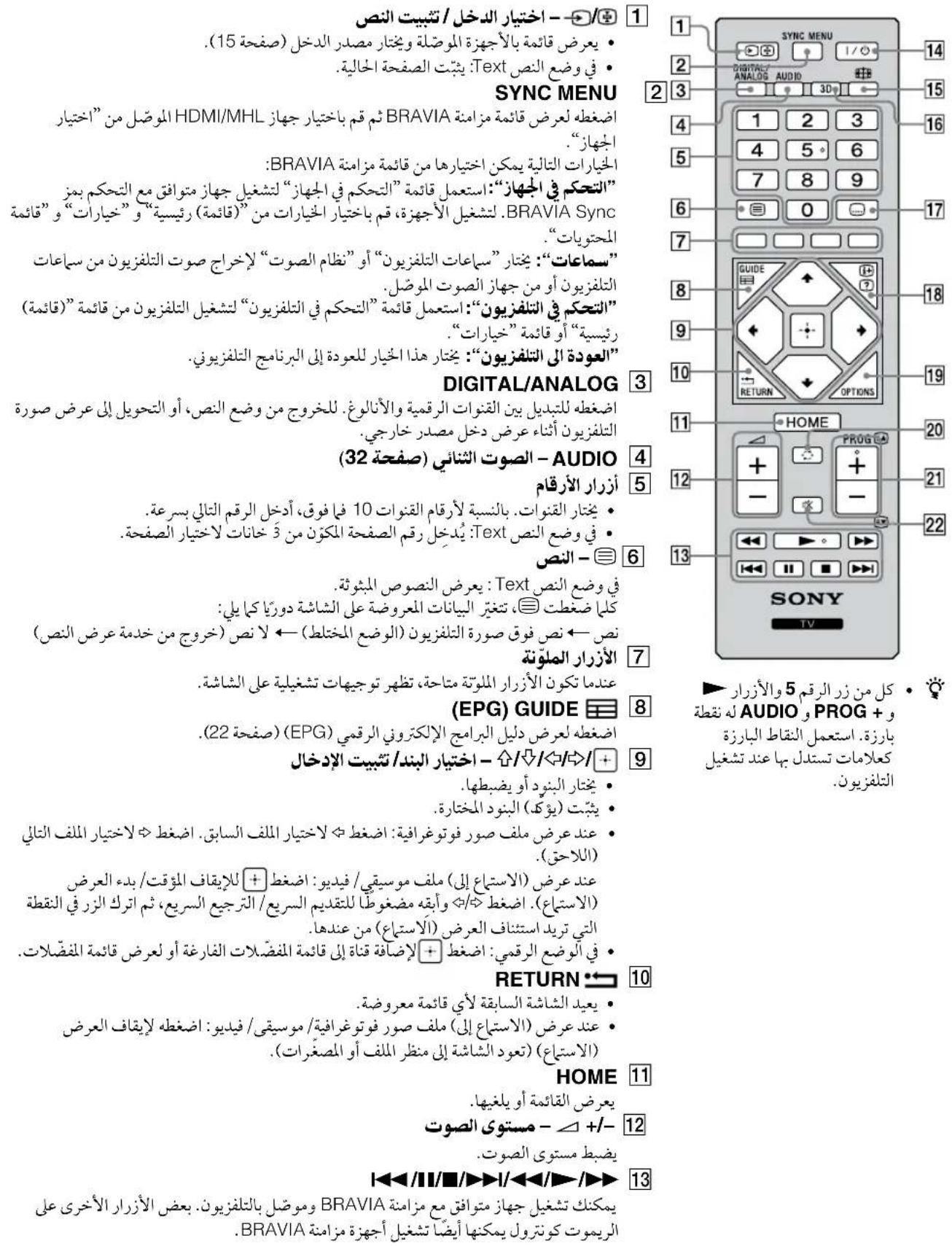
(PCJg)HDMI PC
(Mobile High-Definition Link) MHL
- MHL po jolj jolj Jn
HML 1
1 1
.
MHLg jgljgljglalgl
()
J1. MHL Jgdl jglj
jololol jolol
2
a_1 = 40,23 ,34
"J"1
3D
3D
Sul [0]
13D 5
3D
3D 3D
.3D
"3D"
3D
3D 3D
3D 3D
:3DddJgJd
3DjLlJrJrJrJrJrJrJrJrJr
3D
| الإستعمال | 3D ص JPEG | الترجمة | |
| (عَلْدُمِير) محيى | 1920 × 1080p30 .24 | HDMI | |
| 1920 × 1080i60 | |||
| 1280 × 720p60 | |||
| 1920 × 1080p50 .60 .24 | |||
| 1920 × 1080i60 | |||
| 1280 × 720p60 | |||
| 1920 × 1080p60 .50 .30 .24 | |||
| 1920 × 1080i60 | |||
| 1280 × 720p60 | |||
| 1920 × 1080p24 | ج晗 بخانب ج晗 | MHL | |
| 1920 × 1080i60 | |||
| 1280 × 720p60 | |||
| 1920 × 1080p30 .24 | لیل-الیل | ||
| 1920 × 1080i60 | |||
| 1280 × 720p60 | |||
| 1920 × 1080p30 .25 .24 | ج晗 بخانب ج晗 | USB | |
| 1920 × 1080i60 | |||
| 1280 × 720p60 | |||
| 1920 × 1080p30 .25 .24 | لیل-الیل | ||
| 1920 × 1080i60 | |||
| 1280 × 720p60 | |||
.3D 1
25 1
USB 125w g 1250g 125000000000000000000000000000000000000000000000000000000000
+
1
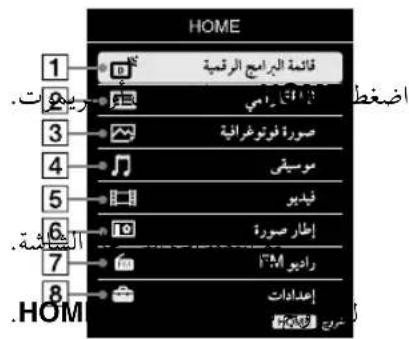
2
34
·几
12/12
( x) = ( 1 + ax) - ( 1 - ax) - 2ax
3
.
6
13/14
m = 311 ;
1
12 x
4
H
8
m = 311
12/12
12/12
12/12
1
aai
| .(21 مصطفى) مصطفى الحرفية الحرفية الحرفية الحرفية الحرفية الحرفية الحرفية الحرفية الحرفية الحرفية الحرفية الحرفية الحرفية الحرفية الحرفية الحرفية الحرفية الحرفية الحرفية الحرفية الحرفية الحرفية الحرفية الحرفية الحرفية الح註冊 | (22 مصطفى) (EPG) |
| .(23 مصطفى) USB عزام مصطفى مصطفى مصطفى مصطفى مصطفى مصطفى مصطفى مصطفى مصطفى مصطفى مصطفى مصطفى مصطفى مصطفى مصطفى مصطفى مصطفى مصطفى مصطفى مصطفى مصطفى مصطفى مصطفى مصطفى مصطفى مصطفiger مصطفiger مصطفiger مصطفiger مصطفiger مصطفiger مصطفiger مصطفiger مصطفiger مصطفiger مصطفiger مصطفiger مصطفiger مصطفiger مصطفiger مصطفiger مصطفiger مصطفiger مصطفiger مصطفiger مصطفiger مصطفiger مصطفiger مصطفiger مصطفiger مصطفger مصطفiger مصطفiger مصطفiger مصطفiger مصطفiger مصطفiger مصطفiger مصطفiger مصطفiger مصطفiger مصطفiger مصطفiger مصطفiger مصطفiger مصطفiger مص TFT | (22 مصطفى) EPG |
| .(23 مصطفى) USB عزام مصطفiger مصطفiger مصطفiger مص TFT | (23 مص TFT) |
| .(26 مصطفiger) مصطفiger مصطفiger مص TFT | (26 مص TFT) |
| .(28 مص TFT) FM بعسفificان (28 m/s) FM بعسفificان (28 m/s) FM (28 m/s) FM (28 m/s) FM (28 m/s) FM (28 m/s) FM (28 m/s) FM (28 m/s) FM (28 m/s) FM (28 m/s) FM (28 m/s) FM (28 m/s) FM (28 m/s) FM (28 m/s) FM (29 m/s) FM (29 m/s) FM (29 m/s) FM (29 m/s) FM (29 m/s) FM (29 m/s) FM (29 m/s) FM (29 m/s) FM (29 m/s) FM (29 m/s) FM (29 m/s) FM (29 m/s) FM (29 m/s)FM (29 m/s) FM (29 m/s) FM (29 m/s) FM (29 m/s) FM (29 m/s) FM (29 m/s) FM (29 m/s) FM (29 m/s) FM (29 m/s) FM (29 m/s) FM (29 m/s) FM (29 m/s) FM (28 m/s) FM (28 m/s) FM (28 m/s) FM (28 m/s) FM (28 m/s) FM (28 m/s) FM (28 m/s) FM (28 m/s) FM (28 m/s) FM (28 m/s) FM (28 m/s) FM (28 m/s)FM (28 m/s) FM (28 m/s) FM (28 m/s) FM (28 m/s) FM (28 m/s) FM (28 m/s) FM (28 m/s) FM (28 m/s) FM (28 m/s) FM (28 m/s) FM (28 m/s) FM (28 m/s) FM (27 m/s) FM (27 m/s) FM (27 m/s) FM (27 m/s) FM (27 m/s) FM (27 m/s) FM (27 m/s) FM (27 m/s) FM (27 m/s) FM (27 m/s) FM (27 m/s) FM (27 m/s) FM (27 m/s)FM (27 m/s) FM (27 m/s) FM (27 m/s) FM (27 m/s) FM (27 m/s) FM (27 m/s) FM (27 m/s) FM (27 m/s) FM (27 m/s) FM (27 m/s) FM (27 m/s) FM (27 m/s) FM (28 m/s) FM (28 m/s) FM (28 m/s) FM (28 m/s) FM (28 m/s) FM (28 m/s) FM (28 m/s) FM (28 m/s) FM (28 m/s) FM (28 m/s) FM (28 m/s) FM (28 m/s) F (28 m/s) FM (28 m/s) FM (28 m/s) FM (28 m/s) FM (28 m/s) FM (28 m/s) FM (28 m/s) FM (28 m/s) FM (28 m/s) FM (28 m/s) FM (28 m/s) FM (28 m/s) FM (25 m/s) FM (25 m/s) FM (25 m/s) FM (25 m/s) FM (25 m/s) FM (25 m/s) FM (25 m/s) FM (25 m/s) FM (25 m/s) FM (25 m/s) FM (25 m/s) FM (25 m/s) FM (25 m/s)FM (25 m/s) FM (25 m/s) FM (25 m/s) FM (25 m/s) FM (25 m/s) FM (25 m/s) FM (25 m/s) FM (25 m/s) FM (25 m/s) FM (25 m/s) FM (25 m/s) FM (25 m/s) FM (28 m/s) FM (28 m/s) FM (28 m/s) FM (28 m/s) FM (28 m/s) FM (28 m/s) FM (28 m/s) FM (28 m/s) FM (28 m/s) FM (28 m/s) FM (28 m/s) FM (28 m/s) |
\*D
1
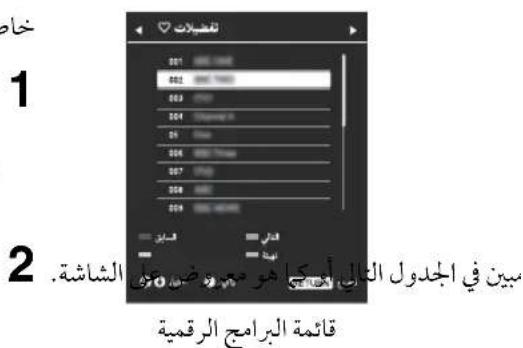
1/0000
"00010000000000000000000000000000000000
OPTIONS FM
8.8.8.8.16
152]” 3 “/”
a5 = a1 + 5 = 70
y
aLl, 1g aLdSt aLal 1e gss
yolost:wlslj
#
100
:
HOMEO
12,0,34,0,14
1
2
1
HOMEO ③
j“oJyJb<OPTIONS
a 1
1 1 1 1 1 1 1 1 1 1 1 1 1 1 1 1 1 1 1 1 1 1 1 1 1 1 1 1 1 1 1 1 1 1 1 1 1 1 1 1 1 1 1 1 1 1
.
:37 a
gai
a
aLg gai
L
a a a a a a a a a a a a a a a a a a a a
J5 1j 1j 1j
FM
87.5 FM FJ 108.0 J
"FM 108.0 J
.
(MLH
p 11 aBRAVIA aal jai Jaaa aal aal aal aal aal aal aal aal aal aal aal aal aal aal aal aal aal aal aal aal aal aal aal aal aal aal aal aal aal aal aal aal aal aal aal aal aal aal aal aal aal aal aal aal aal aal aal aal aal aal aAL
BRAVIA
“BRAVIA Sync jooal" J. J. J. J. J. J. J. J. J. J. J. J. J. J. J. J. J. J. J. J. J. J. J. J. J. J. J. J. J. J. J. J. J. J. J. J. J. J. J. J. J. J. J. J. J. J. J. J. J. J. J.JJJJJJJJJJJJJJJJJJJJJJJJJJJJ
()
J 1 J 1 J 1 J 1 J 1 J 1 J 1 J 1 J 1 J 1 J 1 J 1 J 1 J 1 J 1
()
"
PROG+/-1-“/”/”/”/”/”/”
(34a)“g”g 1000000000000000000000000000000000
“”/”/”
y
1
2
RETURN 0
+
(“UHF”VHF"VHF)
5
1 = 2
y
“
-
-
-
-
-
-
-
-
-
-
-
-
-
-
-
-
-
-
-
-
-
-
-
-
-
-
-
-
- 1.
-
-
-
-
-
-
-
-
-
-
-
-
-
-
-
-
-
-
-
-
-
-
-
-
-
-
-
( x - 2) ( y - 4) = 0
1
2000
1 1 1 1 1 1 1 1 1 1 1 1 2
"AFT"
“”
“
"1"and "B / G" 0jyjzalilai jyjzalilai jyjzalilai jyjzalilai jyjzalilai jy
.“D/K”,
"“”
“
p 10000000000000000000000000000000000000000000000000000000000
a1 = 2,a2 = - 4 b_2^2 = 4a
“Jg
"NTSC4.43" "NTSC3.58" "SECAM" "PAL" "J"
“PAL60”
"0jaiy Sgiin
L
(20
(2)
()
0j 1
1
2
"ddalgo
i
“aaiiaaiiaaiiaiaiaiaiaiaiaiaiaiaiaiaiaiaiaiaiaiaiaiaiaiaiaiaiaiaiaiaiaiaiaiaiaiaiaiaiaiaiaiaiaiaiaiaiaiaiaiaiaiaiaiaiaia
a
a 1
“aaiiaaiiaaiiaaiiaaiiaaiiaaiiaaiiaaiiaaiiaaiiaaiiaaiiaaiiaaiiaaiiaaiiaaiiaaiiaaiiaaiiaaiiaaiiaaiiaaiiaaiiaaiiaaiiaaiiaaiiaaiiaaiiaaiiaaiiaaiiaaiiaaiiaaiiaaiiaaiiaaiiaaiiaaiiaaiiaaiiaaiiaaiiaaiiaaiiaaiiaai
1/2
a/aiai 1
ai = 1p · ai - 1 = 1p · ( ai + ai - 1) ^2
“
i 1
1
3 1
2
aJJI 1
+biolp“po”yΦbiol,alil
aai
buiol 1
RETURN 3
“gulai jai gai”
y
"23" 1
2
3
“”1"
5
“”
a a a a a a a a a a a a a a a a a a a a a a a a a
DVB-C Full Scan p#y
“
“
()
JU 1 JU U (a) a a a a a) “AFT” Jau
(34 iio) jyull jzil
a 1/9
ab
blzli.(Jx)0yolipie jyollgjogoo
ailll jie (c)uLll) aabll bll lgl/ g 0
S OBC = S BOC + S_ CBO
gao 1
()()
(30)
30()“j#slo”
j0 1000
P/CR.PB/CY
UP R/CB.PB/CY.Y
a
aaiiie jie gaij 1gai jia o
- | x - 2| = | x - 4|
a a a a a a a 1
y 1
()
aai 5i jy
USB 1200g
aLog USB aJg jaiu
( x,y) = ( ab,52ab)
Jusy 2g jaij 1 g jui j
J.SsIa
#
y
()
eew"wgljlebuao“wclw"u111s111
.(32)“
.
gag
34()
1
a
3aJ 1
3sui 3
- 3 a
2
Sory 25
()
2 15
1
Jz 2
Joo ziloo
Ogall
gao jia yg (aolbo aai) ojgal
1y
1
101
jgl jglj 1n o n g o glg 0g a
gaii
.0yjzjjy
Cai 14a la gia jao jao jao
1
()
()
J 1
(a)
abulj y jil" c1z jn "g jll PIN jor" c1z jkly
9999: 1234567890123456789012345678901234567890123456789012345678901234567890123456789012345678901234567890123456789
MHL jg1j gall g/ ggsal 2
MHLjJgJgJgJgJgMHLJgJgJg
aaiy
| (LED diodes) (LED diodes)LCD diodes | (LED diodes) LCD diodes |
| M.D/K.I.B/G:123DVB-T:124 | DVB-T:125 |
| (1264/MPEG-4) NTSC4.43,NTSC3.58,SECAM,(1264/MPEG-2) PAL60,PAL:1264/H.264/MPEG-4)AVC MP/HP@L4,MPEG-2)MP/ML/HL,MPEG-2)MP/ML/HL:1264 | DVB-T:125 |
| H.264/MPEG-4)AVC MP/HP@L4,MPEG-2)MP/ML/HL:M1264 | DVB-T:125 |
| 1264/MPEG-4)AVC MP/HP@L4,MPEG-2)MP/ML/HL:M1264 | DVB-T:125 |
| VHF/UHF:1264+175+175+175+175+175+175+175+175+175+175+175+175+175+175+175+175+175+175+175+175+175+175+175+175+175+17 | DVB-T:1264 |
| VHF/UHF 175+175+175+175+175+175+175+175+175+175+175+175+175+175+175+175+175+175+175+175+175+175+175+175+175 +175+175+175+175+175+175+175+175+175+175+175+175+175+175+175+175+175+175+175+175+175+175+175+175+175 | |
| VHF/UHF 175+175+175+175+175+175+175+175+175+175+175+175+175+175+175+175+175+175+175+175+175+175+175 | DVB-T:1264 |
| COMPONENT IN 480i,480p,576i,576p,720p,1080i,1080p:1264+175,p-p0.7:Cp/Pb/μ175,p-p0.7:Cp/Pb/μ175,p-p0.7:Cp/Pb/μ175,p-p0.7:Cp/Pb/μ175,p-p0.7:Cp/Pb/μ175,p-p0.7:Cp/Pb/μ175,p-p0.7:Cp/Pb/μ175,p-p0.7:Cp/Pb/μ180i,1080i,1080p:HDMI 480i,480p,576i,576p,720/30p,720p,1080i,1080/30p,1080/30p:MHL Dolby Digital 24,20,16,14,48,44.1,32:123:124:125:126:127:128:129:130:131:132:133:134:135:136:137:138:139:140:141:142:143:144:145:146:147:148:149:150:151:152:153:154:155:156:157:158:159:160:161:162:163:164:165:166:167:168:169:170:171:172:173:174:175:176:177:178:179:180:181:182:183:184:185:186:187:188:189:190:191:192:193:194:195:196:197:198:199:200:201:202:203:204:205:206:207:208:209:210:211:212:213:214:215:216:217:218:219:220:221:222:223:224:225:226:227:228:229:230:231:232:233:234:235:236:237:238:239:240:241:242:243:244:245:246:247:248:249:250:251:252:253:254:255:256:257:258:259:260:261:262:263:264:265:266:267:268:269:270:271:272:273:274:275:276:277:278:279:280:281:282:283:284:285:286:287:288:289:290:291:292:293:294:295:296:297:298:299:300:301:302:303:304:305:306:307:308:309:310:311:312:313:314:315:316:317:318:319:320:321:322:323:324:325:326:327:328:329:330:331:332:333:334:335:336:337:338:339:340:341:342:343:344:345:346:347:348:349:350:351:352:353:354:355:356:357:358:359:360:361:362:363:364:365:366:367:368:369:370:371:372:373:374:375:376:377:378:379:380:381:382:383:384:385:386:387:388:389:390:391:392:393:394:395:396:397:398:399:400:401:402:403:404:405:406:407:408:409:410:411:412:413:414:415:416:417:418:419:420:421:422:423:424:425:426:427:428:429:430:431:432:433:434:435:436:437:438:439:440:441:442:443:444:445:446:447:448:449:450:451:452:453:454:455:456:457:458:459:460:461:462:463:464:465:466:467:468:469:470:471:472:473:474:475:476:477:478:479:480:481:482:483:484:485:486:487:488:489:490:491:492:493:494:495:496:497:498:499:500:501:502:503:504:505:506:507:508:509:510:511:512:513:514:515:516:517:518:519:520:521:522:523:524:525:526:527:528:529:530:531:532:533:534:535:536:537:538:539:540:541:542:543:544:545:546:547:548:549:550:551:552:553:554:555:556:557:558:559:560:561:562:563:564:565:566:567:568:569:570:571:572:573:574:575:576:577:578:579:580:581:582:583:584:585:586:587:588:589:590:591:592:593:594:595:596:597:598:599:600:601:602:603:604:605:606:607:608:609:610:611:612:613:614:615:616:617:618:619:620:621:622:623:624:625:626:627:628:629:630:631:632:633:634:635:636:637:638:639:640:641:642:643:644:645:646:647:648:649:650:651:652:653:654:655:656:657:658:659:660:661:662:663:664:665:666:667:668:669:670:671:672:673:674:675:676:677:678:679:680:681:682:683:684:685:686:687:688:689:690:691:692:693:694:695:696:697:698:699:700:701:702:703:704:705:706:707:708:709:710:711:712:713:714:715:716:717:718:719:720:721:722:723:724:725:726:727:728:729:730:731:732:733:734:735:736:737:738:739:740:741:742:743:744:745:746:747:748:749:750:751:752:753:754:755:756:757:758:759:760:761:762:763:764:765:766:767:768:769:770:771:772:773:774:775:776:777:778:779:780:781:782:783:784:785:786:787:788:789:790:791:792:793:794:795:796:797:798:799:800:801:802:803:804:805:806:807:808:809:810:811:812:813:814:815:816:817:818:819:820:821:822:823:824:825:826:827:828:829:830:831:832:833:834:835:836:837:838:839:840:841:842:843:844:845:846:847:848:849:850:851:852:853:854:855:856:857:858:859:860:861:862:863:864:865:866:867:868:869:870:871:872:873:874:875:876:877:878:879:880:881:882:883:884:885:886:887:888:889:890:891:892:893:894:895:896:897:898:899:900:901:902:903:904:905:906:907:908:909:910:911:912:913:914:915:916:917:918:919:920:921:922:923:924:925:926:927:928:929:930:931:932:933:934:935:936:937:938:939:940:941:942:943:944:945:946:947:948:949:950:951:952:953:954:955:956:957:958:959:960:961:962:963:964:965:966:967:968:969:970:971:972:973:974:975:976:977:978:979:980:981:982:983:984:985:986:987:988:989:990:991:992:993:994:995:996:997:998:999:1000 | DVB-T |
| KDL-47R500AKDL-42R500A | |||
| الترجمة الحرفية وعربية | |||
| \( 60/50\text{ مصحيط}240 - 110\text{ مصحيط} \) | \( مصحيط\text{ مصحيط} \) | ||
| 42 | 47 | \( مصحيط\text{ مصحيط} \) | \( مصحيط\text{ مصحيط} \) |
| 119.3106.5 | \( (مصحيط)\text{ مصحيط} \) | ||
| \( (\%\text{سيلة})\text{ مصحيط}1,080\times (\%\text{سILA})\text{ مصحيط}1,920 \) | \( مصحيط\text{ مصحيط} \) | ||
| \( مصحيط\text{ مصحيط} \) | \( مصحيط\text{ مصحيط} \) | ||
| \( 231\times 680\times 1,085231\times 617\times 97 \) | \( (%\text{سILA})\text{ مصحيط} \) | \( ( \% \text{سILA})\text{ مصحيط} \) | |
| \( 76\times 648\times 1,08575\times 585\times 972 \) | \( (%\text{سILA}) \) | \( ( \% \text{سILA}) \) | |
| 16.413.7 | \( (m\text{سila}) \) | \( ( \% \text{سILA}) \) | |
| 15.512.8 | \( (m\text{سila}) \) | ||
| SU-WL400 | \( مصحيط\text{ مصحيط} \) | ||
| TDG-500P | \( SimulViewTM\text{ مصحيط} \) | ||
| TDG-SV5P | \( SimulViewTM\text{ مصحيط} \) | ||
1/100g/ab/2000 1000
#
()
1 1
40.120
Ssoy
jol5 jol5 1
- S ACD = S COD + S BDO - S CDO
Jdo 4b yjoo
KDL-42R500A
s
DVE
. DVB
HDMI
High-Definition Multimedia Interface
HDMI Licensing, LLC.
y
Dolby Laboratories jj
Sony BRAVIA "BRAVIA"
Corporation
MHL, Mobile High-Definition Link. MHL
Jiinuohui 5y jie yu liy
.MHL Licensing, LLC
- DTS
S
| x^ | = 1| x| .
http://www.dts.com/patents/legacy.aspx
DTS, Inc. 2012 (c) DTS Licensing Limited
5 = 1 = 90^
HOMI
HIGH-DEFINITION MULTIMEDIA INTERFACE


2.0+Digital Out

Mobile High-Definition Link

#
gio slao slac jolal
20
21. D3 5a oaiy jolal
22.....(EPG) jLjSjSjSjSjSjSjSjSj
23..USB/
23.
26
28 FM
L BRAVIA Sync jolal
- BRAVIA Sync
- BRAVIA Sync J
30
30
31
32
34
36 1
37
39.
#
- (s)
41 .SU-WL400
41
S OBC = S AOB + S_ BOC
43
45
Sjlaolj Slaolj
jS S S S S S S S S S S S S S
Sds
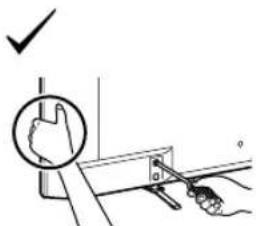
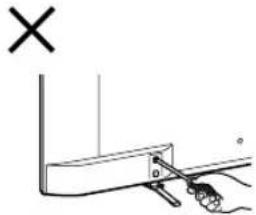
2/15
VCR
J 15
J5/
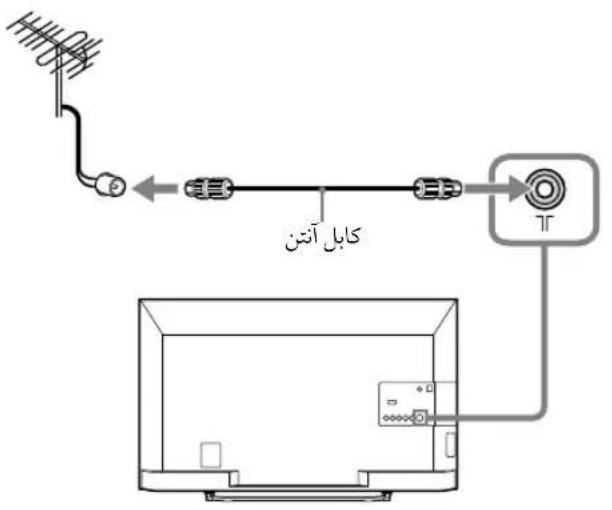
VCRgJ/
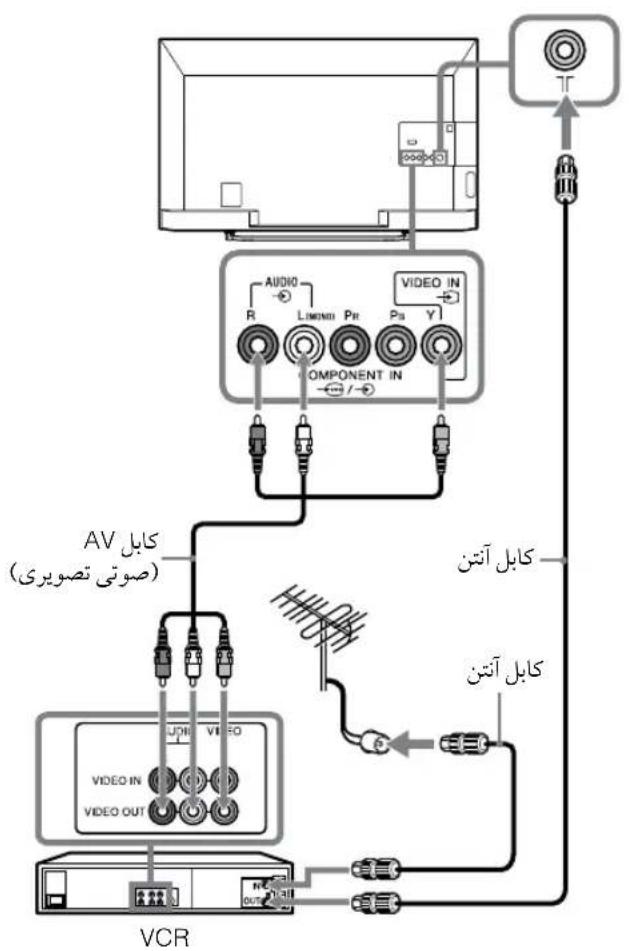
J 1 J 1, a 1 a a a a 1
a 1
Sj1.
Soslaolwolie
jogol jololololololololololololololololololololololololololololololololololololololol
g25g20g21g20g21ACg20g20g21
.
palee 150
oolalil 5jno jyulail pkiie 4i jne
S OBC = S COD + S_ BDO
:4
:3
#
#
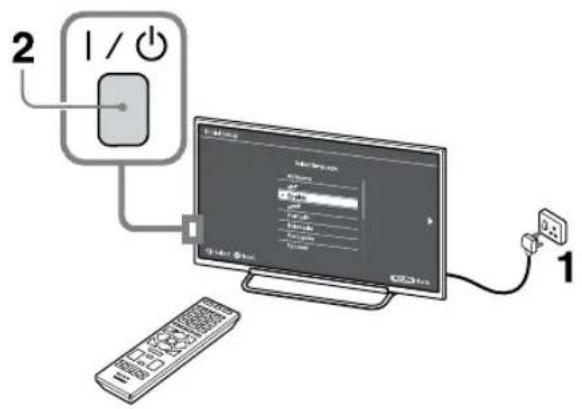
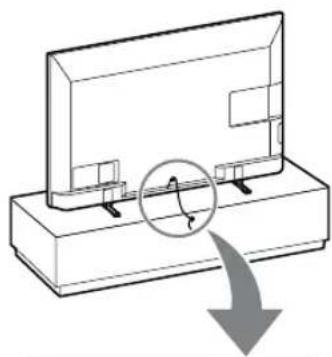
1
gliaiaiaiaiaiaiaiaiaiaiaiaiaiaiaiaiaiaiaiaiaiaiaiaiaiaiaiaiaiaiaiaiaiaiaiaiaiaiaiaiaiaiaiaiaiaiaiaiaiaiaiaiaiaiaiaiaiaiaiaiaiaia
2
S()215 15 80
3
10 10
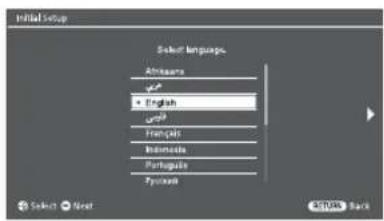
15 15
(OSD)
Joo oolal 1000
LSS Ssw1,la JUs
1JyL 1000000000000000000000000000000000000000000
RETURN HOME
15 35.34
.(37a)
1 0
2
15b1.201 150
J 1 J 1 J 1 J 1 J 1 J 1 J 1 J 1 J 1 J 1 J 1 J 1 J 1 J 1 J 1 J 1 J 1 J 1 J 1 J 1 J 1 J 1 J 1 J 1 J 1 J 1 J 1 J 1 J 1 J 1 J 1 J 1 J 1 J 1 J
1y 1000g 1000s 1AC y p 1
J 1 J 1
S 1
S 1
S 1
S 1
S 1
S 1
S 1
S 1
S 1
S 1
S 1
S 1
S 1
S 1
S 1
S 1
S 1
S 1
S 1
S 1
S 1
S 1
S 1
S 1
S 1
s 1
S 1
S 1
S 1
S 1
S 1
S 1
S 1
S 1
S 1
S 1
S 1
S 1
S 1
S 1
S 1
S 1
S 1
S 1
S 1
S 1
S 1
S 1
S 1
S 1
T S
4giao jiao
1 1 1 1 1 1 1 1 1 1 1 1 1 1 1 1 1 1 1 1 1 1 1 1 1 1 1 1 1 1 1 1 1 1 1 1 1 1 1 1 1 1 1 1 1 1 1 1
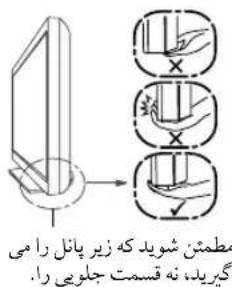
21 24 25 26 27 28 29 30 31 32 33 34 35 36 37 38 39 40 41 42 43 44 45 46 47 48 49 50 51 52 53 54 55 56 57 58 59 60 61 62 63 64 65 66 67 68 69 70 71 72
4g
Sjy 1036u 14 y j 5d jy 8
.2000000000000000000000000000000000000000000000000000000000000000000000000000
1g 5g
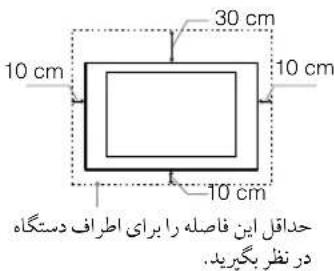
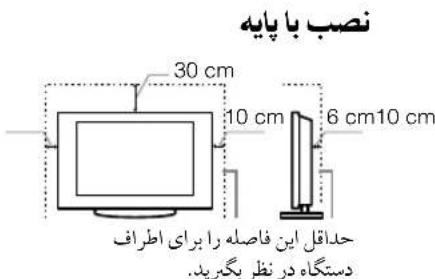
sSg 800000000000000000000000000000000000000000000000000000000000000000000000000000
#
sJ1J0J/
s j 1 s j 1 s j 1 s j 1 s j 1 s j 1 s j 1 s j 1 s j 1 s j 1 s j 1 s j 1 s j 1 s j 1 s j 1 s j 1 s j 1 s j 1 s j 1 s j 1 s j 1 s j 1 s j 1 s j 1 s j 1 s j 1
#
AC 12-8
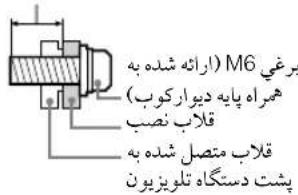
#
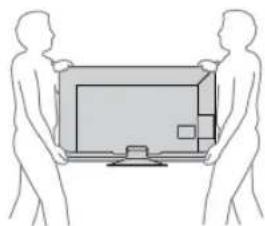
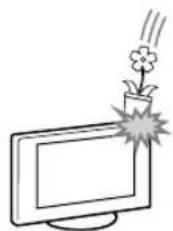
oaiolaioiolssjds
#
- 15.15.15.15.15.15.15.15.15.15.15.15.15.15.15.15.15.15.15.15.15.15.15.15.15.15.15.15.15.15.15.15.15.15.
...
aL 10000000000000000000000000000000000000000000000000000000000000000000000
:
Slo 5 Ss3j01j0001j1Sso
1 1
J
laoljulj jyss
i 1
Sicj Sjg g
jL11. jda 5g gla yj
Sio 105
jio 10
yjgai ciui jsc yj 1
2.2g 1.2g 0.05 g 1.2g 0.05 g
325
00000000000000000000
s
.
ploJus gssLc LCD
auiiuiuuiyjgluajjdy
Ls
LED
j(LCDTVj)
= 233
420000000000000000000000000000000000000000000
jgujgl ooi 1 /
S_ OBC = 12 · CD · BC = 12 × CD × 5
AC 100
(s)y1y2y
a
a
y
0000 0000
y
(3)证明: 1an + 1 < 1an + 1a_n < 1
S 1000
y
15
wlaoljoldeyloLco
J 1
g 100000000000000000000000000000000000000
S_ OBC = 12 · CO · BC = 12 × CD × 5
y
.
y
14.2015 1
L
100000000000000000000000000000
S_ AOB = 12 · OB · AB = 12 × 2t × 5
()
S OBC = S BOC + S_ BDO
Sj
i j 1
( 0,14,0,14,0) ,( 0,14,0,14) ,( 0,14,0,14)
100 1
S OBC = S BOC + S BOC - S BOC
juiu
[ \Leftrightarrow \frac{1}{2}g = \frac{1}{2}\left( {x - {x}_{1}}\right) ]
山
000000000000000000000000000
S AOB = S AOB + S_ BOC
gssaiolal y
bys
.
j 1
j 1
L. uUu 1
1
3.125 50451, 504510: jiao jiao
SYNC MENU
HDMI/HML BRAVIA Sync
.
BRAVIA Sync jj j j
jus 15 s jss jy jy "o000000" s0001:"000000
" 150
155 11111111111111111111111
Joo 1000
L 1
"()a”g jjjjjglg 1g j“0jjglj
S_ OBC = 12 · AQ · BC = 12 × 2 × 3
1
DIGITAL/ANALOG
10
15 12
(324a) 45g4 - AUDIO
SdSdSd
10 Jul 11, la Juits
15 20
100
15 0
()j()
s
3y 5y
(EPG)GUIDE
.(22aepg)EPG)
gog/(-1/1/1
L
Ls
Jliljll 1y1y1y1y1y1y1y1y1y1y1y1y1y1y1y1y1y1y1y1y1y1y1y
1 1
05 1234567890
- a5 = 5,a6 = 6( a_5)
1
.0
RETURN
225 50j100001
()
.(20 5 1y
HOME
150
100-+
150
1/11/10/1/14/1
BRAVIA Sync 1
BRAVIA Sync 1
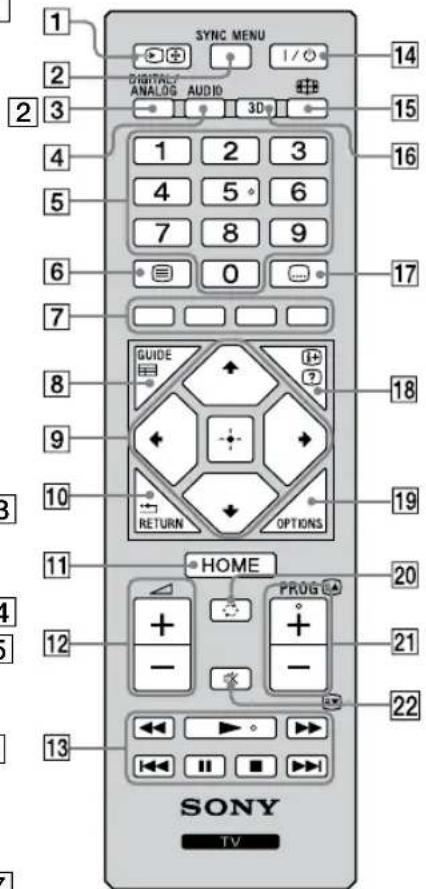
1
5.15.45
8 AudioPROG+
limn
b| | = 1 ① y = y1y2 ② y = y1y2
S木弟定理 = 12 · S木弟形 COBD = 12 × 2t × 5
jogol (suiia) HDMI
()
J 1 J 1 J 1 J 1 J 1 J 1 J 1 J 1 J 1 J 1 J 1 J 1 J 1 J 1 J 1 J 1 J 1 J 1 J 1 J 1 J 1 J 1 J 1 J 1 J 1 J 1 J 1 J 1 J 1 J 1 J 1 J 1 J 1 J 1 J
Lululil Jua MHL 1
MHL 1s jw os 1s ool 1s 1s 1s 1s 1s 1s 1s 1s 1s 1s 1s 1s 1s 1s 1s 1s 1s 1s 1s 1s 1s 1s 1s 1s 1s 1s 1s 1s 1s 1s 1s 1s 1s 1s
IONS 1234567890
MHL MHL HMLHMLHMLHMLHMLHMLHMLHMLHMLHMLHMLHMLHMLHMLHMLHMLHMLHMLHMLHMLHMLHMLHMLHMLHMLHMLHMLHMLHMLHMLHMLHMLHMLHMLHMLHMLHMLHMLHMLHMLHMLHMLHMLHMLHMLHMLHMLHMLHMLHMLHMLMHLMHLMHLMHLMHLMHLMHLMHLMHLMHLMHLMHLMHLMHLMHLMHLMHLMHLMHLMHLMHLMHLMHLMHLMHLMHLMHLMHLMHLMHLMHLMHLMHLMHLMHLMHLMHLMHLMHLMHLMHLMHLMHLMHLMHLMHLMHLMHLMHLMHLM
3D g
3D 3D 3D 3D 3D 3D 3D 3D 3D 3D 3D 3D 3D 3D 3D 3D 3D 3D 3D 3D 3D 3D 3D 3D 3D 3D 3D 3D 3D 3D 3D 3D 3D 3D 20
3D
3D 3D 3D 45
2D 3D 3D 3D 3D 3D 3D 3D 3D 3D 3D 3D 3D 3D 3D 3D 3D 3D 3D 3D 3D 3D 3D 3D 3D 3D 3D 3D 3D 3D 3D 3D 3D 3D 3
#
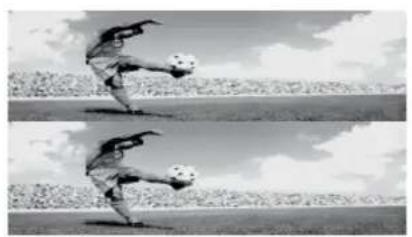
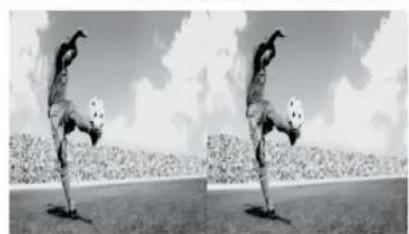
y
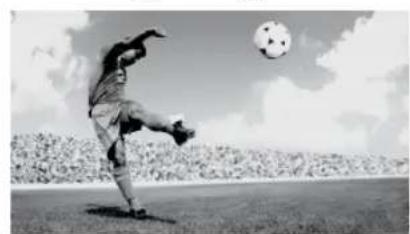
2D
3D 1
13D 2
3D 3
“0s3D”
3D j 2D
“g4
3D
“gjgj
S_ OBC = 12 · CD · BC = 12 × 3D^2
“gol”
.
3D 1
125 3D
3Dgj
2D 3D
12gai 1
2D 3D
3D 1
3D 2
3D"
3D RETURN 4
3D Sgina
13
103D
3D
: 3D yglal
2D,3D
3D g
3D
3D 2D
2D 2D 2D 3D 2D
1 150
ggh
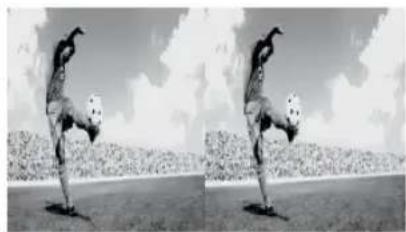
3D
3D slsl sly Ss y
30 1
a 1
a_i = 70%
99
3D
3D 30
.
1 30
40000000000000000000000000000000000000
即 a1 = 12,a2 = - 12
gol
1
3D
13D 2
[0]
3D 3
10000000000000000000000000000000000000000000
13D 11,
HOME
3D
3 3D
3D 3D 3D 3D 3D 3D 3D 3D 3D 3D
:3D Jus pcl
3 15 45 45
3D
11,“olkwsbll" 500000000000000000000000000000000000000000000000000000000000
1
100000000000000000000000000000000000
(37)USB
- 12g + 12g = 12g + 12g = 12g + 12g = 12g + 12g = 12g + 12g = 12g + 12g = 12g + 1
g/
L 1
| الهُّبْمُ | الإستعمال |
| . . . . . . . . . . . . . . . . . . . . . . . . . . . . . . . . . . . . . . . . . . . . . . . . . . . . . . . . . . . . . . . . . . . . . . . . . . . . . . . . . . . . . . . . . . . . . . . . . . . . . | ▲▲ / ▲▲ |
| . . . . . . . . . . . . . . . . . . . . . . . . . . . . . . . . . . . . . . . . . . . . . . . . . . . . . . . . . . . . . . . . . . . . . . . . . . . . . . . . . . . . . . . . . . . . . . . . . . . . . . . . . . . . . . . . . . . . . . . . . . . . . . . . . . . . . . . . . . . . . . . . . . . . . . . . . . . . . . . . . . . . . . . . . . . . . . . . . . . . . . . . . . . . . . . . . . . . . . . . 5 | ▲▲ / ▲▲ |
| . . . 5 | ▲ |
| . . . 5 | ■ |
| . . . 5 | ■ |
j 10
s 1
COWIglo1g 5
15 15
15 15
“
(4x"2x"1x")
g
15
15
.(32a)us yilly
g
.(“j05”L“4X”、“2x”、“1x”)ss
.(32aio)ss
gogc
S ACD = S COD + S BDO - S DCE
100
USUBS:“
(g)
1 USB
1
(23)“USB/
1 10
L 1
2
1234567890
3
4
"“y"”
()
1 .
(23)“USB 12 1 g/0g
2
105
1 1
HOME L RETURN
:155 100000000000000000000000000000000000000000000000
15
USB
LsiU1JUSB
Sony
1
NTFS.FAT32.FAT16 USB
"p" s 1
"z" s 1
"z" s 1
"z" s 1
"z" s 1
"z" s 1
"z" s 1
"z" s 1
"z" s 1
"z" s 1
"z" s 1
"z" s 1
"z" s 1
"z" s 1
"z" s 1
"z"
"37 1
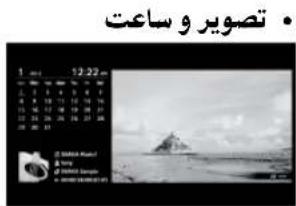
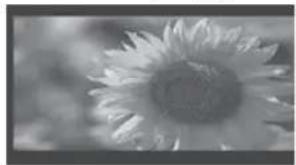
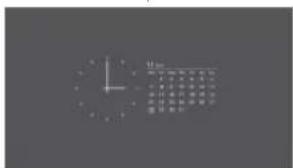
a
#
1234567890 1234567890
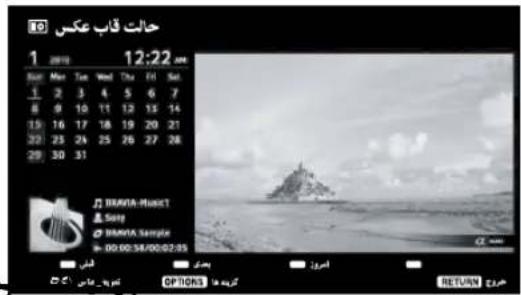
J 1000
HOME ①
S OBC = S AOB + S_ BOC
J 2
OPTIONS FM 1
"
y 1
1,la sscj jsls w g jy jolal 1uus
"1HOME ①
L 10000000000000000000000000000000000000000000000000000000000000000000000000000
120000000000000000000000000000000000000000000000000000000000000000000000000000000000
c
S OBC = S COD + S BOC - S BOC
15_2 ÷ 2b + d = 15( b - 1) ( a^2 + 4b^2) + 2b( b - 1) ( a^2 + 4b)
24 1 j 1j 1j
SsSssgljyj1jlyjzg jzg s
"J 1 J
15 37
y
2018 Ws
FM
FM 5
108.0-87.5j
HOME 5
(36 a.u.) 5 1_2 1 "FM"zbs
1
| . . . . . . . . . . . . . . . . . . . . . . . . . . . . . . . . . . . . . . . . . . . . . . . . . . . . . . . . . . . . . . . . . . . . . . . . . . . . . . . . . . . . . . . . . . . . . . . . . . . . .. . . . . . . . . . . . . . . . . . . . . . . . . . . . . . . . . . . . . . . . . . . . . . . . . . . . . . . . . . . . . . . . . . . . . . . . . . . . . . . . . . . . . . . . . . . . . . . . . . . . . . . . . . . . . . . . . . . . . . . . . . . . . . . . . . . . . . . . . . . . . . . . . . . . . . . . . . . . . . . . . . . . . . . . . . . . . . . . . . . . . . . . . . . . . . . . . . . . . . . .. . . . . . . . . . . . . . . . . . . . . . . . . . . . . . . . . . . . . . . . . . . . . . . . . . . . . . . . . . . . . . . . . . . . . . . . . . . . . . . . . . . . . . . . . . . . . . . . . . . .. . . . . . . . . . . . . . . . . . . . . . . . . . . . . . . . . . . . . . . . . . . . . . . . . . . . . . . . . . . . . .. . . . . . . . . . . . . . . . . . . . . . . . . . . . . . . . . . . . . . . . . . . . . . . . . . . . . . . . . . . . . . . . . . . . . . . . . . . . . . . . . . . . . . . . . . . . . . . . . . . . ? . . . . . . . . . . . . . . . . . . . . . . . . . . . . . . . . . . . . . . . . . . . . . . . . . . . . . . . . . . . . . . . . . . . . . . . . . . . . . . . . . . . . . . . . . . . . . . . . . . . 2 3 4 5 6 7 8 9 10 11 12 13 14 15 16 17 18 19 20 21 22 23 24 25 26 27 28 29 30 31 32 33 34 35 36 37 38 39 40 41 42 43 44 45 46 47 48 49 50 51 52 53 54 55 56 57 58 59 60 61 62 63 64 65 66 67 68 69 70 71 72 73 74 75 76 77 78 79 80 81 82 83 84 85 86 87 88 89 90 91 92 93 94 95 96 97 98 99 100 101 102 103 104 105 106 107 108 109 110 111 112 113 114 115 116 117 118 119 120 121 122 123 124 125 126 127 128 129 130 131 132 133 134 135 136 137 138 139 140 141 142 143 144 145 146 147 148 149 150 151 152 153 154 155 156 157 158 159 160 161 162 163 164 165 166 167 168 169 170 171 172 173 174 175 176 177 178 179 180 181 182 183 184 185 186 187 188 189 190 191 192 193 194 195 196 197 198 199 200 201 202 203 204 205 206 207 208 209 210 211 212 213 214 215 216 217 218 219 220 221 222 223 224 225 226 227 228 229 230 231 232 233 234 235 236 237 238 239 240 241 242 243 244 245 246 247 248 249 250 251 252 253 254 255 256 257 258 259 260 261 262 263 264 265 266 267 268 269 270 271 272 273 274 275 276 277 278 279 280 281 282 283 284 285 286 287 288 289 290 291 292 293 294 295 296 297 298 299 300 301 302 303 304 305 306 307 308 309 310 311 312 313 314 315 316 317 318 319 320 321 322 323 324 325 326 327 328 329 330 331 332 333 334 335 336 337 338 339 340 341 342 343 344 345 346 347 348 349 350 351 352 353 354 355 356 357 358 359 360 361 362 363 364 365 366 367 368 369 370 371 372 373 374 375 376 377 378 379 380 381 382 383 384 385 386 387 388 389 390 391 392 393 394 395 396 397 398 399 400 401 402 403 404 405 406 407 408 409 410 411 412 413 414 415 416 417 418 419 420 421 422 423 424 425 426 427 428 429 430 431 432 433 434 435 436 437 438 439 440 441 442 443 444 445 446 447 448 449 450 451 452 453 454 455 456 457 458 459 460 461 462 463 464 465 466 467 468 469 470 471 472 473 474 475 476 477 478 479 480 481 482 483 484 485 486 487 488 489 490 491 492 493 494 495 496 497 498 499 500 501 502 503 504 505 506 507 508 509 510 511 512 513 514 515 516 517 518 519 520 521 522 523 524 525 526 527 528 529 530 531 532 533 534 535 536 537 538 539 540 541 542 543 544 545 546 547 548 549 550 551 552 553 554 555 556 557 558 559 560 561 562 563 564 565 566 567 568 569 570 571 572 573 574 575 576 577 578 579 580 581 582 583 584 585 586 587 588 589 590 591 592 593 594 595 596 597 598 599 600 601 602 603 604 605 606 607 608 609 610 611 612 613 614 615 616 617 618 619 620 621 622 623 624 625 626 627 628 629 630 631 632 633 634 635 636 637 638 639 640 641 642 643 644 645 646 647 648 649 650 651 652 653 654 655 656 657 658 659 660 661 662 663 664 665 666 667 668 669 670 671 672 673 674 675 676 677 678 679 680 681 682 683 684 685 686 687 688 689 690 691 692 693 694 695 696 697 698 699 690 691 692 693 694 695 696 697 698 699 690 691 692 693 694 695 696 697 698 699 690 691 692 693 6 |
1
AUDIO FM
| x^ | = | y^ | = | z|
FM jCATV
BRAVIA Sync jI BRAVIA Sync
jolall l jlrj 2r3r 45 a 1000000000000000000000000000000000000000000000000000000000000000000000000000000000000000
BRAVIA Sync
J 1000000000000000000000000000000000000000000000000000000
4 1 1 1 1 1 1 1 1 1 1 1 1 1 1 1 1 1 1 1 1 1 1 1 1 1 1 1 1 1 1 1 1 1
.()ds 1JgIgIgIgIgIgIgIgIgIgIgIgIgIgIgIgIgIgIgIgIgIgIgIgIgIgIgIgIgIgIgIgIgIgIgIgIgIgIgIgIgIgIgIgIgIgIgIgIgIgIg
BRAVIA
BRAVIA Sync 138 (38) "BRAVIA Sync 1

"4000000000000000000000000000000000000000000000000000
.
iS 1
sll sss sss ssssssssssssssssssssssssssssssssssssssssssssssssssssssss
i0s0j0j0j0j0j0j0j0j0j0j0j0j0j0j0j0j0j0j0j0j0j0j0j0j0j0j0j0j0j0j0j0j0j0j0j0j0j0j0j0j0j0j0
la jie b 51y wio. pia ay yu yu yu "
aaiiie 1
aio 1
10g 45 45 45 45 45 45 45 45 45 45 45 45 45 45 45 45 45 45 45
45 45 45
5 1
a 1
yds
100 1
15 15
“sj
1ydo yobolalooj gaiu 1000111y j
ED = 2AE
1 1
3D 1
S OBC = S COD + S BOC - S BOC
LSSa
1.00000000000000000000000000000000000000
1.15 S 1
1.2023 2023
100 15 111
NTSC 5
1.25
15 50
1
- 12345678901234567890
1.25 10
1 1
MPEG0g y
1
山
2g0g
Sui Slao
MPEG
sloio s oio . HOME/OPTIONS 1000000000000000000000000000000000000000000000000
BD
aSs y Jls ly sIy Ss Cllc y Iy sIy Loe
1.HOME/OPTIONS
jLJWBRAVIA Sync Jus" 45
BRAVIA Sync 1
BRAVIA Sync
1
100
0000 1
.2
453 120
jia jia jia 15g gglu
Jgazoo 1cXb1
S1a
bfo wolio
1.25 S_ ACD = 12 · CD · CM = 12 × 2t × 5
a
y j 1/1
1
15
SjL
()
:
y j 1 1 1 1 1 1 1 1 1 1 1 1 1 1 1 1 1 1 1 1 1 1 1 1 1 1 1 1 1 1 1 1
Sony
:Sony gssg jg g
1
SUL400 1
·s + 102 - 12 + 102 = 8
y 6 u 6u 6u 6u 6u 6u 6u 6u 6u 6u 6u 6u 6u 6u 6u 6u 6u 6u 6u 6u 6u 6u 6u 6u 6u 6u 6u
LsSoclaWJyj
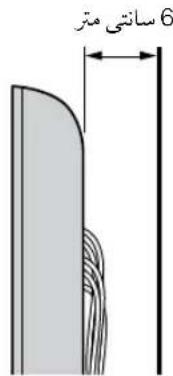
J 1 J 1 J 1 J 1 J 1 J 1 J 1 J 1 J 1 J 1 J 1 J 1 J 1 J 1 J 1 J 1 J 1 J 1 J 1 J 1 J 1 J 1 J 1 J 1 J 1 J 1 J 1 J 1 J 1 J 1 J 1 J 1 J 1 J 1 J
Soy
p 1
a 1
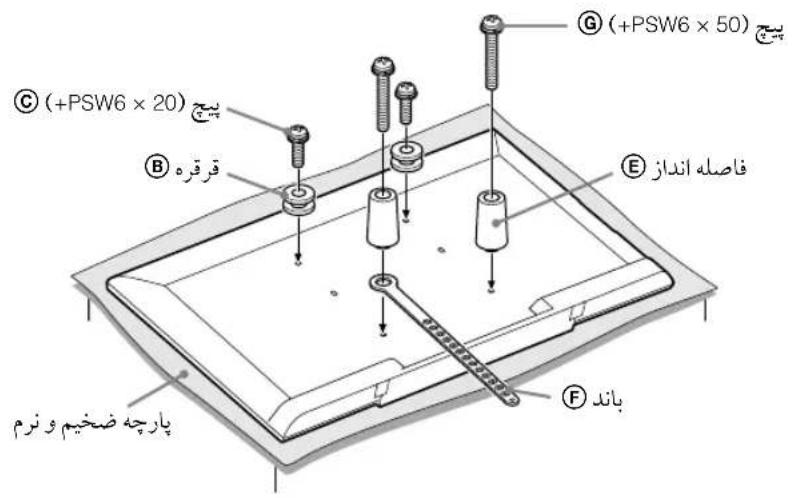
aF ⑥E ⑥B jS U-WL400
aai 1
15
LJI JI 1JUJUJU U
15] 1.5g0g12g0g1
j
SU-WL400
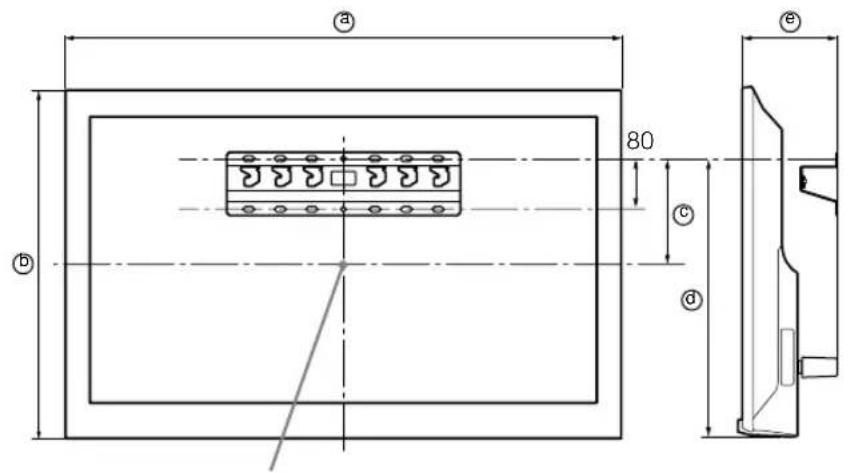
10000
joo
| الله��يunity | الله��يunity | |||
| ◎ | ◎ | ◎ | ◎ | ◎ |
| 1,0856481775101KDL-47R500A | ||||
| 97258518849011KDL-42R500A | ||||
y
J
42 111111111111111111111111111111
yglco jgj/
| م簽約書 | |
| a | KDL-47R500A |
| a | KDL-42R500A |
4
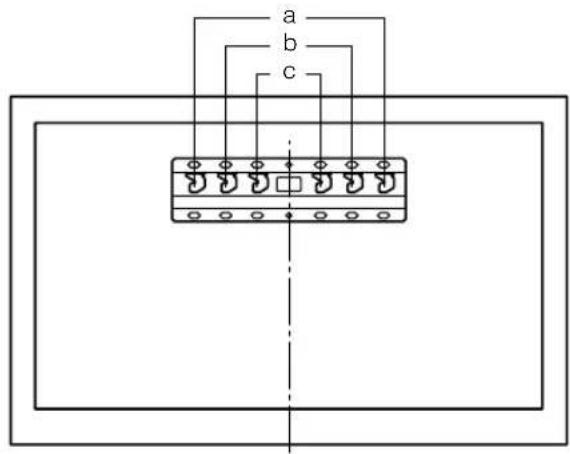
Jyjg jyS yolaln p 100000000000000000000000000000000000000000000000000000000000
g
Slae ailai 5y j (1a Su) bla ly
aie 1
(30)
21 5
30())
j 1 j k
PR/CR.PB/CBY
P H/CR P/B/CB.Ysbl 1
0012 jai 4a 5g o 1j 1
goo
1
L
·
1,2,3
215 20000000000000000000000000000000000
15 15
S
a
a
USB
oui jy slg y, u USB oivus sla y 4 a iu
ggyy 5 y
a
L5
146
yjgai 1jla loi jia
1(100+/-
12 : 5( x - y) = 1
S BCD = S COD + S BDO - S BOC
auii iui joi ojdu
JU
1
Jus la Jus
S
1
.25 005
S_ OBC = 12 · CO · BC = 12 × CD × 5
Joo
1
451
.
goc
aagg jyj ggl) 0
(204
37(20))
"zjgj37000"
L
()cuiJie“SjL 10
(39)
aaii iiaai gai ggiin
1 50
(38 40)
i0ai j5gdoj1
S BCD = S COD + S_ BDO
HDMI/MHL
BRAVIA Sync
- BRAVIA Sy
.
"BRAVIA Sync Jss" 1
BRAVIA Sync 1545
"glso" 1000
1
9999 1.252y1g1j2y1shol yds
MHLol
MHL.
1
| (LED) (dual) (32x32) LCD | |
| M.D/K.I.B/G:JU DVB-T:JOUL | |
| (1) 2.43, NTSC3.58, SECAM, (1) 2.43, 2.43, PAL 60, PAL 60, H.264/MPEG-4 AVC MP/HP@L4, MPEG-2 MP@ML/HL, MPEG-2 MP@ML/HL | JOUL /JOUL |
| H.264/MPEG-4 AVC MP/HP@L4, MPEG-2 MP@ML/HL, MPEG-2 MP@ML/HL | JOUL |
| 863.25MHz - 45.25MHz : JU JOUL VHF/UHF : JOUL | JOUL |
| 8 + 8 + 8 | JOUL |
| VHF/UHF | JOUL |
| COMPONENT IN 480i .480p .576i .576p .720p .1080i .1080p :JOUL JOUL 175.0.7 Vp-p :PR /CR /JOL 75.0.7 Vp-p :PB /CB /JOL 0.3 Vp-p :Y JOUL (VIDEO) | JOUL |
| (VIDEO) | JOUL |
| 480i .480p .576i .576p .720p .1080i .1080p :HDMI JOUL 480i .480p .576i .576p .720/30p .720p .1080i .1080/30p .1080/24p :HDMI JOUL Dolby Digital ,24 ,20 ,16 ,12 ,16 ,12 ,16 ,12 ,16 ,12 ,16 ,12 ,16 ,12 ,16 ,12 ,16 ,12 ,16 ,12 ,16 ,12 ,16 ,12 ,16 ,12 ,16 ,12 ,16 ,12 ,16 ,12 ,16 ,12 ,16 ,12 ,16 | HDMI IN 1 (ARC) HDMI IN 2/MHL |
| (HDMI IN 1 (JUL) (VIDEO) ARC) | JOUL |
| JOUL (DIGITAL AUDIO OUT (OPTICAL) | JOUL |
| JOUL (CAUDIO) | JOUL |
| USB |
Instructions on "Installing the Wall-Mount Bracket" are not supplied in the form of a separate leaflet with this TV. These installation instructions are included within this TV's instructions manual.
Customer Support: http://www.sony-asia.com/support
http://www.sony.net/


- Introduction
- Trademark information
- Location of the identification label
- Table of Contents
- Start-up Guide
- Operating the TV
- Using Optional Equipment
- Using Menu Functions
- Additional Information
- Checking the accessories
- 1: Attaching the Table-Top Stand
- 2: Connecting an antenna/cable/ VCR
- 3: Preventing the TV from toppling over
- 4: Performing the initial set-up
- Watching TV
- Safety information
- Installation/Set-up
- Installation
- Transporting
- Ventilation
- Installed on the wall
- Installed with stand
- AC power cord
- Notes
- Prohibited Usage
- Location:
- Cleaning:
- Environment:
- Situation:
- Broken pieces:
- When not in use
- For children
- If the following problems occur...
- When:
- About LCD Monitor Temperature
- Precautions
- Viewing the TV
- LCD Screen
- Handling and cleaning the screen surface/cabinet of the TV set
- Optional Equipment
- Caution about handling the remote control and batteries
- WARNING
- Maintenance of your Glasses
- Disposal of the TV set
- European countries with separate collection systems)
- Overview of the remote
- 1/ Input select / Text hold
- 2SYNC MENU
- DIGITAL/ANLOG
- AUDIO - Dual Sound (page 32)
- 5Number buttons
- 6-Text
- Coloured buttons
- 8GUIDE
- 9
- RETURN
- HOME
- 12+/-Volume
- 13
- To change the Wide Mode
- Overview of the TV buttons and indicators
- Connecting optional equipment
- Viewing pictures from the connected equipment
- Connecting MHL device
- Viewing PIP (Picture in Picture)
- PIP Availability
- In main window In sub window
- Viewing 3D Video
- Watching 3D content
- When the following non-3D pictures are displayed
- Watching 3D content in 2D
- 3D Menu
- 3D Display
- When 3D pictures are displayed:
- When non-3D pictures are displayed:
- Simulated 3D
- Side-by-Side
- Over-Under
- Off
- 3D Depth Adjustment
- Simulated 3D Effect
- 3D Settings
- Auto 3D:
- 3D Signal Notification:
- 3D Supported Video Format
- Navigating through menus
- Menu Description
- Using the Digital Programme List D3\*
- Using the Digital Electronic Programme Guide (EPG)
- DVB
- ToDo this
- Playing back photo/music/video via USB
- Basic operation of Photo/Music/Video
- Photo
- Music
- Video
- General
- To set the picture (Video)
- To play a photo as a slideshow (Photo)
- To stop a slideshow
- To watch 3D video in a USB device
- Photo Frame
- To select photo
- To select music
- To select Display mode
- To select Clock Display mode
- Duration
- Listening to the FM Radio
- Using BRAVIA Sync with BRAVIA Sync Control
- BRAVIA Sync Control
- To make the BRAVIA Sync Control settings
- Settings adjustment
- Picture
- Sound
- Sound Mode Sets a sound mode
- Reset Resets all the "Sound" settings except "Sound Mode", "Dual Sound",
- Equaliser Adjusts sound frequency settings.
- Sound Booster Produces a fuller sound for more impact, by emphasising the bass/treble sounds.
- Clear Voice Makes voice sound clearer.
- Screen
- Analogue Set-up "Analogue Auto Tuning"
- "Manual Programme Preset"
- "Programme"/"TV System"/"Frequency"
- "Label"
- If you input a wrong character
- "AFT"
- "Audio Filter"
- "Skip"
- "Colour System"
- "Signal Level"
- Digital Set-up
- "Digital Tuning"
- "Digital Auto Tuning":
- - "Auto Tuning Range":
- - "Programme List Edit":
- To remove the digital channel
- Press RETURN.
- "Digital Manual Tuning":
- "Subtitle Set-up"
- "Audio Set-up"
- "Technical Set-up"
- "Auto Tuning"
- "FM Radio Presets"
- Parental Lock
- Photo Frame Settings "Display Mode"
- "Clock Display"
- "Audio Application"
- "Image Selection"
- "Music Selection"
- "Slideshow Setting"
- "MusicPlayback Setting"
- "Duration"
- "First day of the week"
- "Device Control Keys"
- Eco
- Installing the accessories (Wall-Mount Bracket)
- To Customers:
- To Sony Dealers and Contractors:
- Note when installing
- SU-WL400
- TV installation dimensions table
- Hook locations diagram/table
- Hook location
- Troubleshooting
- When it is flashing
- When it is not flashing
- No picture (screen is dark) and no sound
- No picture or no menu information from equipment connected to the video input jack appears on the screen
- Double images or ghosting
- Only snow and noise appear on the screen
- Distorted picture (dotted lines or stripes)
- Picture or sound noise when viewing a TV channel
- Some tiny black points and/or bright points appear on the screen
- Picture contours are distorted
- No colour on programmes
- No colour or irregular colour when viewing a signal from the Y, P_B / C_B P_R / C_R jacks of
- No picture from the connected equipment appears on the screen
- Cannot select the connected equipment on the menu or cannot switch the input
- No sound, but good picture
- No sound or noisy sound
- Channels
- The desired channel cannot be selected
- Some channels are blank
- Digital channels are not displayed
- The TV turns off automatically (the TV enters standby mode)
- Some input sources cannot be selected
- The remote does not function
- HDMI/MHL equipment does not appear on "BRAVIA Sync Device List"
- Cannot select "Off" in "BRAVIA Sync Control"
- Lost password
- TV does not output picture and/or sound from the MHL device
- 导言
- 识别标签的位置
- PacnoJoxHeNHe NdeHTnФnCnpyUoSei 3TNKeTKn
- OrlaBneHne
- Hauano pa60tbl
- 3KcnpnyatazaTneBn3opa
- Mepbl npedoctopoXHOCTN B OTHOweHN DeTei
- Ecnn HmEOT MeCTO cnedyouune HencnpabHOCTN...
- Bcnyuae,ecm:
- Temnepatypa KK-3kpaHa
- Mepbl npedocto- poxhoctn
- ПосмOTр Телевзopa
- KK-3KpaH
- YxOJ 3a NOBepXHOCtBHO 3KpaHa, Kopnycom TeJeBu3Opa n ux OunchKa
- 18/ΦopMauny/BbIBoDCKpbIOTOrTeKCTa
- 19OPTIONS
- -PpebIyun KaHAn
- 21PROG+/-/
- 22-OTKJIouHeHne3ByKa
- UTo6bI N3MeHnTb ⅢnpOKo3KpaHHbI pexm
- ДЯ TB, Виебе, KMонhoeTHoro Или HDMI/MHL-cuHANOB
- ABTO 3D:
- YBeDomJIeHne o 3D-cnHaJae:
- BndeoΦopMaT c noDaeppKoJ 3D
- MeHIO OnncaHne
- IcnoIb3OBAHne npaMeTpOB BocnpOn3BeDeHnA
- ΦOTO
- My3bika
- Bndeo
- YHnBepcaJIbHa
- HactpoKa n3o6paXeHHa(BnDeo)
- Bocnpoun3BeDeneHne FOToRpaHn B BVnde cnaId-woy (Foto)
- OctahOBka cnaId-woy
- HaXmTe RETURN HOME.
- PnocmoTp Bndeo3o6paXeHn 3D c nomoIyctpoiCTBa USB
- PpOdoJIxxTeJIbHOcTb
- TTo6bHeo6xoAnMo
- Исpenьзоване синхрониЗaци BRAVIA c Функциeуправлени Sync BRAVIA
- UnpaBJIeHne Sync BRAVIA
- Hactpoika napametpoB ynpableny Sync BRAVIA
- Hactpoika napametpoB
- Изобрахке
- PexkIM BbIbopa cueHbI
- 3Kbana3ep Cnyknt dIy perynipOBKn HacptoeK YactOT.
- 3BykoB06ycep YcNJIbAe 3ByuHaHne, aKUeHTnpy HxHHe/BepxHne YaCTOTbl.
- OTyETJNBOCTb peu NObblaaet OTYeTJNBOCTb rOLOca.
- IIMNTaunr ctepeo IobabnreT 3cpeKtbi OkpykaHoueTo 3ByKa K nporpaMMam, NduuM B peXmme MOHO.
- Интелект. per. ГомК. =KpaцаET pa3ичne B ypoBHe 3Byka Мжdy nporpamMaMn I peKlaMoI (Hapnpimep, 3ByK B peKlAmhblx polnkax oblyho oblyaet rpoMye, Yem B dpynx nporpammax).
- Hactp. aHaIorOBbIX KaHaJIOB
- "ABTOHaCTp.aHaIor.ctaHcN"
- "Pyu. HacTp. nporp."
- "Metka"
- EcnBbI BBeHn HeBepHbI CNMBOJ
- "ANU"
- "AydnooΦnIbTp"
- "Пponуck"
- "CnCTema LBeTa"
- "YpOBeHb cInrHaJa"
- "CopTnupbKa nporp."
- UHPOBAN KOHnrgupaun
- "CnΦpOBAHacTpo'ka"
- - "ABTONONCK Κιφρ. CTaHπη":
- “ДиANA3OH abTOHAcTPOKn”:
- - "PedaKT. cnNcKa nporpamM":
- YdaJIeHHe cIΦpOBOrKaHaHa
- I3MeHeHne npAka uΦpoBbIX KaHaJIOB
- HaXmTe RETURN.
- "Pyu. nonck uΦp. cTaHm":
- "HactpoKa cy6TnTpOB"
- "HactpoJa 3Byka"
- "TexH. KOHФиграць"
- "ABTOHaCTpO'ka"
- "Hactp. FM-paiano"
- 3amok OT dTei
- Hactpoika
- Hactpoikn
- ΦOTOPaMKN
- "Pexm dncnpea
- "Отобрахенье часов"
- KcbeHnIO nokynateJeN:
- K cbeHnIO dIJIepOB u nOIpAduKOB Sony:
- Ecnn HndkaTop He Mmraet
- Het Hn 306paXeHn (TemhBn 3KpaH), Hn 3ByKa
- Het n3o6paXeHHn Hn HnΦopMaun MeHIO oT o6OpyOBOHaHn, NOkNIOUeHHoro K rHe3dy BnDeOBxOda
- I3o6paXeHne DBOITcA, IIN BnDhbI OpeOJIbI
- Ha 3KpaHe BnHbI ToIbKO ChER I NOMEXN
- Nckaxhenne n3o6paXeHn (nyHKtnpHbIe JHHnn nn noocbi)
- Pomexn 3Byka nnn n3o6paxeHn npn npocmotpe TB-kanana
- HaHnue Ha 3KpaHe OueHb MaJeHbKnx YepHbIX n/ nn npKnx ToyeK
- NckaxeHHbIe KOHTypbl 306paXeHnA
- UBeTHbIe nepeaHn BocnpOn3BODrTcB UepHO6eIOM n3o6paXeHN
- OTcyTCTByET HnHnepaBnIbHO OTo6paXkaeTcA UBeT npnpocMOTpe CnHaJa C rHe3d Y, P/B/C, PR/CR B pexmE
- Ha 3kpahe He noAEBnEeTc H3o6paXeHne, noctynaiooee ot noKnluOeHHoro yctpoiCTBa
- HeBO3MOxHO BbI6paTb NOkNIOueHHO 06OpyIOBaHne B MeHIO Nn NepeKIOuHTb BXoJ
- 3ByK
- XopoOee KaueCTBO 306paXeHn, Ho HeT 3ByKa
- 3BykOTcyTCTByeT HIN BOCnpon3BOuNTcA C NOMEXAMN
- KaHaJIbI
- HeBO3MOxHO BbI6paTb Heo6xoDmbl KaHaJ
- HeKOTOpBie KaHaJIbI He BOCnPOn3BOJaTcR Ha 3KpaHe
- UcpobbkeKaHaJIbHe OTo6paXaIOTcA
- TeIeBn3Op aBTOMaTNUeCKN BBIKLIOUaETCA (TeIeBn3Op BXoDNT BpeKIM OXuHaHnR
- HeBO3MOXHO BbI6paTb HeKOTOpBle NCTOCHKN BXOHBIX CnTHAIOB
- He pa6oTaer nynbT Ny
- HDMI/MHL yctpoiCTBO OTCyTCTByET B NyHKTe "Cnncok yctp-B Sync BRAVIA"
- He ydaetc Bbl6paTb 3NaueHne "BbIK." dna napametpa "YnpabJeHne Sync BRAVIA"
- Yteprnapo
- TeIeBn3Op He BOCnpOn3BOJNT N3o6paXeHne n/nn 3ByK c ycTpOJCTBa MHL
- TexHnueckne xapaKTepeNCTnKn
- HOMI
- #
- aaiil ailb g Jlae
- cbw 1
- jgjglgj
- ÷ 210 = 7( 21)
- gogjolaleiJg
- ()g)g
- 山
- jg jatll s
- LCD
- 3D
- \*D
- FM
- "
- “”/”/”
- “
- 2000
- “Jg
- Ogall
- s
- gio slao slac jolal
- Sjlaolj Slaolj
- 2/15
- VCR
- :4
- 4giao jiao
- 4g
- 1g 5g
- sJ1J0J/
- oaiolaioiolssjds
- ...
- :
- J
- Sicj Sjg g
- 420000000000000000000000000000000000000000000
- jgujgl ooi 1 /
- Sj
- juiu
- [ \Leftrightarrow \frac{1}{2}g = \frac{1}{2}\left( {x - {x}_{1}}\right) ]
- SYNC MENU
- DIGITAL/ANALOG
- (EPG)GUIDE
- RETURN
- jogol (suiia) HDMI
- 3D g
- 2D 3D
- 3D Sgina
- ggh
- gol
- a
- BRAVIA Sync jI BRAVIA Sync
- BRAVIA Sync
- ()
- yglco jgj/
- 146
- goc
Brand : SONY
Model : Bravia KDL47R500A
Category : Projector