ManualGo.com
DCR-IP55 - Camcorder SONY - Free user manual and instructions
Find the device manual for free DCR-IP55 SONY in PDF.


Download the instructions for your Camcorder in PDF format for free! Find your manual DCR-IP55 - SONY and take your electronic device back in hand. On this page are published all the documents necessary for the use of your device. DCR-IP55 by SONY.
USER MANUAL DCR-IP55 SONY
3-075-396-11 (2) Network Function Operating Instructions/ Mode d’emploi de la fonction réseau Registration code © 2002 Sony Corporation On trademarks
- “Memory Stick” and are registered trademarks of Sony Corporation.
- The BLUETOOTH trademarks are owned by their proprietor and used by Sony Corporation under license.
- NetFront by Access Co., Ltd. is adopted for the Internet function of this product. NetFront is a registered trademark of Access Co., Ltd in Japan. Copyright © 1996 – 2002 ACCESS CO., LTD.
- Portions of the supplied software are based partially on the work of the Independent JPEG Group. All other product names mentioned herein may be the trademarks or registered trademarks of their respective companies. Furthermore, “™” and “®” are not mentioned in each case in this manual. No compensation for your recordings Any recording contents or downloaded files cannot be compensated for being lost due to redording/playback malfunction or storage media problems. Precautions
- Before using the network function, make sure to set the clock on the camcorder. For details, refer to the operating instructions of the camcorder. If you use the network function without setting the clock, you may not be able to send/receive email or view a web page.
- Do not remove the battery pack or disconnect the AC power adaptor while operating in NETWORK mode. The setup for the NETWORK mode may be lost. Also, exit the NETWORK mode when setting the POWER switch to OFF (CHG) or switching the mode. These are to prevent the NETWORK mode setup from being lost.
- It is recommended that you make backup copies of your email messages and your network preferences. These may be lost from time to time due to memory corruption. To save the network preferences, write them down on paper, or use “Setup memo,” described (p. 82). Also, this data may be lost when the camcorder is repaired by services.
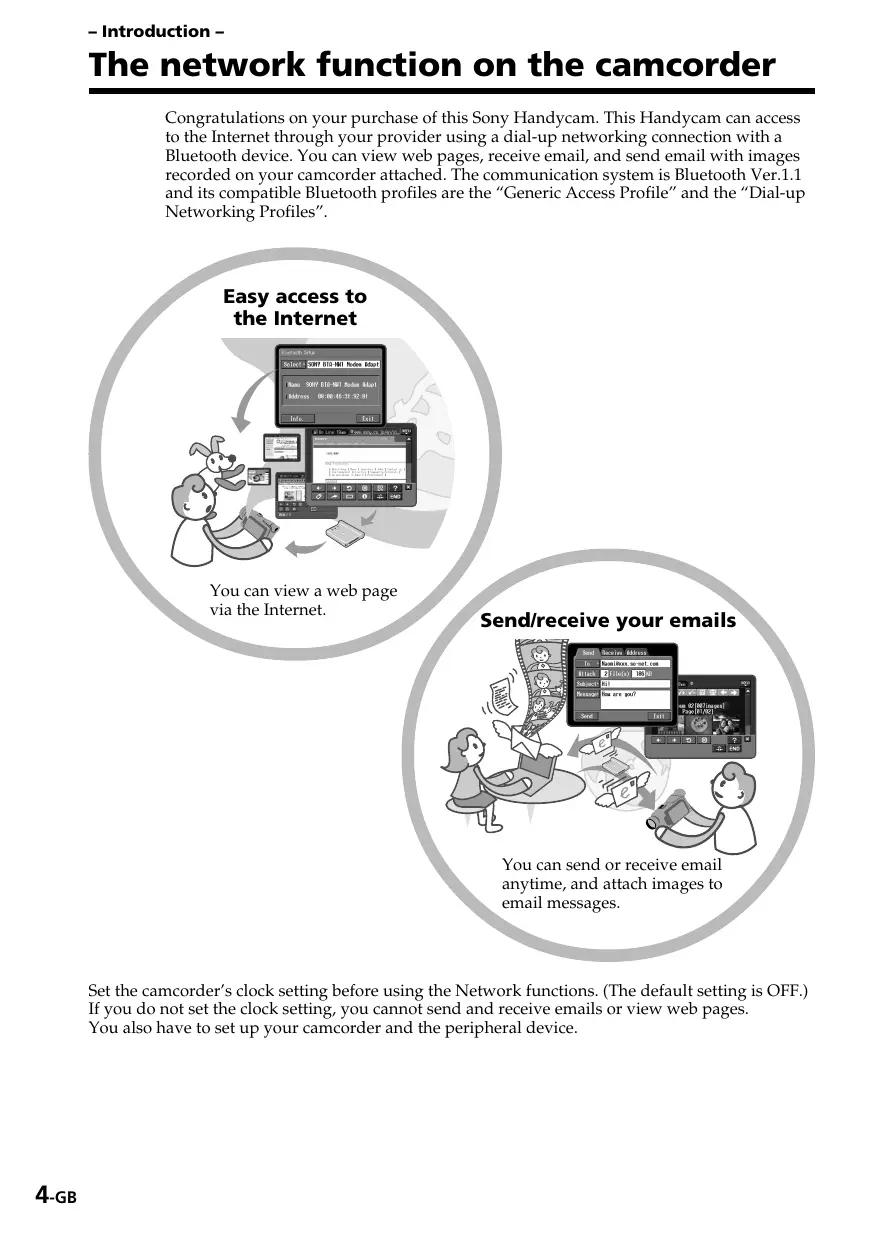
- The reset button cannot reset the network preferences. Note on network operation when using the battery pack When the remaining battery time is insufficient in NETWORK mode, use the AC power adaptor or replace the battery pack with a fully charged battery pack. Before connecting the AC power adaptor or replacing the battery pack, be sure to exit the NETWORK mode. Note on the network function The network function is only available in the following countries or areas: Austria, Belgium, Denmark, Finland, France, Germany, Greece, Ireland, Luxembourg, Netherlands, Norway, Portugal, Sweden, Switzerland, United Kingdom, and Spain. (As investigated by Sony Corporation on 1. 8. 2001) When using the camcorder in a country or area not described above, the network function is available only in the country or area where you purchased the camcorder. For customers in CANADA Operation is subject to the following two conditions: (1) this device may not cause interference, and (2) this device must accept any interference, including interference that may cause undesired operation of the device. To prevent radio interference to the licensed service, this device is intended to be operated indoors and away from windows to provide maximum shielding. Equipment that is installed outdoors is subject to licensing. 2-GB Table of contents Introduction Introduction The network function on the camcorder ... 4 Basic operations in the NETWORK mode How to use the Network Menu .......... 5 How to hold your camcorder when operating in the NETWORK mode ................................................ 6 How to use the stylus .......................... 7 How to input characters ...................... 8 Character input display ..................... 10 The available character list ................ 11 Character input setting ...................... 16 Trouble viewing web pages .............. 74 Adjusting the LCD screen (CALIBRATION) ......................... 75 Specifications ............................................... 76 Messages ...................................................... 77 General ................................................. 77 Email ..................................................... 78 Browser ................................................ 79 Glossary ....................................................... 80 Setup memo ................................................. 82 Preparation Overview of the Bluetooth wireless technology ............................................ 17 Registering a Bluetooth device ......... 18 Using your Modem Adaptor with Bluetooth Function ...................... 18 When the registration has failed ...... 22 Displaying information on your camcorder ..................................... 23 Radio wave indication ....................... 24 Selecting other Bluetooth devices from the list .................................. 24 Deleting a registered Bluetooth device from the list ...................... 24 Internet service provider ........................... 26 Setting network preferences ..................... 27 Network Operation Using email .................................................. 33 Sending email ...................................... 33 Using the address book ..................... 44 Receiving email ................................... 50 Deleting unnecessary email .............. 55 Viewing web pages .................................... 57 Viewing web pages ............................ 57 How to use the menu bar on the browser ......................................... 59 Storing the web page into a “Memory Stick” – Page Memo ................................ 65 Shutting down the browser .............. 70 Additional Information File storage destinations and file names Troubleshooting .......................................... 72 Trouble accessing the Internet .......... 72 Trouble with email ............................. 73 3-GB – Introduction – The network function on the camcorder Congratulations on your purchase of this Sony Handycam. This Handycam can access to the Internet through your provider using a dial-up networking connection with a Bluetooth device. You can view web pages, receive email, and send email with images recorded on your camcorder attached. The communication system is Bluetooth Ver.1.1 and its compatible Bluetooth profiles are the “Generic Access Profile” and the “Dial-up Networking Profiles”. Easy access to the Internet You can view a web page via the Internet. Send/receive your emails You can send or receive email anytime, and attach images to email messages. Set the camcorder’s clock setting before using the Network functions. (The default setting is OFF.) If you do not set the clock setting, you cannot send and receive emails or view web pages. You also have to set up your camcorder and the peripheral device. 4-GB Basic operations in the NETWORK mode This section describes basic control ways to operate your camcorder, those which are used for network operations. How to use the Network Menu Introduction To access the Network Menu, refer to “Accessing the network” in the operating instructions supplied with your camcorder. [a] [b] [c] [d] [a]: Send and receive email. For details, see “Using email” (p. 33). [b]: View a web page through the Internet. For details, see “Viewing web pages” (p. 57). [c]: You have to make various settings using this menu before using the network function. For details, see “Setting network preferences” (p. 27). [d]: Exit the NETWORK mode. The actual screens may differ slightly from the illustrations in this network function operating instructions. 5-GB Basic operations in the NETWORK mode How to hold your camcorder when operating in the NETWORK mode When operating in the NETWORK mode, you can turn the LCD panel over and move it back to your camcorder with the LCD screen facing over to use the stylus (for touch panel operation, supplied).
Turn the LCD panel over and move it back to your camcorder with the LCD screen facing over.
Hold your camcorder as illustrated below when you operate. The way to hold and operate your camcorder varies depending on the model. For detail, refer to the “Operating Instructions” supplied with your camcorder. 6-GB Basic operations in the NETWORK mode How to use the stylus Tap the desired button on the screen with the stylus. The selected button turns orange. Introduction The buttons required for operating your camcorder are displayed on the LCD screen. Operate by pressing the buttons on the screen directly but lightly with the stylus provided. In this manual, pressing the buttons in this way using the stylus is referred to as “tapping”.
- Do not tap them with sharp-pointed objects other than the stylus supplied.
- Do not tap the LCD screen too hard.
- Do not touch the LCD screen with wet hands.
- When the LCD screen gets dirty, use the supplied cleaning cloth.
- You cannot drag icons, like on a computer, by touching and sliding across your camcorder screen with the stylus.
- Refer to the operating instructions supplied with your camcorder for the stylus storage location. To avoid losing the stylus, we recommend that you return it to the storage location after use. 7-GB Basic operations in the NETWORK mode How to input characters You have to frequently enter characters, such as email addresses, or web pages addresses (URL), to use the network function. This section describes how to input characters.
(1) Open the Network Menu. For details on how to open the Network Menu, refer to “Accessing the network” in the operating instructions supplied with your camcorder. (2) Tap [ Mail]. The Send screen appears.
(4) Tap [ New]. The character input screen appears.
8-GB Basic operations in the NETWORK mode 2 Selecting the character type Tap [abcy123], then tap the desired character type. Introduction abc: When inputting alphabetical characters. 123: When inputting numerical characters. When you selected abc When you selected 123 3 Inputting characters (1) Tap the character you want to input. (2) After you input the characters, tap [Enter]. The screen which is displayed before you display the character input screen appears. 9-GB Basic operations in the NETWORK mode Character input display 10-GB
[a/A] button [a/A] button is displayed when you input alphabetical characters. You can switch between upper case and lower case.
[abcy123] button A list box appears when you tap the [abc y 123] button. Tap the desired type of letter from the list box.
Text area You can scroll up or down the display by tapping v or V.
[Space] button A space is entered.
[Back space] button The letter right before the cursor is deleted. If you tap the button for about three seconds, all the characters before the cursor are deleted.
button The cursor moves to a new line.
[Enter] button Tap this button to decide or close the input screen. Basic operations in the NETWORK mode The available characters list When selecting [abc] (PC Style) (Alphabetical order)
Introduction Alphabetical characters The alphabet keyboard has 2 types (PC Style and Alphabetical order). The default setting is PC arrangement. You can change the keyboard setting in . Refer to page 16 for more information.
Symbol characters The symbol characters below are inputted by single tapping:
The green keys input the symbol characters. The symbol characters change as follows: Key Character
- You can input the alphabet characters with accent symbols. When you input the characters, tap ` ´ ˆ or ¨ ˜ after inputting a, e, i, n, o, u, y, A, E, I, N, O, U or Y. 11-GB Basic operations in the NETWORK mode When selecting [123] Symbol characters (Numerical order)
To switch between upper and lower case alphabet letters Tap [a/A] to change the alphabetical keyboard, then enter characters. To delete a character Move the cursor with the stylus to the right of the character at which you want to delete, tap [Back space]. The character at the left of the cursor is deleted. To add a character Move the cursor with the stylus to the position at which you want to add a character, then input characters. To start a new line Tap [ 12-GB
Basic operations in the NETWORK mode E.g., Enter “Hello” into the Subject item on the Send screen
Introduction (1) Open the Network Menu. For details on how to open the Network Menu, refer to “Accessing the network” in the operating instructions supplied with your camcorder. (2) Tap [ Mail]. The Send screen appears.
2 Entering the subject of a message (1) Tap [Subject]. (2) Tap [ New]. The character input screen appears.
13-GB Basic operations in the NETWORK mode
(1) Tap [abcy123], then tap [abc]. (2) Tap [a/A] to be able to enter upper-case letters.
(3) Tap [H]. “H” is entered.
(4) Tap [a/A] to be able to enter lower-case letters.
14-GB Basic operations in the NETWORK mode (5) Tap [e]. “e” is entered. Introduction
(6) Tap [l], [l] and [o]. “llo” is entered.
(7) Tap [Enter]. “Hello” is entered and the Send screen appears again.
15-GB Basic operations in the NETWORK mode Character input setting Keyboard You can change the display of the alphabet, PC arrangement keyboard or ABC arrangement keyboard into a setup you want when you input characters. 1 Tap in the character input screen.
2 Tap the desired setting. You can set as the following two displays when [abcy123] is set as [abc]. (PC Style is the default setting.) – PC Style (PC arrangement keyboard) – Alphabetical order (ABC arrangement Keyboard) PC Style To switch the setting, tap 16-GB Alphabetical order on the upper-right LCD screen. – Preparation – Overview of the Bluetooth wireless technology What is the Bluetooth wireless technology? Authentication Preparation The Bluetooth wireless technology allows communication between various Bluetooth devices without using cables. Devices which can use this technology include PCs, computer peripheral devices, PDAs, and mobile phones. This omnidirectional communication system enables communication even if the Bluetooth device is in a bag or having obstacles between the devices. Also, the Bluetooth wireless technology has advanced security functions, such as scrambled frequencies and data encryption. The authentication routine can block unspecified users’ access to this network. When attempting communication with an unregistered Bluetooth device, the devices must first be registered with each other by entering a common passkey to each device. When connecting with a previously registered Bluetooth device, communication starts without entering the passkey. 17-GB Overview of the Bluetooth wireless technology Registering a Bluetooth device This section describes making a registration of a Bluetooth device. Here we describe the procedure for registering the Sony Modem Adaptor with Bluetooth Function. Once the registration is completed, your camcorder can connect to your Bluetooth device without reregistering the device. You can register up to three Bluetooth devices. Also, refer to the operating instructions supplied with your Bluetooth device. For more information about Bluetooth devices compatible with your camcorder, access the following URL: For customers in Canada “http://www.sony.ca/service/” For customers in the areas other than in Canada “http://www.css.ap.sony.com/” Notes
- When using Sony BTA-NW1/BTA-NW1A Modem Adaptor with Bluetooth Function, place it at a location that has no obstacles between your camcorder and the device. The distance between the devices must be within 10 m (33 feet).
- The connection may be interrupted depending on the communication conditions. Using your Modem Adaptor with Bluetooth Function 1 Preparing the Modem Adaptor with Bluetooth Function Set the Modem Adaptor with Bluetooth Function to connection standby (BONDING). For details, refer to the operating instructions supplied with your Modem Adaptor with Bluetooth Function. 18-GB Overview of the Bluetooth wireless technology 2 Specifying your Modem Adaptor with Bluetooth Function as the connection device (1) Open the Network Menu. For details on how to open the Network Menu, refer to “Accessing the network” in the operating instructions supplied with your camcorder. Preparation (2) Tap [ Setup]. The Setup screen appears.
(3) Tap [Bluetooth Setup]. The Bluetooth Setup screen appears.
19-GB Overview of the Bluetooth wireless technology (4) Tap [Select]. The Bluetooth devices list appears. When making a registration for the first time, only [ Return] and [ New] are indicated. The list shows up to three Bluetooth devices. You can select one of the latest used three Bluetooth devices from the list.
Tip The last-used Bluetooth device is listed next to [ Return] and [ New]. (5) Tap [ New]. Your camcorder starts searching for your Bluetooth devices. When the searching is completed, the available Bluetooth devices list appears. When some Bluetooth devices with same name appear, display each Bluetooth device address by tapping [More info.].
- The search takes from about 10 to 60 seconds. The time depends on the number of Bluetooth devices around your camcorder.
- If the Bluetooth device you want to register is not found, carry out the procedure again from step 4. (6) Tap the desired Bluetooth device. The character input screen appears.
20-GB Overview of the Bluetooth wireless technology (7) Enter the passkey. For details on how to input characters, see “How to input characters” (p. 8). For example, when using the BTA-NW1/BTA-NW1A Modem Adaptor with Bluetooth Function, the passkey is its serial number which is indicated on the label on the rear panel. MODEL NO. BTA-NW1 Passkey The number used when registering a Bluetooth device Preparation
Tip on “Passkey” The passkey is an identification number needed to allow two Bluetooth devices to communicate with each other. The connection will be permitted after entering the passkey. This “Passkey” is also referred to as a “Bluetooth passkey”, “PIN”, “Bluetooth PIN”, etc. For details, refer to the operating instructions supplied with your Bluetooth adaptor. (8) After entering the passkey, tap [Enter]. After the registration is completed, the Bluetooth Setup screen appears again. “Bluetooth Registration Complete” message is displayed. Tap [OK]. The selected Bluetooth device is specified.
Note When the message “Bluetooth Registration Error Check the Passkey” is indicated, tap [OK]. Carry out the procedure again from step 4. (9) Tap [Exit]. The Setup screen appears again. For details on how to turn off the Modem Adaptor with Bluetooth Function, refer to the operating instructions supplied with your Modem Adaptor with Bluetooth Function. 21-GB Overview of the Bluetooth wireless technology (10) Tap [Exit]. The Network Menu appears again.
When the registration has failed After pressing [OK], and carry out the procedure described in step 4 on page 20 again. 22-GB Overview of the Bluetooth wireless technology Displaying information on your camcorder You can display your camcorder information. Preparation (1) Open the Network Menu. For details on how to open the Network Menu, refer to “Accessing the network” in the operating instructions supplied with your camcorder. (2) Tap [ Setup]. The Setup screen appears.
(3) Tap [Bluetooth Setup]. The Bluetooth Setup screen appears.
23-GB Overview of the Bluetooth wireless technology (4) Tap [Info.]. The Bluetooth Setup: Self information screen appears. The model name This is the unique address assigned to each camcorder at the factory. This address is used when exchanging information between devices. This address cannot be modified. (The number indicated on the illustration is an example number.) To return Bluetooth Setup screen Tap [Return]. Radio wave indication indicates the radio wave status of the connected Bluetooth device. (Use this indication as a guide.) Selecting other Bluetooth devices from the list Tap the Bluetooth device you want to specify in step 4 in on page 20. The device information is indicated. Tap [Exit]. Deleting a registered Bluetooth device from the list You can register up to three Bluetooth devices on your camcorder. When deleting a Bluetooth device from the list, follow the procedure below. (1) Open the Network Menu. For details on how to open the Network Menu, refer to “Accessing the network” in the operating instructions supplied with your camcorder. 24-GB Overview of the Bluetooth wireless technology (2) Tap [ Setup]. The Setup screen appears. Preparation
(3) Tap [Bluetooth Setup]. The Bluetooth Setup screen appears.
(4) Tap [Select]. The Bluetooth devices list appears.
(5) Tap the device you want to delete. The device name and address of the selected device are indicated.
(6) Tap [Delete]. The selected device is deleted from the list. 25-GB Internet service provider To access the Internet, you have to sign-up with an Internet service provider (ISP). The provider acts as an intermediary between your camcorder and the Internet. After you sign-up with a provider; you can view various web pages through the Internet, you can send and receive email using your email address. The email address is a destination address in email transmission. Also, various other services may be available depending on your provider. Notes
- A credit card may be required to sign-up with some providers.
- The connection fee depends on your provider.
- You cannot use the network function when using a provider that requires its own exclusive browser software. 26-GB Setting network preferences You have to access the Internet to view web pages, or send or receive your email. This section describes how to set network preferences to access the Internet. 1 Setting your provider preferences (1) Open the Network Menu. For details on how to open the Network Menu, refer to “Accessing the network” in the operating instructions supplied with your camcorder. Preparation Set your provider preferences according to the requirements of your privider. When you do not understand the setup items, consult your provider. (2) Tap [ Setup]. The Setup screen appears.
(3) Tap [Network Setup]. The Provider Setup: Custom screen appears. If the PPP screen is not displayed, tap [PPP].
(4) Set up the following items: ID: Enter the login name you use for accessing your provider using a dial-up connection. This “ID” is also referred to as a “user ID”, “login name”, “PPP login name”, “network ID”, “account name”, “logon name”, “user name”, etc. Password: Enter the password you use for accessing your provider using a dial-up connection. (Dial-up connection t Glossary (p. 80)) This “Password” is also referred to as a “PPP password”, “network password”, “connection password”, etc. 27-GB Setting network preferences DNS1: Enter the DNS (Domain Name System) server address of your provider.
- This “DNS1” is also referred to as a “name server”, “primary DNS server”, “primary name server”, etc.
- This entry may be unnecessary, depending on your provider. For details, consult your provider. DNS2: Enter the secondary DNS server address of your provider, if necessary.
- This “DNS2” is also referred to as a “secondary DNS server”, etc.
- This entry may be unnecessary, depending on your provider. For details, consult your provider. TEL No. 1: Enter the telephone number of your most convenient access point. (Access point t “Glossary” (p. 80)) TEL No. 2/TEL No. 3: Enter the second and third telephone numbers, if necessary. (5) Tap [Mail]. The Mail screen appears. (6) Set up the following items: User ID: Enter the user ID name you use for your provider. Password: Enter the password of your user ID for accessing the POP server. Your user ID and password are required to use email. This “Password” is also referred to as a “mail password”, “mail server password”, etc. Address: Enter your email address. This “Address” is also referred to as a “mail address”, “email address”, etc. POP Server: Enter the POP (Post Office Protocol) server address of your provider. The POP server is for receiving email. This “POP Server” is also referred to as a “mail server”, “POP3 server”, etc. SMTP Server: Enter the SMTP (Simple Mail Transfer Protocol) server address of your provider. The SMTP server is for sending email. This “SMTP Server” is also referred to as a “mail server”, “SMTP mail server”, etc. The SMTP server may be the same as the POP server, depending on the provider. APOP: Select whether you want to use APOP. (APOP t “Glossary” (p. 80)) 28-GB Setting network preferences (7) Select [Browser]. The Browser screen appears. Preparation (8) Set up the following items: Proxy: Enter the proxy server address of your provider. Port: Enter the port number of the proxy server of your provider. This entry may be unnecessary, depending on your provider. For details, consult your provider. (9) Tap [Exit]. The setup is completed, and the Network Setup screen appears again. (10) Tap [Exit]. The Setup screen appears again. 29-GB Setting network preferences 2 Setting other preferences You can access the Internet with your camcorder using the default settings. It is not necessary to make the following settings. This example is provided to show you how to make changes, if necessary, in the future. (1) Display the Setup screen. (2) Tap [Network Options]. The Network Options screen appears.
(3) Set up the following items: Verify Password: Select whether password entry is required when you access your provider. When you check this item, your password on the PPP screen is deleted. You have to enter your password for accessing your provider each time you try to make a connection. This can prevent other persons from connecting to your provider using your ID. Time Out: Select whether the connection is automatically cancelled if no communication is made for specific time (1 minute, 2 minutes, 5 minutes, 15 minutes, or 30 minutes). Note The telephone line may not be disconnected automatically depending on web pages. In this case, disconnect the telephone line manually (p. 70). 30-GB Setting network preferences Mail Send&Receive: Select whether to check the email inbox after sending email. Restrict: Select whether to skip an email message if its file size is more than 50 KB, 200 KB, or 500 KB. Save Mail to Server: Select whether to keep copies of the messages on the server. Preparation Note If you try to receive email without checking this item, email messages may not be downloaded and may be lost from your server, depending on the type of email you receive. For details, see “Note on “Save Mail to Server”” (p. 32). Signature: Set up this item when you want to attach your signature to email (p. 42). Browser Cookie: Select whether to accept a cookie. When you do not want to send your personal information, do not check this item. This item is checked at the default setting. Image Display: Select whether to display images on the screen when viewing a web page. This item is checked at the default setting. Reset: Reset all the items on the Network Options screen except “Signature” and “Modem Init.” Note A verification message does not appear when you try to reset items. Modem Init: Set up the character string to be used for modem initialization. If no setup is specified, you do not need to modify this item. Note If the setup is wrong, the message “Connection Error No Response From PPP Server” appears when you try to access the Internet and you will not be able to access the Internet. (4) Tap [Exit]. The Setup screen appears again. 31-GB Setting network preferences Note on “Save Mail to Server” When “Save Mail to Server” is not checked, copies of email messages received will not be stored on your server. However, the following error messages described below depend on the type of email messages. See the table below. Messages1) Cause and/or Corrective Actions Memory Stick Memory Full You tried to download email when the “Memory Stick” is already full. 2) c Delete the email, and delete unnecessary email messages or image files in the “Memory Stick,” then download your email again. c Insert another “Memory Stick” that has sufficient memory, then download your email again. Mail Over Size Limit
- You tried to download email whose size is over the size set in the item “Restrict”. 2) c You can download that email using your computer, etc. c Delete the email, and release the checkmark of the item “Restrict”, then download that email again.
- You downloaded an email message whose the number of characters of the message is more than 4 000. 3) c The camcorder cannot receive an email message that has 4 000 characters or more. 4) Attached Invalid File Deleted You downloaded email that has an attached file whose file name extension is invalid. 3) c The camcorder cannot receive files other than those in the JPEG or MPEG format. Memory Stick Directory Error
c Insert another “Memory Stick” that has sufficient memory, then download your email again. These error messages are indicated in a message. These email messages are stored on the server even if you did not check the item “Save Mail to Server”. You can retrieve that email using your computer, etc. The previously downloaded email is not stored on the server if you did not check the item “Save Mail to Server”. You cannot retrieve this email using your computer, etc. For email messages that have lots of line break, the number of available characters is less than 4 000.
32-GB — Network Operation— Using email This section describes the basic usage of email. Email is sent and received via the Internet. Email is very convenient; you can send email anytime, and you can also send images stored in a “Memory Stick” by attaching them to email. Sending email 1 Specifying the destination address Be careful to enter the address correctly. Tip You can select the email address from the address book. For details, see “Selecting the destination address from the address book” (p. 49). Network Operation By entering the email address of the destination, you can send an email message in a moment. (1) Open the Network Menu. For details on how to open the Network Menu, refer to “Accessing the network” in the operating instructions supplied with your camcorder. (2) Tap [ Mail]. The Send screen appears.
33-GB Using email (3) Tap [To]. The address list appears. The list shows the latest used six addresses that are registered in the address book. For details on the address book, see “Using the address book” (p. 44). When you have selected an address listed in the address book, go to step 7.
- The last-used address is listed next to [
- Addresses are listed in historical order. Return] and [ New]. (4) Tap [ New]. The character input screen appears.
(5) Enter the email address of an addressee. For details on how to input characters, see “How to input characters” (p. 8). (6) Tap [Enter]. The Send screen appears again. The new email address is listed and its check box is indicated by the checkmark ( ).
Tip You can correct or edit the email address in the address book. For details on the address book, see “Editing or deleting the address book” (p. 47). 34-GB Using email (7) If you want to send the email message to other addressees, tap other email addresses. The check box of the tapped email address is indicated by the checkmark ( ). (8) Tap [ Return]. The Send screen appears again. Network Operation Note If you try to send an email message with 50 addresses registered in the address book, the last-used address will be deleted. The message “Address Book Full Overwrite the Data with Current Address?” appears for verification. When you overwrite it, tap [OK]. When you tap [Cancel], delete the unnecessary address from the address book, then enter a new address. 35-GB Using email 2 Entering the subject of a message (1) Tap [Subject]. The subject list appears. The list shows the latest used six subjects.
When you want to use a subject shown on the list, tap the subject. After selecting the subject, go to “3 Entering the text of a message” (p. 37). Tip The last-used subject is listed next to [ You cannot edit or delete the subject. Return] and [ New]. (2) Tap [ New]. The character input screen appears.
(3) Enter the subject. For details on how to input characters, see “How to input characters” (p. 8). Note The maximum number of characters you can enter is 24. (4) Tap [Enter]. The Send screen appears again.
36-GB Using email 3 Entering the text of a message Enter the text of the message. You can select the text from the message list, or edit it to suit your purposes. The list shows up to six messages. (1) Tap [Message]. The message list appears. Network Operation
When you select the message you wrote previously, tap the message from the message list. When you do not edit message, tap [OK]. After you select the message, go to “4 Sending email” (p. 38). If you edit the selected text, tap [Edit]. The character input screen appears. Go to step 3. (2) Tap [ New]. The character input screen appears.
(3) Enter your message. For details on how to input characters, see “How to input characters” (p. 8). Note The maximum number of characters you can enter is 512. (4) Tap [Enter]. The Send screen appears again.
37-GB Using email 4 Sending email Tip You can send an email message with your signature. For details, see “Attaching your signature to a message” (p. 42). (1) Select the image that you want to attach. When attaching images, see “Attaching images to email” (p. 41). (2) Check the message. When you check or edit a message, see “Checking or editing a message” (p. 39). (3) Tap [Send]. The screen for verifying the connection appears. Set your Bluetooth device to connection standby with your camcorder beforehand. For details, refer to the operating instructions supplied with your Bluetooth device. (4) Check the telephone number. When dialing other telephone numbers Tap [TEL No.]. The registered telephone number list appears. Tap the desired telephone number. The selected telephone number is specified. (5) Tap [Connect]. Your camcorder starts dialing the selected telephone number. After the sending is completed, the message “Sending Mail Complete” appears. The phone line is automatically disconnected.
38-GB Using email (6) Tap [OK]. The Send screen appears again. To cancel sending email During sending, tap [Cancel]. Checking or editing a message (1) Display the Send screen. Network Operation Tip You can automatically check the email inbox after sending email. For details, see “2 Setting other preferences” (p. 30). (2) Tap [Message]. The message list appears.
(3) Tap the message you want to check or edit. The following screen appears.
39-GB Using email (4) Check or edit the message. When the message is long, tap the message area, then tap the scroll button V to scroll the message. When you only check the message: After checking the message, tap [OK]. The Send screen appears again. When you edit the message: Go to step 5. (5) Tap [Edit]. The character input screen appears.
(6) Edit the message. For details on how to input characters, see “How to input characters” (p. 8). (7) Tap [Enter]. The Send screen appears again.
40-GB Using email Attaching images to email You can send images by attaching them to email messages. Before operation
- Insert the “Memory Stick” that the desired images are stored in into your camcorder.
- Release the lock of the “Memory Stick”. Network Operation (1) Follow these procedures: “1 Specifying the destination address” (p. 33), “2 Entering the subject of a message” (p. 36), and “3 Entering the text of a message” (p. 37). The Send screen appears. (2) Tap [Attach]. The images recorded in the “Memory Stick” are displayed.
(3) Tap the desired images. The selected image is indicated by the checkmark ( ). To page up or down the index list Tap [<] or [,]. The next or previous page is displayed. 41-GB Using email (4) Repeat step 3 to select other images until you complete attaching images. Note The total number of images you can attach is 99, and the maximum file size is up to total 3 MB. (5) Tap [ OK]. The Send screen appears again. The total number of selected images and total file size are indicated.
To cancel selecting image Tap the image again. The checkmark will disappear from the image. To cancel selecting all the images Tap [ CLR]. (6) Carry out the procedure described in “4 Sending email” (p. 38) from step 3. Note It takes a lot of time to send images depending on the image file size. Attaching your signature to a message You can attach your signature to the last column of the email message. (1) Open the Network Menu. For details on how to open the Network Menu, refer to “Accessing the network” in the operating instructions supplied with your camcorder. 42-GB Using email (2) Tap [ Setup]. The Setup screen appears.
Network Operation (3) Tap [Network Options]. The Network Options screen appears.
(4) Tap [Signature]. The character input screen appears.
(5) Enter your signature. For details on how to input characters, see “How to input characters” (p. 8). Note The maximum number of characters you can enter is 256. 43-GB Using email (6) Tap [Enter]. The setup of your signature is completed, and the Network Options screen appears again. “Yes” is indicated next to [Signature].
(7) Tap [Exit]. The Setup screen appears again. (8) Tap [Exit]. The Network Menu appears again. Using the address book Once you register frequently used email addresses in the address book, you can send email without entering the email address manually. Registering destination addresses in the address book You can register frequently used email addresses in the address book. You can register up to 50 addresses. Be careful to enter the address correctly. (1) Open the Network Menu. For details on how to open the Network Menu, refer to “Accessing the network” in the operating instructions supplied with your camcorder. 44-GB Using email (2) Tap [ Mail]. If the Address screen is not displayed, tap the Address. The Address screen appears. (3) Tap [New]. The Address Book: New screen appears. Network Operation
(4) Tap [Name]. The character input screen appears.
(5) Enter the destination name. For details on how to input characters, see “How to input characters” (p. 8). Note The maximum number of characters you can enter in the [Name] box is 24. 45-GB Using email (6) Tap [Enter]. The Address Book: New screen appears again.
(7) Tap [Address]. The character input screen appears.
(8) Enter the email address. For details on how to input characters, see “How to input characters” (p. 8). (9) Tap [Enter]. The Address Book: New screen appears again.
(10) Tap [Return]. The Address screen appears again.
46-GB Using email (11) Tap [Exit]. The Network Menu appears again. Tips
- The addresses are listed in alphabetical order.
- When you reply to the address of a previously received email message, the address will be automatically registered on the address book. To edit the address, see “Editing or deleting the address book” below. You can edit or delete the names or email addresses in the address book. (1) Follow steps 1 and 2 in “Registering destination addresses in the address book” (p. 44). The Address screen appears. (2) Display the address you want to edit or delete by tapping
Network Operation Editing or deleting the address book
(3) Tap [Edit] to select the address. The Address Book: Edit screen appears.
47-GB Using email (4) Tap [Name] or [Address]. When editing the registered name, tap [Name], and when editing the registered address, tap [Address]. The character input screen appears.
When you want to delete an address, tap [Delete]. When verification appears, tap [OK]. When you stop deleting, tap [Cancel]. (5) Edit the name or address. For details on how to input characters, see “How to input characters” (p. 8). (6) Tap [Enter]. The Address Book: Edit screen appears again.
(7) Tap [Return]. The Address screen appears again.
(8) Check the name or address. (9) Tap [Exit]. The Network menu appears again. 48-GB Using email Selecting the destination address from the address book You can select the destination address from the address book. (1) Follow steps 1 and 2 in “Registering destination addresses in the address book” (p. 44). The Address screen appears. Network Operation (2) Select the address you want to send a email by tapping
(3) Tap [tTo]. The Send screen appears. The selected address is set as the destination address.
(4) Carry out the procedures described in “2 Entering the subject of a message” (p. 36). 49-GB Using email Receiving email Once you receive email, you can reply to it or forward it. Before operation
- Insert a “Memory Stick” into your camcorder, for storing images.
- Release the lock of the “Memory Stick”. Checking your email inbox Tip You can keep copies of your messages on your server even if you download the message using your camcorder. For details, see “Setting other preferences” (p. 30). (1) Open the Network Menu. For details on how to open the Network Menu, refer to “Accessing the network” in the operating instructions supplied with your camcorder. (2) Tap [ Mail]. If the Receive screen is not displayed, select the Receive from the Send, Receive and Address. The Receive screen appears.
50-GB Using email (3) Tap [Receive]. The screen for verifying the connection appears. Set your Bluetooth device to connection standby with your camcorder beforehand. For details, refer to the operating instructions supplied with your Bluetooth device. Network Operation
(4) Check the telephone number. When dialing other telephone numbers Tap [TEL No.]. The registered telephone number list appears. Tap the desired telephone number. The selected telephone number is specified. (5) Tap [Connect]. Your camcorder starts dialing the selected telephone number. When an email message has been sent to you, your camcorder download it, and the message “Receiving Mail Complete” appears. Tap [OK]. The phone line is automatically disconnected after email is received.
(6) When an email message has been received, tap the area where a message is displayed or [Message]. The message is displayed.
(7) Tap [Return]. The Receive screen appears again. 51-GB Using email To cancel receiving email While downloading, tap [Cancel]. Email you don’t receive remains on your server. When the message is long Tap the scroll button V to scroll the message. When a file is attached to an email message Your camcorder can receive the following extension file: .jpg, .mpg, .jpeg, and .mpeg. When you receive other types of files, the message “Attached Invalid File Deleted” is inserted in the email message. Your camcorder cannot play back the attached image if the file is in an incompatible format. To view an attached image Exit the NETWORK mode, then view the image following the same procedure as that for viewing an image recorded in a “Memory Stick.” In such cases, the attached file will be stored next to the last-recorded image recorded in VCR or MEMORY/NETWORK mode. When no new messages have been sent to you The message “No New Mail” appears. URL included in an email message When a URL (“http://...”) is typed in the message, tap the URL. The browser starts automatically and accesses the indicated web page. Notes
- The maximum number of email message characters allowed is 4 000. More than that number of characters will cause the excess characters to be deleted and a message indicating that some of the text was deleted is attached to the beginning of the message.
- It takes a lot of time to receive the message depending on the attached image file size. Tips
- You can automatically check the email inbox after sending email. For details, see “2 Setting other preferences” (p. 30).
- You can skip an email message if its file size is too large. For details, see “2 Setting other preferences” (p. 30).
- For email messages, the maximum number of characters used for the subject and the sender name has an upper limit of 24 characters. When you receive an email message with more than 24 characters in these items, you cannot read the subject and the sender name on your camcorder. 52-GB Using email Sending your answer – Reply You can quickly reply to an email message without entering the address. (1) Display the Receive screen. Network Operation (2) Tap the area where a message is displayed or tap [Message]. The selected message is displayed.
(3) Tap [Reply]. The Send screen appears.
Tip “Re:” is added to the beginning of the subject line. (4) Carry out the procedure described in “3 Entering the text of a message” (p. 37) to enter the text of the message. Tip You cannot quote a received email message. (5) Carry out the procedure described in “4 Sending email” (p. 38) from step 3. 53-GB Using email Forwarding the message to another person – Forward You can forward a downloaded message to others. (1) Display the Receive screen. (2) Display email you want to forward the message by tapping
(3) Tap the area where a message is displayed or tap [Message]. The selected message is displayed.
(4) Tap [Forward]. The Send screen appears.
- An attached file is not automatically forwarded. When you want to send the attached file, see “Attaching images to email” (p. 41).
- “Fw:” is added to the top of the subject line. (5) Carry out the procedure described in “1 Specifying the destination address” (p. 33) from step 3 or “Selecting the destination address from the address book” (p. 49) to specify the destination address. 54-GB Using email (6) Carry out the procedure described in “3 Entering the text of a message” (p. 37) to modify the message. Tip The maximum number of characters you can enter in a message is 512. The characters over that number will be deleted. Network Operation (7) Carry out the procedure described in “4 Sending email” (p. 38) from step 3. Deleting unnecessary email You can store up to 50 received email messages. in a “Memory Stick”. If you try to receive a 51st email message, an error message appears and your camcorder cannot receive the email message. Before operation
- Insert the “Memory Stick” that the email message you want to delete is stored in into your camcorder.
- Release the lock of the “Memory Stick”. (1) Open the Network Menu. For details on how to open the Network Menu, refer to “Accessing the network” in the operating instructions supplied with your camcorder. (2) Tap [ Mail]. If the Receive screen is not displayed, select the Receive from the Send, Receive and Address. The Receive screen appears.
55-GB Using email (3) Display email you want to delete the message by tapping The selected message is displayed.
(4) Tap [Delete]. The message “Delete This Mail?” used for verification appears.
(5) Tap [OK]. The selected email message is deleted. To cancel deleting email Tap [Cancel] in step 5. 56-GB
Viewing web pages A site that posts information on the Internet is called “web page” or “web site”. You can easily retrieve information by accessing a web site on the Internet. Viewing web pages 1 Entering the URL needed to access the web page Tip on URL A web site has a unique address on the Internet. The address is called a URL. This URL is required to access a web site. Network Operation Enter the address of the web page, and then access the Internet. Be careful to enter the address correctly. (1) Open the Network Menu. For details on how to open the Network Menu, refer to “Accessing the network” in the operating instructions supplied with your camcorder. (2) Tap [ Browser]. The following screen appears.
(3) Tap (New URL). The character input screen appears.
57-GB Viewing web pages (4) Enter the URL. For details on how to input characters, see “How to input characters” (p. 8). (5) Tap [Enter]. The screen used for verifying the connection appears. Set your Bluetooth device to connection standby with your camcorder beforehand. For details, refer to the operating instructions supplied with your Bluetooth device.
(6) Check the telephone number. When dialing other telephone numbers Tap [TEL No.]. The registered telephone number list appears. Tap the desired telephone number. The selected telephone number is specified. (7) Tap [Connect]. Your camcorder starts dialing the selected telephone number. After the connection is completed, the web page selected in step 4 is loaded.
in the menu bar. The menu bar disappears. The buttons on the menu bar Button menu Function (Previous Page) Go to the previous page in your step. (Next Page) Go to the next page in your step. (Refresh) Refresh the current page. Use this button when images or characters on the web page are not displayed properly. (Stop) Stop loading the current page. (Zoom) Change the page size. ? (Help) (Bookmark) Display the introduction of each button. Bookmark the current page. (Bookmarks are stored in the camcorder.) Bookmarking is convenient to access frequently-visited pages. (New URL) Enter the URL of a web page. (Page Memo) Store the current page in the “Memory Stick.” You can then view the page without accessing the Internet. (Page Information) Show the title and URL of the current page. (Line Close) Disconnect the phone line. Hide the menu bar. END (END) Exit the browser. 59-GB Viewing web pages When you fail to load a web page [Loading Error] message appears. Tap [OK], then tap menu on the upper-right LCD screen, and tap END in the menu bar. Network menu appears again. Note The buttons may not function, depending on the accessed web page. Note on connection status indication The connection status is indicated on the top of the screen. This item also shows a connected time and the address of the web page. The connecting time indication should be used as a guide. Off Line: being offline Loading: Loading a web page On Line: being online Notes
- When the address is too long to display, the whole address is not indicated. If you want to know the correct address of the page, tap . The address is indicated in full.
- A portion of the whole page is displayed on the screen.
- It takes more time to load a large size page, and its images or text may not be displayed properly. This is not a malfunction.
- When you try to open a large size page, the message “Data too Large for Full Display” appears and the entire page may not be loaded.
- When viewing a scaled-down page, the screen may show some flicker or the color may be strange. This is not a malfunction.
- To prevent a malfunction, operate the menu bar buttons after loading the page. Tip You can access the web page from a bookmark. For details, see “3 Jumping to the web page specified by the bookmark” (p. 64). 60-GB Viewing web pages 2 Bookmarking the web page – Bookmark You can bookmark web pages you frequently access. You can bookmark up to 30 bookmarks. (1) Display the web page you want to bookmark. menu on the upper-right LCD screen. Network Operation (2) When the menu bar is not displayed, tap The menu bar appears. (3) Tap (Bookmark). The bookmark list appears.
(4) Tap [ Add]. The bookmark is added, and the display returns to the web page. Note
- The phone line may not be disconnected automatically. If this happen, disconnect the phone line manually (p. 70).
- You cannot bookmark a web page that the URL is more than 256 characters. 61-GB Viewing web pages To edit a bookmark You can edit the title of a bookmark. (1) Tap (Bookmark). The bookmark list appears.
(2) Tap the bookmark you want to edit. The title and URL are indicated.
(3) Tap [Edit]. The character input screen appears.
(4) Edit the name. For details on how to input characters, see “How to input characters” (p. 8). (5) Tap [Enter]. The title of the bookmark is modified.
(6) Tap [ Return]. The Browser screen appears again. 62-GB Viewing web pages To delete bookmarks You can delete bookmarks. We recommend that you delete unnecessary bookmarks since you can only store up to 30 bookmarks. (1) Tap (Bookmark). The bookmark list appears. Network Operation
(2) Tap the bookmark you want to delete.
(3) Tap [Delete]. The message “Delete This Bookmark?” used for verification appears.
(4) Tap [OK]. The selected bookmark is deleted.
To cancel deleting the bookmark Tap [Cancel] in step 4. 63-GB Viewing web pages 3 Jumping to the web page specified by the bookmark (1) When the menu bar is not displayed, tap The menu bar appears. (Bookmark). (2) Tap The bookmark list appears.
(3) Tap the bookmark.
64-GB menu on the upper-right LCD screen. Viewing web pages (4) Tap [Go]. The screen used for verifying the connection appears. Set your Bluetooth device to connection standby with your camcorder beforehand. For details, refer to the operating instructions supplied with your Bluetooth device. Network Operation
(5) Check the telephone number. When dialing other telephone numbers Tap [TEL No.]. The registered telephone number list appears. Tap the desired telephone number. The selected telephone number is specified. (6) Tap [Connect]. Your camcorder starts dialing the selected telephone number. After the connection is completed, the web page specified by the bookmark is displayed. To select other bookmark Tap [Return] in step 4. The bookmark list appears. Tap other bookmark. Storing the web page into a “Memory Stick” – Page Memo You can store your favourite web pages in a “Memory Stick”. Once you store them, you can view the web page without accessing the Internet. You cannot store a web page that the URL is more than 256 characters. Storing the web page into a “Memory Stick” You can store up to 30 page memos in a “Memory Stick.” Before operation
- Insert a “Memory Stick” into your camcorder, for storing web pages.
- Release the lock of the “Memory Stick.” (1) Display the web page you want to store. (2) When the menu bar is not displayed, tap The menu bar appears. menu on the upper-right LCD screen. 65-GB Viewing web pages (3) Tap (Page Memo). The page memo list appears.
(4) Tap [ Add]. The message “Saving Page Memo Do Not Remove Memory Stick” appears. After the message disappears, storing is complete.
(5) Browser screen appears again. To cancel storing the web page During storing, tap [Cancel]. Note You cannot store the web page while loading it. Editing the title of a page memo You can edit the title of a page memo stored in a “Memory Stick.” Before operation
- Insert a “Memory Stick” that the page memo you want to edit is stored in into your camcorder.
- Release the lock of the “Memory Stick”. (1) When the menu bar is not displayed, tap The menu bar appears. 66-GB menu on the upper-right LCD screen. Viewing web pages (2) Tap (Page Memo). The page memo list appears.
Network Operation (3) Tap the page memo you want to edit. The title and URL of the selected page memo are indicated.
(4) Tap [Edit]. The character input screen appears.
(5) Edit the name. For details on how to input characters, see “How to input characters” (p. 8). (6) Tap [Enter]. The title of the page memo is edited.
67-GB Viewing web pages (7) Tap [ Return]. The browser screen appears again. To delete the page memo You can delete page memos. We recommend that you delete unnecessary page memos since you can only store up to 30 page memos. Before operation
- Insert a “Memory Stick” that the page memo you want to delete is stored in into your camcorder.
- Release the lock of the “Memory Stick”. (1) When the menu bar is not displayed, tap The menu bar appears. (Page Memo). (2) Tap The page memo list appears.
(3) Tap the page memo you want to delete. The following screen appears.
68-GB menu on the upper-right LCD screen. Viewing web pages (4) Tap [Delete]. The message “Delete This Page Memo Item?” used for verification appears.
Network Operation (5) Tap [OK]. The selected page memo is deleted and the page memo list appears again. (6) Tap [ Return]. The browser screen appears again. To cancel deleting the page memo Tap [Cancel] in step 4. Displaying a web page stored in page memo You can display a page memo stored in a “Memory Stick.” Before operation
- Insert the “Memory Stick” that the page memo you want to display is stored in into your camcorder.
- Release the lock of the “Memory Stick”. (1) When the menu bar is not displayed, tap The menu bar appears. menu on the upper-right LCD screen. (Page Memo). (2) Tap The page memo list appears.
69-GB Viewing web pages (3) Tap the page memo you want to display.
(4) Tap [Open]. The web page stored in page memo is displayed. To select other page memo Tap [Return] in step 3. The page memo list appears. Tap other page memo. Shutting down the browser To finish viewing the web page, and disconnect the phone line (1) Tap menu on the upper-right LCD screen to display the menu bar. (2) Tap END (End). The browser is closed, then the phone line is disconnected. To only disconnect the line Tap (Line Close). The phone line is disconnected. Note When shutting down the browser, a verification message may appear, depending on your camcorder. 70-GB – Additional Information – File storage destinations and file names Files are grouped in the following folders. You can only view these folders on a computer. The meanings of the file names are as follows. sssss stands for any number within the range from 00001 to 99999. ssss stands for any number within the range from 0001 to 9999. aaa stands for a portion of an attached file name. Folder containing the text data of email, etc. Folder containing files of page memo (1), etc. Folder containing files of page memo (2), etc. Folder containing moving image files recorded in the MPEG format Folder 100MSDCF File name Meaning DSCsssss.JPG Still image file Additional Information Folder containing still image files and MPEG MOVIE AD moving image files Folder containing image files attached to email MOVsssss.MPG Moving image file 700MSNET aaasssss.JPG Still image file over the network CAM NET01 RCV.MBX Incoming email list* IMAGEMEM.CNF Page memo management file* aaasssss.MPG Moving image file over the network MEMOssss MEMOssss.HTM Page memo HTML file MOML0001 IMGssss.JPG Page memo still image file IMGssss.GIF Page memo image file IMGssss.PNG Page memo image file IMGssss.XBM Page memo image file MOVsssss.MPG Moving image file
- Do not delete these files. These are required files even though they cannot be verified using a PC. 71-GB Troubleshooting Trouble accessing the Internet The message “...Incomplete” or “Authentication Error...” is indicated and your camcorder cannot access the Internet. c Check your setup according to the procedure described in “Setting network preferences” (p. 27). The camcorder cannot access the Internet. c Try to access it again after a while. The message “Line is Busy or Phone number may be Wrong” is indicated and your camcorder cannot access the Internet. c The phone line of your provider is busy. Call again after a while. c The settings for the telephone number may be incorrect. Please check those settings. c The telephone signaling type setup of the Modem Adaptor with Bluetooth function may be wrong. Check the setup. The message “Bluetooth Connection Error” is indicated and your camcorder cannot access the Internet. c Check that your Bluetooth device is turned on. c Install your Bluetooth device nearer to your camcorder. The message “Phone Line Disconnected” is indicated when making an entry in the online registration procedure. c Data entry can be done offline. When your camcorder needs to connect with the site, the screen for verifying the connection appears. Tap [Connect], then the connection will be established again. The message “Bluetooth Authentication Error Check the Certified Status” is indicated and your camcorder cannot access the Internet. c Your Bluetooth device may be deleted from the registration. Set it up again. The message “Bluetooth Connection Error Select Bluetooth Device” is indicated and your camcorder cannot access the Internet. c Check your setup according to the procedure described in “Registering a Bluetooth device” (p. 18). The message “Low Battery” is indicated and your camcorder cannot access the Internet. c Charge the battery pack or use the AC power adaptor, then connect again. 72-GB Troubleshooting Trouble with email The message “DNS Error The Requested URL Could Not Found” is indicated and your camcorder cannot send or receive email. c The DNS setup may be wrong. Check the PPP setup. Additional Information Your camcorder cannot send email. c The clock setting of your camcorder is not set. Set up the clock setting. c Check your setup according to the procedure described in “Setting network preferences” (p. 27). c Connect again after a while. Your camcorder cannot receive email. c The clock of your camcorder is not set up. Set it up. c Check your setup according to the procedure described in “Setting network preferences” (p. 27). c All of your downloaded email messages are stored in the “Memory Stick.” Insert a new “Memory Stick” that has sufficient memory and download your email again. Also, check that the lock switch is set to release. c You can restrict the file size of downloaded email messages. Check the setup of the item “Restrict” on the Network Options screen. c You can store up to 50 downloaded email messages in a “Memory Stick.” If you want to store a 51st email message, delete unnecessary email or insert a new “Memory Stick” that has sufficient memory and then download your email again. All of the email message cannot be received. c The maximum size of an email is 4 000 characters. You cannot receive the entire text of email that has more than 4 000 characters. The message “PPP Authentication Error” is indicated. c Check your setup according to the procedure described in “Setting network preferences” (p. 27). You received an email message sent from Mailer Daemon. c Your email has not been sent to its destination address. Check the email address. If you receive an email message from Mailer Daemon and the destination address is correct, the server may be down, or the email address may have changed. Attached files are not saved in the “Memory Stick.” c The compatible file types are .jpg, .mpg, .jpeg, and .mpeg only. Check the file type. c The message “Memory Stick Directory Error” may be indicated when a “Memory Stick” whose directory structure does not correspond to the DCF standard is inserted. c All of your downloaded email messages are stored in the “Memory Stick.” Insert a new “Memory Stick” that has sufficient memory and download your email again. Also, check that the lock switch is set to release. c You can restrict the file size of downloaded email messages. Check the setup of the item “Restrict” on the Network Options screen. 73-GB Troubleshooting Trouble viewing web pages The images are not displayed. c Check the setup of the item “Image Display” on the Network Options screen. Some of the web page or all of the web page is not displayed. c When the page has been made using the software, such as Macromedia Flash, the page does not correspond to the browser of your camcorder. It takes some time to load the web page. c When the web page is busy, try to connect through other providers or other access points, or connect during off-peak times. The web page is not loaded. c When entering its URL Check that the address is correct. (For example, did you enter “0” or “O”, “-” or “_”) c When accessing through the bookmark or page memo The address may have been changed or the link structure of the web site may have been modified. When the link structure is modified, follow the address to its source. (For example, when you cannot access “http://www.sony.co.jp/xxxx/”, then try to access “http://www.sony.co.jp/”) The web page cannot be displayed. c The item “Cookie” may not be checked. Check the item “Cookie” on the Network Options screen. The cookie is not saved. c Exit the NETWORK mode, the cookie will be deleted. The message “DNS Error The Requested URL Could Not Found” is indicated and the web page is not displayed. c The setup of the item “DNS” may be wrong. Check the setup of the PPP screen. c The setup of the item “Proxy” may be wrong. Check the setup of the Browser screen. 74-GB Troubleshooting Adjusting the LCD screen (CALIBRATION) The buttons on the touch panel may not work correctly. If this happens, follow the procedure below. CALIBRATE CALIBRATE CALIBRATE Additional Information (1) Set the POWER switch to OFF (CHG). (2) Eject the cassette from your camcorder, then disconnect any connecting cable from your camcorder. (3) Set the POWER switch to VCR while pressing DISPLAY/TOUCH PANEL on your camcorder, then keep pressing DISPLAY/TOUCH PANEL for about five seconds. (4) Follow the procedure below using the stylus supplied with your camcorder. 1 Touch at the upper left corner. 2 Touch at the lower right corner. 3 Touch in the middle of the screen. Note always returns to the position at the upper left If you do not tap the right spot, corner. In this case, start from step 4 again. 75-GB Specifications Bluetooth The number of registered devices available Email Sending The maximum number of email destination addresses to which a message can be sent at one time The registrable number of subjects The maximum number of characters of a subject The registrable number of messages The maximum number of characters of a message The maximum number of images attached to email The maximum file size of images attached to email 3 MB Signature The number of characters Address book The registrable number of destination addresses The maximum number of characters of a name The maximum number of characters of an email address Receiving Compatible attachment file standards Extension: .jpg, .mpg, .jpeg, .mpeg The maximum number of characters of an email message Approx. 4 000 The maximum number of email messages recordable in a “Memory Stick”
76-GB Browser The number of bookmarks available The maximum number of characters of a bookmark title The maximum number of page memos recordable in a “Memory Stick” The maximum number of characters of a page memo title The maximum number of characters of URL
Messages Various messages appear on the screen. Check the corresponding descriptions in the following list. General Cause and/or Corrective Actions Bluetooth Connection Error
- The Bluetooth device is too far from the camcorder.
- The Bluetooth device is busy. Bluetooth Authentication Error Check the Certified Status Register the Bluetooth device again. Bluetooth Registration Error Check the Passkey
- The passkey was wrong.
- The passkey transmission failed. Bluetooth Communication Disconnected
- The Bluetooth device was turned off.
- The Bluetooth device is too far from the camcorder.
- The Bluetooth device became impossible to connect. Bluetooth Connection Error Select Bluetooth Device No Bluetooth devices are registered. Register the Bluetooth device (p. 18). PPP Authentication Error Check ID or Password Your ID or password entered on the PPP screen during manual setup may be wrong. Phone Line Disconnected Check the connection status. Connection Error No Response From PPP Server
- The telephone number entered on the PPP screen in manual setup may be wrong.
- The setup of Modem unit on the Network Options screen is wrong. Bluetooth Connection Error Check Phone Line Check that the Bluetooth device is connected to a telephone terminal. Low Battery The capacity of the battery pack is insufficient. Change the battery pack or use the AC power adaptor. Profile Error Reset Profile Check the setup. If an entry is missing, set up again referring to your notes. Memory Error Exit the NETWORK mode, then enter the NETWORK mode again. Memory Stick Error The “Memory Stick” may be broken. Do the following; exit the NETWORK mode, turn off the camcorder, remove and insert the “Memory Stick,” then operate the camcorder. If the message still appears, use another “Memory Stick.” Memory Stick Error Outgoing Mail Cancelled Additional Information Message Memory Stick Error Unable to Open the File Memory Stick Error Action Cancelled Memory Stick Error Incoming Mail Cancelled Memory Stick Format Error Format the “Memory Stick” with your camcorder. 77-GB Messages Message Cause and/or Corrective Actions Enter PPP Password For details on “Verify Password,” see “Setting other preferences” (p. 30). Saving the Profile Do not turn off the camcorder while the message is indicated. Email 78-GB Message Cause and/or Corrective Actions POP Server Disconnected The POP server may be down. Connect to the page again after a while. POP Server Connection Error
- Your password entered on the Mail screen during manual setup may be wrong. Check your password.
- Connect the page after a while. SMTP Server Disconnected Connect to the page again after a while. SMTP Server Connection Error Your password entered on the Mail screen during manual setup may be wrong. Check your password. PPP Profile Incomplete Check the setup in provider preferences. Mail Profile Incomplete Check the setup in provider preferences. No Picture Files No images in the “Memory Stick.” Messages Browser Message Cause and/or Corrective Actions You tried to open an SSL page. When you know that the page is safe, You are About to View Pages Over a Secure Connection tap [OK]. Do You Want to Continue? Warrant Date Expired Invalid Data Open Anyway? Set the Date and Time Invalid Data Open Anyway? The clock is not set up on your camcorder. Set up the clock setting. Page Certification Error Invalid Data Open Anyway? The certification of the page may be broken, wrong, or it may be of other pages. When you know that the page is safe, tap [OK]. Opening Error Invalid File Type You cannot display this page on your camcorder. DNS Error The Requested URL Could Not Found
- The URL may be wrong.
- The DNS entry on the PPP screen during manual setup may be wrong. Check this item.
- Connect to the page again after a while. Loading Error Tap Read-Only File in Directory Unable to Delete the File Check the File Status Files modified with a computer may not be deleted by your camcorder. menu on the upper-right LCD screen, then tap END Additional Information You are About to Leave a Secure Internet Connection Do You Want to Continue?
Opening File Error Read-Only File This File is Locked Enter User Name and Password User authentication is required to access the page. Enter your user name and password. Timeout Disconnected Automatically Check the Network Options setup (p. 30). Loading... Retry Later The page memo cannot be stored while the unit is loading a web page. Store it again after the web page has been loaded (p. 65). 79-GB Glossary Access point (p. 28) A telephone number used to access the Internet, which is provided by an Internet service provider. Most providers install access points in various areas. We recommend that you select the most convenient access point which allows you to obtain the lowest telephone charges. Address book (p. 44) Used to register email destination addresses. APOP (p. 28) APOP is an authentication protocol for security. When your provider supports APOP, we recommend that you check this item. For more information on whether the provider support APOP or not, consult your provider. @ (At mark) Used to separate the domain name and the user name. Attachment (p. 41) To attach a file to an email message. Connect time (p. 60) The time for being connected with an Internet service provider using a dial-up connection. Most Internet service providers charge for the time connected. Cookie (p. 31) Used by the operator of an Internet site to identify the user. This is frequently used in online shopping. Dial-up connection (p. 27) The dial-up connection is used to access the Internet using a phone line. DNS (p. 28) An abbreviation for Domain Name System. This “DNS” is also referred to as a “name server,” “primary DNS server,” “primary name server,” etc. This is a server that replaces a domain name with an IP address. This is specified by an IP address. Download Load information from the server through the phone line. Email (p. 33) Also referred to as “Email”, “Mail”, etc. Using a network, such as the Internet, you can send and receive a message very quickly. Email is easy to edit or store. Email address (p. 28) Also referred to as an “Email address”, “Mail address”, etc. This is the destination address for email. There is no need to specify the country and the house number. The same address does not exist in the world. You can receive your email even if your are in another country. Forward (p. 54) To forward a received email message to another person. “Fw:” (Forward) is added to the beginning of the title in order to indicate that the email is a forwarded email. 80-GB ID (p. 28) Used to identify the user in combination with a password when accessing the Internet through the Internet service provider. Glossary Internet (p. 26) A worldwide network of computers. You can use email, information retrieval services, etc., over this network. Internet service provider (p. 26) Also referred to as a “Provider,” an “ISP,” etc. A company that provides access to the Internet. Link A related page address listed on a web page as a web link. Additional Information Password (p. 27) Used to access the provider in combination with a user ID. POP3 (p. 28) An abbreviation for Post Office Protocol, Version 3. This is a server used to receive email. PPP (p. 27) An abbreviation for Point to Point Protocol, Version 3. This is a protocol for accessing a provider using a dial-up connection. Proxy (p. 29) A server or programme to make a computer located inside a firewall pass through the firewall. Reply (p. 53) To reply to a previously received email message. When replying, “Re:” (Reply) is added to the beginning of the title in order to indicate that the email is a reply. Signature (p. 42) Used to add your name, your address, etc., to the end of a message. SMTP (p. 28) An abbreviation for Simple Mail Transfer Protocol. This is a server used to send email. SSL An abbreviation for Secure Sockets Layer. A protocol for exchanging information safely between web browsers and web servers. SSL is frequently used for credit card transactions over the Internet. SSL also has a function to verify ownership and to encrypt data. Subject (p. 36) The title of a email message. When replying, “Re:” (Reply) is added to the beginning of the title in order to indicate that the email is a reply. When forwarding an email message, “Fw:” (Forward) is added to the beginning of the title in order to indicate that the email is a forwarded email message. URL (p. 57) An abbreviation for Uniform Resource Locator. An address on the Internet. By specifying this address, you can access the web page. Web page (p. 57) A web site that makes information available on the Internet. When the page includes web links, you can specify other pages by selecting the link. 81-GB Setup memo Be careful not to reveal these entries. Network Menu Network Setup Example Provider Setup PPP
Sony Corporation Printed in Japan