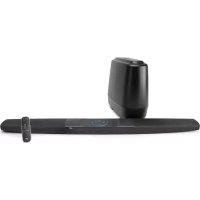
Command Bar - Soundbar POLK - Free user manual and instructions
Find the device manual for free Command Bar POLK in PDF.



| Brand | Polk |
| Model | Command Bar |
| Product Type | Soundbar with wireless subwoofer |
| Voice Assistant | Built-in Amazon Alexa |
| Connectivity | HDMI ARC, HDMI input, optical, Bluetooth |
| Sound Modes | Movie, Music, Sports, Night |
| Audio Technology | Polk VoiceAdjust (dialogue enhancement) |
| Music Streaming | Spotify Connect |
| Subwoofer | Wireless, max range 10 m |
| Soundbar Power | AC mains (adapter included) |
| Subwoofer Power | AC mains (cord included) |
| Remote Control | Infrared, with AAA batteries included |
| Control | Compatible TV remote (CEC, preloaded codes, IR learning) |
| Included Cables | HDMI 2 m, optical 1.8 m |
| Included Batteries | 2 AAA batteries |
| Customer Service | +33 141383238, polk-eu@mailmw.custhelp.com |
| TV Compatibility | Popular brands (Samsung, LG, Sony, Vizio) |
| LED Indicators | Front LED (colors based on status) |
| Wall Mounting | Possible (template included) |
Frequently Asked Questions - Command Bar POLK
User questions about Command Bar POLK
0 question about this device. Answer the ones you know or ask your own.
Ask a new question about this device
Download the instructions for your Soundbar in PDF format for free! Find your manual Command Bar - POLK and take your electronic device back in hand. On this page are published all the documents necessary for the use of your device. Command Bar by POLK.
USER MANUAL Command Bar POLK
The Sound Bar with Amazon Alexa Built-in
Quick Start Guide
Thank you for your Polk purchase. If you have a question or comment, please feel free to call or email us.
Headquarters
Polk Audio
1 Viper Way, Vista, CA 92081
U.S.A.
Technical Assistance
In North America, call Polk Customer Service at 800-377-POLK(7655) (M-F, 9 a.m.-5:30 p.m. EST) Outside the US, call +1-410-358-3600 Email polkcs@polkaudio.com
In the United Kingdom or Ireland , call Polk Customer Service at +44 202890279830
Dutch-speaking customers, call +31 402507800
In all other countries, please refer to polk-eu@mailmw.custhelp.com for support contact details.
The complete owner's manual can be found online at www.polkaudio.com/products/command-sound-bar
What's in the Box

Sound bar
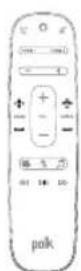
Remote control

2 (AAA) batteries

6.5' (2m) high-speed HDMI cable

6' (1.8m) Optical cable
Sound bar power cord

Sound bar power supply
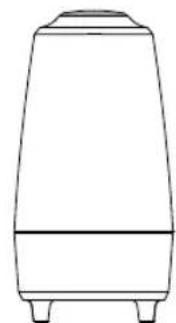
Subwoofer
Subwoofer power cord

Product Literature
Connecting Your TV
1.
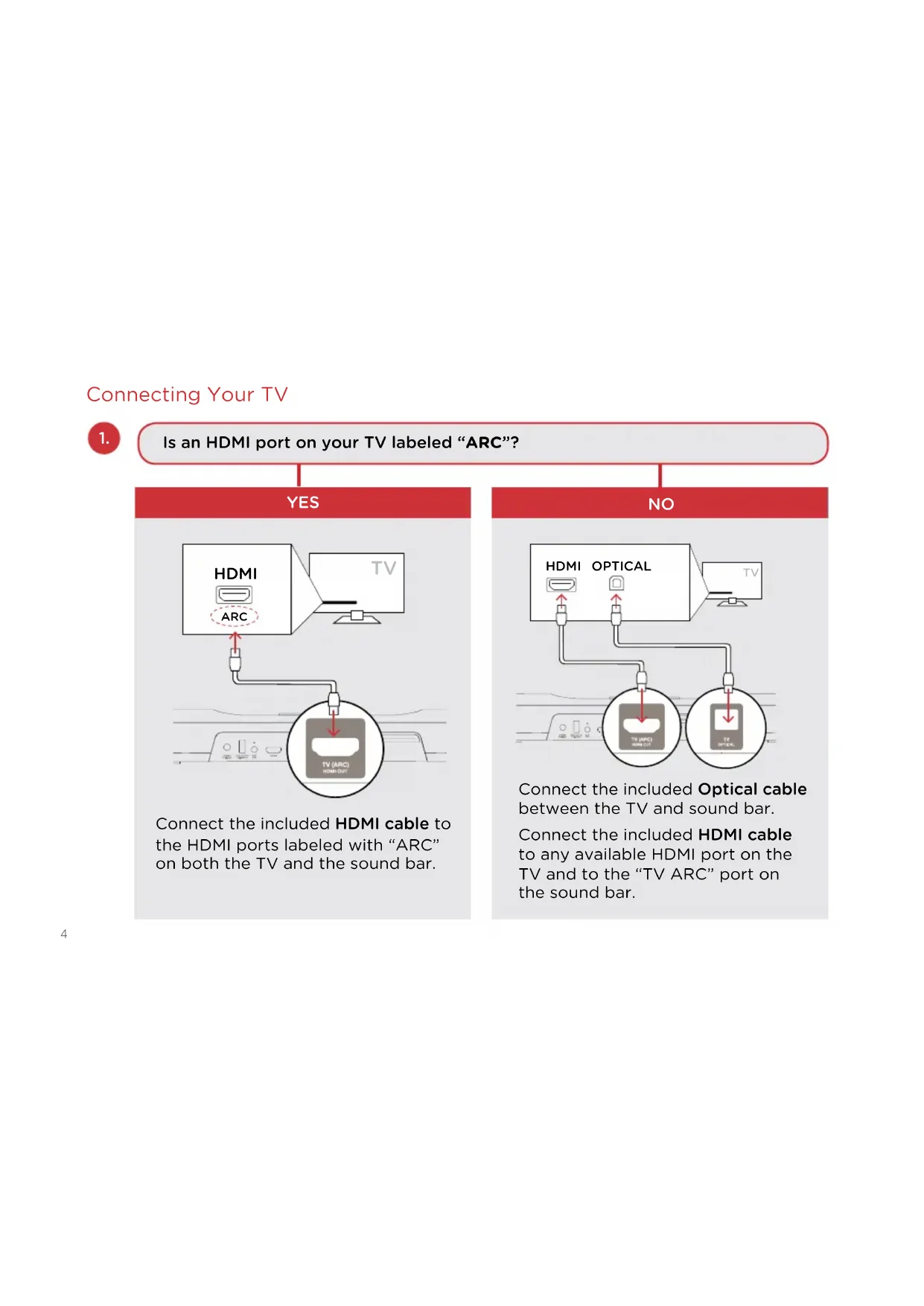
Is an HDMI port on your TV labeled "ARC"?
YES
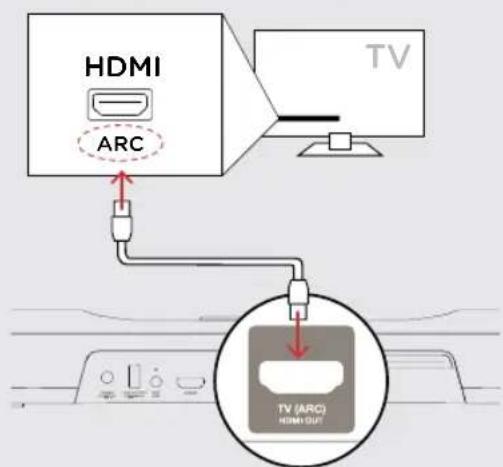
Connect the included HDMI cable to the HDMI ports labeled with "ARC" on both the TV and the sound bar.
NO
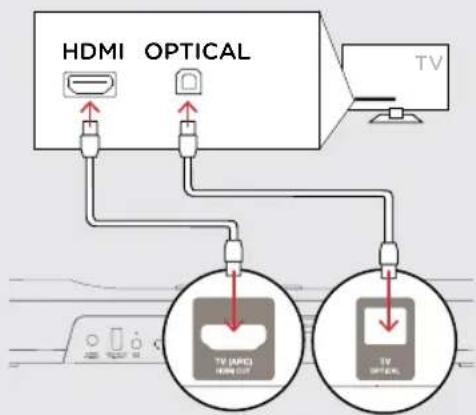
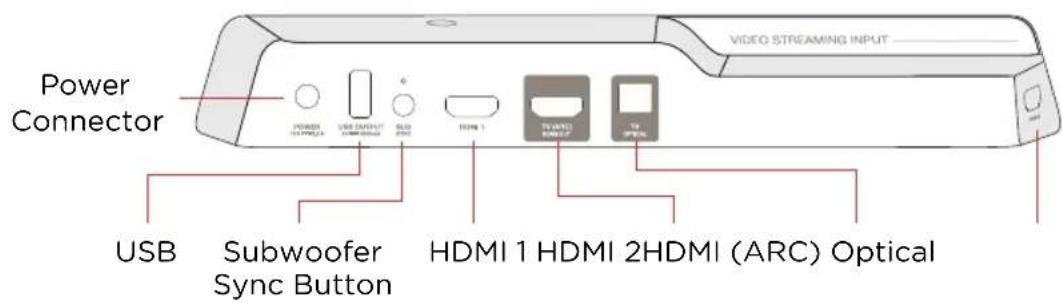
Connect the included Optical cable between the TV and sound bar.
Connect the included HDMI cable to any available HDMI port on the TV and to the "TV ARC" port on the sound bar.

Position the sound bar
For the best listening experience, position the sound bar centered under your TV.
Note: For wall-mounting instructions, please refer to the included wall-mounting template.
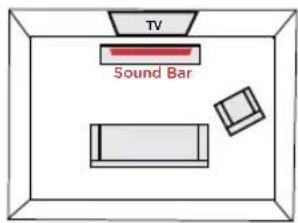

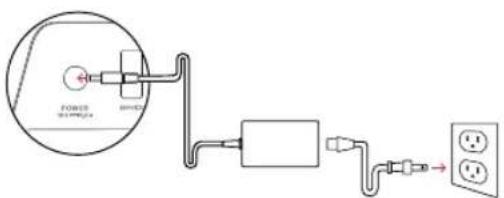
Connect the sound bar to an AC outlet
During startup, you will see a blinking orange light on the front of the sound bar and the Alexa light ring will spin.

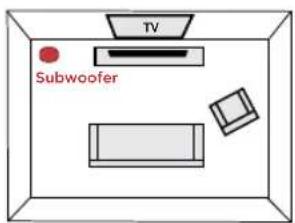
Position the subwoofer
For best performance, place the subwoofer on the same wall as the TV, no more than 30ft (10m) from the sound bar.

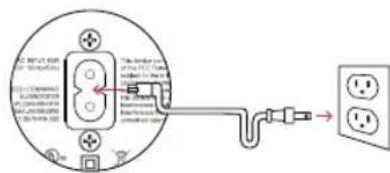
Connect the subwoofer to an AC outlet
A solid green light will be visible on the back of the subwoofer to indicate that it is paired to the sound bar.

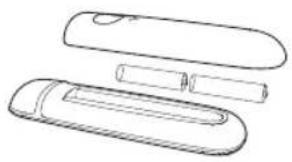
Install remote control batteries
Insert the provided AAA batteries.

Verify your connections
Turn on your TV to verify that you are seeing video on the TV and hearing sound from the sound bar. You may have to select the appropriate HDMI source on your TV.
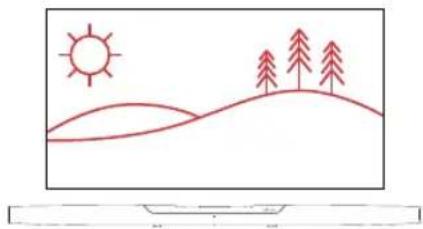
Note: If you are hearing sound from both your TV and your sound bar, you must manually turn off your TV speakers using the Settings Menu on your TV. Please refer to your TV's owner's manual for instructions.
Using Your TV Remote to Control the Volume
The Command Bar comes pre-configured to respond to volume and mute commands from the most popular TV remotes including: Samsung, LG, Sony, Vizio and other major brands.*
*All other trademarks, product names, logos and brands referenced herein are the property of their respective owners.
NOTE: If the Command Bar remote does not work with your TV, follow the instructions on page 15 to get the Command Bar to learn your TV remote control commands.
Download the Polk Connect App from the App Store

Use the Polk Connect app to connect the Polk Command sound bar to your network and enable Amazon Alexa voice services. You'll need your Wi-Fi password.



Talking to Your Polk Command Sound Bar
Once connected to your network, use the Polk Command Bar to ask Alexa to perform many useful tasks. To get the attention of your Polk Command Bar, simply say "Alexa." You can ask Alexa for sports updates, weather reports, cooking questions and more.
You can also ask Alexa to control your sound bar — switch inputs, change sound modes, adjust the bass and customize Voice Adjust® center channel levels.
Listening to Music via Bluetooth®
- To pair your device via Bluetooth, press the Bluetooth button on the remote or say, "Alexa, pair my phone."

- To connect your device to the Command Bar, go to the Bluetooth settings section in your phone, tablet or computer and select "Polk Command Bar." The light will turn solid blue when your Bluetooth device is connected.
Remote Control
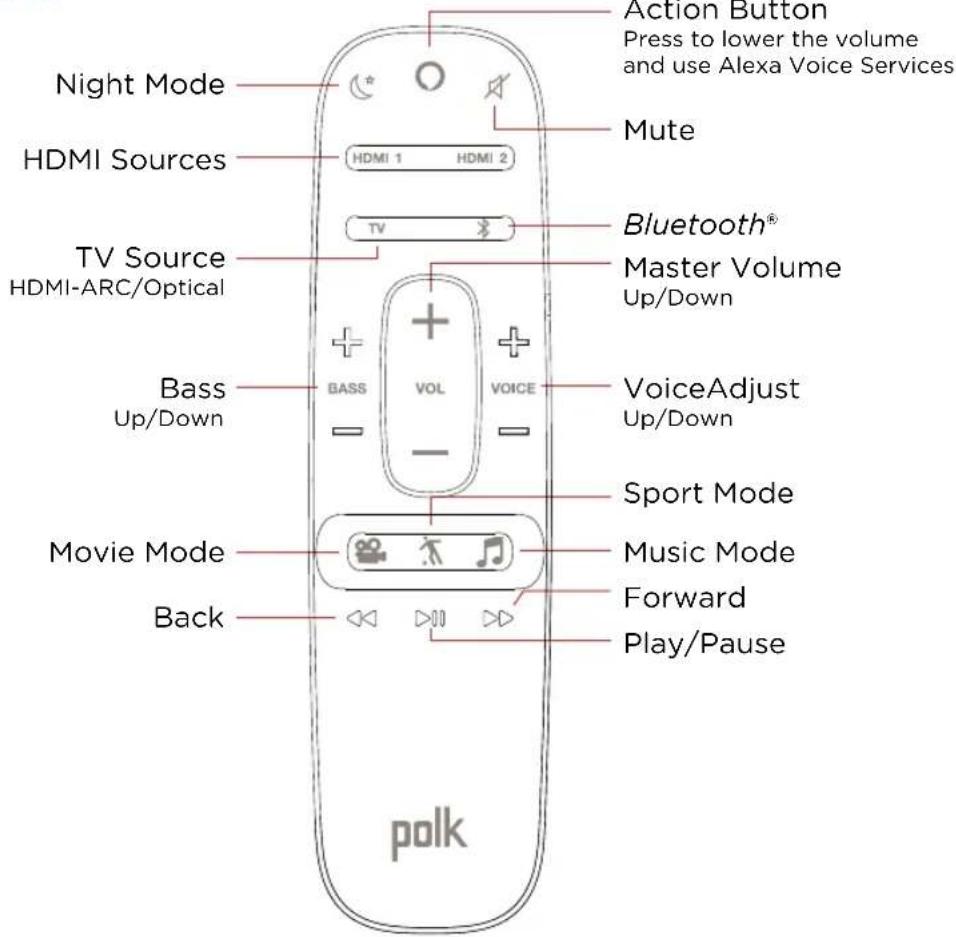
Sound Modes

Movie Mode
Acoustically optimized for both movie and TV content. It also provides a bass boost, increased spatialization and enhances Voice Adjust levels for improved dialogue clarity. It is the default sound mode for HDMI and Optical input sources.

Music Mode
Music Mode gives you balanced sound and smoother bass while minimizing spatialization effects to ensure more natural sound reproduction.

Sport Mode
Enhances dialogue-rich content, like sporting events, news casts and talk shows. Uses Voice Adjust to boost dialogue clarity and optimizes the subwoofer volume levels.

Night Mode
Reduces bass and volume dynamics while improving voice intelligibility for low-volume listening.
Optimizing Your Listening Experience

Adjusting the Bass
Easily adjust low-frequency volume for more or less impact.

Adjusting the Dialogue or Center Channel
Use the Polk Voice Adjust feature to adjust dialogue levels to improve clarity when watching TV shows, movies and sports.


About Built-in Polk VoiceAdjust® Technology
The Command Bar features customizable voice levels in the sound bar, letting you tailor your listening experience however you prefer to reproduce clear, crisp dialogue and never miss a single word of your favorite movie, TV show or sporting event.
Sound Bar Top Panel
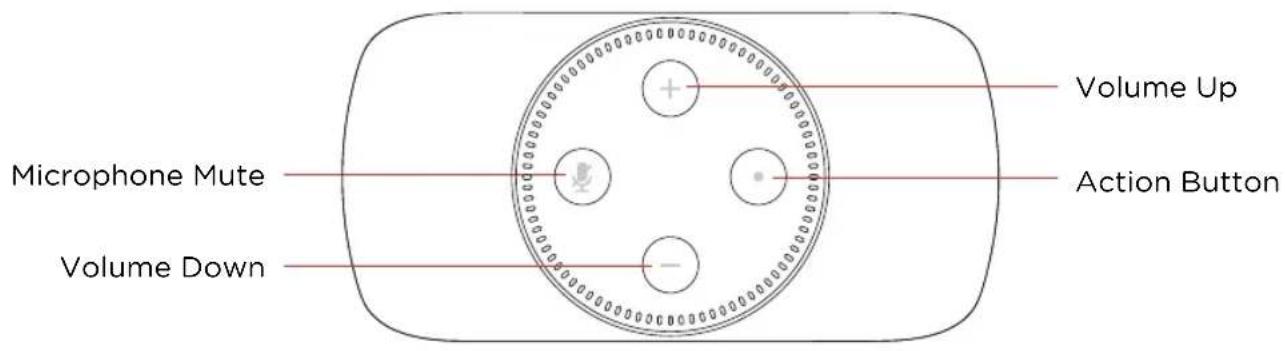
Sound Bar Back Panel
Visual Indicators
The front of the sound bar contains a single light that changes color and flashes to provide status information about the sound bar, like audio decoder modes and sound bar power status.
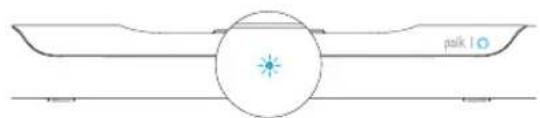
Front of Bar

Back of Bar
SUBWOOFERSYNCLIGHT

STEREO (PCM)

DOLBY CONTENT

DTSCONTENT

C NIGHT MODE

BLUETOOTH

SINGLE FLASH
SOURCE SELECTION
HDMI 1, HDMI 2, TV ARC, TV OPTICAL

SINGLE FLASH
SOUND MODES

OFF
NOT CONNECTED

SOLID
CONNECTED

FLASHING
PAIRING MODE
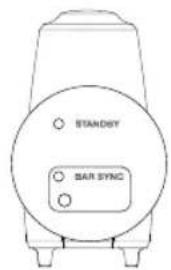

Back of Subwoofer
OFF
NOT CONNECTED

ON
STANDBY MODE
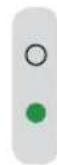
ON
CONNECTED

FLASHING
PAIRING MODE
Using Your TV or Cable/Satellite Remote to Control the Command Bar
There are several ways to use your TV, cable or satellite remote to control the Command Bar.
HDMI CEC CONTROL
If your TV is connected via HDMI and your TV supports CEC (and it is enabled in the TV settings menu), you can control the volume and mute functions on the Command Bar from your TV without any further setup.
PRELOADED IR CODES
If your TV is connected via Optical or your TV is connected via HDMI but your TV does not support CEC, you may be able control the volume and mute functions on the Command Bar from your TV without any further setup if your TV is one of the supported brands and was manufactured within the last 5 years. Visit the Polk website for details.
IR LEARNING FUNCTION
If your TV is connected via Optical and it is not one of the more popular brands, you can teach your IR (infrared) remote to control volume, mute and other functions (such as source selection or bass volume) on your Command Bar.
Using the IR Learning Function
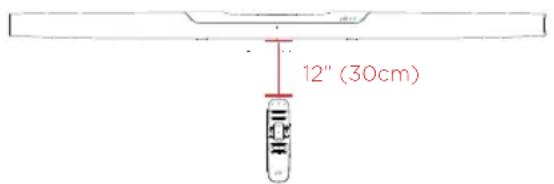
IMPORTANT: Hold both remotes about 12 (30cm) directly in front of the Command Bar when pressing their respective buttons. Make sure your remotes have fresh batteries.
Entering IR Learn Mode
Make sure your sound bar is powered on, then press and hold the mic mute button on the sound bar for about 3 seconds. Release the button when you hear "Entering IR learn mode." You should now see a slow blinking white light on the front of the sound bar.
STEP 1: Select a button on your Command Bar remote
Press and release the button on the Command Bar remote that you want to learn (ex: Volume Up).
STEP 2: Select a button on your TV remote
Very slowly tap the corresponding button on your TV remote until you hear "IR Command learned."
STEP 3: Learn another code
Continue learning additional functions by repeating steps 1-3.
Exiting IR Learn Mode
Press and hold the mic mute button on the sound bar again for about 3 seconds.
NOTE: The sound bar will automatically exit IR learn mode if it has not received any IR commands for 60 seconds. All learned IR commands will automatically be saved.
CLEARING ALL LEARNED IR CODES
Press and hold the mic mute button on the sound bar for about 10 seconds.
Troubleshooting
I Don't Hear Sound From My Subwoofer
1) Verify that the subwoofer is plugged into a power source.
2) Check the green light on the back of the subwoofer.
- If it is solid green, turn up the Bass using the remote control.
- If it is flashing green, you need to sync the subwoofer to the sound bar using the instructions below. If both lights are off, you need to connect the subwoofer to a power source.
Syncing the Subwoofer to the Sound Bar
1) Verify that the sound bar and subwoofer are plugged into a power source.
2) On the back of the sound bar, press and hold the SYNC button until you hear "Entering subwoofer pairing mode," then release the button. The SUB light above the SYNC button will flash green.
3) On the back of the SUBWOOFER, press and hold the SYNC button until you hear "Subwoofer paired," (about 10 seconds) and the light on the back of the subwoofer turns solid green.
Listen out loud with Spotify Connect
- Connect your Polk Command Bar to your wifi network.
- Open up the Spotify app on your phone, tablet or laptop using the same wifi network.
- Play a song and select Devices Available.
- Select your Polk Command Bar and start listening.
The Spotify software is subject to third party licenses found here: www.spotify.com/connect/third-party-licenses

Assistance technique
ON (MARCHE) CONNECTE

FLASHING MODE COUPLAGE


PASO 3:klepler othero cuestiono
Polk Audio is a DEI Holdings, Inc. Company. Polk Audio and Polk, are registered trademarks of Polk Audio, LLC. All other trademarks, product names, logos, and brands referenced herein are the property of their respective owners.
Amazon, Alexa, Fire, Audible, and all related logos and motion marks are trademarks of Amazon.com, Inc. or its affiliates.

dt
Digital surround
For DTS patents, see http://patents.dts.com. Manufactured under license from DTS, Inc. DTS, the Symbol, DTS and the Symbol together, and Digital Surround are registered trademarks and/or trademarks of DTS, Inc. in the United States and/or other countries. ©DTS, Inc. All Rights Reserved.


- Headquarters
- Technical Assistance
- What's in the Box
- Connecting Your TV
- 1.
- Position the sound bar
- Connect the sound bar to an AC outlet
- Position the subwoofer
- Connect the subwoofer to an AC outlet
- Install remote control batteries
- Verify your connections
- Using Your TV Remote to Control the Volume
- Download the Polk Connect App from the App Store
- Talking to Your Polk Command Sound Bar
- Listening to Music via Bluetooth®
- Remote Control
- Sound Modes
- Movie Mode
- Music Mode
- Sport Mode
- Night Mode
- Optimizing Your Listening Experience
- Adjusting the Bass
- Adjusting the Dialogue or Center Channel
- About Built-in Polk VoiceAdjust® Technology
- Sound Bar Top Panel
- Sound Bar Back Panel
- Visual Indicators
- Back of Bar
- Using Your TV or Cable/Satellite Remote to Control the Command Bar
- HDMI CEC CONTROL
- PRELOADED IR CODES
- IR LEARNING FUNCTION
- Using the IR Learning Function
- Entering IR Learn Mode
- STEP 1: Select a button on your Command Bar remote
- STEP 2: Select a button on your TV remote
- STEP 3: Learn another code
- Exiting IR Learn Mode
- CLEARING ALL LEARNED IR CODES
- Troubleshooting
- I Don't Hear Sound From My Subwoofer
- Syncing the Subwoofer to the Sound Bar
- Listen out loud with Spotify Connect
- Assistance technique
- PASO 3:klepler othero cuestiono
Brand : POLK
Model : Command Bar
Category : Soundbar